

 AdonisJS
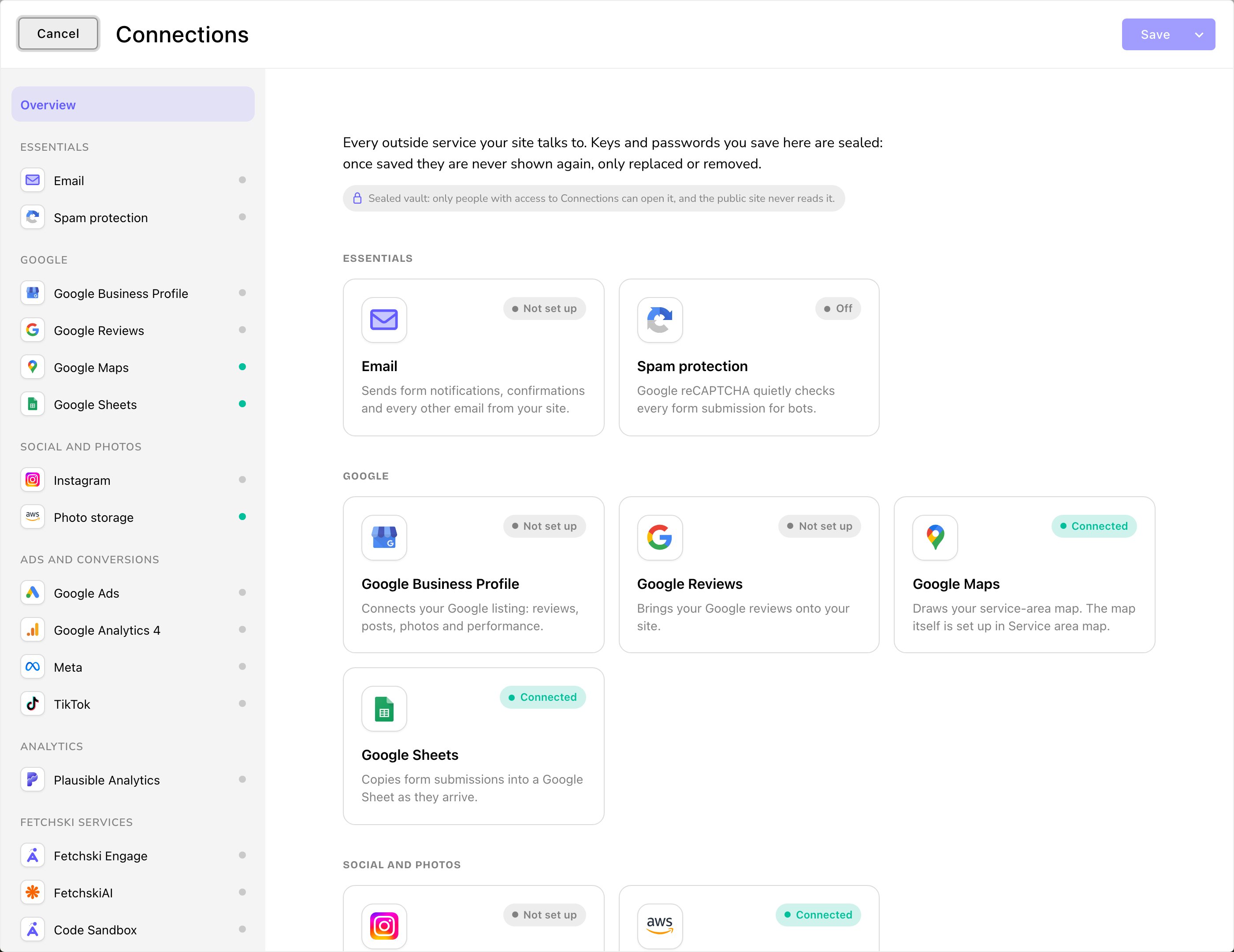
Connections: one card per outside service, each with its own badge.
Open Connections
- In the toolbar (the bar across the top of your site once you’re signed in; see The toolbar), choose Connections.
- Or open the command palette (⌘K, or Ctrl+K on Windows) and choose Connections. The shortcut is T then E (press T, let go, then press E, while you’re not typing in a box; see Keyboard shortcuts).
Every card in Connections
Email notifications
the Email card. Send form notifications and every other email from your site.
Spam protection
the Spam protection card. Check form submissions for bots with Google reCAPTCHA.
Google Business Profile
connect your Google listing, then manage it in the Google Business Dashboard.
Google Reviews
bring your Google reviews onto your site on a schedule.
Google Maps
the key that draws your service area map.
Google Sheets
copy form submissions into a Google Sheet.
show your latest Instagram posts on your site.
Photo storage
link the cloud storage your photo feeds read from.
Conversion tracking
the Google Ads, Google Analytics 4, Meta and TikTok cards.
Analytics
the Plausible Analytics card, for the Analytics Dashboard.
How a card works
Choose a card to open it. At the top you see the service’s name, what it does for your site and its badge. Below that are its settings, often with a Setup guide that walks you through the steps on the service’s own website. To go back, choose All connections.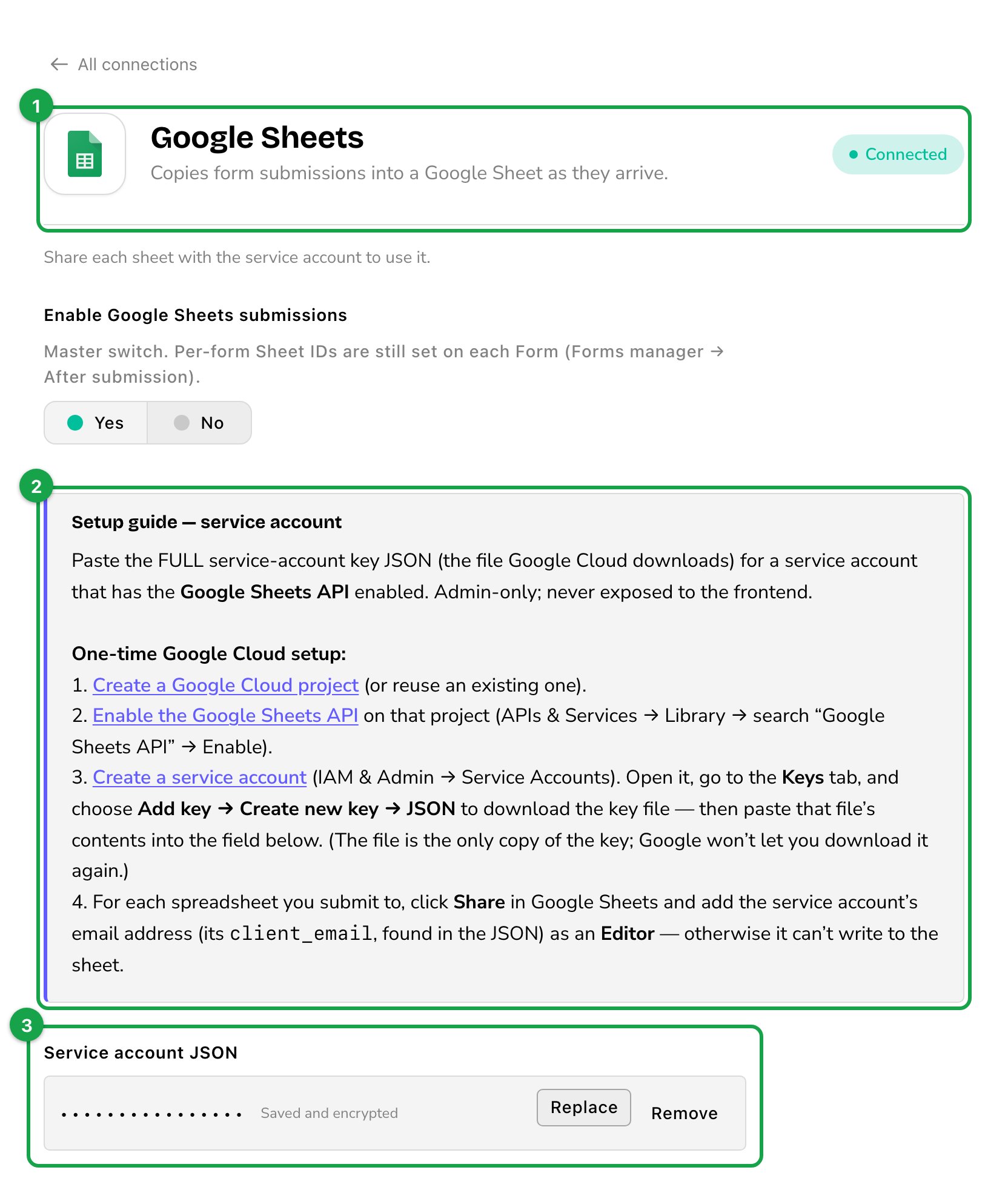
An open card: what it does, its status, a setup guide and its settings.
The badges
Each badge describes what’s saved, not what you’re typing. It changes after you choose Save.
To be sure a connection works, check the result on the service itself, or on your site: the guide for each card says how.
While you have unsaved changes on a card, it shows Unsaved changes. If a card has a mistake that stops you saving, its badge reads Fix errors.
Advanced options
Settings most sites never change fold away under Advanced options, at the bottom of a card. Choose it to open them. Some advanced settings only appear once a switch above them is on.Saved keys and passwords
Keys, tokens and passwords are sealed when you save. After that, the field shows dots and Saved and encrypted. Nobody can read the value again, so keep your own copy somewhere safe if you need it.- Replace: type or paste a new value. The box shows “Enter a new value to replace the saved one”. Changed your mind? Choose Cancel.
- Remove: clears the value when you save. The field says “The saved value will be removed when you save.” Choose Undo to keep it.
- An empty field shows “Paste the value”, with the note “Encrypted when you save. It can’t be viewed again afterwards.”
- A value the CMS fills in for you, such as a token from signing in with Google, shows Saved and encrypted (set automatically), or “Not set yet.” before then.
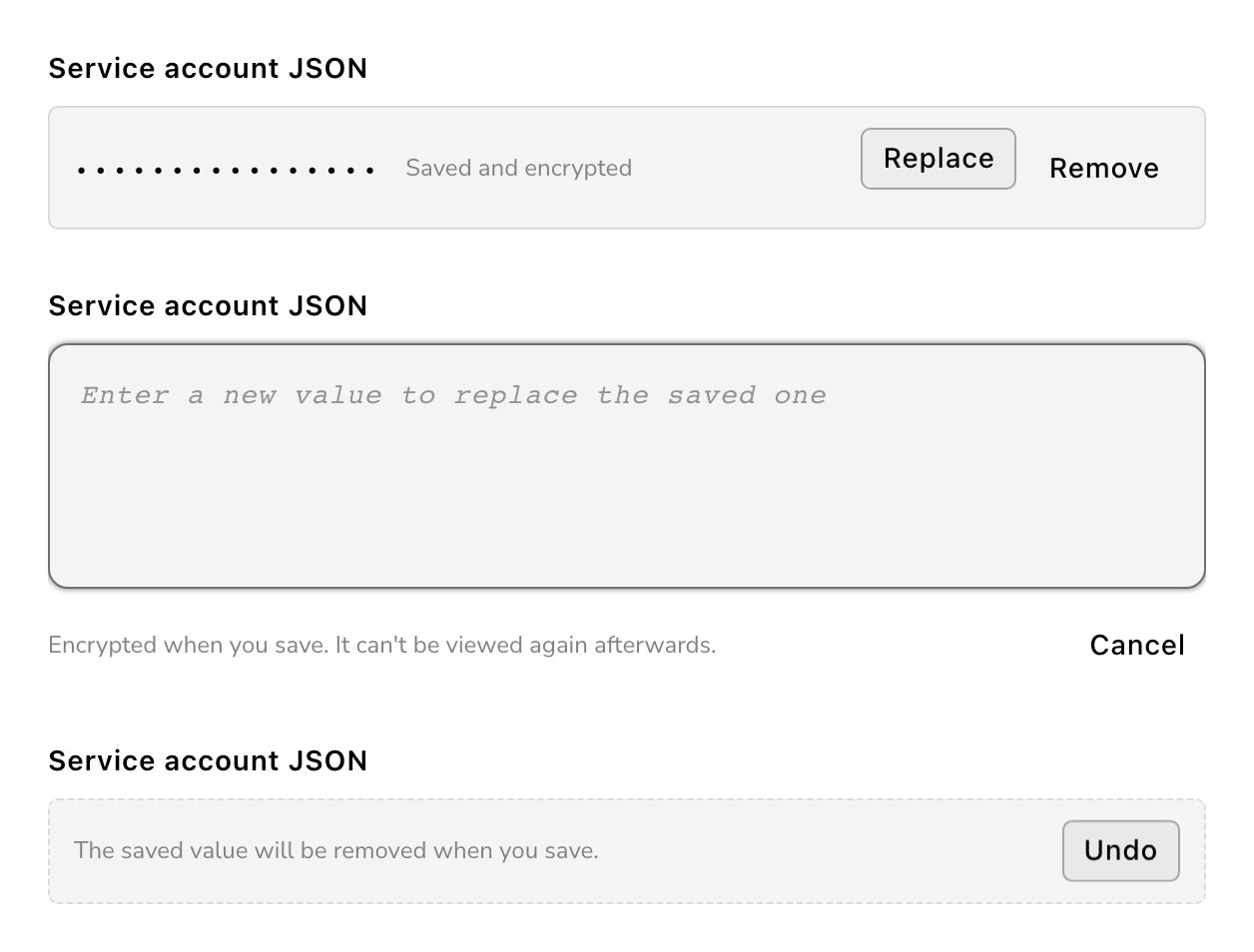
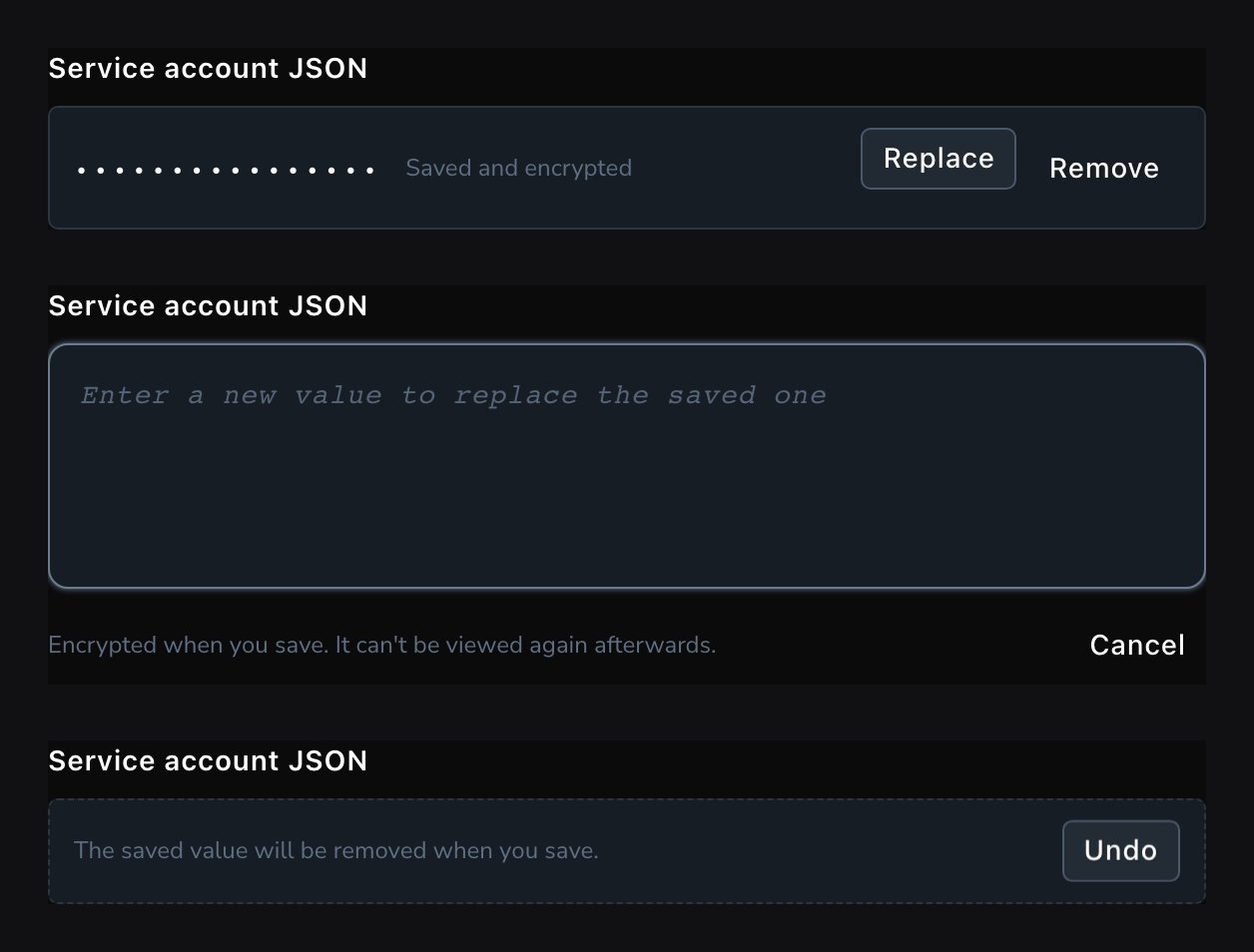
A saved key: replace it or remove it, but never read it back.
Save your changes
Choose Save at the top right. Everything you changed, on every card, is saved together. Most changes work right away. To leave without saving, choose Cancel.Fetchski services
These cards link your site to other Fetchski products. FetchskiAI: the account behind every FetchskiAI feature. Fetchski sets it up, so the card reads Managed by Fetchski and never shows the key. Its FetchskiAI budget shows how much of your site’s AI spending limit is used. Choose Read again to refresh it. If FetchskiAI isn’t set up yet, the card says so: contact Fetchski Support. If Fetchski lets your Owners manage the key, Owners also see a FetchskiAI key field here, sealed like any other key. Code Sandbox: where FetchskiAI can run small programs safely. Fetchski sets it up and manages it, and the card says Managed by Fetchski. If it isn’t set up, the card asks you to contact Fetchski Support. See Code Sandbox. GitHub: optional, and most sites never need it. FetchskiAI can install Skills (ready-made instructions) from GitHub, which allows only so many downloads an hour. Add a GitHub token for installing Skills (optional) only if installing a Skill says GitHub’s hourly limit is used up. To make the token, sign in to GitHub and open Settings → Developer settings → Personal access tokens → Fine-grained tokens → Generate new token. Give it a name, choose Public repositories for its access, add no permissions, and generate it. Copy the token, paste it into the field, and choose Save. The GitHub card waits until FetchskiAI is on: it says “Turn on FetchskiAI in FetchskiAI settings before setting this up.” and offers Open FetchskiAI settings. Fetchski Engage: only if your business uses Fetchski Engage. Linking takes two steps:- Paste the web address you open Fetchski Engage at (such as
https://engage.example.com) into Fetchski Engage address, and choose Save. The badge reads Linked, and your Privacy Policy gains a short section about Fetchski Engage. - Create an API key for Engage, so it can read your site’s visit and conversion data. See API keys and webhooks. If you’re not sure where Engage takes that key, contact Fetchski Support.
Related screens
Three smaller screens hold settings that need no outside account. You open them from the command palette, or from More connections at the bottom of the list on the left of Connections. Moving between them keeps your unsaved changes, and Save saves them all.Visitor data
Request log and Conversions, what your site records about visits (T then Shift+V). Conversions are covered in Conversion tracking.
FetchskiAI settings
turn AI on and set site-wide instructions (T then Shift+I).
Service area map
where your map’s areas come from, your location and pricing (T then Shift+M).
Where to start
Most sites set up these first, in this order:- Email notifications, so your forms can reach you.
- Google Business Profile and Google Reviews, to show your reviews.
- Instagram, if you post there.
Good to know
- Connections stays private. Only people who can open Connections see it. Visitors only ever get the public keys listed on Integrations (public), never your private keys or passwords.
- Some cards come with a version line. You don’t need it day to day. If Fetchski Support asks which version a card uses, read it from that line.
- Lost a key? Create a new one on the service’s website, then use Replace.
- Who can change what. Admins and Owners can open and save Connections. See What each role can do.
Related
Set up your site
the checklist that walks you through each connection.
Site settings
your business details, SEO and more.
FetchskiAI
the AI built into your site.