

 AdonisJS
Before you start
- Sign in and open the page on your site.
- In the edit bar at the top, choose Edit.
- Not sure if you can publish? If your button says Submit Update (or Submit on a new page) instead of Update or Publish, your changes go to an Editor for review.
Draft and live
Each page has two copies: the draft you edit and the published page visitors see. Everything you change goes into the draft. Nothing reaches visitors until it’s published. To compare the two, use the switch next to the page name in the edit bar. Choose Published to see what visitors see now, and Draft to go back to your changes.

Switch between your draft and the published page.
Publish your changes
Check the draft
Publish
- Press ⌘K (Ctrl+K on Windows) and choose its list under Manage, such as FAQs.
- Choose the item to open its editor.
- Choose Publish (Update if it was live before).
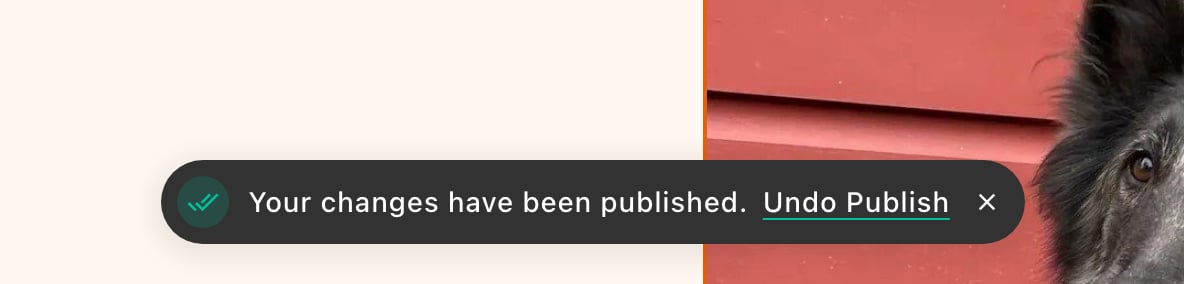

Undo Publish puts the previous version back.
Share a draft before it’s live
Want a colleague or a client to see your changes first? Share a link to the draft. They don’t need to sign in.In the edit bar, choose Share draft
In the Share this page window, turn on Enable draft sharing
Choose Copy draft link and send the link
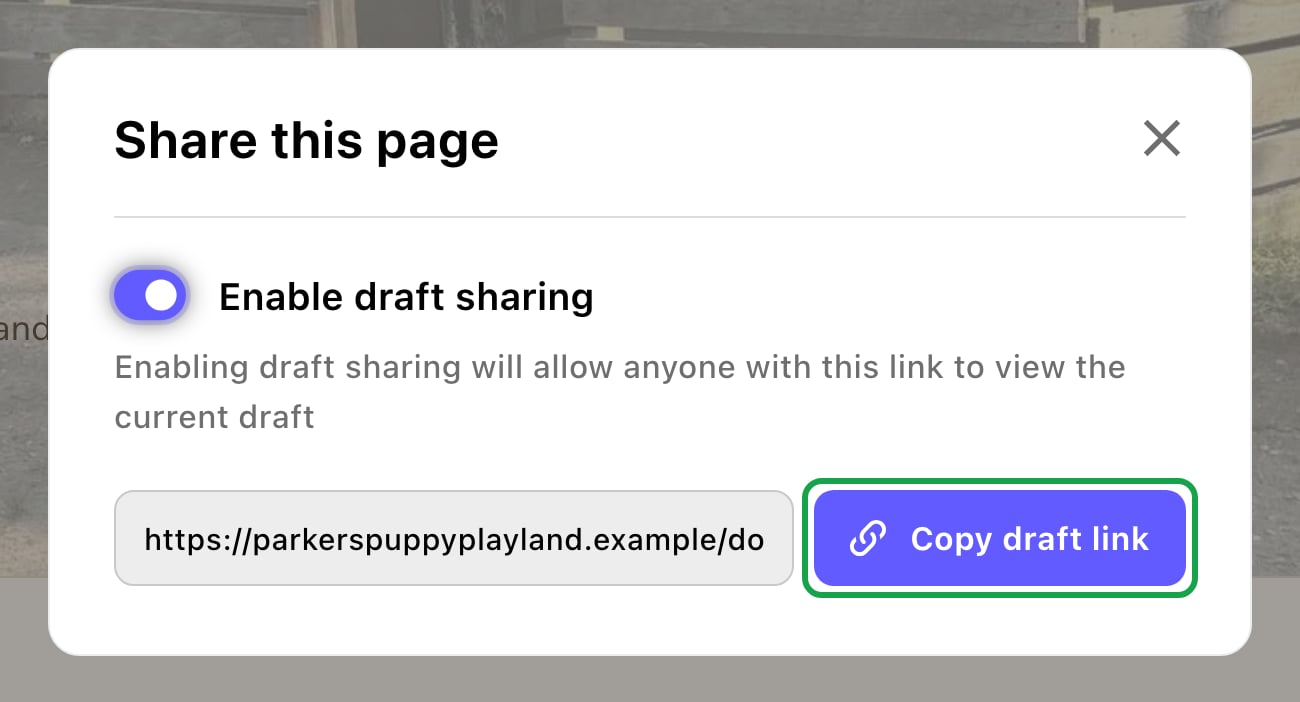
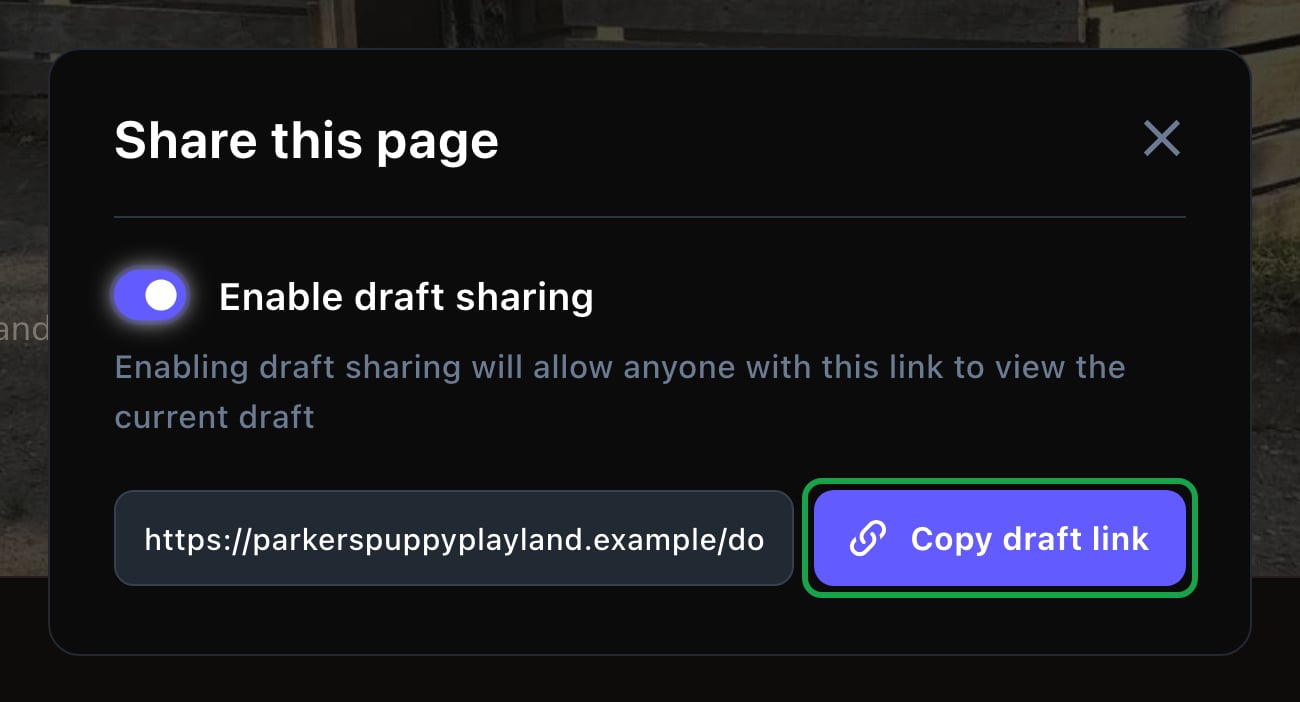
Anyone with the link can see the draft.
Send changes for review (Contributors)
Contributors can change pages but can’t publish them. Instead, they send their draft to an Editor.Make your changes on the page
In the edit bar, choose Submit Update (on a new page, Submit)
Review submitted changes (Editors, Admins and Owners)
Open the command palette (⌘K, or Ctrl+K on Windows) and choose Submitted Drafts
In Manage Submitted Drafts, open a draft to see the changes
If it's ready, choose Update (or Publish)
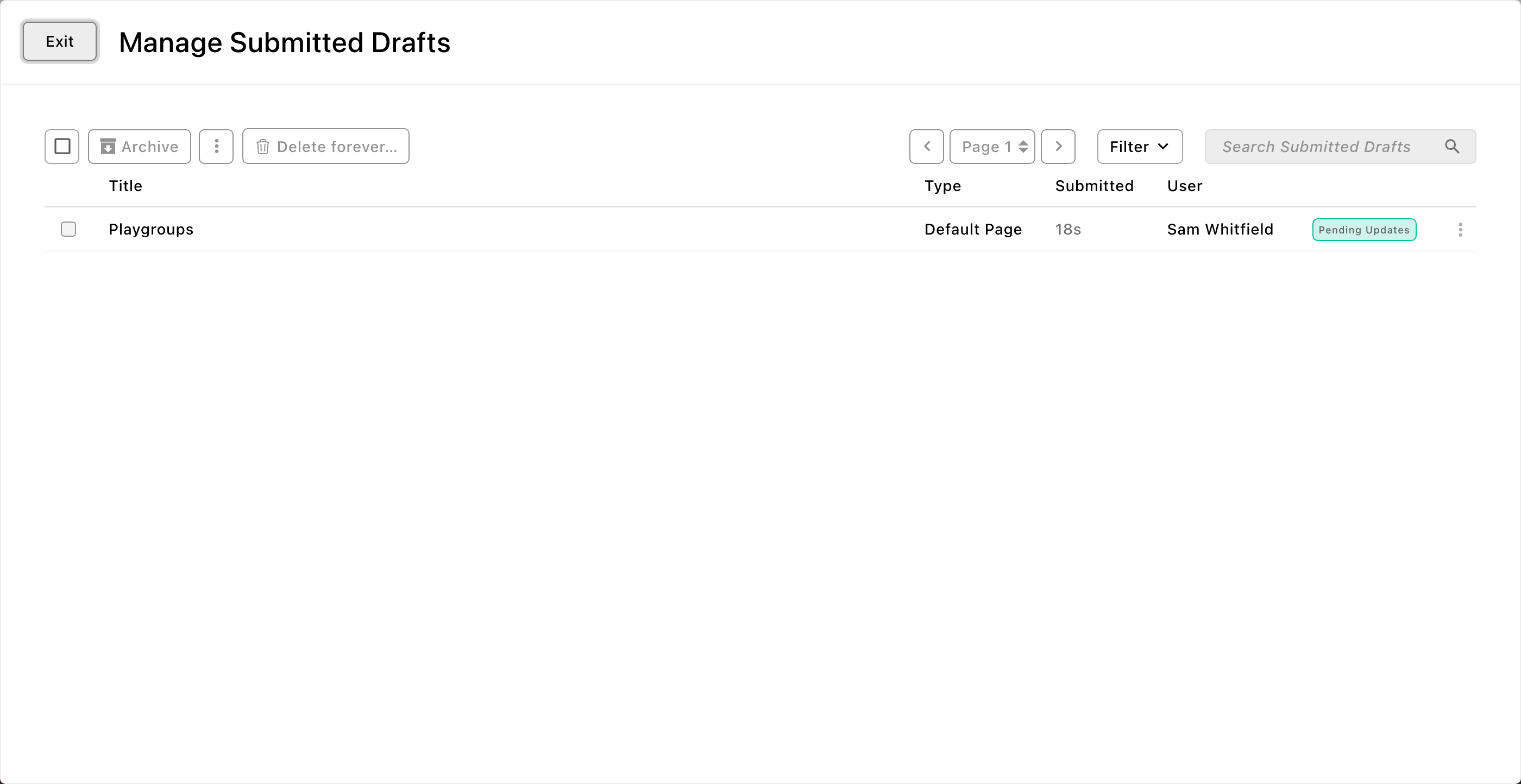
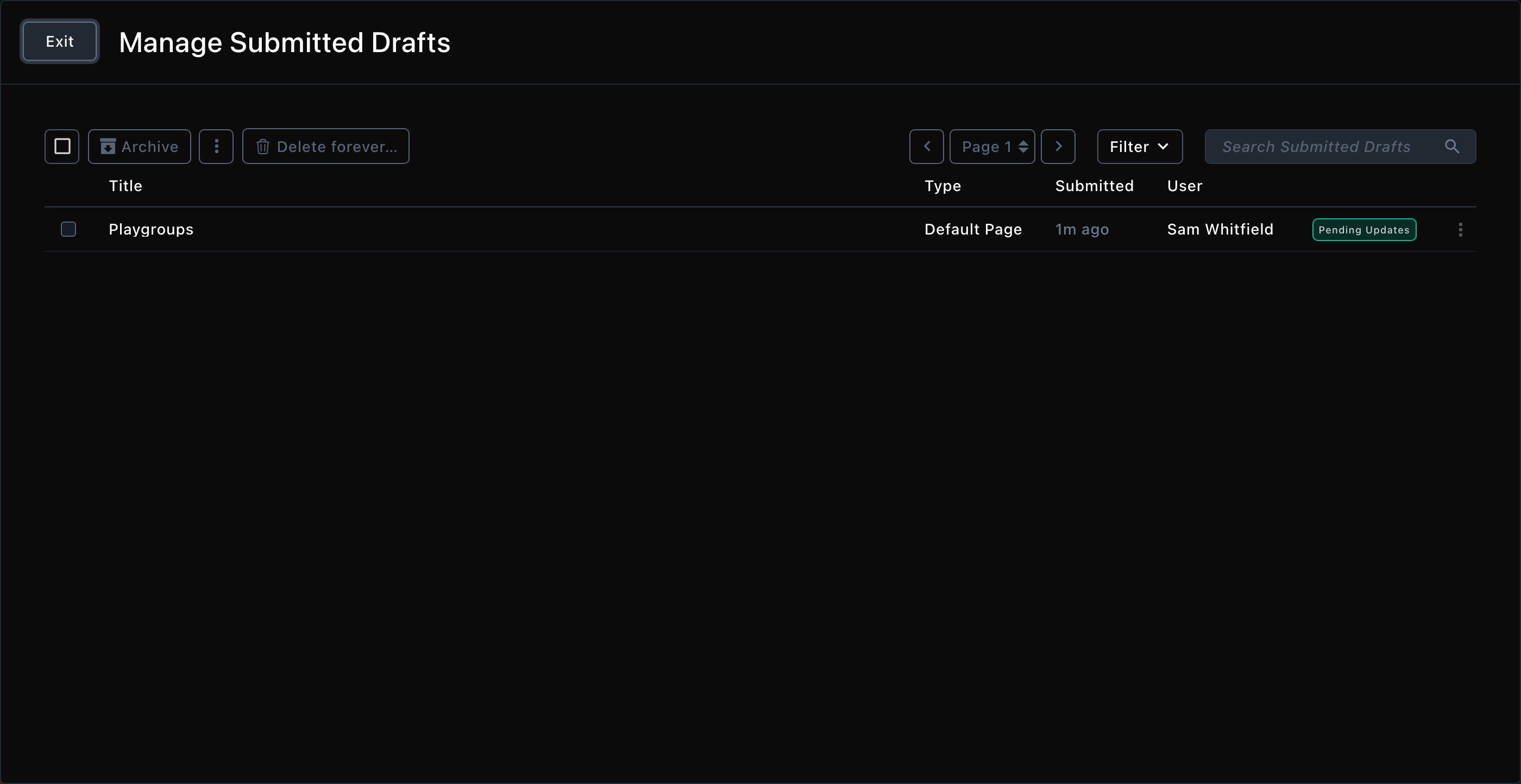
Submitted drafts wait here for an Editor.
Find what changed lately
Open the command palette and choose Recently Edited Documents (T then R). It lists every page and item changed lately, newest first, with Last Editor and Last Edited. Use Filter to narrow it down, for example to your own changes.Schedule a publish or unpublish
Set a date and time, and the CMS puts the page live, or takes it down, for you. It’s ideal for a holiday offer that starts on Friday and ends on Monday.Open the page settings window: in the edit bar, choose More Options (⋯), then Edit
In the right-hand column, turn on Publish this document on
Pick the date, then the time next to at
To take the page down later, turn on Unpublish this document on and pick a date and time
Check the page has exactly one Page Header or Hero at the top
Open More save options (the arrow next to the main button) and choose Save Draft
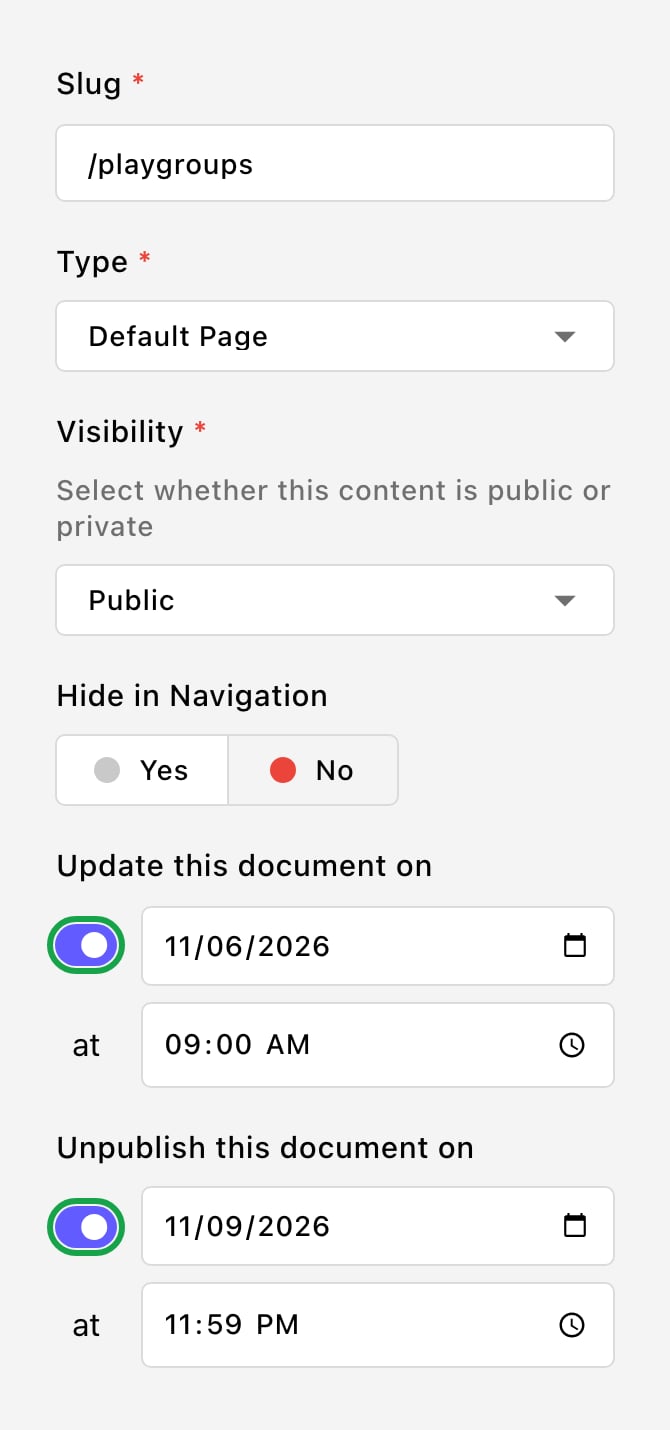
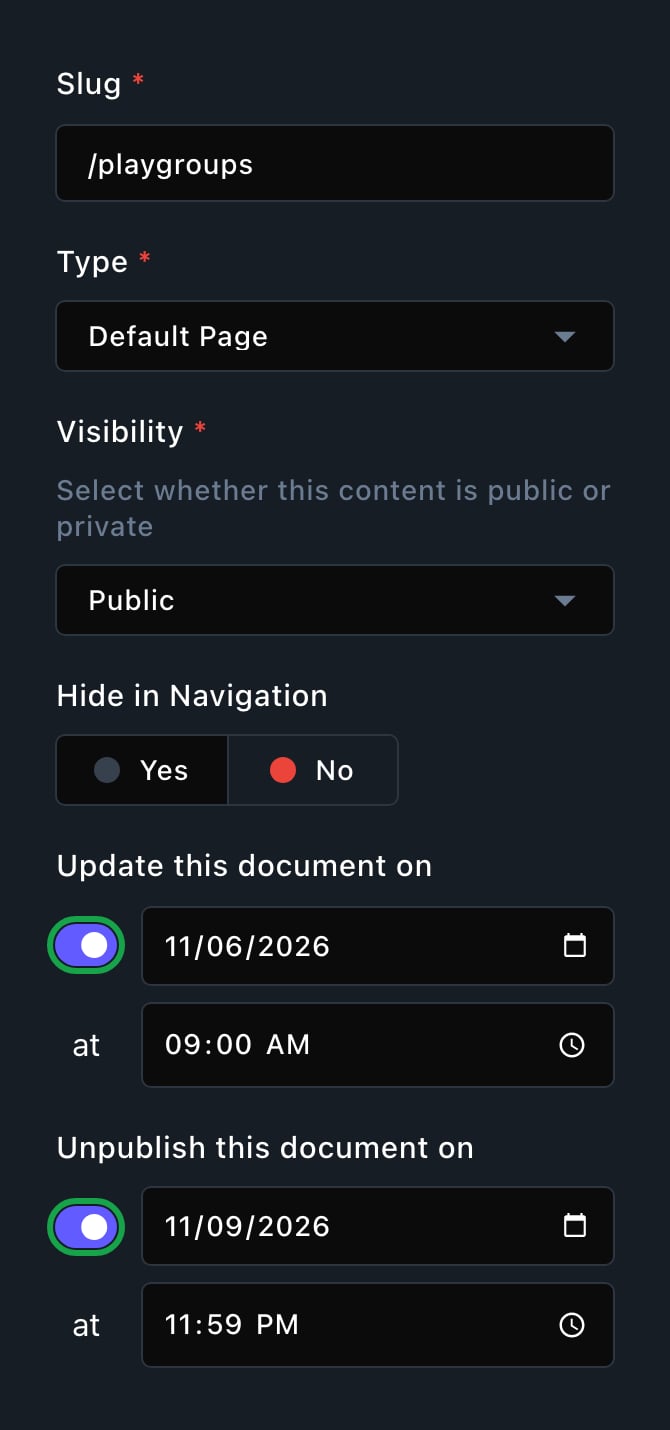
Set when the page goes live and when it comes down.
Change or cancel a schedule
Open the page settings window again. The dates you set show in the right-hand column. Change the date or time, or turn the toggle off to cancel. Then choose Save Draft from More save options.What happens at the time
- The page’s current draft goes live, including any edits you make before then.
- It goes out within about a minute of the time you set.
- The date clears itself once it has run.
- Document Versions shows the change as made by Scheduler.
What happens next
Visitors see the new version as soon as it’s published, by hand or on schedule. Every publish is kept in the page’s history. See Document versions to look back or restore an earlier version.Troubleshooting
I don't see Update or Publish
I don't see Update or Publish
I don't see the scheduling toggles
I don't see the scheduling toggles
This page has no main heading
This page has no main heading
The edit bar shows icons instead of words
The edit bar shows icons instead of words