

 AdonisJS
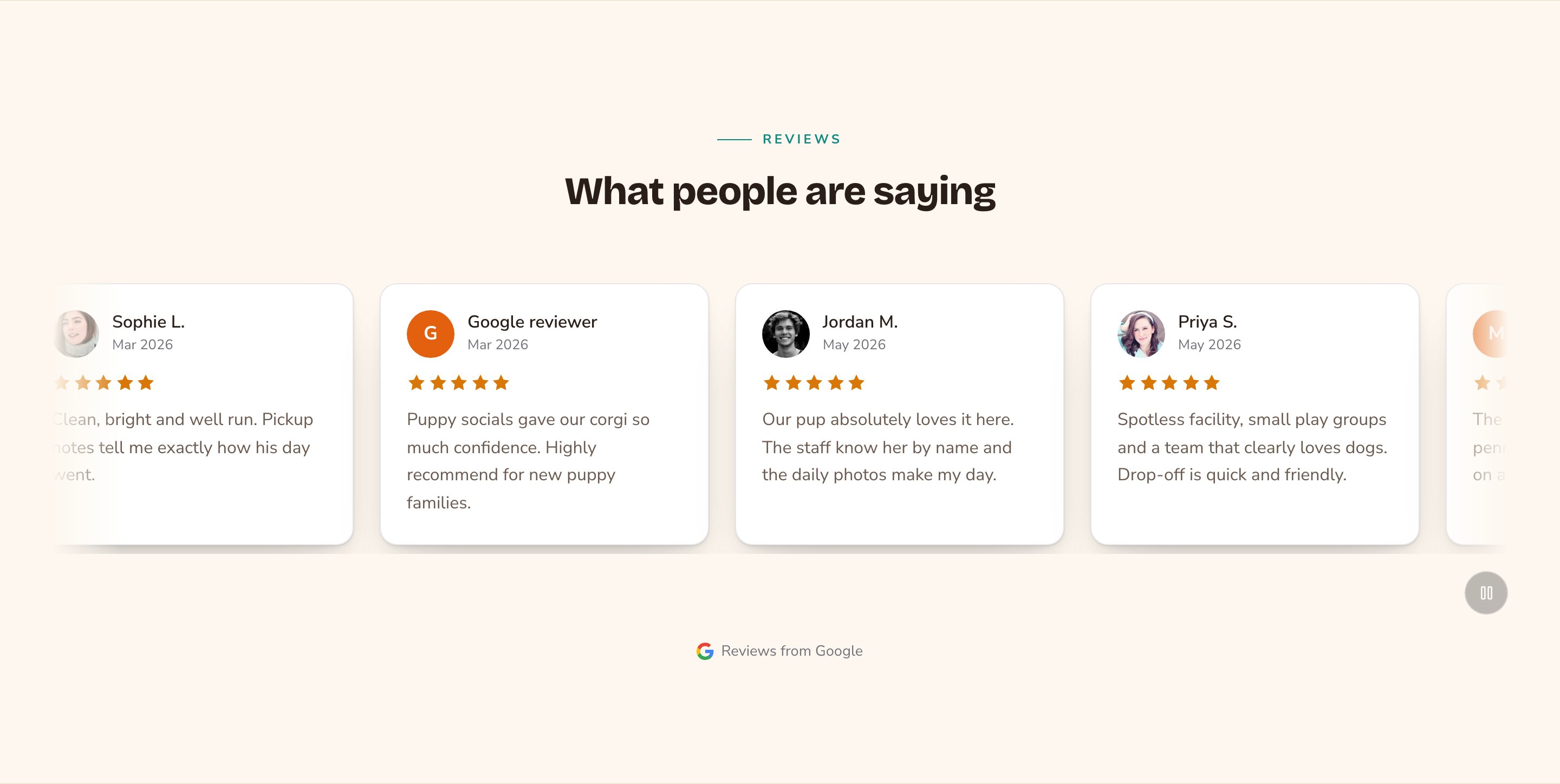
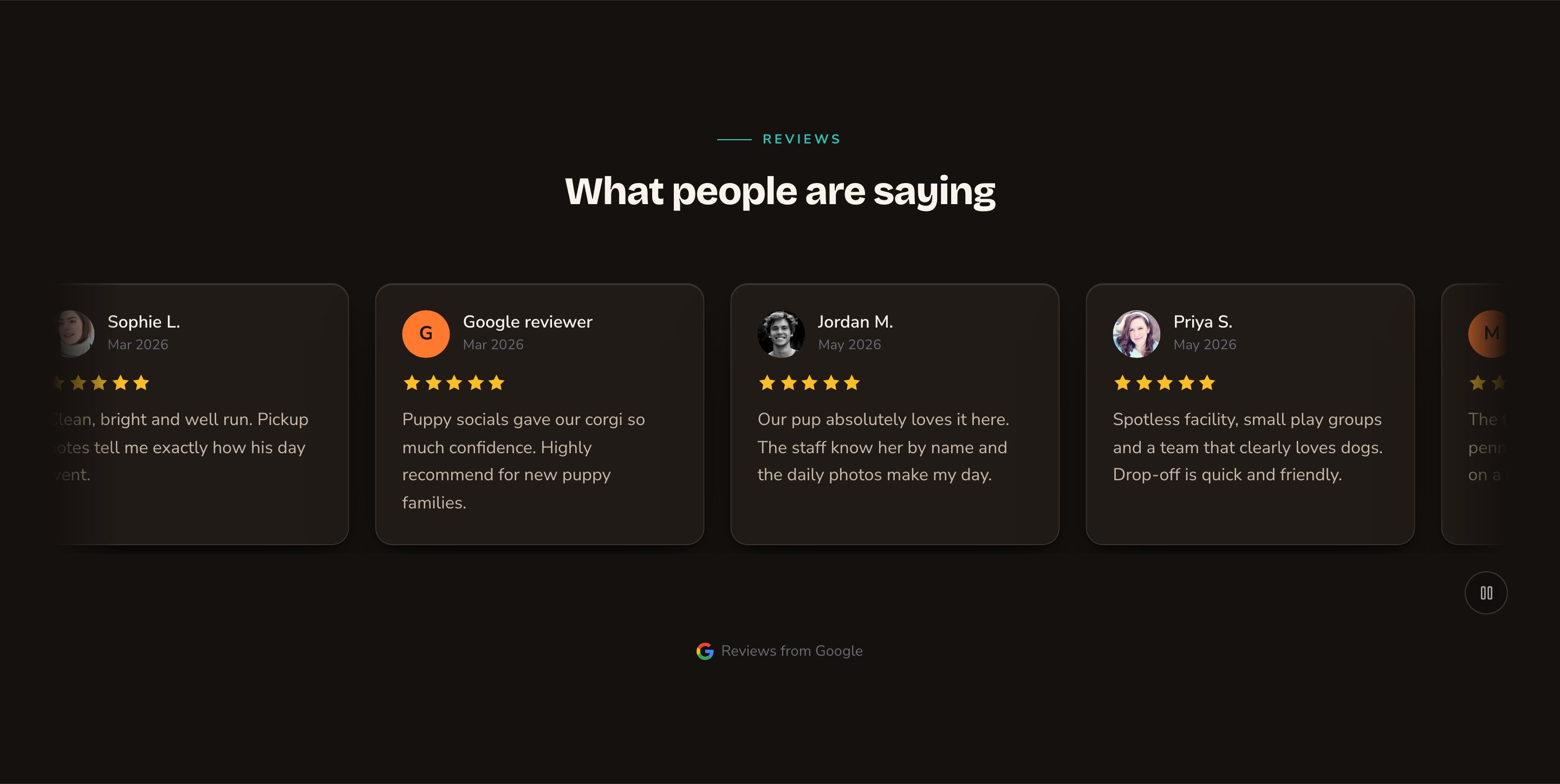
Your Google reviews in a scrolling row, with the Google label.
When to use it
- To show your star rating where visitors decide, such as your home page.
- To back up a booking or contact form with real reviews.
- To build a reviews page with every review you’re proud of.
Where the reviews come from
The section shows the reviews in your Google Reviews manager, newest first. You can type reviews in by hand, or have Attract fetch them from Google on a schedule. An Admin or Owner sets up the fetching once, in Connections → Google Reviews. To open the manager, press ⌘K (Ctrl+K on Windows) and choose Google Reviews under Manage. See Google reviews to manage reviews, and Google Reviews connection to fetch them from Google.Add it to a page
1
Open the page
Sign in, open the page on your site, and choose Edit in the edit bar at the top.
2
Find the spot
Select the section next to where the new one should go. A round + button appears on its top and bottom edges. On an empty page, choose Add Content in the middle.
3
Choose the section
The Add Content menu opens with its groups. Choose the section, then select it and choose Edit in its side toolbar to make it yours.
What you can change
Select the Google Reviews section on the page and choose Edit. The editor opens beside the page, so you see each change as you make it. It has 7 tabs. Your changes go into the page’s draft. Visitors see them once the page is published with Update in the edit bar (Publish on a page never published).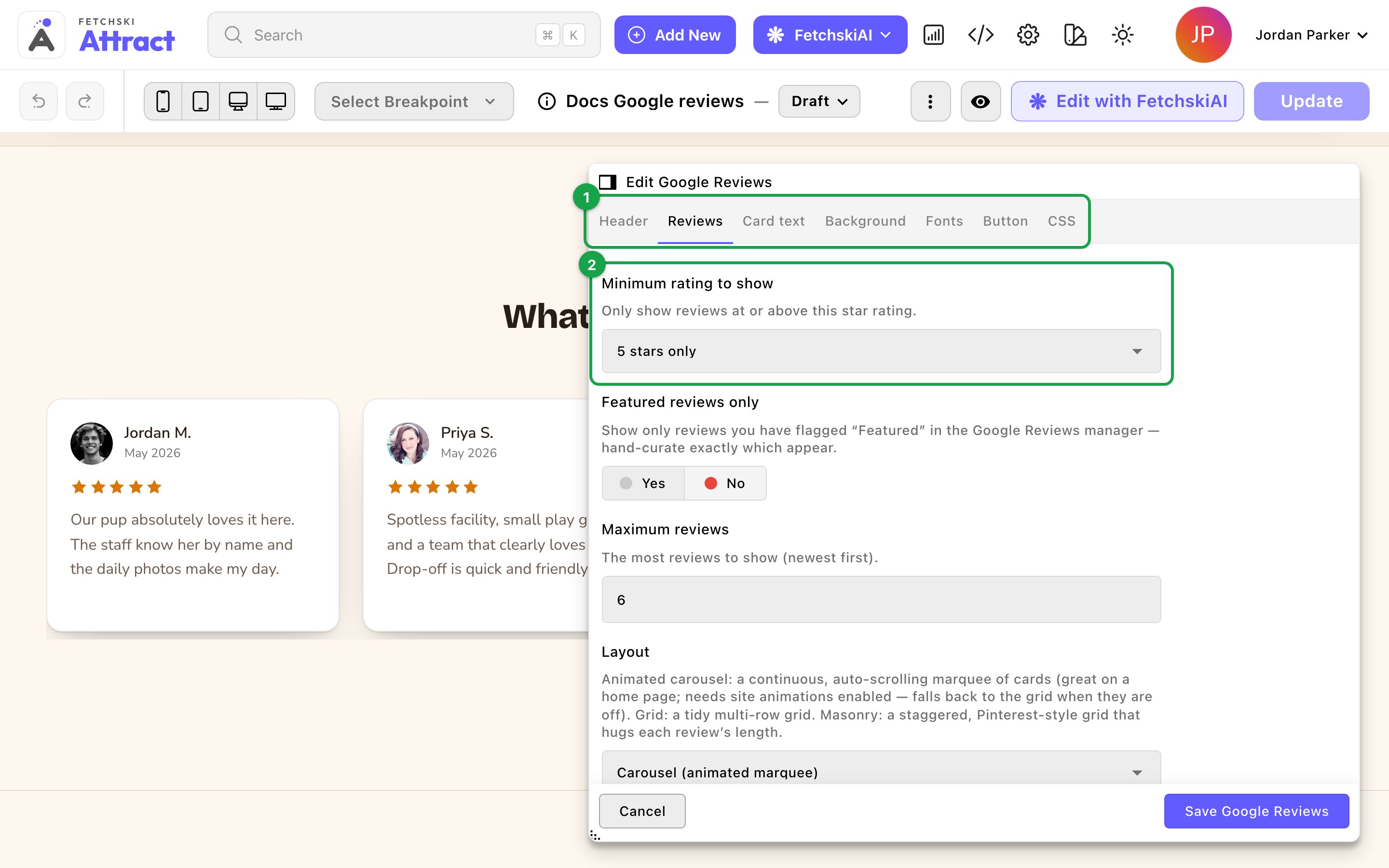
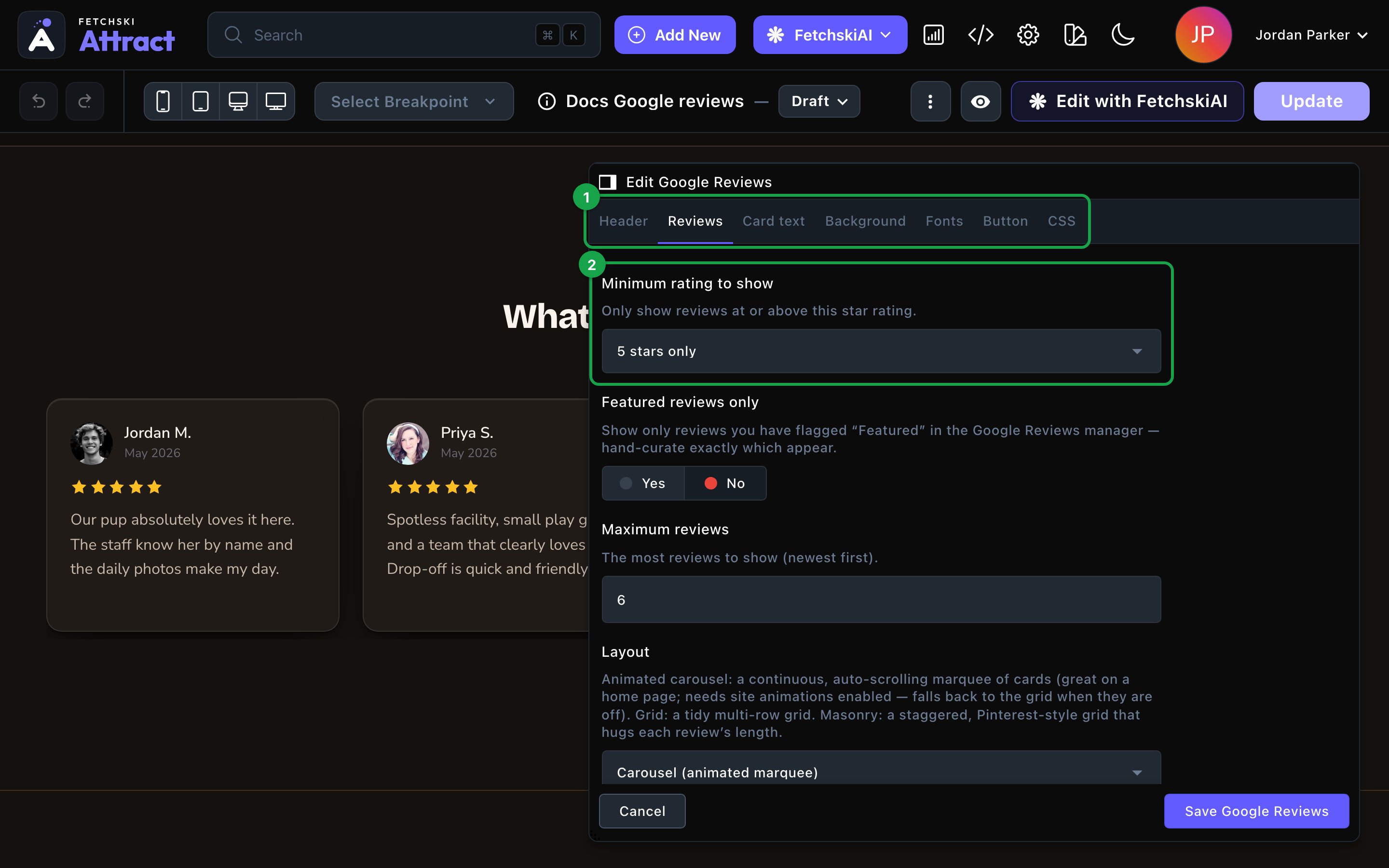
The Google Reviews editor, with the section updating beside it.
Header
Header
The words above the reviews. Each part is optional.
- Eyebrow: a short line above the heading, such as “Reviews”.
- Heading: the section’s title, such as “What people are saying”. Leave it empty to hide the heading. To show just the reviews, clear the eyebrow and intro line too.
- Intro line: one short sentence under the heading.
- Header alignment: Center or Left.
Reviews
Reviews
Which reviews show, how they’re arranged, and how each card looks.Which reviews show
- Minimum rating to show: Any rating, 3 stars and up, 4 stars and up or 5 stars only. The default is 5 stars only.
- Featured reviews only: show only the reviews marked Featured in the Google Reviews manager.
- Maximum reviews: the most to show, from 1 to 30. The default is 6.
- Carousel (animated marquee): a row of cards that scrolls on its own. Choose its Scroll speed and Scroll direction.
- Grid (multi-row): a tidy grid.
- Masonry: a staggered wall where each card fits its review’s length.
- Show reviewer photo: the reviewer’s Google photo, or their initial when there’s none. Turn it off to hide the photo spot entirely.
- Show star rating and Show review date: both on by default.
- Show owner replies: your business’s public reply under a review, when there is one. It’s off by default.
- Show “Reviews from Google”: a small Google label under the section. It’s on by default. Keep it on when you show Google reviews.
- Card style and Hover effect: the card’s frame and what it does on hover. The default is Raised — lit soft card with Lift — rises, shadow deepens. See Buttons and card styles.
- Card width: Narrow, Normal or Wide.
- Card height: Auto (fit content), Comfortable or Tall. Taller cards give a carousel or grid an even look. Masonry ignores this.
- Card content alignment: Left, Center or Right.
- Star color and Initial-avatar accent: the stars, and the color behind a reviewer’s initial. Leave Star color empty for warm amber stars, and Initial-avatar accent empty to use your site’s accent color.
Card text
Card text
The size, weight and color of the reviewer’s Name, the Date and the Review text.Review text length caps each review at 4, 6, 8 or 12 lines, so one long review doesn’t stretch its card. Visitors can’t open a cut-off review to read the rest on your site. The default is 8 lines. Choose Full text (no limit) to show every word.
Background
Background
Give the section its own background color, from your site’s palette or a custom color. See What every section shares.
Fonts
Fonts
Use a different typeface for parts of this section only, such as the reviewer names. Leave it empty to use the page’s fonts, which normally come from Site design → Typography. See What every section shares.
CSS
CSS
Custom styles for this section only. Admins and Owners can change this tab. See Custom CSS.
Looks you can make
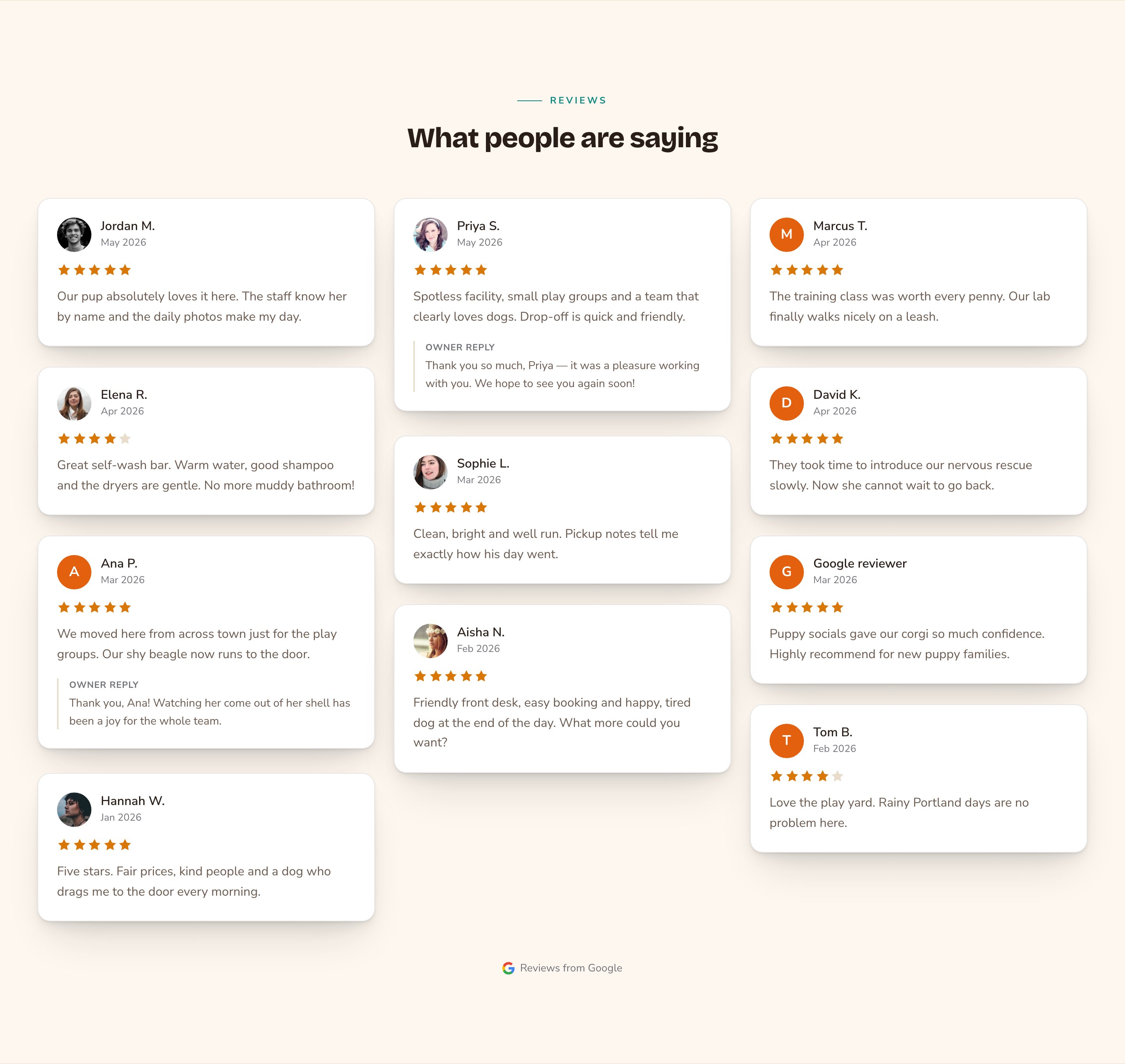
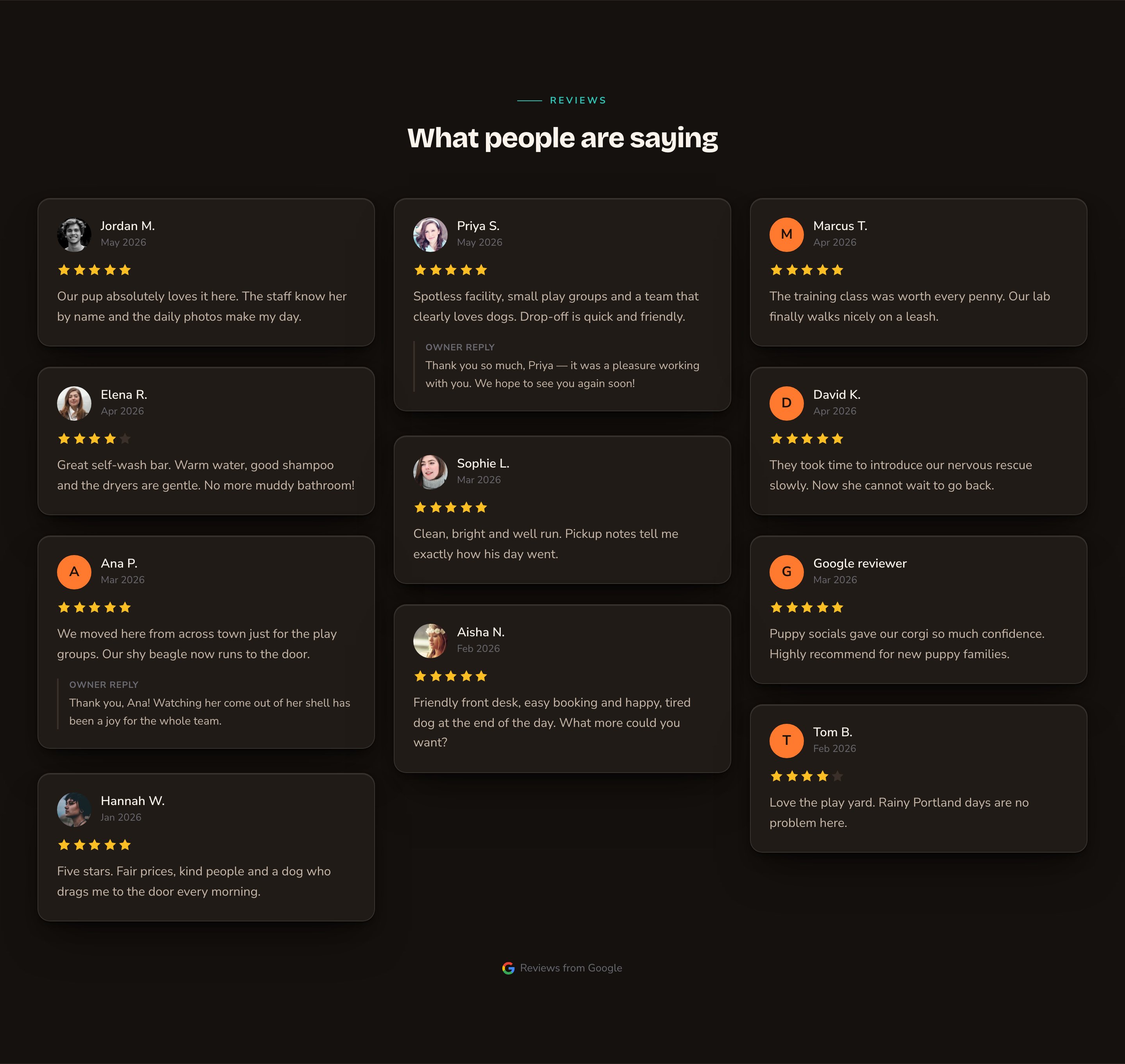
A reviews wall that shows how you reply.
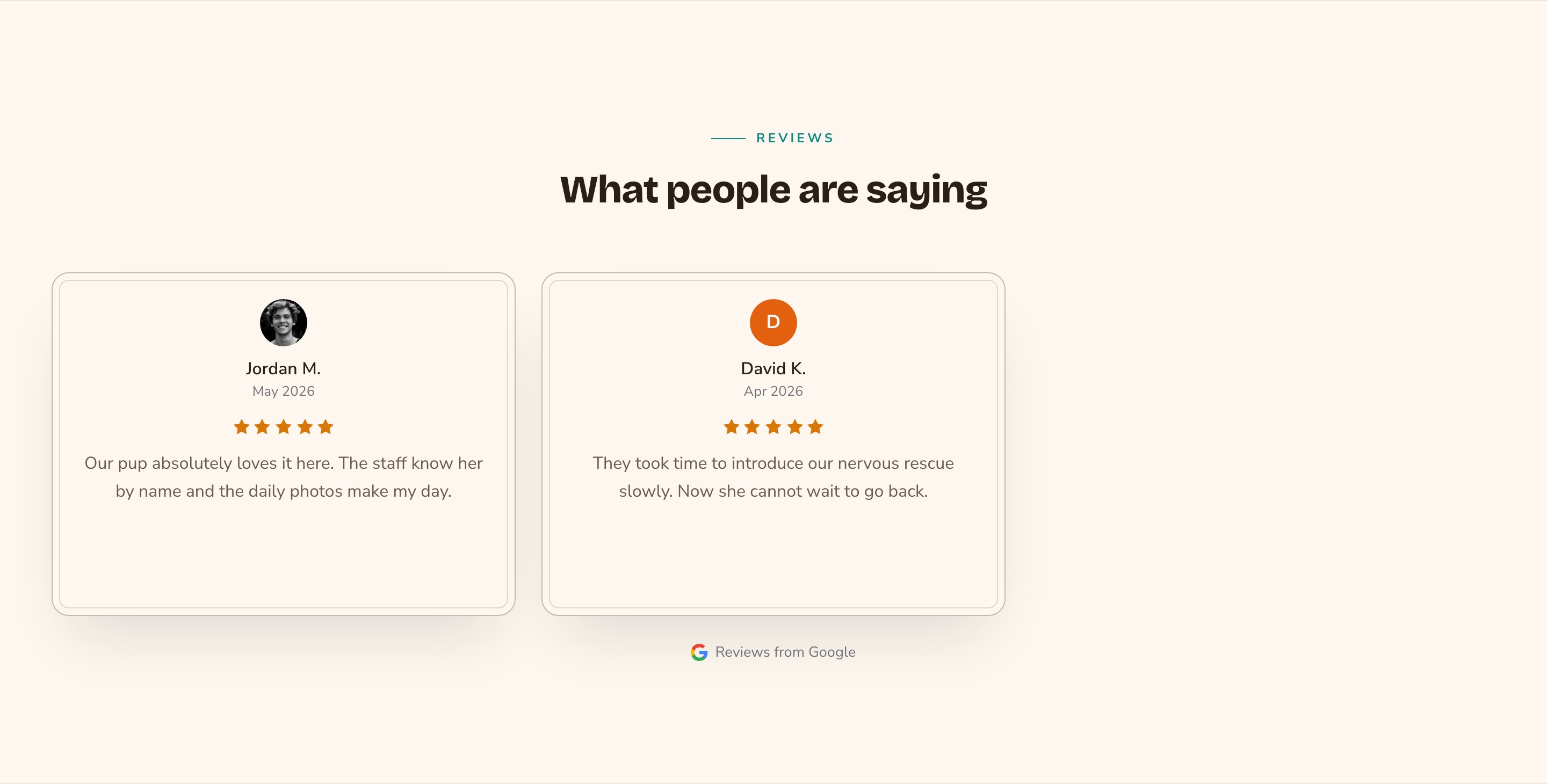
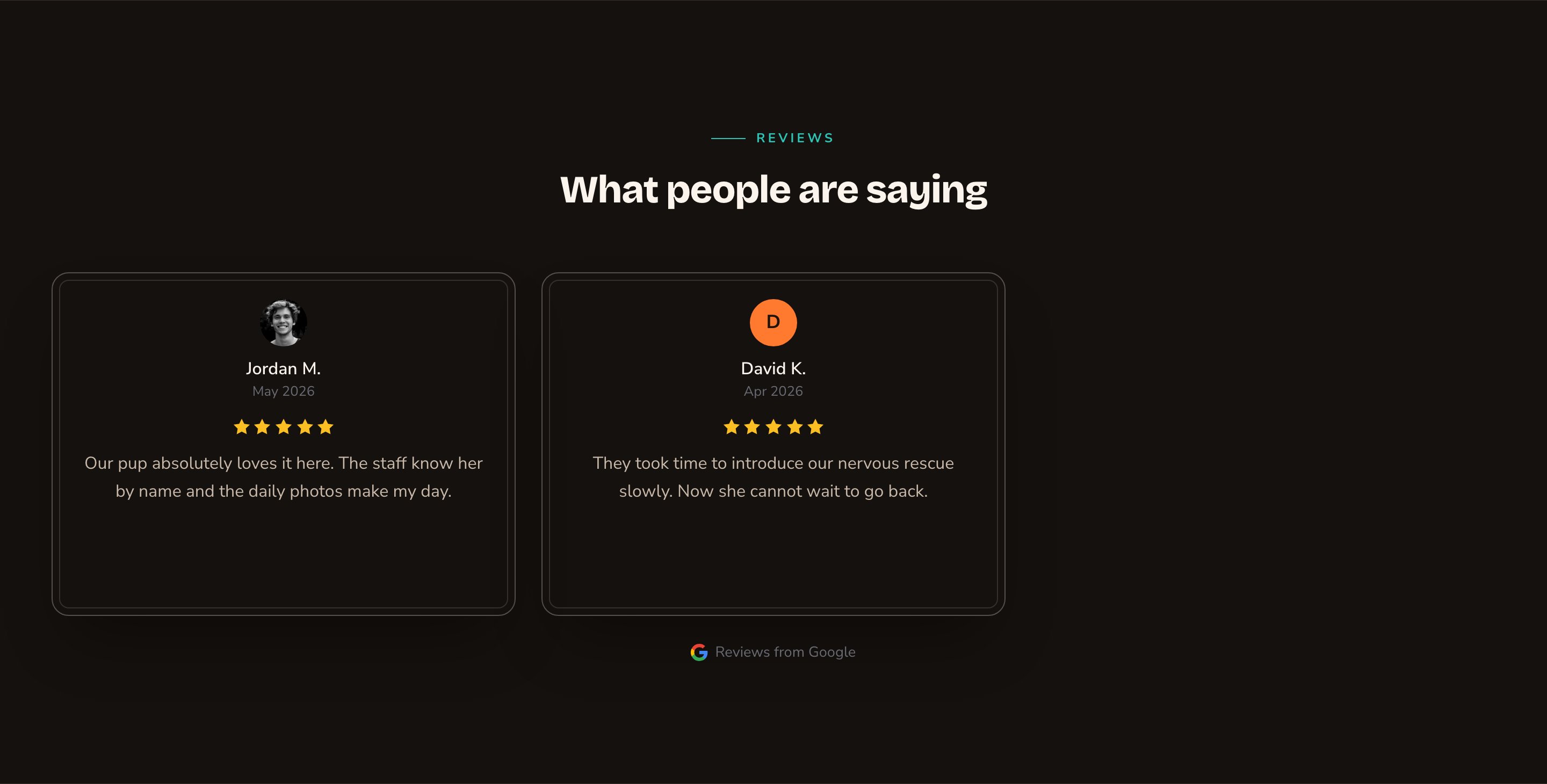
3 hand-picked reviews, side by side.
Good to know
- Not seeing a review? The section shows only 5-star reviews by default. Change Minimum rating to show to include others.
- The carousel needs animations on. If animations are turned off for the whole site in Motion, the carousel shows as a grid instead.
- Moving rows can be paused. The carousel always gets a pause button. Visitors who prefer less motion see a still row they can scroll by hand.
- No reviews, no section. With no reviews that match your settings, the section stays hidden, even while you edit. If a filter you just set makes it vanish, use the undo arrow at the left of the edit bar, or add a review that matches.
- Where it fits. Google Reviews is a full-width section. It isn’t offered inside columns or on blog posts.
Appearance options
Most sections also share a few tabs that work the same everywhere:- Background: set the color behind the section, separately for the dark and light themes.
- Fonts: use a different typeface for parts of this section only.
- CSS: add custom styles to this section. Admins and Owners can change it.
Related
Manage Google reviews
add, feature and manage your reviews.
Fetch reviews from Google
set up the Google Reviews connection.
Display testimonials on a page
show quotes you collect yourself.
Motion
turn site animations on or off.