

 AdonisJS
Before you start
- A Professional Instagram account. In the Instagram app, go to Settings → Account type and tools → Switch to professional account, and choose Business or Creator. Personal accounts can’t be connected.
- A Meta developer account. Sign up free on Meta’s developer site with your Facebook login. There you create a Meta app: not a phone app, but a free settings record that lets your site read your Instagram account.
- About 20 minutes.
Choose how to connect
The card’s Instagram provider offers two ways in.- Instagram Login (no Facebook Page needed): the simpler way, and the one the steps below follow.
- Facebook Login (linked Facebook Page): for accounts already linked to a Facebook Page in your Meta Business portfolio. It takes more technical steps, so ask Fetchski Support to help you set it up. See the troubleshooting section below.
Create a Meta app and a token
1
Create an app
Open the Meta App Dashboard and choose Create app. When it asks what your app does, choose Other, then Business. Give it a name, such as “Parker’s Puppy Playland site”.
2
Add Instagram
In your app, add the Instagram product, then open API setup with Instagram business login.
3
Connect your account
Under Generate access tokens, choose Add account and sign in to your Professional Instagram account.
4
Copy the token
Choose Generate token next to your account and copy it. It’s a long-lived token, good for about 60 days, and the CMS renews it for you.
5
Note the app's details
On the same screen, note the Instagram app ID and Instagram app secret.
Connect it in Attract
1
Open the card
Open Connections from the toolbar or the command palette (⌘K, or Ctrl+K on Windows). The toolbar is the bar across the top of your site once you’re signed in; see The toolbar. Under Social and photos, choose Instagram.
2
Pick the provider
In Instagram provider, choose Instagram Login (no Facebook Page needed).
3
Paste your details
Fill in Instagram app ID, Instagram app secret and Long-lived access token.
4
Turn on the schedule
Set Enable scheduled sync to Yes, so new posts keep arriving. Then open Advanced options to set Fetch how often. Every 12 hours (recommended) suits most accounts.
5
Choose how many posts
Posts to sync is how many of your newest posts each fetch brings in or updates, from 1 to 50. It starts at 12. Older posts you already have stay in Instagram Posts. How many a page shows is set separately, in each Instagram Feed section’s Maximum posts.
6
Save
Choose Save. Your first posts arrive a few seconds later.
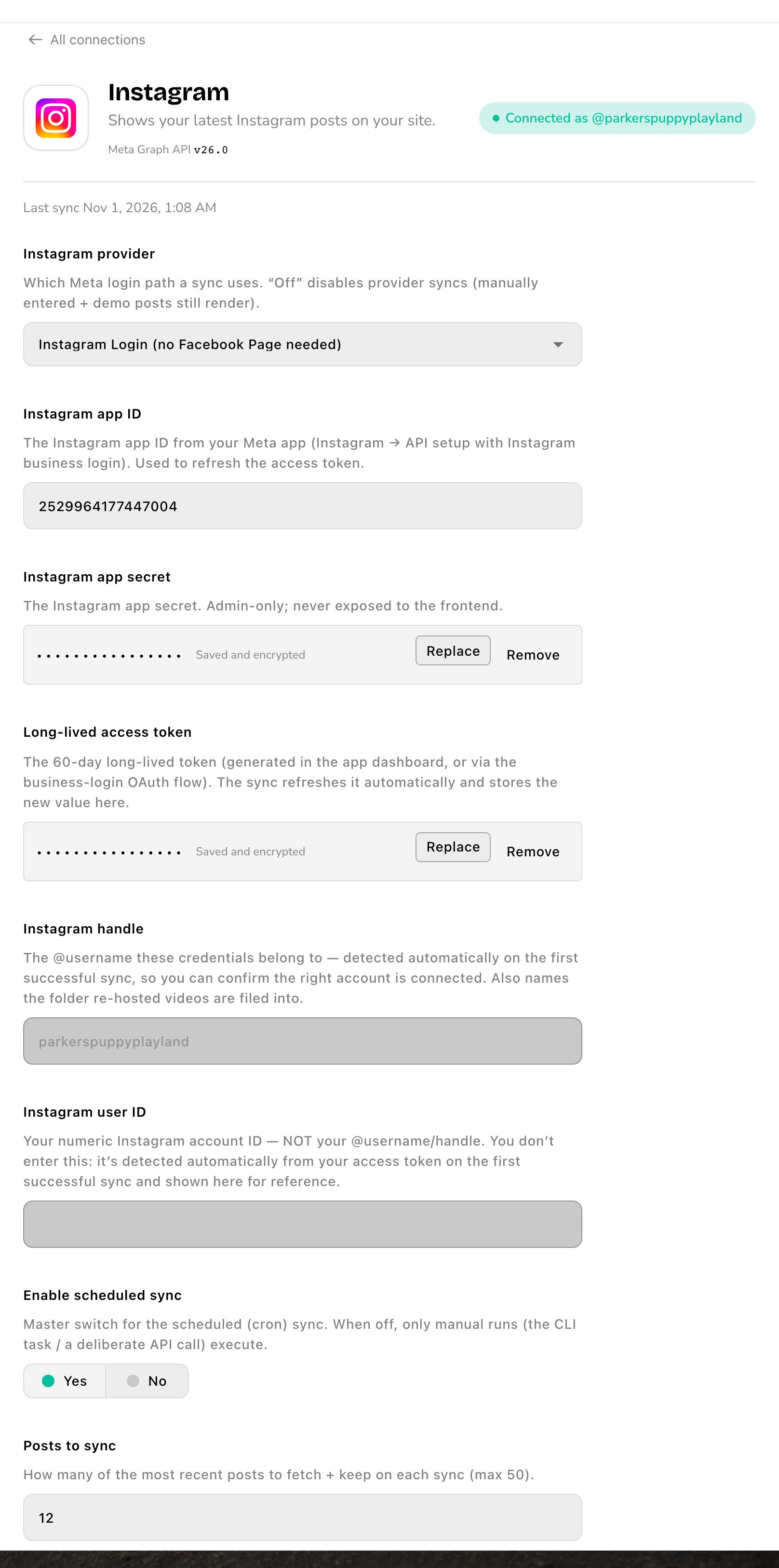
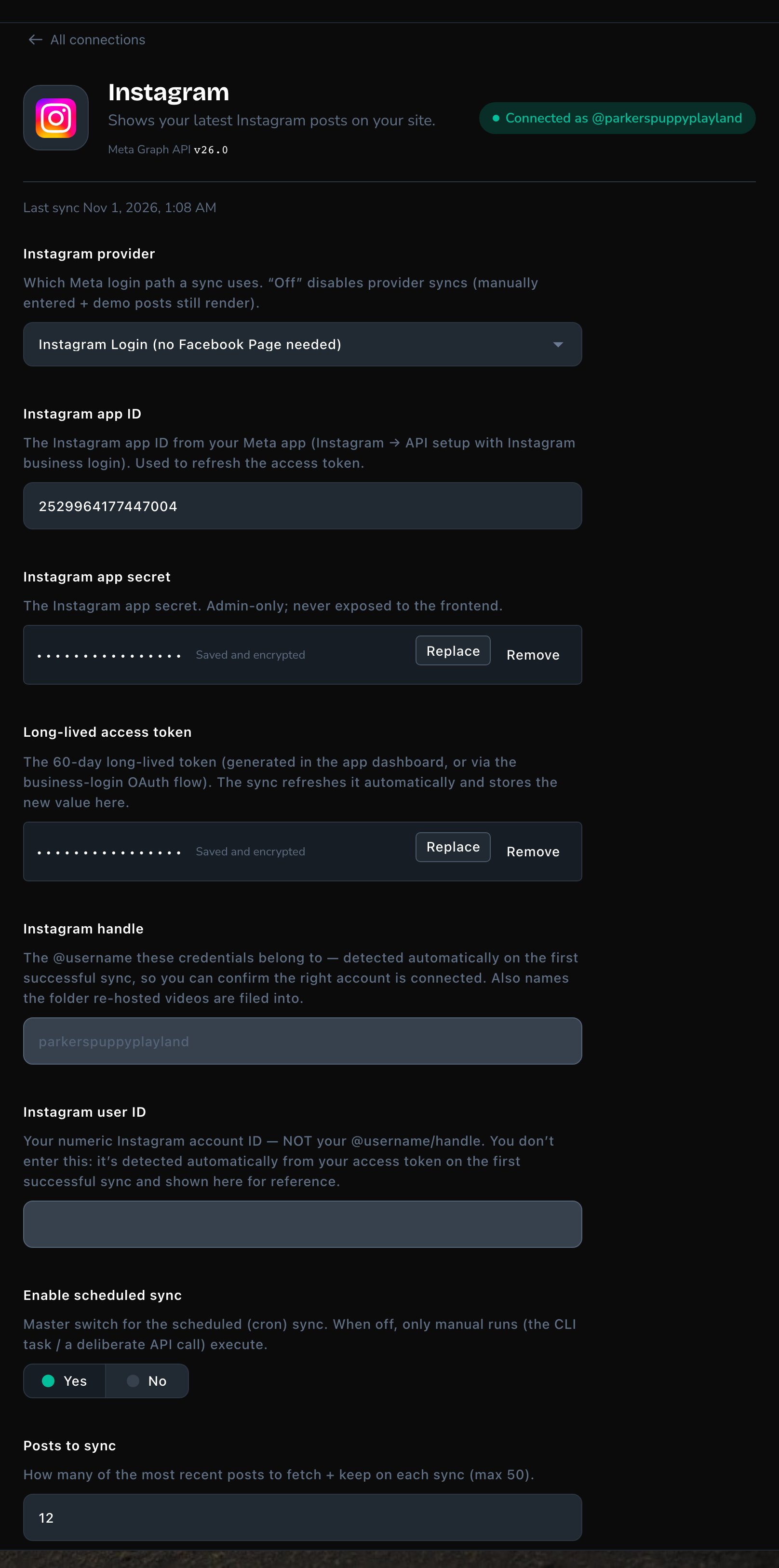
The Instagram card, connected and syncing every 12 hours.
What happens next
Saving runs the first fetch right away. A few seconds later, a message says “Instagram connected — imported 12 post(s).” with your own count. Your posts are in the Instagram Posts list, published and ready, and any sample posts are removed. See Instagram posts. The card’s badge now reads Connected as your handle, with the time of the last fetch. Instagram handle fills in too, so you can check the right account is connected. To show the posts, add an Instagram Feed section to a page. See Instagram Feed.

Saving runs the first fetch right away.
Advanced options
Open Advanced options on the card for these:- Fetch how often: from every 3 hours to every 48 hours. It appears once Enable scheduled sync is on.
- How to store post images: Re-host into the media library (recommended) copies each photo into your media library, so it never breaks. Hot-link the Instagram CDN URL loads it from Instagram. Instagram’s photo links expire, so this relies on frequent fetches. With re-hosting, Folder for re-hosted photos picks the media library folder they go in.
- How to store post videos: starts on Hot-link the Instagram CDN URL. Choose Re-host into the Videos library to keep copies of your videos too. It uses more storage, but videos keep playing and need no cookie consent.
- Largest video to re-host: videos bigger than this keep loading from Instagram. 1 GB (recommended) is far above a normal reel.
- Folder for re-hosted videos: leave it empty and Attract makes a folder named after your handle, such as “Instagram-Videos-parkerspuppyplayland”.
- Include reels and Include video posts: both on. Turn one off to skip that kind of post.
- Fetch post comments: starts off. Turn it on to show comments in your feed’s pop-up view. Like and comment counts always come in.
- Last synced at and Token last refreshed at: when the last fetch ran, and when your token was last renewed. They fill in on their own.
Good to know
- Every save fetches. Saving Connections with Instagram set up runs a fetch. If nothing changed, you see no message.
- Your token renews itself. Each fetch keeps your access alive. If nothing fetches for about 60 days, the token expires: create a new one in your Meta app and use Replace on Long-lived access token.
- Videos played from Instagram need consent. They wait until a visitor accepts functional cookies, and their links expire after about 32 hours. Keep Fetch how often at 12 hours or less, or re-host your videos.
- Comments are other people’s words. If you turn on Fetch post comments, check what shows in Instagram Posts.
- Fewer posts never deletes any. Lowering Posts to sync only changes how many each fetch updates. It never removes posts you already have.
Troubleshooting
Instagram sync failed: …
Instagram sync failed: …
The message gives Instagram’s reason, such as an expired or wrong token. It stays until you close it. Check the app ID, secret and token on the card, use Replace to paste a fresh token if needed, and save again.
The badge says "Finish setting up
The badge says "Finish setting up
The line under the badge says “Add your access token.” Paste the token into Long-lived access token, then choose Save.
The wrong account is connected
The wrong account is connected
Check Instagram handle. If it’s not your account, generate a token for the right account in your Meta app, then Replace the token and save.
Comments don't come in
Comments don't come in
Reading comment text needs Meta’s permission to manage your Instagram comments. Without it, posts show counts only. To add it:
- In your Meta app, add the comment-management permission to the Instagram permissions.
- Generate a new token for your account, as in step 4 above, so the token carries the new permission.
- On the Instagram card, use Replace on Long-lived access token, paste the new token, and choose Save.
A video shows a still picture or says "Too large
A video shows a still picture or says "Too large
A video loaded from Instagram expires after about 32 hours, or waits for cookie consent. Switch How to store post videos to Re-host into the Videos library. If the post’s Video re-host line in Instagram Posts reads “Too large for the size cap — still hot-linked”, raise Largest video to re-host.
Use Facebook Login instead
Use Facebook Login instead
Choose Facebook Login (linked Facebook Page) when your Instagram account is linked to a Facebook Page. In your Meta app, add Instagram and Facebook Login. This path is best set up with Fetchski Support’s help. It needs a long-lived access token that can read your Instagram account and list your Facebook Pages, and the Instagram business account ID behind your Page.Fill in Facebook app ID, Facebook app secret, Long-lived access token and Instagram business account ID, then save.
Related
Instagram Feed
show your posts on a page.
Instagram posts
feature posts and manage what came in.
Connections
every outside service your site uses.