

 AdonisJS
Before you start
- Sign in and open the page or blog post. The warning shows whether you’re editing or previewing.
- Photo albums don’t have a page of their own. Open the album in Photo Albums instead. The warning sits at the top of its window, beside Share draft.
- The same goes for a blog post’s window and the page settings window.
- The warning checks the images and videos chosen from your media library. No warning means none of those is missing. It doesn’t check pictures or videos that come from other websites.
Find what’s missing
1
Spot the warning
In the edit bar, a button says how many items are missing, such as 3 missing images.
2
Open the list
Choose the button to open Missing images and videos. Each line says where the item was, such as “Page sections › 3. Hero › Background image” or “Photos 4 of 15”. It also says what happened to it: “Image deleted from the library” or “Image in the archive”.
3
See it on the page
Choose Edit in the edit bar if you’re previewing, then choose Show on a line. The page scrolls to that section and highlights it.
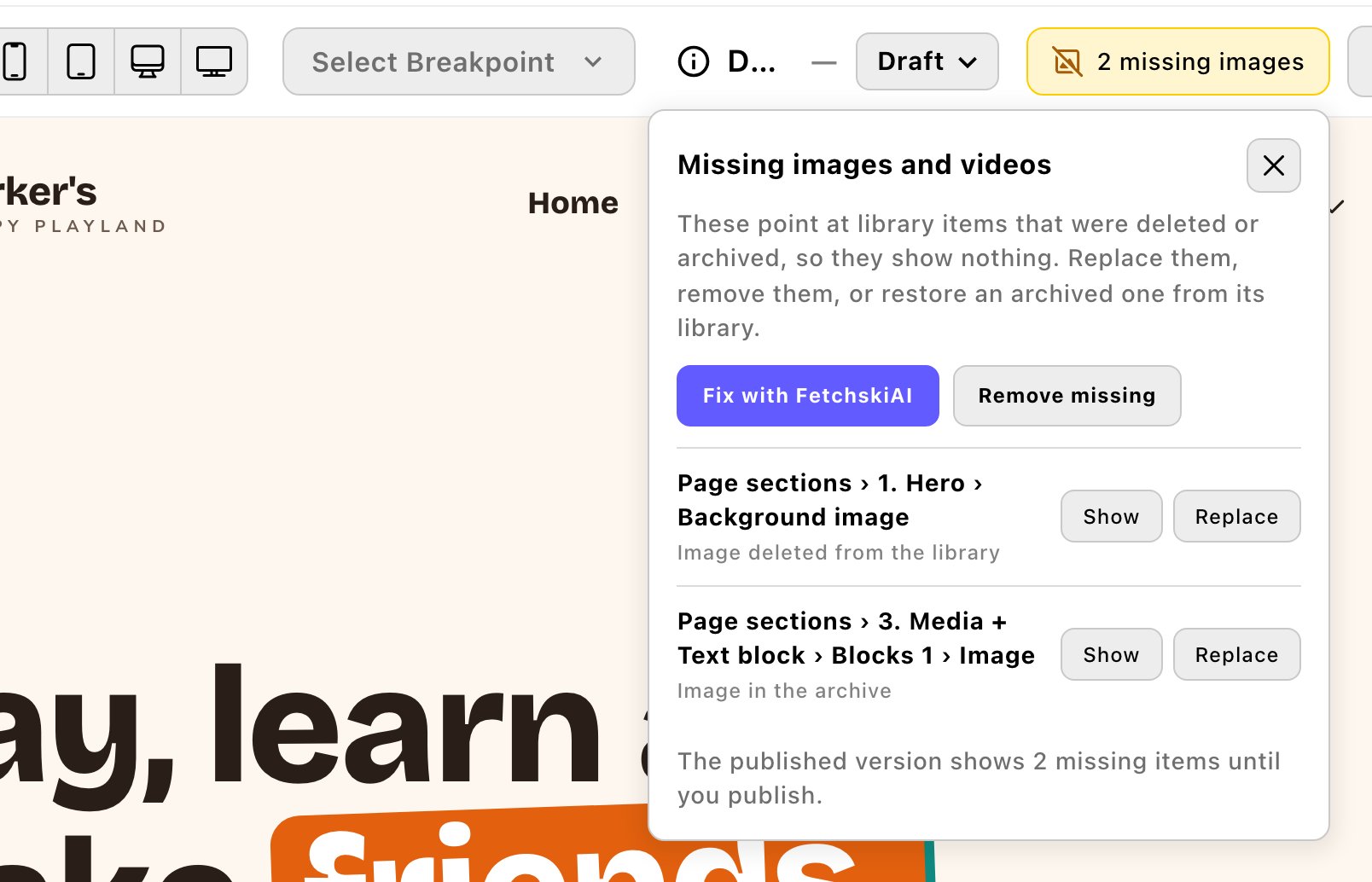
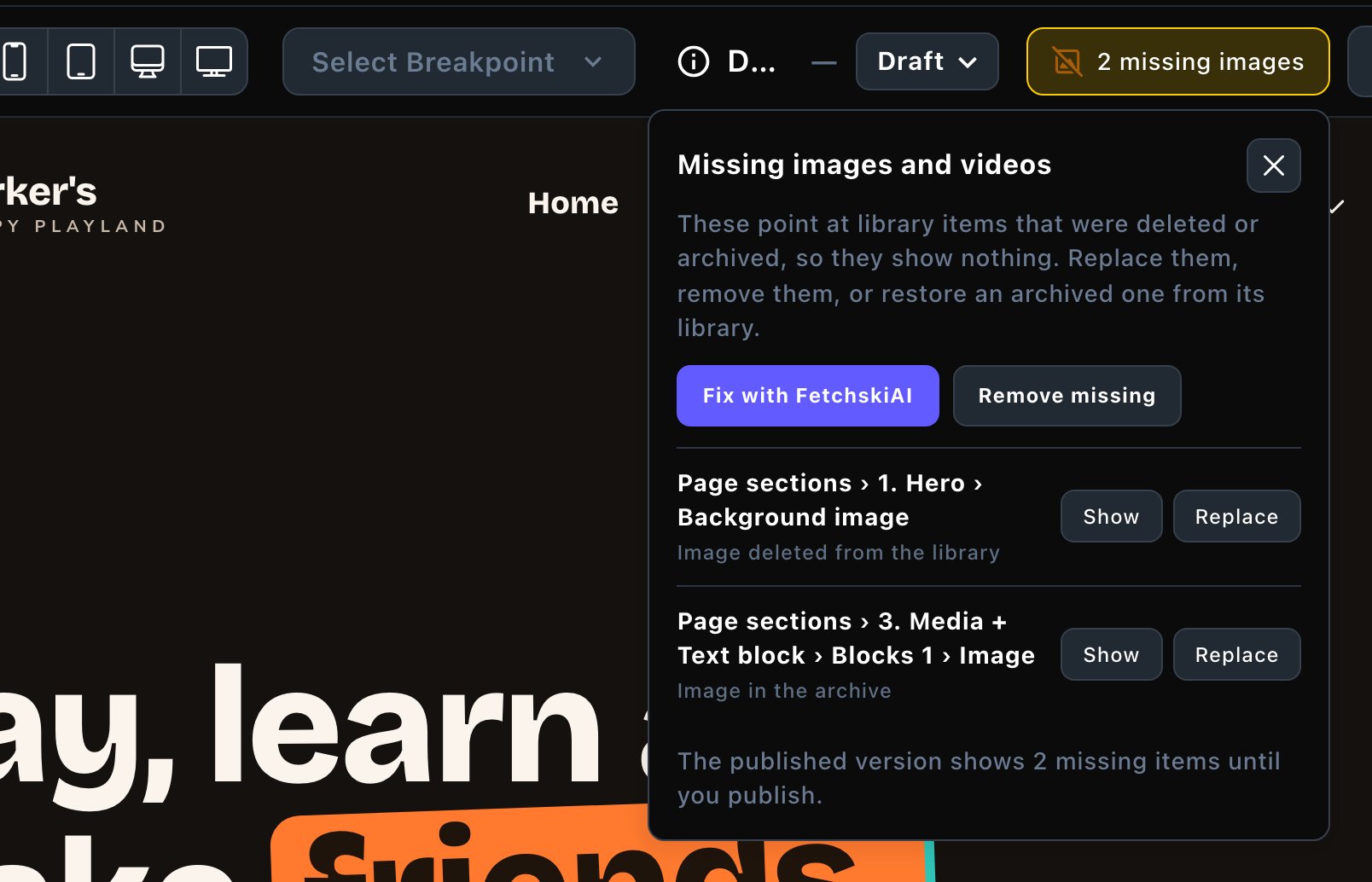
The list says where each missing item was and what happened to it.
Fix them
Choose one of 3 fixes. Each one changes the draft only, and the page refreshes to show it.- Replace (on one line): choose a new image or video from your library. That one spot shows your choice.
- Remove missing: take every missing item out of the draft at once. Choose Remove to confirm, or Cancel.
- Fix with FetchskiAI: let the FetchskiAI Agent fill each gap with a fitting image from your library. It works in its own panel, so you can follow along. See The FetchskiAI Agent.
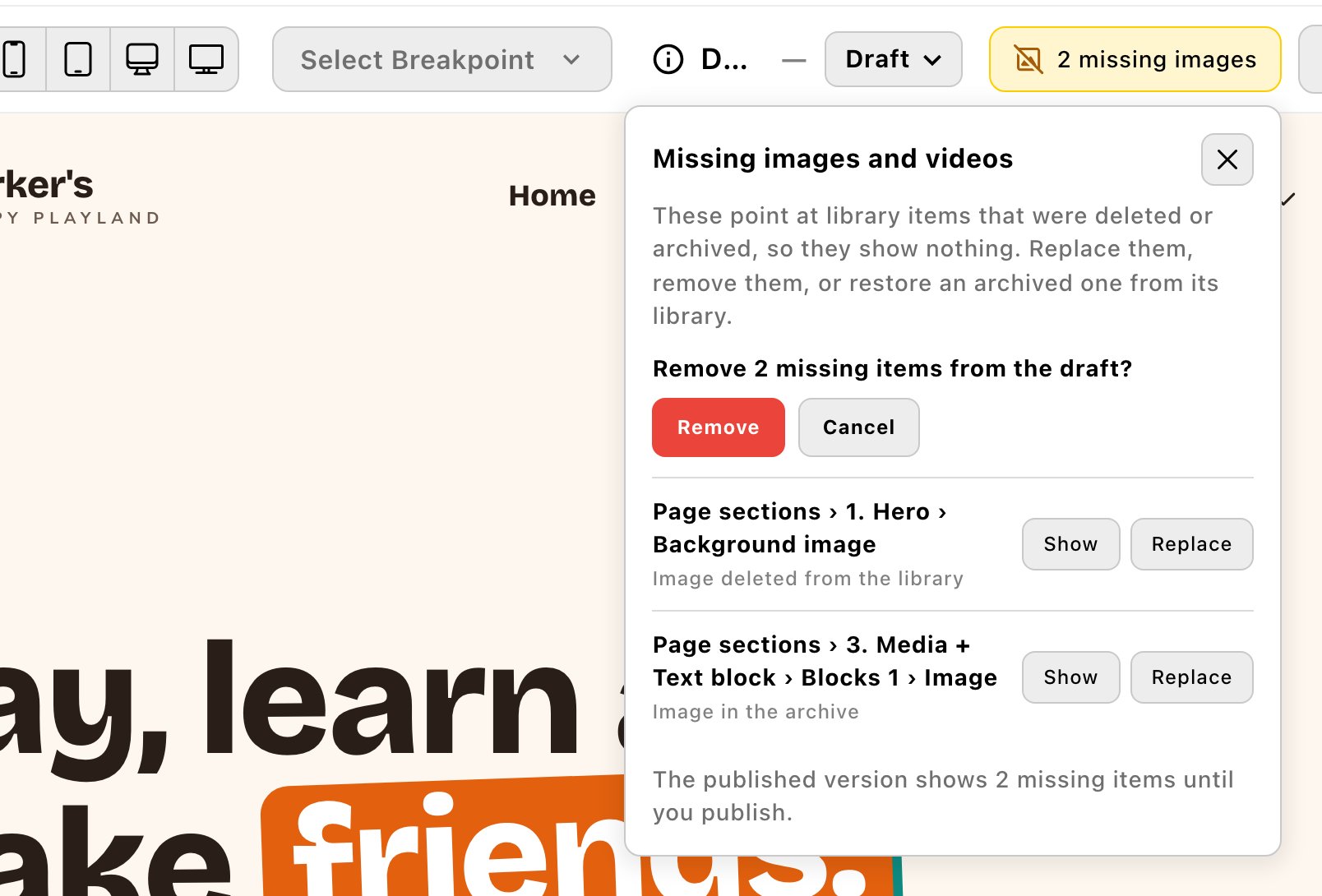
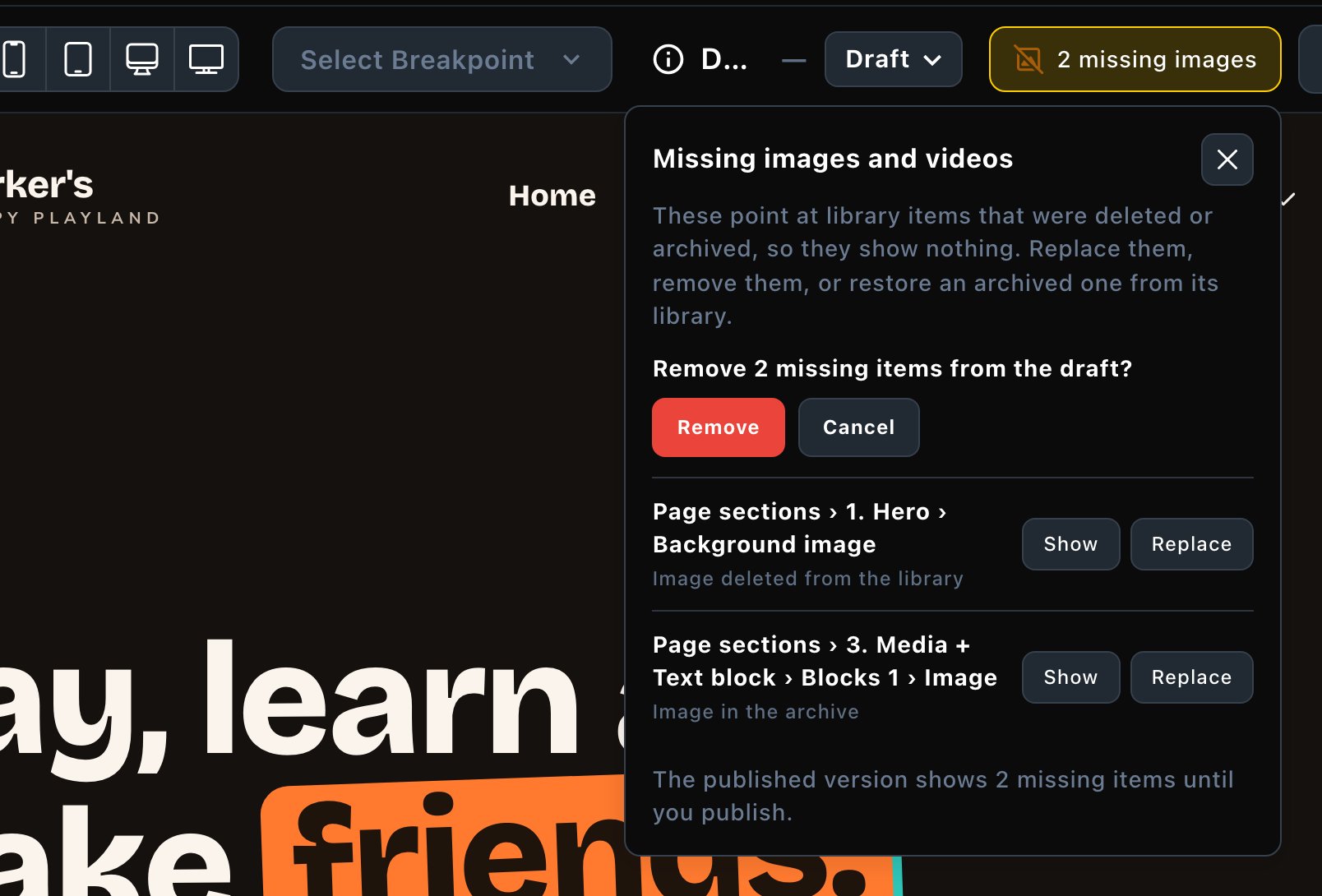
Remove missing asks before it clears them out.
What happens next
A fix changes the draft, not the live page. Publish it to fix it for visitors:- A page: choose Update in the edit bar.
- A blog post: choose Update on the post’s page, or in its window.
- A photo album: choose Update in the album’s window in Photo Albums. Pages that show the album pick up the fix once it’s published.
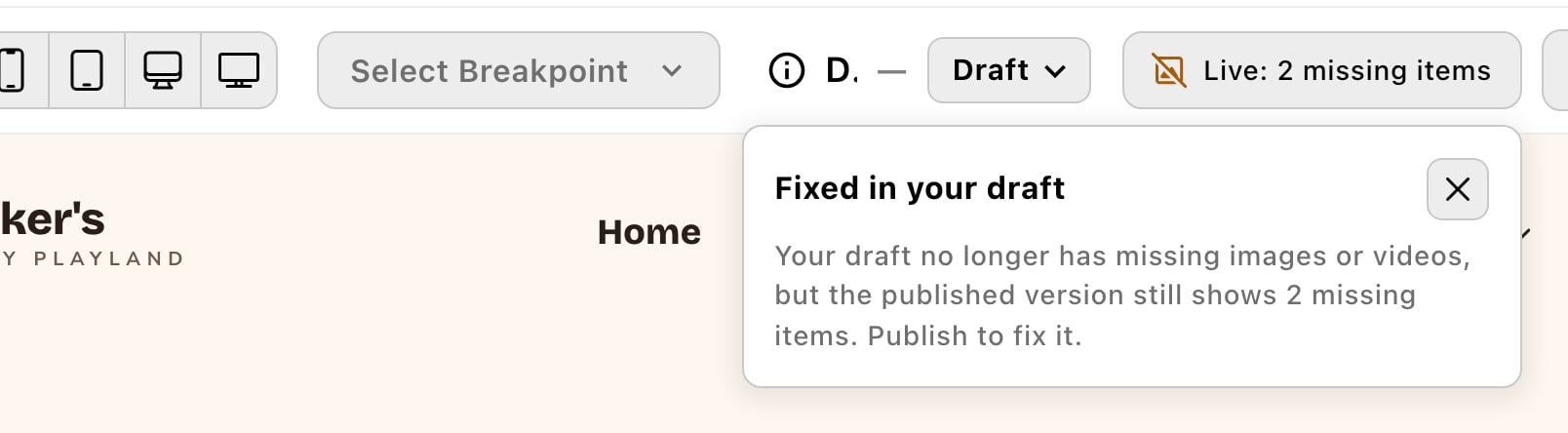
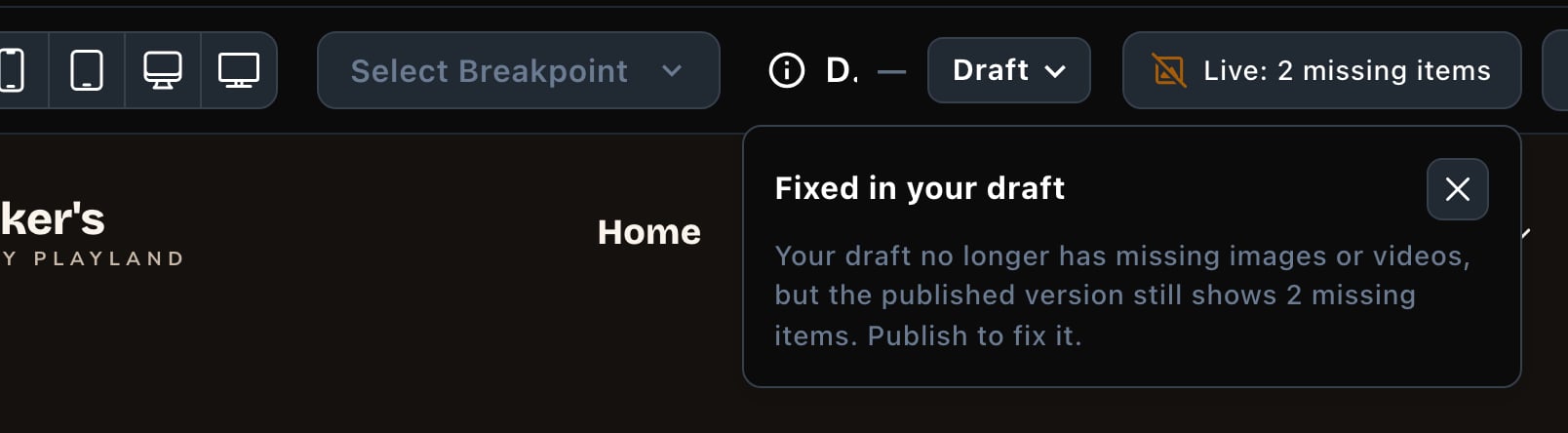
Fixed in your draft: publish to fix the live page.
Troubleshooting
Save your changes first, then fix the missing items.
Save your changes first, then fix the missing items.
You opened the list in a window with changes you haven’t saved yet. Save them first, then choose Replace or Remove missing again.
That section isn’t on the page. Switch to Edit mode and try again.
That section isn’t on the page. Switch to Edit mode and try again.
Show can only find a section while you’re editing. Choose Edit in the edit bar, then choose Show again.
I don't see Fix with FetchskiAI
I don't see Fix with FetchskiAI
It’s for Editors, Admins and Owners. Use Replace or Remove missing instead, or ask an Editor.
Related
The media library
upload and pick images.
Archive, restore and delete
see where a file is used before it goes.
The FetchskiAI Agent
let FetchskiAI fix the page.
Drafts, publishing and scheduling
make the fix live.