

 AdonisJS
Before you start
- Open the library: press ⌘K (Ctrl+K on Windows) and choose Images, Videos or Files.
- The folder list is on the left, under FOLDERS. Library is the top level.
- Each folder in the list has a Folder actions menu (the three dots). It appears when you point at the folder.
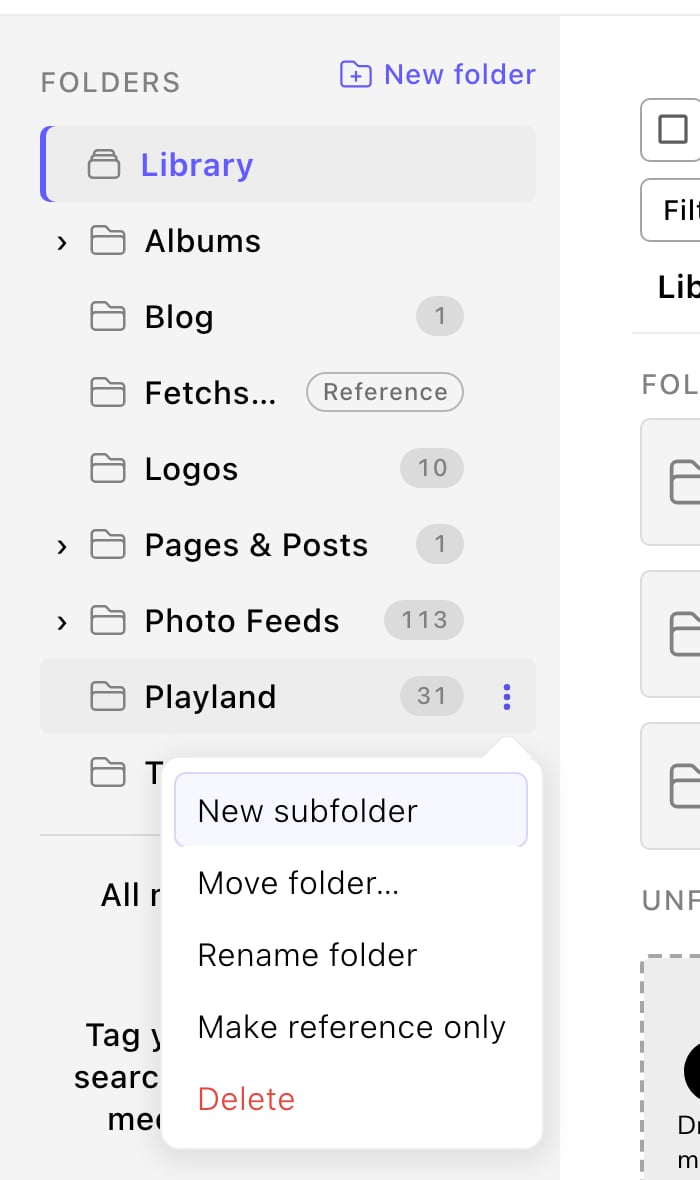
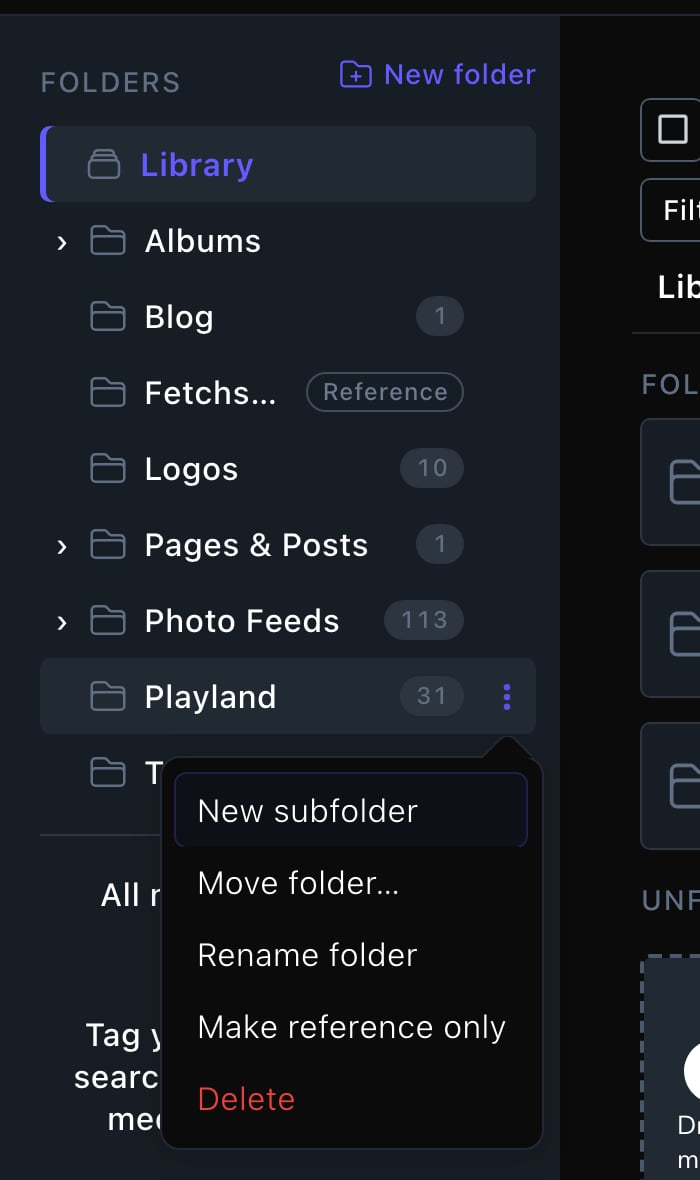
Every folder has its own menu of actions.
Create a folder
1
Go to where the new folder belongs
Choose Library for a top-level folder, or open a folder to make one inside it.
2
Choose New folder
It’s at the top of the folder list and in the toolbar above the grid.
3
Type a Folder name, such as "Training", and save
Put files in a folder
- Upload into it. Open the folder in Images, then drop your images in. They’re saved right there.
- Move them. Tick the boxes on the files, then choose Move to folder…. Choose the folder, then Move here.
- Take them out of every folder. In the same window, choose Top level (no folder), then Move to top level.
- Drag them. Drag files from the grid onto a folder in the list, a folder tile or a part of the path above the grid. Confirm the move.
- Set it in the file’s details. Every image, video and file has a Folder setting.
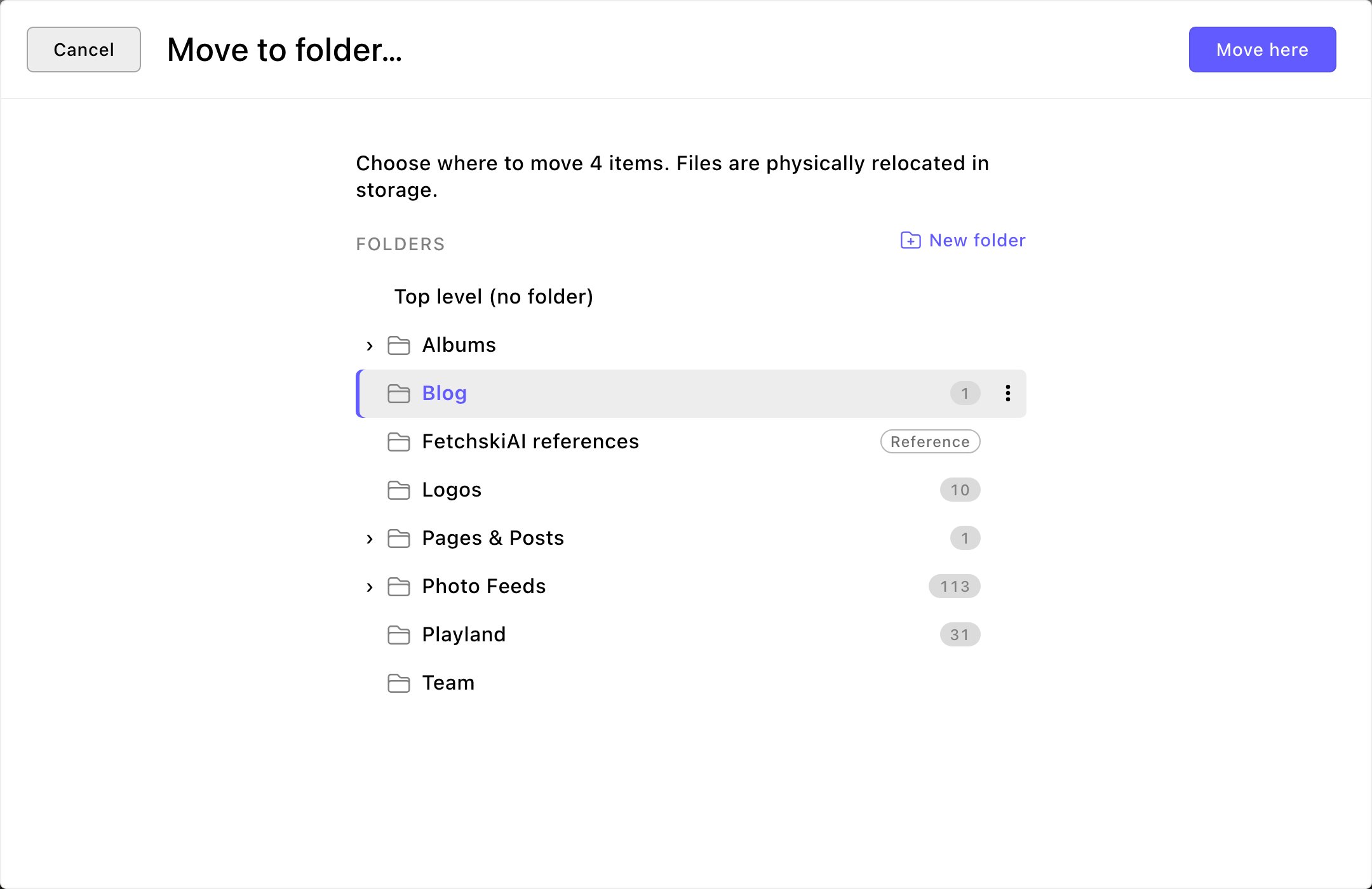
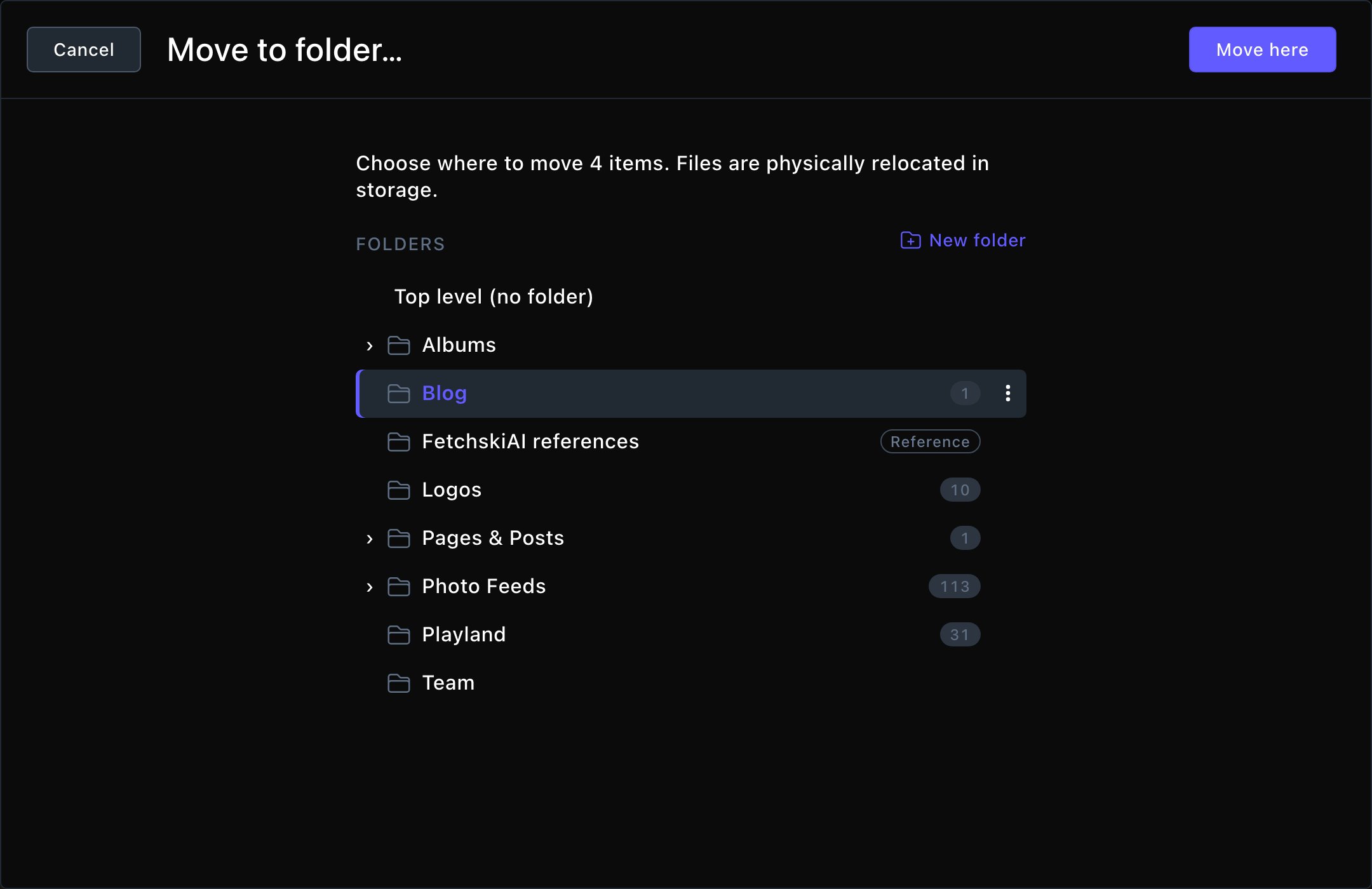
Choose the files, then the folder to move them to.
Rename a folder
Open the folder’s Folder actions menu, choose Rename folder, type the new name and save.Move a folder
- Open the folder’s Folder actions menu and choose Move folder…. Under Destination, choose the folder it should go in, or Top level (no folder). Choose Move here.
- Or drag the folder onto another folder. Drag it onto Library to make it a top-level folder. Hold it over a closed folder for a moment and that folder opens, so you can reach the folders inside.
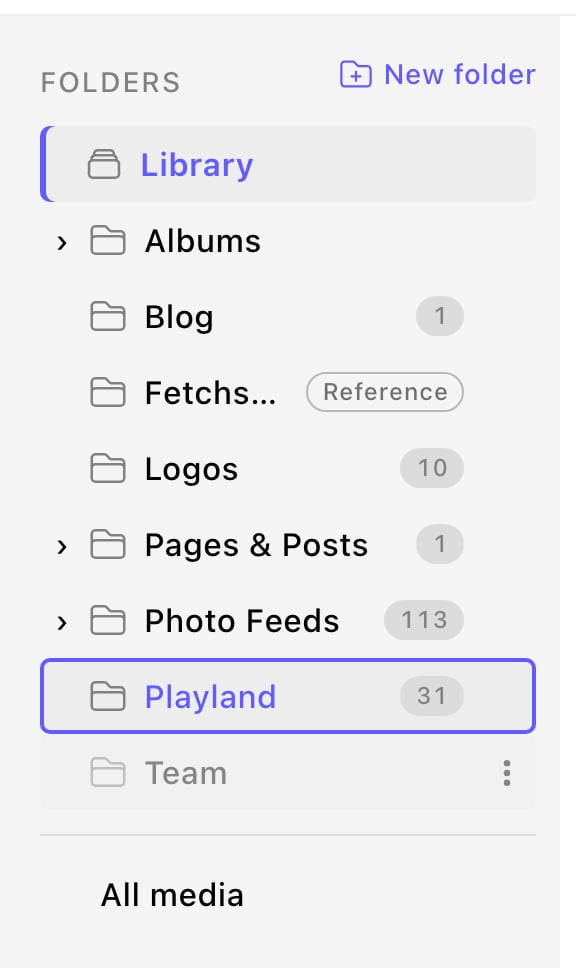
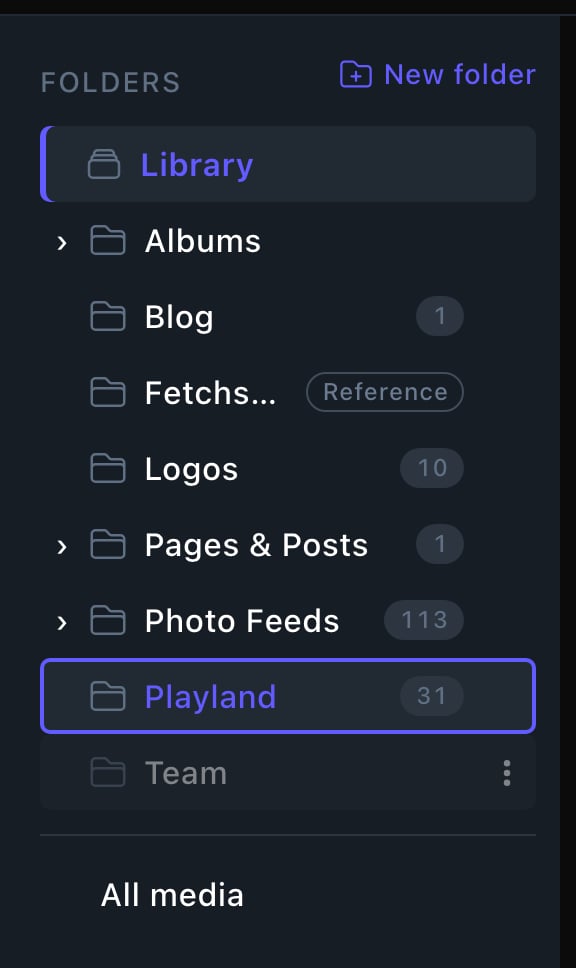
Drag a folder onto another one to put it inside.
Delete a folder
Only empty folders can be deleted. Move or delete what’s inside first, including any folders inside it.1
Open the folder's Folder actions menu and choose Delete
2
Confirm
The message reads: “Delete the folder “Training”? Only empty folders can be deleted.”
Turn a folder into a photo album
For an image folder, open its Folder actions menu and choose Create album from folder…. Type an Album title and choose Create album. You get a draft album with the images that sit directly in the folder. Images in folders inside it aren’t included. Check the order, then publish the album. See Photo albums.Manage folders in one window
Reorganizing a lot at once? In Images, choose Folders at the top to open Manage folders. It shows the whole folder tree, with the same actions.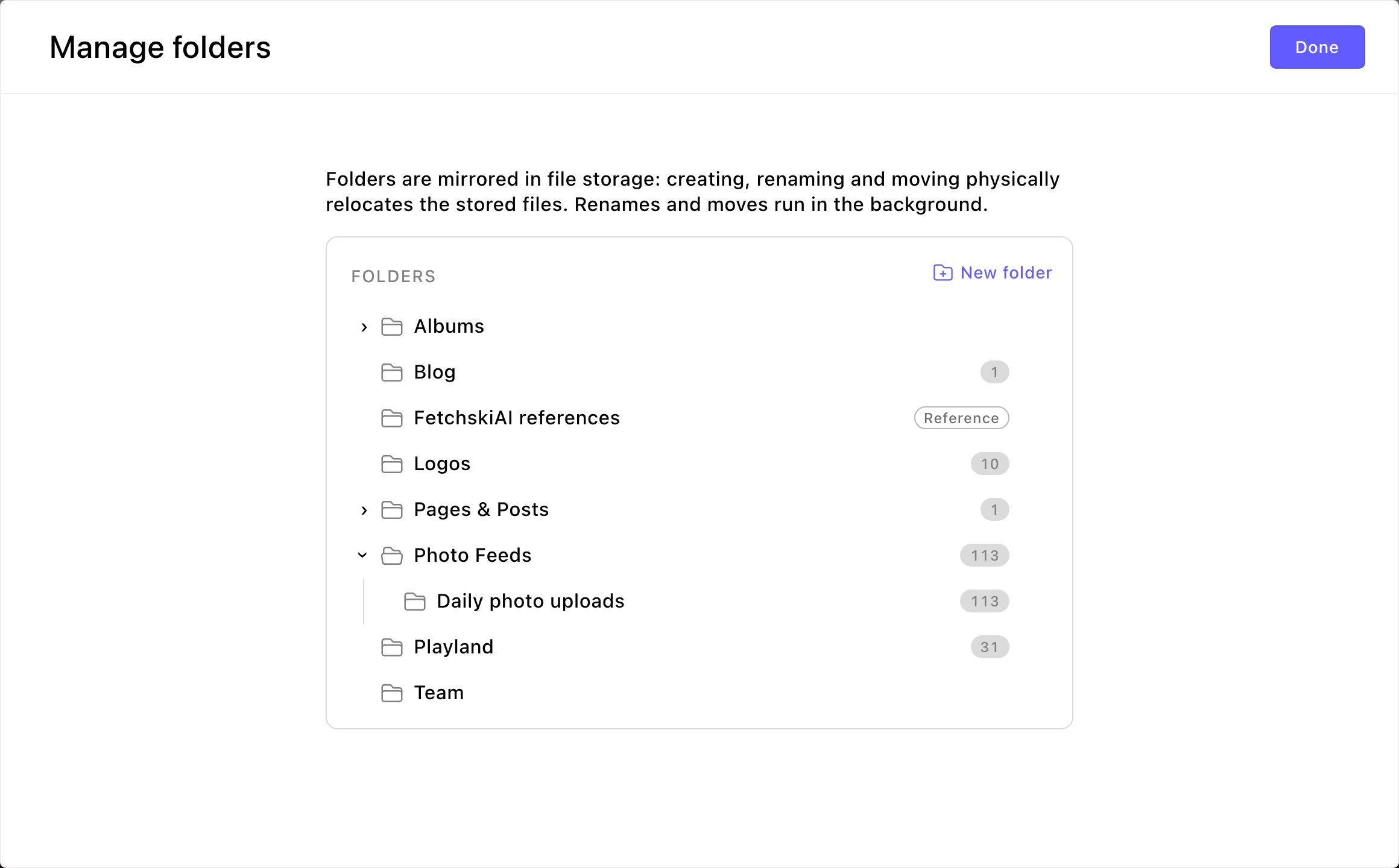
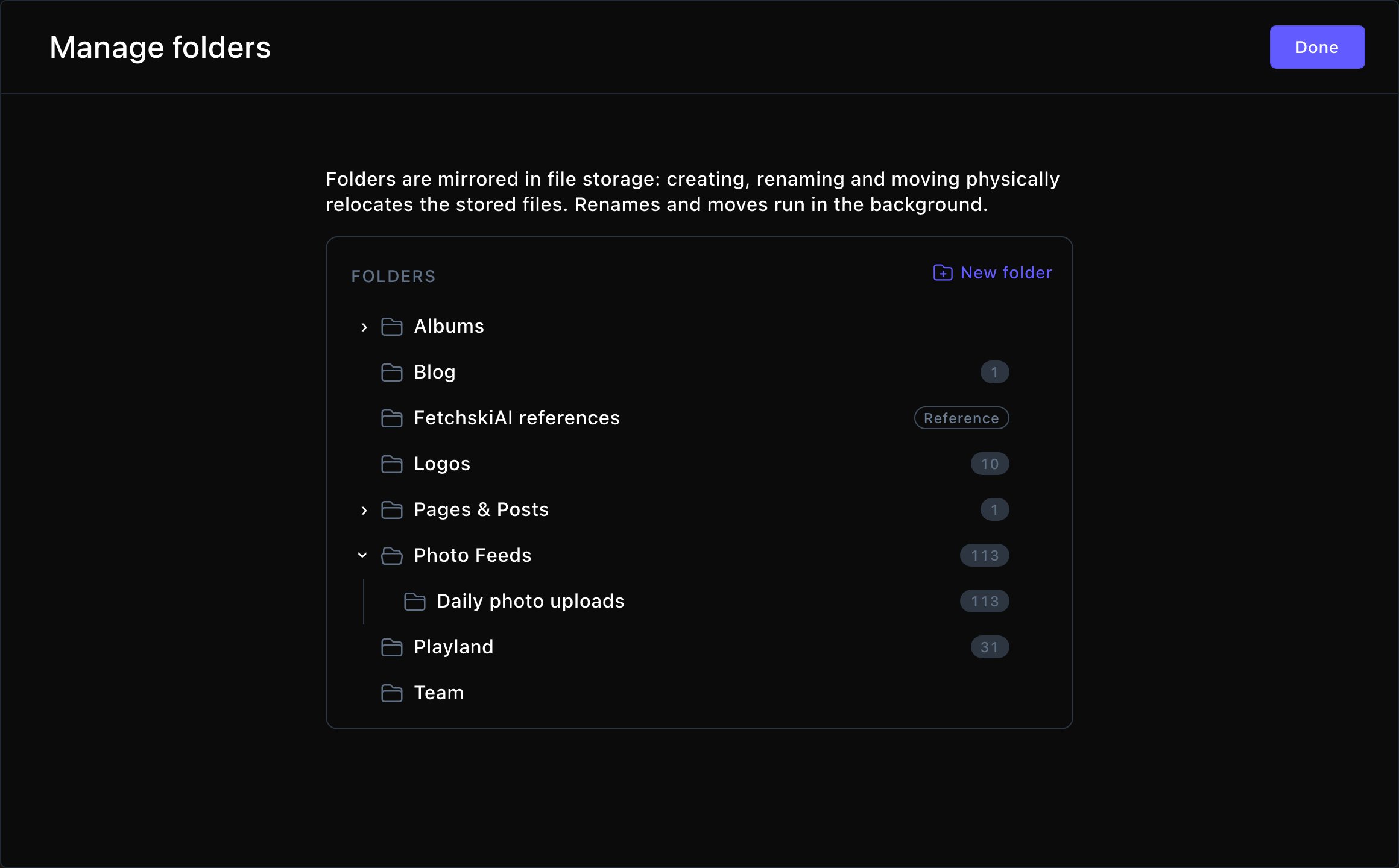
Manage folders shows the whole tree at once.
Folders the CMS looks after
The CMS makes and fills 4 image folders itself: Albums, Photo Feeds, Pages & Posts and FetchskiAI references. You can open everything in them and add folders inside them. You can’t rename or move them. You can delete one of them only when it’s empty. The CMS makes it again when it needs it.Reference only folders
Keep media for comparison, such as screenshots of sites you like, in a Reference only folder. You can browse it, but nothing in it can be used on your site. It has a Reference tag in the folder list, and the FetchskiAI references folder is always one.- To make one, Admins and Owners choose Make reference only in the folder’s Folder actions menu. Allow use on the site turns it back, so its media can be used again.
- Anyone who can upload can upload into a reference folder. Moving existing files into or out of one needs an Admin or Owner.
Good to know
- Each file lives in one folder at a time.
- You can tick files in several folders, then move them together. Your choices stay ticked as you open other folders.
Troubleshooting
This folder still has contents
This folder still has contents
A folder must be empty before you delete it. The message reads: “This folder still has contents. Move or delete its subfolders and media first.”Open the folder, move its files and folders somewhere else (or delete them), then try again.
A folder with this name already exists here
A folder with this name already exists here
Two folders in the same place can’t share a name. Choose another name, or put the folder somewhere else.
Folders can be nested at most 8 levels deep
Folders can be nested at most 8 levels deep
A folder can’t sit more than 8 levels down. When you move a folder, the folders inside it count too. Move it somewhere higher up instead.
This folder is managed automatically and cannot be renamed or moved
This folder is managed automatically and cannot be renamed or moved
It’s one of the folders the CMS looks after. Leave it where it is. You can still add folders inside it.
A file "can't be moved into the reference folder
A file "can't be moved into the reference folder
Moving existing files into or out of a reference folder needs an Admin or Owner. Upload the file into the reference folder as a new copy instead, or ask an Admin to move it.
Related
The media library
upload and edit your files.
Photo albums
choose and order photos for a gallery.
Gallery
show a whole folder of photos on a page.
Archive, restore and delete
remove files safely.