

 AdonisJS
Open Social Links
- In the toolbar (the bar across the top of your site once you’re signed in; see The toolbar), choose Site settings (the gear), then the Social Links tab.
- Or open the command palette (⌘K, or Ctrl+K on Windows), choose Site settings, then Social Links. The shortcut for Site settings is T then G (press T, let go, then press G, while you’re not typing in a box; see Keyboard shortcuts).
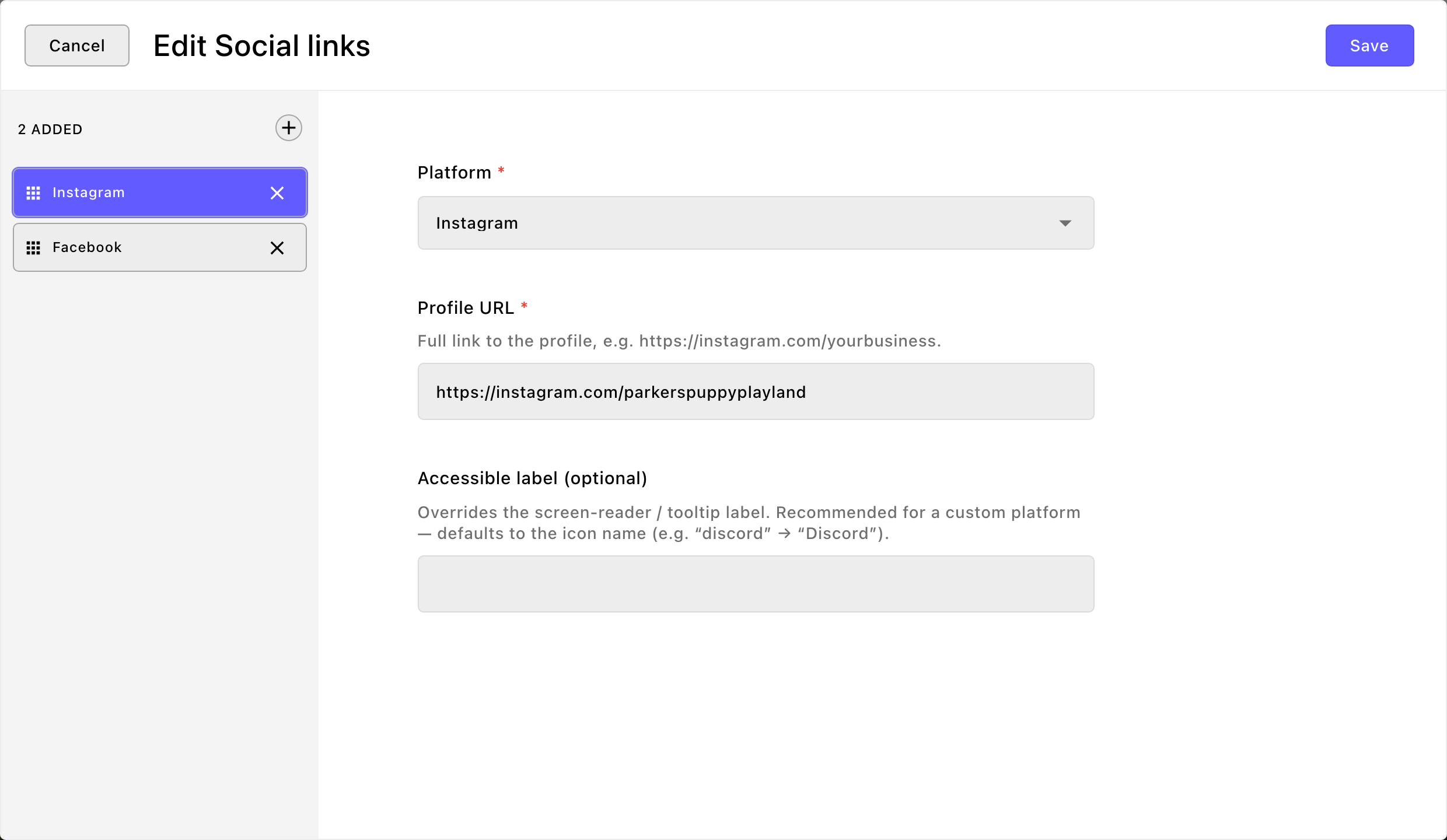
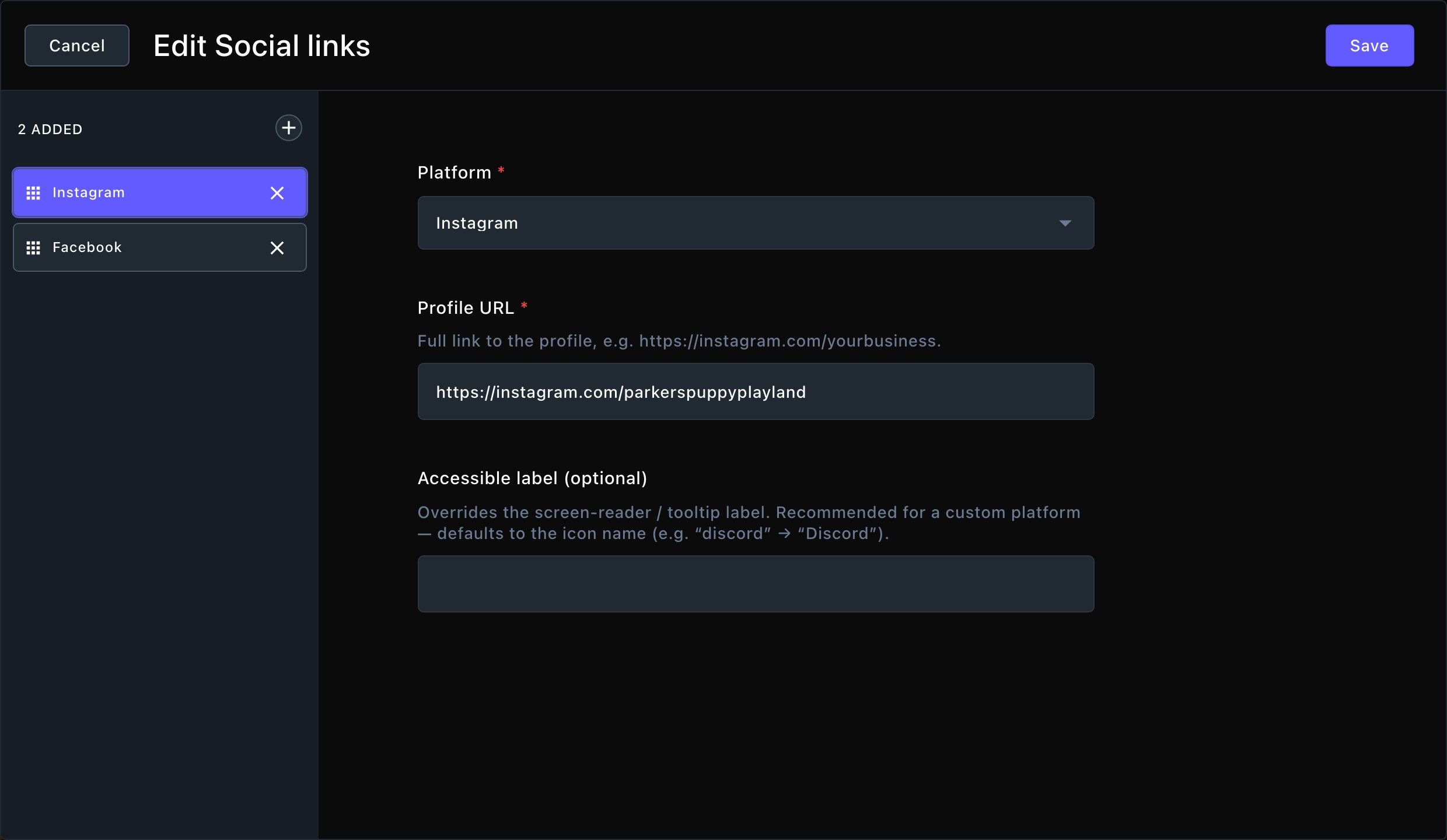
Your social profiles, listed once for the whole site.
Add a profile
- Choose Edit Social links.
- Choose Add Item.
- In Platform, choose the network, such as Instagram or Facebook. Each one gets its own brand icon.
- In Profile URL, paste the full link to your profile, such as https://instagram.com/parkerspuppyplayland.
- Repeat for each network you use.
- Choose Save in the list window to keep the list, then choose Update to save everything and put your links live.
Each profile’s settings
- Platform: the network. Choose from Instagram, Facebook, X (Twitter), YouTube, TikTok, LinkedIn, GitHub, Pinterest, WhatsApp, Snapchat, Threads, Bluesky, Mastodon, Yelp, Google, Spotify and Vimeo. For anything else, choose Other / custom….
- Profile URL: the full link to your profile. It’s required.
- Accessible label (optional): the name read aloud by screen readers (software that reads pages out for people who can’t see them well). It also pops up as a small label when someone points at the icon. Leave it empty and the network’s name is used, such as “Instagram”.
- Custom icon name: the name of a Font Awesome icon, without “fa-”.
- Custom icon family: the icon style. Brands is already chosen, which suits most networks.
- Go to https://fontawesome.com/icons and search for “discord”.
- Choose the Discord logo. Its page shows the icon’s name, “discord”, and its style, Brands.
- Type
discordin Custom icon name, and keep Brands in Custom icon family.
Where your links show
- In the footer. Your links appear as a row of icons at the bottom of every page. Each one opens in a new tab.
- In search engines. When structured data is turned on, your links are shared with search engines as part of your business details. See Site-wide SEO.
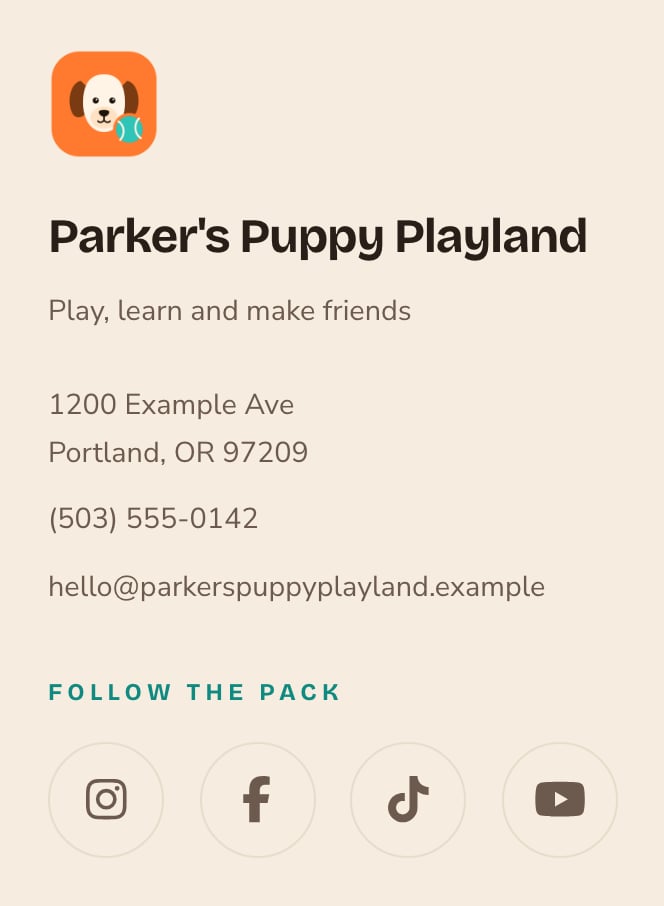

Your profiles as icons in the footer.
Good to know
- The footer has its own look settings. Icon style, size, spacing, colors and where the row sits are in Site design → Footer: Social. See Footer.
- Team members have their own links. Each person’s social links are set on their team member, not here. See Team members.
- Order matters. Icons show in the order of your list. Drag a profile in the list to move it.
- Nothing shows until you add a link. A new site starts with an empty list, so no sample links appear on your site.
Related
Footer
style the icon row in your footer.
Site-wide SEO
share your business details, social links included, with search engines.
Brand
your business name, logos and contact details.
Site settings
every tab on this screen.