

 AdonisJS
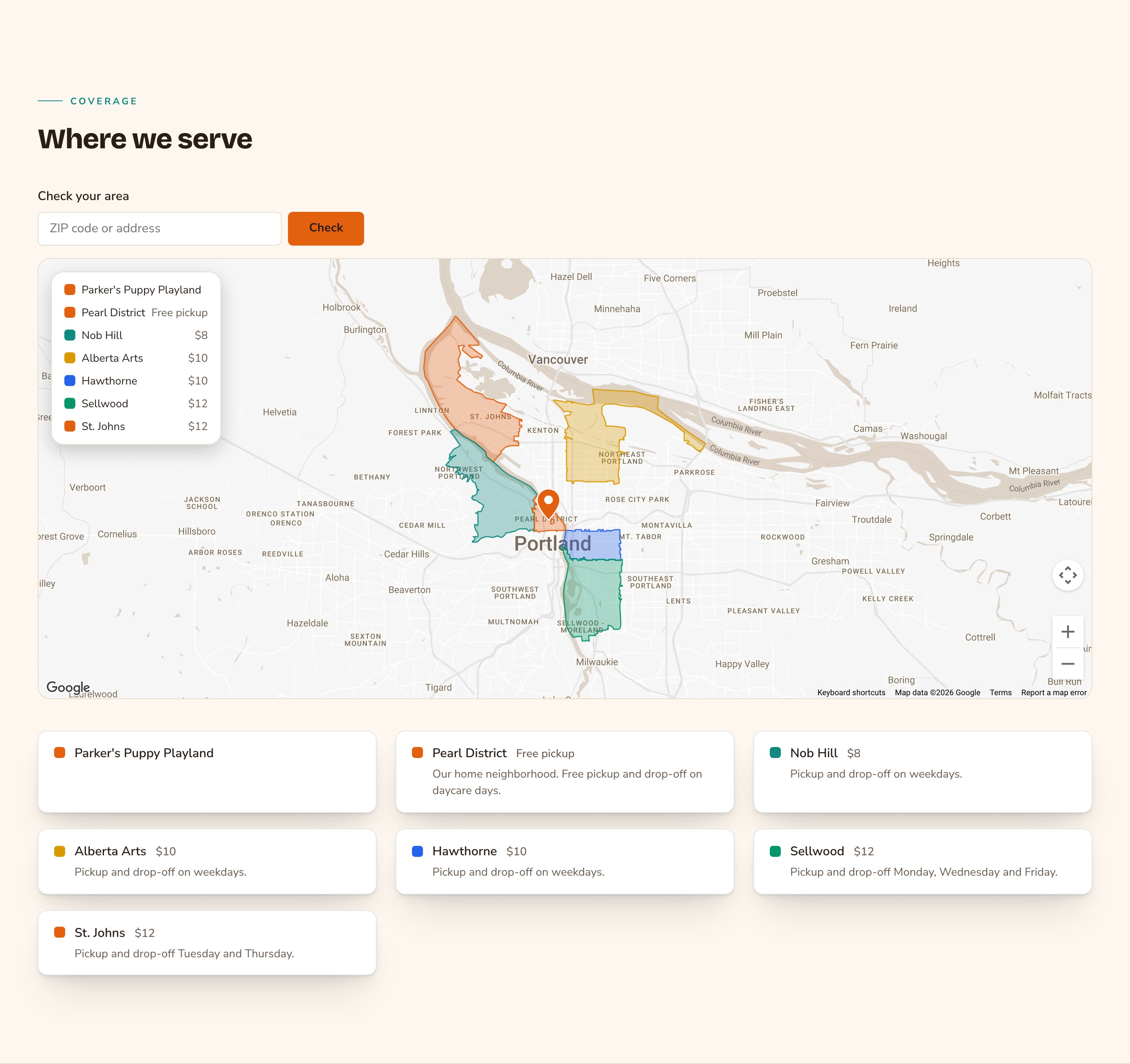
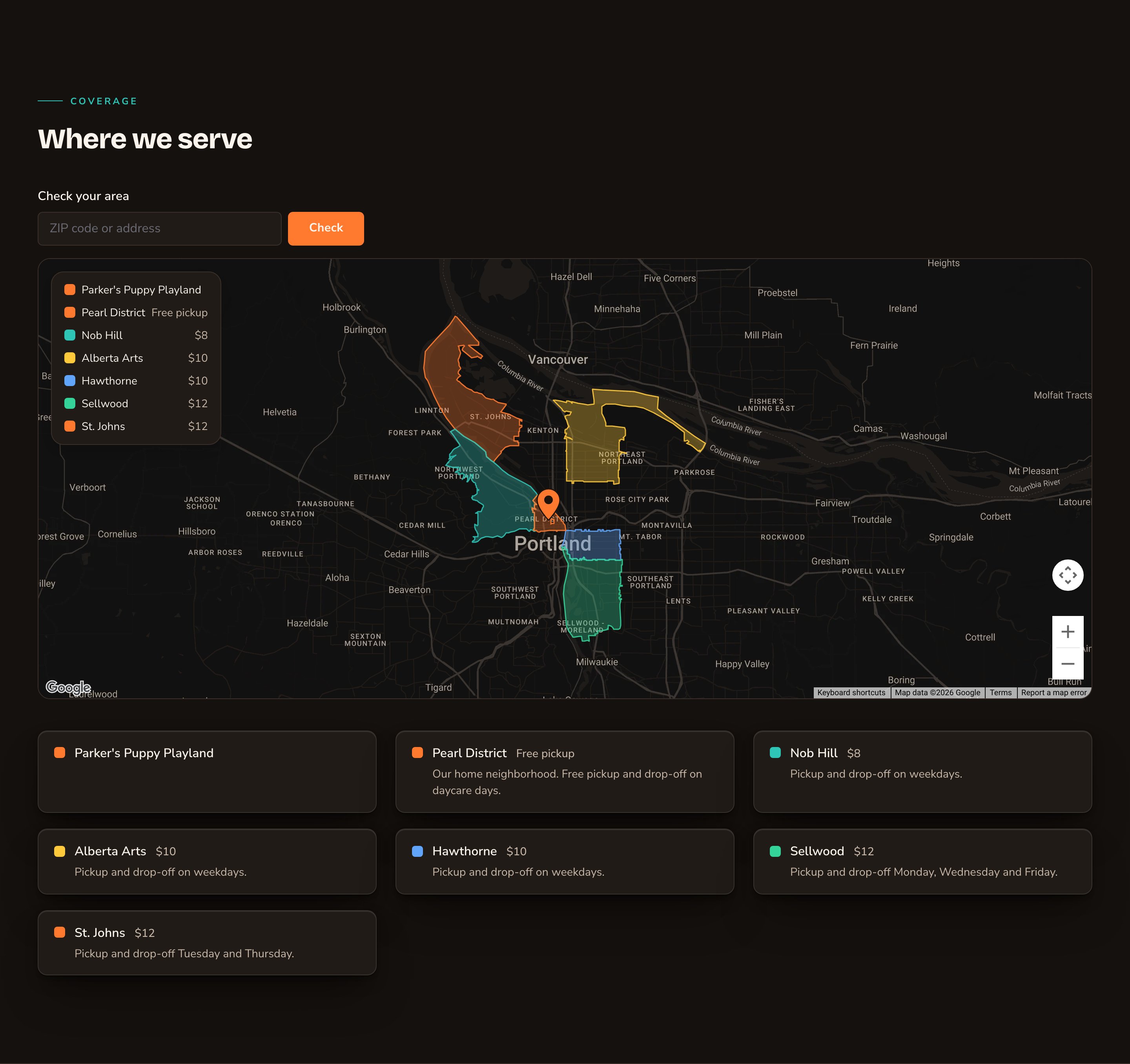
Colored zones, a map key, a search box and zone cards with prices.
When to use it
- To show visitors, at a glance, which neighborhoods you serve.
- To answer “Do you come to me, and what does it cost?” before anyone has to call.
- To offer a distance-priced extra, such as pickup beyond your main zones, with an instant estimate.
Before you start
The section only sets how the map looks. Three names are easy to mix up:- the Service Area Map page, a page your site already has, with this section on it;
- the Service Area Map section, which you can add to any page;
- the Service area map screen, a settings screen that decides what every map shows.
- Choose where your areas and prices come from on the Service area map screen. Open the command palette (⌘K, or Ctrl+K on Windows) and choose Service area map. There you also set your business location. See Service area map settings.
- Add a Google Maps key in Connections → Google Maps, so the map can draw. See Google Maps.
- Your own zones. If the screen is set to Service Areas managed in this CMS, draw or list each zone in the Service Areas list (command palette → Service Areas). See Service areas.
- A premium service, such as pickup beyond your zones, priced on the Service area map screen.
Add it to a page
1
Open the page
Sign in, open the page on your site, and choose Edit in the edit bar at the top.
2
Find the spot
Select the section next to where the new one should go. A round + button appears on its top and bottom edges. On an empty page, choose Add Content in the middle.
3
Choose the section
The Add Content menu opens with its groups. Choose the section, then select it and choose Edit in its side toolbar to make it yours.
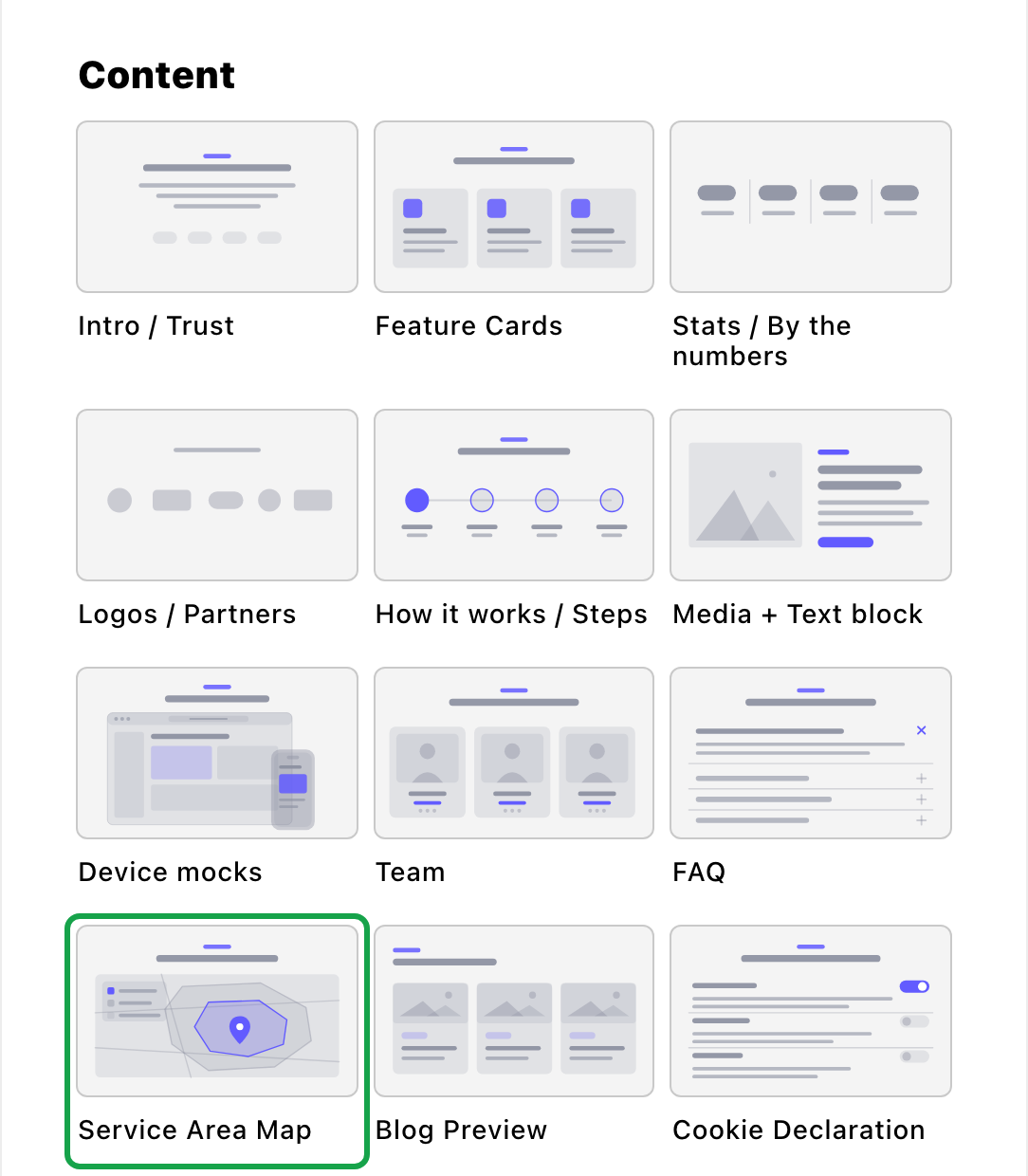
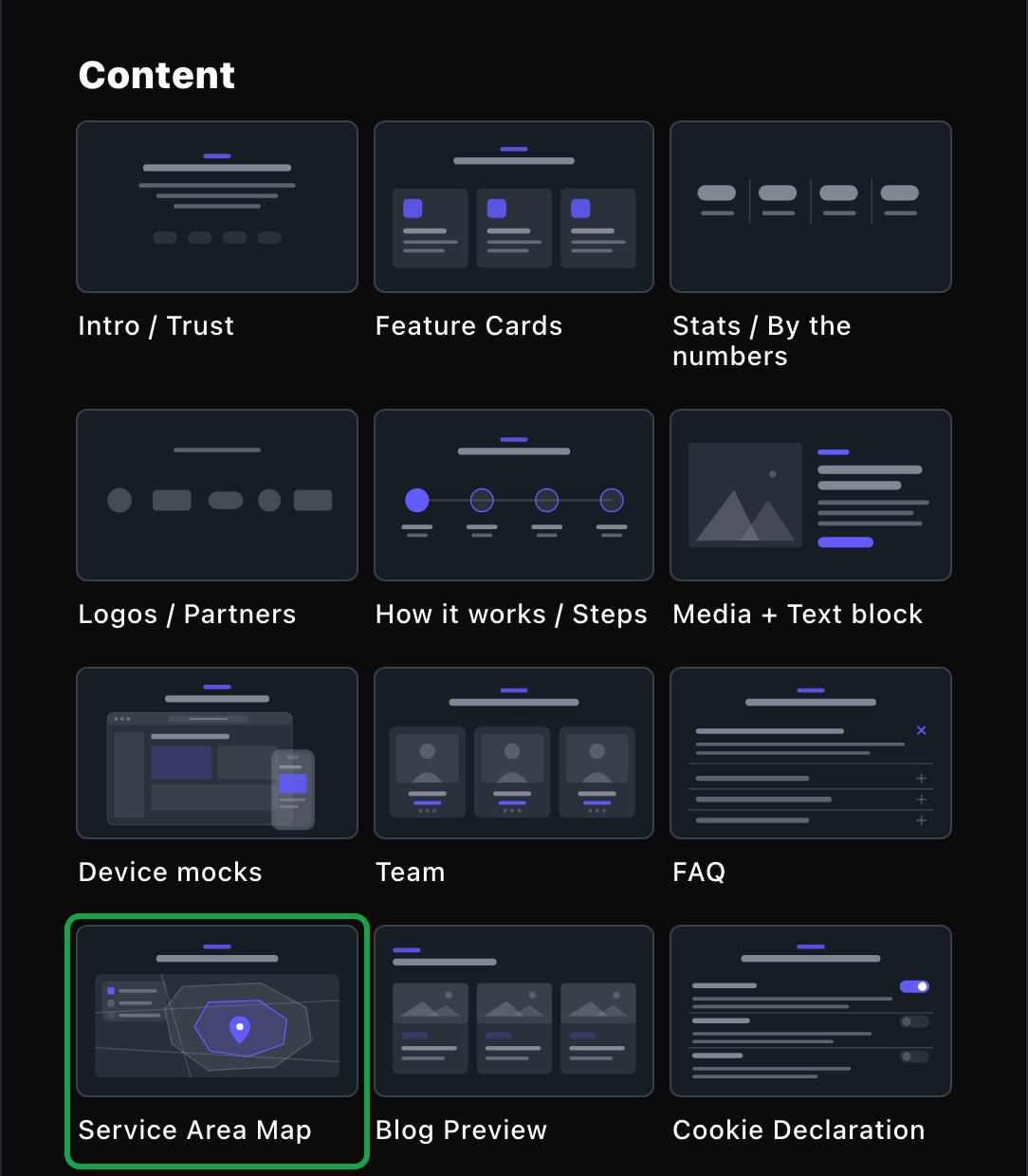
The Service Area Map lives in the Content group.
What you can change
Select the section on the page and choose Edit. The editor opens beside the page, so you see each change as you make it. Its tabs run from Header to CSS. Your changes go into the page’s draft. Visitors see them once the page is published with Update in the edit bar (Publish on a page never published).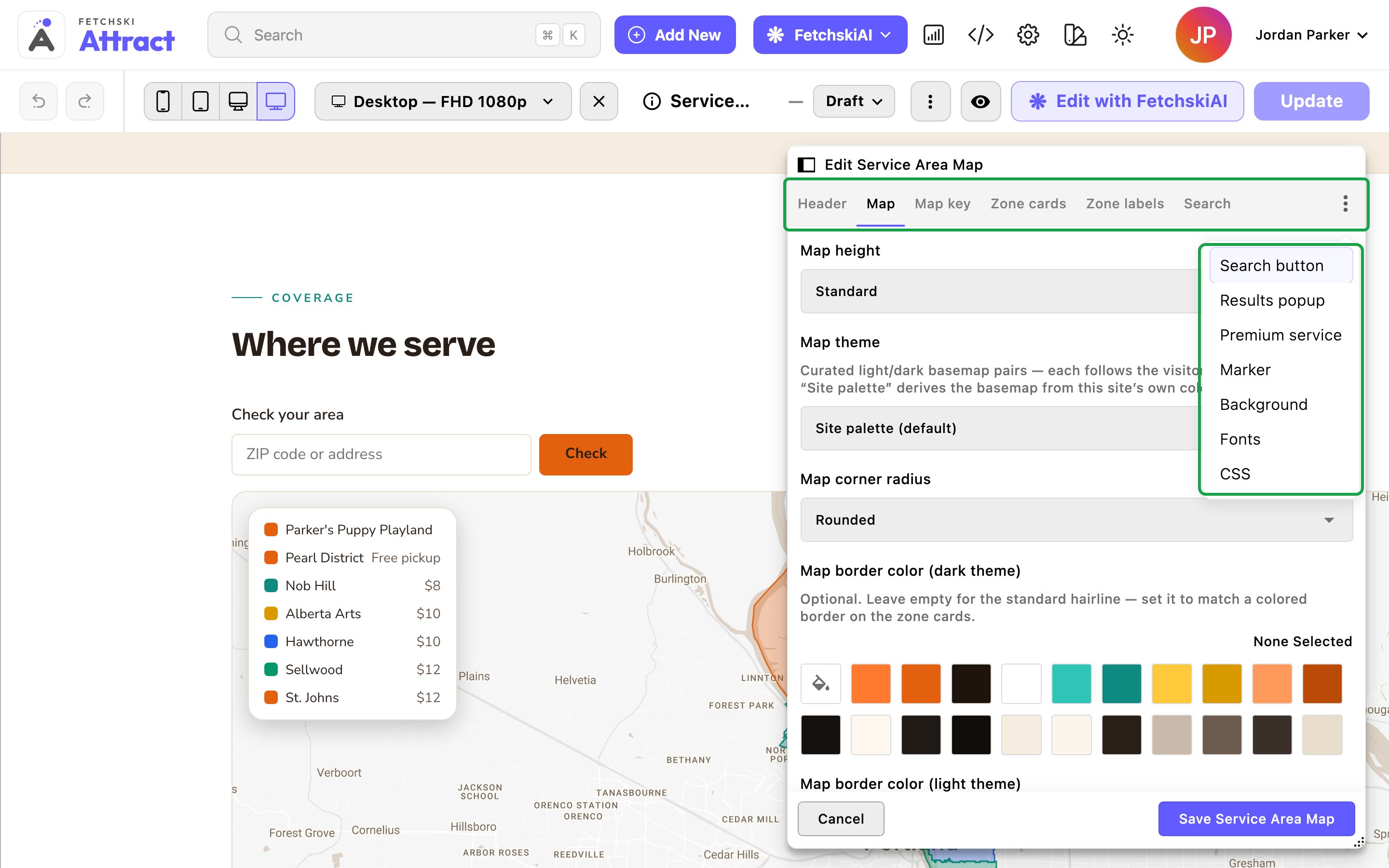
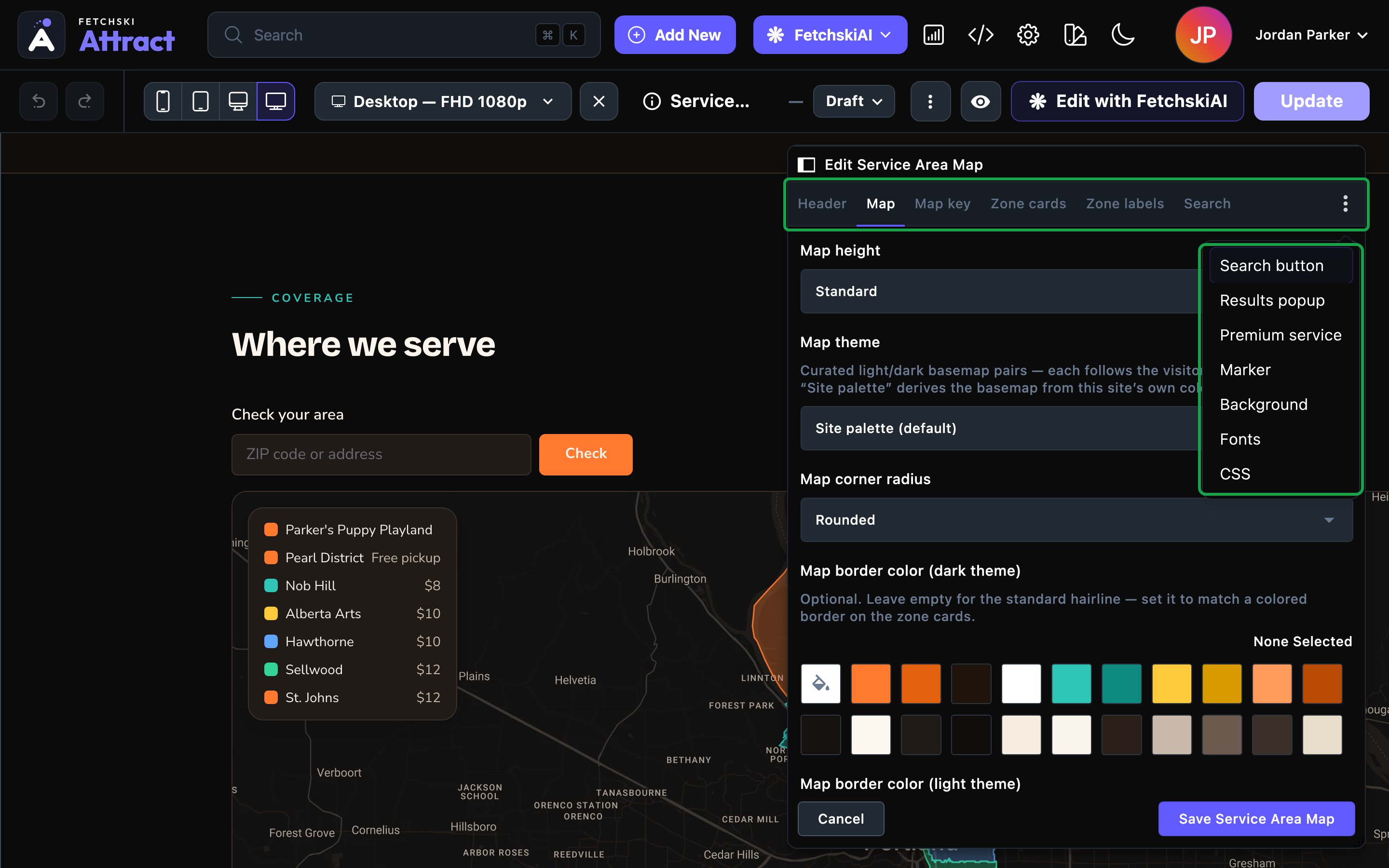
The Service Area Map editor, with the map updating beside it.
Header
Header
- Eyebrow: the small label above the heading. It starts as “Coverage”.
- Heading: it starts as “Where we serve”.
- Intro text: an optional short paragraph under the heading.
- Set the heading’s weight and color, and the intro’s size.
Map
Map
- Map height: Compact, Standard or Tall.
- Map theme: the look of the map itself. Site palette (default) builds it from your site’s colors. Classic — standard & night, Silver — light gray & charcoal and Retro — warm paper & aubergine are ready-made pairs. Each one switches with your site’s light and dark theme.
- Map corner radius: how rounded the map’s corners are, from Square to Large.
- Map border color and Map glow color: an optional colored frame or soft glow, for example to match glowing zone cards.
- Publish full service-area structured data (JSON-LD): on by default, and most sites leave it on. It hands search engines a hidden, machine-readable list of the areas you serve on this page. Visitors don’t see it. It works only when structured data is turned on in Site settings → SEO (your search engine settings).
Map key
Map key
- Show the map key: the card on the map that lists each zone’s color and price.
- Set the size of each color sample (the swatch), the text’s alignment, size, boldness (weight) and color, and the key’s corners, border and glow.
Zone cards
Zone cards
- Show the zone cards: a card for each zone under the map, with its color, name and price. Turned off, they stay on the page for screen readers.
- Card style, Card corners and Hover effect: the shared card looks. The cards start as Raised — lit soft card with the Outline — frame draws to accent hover.
- Set the size of each color sample (the swatch), the alignment, the zone name’s boldness (weight), and the text size and color.
- Supporting text size, Supporting text weight and Supporting text color: the price and detail lines under each zone name.
Zone labels
Zone labels
- Label for zero-price zones: shown instead of “$0” for a zone with no fee. It starts as “Included”. Clear it to show the plain price.
- Zone label overrides: change how one zone appears without touching your map data. Enter the Zone name (as provided by the data): the name the zone shows in the map key and zone cards before you change it, whatever your source. Capital letters don’t matter. Then set a Display name or a Price label (such as “Call us”), or turn on Hide this zone from the key and cards. For example, enter “Westside” with the Display name “West Portland”. A hidden zone stays on the map and in search results.
Search
Search
- Show the “check your area” search: the search box above the map. On by default.
- Search label and Search placeholder: they start as “Check your area” and “ZIP code or address”.
- Suggest addresses while typing: suggests addresses under the box as a visitor types.
- Outside-area message: what a visitor sees when the place they searched isn’t in any zone.
- Search justification and Search box corner radius: the box’s alignment, and how rounded its corners are, to match your buttons.
Results popup
Results popup
The box that answers a search.
- Popup placement: Center of the map or Bottom corner.
- Popup style: Translucent overlay or Solid card.
- Show what was searched: repeats the ZIP code or address at the top.
- Show the city/town name: adds the town’s name after a ZIP code search.
- Set the popup’s text size and title weight.
Marker
Marker
The pin that marks your business.
- Marker image (dark theme) and Marker image (light theme): use your logo as the pin. Leave them empty for a simple pin in your accent color.
- Marker label: the name read out and shown on hover. Leave it empty to use your business name from Site settings.
- Marker size: Small, Medium or Large.
- Subtle marker bounce: the pin gently bobs in place.
- List the business location in the key and cards: adds your location as the first entry in the key and the cards.
What visitors see
- A search answer. A visitor types a ZIP code or an address. The popup names their zone, its price and its description, plus a premium estimate when it applies.
- Price tiers, not a long list. Zones that share a color and a price appear as one row in the key and one card, listing the zone names.
- Click to find a zone. Clicking a row in the key or a zone card highlights that zone on the map.
- Cookie consent first. Google Maps stores data on the visitor’s device, so the map waits for consent where your cookie settings ask first. Until then, visitors see a short notice and a Load this content button. The search box is hidden until then, and the map key and zone cards still show. See Cookie consent.
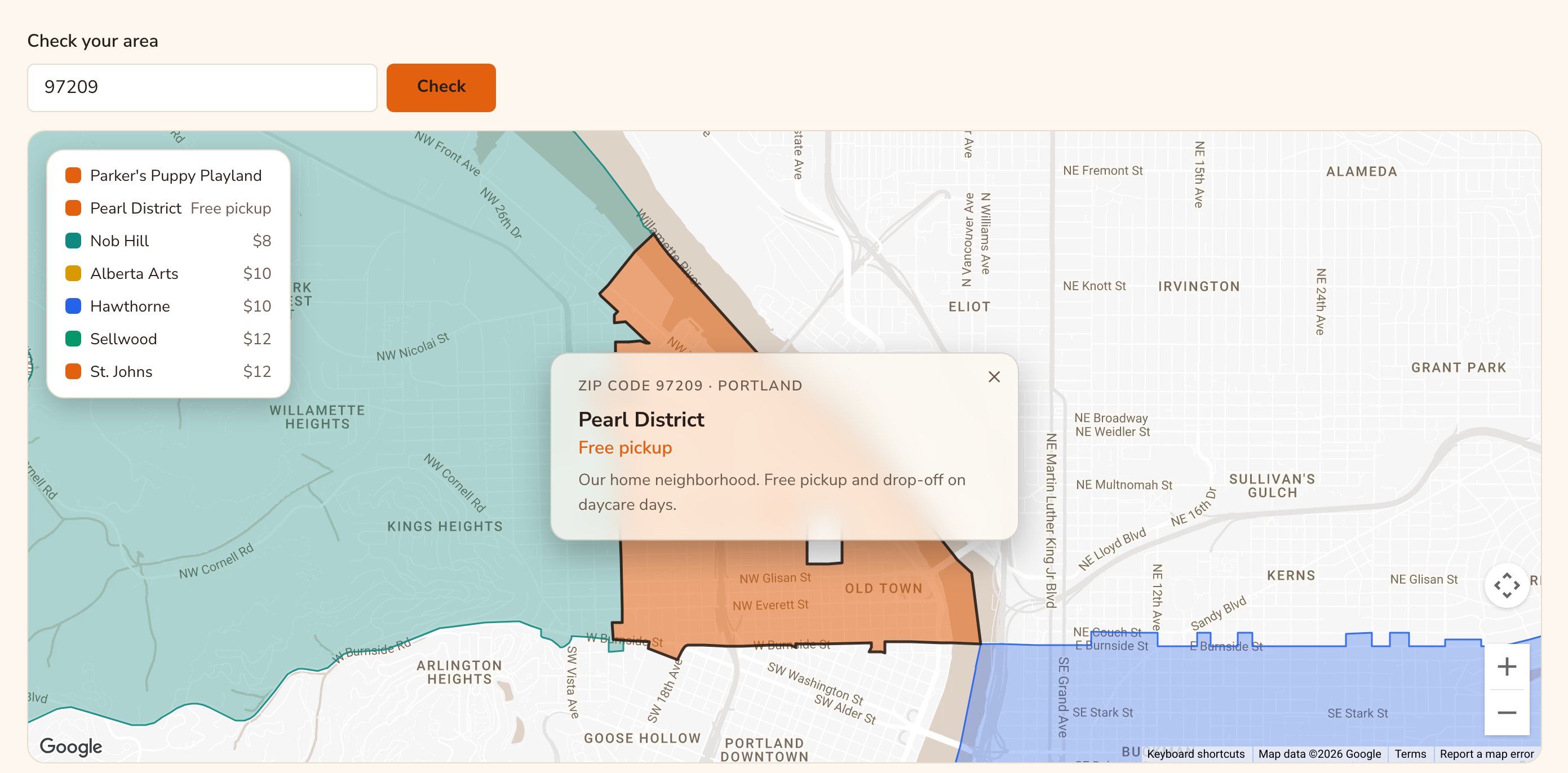
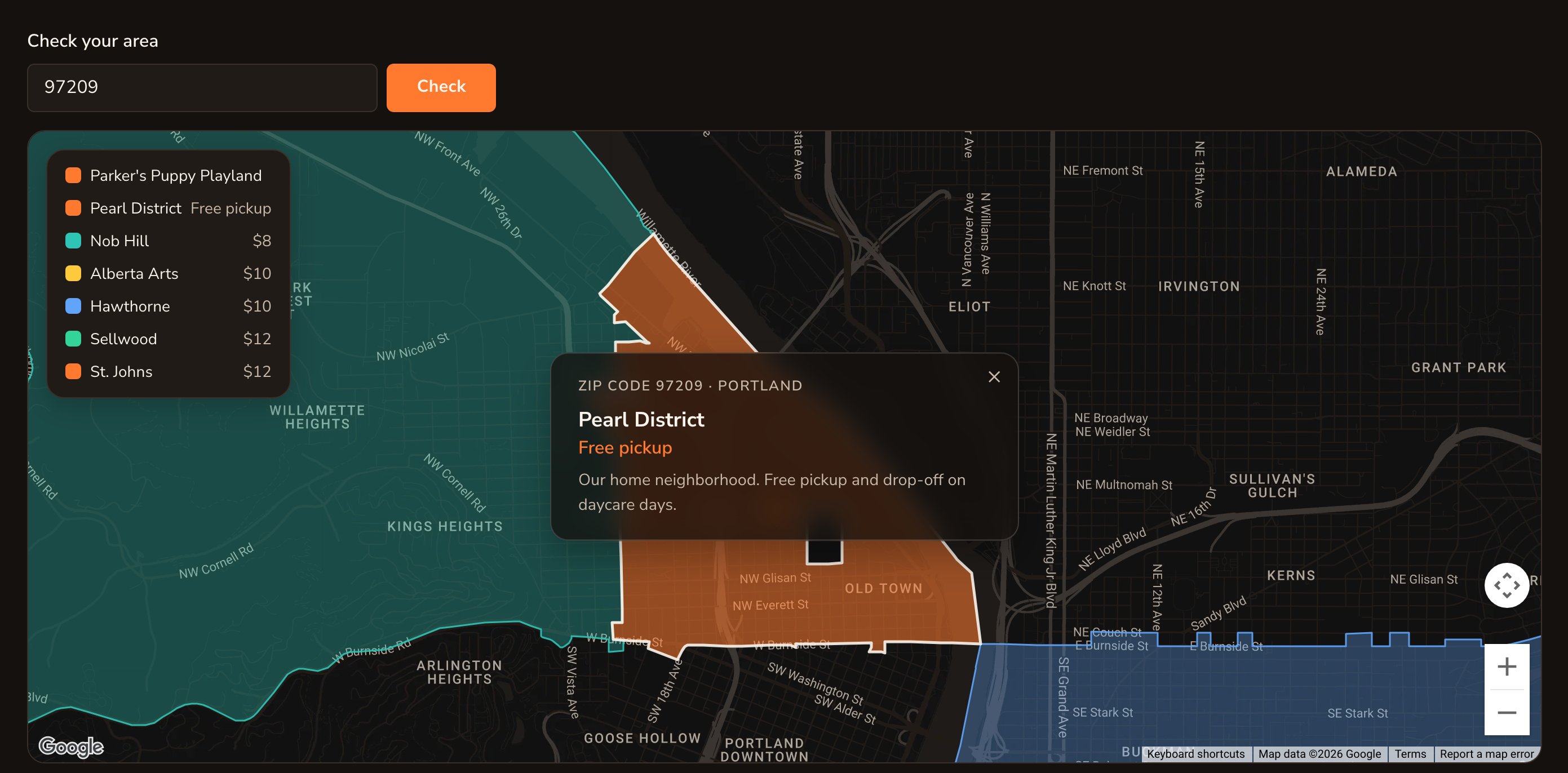
A search answers with the zone, its price and a premium estimate.
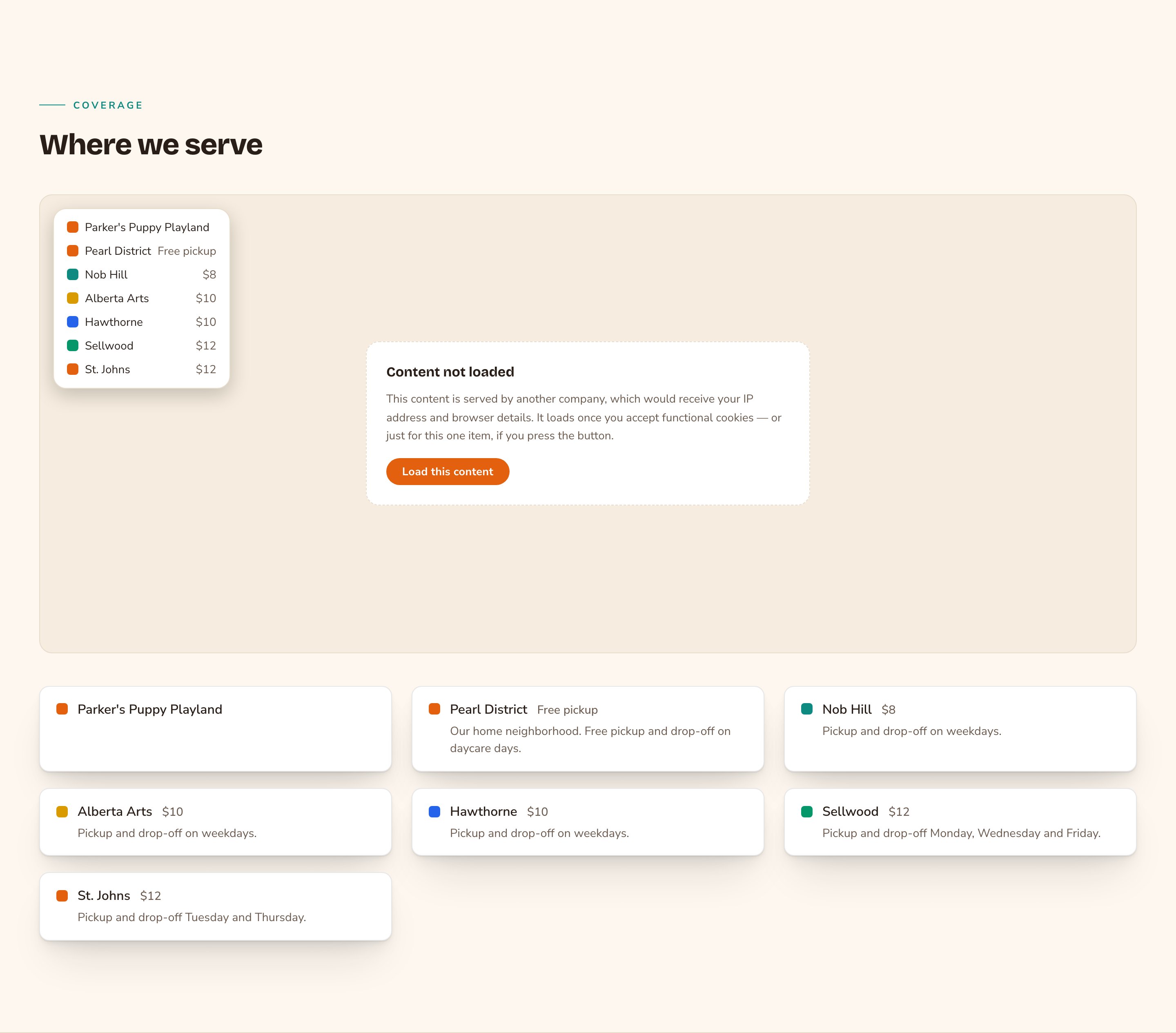
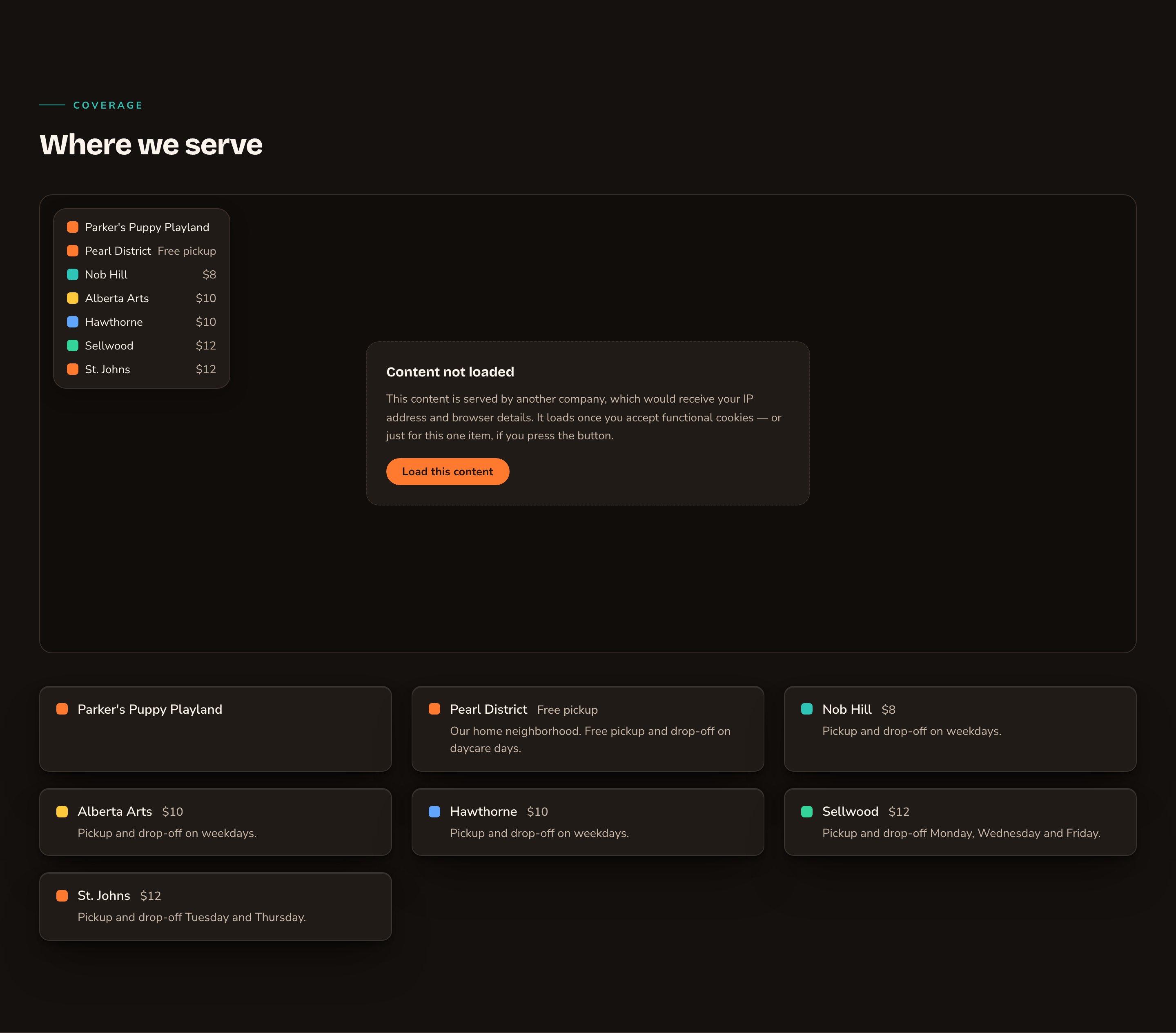
The map waits for cookie consent. The zone cards still show.
Looks you can make
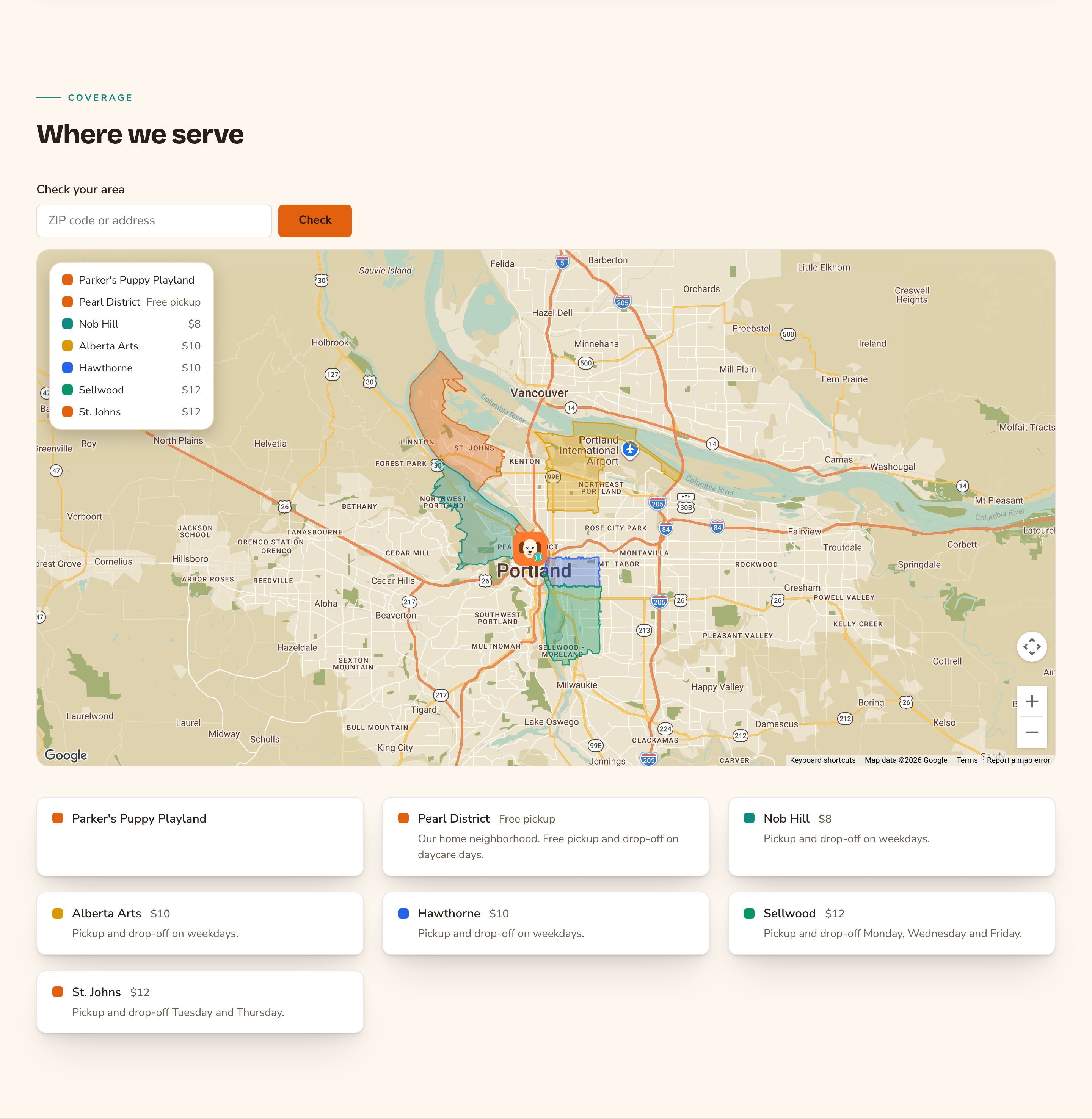
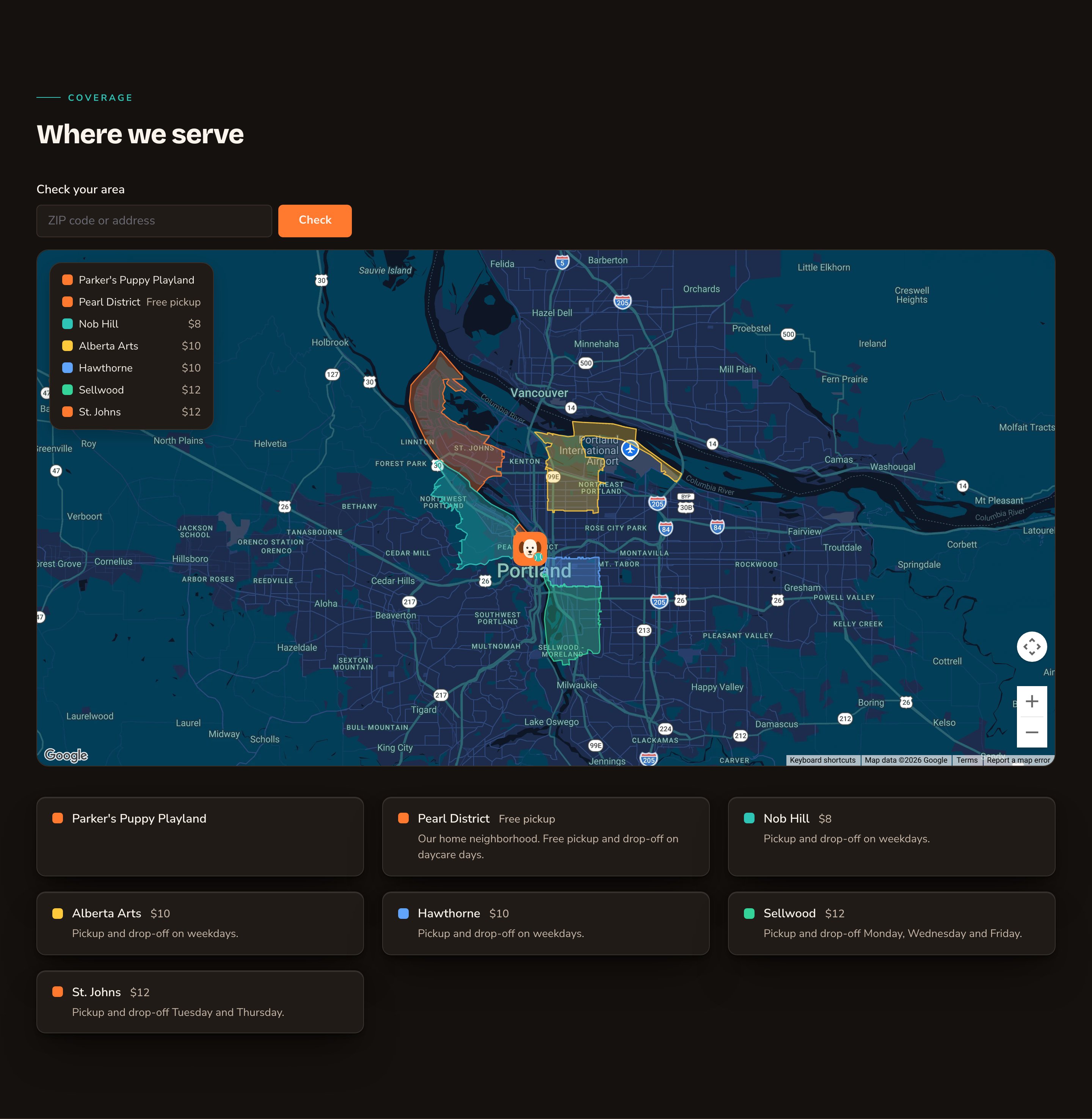
Tall, in the Retro theme, with your logo as the pin.
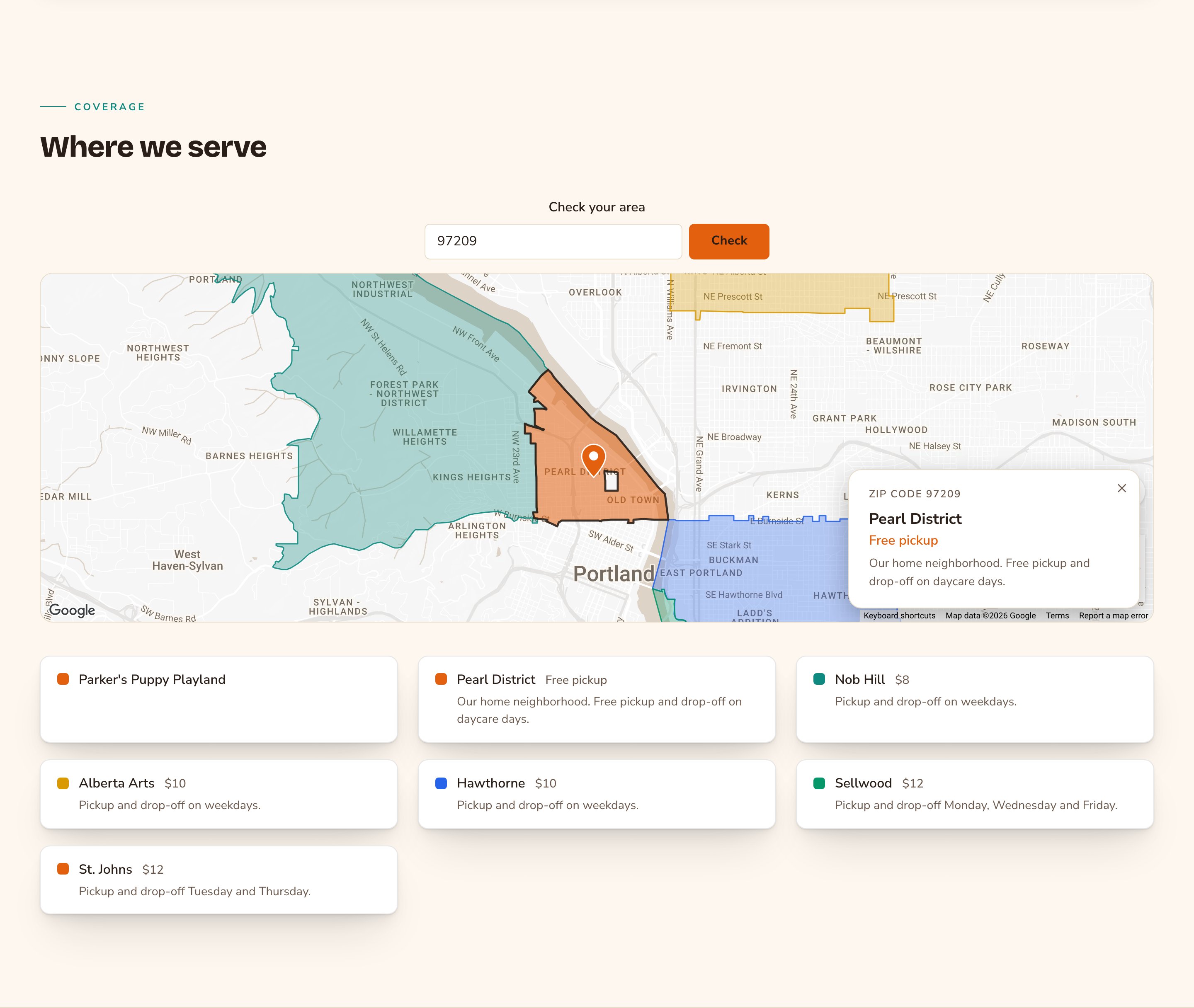
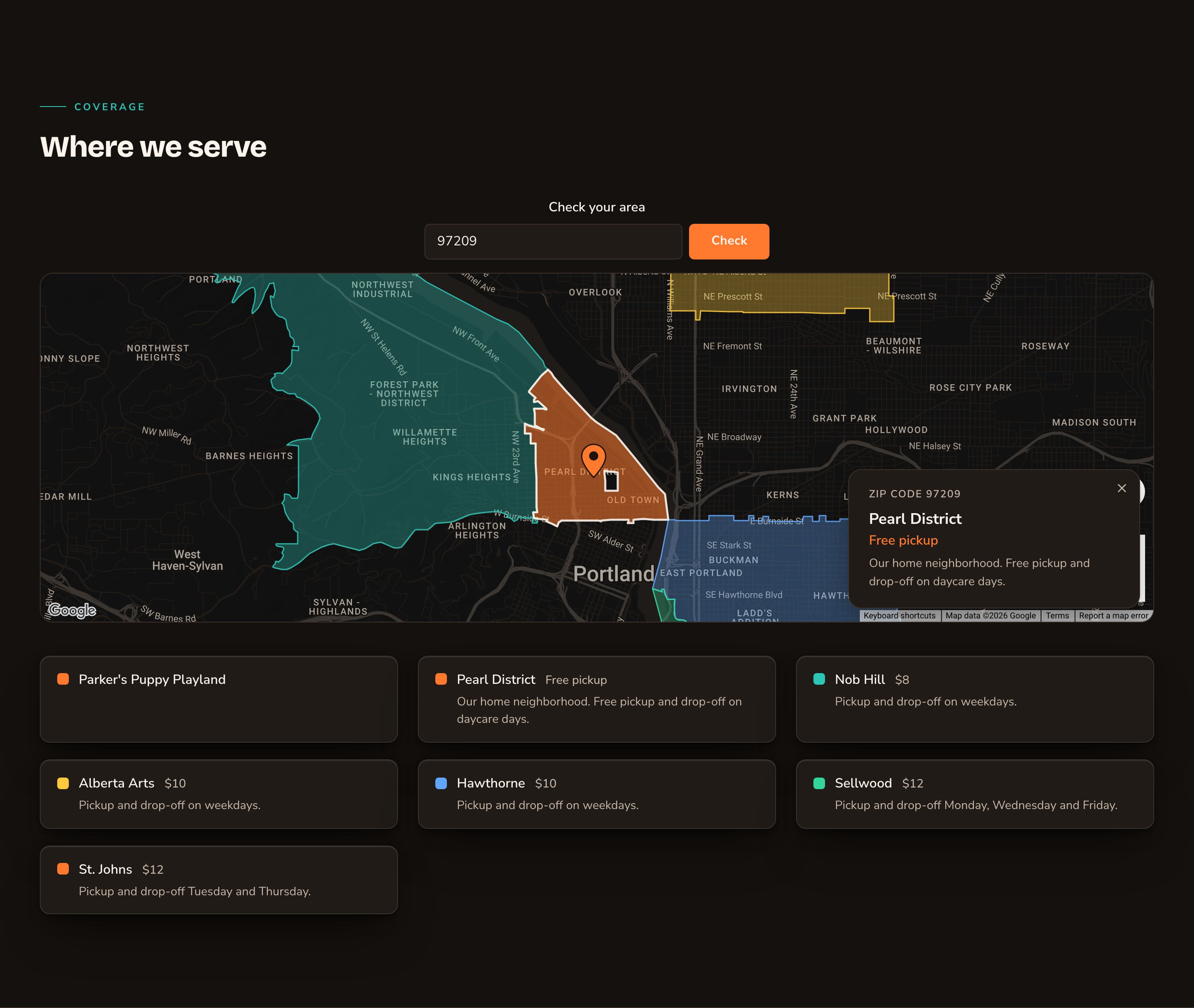
A compact search-first map.
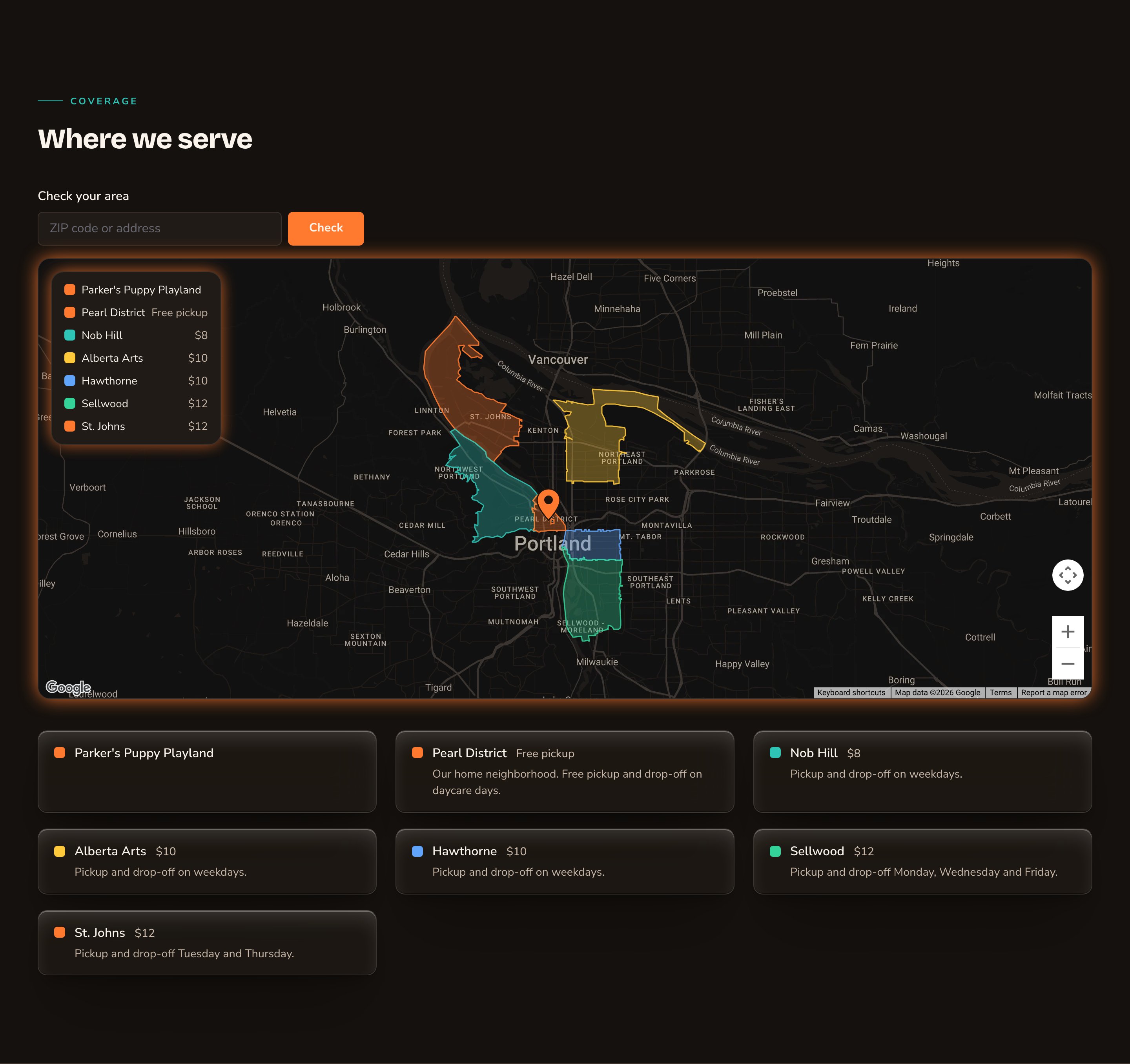
A soft glow on the map and the key, over frosted cards.
Good to know
- Accessible by design. The map itself can’t be read by screen readers. The zone cards carry the same information, so they stay on the page even when you hide them.
- The marker bounce has no pause button. It is off by default, and visitors who prefer less motion never see it move. Leave it off if visitors may find motion distracting.
- Search suggestions and estimates depend on your Google Maps key. If they don’t appear, ask an Admin to check the key’s setup guide in Connections → Google Maps.
- New map data takes a moment. Right after the areas change, visitors may briefly see “Service area details are being prepared — check back shortly.”
Appearance options
Most sections also share a few tabs that work the same everywhere:- Background: set the color behind the section, separately for the dark and light themes.
- Fonts: use a different typeface for parts of this section only.
- CSS: add custom styles to this section. Admins and Owners can change it.
Related
Service area map settings
where your zones, location and premium pricing come from.
Service areas
draw or list your own zones.
Google Maps
add the key the map needs.
Cookie consent
how the map waits for consent.