

 AdonisJS
Before you start
- You need an account with an email sending service: SendGrid, Postmark, or any service that gives you an SMTP server. This is a service that sends email for websites. It’s separate from the inbox you read your email in.
- Verify your sending domain with that service, such as
parkerspuppyplayland.example. Services send email only from an address on a verified domain. - Get the login the service gives you for sending: an API key (SendGrid), a server token (Postmark) or an SMTP username and password. Setup guide — email provider on the Email card shows where to find it for your service.
Connect your email account
Open Connections
Open the Email card
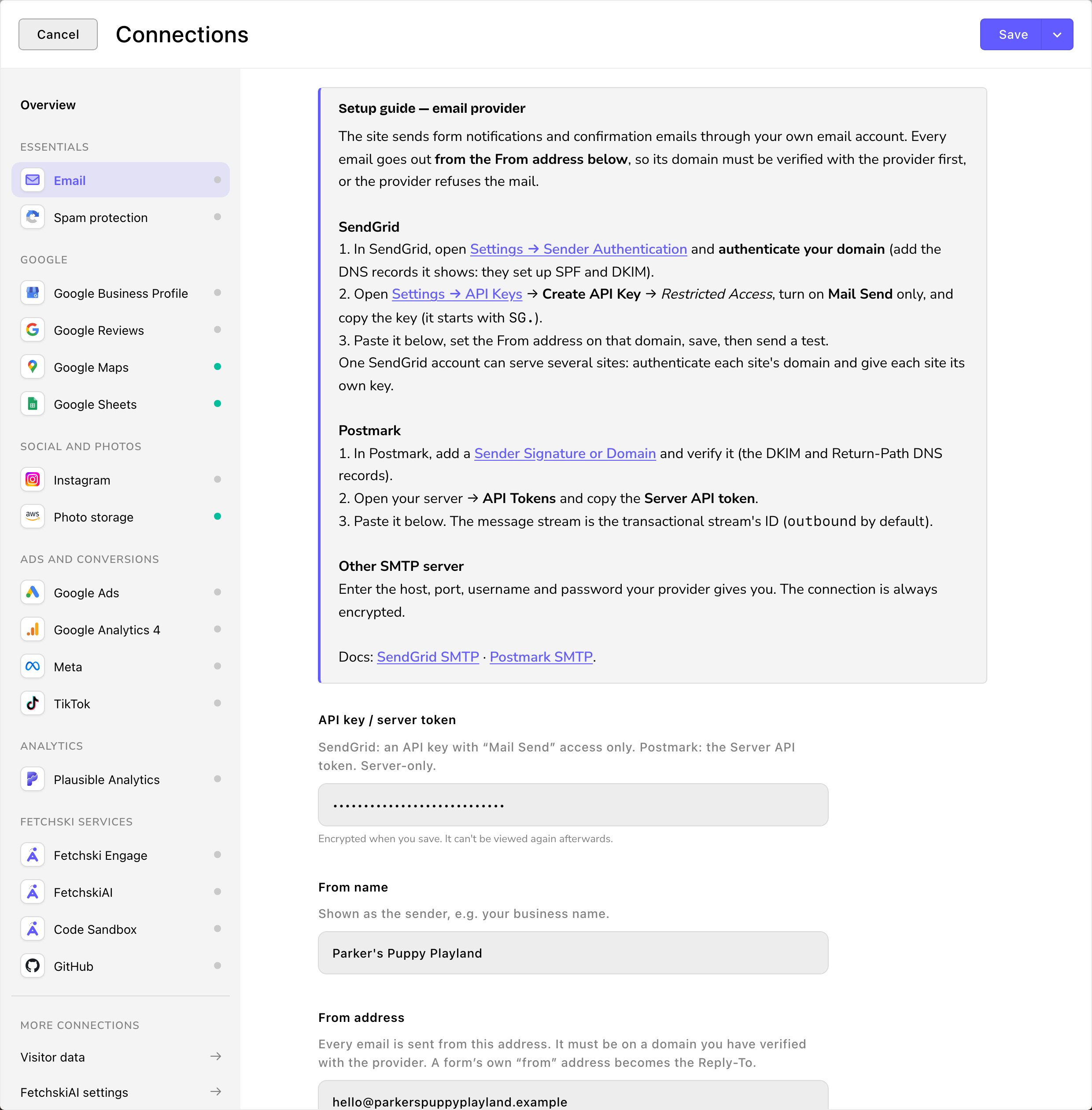
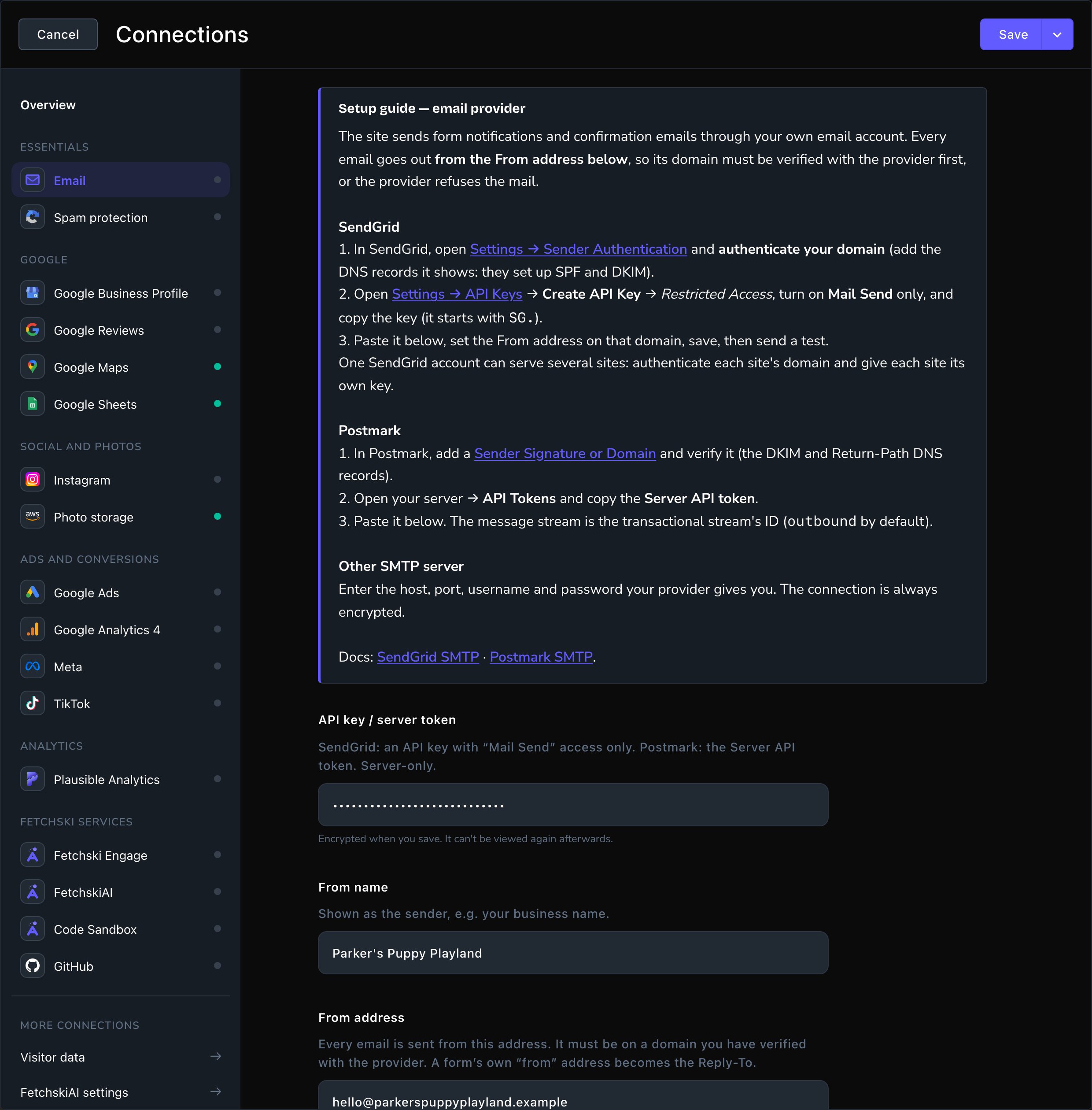
The Email card with SendGrid chosen.
Choose your service
Follow the guide
Enter your login
- SendGrid: paste an API key with Mail Send access only into API key / server token.
- Postmark: paste your server’s Server API token into API key / server token.
- Other SMTP server: fill in SMTP host, SMTP port, SMTP username and SMTP password. Use port 587 for most servers. For port 465, turn on Encrypted connection from the start (port 465).
Say who it's from
Save
outbound unless you made another stream.
Send a test email
Scroll to Send a test email at the bottom of the Email card
Choose Send test email
Read the result under the box
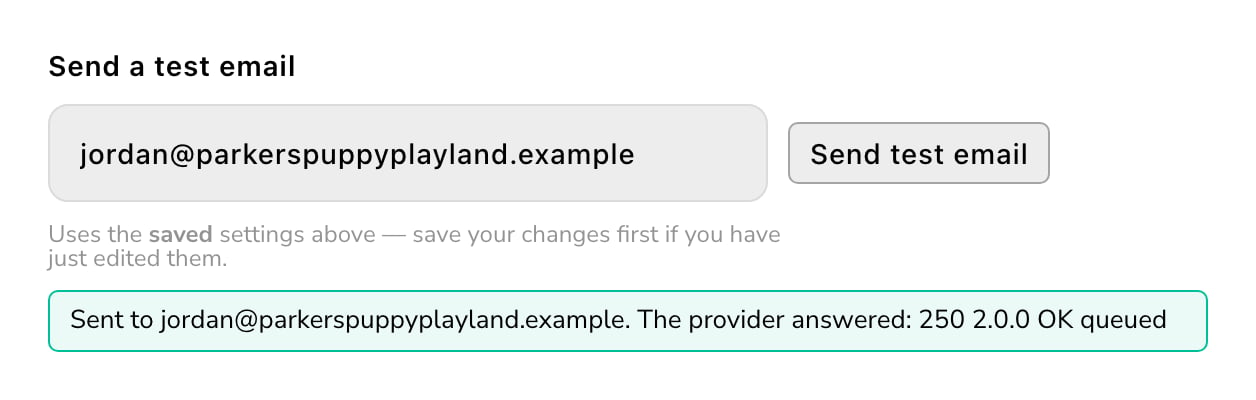
A test email that went through.
Choose who gets each form’s emails
Open the form in the Forms manager. There are 2 ways to email a submission. Start with the Actions tab: it’s the simplest. The 2 ways work separately. If you put the same address in both, that address gets 2 emails for every submission, so use one place per address. Actions tab: the quick way to get a copy of every submission.On the Actions tab, add an item
In Action, choose Email a notification
In Notify address, type where the copy should go, such as hello@parkerspuppyplayland.example
Publish the form
- Email Address(es) for Results: one or more addresses that get every submission.
- Set Conditions for this Notification: sends to an address only when a visitor gives a certain answer. For example, Parker’s sends to
downtown@parkerspuppyplayland.exampleonly when a visitor chooses “Downtown” in the form’s Location question. Add the address, then set the condition: the question and the answer that sends to it. - Send a confirmation email: emails the visitor a copy of what they sent. In Which is your confirmation email field?, type the short name of the form’s email question. On any form made from a template, that’s
email. - Primary internal email address: where a visitor’s reply to their confirmation email goes. Its help text calls it the “from” address, but every email is actually sent from the From address in Connections. A new form starts with the Email from Site settings → Brand.
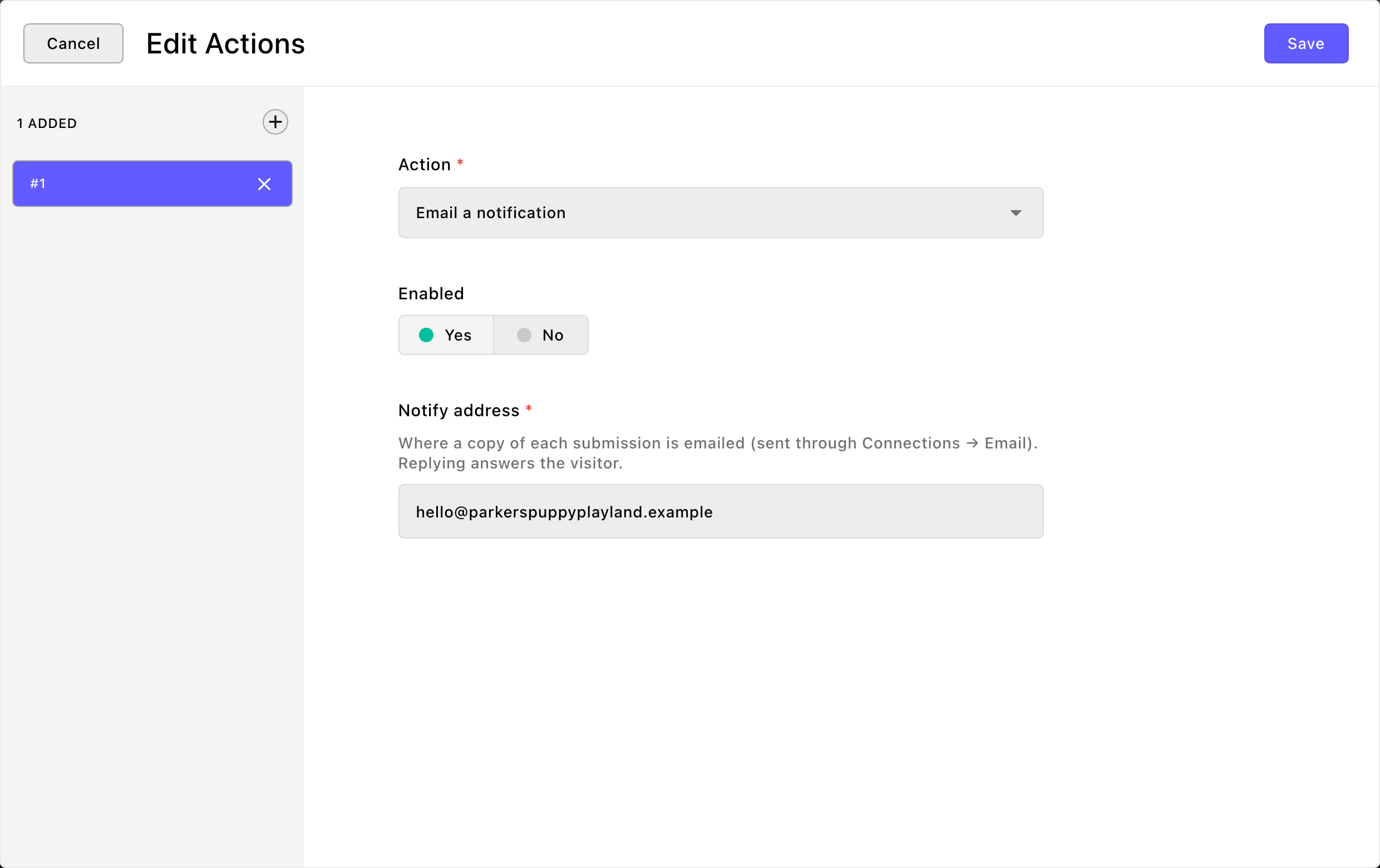
Email a copy of each submission with one action.
What happens next
Each new submission is emailed right away.Troubleshooting
The provider refused the login. Check the API key, token or SMTP password.
The provider refused the login. Check the API key, token or SMTP password.
The provider refused the message. Usually the From address is not a verified sender for this account.
The provider refused the message. Usually the From address is not a verified sender for this account.
Could not connect to the email server" or "The SMTP server's host name could not be found.
Could not connect to the email server" or "The SMTP server's host name could not be found.
Email isn't set up: …
Email isn't set up: …
Too many test emails. Try again in N minutes.
Too many test emails. Try again in N minutes.
The test works, but form emails don't arrive
The test works, but form emails don't arrive
- Check that the form is published with an email set: an Email a notification action that’s Enabled, or an address in Email Address(es) for Results.
- Check the form’s Primary internal email address. It starts empty while Site settings → Brand → Email still holds the starting example address. Set your real address there, then fill it in on the form.
- Look in your spam folder, and in your email service’s activity log.
- The submissions are still saved. See them in Form submissions.