

 AdonisJS
Before someone shows up here
You don’t add people on this screen. They join in 3 steps:- Fetchski gives them access to your site. To add someone, contact Fetchski Support.
- They sign in once with their Fetchski account. See Sign in.
- You give them a role here. Until then, they show “No access yet” and can’t change anything.
Open People & Roles
- Open the command palette (⌘K, or Ctrl+K on Windows) and choose People & Roles.
- Or use the shortcut T then Shift+P (press T, let go, then hold Shift and press P, while you’re not typing in a box; see Keyboard shortcuts).
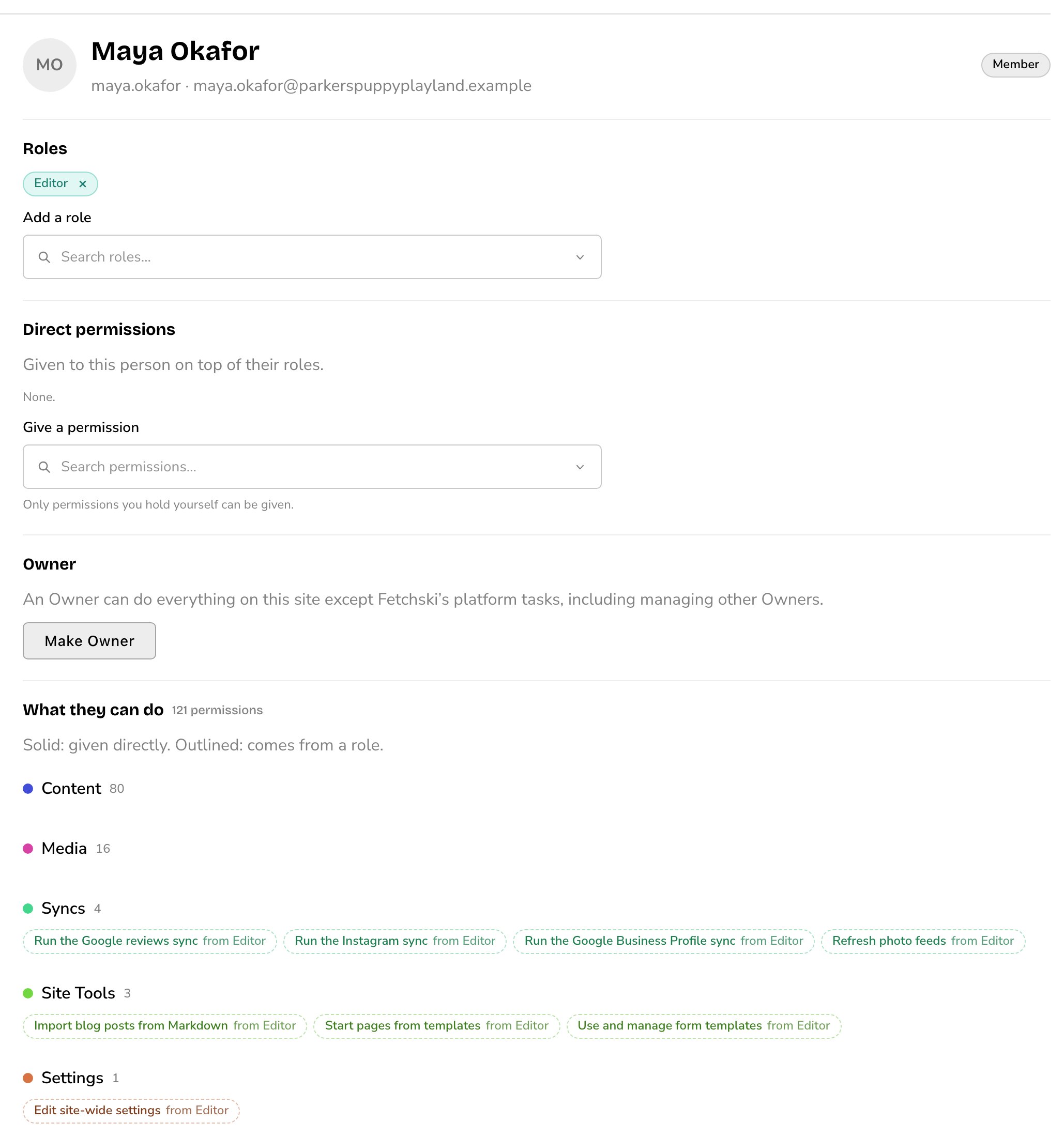
Members: everyone with an account, and what each person can do.
Members
The list on the left shows everyone with an account on your site, with their roles as colored chips (small named badges). Use the Search by name, username or email box to find someone. “No access yet” marks someone with no role, and “Disabled” marks an account that can’t sign in. Choose a person to see their details on the right. Roles- Add a role: gives the person a role. The list shows Built-in roles and This site’s roles, each with what it’s for and how many permissions it holds.
- Choose the × on a role’s chip to take it away.
- Give a permission: adds one permission on top of their roles, such as letting an Editor see your site’s analytics.
- Choose the × on a chip to take it away.
- Make Owner: makes the person an Owner. Only Owners see this button. Their roles and direct permissions are cleared, because an Owner can already do everything.
- Remove as Owner: turns an Owner back into a member with no roles. Give them a role afterward if they still need access.
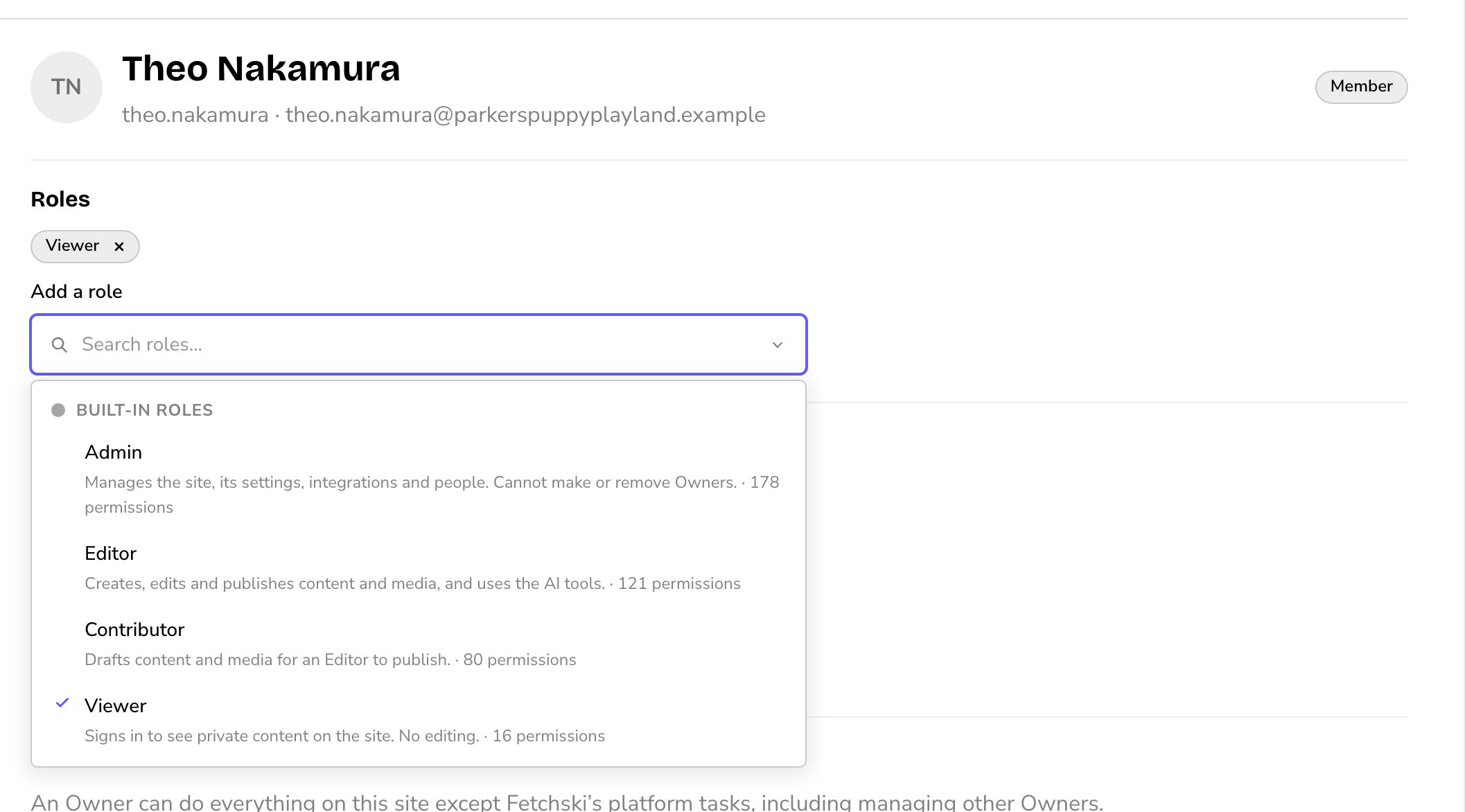
Add a role lists the built-in roles and your own.
Roles
The left of the tab lists the Built-in roles and This site’s roles, with how many members hold each. Choose Show archived roles to see roles you’ve archived. Built-in roles are the same on every site and can’t be changed. Choose one to see what it’s for and its permissions. To build a role like it, choose Copy this role. See What each role can do. Your own roles fit your team, such as a “Front desk” role that edits pages and forms but not the site’s design.Make a role
- Choose New role.
- Fill in Name and Description, and choose a Badge color: Neutral, Primary, Secondary, Tertiary, Info, Success, Warning or Danger.
- In Start from, choose No permissions (pick them next), or a copy of an existing role, such as A copy of Editor.
- Choose Create role.
- Use Add a permission to add permissions, and the × on a chip to take one away. Each change saves at once.
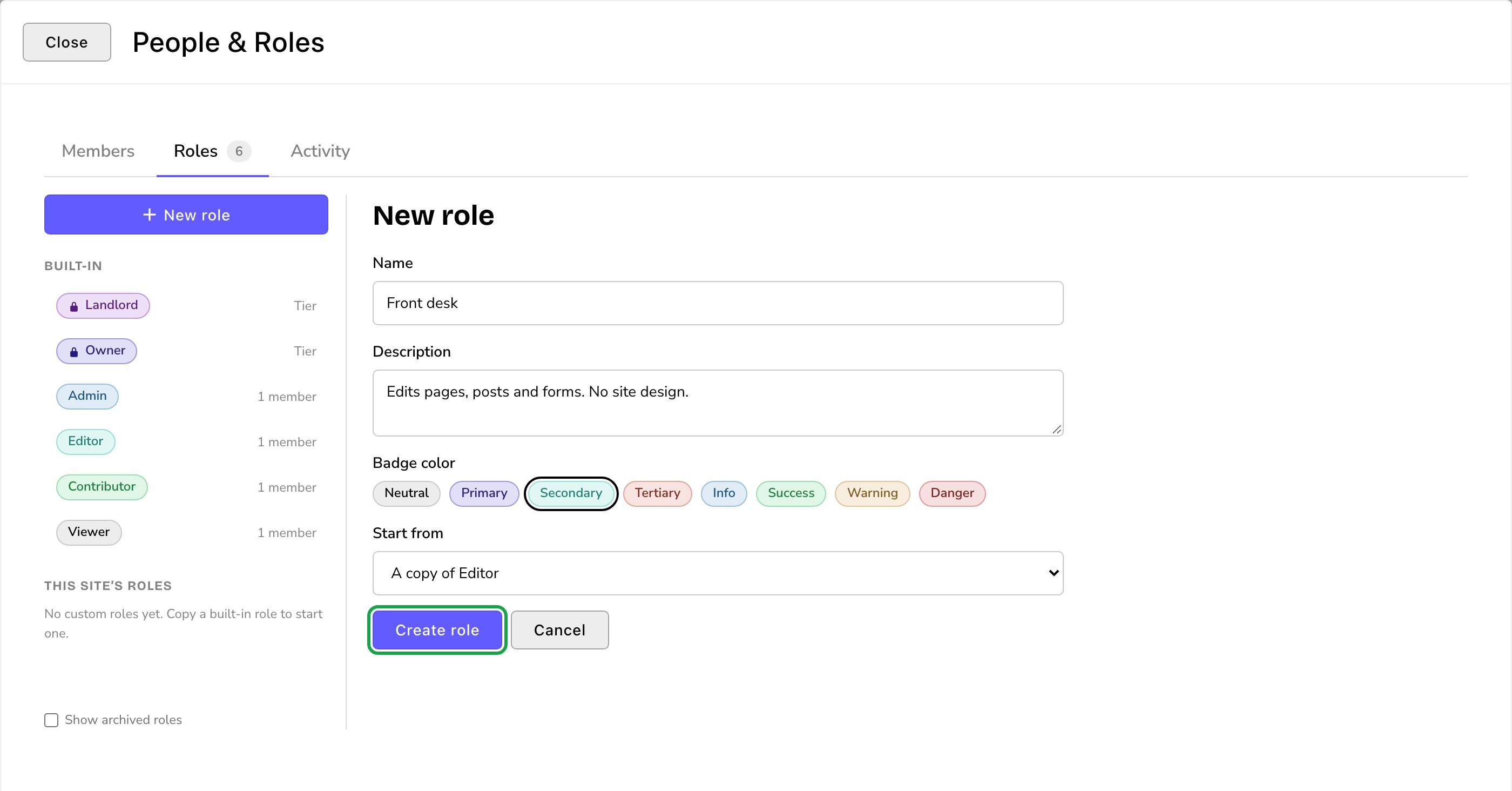
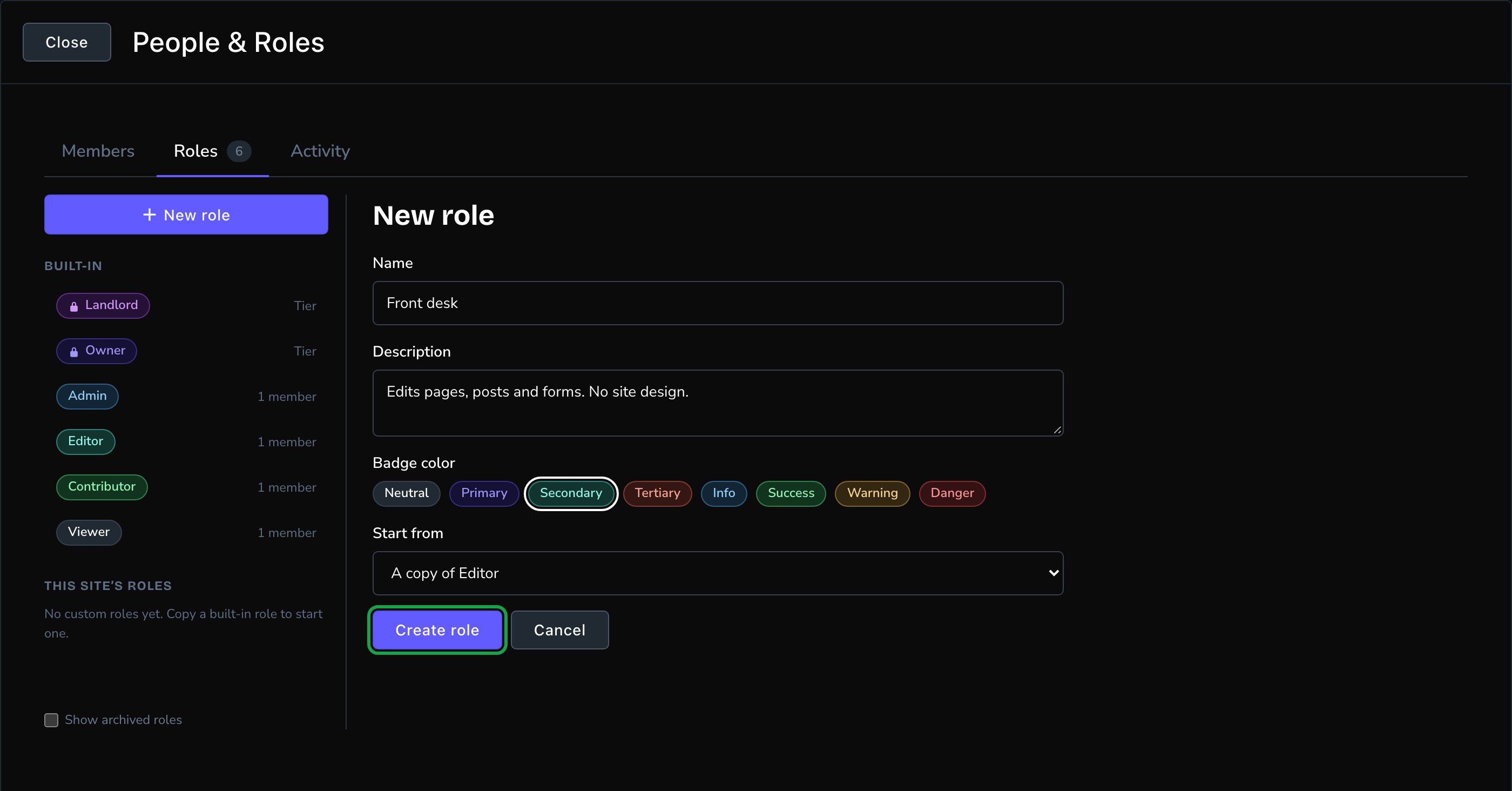
A new role, started as a copy of a built-in one.
Change or archive a role
Choose one of your roles to change it. Edit its Name, Description or Badge color, then choose Save details. Its permission changes save at once. Archive role takes away the access that this role gives everyone who holds it. A person keeps anything their other roles or direct permissions give them, so check What they can do on the Members tab afterward. Roles are never deleted: Restore role gives the role’s permissions back to those members. Both ask you to confirm first, and archiving says how many members hold the role.Activity
Every change to access, newest first: roles made or changed, roles given or taken away, Owners made or removed, and accounts archived, disabled or deleted. Changes Fetchski makes for you show here too. Each change is one plain line. Use ‹ Newer and Older › to page through it.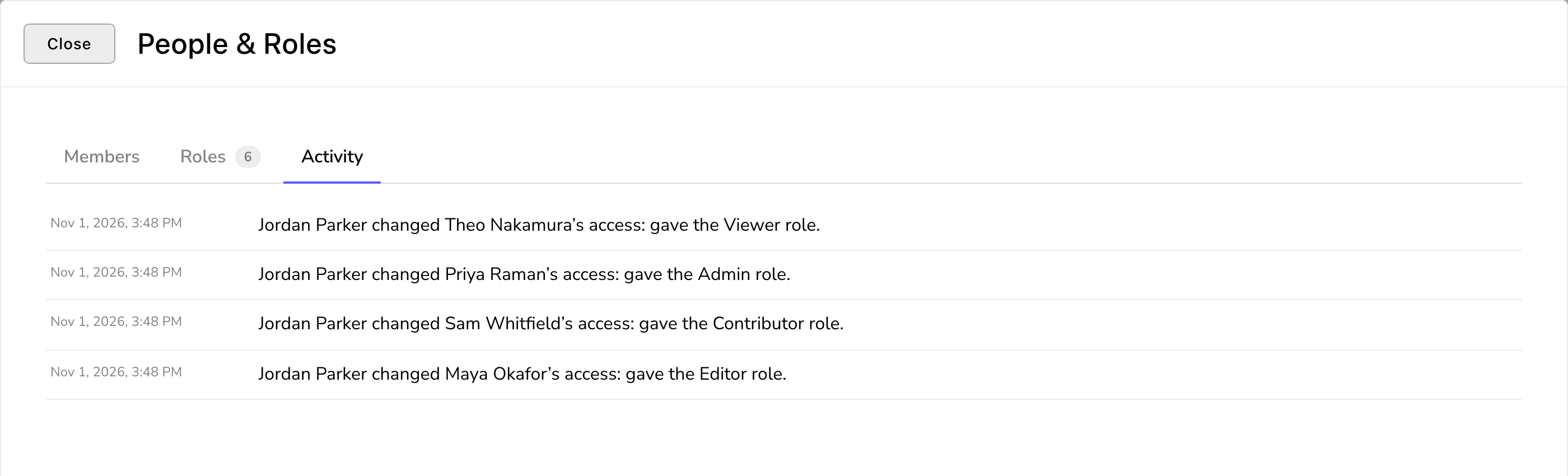
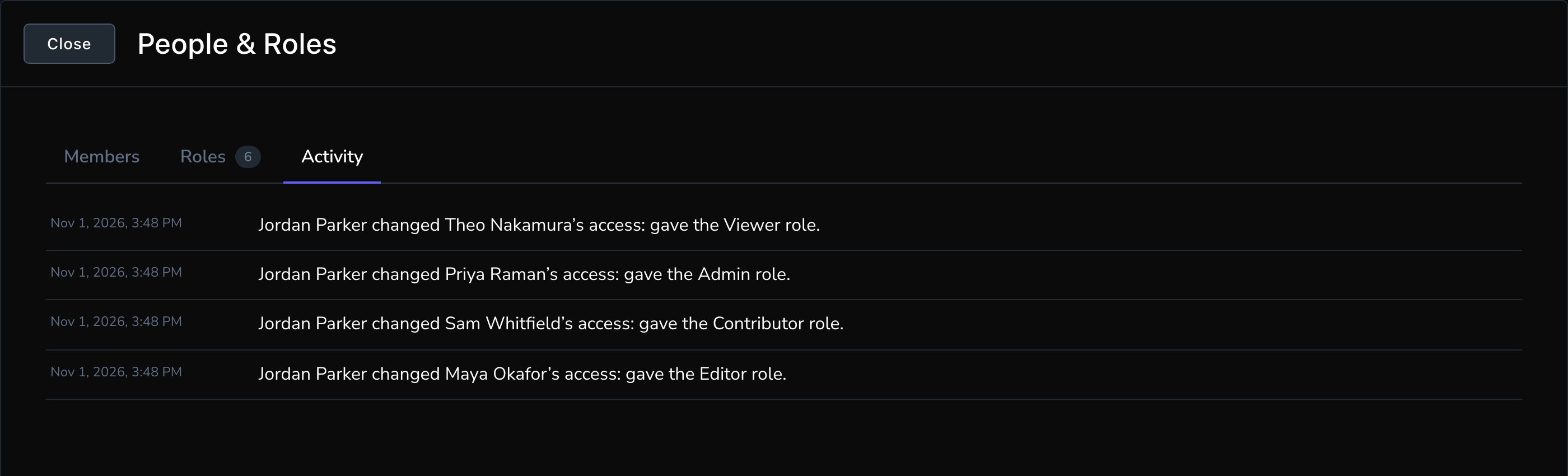
Activity: a history of every change to access.
Good to know
- You can only give what you have. You can give a permission only if you hold it yourself. You can give a role only if you hold every permission inside it, through any of your roles or as an Owner; you don’t need that role itself. The same goes for taking one away, so a less powerful person can’t strip a more powerful one.
- Nobody changes their own access. Ask another Admin or Owner.
- Sensitive permissions are marked. They carry a ”!” and a Sensitive tag, and giving them needs the Give sensitive permissions permission. Among the built-in roles, Admins and Owners have it; one of your own roles can include it too.
- Not set up marks a permission for a connection your site doesn’t use yet. You can still give it.
- A site always keeps at least 1 Owner. The last Owner can’t be removed.
- Some Owners come from Fetchski. If someone is an Owner through their Fetchski sign-in, only Fetchski can remove them as Owner. Contact Fetchski Support.
- To stop someone changing anything, remove all their roles and all their direct permissions. They can still sign in, but can’t change anything. To stop them signing in at all, contact Fetchski Support.
- “Managed by Fetchski” at the top of the screen means Fetchski manages access for your site. Everything is read-only for you. Contact Fetchski Support for changes.
- Changes apply straight away, from the person’s next click. Some menus update the next time they load a page.
Troubleshooting
You can only give permissions you hold yourself.
You can only give permissions you hold yourself.
A role or permission is grayed out because you don’t hold it. Ask an Owner, or someone who holds it, to give it.
Giving sensitive permissions needs “Give sensitive permissions”.
Giving sensitive permissions needs “Give sensitive permissions”.
The permission is sensitive. Ask an Admin or Owner to give it.
Nobody can change their own access; ask another Owner or Admin.
Nobody can change their own access; ask another Owner or Admin.
You chose yourself. Another Admin or Owner has to make the change.
Owners hold everything except Fetchski’s platform tasks, so they carry no roles.
Owners hold everything except Fetchski’s platform tasks, so they carry no roles.
An Owner already holds every permission, so there’s nothing to add. To limit what they can do, an Owner first chooses Remove as Owner, then gives them a role.
You can see access but not change it.
You can see access but not change it.
You can view People & Roles, but your role doesn’t let you change access. Ask an Admin or Owner.
Someone isn't in the Members list
Someone isn't in the Members list
They haven’t signed in yet. Check that Fetchski has given them access, then ask them to sign in once. See Sign in.
Related
What each role can do
the 5 built-in roles, side by side.
Sign in
how a new person gets in for the first time.
Your profile
your own name, photo and settings.