

 AdonisJS
- A zone is one area you serve, with its own price. It’s drawn as a shape on the map, and the map’s key and zone cards list each zone with its price.
- Place names are the real towns, counties or regions your zones cover, such as “Portland”. They’re for search engines, which can’t read a zone name like “Zone A”.
- Premium service is an optional door-to-door service beyond your zones, priced by distance.
Open the Service area map screen
Open the command palette (⌘K, or Ctrl+K on Windows) and choose Service area map. The shortcut is T then Shift+M (press T, let go, then hold Shift and press M, while you’re not typing in a box; see Keyboard shortcuts). The screen has three cards: Map data, Your location and Areas and pricing. Some cards have more settings under Advanced options. The Google Maps key that draws the map is set in Connections. See Google Maps.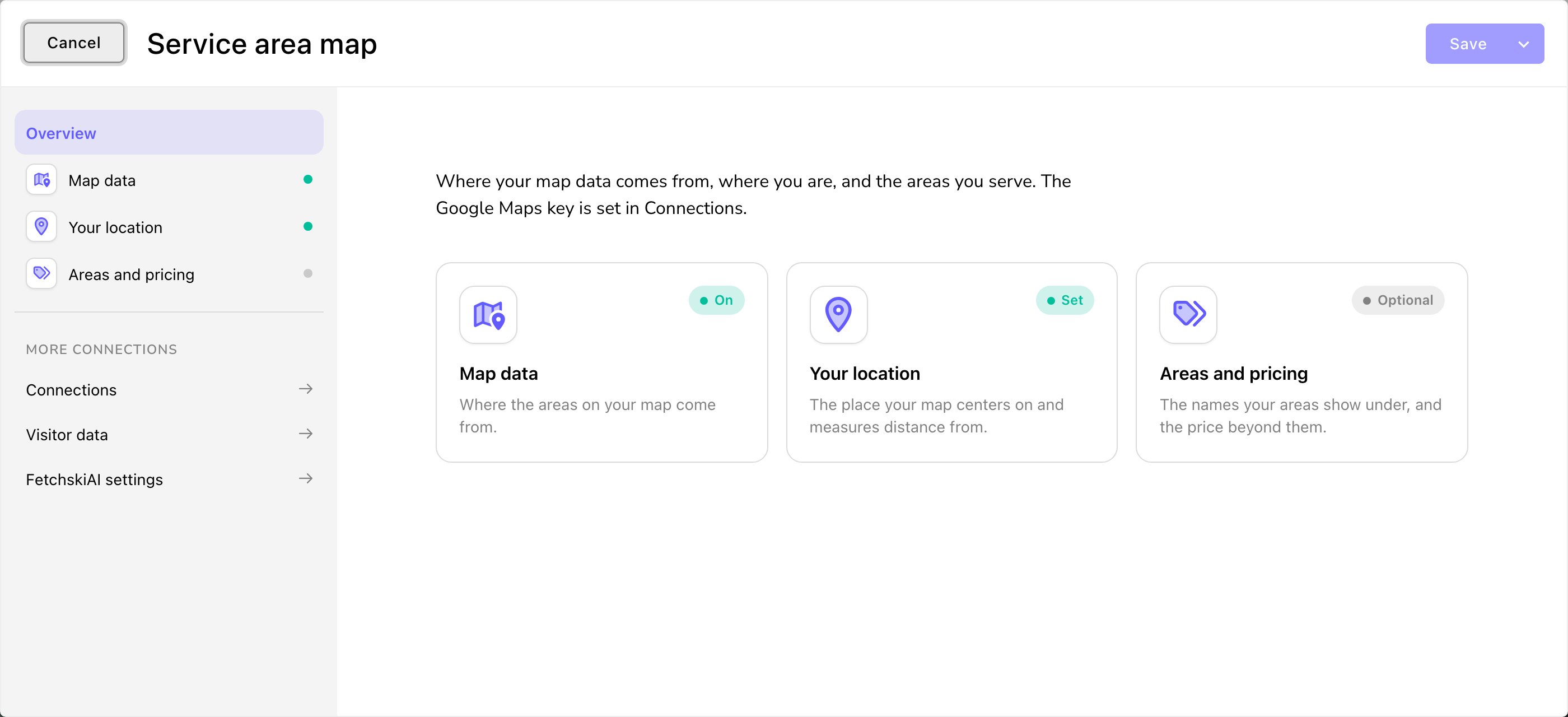
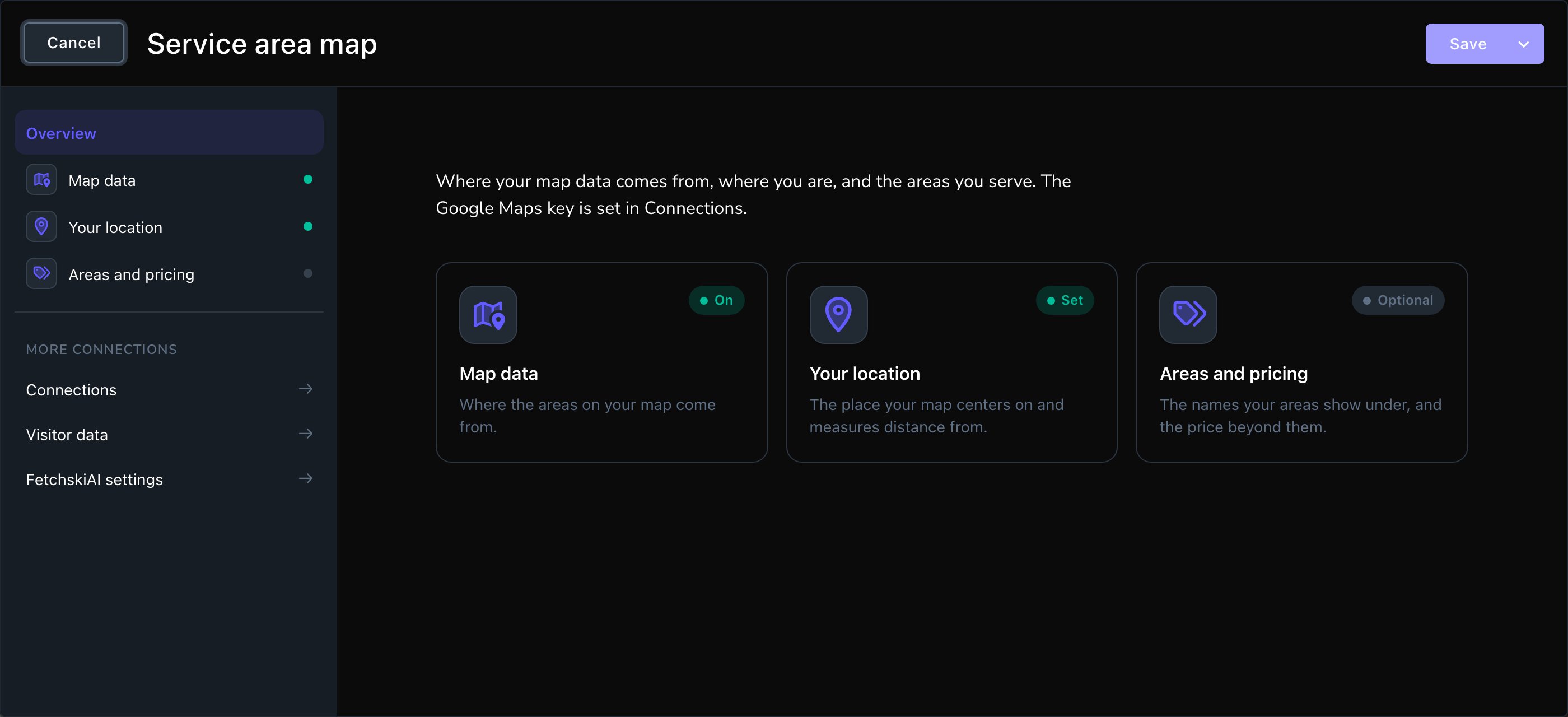
The Service area map screen and its three cards.
Map data
Service area data source: where your map’s areas and prices come from. Choose one:- Off (no service area map data): the map has no areas.
- Demo data (generic sample zones): the default. Sample zones make the section look finished while you set things up. Only you and other signed-in people see a notice about them.
- Zip-code pricing feed (JSON URL): your booking system publishes a list of zip codes with their zone and price. Paste its web address into Zip pricing feed URL; your booking system’s provider, or whoever set up the feed, gives it to you. It has to be the feed itself, not a booking page or a spreadsheet link. Zone shapes are drawn for you from public zip-code boundaries.
- Fetchski Reservation Platform (transport settings): reads your zones from the Fetchski reservation system. Paste its address into Transport settings URL (contact Fetchski Support if you don’t have it). Or paste the transport settings copied from the reservation system into the box under Advanced options. A link takes priority over pasted settings.
- Service Areas managed in this CMS: you draw or list each area yourself in the CMS. See Service areas.
- Enable scheduled rebuild: for a feed or the reservation system. It fetches your zones and prices again on a schedule, so changes in your feed reach the map without anyone asking. Rebuild how often sets the gap.
- Last built at: when your map data was last built.
- Zip boundary data base URL: where the zip-code boundaries come from. Leave it as it is.
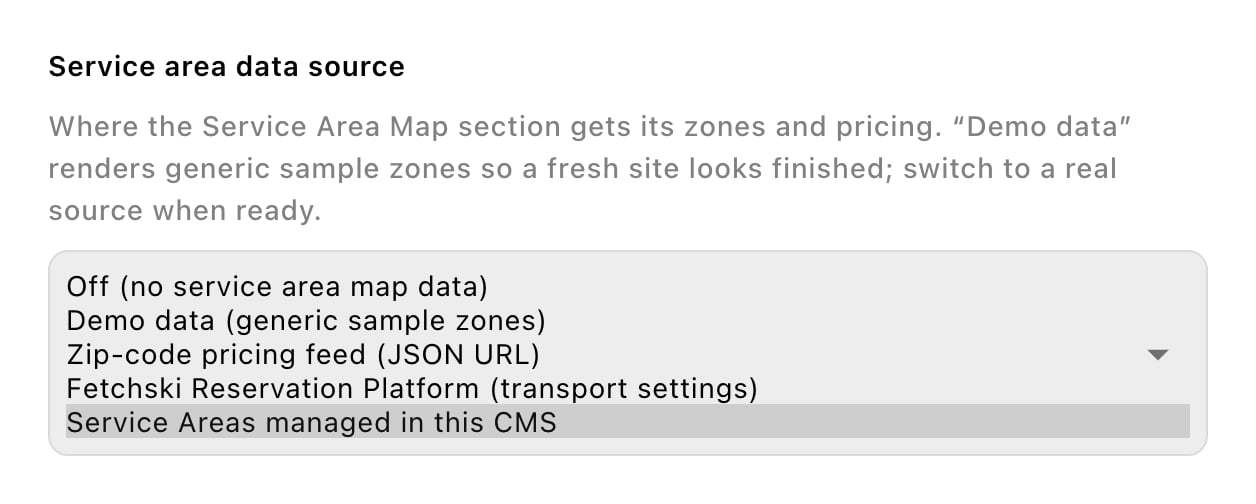
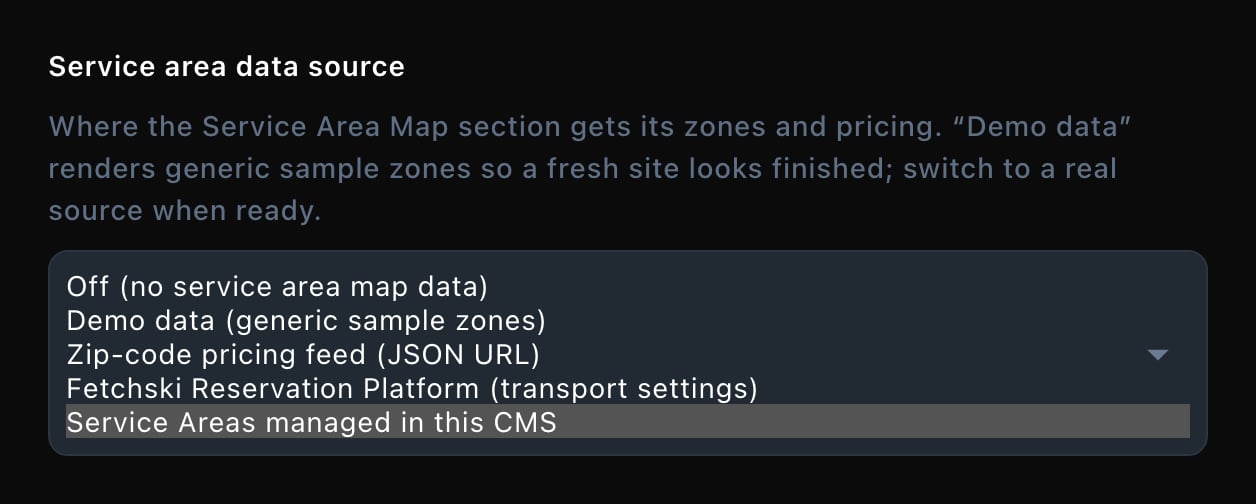
Pick where your map's areas come from.
Your location
- Business address (driving origin): optional. Your street address. Premium driving distances are measured from it. Leave it empty to measure from your latitude and longitude instead.
- Business location label: the name of your own location. It comes first in the map’s key and cards. Leave it empty for “Business Location”.
- Business latitude and Business longitude: where your marker sits on the map. Premium driving distances are measured from here too when there’s no business address.
- Open https://maps.google.com and find your business.
- Right-click the exact spot. The first line of the menu shows two numbers, such as 45.5231, -122.6765. Choose them to copy them.
- Paste the first number into Business latitude and the second, with its minus sign, into Business longitude.
- Choose Save, then open a page with your Service Area Map section and check that the marker sits on your business.
Areas and pricing
Areas served (public names): the real places your areas cover, such as cities or counties. Choose Add Item for each one, then fill in:- Place name: the name people search for, such as “Portland”.
- Kind of place: City / town (the default), County / region, State / province or Other place.
- Premium service name: what the service is called on your map. Leave it empty for “Premium service”.
- Premium base price: an optional starting fee, in dollars.
- Premium price per mile: an optional rate per driving mile, in dollars, added to the base price.
- Premium range limit (miles): how far you go. Leave it empty for no limit.
- Premium service description: optional short text for the premium row in the zone cards.
Good to know
- Move from a feed to the CMS. In the Service Areas list, Import Zones from Zip Feed turns your feed’s zones into areas you can edit. It doesn’t switch your source: choose Service Areas managed in this CMS here when you’re ready. See Service areas.
- Sample zones are never shared with search engines. Switch to a real source before you go live.
- Your feed changed but the map didn’t? Turn on Enable scheduled rebuild, or wait for its next run. If it’s already on and the map is still out of date, contact Fetchski Support.
- Errors show on the section. If the map data can’t be built, editors see the reason on the Service Area Map section, such as “no zip pricing feed URL configured”. Fix it on this screen.
- The map’s look is on the section. Colors, the key, the zone cards and the search box are set on each Service Area Map section. See Service Area Map.
Related
Service Area Map
put the map on a page and style it.
Service areas
draw or list each area, with its price.
Google Maps
the key that draws your map.
Site-wide SEO
share where you serve with search engines.