

 AdonisJS
Open the cookie settings
The settings live in three places:- Site settings → Cookie consent and Cookie banner wording: how the banner behaves and what it says. In the toolbar (the bar across the top of your site once you’re signed in; see The toolbar), choose Site settings (the gear). Or open the command palette (⌘K, or Ctrl+K on Windows) and choose Site settings. The shortcut is T then G (press T, let go, then press G, while you’re not typing in a box; see Keyboard shortcuts).
- Cookies: the list of every cookie and outside service your site uses. In the command palette, choose Cookies. The shortcut is G then Shift+C (hold Shift while you press C).
- Consent Records: the receipts of visitors’ choices. In the command palette, choose Consent Records. The shortcut is T then C.


The cookie banner, as a new visitor sees it.
How the banner works
A cookie is a small file a website saves in a visitor’s browser to remember something, such as their answer to this banner. Cookies and outside services are sorted into four kinds:- Strictly necessary: what your site needs to work, such as remembering the visitor’s cookie choice and the spam check on your forms. Visitors can’t switch these off.
- Functional: extras that make pages work better, such as remembering light or dark mode, and embedded maps and videos.
- Analytics: visitor statistics, such as counting which pages people visit.
- Marketing: advertising and tracking, such as measuring whether an ad brought a visitor to your site.
Cookie consent
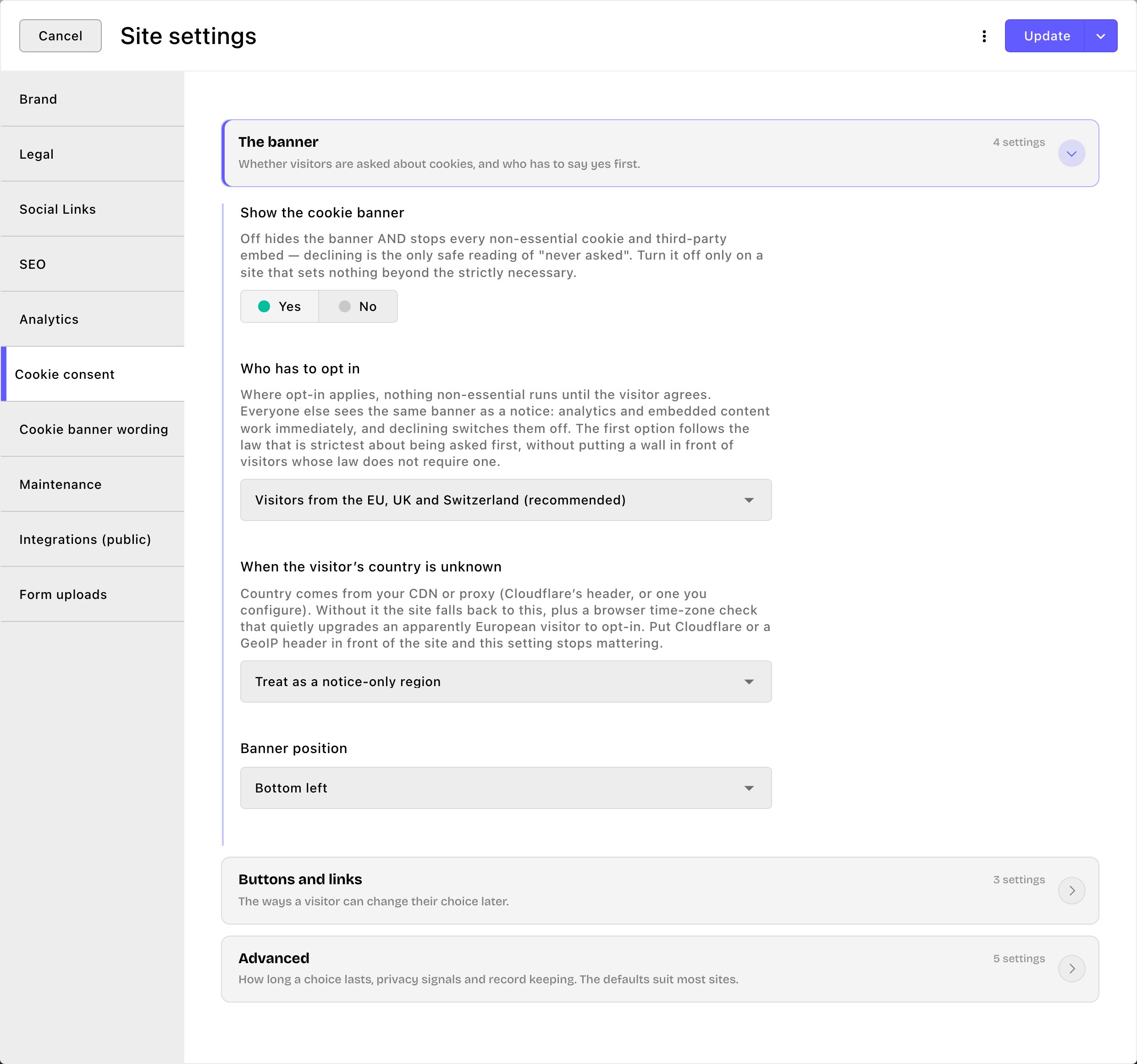
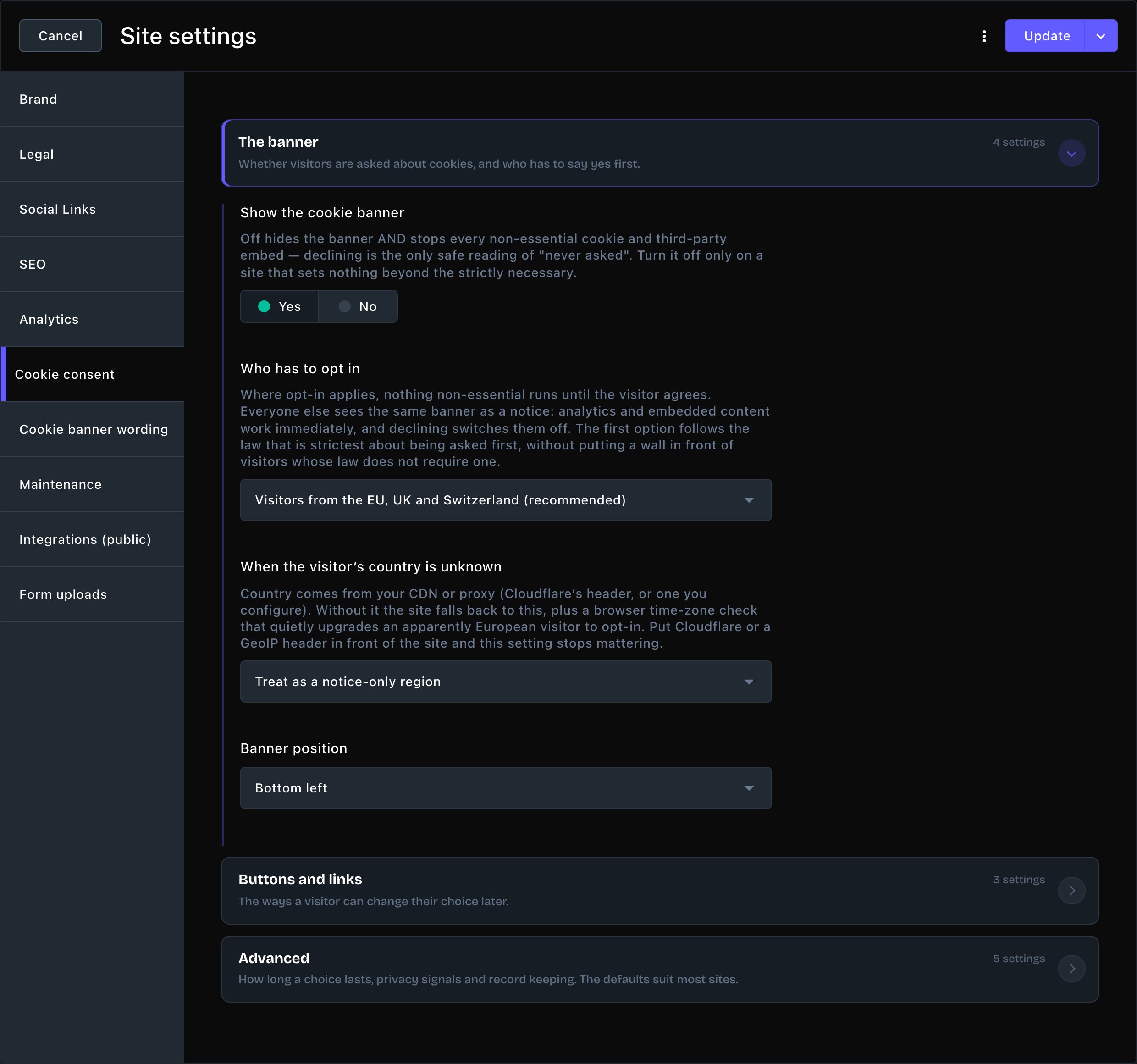
The Cookie consent tab, with The banner open.
- Show the cookie banner: on by default. Turning it off also blocks every optional cookie and embed for visitors who haven’t already allowed them. Turn it off only if your site uses nothing beyond the strictly necessary.
- Who has to opt in: who must say yes before anything optional runs.
- Visitors from the EU, UK and Switzerland (recommended): the default. Visitors there opt in, and everyone else sees a notice.
- Everyone, everywhere: every visitor opts in first.
- Nobody — show a notice only: nobody has to opt in, and every visitor can still decline.
- When the visitor’s country is unknown: shows only with the recommended choice above. It decides what happens when your site can’t tell where a visitor is. Treat as a notice-only region is the default, and Require opt-in (strictest) asks those visitors first. With the default, visitors whose browser is set to a European time zone are still asked to opt in.
- Banner position: Bottom left (the default), Bottom right, Bottom center or Full width bar.
- Offer a “Customize” button: on by default. It opens a panel where visitors choose each kind of cookie, so they can allow some kinds and decline others instead of all or nothing. Keep it on.
- Show a floating “Cookie preferences” button: off by default. A small button stays in the bottom corner of every page.
- Show a “Cookie preferences” link in the footer: on by default. The link sits at the bottom of every page, under the “Powered by” line.
- Honor Global Privacy Control: on by default. Some browsers send a “do not sell or share my data” signal. Visitors who send it start with every optional cookie switched off.
- Reload the page when a visitor withdraws consent: off by default. An outside script that has already run keeps running until the next page load. Turn this on to reload the page as soon as a visitor switches a kind of cookie off.
- Ask again after (days): how long a visitor’s answer lasts before the banner returns. The default is 180 days, and the most is 365.
- Policy version: starts at “1”. Change it, such as to “2” or a date, and every visitor is asked again. Do this when you use visitors’ data in a new way. For example, you add an advertising tool, share data with a new company, or use it for a new purpose. Turning on an embed script that needs consent changes the version for you.
- Keep consent records: on by default. Your site keeps a receipt of each visitor’s choice for two years, then deletes it. See “Consent Records” below.
Cookie banner wording
Every word on the banner is yours to change. The tab has three cards:- Banner: Banner heading (optional), Banner message, Policy link text and Policy link target. Policy link target already points to your Cookie Policy page. Then come the button labels:
- Accept button, Reject button and Customize button: the banner’s buttons.
- Save-choices button: the button that saves a visitor’s picks in the preferences panel.
- Reopen control label: the text on the footer link and floating button that open the panel again later. Both read “Cookie preferences” at first.
- Preferences panel: the panel’s heading and intro, and a label and description for each kind of cookie. Say what the visitor gains or loses, not which companies are involved.
- Blocked content: what shows in place of a map, video or embed until the visitor allows it. It has a heading, a message and a button, “Load this content”, that loads just that one item.
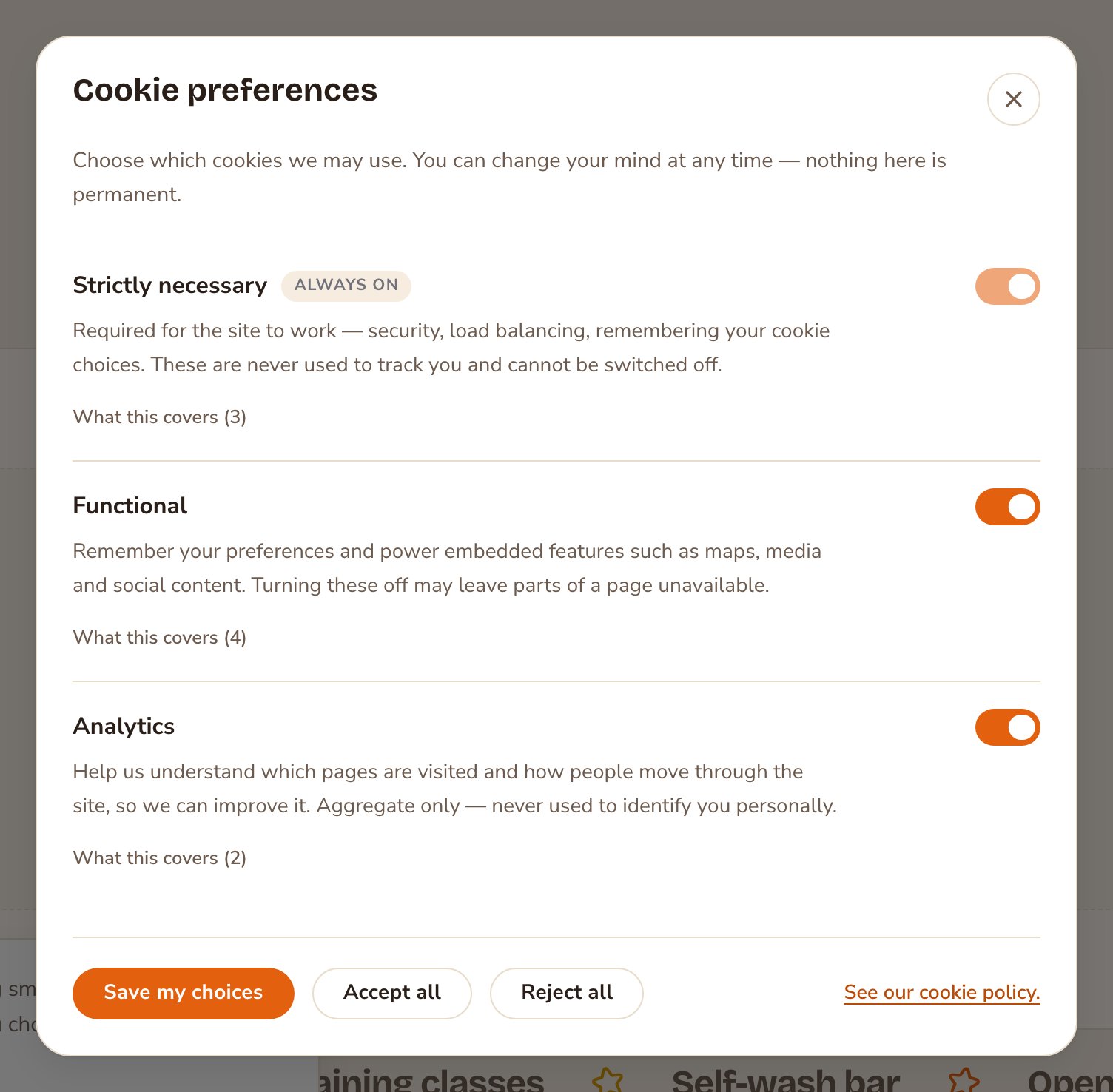
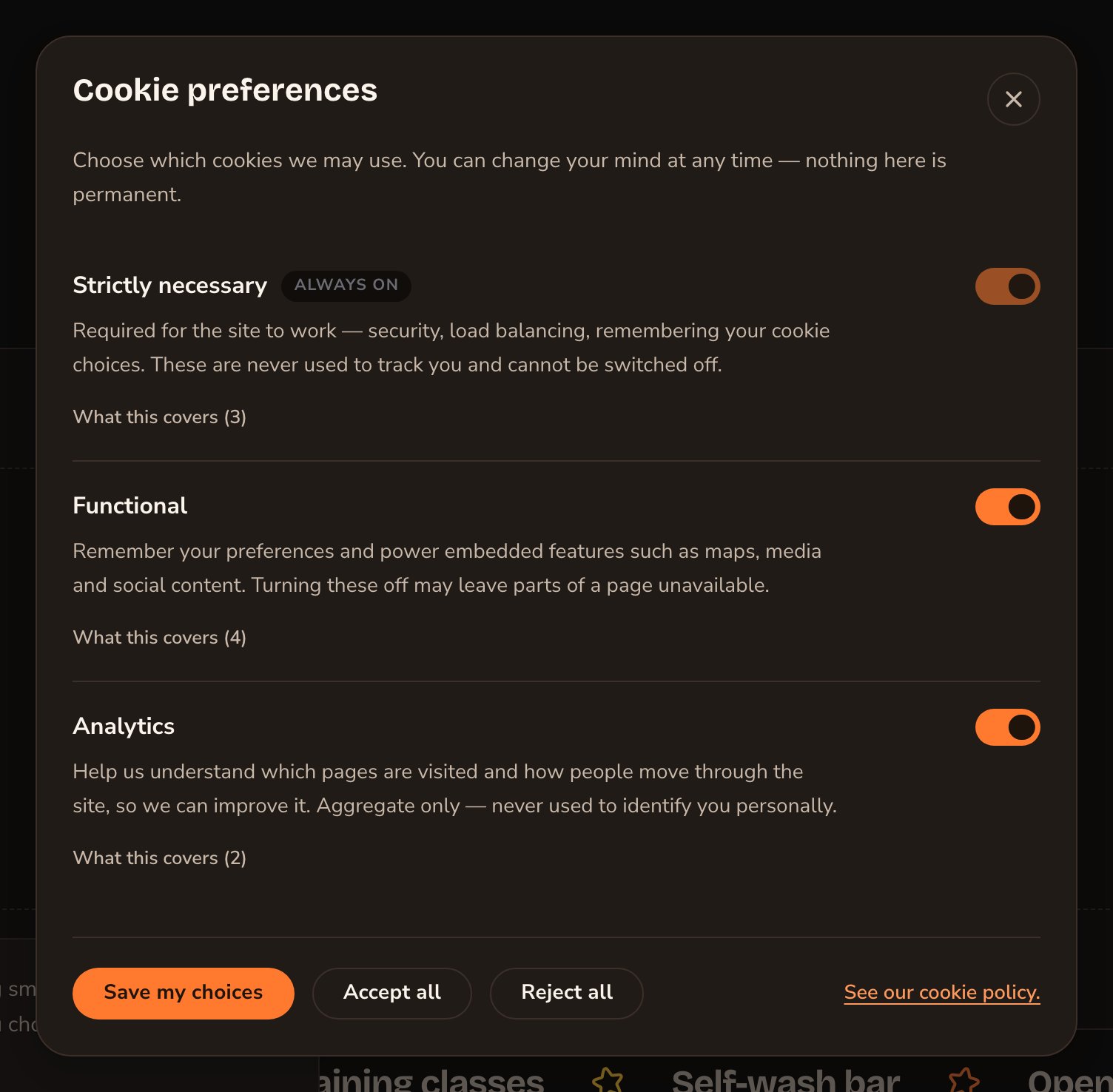
Visitors choose each kind of cookie in the preferences panel.
The Cookies list
The Cookies list holds every cookie and outside service your site uses, each with a plain explanation. Your Cookie Policy page builds itself from this list, so it stays current. See Cookie Declaration. Your site’s built-in cookies are already listed. The list saves on its own, apart from the Site settings window:- Add an entry: choose New Cookie at the top of the list, fill in its settings, then choose Publish.
- Change an entry: choose its name in the list, make your changes, then choose Update.
- Name: the cookie’s exact name, or the service’s name when it isn’t a cookie, such as “Google Maps”.
- Provider: who receives the data. It starts as “This website”. For another company, give its legal name, such as “Google LLC”.
- Category: which of the four kinds controls it.
-
Type: how it works.
- Cookie: a small file saved in the visitor’s browser.
- Local storage and Session storage: other places a browser keeps small notes. Session storage clears when the tab closes; local storage stays.
- Third-party script: another company’s code running on your pages, such as a chat or analytics tool.
- Embedded content: something shown from another site, such as a map or video.
- Tracking pixel: a tiny hidden image an advertising service uses to count visits.
- Duration: how long it lasts, in plain words, such as “6 months”.
- Purpose (one line): a one-sentence summary for the policy table and the banner.
- Disclosure: the fuller explanation on your Cookie Policy page.
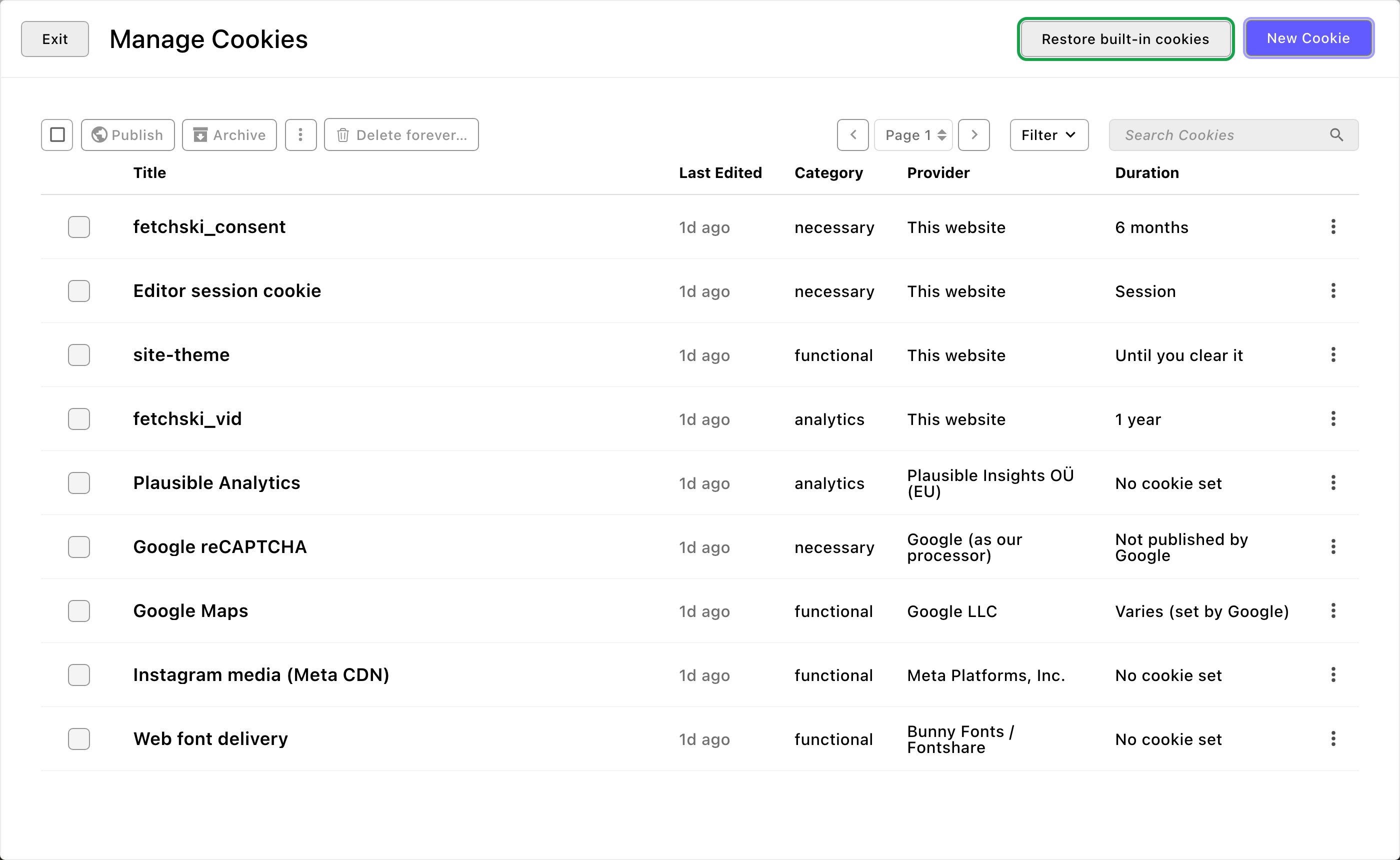
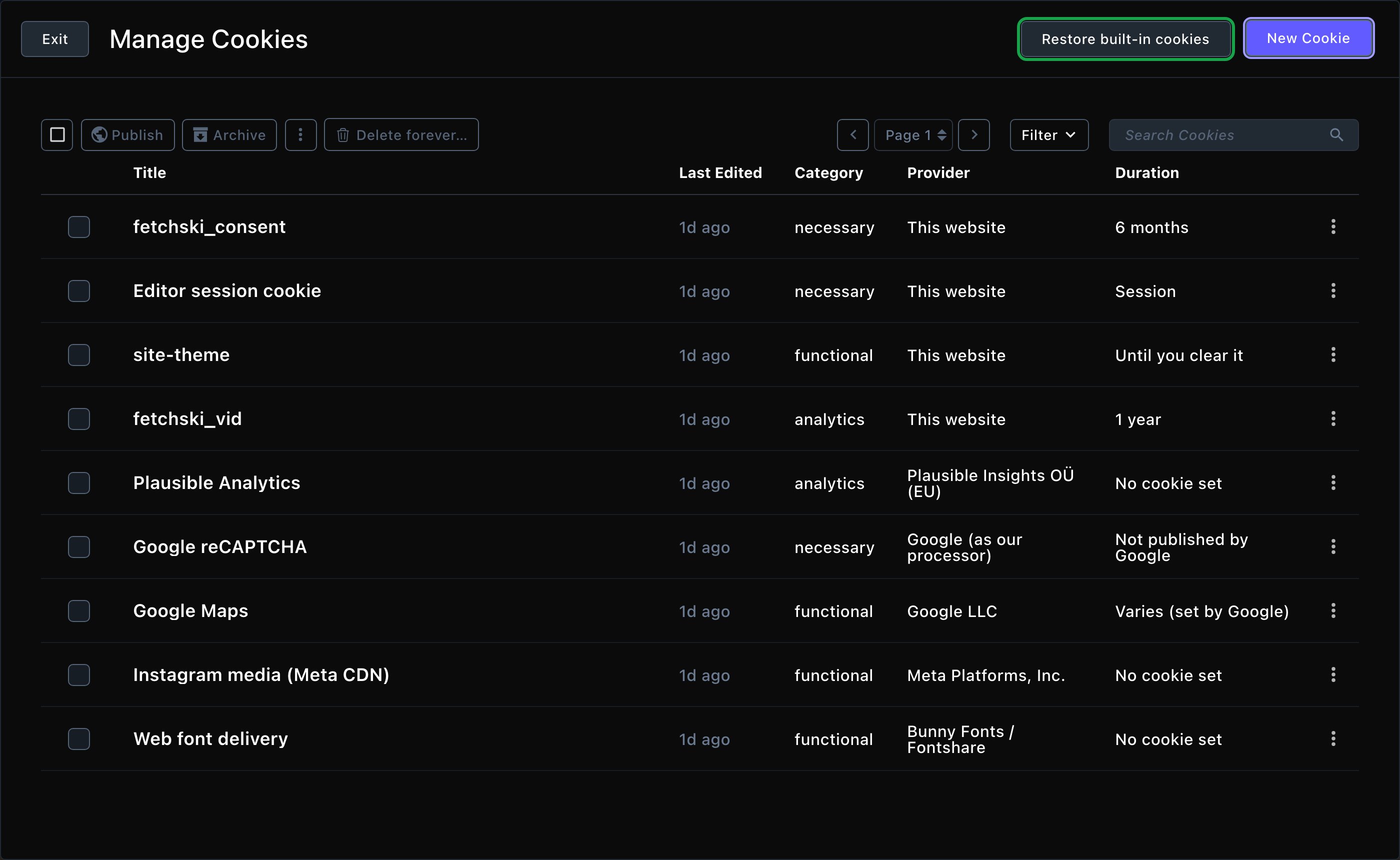
The Cookies list. Your Cookie Policy page is built from it.
Consent Records
Consent Records shows a receipt for each choice a visitor makes on the banner. Use it to show that a visitor agreed, if anyone ever asks.- The summary at the top shows how many receipts you have, how the choices split, your current policy version and when the last one arrived.
- The table lists each receipt: Recorded, Consent ID, Decision, Agreed to, Region, Policy and Network. For privacy, Network keeps only part of the visitor’s internet address.
- Look up one visitor. A Consent ID is a random code saved with a visitor’s choice in their own browser. Visitors don’t see it on your site, and it isn’t the same as a form submission’s ID. Choose any ID in the table to see every choice from that browser, or paste one into the Consent ID box if you already have it. Filter by Decision to see one kind of choice.
- See the full receipt. Choose View → on a row to open the Consent receipt, with the page the visitor was on and their browser.
- Download a file. Choose Export CSV to download the receipts your filters show. A file holds up to the 10,000 newest receipts.
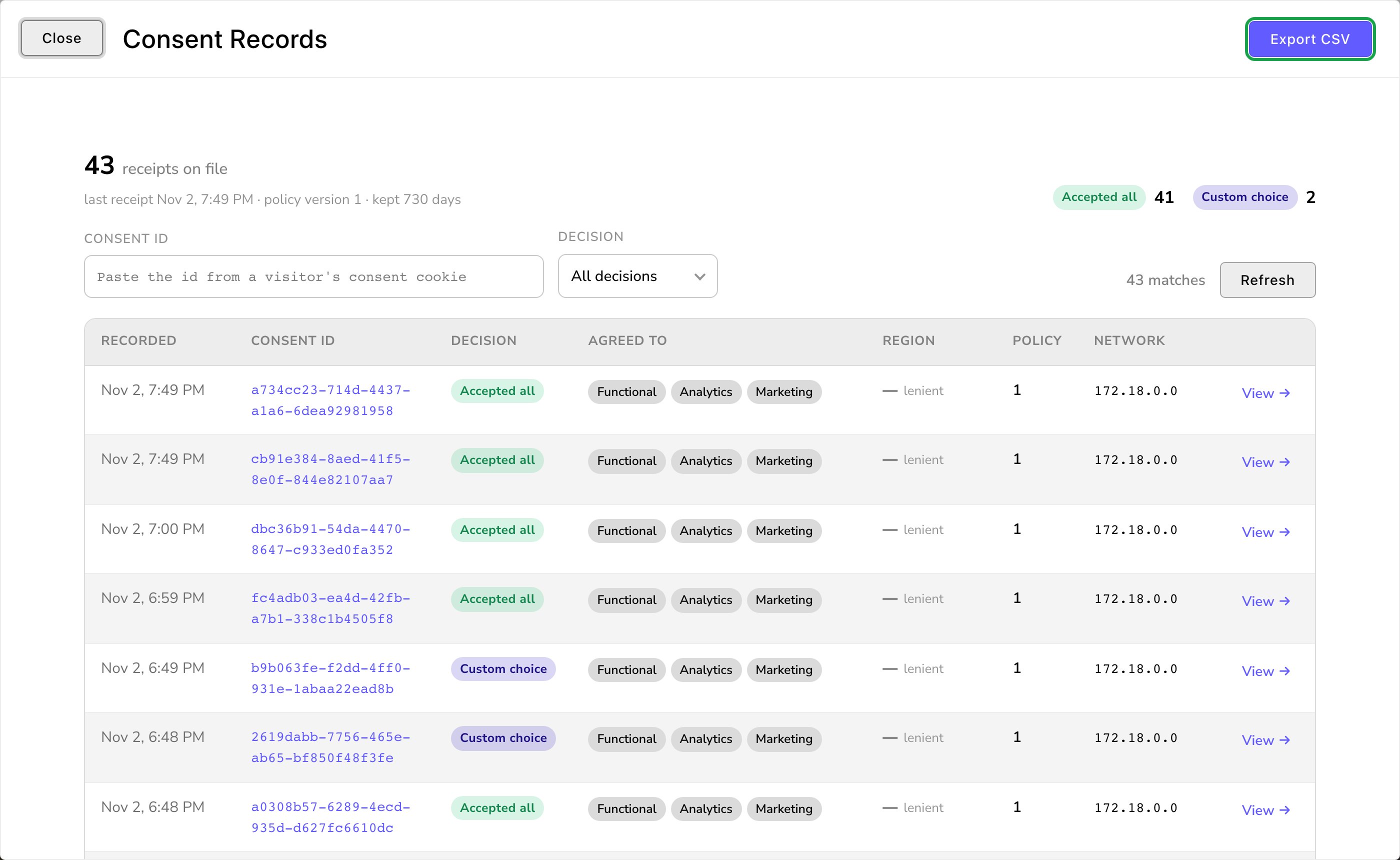
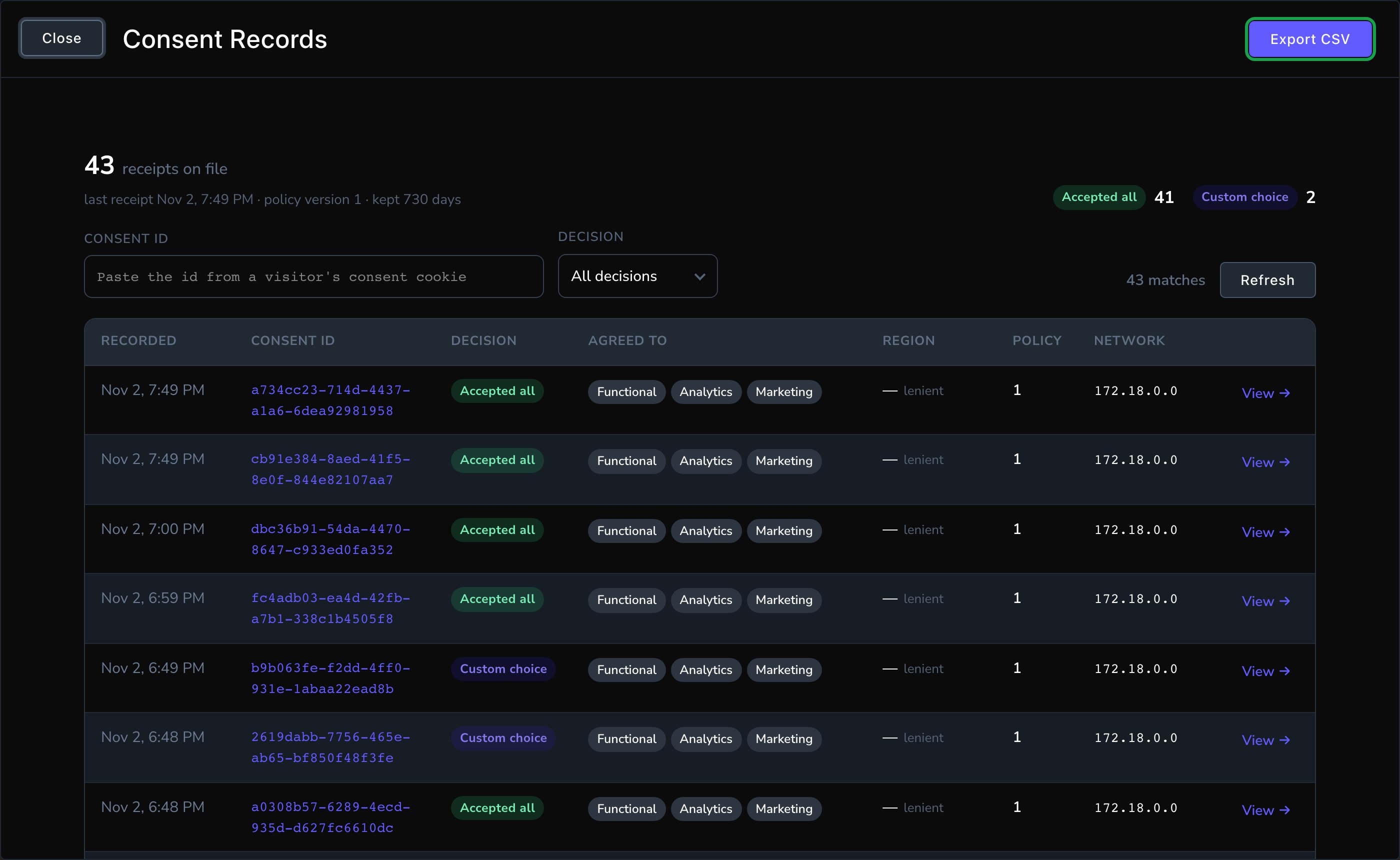
Consent Records: every visitor's choice, with the proof on file.
Put your changes live
Choose Update to save and publish. Your banner and cookie settings change for visitors straight away. To save without publishing yet, open the arrow next to Update (More save options) and choose Save Draft. Your changes wait there; open the window again and choose Update when you’re ready to put them live. To check, open your site in a private window (Incognito in Chrome), which isn’t signed in. You see the banner as a new visitor does.Good to know
- Change the policy version when your data use changes. Consent given under the old terms doesn’t carry over. Turning on an embed script that needs consent raises the version for you.
- Embedded maps wait for consent. A Service Area Map section is the map of where you serve, with prices. Where a visitor must opt in, it shows the Blocked content message until they allow Functional cookies or load it.
- Spam protection always runs. The check on your forms counts as strictly necessary, so visitors can’t switch it off.
- Test as a visitor. The banner doesn’t show while you’re signed in, or while maintenance mode is on. Open your site in a private window to see it as a new visitor does.
Related
Cookie Declaration
the section that lists your cookies on your Cookie Policy page.
Embed scripts
add chat, analytics and tracking scripts that respect consent.
Legal details
your privacy policy and terms.
Site settings
every tab on this screen.