

 AdonisJS
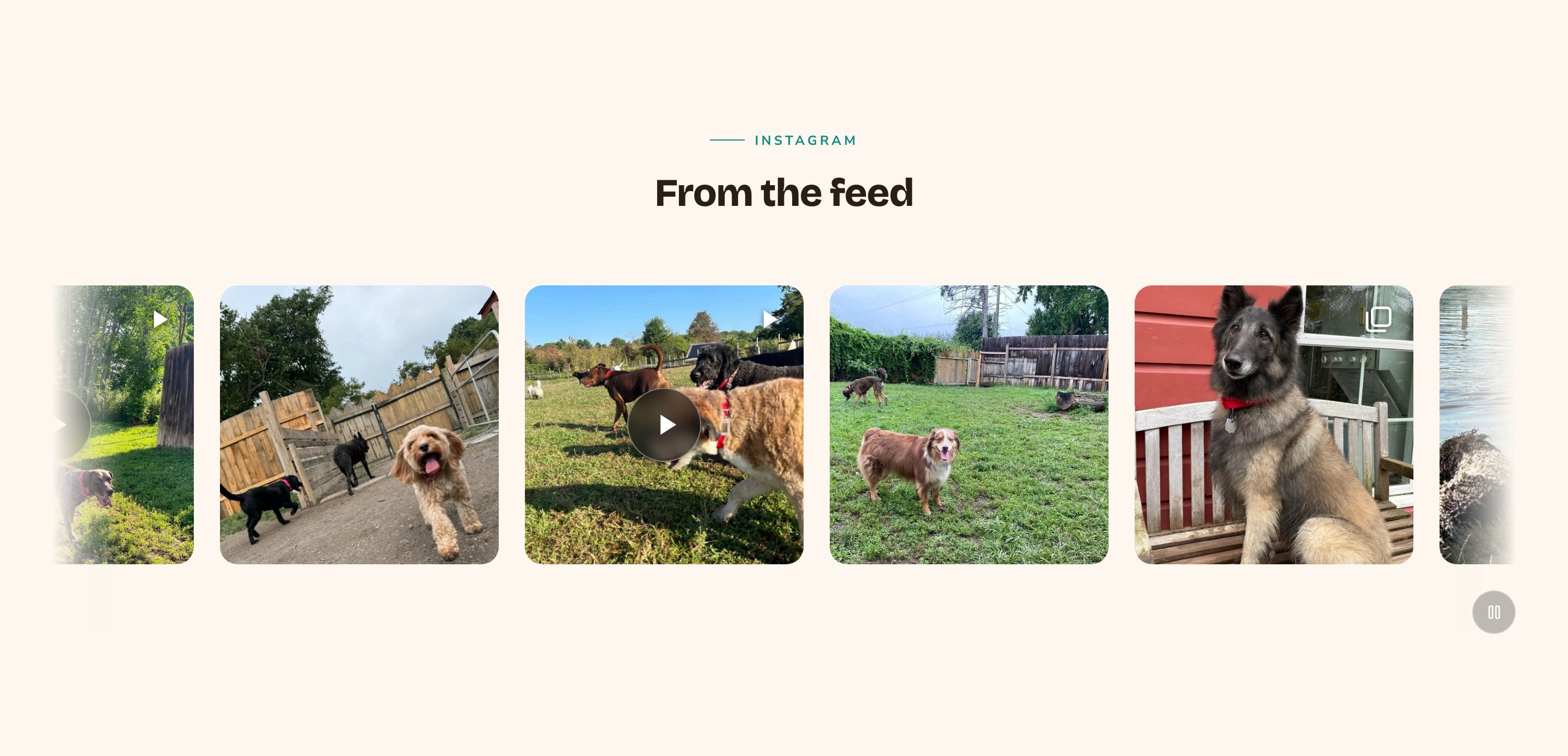
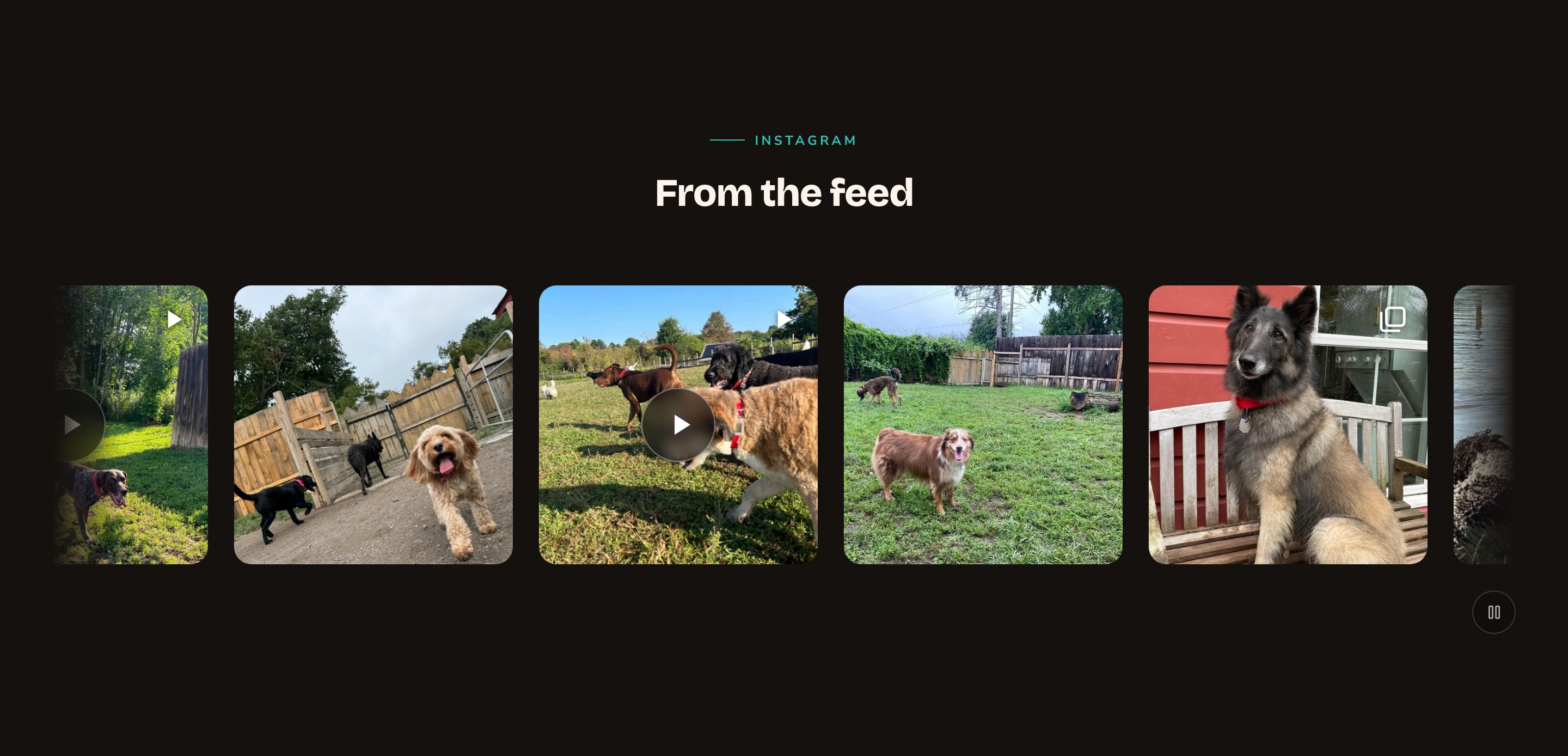
Your latest posts in a gently scrolling strip.
When to use it
- To show that your business is active and loved, with real photos from your account.
- To bring fresh pictures to your home page without updating it yourself.
- To invite visitors to follow you, with an optional button to your profile.
Where the posts come from
The section shows the posts in Instagram Posts. They arrive in 2 ways, and you can mix them:- From your Instagram account. Once an Admin connects it in Connections → Instagram, new posts arrive on their own. See Instagram.
- Added by hand. Create a post in Instagram Posts with a picture, a caption and its Instagram link. See Instagram posts.
Add it to a page
1
Open the page
Sign in, open the page on your site, and choose Edit in the edit bar at the top.
2
Find the spot
Select the section next to where the new one should go. A round + button appears on its top and bottom edges. On an empty page, choose Add Content in the middle.
3
Choose the section
The Add Content menu opens with its groups. Choose the section, then select it and choose Edit in its side toolbar to make it yours.
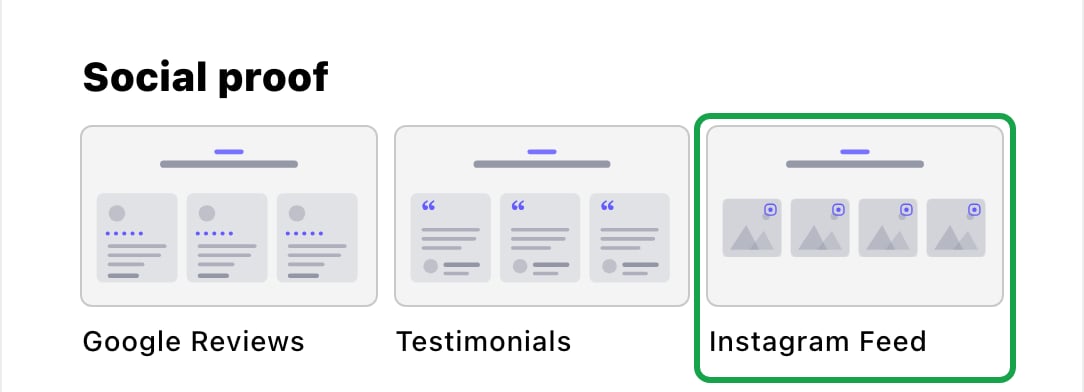
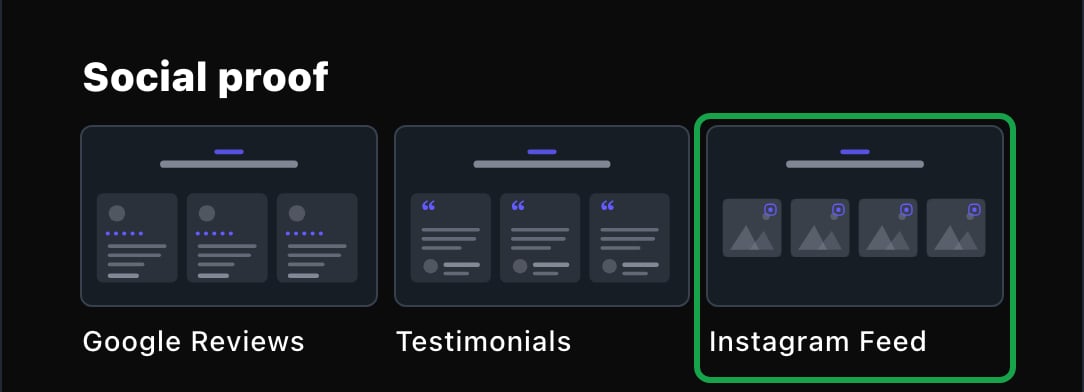
The Instagram Feed lives in the Social proof group.
What you can change
Select the section on the page and choose Edit. The editor opens beside the page, so you see each change as you make it. It has 8 tabs. Your changes go into the page’s draft. Visitors see them once the page is published with Update in the edit bar (Publish on a page never published).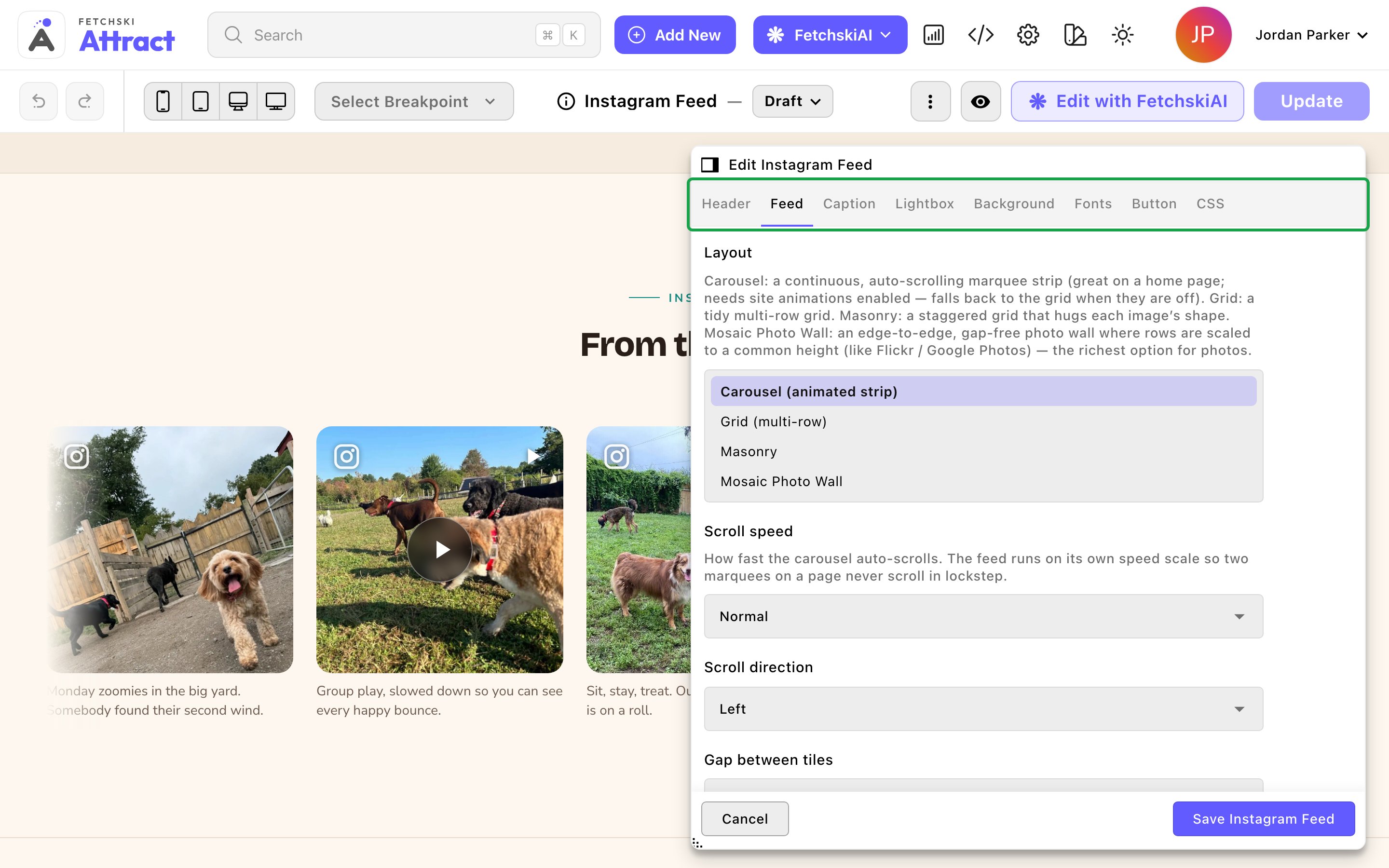
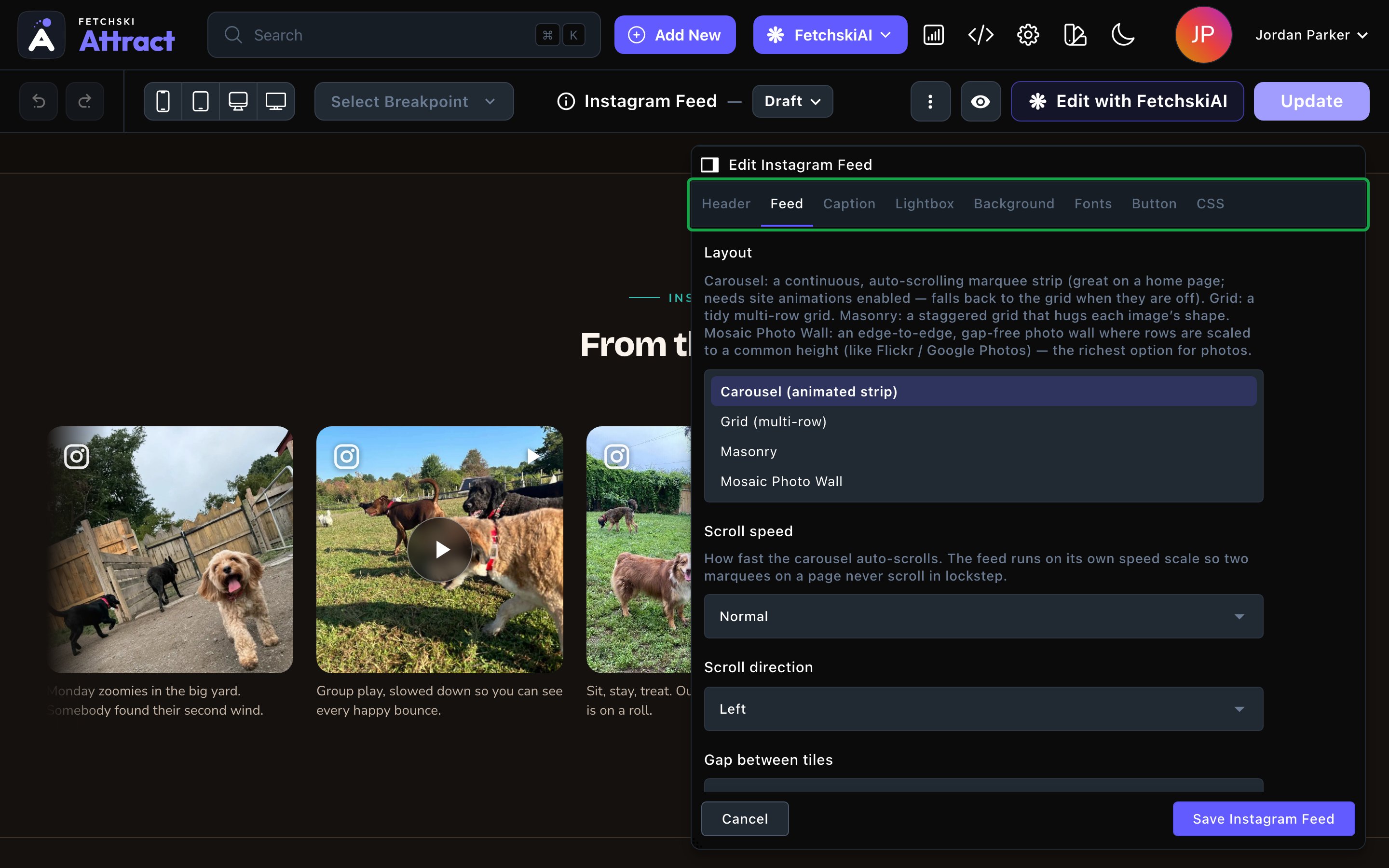
The Instagram Feed editor, with the feed updating beside it.
Header
Header
- Eyebrow: it starts as “Instagram”.
- Heading: it starts as “From the feed”. Leave it empty to hide the heading. To show just the posts, clear the eyebrow and intro line too.
- Intro line: an optional short sentence under the heading.
- Header alignment: Center or Left.
- Set the heading’s weight and color, and the intro’s weight, size and color.
Feed
Feed
Which posts
- Featured posts only: show only the posts you marked Featured in Instagram Posts, so you choose exactly which appear.
- Maximum posts: 1 to 30, newest first. It starts at 8.
- Show: Photos & videos (all), Photos only or Videos & reels only. It changes this feed only, not which posts arrive from Instagram.
- Layout: Carousel (animated strip) scrolls on its own. Grid (multi-row) is a tidy grid. Masonry staggers tiles of different heights. Mosaic Photo Wall fits photos into neat rows.
- Columns: Auto (fit to width) or 2 to 5, for the grid and masonry.
- Row height and Vary photo shapes: for the Mosaic Photo Wall. Vary photo shapes gives a feed of same-shaped photos a more natural mix.
- Scroll speed and Scroll direction: for the carousel.
- Gap between tiles: Tight, Normal or Roomy.
- Tile shape: Square (1:1), Portrait (4:5), Landscape (4:3) or Original. Original looks best with Masonry.
- Tile width, Corner radius (how rounded the tile corners are) and Hover effect. The hover starts as Lift — rises, shadow deepens.
- Show video / reel badge: marks videos, reels and albums.
- Show Instagram glyph: a small Instagram icon on each tile. It is the only link on the tile that opens the post on Instagram, in a new tab. The viewer’s View on Instagram link and the profile button on the Button tab are set separately.
- Show like count on tiles: a heart and the like count in a corner of each tile. Off by default.
- Glyph & badge size: Small, Medium or Large.
- Show captions and Caption placement: show each caption Below the image or as an Overlay on hover. Off by default.
- Glyph / hover accent and Like-heart color: optional colors for the Instagram icon, the colored tint that covers a tile when a visitor points at it, and the heart.
Caption
Caption
Only used when Show captions is on.
- Caption length: Full text (no limit), or cut off after 1 to 4 lines. It starts at 2 lines. Visitors read the full caption by opening the post in the viewer.
- Caption size, Caption weight and Caption color.
Lightbox
Lightbox
What the post viewer shows beside the picture.
- Show like count: the post’s likes. On by default.
- Comments in the lightbox: Hidden, Count only or Full list. It starts at Count only.
- Show comment authors: shows each commenter’s Instagram name in the Full list. Turn it off for an anonymous list.
- Show “View on Instagram” link: a link to the post on Instagram. Turn it off to keep visitors on your site.
What visitors see
- A viewer on your site. Clicking a tile opens the post in a viewer over the page, with its caption, date, likes and comments. Visitors move between posts with the arrows or the arrow keys, and close it with Esc.
- Videos. In the viewer, videos play with sound. In the grid, masonry and photo wall, videos also play silently in their tiles. The carousel shows a play symbol instead.
- Cookie consent first. Some photos may load from Instagram’s own servers. Where your cookie settings ask visitors first, those tiles wait, and the section shows one notice with a Load this content button. See Cookie consent.
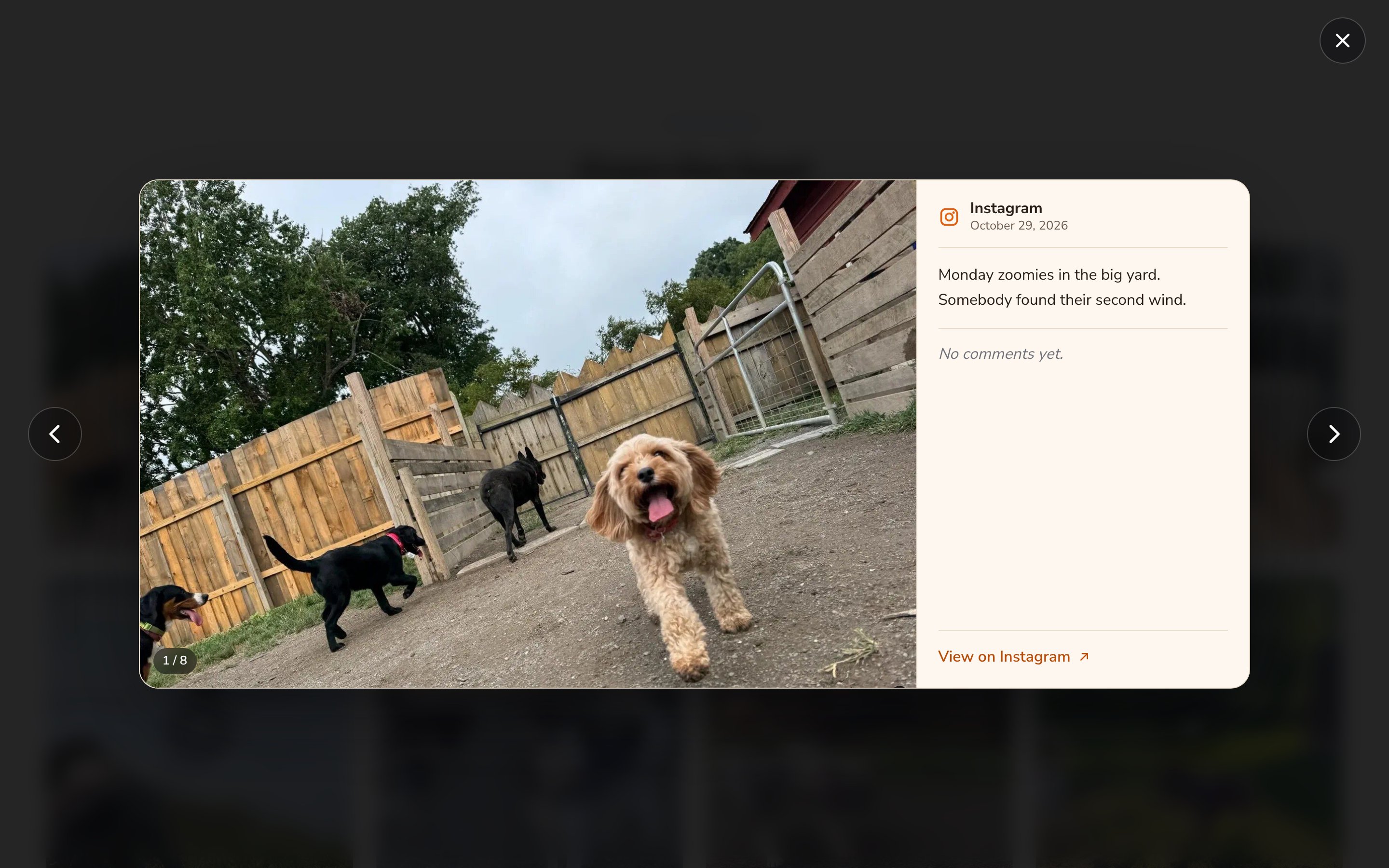
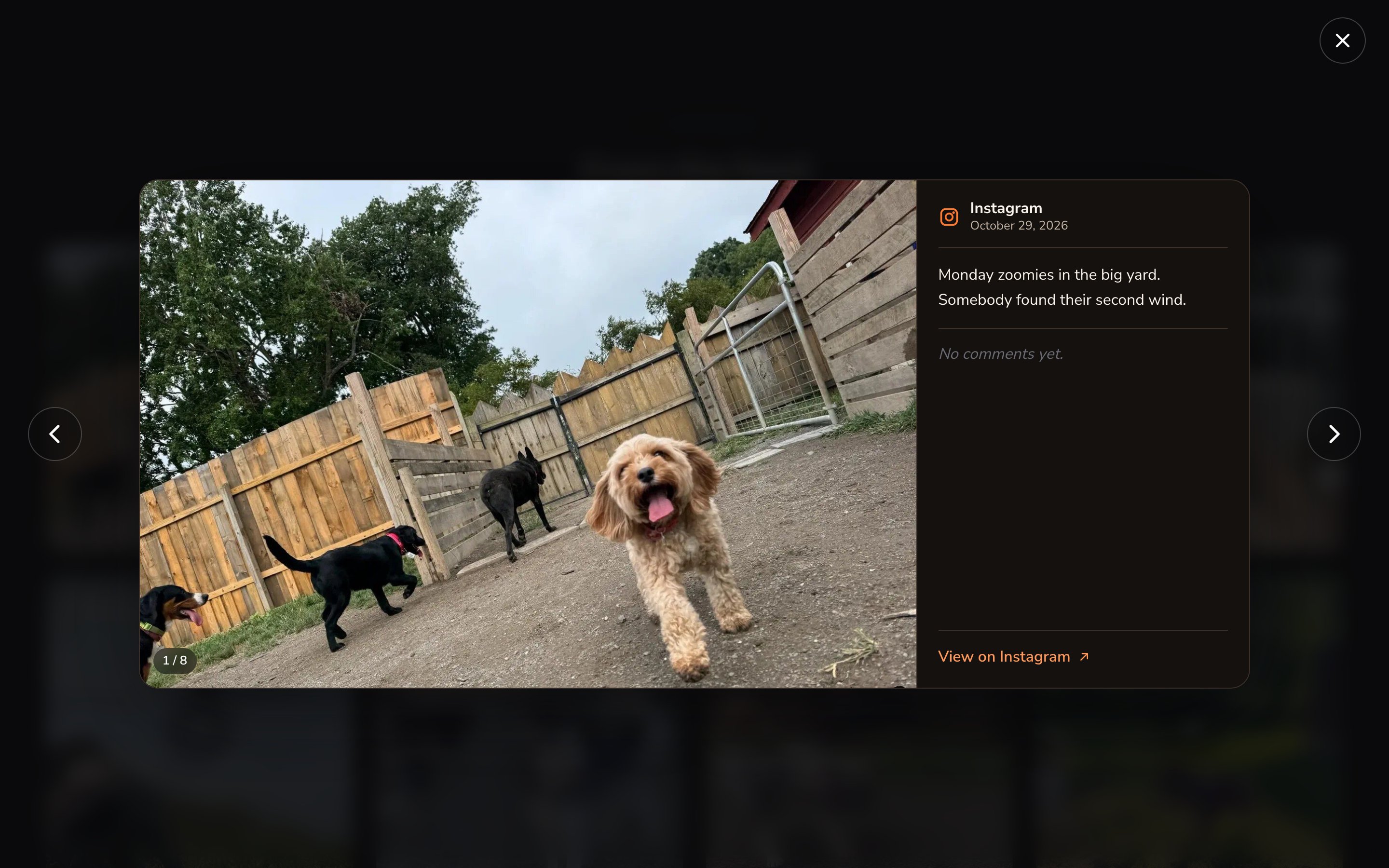
Posts open in a viewer on your site, with likes and comments.
Looks you can make
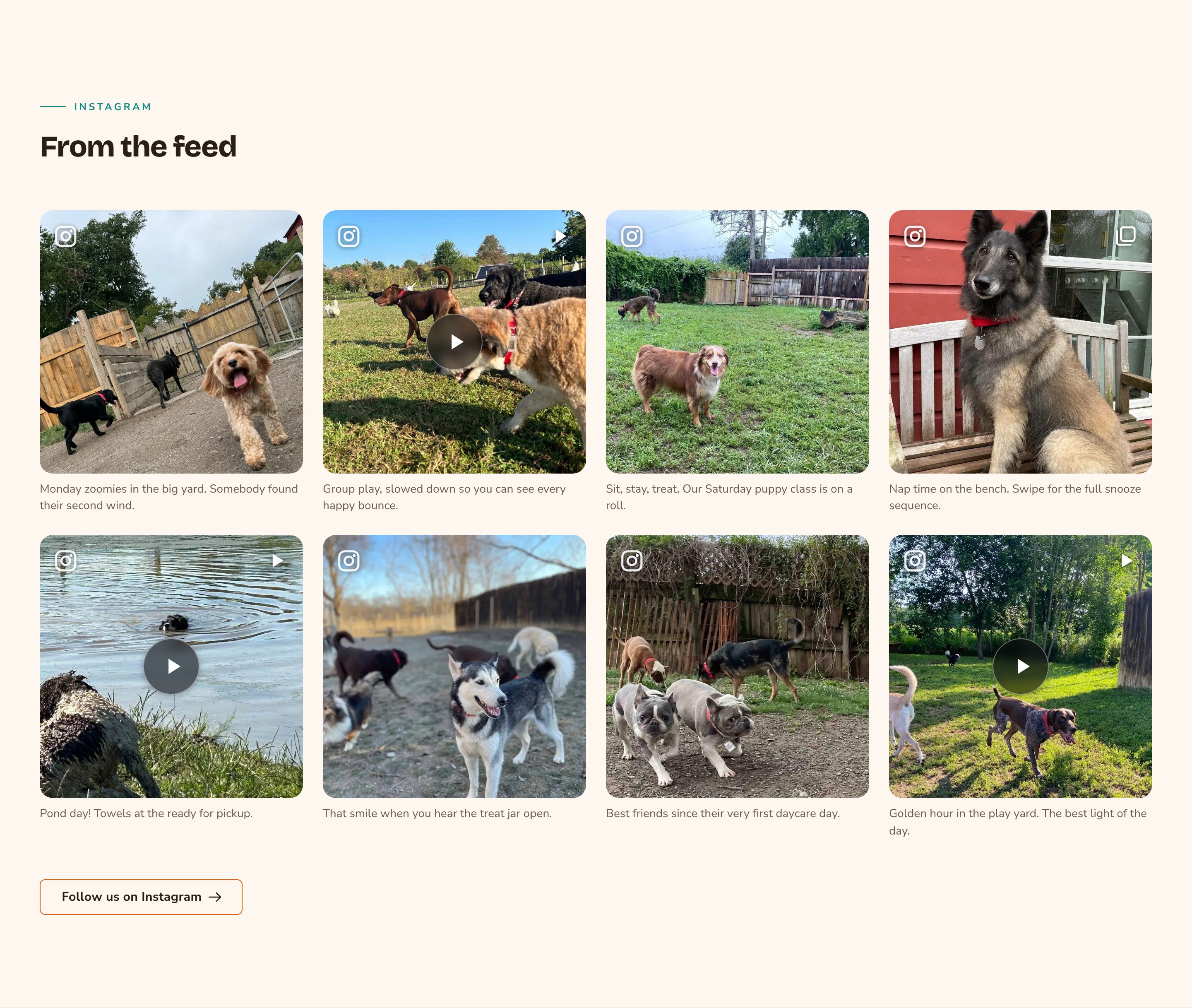
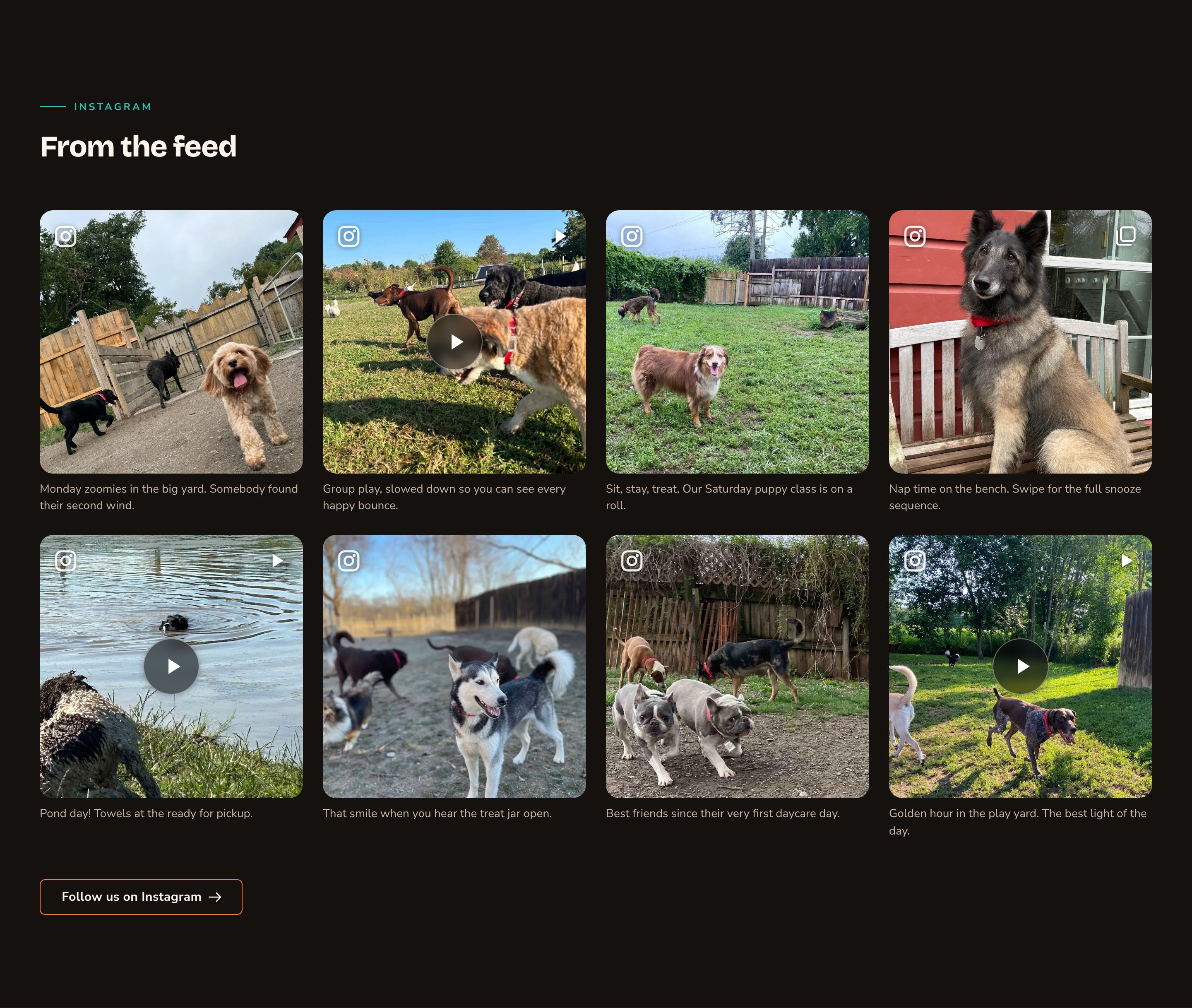
A tidy grid with captions and a follow button.
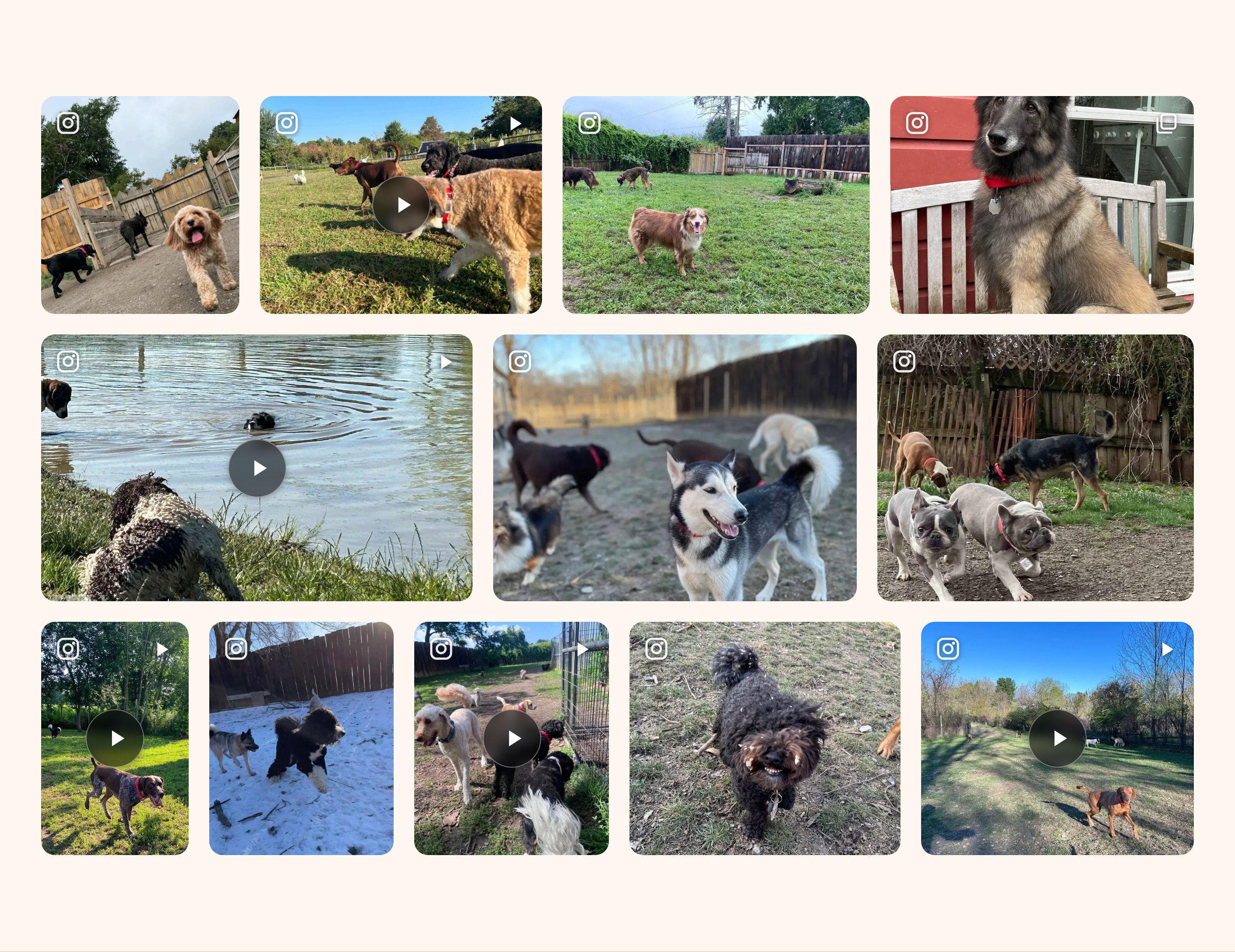
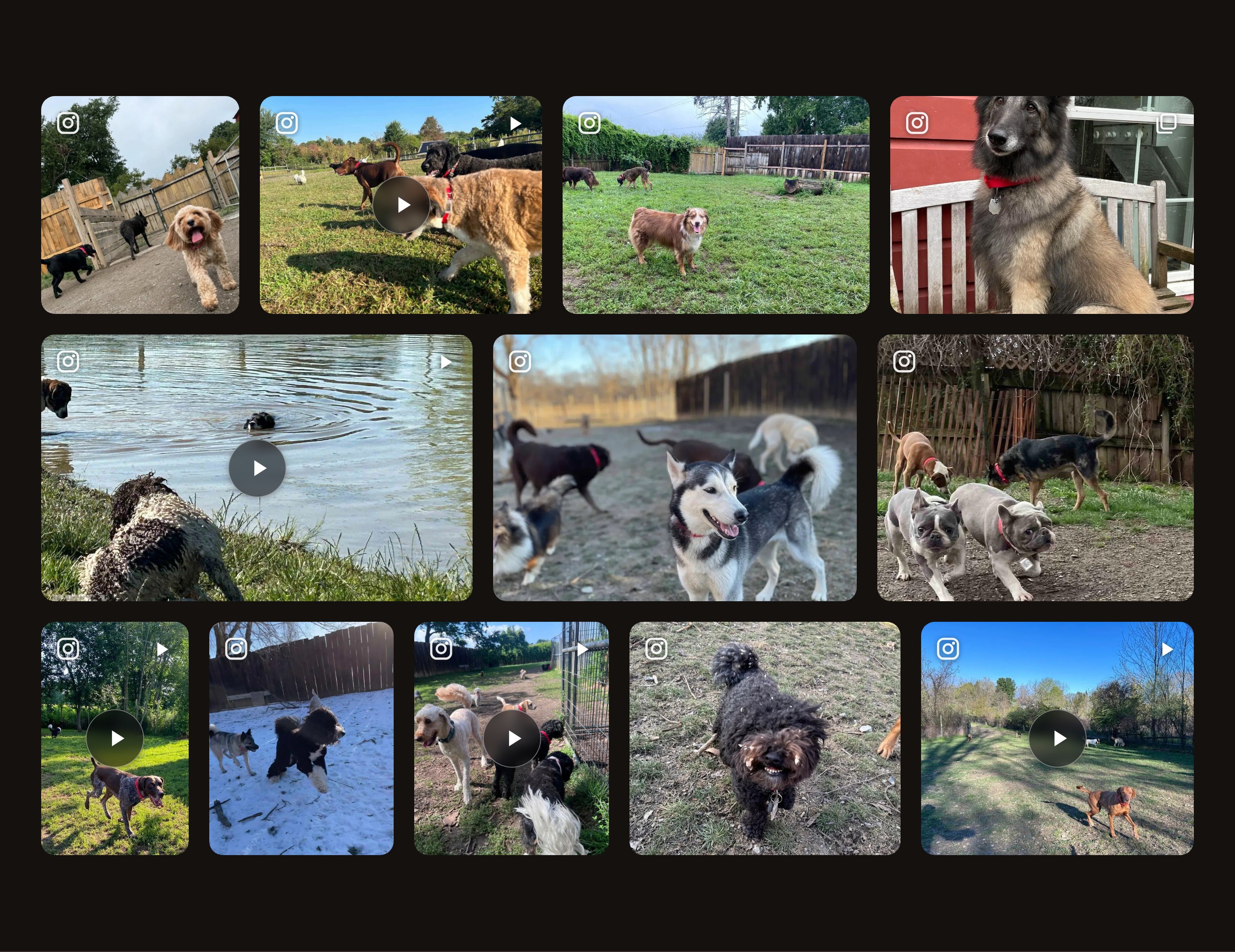
A photo wall with no header.
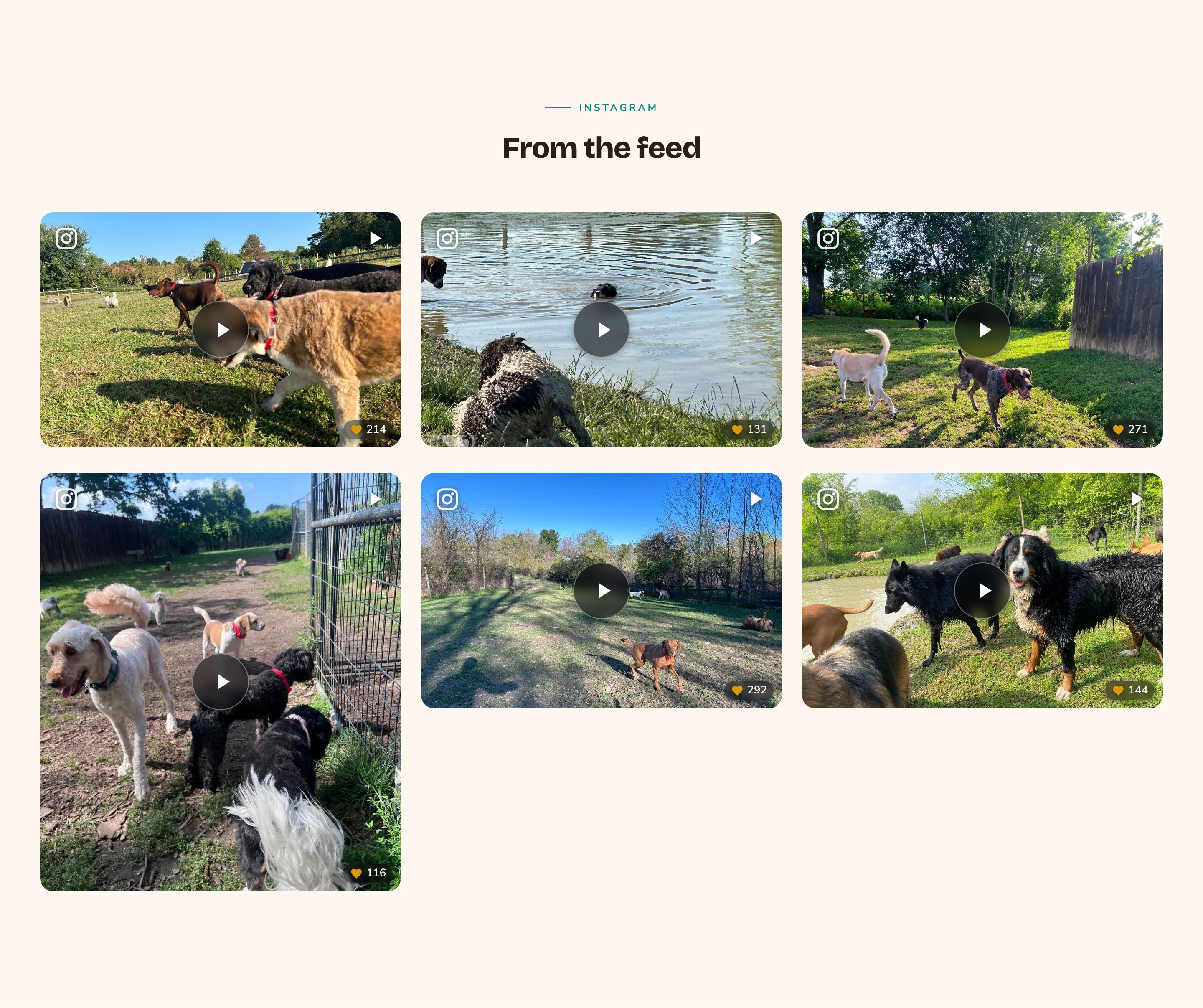
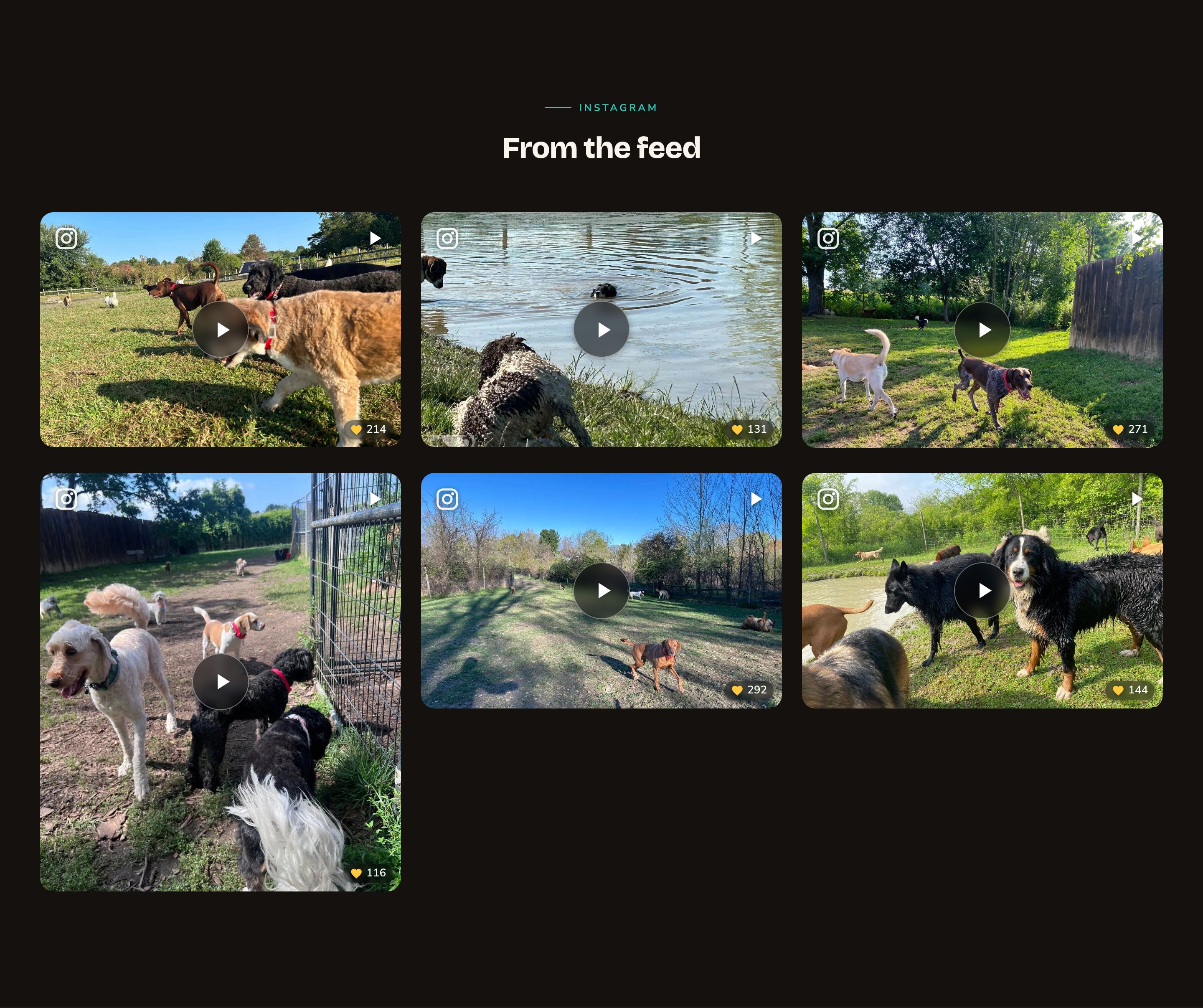
Reels only, in a masonry layout.
Good to know
- The carousel needs animations on. If animations are turned off for the whole site in Motion, the carousel shows as a grid instead. The Tilt, Magnetic and Spotlight hover effects need animations too.
- Moving content can be paused. The carousel and videos playing in tiles each get a pause button. Visitors who prefer less motion see them still.
- Comments are other people’s words. If you show the Full list, review the comments in Instagram Posts. When you hide a comment on Instagram, it leaves your site at the next update from Instagram, not straight away. To stop showing comments at once, choose Count only or Hidden under Comments in the lightbox.
- Likes and comments are only as fresh as the last update from Instagram. A post whose account hides like counts shows none.
Appearance options
Most sections also share a few tabs that work the same everywhere:- Background: set the color behind the section, separately for the dark and light themes.
- Fonts: use a different typeface for parts of this section only.
- CSS: add custom styles to this section. Admins and Owners can change it.
Related
connect your account so posts arrive on their own.
Manage Instagram posts
feature, add or review posts.
Gallery
show your own photo albums.
Testimonials
more social proof for your page.