

 AdonisJS
Open Maintenance
- In the toolbar (the bar across the top of your site once you’re signed in; see The toolbar), choose Site settings (the gear), then the Maintenance tab.
- Or open the command palette (⌘K, or Ctrl+K on Windows), choose Site settings, then Maintenance. The shortcut for Site settings is T then G (press T, let go, then press G, while you’re not typing in a box; see Keyboard shortcuts).
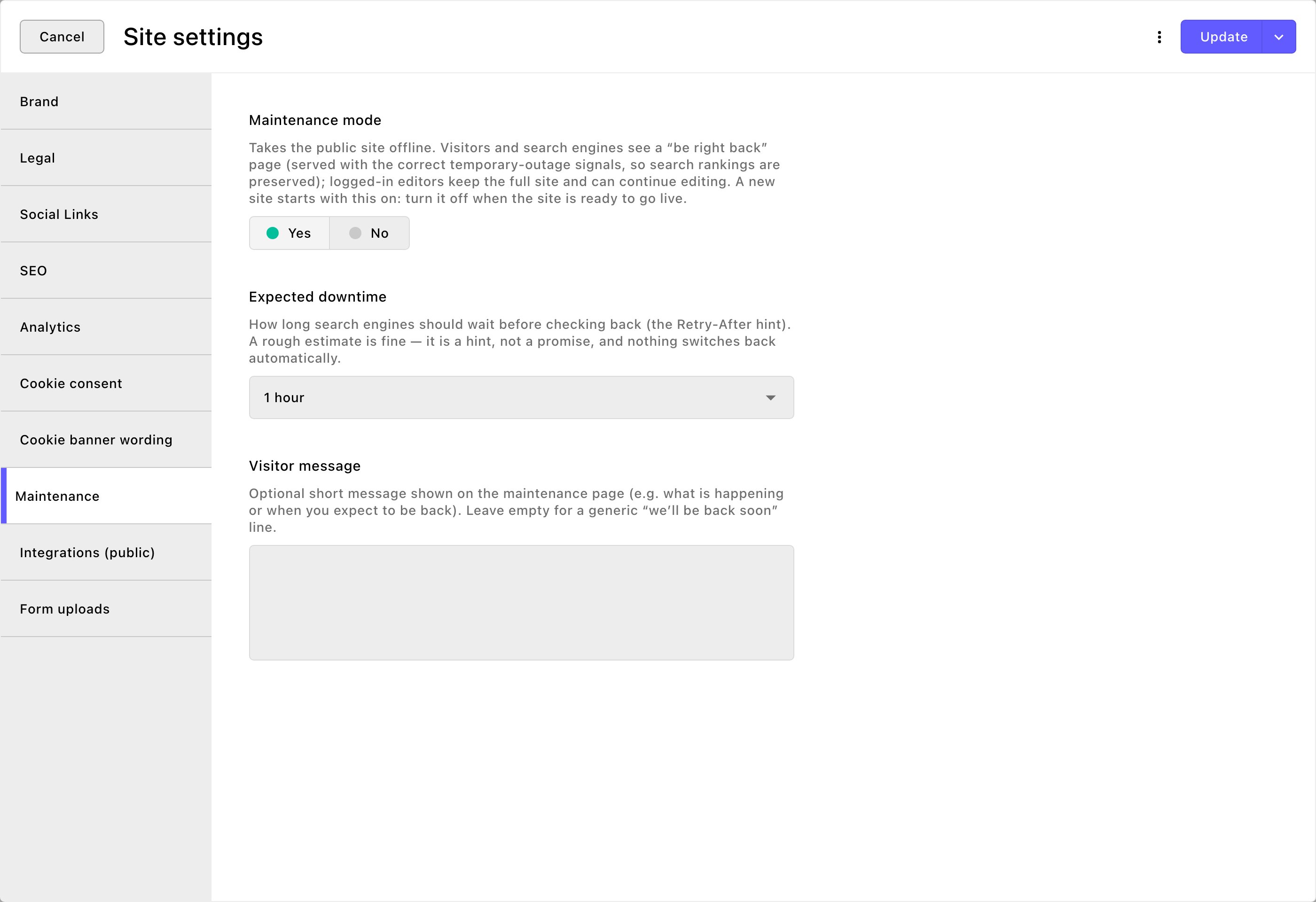
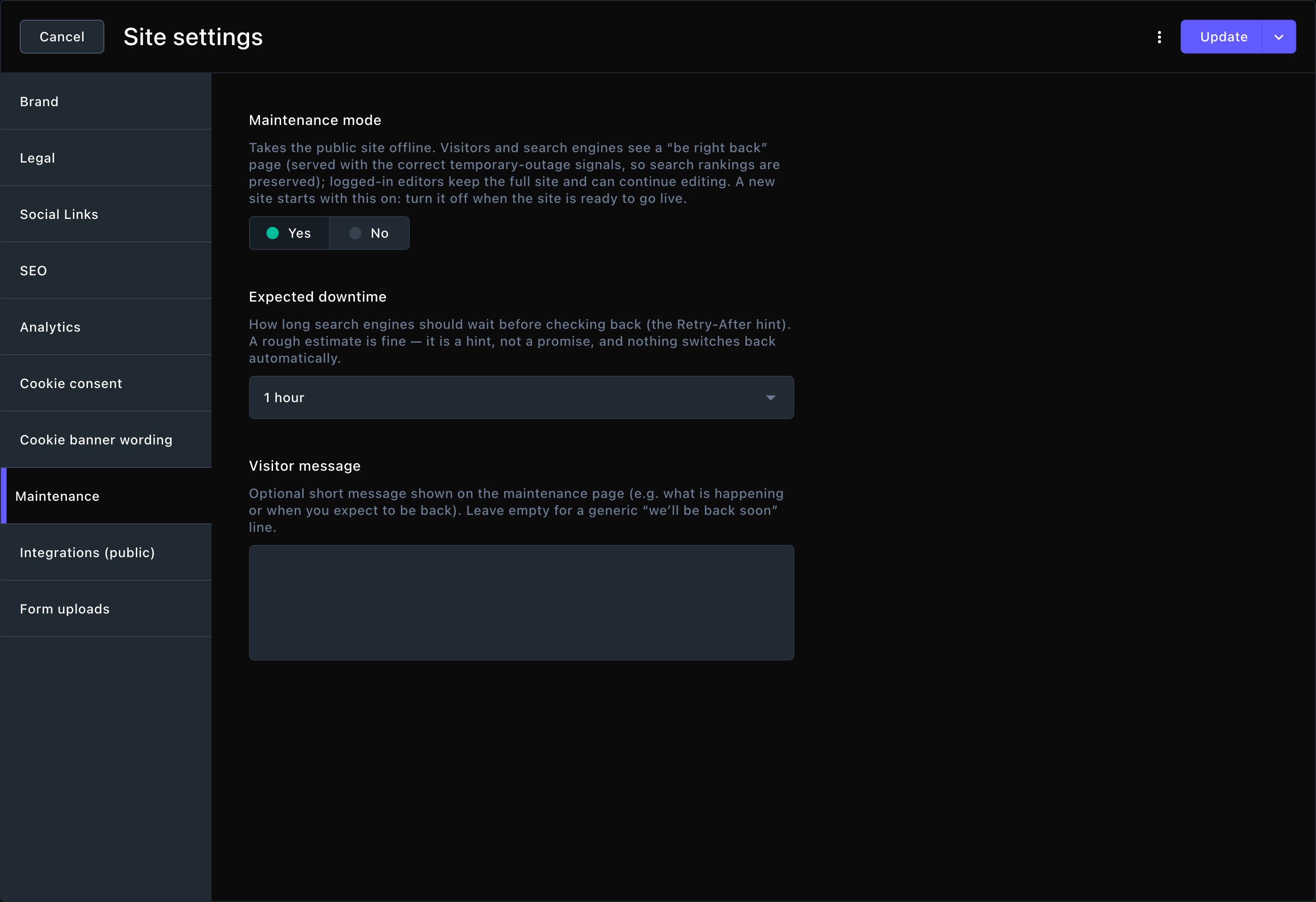
The Maintenance tab.
Maintenance settings
- Maintenance mode: turn it on to take your site offline for visitors. They see a maintenance page instead. A new site starts with this on.
- Expected downtime: how long search engines should wait before they check back. Choose from 1 hour (the default) up to 1 week. A rough guess is fine. Nothing switches back on its own.
- Visitor message: optional. A short note on the maintenance page, such as what’s happening or when you’ll be back. Leave it empty for a general “back shortly” line.
What visitors see
Every page on your site shows the maintenance page. It’s in your colors and shows:- your business name and browser icon,
- the headline “We’ll be back soon.”,
- your Visitor message, or a general line if you left it empty,
- buttons with your email and phone, from Brand.
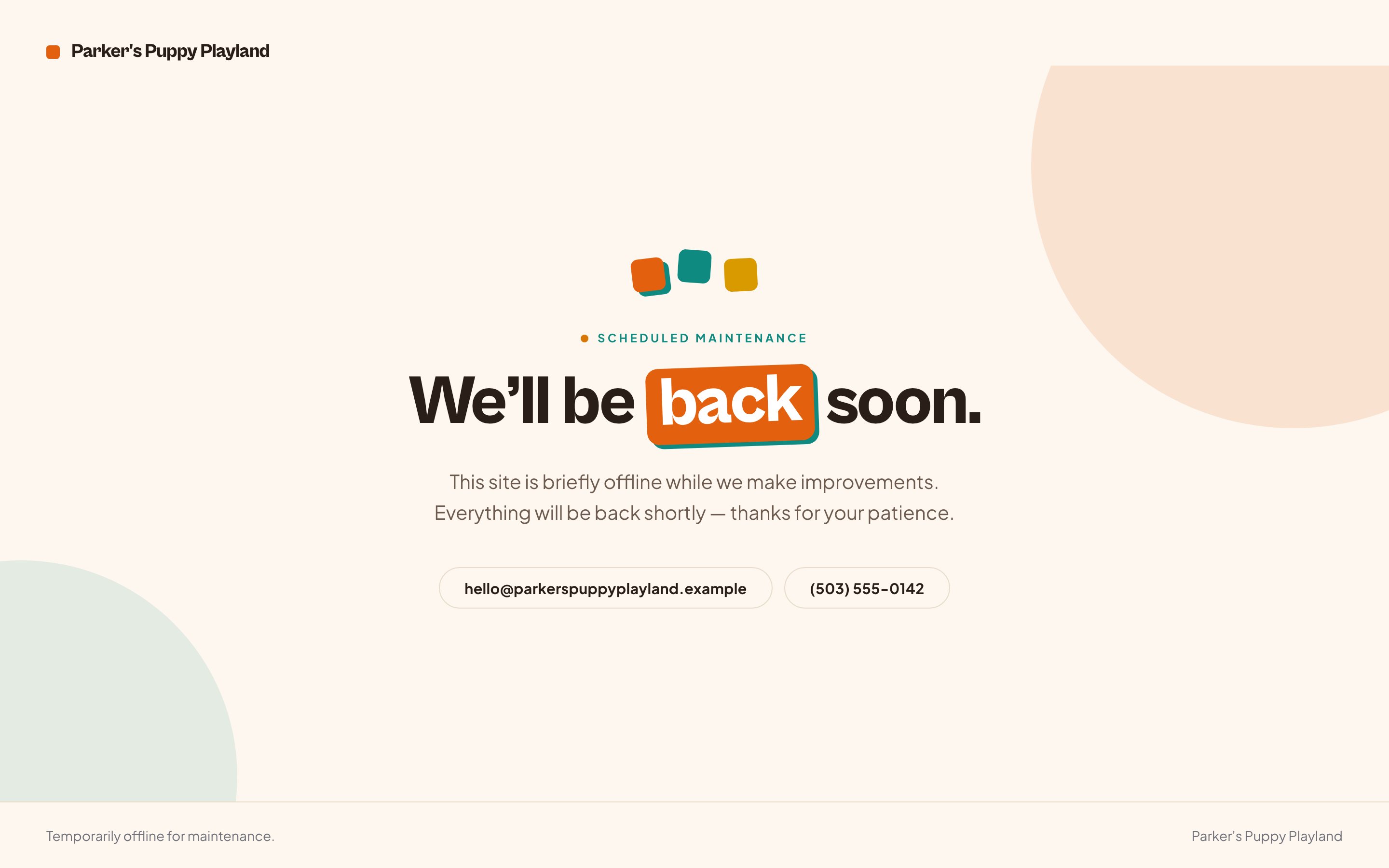
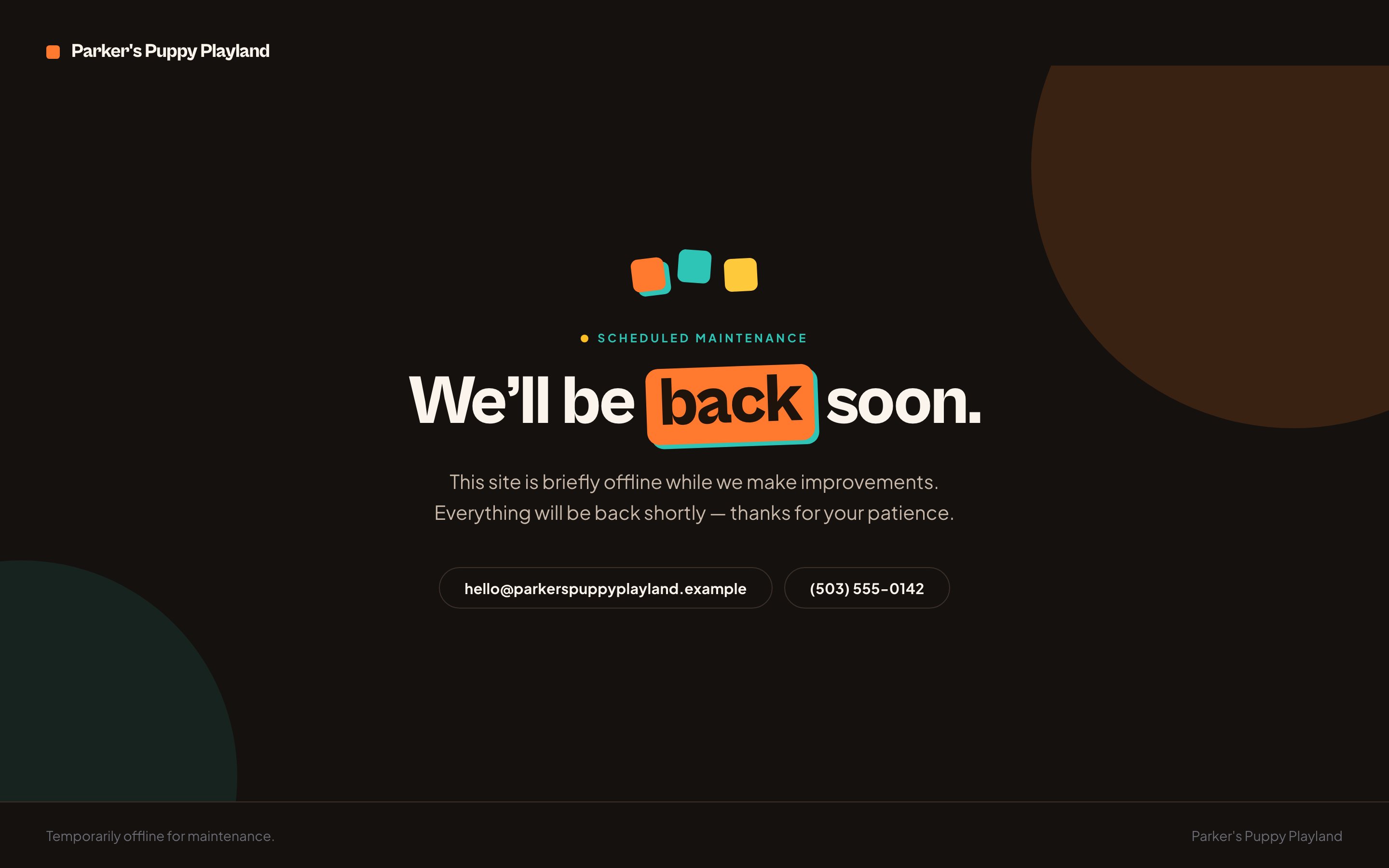
What visitors see while maintenance mode is on.
What you see
Signed-in Contributors, Editors, Admins and Owners keep the full site and work as usual. Editors, Admins and Owners edit and publish; Contributors edit and submit their changes for review. A signed-in Viewer sees the maintenance page, like a visitor. A reminder bar stays at the bottom of the screen on every page: “Maintenance mode is on — visitors currently see the maintenance page. Turn it off in Site settings → Maintenance.”

Signed in, you see the real site and a reminder.
Go live
When your site is ready, turn Maintenance mode off and choose Update. Visitors see your real site straight away. It’s also the last step of Set up your site: Go live. See Set up your site.Good to know
- Check it as a visitor. You won’t see the maintenance page while you’re signed in as a Contributor or above. Open your site in a private window (Incognito in Chrome), which isn’t signed in, to see what visitors see.
- Use it for big changes. Turn it on while you rebuild a large part of your site, then off again when you’re done.
- Your email and phone help visitors. Fill them in on Brand so visitors can still reach you.
Related
Set up your site
the checklist that takes a new site live.
Brand
the name, icon and contact details on the maintenance page.
Publish and schedule
put your pages live.
Site settings
every tab on this screen.