

 AdonisJS
Open Personal Settings
- In the toolbar, choose your picture and name, then Personal Settings.
- Or open the command palette (⌘K, or Ctrl+K on Windows) and choose Personal Settings.
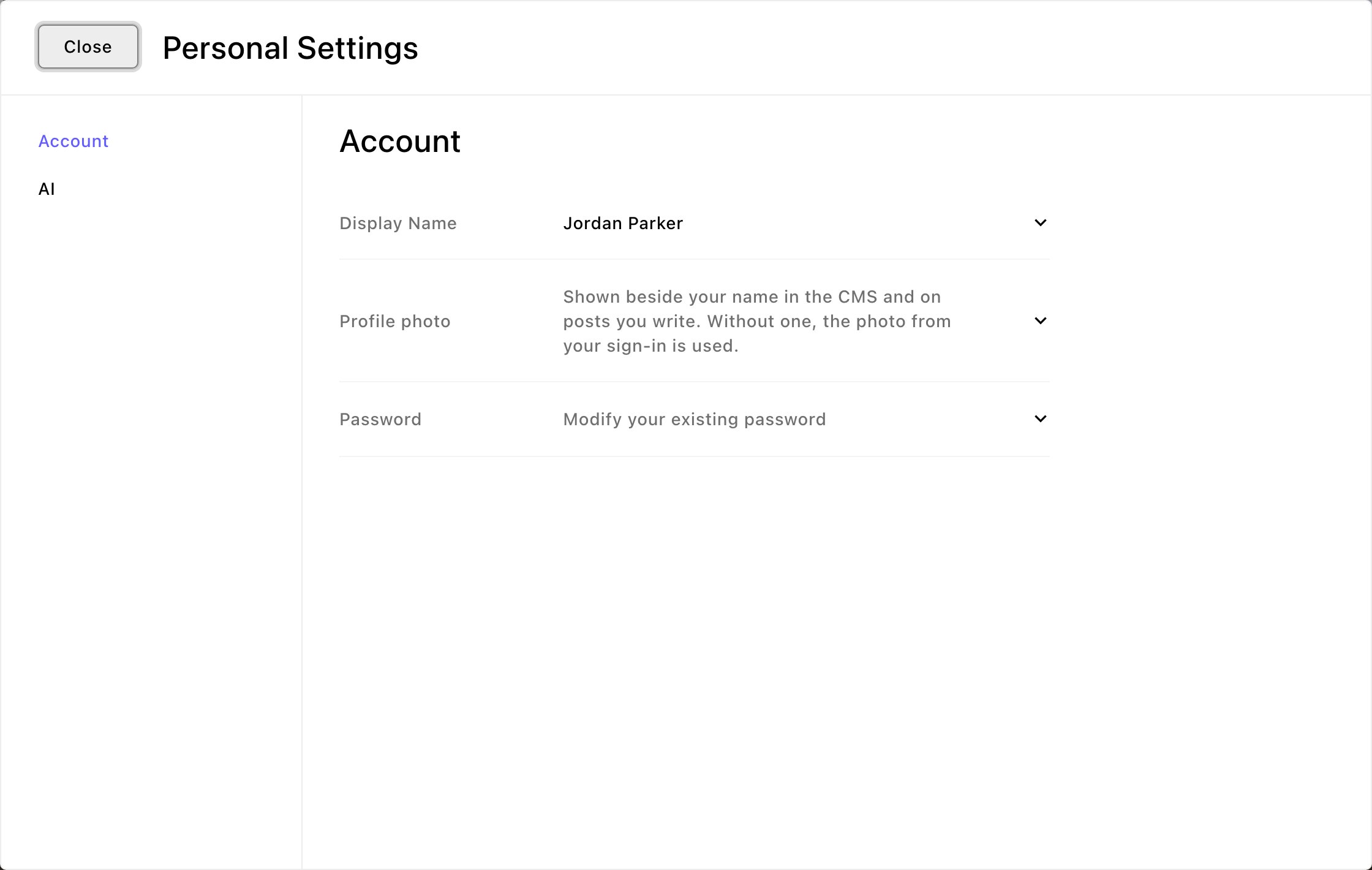
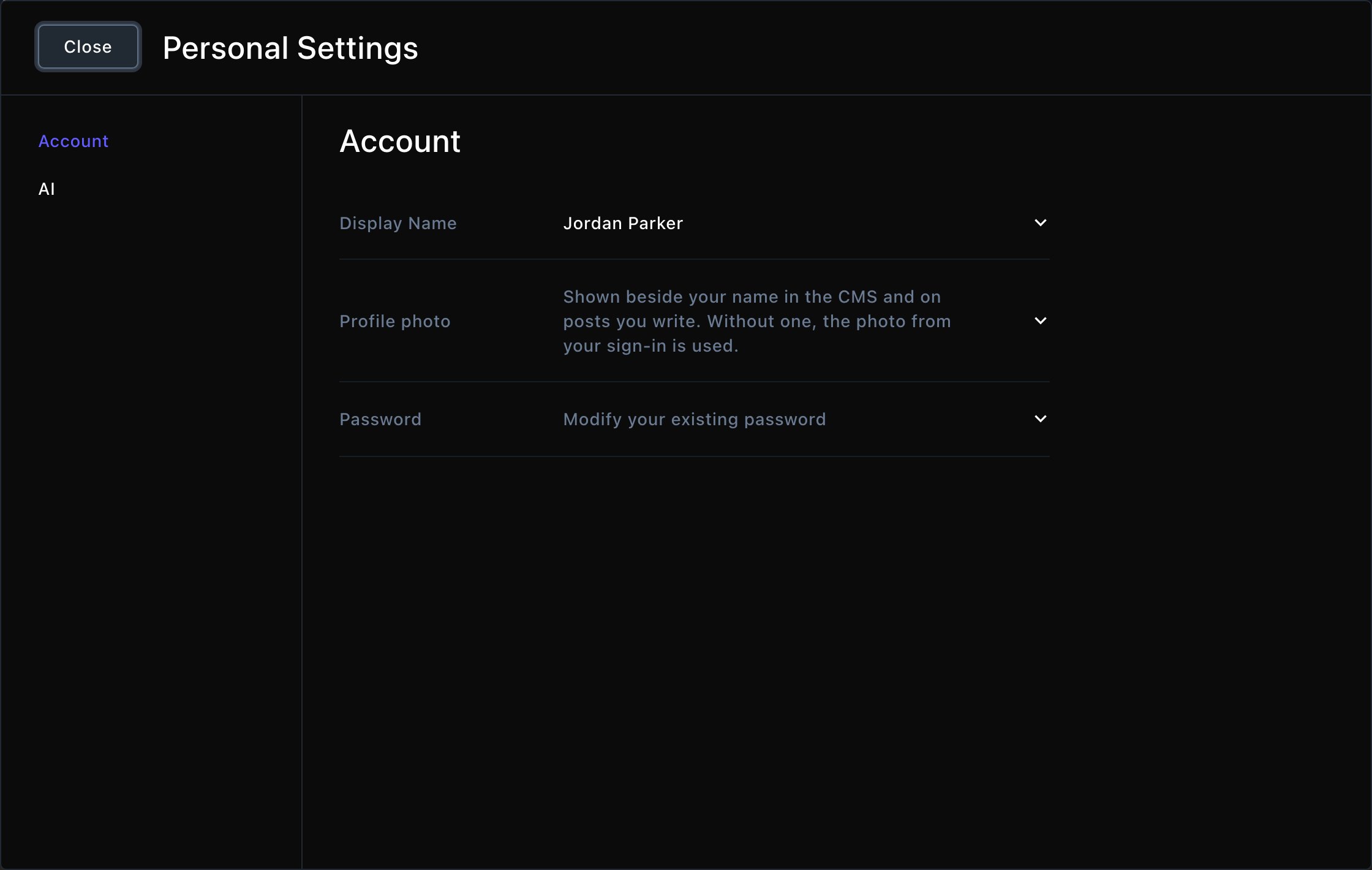
Personal Settings: your name, photo and password.
Account
- Display Name: your name as it appears in the CMS, such as next to your picture in the toolbar. If you sign in with a password, you type your Current Password to save a new name.
- Profile photo: upload a photo of yourself. It shows beside your name in the CMS and on blog posts you write. Without one, the CMS uses the photo from your Fetchski account, or your initials.
- Password: change the password you sign in with. Type your New Password, type it again in Repeat New Password, then type your Current Password and choose Save.
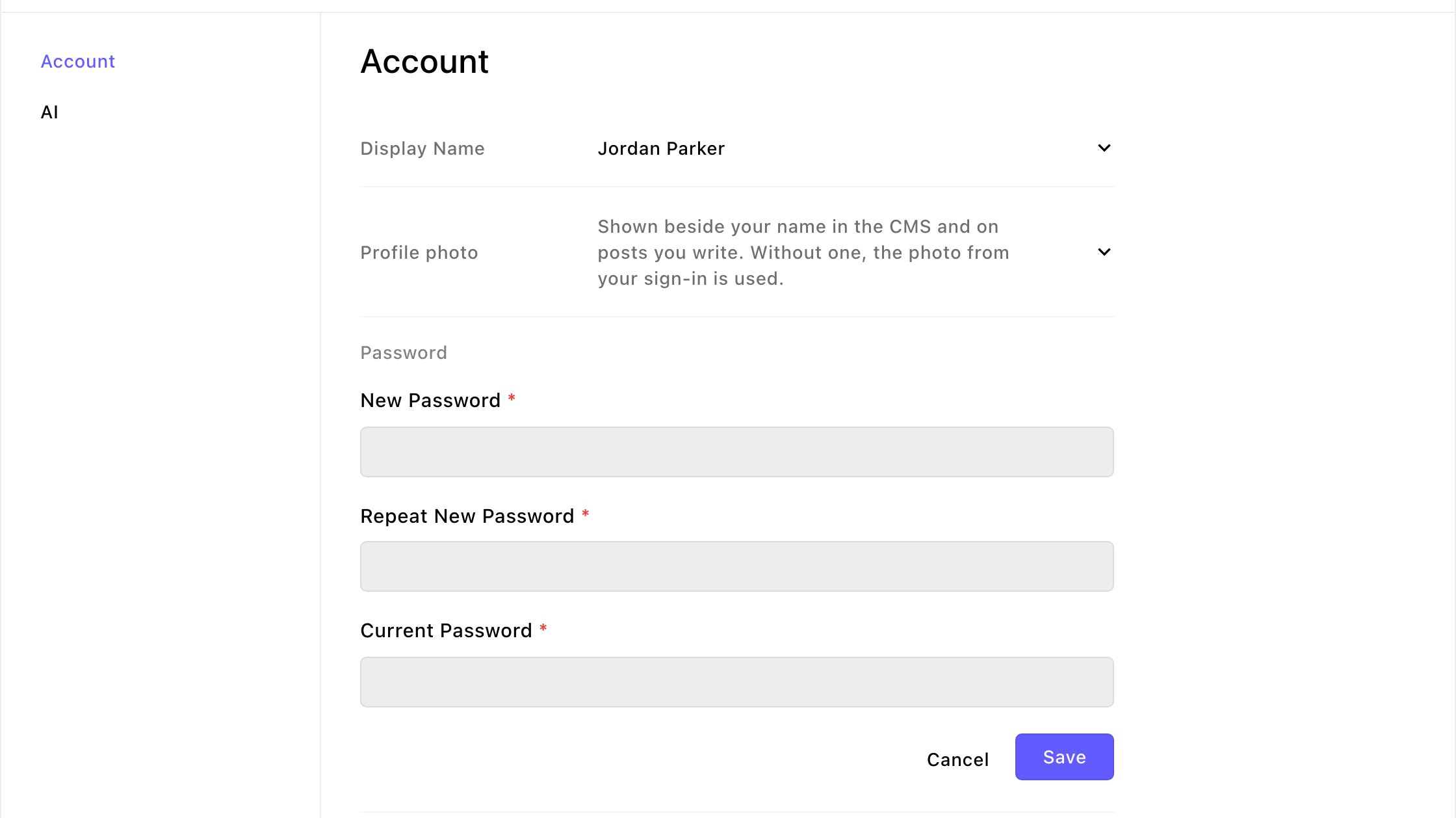
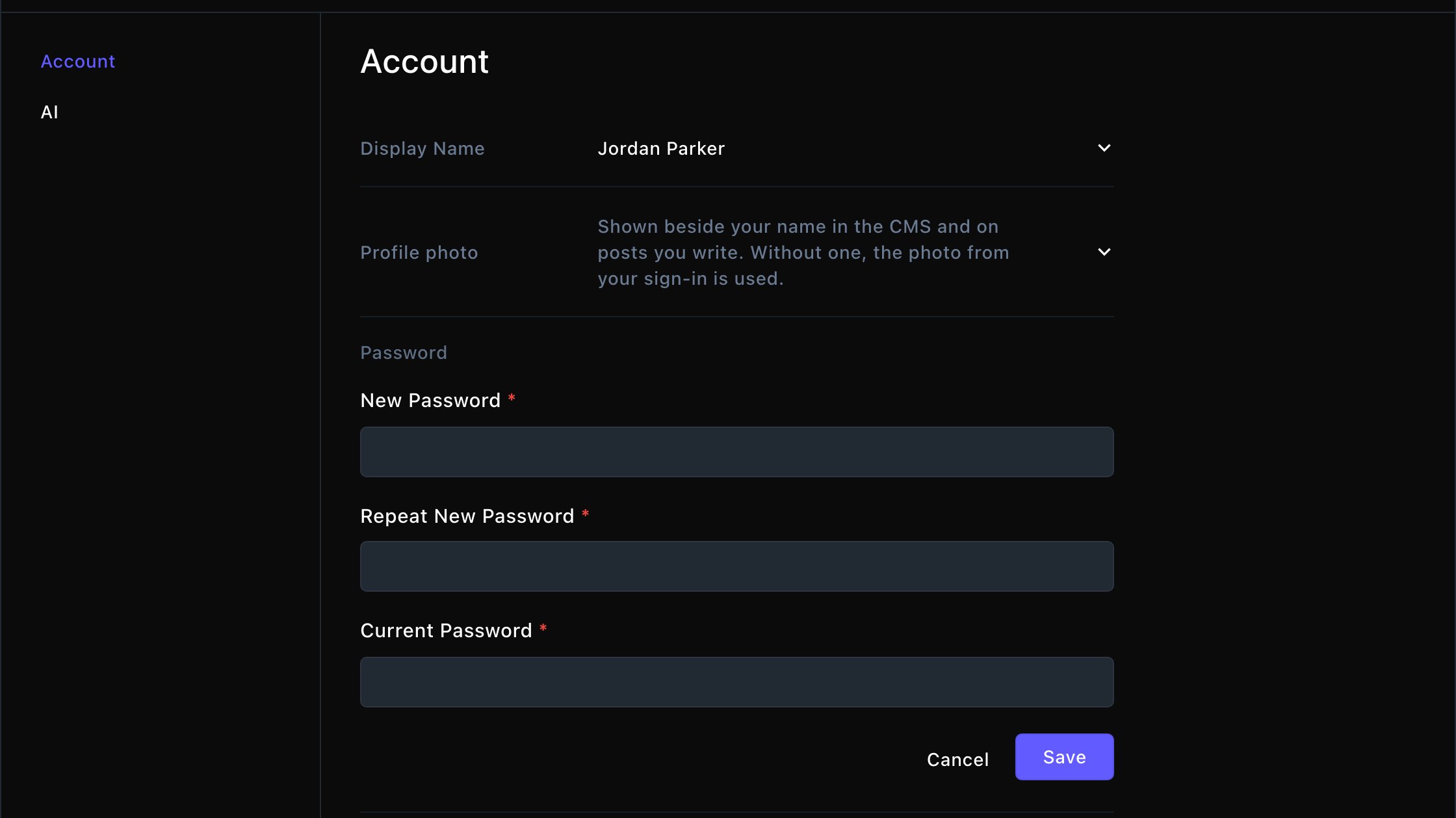
Change your password from the Password row.
If you sign in with your Fetchski account
When you use Sign in with Fetchski, your password belongs to your Fetchski account, not to this site. So the Password row doesn’t appear, and you can change your Display Name without typing a password.AI
- AI instructions: your own instructions, added to every FetchskiAI feature you use on this site. Use it for how you like text written, standing details about your work, or things FetchskiAI should always or never do for you.
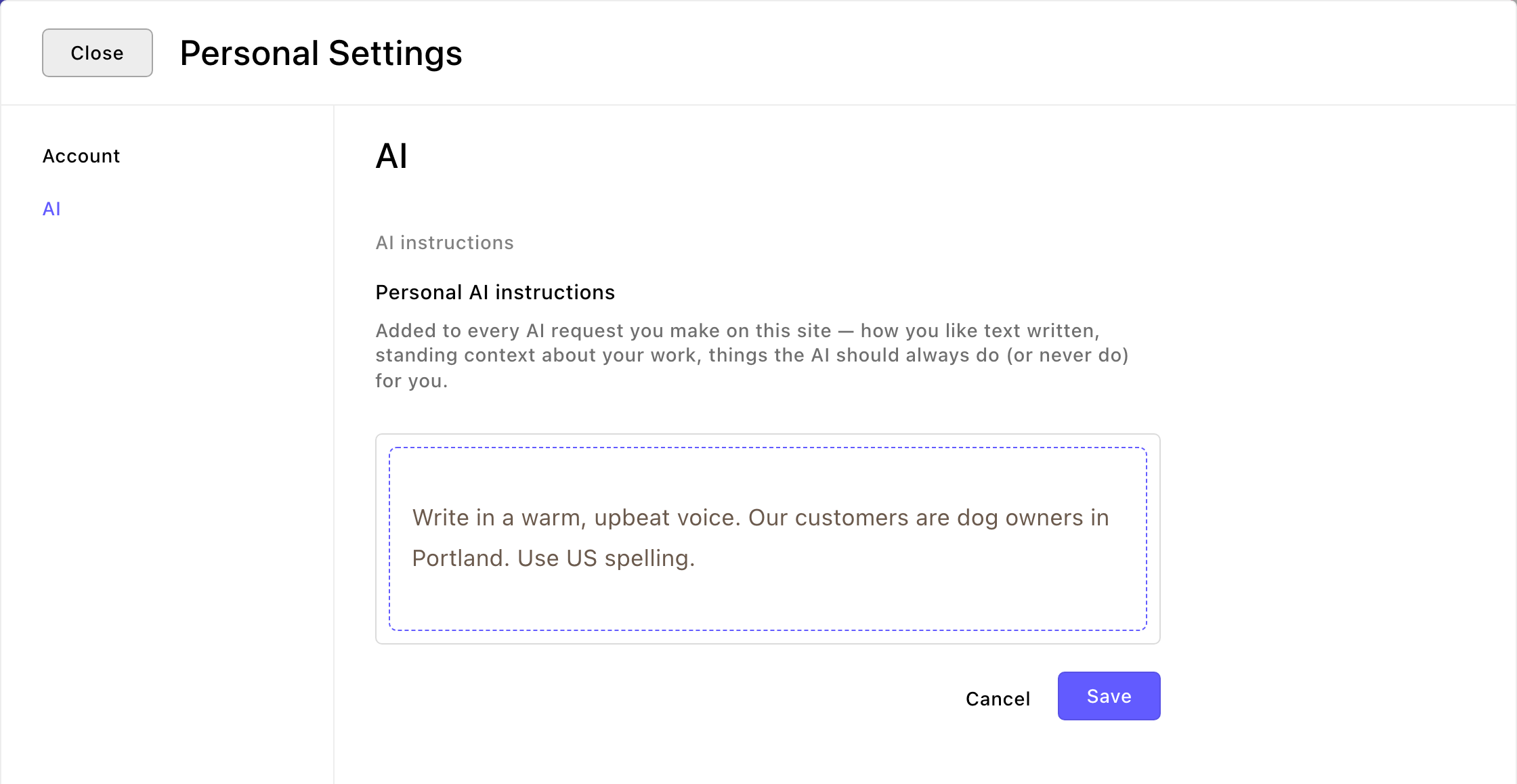
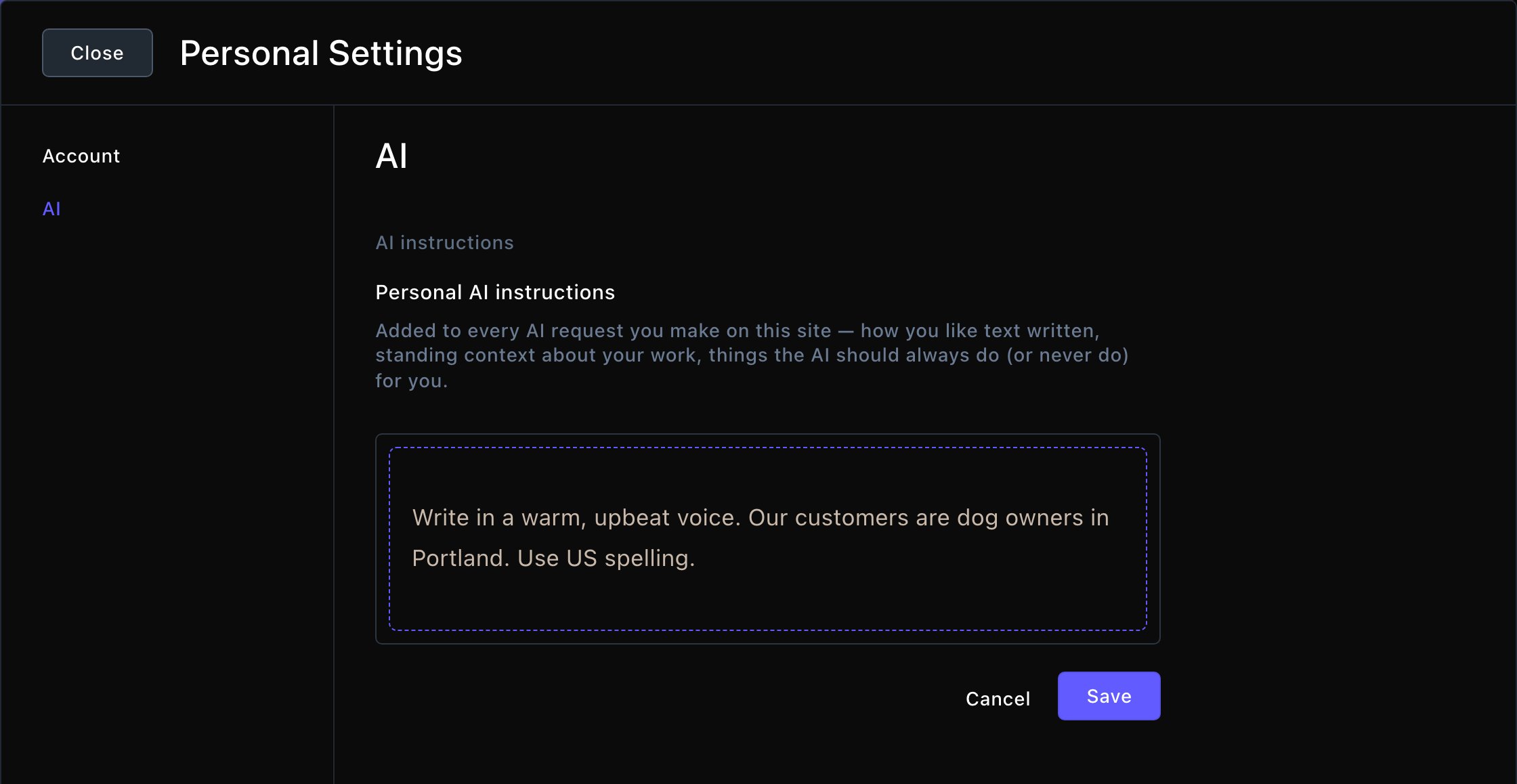
Your own instructions for FetchskiAI.
How the CMS looks for you
Two quick choices change how the CMS looks on your screen. Neither changes your site, and each is remembered in the browser you set it in.- Light or dark: choose the moon (or sun) in the toolbar to switch the CMS between dark and light. The sign-in page follows your choice too.
- Logo color: choose your picture and name, then pick a color under Logo color: Indigo, Blue, Green or Lime. The Fetchski Attract logo in the CMS takes that color.
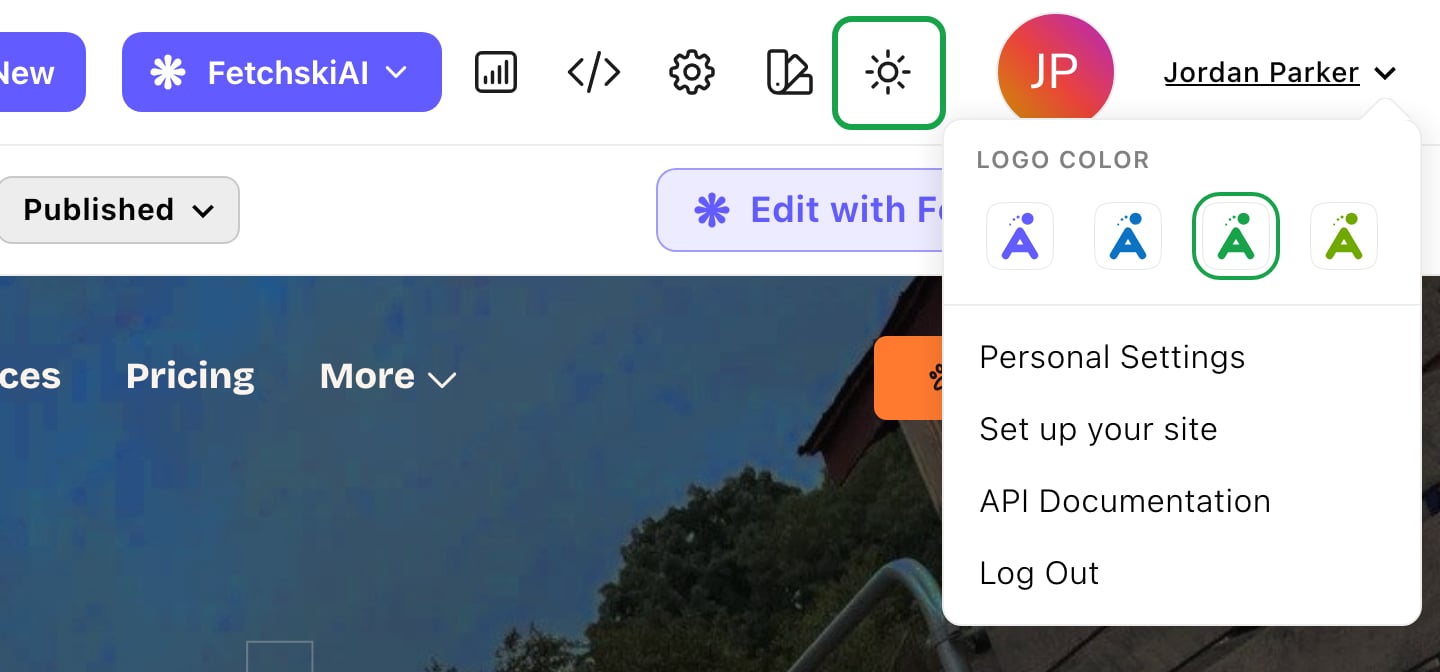
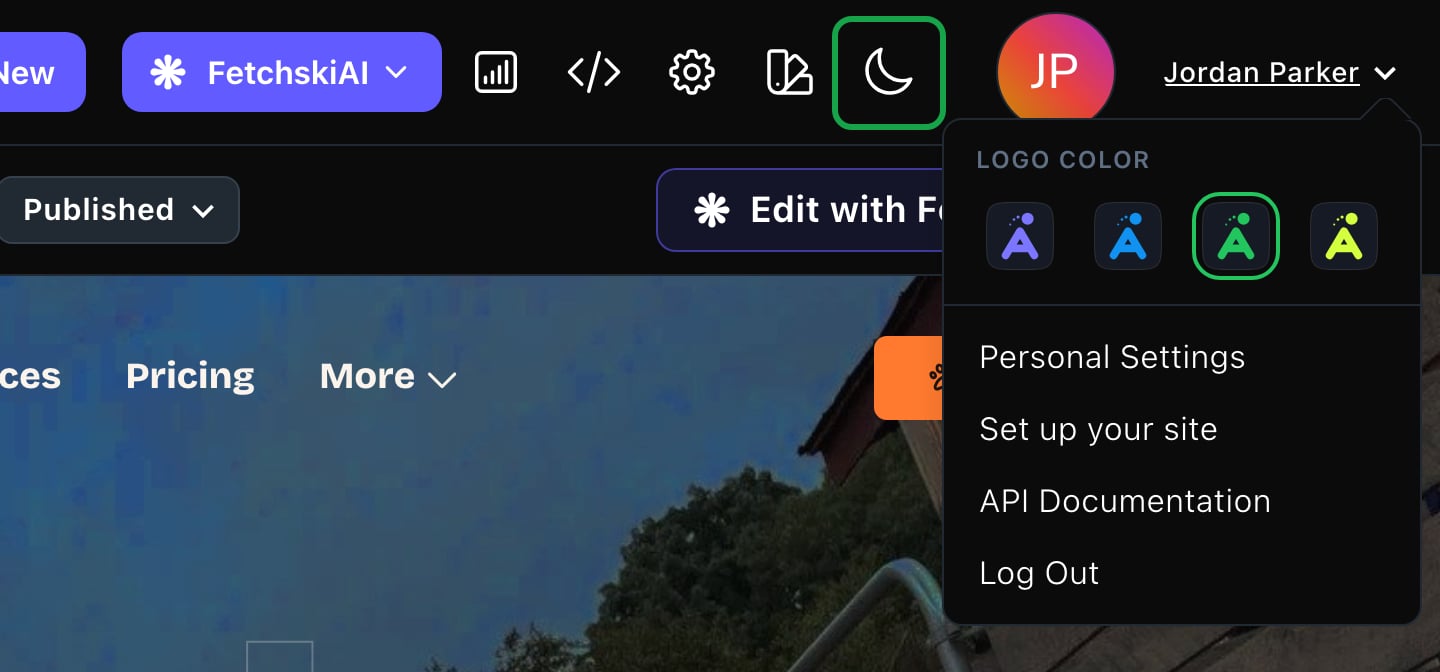
Switch the CMS to light or dark, and pick your logo color.
Good to know
- Your role isn’t set here. An Admin or Owner gives you a role in People & Roles.
- Your visitors have their own switch. The moon in the toolbar changes only the CMS. Visitors switch your site between light and dark in its header.
- A new browser starts fresh. Light or dark and your logo color are remembered per browser, so set them again on another computer.
Related
Sign in
signing in and out.
Custom instructions
site-wide and personal AI instructions.
The toolbar and the command palette
every button in the toolbar.
What each role can do
what your role lets you do.