

 AdonisJS
Lists and sections
A section is what visitors see on a page: a Team section, a FAQ, a row of testimonials. A list holds the entries that section shows. You fill the list once, then place the section on as many pages as you like. For example, Parker’s Puppy Playland adds its 6 trainers to Team Members once. The About Us page shows all of them, and the home page shows only the 2 marked Featured. When a trainer joins or leaves, Parker’s changes the list once, and both pages update.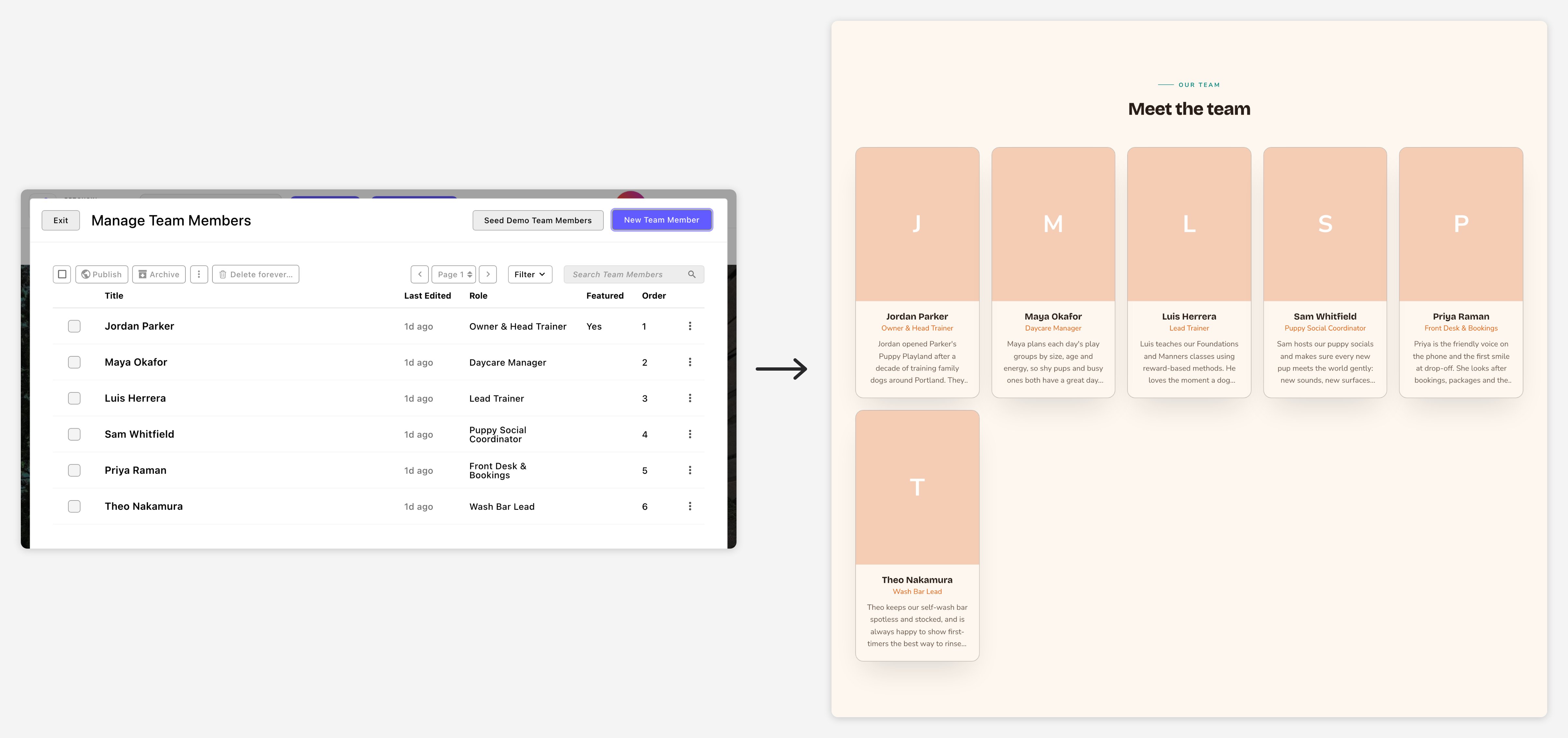
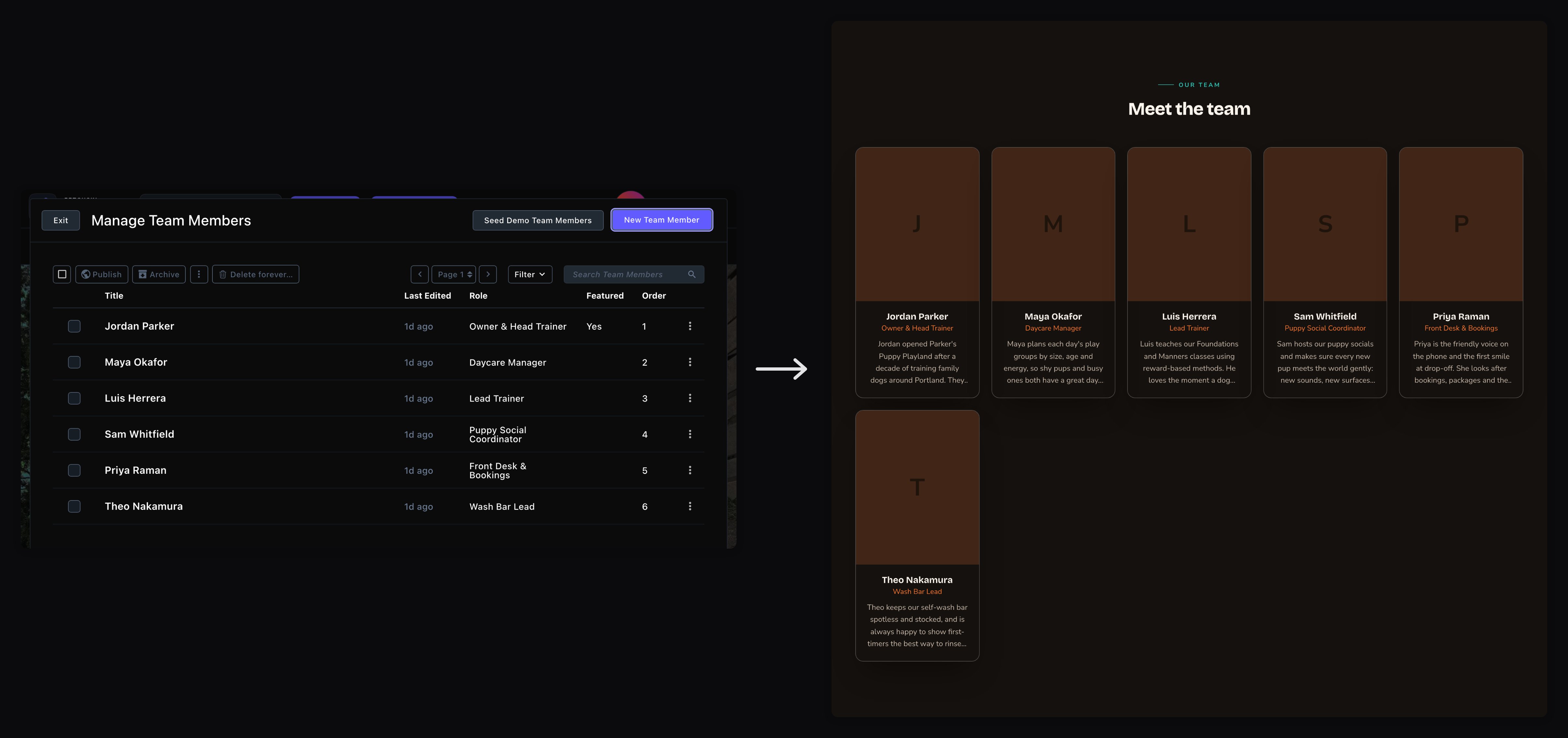
One list, shown by every Team section on your site.
Open a list
Each list has its own manager window. To open one:1
Press ⌘K (Ctrl+K on Windows) to open the command palette
2
Under Manage, choose the list, such as Team Members or Blog Posts
Or start typing its name.
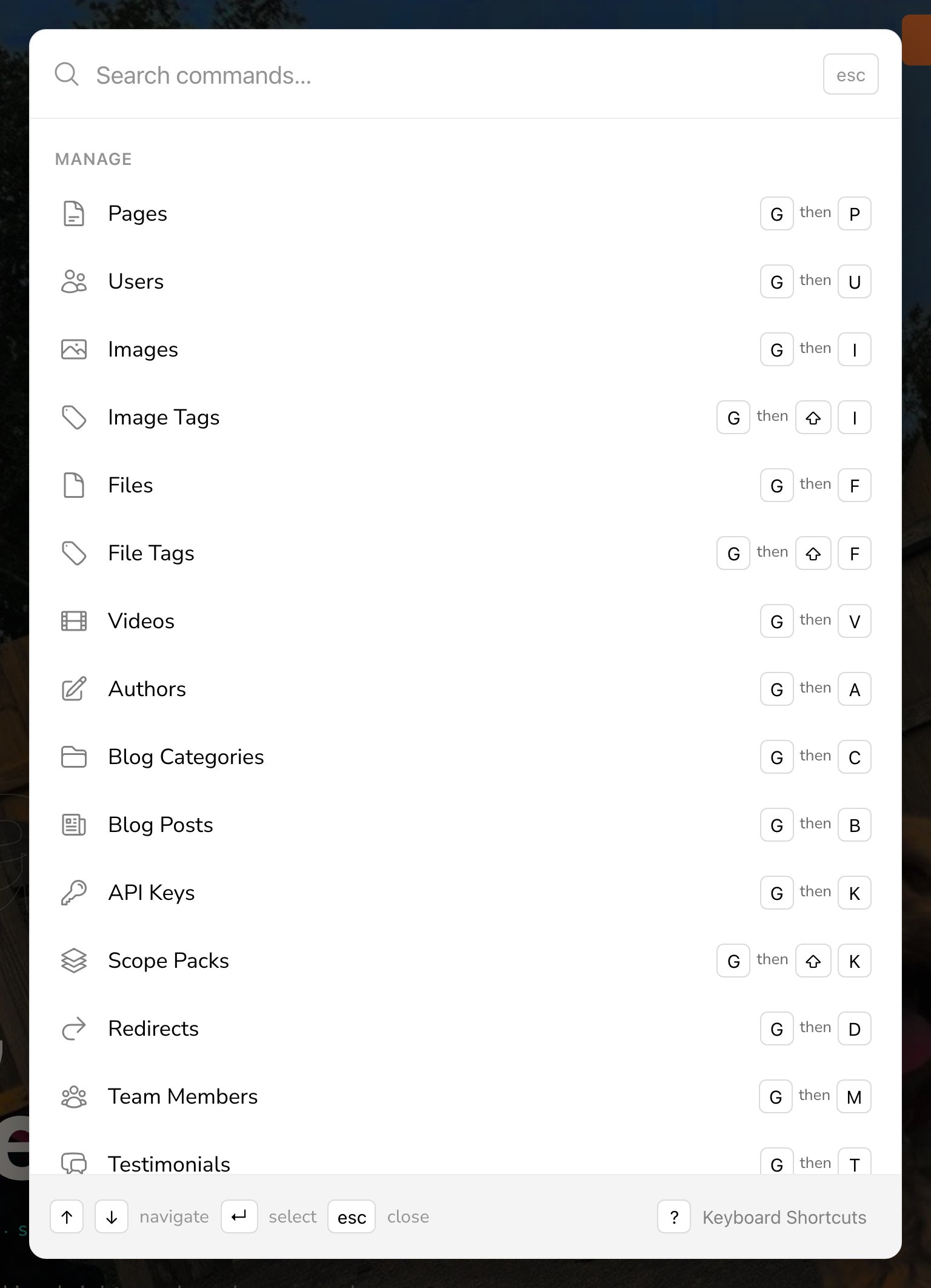
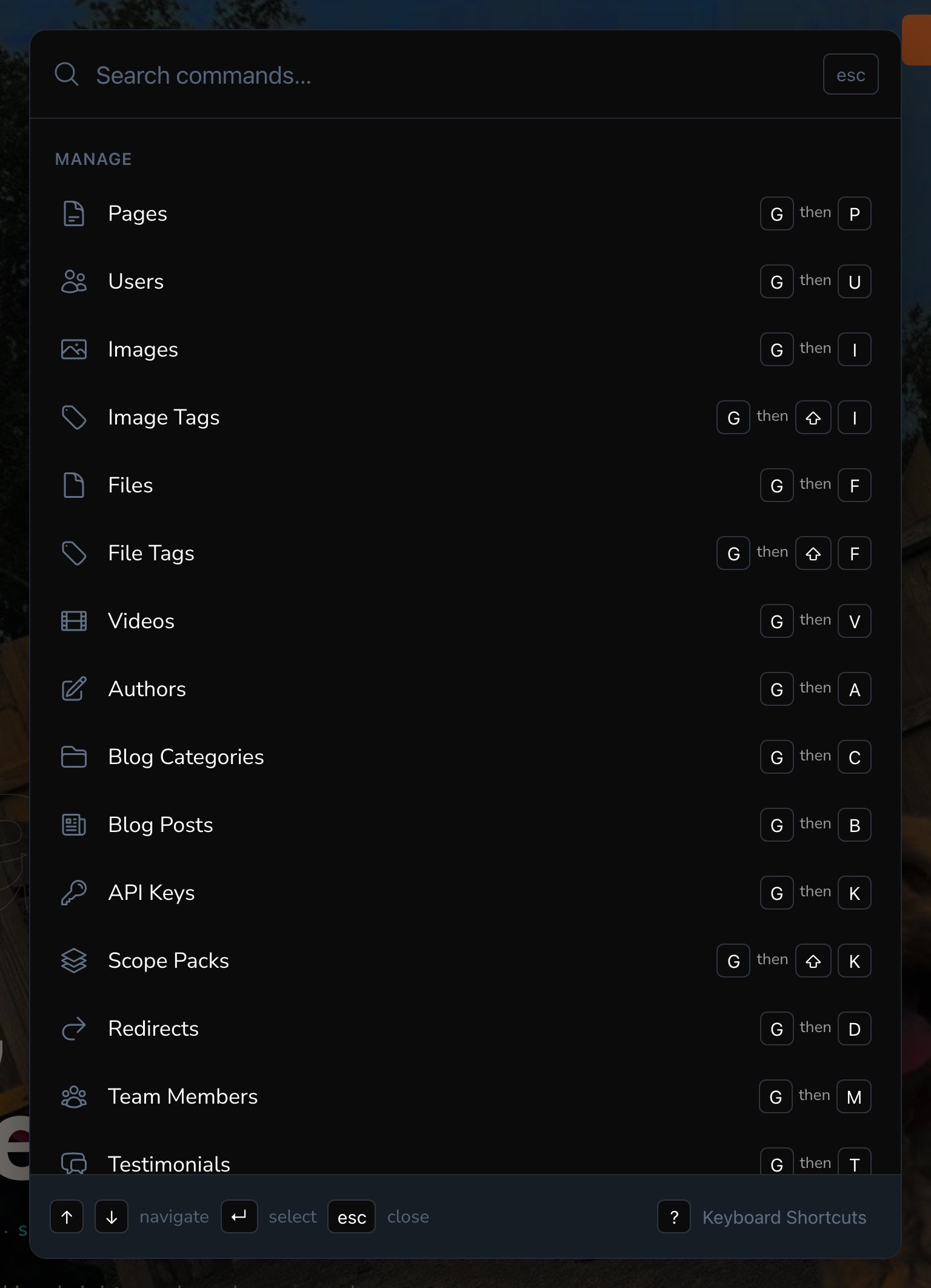
Every list is under Manage in the command palette.
Your lists
Blog
write posts, sort them into categories, credit authors and set up your blog page.
Team members
the people in your Team sections, with photos, roles and the order they show in.
Testimonials
quotes from happy customers, for your Testimonials sections.
FAQs
questions and answers, and the categories that group them.
Google reviews
the reviews your Google Reviews sections show; feature your favorites.
Service areas
the areas you serve, shown on your Service Area Map.
Photo albums
choose and order photos for your gallery sections.
Photo feeds
fresh photos pulled in on a schedule from a photo store you connect.
Instagram posts
the posts your Instagram Feed section shows.
Archive, restore and delete
tidy up any list, and bring back what you removed.
Where each list shows
Where to start
- Fill a list first. A section with an empty list shows nothing to visitors.
- Then add the section. See Add, move and remove sections.
- Publish your entries. Visitors see only published entries. While you edit, you also see drafts, so you can check how they’ll look. Photo Feeds are the exception: they have no drafts, so a feed’s changes go live as soon as you choose Save.
Good to know
- Sample entries. Admins and Owners can fill a new site with sample team members, testimonials, FAQs, Google reviews, service areas and Instagram posts, to try out a layout. Each list’s guide explains how to add them and how they’re removed.
- Order and featuring. Team members, testimonials and FAQs have a Featured switch, so a section can show only your favorites. Team members and FAQs also have a Sort order number: lowest shows first.
- Changes reach every page. Edit an entry once and every section that shows it updates when you publish (or, for a Photo Feed, when you save).
Related
All sections
what each section does.
Drafts, publishing and scheduling
make your changes live.
The toolbar and the command palette
find any list fast.