

 AdonisJS
Open Brand
- In the toolbar (the bar across the top of your site once you’re signed in; see The toolbar), choose Site settings (the gear). Site settings opens on Brand.
- Or open the command palette (⌘K, or Ctrl+K on Windows) and choose Site settings. The shortcut is T then G (press T, let go, then press G, while you’re not typing in a box; see Keyboard shortcuts).
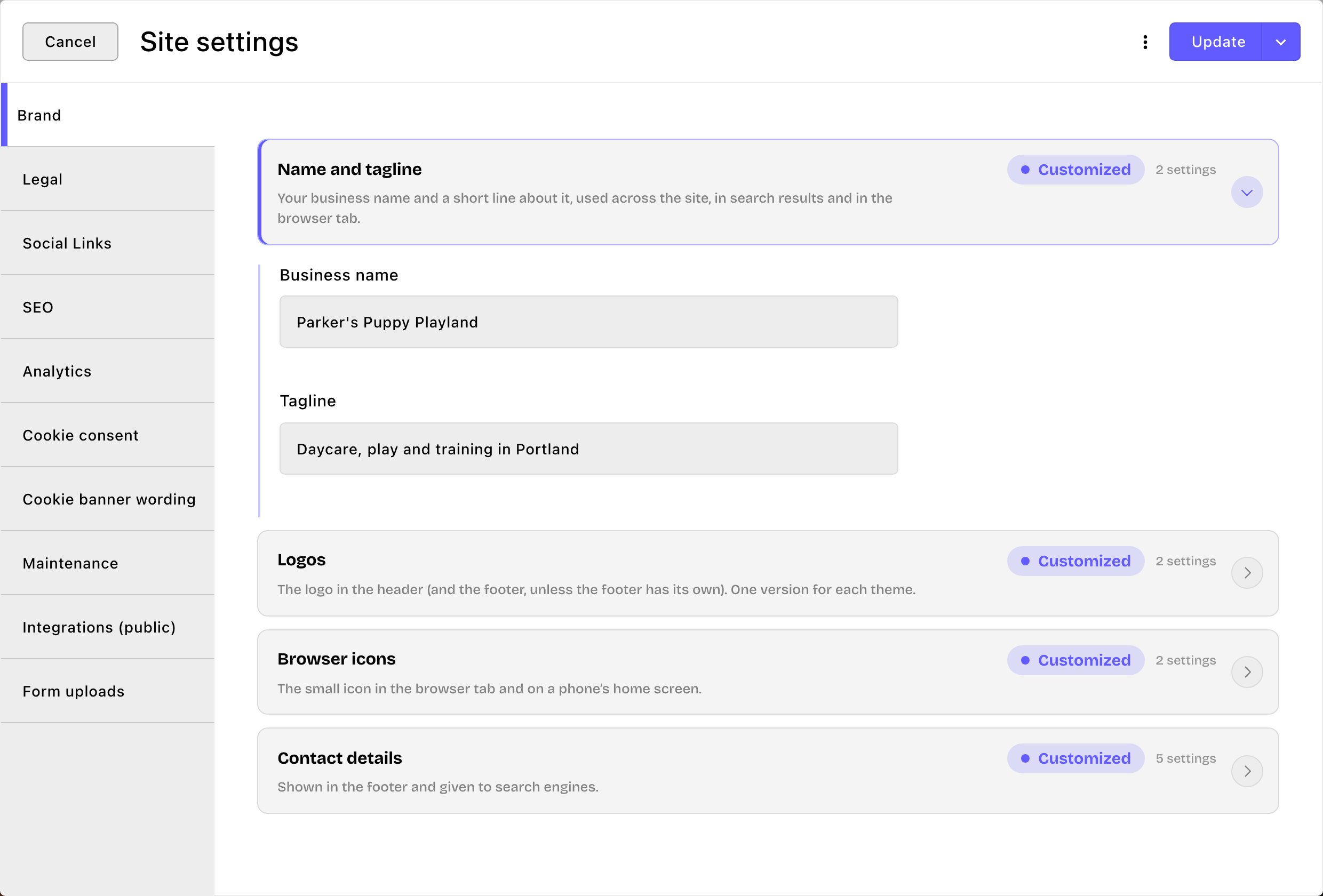
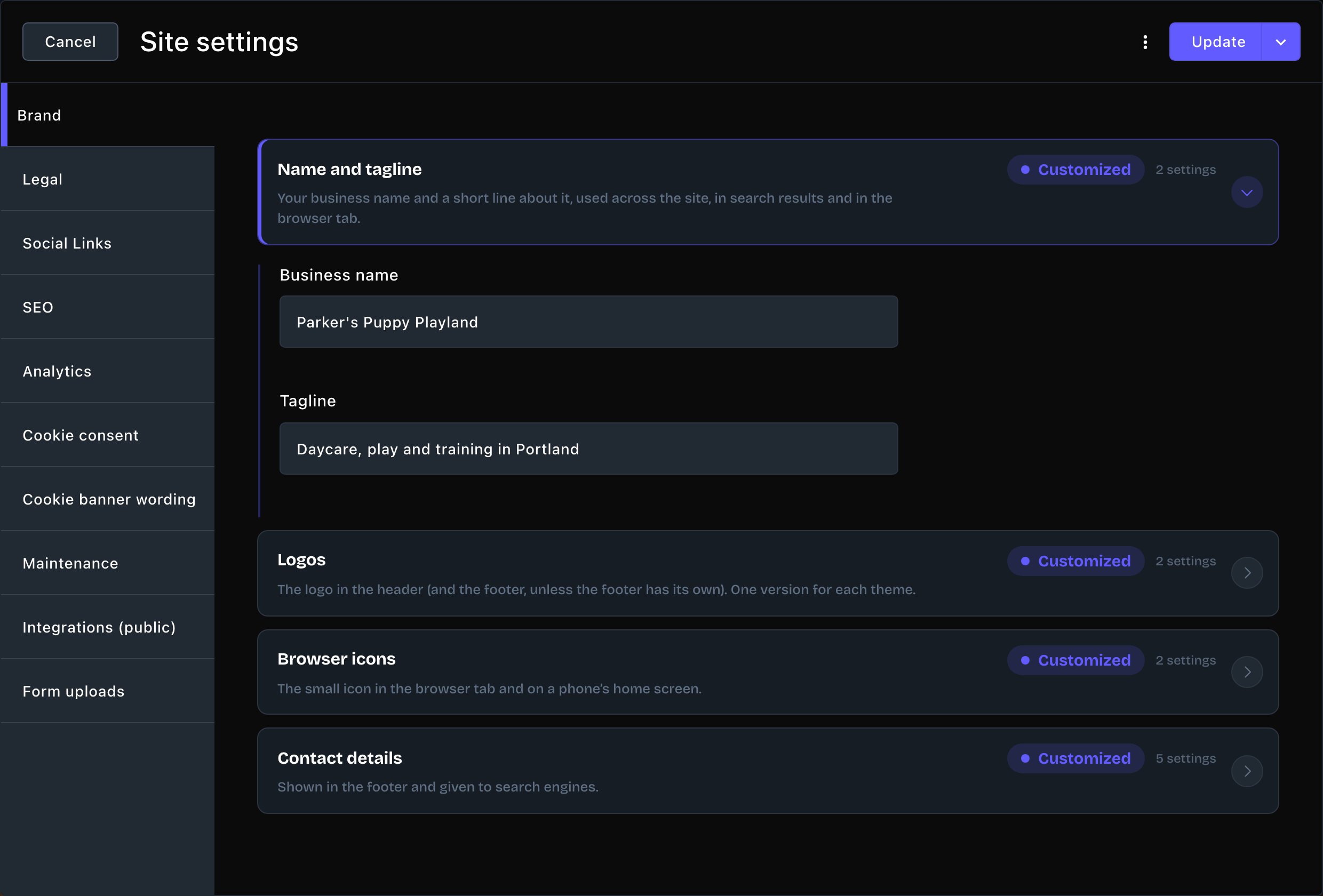
The Brand tab with Name and tagline open.
Name and tagline
- Business name: your name as visitors know it. It shows beside your logo in the header (you can turn that off), in the footer and on the “back soon” page. It ends the title of every page in the browser tab, such as “Contact · Parker’s Puppy Playland”.
- Tagline: one short line about your business. It shows in the footer, and your home page’s browser tab reads “name — tagline”. Search engines also show it for a page that has no description of its own.
Logos
Choose Browse Images to pick a logo from your images. Upload it first to Images, the photo part of your media library. See The media library.- Logo — white version: the logo in the header on the dark theme, and over a Hero (the big banner section at the top of a page). Use a white or light version of your logo.
- Logo — dark version (light theme): a darker logo for the light theme. Leave it empty and the white logo is turned dark for you.


One logo for each theme.
Browser icons
- Favicon: the small icon in the browser tab and on a phone’s home screen. Use a square PNG or SVG image, at least 64 × 64 pixels. Leave it empty and a plain built-in icon shows.
- Favicon — light-scheme version: an optional second icon for visitors whose browser or device is set to light mode. Leave it empty and the main favicon shows everywhere.


Your favicon in the browser tab.
Contact details
- Address line 1, Address line 2, Address line 3: your address. Use all three lines for a full street address, or just one for a town or region.
- Phone: your main phone number, such as (503) 555-0142.
- Email: your main email address, such as hello@parkerspuppyplayland.example.
Put your changes live
Choose Update to save and publish. Your name, logo and contact details change on every page at once. To save without publishing yet, open the arrow next to Update (More save options) and choose Save Draft. Your changes wait there; open the window again and choose Update when you’re ready to put them live.Good to know
- Replace the placeholders. A new site starts with example details here, such as “(555) 000-0000”. Replace them before you go live.
- Set your email first. A new form fills its Primary internal email address (where replies to its confirmation emails go) from Email. While Email still holds the starting example, that box starts empty on new forms, and you type an address into it on each form. See Email notifications.
- Page templates fill themselves in. When you start a page from a template, or choose Fill in business details on a page, your name and contact details replace the placeholders. It’s a one-time copy: changing Brand later doesn’t change those pages. See Page templates.
- The footer can show less. To hide the tagline or contact details in the footer, see Footer.
- Set a business name, even if your logo shows it. Screen readers announce your logo by that name.
Related
Header
logo size, and your name beside the logo.
Footer
what the footer shows from Brand.
Social links
add your social media profiles.
Site settings
every tab on this screen.