

 AdonisJS
Before you start
- Sign in and open the page on your site, then choose Edit in the edit bar at the top.
- For a blog post, a team member or another item, open its editor instead.
Open the history
1
In the edit bar, choose More Options (⋯)
In an item’s editor, it’s the ⋯ next to the main button.
2
Choose Document Versions
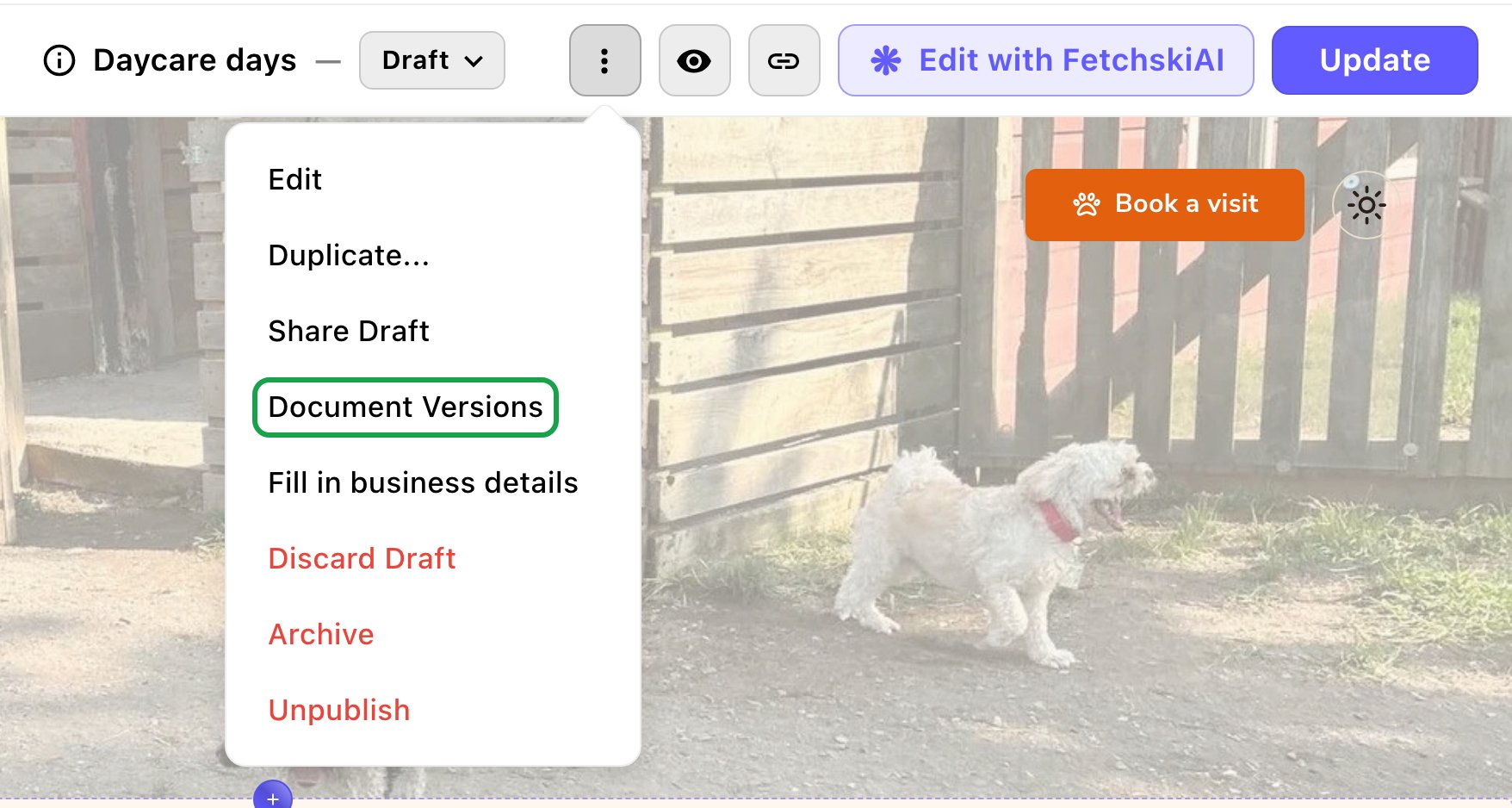
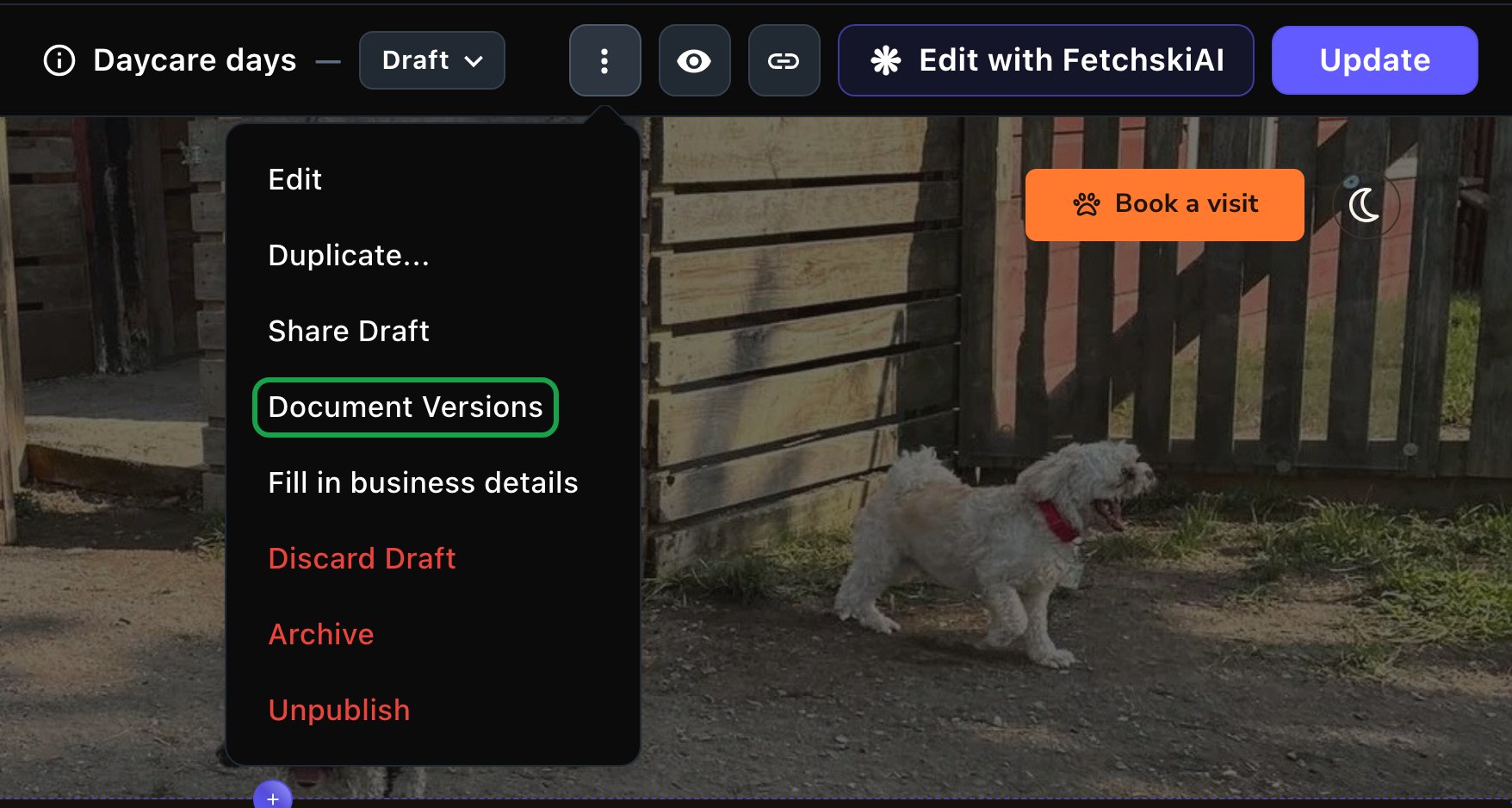
Document Versions lives in the More Options menu.
- An editing session groups one person’s saves. It ends when someone publishes, someone else edits, FetchskiAI makes a change, a version is restored, or a day passes.
- Changes FetchskiAI made or helped with are marked AI edited or AI assisted.
- A scheduled publish shows Scheduler as its author.
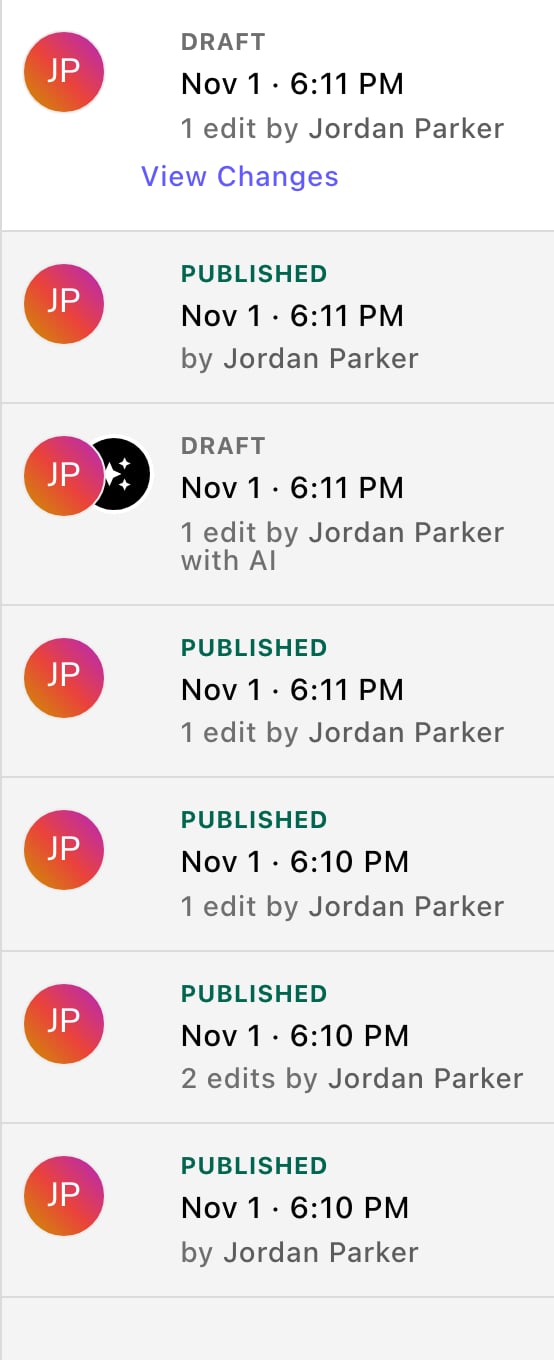
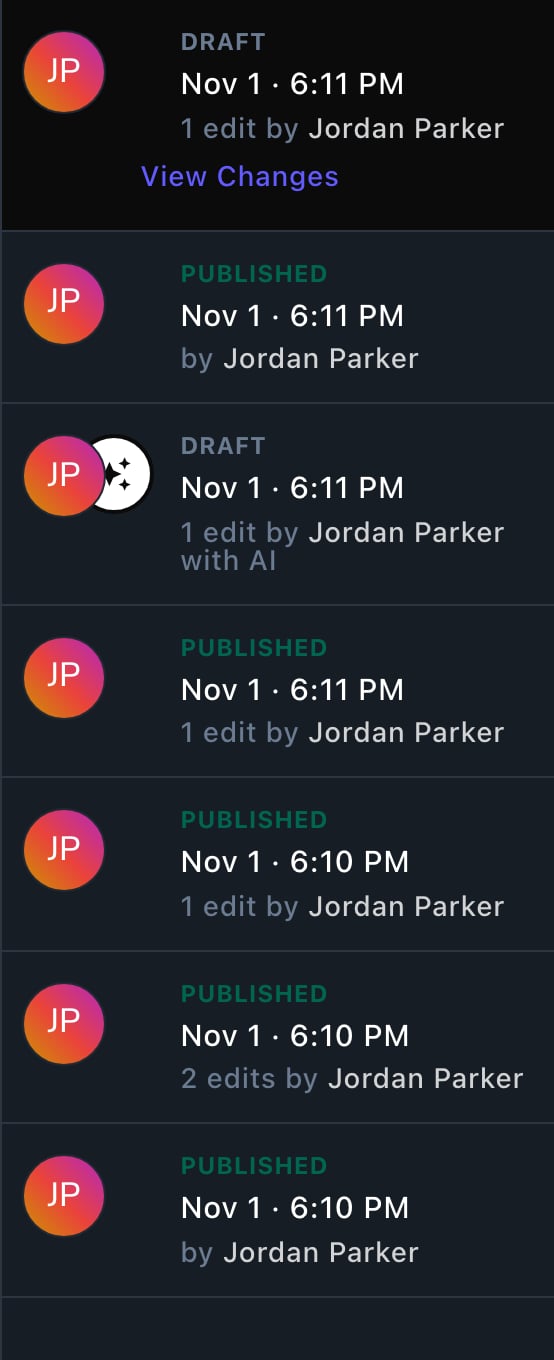
Every publish and editing session, newest first.
See what changed
Choose a version to see what it changed compared with the version before it. Changed fields are marked Added, Modified, Deleted or Moved.- In text, added and removed words are marked right in the text.
- A changed section is outlined as a whole.
- Use Previous and Next to step through the changes, and Show in the document to jump to one.
- On a long page, Filter changes narrows the list.
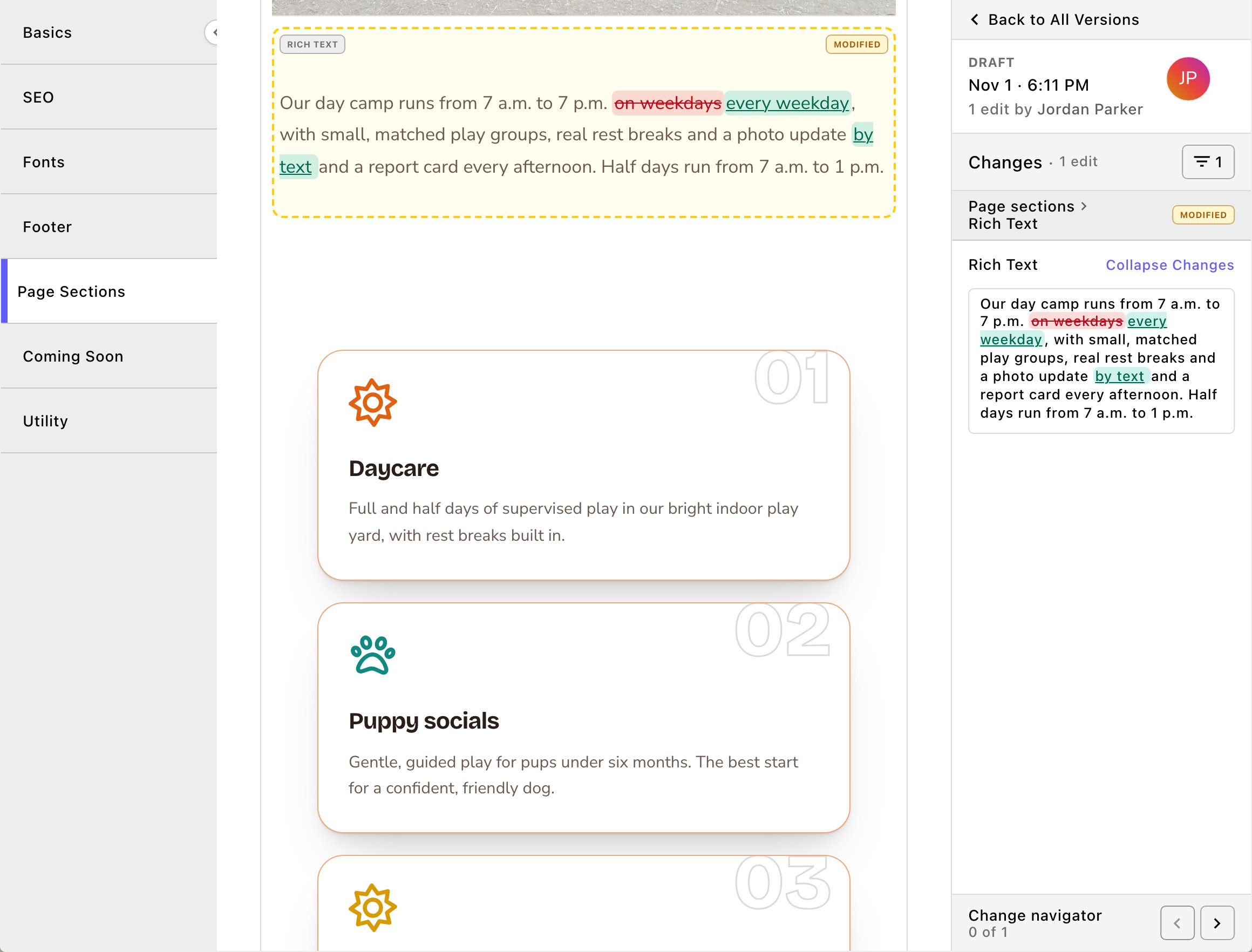
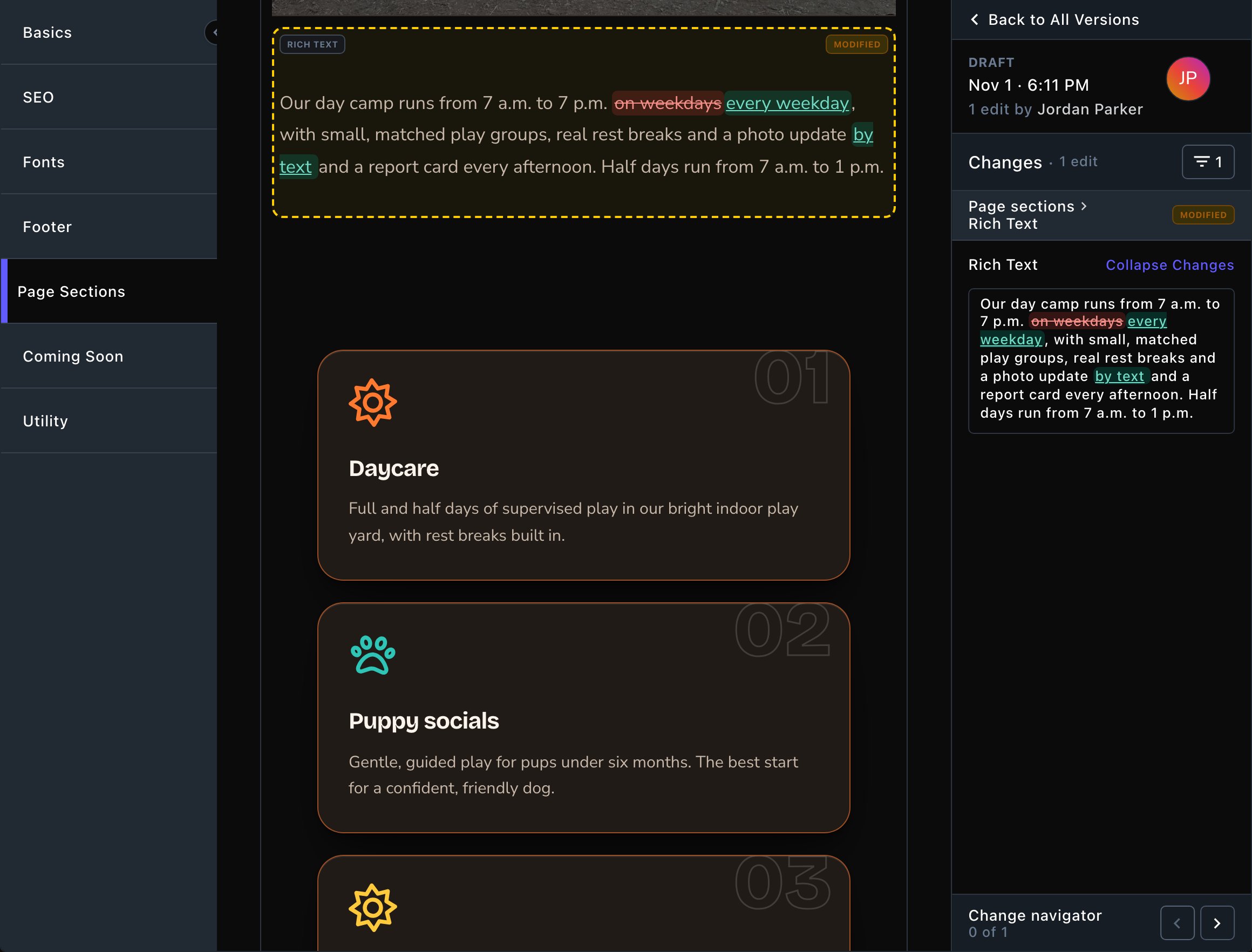
Added and removed words show right in the text.
Restore an earlier version
1
Choose the version you want back
2
Choose Restore Version
3
Confirm
A notice says: “The content is restored as a document Draft.”The old version replaces everything in your current draft. Your earlier saves aren’t lost: they stay in the list as an editing session, so you can restore them the same way.
4
Look over the page
When it’s right, choose Update to put it live. Contributors choose Submit Update instead, to send it to an Editor for review.
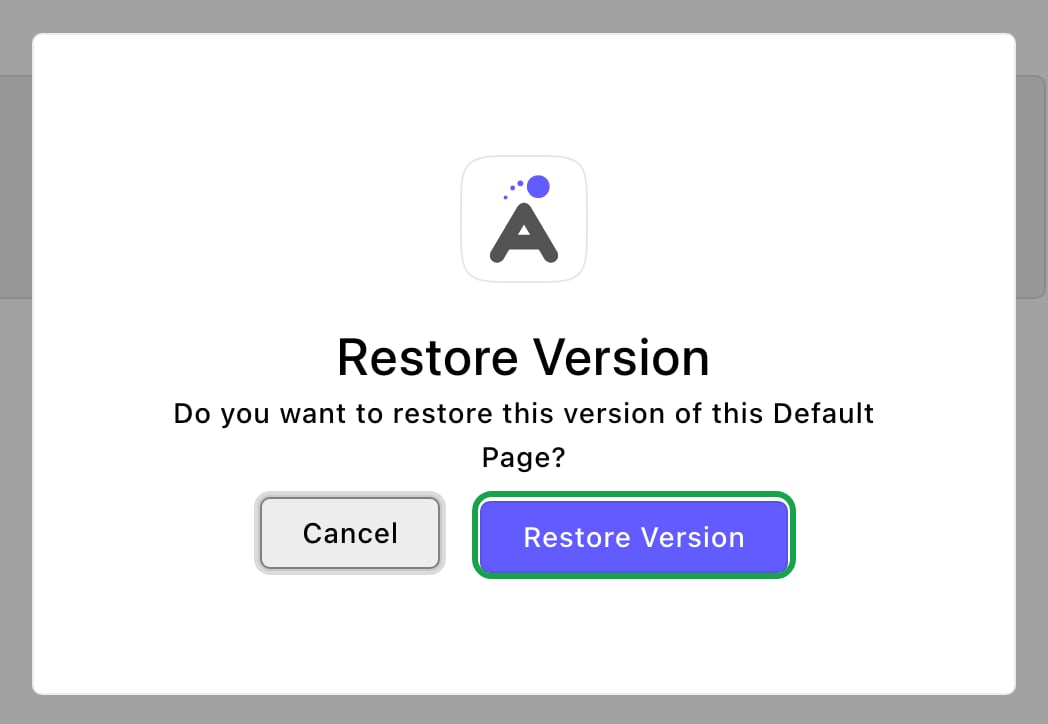
Restoring puts the old version into your draft.
What happens next
Publish the restored draft like any other change. The usual checks still apply, such as one main heading per page. See Drafts, publishing and scheduling. Just published by mistake? You don’t need the history for that. Choose Undo Publish on the “Your changes have been published.” notice.Good to know
- What keeps versions. Pages, blog posts, team members, testimonials, FAQs, images, files, videos and forms. FetchskiAI Skills keep versions too.
- What doesn’t. Google reviews and Instagram posts copy themselves from Google and Instagram, so they have no history. Settings screens, such as Connections, and redirects keep none either.
- How long. Versions are kept for as long as the page or item exists. Deleting it for good deletes its history too.
- Old pictures come back too. An image only an old version uses stays safe, hidden from visitors, until you restore that version.
Troubleshooting
No Document Versions Found
No Document Versions Found
The page or item has no versions yet. Save a change, and the history starts with that editing session. Each publish adds another version.
Unable to restore the requested Document Version.
Unable to restore the requested Document Version.
The restore didn’t go through. Close the window, reload the page and try again. If it keeps happening, contact Fetchski Support.
This version was saved as a document type this site no longer has.
This version was saved as a document type this site no longer has.
That version can’t be shown or restored. Choose a newer version instead.
Related
Drafts, publishing and scheduling
put your changes live.
Two ways to edit
on the page or in the page settings window.
The FetchskiAI Agent
see and undo what FetchskiAI changed.