

 AdonisJS
Open the SEO tab
1
Open the page on your site and choose Edit in the edit bar at the top
2
Choose More Options (⋯), then Edit
The page settings window opens, titled Edit and the page type (for example Edit Home).
3
Choose the SEO tab
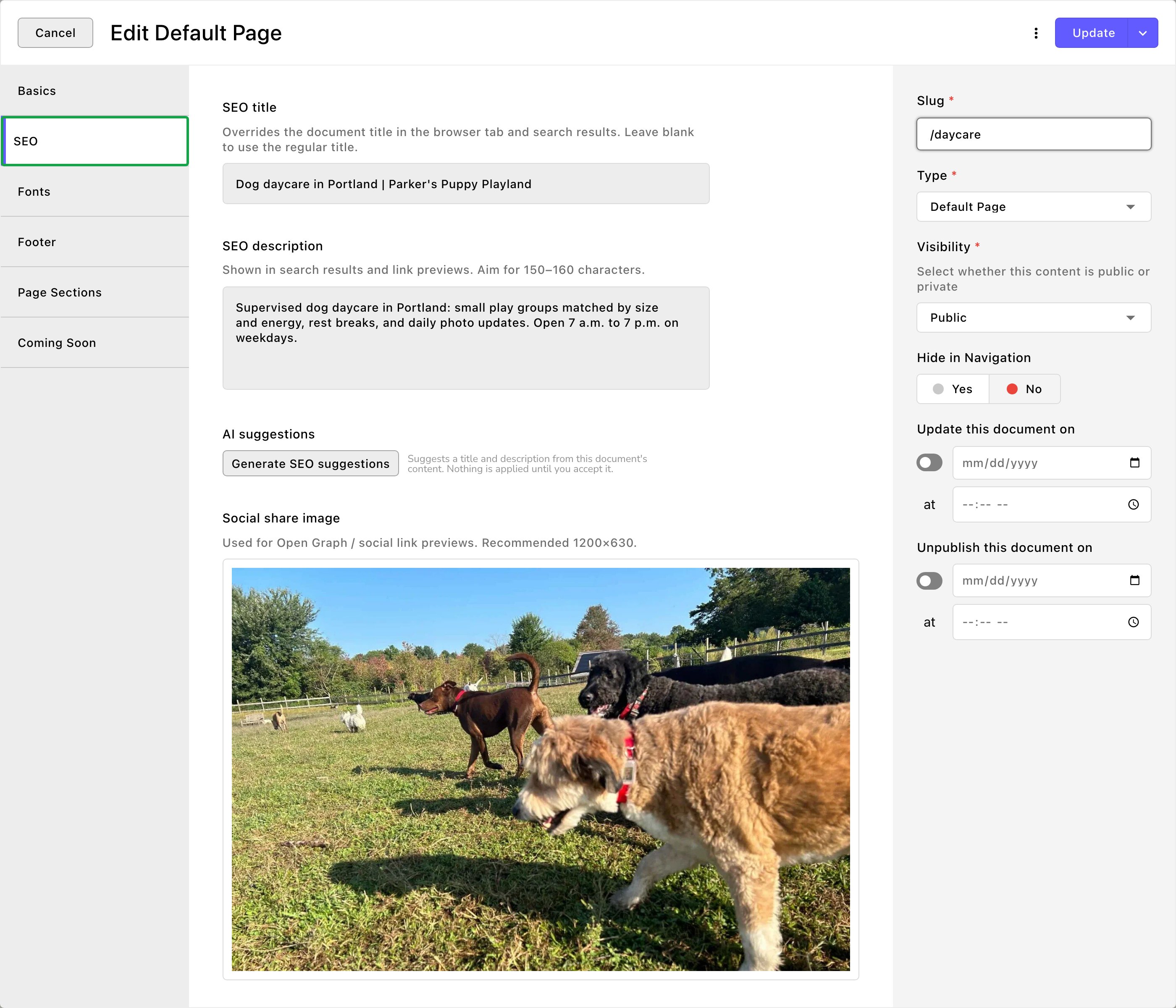
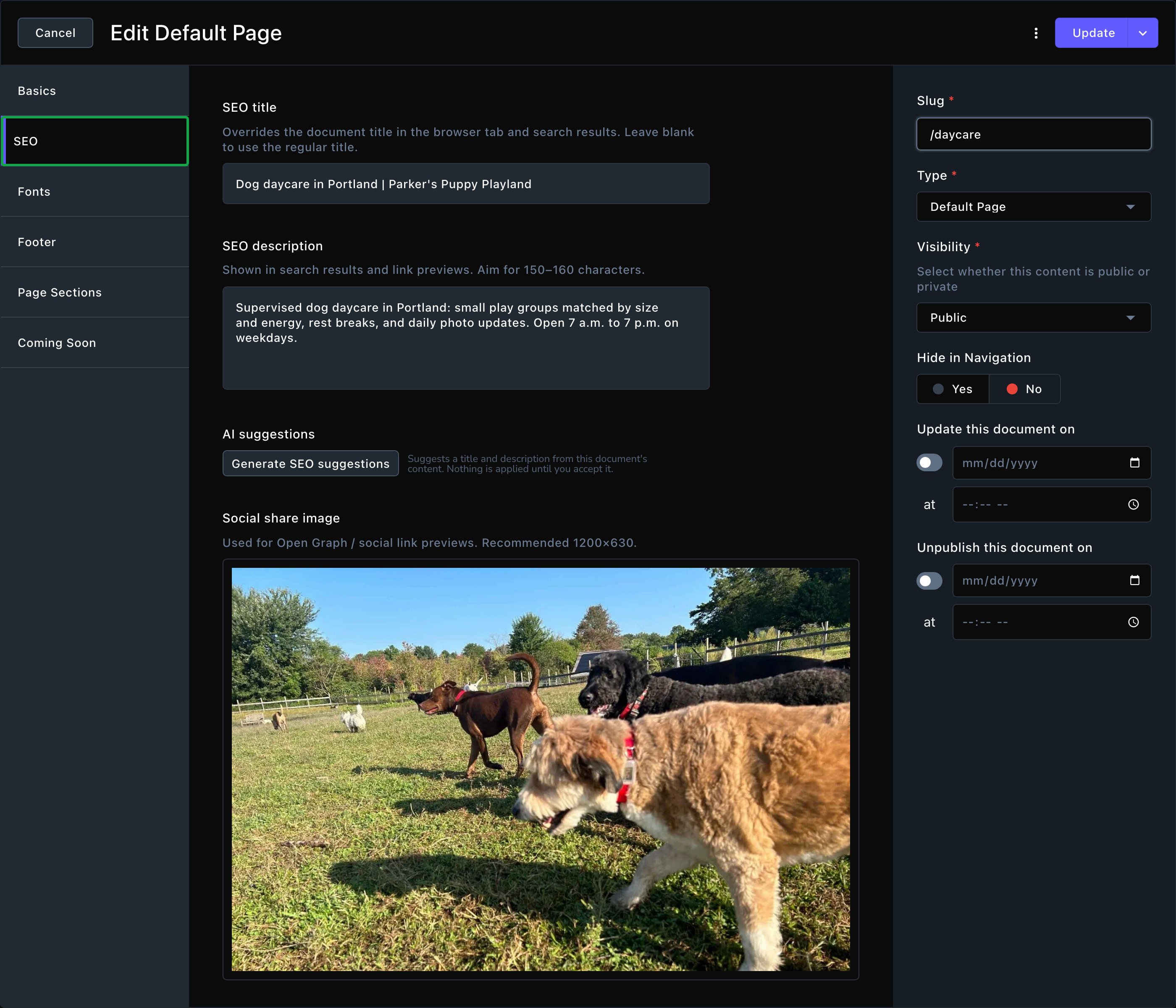
The SEO tab: title, description, AI suggestions and share picture.
Search results and the browser tab
SEO title: the title search engines show, and the text in the browser tab. Leave it blank to use the page’s own title. Your business name is added after it, so you don’t need to type it. For example, Parker’s “Daycare” page could use “Dog daycare in Portland, Oregon”. The browser tab then reads “Dog daycare in Portland, Oregon · Parker’s Puppy Playland”. SEO description: the short summary under the title in search results, also used in link previews. Aim for 150–160 characters. Say what the page offers and who it’s for. If you leave it blank, a blog post uses its Excerpt. Any other page uses your Tagline from Site settings → Brand → Name and tagline.Let FetchskiAI suggest them
Under AI suggestions, choose Generate SEO suggestions. FetchskiAI reads the page and suggests a title and a description, each on its own card. The description card shows its length in characters. On the home page, accept only the description. The home page doesn’t use its SEO title: change its title with Business name and Tagline in Site settings → Brand.- Accept puts the suggestion into its field. Undo puts back what was there before.
- Retry asks for a new suggestion for that one field.
- Dismiss throws the suggestion away.
- Accept both takes the title and the description together.
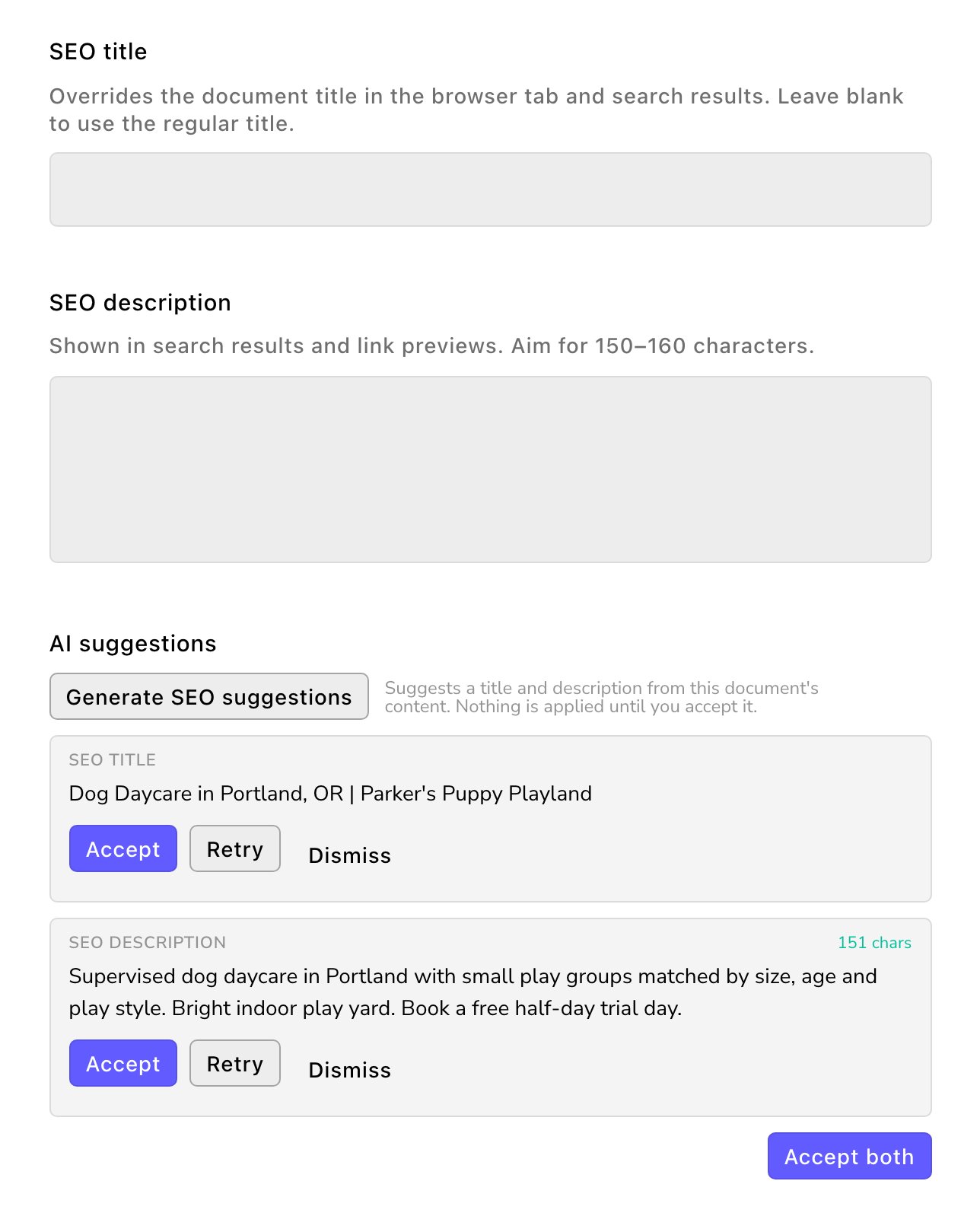
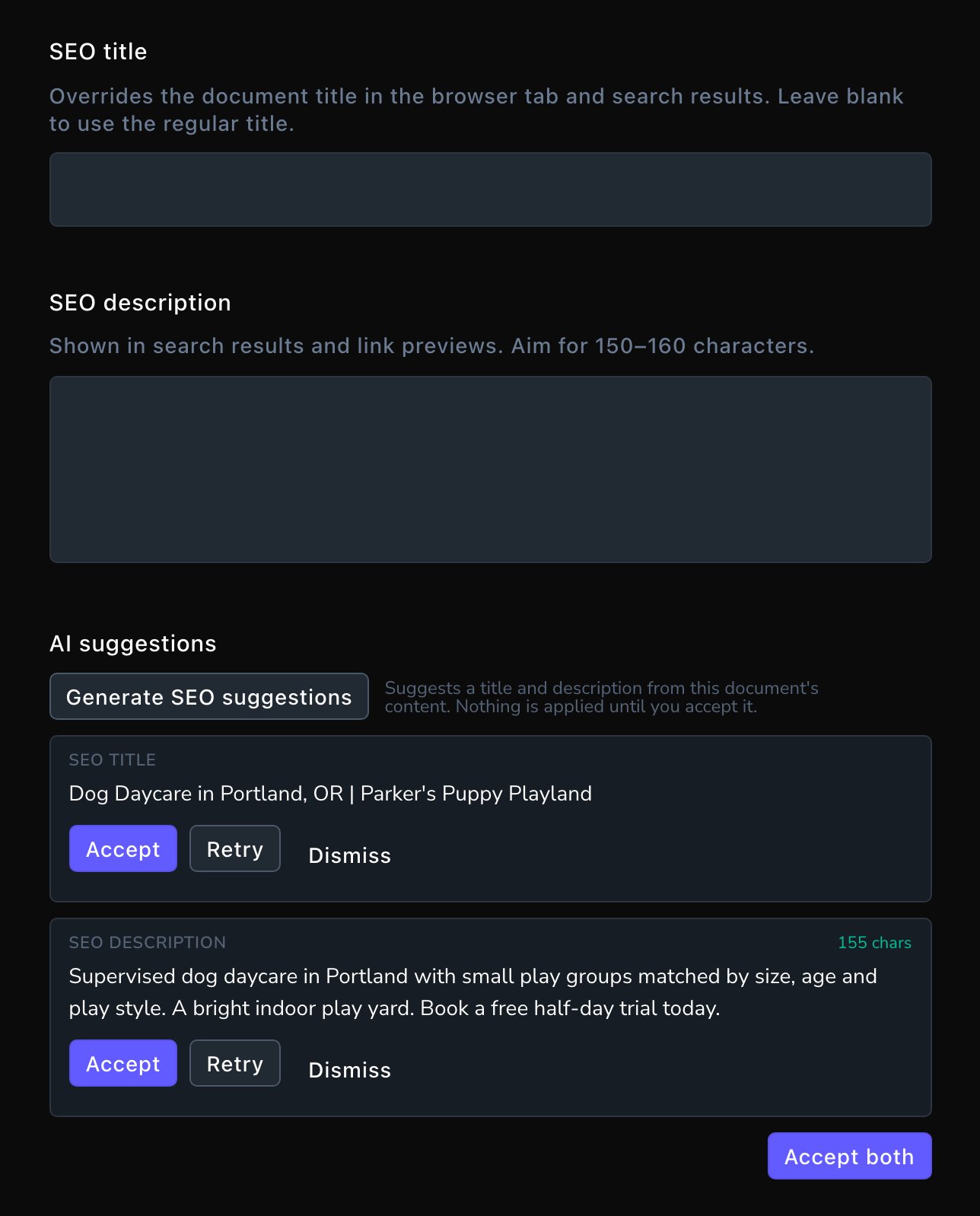
FetchskiAI suggests; you decide.
The share picture
Social share image: the picture shown when someone shares the page on social media or in a message. Use a picture 1200 × 630 pixels, with the subject near the middle. If the page has none, a blog post uses its Featured image. Any other page uses the Default social share image from Site settings → SEO → Sharing.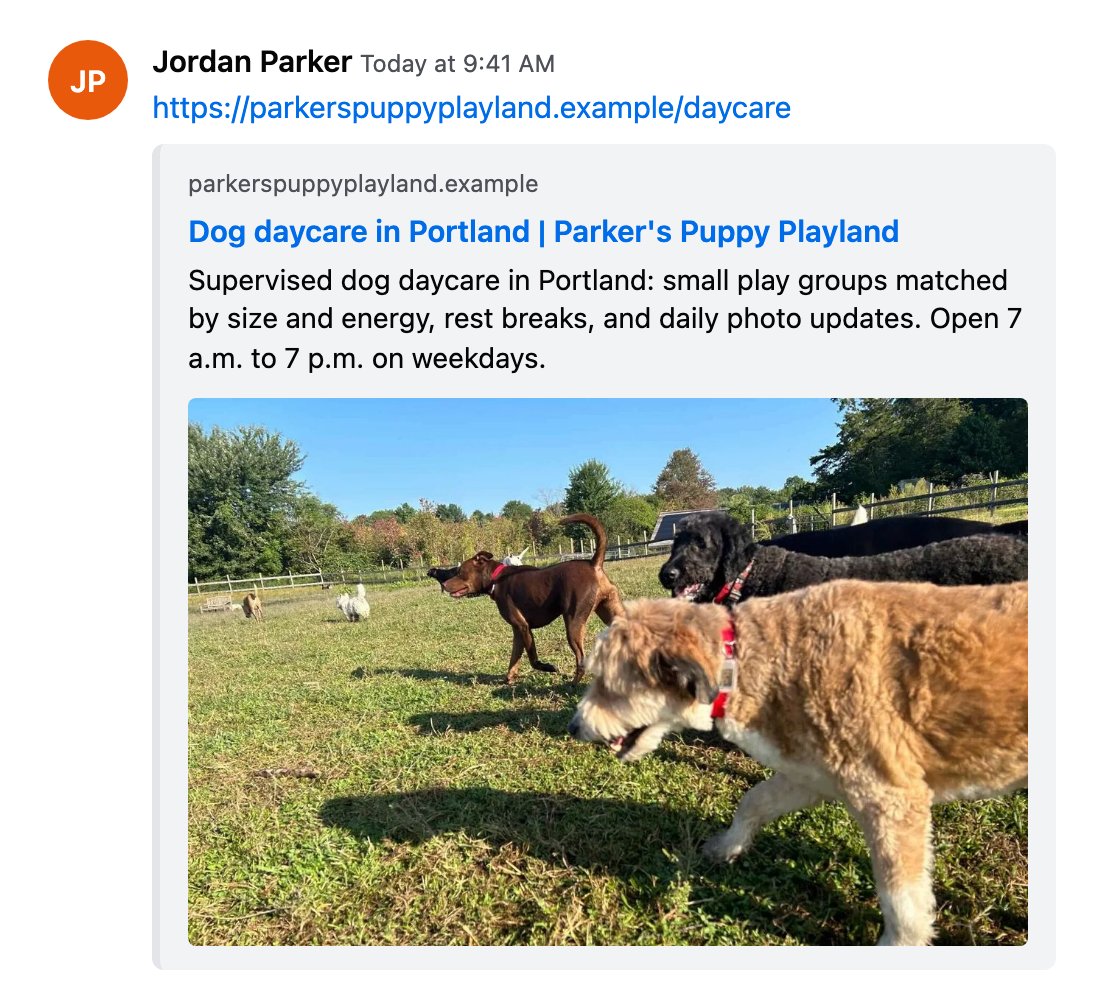
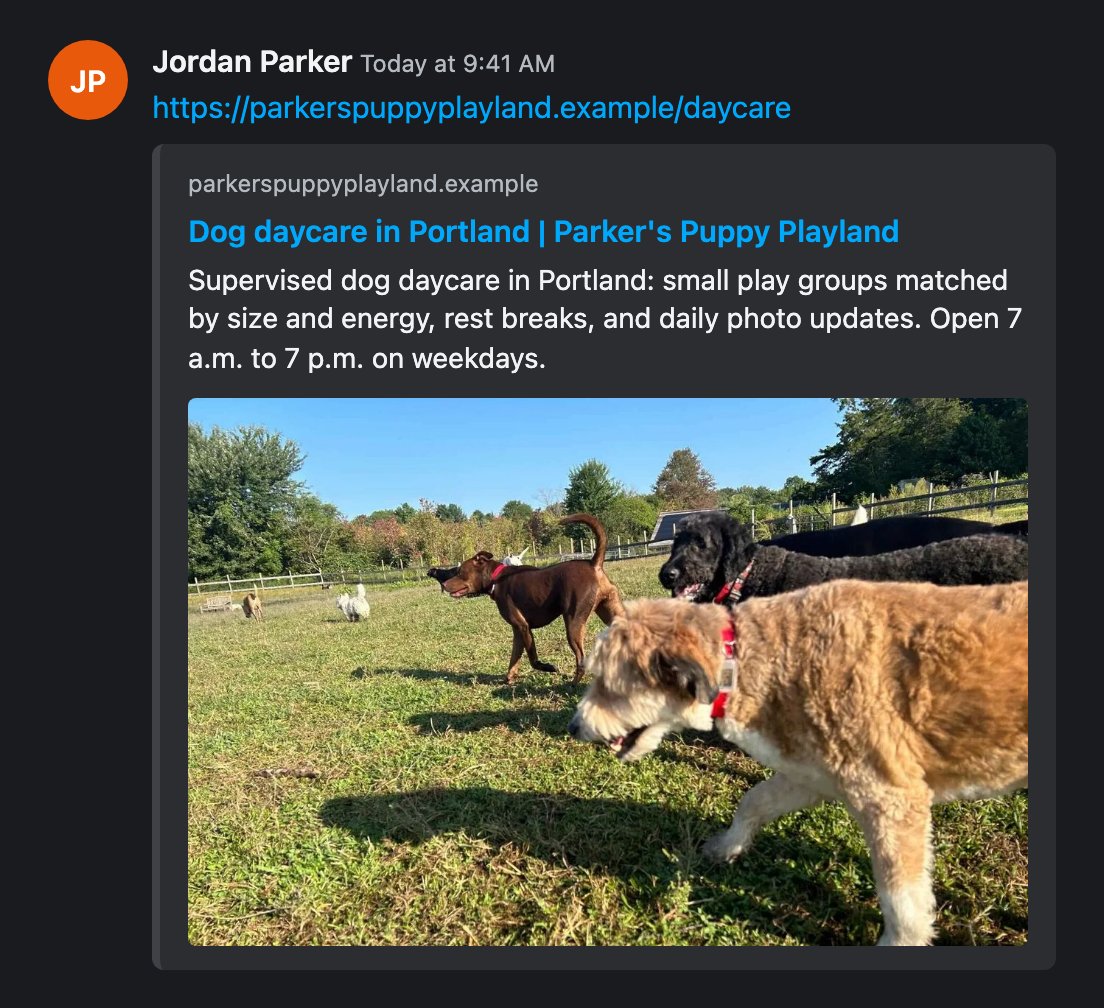
What people see when the page is shared.
Put it live
Choose Update in the page settings window. This publishes the whole page draft, not just the SEO settings: any other changes you’ve made to the page go live too. Look over the page first. To keep it as a draft for now, choose More save options → Save Draft instead. Contributors choose Submit Update instead, to send the changes to an Editor for review. Search engines pick up your changes the next time they visit your page.Good to know
- One page, one topic. A clear SEO title and description for each page beat one long list of keywords.
- Keep titles short. Search results cut long titles off, and your business name is added to the end.
- Site-wide settings live elsewhere. The default share picture and the business details search engines read are in Site-wide SEO.
- Moved a page? Point its old address at the new one with a redirect, so links and search rankings carry over.
Related
Site-wide SEO
the default share picture and business details for search engines.
SEO suggestions
let FetchskiAI write titles and descriptions.
Redirects
keep old links working.
Two ways to edit
on the page or in the page settings window.