

 AdonisJS
Before you start
- To bring posts in from Instagram, an Admin or Owner connects your account once. See Instagram.
- To show posts on a page, add an Instagram Feed section. See Instagram Feed.
Open the list
Press ⌘K (Ctrl+K on Windows) and choose Instagram Posts under Manage. You can also press G, then G. The list shows your posts newest first. For each one you see its Post (its title), Type, Date and whether it’s Featured. A post from Instagram takes the first line of its caption as its title.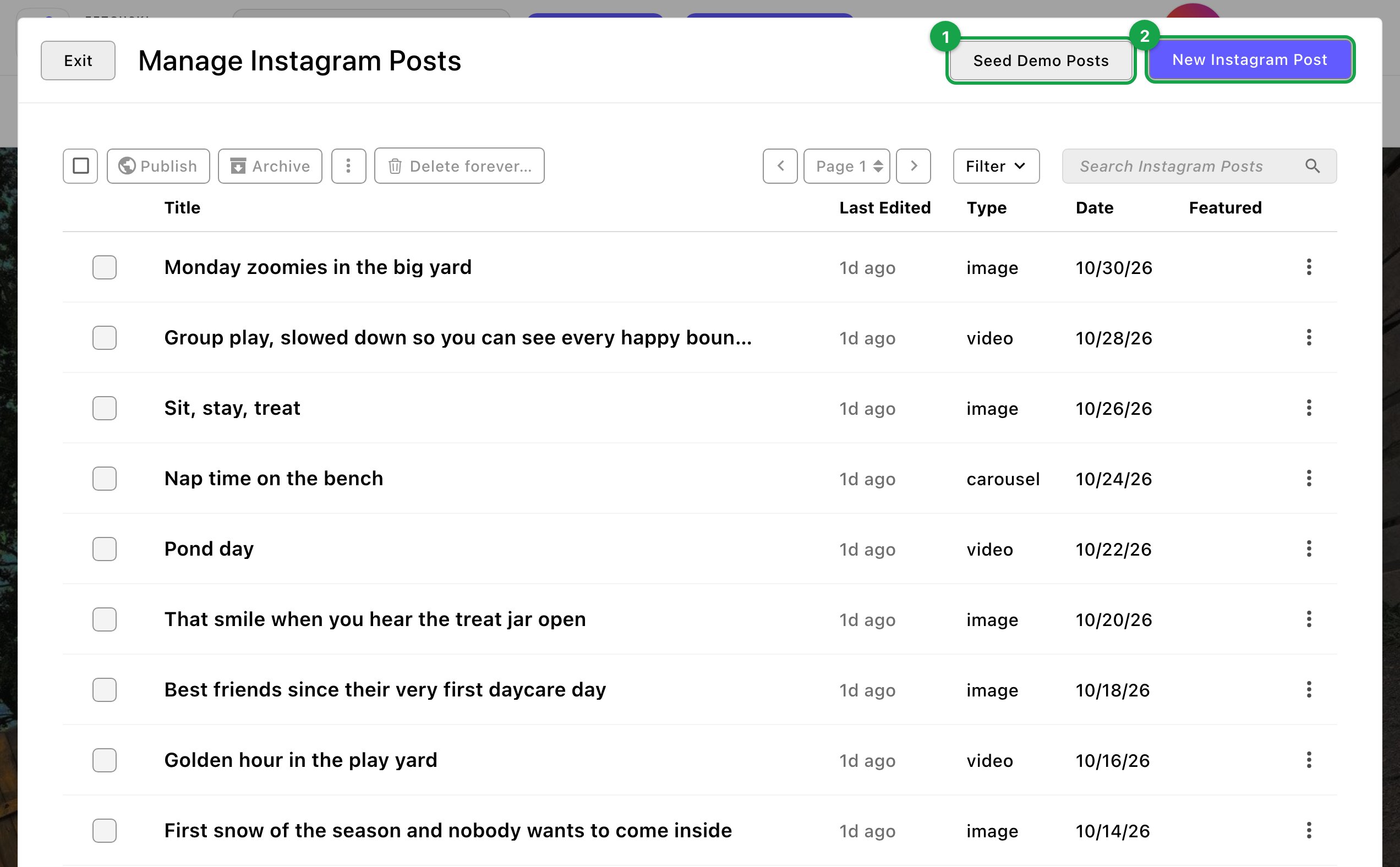
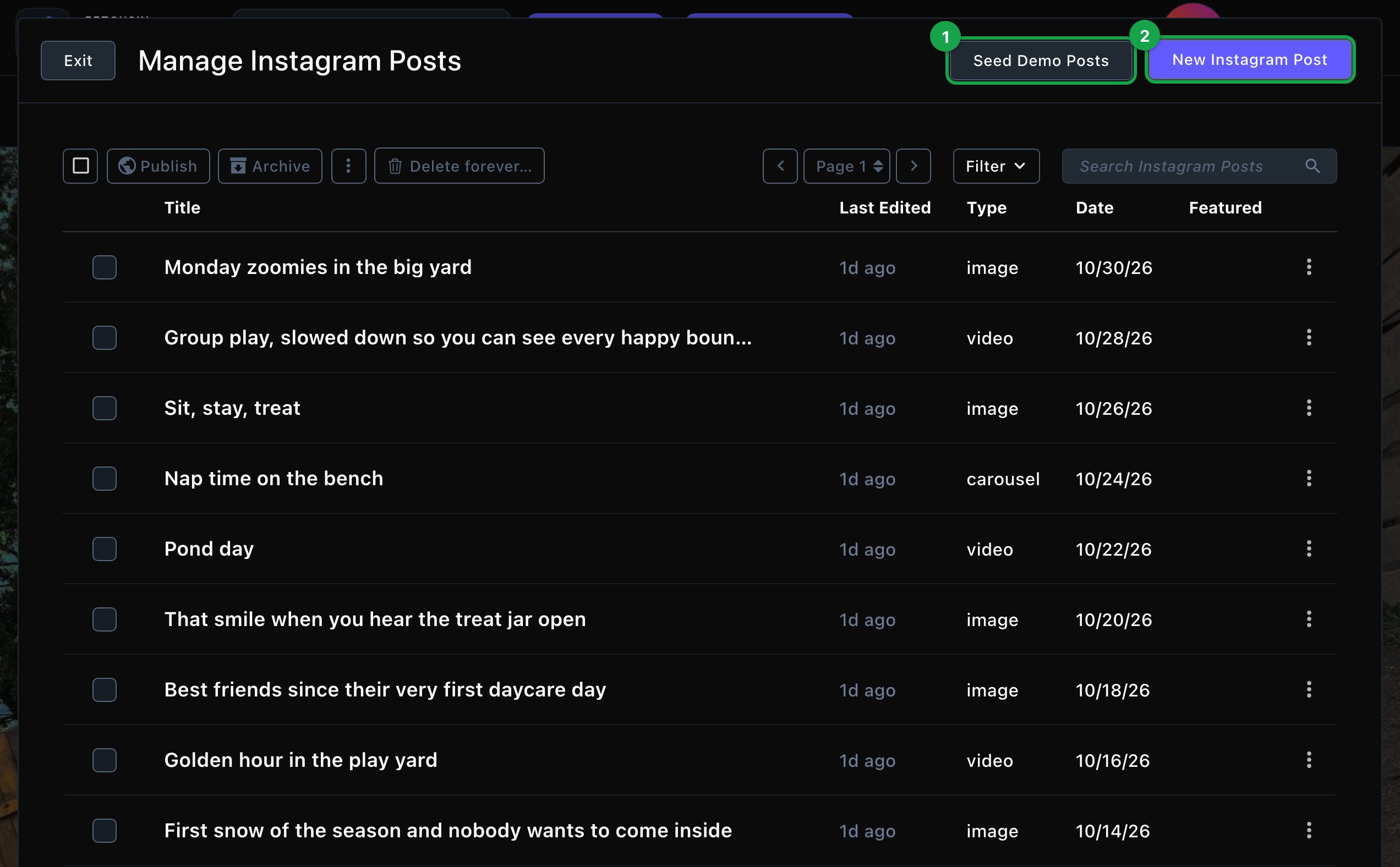
Your latest Instagram posts, ready for your sections.
How posts arrive from Instagram
Once an Admin or Owner connects Instagram and saves the Instagram card, Attract brings your posts in right away. After that, it checks Instagram for new posts on a schedule. This scheduled update from Instagram is called a sync on screen. A notice says “Instagram connected — imported N post(s).” The Instagram card sets how often the sync runs.- Your latest posts come in. Each sync brings in your most recent posts, up to the card’s Posts to sync (12 to start). They’re published on their own.
- Older posts stay. A post that’s no longer among your latest isn’t removed. It stays in the list until you archive it.
- Instagram’s version wins. The next sync replaces the caption, link, date, picture, likes and comments of a post from Instagram with Instagram’s. Your Featured choice stays.
- Archive a post to keep it off your site. A post you archive stays archived: syncs leave it alone. A post you delete forever comes back on the next sync while it’s still among your latest posts, so archive rather than delete. To keep posts off one page only, use Featured posts only in the section.
Feature your favorites
1
Open the post and turn on Featured on the Basics tab
2
Choose Update (or Publish)
3
In the Instagram Feed section on your page, turn on Featured posts only on the Feed tab
Add a post by hand
You can show posts without connecting Instagram, such as a few favorites you pick yourself. A post you add here is an entry for your website only. It doesn’t post anything to Instagram or change your Instagram account.1
Start a new post
In the list, choose New Instagram Post. The editor opens on the Basics tab.
2
Fill in the basics
- Title: a name for the list.
- Caption: the post’s text. Sections can show it under the picture.
- Media type: Image, Video or Carousel (album). It sets the small badge in the tile’s corner. A post you add by hand shows one picture. Carousel (album) adds the album badge, but you can’t add the album’s other pictures.
- Reel: turn on for a reel, to show a reel badge.
- Featured: see above.
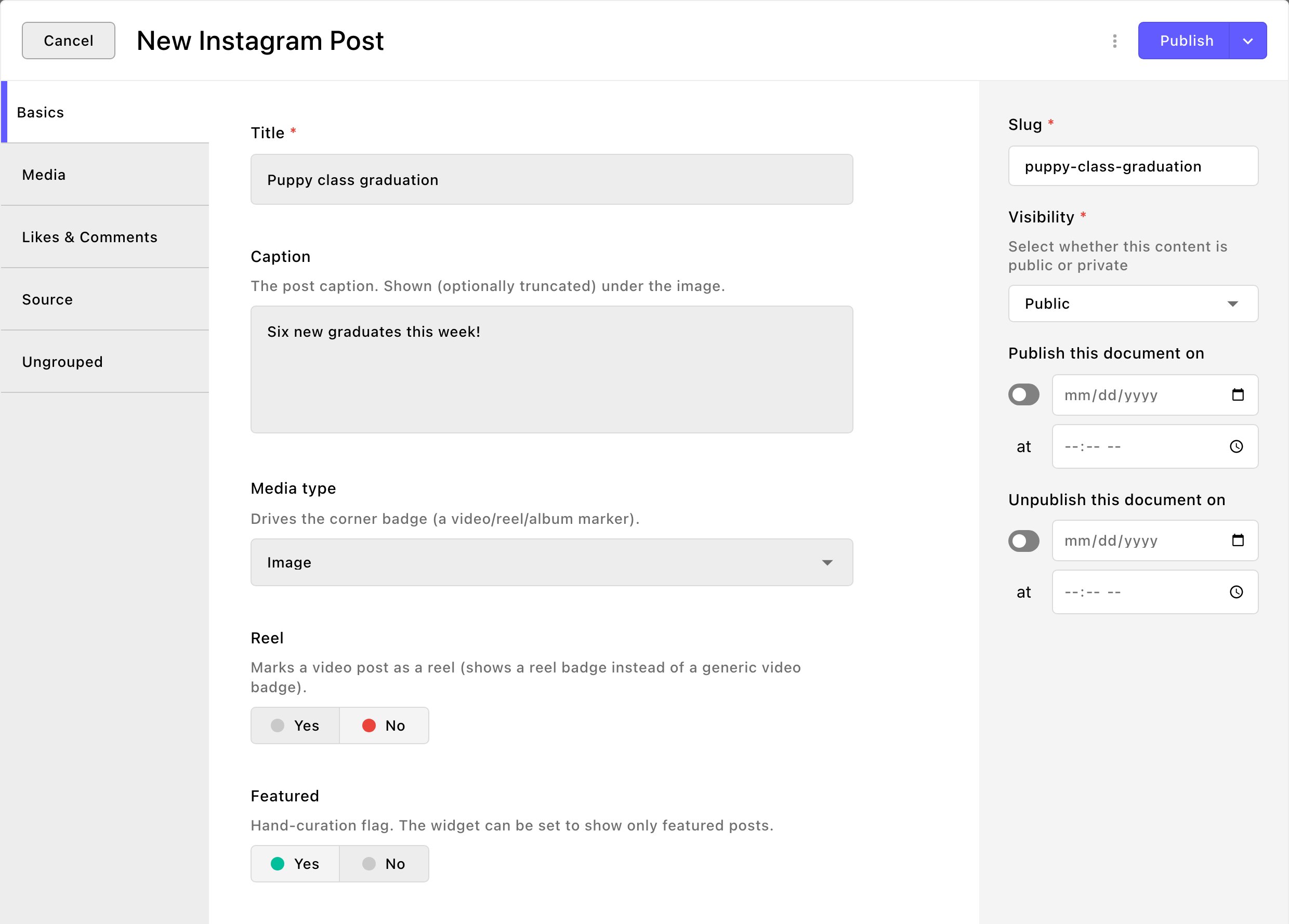
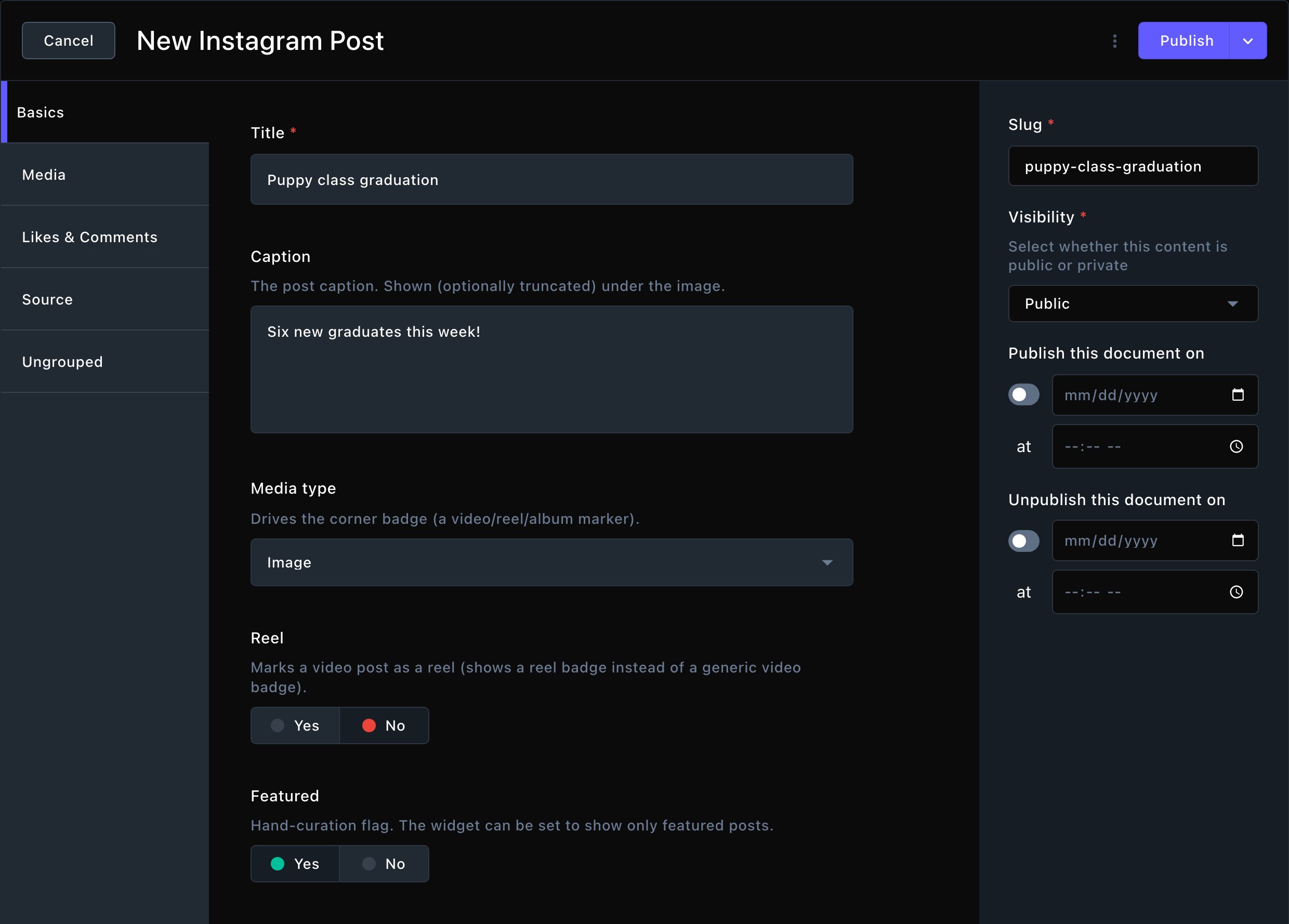
A post added by hand.
3
Add the picture and link
On the Media tab:
- Image: choose the post’s picture from your media library.
- Video: for a video post, choose the clip from your Videos library. The image is its cover.
- Post link: the post’s web address on Instagram, for visitors who want to see it there.
- Posted date: when you posted it. The list and sections sort by this date.
4
Save it
To finish later, open More save options (the arrow next to the main button) and choose Save Draft. When it’s ready, choose Publish. Contributors choose Submit instead, and an Editor publishes it.
Likes and comments
The Likes & Comments tab shows the likes and comments of a post from Instagram. Attract fills these in, so you can’t edit them. Comments come in only when Fetch post comments is on in the Instagram card. Comments you’ve hidden on Instagram are listed under Hidden comments. They’re kept for your reference and never shown on your site.Try it with sample posts
Admins and Owners can fill a new site with 8 sample posts, to see the Instagram Feed section before Instagram is connected.1
Open Instagram Posts in the command palette
2
Choose Seed Demo Posts
You’ll see “Seeded 8 demo posts.”
Good to know
- Videos and cookie consent. A video from Instagram can play from Instagram itself or from your own media library, depending on the Instagram card’s settings. Videos that play from Instagram wait until a visitor accepts functional cookies. Until then they show the still picture. See Instagram.
- Why is a video still playing from Instagram? Attract can copy a video from Instagram into your own Videos library, so it plays from your site. Video re-host on the post’s Media tab says whether that worked. “Too large for the size cap — still hot-linked” means the video was too big to copy, so it still plays from Instagram. An Admin can raise Largest video to re-host on the Instagram card.
What happens next
A published post appears in every Instagram Feed section whose settings it matches, newest first, up to the section’s Maximum posts (8 to start). Visitors never see drafts.Troubleshooting
A post doesn't show on the page
A post doesn't show on the page
- Is it published? Drafts show only while you edit.
- Is Featured posts only on in the section? Then only featured posts show.
- The section shows the newest posts first, up to Maximum posts. Raise it to show more.
- A post added by hand needs an Image.
My changes to a post were undone
My changes to a post were undone
The post came from Instagram, and each sync puts Instagram’s caption, link and picture back. Change the post on Instagram itself. Only Featured is yours to change here.
Instagram sync failed: …
Instagram sync failed: …
The sync couldn’t bring in your posts. The message gives Instagram’s reason.Often your site’s permission to read your Instagram account has run out: this happens when nothing syncs for about 60 days. An Admin or Owner fixes it by creating a fresh access token in your Meta app and using Replace on Long-lived access token in the Instagram card. See Instagram.
Could not seed demo Instagram posts.
Could not seed demo Instagram posts.
The samples couldn’t be added. Reload the page and try again. If it keeps happening, contact Fetchski Support.
Related
Instagram Feed
show your posts on a page as a carousel, grid or photo wall.
connect your account and choose how often posts arrive.
Archive, restore and delete
retire posts you no longer want.
Content you reuse
how lists and sections work together.