Write each question and answer once, sort them into categories, and show them in any FAQ section.
Answer your customers’ questions once and show the answers on any page. Every FAQ section shows them in the order you set, and can group them under category headings.Who can do this: Contributors, Editors, Admins and Owners can add and change questions and categories. Publishing them needs an Editor, an Admin or an Owner.
Before you start
Collect the questions your customers really ask. Phone calls and emails are a great source.
To show questions on a page, add a FAQ section too. See FAQ.
Add a question
1
Open the list
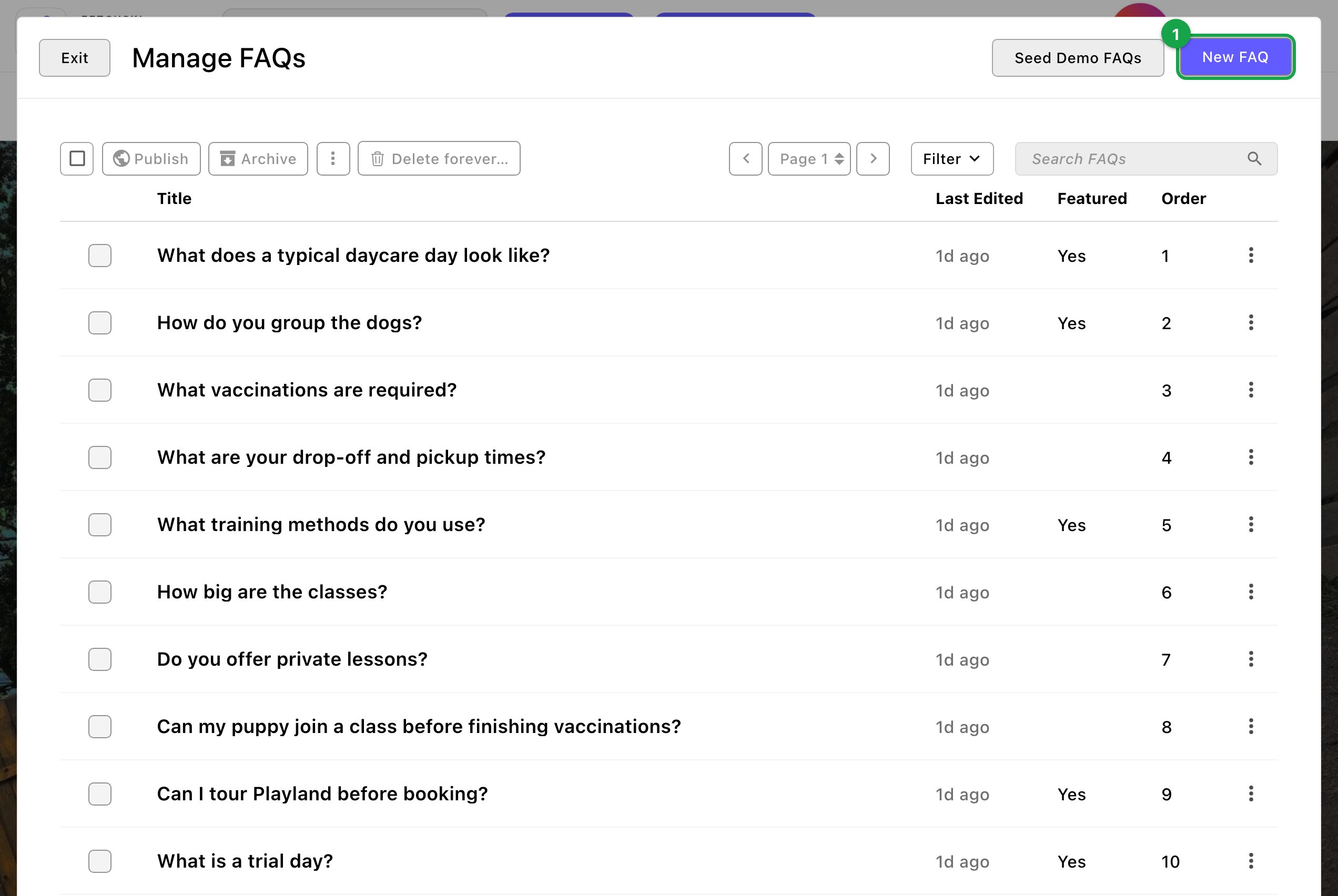
Press ⌘K (Ctrl+K on Windows) and choose FAQs under Manage.
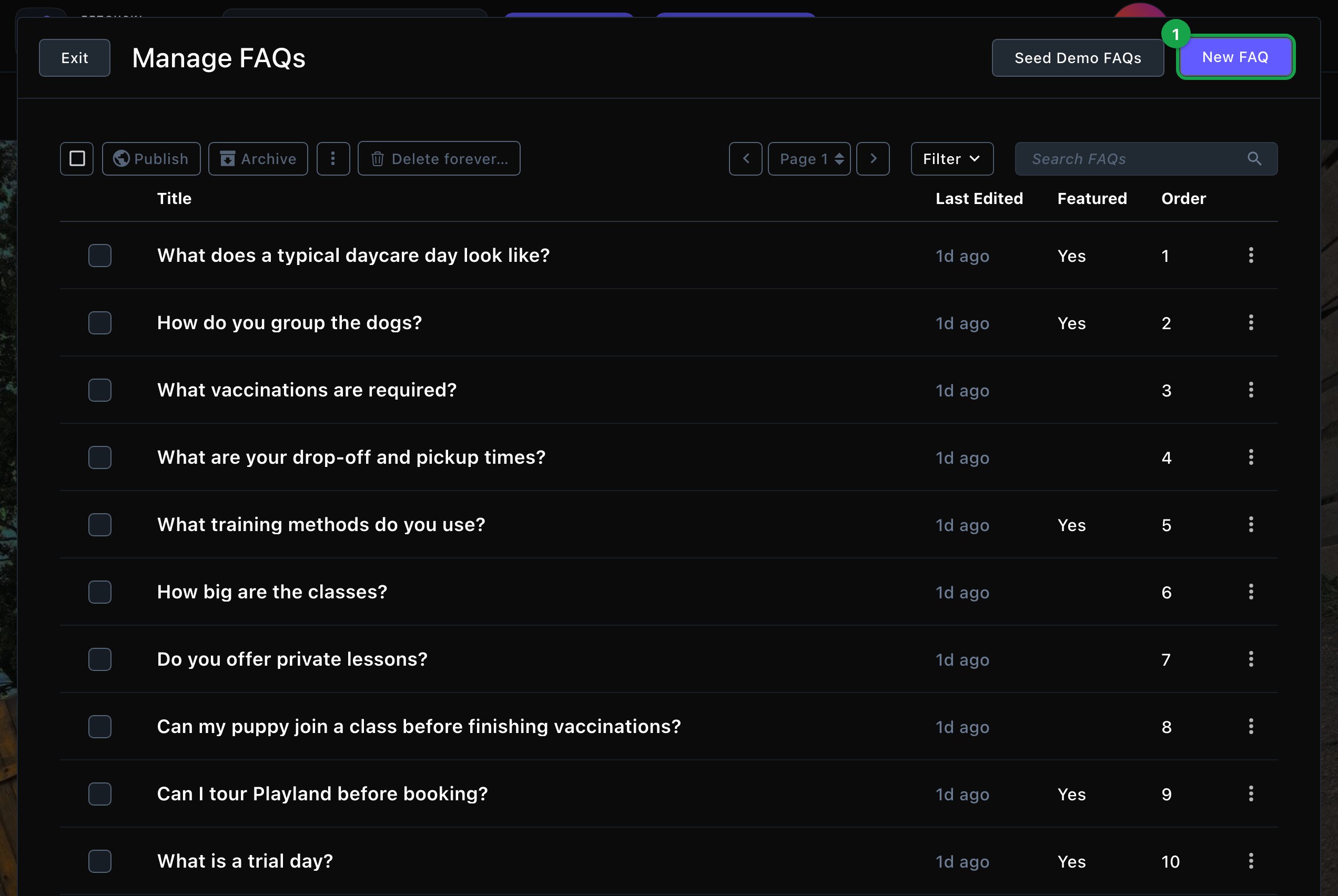
The FAQs manager lists every question, in order.
2
Start a new question
Choose New FAQ. The editor opens on the Basics tab.
3
Write the question and answer
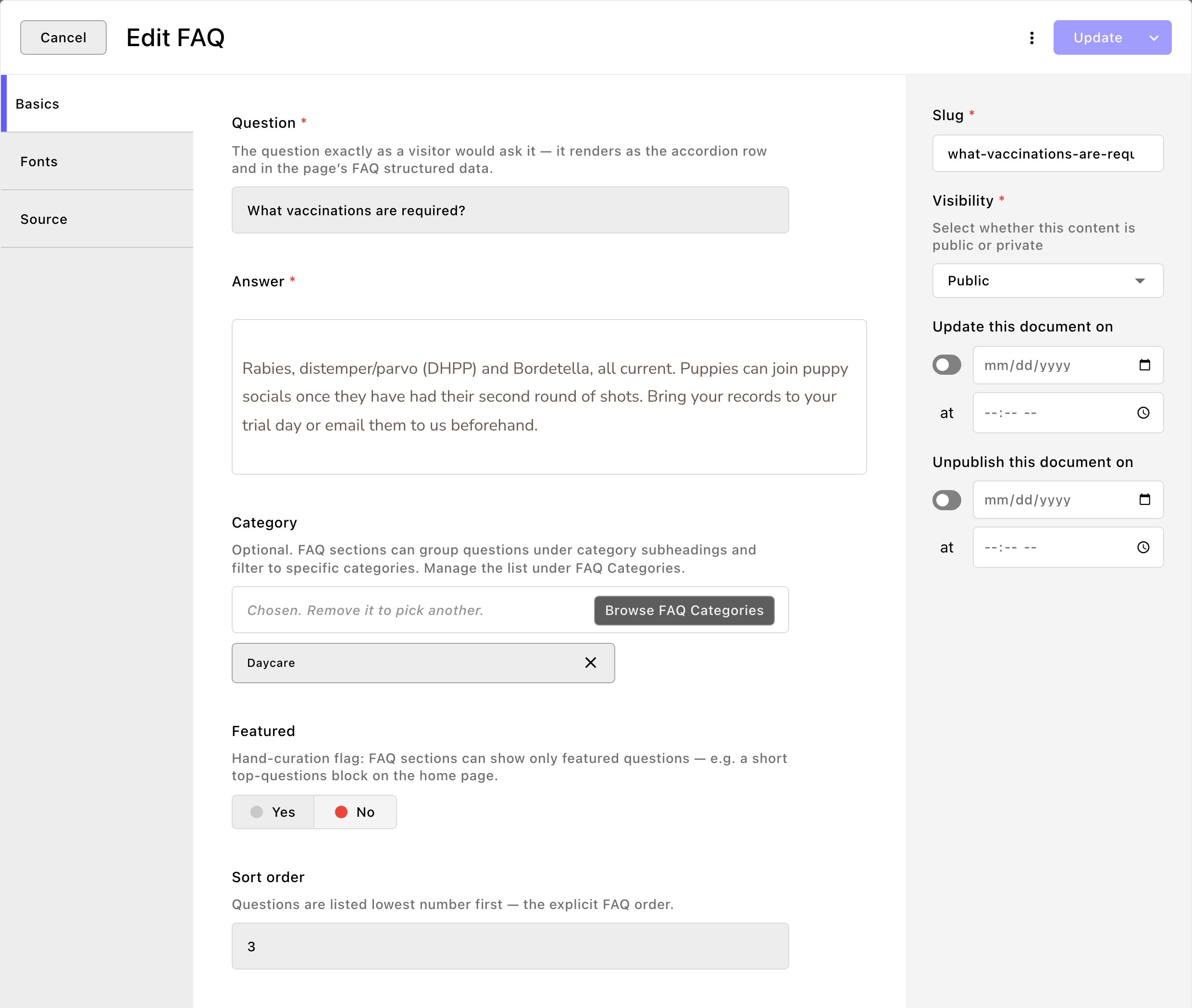
Question: the question exactly as a visitor would ask it, such as “What vaccines does my dog need for daycare?”
Answer: the answer. You can use bold, italic, links, and bulleted or numbered lists.
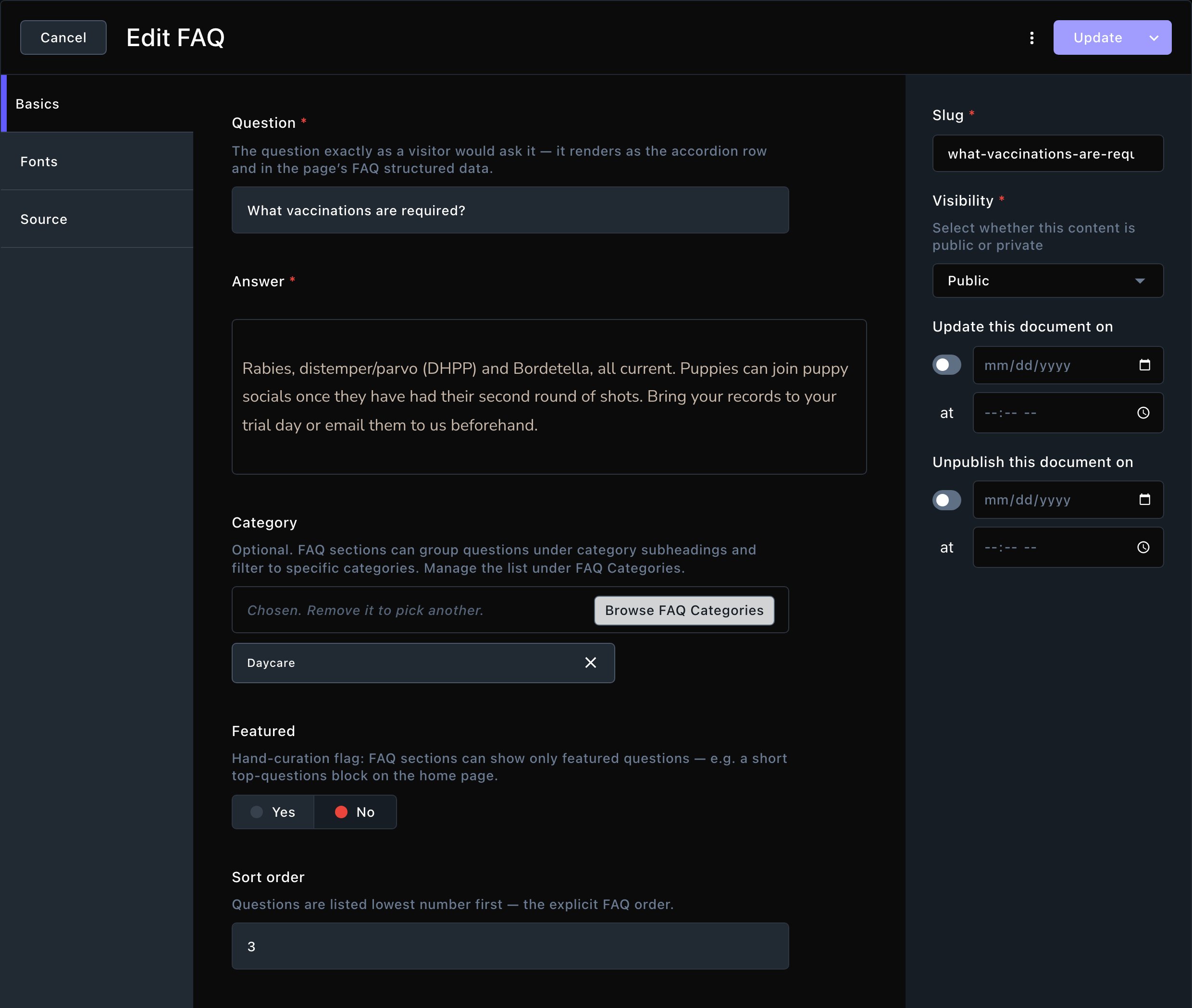
Each question has its answer, a category and its place in the order.
4
Sort and file it
Category: optional. Choose one so FAQ sections can group or filter by it. See Add categories below.
Featured: mark your top questions. A FAQ section can show only featured ones, such as a short block on your home page.
Sort order: the lowest number shows first. Number them 10, 20, 30, so you can fit a new one in between later.
5
Save it
To finish later, open More save options (the arrow next to the main button) and choose Save Draft. When it’s ready, choose Publish to show it on your site. Contributors choose Submit instead, and an Editor publishes it.
Add categories
Categories group your questions under small headings, such as “Daycare”, “Training” and “Booking and payment”. They’re optional.
1
Press ⌘K (Ctrl+K on Windows) and choose FAQ Categories under Manage
2
Choose New FAQ Category
3
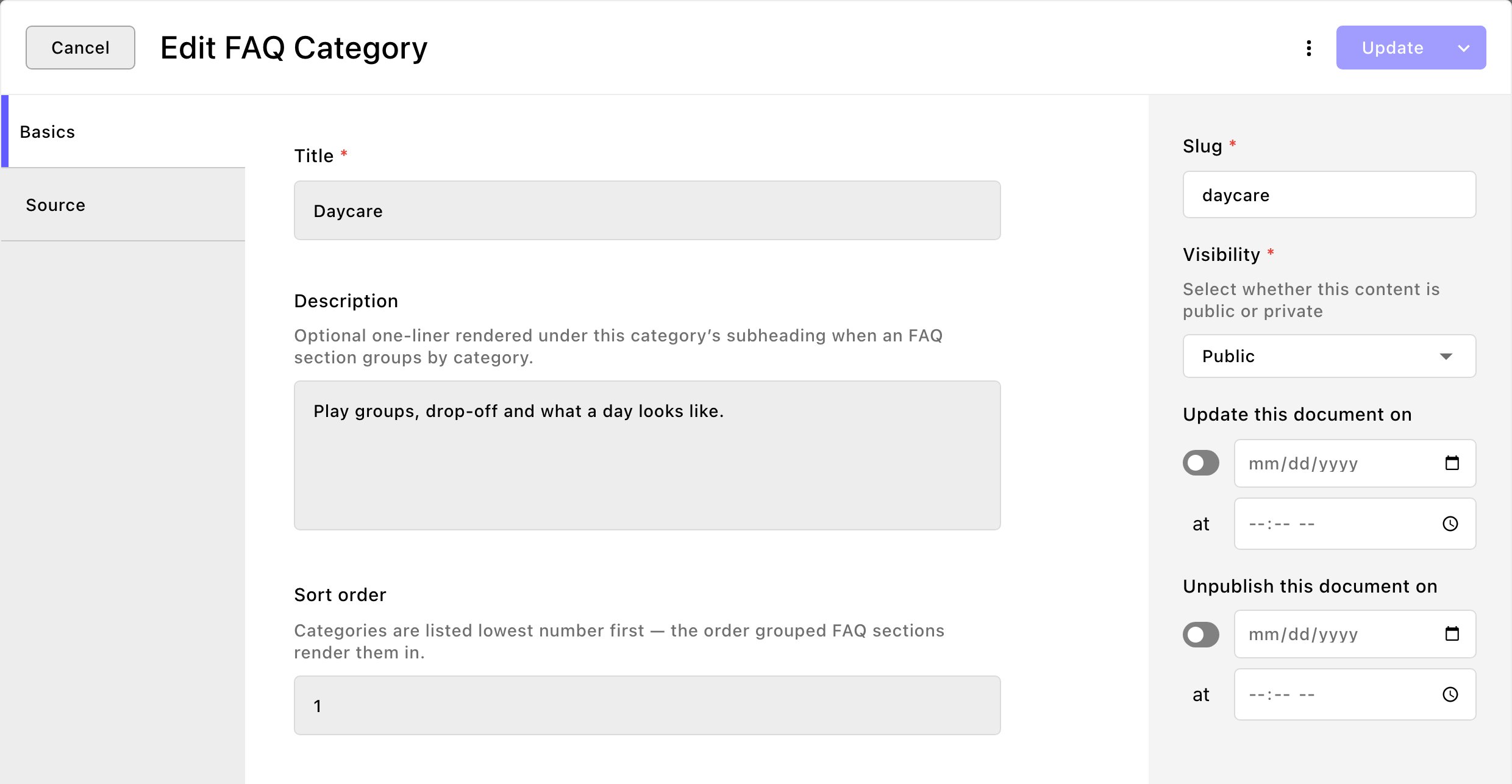
Give it a Title, such as "Daycare"
This is the heading visitors see.
4
Add a Description if you like
It shows as one short line under the heading.
5
Set its Sort order
Categories are listed lowest number first.
6
Choose Publish
Contributors choose Submit instead, and an Editor publishes it.
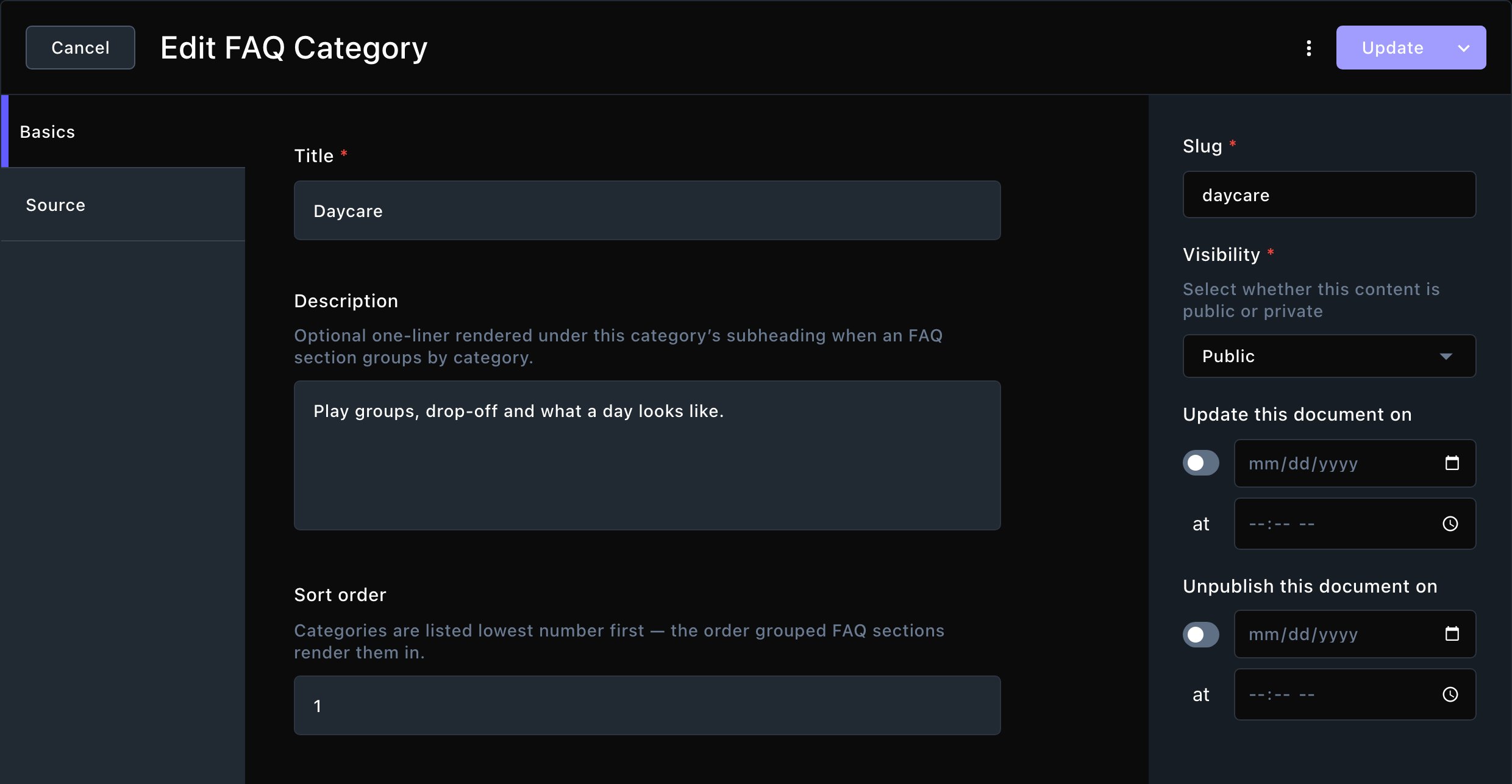
A category is a heading, an optional line under it, and its place in the order.
Then choose a Category for each question. Both controls below are on the FAQ section’s Questions tab, and you can use them together:
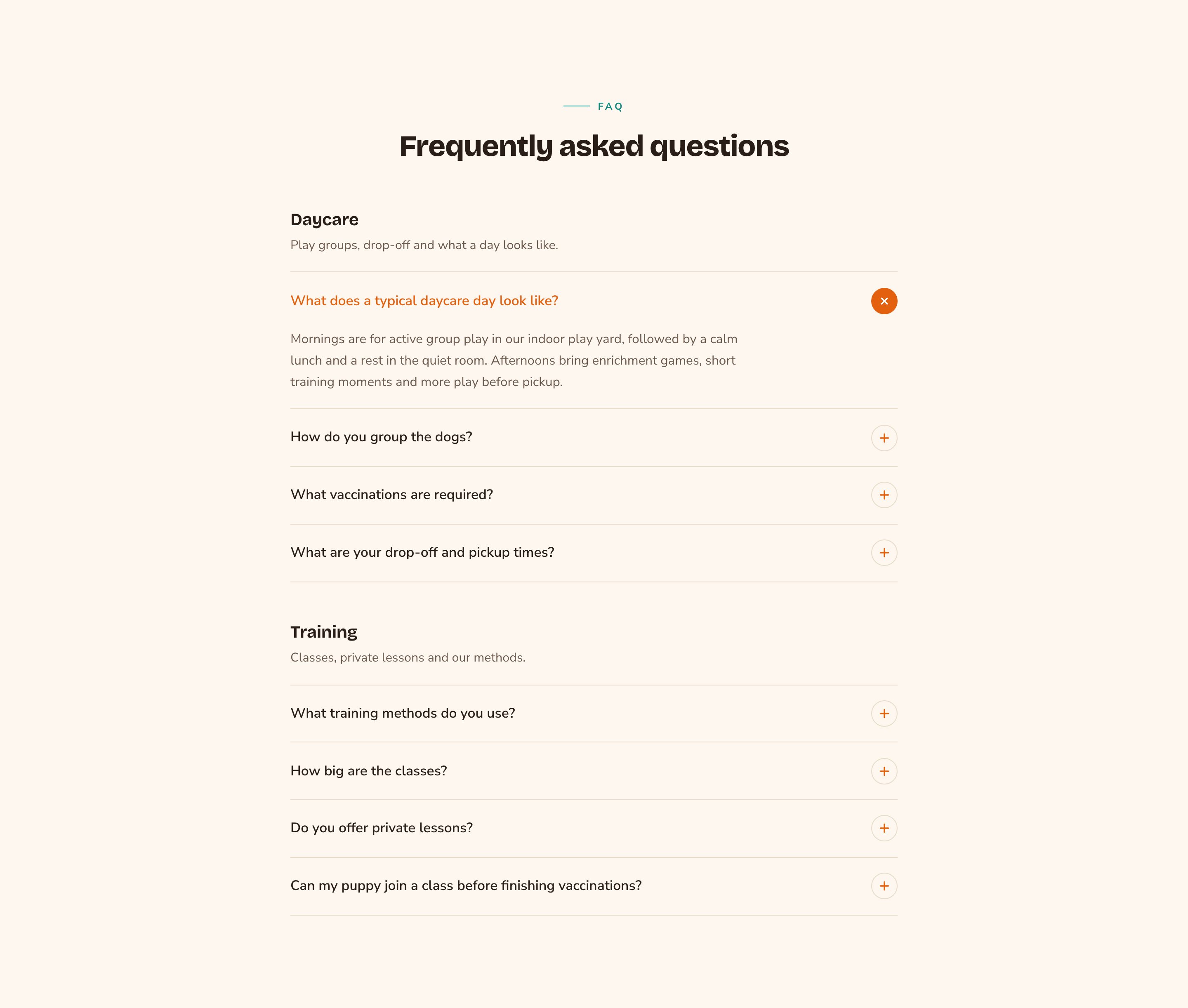
Group questions sets how the questions are arranged. By category puts them under a heading per category, with uncategorized questions last. No grouping (one list) shows one list.
Only these categories sets which questions show. Pick categories to show only their questions. Leave it empty to show every category.
For example, a Training page can pick only “Training”, while your main FAQ page groups every question by category. See FAQ.
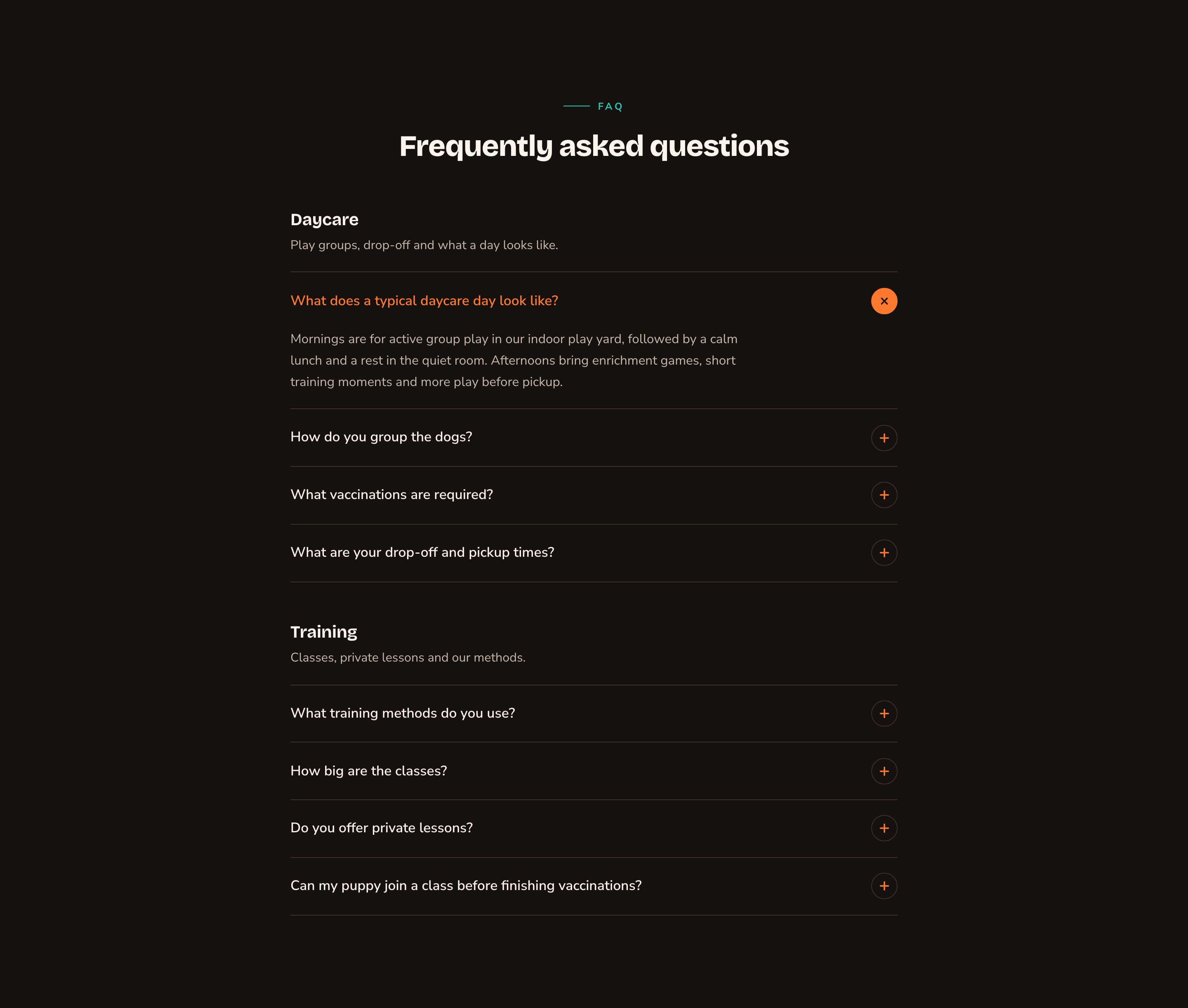
Questions grouped under their categories.
Use a different typeface on one question
The question’s Fonts tab has Typeface for this card. Use it to set one question in another typeface.Add a row, and under Apply to choose Headings for the question, Body text for the answer, or Everything in this section for both. Leave it empty to follow the section and your site fonts. See Typography.
Try it with sample questions
Admins and Owners can fill a new site with 10 sample questions in 3 sample categories, to try out the FAQ layouts.
1
Open FAQs in the command palette
2
Choose Seed Demo FAQs
You’ll see “Seeded 10 demo FAQs and 3 categories.”
The samples are published straight away, so any FAQ section already on a live page shows them to visitors at once.While a FAQ section shows the samples, signed-in editors see a “Demo content only” notice. The samples are deleted on their own the moment you publish your first real question.The sample categories go too, unless you’ve filed a real question under one. To remove the samples sooner, archive them in the managers. See Archive, restore and delete.
What happens next
A question appears in every FAQ section that includes it as soon as it’s published. Visitors never see drafts. While you edit a page, you also see draft questions, so you can check them in place.Your published questions can also show up in search results. Each FAQ section describes its questions to search engines, so they can show your answers. This is on by default, and you can turn it off in the section.
Troubleshooting
A question doesn't show
Is it published? Drafts show only while you edit.
Is Featured questions only on in the section? Then only featured ones show.
Does the section show Only these categories? Then a question outside them, or with no category, is left out.
Does the section limit how many show? Raise Maximum questions on the section’s Questions tab. It starts at 12.
The categories are in the wrong order
If the FAQ section lists categories under Only these categories, it shows them in the order you picked them there. Otherwise it uses each category’s Sort order. Change whichever one the section uses.
Could not seed demo FAQs.
The samples couldn’t be added. Reload the page and try again. If it keeps happening, contact Fetchski Support.
Related
FAQ
show your questions as an accordion, side by side or as open panels.
Page SEO
help your pages show up well in search.
Archive, restore and delete
retire an old question.
Content you reuse
how lists and sections work together.
⌘I
{"docsConfig":{"theme":"almond","$schema":"https://mintlify.com/docs.json","name":"Fetchski Attract Docs","colors":{"primary":"#16a34a","light":"#22c55e","dark":"#15803d"},"logo":{"light":"https://mintcdn.com/fetchski-attract-api/mn9qfQRsqaASh7UE/logo/light.svg?fit=max\u0026auto=format\u0026n=mn9qfQRsqaASh7UE\u0026q=85\u0026s=66db13e248b70a44a5ff5f6990d4cb63","dark":"https://mintcdn.com/fetchski-attract-api/mn9qfQRsqaASh7UE/logo/dark.svg?fit=max\u0026auto=format\u0026n=mn9qfQRsqaASh7UE\u0026q=85\u0026s=86904ba8d47714303521b2dcd5aa2a50","href":"/"},"favicon":"https://mintcdn.com/fetchski-attract-api/mn9qfQRsqaASh7UE/favicon.svg?fit=max\u0026auto=format\u0026n=mn9qfQRsqaASh7UE\u0026q=85\u0026s=fd4f2c0615961c9e01c9762b98c8999f","api":{"playground":{"display":"interactive"},"examples":{"defaults":"required","languages":["bash","typescript","php"]}},"appearance":{"default":"dark"},"background":{"color":{"light":"#ffffff","dark":"#0b0e13"}},"search":{"prompt":"Search the docs…"},"seo":{"metatags":{"robots":"noindex, nofollow"}},"fonts":{"family":"Inter"},"icons":{"library":"fontawesome"},"styling":{"codeblocks":"dark","latex":true},"contextual":{"options":["copy","view"],"display":"header"},"navigation":{"pages":[]}},"deployment":{"deploymentMetadataValue":{"subdomain":"fetchski-attract-api","hasAudioNarration":false,"actualSubdomain":"fetchski-attract-api","customDomains":["docs.fetchski-attract.com"],"gitSource":{"type":"github","owner":"fetchski","repo":"fetchski_cms_astro_monorepo","deployBranch":"main","contentDirectory":"docs/attract","isPrivate":true,"mountPath":"","label":"","_id":"6adb9c232f0947a18a27541d"},"entitlements":{},"buildId":"6af6df04bd8b0362cdec74ff","clientVersion":"0.0.4131","searchFilterCounts":[{"language":"default","tag":"Media","count":953},{"language":"default","tag":"Content","count":863},{"language":"default","tag":"Publishing","count":720},{"language":"default","tag":"API reference","count":484},{"language":"default","tag":"Laravel","count":472},{"language":"default","tag":"TypeScript","count":470},{"language":"default","tag":"AdonisJS","count":469},{"language":"default","tag":"Batch jobs","count":364},{"language":"default","tag":"Pages \u0026 Site","count":224},{"language":"default","tag":"Forms","count":168}]},"assistantConfig":{"enableAskAiButton":false,"enableStarterQuestions":false,"enableContextualStarterQuestions":false,"enableAskAiSearchBar":true},"basePath":"","hasChatPermissions":false,"hasWebMcpPermissions":false,"toggles":[{"name":"kill-isr","enabled":true,"variant":{"name":"disabled","enabled":false,"feature_enabled":true},"impressionData":false},{"name":"custom-rbac-roles","enabled":true,"variant":{"name":"disabled","enabled":false,"feature_enabled":true},"impressionData":false},{"name":"agent-mintlify-slack","enabled":true,"variant":{"name":"disabled","enabled":false,"feature_enabled":true},"impressionData":false},{"name":"agent-integrations-settings","enabled":true,"variant":{"name":"disabled","enabled":false,"feature_enabled":true},"impressionData":false},{"name":"rbac-expansion","enabled":true,"variant":{"name":"disabled","enabled":false,"feature_enabled":true},"impressionData":false},{"name":"automations-pr-grouping","enabled":true,"variant":{"name":"disabled","enabled":false,"feature_enabled":true},"impressionData":false},{"name":"custom-prefix","enabled":true,"variant":{"name":"disabled","enabled":false,"feature_enabled":true},"impressionData":false},{"name":"analytics-v7","enabled":true,"variant":{"name":"disabled","enabled":false,"feature_enabled":true},"impressionData":false},{"name":"user-flows-analytics","enabled":true,"variant":{"name":"disabled","enabled":false,"feature_enabled":true},"impressionData":false},{"name":"no-publish-flow","enabled":true,"variant":{"name":"disabled","enabled":false,"feature_enabled":true},"impressionData":false},{"name":"workos-onboarding","enabled":true,"variant":{"name":"disabled","enabled":false,"feature_enabled":true},"impressionData":false},{"name":"snapshot-serving-live","enabled":true,"variant":{"name":"disabled","enabled":false,"feature_enabled":true},"impressionData":false},{"name":"stripTemperatureMiddleware","enabled":true,"variant":{"name":"disabled","enabled":false,"feature_enabled":true},"impressionData":false},{"name":"support-platform-pylon-zendesk","enabled":true,"variant":{"name":"disabled","enabled":false,"feature_enabled":true},"impressionData":false},{"name":"snapshot-serving","enabled":true,"variant":{"name":"disabled","enabled":false,"feature_enabled":true},"impressionData":false},{"name":"instant-rollback","enabled":true,"variant":{"name":"disabled","enabled":false,"feature_enabled":true},"impressionData":false},{"name":"granular-notifications-server","enabled":true,"variant":{"name":"disabled","enabled":false,"feature_enabled":true},"impressionData":false},{"name":"granular-notifications","enabled":true,"variant":{"name":"disabled","enabled":false,"feature_enabled":true},"impressionData":false},{"name":"automations-fable","enabled":true,"variant":{"name":"disabled","enabled":false,"feature_enabled":true},"impressionData":false},{"name":"fixed-ai-action-pricing","enabled":true,"variant":{"name":"disabled","enabled":false,"feature_enabled":true},"impressionData":false},{"name":"automation-resolve-merge-conflict","enabled":true,"variant":{"name":"disabled","enabled":false,"feature_enabled":true},"impressionData":false},{"name":"scoped-publishing","enabled":true,"variant":{"name":"disabled","enabled":false,"feature_enabled":true},"impressionData":false},{"name":"mintql","enabled":true,"variant":{"name":"disabled","enabled":false,"feature_enabled":true},"impressionData":false},{"name":"page-level-analytics","enabled":true,"variant":{"name":"disabled","enabled":false,"feature_enabled":true},"impressionData":false},{"name":"editor-version-history-v2","enabled":true,"variant":{"name":"disabled","enabled":false,"feature_enabled":true},"impressionData":false},{"name":"billing-page-v2","enabled":true,"variant":{"name":"disabled","enabled":false,"feature_enabled":true},"impressionData":false},{"name":"full-page-search","enabled":true,"variant":{"name":"disabled","enabled":false,"feature_enabled":true},"impressionData":false},{"name":"workspace-projects","enabled":true,"variant":{"name":"disabled","enabled":false,"feature_enabled":true},"impressionData":false},{"name":"assistant-v5","enabled":true,"variant":{"name":"disabled","enabled":false,"feature_enabled":true},"impressionData":false},{"name":"fork-pr-previews","enabled":true,"variant":{"name":"disabled","enabled":false,"feature_enabled":true},"impressionData":false},{"name":"revalidation-jwt","enabled":true,"variant":{"name":"disabled","enabled":false,"feature_enabled":true},"impressionData":false},{"name":"workos-sso-scim","enabled":true,"variant":{"name":"disabled","enabled":false,"feature_enabled":true},"impressionData":false},{"name":"hobby-abuse-scan","enabled":true,"variant":{"name":"disabled","enabled":false,"feature_enabled":true},"impressionData":false},{"name":"dashboard-inbox","enabled":true,"variant":{"name":"disabled","enabled":false,"feature_enabled":true},"impressionData":false},{"name":"workos-signup","enabled":true,"variant":{"name":"disabled","enabled":false,"feature_enabled":true},"impressionData":false},{"name":"turbopuffer-dual-write","enabled":true,"variant":{"name":"disabled","enabled":false,"feature_enabled":true},"impressionData":false},{"name":"workos-enabled","enabled":true,"variant":{"name":"disabled","enabled":false,"feature_enabled":true},"impressionData":false},{"name":"approve-review-flow","enabled":true,"variant":{"name":"disabled","enabled":false,"feature_enabled":true},"impressionData":false},{"name":"editor-metadata","enabled":true,"variant":{"name":"disabled","enabled":false,"feature_enabled":true},"impressionData":false},{"name":"sso-setup-deadline-banner","enabled":true,"variant":{"name":"disabled","enabled":false,"feature_enabled":true},"impressionData":false},{"name":"turbopuffer-serve","enabled":true,"variant":{"name":"disabled","enabled":false,"feature_enabled":true},"impressionData":false},{"name":"live-agents","enabled":true,"variant":{"name":"disabled","enabled":false,"feature_enabled":true},"impressionData":false},{"name":"llms-txt-v2","enabled":true,"variant":{"name":"disabled","enabled":false,"feature_enabled":true},"impressionData":false}],"googleFontsInlined":false},"customCss":[{"filePath":"style.css","content":"@media (min-width: 1280px){:root{--content-width: 52rem}}@media (min-width: 1600px){:root{--content-width: 60rem}}@media (min-width: 1920px){:root{--content-width: 68rem}}@media (min-width: 1024px) and (max-width: 1919px){#content-container{padding-left:2rem;padding-right:2rem}div:has(>#content-area){padding-left:0}#table-of-contents{width:14rem}}html[data-page-mode=\"wide\"] #content-area{max-width:84rem}@media (min-width: 1024px){#navbar .nav-tabs{position:fixed;left:15rem;top:0;height:6rem}}@media (min-width: 1024px) and (max-width: 1599px){#navbar .nav-tabs{gap:0}#navbar .nav-tabs .nav-tabs-item{gap:0.375rem;font-size:0.9375rem;padding-inline:0.5rem}#navbar .nav-tabs .nav-tabs-item svg,#navbar .nav-tabs .nav-tabs-item img{width:1.0625rem;height:1.0625rem}}@media (min-width: 1024px) and (max-width: 1199px){#navbar .nav-tabs .nav-tabs-item svg,#navbar .nav-tabs .nav-tabs-item img{display:none}}@media (min-width: 1024px) and (max-width: 1319px){div:has(>#search-bar-entry){width:3rem!important}#search-bar-entry{justify-content:center;padding:0!important}#search-bar-entry>div>:not(svg),#search-bar-entry>:not(div){display:none}}.mdx-content{font-size:1.0625rem;line-height:1.8}@media (min-width: 1024px){.mdx-content{font-size:1.25rem;line-height:1.85}#page-title{font-size:2.875rem;line-height:1.15}#page-title+*,#header .prose{font-size:1.375rem}#sidebar-content a{font-size:1.125rem}.toc-item{font-size:1rem}}.mdx-content>[data-as=\"p\"],.mdx-content>p{margin-top:0;margin-bottom:1.75rem}.mdx-content>h2{margin-top:3.5rem;margin-bottom:1.25rem;padding-top:2rem;border-top:1px solid rgb(0 0 0 / 0.08);font-size:1.875rem;letter-spacing:-0.01em}.dark .mdx-content>h2{border-top-color:rgb(255 255 255 / 0.08)}.mdx-content>h2:first-child{margin-top:0;padding-top:0;border-top:0}.mdx-content>h3{margin-top:2.75rem;margin-bottom:1.125rem;font-size:1.4375rem}.mdx-content>h4{margin-top:2rem;margin-bottom:0.75rem}.mdx-content li{margin-top:0.625rem;margin-bottom:0.625rem}.mdx-content>ul,.mdx-content>ol{margin-bottom:1.75rem}.mdx-content :not(pre)>code{font-size:0.875em;padding:0.125rem 0.375rem;overflow-wrap:anywhere}.mdx-content table{font-size:1.0625rem;line-height:1.7}.mdx-content th,.mdx-content td{padding:0.875rem 1.5rem 0.875rem 0!important;vertical-align:top}.mdx-content th{padding-top:0.25rem!important}.mdx-content th:last-child,.mdx-content td:last-child{padding-right:0!important}.mdx-content td>code:only-child{white-space:nowrap}pre{max-height:36rem;overflow:auto}.mdx-content pre code{font-size:0.9375rem;line-height:1.75}.mdx-content>.code-block,.mdx-content>.code-group{margin-top:1.5rem;margin-bottom:2rem}.mdx-content .columns{column-gap:1.25rem;row-gap:0.5rem;margin-top:1.75rem;margin-bottom:2.25rem}.mdx-content .card{border-radius:1rem}.mdx-content .card [data-component-part=\"card-content-container\"]{padding:1.5rem 1.75rem}.mdx-content [data-component-part=\"card-title\"]{font-size:1.25rem}.mdx-content [data-component-part=\"card-content\"]{font-size:1.0625rem;line-height:1.7}.mdx-content .callout{margin-top:2rem;margin-bottom:2.25rem;padding:1.25rem 1.75rem;font-size:1.125rem;line-height:1.75}.mdx-content .steps{margin-top:1.75rem;margin-bottom:2.25rem}.mdx-content .step{padding-bottom:0.75rem}.mdx-content .accordion-group,.mdx-content>.accordion{margin-top:1.75rem;margin-bottom:2.25rem}.mdx-content .tabs{margin-top:1.75rem;margin-bottom:2.25rem}.mdx-content .tabs [role=\"tabpanel\"]{padding-top:0.375rem;padding-right:0.375rem;padding-bottom:0.375rem}.mdx-content [data-component-name=\"mermaid-container\"]{--im-node-fill: #ecfdf3;--im-node-stroke: #16a34a;--im-node-text: #0b3a1f;--im-cluster-fill: rgb(22 163 74 / 0.04);--im-cluster-stroke: rgb(22 163 74 / 0.35);--im-edge: #64748b;--im-label-bg: #ffffff;margin-top:1.75rem;margin-bottom:2.25rem;padding:2rem 1.5rem;border:1px solid rgb(0 0 0 / 0.08);border-radius:1rem;background:rgb(0 0 0 / 0.015)}.dark .mdx-content [data-component-name=\"mermaid-container\"]{--im-node-fill: #0b2e1a;--im-node-stroke: #22c55e;--im-node-text: #e7fbef;--im-cluster-fill: rgb(34 197 94 / 0.05);--im-cluster-stroke: rgb(34 197 94 / 0.35);--im-edge: #94a3b8;--im-label-bg: #0f1214;border-color:rgb(255 255 255 / 0.08);background:rgb(255 255 255 / 0.02)}.mdx-content [data-component-name=\"mermaid-container\"] svg[id^=\"mermaid\"]{display:block;margin-left:auto;margin-right:auto}.mdx-content [data-component-name=\"mermaid-container\"] .node rect,.mdx-content [data-component-name=\"mermaid-container\"] .node polygon,.mdx-content [data-component-name=\"mermaid-container\"] .node circle,.mdx-content [data-component-name=\"mermaid-container\"] .node path{fill:var(--im-node-fill)!important;stroke:var(--im-node-stroke)!important;stroke-width:1.5px!important}.mdx-content [data-component-name=\"mermaid-container\"] .node rect{rx:8px;ry:8px}.mdx-content [data-component-name=\"mermaid-container\"] .nodeLabel,.mdx-content [data-component-name=\"mermaid-container\"] .node .label{color:var(--im-node-text)!important;fill:var(--im-node-text)!important}.mdx-content [data-component-name=\"mermaid-container\"] .cluster rect{fill:var(--im-cluster-fill)!important;stroke:var(--im-cluster-stroke)!important;stroke-dasharray:6 4;rx:12px;ry:12px}.mdx-content [data-component-name=\"mermaid-container\"] .cluster-label .nodeLabel,.mdx-content [data-component-name=\"mermaid-container\"] .cluster .nodeLabel{color:var(--im-node-stroke)!important}.mdx-content [data-component-name=\"mermaid-container\"] .flowchart-link,.mdx-content [data-component-name=\"mermaid-container\"] .edgePath path{stroke:var(--im-edge)!important;stroke-width:1.5px!important}.mdx-content [data-component-name=\"mermaid-container\"] marker path,.mdx-content [data-component-name=\"mermaid-container\"] .arrowheadPath{fill:var(--im-edge)!important;stroke:var(--im-edge)!important}.mdx-content [data-component-name=\"mermaid-container\"] .edgeLabel,.mdx-content [data-component-name=\"mermaid-container\"] .edgeLabel p,.mdx-content [data-component-name=\"mermaid-container\"] .labelBkg{background-color:var(--im-label-bg)!important;color:var(--im-edge)!important}.mdx-content [data-component-name=\"mermaid-container\"] rect.actor{fill:var(--im-node-fill)!important;stroke:var(--im-node-stroke)!important;stroke-width:1.5px!important;rx:8px;ry:8px}.mdx-content [data-component-name=\"mermaid-container\"] text.actor>tspan,.mdx-content [data-component-name=\"mermaid-container\"] text.actor{fill:var(--im-node-text)!important}.mdx-content [data-component-name=\"mermaid-container\"] .actor-line{stroke:var(--im-cluster-stroke)!important}.mdx-content [data-component-name=\"mermaid-container\"] .messageLine0,.mdx-content [data-component-name=\"mermaid-container\"] .messageLine1{stroke:var(--im-edge)!important;stroke-width:1.5px!important}.mdx-content [data-component-name=\"mermaid-container\"] #arrowhead path,.mdx-content [data-component-name=\"mermaid-container\"] #crosshead path{fill:var(--im-edge)!important;stroke:var(--im-edge)!important}.mdx-content [data-component-name=\"mermaid-container\"] .note{fill:var(--im-cluster-fill)!important;stroke:var(--im-cluster-stroke)!important}.mdx-content .field .prose-sm{font-size:1.0625rem;line-height:1.8}@media (min-width: 1024px){.mdx-content .field .prose-sm{font-size:1.125rem}}.mdx-content .field{padding-top:1.25rem;padding-bottom:1.25rem}:root{--fa-accent: 22 163 74;--fa-ink: 15 23 42;--fa-button: 21 128 61;--fa-button-hover: 22 101 52;--fa-on-button: 255 255 255}.dark{--fa-accent: 34 197 94;--fa-ink: 255 255 255;--fa-button: 34 197 94;--fa-button-hover: 74 222 128;--fa-on-button: 5 46 22}.mdx-content .card{transition:border-color 150ms ease,\n background-color 150ms ease}.mdx-content a.card:hover,.mdx-content .card:has(a:hover){border-color:rgb(var(--fa-accent) / 0.45);background-color:rgb(var(--fa-accent) / 0.06)}.mdx-content .card [data-component-part=\"card-icon\"]{display:flex;width:1.75rem;height:1.75rem;margin-bottom:1rem}.mdx-content .card [data-component-part=\"card-icon\"] svg{width:1.75rem;height:1.75rem;mask-size:contain;background-color:rgb(var(--fa-accent))!important}.mdx-content .card [data-component-part=\"card-content-container\"].flex [data-component-part=\"card-icon\"]{margin-bottom:0}html[data-page-mode=\"wide\"] #header{display:none}.fa-hero{position:relative;isolation:isolate;display:grid;grid-template-columns:minmax(0, 1fr);gap:3rem;align-items:center;overflow:hidden;margin:-1.5rem 0 3.5rem;padding:3.5rem 3rem;border:1px solid rgb(var(--fa-accent) / 0.2);border-radius:1.5rem;background-color:rgb(var(--fa-accent) / 0.025);background-image:radial-gradient(\n 55% 75% at 82% 50%,\n rgb(var(--fa-accent) / 0.16),\n transparent 70%\n )}.fa-hero::before{content:'';position:absolute;inset:0;z-index:-1;background-image:linear-gradient(rgb(var(--fa-accent) / 0.1) 1px, transparent 1px),\n linear-gradient(90deg, rgb(var(--fa-accent) / 0.1) 1px, transparent 1px);background-size:2rem 2rem;background-position:-1px -1px;mask-image:radial-gradient(80% 90% at 85% 40%, #000 20%, transparent 75%);pointer-events:none}.fa-hero::after{content:'';position:absolute;top:0;right:10%;left:10%;height:1px;background:linear-gradient(\n 90deg,\n transparent,\n rgb(var(--fa-accent) / 0.8),\n transparent\n );pointer-events:none}@media (min-width: 1536px){.fa-hero{grid-template-columns:minmax(0, 0.85fr) minmax(0, 1.15fr);padding:4rem 3.5rem}}.fa-hero-code>.code-group,.fa-hero-code>.code-block{margin:0;border-color:rgb(var(--fa-accent) / 0.25);box-shadow:0 1px 0 rgb(255 255 255 / 0.04) inset,\n 0 30px 60px -24px rgb(0 0 0 / 0.55),\n 0 0 0 6px rgb(var(--fa-accent) / 0.06)}.mdx-content .fa-hero-code pre code{font-size:0.8125rem}.mdx-content .fa-hero .fa-hero-mark{margin:0 0 1.75rem}.mdx-content .fa-hero .fa-hero-mark img{display:block;width:auto;height:4rem;margin:0;border-radius:0}.mdx-content .fa-hero .fa-hero-mark .fa-hero-mark-dark,.dark .mdx-content .fa-hero .fa-hero-mark .fa-hero-mark-light{display:none}.dark .mdx-content .fa-hero .fa-hero-mark .fa-hero-mark-dark{display:block}.fa-hero h1{max-width:40rem;margin:0;font-size:3.25rem;font-weight:700;line-height:1.06;letter-spacing:-0.035em;text-wrap:balance}.fa-hero h1 .fa-hero-accent{color:rgb(var(--fa-accent))}.mdx-content .fa-hero-lede{max-width:34rem;margin:1.5rem 0 2.25rem;font-size:1.1875rem;line-height:1.7;opacity:0.78;text-wrap:pretty}.fa-hero-actions{display:flex;flex-wrap:wrap;gap:0.75rem}.mdx-content .fa-hero-facts{display:flex;flex-wrap:wrap;gap:0.5rem 1.5rem;margin-top:2rem;font-size:0.9375rem;opacity:0.8}.mdx-content .fa-hero-facts>span{display:inline-flex;align-items:center;gap:0.5rem}.mdx-content .fa-hero-facts>span::before{content:'';flex:none;width:1rem;height:1rem;background:rgb(var(--fa-accent));mask:url(\"data:image/svg+xml,%3Csvg xmlns='http://www.w3.org/2000/svg' viewBox='0 0 16 16'%3E%3Cpath d='M3.5 8.5l3 3 6-7' fill='none' stroke='%23000' stroke-width='2' stroke-linecap='round' stroke-linejoin='round'/%3E%3C/svg%3E\")\n center / contain no-repeat}.fa-button{display:inline-flex;align-items:center;gap:0.5rem;height:2.75rem;padding:0 1.125rem;border:1px solid transparent;border-radius:0.625rem;font-size:0.9375rem;font-weight:600;letter-spacing:-0.005em;text-decoration:none!important;transition:background-color 150ms ease,\n border-color 150ms ease,\n box-shadow 150ms ease,\n transform 150ms ease}.fa-button-primary{border-color:rgb(var(--fa-button) / 1);background:rgb(var(--fa-button));box-shadow:inset 0 1px 0 rgb(255 255 255 / 0.25),\n 0 8px 20px -10px rgb(var(--fa-button) / 0.9);color:rgb(var(--fa-on-button))!important}.fa-button-primary::after{content:'';width:1rem;height:1rem;background:currentcolor;mask:url(\"data:image/svg+xml,%3Csvg xmlns='http://www.w3.org/2000/svg' viewBox='0 0 16 16'%3E%3Cpath d='M3 8h9.5M8.5 4l4 4-4 4' fill='none' stroke='%23000' stroke-width='1.75' stroke-linecap='round' stroke-linejoin='round'/%3E%3C/svg%3E\")\n center / contain no-repeat;transition:transform 150ms ease}.fa-button-primary:hover{background:rgb(var(--fa-button-hover));box-shadow:inset 0 1px 0 rgb(255 255 255 / 0.25),\n 0 10px 24px -10px rgb(var(--fa-button) / 1)}.fa-button-primary:hover::after{transform:translateX(2px)}.fa-button-secondary{border-color:rgb(var(--fa-ink) / 0.16);background:rgb(var(--fa-ink) / 0.03);color:inherit!important}.fa-button-secondary:hover{border-color:rgb(var(--fa-accent) / 0.55);background:rgb(var(--fa-accent) / 0.08)}.fa-button:active{transform:translateY(1px)}.fa-button:focus-visible{outline:2px solid rgb(var(--fa-accent));outline-offset:3px}@media (prefers-reduced-motion: reduce){.fa-button,.fa-button-primary::after{transition:none}.fa-button:active,.fa-button-primary:hover::after{transform:none}}@media (max-width: 767px){.fa-hero{padding:2.5rem 1.5rem}.fa-hero h1{font-size:2.25rem}}#sidebar-content a,#sidebar-content li>button{gap:0.875rem;padding-top:0.625rem;padding-right:0.5rem;padding-bottom:0.625rem;font-size:1.125rem;line-height:1.45}#sidebar-content li+li{margin-top:0.25rem}#sidebar-content li>button>div:nth-child(2){min-width:0}#sidebar-content li>button>div:last-child{width:1.25rem;margin-left:auto;justify-content:center}#sidebar-content li>ul{margin:0.25rem 0 0.25rem 1.25rem;padding-left:0.375rem;border-left:1px solid rgb(0 0 0 / 0.1)}.dark #sidebar-content li>ul{border-left-color:rgb(255 255 255 / 0.1)}#sidebar-content li>ul>li>:is(a,button){padding-left:0.75rem!important;font-size:1.0625rem}#sidebar-content .sidebar-group-header{margin-bottom:0.625rem;font-size:0.875rem;font-weight:700;letter-spacing:0.08em;text-transform:uppercase;color:color-mix(in srgb, rgb(var(--fa-accent)) 72%, black)}.dark #sidebar-content .sidebar-group-header{color:rgb(var(--fa-accent))}#sidebar-content div:has(>.sidebar-group-header)+div:has(>.sidebar-group-header){margin-top:2.25rem}#sidebar-content a svg,#sidebar-content a img,#sidebar-content li>button>div:first-child svg,#sidebar-content li>button>div:first-child img{width:1.375rem;height:1.375rem}#sidebar-content .sidebar-group-header svg{width:1rem;height:1rem}.nav-tabs-item{gap:0.625rem;font-size:1.0625rem}.nav-tabs-item svg,.nav-tabs-item img{width:1.3125rem;height:1.3125rem}.nav-tabs-item[href^=\"/typescript\"] svg{background-color:#d4b106}.dark .nav-tabs-item[href^=\"/typescript\"] svg{background-color:#f7df1e}.nav-tabs-item[href^=\"/laravel\"] svg{background-color:#ff2d20}.nav-tabs-item[href^=\"/adonisjs\"] svg{background-color:#5a45ff}.dark .nav-tabs-item[href^=\"/adonisjs\"] svg{background-color:#8b7dff}li[data-group-tag]>button svg[style*=\"/brands/js.svg\"]{background-color:#d4b106}.dark li[data-group-tag]>button svg[style*=\"/brands/js.svg\"]{background-color:#f7df1e}li[data-group-tag]>button svg[style*=\"/brands/laravel.svg\"]{background-color:#ff2d20}#sidebar-content img[src$=\"/n8n.png\"]{transform:scale(1.35)}@media (min-width: 1024px){:root{--mintlify-slot-header-height: 6rem;--sidebar-width: 26rem}#navbar{height:6rem}#sidebar-content{top:6rem}#navbar div:has(img.nav-logo){height:100%}img.nav-logo{height:3.5rem;margin-left:0.5rem}div:has(>#search-bar-entry){position:fixed;top:1.5rem;right:7rem;z-index:40;width:clamp(11rem, calc(100vw - var(--sidebar-width) - 45rem), 24rem)}#search-bar-entry{height:3rem;padding-left:1.125rem;border-radius:0.875rem;font-size:1.0625rem}#search-bar-entry svg{width:1.125rem;height:1.125rem}}[data-switch=\"pill\"]{width:auto!important;height:auto!important;padding:0.3125rem;gap:0.25rem}.switch-option{width:2.125rem!important;height:2.125rem!important}.switch-option svg{width:1.125rem;height:1.125rem}.mdx-content .accordion-group{display:grid;gap:0.75rem;overflow:visible;border:0;border-color:transparent;border-radius:0;background:none}.mdx-content details.accordion{margin:0 0 0.75rem;border-color:transparent;border-radius:1rem!important;outline:1px solid rgb(var(--fa-ink) / 0.1);outline-offset:-1px;overflow:hidden;transition:outline-color 150ms ease,\n box-shadow 150ms ease}.mdx-content .accordion-group>details.accordion{margin:0}.mdx-content details.accordion:hover{outline-color:rgb(var(--fa-accent) / 0.35)}.mdx-content details.accordion[open]{outline-color:rgb(var(--fa-accent) / 0.45);box-shadow:inset 3px 0 0 rgb(var(--fa-accent))}.mdx-content [data-component-part=\"accordion-button\"]{gap:1rem;padding:1rem 1.25rem 1rem 1.5rem;border-radius:0!important;transition:background-color 150ms ease}.mdx-content [data-component-part=\"accordion-button\"]:hover{background:rgb(var(--fa-accent) / 0.05)}.mdx-content [data-component-part=\"accordion-button\"]:focus-visible{outline:2px solid rgb(var(--fa-accent));outline-offset:-2px}.mdx-content [data-component-part=\"accordion-caret-right\"]{order:3;width:2rem;height:2rem;border-radius:999px;background:rgb(var(--fa-ink) / 0.06);transition:background-color 150ms ease}.mdx-content [data-component-part=\"accordion-caret-right\"] svg{width:0.875rem;height:0.875rem}.mdx-content details.accordion[open] [data-component-part=\"accordion-caret-right\"]{background:rgb(var(--fa-accent) / 0.15)}.mdx-content details.accordion[open] [data-component-part=\"accordion-caret-right\"] svg{color:rgb(var(--fa-accent))}.mdx-content [data-component-part=\"accordion-icon\"]{display:inline-flex;align-items:center;justify-content:center;width:1.25rem;height:1.25rem}.mdx-content [data-component-part=\"accordion-icon\"] svg{width:1.25rem;height:1.25rem;background-color:rgb(var(--fa-accent))!important}.mdx-content [data-component-part=\"accordion-title\"]{font-size:1.1875rem}.mdx-content [data-component-part=\"accordion-content\"]{max-width:none;padding:1.5rem 2rem 1.75rem 1.5rem;border-top:1px solid rgb(var(--fa-ink) / 0.08);font-size:1.125rem;line-height:1.95}@media (min-width: 768px){.mdx-content details.accordion:has(>summary [data-component-part=\"accordion-icon\"])>[data-component-part=\"accordion-content\"]{padding-left:3.75rem}}.mdx-content [data-component-part=\"accordion-content\"]>[data-as=\"p\"],.mdx-content [data-component-part=\"accordion-content\"]>p{display:block;max-width:46rem;margin:0 0 1.25rem}.mdx-content [data-component-part=\"accordion-content\"]>:last-child{margin-bottom:0}@media (prefers-reduced-motion: reduce){.mdx-content details.accordion,.mdx-content [data-component-part=\"accordion-button\"],.mdx-content [data-component-part=\"accordion-caret-right\"]{transition:none}}[data-badge=\"true\"]{--fa-badge: 100 116 139;padding:0.125rem 0.5rem;border-radius:0.5rem;background:rgb(var(--fa-badge) / 0.14)!important;box-shadow:inset 0 0 0 1px rgb(var(--fa-badge) / 0.32);color:rgb(var(--fa-badge))!important;font-variant-numeric:tabular-nums}[data-badge=\"true\"][data-color=\"red\"]{--fa-badge: 239 68 68}[data-badge=\"true\"][data-color=\"orange\"]{--fa-badge: 245 130 32}[data-badge=\"true\"][data-color=\"yellow\"]{--fa-badge: 214 160 20}[data-badge=\"true\"][data-color=\"green\"]{--fa-badge: 22 163 74}[data-badge=\"true\"][data-color=\"blue\"]{--fa-badge: 17 145 240}.dark [data-badge=\"true\"][data-color=\"red\"]{--fa-badge: 248 113 113}.dark [data-badge=\"true\"][data-color=\"orange\"]{--fa-badge: 251 158 75}.dark [data-badge=\"true\"][data-color=\"yellow\"]{--fa-badge: 250 204 21}.dark [data-badge=\"true\"][data-color=\"green\"]{--fa-badge: 74 222 128}.dark [data-badge=\"true\"][data-color=\"blue\"]{--fa-badge: 62 165 245}.dark [data-badge=\"true\"][data-color=\"gray\"]{--fa-badge: 161 161 170}.mdx-content td [data-badge=\"true\"]+[data-badge=\"true\"]{margin-left:0.375rem}.mdx-content :is([data-as=\"p\"],p,li,td,blockquote),#header .prose,#page-title+*{color:rgb(38 43 52)}.dark .mdx-content :is([data-as=\"p\"],p,li,td,blockquote),.dark #header .prose,.dark #page-title+*{color:rgb(222 226 232)}.mdx-content :is(th,strong){font-weight:600}#sidebar-content a,#sidebar-content li>button{color:rgb(70 76 88)}.dark #sidebar-content a,.dark #sidebar-content li>button{color:rgb(196 201 210)}.toc-item a{color:inherit}.mdx-content [data-component-part=\"callout-content\"]{font-size:1.125rem;line-height:1.75}.mdx-content [data-component-part=\"callout-icon\"]{width:1.25rem;margin-top:0.25rem}.mdx-content [data-component-part=\"step-title\"]{font-size:1.25rem}.mdx-content [data-component-part=\"step-content\"],.mdx-content [data-component-part=\"tab-content\"]{font-size:1.125rem;line-height:1.85}.mdx-content [data-component-part=\"step-number\"]{margin-left:calc(0.5px - 1.125rem)}.mdx-content [data-component-part=\"step-indicator\"]{width:2.25rem;height:2.25rem;background-color:transparent;color:rgb(var(--fa-accent));font-size:1.25rem;font-weight:600}.mdx-content [data-component-part=\"step-indicator\"] svg{width:1.5rem;height:1.5rem;background-color:rgb(var(--fa-accent))!important}.mdx-content [data-component-part=\"tab-button\"]{font-size:1rem}.mdx-content [data-component-part=\"code-block-header\"],.mdx-content [data-component-part=\"code-block-header-filename\"]{font-size:0.875rem}.mdx-content [data-component-part=\"code-group-tab-bar\"]{font-size:0.9375rem}.mdx-content [data-component-part=\"field-name\"]{font-size:1.0625rem}.mdx-content [data-component-part=\"field-meta\"],.mdx-content [data-component-part=\"field-info-pill\"],.mdx-content [data-component-part=\"field-required-pill\"]{font-size:0.875rem}.mdx-content [data-component-part=\"expandable-button\"]{font-size:1rem}[data-component-part=\"pagination-title\"]{font-size:1.125rem}[data-component-part=\"pagination-label\"]{font-size:0.9375rem}.mdx-content>.multi-view-item{max-width:none;font-size:inherit;line-height:inherit}.multi-view-item>[data-as=\"p\"],.multi-view-item>p{margin-top:0;margin-bottom:1.75rem}.multi-view-item>h2{margin-top:3.5rem;margin-bottom:1.25rem;padding-top:2rem;border-top:1px solid rgb(0 0 0 / 0.08);font-size:1.875rem;letter-spacing:-0.01em}.dark .multi-view-item>h2{border-top-color:rgb(255 255 255 / 0.08)}.multi-view-item>h2:first-child{margin-top:0;padding-top:0;border-top:0}.multi-view-item>h3{margin-top:2.75rem;margin-bottom:1.125rem;font-size:1.4375rem}.multi-view-item>ul,.multi-view-item>ol{margin-bottom:1.75rem}.multi-view-item>.code-block,.multi-view-item>.code-group{margin-top:1.5rem;margin-bottom:2rem}#content-container .prose.prose-sm{font-size:1.0625rem;line-height:1.8}#sidebar-content .method-nav-pill{width:2.75rem}#sidebar-content .method-nav-pill>*{padding:0.125rem 0.375rem;font-size:0.6875rem;line-height:1.25rem}#fa-reader-values{margin-top:1.75rem;padding:1.5rem;border:1px solid rgb(var(--fa-ink) / 0.14);border-radius:1rem;background:transparent;font-size:1.0625rem;line-height:1.6;transition:border-color 150ms ease;container:fa-reader / inline-size}#fa-reader-values:hover,#fa-reader-values:focus-within{border-color:rgb(var(--fa-accent) / 0.45)}#fa-reader-values .fa-reader-line{display:grid;grid-template-columns:auto 1fr;align-items:center;gap:1rem 1.25rem}#fa-reader-values .fa-reader-toggle{grid-column:1 / -1;justify-self:start}@container fa-reader (min-width: 30rem){#fa-reader-values .fa-reader-line{grid-template-columns:auto 1fr auto}#fa-reader-values .fa-reader-line .fa-reader-toggle{grid-column:auto}}#fa-reader-values .fa-reader-icon{width:4rem;height:4rem;background:url('/logo/attract-glyph-color-a-green-on-light-scalable.svg') center / contain\n no-repeat}.dark #fa-reader-values .fa-reader-icon{background-image:url('/logo/attract-glyph-color-a-green-on-dark-scalable.svg')}#fa-reader-values .fa-reader-copy{min-width:0}#fa-reader-values .fa-reader-copy p{margin:0}#fa-reader-values .fa-reader-title{font-size:1.125rem;font-weight:600;color:rgb(var(--fa-ink))}#fa-reader-values .fa-reader-values{display:grid;grid-template-columns:auto 1fr;align-items:center;gap:0.625rem 0.875rem;margin:0.75rem 0 0}#fa-reader-values .fa-reader-values>div{display:contents}#fa-reader-values .fa-reader-values dt{font-weight:500;color:rgb(var(--fa-ink))}#fa-reader-values .fa-reader-values dd{justify-self:start;min-width:0;margin:0}#fa-reader-values code{display:inline-block;padding:0.375rem 0.875rem;border:1px solid rgb(var(--fa-accent) / 0.4);border-radius:0.5rem;background:rgb(var(--fa-ink) / 0.03);color:rgb(var(--fa-ink));font-size:0.95em;font-weight:700;line-height:1.4;overflow-wrap:anywhere}#fa-reader-values button{padding:0.625rem 1.25rem;border:1px solid rgb(var(--fa-ink) / 0.16);border-radius:0.625rem;background:rgb(var(--fa-ink) / 0.03);color:rgb(var(--fa-ink));font-weight:600;white-space:nowrap;cursor:pointer;transition:background-color 150ms ease,\n border-color 150ms ease}#fa-reader-values button:hover{border-color:rgb(var(--fa-accent) / 0.55);background:rgb(var(--fa-accent) / 0.08)}#fa-reader-values button:focus-visible,#fa-reader-values input:focus-visible{outline:2px solid rgb(var(--fa-accent));outline-offset:2px}#fa-reader-values .fa-reader-form{display:grid;grid-template-columns:1fr;gap:1.75rem 1.5rem;margin-top:1.5rem;padding:1.5rem 0.25rem 0.25rem;border-top:1px solid rgb(var(--fa-ink) / 0.1)}@media (min-width: 768px){#fa-reader-values .fa-reader-form{grid-template-columns:1fr 1fr}}#fa-reader-values .fa-reader-form[hidden]{display:none}#fa-reader-values label{display:grid;gap:0.625rem;align-content:start}#fa-reader-values label>span{font-weight:600;color:rgb(var(--fa-ink))}#fa-reader-values label em{font-style:normal;font-weight:400}#fa-reader-values input{width:100%;padding:0.75rem 1rem;border:1px solid rgb(128 128 128 / 0.4);border-radius:0.5rem;background:rgb(128 128 128 / 0.08);color:rgb(var(--fa-ink));font:inherit}#fa-reader-values small{display:block;margin-top:0.5rem;font-size:0.9375rem;line-height:1.6;color:rgb(var(--fa-ink))}#fa-reader-values .fa-reader-error{grid-column:1 / -1;margin:0;color:#dc2626}.dark #fa-reader-values .fa-reader-error{color:#f87171}#fa-reader-values .fa-reader-error:empty{display:none}#fa-reader-values .fa-reader-actions{display:flex;flex-wrap:wrap;grid-column:1 / -1;align-items:center;gap:1rem;padding-top:0.25rem}.mdx-content .n8n-canvas{--n8n-dot: rgb(0 0 0 / 0.12);--n8n-node-bg: #ffffff;--n8n-node-border: rgb(0 0 0 / 0.18);--n8n-line: #94a3b8;margin:1.75rem 0 2.25rem;padding:2rem 0.75rem 1.5rem;overflow-x:auto;border:1px solid rgb(0 0 0 / 0.08);border-radius:1rem;background-color:rgb(0 0 0 / 0.015);background-image:radial-gradient(var(--n8n-dot) 1px, transparent 1px);background-size:18px 18px}.dark .mdx-content .n8n-canvas{--n8n-dot: rgb(255 255 255 / 0.1);--n8n-node-bg: #1b1f24;--n8n-node-border: rgb(255 255 255 / 0.22);--n8n-line: #64748b;border-color:rgb(255 255 255 / 0.08);background-color:rgb(255 255 255 / 0.02)}.mdx-content .n8n-canvas-row{display:flex;align-items:flex-start;justify-content:center;min-width:max-content;margin:0 auto}.mdx-content .n8n-node{display:flex;flex-direction:column;align-items:center;width:7.25rem;text-align:center}.mdx-content .n8n-node-box{display:flex;align-items:center;justify-content:center;width:4.5rem;height:4.5rem;border:2px solid var(--n8n-node-border);border-radius:0.75rem;background:var(--n8n-node-bg);box-shadow:0 1px 3px rgb(0 0 0 / 0.08)}.mdx-content .n8n-node-trigger .n8n-node-box{border-radius:2.25rem 0.75rem 0.75rem 2.25rem}.mdx-content .n8n-node-accent .n8n-node-box{border-color:rgb(var(--fa-accent));box-shadow:0 0 0 4px rgb(var(--fa-accent) / 0.15)}.mdx-content .n8n-node-title{margin-top:0.6rem;font-size:0.95rem;font-weight:600;line-height:1.3}.mdx-content .n8n-node-note{margin-top:0.2rem;font-size:0.8rem;line-height:1.35;opacity:0.7}.mdx-content .n8n-node-box svg{width:1.9rem!important;height:1.9rem!important}.mdx-content .n8n-link{display:flex;flex-direction:column;align-items:center;width:4rem;margin:0 -1.125rem;padding-top:1.1rem}.mdx-content .n8n-link-items{height:1.1rem;font-size:0.75rem;font-weight:600;line-height:1.1rem;white-space:nowrap;color:rgb(var(--fa-accent))}.mdx-content .n8n-link-line{position:relative;width:100%;height:2px;margin-top:0.4rem;background:var(--n8n-line)}.mdx-content .n8n-link-line::after{position:absolute;top:-4px;right:-1px;border-top:5px solid transparent;border-bottom:5px solid transparent;border-left:7px solid var(--n8n-line);content:''}.mdx-content .n8n-canvas figcaption{margin-top:1.25rem;font-size:0.85rem;text-align:center;opacity:0.7}.mdx-content .n8n-signed{margin:1.5rem 0 2rem;padding:1.5rem 1.25rem 1.25rem;overflow-x:auto;border:1px solid rgb(0 0 0 / 0.08);border-radius:1rem}.dark .mdx-content .n8n-signed{border-color:rgb(255 255 255 / 0.08)}.mdx-content .n8n-signed-row{display:flex;flex-wrap:wrap;align-items:flex-start;justify-content:center;row-gap:1rem}.mdx-content .n8n-signed-part{display:flex;flex-direction:column;align-items:center;gap:0.5rem}.mdx-content .n8n-signed-value,.mdx-content .n8n-signed-dot{padding:0.35rem 0.55rem;border-radius:0.4rem;font-size:0.95rem;white-space:nowrap}.mdx-content .n8n-signed-dot{padding:0.35rem 0.15rem;background:none;font-weight:700}.mdx-content .n8n-signed-value{min-width:2.5rem;text-align:center;background:rgb(var(--n8n-part) / 0.14);box-shadow:inset 0 0 0 1px rgb(var(--n8n-part) / 0.45)}.mdx-content .n8n-signed-label{font-size:0.75rem;font-weight:600;letter-spacing:0.04em;text-transform:uppercase;color:rgb(var(--n8n-part))}.mdx-content .n8n-signed-0{--n8n-part: 37 99 235}.mdx-content .n8n-signed-1{--n8n-part: 22 163 74}.mdx-content .n8n-signed-2{--n8n-part: 217 119 6}.mdx-content .n8n-signed-3{--n8n-part: 219 39 119}.mdx-content .n8n-coming-soon-logos{display:flex;align-items:center;gap:1rem;margin-bottom:1.25rem}.mdx-content .n8n-coming-soon-logos img{width:auto;height:3.5rem;margin:0}.mdx-content .n8n-coming-soon-logos img[class^=\"n8n-mark-\"]{height:4.5rem;margin:-0.5rem}.mdx-content .n8n-coming-soon-logos .n8n-mark-dark,.dark .mdx-content .n8n-coming-soon-logos .n8n-mark-light{display:none}.dark .mdx-content .n8n-coming-soon-logos .n8n-mark-dark{display:block}.mdx-content .n8n-coming-soon-logos span{font-size:1.75rem;font-weight:600;opacity:0.6}.mdx-content .n8n-coming-soon-title{margin:0 0 0.35rem;font-size:1.25rem;font-weight:600;color:rgb(var(--fa-ink))}.mdx-content .n8n-coming-soon-title+*{margin-top:0}"}],"page":{"pagePath":"guides/content/faqs","slug":"/guides/content/faqs","pageMetadata":{"title":"FAQs and categories","sidebarTitle":"FAQs","description":"Write each question and answer once, sort them into categories, and show them in any FAQ section.","icon":"circle-question","href":"/guides/content/faqs"},"description":{"compiledSource":"\"use strict\";\nconst {jsx: _jsx} = arguments[0];\nconst {useMDXComponents: _provideComponents} = arguments[0];\nfunction _createMdxContent(props) {\n const _components = {\n p: \"p\",\n ..._provideComponents(),\n ...props.components\n };\n return _jsx(_components.p, {\n children: \"Write each question and answer once, sort them into categories, and show them in any FAQ section.\"\n });\n}\nfunction MDXContent(props = {}) {\n const {wrapper: MDXLayout} = {\n ..._provideComponents(),\n ...props.components\n };\n return MDXLayout ? _jsx(MDXLayout, {\n ...props,\n children: _jsx(_createMdxContent, {\n ...props\n })\n }) : _createMdxContent(props);\n}\nreturn {\n default: MDXContent\n};\n","frontmatter":{},"scope":{}},"pageType":"default","mdx":{"mdxSource":{"compiledSource":"\"use strict\";const{Fragment:_Fragment,jsx:_jsx,jsxs:_jsxs}=arguments[0];const{useMDXComponents:_provideComponents}=arguments[0];function _createMdxContent(props){const _components={a:`a`,li:`li`,p:`p`,strong:`strong`,ul:`ul`,..._provideComponents(),...props.components},{Accordion,AccordionGroup,Card,Columns,Frame,Heading,Icon,OptimizedImage,Step,Steps}=_components;if(!Accordion)_missingMdxReference(`Accordion`,true);if(!AccordionGroup)_missingMdxReference(`AccordionGroup`,true);if(!Card)_missingMdxReference(`Card`,true);if(!Columns)_missingMdxReference(`Columns`,true);if(!Frame)_missingMdxReference(`Frame`,true);if(!Heading)_missingMdxReference(`Heading`,true);if(!Icon)_missingMdxReference(`Icon`,true);if(!OptimizedImage)_missingMdxReference(`OptimizedImage`,true);if(!Step)_missingMdxReference(`Step`,true);if(!Steps)_missingMdxReference(`Steps`,true);return _jsxs(_Fragment,{children:[_jsx(_components.p,{children:`Answer your customers’ questions once and show the answers on any page. Every FAQ section shows them in the order you set, and can group them under category headings.`}),`\n`,_jsxs(_components.p,{children:[_jsx(Icon,{icon:`user-shield`}),` `,_jsx(_components.strong,{children:`Who can do this:`}),` Contributors, Editors, Admins and Owners can add and change questions and categories. Publishing them needs an Editor, an Admin or an Owner.`]}),`\n`,_jsx(Heading,{level:`2`,id:`before-you-start`,children:`Before you start`}),`\n`,_jsxs(_components.ul,{children:[`\n`,_jsx(_components.li,{children:`Collect the questions your customers really ask. Phone calls and emails are a great source.`}),`\n`,_jsxs(_components.li,{children:[`To show questions on a page, add a `,_jsx(_components.strong,{children:`FAQ`}),` section too. See `,_jsx(_components.a,{href:`/guides/sections/faq`,children:`FAQ`}),`.`]}),`\n`]}),`\n`,_jsx(Heading,{level:`2`,id:`add-a-question`,children:`Add a question`}),`\n`,_jsxs(Steps,{children:[_jsxs(Step,{title:`Open the list`,children:[_jsxs(_components.p,{children:[`Press ⌘K (Ctrl+K on Windows) and choose `,_jsx(_components.strong,{children:`FAQs`}),` under `,_jsx(_components.strong,{children:`Manage`}),`.`]}),_jsxs(Frame,{caption:`The FAQs manager lists every question, in order.`,children:[_jsx(OptimizedImage,{className:`mint-block dark:mint-hidden`,src:`https://mintcdn.com/fetchski-attract-api/MsE85fjBwOCKqNGh/images/cms/guides/content/faqs/guides-content-faqs-manager-light.png?fit=max\u0026auto=format\u0026n=MsE85fjBwOCKqNGh\u0026q=85\u0026s=73e8edc2186048ed341f45f4b180a840`,alt:`The FAQs manager with 8 questions, its Question, Featured and Order columns, and the New FAQ button ringed with badge 1.`,\"data-og-width\":`2544`,width:`2544`,\"data-og-height\":`1704`,height:`1704`,\"data-path\":`images/cms/guides/content/faqs/guides-content-faqs-manager-light.png`,\"data-optimize\":`true`,\"data-opv\":`3`,srcset:`https://mintcdn.com/fetchski-attract-api/MsE85fjBwOCKqNGh/images/cms/guides/content/faqs/guides-content-faqs-manager-light.png?w=280\u0026fit=max\u0026auto=format\u0026n=MsE85fjBwOCKqNGh\u0026q=85\u0026s=065305795768ca6b25ef06bbc4abef81 280w, https://mintcdn.com/fetchski-attract-api/MsE85fjBwOCKqNGh/images/cms/guides/content/faqs/guides-content-faqs-manager-light.png?w=560\u0026fit=max\u0026auto=format\u0026n=MsE85fjBwOCKqNGh\u0026q=85\u0026s=93ae7e919e0858933f870f703cac3e6f 560w, https://mintcdn.com/fetchski-attract-api/MsE85fjBwOCKqNGh/images/cms/guides/content/faqs/guides-content-faqs-manager-light.png?w=840\u0026fit=max\u0026auto=format\u0026n=MsE85fjBwOCKqNGh\u0026q=85\u0026s=969739f11d76821842421e3e382c15ad 840w, https://mintcdn.com/fetchski-attract-api/MsE85fjBwOCKqNGh/images/cms/guides/content/faqs/guides-content-faqs-manager-light.png?w=1100\u0026fit=max\u0026auto=format\u0026n=MsE85fjBwOCKqNGh\u0026q=85\u0026s=eb7fa6986f9b393ff70af1c87acce58c 1100w, https://mintcdn.com/fetchski-attract-api/MsE85fjBwOCKqNGh/images/cms/guides/content/faqs/guides-content-faqs-manager-light.png?w=1650\u0026fit=max\u0026auto=format\u0026n=MsE85fjBwOCKqNGh\u0026q=85\u0026s=fea260f0eefb61e8d54f7640d04a7c2e 1650w, https://mintcdn.com/fetchski-attract-api/MsE85fjBwOCKqNGh/images/cms/guides/content/faqs/guides-content-faqs-manager-light.png?w=2500\u0026fit=max\u0026auto=format\u0026n=MsE85fjBwOCKqNGh\u0026q=85\u0026s=285e4856e8d806defc6f429ce4fb55fa 2500w`}),_jsx(OptimizedImage,{className:`mint-hidden dark:mint-block`,src:`https://mintcdn.com/fetchski-attract-api/MsE85fjBwOCKqNGh/images/cms/guides/content/faqs/guides-content-faqs-manager-dark.png?fit=max\u0026auto=format\u0026n=MsE85fjBwOCKqNGh\u0026q=85\u0026s=abb28465f5ced4a4b7855f2c4d1663d2`,alt:`The FAQs manager with 8 questions, its Question, Featured and Order columns, and the New FAQ button ringed with badge 1.`,\"data-og-width\":`2544`,width:`2544`,\"data-og-height\":`1704`,height:`1704`,\"data-path\":`images/cms/guides/content/faqs/guides-content-faqs-manager-dark.png`,\"data-optimize\":`true`,\"data-opv\":`3`,srcset:`https://mintcdn.com/fetchski-attract-api/MsE85fjBwOCKqNGh/images/cms/guides/content/faqs/guides-content-faqs-manager-dark.png?w=280\u0026fit=max\u0026auto=format\u0026n=MsE85fjBwOCKqNGh\u0026q=85\u0026s=3198ca83bd16fef28984ae9a3ccee4a5 280w, https://mintcdn.com/fetchski-attract-api/MsE85fjBwOCKqNGh/images/cms/guides/content/faqs/guides-content-faqs-manager-dark.png?w=560\u0026fit=max\u0026auto=format\u0026n=MsE85fjBwOCKqNGh\u0026q=85\u0026s=88bc90bf53a4c6d8ed6dba588a7bcb7d 560w, https://mintcdn.com/fetchski-attract-api/MsE85fjBwOCKqNGh/images/cms/guides/content/faqs/guides-content-faqs-manager-dark.png?w=840\u0026fit=max\u0026auto=format\u0026n=MsE85fjBwOCKqNGh\u0026q=85\u0026s=4060628eae6453857f273d5470d0a16f 840w, https://mintcdn.com/fetchski-attract-api/MsE85fjBwOCKqNGh/images/cms/guides/content/faqs/guides-content-faqs-manager-dark.png?w=1100\u0026fit=max\u0026auto=format\u0026n=MsE85fjBwOCKqNGh\u0026q=85\u0026s=7d81adc438b46cb478ae6a8c3c9ecd67 1100w, https://mintcdn.com/fetchski-attract-api/MsE85fjBwOCKqNGh/images/cms/guides/content/faqs/guides-content-faqs-manager-dark.png?w=1650\u0026fit=max\u0026auto=format\u0026n=MsE85fjBwOCKqNGh\u0026q=85\u0026s=5c8391ce5d0f7325a7a85b579f12a9fb 1650w, https://mintcdn.com/fetchski-attract-api/MsE85fjBwOCKqNGh/images/cms/guides/content/faqs/guides-content-faqs-manager-dark.png?w=2500\u0026fit=max\u0026auto=format\u0026n=MsE85fjBwOCKqNGh\u0026q=85\u0026s=e3ca991183222603786fabbb305c10e2 2500w`})]})]}),_jsx(Step,{title:`Start a new question`,children:_jsxs(_components.p,{children:[`Choose `,_jsx(_components.strong,{children:`New FAQ`}),`. The editor opens on the `,_jsx(_components.strong,{children:`Basics`}),` tab.`]})}),_jsxs(Step,{title:`Write the question and answer`,children:[_jsxs(_components.ul,{children:[`\n`,_jsxs(_components.li,{children:[_jsx(_components.strong,{children:`Question`}),`: the question exactly as a visitor would ask it, such as “What vaccines does my dog need for daycare?”`]}),`\n`,_jsxs(_components.li,{children:[_jsx(_components.strong,{children:`Answer`}),`: the answer. You can use bold, italic, links, and bulleted or numbered lists.`]}),`\n`]}),_jsxs(Frame,{caption:`Each question has its answer, a category and its place in the order.`,children:[_jsx(OptimizedImage,{className:`mint-block dark:mint-hidden`,src:`https://mintcdn.com/fetchski-attract-api/eK8pBpUam_xD3uEM/images/cms/guides/content/faqs/guides-content-faqs-basics-light.png?fit=max\u0026auto=format\u0026n=eK8pBpUam_xD3uEM\u0026q=85\u0026s=4551233422f46d0c2aa5639ac37324bc`,alt:`The FAQ editor on the Basics tab: the question \"What vaccinations are required?\", a 3-line answer, Category \"Daycare\" chosen, Featured No and Sort order 3.`,\"data-og-width\":`2480`,width:`2480`,\"data-og-height\":`2098`,height:`2098`,\"data-path\":`images/cms/guides/content/faqs/guides-content-faqs-basics-light.png`,\"data-optimize\":`true`,\"data-opv\":`3`,srcset:`https://mintcdn.com/fetchski-attract-api/eK8pBpUam_xD3uEM/images/cms/guides/content/faqs/guides-content-faqs-basics-light.png?w=280\u0026fit=max\u0026auto=format\u0026n=eK8pBpUam_xD3uEM\u0026q=85\u0026s=af242fe5d8191c0e6dbf26b5865edaae 280w, https://mintcdn.com/fetchski-attract-api/eK8pBpUam_xD3uEM/images/cms/guides/content/faqs/guides-content-faqs-basics-light.png?w=560\u0026fit=max\u0026auto=format\u0026n=eK8pBpUam_xD3uEM\u0026q=85\u0026s=223a4ba7067407d2b483040a2ea112fb 560w, https://mintcdn.com/fetchski-attract-api/eK8pBpUam_xD3uEM/images/cms/guides/content/faqs/guides-content-faqs-basics-light.png?w=840\u0026fit=max\u0026auto=format\u0026n=eK8pBpUam_xD3uEM\u0026q=85\u0026s=9bfd29803438ddf2cd946f5d93c082d2 840w, https://mintcdn.com/fetchski-attract-api/eK8pBpUam_xD3uEM/images/cms/guides/content/faqs/guides-content-faqs-basics-light.png?w=1100\u0026fit=max\u0026auto=format\u0026n=eK8pBpUam_xD3uEM\u0026q=85\u0026s=3a14f5cd071f5af427714bf2f053418e 1100w, https://mintcdn.com/fetchski-attract-api/eK8pBpUam_xD3uEM/images/cms/guides/content/faqs/guides-content-faqs-basics-light.png?w=1650\u0026fit=max\u0026auto=format\u0026n=eK8pBpUam_xD3uEM\u0026q=85\u0026s=fccea5a88d5acb0efb91d244c2e356fd 1650w, https://mintcdn.com/fetchski-attract-api/eK8pBpUam_xD3uEM/images/cms/guides/content/faqs/guides-content-faqs-basics-light.png?w=2500\u0026fit=max\u0026auto=format\u0026n=eK8pBpUam_xD3uEM\u0026q=85\u0026s=a46f76cccd8d344840ec1cb98a415749 2500w`}),_jsx(OptimizedImage,{className:`mint-hidden dark:mint-block`,src:`https://mintcdn.com/fetchski-attract-api/eK8pBpUam_xD3uEM/images/cms/guides/content/faqs/guides-content-faqs-basics-dark.png?fit=max\u0026auto=format\u0026n=eK8pBpUam_xD3uEM\u0026q=85\u0026s=dd1cccba6eeb7d0d6ef4aa4bb88744c0`,alt:`The FAQ editor on the Basics tab: the question \"What vaccinations are required?\", a 3-line answer, Category \"Daycare\" chosen, Featured No and Sort order 3.`,\"data-og-width\":`2480`,width:`2480`,\"data-og-height\":`2098`,height:`2098`,\"data-path\":`images/cms/guides/content/faqs/guides-content-faqs-basics-dark.png`,\"data-optimize\":`true`,\"data-opv\":`3`,srcset:`https://mintcdn.com/fetchski-attract-api/eK8pBpUam_xD3uEM/images/cms/guides/content/faqs/guides-content-faqs-basics-dark.png?w=280\u0026fit=max\u0026auto=format\u0026n=eK8pBpUam_xD3uEM\u0026q=85\u0026s=ea28dcf84549638922d052ab46b8c052 280w, https://mintcdn.com/fetchski-attract-api/eK8pBpUam_xD3uEM/images/cms/guides/content/faqs/guides-content-faqs-basics-dark.png?w=560\u0026fit=max\u0026auto=format\u0026n=eK8pBpUam_xD3uEM\u0026q=85\u0026s=6d6461fdde416645037b94daa2ca6a99 560w, https://mintcdn.com/fetchski-attract-api/eK8pBpUam_xD3uEM/images/cms/guides/content/faqs/guides-content-faqs-basics-dark.png?w=840\u0026fit=max\u0026auto=format\u0026n=eK8pBpUam_xD3uEM\u0026q=85\u0026s=e97d36fdb798f8b72819e46a18ac31d2 840w, https://mintcdn.com/fetchski-attract-api/eK8pBpUam_xD3uEM/images/cms/guides/content/faqs/guides-content-faqs-basics-dark.png?w=1100\u0026fit=max\u0026auto=format\u0026n=eK8pBpUam_xD3uEM\u0026q=85\u0026s=0feafb31fc0ba7e175489b582c726762 1100w, https://mintcdn.com/fetchski-attract-api/eK8pBpUam_xD3uEM/images/cms/guides/content/faqs/guides-content-faqs-basics-dark.png?w=1650\u0026fit=max\u0026auto=format\u0026n=eK8pBpUam_xD3uEM\u0026q=85\u0026s=54b0ab1eb66e727dabf7b2ede704b853 1650w, https://mintcdn.com/fetchski-attract-api/eK8pBpUam_xD3uEM/images/cms/guides/content/faqs/guides-content-faqs-basics-dark.png?w=2500\u0026fit=max\u0026auto=format\u0026n=eK8pBpUam_xD3uEM\u0026q=85\u0026s=1f28f736a6c6799d9348343849c6fb34 2500w`})]})]}),_jsx(Step,{title:`Sort and file it`,children:_jsxs(_components.ul,{children:[`\n`,_jsxs(_components.li,{children:[_jsx(_components.strong,{children:`Category`}),`: optional. Choose one so FAQ sections can group or filter by it. See `,_jsx(_components.a,{href:`#add-categories`,children:`Add categories`}),` below.`]}),`\n`,_jsxs(_components.li,{children:[_jsx(_components.strong,{children:`Featured`}),`: mark your top questions. A FAQ section can show only featured ones, such as a short block on your home page.`]}),`\n`,_jsxs(_components.li,{children:[_jsx(_components.strong,{children:`Sort order`}),`: the lowest number shows first. Number them 10, 20, 30, so you can fit a new one in between later.`]}),`\n`]})}),_jsx(Step,{title:`Save it`,children:_jsxs(_components.p,{children:[`To finish later, open `,_jsx(_components.strong,{children:`More save options`}),` (the arrow next to the main button) and choose `,_jsx(_components.strong,{children:`Save Draft`}),`. When it’s ready, choose `,_jsx(_components.strong,{children:`Publish`}),` to show it on your site. Contributors choose `,_jsx(_components.strong,{children:`Submit`}),` instead, and an Editor publishes it.`]})})]}),`\n`,_jsx(Heading,{level:`2`,id:`add-categories`,children:`Add categories`}),`\n`,_jsx(_components.p,{children:`Categories group your questions under small headings, such as “Daycare”, “Training” and “Booking and payment”. They’re optional.`}),`\n`,_jsxs(Steps,{children:[_jsx(Step,{title:`Press ⌘K (Ctrl+K on Windows) and choose FAQ Categories under Manage`}),_jsx(Step,{title:`Choose New FAQ Category`}),_jsx(Step,{title:`Give it a Title, such as \"Daycare\"`,children:_jsx(_components.p,{children:`This is the heading visitors see.`})}),_jsx(Step,{title:`Add a Description if you like`,children:_jsx(_components.p,{children:`It shows as one short line under the heading.`})}),_jsx(Step,{title:`Set its Sort order`,children:_jsx(_components.p,{children:`Categories are listed lowest number first.`})}),_jsx(Step,{title:`Choose Publish`,children:_jsxs(_components.p,{children:[`Contributors choose `,_jsx(_components.strong,{children:`Submit`}),` instead, and an Editor publishes it.`]})})]}),`\n`,_jsxs(Frame,{caption:`A category is a heading, an optional line under it, and its place in the order.`,children:[_jsx(OptimizedImage,{className:`mint-block dark:mint-hidden`,src:`https://mintcdn.com/fetchski-attract-api/tIdeo2aKESm5opj4/images/cms/guides/content/faqs/guides-content-faqs-category-light.png?fit=max\u0026auto=format\u0026n=tIdeo2aKESm5opj4\u0026q=85\u0026s=27d2a17da7e91de8b8e5c8b0c156b2c1`,alt:`The FAQ Category editor for \"Daycare\" with a one-line Description (\"Drop-off, play groups and what to pack\") and Sort order 10.`,\"data-og-width\":`2480`,width:`2480`,\"data-og-height\":`1286`,height:`1286`,\"data-path\":`images/cms/guides/content/faqs/guides-content-faqs-category-light.png`,\"data-optimize\":`true`,\"data-opv\":`3`,srcset:`https://mintcdn.com/fetchski-attract-api/tIdeo2aKESm5opj4/images/cms/guides/content/faqs/guides-content-faqs-category-light.png?w=280\u0026fit=max\u0026auto=format\u0026n=tIdeo2aKESm5opj4\u0026q=85\u0026s=0876a6de0d5779b1e2e80f51ae6fa3fa 280w, https://mintcdn.com/fetchski-attract-api/tIdeo2aKESm5opj4/images/cms/guides/content/faqs/guides-content-faqs-category-light.png?w=560\u0026fit=max\u0026auto=format\u0026n=tIdeo2aKESm5opj4\u0026q=85\u0026s=42429347647fd67edbed6d22e5453316 560w, https://mintcdn.com/fetchski-attract-api/tIdeo2aKESm5opj4/images/cms/guides/content/faqs/guides-content-faqs-category-light.png?w=840\u0026fit=max\u0026auto=format\u0026n=tIdeo2aKESm5opj4\u0026q=85\u0026s=3093aa94a77c95e5083fb64f4b52e7e5 840w, https://mintcdn.com/fetchski-attract-api/tIdeo2aKESm5opj4/images/cms/guides/content/faqs/guides-content-faqs-category-light.png?w=1100\u0026fit=max\u0026auto=format\u0026n=tIdeo2aKESm5opj4\u0026q=85\u0026s=b89e08ccc335b5adf0f88042d4d67144 1100w, https://mintcdn.com/fetchski-attract-api/tIdeo2aKESm5opj4/images/cms/guides/content/faqs/guides-content-faqs-category-light.png?w=1650\u0026fit=max\u0026auto=format\u0026n=tIdeo2aKESm5opj4\u0026q=85\u0026s=86161bf90282e1ef045161b65e7ecccf 1650w, https://mintcdn.com/fetchski-attract-api/tIdeo2aKESm5opj4/images/cms/guides/content/faqs/guides-content-faqs-category-light.png?w=2500\u0026fit=max\u0026auto=format\u0026n=tIdeo2aKESm5opj4\u0026q=85\u0026s=7a29266b760ddc1d7378e047204794cd 2500w`}),_jsx(OptimizedImage,{className:`mint-hidden dark:mint-block`,src:`https://mintcdn.com/fetchski-attract-api/tIdeo2aKESm5opj4/images/cms/guides/content/faqs/guides-content-faqs-category-dark.png?fit=max\u0026auto=format\u0026n=tIdeo2aKESm5opj4\u0026q=85\u0026s=032aaed3b40d73843ba08e781d777625`,alt:`The FAQ Category editor for \"Daycare\" with a one-line Description (\"Drop-off, play groups and what to pack\") and Sort order 10.`,\"data-og-width\":`2480`,width:`2480`,\"data-og-height\":`1286`,height:`1286`,\"data-path\":`images/cms/guides/content/faqs/guides-content-faqs-category-dark.png`,\"data-optimize\":`true`,\"data-opv\":`3`,srcset:`https://mintcdn.com/fetchski-attract-api/tIdeo2aKESm5opj4/images/cms/guides/content/faqs/guides-content-faqs-category-dark.png?w=280\u0026fit=max\u0026auto=format\u0026n=tIdeo2aKESm5opj4\u0026q=85\u0026s=60decd29f81dd2a9f34e38d2f3bb4fed 280w, https://mintcdn.com/fetchski-attract-api/tIdeo2aKESm5opj4/images/cms/guides/content/faqs/guides-content-faqs-category-dark.png?w=560\u0026fit=max\u0026auto=format\u0026n=tIdeo2aKESm5opj4\u0026q=85\u0026s=ca1ca69827c9e37d40fe092d79ac2495 560w, https://mintcdn.com/fetchski-attract-api/tIdeo2aKESm5opj4/images/cms/guides/content/faqs/guides-content-faqs-category-dark.png?w=840\u0026fit=max\u0026auto=format\u0026n=tIdeo2aKESm5opj4\u0026q=85\u0026s=56ed79adcb48e150ae494e661c8882a3 840w, https://mintcdn.com/fetchski-attract-api/tIdeo2aKESm5opj4/images/cms/guides/content/faqs/guides-content-faqs-category-dark.png?w=1100\u0026fit=max\u0026auto=format\u0026n=tIdeo2aKESm5opj4\u0026q=85\u0026s=f49d7e33f34a90f072bb5a69e6d95c6a 1100w, https://mintcdn.com/fetchski-attract-api/tIdeo2aKESm5opj4/images/cms/guides/content/faqs/guides-content-faqs-category-dark.png?w=1650\u0026fit=max\u0026auto=format\u0026n=tIdeo2aKESm5opj4\u0026q=85\u0026s=5d20f8c920dc214aad09a44dc5f9eb64 1650w, https://mintcdn.com/fetchski-attract-api/tIdeo2aKESm5opj4/images/cms/guides/content/faqs/guides-content-faqs-category-dark.png?w=2500\u0026fit=max\u0026auto=format\u0026n=tIdeo2aKESm5opj4\u0026q=85\u0026s=913fe43358afd71f00c68de3ff9c99c9 2500w`})]}),`\n`,_jsxs(_components.p,{children:[`Then choose a `,_jsx(_components.strong,{children:`Category`}),` for each question. Both controls below are on the FAQ section’s `,_jsx(_components.strong,{children:`Questions`}),` tab, and you can use them together:`]}),`\n`,_jsxs(_components.ul,{children:[`\n`,_jsxs(_components.li,{children:[_jsx(_components.strong,{children:`Group questions`}),` sets how the questions are arranged. `,_jsx(_components.strong,{children:`By category`}),` puts them under a heading per category, with uncategorized questions last. `,_jsx(_components.strong,{children:`No grouping (one list)`}),` shows one list.`]}),`\n`,_jsxs(_components.li,{children:[_jsx(_components.strong,{children:`Only these categories`}),` sets which questions show. Pick categories to show only their questions. Leave it empty to show every category.`]}),`\n`]}),`\n`,_jsxs(_components.p,{children:[`For example, a Training page can pick only “Training”, while your main FAQ page groups every question by category. See `,_jsx(_components.a,{href:`/guides/sections/faq`,children:`FAQ`}),`.`]}),`\n`,_jsxs(Frame,{caption:`Questions grouped under their categories.`,children:[_jsx(OptimizedImage,{className:`mint-block dark:mint-hidden`,src:`https://mintcdn.com/fetchski-attract-api/tIdeo2aKESm5opj4/images/cms/guides/content/faqs/guides-content-faqs-grouped-light.png?fit=max\u0026auto=format\u0026n=tIdeo2aKESm5opj4\u0026q=85\u0026s=10a5614fa61d96cbafb455160af6ec88`,alt:`A FAQ section on the page with questions grouped under the \"Daycare\" and \"Training\" headings, each with its description line, the first answer open.`,\"data-og-width\":`2880`,width:`2880`,\"data-og-height\":`2444`,height:`2444`,\"data-path\":`images/cms/guides/content/faqs/guides-content-faqs-grouped-light.png`,\"data-optimize\":`true`,\"data-opv\":`3`,srcset:`https://mintcdn.com/fetchski-attract-api/tIdeo2aKESm5opj4/images/cms/guides/content/faqs/guides-content-faqs-grouped-light.png?w=280\u0026fit=max\u0026auto=format\u0026n=tIdeo2aKESm5opj4\u0026q=85\u0026s=50ff43cd4ad3afa015468211f273f084 280w, https://mintcdn.com/fetchski-attract-api/tIdeo2aKESm5opj4/images/cms/guides/content/faqs/guides-content-faqs-grouped-light.png?w=560\u0026fit=max\u0026auto=format\u0026n=tIdeo2aKESm5opj4\u0026q=85\u0026s=5e5c90ddea9764a5d16fca2e460482ef 560w, https://mintcdn.com/fetchski-attract-api/tIdeo2aKESm5opj4/images/cms/guides/content/faqs/guides-content-faqs-grouped-light.png?w=840\u0026fit=max\u0026auto=format\u0026n=tIdeo2aKESm5opj4\u0026q=85\u0026s=ca47d2582de538ab986f0835ff1ff917 840w, https://mintcdn.com/fetchski-attract-api/tIdeo2aKESm5opj4/images/cms/guides/content/faqs/guides-content-faqs-grouped-light.png?w=1100\u0026fit=max\u0026auto=format\u0026n=tIdeo2aKESm5opj4\u0026q=85\u0026s=55d6d0cef76ffa8ece2735f57989a857 1100w, https://mintcdn.com/fetchski-attract-api/tIdeo2aKESm5opj4/images/cms/guides/content/faqs/guides-content-faqs-grouped-light.png?w=1650\u0026fit=max\u0026auto=format\u0026n=tIdeo2aKESm5opj4\u0026q=85\u0026s=605e5337f87020ea037295de20bd25c7 1650w, https://mintcdn.com/fetchski-attract-api/tIdeo2aKESm5opj4/images/cms/guides/content/faqs/guides-content-faqs-grouped-light.png?w=2500\u0026fit=max\u0026auto=format\u0026n=tIdeo2aKESm5opj4\u0026q=85\u0026s=80fc9d7c4596be7e31f24cbcc8535b55 2500w`}),_jsx(OptimizedImage,{className:`mint-hidden dark:mint-block`,src:`https://mintcdn.com/fetchski-attract-api/tIdeo2aKESm5opj4/images/cms/guides/content/faqs/guides-content-faqs-grouped-dark.png?fit=max\u0026auto=format\u0026n=tIdeo2aKESm5opj4\u0026q=85\u0026s=914f938ca835aeca10682f85d64914e5`,alt:`A FAQ section on the page with questions grouped under the \"Daycare\" and \"Training\" headings, each with its description line, the first answer open.`,\"data-og-width\":`2880`,width:`2880`,\"data-og-height\":`2444`,height:`2444`,\"data-path\":`images/cms/guides/content/faqs/guides-content-faqs-grouped-dark.png`,\"data-optimize\":`true`,\"data-opv\":`3`,srcset:`https://mintcdn.com/fetchski-attract-api/tIdeo2aKESm5opj4/images/cms/guides/content/faqs/guides-content-faqs-grouped-dark.png?w=280\u0026fit=max\u0026auto=format\u0026n=tIdeo2aKESm5opj4\u0026q=85\u0026s=50433eabdb5a4a765a1a0fa8d5e40480 280w, https://mintcdn.com/fetchski-attract-api/tIdeo2aKESm5opj4/images/cms/guides/content/faqs/guides-content-faqs-grouped-dark.png?w=560\u0026fit=max\u0026auto=format\u0026n=tIdeo2aKESm5opj4\u0026q=85\u0026s=74f022ba4bb88f112d293e8a954fa81d 560w, https://mintcdn.com/fetchski-attract-api/tIdeo2aKESm5opj4/images/cms/guides/content/faqs/guides-content-faqs-grouped-dark.png?w=840\u0026fit=max\u0026auto=format\u0026n=tIdeo2aKESm5opj4\u0026q=85\u0026s=0aa3593a43fc8521dc8573b86fa52194 840w, https://mintcdn.com/fetchski-attract-api/tIdeo2aKESm5opj4/images/cms/guides/content/faqs/guides-content-faqs-grouped-dark.png?w=1100\u0026fit=max\u0026auto=format\u0026n=tIdeo2aKESm5opj4\u0026q=85\u0026s=a5e59e32bc7face8c2003c47f55ad78f 1100w, https://mintcdn.com/fetchski-attract-api/tIdeo2aKESm5opj4/images/cms/guides/content/faqs/guides-content-faqs-grouped-dark.png?w=1650\u0026fit=max\u0026auto=format\u0026n=tIdeo2aKESm5opj4\u0026q=85\u0026s=1552598af7248fce7bc499e13666eaed 1650w, https://mintcdn.com/fetchski-attract-api/tIdeo2aKESm5opj4/images/cms/guides/content/faqs/guides-content-faqs-grouped-dark.png?w=2500\u0026fit=max\u0026auto=format\u0026n=tIdeo2aKESm5opj4\u0026q=85\u0026s=677ebe607287f4d88435000003d1bc5f 2500w`})]}),`\n`,_jsx(Heading,{level:`2`,id:`use-a-different-typeface-on-one-question`,children:`Use a different typeface on one question`}),`\n`,_jsxs(_components.p,{children:[`The question’s `,_jsx(_components.strong,{children:`Fonts`}),` tab has `,_jsx(_components.strong,{children:`Typeface for this card`}),`. Use it to set one question in another typeface.`]}),`\n`,_jsxs(_components.p,{children:[`Add a row, and under `,_jsx(_components.strong,{children:`Apply to`}),` choose `,_jsx(_components.strong,{children:`Headings`}),` for the question, `,_jsx(_components.strong,{children:`Body text`}),` for the answer, or `,_jsx(_components.strong,{children:`Everything in this section`}),` for both. Leave it empty to follow the section and your site fonts. See `,_jsx(_components.a,{href:`/guides/site-design/typography`,children:`Typography`}),`.`]}),`\n`,_jsx(Heading,{level:`2`,id:`try-it-with-sample-questions`,children:`Try it with sample questions`}),`\n`,_jsx(_components.p,{children:`Admins and Owners can fill a new site with 10 sample questions in 3 sample categories, to try out the FAQ layouts.`}),`\n`,_jsxs(Steps,{children:[_jsx(Step,{title:`Open FAQs in the command palette`}),_jsx(Step,{title:`Choose Seed Demo FAQs`,children:_jsx(_components.p,{children:`You’ll see “Seeded 10 demo FAQs and 3 categories.”`})})]}),`\n`,_jsx(_components.p,{children:`The samples are published straight away, so any FAQ section already on a live page shows them to visitors at once.`}),`\n`,_jsx(_components.p,{children:`While a FAQ section shows the samples, signed-in editors see a “Demo content only” notice. The samples are deleted on their own the moment you publish your first real question.`}),`\n`,_jsxs(_components.p,{children:[`The sample categories go too, unless you’ve filed a real question under one. To remove the samples sooner, archive them in the managers. See `,_jsx(_components.a,{href:`/guides/content/archive-restore-delete`,children:`Archive, restore and delete`}),`.`]}),`\n`,_jsx(Heading,{level:`2`,id:`what-happens-next`,children:`What happens next`}),`\n`,_jsx(_components.p,{children:`A question appears in every FAQ section that includes it as soon as it’s published. Visitors never see drafts. While you edit a page, you also see draft questions, so you can check them in place.`}),`\n`,_jsx(_components.p,{children:`Your published questions can also show up in search results. Each FAQ section describes its questions to search engines, so they can show your answers. This is on by default, and you can turn it off in the section.`}),`\n`,_jsx(Heading,{level:`2`,id:`troubleshooting`,children:`Troubleshooting`}),`\n`,_jsxs(AccordionGroup,{children:[_jsx(Accordion,{title:`A question doesn't show`,id:`a-question-doesnt-show`,children:_jsxs(_components.ul,{children:[`\n`,_jsx(_components.li,{children:`Is it published? Drafts show only while you edit.`}),`\n`,_jsxs(_components.li,{children:[`Is `,_jsx(_components.strong,{children:`Featured questions only`}),` on in the section? Then only featured ones show.`]}),`\n`,_jsxs(_components.li,{children:[`Does the section show `,_jsx(_components.strong,{children:`Only these categories`}),`? Then a question outside them, or with no category, is left out.`]}),`\n`,_jsxs(_components.li,{children:[`Does the section limit how many show? Raise `,_jsx(_components.strong,{children:`Maximum questions`}),` on the section’s `,_jsx(_components.strong,{children:`Questions`}),` tab. It starts at 12.`]}),`\n`]})}),_jsx(Accordion,{title:`The categories are in the wrong order`,id:`the-categories-are-in-the-wrong-order`,children:_jsxs(_components.p,{children:[`If the FAQ section lists categories under `,_jsx(_components.strong,{children:`Only these categories`}),`, it shows them in the order you picked them there. Otherwise it uses each category’s `,_jsx(_components.strong,{children:`Sort order`}),`. Change whichever one the section uses.`]})}),_jsx(Accordion,{title:`Could not seed demo FAQs.`,id:`could-not-seed-demo-faqs`,children:_jsx(_components.p,{children:`The samples couldn’t be added. Reload the page and try again. If it keeps happening, contact Fetchski Support.`})})]}),`\n`,_jsx(Heading,{level:`2`,id:`related`,children:`Related`}),`\n`,_jsxs(Columns,{cols:2,children:[_jsx(Card,{title:`FAQ`,icon:`circle-question`,href:`/guides/sections/faq`,children:_jsx(_components.p,{children:`show your questions as an accordion, side by side or as open panels.`})}),_jsx(Card,{title:`Page SEO`,icon:`magnifying-glass`,href:`/guides/build-pages/page-seo`,children:_jsx(_components.p,{children:`help your pages show up well in search.`})}),_jsx(Card,{title:`Archive, restore and delete`,icon:`trash-can`,href:`/guides/content/archive-restore-delete`,children:_jsx(_components.p,{children:`retire an old question.`})}),_jsx(Card,{title:`Content you reuse`,icon:`box-archive`,href:`/guides/content/index`,children:_jsx(_components.p,{children:`how lists and sections work together.`})})]})]})}function MDXContent(props={}){const{wrapper:MDXLayout}={..._provideComponents(),...props.components};return MDXLayout?_jsx(MDXLayout,{...props,children:_jsx(_createMdxContent,{...props})}):_createMdxContent(props)}return{default:MDXContent};function _missingMdxReference(id,component){throw new Error(`Expected `+(component?`component`:`object`)+\" `\"+id+\"` to be defined: you likely forgot to import, pass, or provide it.\")}","frontmatter":{},"scope":{"codeStyling":"dark","config":{},"pageMetadata":{"title":"FAQs and categories","sidebarTitle":"FAQs","description":"Write each question and answer once, sort them into categories, and show them in any FAQ section.","icon":"circle-question","href":"/guides/content/faqs"}}},"mdxSourceWithNoJs":null},"mdxExtracts":{"tableOfContents":[{"title":"Before you start","slug":"before-you-start","depth":2,"children":[]},{"title":"Add a question","slug":"add-a-question","depth":2,"children":[]},{"title":"Add categories","slug":"add-categories","depth":2,"children":[]},{"title":"Use a different typeface on one question","slug":"use-a-different-typeface-on-one-question","depth":2,"children":[]},{"title":"Try it with sample questions","slug":"try-it-with-sample-questions","depth":2,"children":[]},{"title":"What happens next","slug":"what-happens-next","depth":2,"children":[]},{"title":"Troubleshooting","slug":"troubleshooting","depth":2,"children":[]},{"title":"Related","slug":"related","depth":2,"children":[]}],"codeExamples":{}},"jsLinks":["/_mintlify/custom/fetchski-attract-api/f59e82e583443cfa/reader-values.js"],"dynamicCss":".mint-block {\n display: block\n}\n.mint-hidden {\n display: none\n}\n.dark\\:mint-block:is(.dark *) {\n display: block\n}\n.dark\\:mint-hidden:is(.dark *) {\n display: none\n}","subdomain":"fetchski-attract-api","siteName":"Fetchski Attract Docs","title":"FAQs and categories - Fetchski Attract Docs","navMaps":{"firstHrefInVersion":{},"firstHrefInLanguage":{}},"lastModified":"2026-11-13T09:58:32.523Z","originalFileLocation":"guides/content/faqs.mdx"},"headHtml":"\u003cscript data-mint-head>(function(){var d=document.documentElement,p=null;if(!p){try{p=localStorage.getItem(\"isDarkMode\")}catch(e){}if(p==='true')p='dark';else if(p==='false')p='light';if(p!=='light'\u0026\u0026p!=='dark'\u0026\u0026p!=='system')p=\"dark\"}var r=p==='system'?(matchMedia(\"(prefers-color-scheme: dark)\").matches?'dark':'light'):p;d.classList.remove(r==='dark'?'light':'dark');d.classList.add(r);d.setAttribute(\"data-theme-preference\",p)})();\u003c/script>\u003cmeta data-mint-head name=\"description\" content=\"Write each question and answer once, sort them into categories, and show them in any FAQ section.\">\u003cmeta data-mint-head name=\"application-name\" content=\"Fetchski Attract Docs\">\u003cmeta data-mint-head name=\"generator\" content=\"Mintlify\">\u003cmeta data-mint-head name=\"robots\" content=\"noindex, nofollow\">\u003clink data-mint-head rel=\"icon\" type=\"image/png\" sizes=\"192x192\" href=\"/mintlify-assets/_mintlify/favicons/fetchski-attract-api/70pYtWMpcnXR0SYV/_generated/favicon/android-chrome-192x192.png\" media=\"(prefers-color-scheme: light)\">\u003clink data-mint-head rel=\"apple-touch-icon\" type=\"image/png\" sizes=\"180x180\" href=\"/mintlify-assets/_mintlify/favicons/fetchski-attract-api/70pYtWMpcnXR0SYV/_generated/favicon/apple-touch-icon.png\">\u003clink data-mint-head rel=\"icon\" type=\"image/png\" sizes=\"16x16\" href=\"/mintlify-assets/_mintlify/favicons/fetchski-attract-api/70pYtWMpcnXR0SYV/_generated/favicon/favicon-16x16.png\" media=\"(prefers-color-scheme: light)\">\u003clink data-mint-head rel=\"icon\" type=\"image/png\" sizes=\"32x32\" href=\"/mintlify-assets/_mintlify/favicons/fetchski-attract-api/70pYtWMpcnXR0SYV/_generated/favicon/favicon-32x32.png\" media=\"(prefers-color-scheme: light)\">\u003clink data-mint-head rel=\"shortcut icon\" type=\"image/x-icon\" href=\"/mintlify-assets/_mintlify/favicons/fetchski-attract-api/70pYtWMpcnXR0SYV/_generated/favicon/favicon.ico\" media=\"(prefers-color-scheme: light)\">\u003clink data-mint-head rel=\"icon\" type=\"image/png\" sizes=\"192x192\" href=\"/mintlify-assets/_mintlify/favicons/fetchski-attract-api/70pYtWMpcnXR0SYV/_generated/favicon-dark/android-chrome-192x192.png\" media=\"(prefers-color-scheme: dark)\">\u003clink data-mint-head rel=\"icon\" type=\"image/png\" sizes=\"16x16\" href=\"/mintlify-assets/_mintlify/favicons/fetchski-attract-api/70pYtWMpcnXR0SYV/_generated/favicon-dark/favicon-16x16.png\" media=\"(prefers-color-scheme: dark)\">\u003clink data-mint-head rel=\"icon\" type=\"image/png\" sizes=\"32x32\" href=\"/mintlify-assets/_mintlify/favicons/fetchski-attract-api/70pYtWMpcnXR0SYV/_generated/favicon-dark/favicon-32x32.png\" media=\"(prefers-color-scheme: dark)\">\u003clink data-mint-head rel=\"shortcut icon\" type=\"image/x-icon\" href=\"/mintlify-assets/_mintlify/favicons/fetchski-attract-api/70pYtWMpcnXR0SYV/_generated/favicon-dark/favicon.ico\" media=\"(prefers-color-scheme: dark)\">\u003cmeta data-mint-head property=\"og:title\" content=\"FAQs and categories - Fetchski Attract Docs\">\u003cmeta data-mint-head property=\"og:description\" content=\"Write each question and answer once, sort them into categories, and show them in any FAQ section.\">\u003cmeta data-mint-head property=\"og:site_name\" content=\"Fetchski Attract Docs\">\u003cmeta data-mint-head property=\"og:url\" content=\"https://docs.fetchski-attract.com/guides/content/faqs\">\u003cmeta data-mint-head property=\"og:type\" content=\"website\">\u003cmeta data-mint-head property=\"og:image\" content=\"https://fetchski-attract-api.mintlify.site/_mintlify/api/og/v2?division=Content\u0026amp;title=FAQs+and+categories\u0026amp;description=Write+each+question+and+answer+once%2C+sort+them+into+categories%2C+and+show+them+in+any+FAQ+section.\u0026amp;theme=0e1cff4688ef26ca6a5fb667\u0026amp;signature=3af2234b2c84a048e3851bbe4667ced964538535f35463235ac27c226c6d384b\">\u003cmeta data-mint-head property=\"og:image:width\" content=\"1200\">\u003cmeta data-mint-head property=\"og:image:height\" content=\"630\">\u003cmeta data-mint-head name=\"twitter:card\" content=\"summary_large_image\">\u003cmeta data-mint-head name=\"twitter:title\" content=\"FAQs and categories - Fetchski Attract Docs\">\u003cmeta data-mint-head name=\"twitter:description\" content=\"Write each question and answer once, sort them into categories, and show them in any FAQ section.\">\u003cmeta data-mint-head name=\"twitter:image\" content=\"https://fetchski-attract-api.mintlify.site/_mintlify/api/og/v2?division=Content\u0026amp;title=FAQs+and+categories\u0026amp;description=Write+each+question+and+answer+once%2C+sort+them+into+categories%2C+and+show+them+in+any+FAQ+section.\u0026amp;theme=0e1cff4688ef26ca6a5fb667\u0026amp;signature=3af2234b2c84a048e3851bbe4667ced964538535f35463235ac27c226c6d384b\">\u003cmeta data-mint-head name=\"twitter:image:width\" content=\"1200\">\u003cmeta data-mint-head name=\"twitter:image:height\" content=\"630\">\u003cmeta data-mint-head name=\"msapplication-config\" content=\"/mintlify-assets/_mintlify/favicons/fetchski-attract-api/70pYtWMpcnXR0SYV/_generated/favicon/browserconfig.xml\">\u003cmeta data-mint-head name=\"apple-mobile-web-app-title\" content=\"Fetchski Attract Docs\">\u003cmeta data-mint-head name=\"msapplication-TileColor\" content=\"#16a34a\">\u003clink data-mint-head rel=\"canonical\" href=\"https://docs.fetchski-attract.com/guides/content/faqs\">\u003clink data-mint-head rel=\"alternate\" type=\"application/xml\" href=\"/sitemap.xml\">\u003clink data-mint-head rel=\"alternate\" type=\"text/markdown\" href=\"/guides/content/faqs.md\">\u003cscript data-mint-head type=\"application/ld+json\">{\"@context\":\"https://schema.org\",\"@graph\":[{\"@type\":\"Organization\",\"@id\":\"https://docs.fetchski-attract.com/#organization\",\"name\":\"Fetchski Attract Docs\",\"url\":\"https://docs.fetchski-attract.com\",\"logo\":{\"@type\":\"ImageObject\",\"url\":\"https://mintcdn.com/fetchski-attract-api/mn9qfQRsqaASh7UE/logo/light.svg?fit=max\u0026auto=format\u0026n=mn9qfQRsqaASh7UE\u0026q=85\u0026s=66db13e248b70a44a5ff5f6990d4cb63\"}},{\"@type\":\"WebSite\",\"@id\":\"https://docs.fetchski-attract.com#website\",\"name\":\"Fetchski Attract Docs\",\"url\":\"https://docs.fetchski-attract.com\",\"publisher\":{\"@id\":\"https://docs.fetchski-attract.com/#organization\"}},{\"@type\":\"WebPage\",\"@id\":\"https://docs.fetchski-attract.com/guides/content/faqs#webpage\",\"url\":\"https://docs.fetchski-attract.com/guides/content/faqs\",\"name\":\"FAQs and categories\",\"description\":\"Write each question and answer once, sort them into categories, and show them in any FAQ section.\",\"dateModified\":\"2026-11-13T09:58:32.523Z\",\"isPartOf\":{\"@id\":\"https://docs.fetchski-attract.com#website\"},\"breadcrumb\":{\"@id\":\"https://docs.fetchski-attract.com/guides/content/faqs#breadcrumb\"}},{\"@type\":\"BreadcrumbList\",\"@id\":\"https://docs.fetchski-attract.com/guides/content/faqs#breadcrumb\",\"itemListElement\":[{\"@type\":\"ListItem\",\"position\":1,\"name\":\"Content\",\"item\":\"https://docs.fetchski-attract.com/guides/content\"},{\"@type\":\"ListItem\",\"position\":2,\"name\":\"FAQs and categories\",\"item\":\"https://docs.fetchski-attract.com/guides/content/faqs\"}]},{\"@type\":[\"Article\",\"TechArticle\"],\"@id\":\"https://docs.fetchski-attract.com/guides/content/faqs#article\",\"headline\":\"FAQs and categories\",\"name\":\"FAQs and categories\",\"description\":\"Write each question and answer once, sort them into categories, and show them in any FAQ section.\",\"url\":\"https://docs.fetchski-attract.com/guides/content/faqs\",\"mainEntityOfPage\":{\"@id\":\"https://docs.fetchski-attract.com/guides/content/faqs#webpage\"},\"dateModified\":\"2026-11-13T09:58:32.523Z\",\"publisher\":{\"@id\":\"https://docs.fetchski-attract.com/#organization\"},\"isPartOf\":{\"@id\":\"https://docs.fetchski-attract.com#website\"}}]}\u003c/script>\u003cscript data-mint-head type=\"application/ld+json\">{\"@context\":\"https://schema.org\",\"@type\":\"WebSite\",\"name\":\"Fetchski Attract Docs\",\"publisher\":{\"@type\":\"Organization\",\"name\":\"Fetchski Attract Docs\"},\"provider\":{\"@type\":\"Organization\",\"name\":\"Mintlify\",\"url\":\"https://mintlify.com\"}}\u003c/script>","agentPointerHref":"/guides/content/faqs.md","siteName":"Fetchski Attract Docs","nav":{"global":null,"tabs":[{"tab":"Guides","icon":"book-open","groups":[{"group":"Get started","icon":"rocket","pages":[{"title":"Fetchski Attract Docs","sidebarTitle":"Introduction","icon":"house","mode":"wide","href":""},{"title":"A tour of Attract","sidebarTitle":"Tour","icon":"compass","href":"/guides/get-started/tour"},{"title":"Sign in","sidebarTitle":"Sign in","icon":"right-to-bracket","href":"/guides/get-started/sign-in"},{"title":"The toolbar and the command palette","sidebarTitle":"Toolbar and ⌘K","icon":"keyboard","href":"/guides/get-started/toolbar-and-command-palette"},{"title":"Set up your site","sidebarTitle":"Set up your site","icon":"list-check","href":"/guides/get-started/set-up-your-site"},{"title":"Your profile","sidebarTitle":"Your profile","icon":"circle-user","href":"/guides/get-started/your-profile"}]},{"group":"Build pages","icon":"pen-to-square","pages":[{"title":"Pages and the page tree","sidebarTitle":"Pages","icon":"sitemap","href":"/guides/build-pages/pages-and-the-page-tree"},{"title":"Start from a page template","sidebarTitle":"Page templates","icon":"clone","href":"/guides/build-pages/page-templates"},{"title":"Two ways to edit: on the page or in the page settings window","sidebarTitle":"Two ways to edit","icon":"pen-to-square","href":"/guides/build-pages/two-ways-to-edit"},{"title":"Add, move and remove sections","sidebarTitle":"Add and arrange sections","icon":"layer-group","href":"/guides/build-pages/add-move-remove-sections"},{"title":"Preview on phones and tablets","sidebarTitle":"Device preview","icon":"mobile-screen","href":"/guides/build-pages/preview-on-devices"},{"title":"Drafts, publishing and scheduling","sidebarTitle":"Publish and schedule","icon":"calendar-check","href":"/guides/build-pages/publish-and-schedule"},{"title":"Side-by-side layouts","sidebarTitle":"Layouts and columns","icon":"table-columns","href":"/guides/build-pages/side-by-side-layouts"},{"title":"Document versions","sidebarTitle":"Versions","icon":"clock-rotate-left","href":"/guides/build-pages/versions"},{"title":"Page SEO","sidebarTitle":"Page SEO","icon":"magnifying-glass","href":"/guides/build-pages/page-seo"},{"title":"Redirects","sidebarTitle":"Redirects","icon":"arrow-right-arrow-left","href":"/guides/build-pages/redirects"},{"title":"Your site in more than one language","sidebarTitle":"Languages","icon":"language","href":"/guides/build-pages/languages"}]},{"group":"Sections","icon":"grid-2","pages":[{"title":"Sections","sidebarTitle":"All sections","icon":"grid-2","href":"/guides/sections/index"},{"title":"What every section shares","sidebarTitle":"Shared options","icon":"sliders","href":"/guides/sections/what-every-section-shares"},{"title":"Page Header","sidebarTitle":"Page Header","icon":"heading","href":"/guides/sections/page-header"},{"title":"Hero","sidebarTitle":"Hero","icon":"flag","href":"/guides/sections/hero"},{"title":"Intro / Trust","sidebarTitle":"Intro / Trust","icon":"quote-left","href":"/guides/sections/intro-trust"},{"title":"Feature Cards","sidebarTitle":"Feature Cards","icon":"cards-blank","href":"/guides/sections/feature-cards"},{"title":"Stats / By the numbers","sidebarTitle":"Stats / By the numbers","icon":"chart-simple","href":"/guides/sections/stats"},{"title":"Logos / Partners","sidebarTitle":"Logos / Partners","icon":"handshake","href":"/guides/sections/logos"},{"title":"How it works / Steps","sidebarTitle":"How it works / Steps","icon":"shoe-prints","href":"/guides/sections/steps"},{"title":"Media + Text block","sidebarTitle":"Media + Text block","icon":"image-landscape","href":"/guides/sections/media-text"},{"title":"Device mocks","sidebarTitle":"Device mocks","icon":"laptop-mobile","href":"/guides/sections/device-mocks"},{"title":"Team","sidebarTitle":"Team","icon":"people-group","href":"/guides/sections/team"},{"title":"FAQ","sidebarTitle":"FAQ","icon":"circle-question","href":"/guides/sections/faq"},{"title":"Service Area Map","sidebarTitle":"Service Area Map","icon":"map-location-dot","href":"/guides/sections/service-area-map"},{"title":"Blog Preview","sidebarTitle":"Blog Preview","icon":"newspaper","href":"/guides/sections/blog-preview"},{"title":"Cookie Declaration","sidebarTitle":"Cookie Declaration","icon":"cookie-bite","href":"/guides/sections/cookie-declaration"},{"title":"Rich Text","sidebarTitle":"Rich Text","icon":"paragraph","href":"/guides/sections/rich-text"},{"title":"Images and videos (in columns and posts)","sidebarTitle":"Images and videos (in columns and posts)","icon":"photo-film","href":"/guides/sections/images-and-videos"},{"title":"Google Reviews","sidebarTitle":"Google Reviews","icon":"star","href":"/guides/sections/google-reviews"},{"title":"Testimonials","sidebarTitle":"Testimonials","icon":"comment-quote","href":"/guides/sections/testimonials"},{"title":"Instagram Feed","sidebarTitle":"Instagram Feed","icon":"camera-retro","href":"/guides/sections/instagram-feed"},{"title":"Gallery Preview and Gallery (Full)","sidebarTitle":"Gallery","icon":"images","href":"/guides/sections/gallery"},{"title":"Pricing / Packages","sidebarTitle":"Pricing / Packages","icon":"tags","href":"/guides/sections/pricing"},{"title":"Newsletter Subscription","sidebarTitle":"Newsletter Subscription","icon":"envelope-open-text","href":"/guides/sections/newsletter-signup"},{"title":"SMS Subscription","sidebarTitle":"SMS Subscription","icon":"comment-sms","href":"/guides/sections/sms-signup"},{"title":"Form","sidebarTitle":"Form","icon":"rectangle-list","href":"/guides/sections/form"},{"title":"Final CTA","sidebarTitle":"Final CTA","icon":"bullhorn","href":"/guides/sections/final-cta"}]},{"group":"Content","icon":"box-archive","pages":[{"title":"Content you reuse","sidebarTitle":"Overview","icon":"box-archive","href":"/guides/content/index"},{"title":"Blog posts, categories and authors","sidebarTitle":"Blog","icon":"pen-nib","href":"/guides/content/blog"},{"title":"Team members","sidebarTitle":"Team members","icon":"id-badge","href":"/guides/content/team-members"},{"title":"Testimonials","sidebarTitle":"Testimonials","description":"Add quotes from happy customers once, with a name, photo and rating, and show them in any Testimonials section.","icon":"comment-quote","href":"/guides/content/testimonials"},{"title":"FAQs and categories","sidebarTitle":"FAQs","icon":"circle-question","href":"/guides/content/faqs"},{"title":"Google reviews","sidebarTitle":"Google reviews","description":"Keep the list of reviews your Google Reviews sections show: add them by hand or from Google, and feature your favorites.","icon":"star","href":"/guides/content/google-reviews"},{"title":"Service areas","sidebarTitle":"Service areas","icon":"map-location-dot","href":"/guides/content/service-areas"},{"title":"Photo albums","sidebarTitle":"Photo albums","icon":"images","href":"/guides/content/photo-albums"},{"title":"Photo feeds","sidebarTitle":"Photo feeds","icon":"arrows-rotate","href":"/guides/content/photo-feeds"},{"title":"Archive, restore and delete","sidebarTitle":"Archive and delete","icon":"trash-can","href":"/guides/content/archive-restore-delete"},{"title":"Instagram posts","sidebarTitle":"Instagram posts","icon":"camera-retro","href":"/guides/content/instagram-posts"}]},{"group":"Media","icon":"photo-film","pages":[{"title":"The media library","sidebarTitle":"Media library","icon":"photo-film","href":"/guides/media/media-library"},{"title":"Folders","sidebarTitle":"Folders","icon":"folder-tree","href":"/guides/media/folders"},{"title":"Broken media","sidebarTitle":"Broken media","icon":"link-slash","href":"/guides/media/broken-media"}]},{"group":"Forms","icon":"rectangle-list","pages":[{"title":"Build a form","sidebarTitle":"Build a form","icon":"rectangle-list","href":"/guides/forms/build-a-form"},{"title":"Form submissions","sidebarTitle":"Submissions","icon":"inbox","href":"/guides/forms/form-submissions"},{"title":"Email notifications","sidebarTitle":"Email","icon":"envelope","href":"/guides/forms/email-notifications"},{"title":"Spam protection","sidebarTitle":"Spam protection","icon":"shield-halved","href":"/guides/forms/spam-protection"}]},{"group":"Site settings","icon":"gear","pages":[{"title":"Site settings","sidebarTitle":"Overview","icon":"gear","href":"/guides/site-settings/index"},{"title":"Brand","sidebarTitle":"Brand","icon":"badge","href":"/guides/site-settings/brand"},{"title":"Social links","sidebarTitle":"Social links","icon":"share-nodes","href":"/guides/site-settings/social-links"},{"title":"Site-wide SEO","sidebarTitle":"SEO","icon":"magnifying-glass-chart","href":"/guides/site-settings/seo"},{"title":"Legal details","sidebarTitle":"Legal","icon":"scale-balanced","href":"/guides/site-settings/legal"},{"title":"Cookie consent","sidebarTitle":"Cookie consent","icon":"cookie","href":"/guides/site-settings/cookie-consent"},{"title":"Service area map settings","sidebarTitle":"Service area map","icon":"map-location-dot","href":"/guides/site-settings/service-area-map"},{"title":"Maintenance mode","sidebarTitle":"Maintenance","icon":"person-digging","href":"/guides/site-settings/maintenance"}]},{"group":"Site design","icon":"palette","pages":[{"title":"Site design","sidebarTitle":"Overview","icon":"palette","href":"/guides/site-design/index"},{"title":"Colors","sidebarTitle":"Colors","icon":"swatchbook","href":"/guides/site-design/colors"},{"title":"Typography","sidebarTitle":"Typography","icon":"font","href":"/guides/site-design/typography"},{"title":"Site width","sidebarTitle":"Site width","icon":"arrows-left-right-to-line","href":"/guides/site-design/site-width"},{"title":"Motion","sidebarTitle":"Motion","icon":"wand-magic-sparkles","href":"/guides/site-design/motion"},{"title":"Header","sidebarTitle":"Header","icon":"window-maximize","href":"/guides/site-design/header"},{"title":"Footer","sidebarTitle":"Footer","icon":"window-minimize","href":"/guides/site-design/footer"},{"title":"Buttons and card styles","sidebarTitle":"Buttons and cards","icon":"hand-pointer","href":"/guides/site-design/buttons-and-card-styles"},{"title":"Custom CSS","sidebarTitle":"Custom CSS","icon":"code","href":"/guides/site-design/custom-css"}]},{"group":"Connections","icon":"plug","pages":[{"title":"Connections","sidebarTitle":"Overview","icon":"plug","href":"/guides/connections/index"},{"title":"Google Business Profile","sidebarTitle":"Google Business Profile","icon":"store","href":"/guides/connections/google-business-profile"},{"title":"Google Reviews connection","sidebarTitle":"Google Reviews","icon":"star-half-stroke","href":"/guides/connections/google-reviews"},{"title":"Google Maps","sidebarTitle":"Google Maps","icon":"map","href":"/guides/connections/google-maps"},{"title":"Google Sheets","sidebarTitle":"Google Sheets","icon":"table","href":"/guides/connections/google-sheets"},{"title":"Instagram","sidebarTitle":"Instagram","icon":"camera-retro","href":"/guides/connections/instagram"},{"title":"Photo storage","sidebarTitle":"Photo storage","icon":"cloud","href":"/guides/connections/photo-storage"},{"title":"Embed scripts","sidebarTitle":"Embed scripts","icon":"code","href":"/guides/connections/embed-scripts"},{"title":"Conversion tracking","sidebarTitle":"Conversion tracking","icon":"bullseye-arrow","href":"/guides/connections/conversion-tracking"},{"title":"Analytics","sidebarTitle":"Analytics","icon":"chart-line","href":"/guides/connections/analytics"},{"title":"Request log","sidebarTitle":"Request log","icon":"list-timeline","href":"/guides/connections/request-log"},{"title":"API keys and webhooks","sidebarTitle":"API keys and webhooks","icon":"key","href":"/guides/connections/api-keys-and-webhooks"}]},{"group":"People and access","icon":"users","pages":[{"title":"People \u0026 Roles","sidebarTitle":"People \u0026 Roles","icon":"users","href":"/guides/people/people-and-roles"},{"title":"What each role can do","sidebarTitle":"Roles","icon":"user-shield","href":"/guides/people/what-each-role-can-do"}]}]},{"tab":"FetchskiAI","icon":"sparkles","pages":[{"title":"FetchskiAI","href":"/fetchskiai/overview"}]},{"tab":"Recipes","icon":"book-open","pages":[{"title":"Recipes","href":"/recipes/laravel-ai-translate-your-site"}]},{"tab":"TypeScript","icon":"js","pages":[{"title":"TypeScript","href":"/typescript/overview"}]},{"tab":"Laravel","icon":"laravel","pages":[{"title":"Laravel","href":"/laravel/overview"}]},{"tab":"AdonisJS","icon":"https://mintlify.s3.us-west-1.amazonaws.com/fetchski-attract-api/logo/adonisjs.svg","pages":[{"title":"AdonisJS","href":"/adonisjs/overview"}]},{"tab":"API reference","icon":"code","pages":[{"title":"API reference","href":"/quickstart"}]}]},"basePath":"","title":"FAQs and categories - Fetchski Attract Docs","buildId":"dpl_5joLUXmnJgwqjrHAS4dxZrQTdxgh","deploymentId":"dpl_5joLUXmnJgwqjrHAS4dxZrQTdxgh","dynamics":["07c022d89b","a74be98ba7"],"chunks":["Frame-B_503rGq.js","DynamicMarkdown-BfddVCX7.js","zoom-image-lightbox-B3yYlvdS.js","lightbox-handle-r17bVUz3.js"]}


 AdonisJS