

 AdonisJS
The toolbar


The toolbar, left to right.
- Search (it shows ⌘K): opens the command palette.
- Add New: a menu to create a page, a blog post, a team member, a FAQ and the other kinds of content you can add.
- FetchskiAI: the AI tools. See The FetchskiAI menu below.
- Analytics Dashboard (a bar chart): your visitor numbers. Admins and Owners.
- Connections: the outside services your site uses, such as email and Google. Admins and Owners.
- Site settings (a cog): your business details, SEO, cookie consent and more. Editors, Admins and Owners.
- Site design: colors, fonts, header and footer. Editors, Admins and Owners.
- The moon (or a sun): switches the CMS between dark and light. It changes only what you see in the CMS (the editing tools you’re signed in to), not your site.
- Your picture and name: your own menu.
The FetchskiAI menu
Choose FetchskiAI to open the AI tools:- FetchskiAI Agent: the panel where the agent builds and changes pages with you. Editors, Admins and Owners.
- AI Image Studio: create images with AI. Editors, Admins and Owners.
- FetchskiAI Skills: step-by-step know-how for tasks you repeat, such as how you like a blog post laid out. Editors can open them to read; changing them is for Admins and Owners.
- FetchskiAI Memory: the notes the Agent keeps about your site, such as your opening hours. Editors can read them; changing them is for Admins and Owners.
- FetchskiAI Agent Setup: tell the Agent about your business, and set its limits. Admins and Owners.
- AI Playground: try a request on different AI models and compare the replies and their cost. Admins and Owners.
- FetchskiAI Usage: what FetchskiAI has cost your site this month, and how much budget is left. Admins and Owners.
- FetchskiAI Recordings: a log of every AI request, with what each one cost. Admins and Owners.
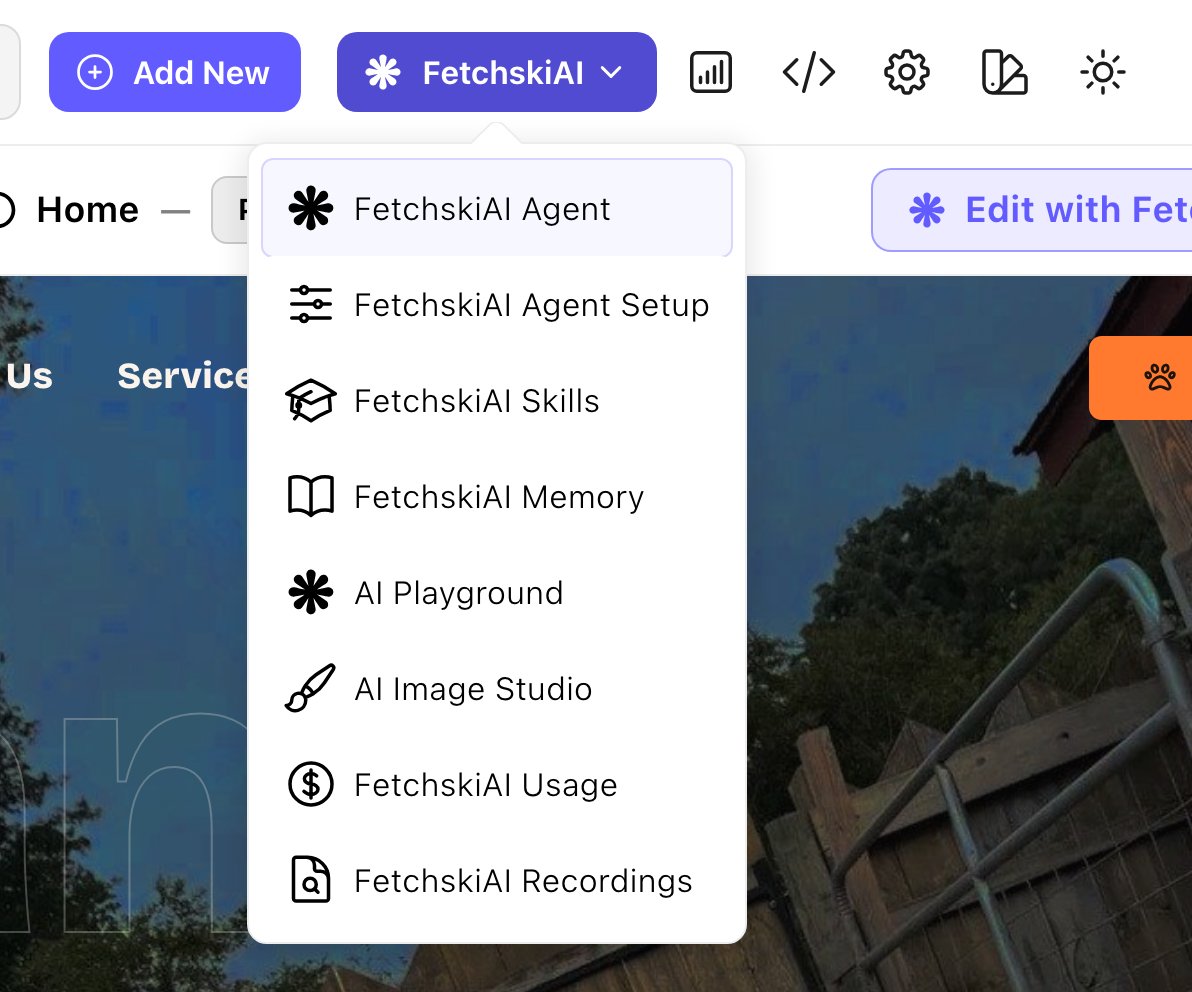
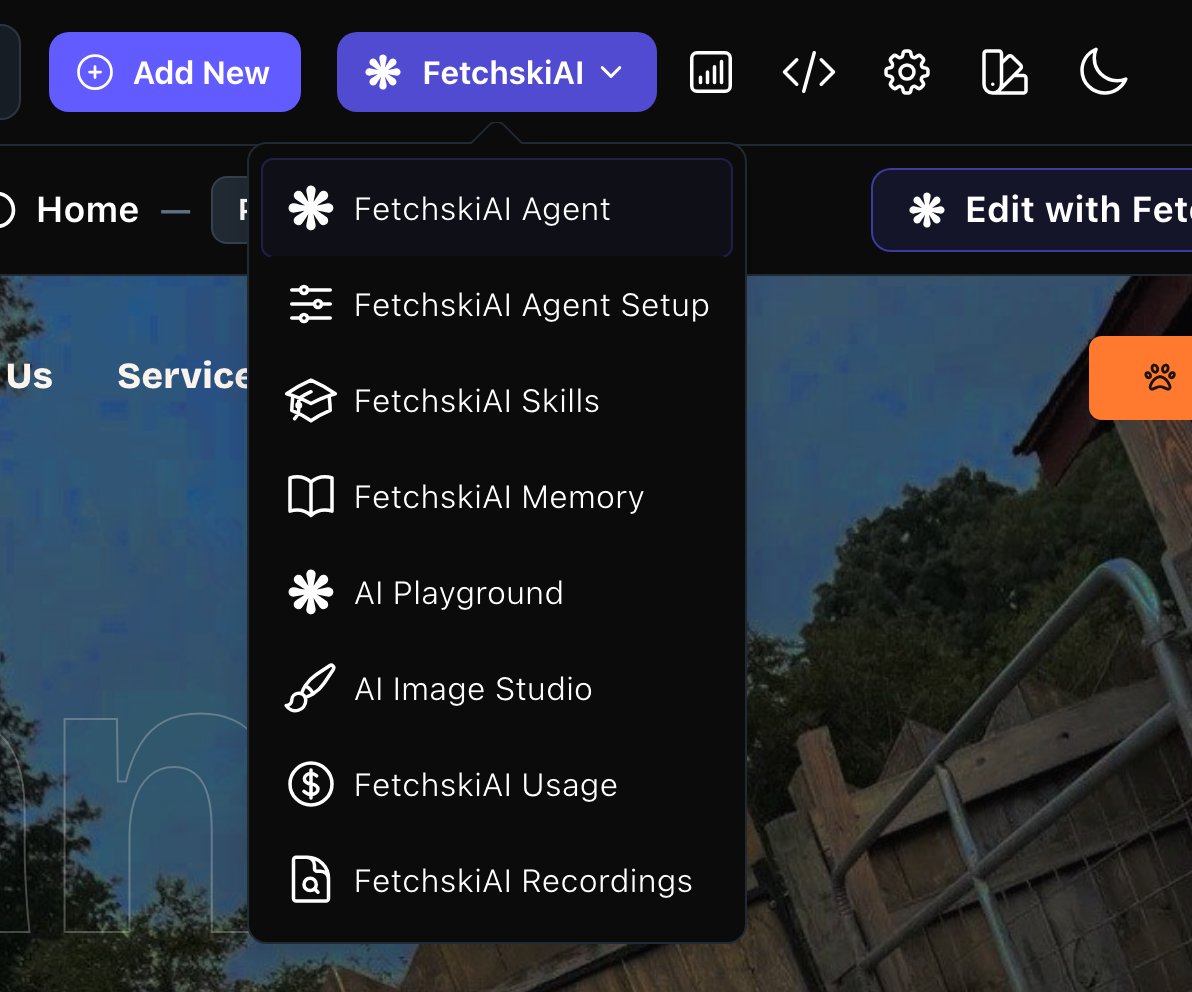
The FetchskiAI menu.
Your menu
Choose your picture and name to open your own menu:- Logo color: the color of the Fetchski Attract logo in the CMS: Indigo, Blue, Green or Lime. Like the moon, it’s remembered in this browser only.
- Personal Settings: your name, photo, password and AI instructions. See Your profile.
- Set up your site: the setup checklist. Admins and Owners. See Set up your site.
- API Documentation: technical reference for a developer connecting other software to your site, in a new tab. You don’t need it to edit your site.
- Log Out: sign out. See Sign in.
The command palette
From the command palette, you can reach every screen. Open it in either of these ways:- Press ⌘K (Ctrl+K on Windows), wherever you are.
- Choose Search in the toolbar.
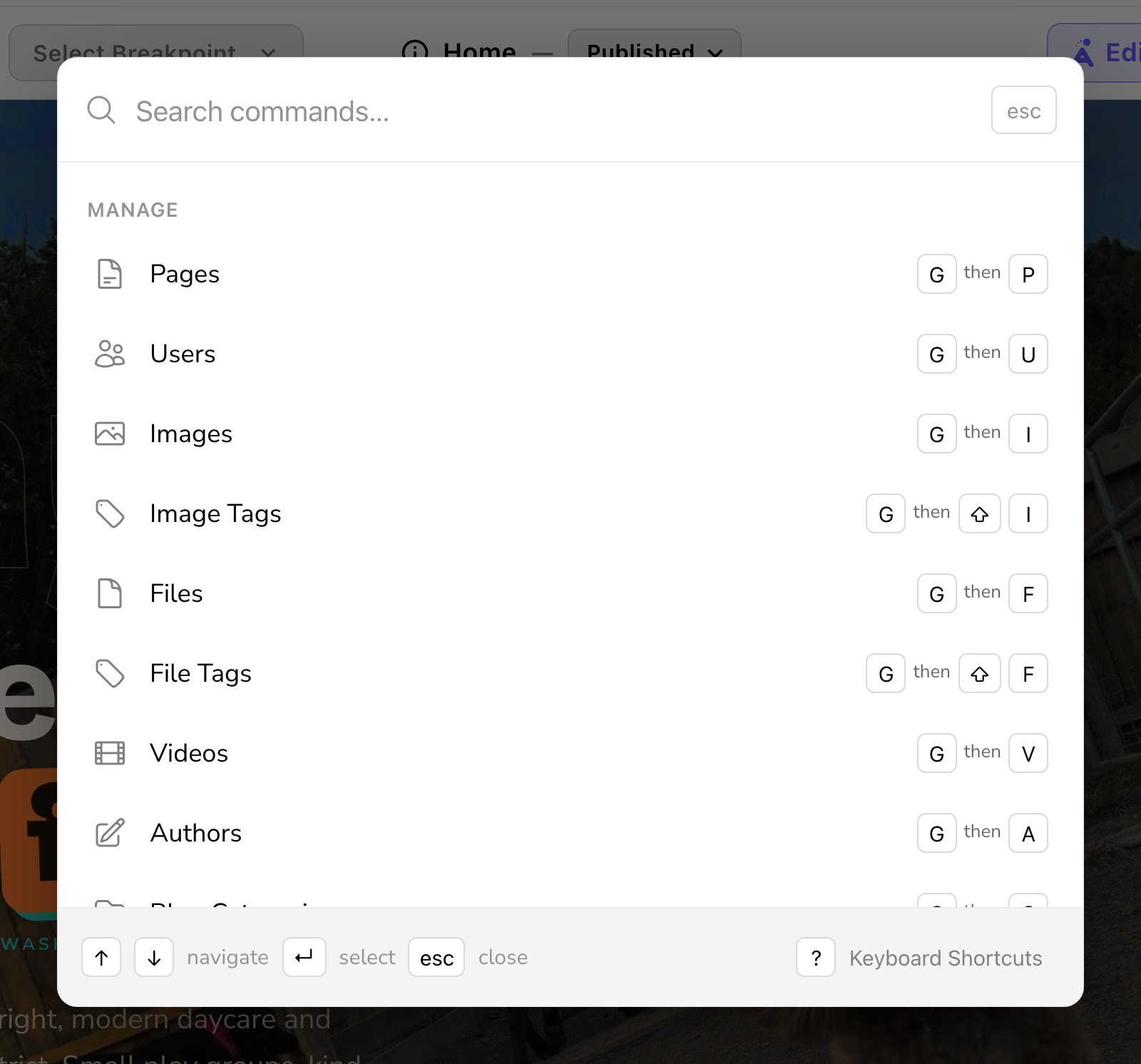
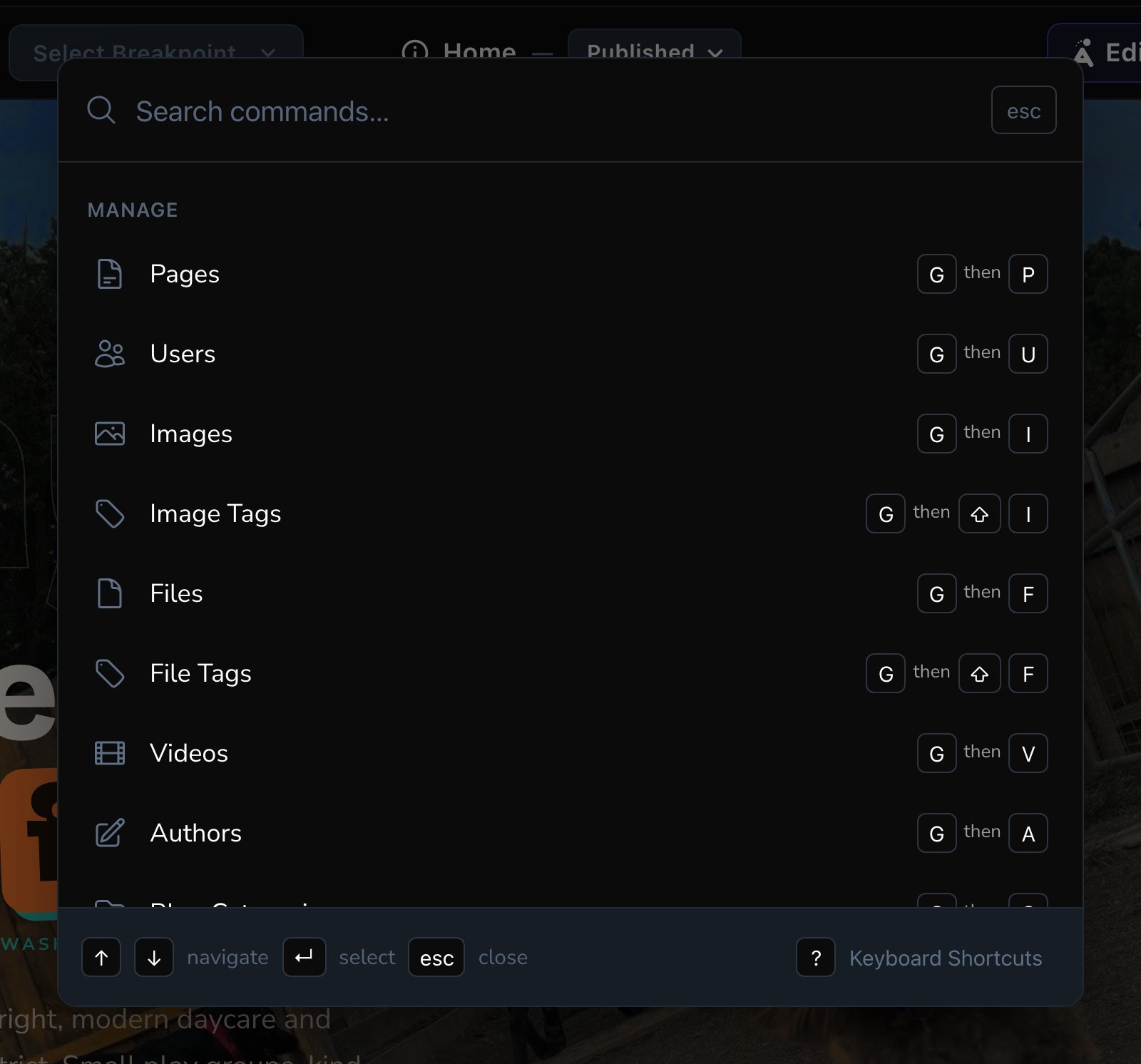
The command palette. Each row shows its keyboard shortcut.
Search
Type part of the name of the screen or tool you want, and the list narrows as you type. For example,ai usage finds FetchskiAI Usage.
No match? Each word you type has to appear in the screen’s name or its group’s name, so try fewer words. ai on its own shows the whole FetchskiAI group.
Use the up and down arrows to move, Enter to open, and Esc to close. If nothing matches, the palette says “No results found.”
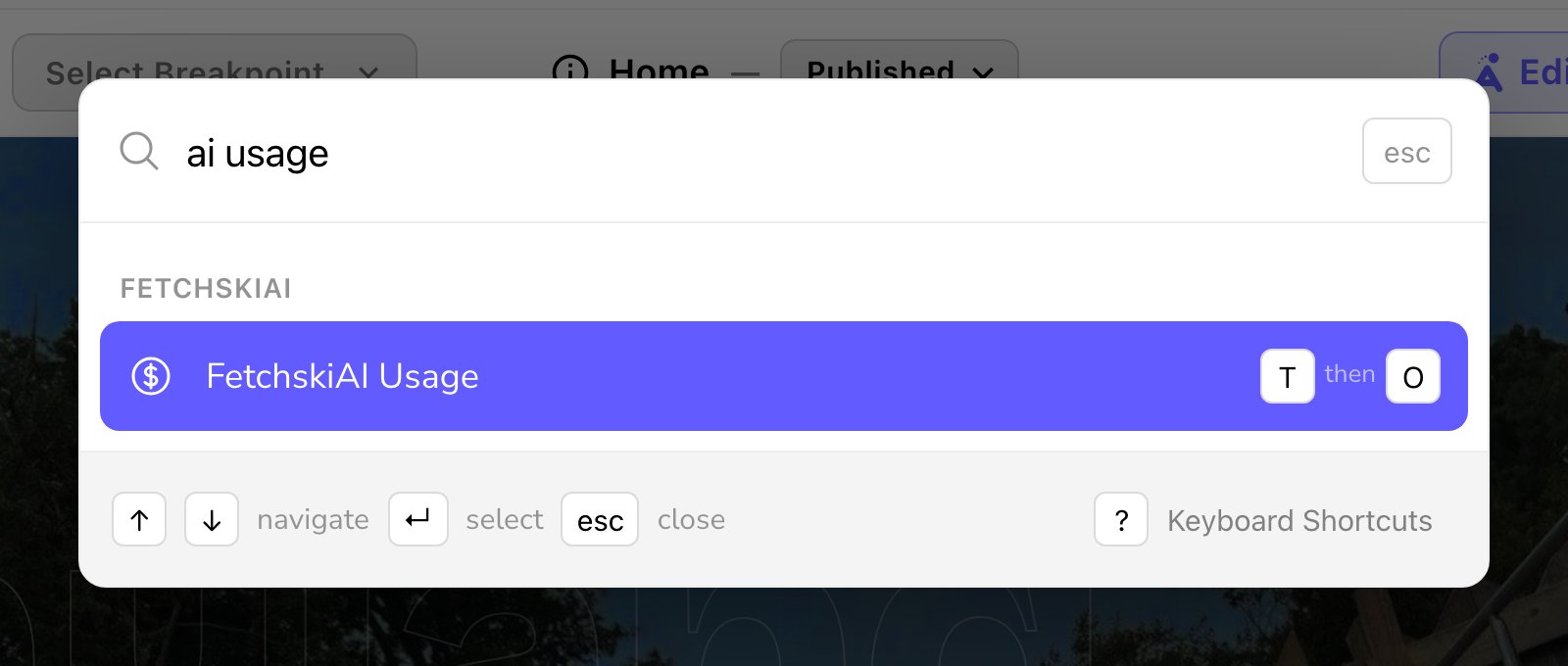
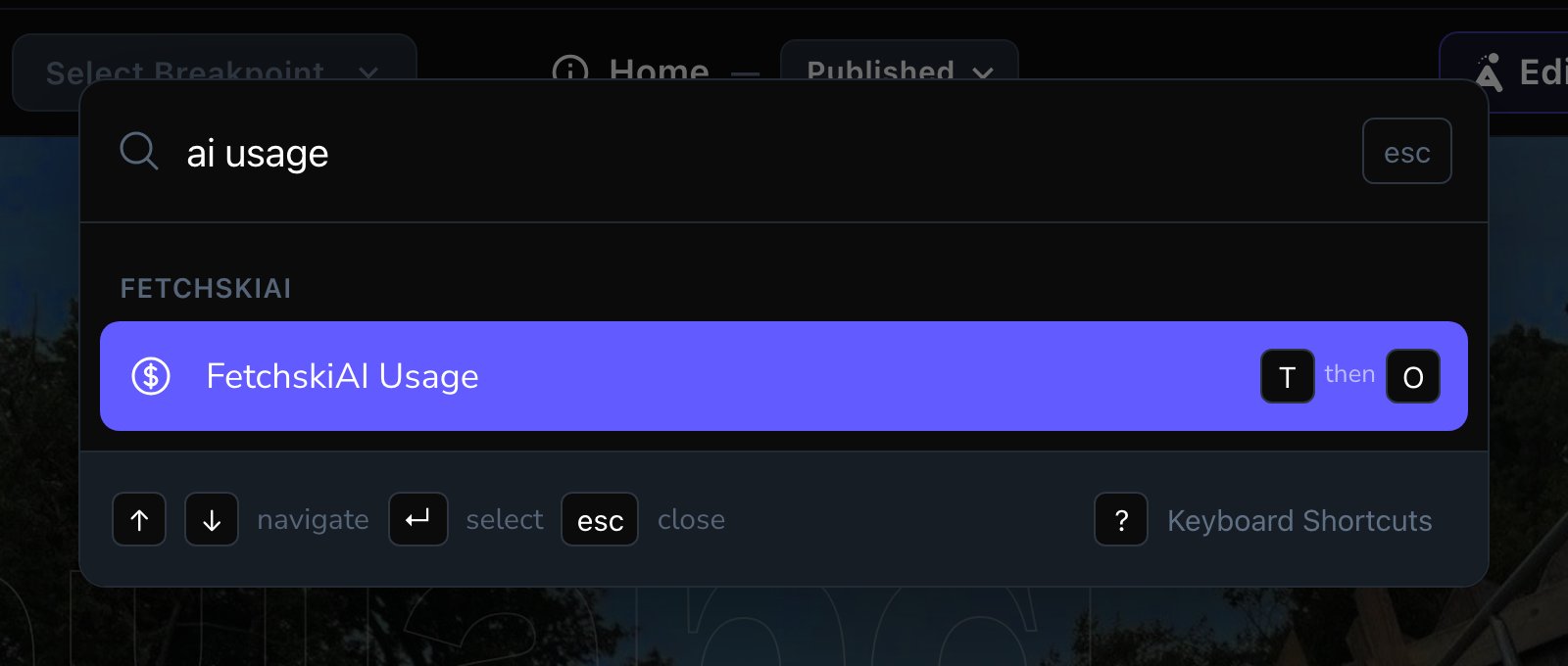
Type a few words to find a screen.
The groups
The palette sorts everything into groups. A group you can’t use doesn’t appear.Keyboard shortcuts
Most rows have a two-key shortcut. Press the first key, let go, then press the second. The palette shows it as, for example, G then P. A ⇧ means hold Shift while you press that key. Shortcuts work anywhere on your site while you’re signed in, as long as you’re not typing in a box.- G opens a list (“go to”).
- T opens a tool or settings screen.
- F is for forms.
- C creates something new. Each Create row shows its own letter.
See every shortcut
Press ? (when you’re not typing in a box), or choose Keyboard Shortcuts at the bottom of the command palette. The Keyboard Shortcuts sheet lists every shortcut, including the ones for editing, such as undo and redo. Press Esc to close it.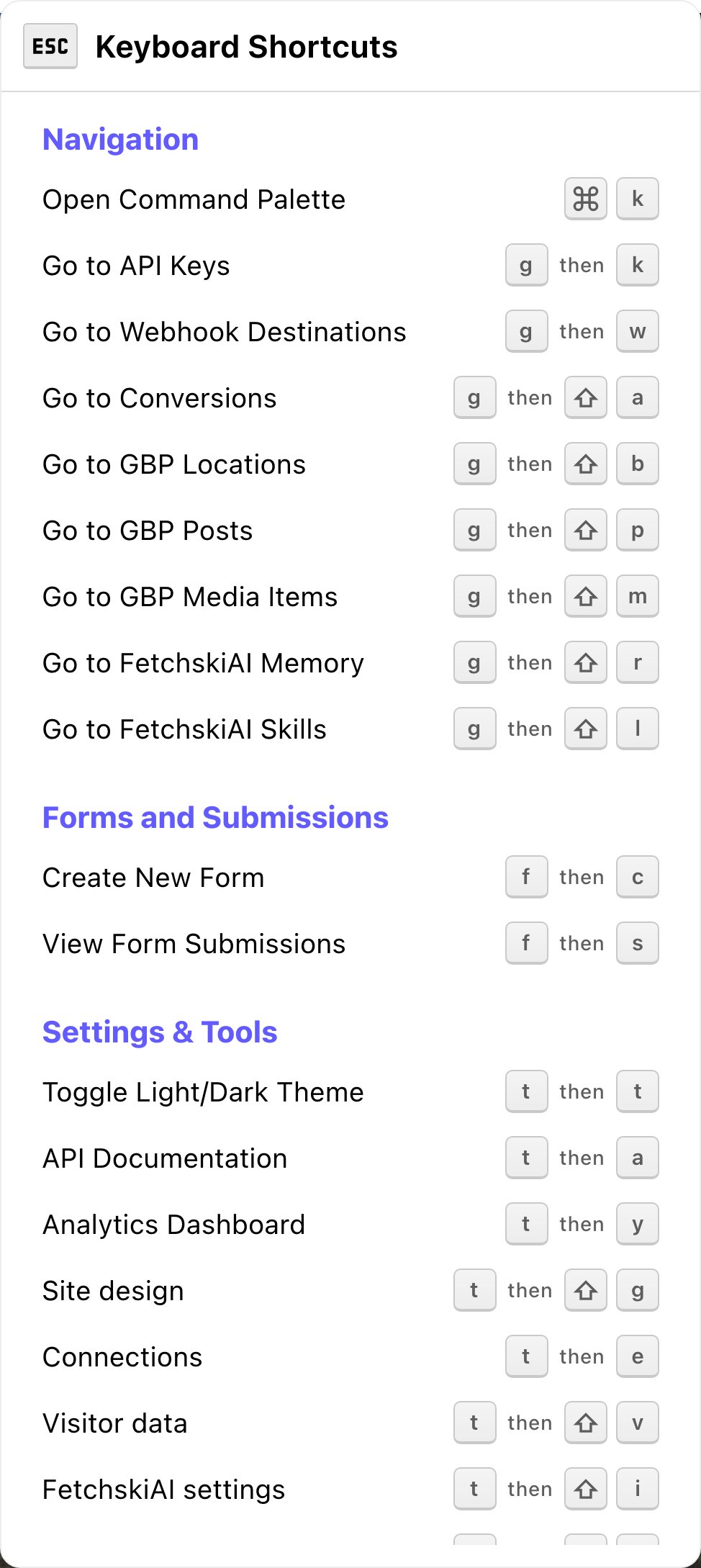
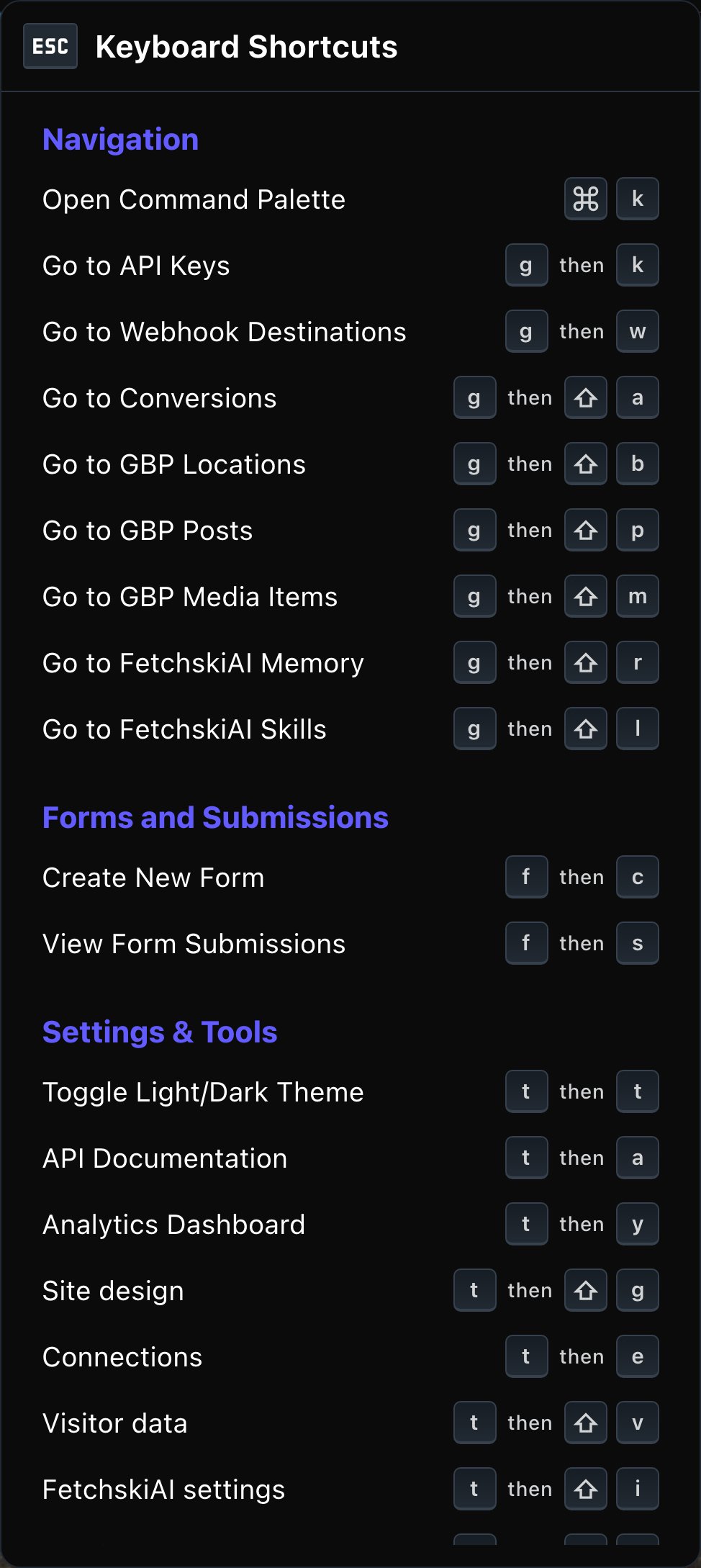
Press ? to see every shortcut.
Good to know
- You see only what you can use. An Editor’s palette has no Connections or People & Roles, for example. If a screen you need is missing, ask an Admin.
- The moon is for the CMS only. Your visitors switch your site between light and dark with the switch in your site’s header.
- Keys are the same on every page. Learn G then P once and it opens Pages from anywhere.
Related
A tour of Attract
the 5-minute map.
Two ways to edit
the edit bar and the page settings window.
FetchskiAI
every AI tool in the menu.
What each role can do
why your toolbar may look different.