

 AdonisJS
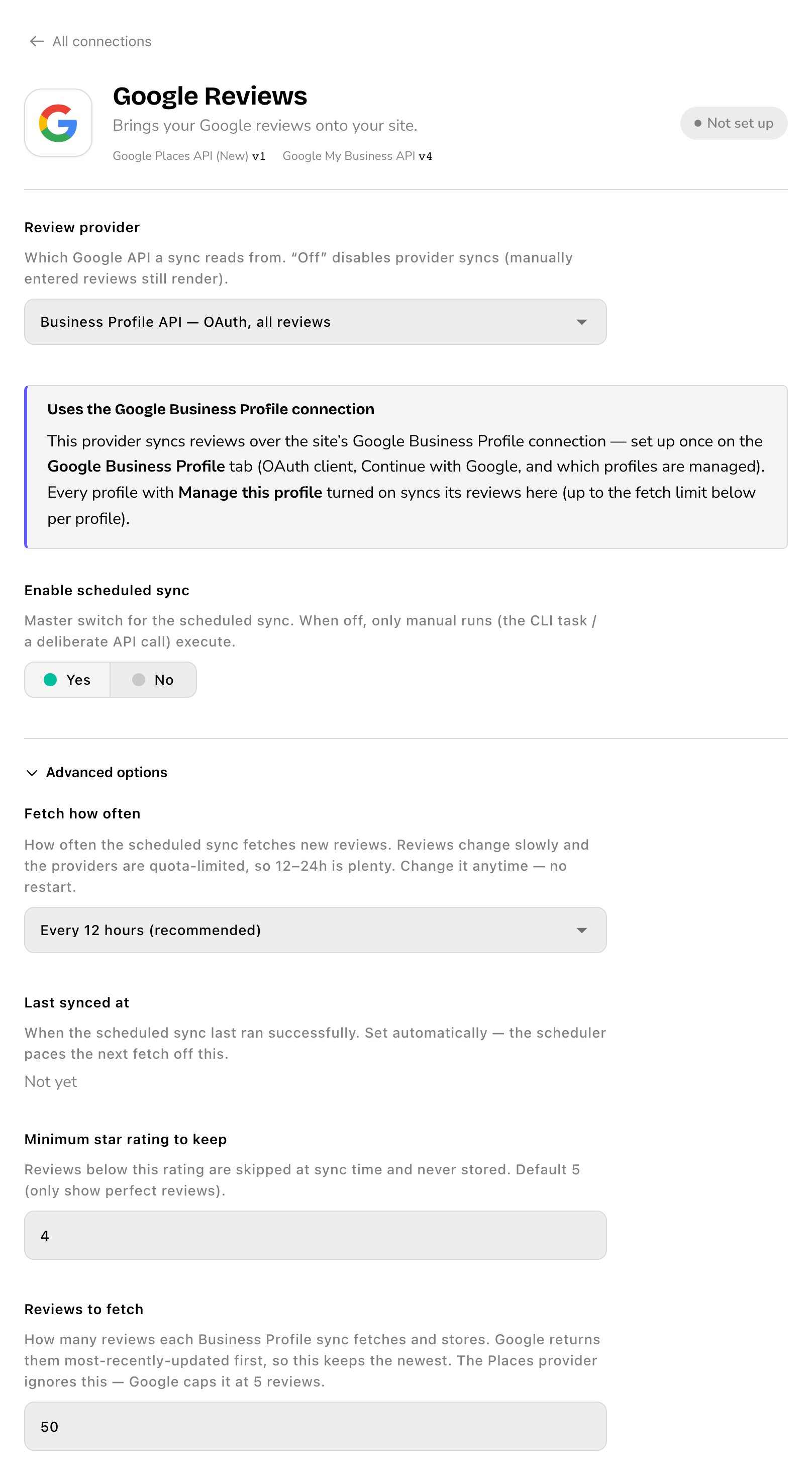
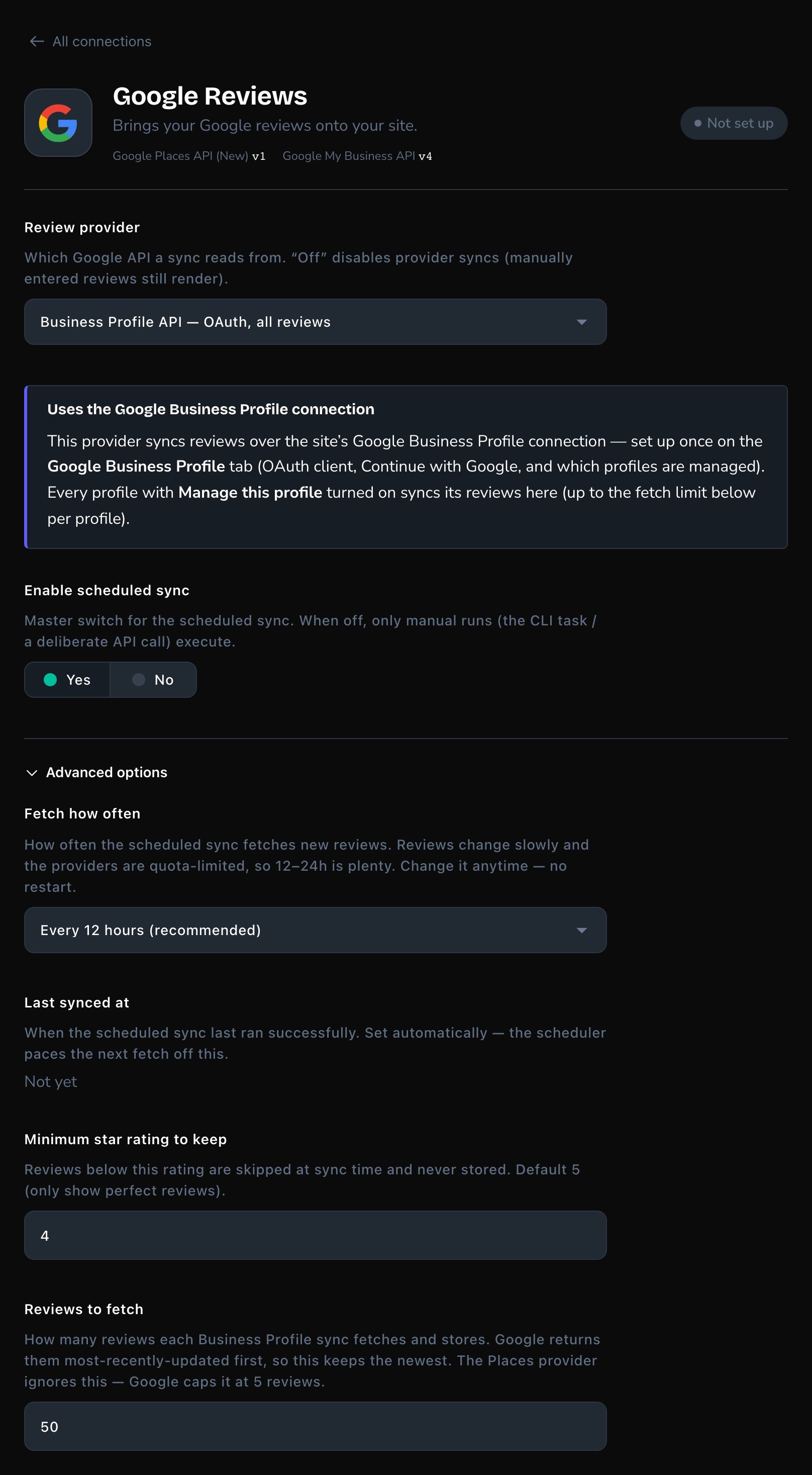
The Google Reviews card, fetching every 12 hours.
Choose where reviews come from
The card’s Review provider offers two ways to fetch your reviews.
Choose the Business Profile option if you can. It can reach all your reviews, not just 5, and it’s the same connection you use to reply to reviews. How many actually arrive is up to two settings in step 5 below: the newest 50 per listing, and only 5-star reviews, until you change them.
The two options use different Google logins, and neither is your Google Maps key:
- Business Profile option: the sign-in connection on the Google Business Profile card. Nothing to paste here.
- Places option: its own key, pasted into Places API key on this card. It’s private: the setup guide restricts it to the Places API (New) and to your site’s server.
- Google Maps key: the separate, public key in Maps JavaScript API key (public) on the Google Maps card, for maps on your pages. See Google Maps.
Before you start
- For Business Profile API — OAuth, all reviews: connect your listing first. See Google Business Profile.
- For Places API (New) — API key, up to 5 reviews: a Google Cloud account with billing turned on. Google needs a card on file. It includes a free monthly allowance.
Set it up
1
Open the card
Open Connections from the toolbar or the command palette (⌘K, or Ctrl+K on Windows). The toolbar is the bar across the top of your site once you’re signed in; see The toolbar. Under Google, choose Google Reviews.
2
Pick the provider
In Review provider, choose one of the two options.
- Business Profile API — OAuth, all reviews: a note, Uses the Google Business Profile connection, appears. There’s nothing else to paste. Every listing with Manage this profile on brings in its reviews.
- Places API (New) — API key, up to 5 reviews: follow Setup guide — Places API key to create a key, and paste it into Places API key. Then follow Finding the Place ID and paste your listing’s ID into Place ID. It starts with “ChIJ”.
3
Turn on the schedule
Set Enable scheduled sync to Yes. There’s no button to fetch reviews by hand: reviews arrive only through the schedule, so this switch is what brings them in.
4
Choose how often
Open Advanced options. Fetch how often appears there once the schedule is on. Every 12 hours (recommended) suits most businesses. You can choose from every 3 hours to every 48 hours.
5
Choose which reviews to keep
Still in Advanced options:
- Minimum star rating to keep: reviews below this rating are skipped and never stored. It starts at 5, which keeps only 5-star reviews. Set it to 1 to keep every review.
- Reviews to fetch: how many of the newest reviews to bring in from each listing, from 1 to 1,000. It starts at 50. This setting appears only with the Business Profile option.
6
Save
Choose Save.
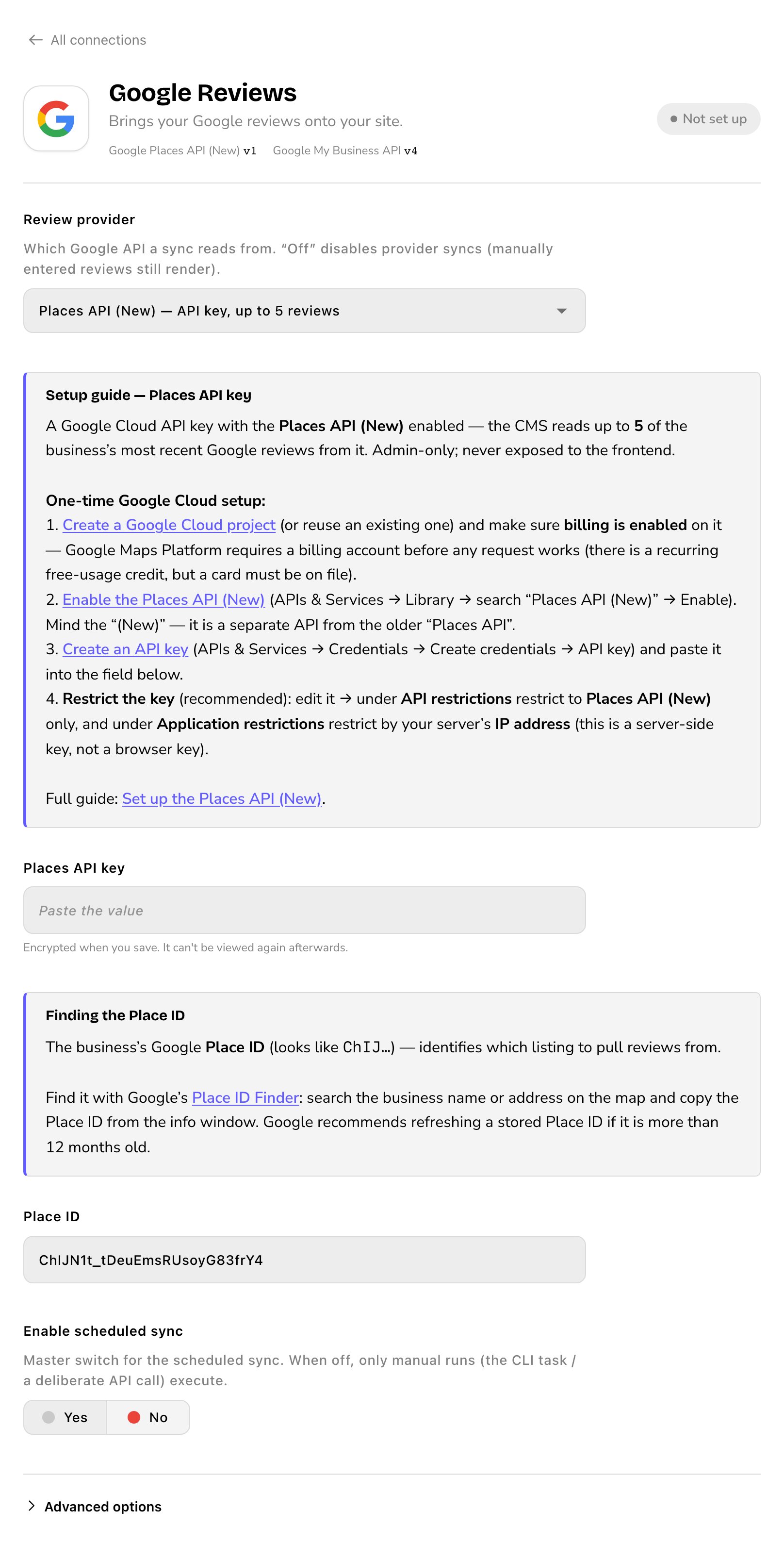
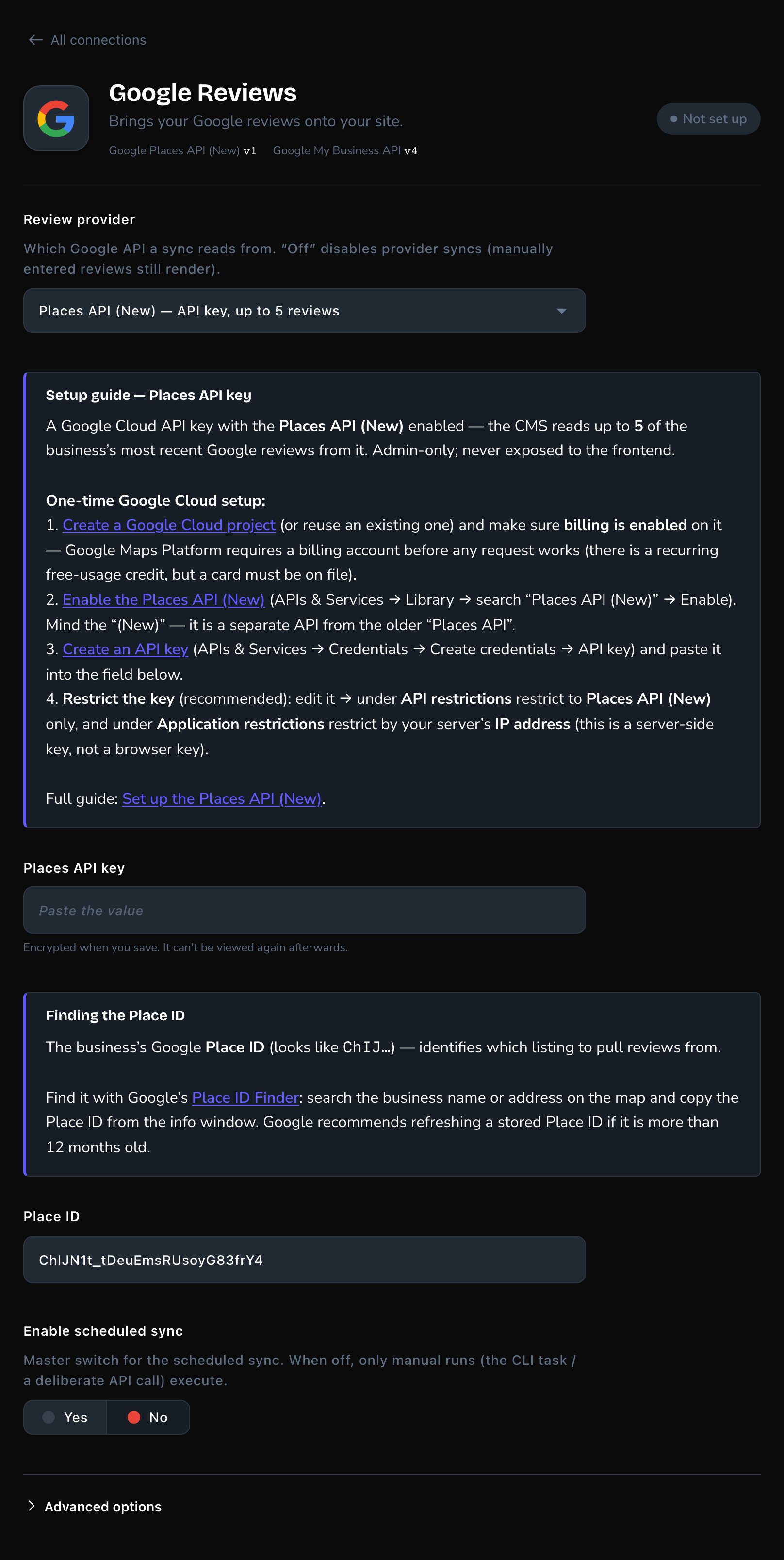
The Places option needs a key and your listing's Place ID.
What happens next
The first fetch starts within a minute of saving. After that, the card fetches again at the interval you chose. The badge reads Connected, with the time of the last fetch, or “Not synced yet.” before the first one. New reviews land in your Google Reviews list, ready for your sections. The sample reviews a new site comes with are removed after the first successful fetch. See Google reviews. Next: put them on a page. If no page has a Google Reviews section yet, add one. See Google Reviews section.Good to know
- Check your minimum rating. It starts at 5 stars, so 4-star reviews stay out until you lower it. Lower it, and lower-rated reviews come in from the next fetch.
- Showing and keeping are separate. Each Google Reviews section also has its own Minimum rating to show. Keep more here, and choose what each section shows there. See Google Reviews section.
- Replies happen in the dashboard. To answer a review, use Reviews & replies in the Google Business Dashboard. See Google Business Profile.
- You can stop at any time. Set Review provider to Off (no automatic sync) to stop fetching. The reviews you already have stay.
Troubleshooting
The badge says "Finish setting up
The badge says "Finish setting up
The line under the badge says what’s missing:
- “Add the Places API key and your Place ID.”: paste both, then save.
- “Connect Google Business Profile first.”: connect your listing on the Google Business Profile card, then come back.
No reviews arrive
No reviews arrive
Check these in order:
- Enable scheduled sync is on Yes. Without it, nothing is fetched.
- Minimum star rating to keep isn’t skipping the reviews you expect.
- With the Business Profile option, each listing has Manage this profile on, on the Google Business Profile card.
- Google may hold back reviews for a listing that isn’t verified. Check Verification in the Google Business Dashboard.
I only get 5 reviews
I only get 5 reviews
That’s Google’s limit for the Places API (New) — API key, up to 5 reviews option. To bring in every review, connect your Google Business Profile and switch Review provider to Business Profile API — OAuth, all reviews.
Related
Google Reviews section
show reviews on a page.
Google reviews
feature your favorites and add reviews by hand.
Google Business Profile
connect your listing and reply to reviews.
Connections
every outside service your site uses.