

 AdonisJS
Open SEO
- In the toolbar (the bar across the top of your site once you’re signed in; see The toolbar), choose Site settings (the gear), then the SEO tab.
- Or open the command palette (⌘K, or Ctrl+K on Windows), choose Site settings, then SEO. The shortcut for Site settings is T then G (press T, let go, then press G, while you’re not typing in a box; see Keyboard shortcuts).
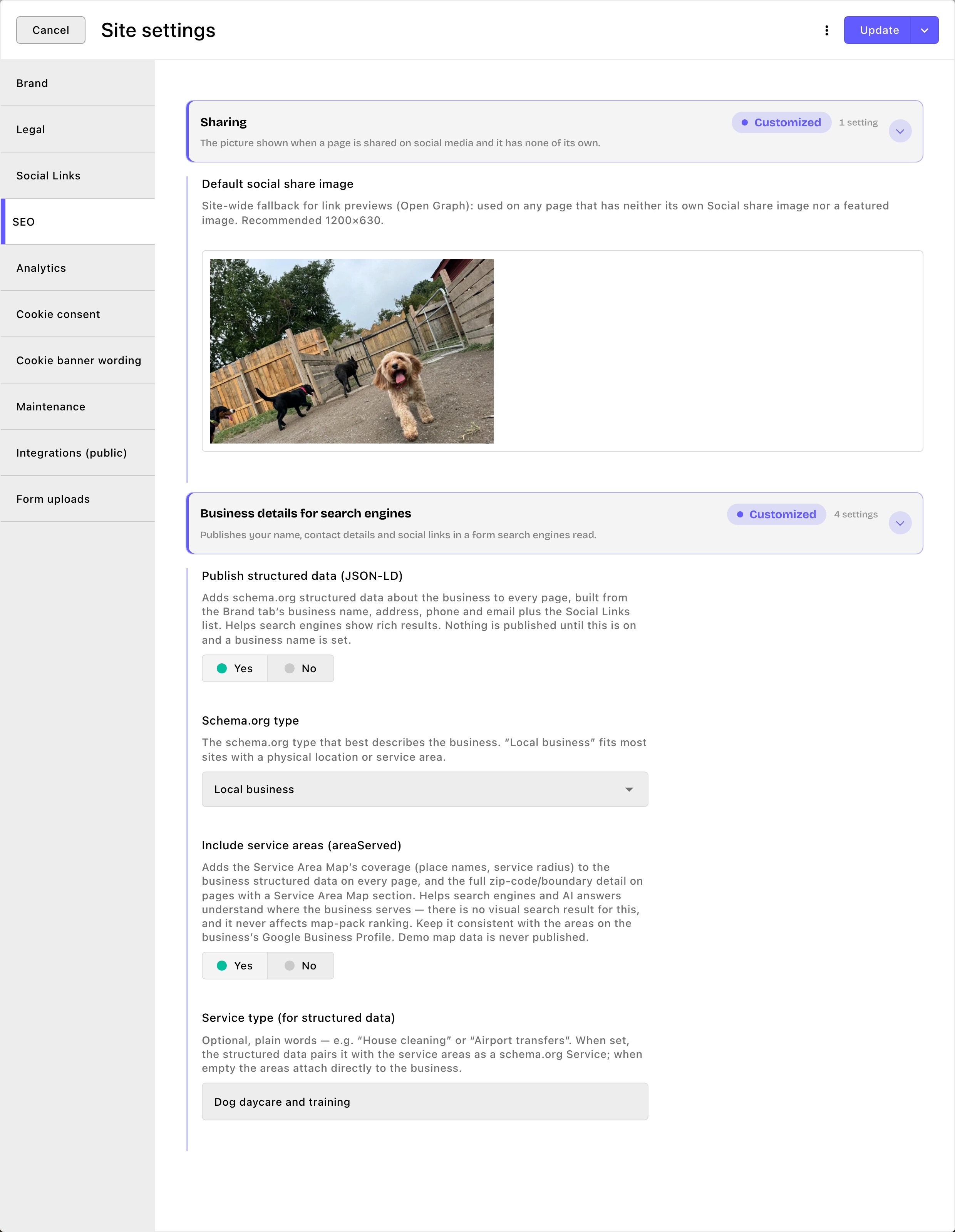
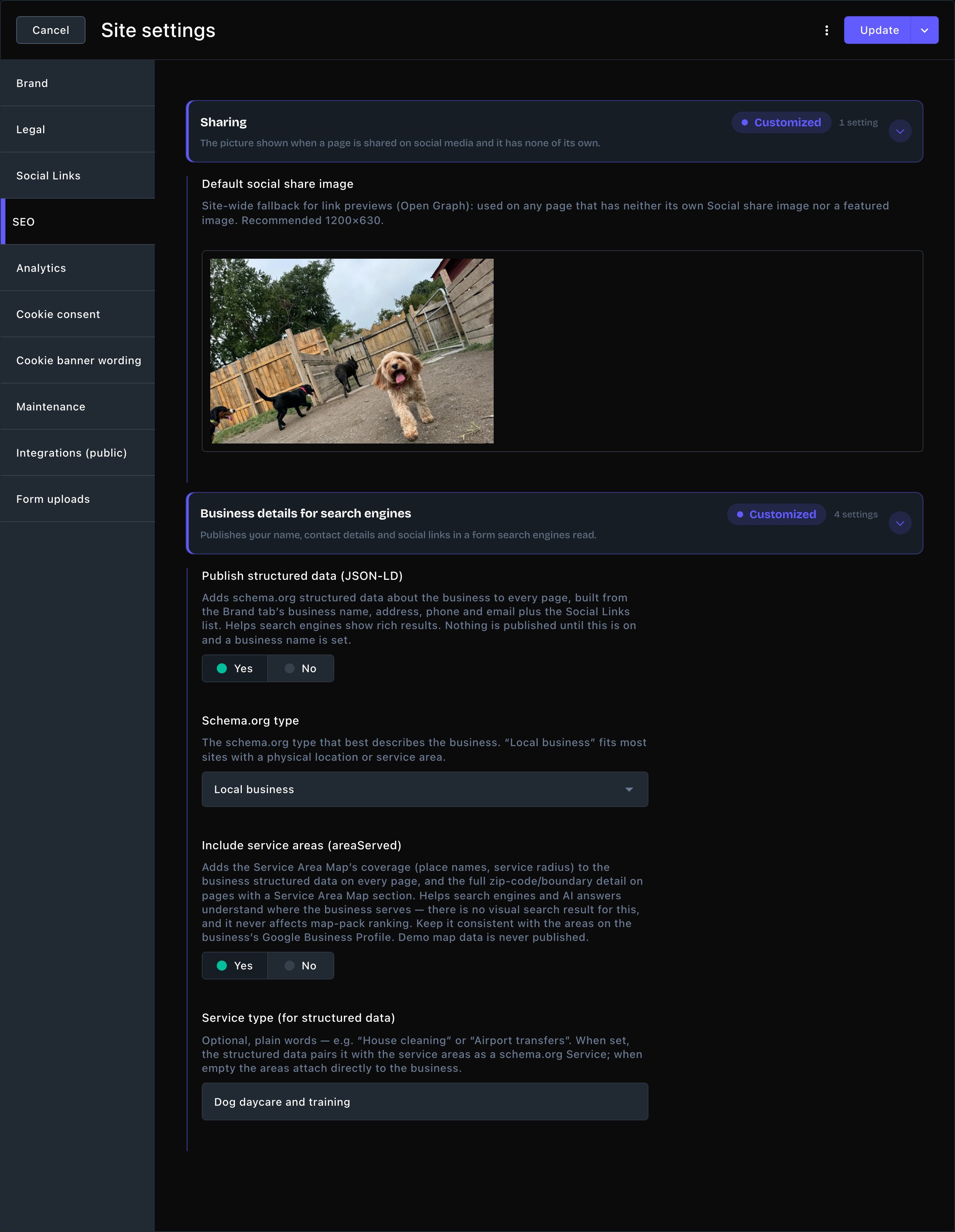
The SEO tab with both cards open.
Sharing
Default social share image: the picture shown when someone shares a link to your site on social media or in a message. Choose Add Image to pick one. It’s used on any page that has no share picture of its own and no featured image. Use a picture 1200 × 630 pixels, with the subject near the middle. Without any picture, shared links show only text.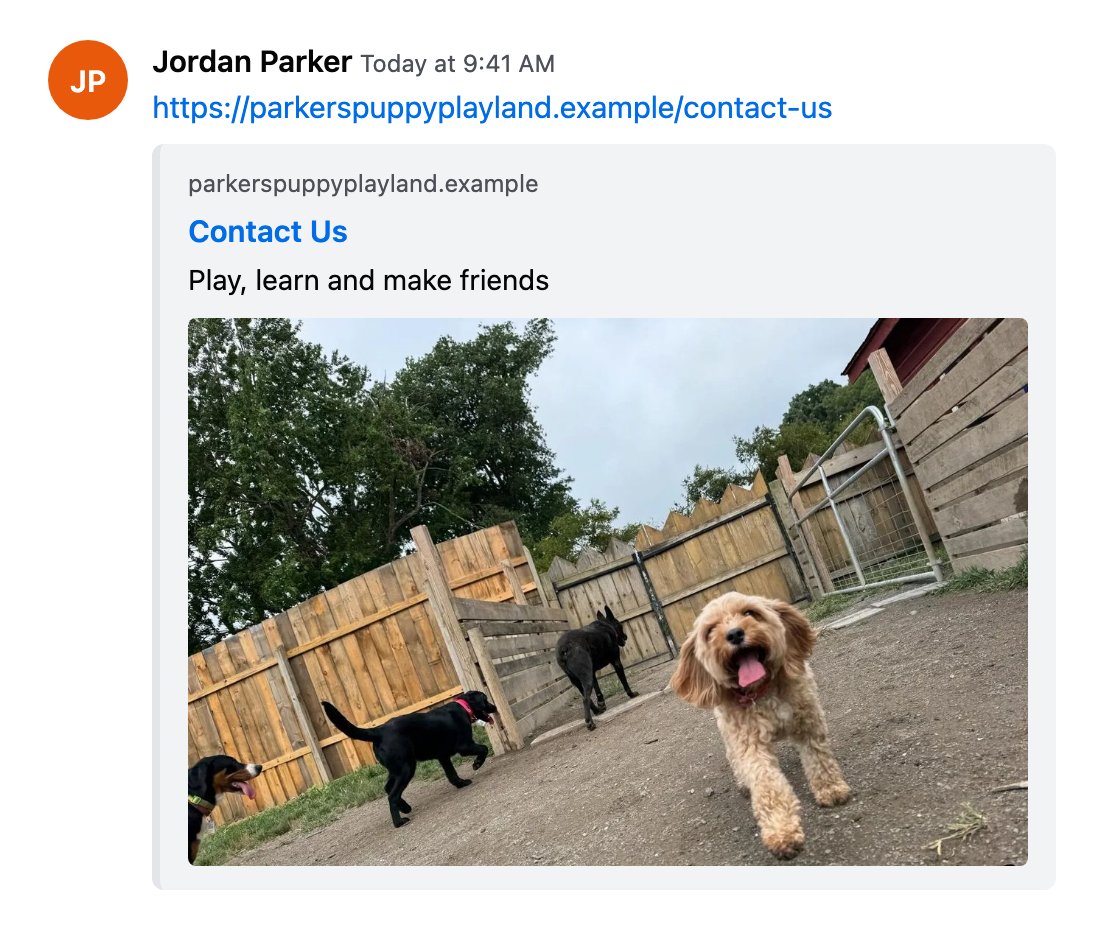
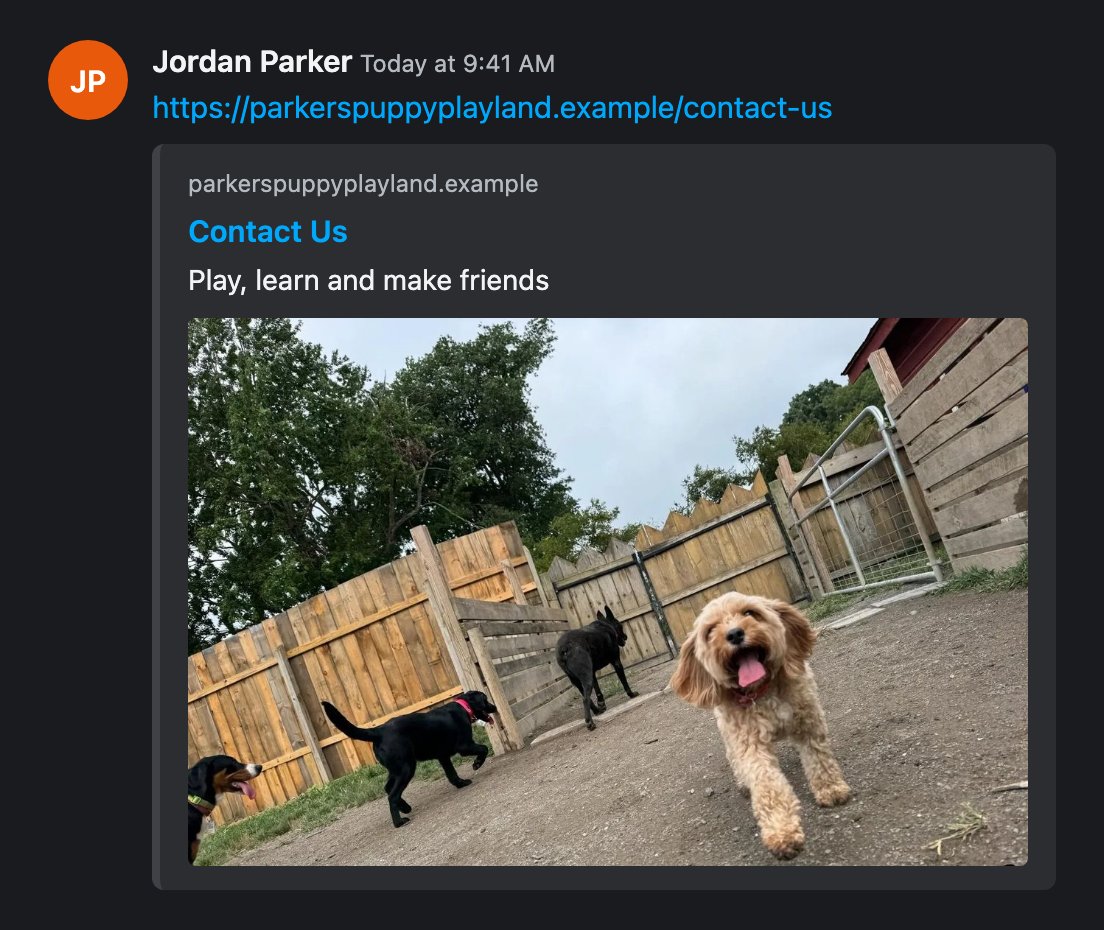
The default share picture on a shared link.
Business details for search engines
Structured data is a hidden summary of your business that search engines read. It helps them understand who you are, how to reach you and where you work. Some labels below name the technical format, such as JSON-LD and areaServed. You don’t write any code: turn the settings on and the CMS builds the summary for you.- Publish structured data (JSON-LD): turn it on to add the summary to every page. It’s off on a new site. Nothing is published until this is on and your business name is set. The settings below appear once it’s on.
- Schema.org type: choose the kind of business that fits you best: Local business, Organization, Professional service or Store. Local business is already chosen, and it suits most businesses with a place or a service area.
- Include service areas (areaServed): on by default. It adds your service areas, so search engines know where you serve. You set them on the Service area map screen, and a Service Area Map section shows them as a map with prices.
- Service type (for structured data): optional. Describe your service in plain words, such as “Dog daycare”. It’s paired with your service areas.
How your service areas are shared
Search engines can’t make sense of names like “Zone A”. So they get real place names, such as “Portland” or “Multnomah County”. There are two lists for them, and you only need the one that fits how your map gets its areas:- Areas served (public names) on the Service area map screen. With a zip-code feed or the reservation system, this is the only list, so use it. See Service area map settings.
- Public place names on each service area, if you keep your areas in the CMS. You can use this list, the one above, or both. See Service areas.
Put your changes live
Choose Update to save and publish. Your changes reach every page at once. To save without publishing yet, open the arrow next to Update (More save options) and choose Save Draft. Your changes wait there; open the window again and choose Update when you’re ready to put them live. To check, send yourself a link to a page that has no share picture of its own. Its preview shows your default share picture.Good to know
- The sample map is never shared. While your map shows sample zones, no service areas are shared with search engines.
- There’s no special search result for this. Service areas help search engines and AI answers understand where you work. They don’t change your place in map results.
- Keep it in step with your Google Business Profile. Your site and your profile should list the same areas. Your first 20 place names are the ones worth matching. See Google Business Profile.
- Check your summary. Paste a page’s address into the free validator at https://validator.schema.org to see what search engines read. You should see an entry for your business type, with your business name, contact details and, if they’re on, your service areas. If something’s missing, check where it comes from: Brand, Social links or your place names. If the validator reports errors, contact Fetchski Support.
- The setup checklist reminds you. Set up your site has a step called Set your sharing image and home page description. See Set up your site.
Related
Page SEO
each page’s own title, description and share picture.
Service area map settings
name the places you serve.
Brand
the business details search engines get.
Site settings
every tab on this screen.