

 AdonisJS
The idea
On the page is where you shape what visitors see. You sign in, open the page on your site, and choose Edit in the edit bar at the top. Then you work on the page directly. Select a section to edit it, move it or remove it. When you edit a section, the section editor opens beside the page, and the page updates as you type. The page settings window holds the settings that apply to the whole page: its title, its web address, its SEO, and page-wide looks such as fonts. To open it, choose More Options (⋯) in the edit bar, then Edit. The window’s title starts with Edit, for example Edit Home. Its Page Sections tab lists the page’s sections as an outline, and some pages keep extra content there.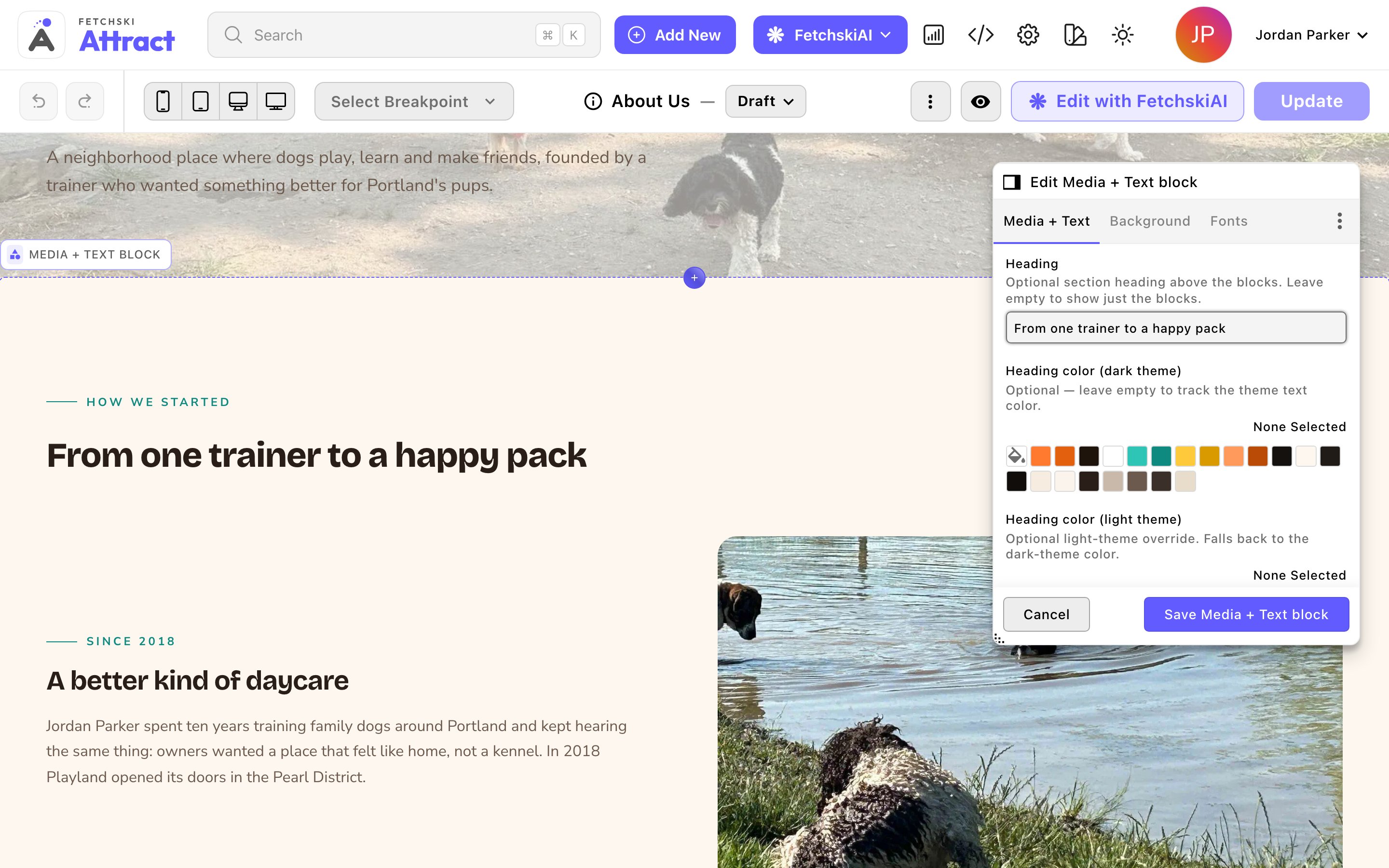
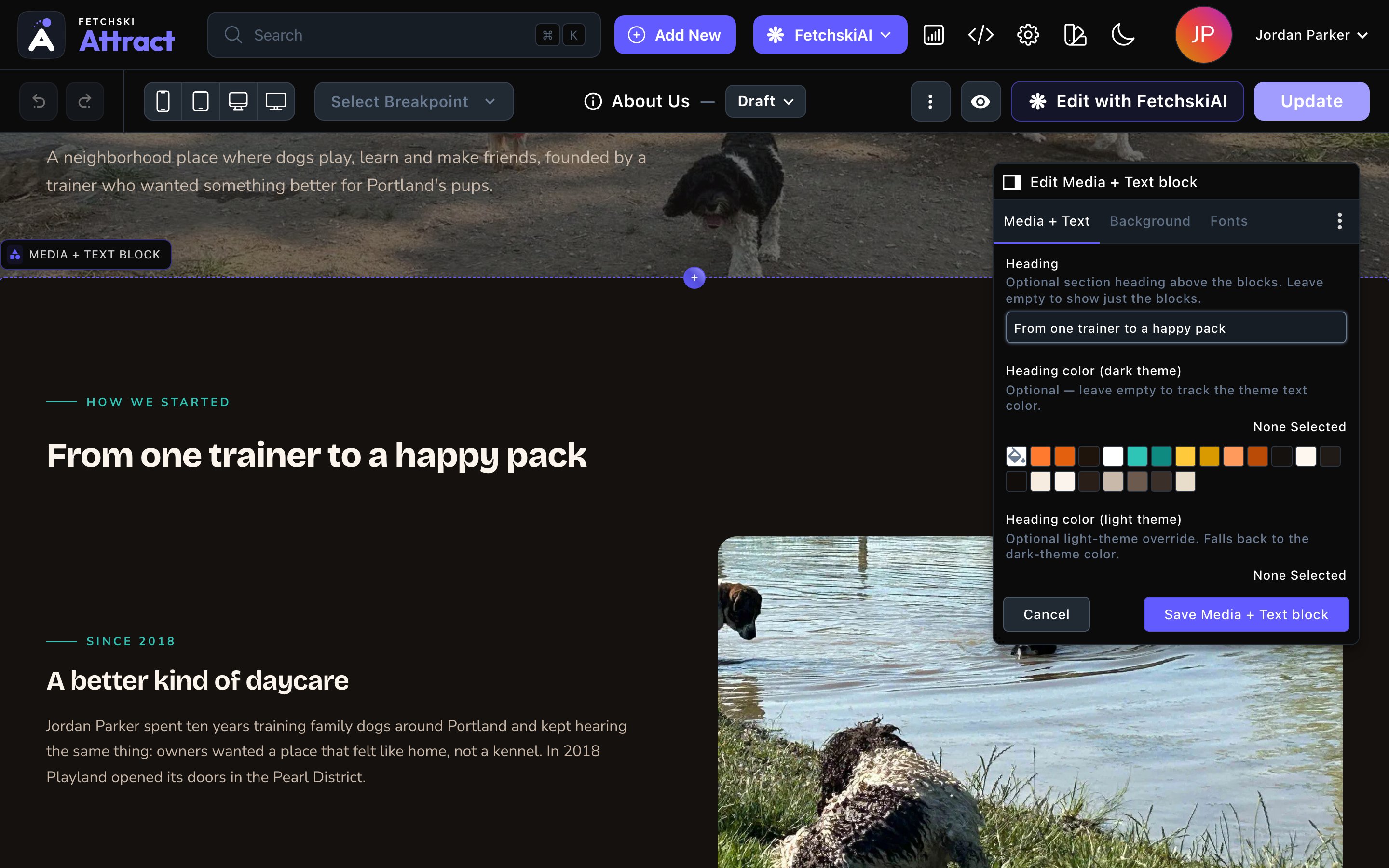
Editing on the page: the section editor opens beside the live page.
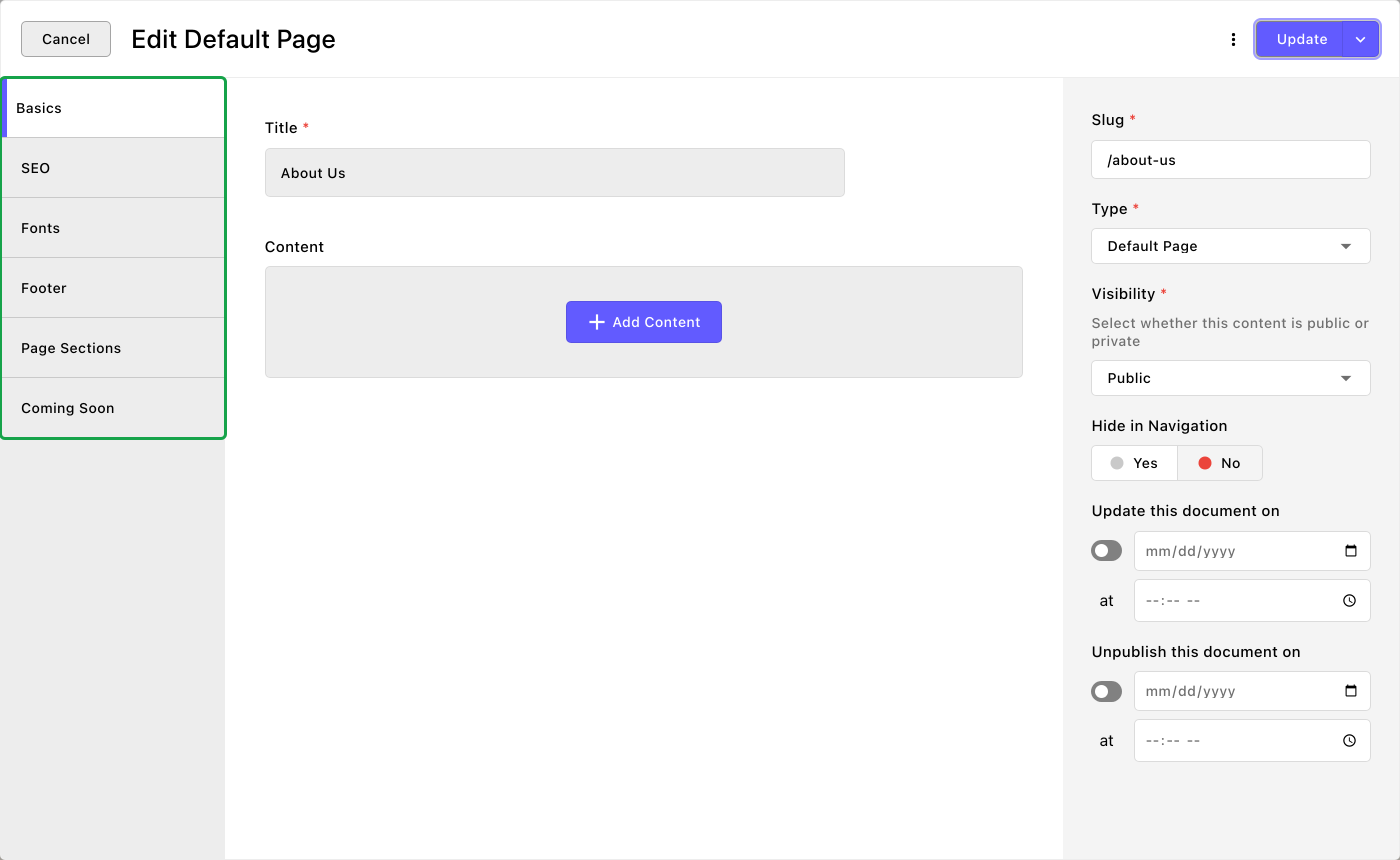
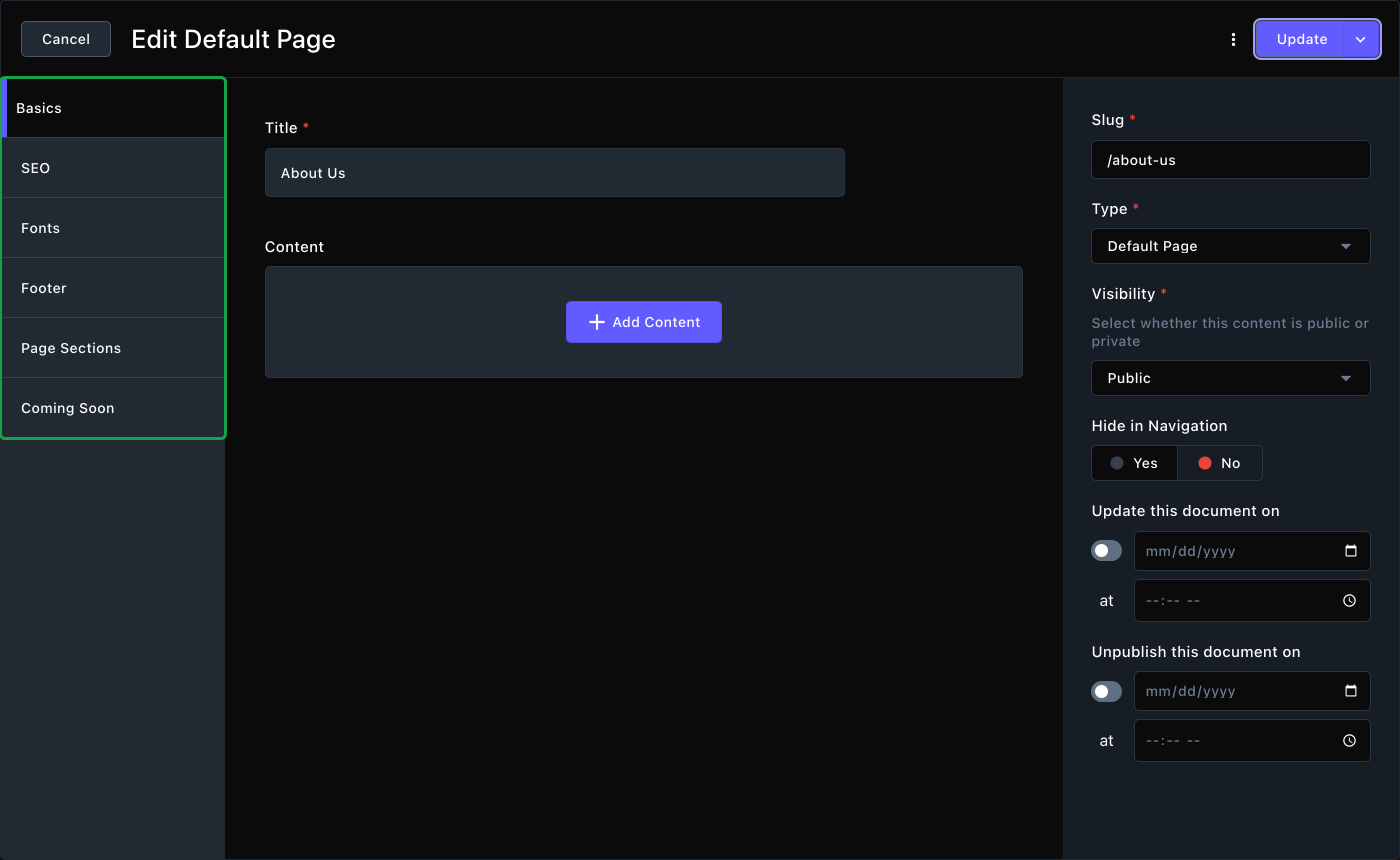
The page settings window holds the settings for the whole page.
When to choose which
Edit on the page when you’re changing one section. Use the page settings window for settings that apply to the whole page.
A short example
Parker’s Puppy Playland is starting a summer puppy social.- Jordan opens the About Us page on the site and chooses Edit in the edit bar. Jordan selects the Page Header at the top and chooses Edit (the pencil) in its side toolbar. In the section editor, Jordan changes the headline to “Summer socials are back”. The page updates beside the editor.
- Jordan selects the section above the new one’s spot. Jordan chooses the round + button (Add Content) on its bottom edge and adds a Final CTA with a “Book a social” button.
- Jordan opens the page settings window (More Options → Edit), goes to the SEO tab, and updates the page’s description for search results.
- Jordan publishes the page.
Good to know
- Both ways edit the same draft. A change you make in one shows in the other. Nothing is live until you publish.
- Most animations don’t play while you’re signed in. Sections that fade in or count up as you scroll show finished, so nothing hides while you work. Visitors see the animations. Scrolling strips and carousels, such as moving logos, still move.
- Some pages have extra tabs. The blog page, for example, has tabs for its post list.
Related
Add, move and remove sections
build a page on the page.
Pages and the page tree
create and organize pages.
Page SEO
the SEO tab, field by field.
Drafts, publishing and scheduling
make it live.