

 AdonisJS
Open Typography
- In the toolbar (the bar across the top of your site once you’re signed in; see The toolbar), choose Site design, then the Typography tab.
- Or open the command palette (⌘K, or Ctrl+K on Windows), choose Site design, then Typography.
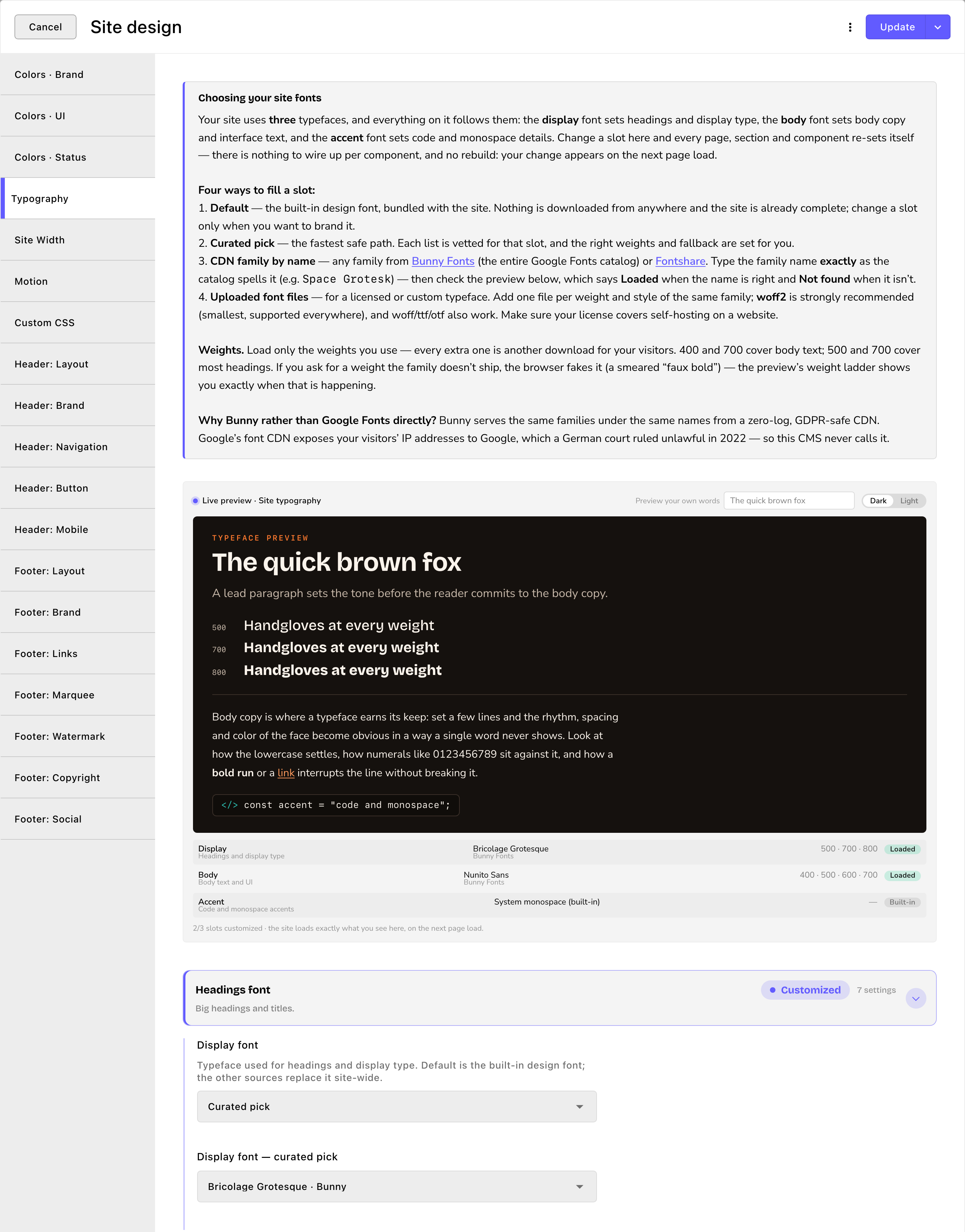
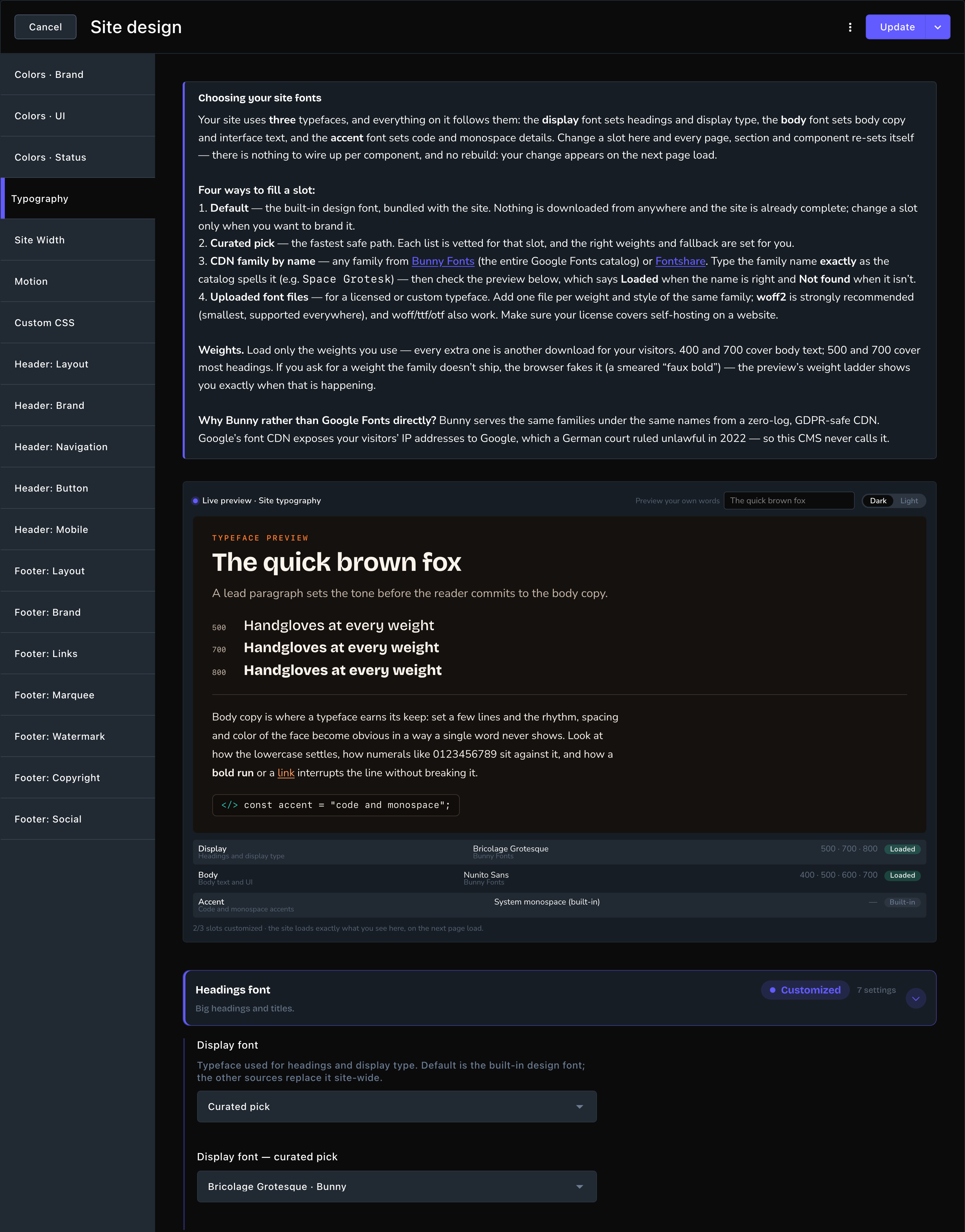
The Typography tab, with the guide, the live preview and the Headings font card open.
The three fonts
- Headings font: big headings and titles across your site.
- Body text font: paragraphs, menus, buttons and small labels. It’s the font for almost everything that isn’t a heading.
- Accent font: code and monospace text, such as a code sample in a blog post. Monospace (“mono” for short) means every letter takes up the same width, like on a typewriter. Most business sites show little or no code, so you can leave this font on its default.
- the Headings font card starts with Display font;
- the Body text font card starts with Body font;
- the Accent font card starts with Accent / mono font.
Four ways to choose a font
Default The built-in font, already part of your site: Default (Cabinet Grotesk) for headings, Default (Plus Jakarta Sans) for body text and Default (the system monospace stack) for code. That last one is the code font already built into each visitor’s phone or computer. Nothing extra loads, so keep it until you want your own look. Curated pick A short list of fonts chosen to suit that slot, such as Fraunces · Bunny or Clash Display · Fontshare for headings. Choose one from the list, for example Display font — curated pick on the Headings font card. The right weights and backup style are set for you, so this is the quickest safe choice. CDN family by name Loads a font, by its name, from an online font library. Choose from any font in 2 free libraries, Bunny Fonts and Fontshare, typed by its name. On the Headings font card:- In Display font — provider, choose Bunny Fonts (Google Fonts catalog) or Fontshare.
- Follow the link below it, fonts.bunny.net or fontshare.com, and find a font you like.
- Type its name in Display font — family name, spelled exactly as the library spells it, such as “Space Grotesk”.
- In Display font — weights, list the weights you want, such as “400, 700”. Leave it empty to load the usual ones.
- In Display font — fallback style, choose the style visitors see while your font loads:
- Sans-serif: plain letters with no small strokes at their ends.
- Serif: letters with small strokes at their ends, like a book.
- Monospace: every letter the same width.
- Set Display font to Uploaded font files.
- Open the Display font — font files list and choose Add Item.
- In Font file, upload one file from your font download.
- Choose its Weight and its Style (Normal or Italic). The file name usually tells you: “ParkerSans-Bold.woff2” is Bold (700) and Normal, and “ParkerSans-BoldItalic.woff2” is Bold (700) and Italic.
- Repeat for each file you want, then choose Save in the list window to keep the list.
- Set Display font — fallback style, as above, then choose Update to save everything.
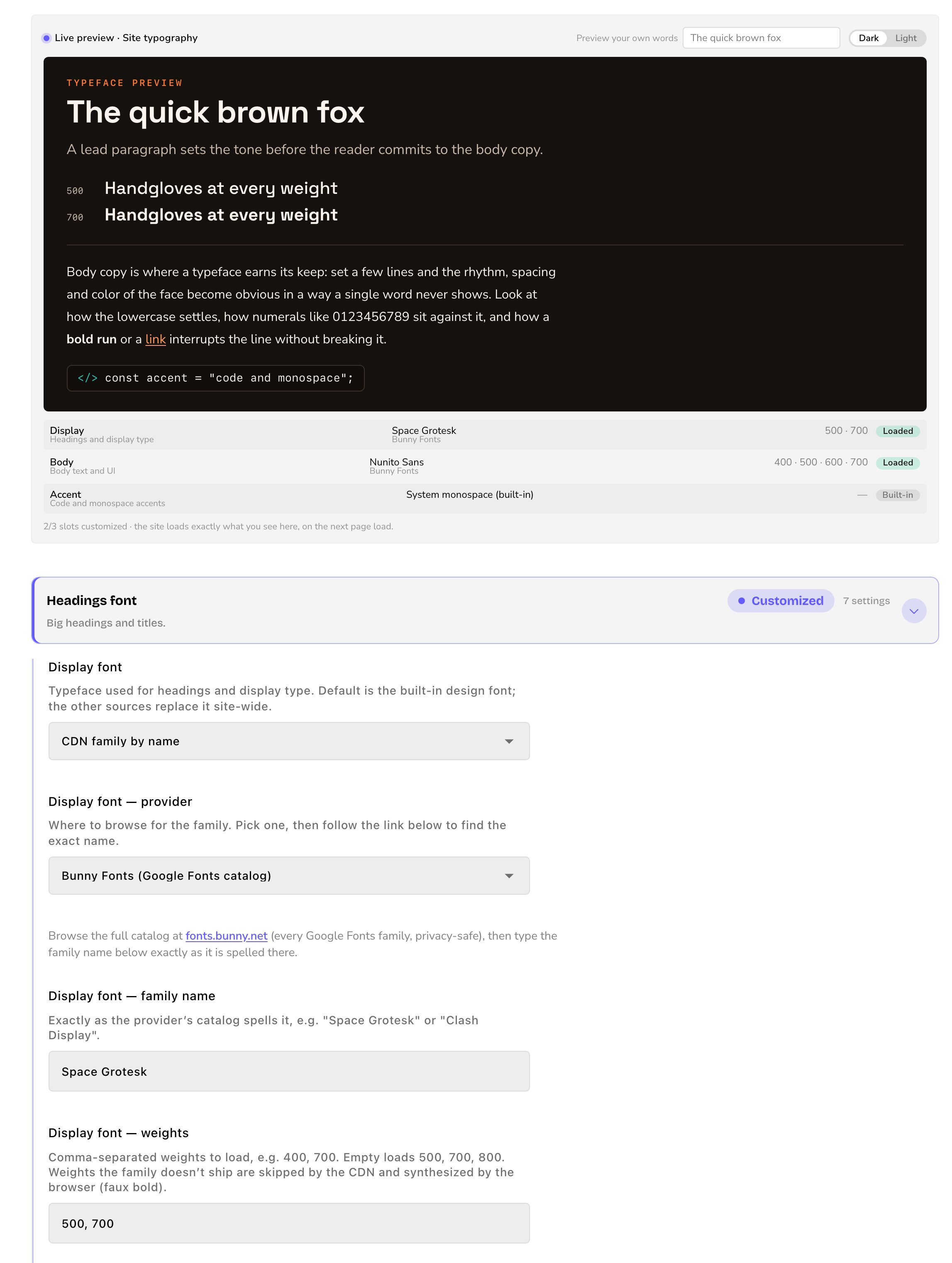
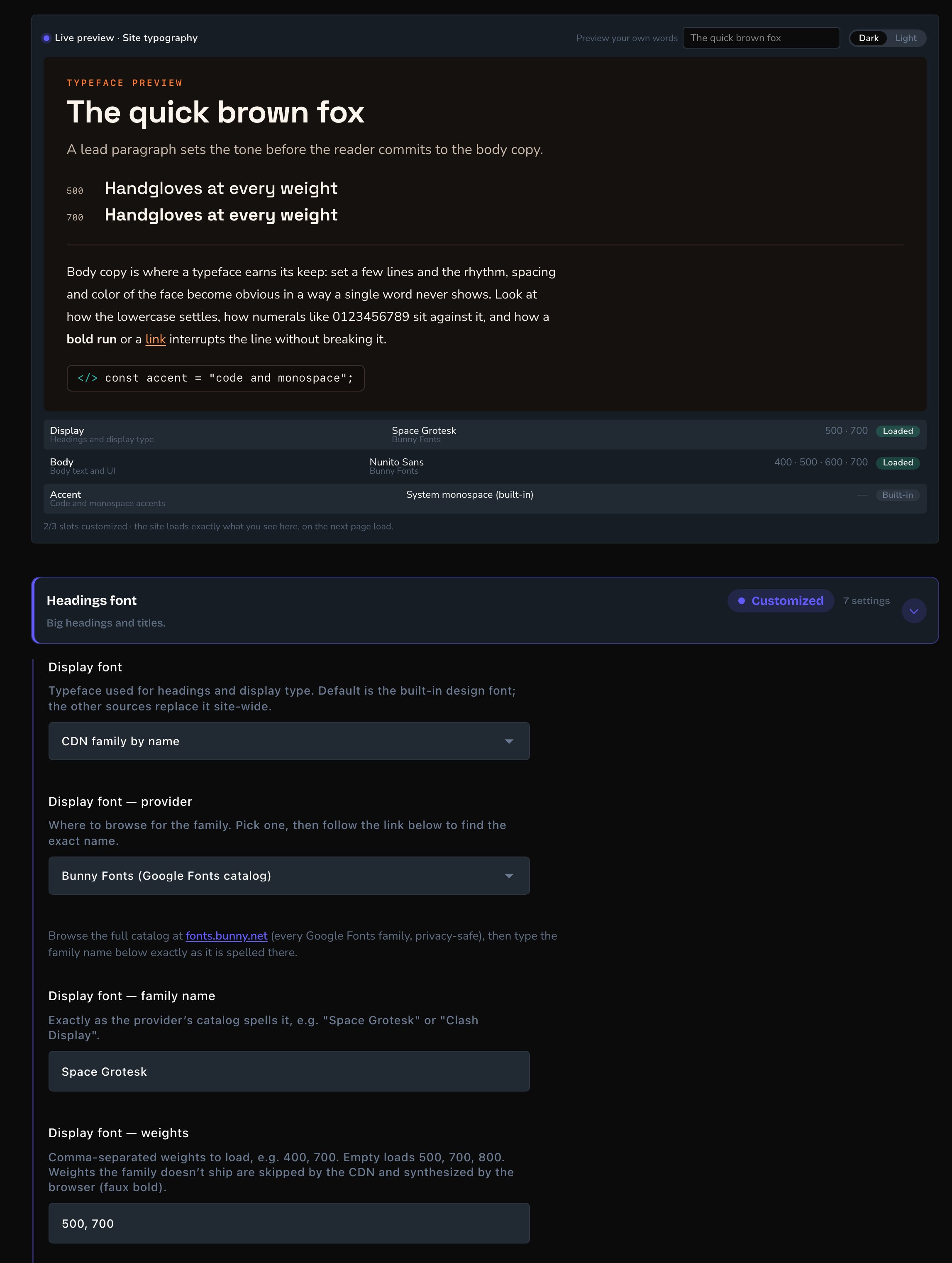
Any Bunny Fonts or Fontshare font, typed by name.
Check it in the preview
The Live preview · Site typography shows a small sample page in your fonts: a heading, a ladder of weights, a paragraph and a line of code. The ladder shows the same words at each weight you asked for. It updates as you change things, before you save. Switch it between Dark and Light to see both themes. Type in Preview your own words to see your business name, such as “Parker’s Puppy Playland”, in your heading font. Each font shows a status:- Built-in: the default font.
- Loaded: your font is working.
- Partly available: the font works, but it doesn’t include every weight you asked for.
- Not found: the library has no font by that name. Check the spelling.
- Not loaded: your uploaded font files couldn’t be loaded. Check that at least one file has Style set to Normal, and that each file is a .woff2, .woff, .ttf or .otf font file. Then remove the file and upload it again. If it still shows Not loaded, contact Fetchski Support.
- Using default: your choice can’t be used, so the built-in font shows instead. The reason appears beside it.
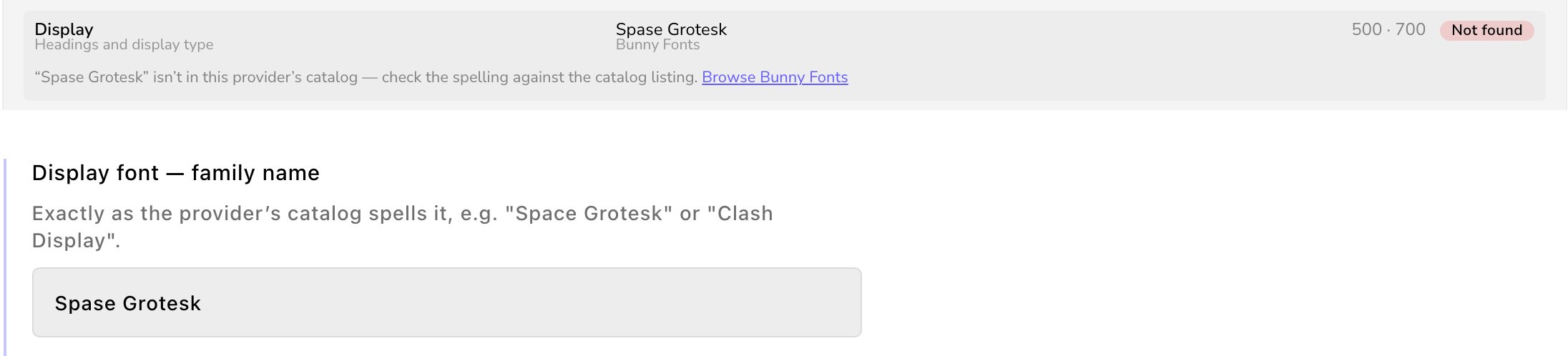
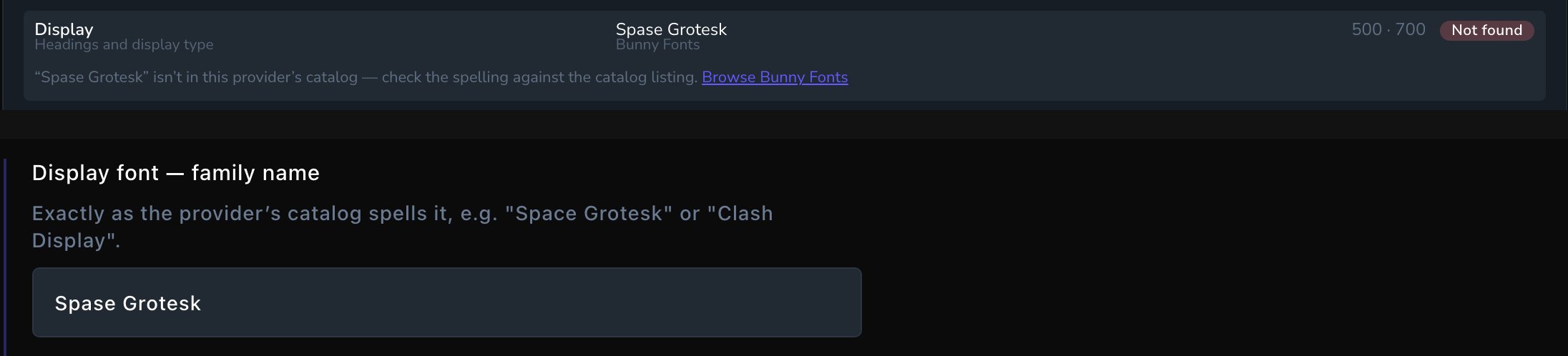
A misspelled name shows Not found, so you can fix it before you save.
Put your fonts live
Choose Update to save your fonts and put them live on your site. To save them without putting them live yet, open the arrow next to Update (More save options) and choose Save Draft. Your changes wait there; open the window again and choose Update when you’re ready to put them live.Good to know
- Fewer weights load faster. Every weight is another download for your visitors. 400 and 700 cover body text, and 500 and 700 cover most headings.
- The header and footer always use your site fonts. Pages and sections can’t change them.
- Sections can use their own font. Any section, page or blog post can use a different font on its Fonts tab. See What every section shares.
- Your visitors’ privacy is protected. Bunny Fonts serves the whole Google Fonts collection without tracking your visitors. The CMS never loads fonts from Google directly.
- FetchskiAI can help. Ask the FetchskiAI Agent to suggest fonts. Admins and Owners can let it change them for you.
Related
Colors
set your brand colors.
What every section shares
a different font for one section.
Site design
every tab on this screen.