Draw or list each area you serve, with its price and description, for your Service Area Map.
Show visitors where you work and what each zone costs. Each service area is one zone on your Service Area Map: where it is, its price and what visitors read when they click it. The map updates when you publish.Who can do this: Contributors, Editors, Admins and Owners can add and change areas. Publishing them needs an Editor, an Admin or an Owner. Sample areas and importing from a feed are for Admins and Owners.
Before you start
Your map uses these areas only when Service area data source is set to Service Areas managed in this CMS. An Admin or Owner sets it on the Service area map screen. See Service area map settings.
To draw an area on a map, your site needs a Google Maps key. See Google Maps. Without one, you can still list zip codes or paste a shape’s points.
To show the map on a page, add a Service Area Map section. See Service Area Map.
Add an area
1
Open the list
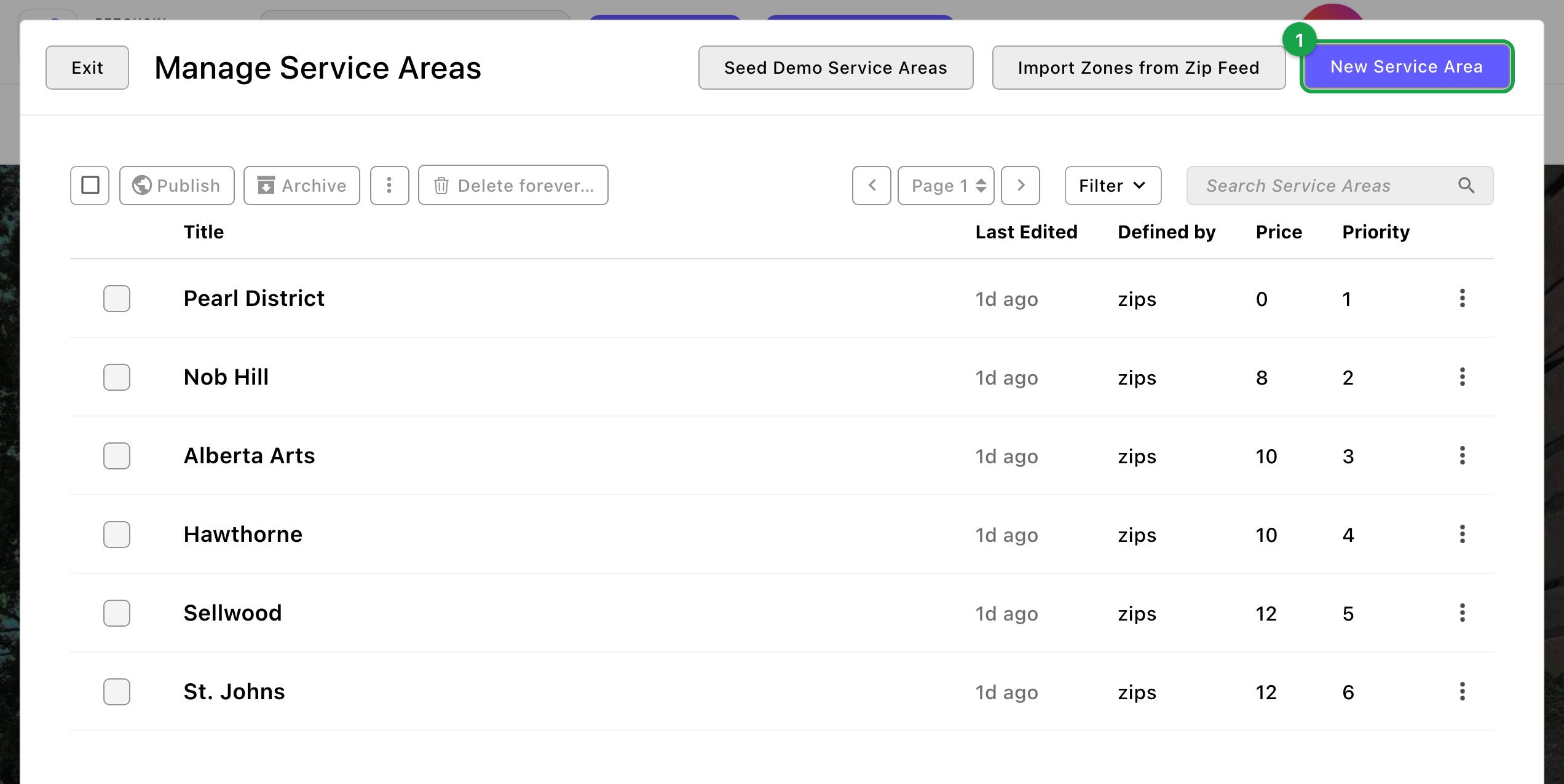
Press ⌘K (Ctrl+K on Windows) and choose Service Areas under Manage. You can also press G, then S.
Your service areas, in priority order.
2
Start a new area
Choose New Service Area. The editor opens on the Area tab.
3
Name it
Type a Title, such as “Downtown Portland”. Visitors see this name on the map.
4
Choose how to mark it out
Under How is this area defined?, choose one:
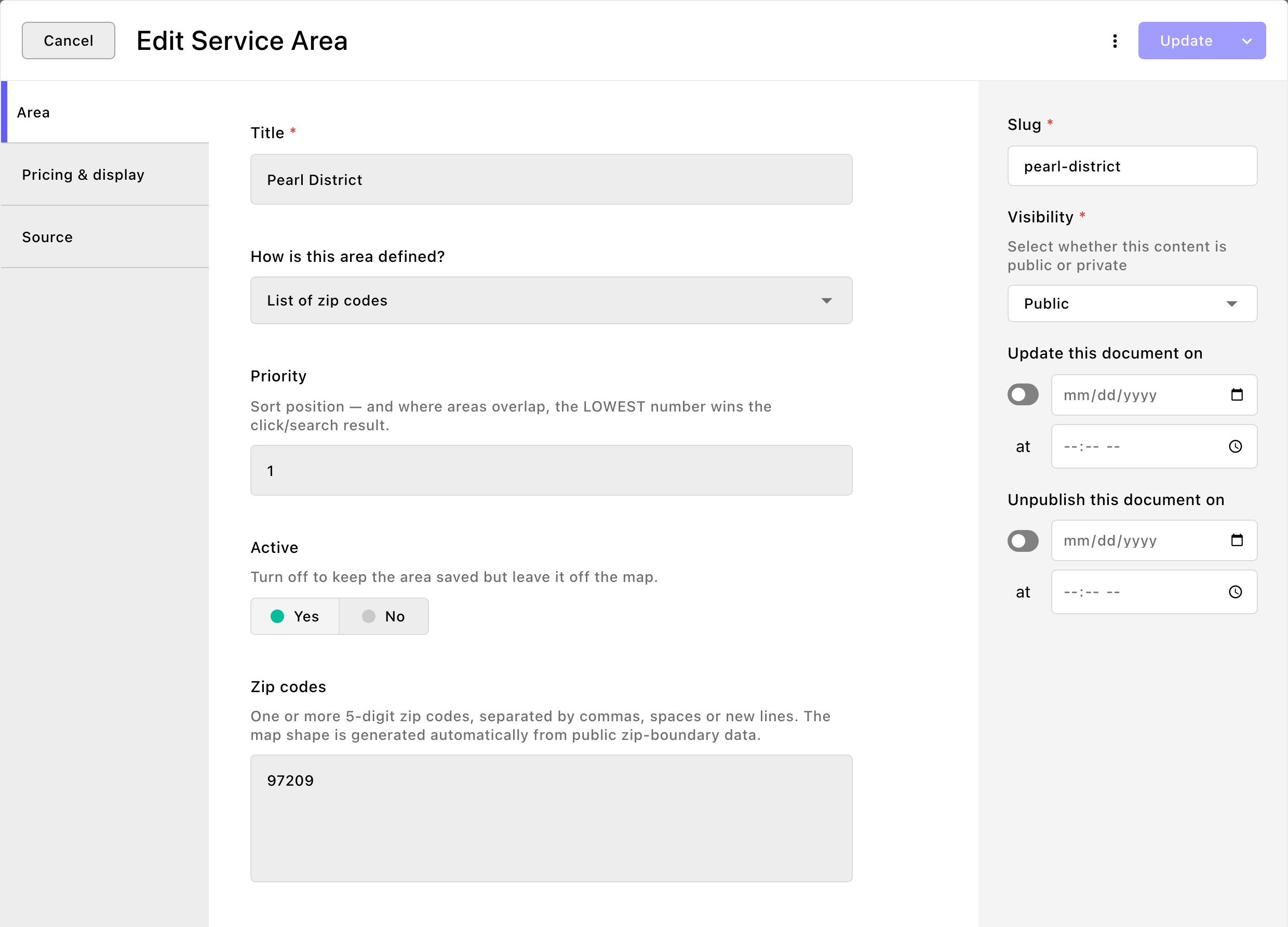
List of zip codes: type the 5-digit zip codes in Zip codes, separated by commas, spaces or new lines. Attract draws the area’s outline for you.
Map shape (drawn or pasted): draw the area yourself in Area shape. See “Draw a shape” below.
List an area's zip codes and the map draws it for you.
5
Set its place in the order
Priority: areas are listed lowest number first. Where 2 areas overlap, the lowest number wins when a visitor clicks or searches. Number them 10, 20, 30, so there’s room to add one in between.
Active: on by default. Turn it off to keep the area saved but take it off the map.
6
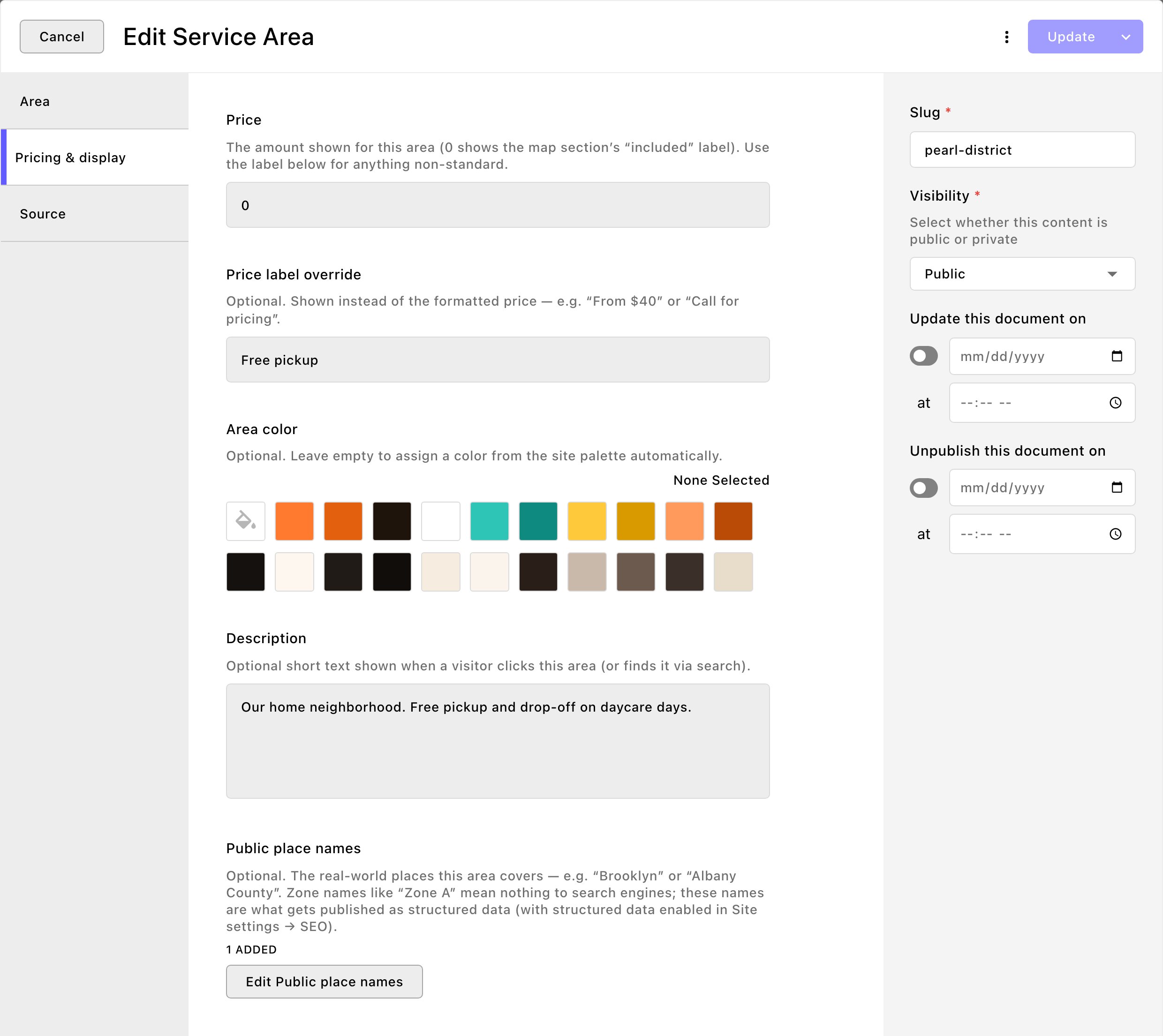
Set the price and wording
On the Pricing & display tab:
Price: the amount for this area, as a plain number in dollars. Type 15 and the map shows “$15”. What the amount covers is up to you. Say it in the Description, such as “Pickup and drop-off, per trip”. 0 shows the map’s label for free zones (“Included” unless you change it in the section).
Price label override: optional. Words shown instead of the price, such as “From $40” or “Call for pricing”.
Area color: optional. Leave it empty and Attract picks a color from your site palette.
Description: optional. A short line visitors read when they click the area or find it by searching.
Public place names: optional. See “Help search engines find your areas” below.
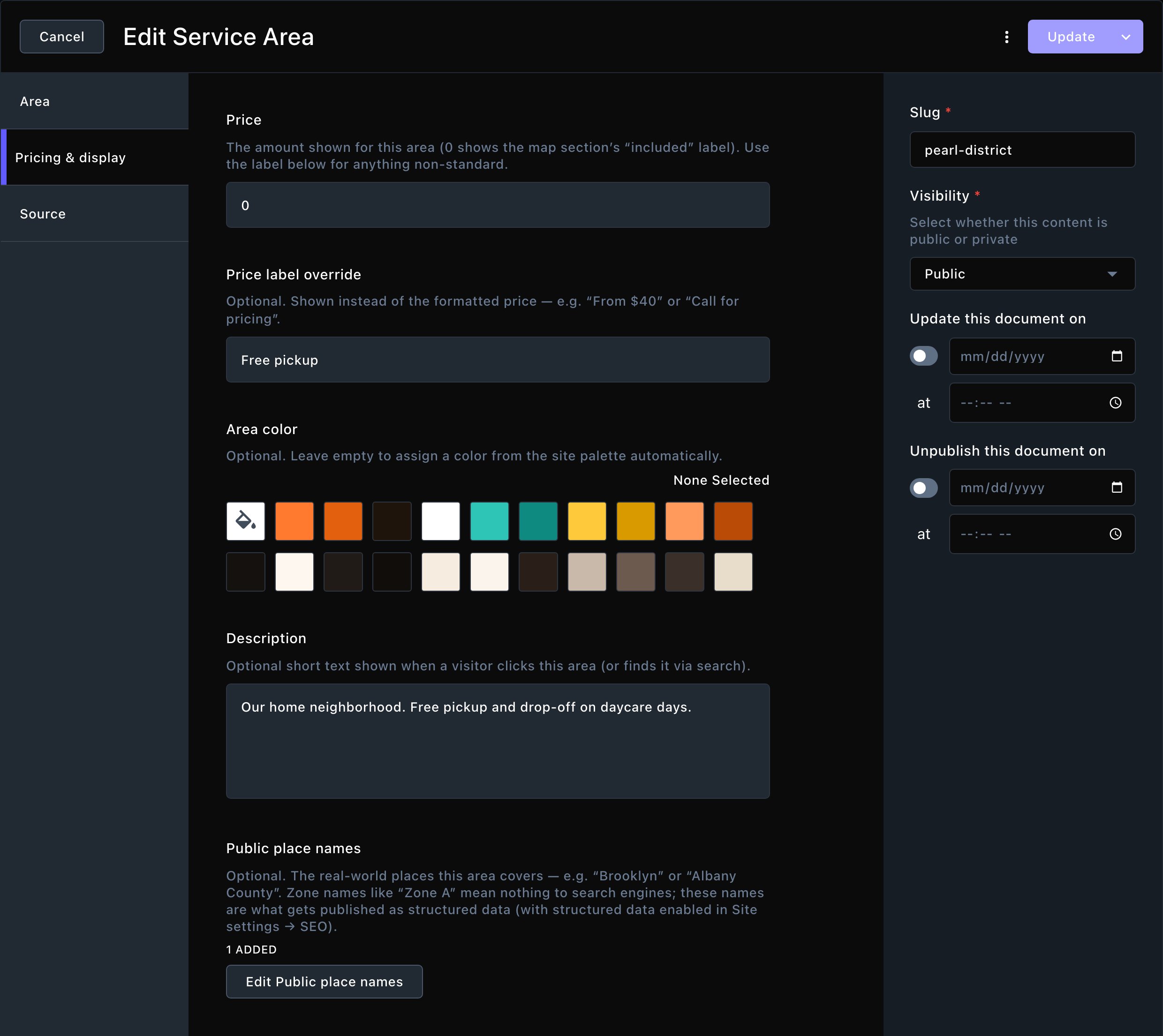
What the area costs and what visitors read about it.
7
Save it
To finish later, open More save options (the arrow next to the main button) and choose Save Draft. When it’s ready, choose Publish. Contributors choose Submit instead, and an Editor publishes it.
Draw a shape
Choose Map shape (drawn or pasted) to mark out an area that doesn’t follow zip codes, such as a neighborhood or a stretch along a river.
1
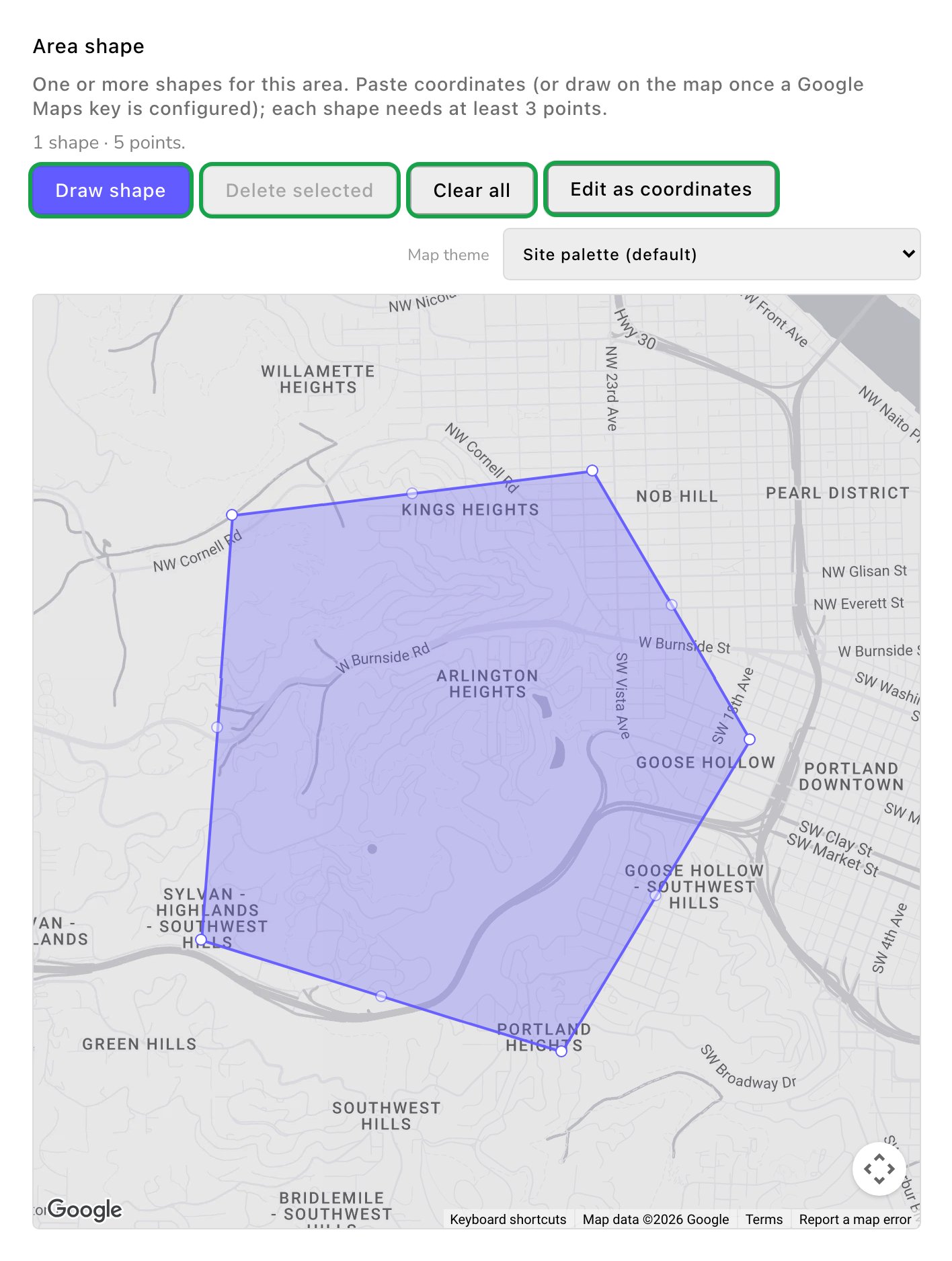
In Area shape, choose Draw shape
The button changes to Drawing… (click points, double-click to finish).
2
Click each corner of the area on the map
Double-click the last one (or press Enter) to close the shape. Press Esc to stop without one.
3
To adjust it, drag its corners
To start over, select the shape and choose Delete selected, or choose Clear all.
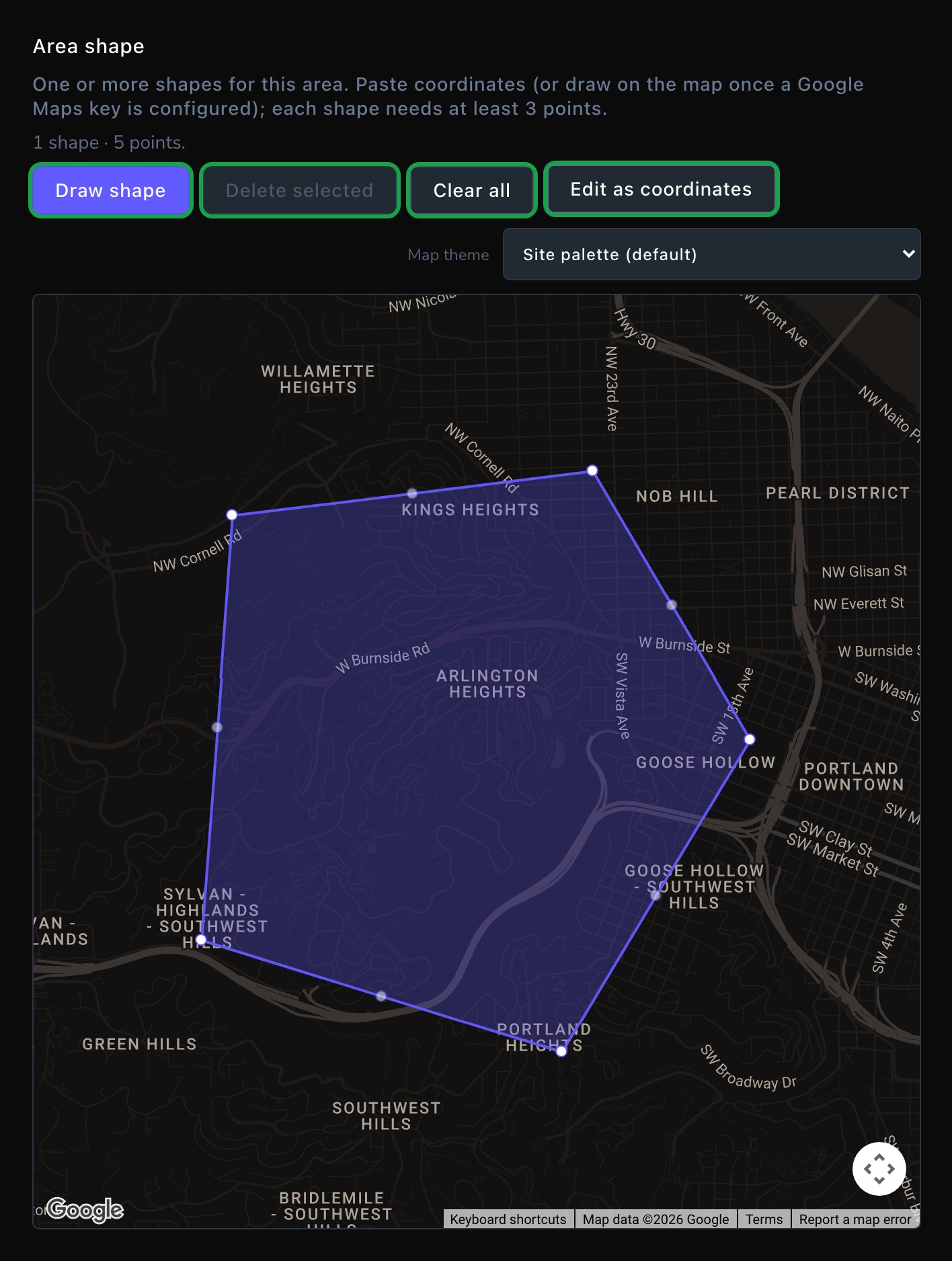
Draw an area right on the map.
An area can have more than one shape, such as 2 separate neighborhoods at the same price. Draw each one the same way.
Type the points instead (advanced)
To type or paste the shape’s points instead, choose Edit as coordinates. This also works without a Google Maps key, and it’s the way to edit a shape from the keyboard.Each point is a spot on the map, given by its latitude (“lat”, north–south) and longitude (“lng”, east–west). A shape needs at least 3 points, in order around its edge, inside square brackets:
To find a spot’s numbers, right-click it in Google Maps. The numbers show at the top of the menu, latitude first, and choosing them copies them. For 2 or more shapes, put each shape’s brackets inside one more pair: [[…], […]].
Help search engines find your areas
A name like “Zone A” means nothing to a search engine. In Public place names, list the real places the area covers, such as “Portland”. For each one, choose its Kind of place: City / town, County / region, State / province or Other place.Attract shares these names with search engines when structured data is turned on in Site settings. See SEO settings.
Bring in areas from a zip-code feed
A zip-code pricing feed is a list of zip codes and prices kept on another website, which your map can read. Your site uses one only if Service area data source on the Service area map screen is set to the zip-code pricing feed. If you’re drawing your own areas, skip this part.If your map has been reading such a feed, Admins and Owners can copy its zones into this list. You can then edit them here.
1
Open Service Areas in the command palette
2
Choose Import Zones from Zip Feed
Attract reads the feed set in Zip pricing feed URL on the Service area map screen.
3
Read the result, such as "Zip feed zones: 4 imported."
You can run it again whenever the feed changes. It refreshes each zone’s zip codes, price and color, and keeps your own changes to names, descriptions, place names, priority and Active. Zones that left the feed are never deleted. The result lists them: “No longer in the feed (left untouched): …”.Importing doesn’t switch your map over. When the imported areas are ready, an Admin or Owner sets Service area data source to Service Areas managed in this CMS.
Try it with sample areas
Admins and Owners can add 3 sample areas to see the map working.
1
Open Service Areas in the command palette
2
Choose Seed Demo Service Areas
You’ll see “Seeded 3 demo service areas.”
The samples are published straight away, so a live map that uses this list shows them to visitors at once. The samples are deleted on their own the moment you publish your first real area. Their Source tab says Demo placeholder.
What happens next
When you publish an area, change it and publish again, or delete it, the map updates on its own. Visitors never see drafts.To take an area off the map, either:
Pause it: open the area, turn Active off, then choose Update. Contributors choose Submit Update, and the area leaves the map once an Editor publishes it. The area stays in your list, ready to turn back on.
Is the map set to use this list? An Admin or Owner checks Service area data source on the Service area map screen. It must say Service Areas managed in this CMS.
For a zip-code area, check each code has 5 digits.
Two areas overlap and the wrong one answers
Where areas overlap, the one with the lowest Priority number wins. Give the area you want to win a lower number.
No Google Maps key is configured (Connections → Google Maps), so the drawing map is unavailable.
Drawing needs a Google Maps key. Ask an Admin or Owner to add one in Connections → Google Maps. Until then, choose Edit as coordinates and paste the points, or list zip codes instead.
The drawing map failed to load.
The map couldn’t load, often because of the Google Maps key’s settings. You can still paste points below it. Ask an Admin or Owner to check the key. See Google Maps.
Could not import zones from the zip feed.
The feed couldn’t be read. Ask an Admin or Owner to check Zip pricing feed URL on the Service area map screen, then try again.
Related
Service Area Map
show your areas on a page with a check-your-area search.
Service area map settings
where the map’s areas come from, your location and the premium service.
Google Maps
the key the map and the drawing tool need.
Archive, restore and delete
retire areas you no longer serve.
⌘I
{"docsConfig":{"theme":"almond","$schema":"https://mintlify.com/docs.json","name":"Fetchski Attract Docs","colors":{"primary":"#16a34a","light":"#22c55e","dark":"#15803d"},"logo":{"light":"https://mintcdn.com/fetchski-attract-api/mn9qfQRsqaASh7UE/logo/light.svg?fit=max\u0026auto=format\u0026n=mn9qfQRsqaASh7UE\u0026q=85\u0026s=66db13e248b70a44a5ff5f6990d4cb63","dark":"https://mintcdn.com/fetchski-attract-api/mn9qfQRsqaASh7UE/logo/dark.svg?fit=max\u0026auto=format\u0026n=mn9qfQRsqaASh7UE\u0026q=85\u0026s=86904ba8d47714303521b2dcd5aa2a50","href":"/"},"favicon":"https://mintcdn.com/fetchski-attract-api/mn9qfQRsqaASh7UE/favicon.svg?fit=max\u0026auto=format\u0026n=mn9qfQRsqaASh7UE\u0026q=85\u0026s=fd4f2c0615961c9e01c9762b98c8999f","api":{"playground":{"display":"interactive"},"examples":{"defaults":"required","languages":["bash","typescript","php"]}},"appearance":{"default":"dark"},"background":{"color":{"light":"#ffffff","dark":"#0b0e13"}},"search":{"prompt":"Search the docs…"},"seo":{"metatags":{"robots":"noindex, nofollow"}},"fonts":{"family":"Inter"},"icons":{"library":"fontawesome"},"styling":{"codeblocks":"dark","latex":true},"contextual":{"options":["copy","view"],"display":"header"},"navigation":{"pages":[]}},"deployment":{"deploymentMetadataValue":{"subdomain":"fetchski-attract-api","hasAudioNarration":false,"actualSubdomain":"fetchski-attract-api","customDomains":["docs.fetchski-attract.com"],"gitSource":{"type":"github","owner":"fetchski","repo":"fetchski_cms_astro_monorepo","deployBranch":"main","contentDirectory":"docs/attract","isPrivate":true,"mountPath":"","label":"","_id":"6adb9c232f0947a18a27541d"},"entitlements":{},"buildId":"6af6df04bd8b0362cdec74ff","clientVersion":"0.0.4131","searchFilterCounts":[{"language":"default","tag":"Media","count":953},{"language":"default","tag":"Content","count":863},{"language":"default","tag":"Publishing","count":720},{"language":"default","tag":"API reference","count":484},{"language":"default","tag":"Laravel","count":472},{"language":"default","tag":"TypeScript","count":470},{"language":"default","tag":"AdonisJS","count":469},{"language":"default","tag":"Batch jobs","count":364},{"language":"default","tag":"Pages \u0026 Site","count":224},{"language":"default","tag":"Forms","count":168}]},"assistantConfig":{"enableAskAiButton":false,"enableStarterQuestions":false,"enableContextualStarterQuestions":false,"enableAskAiSearchBar":true},"basePath":"","hasChatPermissions":false,"hasWebMcpPermissions":false,"toggles":[{"name":"kill-isr","enabled":true,"variant":{"name":"disabled","enabled":false,"feature_enabled":true},"impressionData":false},{"name":"custom-rbac-roles","enabled":true,"variant":{"name":"disabled","enabled":false,"feature_enabled":true},"impressionData":false},{"name":"agent-mintlify-slack","enabled":true,"variant":{"name":"disabled","enabled":false,"feature_enabled":true},"impressionData":false},{"name":"agent-integrations-settings","enabled":true,"variant":{"name":"disabled","enabled":false,"feature_enabled":true},"impressionData":false},{"name":"rbac-expansion","enabled":true,"variant":{"name":"disabled","enabled":false,"feature_enabled":true},"impressionData":false},{"name":"automations-pr-grouping","enabled":true,"variant":{"name":"disabled","enabled":false,"feature_enabled":true},"impressionData":false},{"name":"custom-prefix","enabled":true,"variant":{"name":"disabled","enabled":false,"feature_enabled":true},"impressionData":false},{"name":"analytics-v7","enabled":true,"variant":{"name":"disabled","enabled":false,"feature_enabled":true},"impressionData":false},{"name":"user-flows-analytics","enabled":true,"variant":{"name":"disabled","enabled":false,"feature_enabled":true},"impressionData":false},{"name":"no-publish-flow","enabled":true,"variant":{"name":"disabled","enabled":false,"feature_enabled":true},"impressionData":false},{"name":"workos-onboarding","enabled":true,"variant":{"name":"disabled","enabled":false,"feature_enabled":true},"impressionData":false},{"name":"snapshot-serving-live","enabled":true,"variant":{"name":"disabled","enabled":false,"feature_enabled":true},"impressionData":false},{"name":"stripTemperatureMiddleware","enabled":true,"variant":{"name":"disabled","enabled":false,"feature_enabled":true},"impressionData":false},{"name":"support-platform-pylon-zendesk","enabled":true,"variant":{"name":"disabled","enabled":false,"feature_enabled":true},"impressionData":false},{"name":"snapshot-serving","enabled":true,"variant":{"name":"disabled","enabled":false,"feature_enabled":true},"impressionData":false},{"name":"instant-rollback","enabled":true,"variant":{"name":"disabled","enabled":false,"feature_enabled":true},"impressionData":false},{"name":"granular-notifications-server","enabled":true,"variant":{"name":"disabled","enabled":false,"feature_enabled":true},"impressionData":false},{"name":"granular-notifications","enabled":true,"variant":{"name":"disabled","enabled":false,"feature_enabled":true},"impressionData":false},{"name":"automations-fable","enabled":true,"variant":{"name":"disabled","enabled":false,"feature_enabled":true},"impressionData":false},{"name":"fixed-ai-action-pricing","enabled":true,"variant":{"name":"disabled","enabled":false,"feature_enabled":true},"impressionData":false},{"name":"automation-resolve-merge-conflict","enabled":true,"variant":{"name":"disabled","enabled":false,"feature_enabled":true},"impressionData":false},{"name":"scoped-publishing","enabled":true,"variant":{"name":"disabled","enabled":false,"feature_enabled":true},"impressionData":false},{"name":"mintql","enabled":true,"variant":{"name":"disabled","enabled":false,"feature_enabled":true},"impressionData":false},{"name":"page-level-analytics","enabled":true,"variant":{"name":"disabled","enabled":false,"feature_enabled":true},"impressionData":false},{"name":"editor-version-history-v2","enabled":true,"variant":{"name":"disabled","enabled":false,"feature_enabled":true},"impressionData":false},{"name":"billing-page-v2","enabled":true,"variant":{"name":"disabled","enabled":false,"feature_enabled":true},"impressionData":false},{"name":"full-page-search","enabled":true,"variant":{"name":"disabled","enabled":false,"feature_enabled":true},"impressionData":false},{"name":"workspace-projects","enabled":true,"variant":{"name":"disabled","enabled":false,"feature_enabled":true},"impressionData":false},{"name":"assistant-v5","enabled":true,"variant":{"name":"disabled","enabled":false,"feature_enabled":true},"impressionData":false},{"name":"fork-pr-previews","enabled":true,"variant":{"name":"disabled","enabled":false,"feature_enabled":true},"impressionData":false},{"name":"revalidation-jwt","enabled":true,"variant":{"name":"disabled","enabled":false,"feature_enabled":true},"impressionData":false},{"name":"workos-sso-scim","enabled":true,"variant":{"name":"disabled","enabled":false,"feature_enabled":true},"impressionData":false},{"name":"hobby-abuse-scan","enabled":true,"variant":{"name":"disabled","enabled":false,"feature_enabled":true},"impressionData":false},{"name":"dashboard-inbox","enabled":true,"variant":{"name":"disabled","enabled":false,"feature_enabled":true},"impressionData":false},{"name":"workos-signup","enabled":true,"variant":{"name":"disabled","enabled":false,"feature_enabled":true},"impressionData":false},{"name":"turbopuffer-dual-write","enabled":true,"variant":{"name":"disabled","enabled":false,"feature_enabled":true},"impressionData":false},{"name":"workos-enabled","enabled":true,"variant":{"name":"disabled","enabled":false,"feature_enabled":true},"impressionData":false},{"name":"approve-review-flow","enabled":true,"variant":{"name":"disabled","enabled":false,"feature_enabled":true},"impressionData":false},{"name":"editor-metadata","enabled":true,"variant":{"name":"disabled","enabled":false,"feature_enabled":true},"impressionData":false},{"name":"sso-setup-deadline-banner","enabled":true,"variant":{"name":"disabled","enabled":false,"feature_enabled":true},"impressionData":false},{"name":"turbopuffer-serve","enabled":true,"variant":{"name":"disabled","enabled":false,"feature_enabled":true},"impressionData":false},{"name":"live-agents","enabled":true,"variant":{"name":"disabled","enabled":false,"feature_enabled":true},"impressionData":false},{"name":"llms-txt-v2","enabled":true,"variant":{"name":"disabled","enabled":false,"feature_enabled":true},"impressionData":false}],"googleFontsInlined":false},"customCss":[{"filePath":"style.css","content":"@media (min-width: 1280px){:root{--content-width: 52rem}}@media (min-width: 1600px){:root{--content-width: 60rem}}@media (min-width: 1920px){:root{--content-width: 68rem}}@media (min-width: 1024px) and (max-width: 1919px){#content-container{padding-left:2rem;padding-right:2rem}div:has(>#content-area){padding-left:0}#table-of-contents{width:14rem}}html[data-page-mode=\"wide\"] #content-area{max-width:84rem}@media (min-width: 1024px){#navbar .nav-tabs{position:fixed;left:15rem;top:0;height:6rem}}@media (min-width: 1024px) and (max-width: 1599px){#navbar .nav-tabs{gap:0}#navbar .nav-tabs .nav-tabs-item{gap:0.375rem;font-size:0.9375rem;padding-inline:0.5rem}#navbar .nav-tabs .nav-tabs-item svg,#navbar .nav-tabs .nav-tabs-item img{width:1.0625rem;height:1.0625rem}}@media (min-width: 1024px) and (max-width: 1199px){#navbar .nav-tabs .nav-tabs-item svg,#navbar .nav-tabs .nav-tabs-item img{display:none}}@media (min-width: 1024px) and (max-width: 1319px){div:has(>#search-bar-entry){width:3rem!important}#search-bar-entry{justify-content:center;padding:0!important}#search-bar-entry>div>:not(svg),#search-bar-entry>:not(div){display:none}}.mdx-content{font-size:1.0625rem;line-height:1.8}@media (min-width: 1024px){.mdx-content{font-size:1.25rem;line-height:1.85}#page-title{font-size:2.875rem;line-height:1.15}#page-title+*,#header .prose{font-size:1.375rem}#sidebar-content a{font-size:1.125rem}.toc-item{font-size:1rem}}.mdx-content>[data-as=\"p\"],.mdx-content>p{margin-top:0;margin-bottom:1.75rem}.mdx-content>h2{margin-top:3.5rem;margin-bottom:1.25rem;padding-top:2rem;border-top:1px solid rgb(0 0 0 / 0.08);font-size:1.875rem;letter-spacing:-0.01em}.dark .mdx-content>h2{border-top-color:rgb(255 255 255 / 0.08)}.mdx-content>h2:first-child{margin-top:0;padding-top:0;border-top:0}.mdx-content>h3{margin-top:2.75rem;margin-bottom:1.125rem;font-size:1.4375rem}.mdx-content>h4{margin-top:2rem;margin-bottom:0.75rem}.mdx-content li{margin-top:0.625rem;margin-bottom:0.625rem}.mdx-content>ul,.mdx-content>ol{margin-bottom:1.75rem}.mdx-content :not(pre)>code{font-size:0.875em;padding:0.125rem 0.375rem;overflow-wrap:anywhere}.mdx-content table{font-size:1.0625rem;line-height:1.7}.mdx-content th,.mdx-content td{padding:0.875rem 1.5rem 0.875rem 0!important;vertical-align:top}.mdx-content th{padding-top:0.25rem!important}.mdx-content th:last-child,.mdx-content td:last-child{padding-right:0!important}.mdx-content td>code:only-child{white-space:nowrap}pre{max-height:36rem;overflow:auto}.mdx-content pre code{font-size:0.9375rem;line-height:1.75}.mdx-content>.code-block,.mdx-content>.code-group{margin-top:1.5rem;margin-bottom:2rem}.mdx-content .columns{column-gap:1.25rem;row-gap:0.5rem;margin-top:1.75rem;margin-bottom:2.25rem}.mdx-content .card{border-radius:1rem}.mdx-content .card [data-component-part=\"card-content-container\"]{padding:1.5rem 1.75rem}.mdx-content [data-component-part=\"card-title\"]{font-size:1.25rem}.mdx-content [data-component-part=\"card-content\"]{font-size:1.0625rem;line-height:1.7}.mdx-content .callout{margin-top:2rem;margin-bottom:2.25rem;padding:1.25rem 1.75rem;font-size:1.125rem;line-height:1.75}.mdx-content .steps{margin-top:1.75rem;margin-bottom:2.25rem}.mdx-content .step{padding-bottom:0.75rem}.mdx-content .accordion-group,.mdx-content>.accordion{margin-top:1.75rem;margin-bottom:2.25rem}.mdx-content .tabs{margin-top:1.75rem;margin-bottom:2.25rem}.mdx-content .tabs [role=\"tabpanel\"]{padding-top:0.375rem;padding-right:0.375rem;padding-bottom:0.375rem}.mdx-content [data-component-name=\"mermaid-container\"]{--im-node-fill: #ecfdf3;--im-node-stroke: #16a34a;--im-node-text: #0b3a1f;--im-cluster-fill: rgb(22 163 74 / 0.04);--im-cluster-stroke: rgb(22 163 74 / 0.35);--im-edge: #64748b;--im-label-bg: #ffffff;margin-top:1.75rem;margin-bottom:2.25rem;padding:2rem 1.5rem;border:1px solid rgb(0 0 0 / 0.08);border-radius:1rem;background:rgb(0 0 0 / 0.015)}.dark .mdx-content [data-component-name=\"mermaid-container\"]{--im-node-fill: #0b2e1a;--im-node-stroke: #22c55e;--im-node-text: #e7fbef;--im-cluster-fill: rgb(34 197 94 / 0.05);--im-cluster-stroke: rgb(34 197 94 / 0.35);--im-edge: #94a3b8;--im-label-bg: #0f1214;border-color:rgb(255 255 255 / 0.08);background:rgb(255 255 255 / 0.02)}.mdx-content [data-component-name=\"mermaid-container\"] svg[id^=\"mermaid\"]{display:block;margin-left:auto;margin-right:auto}.mdx-content [data-component-name=\"mermaid-container\"] .node rect,.mdx-content [data-component-name=\"mermaid-container\"] .node polygon,.mdx-content [data-component-name=\"mermaid-container\"] .node circle,.mdx-content [data-component-name=\"mermaid-container\"] .node path{fill:var(--im-node-fill)!important;stroke:var(--im-node-stroke)!important;stroke-width:1.5px!important}.mdx-content [data-component-name=\"mermaid-container\"] .node rect{rx:8px;ry:8px}.mdx-content [data-component-name=\"mermaid-container\"] .nodeLabel,.mdx-content [data-component-name=\"mermaid-container\"] .node .label{color:var(--im-node-text)!important;fill:var(--im-node-text)!important}.mdx-content [data-component-name=\"mermaid-container\"] .cluster rect{fill:var(--im-cluster-fill)!important;stroke:var(--im-cluster-stroke)!important;stroke-dasharray:6 4;rx:12px;ry:12px}.mdx-content [data-component-name=\"mermaid-container\"] .cluster-label .nodeLabel,.mdx-content [data-component-name=\"mermaid-container\"] .cluster .nodeLabel{color:var(--im-node-stroke)!important}.mdx-content [data-component-name=\"mermaid-container\"] .flowchart-link,.mdx-content [data-component-name=\"mermaid-container\"] .edgePath path{stroke:var(--im-edge)!important;stroke-width:1.5px!important}.mdx-content [data-component-name=\"mermaid-container\"] marker path,.mdx-content [data-component-name=\"mermaid-container\"] .arrowheadPath{fill:var(--im-edge)!important;stroke:var(--im-edge)!important}.mdx-content [data-component-name=\"mermaid-container\"] .edgeLabel,.mdx-content [data-component-name=\"mermaid-container\"] .edgeLabel p,.mdx-content [data-component-name=\"mermaid-container\"] .labelBkg{background-color:var(--im-label-bg)!important;color:var(--im-edge)!important}.mdx-content [data-component-name=\"mermaid-container\"] rect.actor{fill:var(--im-node-fill)!important;stroke:var(--im-node-stroke)!important;stroke-width:1.5px!important;rx:8px;ry:8px}.mdx-content [data-component-name=\"mermaid-container\"] text.actor>tspan,.mdx-content [data-component-name=\"mermaid-container\"] text.actor{fill:var(--im-node-text)!important}.mdx-content [data-component-name=\"mermaid-container\"] .actor-line{stroke:var(--im-cluster-stroke)!important}.mdx-content [data-component-name=\"mermaid-container\"] .messageLine0,.mdx-content [data-component-name=\"mermaid-container\"] .messageLine1{stroke:var(--im-edge)!important;stroke-width:1.5px!important}.mdx-content [data-component-name=\"mermaid-container\"] #arrowhead path,.mdx-content [data-component-name=\"mermaid-container\"] #crosshead path{fill:var(--im-edge)!important;stroke:var(--im-edge)!important}.mdx-content [data-component-name=\"mermaid-container\"] .note{fill:var(--im-cluster-fill)!important;stroke:var(--im-cluster-stroke)!important}.mdx-content .field .prose-sm{font-size:1.0625rem;line-height:1.8}@media (min-width: 1024px){.mdx-content .field .prose-sm{font-size:1.125rem}}.mdx-content .field{padding-top:1.25rem;padding-bottom:1.25rem}:root{--fa-accent: 22 163 74;--fa-ink: 15 23 42;--fa-button: 21 128 61;--fa-button-hover: 22 101 52;--fa-on-button: 255 255 255}.dark{--fa-accent: 34 197 94;--fa-ink: 255 255 255;--fa-button: 34 197 94;--fa-button-hover: 74 222 128;--fa-on-button: 5 46 22}.mdx-content .card{transition:border-color 150ms ease,\n background-color 150ms ease}.mdx-content a.card:hover,.mdx-content .card:has(a:hover){border-color:rgb(var(--fa-accent) / 0.45);background-color:rgb(var(--fa-accent) / 0.06)}.mdx-content .card [data-component-part=\"card-icon\"]{display:flex;width:1.75rem;height:1.75rem;margin-bottom:1rem}.mdx-content .card [data-component-part=\"card-icon\"] svg{width:1.75rem;height:1.75rem;mask-size:contain;background-color:rgb(var(--fa-accent))!important}.mdx-content .card [data-component-part=\"card-content-container\"].flex [data-component-part=\"card-icon\"]{margin-bottom:0}html[data-page-mode=\"wide\"] #header{display:none}.fa-hero{position:relative;isolation:isolate;display:grid;grid-template-columns:minmax(0, 1fr);gap:3rem;align-items:center;overflow:hidden;margin:-1.5rem 0 3.5rem;padding:3.5rem 3rem;border:1px solid rgb(var(--fa-accent) / 0.2);border-radius:1.5rem;background-color:rgb(var(--fa-accent) / 0.025);background-image:radial-gradient(\n 55% 75% at 82% 50%,\n rgb(var(--fa-accent) / 0.16),\n transparent 70%\n )}.fa-hero::before{content:'';position:absolute;inset:0;z-index:-1;background-image:linear-gradient(rgb(var(--fa-accent) / 0.1) 1px, transparent 1px),\n linear-gradient(90deg, rgb(var(--fa-accent) / 0.1) 1px, transparent 1px);background-size:2rem 2rem;background-position:-1px -1px;mask-image:radial-gradient(80% 90% at 85% 40%, #000 20%, transparent 75%);pointer-events:none}.fa-hero::after{content:'';position:absolute;top:0;right:10%;left:10%;height:1px;background:linear-gradient(\n 90deg,\n transparent,\n rgb(var(--fa-accent) / 0.8),\n transparent\n );pointer-events:none}@media (min-width: 1536px){.fa-hero{grid-template-columns:minmax(0, 0.85fr) minmax(0, 1.15fr);padding:4rem 3.5rem}}.fa-hero-code>.code-group,.fa-hero-code>.code-block{margin:0;border-color:rgb(var(--fa-accent) / 0.25);box-shadow:0 1px 0 rgb(255 255 255 / 0.04) inset,\n 0 30px 60px -24px rgb(0 0 0 / 0.55),\n 0 0 0 6px rgb(var(--fa-accent) / 0.06)}.mdx-content .fa-hero-code pre code{font-size:0.8125rem}.mdx-content .fa-hero .fa-hero-mark{margin:0 0 1.75rem}.mdx-content .fa-hero .fa-hero-mark img{display:block;width:auto;height:4rem;margin:0;border-radius:0}.mdx-content .fa-hero .fa-hero-mark .fa-hero-mark-dark,.dark .mdx-content .fa-hero .fa-hero-mark .fa-hero-mark-light{display:none}.dark .mdx-content .fa-hero .fa-hero-mark .fa-hero-mark-dark{display:block}.fa-hero h1{max-width:40rem;margin:0;font-size:3.25rem;font-weight:700;line-height:1.06;letter-spacing:-0.035em;text-wrap:balance}.fa-hero h1 .fa-hero-accent{color:rgb(var(--fa-accent))}.mdx-content .fa-hero-lede{max-width:34rem;margin:1.5rem 0 2.25rem;font-size:1.1875rem;line-height:1.7;opacity:0.78;text-wrap:pretty}.fa-hero-actions{display:flex;flex-wrap:wrap;gap:0.75rem}.mdx-content .fa-hero-facts{display:flex;flex-wrap:wrap;gap:0.5rem 1.5rem;margin-top:2rem;font-size:0.9375rem;opacity:0.8}.mdx-content .fa-hero-facts>span{display:inline-flex;align-items:center;gap:0.5rem}.mdx-content .fa-hero-facts>span::before{content:'';flex:none;width:1rem;height:1rem;background:rgb(var(--fa-accent));mask:url(\"data:image/svg+xml,%3Csvg xmlns='http://www.w3.org/2000/svg' viewBox='0 0 16 16'%3E%3Cpath d='M3.5 8.5l3 3 6-7' fill='none' stroke='%23000' stroke-width='2' stroke-linecap='round' stroke-linejoin='round'/%3E%3C/svg%3E\")\n center / contain no-repeat}.fa-button{display:inline-flex;align-items:center;gap:0.5rem;height:2.75rem;padding:0 1.125rem;border:1px solid transparent;border-radius:0.625rem;font-size:0.9375rem;font-weight:600;letter-spacing:-0.005em;text-decoration:none!important;transition:background-color 150ms ease,\n border-color 150ms ease,\n box-shadow 150ms ease,\n transform 150ms ease}.fa-button-primary{border-color:rgb(var(--fa-button) / 1);background:rgb(var(--fa-button));box-shadow:inset 0 1px 0 rgb(255 255 255 / 0.25),\n 0 8px 20px -10px rgb(var(--fa-button) / 0.9);color:rgb(var(--fa-on-button))!important}.fa-button-primary::after{content:'';width:1rem;height:1rem;background:currentcolor;mask:url(\"data:image/svg+xml,%3Csvg xmlns='http://www.w3.org/2000/svg' viewBox='0 0 16 16'%3E%3Cpath d='M3 8h9.5M8.5 4l4 4-4 4' fill='none' stroke='%23000' stroke-width='1.75' stroke-linecap='round' stroke-linejoin='round'/%3E%3C/svg%3E\")\n center / contain no-repeat;transition:transform 150ms ease}.fa-button-primary:hover{background:rgb(var(--fa-button-hover));box-shadow:inset 0 1px 0 rgb(255 255 255 / 0.25),\n 0 10px 24px -10px rgb(var(--fa-button) / 1)}.fa-button-primary:hover::after{transform:translateX(2px)}.fa-button-secondary{border-color:rgb(var(--fa-ink) / 0.16);background:rgb(var(--fa-ink) / 0.03);color:inherit!important}.fa-button-secondary:hover{border-color:rgb(var(--fa-accent) / 0.55);background:rgb(var(--fa-accent) / 0.08)}.fa-button:active{transform:translateY(1px)}.fa-button:focus-visible{outline:2px solid rgb(var(--fa-accent));outline-offset:3px}@media (prefers-reduced-motion: reduce){.fa-button,.fa-button-primary::after{transition:none}.fa-button:active,.fa-button-primary:hover::after{transform:none}}@media (max-width: 767px){.fa-hero{padding:2.5rem 1.5rem}.fa-hero h1{font-size:2.25rem}}#sidebar-content a,#sidebar-content li>button{gap:0.875rem;padding-top:0.625rem;padding-right:0.5rem;padding-bottom:0.625rem;font-size:1.125rem;line-height:1.45}#sidebar-content li+li{margin-top:0.25rem}#sidebar-content li>button>div:nth-child(2){min-width:0}#sidebar-content li>button>div:last-child{width:1.25rem;margin-left:auto;justify-content:center}#sidebar-content li>ul{margin:0.25rem 0 0.25rem 1.25rem;padding-left:0.375rem;border-left:1px solid rgb(0 0 0 / 0.1)}.dark #sidebar-content li>ul{border-left-color:rgb(255 255 255 / 0.1)}#sidebar-content li>ul>li>:is(a,button){padding-left:0.75rem!important;font-size:1.0625rem}#sidebar-content .sidebar-group-header{margin-bottom:0.625rem;font-size:0.875rem;font-weight:700;letter-spacing:0.08em;text-transform:uppercase;color:color-mix(in srgb, rgb(var(--fa-accent)) 72%, black)}.dark #sidebar-content .sidebar-group-header{color:rgb(var(--fa-accent))}#sidebar-content div:has(>.sidebar-group-header)+div:has(>.sidebar-group-header){margin-top:2.25rem}#sidebar-content a svg,#sidebar-content a img,#sidebar-content li>button>div:first-child svg,#sidebar-content li>button>div:first-child img{width:1.375rem;height:1.375rem}#sidebar-content .sidebar-group-header svg{width:1rem;height:1rem}.nav-tabs-item{gap:0.625rem;font-size:1.0625rem}.nav-tabs-item svg,.nav-tabs-item img{width:1.3125rem;height:1.3125rem}.nav-tabs-item[href^=\"/typescript\"] svg{background-color:#d4b106}.dark .nav-tabs-item[href^=\"/typescript\"] svg{background-color:#f7df1e}.nav-tabs-item[href^=\"/laravel\"] svg{background-color:#ff2d20}.nav-tabs-item[href^=\"/adonisjs\"] svg{background-color:#5a45ff}.dark .nav-tabs-item[href^=\"/adonisjs\"] svg{background-color:#8b7dff}li[data-group-tag]>button svg[style*=\"/brands/js.svg\"]{background-color:#d4b106}.dark li[data-group-tag]>button svg[style*=\"/brands/js.svg\"]{background-color:#f7df1e}li[data-group-tag]>button svg[style*=\"/brands/laravel.svg\"]{background-color:#ff2d20}#sidebar-content img[src$=\"/n8n.png\"]{transform:scale(1.35)}@media (min-width: 1024px){:root{--mintlify-slot-header-height: 6rem;--sidebar-width: 26rem}#navbar{height:6rem}#sidebar-content{top:6rem}#navbar div:has(img.nav-logo){height:100%}img.nav-logo{height:3.5rem;margin-left:0.5rem}div:has(>#search-bar-entry){position:fixed;top:1.5rem;right:7rem;z-index:40;width:clamp(11rem, calc(100vw - var(--sidebar-width) - 45rem), 24rem)}#search-bar-entry{height:3rem;padding-left:1.125rem;border-radius:0.875rem;font-size:1.0625rem}#search-bar-entry svg{width:1.125rem;height:1.125rem}}[data-switch=\"pill\"]{width:auto!important;height:auto!important;padding:0.3125rem;gap:0.25rem}.switch-option{width:2.125rem!important;height:2.125rem!important}.switch-option svg{width:1.125rem;height:1.125rem}.mdx-content .accordion-group{display:grid;gap:0.75rem;overflow:visible;border:0;border-color:transparent;border-radius:0;background:none}.mdx-content details.accordion{margin:0 0 0.75rem;border-color:transparent;border-radius:1rem!important;outline:1px solid rgb(var(--fa-ink) / 0.1);outline-offset:-1px;overflow:hidden;transition:outline-color 150ms ease,\n box-shadow 150ms ease}.mdx-content .accordion-group>details.accordion{margin:0}.mdx-content details.accordion:hover{outline-color:rgb(var(--fa-accent) / 0.35)}.mdx-content details.accordion[open]{outline-color:rgb(var(--fa-accent) / 0.45);box-shadow:inset 3px 0 0 rgb(var(--fa-accent))}.mdx-content [data-component-part=\"accordion-button\"]{gap:1rem;padding:1rem 1.25rem 1rem 1.5rem;border-radius:0!important;transition:background-color 150ms ease}.mdx-content [data-component-part=\"accordion-button\"]:hover{background:rgb(var(--fa-accent) / 0.05)}.mdx-content [data-component-part=\"accordion-button\"]:focus-visible{outline:2px solid rgb(var(--fa-accent));outline-offset:-2px}.mdx-content [data-component-part=\"accordion-caret-right\"]{order:3;width:2rem;height:2rem;border-radius:999px;background:rgb(var(--fa-ink) / 0.06);transition:background-color 150ms ease}.mdx-content [data-component-part=\"accordion-caret-right\"] svg{width:0.875rem;height:0.875rem}.mdx-content details.accordion[open] [data-component-part=\"accordion-caret-right\"]{background:rgb(var(--fa-accent) / 0.15)}.mdx-content details.accordion[open] [data-component-part=\"accordion-caret-right\"] svg{color:rgb(var(--fa-accent))}.mdx-content [data-component-part=\"accordion-icon\"]{display:inline-flex;align-items:center;justify-content:center;width:1.25rem;height:1.25rem}.mdx-content [data-component-part=\"accordion-icon\"] svg{width:1.25rem;height:1.25rem;background-color:rgb(var(--fa-accent))!important}.mdx-content [data-component-part=\"accordion-title\"]{font-size:1.1875rem}.mdx-content [data-component-part=\"accordion-content\"]{max-width:none;padding:1.5rem 2rem 1.75rem 1.5rem;border-top:1px solid rgb(var(--fa-ink) / 0.08);font-size:1.125rem;line-height:1.95}@media (min-width: 768px){.mdx-content details.accordion:has(>summary [data-component-part=\"accordion-icon\"])>[data-component-part=\"accordion-content\"]{padding-left:3.75rem}}.mdx-content [data-component-part=\"accordion-content\"]>[data-as=\"p\"],.mdx-content [data-component-part=\"accordion-content\"]>p{display:block;max-width:46rem;margin:0 0 1.25rem}.mdx-content [data-component-part=\"accordion-content\"]>:last-child{margin-bottom:0}@media (prefers-reduced-motion: reduce){.mdx-content details.accordion,.mdx-content [data-component-part=\"accordion-button\"],.mdx-content [data-component-part=\"accordion-caret-right\"]{transition:none}}[data-badge=\"true\"]{--fa-badge: 100 116 139;padding:0.125rem 0.5rem;border-radius:0.5rem;background:rgb(var(--fa-badge) / 0.14)!important;box-shadow:inset 0 0 0 1px rgb(var(--fa-badge) / 0.32);color:rgb(var(--fa-badge))!important;font-variant-numeric:tabular-nums}[data-badge=\"true\"][data-color=\"red\"]{--fa-badge: 239 68 68}[data-badge=\"true\"][data-color=\"orange\"]{--fa-badge: 245 130 32}[data-badge=\"true\"][data-color=\"yellow\"]{--fa-badge: 214 160 20}[data-badge=\"true\"][data-color=\"green\"]{--fa-badge: 22 163 74}[data-badge=\"true\"][data-color=\"blue\"]{--fa-badge: 17 145 240}.dark [data-badge=\"true\"][data-color=\"red\"]{--fa-badge: 248 113 113}.dark [data-badge=\"true\"][data-color=\"orange\"]{--fa-badge: 251 158 75}.dark [data-badge=\"true\"][data-color=\"yellow\"]{--fa-badge: 250 204 21}.dark [data-badge=\"true\"][data-color=\"green\"]{--fa-badge: 74 222 128}.dark [data-badge=\"true\"][data-color=\"blue\"]{--fa-badge: 62 165 245}.dark [data-badge=\"true\"][data-color=\"gray\"]{--fa-badge: 161 161 170}.mdx-content td [data-badge=\"true\"]+[data-badge=\"true\"]{margin-left:0.375rem}.mdx-content :is([data-as=\"p\"],p,li,td,blockquote),#header .prose,#page-title+*{color:rgb(38 43 52)}.dark .mdx-content :is([data-as=\"p\"],p,li,td,blockquote),.dark #header .prose,.dark #page-title+*{color:rgb(222 226 232)}.mdx-content :is(th,strong){font-weight:600}#sidebar-content a,#sidebar-content li>button{color:rgb(70 76 88)}.dark #sidebar-content a,.dark #sidebar-content li>button{color:rgb(196 201 210)}.toc-item a{color:inherit}.mdx-content [data-component-part=\"callout-content\"]{font-size:1.125rem;line-height:1.75}.mdx-content [data-component-part=\"callout-icon\"]{width:1.25rem;margin-top:0.25rem}.mdx-content [data-component-part=\"step-title\"]{font-size:1.25rem}.mdx-content [data-component-part=\"step-content\"],.mdx-content [data-component-part=\"tab-content\"]{font-size:1.125rem;line-height:1.85}.mdx-content [data-component-part=\"step-number\"]{margin-left:calc(0.5px - 1.125rem)}.mdx-content [data-component-part=\"step-indicator\"]{width:2.25rem;height:2.25rem;background-color:transparent;color:rgb(var(--fa-accent));font-size:1.25rem;font-weight:600}.mdx-content [data-component-part=\"step-indicator\"] svg{width:1.5rem;height:1.5rem;background-color:rgb(var(--fa-accent))!important}.mdx-content [data-component-part=\"tab-button\"]{font-size:1rem}.mdx-content [data-component-part=\"code-block-header\"],.mdx-content [data-component-part=\"code-block-header-filename\"]{font-size:0.875rem}.mdx-content [data-component-part=\"code-group-tab-bar\"]{font-size:0.9375rem}.mdx-content [data-component-part=\"field-name\"]{font-size:1.0625rem}.mdx-content [data-component-part=\"field-meta\"],.mdx-content [data-component-part=\"field-info-pill\"],.mdx-content [data-component-part=\"field-required-pill\"]{font-size:0.875rem}.mdx-content [data-component-part=\"expandable-button\"]{font-size:1rem}[data-component-part=\"pagination-title\"]{font-size:1.125rem}[data-component-part=\"pagination-label\"]{font-size:0.9375rem}.mdx-content>.multi-view-item{max-width:none;font-size:inherit;line-height:inherit}.multi-view-item>[data-as=\"p\"],.multi-view-item>p{margin-top:0;margin-bottom:1.75rem}.multi-view-item>h2{margin-top:3.5rem;margin-bottom:1.25rem;padding-top:2rem;border-top:1px solid rgb(0 0 0 / 0.08);font-size:1.875rem;letter-spacing:-0.01em}.dark .multi-view-item>h2{border-top-color:rgb(255 255 255 / 0.08)}.multi-view-item>h2:first-child{margin-top:0;padding-top:0;border-top:0}.multi-view-item>h3{margin-top:2.75rem;margin-bottom:1.125rem;font-size:1.4375rem}.multi-view-item>ul,.multi-view-item>ol{margin-bottom:1.75rem}.multi-view-item>.code-block,.multi-view-item>.code-group{margin-top:1.5rem;margin-bottom:2rem}#content-container .prose.prose-sm{font-size:1.0625rem;line-height:1.8}#sidebar-content .method-nav-pill{width:2.75rem}#sidebar-content .method-nav-pill>*{padding:0.125rem 0.375rem;font-size:0.6875rem;line-height:1.25rem}#fa-reader-values{margin-top:1.75rem;padding:1.5rem;border:1px solid rgb(var(--fa-ink) / 0.14);border-radius:1rem;background:transparent;font-size:1.0625rem;line-height:1.6;transition:border-color 150ms ease;container:fa-reader / inline-size}#fa-reader-values:hover,#fa-reader-values:focus-within{border-color:rgb(var(--fa-accent) / 0.45)}#fa-reader-values .fa-reader-line{display:grid;grid-template-columns:auto 1fr;align-items:center;gap:1rem 1.25rem}#fa-reader-values .fa-reader-toggle{grid-column:1 / -1;justify-self:start}@container fa-reader (min-width: 30rem){#fa-reader-values .fa-reader-line{grid-template-columns:auto 1fr auto}#fa-reader-values .fa-reader-line .fa-reader-toggle{grid-column:auto}}#fa-reader-values .fa-reader-icon{width:4rem;height:4rem;background:url('/logo/attract-glyph-color-a-green-on-light-scalable.svg') center / contain\n no-repeat}.dark #fa-reader-values .fa-reader-icon{background-image:url('/logo/attract-glyph-color-a-green-on-dark-scalable.svg')}#fa-reader-values .fa-reader-copy{min-width:0}#fa-reader-values .fa-reader-copy p{margin:0}#fa-reader-values .fa-reader-title{font-size:1.125rem;font-weight:600;color:rgb(var(--fa-ink))}#fa-reader-values .fa-reader-values{display:grid;grid-template-columns:auto 1fr;align-items:center;gap:0.625rem 0.875rem;margin:0.75rem 0 0}#fa-reader-values .fa-reader-values>div{display:contents}#fa-reader-values .fa-reader-values dt{font-weight:500;color:rgb(var(--fa-ink))}#fa-reader-values .fa-reader-values dd{justify-self:start;min-width:0;margin:0}#fa-reader-values code{display:inline-block;padding:0.375rem 0.875rem;border:1px solid rgb(var(--fa-accent) / 0.4);border-radius:0.5rem;background:rgb(var(--fa-ink) / 0.03);color:rgb(var(--fa-ink));font-size:0.95em;font-weight:700;line-height:1.4;overflow-wrap:anywhere}#fa-reader-values button{padding:0.625rem 1.25rem;border:1px solid rgb(var(--fa-ink) / 0.16);border-radius:0.625rem;background:rgb(var(--fa-ink) / 0.03);color:rgb(var(--fa-ink));font-weight:600;white-space:nowrap;cursor:pointer;transition:background-color 150ms ease,\n border-color 150ms ease}#fa-reader-values button:hover{border-color:rgb(var(--fa-accent) / 0.55);background:rgb(var(--fa-accent) / 0.08)}#fa-reader-values button:focus-visible,#fa-reader-values input:focus-visible{outline:2px solid rgb(var(--fa-accent));outline-offset:2px}#fa-reader-values .fa-reader-form{display:grid;grid-template-columns:1fr;gap:1.75rem 1.5rem;margin-top:1.5rem;padding:1.5rem 0.25rem 0.25rem;border-top:1px solid rgb(var(--fa-ink) / 0.1)}@media (min-width: 768px){#fa-reader-values .fa-reader-form{grid-template-columns:1fr 1fr}}#fa-reader-values .fa-reader-form[hidden]{display:none}#fa-reader-values label{display:grid;gap:0.625rem;align-content:start}#fa-reader-values label>span{font-weight:600;color:rgb(var(--fa-ink))}#fa-reader-values label em{font-style:normal;font-weight:400}#fa-reader-values input{width:100%;padding:0.75rem 1rem;border:1px solid rgb(128 128 128 / 0.4);border-radius:0.5rem;background:rgb(128 128 128 / 0.08);color:rgb(var(--fa-ink));font:inherit}#fa-reader-values small{display:block;margin-top:0.5rem;font-size:0.9375rem;line-height:1.6;color:rgb(var(--fa-ink))}#fa-reader-values .fa-reader-error{grid-column:1 / -1;margin:0;color:#dc2626}.dark #fa-reader-values .fa-reader-error{color:#f87171}#fa-reader-values .fa-reader-error:empty{display:none}#fa-reader-values .fa-reader-actions{display:flex;flex-wrap:wrap;grid-column:1 / -1;align-items:center;gap:1rem;padding-top:0.25rem}.mdx-content .n8n-canvas{--n8n-dot: rgb(0 0 0 / 0.12);--n8n-node-bg: #ffffff;--n8n-node-border: rgb(0 0 0 / 0.18);--n8n-line: #94a3b8;margin:1.75rem 0 2.25rem;padding:2rem 0.75rem 1.5rem;overflow-x:auto;border:1px solid rgb(0 0 0 / 0.08);border-radius:1rem;background-color:rgb(0 0 0 / 0.015);background-image:radial-gradient(var(--n8n-dot) 1px, transparent 1px);background-size:18px 18px}.dark .mdx-content .n8n-canvas{--n8n-dot: rgb(255 255 255 / 0.1);--n8n-node-bg: #1b1f24;--n8n-node-border: rgb(255 255 255 / 0.22);--n8n-line: #64748b;border-color:rgb(255 255 255 / 0.08);background-color:rgb(255 255 255 / 0.02)}.mdx-content .n8n-canvas-row{display:flex;align-items:flex-start;justify-content:center;min-width:max-content;margin:0 auto}.mdx-content .n8n-node{display:flex;flex-direction:column;align-items:center;width:7.25rem;text-align:center}.mdx-content .n8n-node-box{display:flex;align-items:center;justify-content:center;width:4.5rem;height:4.5rem;border:2px solid var(--n8n-node-border);border-radius:0.75rem;background:var(--n8n-node-bg);box-shadow:0 1px 3px rgb(0 0 0 / 0.08)}.mdx-content .n8n-node-trigger .n8n-node-box{border-radius:2.25rem 0.75rem 0.75rem 2.25rem}.mdx-content .n8n-node-accent .n8n-node-box{border-color:rgb(var(--fa-accent));box-shadow:0 0 0 4px rgb(var(--fa-accent) / 0.15)}.mdx-content .n8n-node-title{margin-top:0.6rem;font-size:0.95rem;font-weight:600;line-height:1.3}.mdx-content .n8n-node-note{margin-top:0.2rem;font-size:0.8rem;line-height:1.35;opacity:0.7}.mdx-content .n8n-node-box svg{width:1.9rem!important;height:1.9rem!important}.mdx-content .n8n-link{display:flex;flex-direction:column;align-items:center;width:4rem;margin:0 -1.125rem;padding-top:1.1rem}.mdx-content .n8n-link-items{height:1.1rem;font-size:0.75rem;font-weight:600;line-height:1.1rem;white-space:nowrap;color:rgb(var(--fa-accent))}.mdx-content .n8n-link-line{position:relative;width:100%;height:2px;margin-top:0.4rem;background:var(--n8n-line)}.mdx-content .n8n-link-line::after{position:absolute;top:-4px;right:-1px;border-top:5px solid transparent;border-bottom:5px solid transparent;border-left:7px solid var(--n8n-line);content:''}.mdx-content .n8n-canvas figcaption{margin-top:1.25rem;font-size:0.85rem;text-align:center;opacity:0.7}.mdx-content .n8n-signed{margin:1.5rem 0 2rem;padding:1.5rem 1.25rem 1.25rem;overflow-x:auto;border:1px solid rgb(0 0 0 / 0.08);border-radius:1rem}.dark .mdx-content .n8n-signed{border-color:rgb(255 255 255 / 0.08)}.mdx-content .n8n-signed-row{display:flex;flex-wrap:wrap;align-items:flex-start;justify-content:center;row-gap:1rem}.mdx-content .n8n-signed-part{display:flex;flex-direction:column;align-items:center;gap:0.5rem}.mdx-content .n8n-signed-value,.mdx-content .n8n-signed-dot{padding:0.35rem 0.55rem;border-radius:0.4rem;font-size:0.95rem;white-space:nowrap}.mdx-content .n8n-signed-dot{padding:0.35rem 0.15rem;background:none;font-weight:700}.mdx-content .n8n-signed-value{min-width:2.5rem;text-align:center;background:rgb(var(--n8n-part) / 0.14);box-shadow:inset 0 0 0 1px rgb(var(--n8n-part) / 0.45)}.mdx-content .n8n-signed-label{font-size:0.75rem;font-weight:600;letter-spacing:0.04em;text-transform:uppercase;color:rgb(var(--n8n-part))}.mdx-content .n8n-signed-0{--n8n-part: 37 99 235}.mdx-content .n8n-signed-1{--n8n-part: 22 163 74}.mdx-content .n8n-signed-2{--n8n-part: 217 119 6}.mdx-content .n8n-signed-3{--n8n-part: 219 39 119}.mdx-content .n8n-coming-soon-logos{display:flex;align-items:center;gap:1rem;margin-bottom:1.25rem}.mdx-content .n8n-coming-soon-logos img{width:auto;height:3.5rem;margin:0}.mdx-content .n8n-coming-soon-logos img[class^=\"n8n-mark-\"]{height:4.5rem;margin:-0.5rem}.mdx-content .n8n-coming-soon-logos .n8n-mark-dark,.dark .mdx-content .n8n-coming-soon-logos .n8n-mark-light{display:none}.dark .mdx-content .n8n-coming-soon-logos .n8n-mark-dark{display:block}.mdx-content .n8n-coming-soon-logos span{font-size:1.75rem;font-weight:600;opacity:0.6}.mdx-content .n8n-coming-soon-title{margin:0 0 0.35rem;font-size:1.25rem;font-weight:600;color:rgb(var(--fa-ink))}.mdx-content .n8n-coming-soon-title+*{margin-top:0}"}],"page":{"pagePath":"guides/content/service-areas","slug":"/guides/content/service-areas","pageMetadata":{"title":"Service areas","sidebarTitle":"Service areas","description":"Draw or list each area you serve, with its price and description, for your Service Area Map.","icon":"map-location-dot","href":"/guides/content/service-areas"},"description":{"compiledSource":"\"use strict\";\nconst {jsx: _jsx} = arguments[0];\nconst {useMDXComponents: _provideComponents} = arguments[0];\nfunction _createMdxContent(props) {\n const _components = {\n p: \"p\",\n ..._provideComponents(),\n ...props.components\n };\n return _jsx(_components.p, {\n children: \"Draw or list each area you serve, with its price and description, for your Service Area Map.\"\n });\n}\nfunction MDXContent(props = {}) {\n const {wrapper: MDXLayout} = {\n ..._provideComponents(),\n ...props.components\n };\n return MDXLayout ? _jsx(MDXLayout, {\n ...props,\n children: _jsx(_createMdxContent, {\n ...props\n })\n }) : _createMdxContent(props);\n}\nreturn {\n default: MDXContent\n};\n","frontmatter":{},"scope":{}},"pageType":"default","mdx":{"mdxSource":{"compiledSource":"\"use strict\";const{Fragment:_Fragment,jsx:_jsx,jsxs:_jsxs}=arguments[0];const{useMDXComponents:_provideComponents}=arguments[0];function _createMdxContent(props){const _components={a:`a`,code:`code`,li:`li`,p:`p`,pre:`pre`,span:`span`,strong:`strong`,ul:`ul`,..._provideComponents(),...props.components},{Accordion,AccordionGroup,Card,CodeBlock,Columns,Frame,Heading,Icon,OptimizedImage,Step,Steps}=_components;if(!Accordion)_missingMdxReference(`Accordion`,true);if(!AccordionGroup)_missingMdxReference(`AccordionGroup`,true);if(!Card)_missingMdxReference(`Card`,true);if(!CodeBlock)_missingMdxReference(`CodeBlock`,true);if(!Columns)_missingMdxReference(`Columns`,true);if(!Frame)_missingMdxReference(`Frame`,true);if(!Heading)_missingMdxReference(`Heading`,true);if(!Icon)_missingMdxReference(`Icon`,true);if(!OptimizedImage)_missingMdxReference(`OptimizedImage`,true);if(!Step)_missingMdxReference(`Step`,true);if(!Steps)_missingMdxReference(`Steps`,true);return _jsxs(_Fragment,{children:[_jsx(_components.p,{children:`Show visitors where you work and what each zone costs. Each service area is one zone on your Service Area Map: where it is, its price and what visitors read when they click it. The map updates when you publish.`}),`\n`,_jsxs(_components.p,{children:[_jsx(Icon,{icon:`user-shield`}),` `,_jsx(_components.strong,{children:`Who can do this:`}),` Contributors, Editors, Admins and Owners can add and change areas. Publishing them needs an Editor, an Admin or an Owner. Sample areas and importing from a feed are for Admins and Owners.`]}),`\n`,_jsx(Heading,{level:`2`,id:`before-you-start`,children:`Before you start`}),`\n`,_jsxs(_components.ul,{children:[`\n`,_jsxs(_components.li,{children:[`Your map uses these areas only when `,_jsx(_components.strong,{children:`Service area data source`}),` is set to `,_jsx(_components.strong,{children:`Service Areas managed in this CMS`}),`. An Admin or Owner sets it on the `,_jsx(_components.strong,{children:`Service area map`}),` screen. See `,_jsx(_components.a,{href:`/guides/site-settings/service-area-map`,children:`Service area map settings`}),`.`]}),`\n`,_jsxs(_components.li,{children:[`To draw an area on a map, your site needs a Google Maps key. See `,_jsx(_components.a,{href:`/guides/connections/google-maps`,children:`Google Maps`}),`. Without one, you can still list zip codes or paste a shape’s points.`]}),`\n`,_jsxs(_components.li,{children:[`To show the map on a page, add a `,_jsx(_components.strong,{children:`Service Area Map`}),` section. See `,_jsx(_components.a,{href:`/guides/sections/service-area-map`,children:`Service Area Map`}),`.`]}),`\n`]}),`\n`,_jsx(Heading,{level:`2`,id:`add-an-area`,children:`Add an area`}),`\n`,_jsxs(Steps,{children:[_jsxs(Step,{title:`Open the list`,children:[_jsxs(_components.p,{children:[`Press ⌘K (Ctrl+K on Windows) and choose `,_jsx(_components.strong,{children:`Service Areas`}),` under `,_jsx(_components.strong,{children:`Manage`}),`. You can also press G, then S.`]}),_jsxs(Frame,{caption:`Your service areas, in priority order.`,children:[_jsx(OptimizedImage,{className:`mint-block dark:mint-hidden`,src:`https://mintcdn.com/fetchski-attract-api/VHp0B0s1nBbMi7JQ/images/cms/guides/content/service-areas/guides-content-service-areas-manager-light.png?fit=max\u0026auto=format\u0026n=VHp0B0s1nBbMi7JQ\u0026q=85\u0026s=400375191db5ecb72cfd2c0ae76f6f7a`,alt:`The Manage Service Areas window with 3 areas (\"Downtown Portland\", \"Inner Eastside\", \"West Hills\"), the Name, Defined by, Price and Priority columns.`,\"data-og-width\":`2544`,width:`2544`,\"data-og-height\":`1276`,height:`1276`,\"data-path\":`images/cms/guides/content/service-areas/guides-content-service-areas-manager-light.png`,\"data-optimize\":`true`,\"data-opv\":`3`,srcset:`https://mintcdn.com/fetchski-attract-api/VHp0B0s1nBbMi7JQ/images/cms/guides/content/service-areas/guides-content-service-areas-manager-light.png?w=280\u0026fit=max\u0026auto=format\u0026n=VHp0B0s1nBbMi7JQ\u0026q=85\u0026s=a61681d06feb809a32107e06637ae8e7 280w, https://mintcdn.com/fetchski-attract-api/VHp0B0s1nBbMi7JQ/images/cms/guides/content/service-areas/guides-content-service-areas-manager-light.png?w=560\u0026fit=max\u0026auto=format\u0026n=VHp0B0s1nBbMi7JQ\u0026q=85\u0026s=57a4874b01d4db2395b6d875e7677e84 560w, https://mintcdn.com/fetchski-attract-api/VHp0B0s1nBbMi7JQ/images/cms/guides/content/service-areas/guides-content-service-areas-manager-light.png?w=840\u0026fit=max\u0026auto=format\u0026n=VHp0B0s1nBbMi7JQ\u0026q=85\u0026s=08c709ed13975829784a8516611ccf8e 840w, https://mintcdn.com/fetchski-attract-api/VHp0B0s1nBbMi7JQ/images/cms/guides/content/service-areas/guides-content-service-areas-manager-light.png?w=1100\u0026fit=max\u0026auto=format\u0026n=VHp0B0s1nBbMi7JQ\u0026q=85\u0026s=9615ec2e9e560741200fabbf1c9a8bee 1100w, https://mintcdn.com/fetchski-attract-api/VHp0B0s1nBbMi7JQ/images/cms/guides/content/service-areas/guides-content-service-areas-manager-light.png?w=1650\u0026fit=max\u0026auto=format\u0026n=VHp0B0s1nBbMi7JQ\u0026q=85\u0026s=52d981b5a5145b995739f63bbfe91976 1650w, https://mintcdn.com/fetchski-attract-api/VHp0B0s1nBbMi7JQ/images/cms/guides/content/service-areas/guides-content-service-areas-manager-light.png?w=2500\u0026fit=max\u0026auto=format\u0026n=VHp0B0s1nBbMi7JQ\u0026q=85\u0026s=e1f1af31872b8f8e8dcad1f3e466d488 2500w`}),_jsx(OptimizedImage,{className:`mint-hidden dark:mint-block`,src:`https://mintcdn.com/fetchski-attract-api/VHp0B0s1nBbMi7JQ/images/cms/guides/content/service-areas/guides-content-service-areas-manager-dark.png?fit=max\u0026auto=format\u0026n=VHp0B0s1nBbMi7JQ\u0026q=85\u0026s=b4d93897e20f19877afa8aae7e063aa0`,alt:`The Manage Service Areas window with 3 areas (\"Downtown Portland\", \"Inner Eastside\", \"West Hills\"), the Name, Defined by, Price and Priority columns.`,\"data-og-width\":`2544`,width:`2544`,\"data-og-height\":`1276`,height:`1276`,\"data-path\":`images/cms/guides/content/service-areas/guides-content-service-areas-manager-dark.png`,\"data-optimize\":`true`,\"data-opv\":`3`,srcset:`https://mintcdn.com/fetchski-attract-api/VHp0B0s1nBbMi7JQ/images/cms/guides/content/service-areas/guides-content-service-areas-manager-dark.png?w=280\u0026fit=max\u0026auto=format\u0026n=VHp0B0s1nBbMi7JQ\u0026q=85\u0026s=793195817197d146b0bb5c6f35fbc411 280w, https://mintcdn.com/fetchski-attract-api/VHp0B0s1nBbMi7JQ/images/cms/guides/content/service-areas/guides-content-service-areas-manager-dark.png?w=560\u0026fit=max\u0026auto=format\u0026n=VHp0B0s1nBbMi7JQ\u0026q=85\u0026s=6e91646300659c869a3d346d2ee92a01 560w, https://mintcdn.com/fetchski-attract-api/VHp0B0s1nBbMi7JQ/images/cms/guides/content/service-areas/guides-content-service-areas-manager-dark.png?w=840\u0026fit=max\u0026auto=format\u0026n=VHp0B0s1nBbMi7JQ\u0026q=85\u0026s=7dd12e2e4f3db7a434322583b507ecd2 840w, https://mintcdn.com/fetchski-attract-api/VHp0B0s1nBbMi7JQ/images/cms/guides/content/service-areas/guides-content-service-areas-manager-dark.png?w=1100\u0026fit=max\u0026auto=format\u0026n=VHp0B0s1nBbMi7JQ\u0026q=85\u0026s=fad8b08d94dd598bcfb2431f4d5583ad 1100w, https://mintcdn.com/fetchski-attract-api/VHp0B0s1nBbMi7JQ/images/cms/guides/content/service-areas/guides-content-service-areas-manager-dark.png?w=1650\u0026fit=max\u0026auto=format\u0026n=VHp0B0s1nBbMi7JQ\u0026q=85\u0026s=71722f009745615adaecf60becf9a398 1650w, https://mintcdn.com/fetchski-attract-api/VHp0B0s1nBbMi7JQ/images/cms/guides/content/service-areas/guides-content-service-areas-manager-dark.png?w=2500\u0026fit=max\u0026auto=format\u0026n=VHp0B0s1nBbMi7JQ\u0026q=85\u0026s=ddce3319d8fe501c2b66e51902a3999b 2500w`})]})]}),_jsx(Step,{title:`Start a new area`,children:_jsxs(_components.p,{children:[`Choose `,_jsx(_components.strong,{children:`New Service Area`}),`. The editor opens on the `,_jsx(_components.strong,{children:`Area`}),` tab.`]})}),_jsx(Step,{title:`Name it`,children:_jsxs(_components.p,{children:[`Type a `,_jsx(_components.strong,{children:`Title`}),`, such as “Downtown Portland”. Visitors see this name on the map.`]})}),_jsxs(Step,{title:`Choose how to mark it out`,children:[_jsxs(_components.p,{children:[`Under `,_jsx(_components.strong,{children:`How is this area defined?`}),`, choose one:`]}),_jsxs(_components.ul,{children:[`\n`,_jsxs(_components.li,{children:[_jsx(_components.strong,{children:`List of zip codes`}),`: type the 5-digit zip codes in `,_jsx(_components.strong,{children:`Zip codes`}),`, separated by commas, spaces or new lines. Attract draws the area’s outline for you.`]}),`\n`,_jsxs(_components.li,{children:[_jsx(_components.strong,{children:`Map shape (drawn or pasted)`}),`: draw the area yourself in `,_jsx(_components.strong,{children:`Area shape`}),`. See “Draw a shape” below.`]}),`\n`]}),_jsxs(Frame,{caption:`List an area's zip codes and the map draws it for you.`,children:[_jsx(OptimizedImage,{className:`mint-block dark:mint-hidden`,src:`https://mintcdn.com/fetchski-attract-api/VHp0B0s1nBbMi7JQ/images/cms/guides/content/service-areas/guides-content-service-areas-zips-light.png?fit=max\u0026auto=format\u0026n=VHp0B0s1nBbMi7JQ\u0026q=85\u0026s=599b5193df5ae130cedd37a0ec33f662`,alt:`The service area editor on the Area tab: Title \"Downtown Portland\", How is this area defined?`,\"data-og-width\":`2480`,width:`2480`,\"data-og-height\":`1784`,height:`1784`,\"data-path\":`images/cms/guides/content/service-areas/guides-content-service-areas-zips-light.png`,\"data-optimize\":`true`,\"data-opv\":`3`,srcset:`https://mintcdn.com/fetchski-attract-api/VHp0B0s1nBbMi7JQ/images/cms/guides/content/service-areas/guides-content-service-areas-zips-light.png?w=280\u0026fit=max\u0026auto=format\u0026n=VHp0B0s1nBbMi7JQ\u0026q=85\u0026s=cb3de0cc0e83ad5fdf8091b309b72446 280w, https://mintcdn.com/fetchski-attract-api/VHp0B0s1nBbMi7JQ/images/cms/guides/content/service-areas/guides-content-service-areas-zips-light.png?w=560\u0026fit=max\u0026auto=format\u0026n=VHp0B0s1nBbMi7JQ\u0026q=85\u0026s=518674cda8f5a257707b25b374591732 560w, https://mintcdn.com/fetchski-attract-api/VHp0B0s1nBbMi7JQ/images/cms/guides/content/service-areas/guides-content-service-areas-zips-light.png?w=840\u0026fit=max\u0026auto=format\u0026n=VHp0B0s1nBbMi7JQ\u0026q=85\u0026s=092c94928f379c8e3562a1e7be7f0fb1 840w, https://mintcdn.com/fetchski-attract-api/VHp0B0s1nBbMi7JQ/images/cms/guides/content/service-areas/guides-content-service-areas-zips-light.png?w=1100\u0026fit=max\u0026auto=format\u0026n=VHp0B0s1nBbMi7JQ\u0026q=85\u0026s=ef7b084a4f6859f24815ab78758e7147 1100w, https://mintcdn.com/fetchski-attract-api/VHp0B0s1nBbMi7JQ/images/cms/guides/content/service-areas/guides-content-service-areas-zips-light.png?w=1650\u0026fit=max\u0026auto=format\u0026n=VHp0B0s1nBbMi7JQ\u0026q=85\u0026s=29b2c170d28d23e1a047211612acf4eb 1650w, https://mintcdn.com/fetchski-attract-api/VHp0B0s1nBbMi7JQ/images/cms/guides/content/service-areas/guides-content-service-areas-zips-light.png?w=2500\u0026fit=max\u0026auto=format\u0026n=VHp0B0s1nBbMi7JQ\u0026q=85\u0026s=b6d007207b90c59585c41ffdd9ea6a1a 2500w`}),_jsx(OptimizedImage,{className:`mint-hidden dark:mint-block`,src:`https://mintcdn.com/fetchski-attract-api/VHp0B0s1nBbMi7JQ/images/cms/guides/content/service-areas/guides-content-service-areas-zips-dark.png?fit=max\u0026auto=format\u0026n=VHp0B0s1nBbMi7JQ\u0026q=85\u0026s=029faac511b2e4d4c406f12e5dbe4912`,alt:`The service area editor on the Area tab: Title \"Downtown Portland\", How is this area defined?`,\"data-og-width\":`2480`,width:`2480`,\"data-og-height\":`1784`,height:`1784`,\"data-path\":`images/cms/guides/content/service-areas/guides-content-service-areas-zips-dark.png`,\"data-optimize\":`true`,\"data-opv\":`3`,srcset:`https://mintcdn.com/fetchski-attract-api/VHp0B0s1nBbMi7JQ/images/cms/guides/content/service-areas/guides-content-service-areas-zips-dark.png?w=280\u0026fit=max\u0026auto=format\u0026n=VHp0B0s1nBbMi7JQ\u0026q=85\u0026s=98fbc4c5cb77ae82d0715e98915eb53b 280w, https://mintcdn.com/fetchski-attract-api/VHp0B0s1nBbMi7JQ/images/cms/guides/content/service-areas/guides-content-service-areas-zips-dark.png?w=560\u0026fit=max\u0026auto=format\u0026n=VHp0B0s1nBbMi7JQ\u0026q=85\u0026s=9c29c2a0ff5f4b9e62415dce7c242f2a 560w, https://mintcdn.com/fetchski-attract-api/VHp0B0s1nBbMi7JQ/images/cms/guides/content/service-areas/guides-content-service-areas-zips-dark.png?w=840\u0026fit=max\u0026auto=format\u0026n=VHp0B0s1nBbMi7JQ\u0026q=85\u0026s=293ffae500845648fa78223490065000 840w, https://mintcdn.com/fetchski-attract-api/VHp0B0s1nBbMi7JQ/images/cms/guides/content/service-areas/guides-content-service-areas-zips-dark.png?w=1100\u0026fit=max\u0026auto=format\u0026n=VHp0B0s1nBbMi7JQ\u0026q=85\u0026s=3fc05eb0bd41f6ff3cd6cbcc1b7905b5 1100w, https://mintcdn.com/fetchski-attract-api/VHp0B0s1nBbMi7JQ/images/cms/guides/content/service-areas/guides-content-service-areas-zips-dark.png?w=1650\u0026fit=max\u0026auto=format\u0026n=VHp0B0s1nBbMi7JQ\u0026q=85\u0026s=98ec3a2a513429a76f2ba7ad64195af9 1650w, https://mintcdn.com/fetchski-attract-api/VHp0B0s1nBbMi7JQ/images/cms/guides/content/service-areas/guides-content-service-areas-zips-dark.png?w=2500\u0026fit=max\u0026auto=format\u0026n=VHp0B0s1nBbMi7JQ\u0026q=85\u0026s=1716bdbb3b11ff0b9b52c81a0d843115 2500w`})]})]}),_jsx(Step,{title:`Set its place in the order`,children:_jsxs(_components.ul,{children:[`\n`,_jsxs(_components.li,{children:[_jsx(_components.strong,{children:`Priority`}),`: areas are listed lowest number first. Where 2 areas overlap, the lowest number wins when a visitor clicks or searches. Number them 10, 20, 30, so there’s room to add one in between.`]}),`\n`,_jsxs(_components.li,{children:[_jsx(_components.strong,{children:`Active`}),`: on by default. Turn it off to keep the area saved but take it off the map.`]}),`\n`]})}),_jsxs(Step,{title:`Set the price and wording`,children:[_jsxs(_components.p,{children:[`On the `,_jsx(_components.strong,{children:`Pricing \u0026 display`}),` tab:`]}),_jsxs(_components.ul,{children:[`\n`,_jsxs(_components.li,{children:[_jsx(_components.strong,{children:`Price`}),`: the amount for this area, as a plain number in dollars. Type 15 and the map shows “$15”. What the amount covers is up to you. Say it in the `,_jsx(_components.strong,{children:`Description`}),`, such as “Pickup and drop-off, per trip”. 0 shows the map’s label for free zones (“Included” unless you change it in the section).`]}),`\n`,_jsxs(_components.li,{children:[_jsx(_components.strong,{children:`Price label override`}),`: optional. Words shown instead of the price, such as “From $40” or “Call for pricing”.`]}),`\n`,_jsxs(_components.li,{children:[_jsx(_components.strong,{children:`Area color`}),`: optional. Leave it empty and Attract picks a color from your site palette.`]}),`\n`,_jsxs(_components.li,{children:[_jsx(_components.strong,{children:`Description`}),`: optional. A short line visitors read when they click the area or find it by searching.`]}),`\n`,_jsxs(_components.li,{children:[_jsx(_components.strong,{children:`Public place names`}),`: optional. See “Help search engines find your areas” below.`]}),`\n`]}),_jsxs(Frame,{caption:`What the area costs and what visitors read about it.`,children:[_jsx(OptimizedImage,{className:`mint-block dark:mint-hidden`,src:`https://mintcdn.com/fetchski-attract-api/VHp0B0s1nBbMi7JQ/images/cms/guides/content/service-areas/guides-content-service-areas-pricing-light.png?fit=max\u0026auto=format\u0026n=VHp0B0s1nBbMi7JQ\u0026q=85\u0026s=471725375b255abf575995bde0e0b49d`,alt:`The Pricing \u0026 display tab: Price 0, Price label override empty, Area color empty, Description \"Free pickup and drop-off on daycare days.\", Public place names with one entry.`,\"data-og-width\":`2480`,width:`2480`,\"data-og-height\":`2210`,height:`2210`,\"data-path\":`images/cms/guides/content/service-areas/guides-content-service-areas-pricing-light.png`,\"data-optimize\":`true`,\"data-opv\":`3`,srcset:`https://mintcdn.com/fetchski-attract-api/VHp0B0s1nBbMi7JQ/images/cms/guides/content/service-areas/guides-content-service-areas-pricing-light.png?w=280\u0026fit=max\u0026auto=format\u0026n=VHp0B0s1nBbMi7JQ\u0026q=85\u0026s=af48e908442b0469aedc246b2782978a 280w, https://mintcdn.com/fetchski-attract-api/VHp0B0s1nBbMi7JQ/images/cms/guides/content/service-areas/guides-content-service-areas-pricing-light.png?w=560\u0026fit=max\u0026auto=format\u0026n=VHp0B0s1nBbMi7JQ\u0026q=85\u0026s=27f69aa87c5db823e6cbd69ea6674fbb 560w, https://mintcdn.com/fetchski-attract-api/VHp0B0s1nBbMi7JQ/images/cms/guides/content/service-areas/guides-content-service-areas-pricing-light.png?w=840\u0026fit=max\u0026auto=format\u0026n=VHp0B0s1nBbMi7JQ\u0026q=85\u0026s=1948f749f91994c76bdf39132a6c566f 840w, https://mintcdn.com/fetchski-attract-api/VHp0B0s1nBbMi7JQ/images/cms/guides/content/service-areas/guides-content-service-areas-pricing-light.png?w=1100\u0026fit=max\u0026auto=format\u0026n=VHp0B0s1nBbMi7JQ\u0026q=85\u0026s=05a3b1b276a25d27aceaa9d8d261b1ab 1100w, https://mintcdn.com/fetchski-attract-api/VHp0B0s1nBbMi7JQ/images/cms/guides/content/service-areas/guides-content-service-areas-pricing-light.png?w=1650\u0026fit=max\u0026auto=format\u0026n=VHp0B0s1nBbMi7JQ\u0026q=85\u0026s=6f2366e0d5e8b78a602f435a09284662 1650w, https://mintcdn.com/fetchski-attract-api/VHp0B0s1nBbMi7JQ/images/cms/guides/content/service-areas/guides-content-service-areas-pricing-light.png?w=2500\u0026fit=max\u0026auto=format\u0026n=VHp0B0s1nBbMi7JQ\u0026q=85\u0026s=d3420583a9aefba84848546019771f75 2500w`}),_jsx(OptimizedImage,{className:`mint-hidden dark:mint-block`,src:`https://mintcdn.com/fetchski-attract-api/VHp0B0s1nBbMi7JQ/images/cms/guides/content/service-areas/guides-content-service-areas-pricing-dark.png?fit=max\u0026auto=format\u0026n=VHp0B0s1nBbMi7JQ\u0026q=85\u0026s=ffbd4c7789a41dd318df60fe311a9d9b`,alt:`The Pricing \u0026 display tab: Price 0, Price label override empty, Area color empty, Description \"Free pickup and drop-off on daycare days.\", Public place names with one entry.`,\"data-og-width\":`2480`,width:`2480`,\"data-og-height\":`2210`,height:`2210`,\"data-path\":`images/cms/guides/content/service-areas/guides-content-service-areas-pricing-dark.png`,\"data-optimize\":`true`,\"data-opv\":`3`,srcset:`https://mintcdn.com/fetchski-attract-api/VHp0B0s1nBbMi7JQ/images/cms/guides/content/service-areas/guides-content-service-areas-pricing-dark.png?w=280\u0026fit=max\u0026auto=format\u0026n=VHp0B0s1nBbMi7JQ\u0026q=85\u0026s=f2bd34d08a2f161bbc1e4b60053c7e56 280w, https://mintcdn.com/fetchski-attract-api/VHp0B0s1nBbMi7JQ/images/cms/guides/content/service-areas/guides-content-service-areas-pricing-dark.png?w=560\u0026fit=max\u0026auto=format\u0026n=VHp0B0s1nBbMi7JQ\u0026q=85\u0026s=393abcee79a3e06f8eda4c5c09aebe7d 560w, https://mintcdn.com/fetchski-attract-api/VHp0B0s1nBbMi7JQ/images/cms/guides/content/service-areas/guides-content-service-areas-pricing-dark.png?w=840\u0026fit=max\u0026auto=format\u0026n=VHp0B0s1nBbMi7JQ\u0026q=85\u0026s=a7f5fd7e0133972f8b65f542a0617fdc 840w, https://mintcdn.com/fetchski-attract-api/VHp0B0s1nBbMi7JQ/images/cms/guides/content/service-areas/guides-content-service-areas-pricing-dark.png?w=1100\u0026fit=max\u0026auto=format\u0026n=VHp0B0s1nBbMi7JQ\u0026q=85\u0026s=4fdd750db687248241a9974dda3c994c 1100w, https://mintcdn.com/fetchski-attract-api/VHp0B0s1nBbMi7JQ/images/cms/guides/content/service-areas/guides-content-service-areas-pricing-dark.png?w=1650\u0026fit=max\u0026auto=format\u0026n=VHp0B0s1nBbMi7JQ\u0026q=85\u0026s=9f141d429ed1e498cad39494607cdd54 1650w, https://mintcdn.com/fetchski-attract-api/VHp0B0s1nBbMi7JQ/images/cms/guides/content/service-areas/guides-content-service-areas-pricing-dark.png?w=2500\u0026fit=max\u0026auto=format\u0026n=VHp0B0s1nBbMi7JQ\u0026q=85\u0026s=ff436ec536455062ce9a3aa6ff10cd4c 2500w`})]})]}),_jsx(Step,{title:`Save it`,children:_jsxs(_components.p,{children:[`To finish later, open `,_jsx(_components.strong,{children:`More save options`}),` (the arrow next to the main button) and choose `,_jsx(_components.strong,{children:`Save Draft`}),`. When it’s ready, choose `,_jsx(_components.strong,{children:`Publish`}),`. Contributors choose `,_jsx(_components.strong,{children:`Submit`}),` instead, and an Editor publishes it.`]})})]}),`\n`,_jsx(Heading,{level:`2`,id:`draw-a-shape`,children:`Draw a shape`}),`\n`,_jsxs(_components.p,{children:[`Choose `,_jsx(_components.strong,{children:`Map shape (drawn or pasted)`}),` to mark out an area that doesn’t follow zip codes, such as a neighborhood or a stretch along a river.`]}),`\n`,_jsxs(Steps,{children:[_jsx(Step,{title:`In Area shape, choose Draw shape`,children:_jsxs(_components.p,{children:[`The button changes to `,_jsx(_components.strong,{children:`Drawing… (click points, double-click to finish)`}),`.`]})}),_jsx(Step,{title:`Click each corner of the area on the map`,children:_jsx(_components.p,{children:`Double-click the last one (or press Enter) to close the shape. Press Esc to stop without one.`})}),_jsx(Step,{title:`To adjust it, drag its corners`,children:_jsxs(_components.p,{children:[`To start over, select the shape and choose `,_jsx(_components.strong,{children:`Delete selected`}),`, or choose `,_jsx(_components.strong,{children:`Clear all`}),`.`]})})]}),`\n`,_jsxs(Frame,{caption:`Draw an area right on the map.`,children:[_jsx(OptimizedImage,{className:`mint-block dark:mint-hidden`,src:`https://mintcdn.com/fetchski-attract-api/VHp0B0s1nBbMi7JQ/images/cms/guides/content/service-areas/guides-content-service-areas-draw-light.png?fit=max\u0026auto=format\u0026n=VHp0B0s1nBbMi7JQ\u0026q=85\u0026s=a55feb99d838931fe6008289ba73dc71`,alt:`The Area shape field with the drawing map of northwest Portland, one closed shape tinted in the area's color, and the toolbar buttons Draw shape, Delete selected.`,\"data-og-width\":`1416`,width:`1416`,\"data-og-height\":`1876`,height:`1876`,\"data-path\":`images/cms/guides/content/service-areas/guides-content-service-areas-draw-light.png`,\"data-optimize\":`true`,\"data-opv\":`3`,srcset:`https://mintcdn.com/fetchski-attract-api/VHp0B0s1nBbMi7JQ/images/cms/guides/content/service-areas/guides-content-service-areas-draw-light.png?w=280\u0026fit=max\u0026auto=format\u0026n=VHp0B0s1nBbMi7JQ\u0026q=85\u0026s=454fd8fd17e83a8e38997036f15bbfad 280w, https://mintcdn.com/fetchski-attract-api/VHp0B0s1nBbMi7JQ/images/cms/guides/content/service-areas/guides-content-service-areas-draw-light.png?w=560\u0026fit=max\u0026auto=format\u0026n=VHp0B0s1nBbMi7JQ\u0026q=85\u0026s=34601e7736161defd31e051f7d07c0ee 560w, https://mintcdn.com/fetchski-attract-api/VHp0B0s1nBbMi7JQ/images/cms/guides/content/service-areas/guides-content-service-areas-draw-light.png?w=840\u0026fit=max\u0026auto=format\u0026n=VHp0B0s1nBbMi7JQ\u0026q=85\u0026s=68f05130817cdc25c18383ffb70c943b 840w, https://mintcdn.com/fetchski-attract-api/VHp0B0s1nBbMi7JQ/images/cms/guides/content/service-areas/guides-content-service-areas-draw-light.png?w=1100\u0026fit=max\u0026auto=format\u0026n=VHp0B0s1nBbMi7JQ\u0026q=85\u0026s=894fed59808640079c58d520841c8fcd 1100w, https://mintcdn.com/fetchski-attract-api/VHp0B0s1nBbMi7JQ/images/cms/guides/content/service-areas/guides-content-service-areas-draw-light.png?w=1650\u0026fit=max\u0026auto=format\u0026n=VHp0B0s1nBbMi7JQ\u0026q=85\u0026s=15613b4f2506fa9b379e9f79f1b74998 1650w, https://mintcdn.com/fetchski-attract-api/VHp0B0s1nBbMi7JQ/images/cms/guides/content/service-areas/guides-content-service-areas-draw-light.png?w=2500\u0026fit=max\u0026auto=format\u0026n=VHp0B0s1nBbMi7JQ\u0026q=85\u0026s=86c428c861dd70acb288ba6a2fefd337 2500w`}),_jsx(OptimizedImage,{className:`mint-hidden dark:mint-block`,src:`https://mintcdn.com/fetchski-attract-api/VHp0B0s1nBbMi7JQ/images/cms/guides/content/service-areas/guides-content-service-areas-draw-dark.png?fit=max\u0026auto=format\u0026n=VHp0B0s1nBbMi7JQ\u0026q=85\u0026s=7fd1df5bfc1734448ce8322b2b3a1cba`,alt:`The Area shape field with the drawing map of northwest Portland, one closed shape tinted in the area's color, and the toolbar buttons Draw shape, Delete selected.`,\"data-og-width\":`1416`,width:`1416`,\"data-og-height\":`1876`,height:`1876`,\"data-path\":`images/cms/guides/content/service-areas/guides-content-service-areas-draw-dark.png`,\"data-optimize\":`true`,\"data-opv\":`3`,srcset:`https://mintcdn.com/fetchski-attract-api/VHp0B0s1nBbMi7JQ/images/cms/guides/content/service-areas/guides-content-service-areas-draw-dark.png?w=280\u0026fit=max\u0026auto=format\u0026n=VHp0B0s1nBbMi7JQ\u0026q=85\u0026s=85b0547226fe814f7179dc4df4139d3e 280w, https://mintcdn.com/fetchski-attract-api/VHp0B0s1nBbMi7JQ/images/cms/guides/content/service-areas/guides-content-service-areas-draw-dark.png?w=560\u0026fit=max\u0026auto=format\u0026n=VHp0B0s1nBbMi7JQ\u0026q=85\u0026s=f09f3d7d4efefdfc9270c5f16b90cbbd 560w, https://mintcdn.com/fetchski-attract-api/VHp0B0s1nBbMi7JQ/images/cms/guides/content/service-areas/guides-content-service-areas-draw-dark.png?w=840\u0026fit=max\u0026auto=format\u0026n=VHp0B0s1nBbMi7JQ\u0026q=85\u0026s=a13e3d10b24996b9a93d36f82df993a7 840w, https://mintcdn.com/fetchski-attract-api/VHp0B0s1nBbMi7JQ/images/cms/guides/content/service-areas/guides-content-service-areas-draw-dark.png?w=1100\u0026fit=max\u0026auto=format\u0026n=VHp0B0s1nBbMi7JQ\u0026q=85\u0026s=62196166b9e0c1e73fc4c1d96abb71a2 1100w, https://mintcdn.com/fetchski-attract-api/VHp0B0s1nBbMi7JQ/images/cms/guides/content/service-areas/guides-content-service-areas-draw-dark.png?w=1650\u0026fit=max\u0026auto=format\u0026n=VHp0B0s1nBbMi7JQ\u0026q=85\u0026s=e60efa5f9ba7194aa6a22c5b12955b3b 1650w, https://mintcdn.com/fetchski-attract-api/VHp0B0s1nBbMi7JQ/images/cms/guides/content/service-areas/guides-content-service-areas-draw-dark.png?w=2500\u0026fit=max\u0026auto=format\u0026n=VHp0B0s1nBbMi7JQ\u0026q=85\u0026s=70ffe415c04e6511f7d561547bf9446b 2500w`})]}),`\n`,_jsx(_components.p,{children:`An area can have more than one shape, such as 2 separate neighborhoods at the same price. Draw each one the same way.`}),`\n`,_jsx(Heading,{level:`3`,id:`type-the-points-instead-advanced`,children:`Type the points instead (advanced)`}),`\n`,_jsxs(_components.p,{children:[`To type or paste the shape’s points instead, choose `,_jsx(_components.strong,{children:`Edit as coordinates`}),`. This also works without a Google Maps key, and it’s the way to edit a shape from the keyboard.`]}),`\n`,_jsx(_components.p,{children:`Each point is a spot on the map, given by its latitude (“lat”, north–south) and longitude (“lng”, east–west). A shape needs at least 3 points, in order around its edge, inside square brackets:`}),`\n`,_jsx(CodeBlock,{numberOfLines:`2`,language:`text`,children:_jsx(_components.pre,{className:`shiki shiki-themes dark-plus dark-plus`,style:{backgroundColor:`#0B0C0E`,\"--shiki-dark-bg\":`#0B0C0E`,color:`#D4D4D4`,\"--shiki-dark\":`#D4D4D4`},language:`text`,children:_jsxs(_components.code,{language:`text`,numberOfLines:`2`,children:[_jsx(_components.span,{className:`line`,children:_jsx(_components.span,{children:`[{\"lat\": 45.523, \"lng\": -122.676}, {\"lat\": 45.531, \"lng\": -122.660}, {\"lat\": 45.515, \"lng\": -122.655}]`})}),`\n`,_jsx(_components.span,{className:`line`,children:_jsx(_components.span,{})})]})})}),`\n`,_jsxs(_components.p,{children:[`To find a spot’s numbers, right-click it in Google Maps. The numbers show at the top of the menu, latitude first, and choosing them copies them. For 2 or more shapes, put each shape’s brackets inside one more pair: `,_jsx(_components.code,{children:`[[…], […]]`}),`.`]}),`\n`,_jsx(Heading,{level:`2`,id:`help-search-engines-find-your-areas`,children:`Help search engines find your areas`}),`\n`,_jsxs(_components.p,{children:[`A name like “Zone A” means nothing to a search engine. In `,_jsx(_components.strong,{children:`Public place names`}),`, list the real places the area covers, such as “Portland”. For each one, choose its `,_jsx(_components.strong,{children:`Kind of place`}),`: `,_jsx(_components.strong,{children:`City / town`}),`, `,_jsx(_components.strong,{children:`County / region`}),`, `,_jsx(_components.strong,{children:`State / province`}),` or `,_jsx(_components.strong,{children:`Other place`}),`.`]}),`\n`,_jsxs(_components.p,{children:[`Attract shares these names with search engines when structured data is turned on in Site settings. See `,_jsx(_components.a,{href:`/guides/site-settings/seo`,children:`SEO settings`}),`.`]}),`\n`,_jsx(Heading,{level:`2`,id:`bring-in-areas-from-a-zip-code-feed`,children:`Bring in areas from a zip-code feed`}),`\n`,_jsxs(_components.p,{children:[`A zip-code pricing feed is a list of zip codes and prices kept on another website, which your map can read. Your site uses one only if `,_jsx(_components.strong,{children:`Service area data source`}),` on the `,_jsx(_components.strong,{children:`Service area map`}),` screen is set to the zip-code pricing feed. If you’re drawing your own areas, skip this part.`]}),`\n`,_jsx(_components.p,{children:`If your map has been reading such a feed, Admins and Owners can copy its zones into this list. You can then edit them here.`}),`\n`,_jsxs(Steps,{children:[_jsx(Step,{title:`Open Service Areas in the command palette`}),_jsx(Step,{title:`Choose Import Zones from Zip Feed`,children:_jsxs(_components.p,{children:[`Attract reads the feed set in `,_jsx(_components.strong,{children:`Zip pricing feed URL`}),` on the `,_jsx(_components.strong,{children:`Service area map`}),` screen.`]})}),_jsx(Step,{title:`Read the result, such as \"Zip feed zones: 4 imported.\"`})]}),`\n`,_jsxs(_components.p,{children:[`You can run it again whenever the feed changes. It refreshes each zone’s zip codes, price and color, and keeps your own changes to names, descriptions, place names, priority and `,_jsx(_components.strong,{children:`Active`}),`. Zones that left the feed are never deleted. The result lists them: “No longer in the feed (left untouched): …”.`]}),`\n`,_jsxs(_components.p,{children:[`Importing doesn’t switch your map over. When the imported areas are ready, an Admin or Owner sets `,_jsx(_components.strong,{children:`Service area data source`}),` to `,_jsx(_components.strong,{children:`Service Areas managed in this CMS`}),`.`]}),`\n`,_jsx(Heading,{level:`2`,id:`try-it-with-sample-areas`,children:`Try it with sample areas`}),`\n`,_jsx(_components.p,{children:`Admins and Owners can add 3 sample areas to see the map working.`}),`\n`,_jsxs(Steps,{children:[_jsx(Step,{title:`Open Service Areas in the command palette`}),_jsx(Step,{title:`Choose Seed Demo Service Areas`,children:_jsx(_components.p,{children:`You’ll see “Seeded 3 demo service areas.”`})})]}),`\n`,_jsxs(_components.p,{children:[`The samples are published straight away, so a live map that uses this list shows them to visitors at once. The samples are deleted on their own the moment you publish your first real area. Their `,_jsx(_components.strong,{children:`Source`}),` tab says `,_jsx(_components.strong,{children:`Demo placeholder`}),`.`]}),`\n`,_jsx(Heading,{level:`2`,id:`what-happens-next`,children:`What happens next`}),`\n`,_jsx(_components.p,{children:`When you publish an area, change it and publish again, or delete it, the map updates on its own. Visitors never see drafts.`}),`\n`,_jsx(_components.p,{children:`To take an area off the map, either:`}),`\n`,_jsxs(_components.ul,{children:[`\n`,_jsxs(_components.li,{children:[_jsx(_components.strong,{children:`Pause it:`}),` open the area, turn `,_jsx(_components.strong,{children:`Active`}),` off, then choose `,_jsx(_components.strong,{children:`Update`}),`. Contributors choose `,_jsx(_components.strong,{children:`Submit Update`}),`, and the area leaves the map once an Editor publishes it. The area stays in your list, ready to turn back on.`]}),`\n`,_jsxs(_components.li,{children:[_jsx(_components.strong,{children:`Archive it:`}),` it leaves the map straight away. See `,_jsx(_components.a,{href:`/guides/content/archive-restore-delete`,children:`Archive, restore and delete`}),`.`]}),`\n`]}),`\n`,_jsx(Heading,{level:`2`,id:`troubleshooting`,children:`Troubleshooting`}),`\n`,_jsxs(AccordionGroup,{children:[_jsx(Accordion,{title:`My area isn't on the map`,id:`my-area-isnt-on-the-map`,children:_jsxs(_components.ul,{children:[`\n`,_jsxs(_components.li,{children:[`Is it published, with `,_jsx(_components.strong,{children:`Active`}),` on?`]}),`\n`,_jsxs(_components.li,{children:[`Is the map set to use this list? An Admin or Owner checks `,_jsx(_components.strong,{children:`Service area data source`}),` on the `,_jsx(_components.strong,{children:`Service area map`}),` screen. It must say `,_jsx(_components.strong,{children:`Service Areas managed in this CMS`}),`.`]}),`\n`,_jsx(_components.li,{children:`For a zip-code area, check each code has 5 digits.`}),`\n`]})}),_jsx(Accordion,{title:`Two areas overlap and the wrong one answers`,id:`two-areas-overlap-and-the-wrong-one-answers`,children:_jsxs(_components.p,{children:[`Where areas overlap, the one with the lowest `,_jsx(_components.strong,{children:`Priority`}),` number wins. Give the area you want to win a lower number.`]})}),_jsx(Accordion,{title:`No Google Maps key is configured (Connections → Google Maps), so the drawing map is unavailable.`,id:`no-google-maps-key-is-configured-connections-google-maps-so-the-drawing-map-is-unavailable`,children:_jsxs(_components.p,{children:[`Drawing needs a Google Maps key. Ask an Admin or Owner to add one in `,_jsx(_components.strong,{children:`Connections`}),` → `,_jsx(_components.strong,{children:`Google Maps`}),`. Until then, choose `,_jsx(_components.strong,{children:`Edit as coordinates`}),` and paste the points, or list zip codes instead.`]})}),_jsx(Accordion,{title:`The drawing map failed to load.`,id:`the-drawing-map-failed-to-load`,children:_jsxs(_components.p,{children:[`The map couldn’t load, often because of the Google Maps key’s settings. You can still paste points below it. Ask an Admin or Owner to check the key. See `,_jsx(_components.a,{href:`/guides/connections/google-maps`,children:`Google Maps`}),`.`]})}),_jsx(Accordion,{title:`Could not import zones from the zip feed.`,id:`could-not-import-zones-from-the-zip-feed`,children:_jsxs(_components.p,{children:[`The feed couldn’t be read. Ask an Admin or Owner to check `,_jsx(_components.strong,{children:`Zip pricing feed URL`}),` on the `,_jsx(_components.strong,{children:`Service area map`}),` screen, then try again.`]})})]}),`\n`,_jsx(Heading,{level:`2`,id:`related`,children:`Related`}),`\n`,_jsxs(Columns,{cols:2,children:[_jsx(Card,{title:`Service Area Map`,icon:`map-location-dot`,href:`/guides/sections/service-area-map`,children:_jsx(_components.p,{children:`show your areas on a page with a check-your-area search.`})}),_jsx(Card,{title:`Service area map settings`,icon:`map-location-dot`,href:`/guides/site-settings/service-area-map`,children:_jsx(_components.p,{children:`where the map’s areas come from, your location and the premium service.`})}),_jsx(Card,{title:`Google Maps`,icon:`map`,href:`/guides/connections/google-maps`,children:_jsx(_components.p,{children:`the key the map and the drawing tool need.`})}),_jsx(Card,{title:`Archive, restore and delete`,icon:`trash-can`,href:`/guides/content/archive-restore-delete`,children:_jsx(_components.p,{children:`retire areas you no longer serve.`})})]})]})}function MDXContent(props={}){const{wrapper:MDXLayout}={..._provideComponents(),...props.components};return MDXLayout?_jsx(MDXLayout,{...props,children:_jsx(_createMdxContent,{...props})}):_createMdxContent(props)}return{default:MDXContent};function _missingMdxReference(id,component){throw new Error(`Expected `+(component?`component`:`object`)+\" `\"+id+\"` to be defined: you likely forgot to import, pass, or provide it.\")}","frontmatter":{},"scope":{"codeStyling":"dark","config":{},"pageMetadata":{"title":"Service areas","sidebarTitle":"Service areas","description":"Draw or list each area you serve, with its price and description, for your Service Area Map.","icon":"map-location-dot","href":"/guides/content/service-areas"}}},"mdxSourceWithNoJs":null},"mdxExtracts":{"tableOfContents":[{"title":"Before you start","slug":"before-you-start","depth":2,"children":[]},{"title":"Add an area","slug":"add-an-area","depth":2,"children":[]},{"title":"Draw a shape","slug":"draw-a-shape","depth":2,"children":[{"title":"Type the points instead (advanced)","slug":"type-the-points-instead-advanced","depth":3,"children":[]}]},{"title":"Help search engines find your areas","slug":"help-search-engines-find-your-areas","depth":2,"children":[]},{"title":"Bring in areas from a zip-code feed","slug":"bring-in-areas-from-a-zip-code-feed","depth":2,"children":[]},{"title":"Try it with sample areas","slug":"try-it-with-sample-areas","depth":2,"children":[]},{"title":"What happens next","slug":"what-happens-next","depth":2,"children":[]},{"title":"Troubleshooting","slug":"troubleshooting","depth":2,"children":[]},{"title":"Related","slug":"related","depth":2,"children":[]}],"codeExamples":{}},"jsLinks":["/_mintlify/custom/fetchski-attract-api/f59e82e583443cfa/reader-values.js"],"dynamicCss":".mint-block {\n display: block\n}\n.mint-hidden {\n display: none\n}\n.dark\\:mint-block:is(.dark *) {\n display: block\n}\n.dark\\:mint-hidden:is(.dark *) {\n display: none\n}","subdomain":"fetchski-attract-api","siteName":"Fetchski Attract Docs","title":"Service areas - Fetchski Attract Docs","navMaps":{"firstHrefInVersion":{},"firstHrefInLanguage":{}},"lastModified":"2026-11-03T15:56:46.635Z","originalFileLocation":"guides/content/service-areas.mdx"},"headHtml":"\u003cscript data-mint-head>(function(){var d=document.documentElement,p=null;if(!p){try{p=localStorage.getItem(\"isDarkMode\")}catch(e){}if(p==='true')p='dark';else if(p==='false')p='light';if(p!=='light'\u0026\u0026p!=='dark'\u0026\u0026p!=='system')p=\"dark\"}var r=p==='system'?(matchMedia(\"(prefers-color-scheme: dark)\").matches?'dark':'light'):p;d.classList.remove(r==='dark'?'light':'dark');d.classList.add(r);d.setAttribute(\"data-theme-preference\",p)})();\u003c/script>\u003cmeta data-mint-head name=\"description\" content=\"Draw or list each area you serve, with its price and description, for your Service Area Map.\">\u003cmeta data-mint-head name=\"application-name\" content=\"Fetchski Attract Docs\">\u003cmeta data-mint-head name=\"generator\" content=\"Mintlify\">\u003cmeta data-mint-head name=\"robots\" content=\"noindex, nofollow\">\u003clink data-mint-head rel=\"icon\" type=\"image/png\" sizes=\"192x192\" href=\"/mintlify-assets/_mintlify/favicons/fetchski-attract-api/70pYtWMpcnXR0SYV/_generated/favicon/android-chrome-192x192.png\" media=\"(prefers-color-scheme: light)\">\u003clink data-mint-head rel=\"apple-touch-icon\" type=\"image/png\" sizes=\"180x180\" href=\"/mintlify-assets/_mintlify/favicons/fetchski-attract-api/70pYtWMpcnXR0SYV/_generated/favicon/apple-touch-icon.png\">\u003clink data-mint-head rel=\"icon\" type=\"image/png\" sizes=\"16x16\" href=\"/mintlify-assets/_mintlify/favicons/fetchski-attract-api/70pYtWMpcnXR0SYV/_generated/favicon/favicon-16x16.png\" media=\"(prefers-color-scheme: light)\">\u003clink data-mint-head rel=\"icon\" type=\"image/png\" sizes=\"32x32\" href=\"/mintlify-assets/_mintlify/favicons/fetchski-attract-api/70pYtWMpcnXR0SYV/_generated/favicon/favicon-32x32.png\" media=\"(prefers-color-scheme: light)\">\u003clink data-mint-head rel=\"shortcut icon\" type=\"image/x-icon\" href=\"/mintlify-assets/_mintlify/favicons/fetchski-attract-api/70pYtWMpcnXR0SYV/_generated/favicon/favicon.ico\" media=\"(prefers-color-scheme: light)\">\u003clink data-mint-head rel=\"icon\" type=\"image/png\" sizes=\"192x192\" href=\"/mintlify-assets/_mintlify/favicons/fetchski-attract-api/70pYtWMpcnXR0SYV/_generated/favicon-dark/android-chrome-192x192.png\" media=\"(prefers-color-scheme: dark)\">\u003clink data-mint-head rel=\"icon\" type=\"image/png\" sizes=\"16x16\" href=\"/mintlify-assets/_mintlify/favicons/fetchski-attract-api/70pYtWMpcnXR0SYV/_generated/favicon-dark/favicon-16x16.png\" media=\"(prefers-color-scheme: dark)\">\u003clink data-mint-head rel=\"icon\" type=\"image/png\" sizes=\"32x32\" href=\"/mintlify-assets/_mintlify/favicons/fetchski-attract-api/70pYtWMpcnXR0SYV/_generated/favicon-dark/favicon-32x32.png\" media=\"(prefers-color-scheme: dark)\">\u003clink data-mint-head rel=\"shortcut icon\" type=\"image/x-icon\" href=\"/mintlify-assets/_mintlify/favicons/fetchski-attract-api/70pYtWMpcnXR0SYV/_generated/favicon-dark/favicon.ico\" media=\"(prefers-color-scheme: dark)\">\u003cmeta data-mint-head property=\"og:title\" content=\"Service areas - Fetchski Attract Docs\">\u003cmeta data-mint-head property=\"og:description\" content=\"Draw or list each area you serve, with its price and description, for your Service Area Map.\">\u003cmeta data-mint-head property=\"og:site_name\" content=\"Fetchski Attract Docs\">\u003cmeta data-mint-head property=\"og:url\" content=\"https://docs.fetchski-attract.com/guides/content/service-areas\">\u003cmeta data-mint-head property=\"og:type\" content=\"website\">\u003cmeta data-mint-head property=\"og:image\" content=\"https://fetchski-attract-api.mintlify.site/_mintlify/api/og/v2?division=Content\u0026amp;title=Service+areas\u0026amp;description=Draw+or+list+each+area+you+serve%2C+with+its+price+and+description%2C+for+your+Service+Area+Map.\u0026amp;theme=0e1cff4688ef26ca6a5fb667\u0026amp;signature=945260a35497077a838dc1814ac72f68a2b8651ef9e07784e780f822834ca5e9\">\u003cmeta data-mint-head property=\"og:image:width\" content=\"1200\">\u003cmeta data-mint-head property=\"og:image:height\" content=\"630\">\u003cmeta data-mint-head name=\"twitter:card\" content=\"summary_large_image\">\u003cmeta data-mint-head name=\"twitter:title\" content=\"Service areas - Fetchski Attract Docs\">\u003cmeta data-mint-head name=\"twitter:description\" content=\"Draw or list each area you serve, with its price and description, for your Service Area Map.\">\u003cmeta data-mint-head name=\"twitter:image\" content=\"https://fetchski-attract-api.mintlify.site/_mintlify/api/og/v2?division=Content\u0026amp;title=Service+areas\u0026amp;description=Draw+or+list+each+area+you+serve%2C+with+its+price+and+description%2C+for+your+Service+Area+Map.\u0026amp;theme=0e1cff4688ef26ca6a5fb667\u0026amp;signature=945260a35497077a838dc1814ac72f68a2b8651ef9e07784e780f822834ca5e9\">\u003cmeta data-mint-head name=\"twitter:image:width\" content=\"1200\">\u003cmeta data-mint-head name=\"twitter:image:height\" content=\"630\">\u003cmeta data-mint-head name=\"msapplication-config\" content=\"/mintlify-assets/_mintlify/favicons/fetchski-attract-api/70pYtWMpcnXR0SYV/_generated/favicon/browserconfig.xml\">\u003cmeta data-mint-head name=\"apple-mobile-web-app-title\" content=\"Fetchski Attract Docs\">\u003cmeta data-mint-head name=\"msapplication-TileColor\" content=\"#16a34a\">\u003clink data-mint-head rel=\"canonical\" href=\"https://docs.fetchski-attract.com/guides/content/service-areas\">\u003clink data-mint-head rel=\"alternate\" type=\"application/xml\" href=\"/sitemap.xml\">\u003clink data-mint-head rel=\"alternate\" type=\"text/markdown\" href=\"/guides/content/service-areas.md\">\u003cscript data-mint-head type=\"application/ld+json\">{\"@context\":\"https://schema.org\",\"@graph\":[{\"@type\":\"Organization\",\"@id\":\"https://docs.fetchski-attract.com/#organization\",\"name\":\"Fetchski Attract Docs\",\"url\":\"https://docs.fetchski-attract.com\",\"logo\":{\"@type\":\"ImageObject\",\"url\":\"https://mintcdn.com/fetchski-attract-api/mn9qfQRsqaASh7UE/logo/light.svg?fit=max\u0026auto=format\u0026n=mn9qfQRsqaASh7UE\u0026q=85\u0026s=66db13e248b70a44a5ff5f6990d4cb63\"}},{\"@type\":\"WebSite\",\"@id\":\"https://docs.fetchski-attract.com#website\",\"name\":\"Fetchski Attract Docs\",\"url\":\"https://docs.fetchski-attract.com\",\"publisher\":{\"@id\":\"https://docs.fetchski-attract.com/#organization\"}},{\"@type\":\"WebPage\",\"@id\":\"https://docs.fetchski-attract.com/guides/content/service-areas#webpage\",\"url\":\"https://docs.fetchski-attract.com/guides/content/service-areas\",\"name\":\"Service areas\",\"description\":\"Draw or list each area you serve, with its price and description, for your Service Area Map.\",\"dateModified\":\"2026-11-03T15:56:46.635Z\",\"isPartOf\":{\"@id\":\"https://docs.fetchski-attract.com#website\"},\"breadcrumb\":{\"@id\":\"https://docs.fetchski-attract.com/guides/content/service-areas#breadcrumb\"}},{\"@type\":\"BreadcrumbList\",\"@id\":\"https://docs.fetchski-attract.com/guides/content/service-areas#breadcrumb\",\"itemListElement\":[{\"@type\":\"ListItem\",\"position\":1,\"name\":\"Content\",\"item\":\"https://docs.fetchski-attract.com/guides/content\"},{\"@type\":\"ListItem\",\"position\":2,\"name\":\"Service areas\",\"item\":\"https://docs.fetchski-attract.com/guides/content/service-areas\"}]},{\"@type\":[\"Article\",\"TechArticle\"],\"@id\":\"https://docs.fetchski-attract.com/guides/content/service-areas#article\",\"headline\":\"Service areas\",\"name\":\"Service areas\",\"description\":\"Draw or list each area you serve, with its price and description, for your Service Area Map.\",\"url\":\"https://docs.fetchski-attract.com/guides/content/service-areas\",\"mainEntityOfPage\":{\"@id\":\"https://docs.fetchski-attract.com/guides/content/service-areas#webpage\"},\"dateModified\":\"2026-11-03T15:56:46.635Z\",\"publisher\":{\"@id\":\"https://docs.fetchski-attract.com/#organization\"},\"isPartOf\":{\"@id\":\"https://docs.fetchski-attract.com#website\"}}]}\u003c/script>\u003cscript data-mint-head type=\"application/ld+json\">{\"@context\":\"https://schema.org\",\"@type\":\"WebSite\",\"name\":\"Fetchski Attract Docs\",\"publisher\":{\"@type\":\"Organization\",\"name\":\"Fetchski Attract Docs\"},\"provider\":{\"@type\":\"Organization\",\"name\":\"Mintlify\",\"url\":\"https://mintlify.com\"}}\u003c/script>","agentPointerHref":"/guides/content/service-areas.md","siteName":"Fetchski Attract Docs","nav":{"global":null,"tabs":[{"tab":"Guides","icon":"book-open","groups":[{"group":"Get started","icon":"rocket","pages":[{"title":"Fetchski Attract Docs","sidebarTitle":"Introduction","icon":"house","mode":"wide","href":""},{"title":"A tour of Attract","sidebarTitle":"Tour","icon":"compass","href":"/guides/get-started/tour"},{"title":"Sign in","sidebarTitle":"Sign in","icon":"right-to-bracket","href":"/guides/get-started/sign-in"},{"title":"The toolbar and the command palette","sidebarTitle":"Toolbar and ⌘K","icon":"keyboard","href":"/guides/get-started/toolbar-and-command-palette"},{"title":"Set up your site","sidebarTitle":"Set up your site","icon":"list-check","href":"/guides/get-started/set-up-your-site"},{"title":"Your profile","sidebarTitle":"Your profile","icon":"circle-user","href":"/guides/get-started/your-profile"}]},{"group":"Build pages","icon":"pen-to-square","pages":[{"title":"Pages and the page tree","sidebarTitle":"Pages","icon":"sitemap","href":"/guides/build-pages/pages-and-the-page-tree"},{"title":"Start from a page template","sidebarTitle":"Page templates","icon":"clone","href":"/guides/build-pages/page-templates"},{"title":"Two ways to edit: on the page or in the page settings window","sidebarTitle":"Two ways to edit","icon":"pen-to-square","href":"/guides/build-pages/two-ways-to-edit"},{"title":"Add, move and remove sections","sidebarTitle":"Add and arrange sections","icon":"layer-group","href":"/guides/build-pages/add-move-remove-sections"},{"title":"Preview on phones and tablets","sidebarTitle":"Device preview","icon":"mobile-screen","href":"/guides/build-pages/preview-on-devices"},{"title":"Drafts, publishing and scheduling","sidebarTitle":"Publish and schedule","icon":"calendar-check","href":"/guides/build-pages/publish-and-schedule"},{"title":"Side-by-side layouts","sidebarTitle":"Layouts and columns","icon":"table-columns","href":"/guides/build-pages/side-by-side-layouts"},{"title":"Document versions","sidebarTitle":"Versions","icon":"clock-rotate-left","href":"/guides/build-pages/versions"},{"title":"Page SEO","sidebarTitle":"Page SEO","icon":"magnifying-glass","href":"/guides/build-pages/page-seo"},{"title":"Redirects","sidebarTitle":"Redirects","icon":"arrow-right-arrow-left","href":"/guides/build-pages/redirects"},{"title":"Your site in more than one language","sidebarTitle":"Languages","icon":"language","href":"/guides/build-pages/languages"}]},{"group":"Sections","icon":"grid-2","pages":[{"title":"Sections","sidebarTitle":"All sections","icon":"grid-2","href":"/guides/sections/index"},{"title":"What every section shares","sidebarTitle":"Shared options","icon":"sliders","href":"/guides/sections/what-every-section-shares"},{"title":"Page Header","sidebarTitle":"Page Header","icon":"heading","href":"/guides/sections/page-header"},{"title":"Hero","sidebarTitle":"Hero","icon":"flag","href":"/guides/sections/hero"},{"title":"Intro / Trust","sidebarTitle":"Intro / Trust","icon":"quote-left","href":"/guides/sections/intro-trust"},{"title":"Feature Cards","sidebarTitle":"Feature Cards","icon":"cards-blank","href":"/guides/sections/feature-cards"},{"title":"Stats / By the numbers","sidebarTitle":"Stats / By the numbers","icon":"chart-simple","href":"/guides/sections/stats"},{"title":"Logos / Partners","sidebarTitle":"Logos / Partners","icon":"handshake","href":"/guides/sections/logos"},{"title":"How it works / Steps","sidebarTitle":"How it works / Steps","icon":"shoe-prints","href":"/guides/sections/steps"},{"title":"Media + Text block","sidebarTitle":"Media + Text block","icon":"image-landscape","href":"/guides/sections/media-text"},{"title":"Device mocks","sidebarTitle":"Device mocks","icon":"laptop-mobile","href":"/guides/sections/device-mocks"},{"title":"Team","sidebarTitle":"Team","icon":"people-group","href":"/guides/sections/team"},{"title":"FAQ","sidebarTitle":"FAQ","icon":"circle-question","href":"/guides/sections/faq"},{"title":"Service Area Map","sidebarTitle":"Service Area Map","icon":"map-location-dot","href":"/guides/sections/service-area-map"},{"title":"Blog Preview","sidebarTitle":"Blog Preview","icon":"newspaper","href":"/guides/sections/blog-preview"},{"title":"Cookie Declaration","sidebarTitle":"Cookie Declaration","icon":"cookie-bite","href":"/guides/sections/cookie-declaration"},{"title":"Rich Text","sidebarTitle":"Rich Text","icon":"paragraph","href":"/guides/sections/rich-text"},{"title":"Images and videos (in columns and posts)","sidebarTitle":"Images and videos (in columns and posts)","icon":"photo-film","href":"/guides/sections/images-and-videos"},{"title":"Google Reviews","sidebarTitle":"Google Reviews","icon":"star","href":"/guides/sections/google-reviews"},{"title":"Testimonials","sidebarTitle":"Testimonials","icon":"comment-quote","href":"/guides/sections/testimonials"},{"title":"Instagram Feed","sidebarTitle":"Instagram Feed","icon":"camera-retro","href":"/guides/sections/instagram-feed"},{"title":"Gallery Preview and Gallery (Full)","sidebarTitle":"Gallery","icon":"images","href":"/guides/sections/gallery"},{"title":"Pricing / Packages","sidebarTitle":"Pricing / Packages","icon":"tags","href":"/guides/sections/pricing"},{"title":"Newsletter Subscription","sidebarTitle":"Newsletter Subscription","icon":"envelope-open-text","href":"/guides/sections/newsletter-signup"},{"title":"SMS Subscription","sidebarTitle":"SMS Subscription","icon":"comment-sms","href":"/guides/sections/sms-signup"},{"title":"Form","sidebarTitle":"Form","icon":"rectangle-list","href":"/guides/sections/form"},{"title":"Final CTA","sidebarTitle":"Final CTA","icon":"bullhorn","href":"/guides/sections/final-cta"}]},{"group":"Content","icon":"box-archive","pages":[{"title":"Content you reuse","sidebarTitle":"Overview","icon":"box-archive","href":"/guides/content/index"},{"title":"Blog posts, categories and authors","sidebarTitle":"Blog","icon":"pen-nib","href":"/guides/content/blog"},{"title":"Team members","sidebarTitle":"Team members","icon":"id-badge","href":"/guides/content/team-members"},{"title":"Testimonials","sidebarTitle":"Testimonials","icon":"comment-quote","href":"/guides/content/testimonials"},{"title":"FAQs and categories","sidebarTitle":"FAQs","icon":"circle-question","href":"/guides/content/faqs"},{"title":"Google reviews","sidebarTitle":"Google reviews","description":"Keep the list of reviews your Google Reviews sections show: add them by hand or from Google, and feature your favorites.","icon":"star","href":"/guides/content/google-reviews"},{"title":"Service areas","sidebarTitle":"Service areas","icon":"map-location-dot","href":"/guides/content/service-areas"},{"title":"Photo albums","sidebarTitle":"Photo albums","description":"Choose photos from your media library, put them in order, and show the album in any gallery section.","icon":"images","href":"/guides/content/photo-albums"},{"title":"Photo feeds","sidebarTitle":"Photo feeds","icon":"arrows-rotate","href":"/guides/content/photo-feeds"},{"title":"Archive, restore and delete","sidebarTitle":"Archive and delete","icon":"trash-can","href":"/guides/content/archive-restore-delete"},{"title":"Instagram posts","sidebarTitle":"Instagram posts","icon":"camera-retro","href":"/guides/content/instagram-posts"}]},{"group":"Media","icon":"photo-film","pages":[{"title":"The media library","sidebarTitle":"Media library","icon":"photo-film","href":"/guides/media/media-library"},{"title":"Folders","sidebarTitle":"Folders","icon":"folder-tree","href":"/guides/media/folders"},{"title":"Broken media","sidebarTitle":"Broken media","icon":"link-slash","href":"/guides/media/broken-media"}]},{"group":"Forms","icon":"rectangle-list","pages":[{"title":"Build a form","sidebarTitle":"Build a form","icon":"rectangle-list","href":"/guides/forms/build-a-form"},{"title":"Form submissions","sidebarTitle":"Submissions","icon":"inbox","href":"/guides/forms/form-submissions"},{"title":"Email notifications","sidebarTitle":"Email","icon":"envelope","href":"/guides/forms/email-notifications"},{"title":"Spam protection","sidebarTitle":"Spam protection","icon":"shield-halved","href":"/guides/forms/spam-protection"}]},{"group":"Site settings","icon":"gear","pages":[{"title":"Site settings","sidebarTitle":"Overview","icon":"gear","href":"/guides/site-settings/index"},{"title":"Brand","sidebarTitle":"Brand","icon":"badge","href":"/guides/site-settings/brand"},{"title":"Social links","sidebarTitle":"Social links","icon":"share-nodes","href":"/guides/site-settings/social-links"},{"title":"Site-wide SEO","sidebarTitle":"SEO","icon":"magnifying-glass-chart","href":"/guides/site-settings/seo"},{"title":"Legal details","sidebarTitle":"Legal","icon":"scale-balanced","href":"/guides/site-settings/legal"},{"title":"Cookie consent","sidebarTitle":"Cookie consent","icon":"cookie","href":"/guides/site-settings/cookie-consent"},{"title":"Service area map settings","sidebarTitle":"Service area map","icon":"map-location-dot","href":"/guides/site-settings/service-area-map"},{"title":"Maintenance mode","sidebarTitle":"Maintenance","icon":"person-digging","href":"/guides/site-settings/maintenance"}]},{"group":"Site design","icon":"palette","pages":[{"title":"Site design","sidebarTitle":"Overview","icon":"palette","href":"/guides/site-design/index"},{"title":"Colors","sidebarTitle":"Colors","icon":"swatchbook","href":"/guides/site-design/colors"},{"title":"Typography","sidebarTitle":"Typography","icon":"font","href":"/guides/site-design/typography"},{"title":"Site width","sidebarTitle":"Site width","icon":"arrows-left-right-to-line","href":"/guides/site-design/site-width"},{"title":"Motion","sidebarTitle":"Motion","icon":"wand-magic-sparkles","href":"/guides/site-design/motion"},{"title":"Header","sidebarTitle":"Header","icon":"window-maximize","href":"/guides/site-design/header"},{"title":"Footer","sidebarTitle":"Footer","icon":"window-minimize","href":"/guides/site-design/footer"},{"title":"Buttons and card styles","sidebarTitle":"Buttons and cards","icon":"hand-pointer","href":"/guides/site-design/buttons-and-card-styles"},{"title":"Custom CSS","sidebarTitle":"Custom CSS","icon":"code","href":"/guides/site-design/custom-css"}]},{"group":"Connections","icon":"plug","pages":[{"title":"Connections","sidebarTitle":"Overview","icon":"plug","href":"/guides/connections/index"},{"title":"Google Business Profile","sidebarTitle":"Google Business Profile","icon":"store","href":"/guides/connections/google-business-profile"},{"title":"Google Reviews connection","sidebarTitle":"Google Reviews","icon":"star-half-stroke","href":"/guides/connections/google-reviews"},{"title":"Google Maps","sidebarTitle":"Google Maps","icon":"map","href":"/guides/connections/google-maps"},{"title":"Google Sheets","sidebarTitle":"Google Sheets","icon":"table","href":"/guides/connections/google-sheets"},{"title":"Instagram","sidebarTitle":"Instagram","icon":"camera-retro","href":"/guides/connections/instagram"},{"title":"Photo storage","sidebarTitle":"Photo storage","icon":"cloud","href":"/guides/connections/photo-storage"},{"title":"Embed scripts","sidebarTitle":"Embed scripts","icon":"code","href":"/guides/connections/embed-scripts"},{"title":"Conversion tracking","sidebarTitle":"Conversion tracking","icon":"bullseye-arrow","href":"/guides/connections/conversion-tracking"},{"title":"Analytics","sidebarTitle":"Analytics","icon":"chart-line","href":"/guides/connections/analytics"},{"title":"Request log","sidebarTitle":"Request log","icon":"list-timeline","href":"/guides/connections/request-log"},{"title":"API keys and webhooks","sidebarTitle":"API keys and webhooks","icon":"key","href":"/guides/connections/api-keys-and-webhooks"}]},{"group":"People and access","icon":"users","pages":[{"title":"People \u0026 Roles","sidebarTitle":"People \u0026 Roles","icon":"users","href":"/guides/people/people-and-roles"},{"title":"What each role can do","sidebarTitle":"Roles","icon":"user-shield","href":"/guides/people/what-each-role-can-do"}]}]},{"tab":"FetchskiAI","icon":"sparkles","pages":[{"title":"FetchskiAI","href":"/fetchskiai/overview"}]},{"tab":"Recipes","icon":"book-open","pages":[{"title":"Recipes","href":"/recipes/laravel-ai-translate-your-site"}]},{"tab":"TypeScript","icon":"js","pages":[{"title":"TypeScript","href":"/typescript/overview"}]},{"tab":"Laravel","icon":"laravel","pages":[{"title":"Laravel","href":"/laravel/overview"}]},{"tab":"AdonisJS","icon":"https://mintlify.s3.us-west-1.amazonaws.com/fetchski-attract-api/logo/adonisjs.svg","pages":[{"title":"AdonisJS","href":"/adonisjs/overview"}]},{"tab":"API reference","icon":"code","pages":[{"title":"API reference","href":"/quickstart"}]}]},"basePath":"","title":"Service areas - Fetchski Attract Docs","buildId":"dpl_5joLUXmnJgwqjrHAS4dxZrQTdxgh","deploymentId":"dpl_5joLUXmnJgwqjrHAS4dxZrQTdxgh","dynamics":["07c022d89b","a74be98ba7"],"chunks":["Frame-B_503rGq.js","DynamicMarkdown-BfddVCX7.js","zoom-image-lightbox-B3yYlvdS.js","lightbox-handle-r17bVUz3.js"]}


 AdonisJS