

 AdonisJS
Open your submissions
- Open the command palette (⌘K, or Ctrl+K on Windows) and choose View Form Submissions. The shortcut is F then S.
- Or open a form in the Forms manager and choose View submissions at the top of its editor. The window opens on that form.
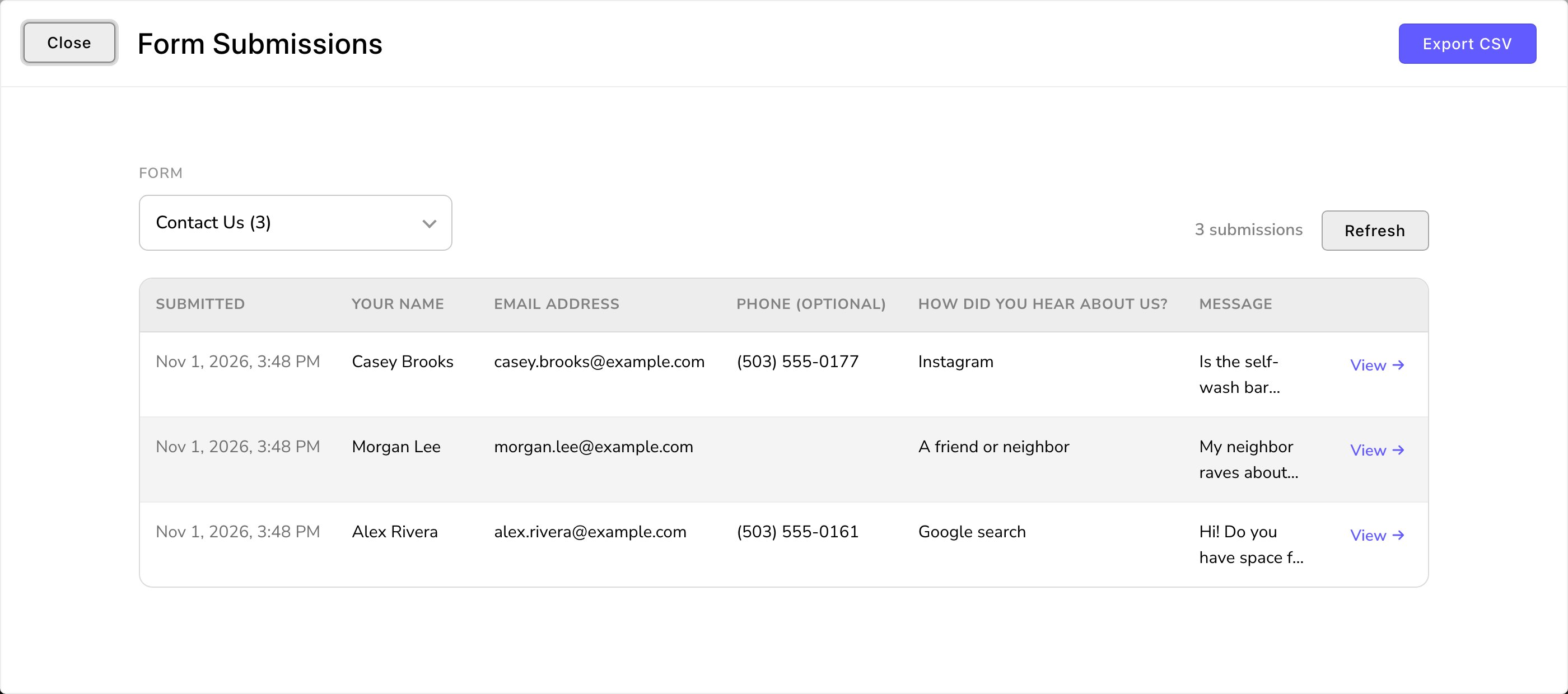
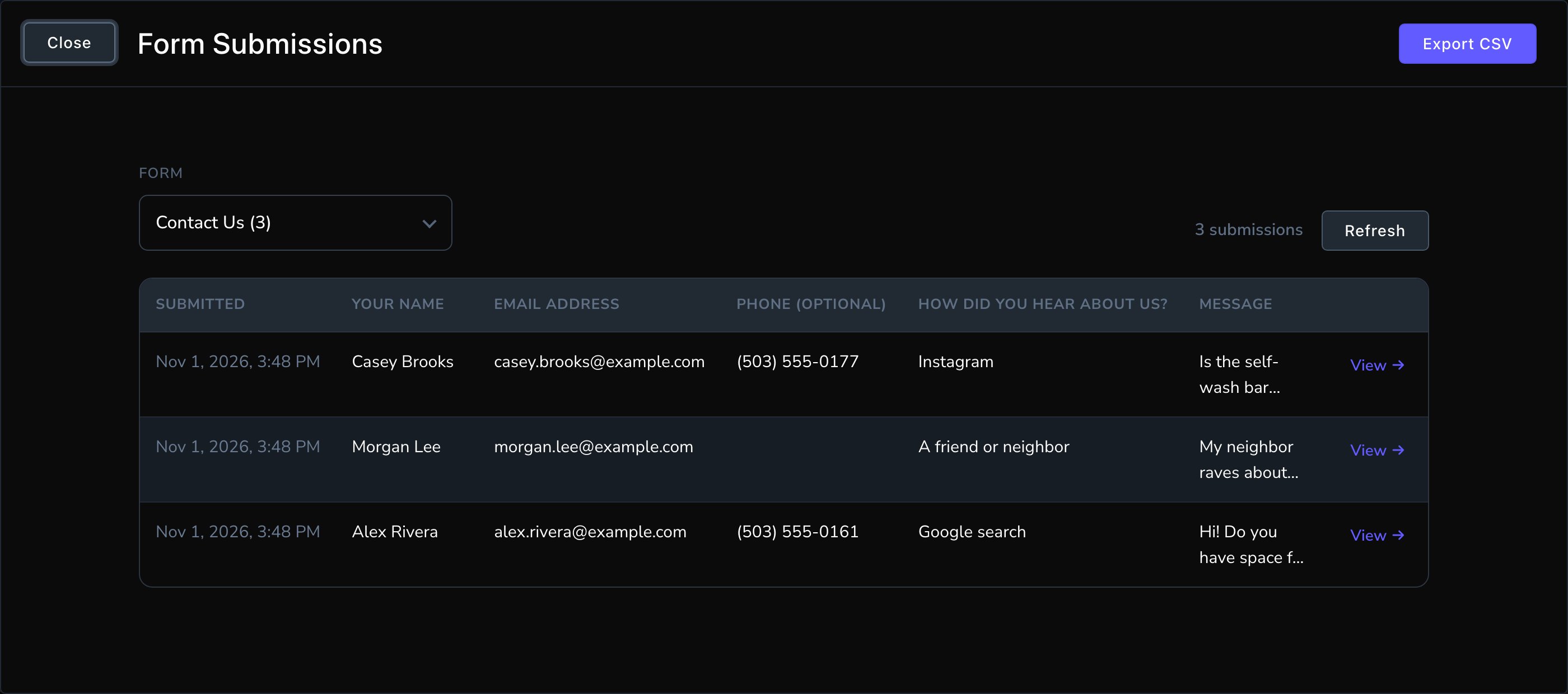
The Form Submissions window, newest first.
Choose a form
Use the Form menu at the top to switch between your forms. Each form shows how many submissions it has. Choose Refresh to load any that came in while the window was open. If you have no forms yet, the window says No forms yet. A form that nobody has sent yet says No submissions yet.The table
- Submitted: the date and time each submission arrived. The newest is at the top.
- The other columns: up to 5 of the form’s fields, each headed by the field’s label. Answers to a dropdown, radio or checkboxes field show the choice as visitors saw it. When a form has more fields, a note under the table says how many are hidden.
- ‹ Previous and Next ›: move between pages of submissions.
A submission in full
Choose View → at the end of a row. A panel slides in with every field the visitor filled in. A conversion is a visitor doing something your business wants, such as sending this form. When you track a form as a conversion, the panel also lists its Conversion Events: the record of each time that happened. Choose View event → to see where that visitor came from. See Conversion tracking.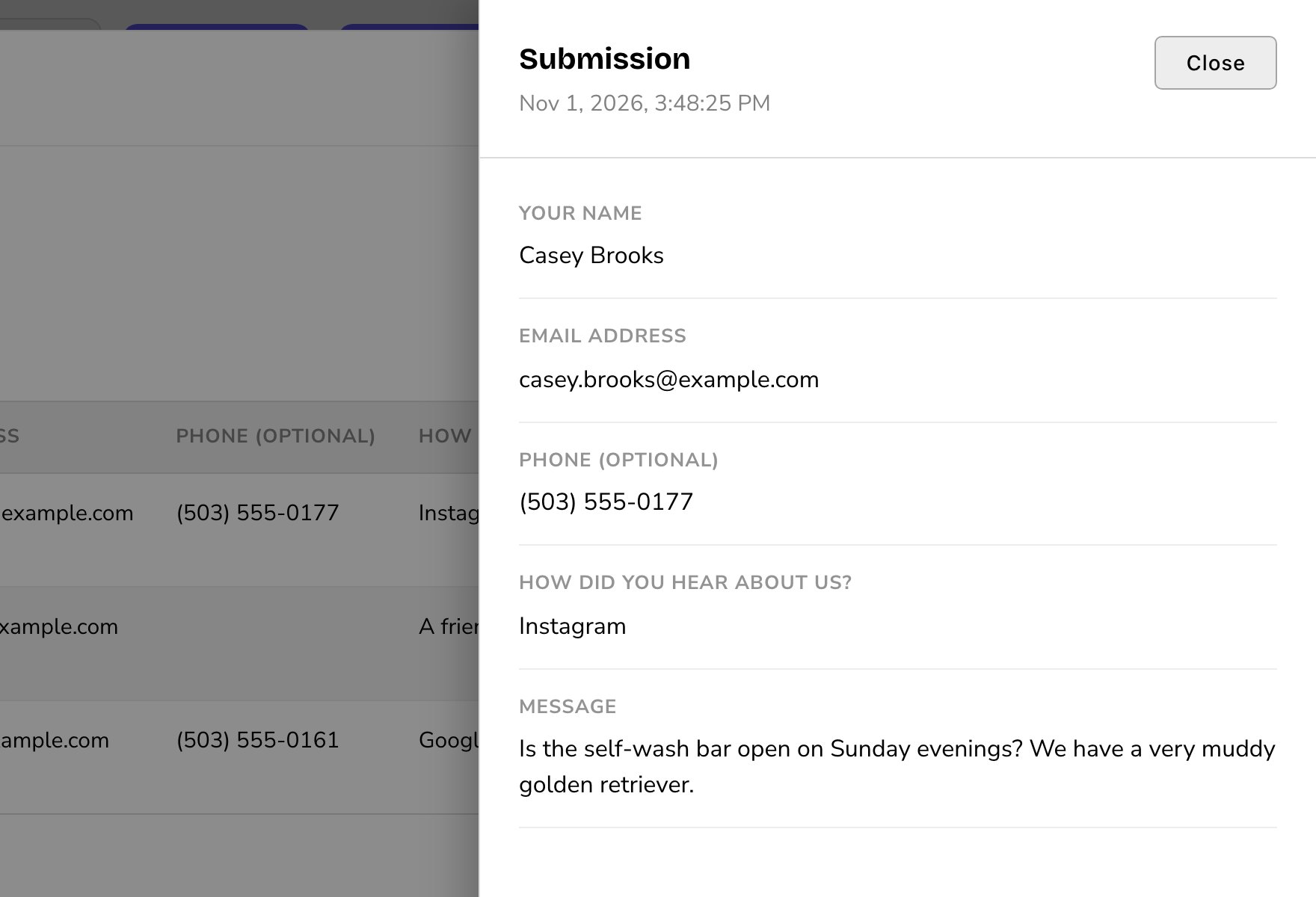
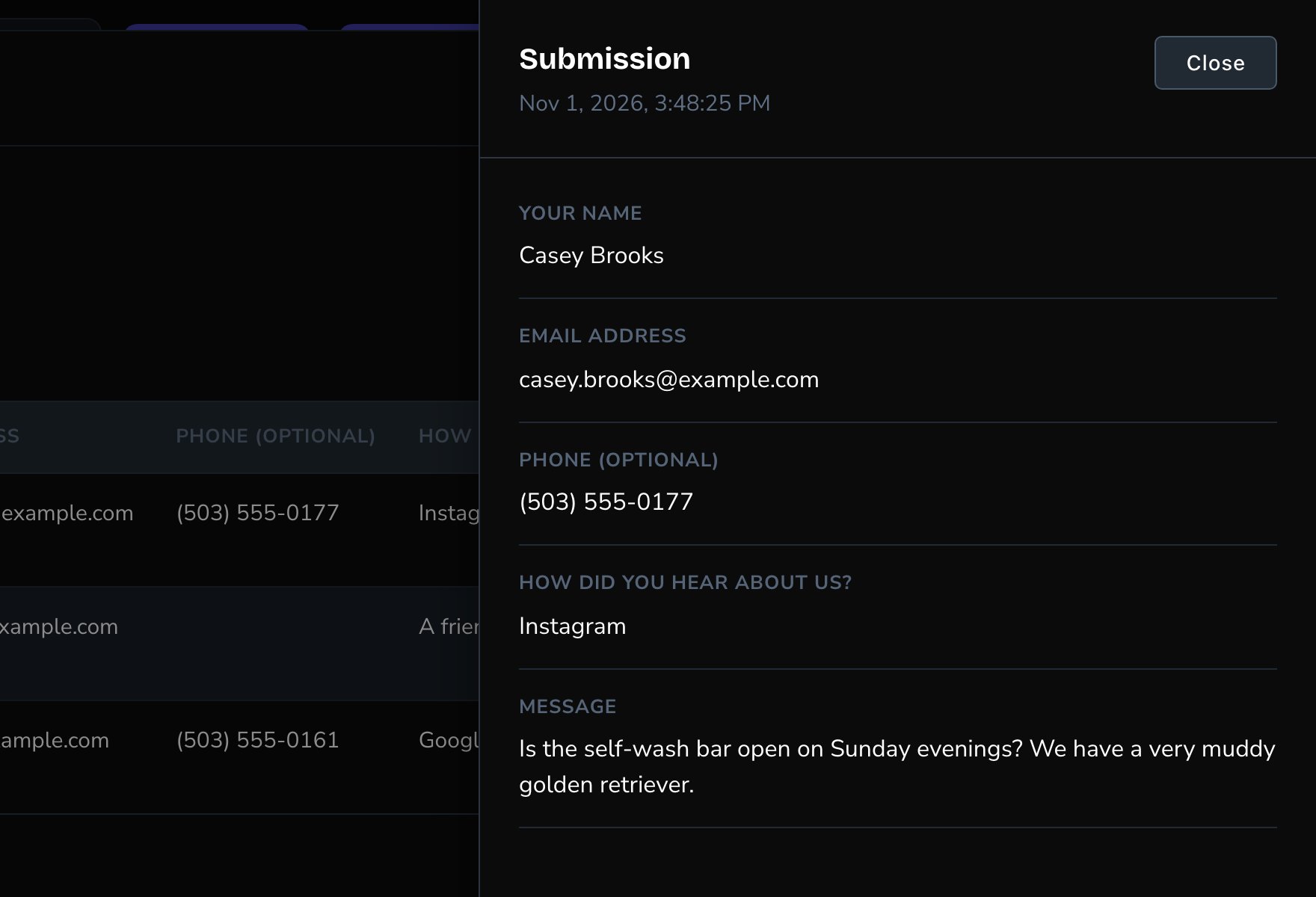
Open a submission to see every field.
Download as a spreadsheet file
Choose Export CSV to download the chosen form’s submissions. The file opens in Excel, Numbers or Google Sheets, and is named after the form and today’s date. It has a Submitted column with the date and time, then a column for every field visitors sent, not just the 5 in the table. When a submission recorded a visitor, there’s also a Visitor ID column. It’s an anonymous code for the visitor’s browser, not their name, so you can match their submission to their visit. An export holds up to the 10,000 most recent submissions. When a form has more, you see a warning such as “Exported the most recent 10000 of 12500 submissions.” The older ones are still kept. To get a copy of them, contact Fetchski Support.Copy submissions into a Google Sheet
Have each new submission added as a row in a Google Sheet, as it arrives.1
An Admin connects Google Sheets once for the whole site
See Google Sheets.
2
Open the form in the Forms manager and go to its After submission tab
3
Turn on Submit to Google Spreadsheets
4
In Google Spreadsheet ID, paste the long code from the sheet's web address, between /d/ and /edit
5
In Google Spreadsheet Sheet Name, type the name of the tab at the bottom of the sheet, such as Sheet1
Use the tab’s name, not the file’s. If you leave it empty, the CMS uses a tab named Sheet1.
6
Publish the form
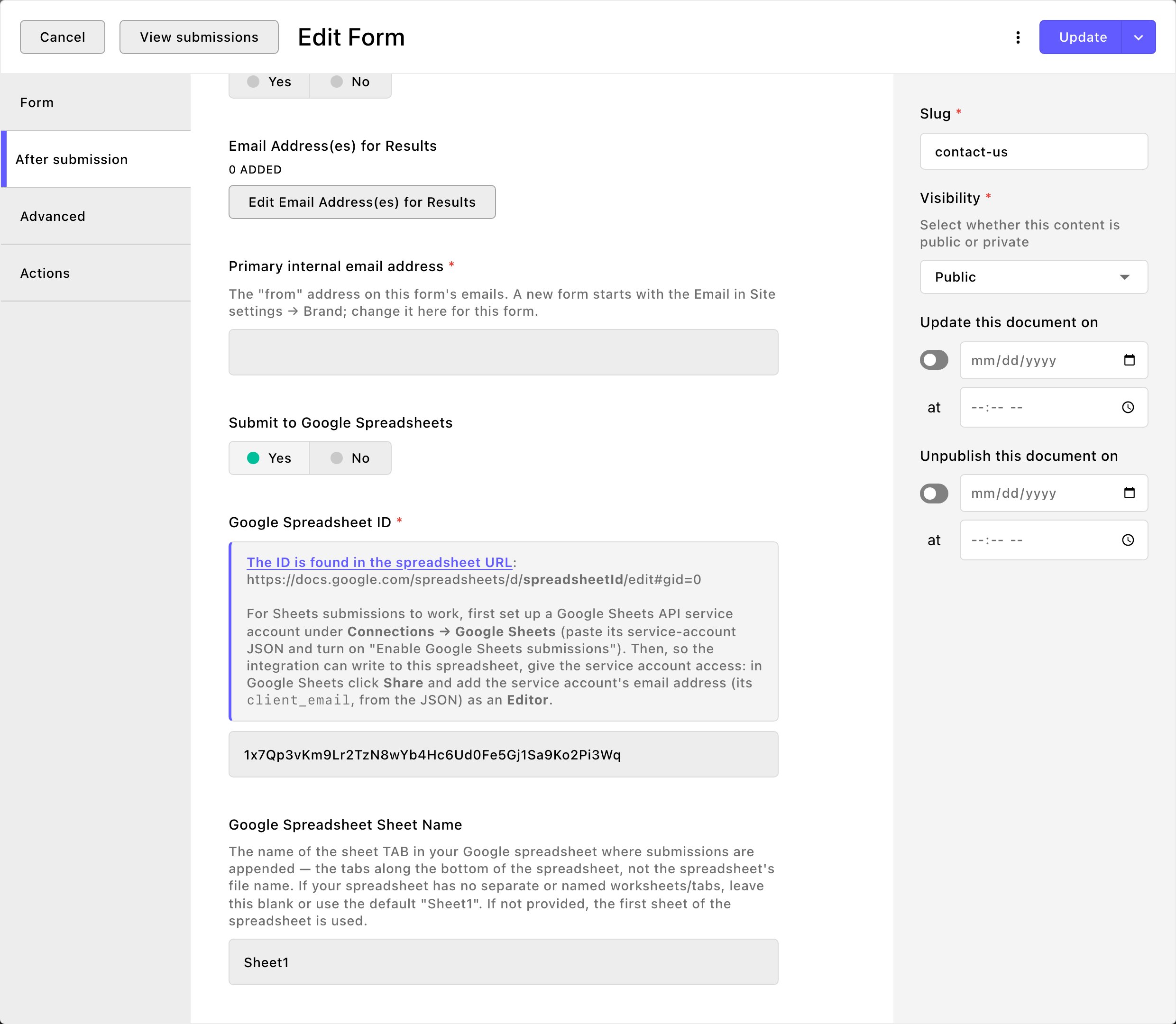
Send a form's submissions to a Google Sheet.
Good to know
- Every submission is kept. Attract stores each one, even when its email or Google Sheet fails to send.
- This window is read-only. You can read and export submissions here, but not change or delete them. To have a submission deleted, such as when someone asks you to remove their details, contact Fetchski Support.
- One form, many places. Put the same form on several pages and all its submissions collect here together. Make a second form when you want them kept apart.
- Submissions hold personal details. Keep exported files somewhere safe, and delete them when you no longer need them.
- Other roles. Admins can give other roles See form submissions and Export form submissions in People & Roles. See People and roles.
Related
Build a form
create a form and put it on a page.
Email notifications
get an email for every submission.
Spam protection
keep bots out of your submissions.
Google Sheets
connect your Google account for sheets.