

 AdonisJS
Before you start
- Archive first. It’s the safe choice: nothing is lost, and you can change your mind.
- Check where the item is used. A testimonial, an album or an image may appear in sections on several pages. There’s no list of places before you archive, so look yourself:
- For an entry in a list, such as a testimonial, open the pages that have a section showing that list. Content you reuse lists which sections show which list.
- For an image, video or file, the Delete forever… window runs a check of where it’s used. You can open that window to read the check, then choose Cancel. The check can miss some places, so still look at the pages you know use it.
- These steps work in every list under Manage in the command palette. That includes blog posts, reviews, team members, albums and images. For pages, see Pages and the page tree.
Archive
1
Open the list
Press ⌘K (Ctrl+K on Windows) and choose the list under Manage, such as Testimonials.
2
Select the items
Tick the box beside each one.
3
Archive them
In the bar above the list, choose Archive, then confirm with Yes, archive content.
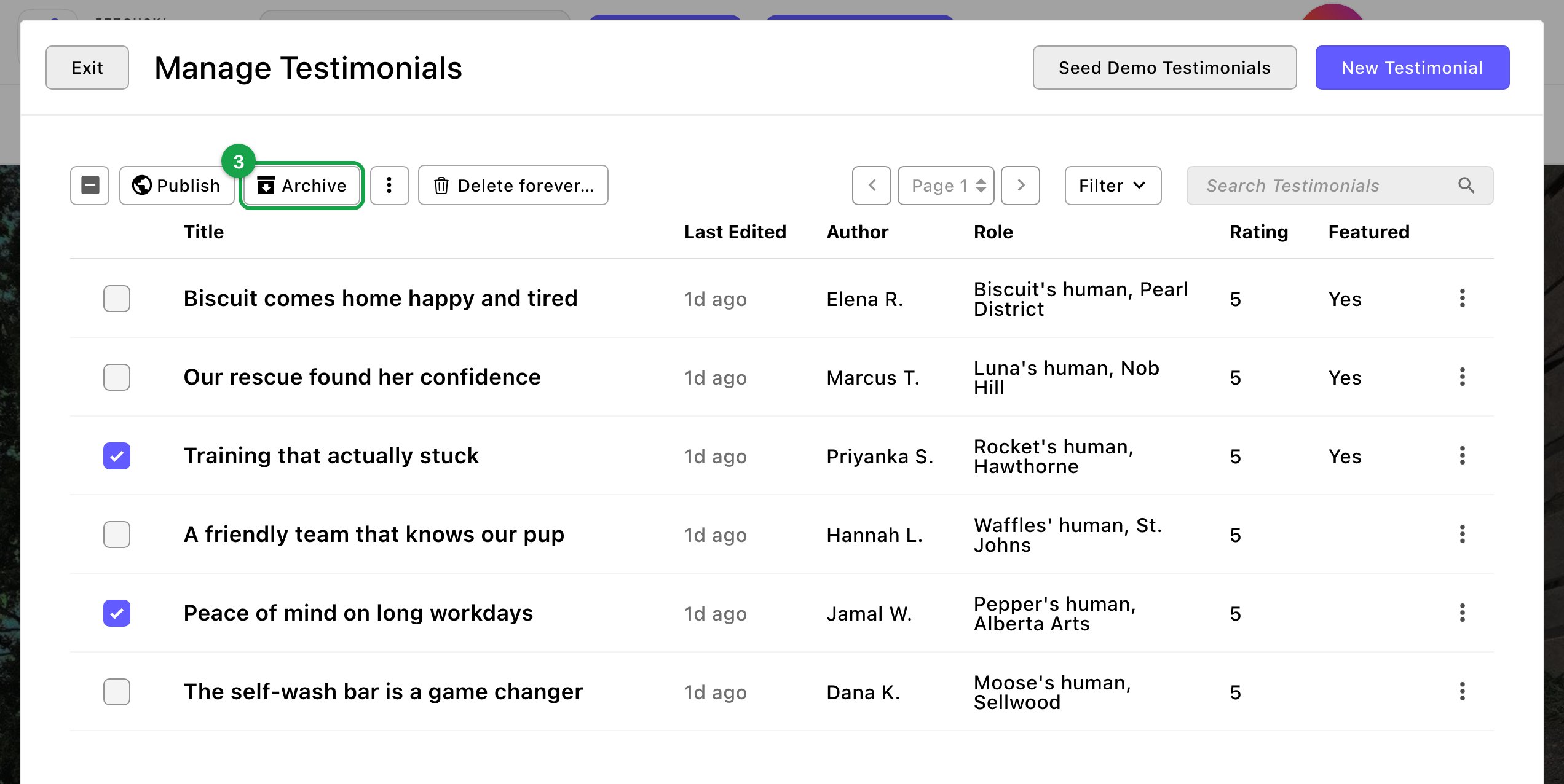
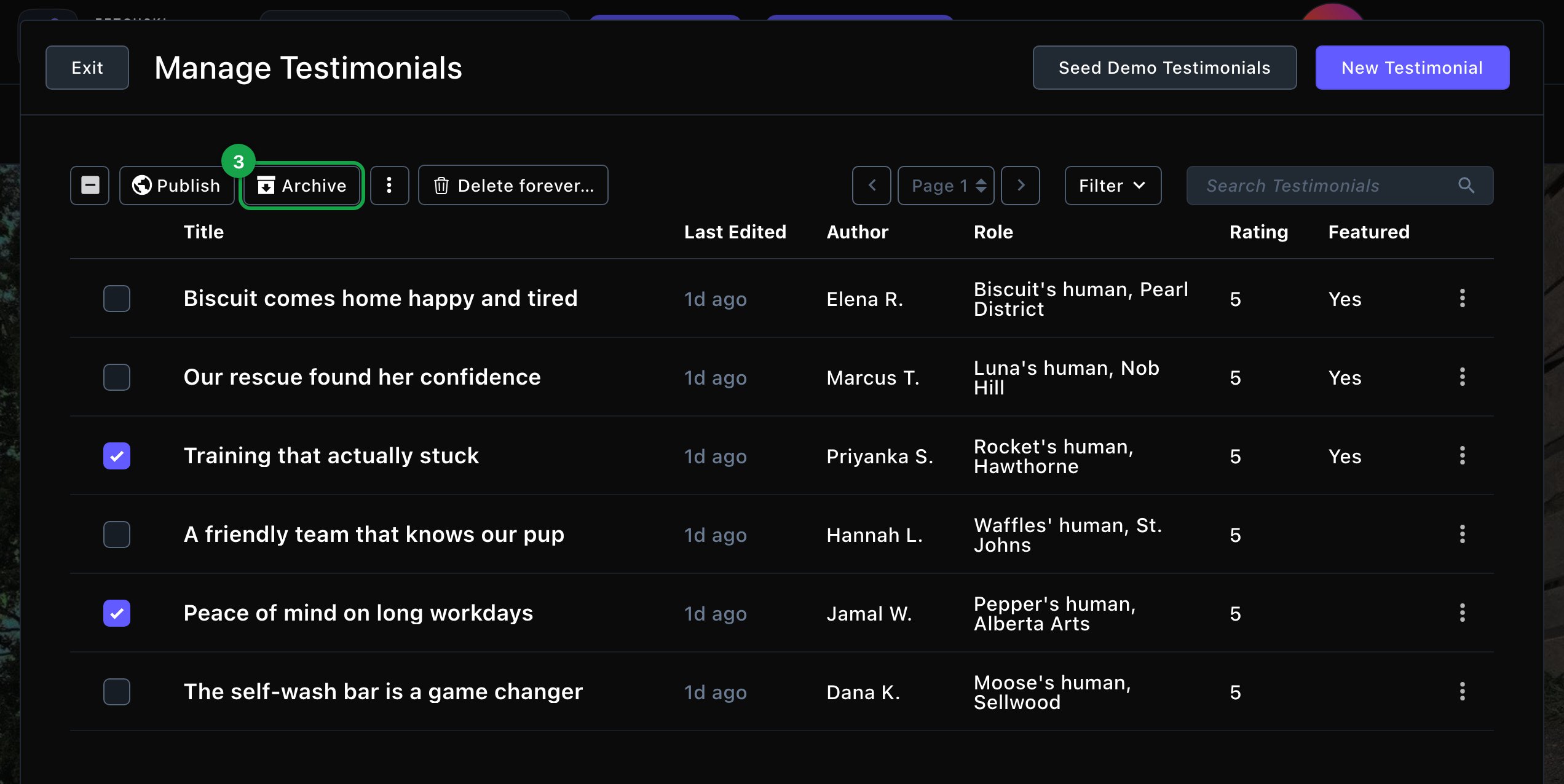
Select items, then choose Archive.
Restore
1
Open the list and choose Filter
Under Archived, choose Archived.
2
Tick the items to bring back
3
Choose Restore, then confirm with Yes, restore content
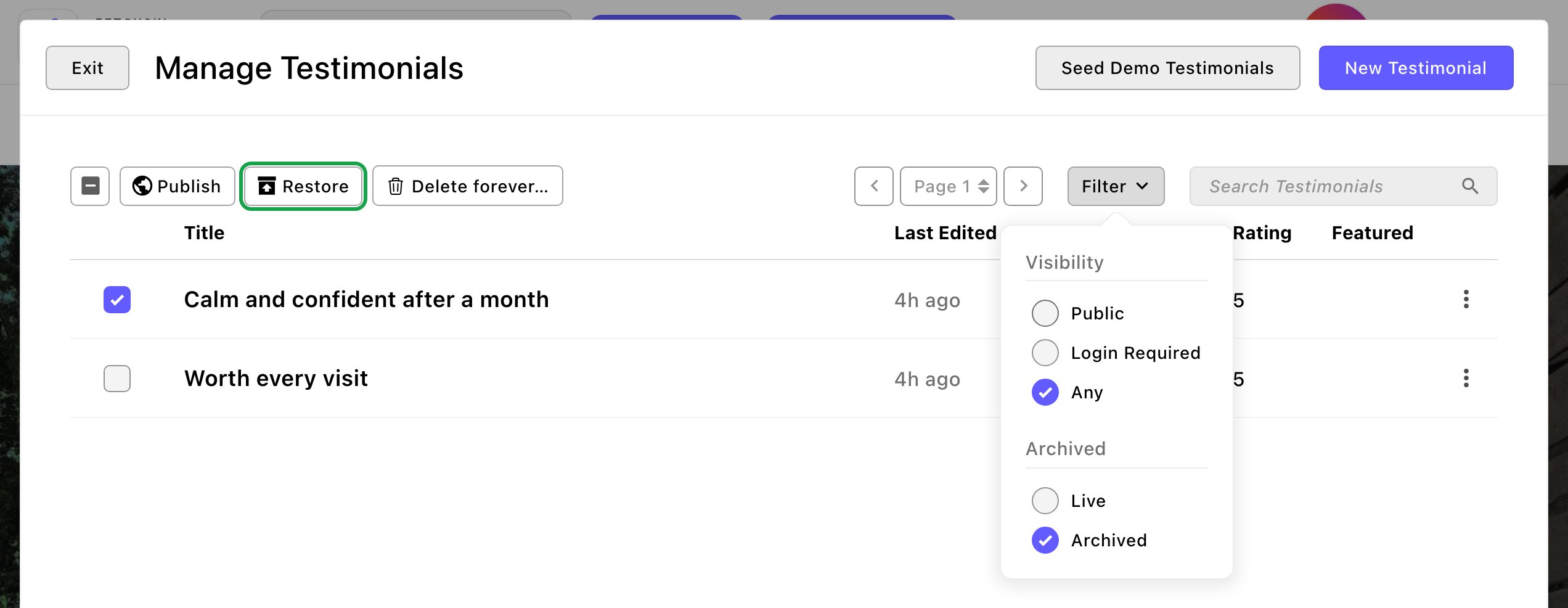
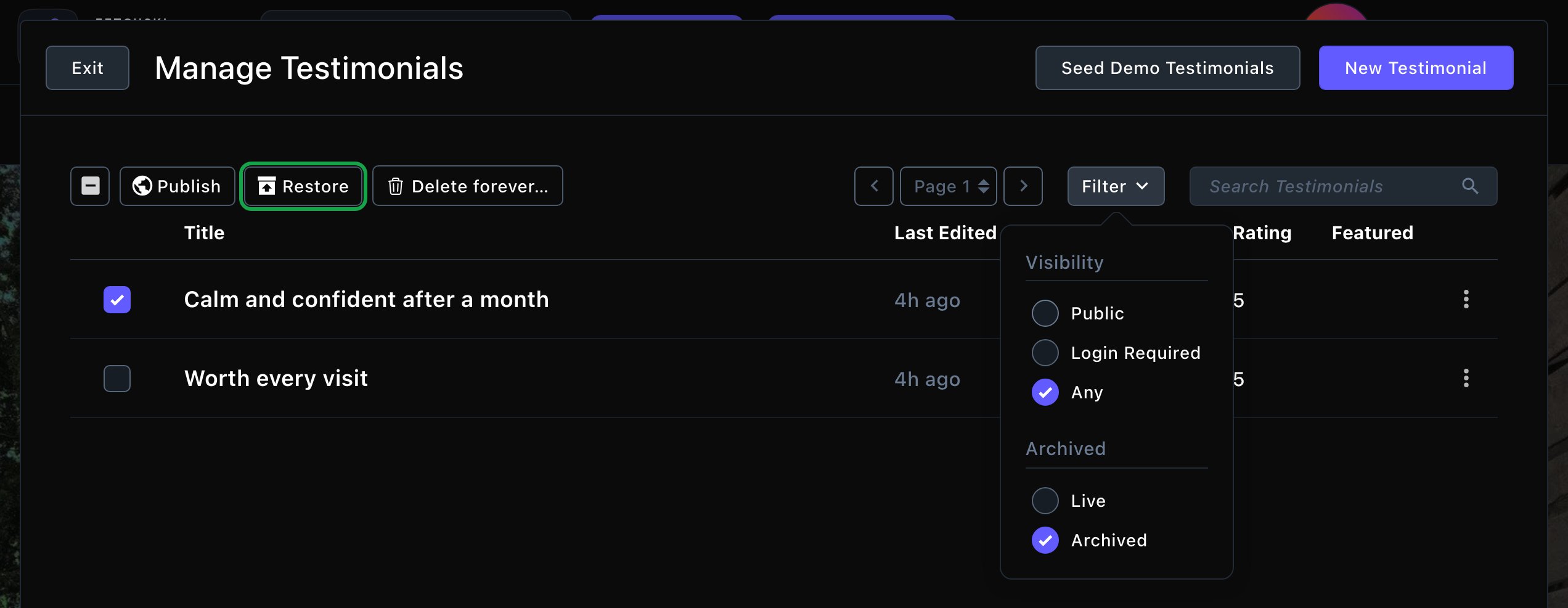
Show archived items, then restore the ones you want back.
- Posts, list entries and videos come back as drafts. Publish them again to show them on your site. Sections that showed them show them again once they’re published.
- Images and files come back ready to use. Pages, posts and albums that used them show them again, as the spots that held them were never emptied.
- Photo Feeds have no drafts. A restored feed comes back with its saved settings, ready to use.
Delete forever
Delete forever when you’re sure you won’t need an item again. It removes the item from the CMS for good. For images, videos and files, the stored files go too. It can’t be undone.1
Select the items
In the list, tick each one. This works in the normal list and among archived items.
2
Choose Delete forever… in the bar above the list (the trash can)
A window opens and checks where the items are used: “Checking whether the selected items are still used anywhere…”
3
Read the check
If an item is still used, you see where, such as “used in 2 places”. Places in content you can’t open are counted, not named.
4
Confirm
Choose Delete forever, or Cancel to keep everything. When it’s done, a notice says “Permanently deleted 2 item(s).”
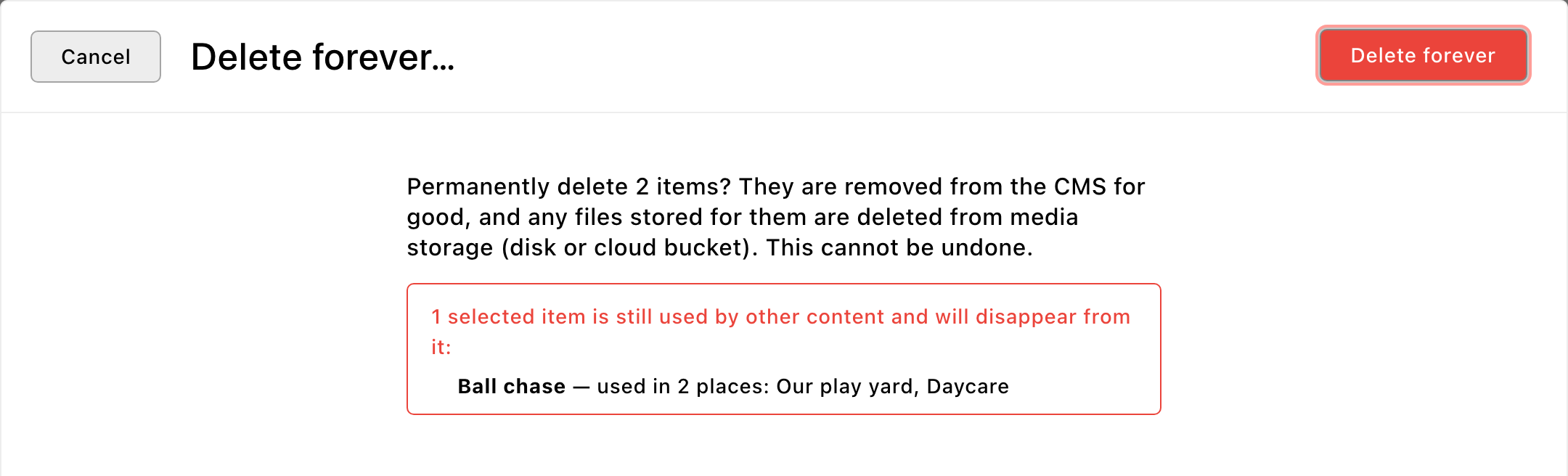
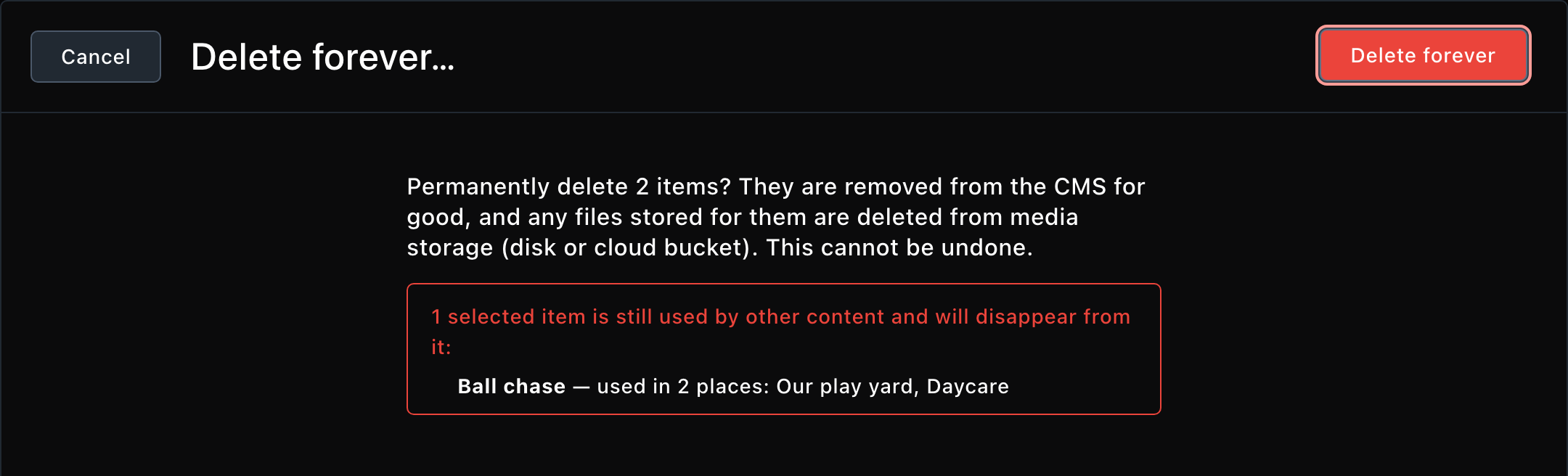
Before you confirm, the check shows where the items are still used.
Good to know
- Shared files are kept. When another item uses the same stored file, the window says so, and that file stays.
- Some items come back on their own. Reviews and Instagram posts that came from Google or Instagram return at the next sync while they’re still there. See Google reviews and Instagram posts.
- Pages are archived, not deleted. Pages can be archived and restored, but not deleted forever. A few main pages can’t be archived at all.
- Archived files can still be reached. An archived image or file can stay reachable at its web address until you delete it forever. Anyone who saved that address could still open it. Keep truly private files out of the media library.
Troubleshooting
I don't see Archive or Delete forever…
I don't see Archive or Delete forever…
You see these buttons only when you’re allowed to use them. Archiving something that has ever been published needs an Editor, an Admin or an Owner. Contributors can archive only things that were never published, so once an item has been published they can’t archive it. Deleting media forever also needs Delete media forever.Ask an Admin to give you a role or permission in People & Roles. See People & Roles.
I can't find an item I archived
I can't find an item I archived
Archived items are hidden from the normal list. Choose Filter, then Archived.
A restored item isn't on my site
A restored item isn't on my site
Restored posts, list entries and videos come back as drafts. Open the item and publish it. (Images, files and Photo Feeds are ready as soon as they’re restored.)
Related
Broken media
find and fix pictures that were removed from pages.
Media library
manage your images, videos and files.
Pages and the page tree
archive and restore pages.
Content you reuse
the lists these steps work in.