

 AdonisJS
Open Legal
- In the toolbar (the bar across the top of your site once you’re signed in; see The toolbar), choose Site settings (the gear), then the Legal tab.
- Or open the command palette (⌘K, or Ctrl+K on Windows), choose Site settings, then Legal. The shortcut for Site settings is T then G (press T, let go, then press G, while you’re not typing in a box; see Keyboard shortcuts).
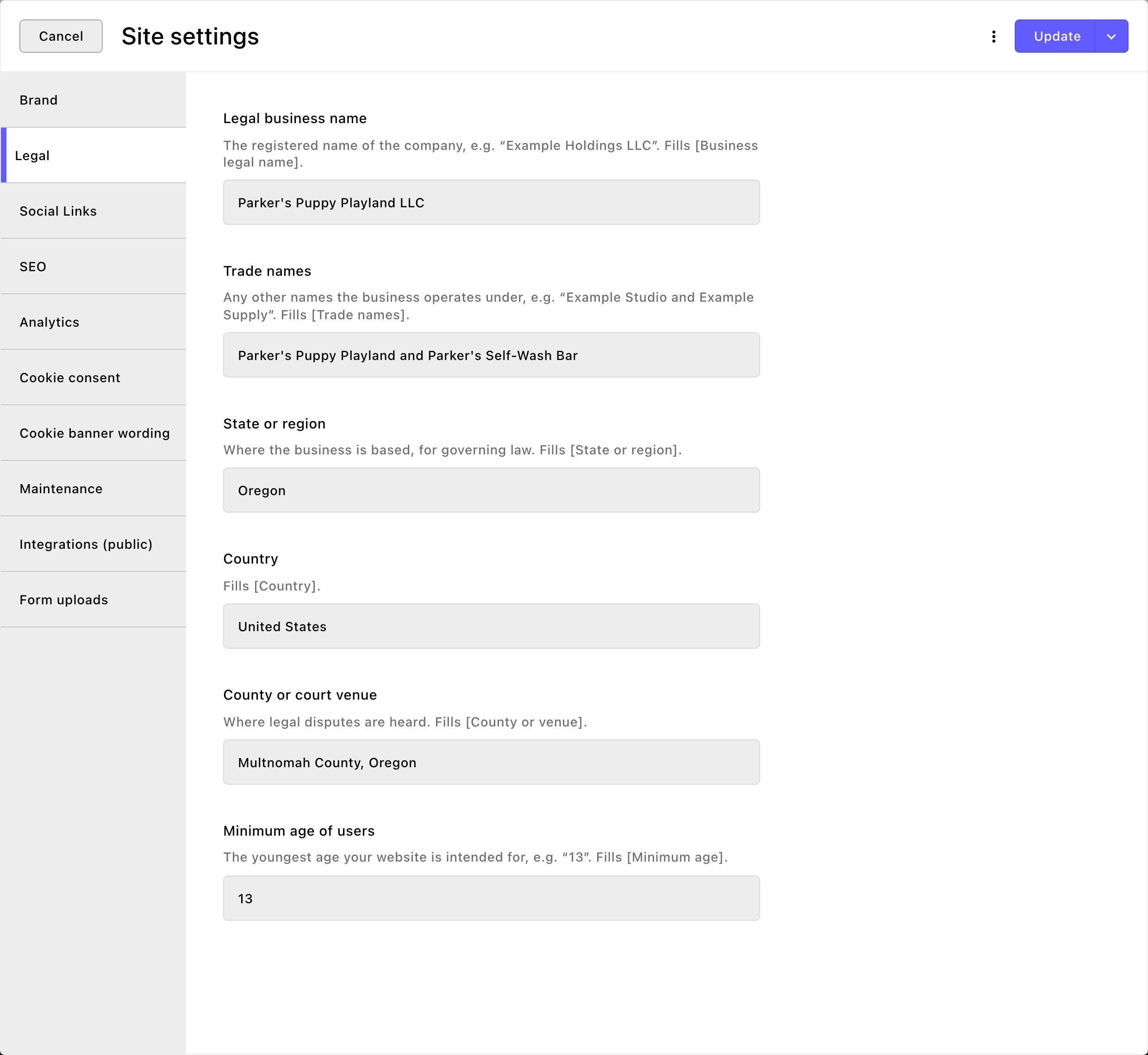
The Legal tab, filled in.
The legal details
Your legal pages use these details. Nothing else on your site shows them.- Legal business name: your company’s registered name, such as “Parker’s Puppy Playland LLC”.
- Trade names: any other names you do business under.
- State or region: where your business is based, for the law that governs your terms.
- Country: the country your business is in.
- County or court venue: where legal disputes are heard, such as “Multnomah County, Oregon”.
- Minimum age of users: the youngest age of the visitors and customers your site is meant for. Your privacy policy uses it to say you don’t knowingly collect information from anyone younger. It only fills that wording; it doesn’t check anyone’s age. Enter the age that fits your business, such as “13” or “18”.
Your legal pages
Every new site has a Privacy Policy page and a Terms and Conditions page. They’re linked from the Legal group in your footer, next to your Cookie Policy. Both start with complete, general policy text. Details only you know are marked with brackets, such as [Business legal name] or [Minimum age]. You can also start a fresh copy from the Privacy Policy and Terms and Conditions templates in the Create a Page gallery. See Page templates.Fill in your business details
- Open the page, such as your Privacy Policy, and choose Edit in the edit bar.
- Choose More Options (⋯), then Fill in business details.
- Read the window. It lists what it will fill (Will be filled), what Site settings doesn’t have yet, and what you need to write yourself. Check each value under Will be filled: it goes onto the page exactly as shown.
- Look for a note that says the filled text is published too. With it, the filled text goes live the moment you choose the fill button. To review it first, choose Cancel, make any small edit to the page so it has changes waiting, then open the window again. The note is gone, and the fill stays in your draft.
- Choose Fill N placeholders (N is how many it found).
- Read the filled page. When it’s right, choose Update to publish it, if it isn’t live already. Contributors choose Submit Update instead.


Check what will be filled, then fill it in one step.
What gets filled
What happens next
- It’s a one-time change. The details are written into the page’s text. Changing Site settings later won’t change the page, and running the fill again won’t either: it only fills brackets still on the page. To change a detail already filled in, edit the text by hand.
- Draft or live. If the page is published with no changes waiting, and you can publish, the filled text goes live straight away. The window warns you first (see step 4 above). Otherwise it stays in your draft until you choose Update.
- Some brackets stay. Details Site settings can’t answer, such as your refund times, are left for you to write. So are any details still blank or still showing sample text.
The window says there's nothing to fill
The window says there's nothing to fill
The window reads “This page has no placeholders left to fill.” Every bracketed detail on the page is already filled in or written by hand. To change a detail now, edit the page’s text.
Good to know
- Fill in Brand too. Your business name, address, email and phone come from Brand.
- It works on any page. Fill in business details is in the More Options menu of every page, not only legal pages.
- Your cookie policy keeps itself current. The Cookie Policy page lists your cookies for you. See Cookie consent.
Related
Page templates
start a page from a ready-made layout.
Brand
your business name and contact details.
Cookie consent
your cookie banner and Cookie Policy.
Footer
change the links in your footer’s Legal group.