

 AdonisJS
Before you start
- A Google Cloud account with billing turned on. Google Maps needs a card on file. It includes a free monthly allowance.
- Your site’s web address, such as
https://parkerspuppyplayland.example, to limit the key to your site. Note whether it also opens withwww.in front.
Add your Maps key
1
Open the card
Open Connections from the toolbar or the command palette (⌘K, or Ctrl+K on Windows). The toolbar is the bar across the top of your site once you’re signed in; see The toolbar. Under Google, choose Google Maps. Its badge says Not set up.
2
Follow the setup guide
Setup guide — Google Maps key links each Google Cloud page. In a Google Cloud project with billing on, turn on these 4 Google tools:
- Maps JavaScript API: draws the map.
- Geocoding API: lets visitors search for their address.
- Distance Matrix API: works out driving-distance price estimates.
- Places API (New): suggests addresses as visitors type.
3
Create a key
In Google Cloud, create an API key and copy it.
4
Limit the key to your site
In the key’s settings, under Application restrictions, choose Websites. Add one entry for each address your site runs on, ending in
/* so it covers every page:https://parkerspuppyplayland.example/*https://www.parkerspuppyplayland.example/*, if your site also opens withwww.
5
Paste the key
Paste it into Maps JavaScript API key (public).
6
Save
Choose Save. The badge reads Connected, with “Maps key saved.”
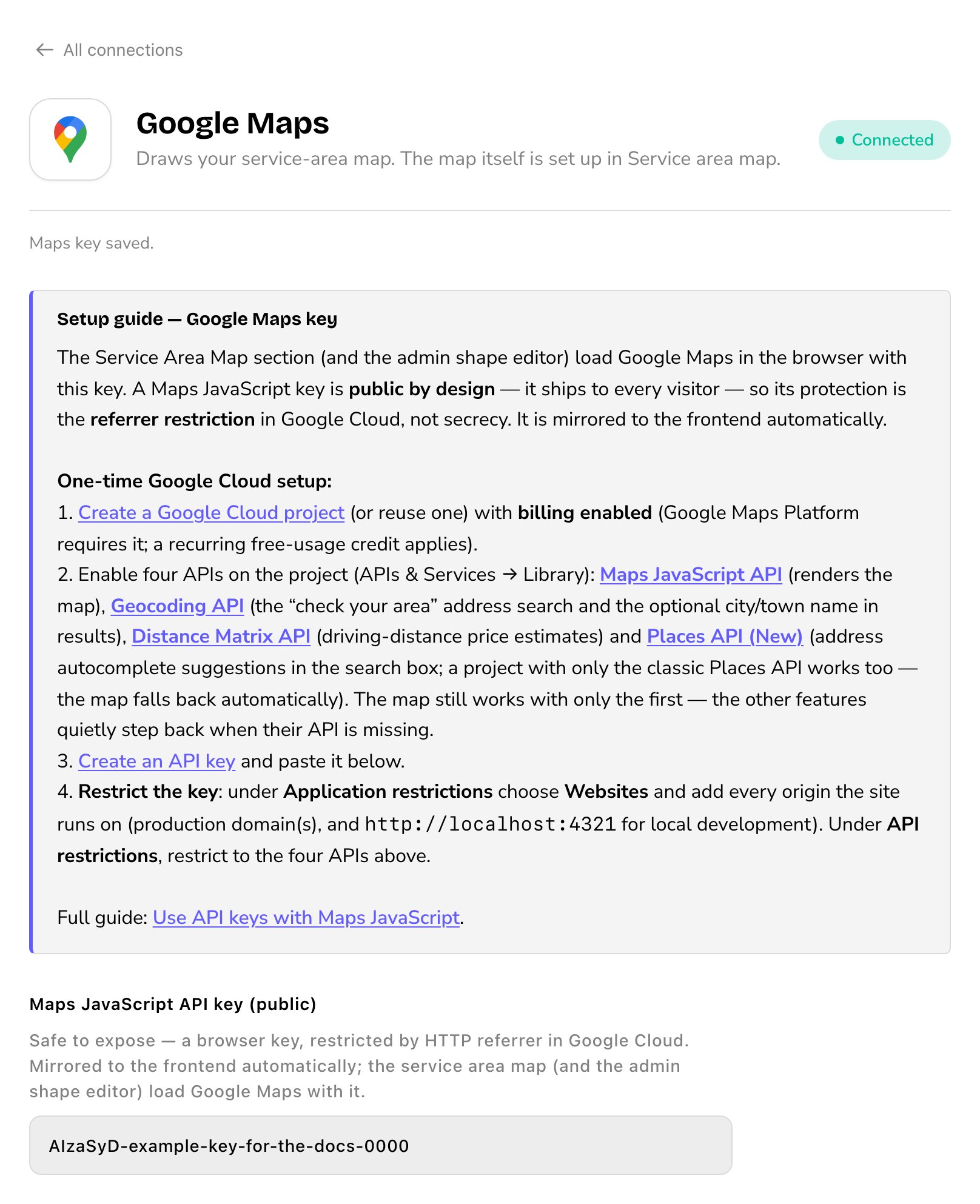
The Google Maps card, with its setup guide and key.
What happens next
Your Service Area Map sections can now show the map. Next, tell the map where your areas come from and where you are, on the Service area map screen. See Service area map settings.Good to know
- This key is public on purpose. Visitors’ browsers use it to load the map, so it shows as plain text, not sealed like other keys. The website restriction is what keeps it safe: Google refuses it on any other site.
- It’s not the reviews key. The Google Reviews card uses its own private Places API key, or your Google Business Profile sign-in. Keep this Maps key for maps only. See Google Reviews connection.
- Site settings shows a copy. The Integrations (public) tab in Site settings lists it as Google Maps API key. That copy is read-only and updates when you save Connections.
- The map works with just the first tool. Leave out the other 3, and the map still shows, without address search, price estimates or address suggestions.
Troubleshooting
The map doesn't appear
The map doesn't appear
Check that the key is saved on the Google Maps card and that billing is on in Google Cloud. Then check the key’s Websites list. It must include each address your site runs on, written like the entries in step 4:
https://, then the address with or without www., then /*.Address search or price estimates don't work
Address search or price estimates don't work
Turn on Geocoding API and Distance Matrix API in your Google Cloud project, and allow them in the key’s API restrictions.
Related
Service Area Map section
show the areas you serve on a page.
Service area map settings
map data, your location and pricing.
Service areas
add and draw the areas you serve.
Connections
every outside service your site uses.