Create pages, put them in order, rename them, and take away the ones you no longer need.
Your site’s pages sit in a tree, with your home page at the top and every other page below it. Here you create pages, move them around, rename them and remove the ones you no longer need.Who can do this: Contributors, Editors, Admins and Owners. Publishing needs an Editor, an Admin or an Owner.
Before you start
Sign in to your site.
Think about where the page belongs. A page you create becomes a subpage of the page you’re on, so open the right parent page first. You can move it later.
For example, take the tree Home → Services → Daycare:
Services sits right under the home page: it’s a top-level page.
Daycare sits under Services, so it’s a subpage of Services, and Services is its parent page.
To add Daycare there, open the Services page before you choose New Page.
Open the page tree
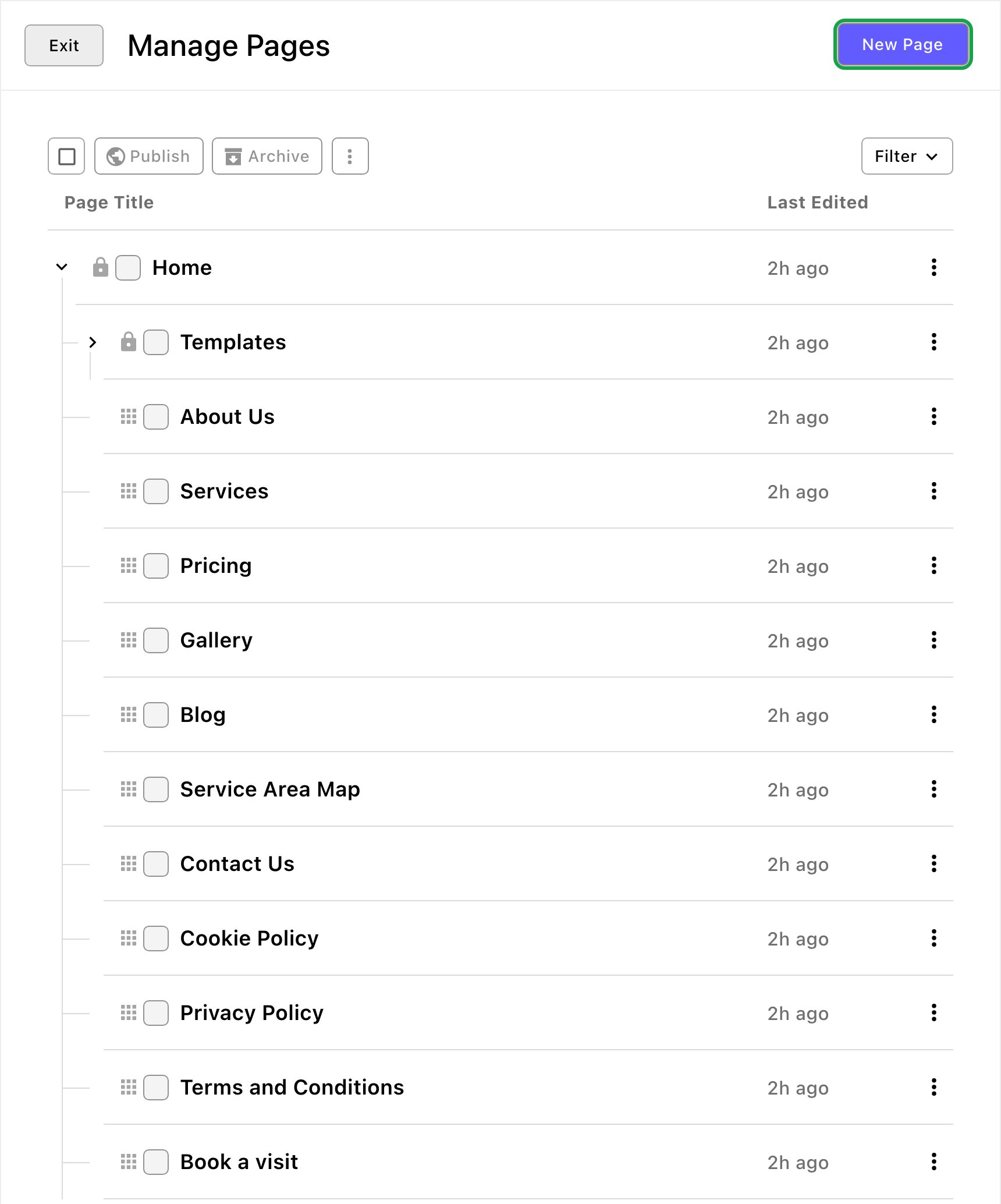
Open the command palette (⌘K, or Ctrl+K on Windows) and choose Pages. Or press G, then P.The Manage Pages window opens. It lists every page under Page Title, with Last Edited beside it. Choose the arrow beside a page to show or hide its subpages.
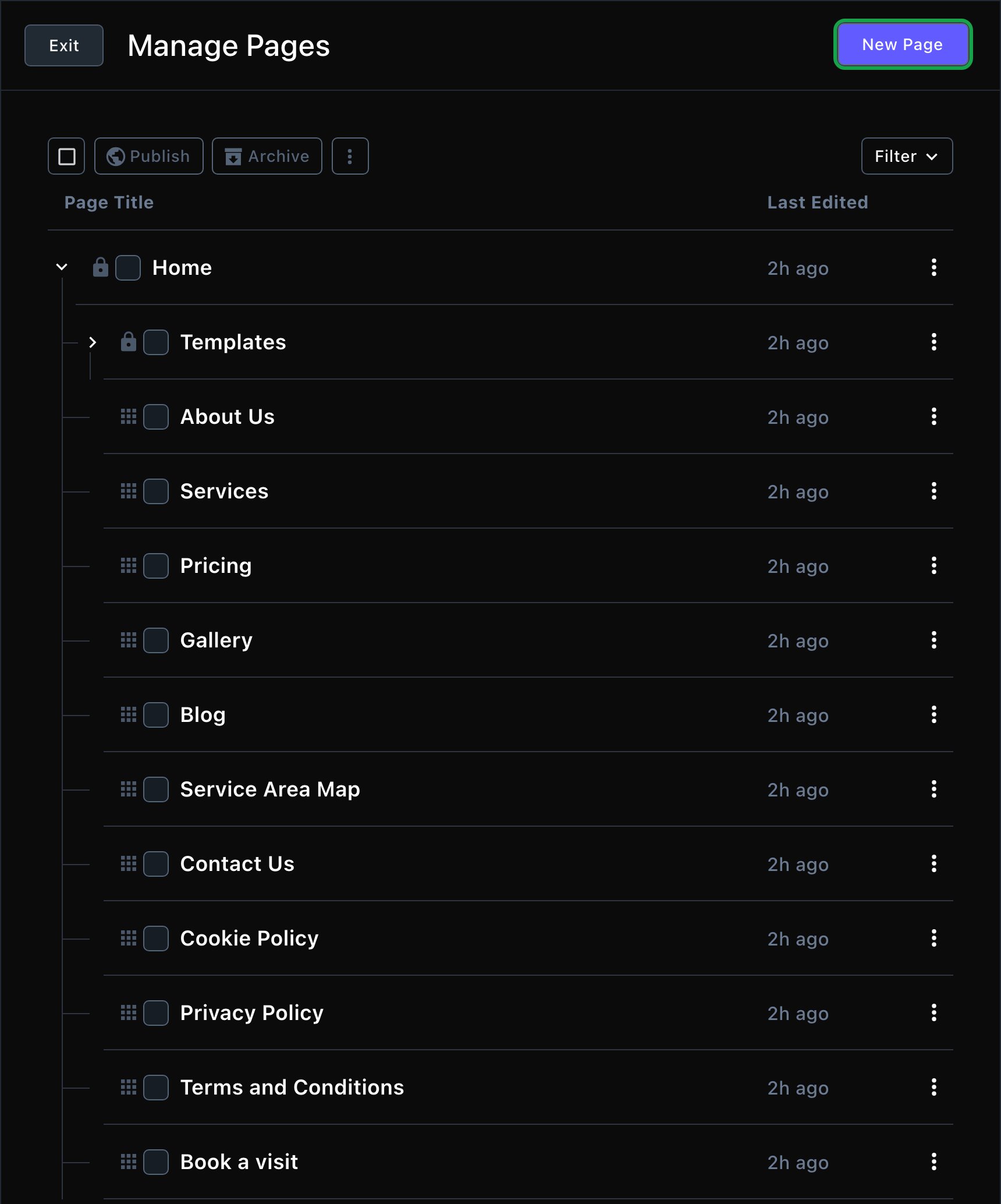
The page tree. A lock marks a page that keeps its place: Home, and the Templates branch.
Create a page
1
Open the parent page
On your site, go to the page your new page should sit under. For a top-level page, stay on the home page. Can’t reach the parent from your menu? Open Manage Pages (see above), choose that page’s More Options, then Preview: the page opens on your site.
2
Start a new page
Open Manage Pages, then choose New Page. The Create a Page gallery opens.
3
Choose a starting point
Choose Blank page, then Start blank. Or choose a ready-made layout and Use template. See Start from a page template.
4
Fill in the basics
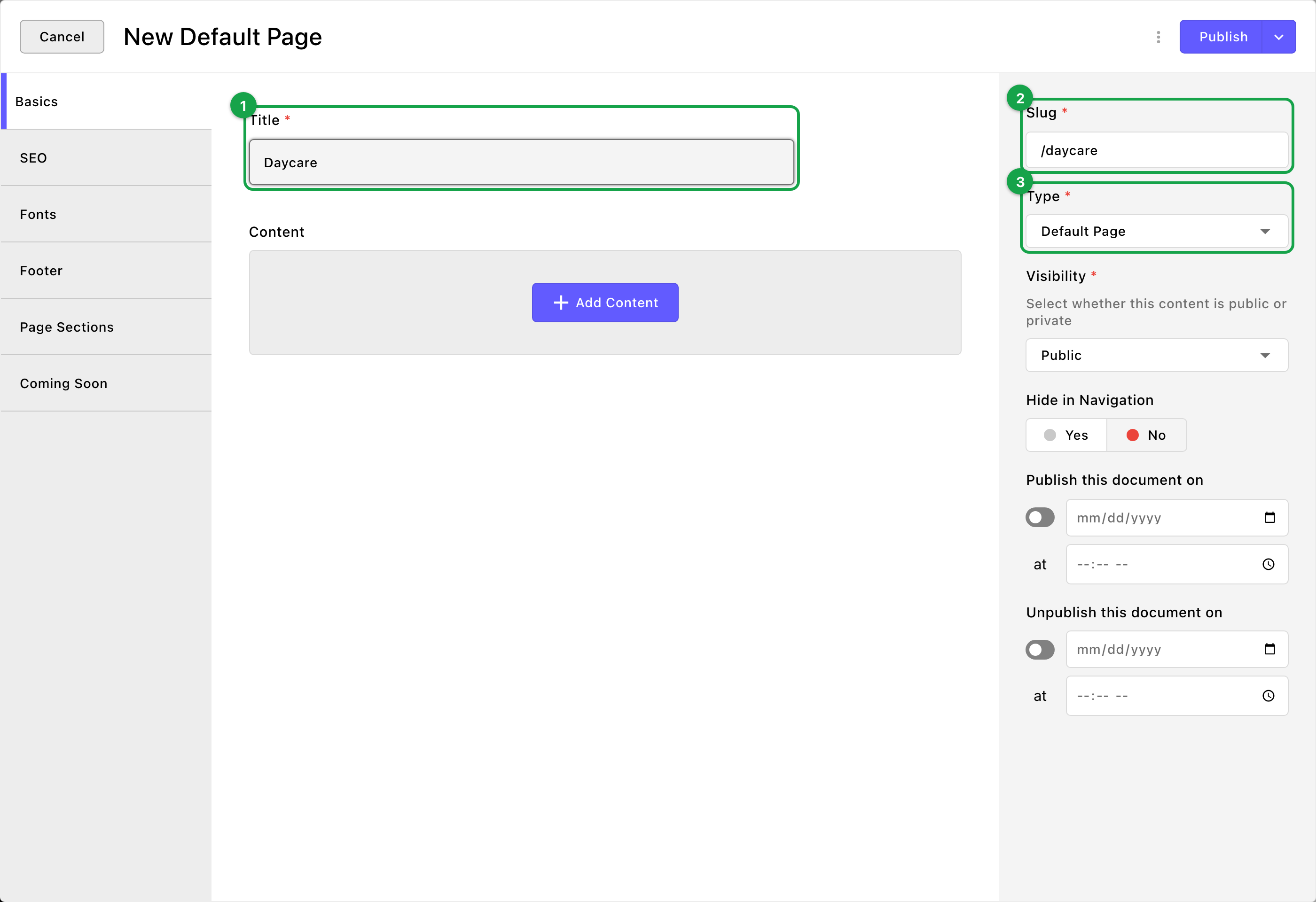
The new page’s window opens on the Basics tab. Type the page’s name in Title.Slug fills in from the title: it’s the part of the web address after your domain, starting with a slash. For example, the title “Daycare” gives the Slug “/daycare”, and the page’s address becomes yoursite.com/daycare. You can change it.
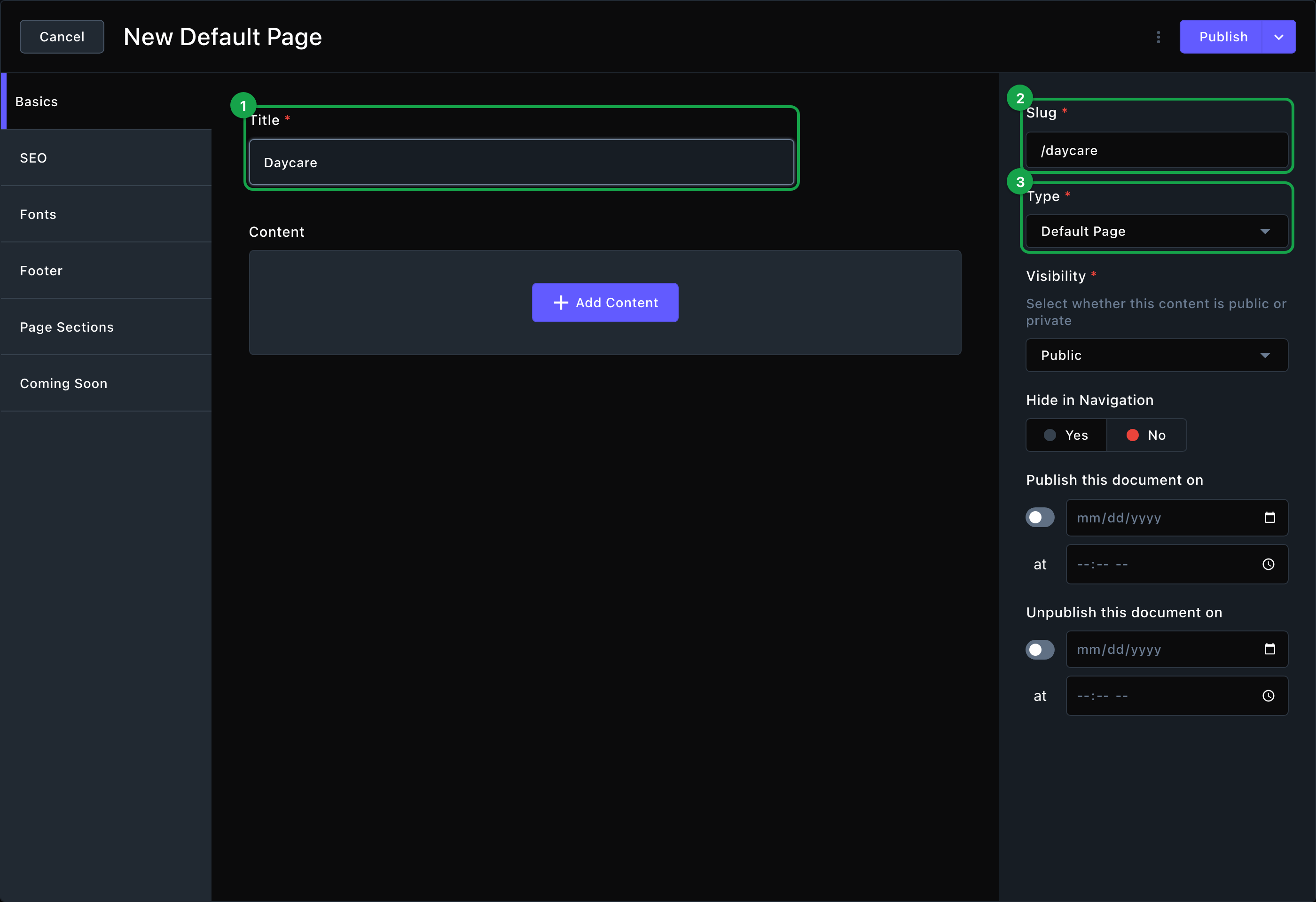
A new page: give it a title, check its address and choose its type.
5
Check the type
Type is set to Default Page, which suits most pages. See Page types below.
6
Save it as a draft
Open the arrow beside Publish (More save options) and choose Save Draft. Visitors can’t see the page yet.
The page opens on your site, ready for sections. Add them, replace the sample text, then read the page through and publish it: choose Publish in the edit bar. Contributors choose Submit instead, to send it for review. See Add, move and remove sections.
Page types
Choose the type when you create a page. It decides what kind of page it is.
Type
Use it for
Default Page
Almost every page: About, a service, a landing page. You build it from sections.
Blog Page
A page that lists your blog posts, with sections above and below the list.
Gallery Page
A page for your photos, built from the Gallery sections.
Service Area Map Page
A page that shows the map of the areas you serve.
Home
Your home page’s type. Your site already has a home page.
A blank page starts with a Page Header section, so it has its main heading from the start.
Move a page
1
Open Manage Pages
2
Drag the page to its new place in the tree
To make it a subpage, drop it inside another page, not just after it in the list.
3
Check the result
A subpage shows indented under its parent page, and the parent gets an arrow to show or hide its subpages. If the page landed at the wrong level, drag it again.
Moving a page can change its web address. If people already link to the old address, add a redirect. See Redirects.
Rename a page or change its address
1
Open the page on your site and choose Edit in the edit bar
2
Choose More Options (⋯) in the edit bar, then Edit
The page settings window opens.
3
Change Title to rename the page
Change Slug to change its web address. Before you change the Slug, know that links to the old address stop working: add a redirect from the old address to the new one. See Redirects.
4
Choose Update
Contributors choose Submit Update instead, to send the change for review.
You can also open the same window from Manage Pages: choose the page’s More Options, then Edit.
Show a page in your header menu
Your header menu doesn’t follow the page tree. A new page isn’t added to it on its own, and Hide in Navigation doesn’t change it. To show a page in the menu, add its link in Site design → Header: Navigation → Menu links. See Header.
Make a page private
In the page settings window, set Visibility to Login Required. Only people with an account on your site, such as your team in People & Roles, can open it, and only after they sign in. It isn’t a customer login: use it for pages meant for your own team. Set it back to Public to show it to everyone.
Copy a page
In Manage Pages, choose the page’s More Options, then Duplicate…. A copy opens in a new page window. Give it a new title, then save it.The copy is a separate page: changing its title, text or sections never changes the original. Some sections show shared items, such as FAQs, Team Members and Testimonials. Edit one of those items, and the change shows on every page that uses it.
Remove a page
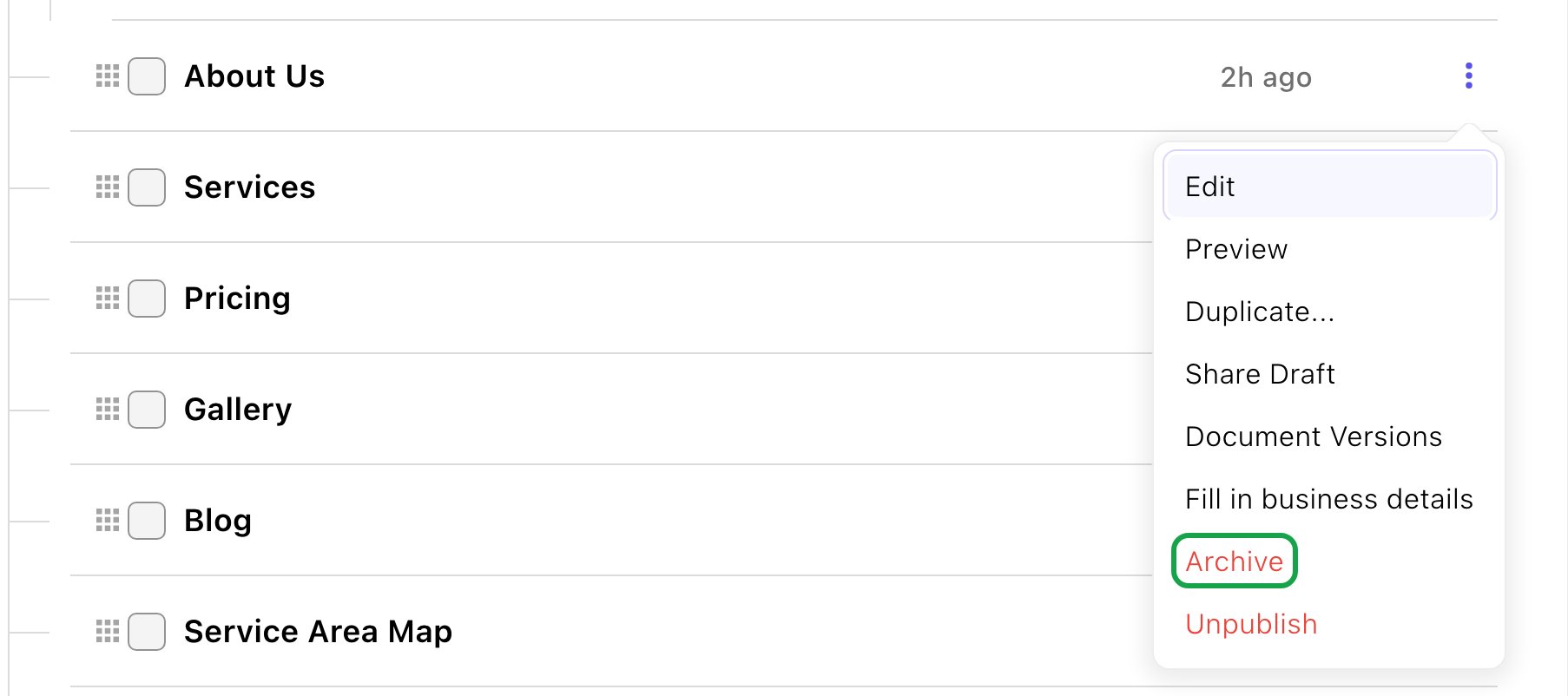
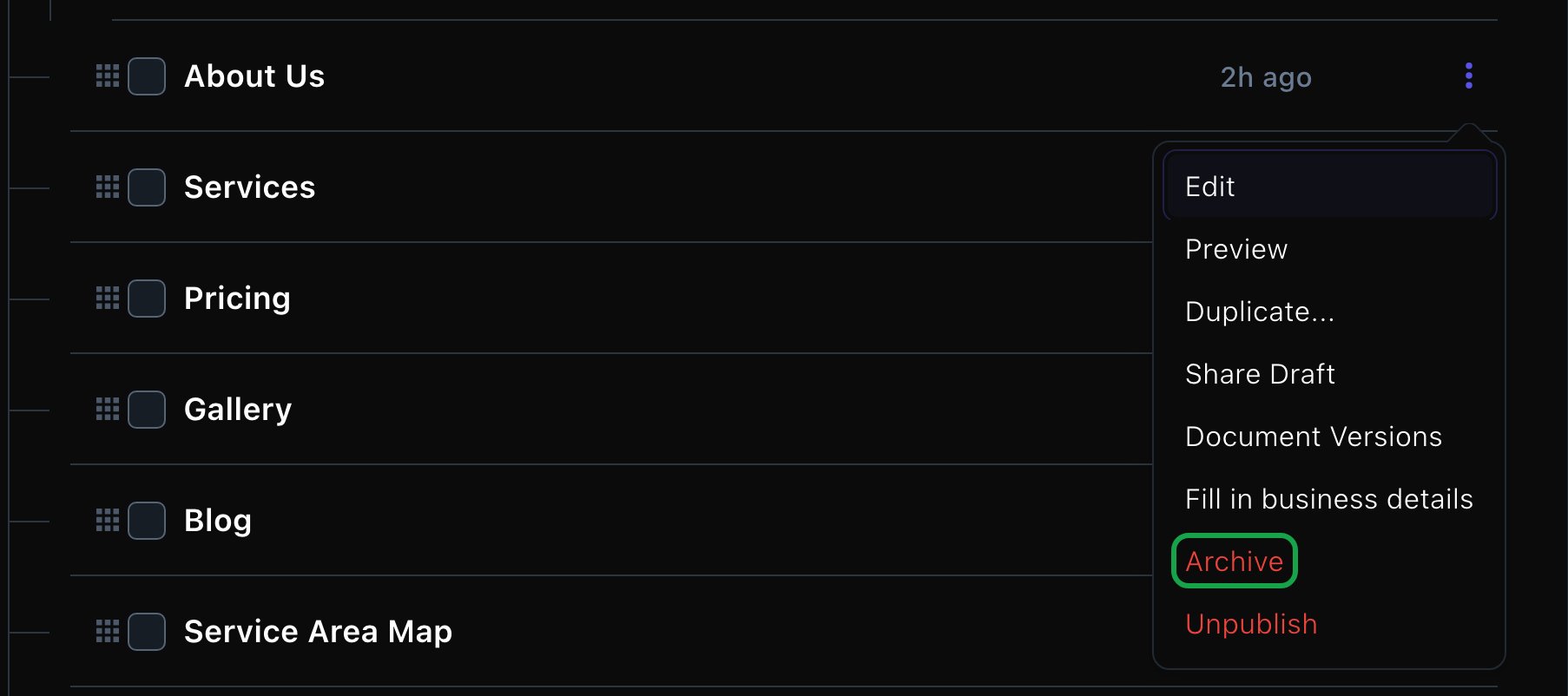
In Manage Pages, choose the page’s More Options, then Archive. If the page has subpages, you choose whether to archive them too. Archived pages leave your site, and you can restore them. See Archive, restore and delete.
Pages that come with your site
A new site starts with a set of ready-made pages: About Us, Services, Pricing, Gallery, Blog, Service Area Map, Contact Us, and the legal pages: Cookie Policy, Privacy Policy and Terms and Conditions. They’re ordinary pages. Rename them, move them, change their web address, or archive the ones you don’t need, like any page you make yourself.
A ready-made page has the same options as any other, Archive included.
Before you archive one, check what links to it. The footer links to the legal pages, the cookie banner links to Cookie Policy, and the header and footer link to most of the others. Change them in Site design → Header: Navigation → Menu links and Footer: Links → Link groups. See Header and Footer.Only Home is fixed: it keeps its place and address, and a lock beside it in the tree marks it.Under Templates in the tree are the starting points for the Create a Page gallery. Visitors never see them.
What happens next
A page you publish is live at once. Visitors can reach it by its address, and from your header menu once you add its link. A page saved as a draft stays hidden until someone publishes it.Contributors submit pages for review instead of publishing. See Drafts, publishing and scheduling.
Troubleshooting
This page is parked and cannot be moved
You tried to move one of the pages that came with your site. These pages keep their place in the tree. Move your other pages around them instead.
Slug already in use
Another page already has this web address. Change Slug to something unique, such as “/daycare-prices” instead of “/daycare”.
My new page landed in the wrong place
A new page becomes a subpage of the page you were on when you chose New Page. Drag it to the right place in Manage Pages.
My new page isn't in the header menu
Pages aren’t added to the menu on their own. Add the page’s link in Site design → Header: Navigation → Menu links.
I can't publish the page
Publishing needs an Editor, an Admin or an Owner. If you’re a Contributor, submit the page for review instead. If publishing stops with a message about a main heading, see Add, move and remove sections.
Related
Start from a page template
begin with a ready-made layout.
Add, move and remove sections
build the page.
Header
add a page to your menu.
Redirects
keep old links working.
⌘I
{"docsConfig":{"theme":"almond","$schema":"https://mintlify.com/docs.json","name":"Fetchski Attract Docs","colors":{"primary":"#16a34a","light":"#22c55e","dark":"#15803d"},"logo":{"light":"https://mintcdn.com/fetchski-attract-api/mn9qfQRsqaASh7UE/logo/light.svg?fit=max\u0026auto=format\u0026n=mn9qfQRsqaASh7UE\u0026q=85\u0026s=66db13e248b70a44a5ff5f6990d4cb63","dark":"https://mintcdn.com/fetchski-attract-api/mn9qfQRsqaASh7UE/logo/dark.svg?fit=max\u0026auto=format\u0026n=mn9qfQRsqaASh7UE\u0026q=85\u0026s=86904ba8d47714303521b2dcd5aa2a50","href":"/"},"favicon":"https://mintcdn.com/fetchski-attract-api/mn9qfQRsqaASh7UE/favicon.svg?fit=max\u0026auto=format\u0026n=mn9qfQRsqaASh7UE\u0026q=85\u0026s=fd4f2c0615961c9e01c9762b98c8999f","api":{"playground":{"display":"interactive"},"examples":{"defaults":"required","languages":["bash","typescript","php"]}},"appearance":{"default":"dark"},"background":{"color":{"light":"#ffffff","dark":"#0b0e13"}},"search":{"prompt":"Search the docs…"},"seo":{"metatags":{"robots":"noindex, nofollow"}},"fonts":{"family":"Inter"},"icons":{"library":"fontawesome"},"styling":{"codeblocks":"dark","latex":true},"contextual":{"options":["copy","view"],"display":"header"},"navigation":{"pages":[]}},"deployment":{"deploymentMetadataValue":{"subdomain":"fetchski-attract-api","hasAudioNarration":false,"actualSubdomain":"fetchski-attract-api","customDomains":["docs.fetchski-attract.com"],"gitSource":{"type":"github","owner":"fetchski","repo":"fetchski_cms_astro_monorepo","deployBranch":"main","contentDirectory":"docs/attract","isPrivate":true,"mountPath":"","label":"","_id":"6adb9c232f0947a18a27541d"},"entitlements":{},"buildId":"6af6df04bd8b0362cdec74ff","clientVersion":"0.0.4131","searchFilterCounts":[{"language":"default","tag":"Media","count":953},{"language":"default","tag":"Content","count":863},{"language":"default","tag":"Publishing","count":720},{"language":"default","tag":"API reference","count":484},{"language":"default","tag":"Laravel","count":472},{"language":"default","tag":"TypeScript","count":470},{"language":"default","tag":"AdonisJS","count":469},{"language":"default","tag":"Batch jobs","count":364},{"language":"default","tag":"Pages \u0026 Site","count":224},{"language":"default","tag":"Forms","count":168}]},"assistantConfig":{"enableAskAiButton":false,"enableStarterQuestions":false,"enableContextualStarterQuestions":false,"enableAskAiSearchBar":true},"basePath":"","hasChatPermissions":false,"hasWebMcpPermissions":false,"toggles":[{"name":"kill-isr","enabled":true,"variant":{"name":"disabled","enabled":false,"feature_enabled":true},"impressionData":false},{"name":"custom-rbac-roles","enabled":true,"variant":{"name":"disabled","enabled":false,"feature_enabled":true},"impressionData":false},{"name":"agent-mintlify-slack","enabled":true,"variant":{"name":"disabled","enabled":false,"feature_enabled":true},"impressionData":false},{"name":"agent-integrations-settings","enabled":true,"variant":{"name":"disabled","enabled":false,"feature_enabled":true},"impressionData":false},{"name":"rbac-expansion","enabled":true,"variant":{"name":"disabled","enabled":false,"feature_enabled":true},"impressionData":false},{"name":"automations-pr-grouping","enabled":true,"variant":{"name":"disabled","enabled":false,"feature_enabled":true},"impressionData":false},{"name":"custom-prefix","enabled":true,"variant":{"name":"disabled","enabled":false,"feature_enabled":true},"impressionData":false},{"name":"analytics-v7","enabled":true,"variant":{"name":"disabled","enabled":false,"feature_enabled":true},"impressionData":false},{"name":"user-flows-analytics","enabled":true,"variant":{"name":"disabled","enabled":false,"feature_enabled":true},"impressionData":false},{"name":"no-publish-flow","enabled":true,"variant":{"name":"disabled","enabled":false,"feature_enabled":true},"impressionData":false},{"name":"workos-onboarding","enabled":true,"variant":{"name":"disabled","enabled":false,"feature_enabled":true},"impressionData":false},{"name":"snapshot-serving-live","enabled":true,"variant":{"name":"disabled","enabled":false,"feature_enabled":true},"impressionData":false},{"name":"stripTemperatureMiddleware","enabled":true,"variant":{"name":"disabled","enabled":false,"feature_enabled":true},"impressionData":false},{"name":"support-platform-pylon-zendesk","enabled":true,"variant":{"name":"disabled","enabled":false,"feature_enabled":true},"impressionData":false},{"name":"snapshot-serving","enabled":true,"variant":{"name":"disabled","enabled":false,"feature_enabled":true},"impressionData":false},{"name":"instant-rollback","enabled":true,"variant":{"name":"disabled","enabled":false,"feature_enabled":true},"impressionData":false},{"name":"granular-notifications-server","enabled":true,"variant":{"name":"disabled","enabled":false,"feature_enabled":true},"impressionData":false},{"name":"granular-notifications","enabled":true,"variant":{"name":"disabled","enabled":false,"feature_enabled":true},"impressionData":false},{"name":"automations-fable","enabled":true,"variant":{"name":"disabled","enabled":false,"feature_enabled":true},"impressionData":false},{"name":"fixed-ai-action-pricing","enabled":true,"variant":{"name":"disabled","enabled":false,"feature_enabled":true},"impressionData":false},{"name":"automation-resolve-merge-conflict","enabled":true,"variant":{"name":"disabled","enabled":false,"feature_enabled":true},"impressionData":false},{"name":"scoped-publishing","enabled":true,"variant":{"name":"disabled","enabled":false,"feature_enabled":true},"impressionData":false},{"name":"mintql","enabled":true,"variant":{"name":"disabled","enabled":false,"feature_enabled":true},"impressionData":false},{"name":"page-level-analytics","enabled":true,"variant":{"name":"disabled","enabled":false,"feature_enabled":true},"impressionData":false},{"name":"editor-version-history-v2","enabled":true,"variant":{"name":"disabled","enabled":false,"feature_enabled":true},"impressionData":false},{"name":"billing-page-v2","enabled":true,"variant":{"name":"disabled","enabled":false,"feature_enabled":true},"impressionData":false},{"name":"full-page-search","enabled":true,"variant":{"name":"disabled","enabled":false,"feature_enabled":true},"impressionData":false},{"name":"workspace-projects","enabled":true,"variant":{"name":"disabled","enabled":false,"feature_enabled":true},"impressionData":false},{"name":"assistant-v5","enabled":true,"variant":{"name":"disabled","enabled":false,"feature_enabled":true},"impressionData":false},{"name":"fork-pr-previews","enabled":true,"variant":{"name":"disabled","enabled":false,"feature_enabled":true},"impressionData":false},{"name":"revalidation-jwt","enabled":true,"variant":{"name":"disabled","enabled":false,"feature_enabled":true},"impressionData":false},{"name":"workos-sso-scim","enabled":true,"variant":{"name":"disabled","enabled":false,"feature_enabled":true},"impressionData":false},{"name":"hobby-abuse-scan","enabled":true,"variant":{"name":"disabled","enabled":false,"feature_enabled":true},"impressionData":false},{"name":"dashboard-inbox","enabled":true,"variant":{"name":"disabled","enabled":false,"feature_enabled":true},"impressionData":false},{"name":"workos-signup","enabled":true,"variant":{"name":"disabled","enabled":false,"feature_enabled":true},"impressionData":false},{"name":"turbopuffer-dual-write","enabled":true,"variant":{"name":"disabled","enabled":false,"feature_enabled":true},"impressionData":false},{"name":"workos-enabled","enabled":true,"variant":{"name":"disabled","enabled":false,"feature_enabled":true},"impressionData":false},{"name":"approve-review-flow","enabled":true,"variant":{"name":"disabled","enabled":false,"feature_enabled":true},"impressionData":false},{"name":"editor-metadata","enabled":true,"variant":{"name":"disabled","enabled":false,"feature_enabled":true},"impressionData":false},{"name":"sso-setup-deadline-banner","enabled":true,"variant":{"name":"disabled","enabled":false,"feature_enabled":true},"impressionData":false},{"name":"turbopuffer-serve","enabled":true,"variant":{"name":"disabled","enabled":false,"feature_enabled":true},"impressionData":false},{"name":"live-agents","enabled":true,"variant":{"name":"disabled","enabled":false,"feature_enabled":true},"impressionData":false},{"name":"llms-txt-v2","enabled":true,"variant":{"name":"disabled","enabled":false,"feature_enabled":true},"impressionData":false}],"googleFontsInlined":false},"customCss":[{"filePath":"style.css","content":"@media (min-width: 1280px){:root{--content-width: 52rem}}@media (min-width: 1600px){:root{--content-width: 60rem}}@media (min-width: 1920px){:root{--content-width: 68rem}}@media (min-width: 1024px) and (max-width: 1919px){#content-container{padding-left:2rem;padding-right:2rem}div:has(>#content-area){padding-left:0}#table-of-contents{width:14rem}}html[data-page-mode=\"wide\"] #content-area{max-width:84rem}@media (min-width: 1024px){#navbar .nav-tabs{position:fixed;left:15rem;top:0;height:6rem}}@media (min-width: 1024px) and (max-width: 1599px){#navbar .nav-tabs{gap:0}#navbar .nav-tabs .nav-tabs-item{gap:0.375rem;font-size:0.9375rem;padding-inline:0.5rem}#navbar .nav-tabs .nav-tabs-item svg,#navbar .nav-tabs .nav-tabs-item img{width:1.0625rem;height:1.0625rem}}@media (min-width: 1024px) and (max-width: 1199px){#navbar .nav-tabs .nav-tabs-item svg,#navbar .nav-tabs .nav-tabs-item img{display:none}}@media (min-width: 1024px) and (max-width: 1319px){div:has(>#search-bar-entry){width:3rem!important}#search-bar-entry{justify-content:center;padding:0!important}#search-bar-entry>div>:not(svg),#search-bar-entry>:not(div){display:none}}.mdx-content{font-size:1.0625rem;line-height:1.8}@media (min-width: 1024px){.mdx-content{font-size:1.25rem;line-height:1.85}#page-title{font-size:2.875rem;line-height:1.15}#page-title+*,#header .prose{font-size:1.375rem}#sidebar-content a{font-size:1.125rem}.toc-item{font-size:1rem}}.mdx-content>[data-as=\"p\"],.mdx-content>p{margin-top:0;margin-bottom:1.75rem}.mdx-content>h2{margin-top:3.5rem;margin-bottom:1.25rem;padding-top:2rem;border-top:1px solid rgb(0 0 0 / 0.08);font-size:1.875rem;letter-spacing:-0.01em}.dark .mdx-content>h2{border-top-color:rgb(255 255 255 / 0.08)}.mdx-content>h2:first-child{margin-top:0;padding-top:0;border-top:0}.mdx-content>h3{margin-top:2.75rem;margin-bottom:1.125rem;font-size:1.4375rem}.mdx-content>h4{margin-top:2rem;margin-bottom:0.75rem}.mdx-content li{margin-top:0.625rem;margin-bottom:0.625rem}.mdx-content>ul,.mdx-content>ol{margin-bottom:1.75rem}.mdx-content :not(pre)>code{font-size:0.875em;padding:0.125rem 0.375rem;overflow-wrap:anywhere}.mdx-content table{font-size:1.0625rem;line-height:1.7}.mdx-content th,.mdx-content td{padding:0.875rem 1.5rem 0.875rem 0!important;vertical-align:top}.mdx-content th{padding-top:0.25rem!important}.mdx-content th:last-child,.mdx-content td:last-child{padding-right:0!important}.mdx-content td>code:only-child{white-space:nowrap}pre{max-height:36rem;overflow:auto}.mdx-content pre code{font-size:0.9375rem;line-height:1.75}.mdx-content>.code-block,.mdx-content>.code-group{margin-top:1.5rem;margin-bottom:2rem}.mdx-content .columns{column-gap:1.25rem;row-gap:0.5rem;margin-top:1.75rem;margin-bottom:2.25rem}.mdx-content .card{border-radius:1rem}.mdx-content .card [data-component-part=\"card-content-container\"]{padding:1.5rem 1.75rem}.mdx-content [data-component-part=\"card-title\"]{font-size:1.25rem}.mdx-content [data-component-part=\"card-content\"]{font-size:1.0625rem;line-height:1.7}.mdx-content .callout{margin-top:2rem;margin-bottom:2.25rem;padding:1.25rem 1.75rem;font-size:1.125rem;line-height:1.75}.mdx-content .steps{margin-top:1.75rem;margin-bottom:2.25rem}.mdx-content .step{padding-bottom:0.75rem}.mdx-content .accordion-group,.mdx-content>.accordion{margin-top:1.75rem;margin-bottom:2.25rem}.mdx-content .tabs{margin-top:1.75rem;margin-bottom:2.25rem}.mdx-content .tabs [role=\"tabpanel\"]{padding-top:0.375rem;padding-right:0.375rem;padding-bottom:0.375rem}.mdx-content [data-component-name=\"mermaid-container\"]{--im-node-fill: #ecfdf3;--im-node-stroke: #16a34a;--im-node-text: #0b3a1f;--im-cluster-fill: rgb(22 163 74 / 0.04);--im-cluster-stroke: rgb(22 163 74 / 0.35);--im-edge: #64748b;--im-label-bg: #ffffff;margin-top:1.75rem;margin-bottom:2.25rem;padding:2rem 1.5rem;border:1px solid rgb(0 0 0 / 0.08);border-radius:1rem;background:rgb(0 0 0 / 0.015)}.dark .mdx-content [data-component-name=\"mermaid-container\"]{--im-node-fill: #0b2e1a;--im-node-stroke: #22c55e;--im-node-text: #e7fbef;--im-cluster-fill: rgb(34 197 94 / 0.05);--im-cluster-stroke: rgb(34 197 94 / 0.35);--im-edge: #94a3b8;--im-label-bg: #0f1214;border-color:rgb(255 255 255 / 0.08);background:rgb(255 255 255 / 0.02)}.mdx-content [data-component-name=\"mermaid-container\"] svg[id^=\"mermaid\"]{display:block;margin-left:auto;margin-right:auto}.mdx-content [data-component-name=\"mermaid-container\"] .node rect,.mdx-content [data-component-name=\"mermaid-container\"] .node polygon,.mdx-content [data-component-name=\"mermaid-container\"] .node circle,.mdx-content [data-component-name=\"mermaid-container\"] .node path{fill:var(--im-node-fill)!important;stroke:var(--im-node-stroke)!important;stroke-width:1.5px!important}.mdx-content [data-component-name=\"mermaid-container\"] .node rect{rx:8px;ry:8px}.mdx-content [data-component-name=\"mermaid-container\"] .nodeLabel,.mdx-content [data-component-name=\"mermaid-container\"] .node .label{color:var(--im-node-text)!important;fill:var(--im-node-text)!important}.mdx-content [data-component-name=\"mermaid-container\"] .cluster rect{fill:var(--im-cluster-fill)!important;stroke:var(--im-cluster-stroke)!important;stroke-dasharray:6 4;rx:12px;ry:12px}.mdx-content [data-component-name=\"mermaid-container\"] .cluster-label .nodeLabel,.mdx-content [data-component-name=\"mermaid-container\"] .cluster .nodeLabel{color:var(--im-node-stroke)!important}.mdx-content [data-component-name=\"mermaid-container\"] .flowchart-link,.mdx-content [data-component-name=\"mermaid-container\"] .edgePath path{stroke:var(--im-edge)!important;stroke-width:1.5px!important}.mdx-content [data-component-name=\"mermaid-container\"] marker path,.mdx-content [data-component-name=\"mermaid-container\"] .arrowheadPath{fill:var(--im-edge)!important;stroke:var(--im-edge)!important}.mdx-content [data-component-name=\"mermaid-container\"] .edgeLabel,.mdx-content [data-component-name=\"mermaid-container\"] .edgeLabel p,.mdx-content [data-component-name=\"mermaid-container\"] .labelBkg{background-color:var(--im-label-bg)!important;color:var(--im-edge)!important}.mdx-content [data-component-name=\"mermaid-container\"] rect.actor{fill:var(--im-node-fill)!important;stroke:var(--im-node-stroke)!important;stroke-width:1.5px!important;rx:8px;ry:8px}.mdx-content [data-component-name=\"mermaid-container\"] text.actor>tspan,.mdx-content [data-component-name=\"mermaid-container\"] text.actor{fill:var(--im-node-text)!important}.mdx-content [data-component-name=\"mermaid-container\"] .actor-line{stroke:var(--im-cluster-stroke)!important}.mdx-content [data-component-name=\"mermaid-container\"] .messageLine0,.mdx-content [data-component-name=\"mermaid-container\"] .messageLine1{stroke:var(--im-edge)!important;stroke-width:1.5px!important}.mdx-content [data-component-name=\"mermaid-container\"] #arrowhead path,.mdx-content [data-component-name=\"mermaid-container\"] #crosshead path{fill:var(--im-edge)!important;stroke:var(--im-edge)!important}.mdx-content [data-component-name=\"mermaid-container\"] .note{fill:var(--im-cluster-fill)!important;stroke:var(--im-cluster-stroke)!important}.mdx-content .field .prose-sm{font-size:1.0625rem;line-height:1.8}@media (min-width: 1024px){.mdx-content .field .prose-sm{font-size:1.125rem}}.mdx-content .field{padding-top:1.25rem;padding-bottom:1.25rem}:root{--fa-accent: 22 163 74;--fa-ink: 15 23 42;--fa-button: 21 128 61;--fa-button-hover: 22 101 52;--fa-on-button: 255 255 255}.dark{--fa-accent: 34 197 94;--fa-ink: 255 255 255;--fa-button: 34 197 94;--fa-button-hover: 74 222 128;--fa-on-button: 5 46 22}.mdx-content .card{transition:border-color 150ms ease,\n background-color 150ms ease}.mdx-content a.card:hover,.mdx-content .card:has(a:hover){border-color:rgb(var(--fa-accent) / 0.45);background-color:rgb(var(--fa-accent) / 0.06)}.mdx-content .card [data-component-part=\"card-icon\"]{display:flex;width:1.75rem;height:1.75rem;margin-bottom:1rem}.mdx-content .card [data-component-part=\"card-icon\"] svg{width:1.75rem;height:1.75rem;mask-size:contain;background-color:rgb(var(--fa-accent))!important}.mdx-content .card [data-component-part=\"card-content-container\"].flex [data-component-part=\"card-icon\"]{margin-bottom:0}html[data-page-mode=\"wide\"] #header{display:none}.fa-hero{position:relative;isolation:isolate;display:grid;grid-template-columns:minmax(0, 1fr);gap:3rem;align-items:center;overflow:hidden;margin:-1.5rem 0 3.5rem;padding:3.5rem 3rem;border:1px solid rgb(var(--fa-accent) / 0.2);border-radius:1.5rem;background-color:rgb(var(--fa-accent) / 0.025);background-image:radial-gradient(\n 55% 75% at 82% 50%,\n rgb(var(--fa-accent) / 0.16),\n transparent 70%\n )}.fa-hero::before{content:'';position:absolute;inset:0;z-index:-1;background-image:linear-gradient(rgb(var(--fa-accent) / 0.1) 1px, transparent 1px),\n linear-gradient(90deg, rgb(var(--fa-accent) / 0.1) 1px, transparent 1px);background-size:2rem 2rem;background-position:-1px -1px;mask-image:radial-gradient(80% 90% at 85% 40%, #000 20%, transparent 75%);pointer-events:none}.fa-hero::after{content:'';position:absolute;top:0;right:10%;left:10%;height:1px;background:linear-gradient(\n 90deg,\n transparent,\n rgb(var(--fa-accent) / 0.8),\n transparent\n );pointer-events:none}@media (min-width: 1536px){.fa-hero{grid-template-columns:minmax(0, 0.85fr) minmax(0, 1.15fr);padding:4rem 3.5rem}}.fa-hero-code>.code-group,.fa-hero-code>.code-block{margin:0;border-color:rgb(var(--fa-accent) / 0.25);box-shadow:0 1px 0 rgb(255 255 255 / 0.04) inset,\n 0 30px 60px -24px rgb(0 0 0 / 0.55),\n 0 0 0 6px rgb(var(--fa-accent) / 0.06)}.mdx-content .fa-hero-code pre code{font-size:0.8125rem}.mdx-content .fa-hero .fa-hero-mark{margin:0 0 1.75rem}.mdx-content .fa-hero .fa-hero-mark img{display:block;width:auto;height:4rem;margin:0;border-radius:0}.mdx-content .fa-hero .fa-hero-mark .fa-hero-mark-dark,.dark .mdx-content .fa-hero .fa-hero-mark .fa-hero-mark-light{display:none}.dark .mdx-content .fa-hero .fa-hero-mark .fa-hero-mark-dark{display:block}.fa-hero h1{max-width:40rem;margin:0;font-size:3.25rem;font-weight:700;line-height:1.06;letter-spacing:-0.035em;text-wrap:balance}.fa-hero h1 .fa-hero-accent{color:rgb(var(--fa-accent))}.mdx-content .fa-hero-lede{max-width:34rem;margin:1.5rem 0 2.25rem;font-size:1.1875rem;line-height:1.7;opacity:0.78;text-wrap:pretty}.fa-hero-actions{display:flex;flex-wrap:wrap;gap:0.75rem}.mdx-content .fa-hero-facts{display:flex;flex-wrap:wrap;gap:0.5rem 1.5rem;margin-top:2rem;font-size:0.9375rem;opacity:0.8}.mdx-content .fa-hero-facts>span{display:inline-flex;align-items:center;gap:0.5rem}.mdx-content .fa-hero-facts>span::before{content:'';flex:none;width:1rem;height:1rem;background:rgb(var(--fa-accent));mask:url(\"data:image/svg+xml,%3Csvg xmlns='http://www.w3.org/2000/svg' viewBox='0 0 16 16'%3E%3Cpath d='M3.5 8.5l3 3 6-7' fill='none' stroke='%23000' stroke-width='2' stroke-linecap='round' stroke-linejoin='round'/%3E%3C/svg%3E\")\n center / contain no-repeat}.fa-button{display:inline-flex;align-items:center;gap:0.5rem;height:2.75rem;padding:0 1.125rem;border:1px solid transparent;border-radius:0.625rem;font-size:0.9375rem;font-weight:600;letter-spacing:-0.005em;text-decoration:none!important;transition:background-color 150ms ease,\n border-color 150ms ease,\n box-shadow 150ms ease,\n transform 150ms ease}.fa-button-primary{border-color:rgb(var(--fa-button) / 1);background:rgb(var(--fa-button));box-shadow:inset 0 1px 0 rgb(255 255 255 / 0.25),\n 0 8px 20px -10px rgb(var(--fa-button) / 0.9);color:rgb(var(--fa-on-button))!important}.fa-button-primary::after{content:'';width:1rem;height:1rem;background:currentcolor;mask:url(\"data:image/svg+xml,%3Csvg xmlns='http://www.w3.org/2000/svg' viewBox='0 0 16 16'%3E%3Cpath d='M3 8h9.5M8.5 4l4 4-4 4' fill='none' stroke='%23000' stroke-width='1.75' stroke-linecap='round' stroke-linejoin='round'/%3E%3C/svg%3E\")\n center / contain no-repeat;transition:transform 150ms ease}.fa-button-primary:hover{background:rgb(var(--fa-button-hover));box-shadow:inset 0 1px 0 rgb(255 255 255 / 0.25),\n 0 10px 24px -10px rgb(var(--fa-button) / 1)}.fa-button-primary:hover::after{transform:translateX(2px)}.fa-button-secondary{border-color:rgb(var(--fa-ink) / 0.16);background:rgb(var(--fa-ink) / 0.03);color:inherit!important}.fa-button-secondary:hover{border-color:rgb(var(--fa-accent) / 0.55);background:rgb(var(--fa-accent) / 0.08)}.fa-button:active{transform:translateY(1px)}.fa-button:focus-visible{outline:2px solid rgb(var(--fa-accent));outline-offset:3px}@media (prefers-reduced-motion: reduce){.fa-button,.fa-button-primary::after{transition:none}.fa-button:active,.fa-button-primary:hover::after{transform:none}}@media (max-width: 767px){.fa-hero{padding:2.5rem 1.5rem}.fa-hero h1{font-size:2.25rem}}#sidebar-content a,#sidebar-content li>button{gap:0.875rem;padding-top:0.625rem;padding-right:0.5rem;padding-bottom:0.625rem;font-size:1.125rem;line-height:1.45}#sidebar-content li+li{margin-top:0.25rem}#sidebar-content li>button>div:nth-child(2){min-width:0}#sidebar-content li>button>div:last-child{width:1.25rem;margin-left:auto;justify-content:center}#sidebar-content li>ul{margin:0.25rem 0 0.25rem 1.25rem;padding-left:0.375rem;border-left:1px solid rgb(0 0 0 / 0.1)}.dark #sidebar-content li>ul{border-left-color:rgb(255 255 255 / 0.1)}#sidebar-content li>ul>li>:is(a,button){padding-left:0.75rem!important;font-size:1.0625rem}#sidebar-content .sidebar-group-header{margin-bottom:0.625rem;font-size:0.875rem;font-weight:700;letter-spacing:0.08em;text-transform:uppercase;color:color-mix(in srgb, rgb(var(--fa-accent)) 72%, black)}.dark #sidebar-content .sidebar-group-header{color:rgb(var(--fa-accent))}#sidebar-content div:has(>.sidebar-group-header)+div:has(>.sidebar-group-header){margin-top:2.25rem}#sidebar-content a svg,#sidebar-content a img,#sidebar-content li>button>div:first-child svg,#sidebar-content li>button>div:first-child img{width:1.375rem;height:1.375rem}#sidebar-content .sidebar-group-header svg{width:1rem;height:1rem}.nav-tabs-item{gap:0.625rem;font-size:1.0625rem}.nav-tabs-item svg,.nav-tabs-item img{width:1.3125rem;height:1.3125rem}.nav-tabs-item[href^=\"/typescript\"] svg{background-color:#d4b106}.dark .nav-tabs-item[href^=\"/typescript\"] svg{background-color:#f7df1e}.nav-tabs-item[href^=\"/laravel\"] svg{background-color:#ff2d20}.nav-tabs-item[href^=\"/adonisjs\"] svg{background-color:#5a45ff}.dark .nav-tabs-item[href^=\"/adonisjs\"] svg{background-color:#8b7dff}li[data-group-tag]>button svg[style*=\"/brands/js.svg\"]{background-color:#d4b106}.dark li[data-group-tag]>button svg[style*=\"/brands/js.svg\"]{background-color:#f7df1e}li[data-group-tag]>button svg[style*=\"/brands/laravel.svg\"]{background-color:#ff2d20}#sidebar-content img[src$=\"/n8n.png\"]{transform:scale(1.35)}@media (min-width: 1024px){:root{--mintlify-slot-header-height: 6rem;--sidebar-width: 26rem}#navbar{height:6rem}#sidebar-content{top:6rem}#navbar div:has(img.nav-logo){height:100%}img.nav-logo{height:3.5rem;margin-left:0.5rem}div:has(>#search-bar-entry){position:fixed;top:1.5rem;right:7rem;z-index:40;width:clamp(11rem, calc(100vw - var(--sidebar-width) - 45rem), 24rem)}#search-bar-entry{height:3rem;padding-left:1.125rem;border-radius:0.875rem;font-size:1.0625rem}#search-bar-entry svg{width:1.125rem;height:1.125rem}}[data-switch=\"pill\"]{width:auto!important;height:auto!important;padding:0.3125rem;gap:0.25rem}.switch-option{width:2.125rem!important;height:2.125rem!important}.switch-option svg{width:1.125rem;height:1.125rem}.mdx-content .accordion-group{display:grid;gap:0.75rem;overflow:visible;border:0;border-color:transparent;border-radius:0;background:none}.mdx-content details.accordion{margin:0 0 0.75rem;border-color:transparent;border-radius:1rem!important;outline:1px solid rgb(var(--fa-ink) / 0.1);outline-offset:-1px;overflow:hidden;transition:outline-color 150ms ease,\n box-shadow 150ms ease}.mdx-content .accordion-group>details.accordion{margin:0}.mdx-content details.accordion:hover{outline-color:rgb(var(--fa-accent) / 0.35)}.mdx-content details.accordion[open]{outline-color:rgb(var(--fa-accent) / 0.45);box-shadow:inset 3px 0 0 rgb(var(--fa-accent))}.mdx-content [data-component-part=\"accordion-button\"]{gap:1rem;padding:1rem 1.25rem 1rem 1.5rem;border-radius:0!important;transition:background-color 150ms ease}.mdx-content [data-component-part=\"accordion-button\"]:hover{background:rgb(var(--fa-accent) / 0.05)}.mdx-content [data-component-part=\"accordion-button\"]:focus-visible{outline:2px solid rgb(var(--fa-accent));outline-offset:-2px}.mdx-content [data-component-part=\"accordion-caret-right\"]{order:3;width:2rem;height:2rem;border-radius:999px;background:rgb(var(--fa-ink) / 0.06);transition:background-color 150ms ease}.mdx-content [data-component-part=\"accordion-caret-right\"] svg{width:0.875rem;height:0.875rem}.mdx-content details.accordion[open] [data-component-part=\"accordion-caret-right\"]{background:rgb(var(--fa-accent) / 0.15)}.mdx-content details.accordion[open] [data-component-part=\"accordion-caret-right\"] svg{color:rgb(var(--fa-accent))}.mdx-content [data-component-part=\"accordion-icon\"]{display:inline-flex;align-items:center;justify-content:center;width:1.25rem;height:1.25rem}.mdx-content [data-component-part=\"accordion-icon\"] svg{width:1.25rem;height:1.25rem;background-color:rgb(var(--fa-accent))!important}.mdx-content [data-component-part=\"accordion-title\"]{font-size:1.1875rem}.mdx-content [data-component-part=\"accordion-content\"]{max-width:none;padding:1.5rem 2rem 1.75rem 1.5rem;border-top:1px solid rgb(var(--fa-ink) / 0.08);font-size:1.125rem;line-height:1.95}@media (min-width: 768px){.mdx-content details.accordion:has(>summary [data-component-part=\"accordion-icon\"])>[data-component-part=\"accordion-content\"]{padding-left:3.75rem}}.mdx-content [data-component-part=\"accordion-content\"]>[data-as=\"p\"],.mdx-content [data-component-part=\"accordion-content\"]>p{display:block;max-width:46rem;margin:0 0 1.25rem}.mdx-content [data-component-part=\"accordion-content\"]>:last-child{margin-bottom:0}@media (prefers-reduced-motion: reduce){.mdx-content details.accordion,.mdx-content [data-component-part=\"accordion-button\"],.mdx-content [data-component-part=\"accordion-caret-right\"]{transition:none}}[data-badge=\"true\"]{--fa-badge: 100 116 139;padding:0.125rem 0.5rem;border-radius:0.5rem;background:rgb(var(--fa-badge) / 0.14)!important;box-shadow:inset 0 0 0 1px rgb(var(--fa-badge) / 0.32);color:rgb(var(--fa-badge))!important;font-variant-numeric:tabular-nums}[data-badge=\"true\"][data-color=\"red\"]{--fa-badge: 239 68 68}[data-badge=\"true\"][data-color=\"orange\"]{--fa-badge: 245 130 32}[data-badge=\"true\"][data-color=\"yellow\"]{--fa-badge: 214 160 20}[data-badge=\"true\"][data-color=\"green\"]{--fa-badge: 22 163 74}[data-badge=\"true\"][data-color=\"blue\"]{--fa-badge: 17 145 240}.dark [data-badge=\"true\"][data-color=\"red\"]{--fa-badge: 248 113 113}.dark [data-badge=\"true\"][data-color=\"orange\"]{--fa-badge: 251 158 75}.dark [data-badge=\"true\"][data-color=\"yellow\"]{--fa-badge: 250 204 21}.dark [data-badge=\"true\"][data-color=\"green\"]{--fa-badge: 74 222 128}.dark [data-badge=\"true\"][data-color=\"blue\"]{--fa-badge: 62 165 245}.dark [data-badge=\"true\"][data-color=\"gray\"]{--fa-badge: 161 161 170}.mdx-content td [data-badge=\"true\"]+[data-badge=\"true\"]{margin-left:0.375rem}.mdx-content :is([data-as=\"p\"],p,li,td,blockquote),#header .prose,#page-title+*{color:rgb(38 43 52)}.dark .mdx-content :is([data-as=\"p\"],p,li,td,blockquote),.dark #header .prose,.dark #page-title+*{color:rgb(222 226 232)}.mdx-content :is(th,strong){font-weight:600}#sidebar-content a,#sidebar-content li>button{color:rgb(70 76 88)}.dark #sidebar-content a,.dark #sidebar-content li>button{color:rgb(196 201 210)}.toc-item a{color:inherit}.mdx-content [data-component-part=\"callout-content\"]{font-size:1.125rem;line-height:1.75}.mdx-content [data-component-part=\"callout-icon\"]{width:1.25rem;margin-top:0.25rem}.mdx-content [data-component-part=\"step-title\"]{font-size:1.25rem}.mdx-content [data-component-part=\"step-content\"],.mdx-content [data-component-part=\"tab-content\"]{font-size:1.125rem;line-height:1.85}.mdx-content [data-component-part=\"step-number\"]{margin-left:calc(0.5px - 1.125rem)}.mdx-content [data-component-part=\"step-indicator\"]{width:2.25rem;height:2.25rem;background-color:transparent;color:rgb(var(--fa-accent));font-size:1.25rem;font-weight:600}.mdx-content [data-component-part=\"step-indicator\"] svg{width:1.5rem;height:1.5rem;background-color:rgb(var(--fa-accent))!important}.mdx-content [data-component-part=\"tab-button\"]{font-size:1rem}.mdx-content [data-component-part=\"code-block-header\"],.mdx-content [data-component-part=\"code-block-header-filename\"]{font-size:0.875rem}.mdx-content [data-component-part=\"code-group-tab-bar\"]{font-size:0.9375rem}.mdx-content [data-component-part=\"field-name\"]{font-size:1.0625rem}.mdx-content [data-component-part=\"field-meta\"],.mdx-content [data-component-part=\"field-info-pill\"],.mdx-content [data-component-part=\"field-required-pill\"]{font-size:0.875rem}.mdx-content [data-component-part=\"expandable-button\"]{font-size:1rem}[data-component-part=\"pagination-title\"]{font-size:1.125rem}[data-component-part=\"pagination-label\"]{font-size:0.9375rem}.mdx-content>.multi-view-item{max-width:none;font-size:inherit;line-height:inherit}.multi-view-item>[data-as=\"p\"],.multi-view-item>p{margin-top:0;margin-bottom:1.75rem}.multi-view-item>h2{margin-top:3.5rem;margin-bottom:1.25rem;padding-top:2rem;border-top:1px solid rgb(0 0 0 / 0.08);font-size:1.875rem;letter-spacing:-0.01em}.dark .multi-view-item>h2{border-top-color:rgb(255 255 255 / 0.08)}.multi-view-item>h2:first-child{margin-top:0;padding-top:0;border-top:0}.multi-view-item>h3{margin-top:2.75rem;margin-bottom:1.125rem;font-size:1.4375rem}.multi-view-item>ul,.multi-view-item>ol{margin-bottom:1.75rem}.multi-view-item>.code-block,.multi-view-item>.code-group{margin-top:1.5rem;margin-bottom:2rem}#content-container .prose.prose-sm{font-size:1.0625rem;line-height:1.8}#sidebar-content .method-nav-pill{width:2.75rem}#sidebar-content .method-nav-pill>*{padding:0.125rem 0.375rem;font-size:0.6875rem;line-height:1.25rem}#fa-reader-values{margin-top:1.75rem;padding:1.5rem;border:1px solid rgb(var(--fa-ink) / 0.14);border-radius:1rem;background:transparent;font-size:1.0625rem;line-height:1.6;transition:border-color 150ms ease;container:fa-reader / inline-size}#fa-reader-values:hover,#fa-reader-values:focus-within{border-color:rgb(var(--fa-accent) / 0.45)}#fa-reader-values .fa-reader-line{display:grid;grid-template-columns:auto 1fr;align-items:center;gap:1rem 1.25rem}#fa-reader-values .fa-reader-toggle{grid-column:1 / -1;justify-self:start}@container fa-reader (min-width: 30rem){#fa-reader-values .fa-reader-line{grid-template-columns:auto 1fr auto}#fa-reader-values .fa-reader-line .fa-reader-toggle{grid-column:auto}}#fa-reader-values .fa-reader-icon{width:4rem;height:4rem;background:url('/logo/attract-glyph-color-a-green-on-light-scalable.svg') center / contain\n no-repeat}.dark #fa-reader-values .fa-reader-icon{background-image:url('/logo/attract-glyph-color-a-green-on-dark-scalable.svg')}#fa-reader-values .fa-reader-copy{min-width:0}#fa-reader-values .fa-reader-copy p{margin:0}#fa-reader-values .fa-reader-title{font-size:1.125rem;font-weight:600;color:rgb(var(--fa-ink))}#fa-reader-values .fa-reader-values{display:grid;grid-template-columns:auto 1fr;align-items:center;gap:0.625rem 0.875rem;margin:0.75rem 0 0}#fa-reader-values .fa-reader-values>div{display:contents}#fa-reader-values .fa-reader-values dt{font-weight:500;color:rgb(var(--fa-ink))}#fa-reader-values .fa-reader-values dd{justify-self:start;min-width:0;margin:0}#fa-reader-values code{display:inline-block;padding:0.375rem 0.875rem;border:1px solid rgb(var(--fa-accent) / 0.4);border-radius:0.5rem;background:rgb(var(--fa-ink) / 0.03);color:rgb(var(--fa-ink));font-size:0.95em;font-weight:700;line-height:1.4;overflow-wrap:anywhere}#fa-reader-values button{padding:0.625rem 1.25rem;border:1px solid rgb(var(--fa-ink) / 0.16);border-radius:0.625rem;background:rgb(var(--fa-ink) / 0.03);color:rgb(var(--fa-ink));font-weight:600;white-space:nowrap;cursor:pointer;transition:background-color 150ms ease,\n border-color 150ms ease}#fa-reader-values button:hover{border-color:rgb(var(--fa-accent) / 0.55);background:rgb(var(--fa-accent) / 0.08)}#fa-reader-values button:focus-visible,#fa-reader-values input:focus-visible{outline:2px solid rgb(var(--fa-accent));outline-offset:2px}#fa-reader-values .fa-reader-form{display:grid;grid-template-columns:1fr;gap:1.75rem 1.5rem;margin-top:1.5rem;padding:1.5rem 0.25rem 0.25rem;border-top:1px solid rgb(var(--fa-ink) / 0.1)}@media (min-width: 768px){#fa-reader-values .fa-reader-form{grid-template-columns:1fr 1fr}}#fa-reader-values .fa-reader-form[hidden]{display:none}#fa-reader-values label{display:grid;gap:0.625rem;align-content:start}#fa-reader-values label>span{font-weight:600;color:rgb(var(--fa-ink))}#fa-reader-values label em{font-style:normal;font-weight:400}#fa-reader-values input{width:100%;padding:0.75rem 1rem;border:1px solid rgb(128 128 128 / 0.4);border-radius:0.5rem;background:rgb(128 128 128 / 0.08);color:rgb(var(--fa-ink));font:inherit}#fa-reader-values small{display:block;margin-top:0.5rem;font-size:0.9375rem;line-height:1.6;color:rgb(var(--fa-ink))}#fa-reader-values .fa-reader-error{grid-column:1 / -1;margin:0;color:#dc2626}.dark #fa-reader-values .fa-reader-error{color:#f87171}#fa-reader-values .fa-reader-error:empty{display:none}#fa-reader-values .fa-reader-actions{display:flex;flex-wrap:wrap;grid-column:1 / -1;align-items:center;gap:1rem;padding-top:0.25rem}.mdx-content .n8n-canvas{--n8n-dot: rgb(0 0 0 / 0.12);--n8n-node-bg: #ffffff;--n8n-node-border: rgb(0 0 0 / 0.18);--n8n-line: #94a3b8;margin:1.75rem 0 2.25rem;padding:2rem 0.75rem 1.5rem;overflow-x:auto;border:1px solid rgb(0 0 0 / 0.08);border-radius:1rem;background-color:rgb(0 0 0 / 0.015);background-image:radial-gradient(var(--n8n-dot) 1px, transparent 1px);background-size:18px 18px}.dark .mdx-content .n8n-canvas{--n8n-dot: rgb(255 255 255 / 0.1);--n8n-node-bg: #1b1f24;--n8n-node-border: rgb(255 255 255 / 0.22);--n8n-line: #64748b;border-color:rgb(255 255 255 / 0.08);background-color:rgb(255 255 255 / 0.02)}.mdx-content .n8n-canvas-row{display:flex;align-items:flex-start;justify-content:center;min-width:max-content;margin:0 auto}.mdx-content .n8n-node{display:flex;flex-direction:column;align-items:center;width:7.25rem;text-align:center}.mdx-content .n8n-node-box{display:flex;align-items:center;justify-content:center;width:4.5rem;height:4.5rem;border:2px solid var(--n8n-node-border);border-radius:0.75rem;background:var(--n8n-node-bg);box-shadow:0 1px 3px rgb(0 0 0 / 0.08)}.mdx-content .n8n-node-trigger .n8n-node-box{border-radius:2.25rem 0.75rem 0.75rem 2.25rem}.mdx-content .n8n-node-accent .n8n-node-box{border-color:rgb(var(--fa-accent));box-shadow:0 0 0 4px rgb(var(--fa-accent) / 0.15)}.mdx-content .n8n-node-title{margin-top:0.6rem;font-size:0.95rem;font-weight:600;line-height:1.3}.mdx-content .n8n-node-note{margin-top:0.2rem;font-size:0.8rem;line-height:1.35;opacity:0.7}.mdx-content .n8n-node-box svg{width:1.9rem!important;height:1.9rem!important}.mdx-content .n8n-link{display:flex;flex-direction:column;align-items:center;width:4rem;margin:0 -1.125rem;padding-top:1.1rem}.mdx-content .n8n-link-items{height:1.1rem;font-size:0.75rem;font-weight:600;line-height:1.1rem;white-space:nowrap;color:rgb(var(--fa-accent))}.mdx-content .n8n-link-line{position:relative;width:100%;height:2px;margin-top:0.4rem;background:var(--n8n-line)}.mdx-content .n8n-link-line::after{position:absolute;top:-4px;right:-1px;border-top:5px solid transparent;border-bottom:5px solid transparent;border-left:7px solid var(--n8n-line);content:''}.mdx-content .n8n-canvas figcaption{margin-top:1.25rem;font-size:0.85rem;text-align:center;opacity:0.7}.mdx-content .n8n-signed{margin:1.5rem 0 2rem;padding:1.5rem 1.25rem 1.25rem;overflow-x:auto;border:1px solid rgb(0 0 0 / 0.08);border-radius:1rem}.dark .mdx-content .n8n-signed{border-color:rgb(255 255 255 / 0.08)}.mdx-content .n8n-signed-row{display:flex;flex-wrap:wrap;align-items:flex-start;justify-content:center;row-gap:1rem}.mdx-content .n8n-signed-part{display:flex;flex-direction:column;align-items:center;gap:0.5rem}.mdx-content .n8n-signed-value,.mdx-content .n8n-signed-dot{padding:0.35rem 0.55rem;border-radius:0.4rem;font-size:0.95rem;white-space:nowrap}.mdx-content .n8n-signed-dot{padding:0.35rem 0.15rem;background:none;font-weight:700}.mdx-content .n8n-signed-value{min-width:2.5rem;text-align:center;background:rgb(var(--n8n-part) / 0.14);box-shadow:inset 0 0 0 1px rgb(var(--n8n-part) / 0.45)}.mdx-content .n8n-signed-label{font-size:0.75rem;font-weight:600;letter-spacing:0.04em;text-transform:uppercase;color:rgb(var(--n8n-part))}.mdx-content .n8n-signed-0{--n8n-part: 37 99 235}.mdx-content .n8n-signed-1{--n8n-part: 22 163 74}.mdx-content .n8n-signed-2{--n8n-part: 217 119 6}.mdx-content .n8n-signed-3{--n8n-part: 219 39 119}.mdx-content .n8n-coming-soon-logos{display:flex;align-items:center;gap:1rem;margin-bottom:1.25rem}.mdx-content .n8n-coming-soon-logos img{width:auto;height:3.5rem;margin:0}.mdx-content .n8n-coming-soon-logos img[class^=\"n8n-mark-\"]{height:4.5rem;margin:-0.5rem}.mdx-content .n8n-coming-soon-logos .n8n-mark-dark,.dark .mdx-content .n8n-coming-soon-logos .n8n-mark-light{display:none}.dark .mdx-content .n8n-coming-soon-logos .n8n-mark-dark{display:block}.mdx-content .n8n-coming-soon-logos span{font-size:1.75rem;font-weight:600;opacity:0.6}.mdx-content .n8n-coming-soon-title{margin:0 0 0.35rem;font-size:1.25rem;font-weight:600;color:rgb(var(--fa-ink))}.mdx-content .n8n-coming-soon-title+*{margin-top:0}"}],"page":{"pagePath":"guides/build-pages/pages-and-the-page-tree","slug":"/guides/build-pages/pages-and-the-page-tree","pageMetadata":{"title":"Pages and the page tree","sidebarTitle":"Pages","description":"Create pages, put them in order, rename them, and take away the ones you no longer need.","icon":"sitemap","href":"/guides/build-pages/pages-and-the-page-tree"},"description":{"compiledSource":"\"use strict\";\nconst {jsx: _jsx} = arguments[0];\nconst {useMDXComponents: _provideComponents} = arguments[0];\nfunction _createMdxContent(props) {\n const _components = {\n p: \"p\",\n ..._provideComponents(),\n ...props.components\n };\n return _jsx(_components.p, {\n children: \"Create pages, put them in order, rename them, and take away the ones you no longer need.\"\n });\n}\nfunction MDXContent(props = {}) {\n const {wrapper: MDXLayout} = {\n ..._provideComponents(),\n ...props.components\n };\n return MDXLayout ? _jsx(MDXLayout, {\n ...props,\n children: _jsx(_createMdxContent, {\n ...props\n })\n }) : _createMdxContent(props);\n}\nreturn {\n default: MDXContent\n};\n","frontmatter":{},"scope":{}},"pageType":"default","mdx":{"mdxSource":{"compiledSource":"\"use strict\";const{Fragment:_Fragment,jsx:_jsx,jsxs:_jsxs}=arguments[0];const{useMDXComponents:_provideComponents}=arguments[0];function _createMdxContent(props){const _components={a:`a`,li:`li`,p:`p`,strong:`strong`,tbody:`tbody`,td:`td`,th:`th`,thead:`thead`,tr:`tr`,ul:`ul`,..._provideComponents(),...props.components},{Accordion,AccordionGroup,Card,Columns,Frame,Heading,Icon,OptimizedImage,Step,Steps,Table}=_components;if(!Accordion)_missingMdxReference(`Accordion`,true);if(!AccordionGroup)_missingMdxReference(`AccordionGroup`,true);if(!Card)_missingMdxReference(`Card`,true);if(!Columns)_missingMdxReference(`Columns`,true);if(!Frame)_missingMdxReference(`Frame`,true);if(!Heading)_missingMdxReference(`Heading`,true);if(!Icon)_missingMdxReference(`Icon`,true);if(!OptimizedImage)_missingMdxReference(`OptimizedImage`,true);if(!Step)_missingMdxReference(`Step`,true);if(!Steps)_missingMdxReference(`Steps`,true);if(!Table)_missingMdxReference(`Table`,true);return _jsxs(_Fragment,{children:[_jsx(_components.p,{children:`Your site’s pages sit in a tree, with your home page at the top and every other page below it. Here you create pages, move them around, rename them and remove the ones you no longer need.`}),`\n`,_jsxs(_components.p,{children:[_jsx(Icon,{icon:`user-shield`}),` `,_jsx(_components.strong,{children:`Who can do this:`}),` Contributors, Editors, Admins and Owners. Publishing needs an Editor, an Admin or an Owner.`]}),`\n`,_jsx(Heading,{level:`2`,id:`before-you-start`,children:`Before you start`}),`\n`,_jsxs(_components.ul,{children:[`\n`,_jsx(_components.li,{children:`Sign in to your site.`}),`\n`,_jsx(_components.li,{children:`Think about where the page belongs. A page you create becomes a subpage of the page you’re on, so open the right parent page first. You can move it later.`}),`\n`]}),`\n`,_jsx(_components.p,{children:`For example, take the tree Home → Services → Daycare:`}),`\n`,_jsxs(_components.ul,{children:[`\n`,_jsxs(_components.li,{children:[_jsx(_components.strong,{children:`Services`}),` sits right under the home page: it’s a top-level page.`]}),`\n`,_jsxs(_components.li,{children:[_jsx(_components.strong,{children:`Daycare`}),` sits under `,_jsx(_components.strong,{children:`Services`}),`, so it’s a subpage of `,_jsx(_components.strong,{children:`Services`}),`, and `,_jsx(_components.strong,{children:`Services`}),` is its parent page.`]}),`\n`]}),`\n`,_jsxs(_components.p,{children:[`To add Daycare there, open the `,_jsx(_components.strong,{children:`Services`}),` page before you choose `,_jsx(_components.strong,{children:`New Page`}),`.`]}),`\n`,_jsx(Heading,{level:`2`,id:`open-the-page-tree`,children:`Open the page tree`}),`\n`,_jsxs(_components.p,{children:[`Open the command palette (⌘K, or Ctrl+K on Windows) and choose `,_jsx(_components.strong,{children:`Pages`}),`. Or press G, then P.`]}),`\n`,_jsxs(_components.p,{children:[`The `,_jsx(_components.strong,{children:`Manage Pages`}),` window opens. It lists every page under `,_jsx(_components.strong,{children:`Page Title`}),`, with `,_jsx(_components.strong,{children:`Last Edited`}),` beside it. Choose the arrow beside a page to show or hide its subpages.`]}),`\n`,_jsxs(Frame,{caption:`The page tree. A lock marks a page that keeps its place: Home, and the Templates branch.`,children:[_jsx(OptimizedImage,{className:`mint-block dark:mint-hidden`,src:`https://mintcdn.com/fetchski-attract-api/DSJs5HmTF1-gpNT3/images/cms/guides/build-pages/pages-and-the-page-tree/guides-build-pages-page-tree-manage-pages-light.png?fit=max\u0026auto=format\u0026n=DSJs5HmTF1-gpNT3\u0026q=85\u0026s=1fe520abdf61820916e4e6a6428f5d1f`,alt:`The Manage Pages window with the tree expanded: Home at the top with its lock, the locked Templates branch, then the ready-made pages and Book a visit, a page Parker's added.`,\"data-og-width\":`1720`,width:`1720`,\"data-og-height\":`2068`,height:`2068`,\"data-path\":`images/cms/guides/build-pages/pages-and-the-page-tree/guides-build-pages-page-tree-manage-pages-light.png`,\"data-optimize\":`true`,\"data-opv\":`3`,srcset:`https://mintcdn.com/fetchski-attract-api/DSJs5HmTF1-gpNT3/images/cms/guides/build-pages/pages-and-the-page-tree/guides-build-pages-page-tree-manage-pages-light.png?w=280\u0026fit=max\u0026auto=format\u0026n=DSJs5HmTF1-gpNT3\u0026q=85\u0026s=988a058f79da8d30cb2c4a39b91dfabd 280w, https://mintcdn.com/fetchski-attract-api/DSJs5HmTF1-gpNT3/images/cms/guides/build-pages/pages-and-the-page-tree/guides-build-pages-page-tree-manage-pages-light.png?w=560\u0026fit=max\u0026auto=format\u0026n=DSJs5HmTF1-gpNT3\u0026q=85\u0026s=2ff1246da225d35e00cf02a94f0c7482 560w, https://mintcdn.com/fetchski-attract-api/DSJs5HmTF1-gpNT3/images/cms/guides/build-pages/pages-and-the-page-tree/guides-build-pages-page-tree-manage-pages-light.png?w=840\u0026fit=max\u0026auto=format\u0026n=DSJs5HmTF1-gpNT3\u0026q=85\u0026s=f95af5c268ae090f04509a565c131af5 840w, https://mintcdn.com/fetchski-attract-api/DSJs5HmTF1-gpNT3/images/cms/guides/build-pages/pages-and-the-page-tree/guides-build-pages-page-tree-manage-pages-light.png?w=1100\u0026fit=max\u0026auto=format\u0026n=DSJs5HmTF1-gpNT3\u0026q=85\u0026s=10e44e9003f92625419f629f8cd5a847 1100w, https://mintcdn.com/fetchski-attract-api/DSJs5HmTF1-gpNT3/images/cms/guides/build-pages/pages-and-the-page-tree/guides-build-pages-page-tree-manage-pages-light.png?w=1650\u0026fit=max\u0026auto=format\u0026n=DSJs5HmTF1-gpNT3\u0026q=85\u0026s=554994a5be7d1dc6ab60c10fb417f6ae 1650w, https://mintcdn.com/fetchski-attract-api/DSJs5HmTF1-gpNT3/images/cms/guides/build-pages/pages-and-the-page-tree/guides-build-pages-page-tree-manage-pages-light.png?w=2500\u0026fit=max\u0026auto=format\u0026n=DSJs5HmTF1-gpNT3\u0026q=85\u0026s=c83624f53df67dee9b100445966eb7a8 2500w`}),_jsx(OptimizedImage,{className:`mint-hidden dark:mint-block`,src:`https://mintcdn.com/fetchski-attract-api/DSJs5HmTF1-gpNT3/images/cms/guides/build-pages/pages-and-the-page-tree/guides-build-pages-page-tree-manage-pages-dark.png?fit=max\u0026auto=format\u0026n=DSJs5HmTF1-gpNT3\u0026q=85\u0026s=8b8c9745066d6c4b391dd98553f28ae0`,alt:`The Manage Pages window with the tree expanded: Home at the top with its lock, the locked Templates branch, then the ready-made pages and Book a visit, a page Parker's added.`,\"data-og-width\":`1720`,width:`1720`,\"data-og-height\":`2068`,height:`2068`,\"data-path\":`images/cms/guides/build-pages/pages-and-the-page-tree/guides-build-pages-page-tree-manage-pages-dark.png`,\"data-optimize\":`true`,\"data-opv\":`3`,srcset:`https://mintcdn.com/fetchski-attract-api/DSJs5HmTF1-gpNT3/images/cms/guides/build-pages/pages-and-the-page-tree/guides-build-pages-page-tree-manage-pages-dark.png?w=280\u0026fit=max\u0026auto=format\u0026n=DSJs5HmTF1-gpNT3\u0026q=85\u0026s=552149c91e50d4032768472d186ed343 280w, https://mintcdn.com/fetchski-attract-api/DSJs5HmTF1-gpNT3/images/cms/guides/build-pages/pages-and-the-page-tree/guides-build-pages-page-tree-manage-pages-dark.png?w=560\u0026fit=max\u0026auto=format\u0026n=DSJs5HmTF1-gpNT3\u0026q=85\u0026s=d17a774fea5cd79b53aa0ff05cea65d1 560w, https://mintcdn.com/fetchski-attract-api/DSJs5HmTF1-gpNT3/images/cms/guides/build-pages/pages-and-the-page-tree/guides-build-pages-page-tree-manage-pages-dark.png?w=840\u0026fit=max\u0026auto=format\u0026n=DSJs5HmTF1-gpNT3\u0026q=85\u0026s=0183e910761d549b9530f44759e93576 840w, https://mintcdn.com/fetchski-attract-api/DSJs5HmTF1-gpNT3/images/cms/guides/build-pages/pages-and-the-page-tree/guides-build-pages-page-tree-manage-pages-dark.png?w=1100\u0026fit=max\u0026auto=format\u0026n=DSJs5HmTF1-gpNT3\u0026q=85\u0026s=96817700f65515a1b71c10fcb6bb528f 1100w, https://mintcdn.com/fetchski-attract-api/DSJs5HmTF1-gpNT3/images/cms/guides/build-pages/pages-and-the-page-tree/guides-build-pages-page-tree-manage-pages-dark.png?w=1650\u0026fit=max\u0026auto=format\u0026n=DSJs5HmTF1-gpNT3\u0026q=85\u0026s=43ccb9dda0b0340232145eb8440a7639 1650w, https://mintcdn.com/fetchski-attract-api/DSJs5HmTF1-gpNT3/images/cms/guides/build-pages/pages-and-the-page-tree/guides-build-pages-page-tree-manage-pages-dark.png?w=2500\u0026fit=max\u0026auto=format\u0026n=DSJs5HmTF1-gpNT3\u0026q=85\u0026s=02e223b31a23706e42205c44e69024a2 2500w`})]}),`\n`,_jsx(Heading,{level:`2`,id:`create-a-page`,children:`Create a page`}),`\n`,_jsxs(Steps,{children:[_jsx(Step,{title:`Open the parent page`,children:_jsxs(_components.p,{children:[`On your site, go to the page your new page should sit under. For a top-level page, stay on the home page. Can’t reach the parent from your menu? Open `,_jsx(_components.strong,{children:`Manage Pages`}),` (see above), choose that page’s `,_jsx(_components.strong,{children:`More Options`}),`, then `,_jsx(_components.strong,{children:`Preview`}),`: the page opens on your site.`]})}),_jsx(Step,{title:`Start a new page`,children:_jsxs(_components.p,{children:[`Open `,_jsx(_components.strong,{children:`Manage Pages`}),`, then choose `,_jsx(_components.strong,{children:`New Page`}),`. The `,_jsx(_components.strong,{children:`Create a Page`}),` gallery opens.`]})}),_jsx(Step,{title:`Choose a starting point`,children:_jsxs(_components.p,{children:[`Choose `,_jsx(_components.strong,{children:`Blank page`}),`, then `,_jsx(_components.strong,{children:`Start blank`}),`. Or choose a ready-made layout and `,_jsx(_components.strong,{children:`Use template`}),`. See `,_jsx(_components.a,{href:`/guides/build-pages/page-templates`,children:`Start from a page template`}),`.`]})}),_jsxs(Step,{title:`Fill in the basics`,children:[_jsxs(_components.p,{children:[`The new page’s window opens on the `,_jsx(_components.strong,{children:`Basics`}),` tab. Type the page’s name in `,_jsx(_components.strong,{children:`Title`}),`.`]}),_jsxs(_components.p,{children:[_jsx(_components.strong,{children:`Slug`}),` fills in from the title: it’s the part of the web address after your domain, starting with a slash. For example, the title “Daycare” gives the Slug “/daycare”, and the page’s address becomes yoursite.com/daycare. You can change it.`]}),_jsxs(Frame,{caption:`A new page: give it a title, check its address and choose its type.`,children:[_jsx(OptimizedImage,{className:`mint-block dark:mint-hidden`,src:`https://mintcdn.com/fetchski-attract-api/DSJs5HmTF1-gpNT3/images/cms/guides/build-pages/pages-and-the-page-tree/guides-build-pages-page-tree-new-page-light.png?fit=max\u0026auto=format\u0026n=DSJs5HmTF1-gpNT3\u0026q=85\u0026s=ff3c85a0cacc5c758e2a46a36e21c61f`,alt:`The New Default Page window: Title \"Daycare\" on the Basics tab; on the right, Slug \"/daycare\", Type \"Default Page\", Visibility \"Public\" and Hide in Navigation.`,\"data-og-width\":`2800`,width:`2800`,\"data-og-height\":`1920`,height:`1920`,\"data-path\":`images/cms/guides/build-pages/pages-and-the-page-tree/guides-build-pages-page-tree-new-page-light.png`,\"data-optimize\":`true`,\"data-opv\":`3`,srcset:`https://mintcdn.com/fetchski-attract-api/DSJs5HmTF1-gpNT3/images/cms/guides/build-pages/pages-and-the-page-tree/guides-build-pages-page-tree-new-page-light.png?w=280\u0026fit=max\u0026auto=format\u0026n=DSJs5HmTF1-gpNT3\u0026q=85\u0026s=6961e1cc2ea823fb26f366bef4866042 280w, https://mintcdn.com/fetchski-attract-api/DSJs5HmTF1-gpNT3/images/cms/guides/build-pages/pages-and-the-page-tree/guides-build-pages-page-tree-new-page-light.png?w=560\u0026fit=max\u0026auto=format\u0026n=DSJs5HmTF1-gpNT3\u0026q=85\u0026s=ba3f10f0f4e10c8ffcc32f7a9daac329 560w, https://mintcdn.com/fetchski-attract-api/DSJs5HmTF1-gpNT3/images/cms/guides/build-pages/pages-and-the-page-tree/guides-build-pages-page-tree-new-page-light.png?w=840\u0026fit=max\u0026auto=format\u0026n=DSJs5HmTF1-gpNT3\u0026q=85\u0026s=194970ca03d206807a0da68dd53f66da 840w, https://mintcdn.com/fetchski-attract-api/DSJs5HmTF1-gpNT3/images/cms/guides/build-pages/pages-and-the-page-tree/guides-build-pages-page-tree-new-page-light.png?w=1100\u0026fit=max\u0026auto=format\u0026n=DSJs5HmTF1-gpNT3\u0026q=85\u0026s=ba4488502dff33577f199cbad54ccbf1 1100w, https://mintcdn.com/fetchski-attract-api/DSJs5HmTF1-gpNT3/images/cms/guides/build-pages/pages-and-the-page-tree/guides-build-pages-page-tree-new-page-light.png?w=1650\u0026fit=max\u0026auto=format\u0026n=DSJs5HmTF1-gpNT3\u0026q=85\u0026s=e353bb4f4172fa8277de7bbc23a91dd7 1650w, https://mintcdn.com/fetchski-attract-api/DSJs5HmTF1-gpNT3/images/cms/guides/build-pages/pages-and-the-page-tree/guides-build-pages-page-tree-new-page-light.png?w=2500\u0026fit=max\u0026auto=format\u0026n=DSJs5HmTF1-gpNT3\u0026q=85\u0026s=c19993f629d6c5540ff518ec12ad8890 2500w`}),_jsx(OptimizedImage,{className:`mint-hidden dark:mint-block`,src:`https://mintcdn.com/fetchski-attract-api/DSJs5HmTF1-gpNT3/images/cms/guides/build-pages/pages-and-the-page-tree/guides-build-pages-page-tree-new-page-dark.png?fit=max\u0026auto=format\u0026n=DSJs5HmTF1-gpNT3\u0026q=85\u0026s=2d40e6708c8a237ab982d5384e1e0ada`,alt:`The New Default Page window: Title \"Daycare\" on the Basics tab; on the right, Slug \"/daycare\", Type \"Default Page\", Visibility \"Public\" and Hide in Navigation.`,\"data-og-width\":`2800`,width:`2800`,\"data-og-height\":`1920`,height:`1920`,\"data-path\":`images/cms/guides/build-pages/pages-and-the-page-tree/guides-build-pages-page-tree-new-page-dark.png`,\"data-optimize\":`true`,\"data-opv\":`3`,srcset:`https://mintcdn.com/fetchski-attract-api/DSJs5HmTF1-gpNT3/images/cms/guides/build-pages/pages-and-the-page-tree/guides-build-pages-page-tree-new-page-dark.png?w=280\u0026fit=max\u0026auto=format\u0026n=DSJs5HmTF1-gpNT3\u0026q=85\u0026s=fb8ccd82226548c73783f2ca83c07c98 280w, https://mintcdn.com/fetchski-attract-api/DSJs5HmTF1-gpNT3/images/cms/guides/build-pages/pages-and-the-page-tree/guides-build-pages-page-tree-new-page-dark.png?w=560\u0026fit=max\u0026auto=format\u0026n=DSJs5HmTF1-gpNT3\u0026q=85\u0026s=dbe1ca5d83171fc8250473a4ed8fd579 560w, https://mintcdn.com/fetchski-attract-api/DSJs5HmTF1-gpNT3/images/cms/guides/build-pages/pages-and-the-page-tree/guides-build-pages-page-tree-new-page-dark.png?w=840\u0026fit=max\u0026auto=format\u0026n=DSJs5HmTF1-gpNT3\u0026q=85\u0026s=79dfeabad78e01be24855bd348b5fb1d 840w, https://mintcdn.com/fetchski-attract-api/DSJs5HmTF1-gpNT3/images/cms/guides/build-pages/pages-and-the-page-tree/guides-build-pages-page-tree-new-page-dark.png?w=1100\u0026fit=max\u0026auto=format\u0026n=DSJs5HmTF1-gpNT3\u0026q=85\u0026s=f902c633a1296235b370e15b64986eae 1100w, https://mintcdn.com/fetchski-attract-api/DSJs5HmTF1-gpNT3/images/cms/guides/build-pages/pages-and-the-page-tree/guides-build-pages-page-tree-new-page-dark.png?w=1650\u0026fit=max\u0026auto=format\u0026n=DSJs5HmTF1-gpNT3\u0026q=85\u0026s=ec30ef88ee789a4880e0c55d3eae8a00 1650w, https://mintcdn.com/fetchski-attract-api/DSJs5HmTF1-gpNT3/images/cms/guides/build-pages/pages-and-the-page-tree/guides-build-pages-page-tree-new-page-dark.png?w=2500\u0026fit=max\u0026auto=format\u0026n=DSJs5HmTF1-gpNT3\u0026q=85\u0026s=69ec2beb7419581e9df4c464e2f8ec1f 2500w`})]})]}),_jsx(Step,{title:`Check the type`,children:_jsxs(_components.p,{children:[_jsx(_components.strong,{children:`Type`}),` is set to `,_jsx(_components.strong,{children:`Default Page`}),`, which suits most pages. See `,_jsx(_components.a,{href:`#page-types`,children:`Page types`}),` below.`]})}),_jsx(Step,{title:`Save it as a draft`,children:_jsxs(_components.p,{children:[`Open the arrow beside `,_jsx(_components.strong,{children:`Publish`}),` (`,_jsx(_components.strong,{children:`More save options`}),`) and choose `,_jsx(_components.strong,{children:`Save Draft`}),`. Visitors can’t see the page yet.`]})})]}),`\n`,_jsxs(_components.p,{children:[`The page opens on your site, ready for sections. Add them, replace the sample text, then read the page through and publish it: choose `,_jsx(_components.strong,{children:`Publish`}),` in the edit bar. Contributors choose `,_jsx(_components.strong,{children:`Submit`}),` instead, to send it for review. See `,_jsx(_components.a,{href:`/guides/build-pages/add-move-remove-sections`,children:`Add, move and remove sections`}),`.`]}),`\n`,_jsx(Heading,{level:`2`,id:`page-types`,children:`Page types`}),`\n`,_jsx(_components.p,{children:`Choose the type when you create a page. It decides what kind of page it is.`}),`\n`,_jsxs(Table,{children:[_jsx(_components.thead,{children:_jsxs(_components.tr,{children:[_jsx(_components.th,{children:`Type`}),_jsx(_components.th,{children:`Use it for`})]})}),_jsxs(_components.tbody,{children:[_jsxs(_components.tr,{children:[_jsx(_components.td,{children:_jsx(_components.strong,{children:`Default Page`})}),_jsx(_components.td,{children:`Almost every page: About, a service, a landing page. You build it from sections.`})]}),_jsxs(_components.tr,{children:[_jsx(_components.td,{children:_jsx(_components.strong,{children:`Blog Page`})}),_jsx(_components.td,{children:`A page that lists your blog posts, with sections above and below the list.`})]}),_jsxs(_components.tr,{children:[_jsx(_components.td,{children:_jsx(_components.strong,{children:`Gallery Page`})}),_jsx(_components.td,{children:`A page for your photos, built from the Gallery sections.`})]}),_jsxs(_components.tr,{children:[_jsx(_components.td,{children:_jsx(_components.strong,{children:`Service Area Map Page`})}),_jsx(_components.td,{children:`A page that shows the map of the areas you serve.`})]}),_jsxs(_components.tr,{children:[_jsx(_components.td,{children:_jsx(_components.strong,{children:`Home`})}),_jsx(_components.td,{children:`Your home page’s type. Your site already has a home page.`})]})]})]}),`\n`,_jsxs(_components.p,{children:[`A blank page starts with a `,_jsx(_components.strong,{children:`Page Header`}),` section, so it has its main heading from the start.`]}),`\n`,_jsx(Heading,{level:`2`,id:`move-a-page`,children:`Move a page`}),`\n`,_jsxs(Steps,{children:[_jsx(Step,{title:`Open Manage Pages`}),_jsx(Step,{title:`Drag the page to its new place in the tree`,children:_jsx(_components.p,{children:`To make it a subpage, drop it inside another page, not just after it in the list.`})}),_jsx(Step,{title:`Check the result`,children:_jsx(_components.p,{children:`A subpage shows indented under its parent page, and the parent gets an arrow to show or hide its subpages. If the page landed at the wrong level, drag it again.`})})]}),`\n`,_jsxs(_components.p,{children:[`Moving a page can change its web address. If people already link to the old address, add a redirect. See `,_jsx(_components.a,{href:`/guides/build-pages/redirects`,children:`Redirects`}),`.`]}),`\n`,_jsx(Heading,{level:`2`,id:`rename-a-page-or-change-its-address`,children:`Rename a page or change its address`}),`\n`,_jsxs(Steps,{children:[_jsx(Step,{title:`Open the page on your site and choose Edit in the edit bar`}),_jsx(Step,{title:`Choose More Options (⋯) in the edit bar, then Edit`,children:_jsx(_components.p,{children:`The page settings window opens.`})}),_jsx(Step,{title:`Change Title to rename the page`,children:_jsxs(_components.p,{children:[`Change `,_jsx(_components.strong,{children:`Slug`}),` to change its web address. Before you change the Slug, know that links to the old address stop working: add a redirect from the old address to the new one. See `,_jsx(_components.a,{href:`/guides/build-pages/redirects`,children:`Redirects`}),`.`]})}),_jsx(Step,{title:`Choose Update`,children:_jsxs(_components.p,{children:[`Contributors choose `,_jsx(_components.strong,{children:`Submit Update`}),` instead, to send the change for review.`]})})]}),`\n`,_jsxs(_components.p,{children:[`You can also open the same window from `,_jsx(_components.strong,{children:`Manage Pages`}),`: choose the page’s `,_jsx(_components.strong,{children:`More Options`}),`, then `,_jsx(_components.strong,{children:`Edit`}),`.`]}),`\n`,_jsx(Heading,{level:`2`,id:`show-a-page-in-your-header-menu`,children:`Show a page in your header menu`}),`\n`,_jsxs(_components.p,{children:[`Your header menu doesn’t follow the page tree. A new page isn’t added to it on its own, and `,_jsx(_components.strong,{children:`Hide in Navigation`}),` doesn’t change it. To show a page in the menu, add its link in `,_jsx(_components.strong,{children:`Site design`}),` → `,_jsx(_components.strong,{children:`Header: Navigation`}),` → `,_jsx(_components.strong,{children:`Menu links`}),`. See `,_jsx(_components.a,{href:`/guides/site-design/header`,children:`Header`}),`.`]}),`\n`,_jsx(Heading,{level:`2`,id:`make-a-page-private`,children:`Make a page private`}),`\n`,_jsxs(_components.p,{children:[`In the page settings window, set `,_jsx(_components.strong,{children:`Visibility`}),` to `,_jsx(_components.strong,{children:`Login Required`}),`. Only people with an account on your site, such as your team in `,_jsx(_components.strong,{children:`People \u0026 Roles`}),`, can open it, and only after they sign in. It isn’t a customer login: use it for pages meant for your own team. Set it back to `,_jsx(_components.strong,{children:`Public`}),` to show it to everyone.`]}),`\n`,_jsx(Heading,{level:`2`,id:`copy-a-page`,children:`Copy a page`}),`\n`,_jsxs(_components.p,{children:[`In `,_jsx(_components.strong,{children:`Manage Pages`}),`, choose the page’s `,_jsx(_components.strong,{children:`More Options`}),`, then `,_jsx(_components.strong,{children:`Duplicate…`}),`. A copy opens in a new page window. Give it a new title, then save it.`]}),`\n`,_jsxs(_components.p,{children:[`The copy is a separate page: changing its title, text or sections never changes the original. Some sections show shared items, such as `,_jsx(_components.strong,{children:`FAQs`}),`, `,_jsx(_components.strong,{children:`Team Members`}),` and `,_jsx(_components.strong,{children:`Testimonials`}),`. Edit one of those items, and the change shows on every page that uses it.`]}),`\n`,_jsx(Heading,{level:`2`,id:`remove-a-page`,children:`Remove a page`}),`\n`,_jsxs(_components.p,{children:[`In `,_jsx(_components.strong,{children:`Manage Pages`}),`, choose the page’s `,_jsx(_components.strong,{children:`More Options`}),`, then `,_jsx(_components.strong,{children:`Archive`}),`. If the page has subpages, you choose whether to archive them too. Archived pages leave your site, and you can restore them. See `,_jsx(_components.a,{href:`/guides/content/archive-restore-delete`,children:`Archive, restore and delete`}),`.`]}),`\n`,_jsx(Heading,{level:`2`,id:`pages-that-come-with-your-site`,children:`Pages that come with your site`}),`\n`,_jsxs(_components.p,{children:[`A new site starts with a set of ready-made pages: `,_jsx(_components.strong,{children:`About Us`}),`, `,_jsx(_components.strong,{children:`Services`}),`, `,_jsx(_components.strong,{children:`Pricing`}),`, `,_jsx(_components.strong,{children:`Gallery`}),`, `,_jsx(_components.strong,{children:`Blog`}),`, `,_jsx(_components.strong,{children:`Service Area Map`}),`, `,_jsx(_components.strong,{children:`Contact Us`}),`, and the legal pages: `,_jsx(_components.strong,{children:`Cookie Policy`}),`, `,_jsx(_components.strong,{children:`Privacy Policy`}),` and `,_jsx(_components.strong,{children:`Terms and Conditions`}),`. They’re ordinary pages. Rename them, move them, change their web address, or archive the ones you don’t need, like any page you make yourself.`]}),`\n`,_jsxs(Frame,{caption:`A ready-made page has the same options as any other, Archive included.`,children:[_jsx(OptimizedImage,{className:`mint-block dark:mint-hidden`,src:`https://mintcdn.com/fetchski-attract-api/DSJs5HmTF1-gpNT3/images/cms/guides/build-pages/pages-and-the-page-tree/guides-build-pages-page-tree-locked-light.png?fit=max\u0026auto=format\u0026n=DSJs5HmTF1-gpNT3\u0026q=85\u0026s=b0de63b2eb07362aa926aec41d6fcd16`,alt:`The About Us row in Manage Pages with its More Options menu open: Edit, Preview, Duplicate..., Share Draft, Document Versions, Fill in business details, Archive and Unpublish, with Archive ringed.`,\"data-og-width\":`1806`,width:`1806`,\"data-og-height\":`802`,height:`802`,\"data-path\":`images/cms/guides/build-pages/pages-and-the-page-tree/guides-build-pages-page-tree-locked-light.png`,\"data-optimize\":`true`,\"data-opv\":`3`,srcset:`https://mintcdn.com/fetchski-attract-api/DSJs5HmTF1-gpNT3/images/cms/guides/build-pages/pages-and-the-page-tree/guides-build-pages-page-tree-locked-light.png?w=280\u0026fit=max\u0026auto=format\u0026n=DSJs5HmTF1-gpNT3\u0026q=85\u0026s=75d30c83854db72b943013de20988c4d 280w, https://mintcdn.com/fetchski-attract-api/DSJs5HmTF1-gpNT3/images/cms/guides/build-pages/pages-and-the-page-tree/guides-build-pages-page-tree-locked-light.png?w=560\u0026fit=max\u0026auto=format\u0026n=DSJs5HmTF1-gpNT3\u0026q=85\u0026s=b7e1a330c235947aeba88c4488ebd057 560w, https://mintcdn.com/fetchski-attract-api/DSJs5HmTF1-gpNT3/images/cms/guides/build-pages/pages-and-the-page-tree/guides-build-pages-page-tree-locked-light.png?w=840\u0026fit=max\u0026auto=format\u0026n=DSJs5HmTF1-gpNT3\u0026q=85\u0026s=28675793233eedc23399c95140ae2204 840w, https://mintcdn.com/fetchski-attract-api/DSJs5HmTF1-gpNT3/images/cms/guides/build-pages/pages-and-the-page-tree/guides-build-pages-page-tree-locked-light.png?w=1100\u0026fit=max\u0026auto=format\u0026n=DSJs5HmTF1-gpNT3\u0026q=85\u0026s=bd8f637d65c488ca8e67f56214483851 1100w, https://mintcdn.com/fetchski-attract-api/DSJs5HmTF1-gpNT3/images/cms/guides/build-pages/pages-and-the-page-tree/guides-build-pages-page-tree-locked-light.png?w=1650\u0026fit=max\u0026auto=format\u0026n=DSJs5HmTF1-gpNT3\u0026q=85\u0026s=f4c740bbee889b5ecd7cad6198dedf4f 1650w, https://mintcdn.com/fetchski-attract-api/DSJs5HmTF1-gpNT3/images/cms/guides/build-pages/pages-and-the-page-tree/guides-build-pages-page-tree-locked-light.png?w=2500\u0026fit=max\u0026auto=format\u0026n=DSJs5HmTF1-gpNT3\u0026q=85\u0026s=6a6fdb6179e85f35a0b53d4ac849ee51 2500w`}),_jsx(OptimizedImage,{className:`mint-hidden dark:mint-block`,src:`https://mintcdn.com/fetchski-attract-api/DSJs5HmTF1-gpNT3/images/cms/guides/build-pages/pages-and-the-page-tree/guides-build-pages-page-tree-locked-dark.png?fit=max\u0026auto=format\u0026n=DSJs5HmTF1-gpNT3\u0026q=85\u0026s=2e659a247b22424c54fa2ad94c190b9e`,alt:`The About Us row in Manage Pages with its More Options menu open: Edit, Preview, Duplicate..., Share Draft, Document Versions, Fill in business details, Archive and Unpublish, with Archive ringed.`,\"data-og-width\":`1806`,width:`1806`,\"data-og-height\":`802`,height:`802`,\"data-path\":`images/cms/guides/build-pages/pages-and-the-page-tree/guides-build-pages-page-tree-locked-dark.png`,\"data-optimize\":`true`,\"data-opv\":`3`,srcset:`https://mintcdn.com/fetchski-attract-api/DSJs5HmTF1-gpNT3/images/cms/guides/build-pages/pages-and-the-page-tree/guides-build-pages-page-tree-locked-dark.png?w=280\u0026fit=max\u0026auto=format\u0026n=DSJs5HmTF1-gpNT3\u0026q=85\u0026s=4e4ba7f211fdb7fe40d1d2c46290e731 280w, https://mintcdn.com/fetchski-attract-api/DSJs5HmTF1-gpNT3/images/cms/guides/build-pages/pages-and-the-page-tree/guides-build-pages-page-tree-locked-dark.png?w=560\u0026fit=max\u0026auto=format\u0026n=DSJs5HmTF1-gpNT3\u0026q=85\u0026s=ded871fc270d755ee8d5ece56cba7043 560w, https://mintcdn.com/fetchski-attract-api/DSJs5HmTF1-gpNT3/images/cms/guides/build-pages/pages-and-the-page-tree/guides-build-pages-page-tree-locked-dark.png?w=840\u0026fit=max\u0026auto=format\u0026n=DSJs5HmTF1-gpNT3\u0026q=85\u0026s=6379aec27c5043bd43d46f235e96fa8e 840w, https://mintcdn.com/fetchski-attract-api/DSJs5HmTF1-gpNT3/images/cms/guides/build-pages/pages-and-the-page-tree/guides-build-pages-page-tree-locked-dark.png?w=1100\u0026fit=max\u0026auto=format\u0026n=DSJs5HmTF1-gpNT3\u0026q=85\u0026s=70fde101bfbc1e2117d01a0a105c3e86 1100w, https://mintcdn.com/fetchski-attract-api/DSJs5HmTF1-gpNT3/images/cms/guides/build-pages/pages-and-the-page-tree/guides-build-pages-page-tree-locked-dark.png?w=1650\u0026fit=max\u0026auto=format\u0026n=DSJs5HmTF1-gpNT3\u0026q=85\u0026s=10938fc6f1d7f648a2ac8daf1d813475 1650w, https://mintcdn.com/fetchski-attract-api/DSJs5HmTF1-gpNT3/images/cms/guides/build-pages/pages-and-the-page-tree/guides-build-pages-page-tree-locked-dark.png?w=2500\u0026fit=max\u0026auto=format\u0026n=DSJs5HmTF1-gpNT3\u0026q=85\u0026s=4f970cdf9b7e1ece090b8911d83fdc50 2500w`})]}),`\n`,_jsxs(_components.p,{children:[`Before you archive one, check what links to it. The footer links to the legal pages, the cookie banner links to `,_jsx(_components.strong,{children:`Cookie Policy`}),`, and the header and footer link to most of the others. Change them in `,_jsx(_components.strong,{children:`Site design`}),` → `,_jsx(_components.strong,{children:`Header: Navigation`}),` → `,_jsx(_components.strong,{children:`Menu links`}),` and `,_jsx(_components.strong,{children:`Footer: Links`}),` → `,_jsx(_components.strong,{children:`Link groups`}),`. See `,_jsx(_components.a,{href:`/guides/site-design/header`,children:`Header`}),` and `,_jsx(_components.a,{href:`/guides/site-design/footer`,children:`Footer`}),`.`]}),`\n`,_jsxs(_components.p,{children:[`Only `,_jsx(_components.strong,{children:`Home`}),` is fixed: it keeps its place and address, and a lock beside it in the tree marks it.`]}),`\n`,_jsxs(_components.p,{children:[`Under `,_jsx(_components.strong,{children:`Templates`}),` in the tree are the starting points for the `,_jsx(_components.strong,{children:`Create a Page`}),` gallery. Visitors never see them.`]}),`\n`,_jsx(Heading,{level:`2`,id:`what-happens-next`,children:`What happens next`}),`\n`,_jsx(_components.p,{children:`A page you publish is live at once. Visitors can reach it by its address, and from your header menu once you add its link. A page saved as a draft stays hidden until someone publishes it.`}),`\n`,_jsxs(_components.p,{children:[`Contributors submit pages for review instead of publishing. See `,_jsx(_components.a,{href:`/guides/build-pages/publish-and-schedule`,children:`Drafts, publishing and scheduling`}),`.`]}),`\n`,_jsx(Heading,{level:`2`,id:`troubleshooting`,children:`Troubleshooting`}),`\n`,_jsxs(AccordionGroup,{children:[_jsx(Accordion,{title:`This page is parked and cannot be moved`,id:`this-page-is-parked-and-cannot-be-moved`,children:_jsx(_components.p,{children:`You tried to move one of the pages that came with your site. These pages keep their place in the tree. Move your other pages around them instead.`})}),_jsx(Accordion,{title:`Slug already in use`,id:`slug-already-in-use`,children:_jsxs(_components.p,{children:[`Another page already has this web address. Change `,_jsx(_components.strong,{children:`Slug`}),` to something unique, such as “/daycare-prices” instead of “/daycare”.`]})}),_jsx(Accordion,{title:`My new page landed in the wrong place`,id:`my-new-page-landed-in-the-wrong-place`,children:_jsxs(_components.p,{children:[`A new page becomes a subpage of the page you were on when you chose `,_jsx(_components.strong,{children:`New Page`}),`. Drag it to the right place in `,_jsx(_components.strong,{children:`Manage Pages`}),`.`]})}),_jsx(Accordion,{title:`My new page isn't in the header menu`,id:`my-new-page-isnt-in-the-header-menu`,children:_jsxs(_components.p,{children:[`Pages aren’t added to the menu on their own. Add the page’s link in `,_jsx(_components.strong,{children:`Site design`}),` → `,_jsx(_components.strong,{children:`Header: Navigation`}),` → `,_jsx(_components.strong,{children:`Menu links`}),`.`]})}),_jsx(Accordion,{title:`I can't publish the page`,id:`i-cant-publish-the-page`,children:_jsxs(_components.p,{children:[`Publishing needs an Editor, an Admin or an Owner. If you’re a Contributor, submit the page for review instead. If publishing stops with a message about a main heading, see `,_jsx(_components.a,{href:`/guides/build-pages/add-move-remove-sections`,children:`Add, move and remove sections`}),`.`]})})]}),`\n`,_jsx(Heading,{level:`2`,id:`related`,children:`Related`}),`\n`,_jsxs(Columns,{cols:2,children:[_jsx(Card,{title:`Start from a page template`,icon:`clone`,href:`/guides/build-pages/page-templates`,children:_jsx(_components.p,{children:`begin with a ready-made layout.`})}),_jsx(Card,{title:`Add, move and remove sections`,icon:`layer-group`,href:`/guides/build-pages/add-move-remove-sections`,children:_jsx(_components.p,{children:`build the page.`})}),_jsx(Card,{title:`Header`,icon:`window-maximize`,href:`/guides/site-design/header`,children:_jsx(_components.p,{children:`add a page to your menu.`})}),_jsx(Card,{title:`Redirects`,icon:`arrow-right-arrow-left`,href:`/guides/build-pages/redirects`,children:_jsx(_components.p,{children:`keep old links working.`})})]})]})}function MDXContent(props={}){const{wrapper:MDXLayout}={..._provideComponents(),...props.components};return MDXLayout?_jsx(MDXLayout,{...props,children:_jsx(_createMdxContent,{...props})}):_createMdxContent(props)}return{default:MDXContent};function _missingMdxReference(id,component){throw new Error(`Expected `+(component?`component`:`object`)+\" `\"+id+\"` to be defined: you likely forgot to import, pass, or provide it.\")}","frontmatter":{},"scope":{"codeStyling":"dark","config":{},"pageMetadata":{"title":"Pages and the page tree","sidebarTitle":"Pages","description":"Create pages, put them in order, rename them, and take away the ones you no longer need.","icon":"sitemap","href":"/guides/build-pages/pages-and-the-page-tree"}}},"mdxSourceWithNoJs":null},"mdxExtracts":{"tableOfContents":[{"title":"Before you start","slug":"before-you-start","depth":2,"children":[]},{"title":"Open the page tree","slug":"open-the-page-tree","depth":2,"children":[]},{"title":"Create a page","slug":"create-a-page","depth":2,"children":[]},{"title":"Page types","slug":"page-types","depth":2,"children":[]},{"title":"Move a page","slug":"move-a-page","depth":2,"children":[]},{"title":"Rename a page or change its address","slug":"rename-a-page-or-change-its-address","depth":2,"children":[]},{"title":"Show a page in your header menu","slug":"show-a-page-in-your-header-menu","depth":2,"children":[]},{"title":"Make a page private","slug":"make-a-page-private","depth":2,"children":[]},{"title":"Copy a page","slug":"copy-a-page","depth":2,"children":[]},{"title":"Remove a page","slug":"remove-a-page","depth":2,"children":[]},{"title":"Pages that come with your site","slug":"pages-that-come-with-your-site","depth":2,"children":[]},{"title":"What happens next","slug":"what-happens-next","depth":2,"children":[]},{"title":"Troubleshooting","slug":"troubleshooting","depth":2,"children":[]},{"title":"Related","slug":"related","depth":2,"children":[]}],"codeExamples":{}},"jsLinks":["/_mintlify/custom/fetchski-attract-api/f59e82e583443cfa/reader-values.js"],"dynamicCss":".mint-block {\n display: block\n}\n.mint-hidden {\n display: none\n}\n.dark\\:mint-block:is(.dark *) {\n display: block\n}\n.dark\\:mint-hidden:is(.dark *) {\n display: none\n}","subdomain":"fetchski-attract-api","siteName":"Fetchski Attract Docs","title":"Pages and the page tree - Fetchski Attract Docs","navMaps":{"firstHrefInVersion":{},"firstHrefInLanguage":{}},"lastModified":"2026-11-11T22:20:35.399Z","originalFileLocation":"guides/build-pages/pages-and-the-page-tree.mdx"},"headHtml":"\u003cscript data-mint-head>(function(){var d=document.documentElement,p=null;if(!p){try{p=localStorage.getItem(\"isDarkMode\")}catch(e){}if(p==='true')p='dark';else if(p==='false')p='light';if(p!=='light'\u0026\u0026p!=='dark'\u0026\u0026p!=='system')p=\"dark\"}var r=p==='system'?(matchMedia(\"(prefers-color-scheme: dark)\").matches?'dark':'light'):p;d.classList.remove(r==='dark'?'light':'dark');d.classList.add(r);d.setAttribute(\"data-theme-preference\",p)})();\u003c/script>\u003cmeta data-mint-head name=\"description\" content=\"Create pages, put them in order, rename them, and take away the ones you no longer need.\">\u003cmeta data-mint-head name=\"application-name\" content=\"Fetchski Attract Docs\">\u003cmeta data-mint-head name=\"generator\" content=\"Mintlify\">\u003cmeta data-mint-head name=\"robots\" content=\"noindex, nofollow\">\u003clink data-mint-head rel=\"icon\" type=\"image/png\" sizes=\"192x192\" href=\"/mintlify-assets/_mintlify/favicons/fetchski-attract-api/70pYtWMpcnXR0SYV/_generated/favicon/android-chrome-192x192.png\" media=\"(prefers-color-scheme: light)\">\u003clink data-mint-head rel=\"apple-touch-icon\" type=\"image/png\" sizes=\"180x180\" href=\"/mintlify-assets/_mintlify/favicons/fetchski-attract-api/70pYtWMpcnXR0SYV/_generated/favicon/apple-touch-icon.png\">\u003clink data-mint-head rel=\"icon\" type=\"image/png\" sizes=\"16x16\" href=\"/mintlify-assets/_mintlify/favicons/fetchski-attract-api/70pYtWMpcnXR0SYV/_generated/favicon/favicon-16x16.png\" media=\"(prefers-color-scheme: light)\">\u003clink data-mint-head rel=\"icon\" type=\"image/png\" sizes=\"32x32\" href=\"/mintlify-assets/_mintlify/favicons/fetchski-attract-api/70pYtWMpcnXR0SYV/_generated/favicon/favicon-32x32.png\" media=\"(prefers-color-scheme: light)\">\u003clink data-mint-head rel=\"shortcut icon\" type=\"image/x-icon\" href=\"/mintlify-assets/_mintlify/favicons/fetchski-attract-api/70pYtWMpcnXR0SYV/_generated/favicon/favicon.ico\" media=\"(prefers-color-scheme: light)\">\u003clink data-mint-head rel=\"icon\" type=\"image/png\" sizes=\"192x192\" href=\"/mintlify-assets/_mintlify/favicons/fetchski-attract-api/70pYtWMpcnXR0SYV/_generated/favicon-dark/android-chrome-192x192.png\" media=\"(prefers-color-scheme: dark)\">\u003clink data-mint-head rel=\"icon\" type=\"image/png\" sizes=\"16x16\" href=\"/mintlify-assets/_mintlify/favicons/fetchski-attract-api/70pYtWMpcnXR0SYV/_generated/favicon-dark/favicon-16x16.png\" media=\"(prefers-color-scheme: dark)\">\u003clink data-mint-head rel=\"icon\" type=\"image/png\" sizes=\"32x32\" href=\"/mintlify-assets/_mintlify/favicons/fetchski-attract-api/70pYtWMpcnXR0SYV/_generated/favicon-dark/favicon-32x32.png\" media=\"(prefers-color-scheme: dark)\">\u003clink data-mint-head rel=\"shortcut icon\" type=\"image/x-icon\" href=\"/mintlify-assets/_mintlify/favicons/fetchski-attract-api/70pYtWMpcnXR0SYV/_generated/favicon-dark/favicon.ico\" media=\"(prefers-color-scheme: dark)\">\u003cmeta data-mint-head property=\"og:title\" content=\"Pages and the page tree - Fetchski Attract Docs\">\u003cmeta data-mint-head property=\"og:description\" content=\"Create pages, put them in order, rename them, and take away the ones you no longer need.\">\u003cmeta data-mint-head property=\"og:site_name\" content=\"Fetchski Attract Docs\">\u003cmeta data-mint-head property=\"og:url\" content=\"https://docs.fetchski-attract.com/guides/build-pages/pages-and-the-page-tree\">\u003cmeta data-mint-head property=\"og:type\" content=\"website\">\u003cmeta data-mint-head property=\"og:image\" content=\"https://fetchski-attract-api.mintlify.site/_mintlify/api/og/v2?division=Build+pages\u0026amp;title=Pages+and+the+page+tree\u0026amp;description=Create+pages%2C+put+them+in+order%2C+rename+them%2C+and+take+away+the+ones+you+no+longer+need.\u0026amp;theme=0e1cff4688ef26ca6a5fb667\u0026amp;signature=4999774b751fd17e8f12b6d3d0863a00c41c3c8cbbee327ffd61bd796c094fd0\">\u003cmeta data-mint-head property=\"og:image:width\" content=\"1200\">\u003cmeta data-mint-head property=\"og:image:height\" content=\"630\">\u003cmeta data-mint-head name=\"twitter:card\" content=\"summary_large_image\">\u003cmeta data-mint-head name=\"twitter:title\" content=\"Pages and the page tree - Fetchski Attract Docs\">\u003cmeta data-mint-head name=\"twitter:description\" content=\"Create pages, put them in order, rename them, and take away the ones you no longer need.\">\u003cmeta data-mint-head name=\"twitter:image\" content=\"https://fetchski-attract-api.mintlify.site/_mintlify/api/og/v2?division=Build+pages\u0026amp;title=Pages+and+the+page+tree\u0026amp;description=Create+pages%2C+put+them+in+order%2C+rename+them%2C+and+take+away+the+ones+you+no+longer+need.\u0026amp;theme=0e1cff4688ef26ca6a5fb667\u0026amp;signature=4999774b751fd17e8f12b6d3d0863a00c41c3c8cbbee327ffd61bd796c094fd0\">\u003cmeta data-mint-head name=\"twitter:image:width\" content=\"1200\">\u003cmeta data-mint-head name=\"twitter:image:height\" content=\"630\">\u003cmeta data-mint-head name=\"msapplication-config\" content=\"/mintlify-assets/_mintlify/favicons/fetchski-attract-api/70pYtWMpcnXR0SYV/_generated/favicon/browserconfig.xml\">\u003cmeta data-mint-head name=\"apple-mobile-web-app-title\" content=\"Fetchski Attract Docs\">\u003cmeta data-mint-head name=\"msapplication-TileColor\" content=\"#16a34a\">\u003clink data-mint-head rel=\"canonical\" href=\"https://docs.fetchski-attract.com/guides/build-pages/pages-and-the-page-tree\">\u003clink data-mint-head rel=\"alternate\" type=\"application/xml\" href=\"/sitemap.xml\">\u003clink data-mint-head rel=\"alternate\" type=\"text/markdown\" href=\"/guides/build-pages/pages-and-the-page-tree.md\">\u003cscript data-mint-head type=\"application/ld+json\">{\"@context\":\"https://schema.org\",\"@graph\":[{\"@type\":\"Organization\",\"@id\":\"https://docs.fetchski-attract.com/#organization\",\"name\":\"Fetchski Attract Docs\",\"url\":\"https://docs.fetchski-attract.com\",\"logo\":{\"@type\":\"ImageObject\",\"url\":\"https://mintcdn.com/fetchski-attract-api/mn9qfQRsqaASh7UE/logo/light.svg?fit=max\u0026auto=format\u0026n=mn9qfQRsqaASh7UE\u0026q=85\u0026s=66db13e248b70a44a5ff5f6990d4cb63\"}},{\"@type\":\"WebSite\",\"@id\":\"https://docs.fetchski-attract.com#website\",\"name\":\"Fetchski Attract Docs\",\"url\":\"https://docs.fetchski-attract.com\",\"publisher\":{\"@id\":\"https://docs.fetchski-attract.com/#organization\"}},{\"@type\":\"WebPage\",\"@id\":\"https://docs.fetchski-attract.com/guides/build-pages/pages-and-the-page-tree#webpage\",\"url\":\"https://docs.fetchski-attract.com/guides/build-pages/pages-and-the-page-tree\",\"name\":\"Pages and the page tree\",\"description\":\"Create pages, put them in order, rename them, and take away the ones you no longer need.\",\"dateModified\":\"2026-11-11T22:20:35.399Z\",\"isPartOf\":{\"@id\":\"https://docs.fetchski-attract.com#website\"},\"breadcrumb\":{\"@id\":\"https://docs.fetchski-attract.com/guides/build-pages/pages-and-the-page-tree#breadcrumb\"}},{\"@type\":\"BreadcrumbList\",\"@id\":\"https://docs.fetchski-attract.com/guides/build-pages/pages-and-the-page-tree#breadcrumb\",\"itemListElement\":[{\"@type\":\"ListItem\",\"position\":1,\"name\":\"Fetchski Attract Docs\",\"item\":\"https://docs.fetchski-attract.com\"},{\"@type\":\"ListItem\",\"position\":2,\"name\":\"Pages and the page tree\",\"item\":\"https://docs.fetchski-attract.com/guides/build-pages/pages-and-the-page-tree\"}]},{\"@type\":[\"Article\",\"TechArticle\"],\"@id\":\"https://docs.fetchski-attract.com/guides/build-pages/pages-and-the-page-tree#article\",\"headline\":\"Pages and the page tree\",\"name\":\"Pages and the page tree\",\"description\":\"Create pages, put them in order, rename them, and take away the ones you no longer need.\",\"url\":\"https://docs.fetchski-attract.com/guides/build-pages/pages-and-the-page-tree\",\"mainEntityOfPage\":{\"@id\":\"https://docs.fetchski-attract.com/guides/build-pages/pages-and-the-page-tree#webpage\"},\"dateModified\":\"2026-11-11T22:20:35.399Z\",\"publisher\":{\"@id\":\"https://docs.fetchski-attract.com/#organization\"},\"isPartOf\":{\"@id\":\"https://docs.fetchski-attract.com#website\"}}]}\u003c/script>\u003cscript data-mint-head type=\"application/ld+json\">{\"@context\":\"https://schema.org\",\"@type\":\"WebSite\",\"name\":\"Fetchski Attract Docs\",\"publisher\":{\"@type\":\"Organization\",\"name\":\"Fetchski Attract Docs\"},\"provider\":{\"@type\":\"Organization\",\"name\":\"Mintlify\",\"url\":\"https://mintlify.com\"}}\u003c/script>","agentPointerHref":"/guides/build-pages/pages-and-the-page-tree.md","siteName":"Fetchski Attract Docs","nav":{"global":null,"tabs":[{"tab":"Guides","icon":"book-open","groups":[{"group":"Get started","icon":"rocket","pages":[{"title":"Fetchski Attract Docs","sidebarTitle":"Introduction","icon":"house","mode":"wide","href":""},{"title":"A tour of Attract","sidebarTitle":"Tour","icon":"compass","href":"/guides/get-started/tour"},{"title":"Sign in","sidebarTitle":"Sign in","icon":"right-to-bracket","href":"/guides/get-started/sign-in"},{"title":"The toolbar and the command palette","sidebarTitle":"Toolbar and ⌘K","icon":"keyboard","href":"/guides/get-started/toolbar-and-command-palette"},{"title":"Set up your site","sidebarTitle":"Set up your site","icon":"list-check","href":"/guides/get-started/set-up-your-site"},{"title":"Your profile","sidebarTitle":"Your profile","description":"Your name, photo, password and AI instructions, plus how the CMS looks for you.","icon":"circle-user","href":"/guides/get-started/your-profile"}]},{"group":"Build pages","icon":"pen-to-square","pages":[{"title":"Pages and the page tree","sidebarTitle":"Pages","icon":"sitemap","href":"/guides/build-pages/pages-and-the-page-tree"},{"title":"Start from a page template","sidebarTitle":"Page templates","description":"Begin a new page from a ready-made layout, then make it yours.","icon":"clone","href":"/guides/build-pages/page-templates"},{"title":"Two ways to edit: on the page or in the page settings window","sidebarTitle":"Two ways to edit","icon":"pen-to-square","href":"/guides/build-pages/two-ways-to-edit"},{"title":"Add, move and remove sections","sidebarTitle":"Add and arrange sections","icon":"layer-group","href":"/guides/build-pages/add-move-remove-sections"},{"title":"Preview on phones and tablets","sidebarTitle":"Device preview","icon":"mobile-screen","href":"/guides/build-pages/preview-on-devices"},{"title":"Drafts, publishing and scheduling","sidebarTitle":"Publish and schedule","icon":"calendar-check","href":"/guides/build-pages/publish-and-schedule"},{"title":"Side-by-side layouts","sidebarTitle":"Layouts and columns","icon":"table-columns","href":"/guides/build-pages/side-by-side-layouts"},{"title":"Document versions","sidebarTitle":"Versions","icon":"clock-rotate-left","href":"/guides/build-pages/versions"},{"title":"Page SEO","sidebarTitle":"Page SEO","icon":"magnifying-glass","href":"/guides/build-pages/page-seo"},{"title":"Redirects","sidebarTitle":"Redirects","icon":"arrow-right-arrow-left","href":"/guides/build-pages/redirects"},{"title":"Your site in more than one language","sidebarTitle":"Languages","icon":"language","href":"/guides/build-pages/languages"}]},{"group":"Sections","icon":"grid-2","pages":[{"title":"Sections","sidebarTitle":"All sections","icon":"grid-2","href":"/guides/sections/index"},{"title":"What every section shares","sidebarTitle":"Shared options","icon":"sliders","href":"/guides/sections/what-every-section-shares"},{"title":"Page Header","sidebarTitle":"Page Header","icon":"heading","href":"/guides/sections/page-header"},{"title":"Hero","sidebarTitle":"Hero","icon":"flag","href":"/guides/sections/hero"},{"title":"Intro / Trust","sidebarTitle":"Intro / Trust","icon":"quote-left","href":"/guides/sections/intro-trust"},{"title":"Feature Cards","sidebarTitle":"Feature Cards","icon":"cards-blank","href":"/guides/sections/feature-cards"},{"title":"Stats / By the numbers","sidebarTitle":"Stats / By the numbers","icon":"chart-simple","href":"/guides/sections/stats"},{"title":"Logos / Partners","sidebarTitle":"Logos / Partners","icon":"handshake","href":"/guides/sections/logos"},{"title":"How it works / Steps","sidebarTitle":"How it works / Steps","icon":"shoe-prints","href":"/guides/sections/steps"},{"title":"Media + Text block","sidebarTitle":"Media + Text block","icon":"image-landscape","href":"/guides/sections/media-text"},{"title":"Device mocks","sidebarTitle":"Device mocks","icon":"laptop-mobile","href":"/guides/sections/device-mocks"},{"title":"Team","sidebarTitle":"Team","icon":"people-group","href":"/guides/sections/team"},{"title":"FAQ","sidebarTitle":"FAQ","icon":"circle-question","href":"/guides/sections/faq"},{"title":"Service Area Map","sidebarTitle":"Service Area Map","icon":"map-location-dot","href":"/guides/sections/service-area-map"},{"title":"Blog Preview","sidebarTitle":"Blog Preview","icon":"newspaper","href":"/guides/sections/blog-preview"},{"title":"Cookie Declaration","sidebarTitle":"Cookie Declaration","icon":"cookie-bite","href":"/guides/sections/cookie-declaration"},{"title":"Rich Text","sidebarTitle":"Rich Text","icon":"paragraph","href":"/guides/sections/rich-text"},{"title":"Images and videos (in columns and posts)","sidebarTitle":"Images and videos (in columns and posts)","icon":"photo-film","href":"/guides/sections/images-and-videos"},{"title":"Google Reviews","sidebarTitle":"Google Reviews","icon":"star","href":"/guides/sections/google-reviews"},{"title":"Testimonials","sidebarTitle":"Testimonials","icon":"comment-quote","href":"/guides/sections/testimonials"},{"title":"Instagram Feed","sidebarTitle":"Instagram Feed","icon":"camera-retro","href":"/guides/sections/instagram-feed"},{"title":"Gallery Preview and Gallery (Full)","sidebarTitle":"Gallery","icon":"images","href":"/guides/sections/gallery"},{"title":"Pricing / Packages","sidebarTitle":"Pricing / Packages","icon":"tags","href":"/guides/sections/pricing"},{"title":"Newsletter Subscription","sidebarTitle":"Newsletter Subscription","icon":"envelope-open-text","href":"/guides/sections/newsletter-signup"},{"title":"SMS Subscription","sidebarTitle":"SMS Subscription","icon":"comment-sms","href":"/guides/sections/sms-signup"},{"title":"Form","sidebarTitle":"Form","icon":"rectangle-list","href":"/guides/sections/form"},{"title":"Final CTA","sidebarTitle":"Final CTA","icon":"bullhorn","href":"/guides/sections/final-cta"}]},{"group":"Content","icon":"box-archive","pages":[{"title":"Content you reuse","sidebarTitle":"Overview","icon":"box-archive","href":"/guides/content/index"},{"title":"Blog posts, categories and authors","sidebarTitle":"Blog","icon":"pen-nib","href":"/guides/content/blog"},{"title":"Team members","sidebarTitle":"Team members","icon":"id-badge","href":"/guides/content/team-members"},{"title":"Testimonials","sidebarTitle":"Testimonials","icon":"comment-quote","href":"/guides/content/testimonials"},{"title":"FAQs and categories","sidebarTitle":"FAQs","icon":"circle-question","href":"/guides/content/faqs"},{"title":"Google reviews","sidebarTitle":"Google reviews","icon":"star","href":"/guides/content/google-reviews"},{"title":"Service areas","sidebarTitle":"Service areas","icon":"map-location-dot","href":"/guides/content/service-areas"},{"title":"Photo albums","sidebarTitle":"Photo albums","icon":"images","href":"/guides/content/photo-albums"},{"title":"Photo feeds","sidebarTitle":"Photo feeds","icon":"arrows-rotate","href":"/guides/content/photo-feeds"},{"title":"Archive, restore and delete","sidebarTitle":"Archive and delete","icon":"trash-can","href":"/guides/content/archive-restore-delete"},{"title":"Instagram posts","sidebarTitle":"Instagram posts","icon":"camera-retro","href":"/guides/content/instagram-posts"}]},{"group":"Media","icon":"photo-film","pages":[{"title":"The media library","sidebarTitle":"Media library","icon":"photo-film","href":"/guides/media/media-library"},{"title":"Folders","sidebarTitle":"Folders","icon":"folder-tree","href":"/guides/media/folders"},{"title":"Broken media","sidebarTitle":"Broken media","icon":"link-slash","href":"/guides/media/broken-media"}]},{"group":"Forms","icon":"rectangle-list","pages":[{"title":"Build a form","sidebarTitle":"Build a form","icon":"rectangle-list","href":"/guides/forms/build-a-form"},{"title":"Form submissions","sidebarTitle":"Submissions","icon":"inbox","href":"/guides/forms/form-submissions"},{"title":"Email notifications","sidebarTitle":"Email","icon":"envelope","href":"/guides/forms/email-notifications"},{"title":"Spam protection","sidebarTitle":"Spam protection","icon":"shield-halved","href":"/guides/forms/spam-protection"}]},{"group":"Site settings","icon":"gear","pages":[{"title":"Site settings","sidebarTitle":"Overview","icon":"gear","href":"/guides/site-settings/index"},{"title":"Brand","sidebarTitle":"Brand","icon":"badge","href":"/guides/site-settings/brand"},{"title":"Social links","sidebarTitle":"Social links","icon":"share-nodes","href":"/guides/site-settings/social-links"},{"title":"Site-wide SEO","sidebarTitle":"SEO","icon":"magnifying-glass-chart","href":"/guides/site-settings/seo"},{"title":"Legal details","sidebarTitle":"Legal","icon":"scale-balanced","href":"/guides/site-settings/legal"},{"title":"Cookie consent","sidebarTitle":"Cookie consent","icon":"cookie","href":"/guides/site-settings/cookie-consent"},{"title":"Service area map settings","sidebarTitle":"Service area map","icon":"map-location-dot","href":"/guides/site-settings/service-area-map"},{"title":"Maintenance mode","sidebarTitle":"Maintenance","icon":"person-digging","href":"/guides/site-settings/maintenance"}]},{"group":"Site design","icon":"palette","pages":[{"title":"Site design","sidebarTitle":"Overview","icon":"palette","href":"/guides/site-design/index"},{"title":"Colors","sidebarTitle":"Colors","icon":"swatchbook","href":"/guides/site-design/colors"},{"title":"Typography","sidebarTitle":"Typography","icon":"font","href":"/guides/site-design/typography"},{"title":"Site width","sidebarTitle":"Site width","icon":"arrows-left-right-to-line","href":"/guides/site-design/site-width"},{"title":"Motion","sidebarTitle":"Motion","icon":"wand-magic-sparkles","href":"/guides/site-design/motion"},{"title":"Header","sidebarTitle":"Header","icon":"window-maximize","href":"/guides/site-design/header"},{"title":"Footer","sidebarTitle":"Footer","icon":"window-minimize","href":"/guides/site-design/footer"},{"title":"Buttons and card styles","sidebarTitle":"Buttons and cards","icon":"hand-pointer","href":"/guides/site-design/buttons-and-card-styles"},{"title":"Custom CSS","sidebarTitle":"Custom CSS","icon":"code","href":"/guides/site-design/custom-css"}]},{"group":"Connections","icon":"plug","pages":[{"title":"Connections","sidebarTitle":"Overview","icon":"plug","href":"/guides/connections/index"},{"title":"Google Business Profile","sidebarTitle":"Google Business Profile","icon":"store","href":"/guides/connections/google-business-profile"},{"title":"Google Reviews connection","sidebarTitle":"Google Reviews","icon":"star-half-stroke","href":"/guides/connections/google-reviews"},{"title":"Google Maps","sidebarTitle":"Google Maps","icon":"map","href":"/guides/connections/google-maps"},{"title":"Google Sheets","sidebarTitle":"Google Sheets","icon":"table","href":"/guides/connections/google-sheets"},{"title":"Instagram","sidebarTitle":"Instagram","icon":"camera-retro","href":"/guides/connections/instagram"},{"title":"Photo storage","sidebarTitle":"Photo storage","icon":"cloud","href":"/guides/connections/photo-storage"},{"title":"Embed scripts","sidebarTitle":"Embed scripts","icon":"code","href":"/guides/connections/embed-scripts"},{"title":"Conversion tracking","sidebarTitle":"Conversion tracking","icon":"bullseye-arrow","href":"/guides/connections/conversion-tracking"},{"title":"Analytics","sidebarTitle":"Analytics","icon":"chart-line","href":"/guides/connections/analytics"},{"title":"Request log","sidebarTitle":"Request log","icon":"list-timeline","href":"/guides/connections/request-log"},{"title":"API keys and webhooks","sidebarTitle":"API keys and webhooks","icon":"key","href":"/guides/connections/api-keys-and-webhooks"}]},{"group":"People and access","icon":"users","pages":[{"title":"People \u0026 Roles","sidebarTitle":"People \u0026 Roles","icon":"users","href":"/guides/people/people-and-roles"},{"title":"What each role can do","sidebarTitle":"Roles","icon":"user-shield","href":"/guides/people/what-each-role-can-do"}]}]},{"tab":"FetchskiAI","icon":"sparkles","pages":[{"title":"FetchskiAI","href":"/fetchskiai/overview"}]},{"tab":"Recipes","icon":"book-open","pages":[{"title":"Recipes","href":"/recipes/laravel-ai-translate-your-site"}]},{"tab":"TypeScript","icon":"js","pages":[{"title":"TypeScript","href":"/typescript/overview"}]},{"tab":"Laravel","icon":"laravel","pages":[{"title":"Laravel","href":"/laravel/overview"}]},{"tab":"AdonisJS","icon":"https://mintlify.s3.us-west-1.amazonaws.com/fetchski-attract-api/logo/adonisjs.svg","pages":[{"title":"AdonisJS","href":"/adonisjs/overview"}]},{"tab":"API reference","icon":"code","pages":[{"title":"API reference","href":"/quickstart"}]}]},"basePath":"","title":"Pages and the page tree - Fetchski Attract Docs","buildId":"dpl_5joLUXmnJgwqjrHAS4dxZrQTdxgh","deploymentId":"dpl_5joLUXmnJgwqjrHAS4dxZrQTdxgh","dynamics":["07c022d89b","a74be98ba7"],"chunks":["Frame-B_503rGq.js","DynamicMarkdown-BfddVCX7.js","zoom-image-lightbox-B3yYlvdS.js","lightbox-handle-r17bVUz3.js"]}


 AdonisJS