

 AdonisJS
The idea
Attract is your site’s CMS (content management system): the editing and management tools you see once you sign in. You don’t work in a separate dashboard. You sign in, then browse your own site. A toolbar sits across the top, and every page you open is ready to edit. Everything else opens as a window over your site: your list of pages, your media, your settings. Close the window and you’re back on the page.1. Your site, with the toolbar on top
The toolbar is always there while you’re signed in with a role that edits (Viewers, and people without a role yet, see the site without it). From left to right:- Search (⌘K): the command palette, which opens any screen in the CMS.
- Add New: create a page, a blog post, a team member and more.
- FetchskiAI: the AI tools menu.
- Icon buttons for Analytics Dashboard, Connections, Site settings and Site design, and a moon that switches the CMS between light and dark.
- Your picture and name: your own menu, with Personal Settings and Log Out.


The toolbar: search, create, FetchskiAI, your settings and your own menu.
2. Pages are built from sections
Every page is a stack of sections: a Hero, some feature cards, a FAQ, a form. Under the toolbar is the edit bar. Choose Edit there, then select any section to change it, move it or add a new one next to it.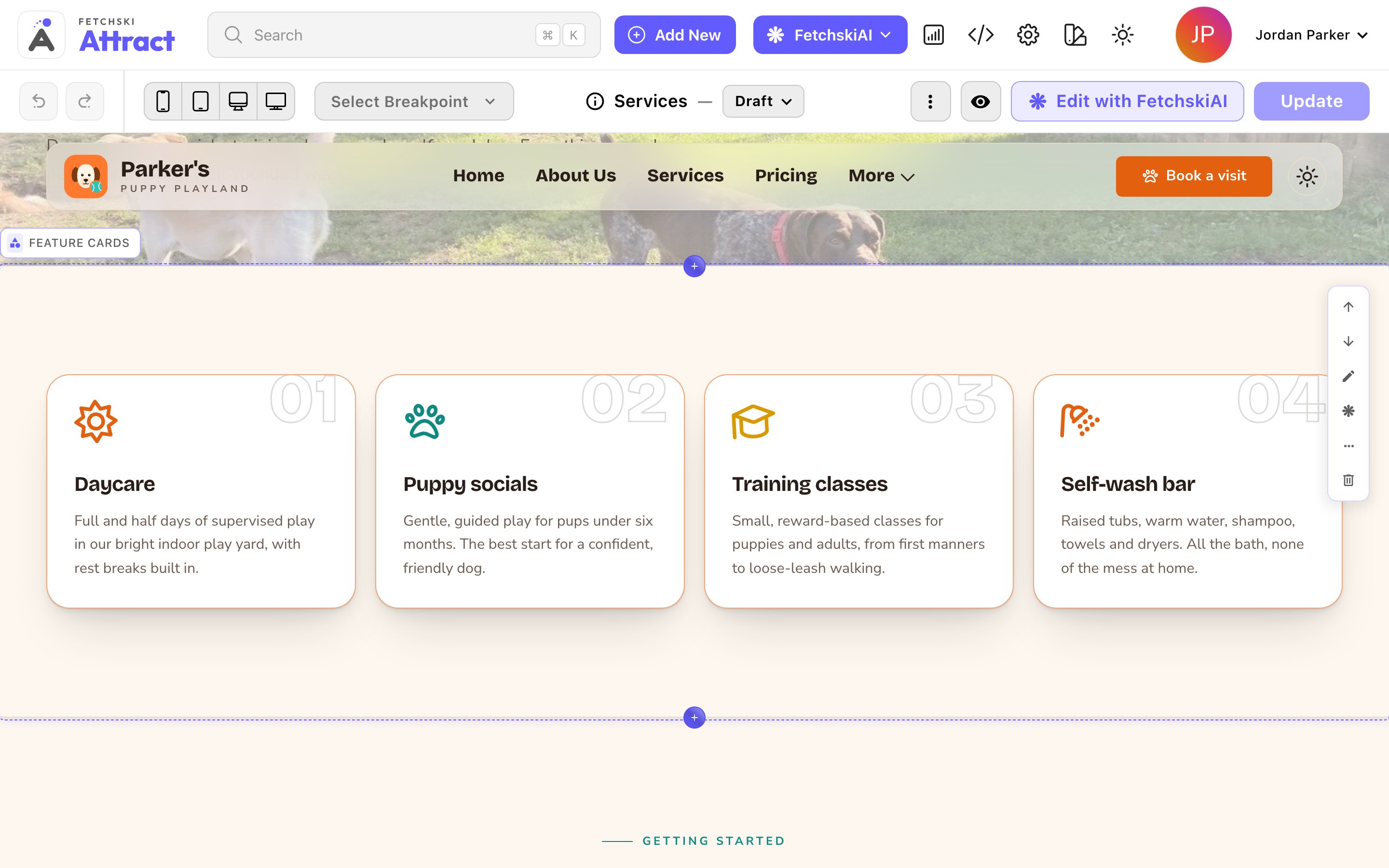
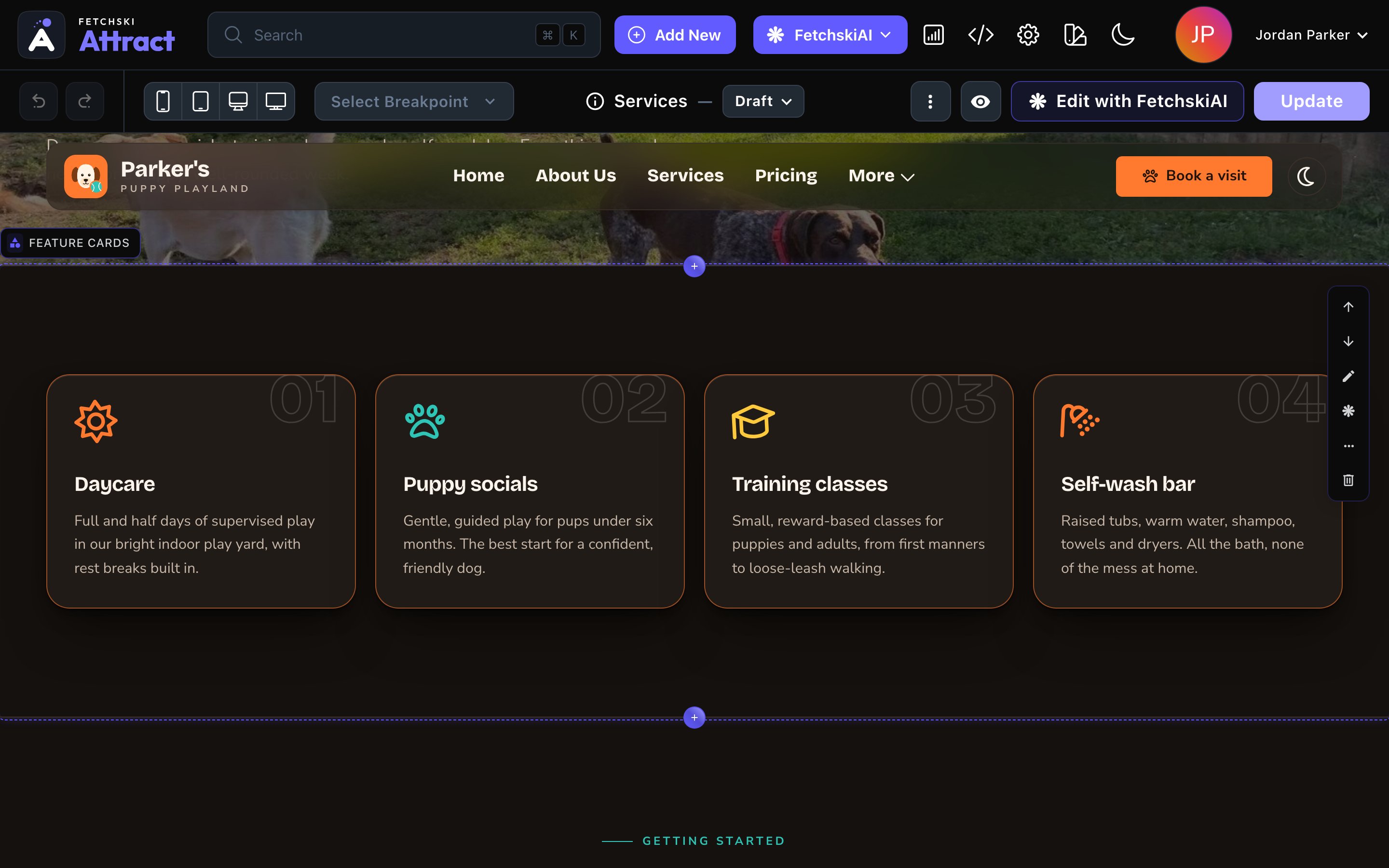
Choose Edit, then select a section to work on it.
3. Pages, content and media live in lists
Some things are managed as lists rather than edited on a page:- Pages: your page tree, where you add, move and rename pages.
- Content you reuse: blog posts, team members, testimonials, FAQs and more. You add them once, and sections show them.
- Media: your images, videos and files.
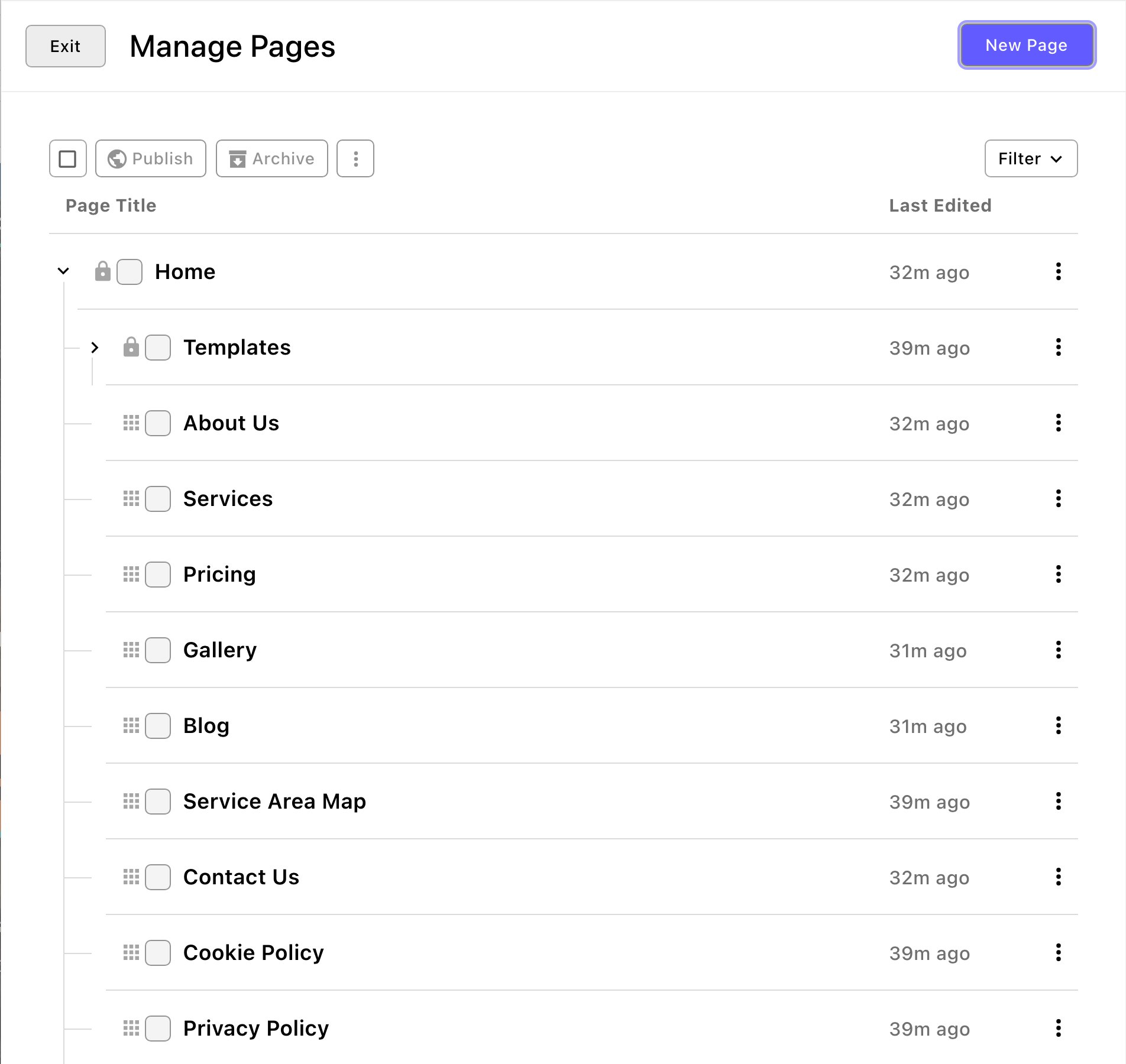
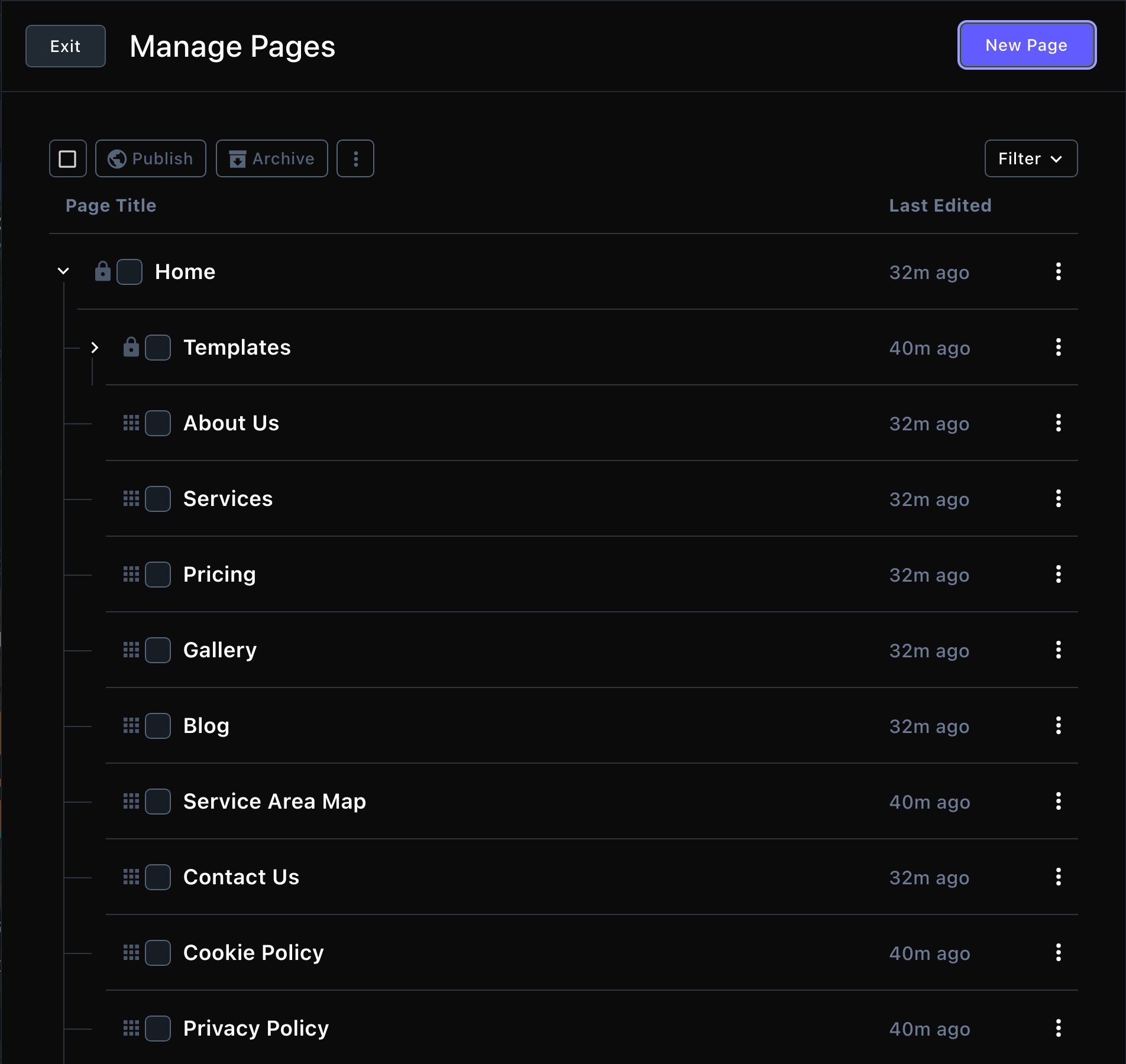
Your pages, in a window over your site.
4. Settings come in a few screens
Site-wide settings are grouped by what they change: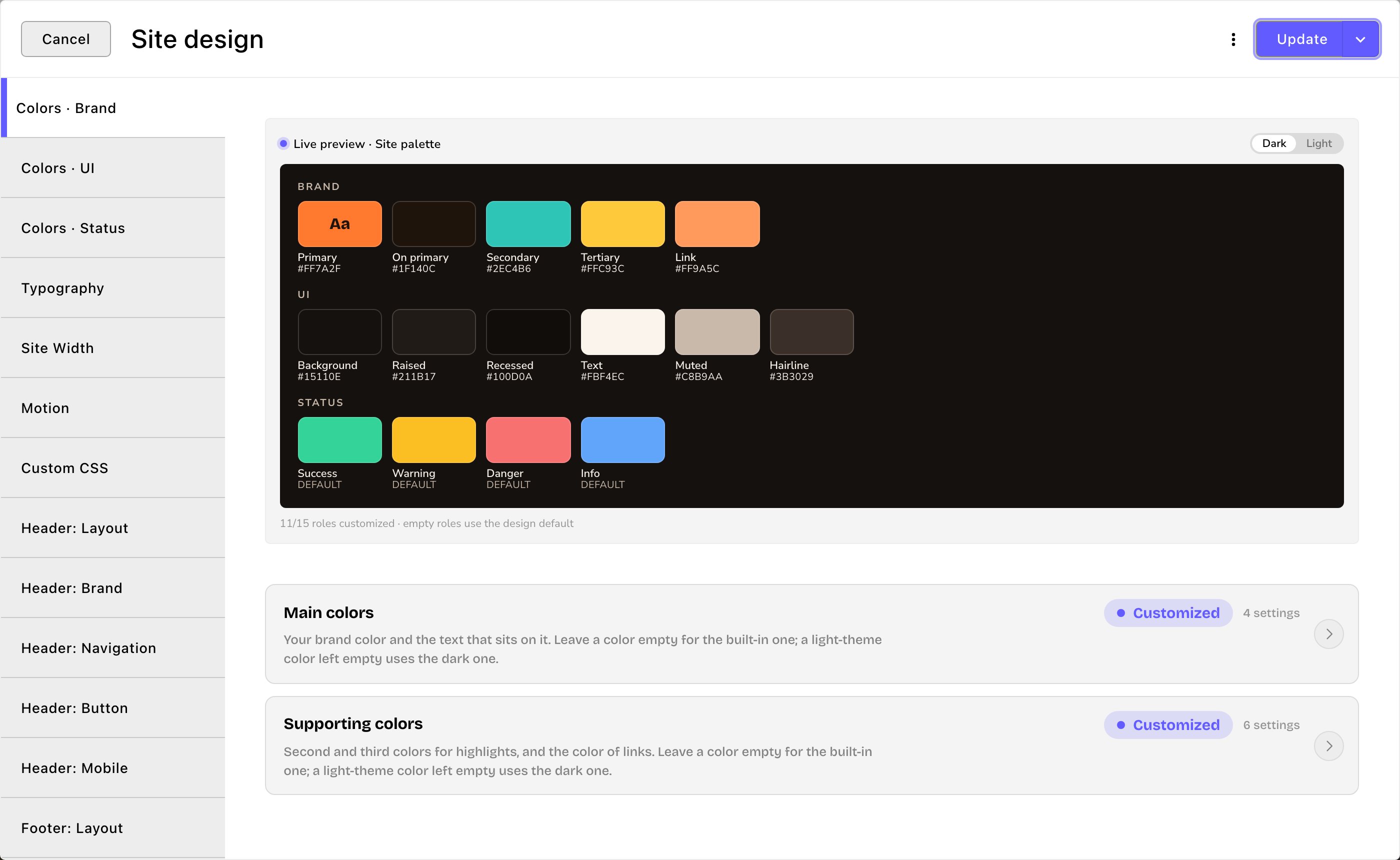
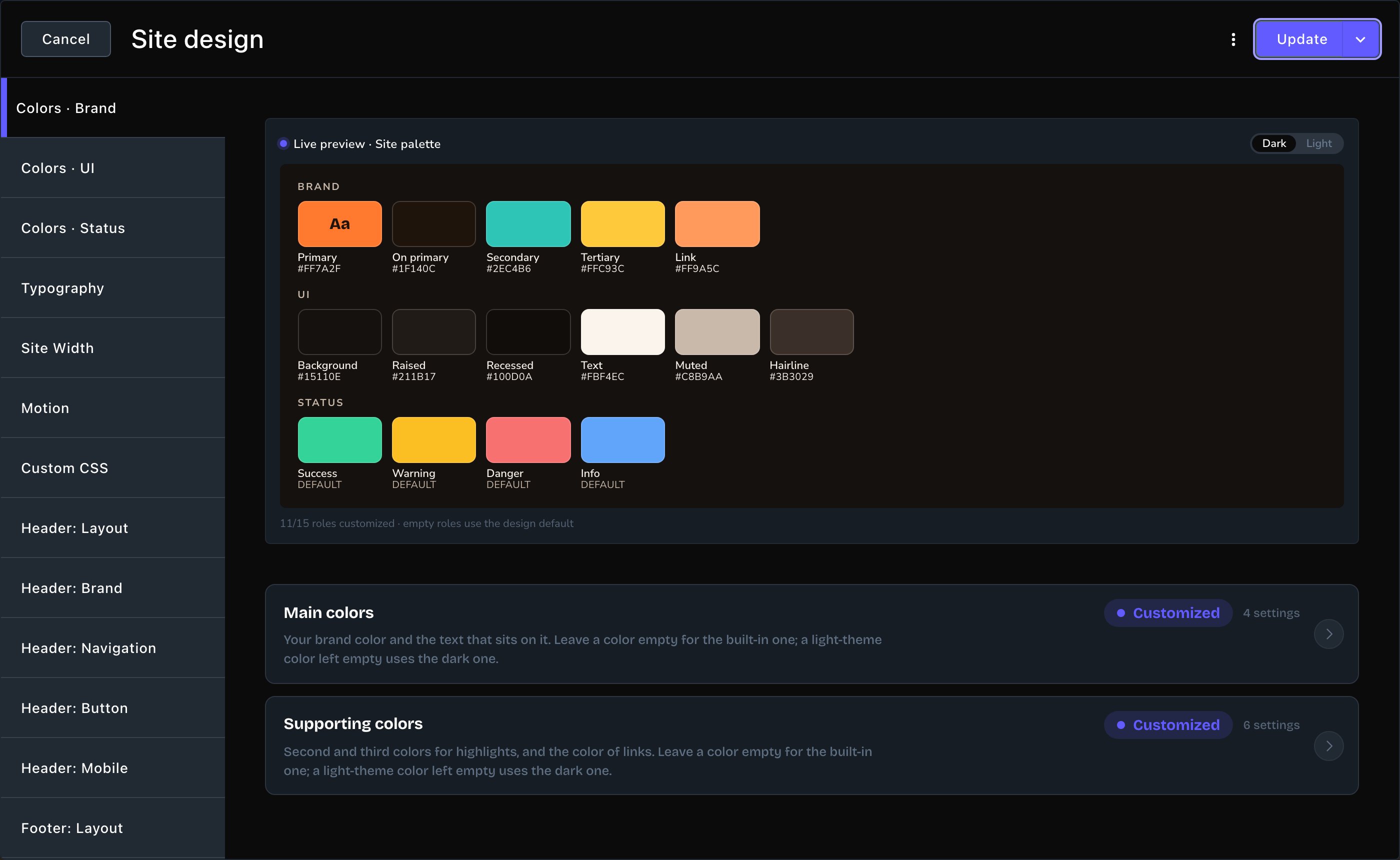
Site design: your colors, fonts, header and footer in one place.
5. FetchskiAI works beside you
FetchskiAI is the AI built into Attract. The FetchskiAI Agent can build and change pages with you. It also helps you write, creates images and suggests SEO text. It works in drafts, so you review its changes before anything goes live.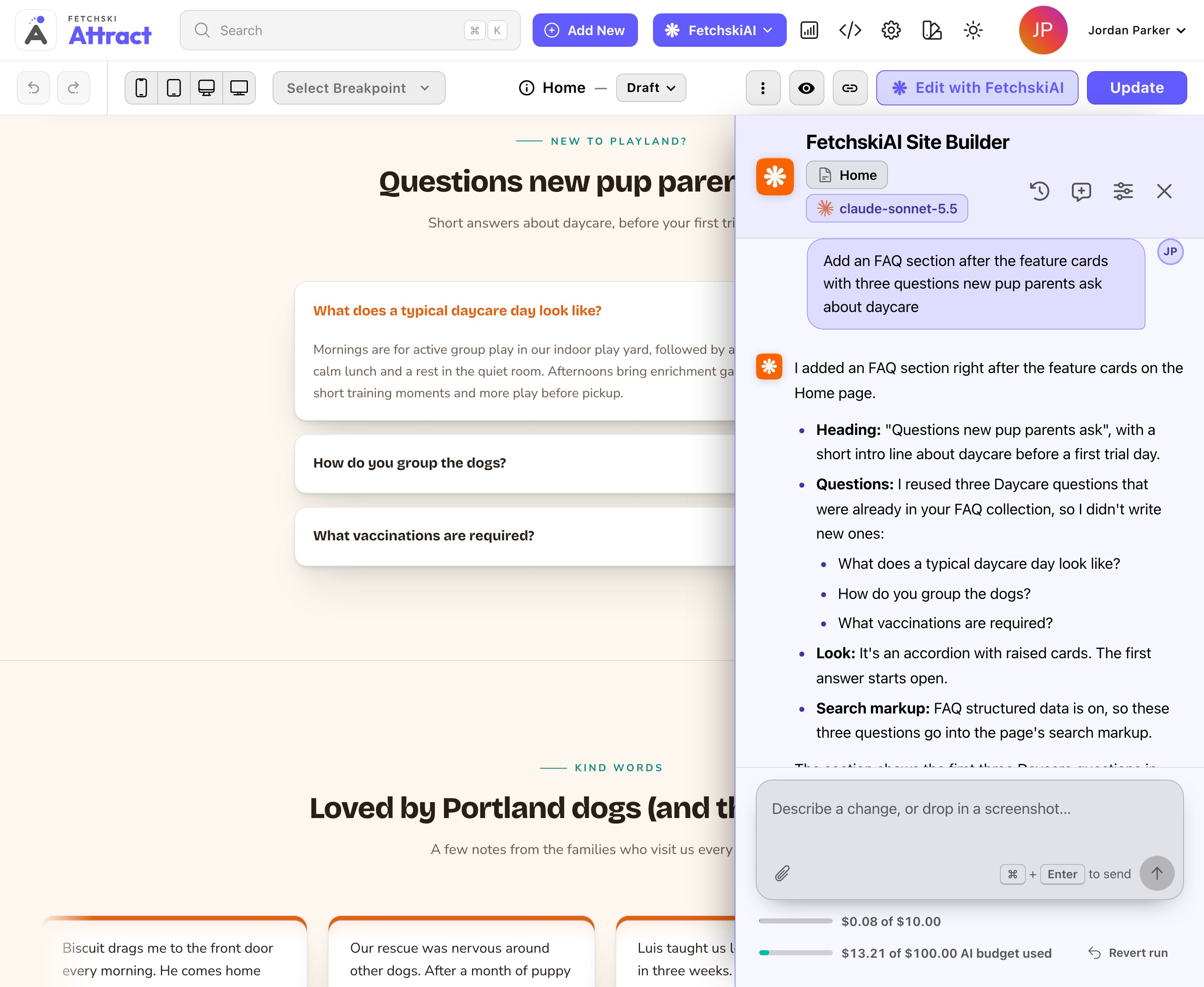
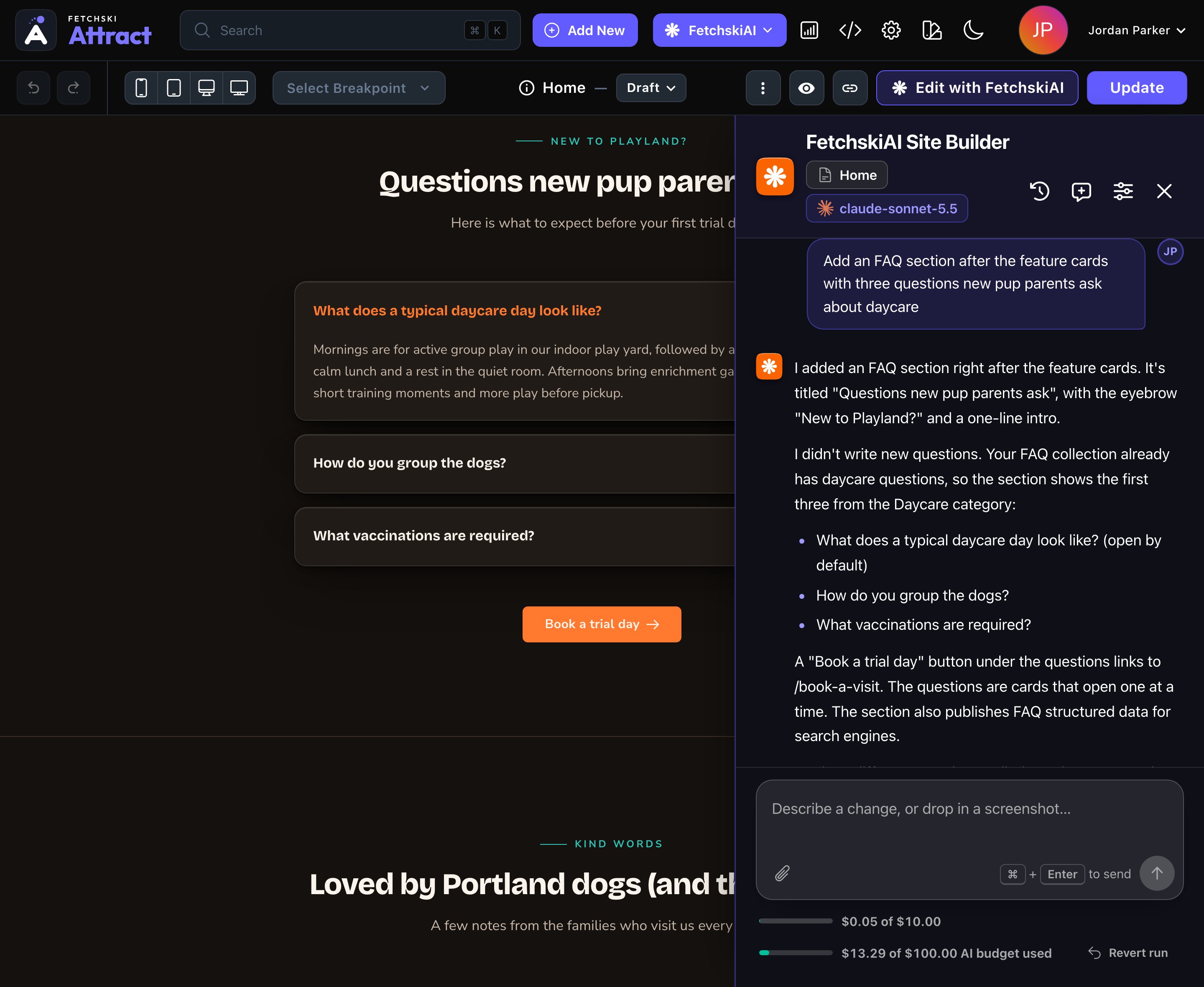
The FetchskiAI Agent builds and changes pages with you.
Where to go first
A short example
Jordan Parker owns Parker’s Puppy Playland, a dog daycare in Portland. On a Monday morning, Jordan:- Signs in and lands on the home page, with the toolbar on top.
- Chooses Edit, selects the Hero and changes its headline to “Now open Sundays”.
- Opens Site settings and changes the phone number in the contact details to (503) 555-0142.
- Asks the FetchskiAI Agent to add a FAQ about Sunday drop-off times and reviews its draft. Then Jordan publishes the new FAQ in FAQs, and the page itself. Publishing a page doesn’t publish the FAQs, team members or testimonials it shows.
Related
Sign in
get into the CMS.
The toolbar and the command palette
every button and shortcut.
Set up your site
the guided checklist.
What each role can do
Owner, Admin, Editor, Contributor and Viewer.