

 AdonisJS
Before you start
- A Google account with access to Google Cloud, Google’s site for developer tools. The steps are free.
- The spreadsheets you want submissions to go to, or a plan to create them.
Connect Google Sheets
1
Open the card
Open Connections from the toolbar or the command palette (⌘K, or Ctrl+K on Windows). The toolbar is the bar across the top of your site once you’re signed in; see The toolbar. Under Google, choose Google Sheets. Its badge says Off.
2
Turn it on
Set Enable Google Sheets submissions to Yes. The setup guide and the key box appear.
3
Create a service account
Follow Setup guide — service account. In Google Cloud, create a project, turn on the Google Sheets API, and create a service account. A service account is a robot Google account your site uses to write to your sheets.
4
Download its key
On the service account’s Keys tab, choose Add key → Create new key. For the key type, keep Google’s first choice: the plain-text kind that Service account JSON is named for. Download the key file. Google only lets you download it once, so keep it safe.
5
Paste the key
Open the key file in a text editor and copy all of its text, from the first
{ to the last }. Paste it into Service account JSON under the guide: the whole text, not the file’s name or a single line.6
Save
Choose Save. The badge reads Connected, with “Share each sheet with the service account to use it.”
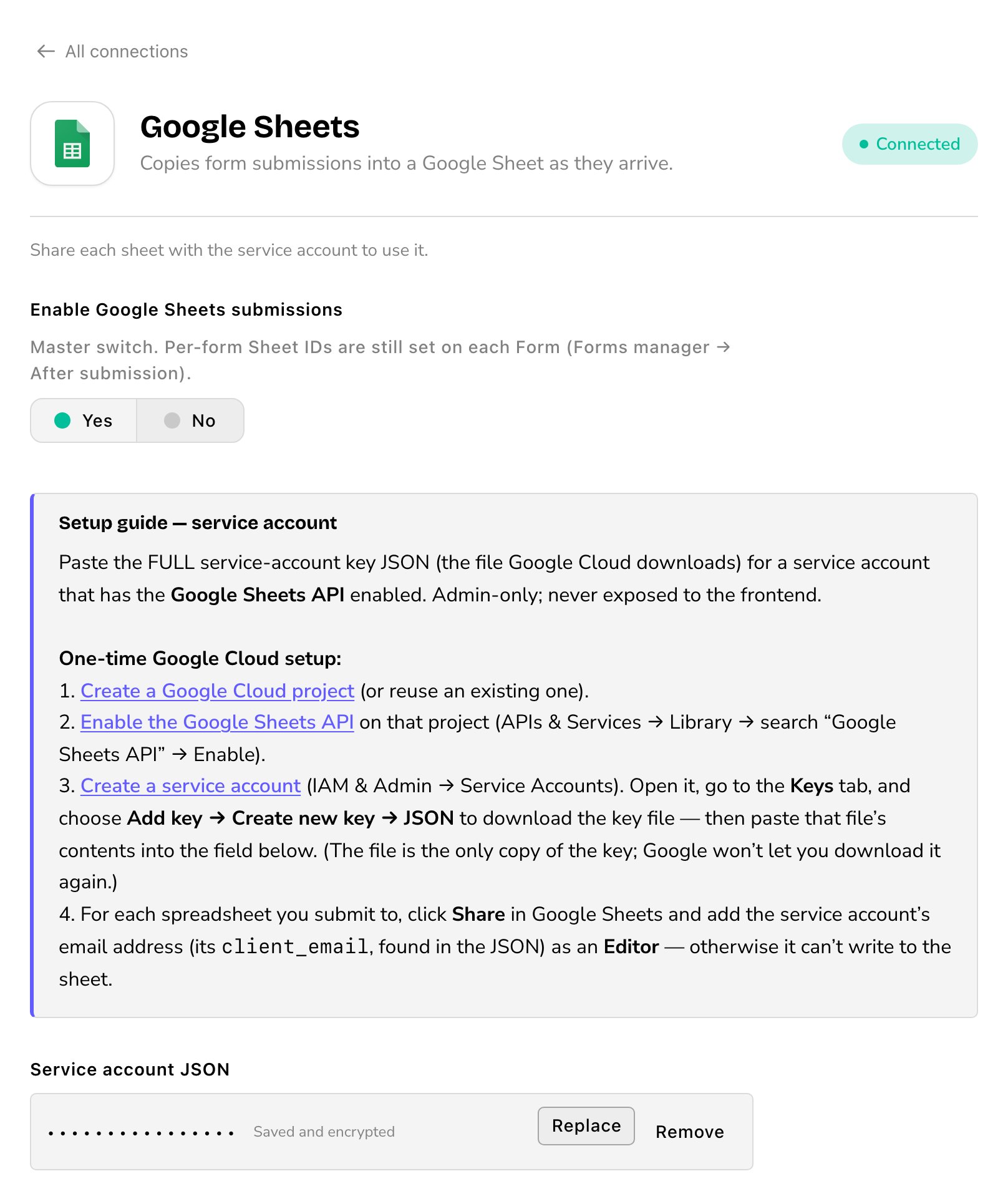
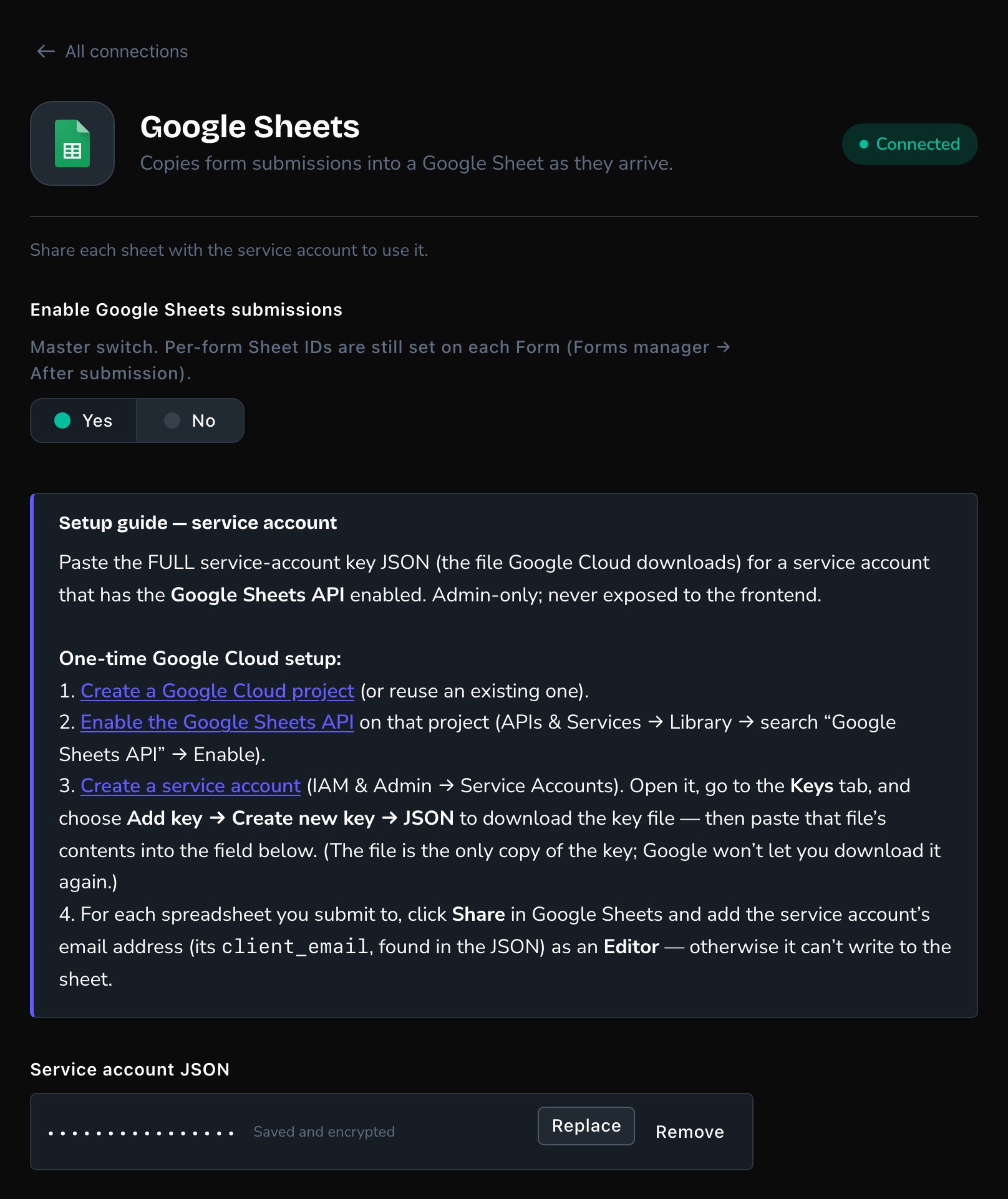
Google Sheets, connected.
Share each sheet
Your site can only write to sheets you share with the service account.1
Find the service account's email address
It’s on the service account’s page in Google Cloud, and in the key file. It ends in
iam.gserviceaccount.com.2
Open the spreadsheet in Google Sheets and choose Share
3
Add that email address as an Editor, and send
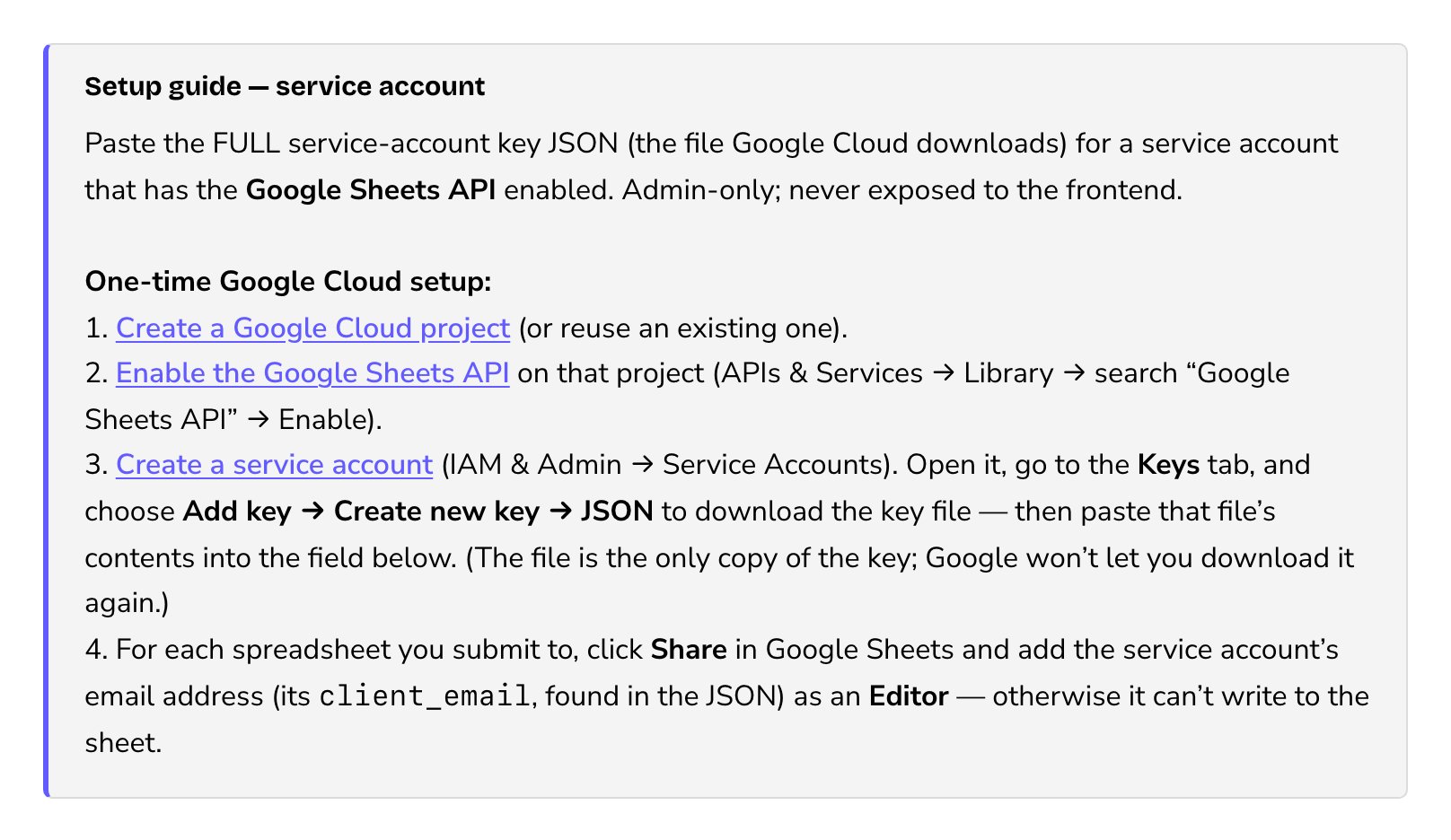
Share the sheet with the service account as an Editor.
Choose a sheet for a form
Each form picks its own sheet, on its After submission tab: turn on Submit to Google Spreadsheets, then fill in two boxes.- Google Spreadsheet ID: which spreadsheet file. It’s the long code in the file’s web address, between
/d/and/edit. - Google Spreadsheet Sheet Name: which tab inside that file, from the tabs along the bottom, such as Sheet1. Use the tab’s name, not the file’s.
Good to know
- It works right away. The connection is ready as soon as you save, with nothing to restart.
- Every submission is still kept in the CMS. If a sheet can’t be reached, the submission is safe in Form submissions.
- Submissions hold personal details. Share the sheet only with people who need it.
- To stop, set Enable Google Sheets submissions to No and save.
Troubleshooting
The badge says "Finish setting up
The badge says "Finish setting up
The key isn’t saved yet. The line under the badge says “Paste the service account key.” Paste the whole key file into the key box, then choose Save.
Submissions don't appear in the sheet
Submissions don't appear in the sheet
Check these in order:
- The sheet is shared with the service account’s email address as an Editor.
- The Google Sheets API is turned on in the same Google Cloud project as the service account.
- The form’s Google Spreadsheet ID and Google Spreadsheet Sheet Name match the sheet and its tab.
I lost the key file
I lost the key file
Google can’t send it again. Create a new key on the service account’s Keys tab, then choose Replace on the card and paste the new file.
Related
Form submissions
read, export and copy what your forms collect.
Build a form
create a form and put it on a page.
Connections
every outside service your site uses.