Pull a fresh set of photos from your own photo storage on a schedule, and show them in a gallery that changes by itself.
Keep a gallery fresh with new photos every day, without anyone touching it. A photo feed pulls a new set from your own photo storage into your media library, on a schedule you set. Then you point a Gallery section at it.Who can do this: Contributors, Editors, Admins and Owners can build and change feeds. Editors, Admins and Owners can also use Refresh now.
Feeds have no draft. When you choose Save, the change takes effect right away, with no publish step.
Before you start
An Admin or Owner connects your photo storage once, in Connections → Photo storage. See Photo storage.
Know where your photos sit in that storage: the folder they’re under, and whether they’re sorted into year, month and day folders, such as 2026/May/31.
A photo feed suits a big, growing photo collection, such as hundreds of new photos a week. To hand-pick a few photos, use a photo album instead.
Build a feed
1
Open the list
Press ⌘K (Ctrl+K on Windows) and choose Photo Feeds under Manage. You can also press G, then E.
2
Start a new feed
Choose New Photo Feed. The editor opens on the Source tab.
3
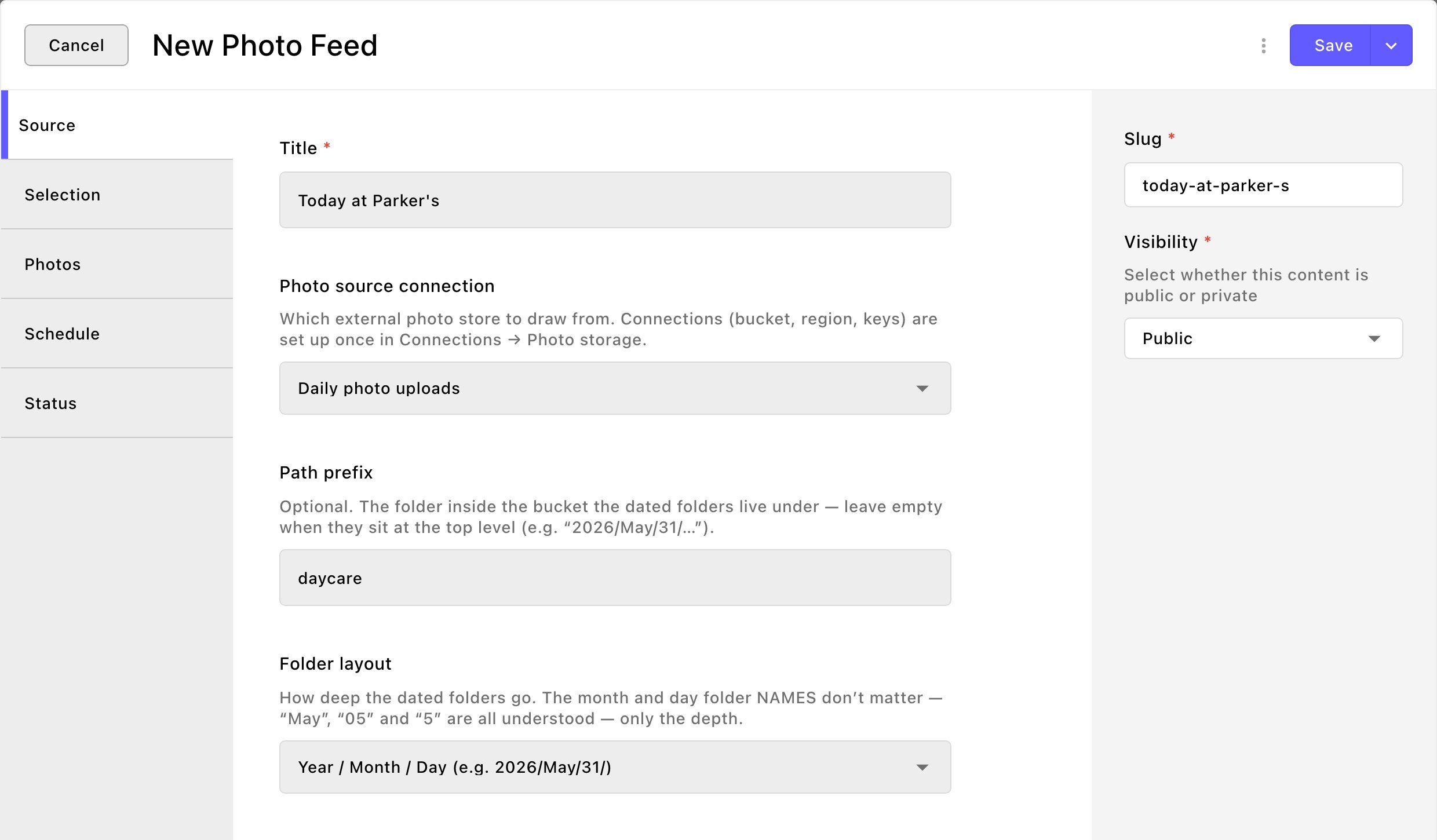
Say where the photos are
On the Source tab:
Title: the feed’s name, such as “Today at Parker’s”. A Gallery section lists feeds by this name.
Photo source connection: the photo storage to draw from.
Path prefix: the folder the dated folders sit under. Leave it empty if they’re at the top level. For example, if your photos sit at “daycare/2026/May/31/”, type “daycare” here and choose Year / Month / Day below. The feed then looks in daycare/2026/May/31/, daycare/2026/May/30/ and so on.
Folder layout: how deep the dated folders go: Year / Month / Day, Year / Month, Year, or No date folders — one flat path. Folder names like “May”, “05” and “5” all work.
Tell the feed where your photos are kept.
4
Choose which photos
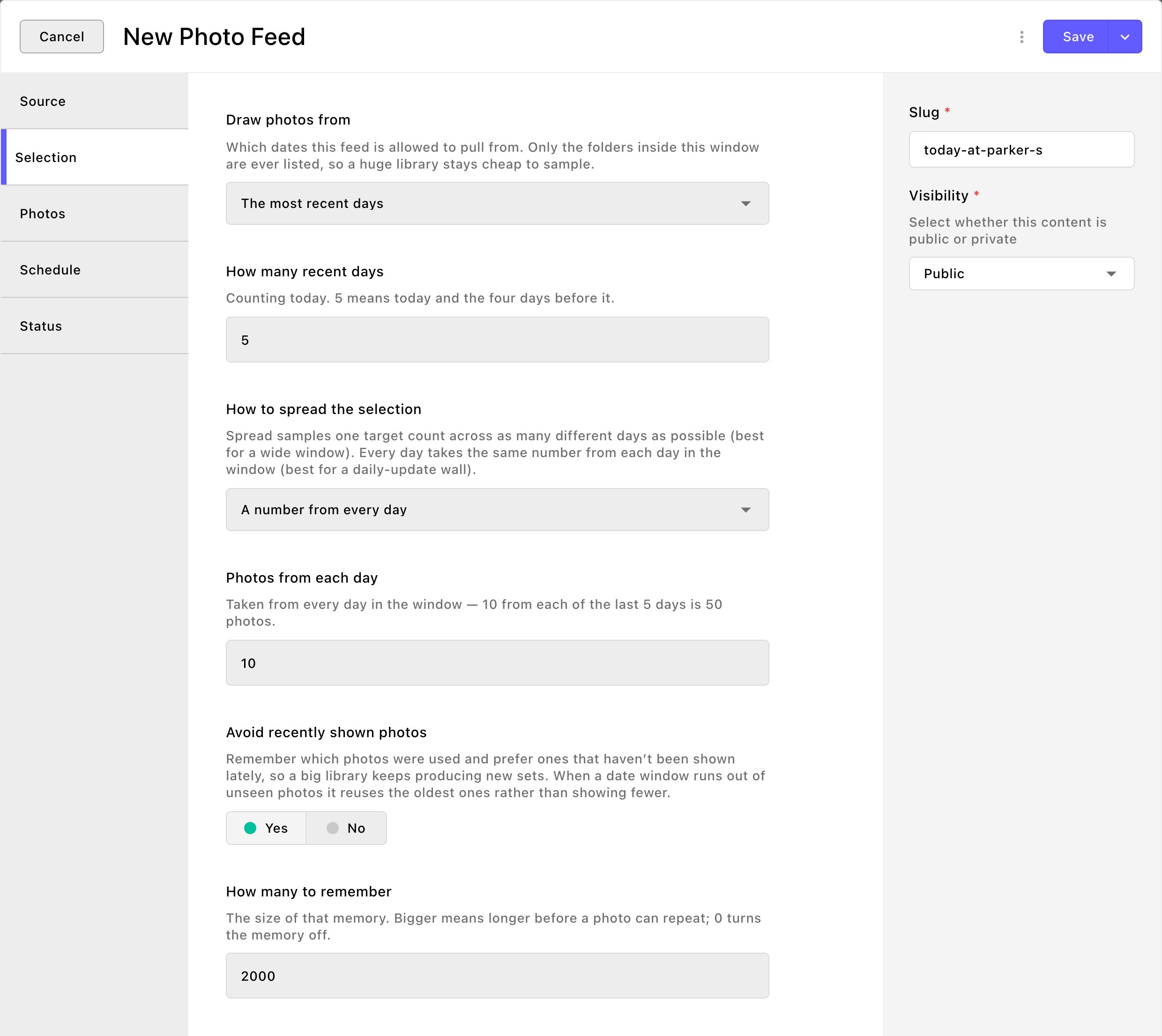
On the Selection tab:
Draw photos from: the dates to choose from. The dates are your folder names, not when a photo was taken or uploaded. Choose The most recent days, This year, The last few years, A specific date range or Everything in the bucket.
Recent days means the last 5, counting today; change it in How many recent days. For a date range, set From and To.
For example, The most recent days with 5 days on May 31 looks in the folders for May 27 to May 31.
Everything in the bucket means every dated folder in your photo storage. A bucket is the storage space your photos sit in.
With No date folders — one flat path, there are no dates to choose from: the feed draws from every photo in the Path prefix folder.
How to spread the selection: A total number, spread across the window takes Photos per refresh (30 to start) from as many different days as it can. A number from every day takes Photos from each day (10 to start) from each day.
Avoid recently shown photos: on by default. Each refresh prefers photos that haven’t been shown lately, so a big collection keeps producing new sets.
10 photos from each of the last 5 days makes a 50-photo set.
5
Set the photo size and shape
The Photos tab starts with good settings, so most feeds can skip it.
Convert to: WebP (smallest — recommended) or JPEG (widest compatibility). Converting also strips location and camera details from the photos your site shows.
Longest edge (pixels): bigger photos are scaled down to this. 2000 is plenty for a full-screen view.
Shape: keep Original proportions for the Mosaic and Masonry layouts. Or crop every photo to one shape, such as Square (1:1), for an even grid.
Alt text for every photo: a short description of what the photos generally show, such as “Dogs playing at Parker’s Puppy Playland”. Screen readers read it, and the full-size photo viewer (the lightbox) shows it as the caption.
The same text goes on every photo the feed brings in, so keep it general.
Each refresh brings in a new set, so a description you write on one feed photo doesn’t carry over to the next set. For photos that each need their own, use a photo album.
6
Turn on the schedule
On the Schedule tab, turn on Refresh automatically and choose Refresh how often. Every 6 hours (recommended) suits most feeds.
7
Save it
Choose Save.
8
Fill it now
Editors, Admins and Owners: open the Status tab and choose Refresh now. A big set can take a minute or more. See “Refresh a feed by hand” below. Contributors can’t use Refresh now: the feed fills at its next scheduled refresh, or ask an Editor or Admin to refresh it for you.
Show it on a page
In a Gallery Preview or Gallery (Full) section, open the Gallery tab. Set Photo source to Photo Feed (refreshes itself from an external source), then choose your feed under Photo Feed. See Gallery.
Make the feed bigger than the gallery. Say the feed holds 200 photos and the section’s Maximum photos is 24. Turn on Rotate photos automatically on the section’s Motion tab, and the extra photos keep swapping in while visitors watch.
Refresh a feed by hand
You can fetch a fresh set at any time, whether or not Refresh automatically is on.
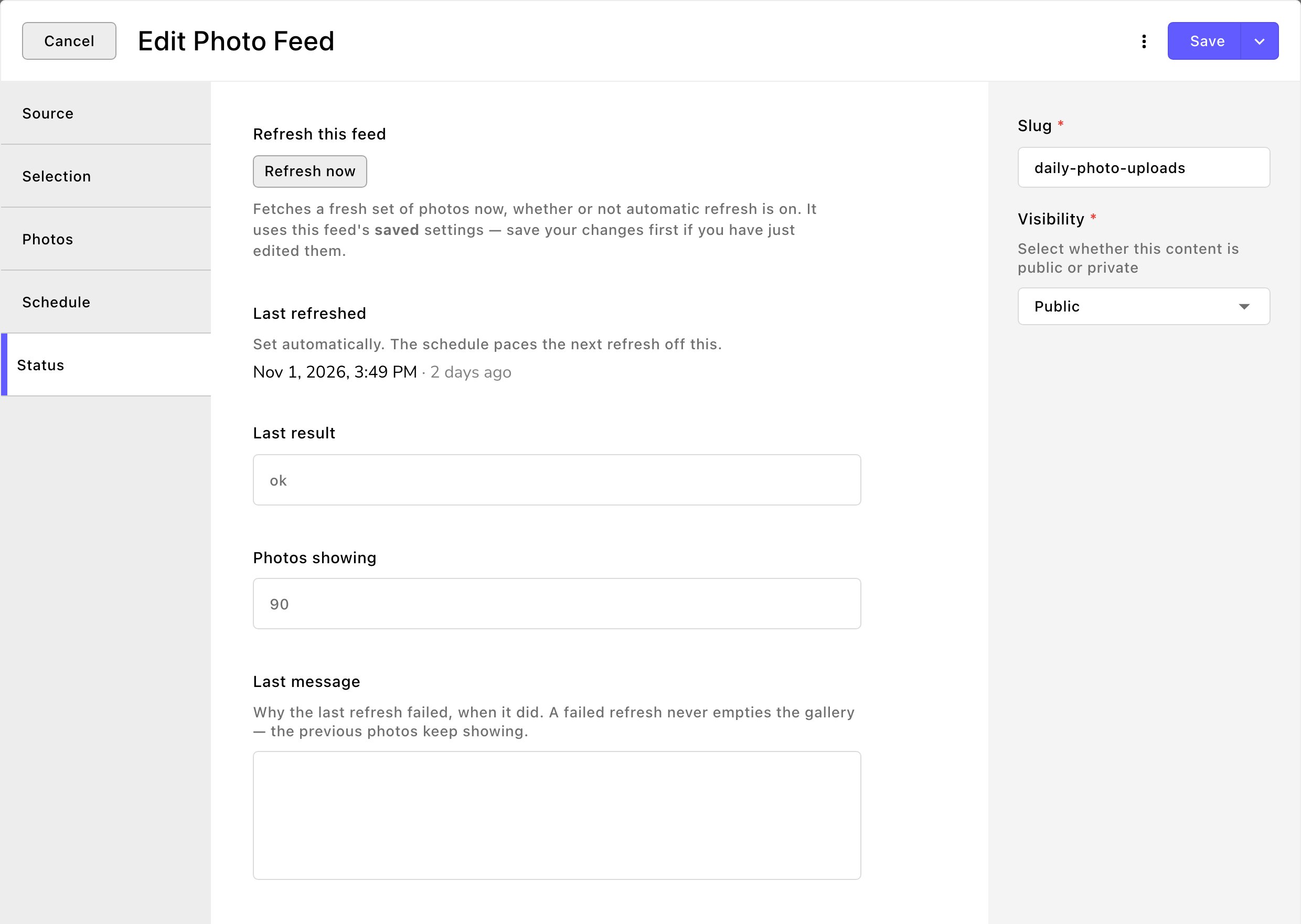
One feed: open it, go to the Status tab, and choose Refresh now. The button reads Refreshing… while it works. You can keep working or close the editor, and the refresh carries on.
Several feeds: in the Photo Feeds list, select them and choose Refresh now in the bar above the list.
The Status tab shows how the last refresh went.
A refresh always uses the feed’s saved settings. If you’ve just changed something, choose Save first.The Status tab tells you how the last refresh went:
Last refreshed: when it ran.
Last result: ok, partial or error.
Photos showing: how many photos your gallery has from this feed now.
Last message: why the last refresh had problems, in plain words.
A partial refresh can show fewer photos than you asked for. It happens when some photos couldn’t be fetched, or when the search through your storage stopped early. For the second, set a narrower Path prefix or the right Folder layout.
Good to know
A failed refresh never empties your gallery. The feed keeps showing its previous photos until a refresh works.
Old sets clean themselves up. After each refresh, the previous photos are deleted once Keep the previous photos for (minutes) has passed. It starts at 30, so feeds don’t fill up your storage.
Photos you use are kept. Feed photos are ordinary media library images, in the feed’s own folder under Photo Feeds. If you put one on a page, in a post or in an album, it leaves the feed for good. It moves to that album’s folder, or to a folder named after the page or post under Pages & Posts.
Deleting a feed deletes its photos, except the ones you’ve used elsewhere.
Your storage stays untouched. A feed only reads from your photo storage. It never changes or deletes your originals there.
Troubleshooting
I don't see Refresh now
Editors, Admins and Owners can use Refresh now. If you need it, ask an Admin to give you Refresh photo feeds in People & Roles. See People & Roles.On a feed you haven’t saved yet, the Status tab says “Save this feed once and its photos can be fetched from here.” Choose Save first.
Refreshed with problems — N photos showing. See "Last message" below.
Some photos couldn’t be fetched, or the search stopped early. Read Last message for the reason. If it mentions the search, narrow the Path prefix or fix the Folder layout, save, and refresh again.
The refresh did not complete. The feed is still showing its previous photos.
The refresh failed, and your gallery is unchanged. Read Last message on the Status tab. Most often, the photo storage connection needs attention: ask an Admin or Owner to check it in Connections → Photo storage.
A refresh is already running for this feed.
Another refresh of this feed is in progress, by the schedule or someone else. Wait for it to finish. The Status tab then shows its result.
The feed has no photos
Check Photo source connection isn’t Not set.
Check Path prefix and Folder layout match how your photos are stored.
Widen Draw photos from. A window of recent days finds nothing if no photos were added in those days.
Related
Photo storage
connect the storage your feeds read from.
Gallery
show a feed on a page, with motion that keeps it changing.
Photo albums
hand-pick and order photos instead.
Media library
find feed photos in the Photo Feeds folder.
⌘I
{"docsConfig":{"theme":"almond","$schema":"https://mintlify.com/docs.json","name":"Fetchski Attract Docs","colors":{"primary":"#16a34a","light":"#22c55e","dark":"#15803d"},"logo":{"light":"https://mintcdn.com/fetchski-attract-api/mn9qfQRsqaASh7UE/logo/light.svg?fit=max\u0026auto=format\u0026n=mn9qfQRsqaASh7UE\u0026q=85\u0026s=66db13e248b70a44a5ff5f6990d4cb63","dark":"https://mintcdn.com/fetchski-attract-api/mn9qfQRsqaASh7UE/logo/dark.svg?fit=max\u0026auto=format\u0026n=mn9qfQRsqaASh7UE\u0026q=85\u0026s=86904ba8d47714303521b2dcd5aa2a50","href":"/"},"favicon":"https://mintcdn.com/fetchski-attract-api/mn9qfQRsqaASh7UE/favicon.svg?fit=max\u0026auto=format\u0026n=mn9qfQRsqaASh7UE\u0026q=85\u0026s=fd4f2c0615961c9e01c9762b98c8999f","api":{"playground":{"display":"interactive"},"examples":{"defaults":"required","languages":["bash","typescript","php"]}},"appearance":{"default":"dark"},"background":{"color":{"light":"#ffffff","dark":"#0b0e13"}},"search":{"prompt":"Search the docs…"},"seo":{"metatags":{"robots":"noindex, nofollow"}},"fonts":{"family":"Inter"},"icons":{"library":"fontawesome"},"styling":{"codeblocks":"dark","latex":true},"contextual":{"options":["copy","view"],"display":"header"},"navigation":{"pages":[]}},"deployment":{"deploymentMetadataValue":{"subdomain":"fetchski-attract-api","hasAudioNarration":false,"actualSubdomain":"fetchski-attract-api","customDomains":["docs.fetchski-attract.com"],"gitSource":{"type":"github","owner":"fetchski","repo":"fetchski_cms_astro_monorepo","deployBranch":"main","contentDirectory":"docs/attract","isPrivate":true,"mountPath":"","label":"","_id":"6adb9c232f0947a18a27541d"},"entitlements":{},"buildId":"6af6df04bd8b0362cdec74ff","clientVersion":"0.0.4131","searchFilterCounts":[{"language":"default","tag":"Media","count":953},{"language":"default","tag":"Content","count":863},{"language":"default","tag":"Publishing","count":720},{"language":"default","tag":"API reference","count":484},{"language":"default","tag":"Laravel","count":472},{"language":"default","tag":"TypeScript","count":470},{"language":"default","tag":"AdonisJS","count":469},{"language":"default","tag":"Batch jobs","count":364},{"language":"default","tag":"Pages \u0026 Site","count":224},{"language":"default","tag":"Forms","count":168}]},"assistantConfig":{"enableAskAiButton":false,"enableStarterQuestions":false,"enableContextualStarterQuestions":false,"enableAskAiSearchBar":true},"basePath":"","hasChatPermissions":false,"hasWebMcpPermissions":false,"toggles":[],"googleFontsInlined":false},"customCss":[{"filePath":"style.css","content":"@media (min-width: 1280px){:root{--content-width: 52rem}}@media (min-width: 1600px){:root{--content-width: 60rem}}@media (min-width: 1920px){:root{--content-width: 68rem}}@media (min-width: 1024px) and (max-width: 1919px){#content-container{padding-left:2rem;padding-right:2rem}div:has(>#content-area){padding-left:0}#table-of-contents{width:14rem}}html[data-page-mode=\"wide\"] #content-area{max-width:84rem}@media (min-width: 1024px){#navbar .nav-tabs{position:fixed;left:15rem;top:0;height:6rem}}@media (min-width: 1024px) and (max-width: 1599px){#navbar .nav-tabs{gap:0}#navbar .nav-tabs .nav-tabs-item{gap:0.375rem;font-size:0.9375rem;padding-inline:0.5rem}#navbar .nav-tabs .nav-tabs-item svg,#navbar .nav-tabs .nav-tabs-item img{width:1.0625rem;height:1.0625rem}}@media (min-width: 1024px) and (max-width: 1199px){#navbar .nav-tabs .nav-tabs-item svg,#navbar .nav-tabs .nav-tabs-item img{display:none}}@media (min-width: 1024px) and (max-width: 1319px){div:has(>#search-bar-entry){width:3rem!important}#search-bar-entry{justify-content:center;padding:0!important}#search-bar-entry>div>:not(svg),#search-bar-entry>:not(div){display:none}}.mdx-content{font-size:1.0625rem;line-height:1.8}@media (min-width: 1024px){.mdx-content{font-size:1.25rem;line-height:1.85}#page-title{font-size:2.875rem;line-height:1.15}#page-title+*,#header .prose{font-size:1.375rem}#sidebar-content a{font-size:1.125rem}.toc-item{font-size:1rem}}.mdx-content>[data-as=\"p\"],.mdx-content>p{margin-top:0;margin-bottom:1.75rem}.mdx-content>h2{margin-top:3.5rem;margin-bottom:1.25rem;padding-top:2rem;border-top:1px solid rgb(0 0 0 / 0.08);font-size:1.875rem;letter-spacing:-0.01em}.dark .mdx-content>h2{border-top-color:rgb(255 255 255 / 0.08)}.mdx-content>h2:first-child{margin-top:0;padding-top:0;border-top:0}.mdx-content>h3{margin-top:2.75rem;margin-bottom:1.125rem;font-size:1.4375rem}.mdx-content>h4{margin-top:2rem;margin-bottom:0.75rem}.mdx-content li{margin-top:0.625rem;margin-bottom:0.625rem}.mdx-content>ul,.mdx-content>ol{margin-bottom:1.75rem}.mdx-content :not(pre)>code{font-size:0.875em;padding:0.125rem 0.375rem;overflow-wrap:anywhere}.mdx-content table{font-size:1.0625rem;line-height:1.7}.mdx-content th,.mdx-content td{padding:0.875rem 1.5rem 0.875rem 0!important;vertical-align:top}.mdx-content th{padding-top:0.25rem!important}.mdx-content th:last-child,.mdx-content td:last-child{padding-right:0!important}.mdx-content td>code:only-child{white-space:nowrap}pre{max-height:36rem;overflow:auto}.mdx-content pre code{font-size:0.9375rem;line-height:1.75}.mdx-content>.code-block,.mdx-content>.code-group{margin-top:1.5rem;margin-bottom:2rem}.mdx-content .columns{column-gap:1.25rem;row-gap:0.5rem;margin-top:1.75rem;margin-bottom:2.25rem}.mdx-content .card{border-radius:1rem}.mdx-content .card [data-component-part=\"card-content-container\"]{padding:1.5rem 1.75rem}.mdx-content [data-component-part=\"card-title\"]{font-size:1.25rem}.mdx-content [data-component-part=\"card-content\"]{font-size:1.0625rem;line-height:1.7}.mdx-content .callout{margin-top:2rem;margin-bottom:2.25rem;padding:1.25rem 1.75rem;font-size:1.125rem;line-height:1.75}.mdx-content .steps{margin-top:1.75rem;margin-bottom:2.25rem}.mdx-content .step{padding-bottom:0.75rem}.mdx-content .accordion-group,.mdx-content>.accordion{margin-top:1.75rem;margin-bottom:2.25rem}.mdx-content .tabs{margin-top:1.75rem;margin-bottom:2.25rem}.mdx-content .tabs [role=\"tabpanel\"]{padding-top:0.375rem;padding-right:0.375rem;padding-bottom:0.375rem}.mdx-content [data-component-name=\"mermaid-container\"]{--im-node-fill: #ecfdf3;--im-node-stroke: #16a34a;--im-node-text: #0b3a1f;--im-cluster-fill: rgb(22 163 74 / 0.04);--im-cluster-stroke: rgb(22 163 74 / 0.35);--im-edge: #64748b;--im-label-bg: #ffffff;margin-top:1.75rem;margin-bottom:2.25rem;padding:2rem 1.5rem;border:1px solid rgb(0 0 0 / 0.08);border-radius:1rem;background:rgb(0 0 0 / 0.015)}.dark .mdx-content [data-component-name=\"mermaid-container\"]{--im-node-fill: #0b2e1a;--im-node-stroke: #22c55e;--im-node-text: #e7fbef;--im-cluster-fill: rgb(34 197 94 / 0.05);--im-cluster-stroke: rgb(34 197 94 / 0.35);--im-edge: #94a3b8;--im-label-bg: #0f1214;border-color:rgb(255 255 255 / 0.08);background:rgb(255 255 255 / 0.02)}.mdx-content [data-component-name=\"mermaid-container\"] svg[id^=\"mermaid\"]{display:block;margin-left:auto;margin-right:auto}.mdx-content [data-component-name=\"mermaid-container\"] .node rect,.mdx-content [data-component-name=\"mermaid-container\"] .node polygon,.mdx-content [data-component-name=\"mermaid-container\"] .node circle,.mdx-content [data-component-name=\"mermaid-container\"] .node path{fill:var(--im-node-fill)!important;stroke:var(--im-node-stroke)!important;stroke-width:1.5px!important}.mdx-content [data-component-name=\"mermaid-container\"] .node rect{rx:8px;ry:8px}.mdx-content [data-component-name=\"mermaid-container\"] .nodeLabel,.mdx-content [data-component-name=\"mermaid-container\"] .node .label{color:var(--im-node-text)!important;fill:var(--im-node-text)!important}.mdx-content [data-component-name=\"mermaid-container\"] .cluster rect{fill:var(--im-cluster-fill)!important;stroke:var(--im-cluster-stroke)!important;stroke-dasharray:6 4;rx:12px;ry:12px}.mdx-content [data-component-name=\"mermaid-container\"] .cluster-label .nodeLabel,.mdx-content [data-component-name=\"mermaid-container\"] .cluster .nodeLabel{color:var(--im-node-stroke)!important}.mdx-content [data-component-name=\"mermaid-container\"] .flowchart-link,.mdx-content [data-component-name=\"mermaid-container\"] .edgePath path{stroke:var(--im-edge)!important;stroke-width:1.5px!important}.mdx-content [data-component-name=\"mermaid-container\"] marker path,.mdx-content [data-component-name=\"mermaid-container\"] .arrowheadPath{fill:var(--im-edge)!important;stroke:var(--im-edge)!important}.mdx-content [data-component-name=\"mermaid-container\"] .edgeLabel,.mdx-content [data-component-name=\"mermaid-container\"] .edgeLabel p,.mdx-content [data-component-name=\"mermaid-container\"] .labelBkg{background-color:var(--im-label-bg)!important;color:var(--im-edge)!important}.mdx-content [data-component-name=\"mermaid-container\"] rect.actor{fill:var(--im-node-fill)!important;stroke:var(--im-node-stroke)!important;stroke-width:1.5px!important;rx:8px;ry:8px}.mdx-content [data-component-name=\"mermaid-container\"] text.actor>tspan,.mdx-content [data-component-name=\"mermaid-container\"] text.actor{fill:var(--im-node-text)!important}.mdx-content [data-component-name=\"mermaid-container\"] .actor-line{stroke:var(--im-cluster-stroke)!important}.mdx-content [data-component-name=\"mermaid-container\"] .messageLine0,.mdx-content [data-component-name=\"mermaid-container\"] .messageLine1{stroke:var(--im-edge)!important;stroke-width:1.5px!important}.mdx-content [data-component-name=\"mermaid-container\"] #arrowhead path,.mdx-content [data-component-name=\"mermaid-container\"] #crosshead path{fill:var(--im-edge)!important;stroke:var(--im-edge)!important}.mdx-content [data-component-name=\"mermaid-container\"] .note{fill:var(--im-cluster-fill)!important;stroke:var(--im-cluster-stroke)!important}.mdx-content .field .prose-sm{font-size:1.0625rem;line-height:1.8}@media (min-width: 1024px){.mdx-content .field .prose-sm{font-size:1.125rem}}.mdx-content .field{padding-top:1.25rem;padding-bottom:1.25rem}:root{--fa-accent: 22 163 74;--fa-ink: 15 23 42;--fa-button: 21 128 61;--fa-button-hover: 22 101 52;--fa-on-button: 255 255 255}.dark{--fa-accent: 34 197 94;--fa-ink: 255 255 255;--fa-button: 34 197 94;--fa-button-hover: 74 222 128;--fa-on-button: 5 46 22}.mdx-content .card{transition:border-color 150ms ease,\n background-color 150ms ease}.mdx-content a.card:hover,.mdx-content .card:has(a:hover){border-color:rgb(var(--fa-accent) / 0.45);background-color:rgb(var(--fa-accent) / 0.06)}.mdx-content .card [data-component-part=\"card-icon\"]{display:flex;width:1.75rem;height:1.75rem;margin-bottom:1rem}.mdx-content .card [data-component-part=\"card-icon\"] svg{width:1.75rem;height:1.75rem;mask-size:contain;background-color:rgb(var(--fa-accent))!important}.mdx-content .card [data-component-part=\"card-content-container\"].flex [data-component-part=\"card-icon\"]{margin-bottom:0}html[data-page-mode=\"wide\"] #header{display:none}.fa-hero{position:relative;isolation:isolate;display:grid;grid-template-columns:minmax(0, 1fr);gap:3rem;align-items:center;overflow:hidden;margin:-1.5rem 0 3.5rem;padding:3.5rem 3rem;border:1px solid rgb(var(--fa-accent) / 0.2);border-radius:1.5rem;background-color:rgb(var(--fa-accent) / 0.025);background-image:radial-gradient(\n 55% 75% at 82% 50%,\n rgb(var(--fa-accent) / 0.16),\n transparent 70%\n )}.fa-hero::before{content:'';position:absolute;inset:0;z-index:-1;background-image:linear-gradient(rgb(var(--fa-accent) / 0.1) 1px, transparent 1px),\n linear-gradient(90deg, rgb(var(--fa-accent) / 0.1) 1px, transparent 1px);background-size:2rem 2rem;background-position:-1px -1px;mask-image:radial-gradient(80% 90% at 85% 40%, #000 20%, transparent 75%);pointer-events:none}.fa-hero::after{content:'';position:absolute;top:0;right:10%;left:10%;height:1px;background:linear-gradient(\n 90deg,\n transparent,\n rgb(var(--fa-accent) / 0.8),\n transparent\n );pointer-events:none}@media (min-width: 1536px){.fa-hero{grid-template-columns:minmax(0, 0.85fr) minmax(0, 1.15fr);padding:4rem 3.5rem}}.fa-hero-code>.code-group,.fa-hero-code>.code-block{margin:0;border-color:rgb(var(--fa-accent) / 0.25);box-shadow:0 1px 0 rgb(255 255 255 / 0.04) inset,\n 0 30px 60px -24px rgb(0 0 0 / 0.55),\n 0 0 0 6px rgb(var(--fa-accent) / 0.06)}.mdx-content .fa-hero-code pre code{font-size:0.8125rem}.mdx-content .fa-hero .fa-hero-mark{margin:0 0 1.75rem}.mdx-content .fa-hero .fa-hero-mark img{display:block;width:auto;height:4rem;margin:0;border-radius:0}.mdx-content .fa-hero .fa-hero-mark .fa-hero-mark-dark,.dark .mdx-content .fa-hero .fa-hero-mark .fa-hero-mark-light{display:none}.dark .mdx-content .fa-hero .fa-hero-mark .fa-hero-mark-dark{display:block}.fa-hero h1{max-width:40rem;margin:0;font-size:3.25rem;font-weight:700;line-height:1.06;letter-spacing:-0.035em;text-wrap:balance}.fa-hero h1 .fa-hero-accent{color:rgb(var(--fa-accent))}.mdx-content .fa-hero-lede{max-width:34rem;margin:1.5rem 0 2.25rem;font-size:1.1875rem;line-height:1.7;opacity:0.78;text-wrap:pretty}.fa-hero-actions{display:flex;flex-wrap:wrap;gap:0.75rem}.mdx-content .fa-hero-facts{display:flex;flex-wrap:wrap;gap:0.5rem 1.5rem;margin-top:2rem;font-size:0.9375rem;opacity:0.8}.mdx-content .fa-hero-facts>span{display:inline-flex;align-items:center;gap:0.5rem}.mdx-content .fa-hero-facts>span::before{content:'';flex:none;width:1rem;height:1rem;background:rgb(var(--fa-accent));mask:url(\"data:image/svg+xml,%3Csvg xmlns='http://www.w3.org/2000/svg' viewBox='0 0 16 16'%3E%3Cpath d='M3.5 8.5l3 3 6-7' fill='none' stroke='%23000' stroke-width='2' stroke-linecap='round' stroke-linejoin='round'/%3E%3C/svg%3E\")\n center / contain no-repeat}.fa-button{display:inline-flex;align-items:center;gap:0.5rem;height:2.75rem;padding:0 1.125rem;border:1px solid transparent;border-radius:0.625rem;font-size:0.9375rem;font-weight:600;letter-spacing:-0.005em;text-decoration:none!important;transition:background-color 150ms ease,\n border-color 150ms ease,\n box-shadow 150ms ease,\n transform 150ms ease}.fa-button-primary{border-color:rgb(var(--fa-button) / 1);background:rgb(var(--fa-button));box-shadow:inset 0 1px 0 rgb(255 255 255 / 0.25),\n 0 8px 20px -10px rgb(var(--fa-button) / 0.9);color:rgb(var(--fa-on-button))!important}.fa-button-primary::after{content:'';width:1rem;height:1rem;background:currentcolor;mask:url(\"data:image/svg+xml,%3Csvg xmlns='http://www.w3.org/2000/svg' viewBox='0 0 16 16'%3E%3Cpath d='M3 8h9.5M8.5 4l4 4-4 4' fill='none' stroke='%23000' stroke-width='1.75' stroke-linecap='round' stroke-linejoin='round'/%3E%3C/svg%3E\")\n center / contain no-repeat;transition:transform 150ms ease}.fa-button-primary:hover{background:rgb(var(--fa-button-hover));box-shadow:inset 0 1px 0 rgb(255 255 255 / 0.25),\n 0 10px 24px -10px rgb(var(--fa-button) / 1)}.fa-button-primary:hover::after{transform:translateX(2px)}.fa-button-secondary{border-color:rgb(var(--fa-ink) / 0.16);background:rgb(var(--fa-ink) / 0.03);color:inherit!important}.fa-button-secondary:hover{border-color:rgb(var(--fa-accent) / 0.55);background:rgb(var(--fa-accent) / 0.08)}.fa-button:active{transform:translateY(1px)}.fa-button:focus-visible{outline:2px solid rgb(var(--fa-accent));outline-offset:3px}@media (prefers-reduced-motion: reduce){.fa-button,.fa-button-primary::after{transition:none}.fa-button:active,.fa-button-primary:hover::after{transform:none}}@media (max-width: 767px){.fa-hero{padding:2.5rem 1.5rem}.fa-hero h1{font-size:2.25rem}}#sidebar-content a,#sidebar-content li>button{gap:0.875rem;padding-top:0.625rem;padding-right:0.5rem;padding-bottom:0.625rem;font-size:1.125rem;line-height:1.45}#sidebar-content li+li{margin-top:0.25rem}#sidebar-content li>button>div:nth-child(2){min-width:0}#sidebar-content li>button>div:last-child{width:1.25rem;margin-left:auto;justify-content:center}#sidebar-content li>ul{margin:0.25rem 0 0.25rem 1.25rem;padding-left:0.375rem;border-left:1px solid rgb(0 0 0 / 0.1)}.dark #sidebar-content li>ul{border-left-color:rgb(255 255 255 / 0.1)}#sidebar-content li>ul>li>:is(a,button){padding-left:0.75rem!important;font-size:1.0625rem}#sidebar-content .sidebar-group-header{margin-bottom:0.625rem;font-size:0.875rem;font-weight:700;letter-spacing:0.08em;text-transform:uppercase;color:color-mix(in srgb, rgb(var(--fa-accent)) 72%, black)}.dark #sidebar-content .sidebar-group-header{color:rgb(var(--fa-accent))}#sidebar-content div:has(>.sidebar-group-header)+div:has(>.sidebar-group-header){margin-top:2.25rem}#sidebar-content a svg,#sidebar-content a img,#sidebar-content li>button>div:first-child svg,#sidebar-content li>button>div:first-child img{width:1.375rem;height:1.375rem}#sidebar-content .sidebar-group-header svg{width:1rem;height:1rem}.nav-tabs-item{gap:0.625rem;font-size:1.0625rem}.nav-tabs-item svg,.nav-tabs-item img{width:1.3125rem;height:1.3125rem}.nav-tabs-item[href^=\"/typescript\"] svg{background-color:#d4b106}.dark .nav-tabs-item[href^=\"/typescript\"] svg{background-color:#f7df1e}.nav-tabs-item[href^=\"/laravel\"] svg{background-color:#ff2d20}.nav-tabs-item[href^=\"/adonisjs\"] svg{background-color:#5a45ff}.dark .nav-tabs-item[href^=\"/adonisjs\"] svg{background-color:#8b7dff}li[data-group-tag]>button svg[style*=\"/brands/js.svg\"]{background-color:#d4b106}.dark li[data-group-tag]>button svg[style*=\"/brands/js.svg\"]{background-color:#f7df1e}li[data-group-tag]>button svg[style*=\"/brands/laravel.svg\"]{background-color:#ff2d20}#sidebar-content img[src$=\"/n8n.png\"]{transform:scale(1.35)}@media (min-width: 1024px){:root{--mintlify-slot-header-height: 6rem;--sidebar-width: 26rem}#navbar{height:6rem}#sidebar-content{top:6rem}#navbar div:has(img.nav-logo){height:100%}img.nav-logo{height:3.5rem;margin-left:0.5rem}div:has(>#search-bar-entry){position:fixed;top:1.5rem;right:7rem;z-index:40;width:clamp(11rem, calc(100vw - var(--sidebar-width) - 45rem), 24rem)}#search-bar-entry{height:3rem;padding-left:1.125rem;border-radius:0.875rem;font-size:1.0625rem}#search-bar-entry svg{width:1.125rem;height:1.125rem}}[data-switch=\"pill\"]{width:auto!important;height:auto!important;padding:0.3125rem;gap:0.25rem}.switch-option{width:2.125rem!important;height:2.125rem!important}.switch-option svg{width:1.125rem;height:1.125rem}.mdx-content .accordion-group{display:grid;gap:0.75rem;overflow:visible;border:0;border-color:transparent;border-radius:0;background:none}.mdx-content details.accordion{margin:0 0 0.75rem;border-color:transparent;border-radius:1rem!important;outline:1px solid rgb(var(--fa-ink) / 0.1);outline-offset:-1px;overflow:hidden;transition:outline-color 150ms ease,\n box-shadow 150ms ease}.mdx-content .accordion-group>details.accordion{margin:0}.mdx-content details.accordion:hover{outline-color:rgb(var(--fa-accent) / 0.35)}.mdx-content details.accordion[open]{outline-color:rgb(var(--fa-accent) / 0.45);box-shadow:inset 3px 0 0 rgb(var(--fa-accent))}.mdx-content [data-component-part=\"accordion-button\"]{gap:1rem;padding:1rem 1.25rem 1rem 1.5rem;border-radius:0!important;transition:background-color 150ms ease}.mdx-content [data-component-part=\"accordion-button\"]:hover{background:rgb(var(--fa-accent) / 0.05)}.mdx-content [data-component-part=\"accordion-button\"]:focus-visible{outline:2px solid rgb(var(--fa-accent));outline-offset:-2px}.mdx-content [data-component-part=\"accordion-caret-right\"]{order:3;width:2rem;height:2rem;border-radius:999px;background:rgb(var(--fa-ink) / 0.06);transition:background-color 150ms ease}.mdx-content [data-component-part=\"accordion-caret-right\"] svg{width:0.875rem;height:0.875rem}.mdx-content details.accordion[open] [data-component-part=\"accordion-caret-right\"]{background:rgb(var(--fa-accent) / 0.15)}.mdx-content details.accordion[open] [data-component-part=\"accordion-caret-right\"] svg{color:rgb(var(--fa-accent))}.mdx-content [data-component-part=\"accordion-icon\"]{display:inline-flex;align-items:center;justify-content:center;width:1.25rem;height:1.25rem}.mdx-content [data-component-part=\"accordion-icon\"] svg{width:1.25rem;height:1.25rem;background-color:rgb(var(--fa-accent))!important}.mdx-content [data-component-part=\"accordion-title\"]{font-size:1.1875rem}.mdx-content [data-component-part=\"accordion-content\"]{max-width:none;padding:1.5rem 2rem 1.75rem 1.5rem;border-top:1px solid rgb(var(--fa-ink) / 0.08);font-size:1.125rem;line-height:1.95}@media (min-width: 768px){.mdx-content details.accordion:has(>summary [data-component-part=\"accordion-icon\"])>[data-component-part=\"accordion-content\"]{padding-left:3.75rem}}.mdx-content [data-component-part=\"accordion-content\"]>[data-as=\"p\"],.mdx-content [data-component-part=\"accordion-content\"]>p{display:block;max-width:46rem;margin:0 0 1.25rem}.mdx-content [data-component-part=\"accordion-content\"]>:last-child{margin-bottom:0}@media (prefers-reduced-motion: reduce){.mdx-content details.accordion,.mdx-content [data-component-part=\"accordion-button\"],.mdx-content [data-component-part=\"accordion-caret-right\"]{transition:none}}[data-badge=\"true\"]{--fa-badge: 100 116 139;padding:0.125rem 0.5rem;border-radius:0.5rem;background:rgb(var(--fa-badge) / 0.14)!important;box-shadow:inset 0 0 0 1px rgb(var(--fa-badge) / 0.32);color:rgb(var(--fa-badge))!important;font-variant-numeric:tabular-nums}[data-badge=\"true\"][data-color=\"red\"]{--fa-badge: 239 68 68}[data-badge=\"true\"][data-color=\"orange\"]{--fa-badge: 245 130 32}[data-badge=\"true\"][data-color=\"yellow\"]{--fa-badge: 214 160 20}[data-badge=\"true\"][data-color=\"green\"]{--fa-badge: 22 163 74}[data-badge=\"true\"][data-color=\"blue\"]{--fa-badge: 17 145 240}.dark [data-badge=\"true\"][data-color=\"red\"]{--fa-badge: 248 113 113}.dark [data-badge=\"true\"][data-color=\"orange\"]{--fa-badge: 251 158 75}.dark [data-badge=\"true\"][data-color=\"yellow\"]{--fa-badge: 250 204 21}.dark [data-badge=\"true\"][data-color=\"green\"]{--fa-badge: 74 222 128}.dark [data-badge=\"true\"][data-color=\"blue\"]{--fa-badge: 62 165 245}.dark [data-badge=\"true\"][data-color=\"gray\"]{--fa-badge: 161 161 170}.mdx-content td [data-badge=\"true\"]+[data-badge=\"true\"]{margin-left:0.375rem}.mdx-content :is([data-as=\"p\"],p,li,td,blockquote),#header .prose,#page-title+*{color:rgb(38 43 52)}.dark .mdx-content :is([data-as=\"p\"],p,li,td,blockquote),.dark #header .prose,.dark #page-title+*{color:rgb(222 226 232)}.mdx-content :is(th,strong){font-weight:600}#sidebar-content a,#sidebar-content li>button{color:rgb(70 76 88)}.dark #sidebar-content a,.dark #sidebar-content li>button{color:rgb(196 201 210)}.toc-item a{color:inherit}.mdx-content [data-component-part=\"callout-content\"]{font-size:1.125rem;line-height:1.75}.mdx-content [data-component-part=\"callout-icon\"]{width:1.25rem;margin-top:0.25rem}.mdx-content [data-component-part=\"step-title\"]{font-size:1.25rem}.mdx-content [data-component-part=\"step-content\"],.mdx-content [data-component-part=\"tab-content\"]{font-size:1.125rem;line-height:1.85}.mdx-content [data-component-part=\"step-number\"]{margin-left:calc(0.5px - 1.125rem)}.mdx-content [data-component-part=\"step-indicator\"]{width:2.25rem;height:2.25rem;background-color:transparent;color:rgb(var(--fa-accent));font-size:1.25rem;font-weight:600}.mdx-content [data-component-part=\"step-indicator\"] svg{width:1.5rem;height:1.5rem;background-color:rgb(var(--fa-accent))!important}.mdx-content [data-component-part=\"tab-button\"]{font-size:1rem}.mdx-content [data-component-part=\"code-block-header\"],.mdx-content [data-component-part=\"code-block-header-filename\"]{font-size:0.875rem}.mdx-content [data-component-part=\"code-group-tab-bar\"]{font-size:0.9375rem}.mdx-content [data-component-part=\"field-name\"]{font-size:1.0625rem}.mdx-content [data-component-part=\"field-meta\"],.mdx-content [data-component-part=\"field-info-pill\"],.mdx-content [data-component-part=\"field-required-pill\"]{font-size:0.875rem}.mdx-content [data-component-part=\"expandable-button\"]{font-size:1rem}[data-component-part=\"pagination-title\"]{font-size:1.125rem}[data-component-part=\"pagination-label\"]{font-size:0.9375rem}.mdx-content>.multi-view-item{max-width:none;font-size:inherit;line-height:inherit}.multi-view-item>[data-as=\"p\"],.multi-view-item>p{margin-top:0;margin-bottom:1.75rem}.multi-view-item>h2{margin-top:3.5rem;margin-bottom:1.25rem;padding-top:2rem;border-top:1px solid rgb(0 0 0 / 0.08);font-size:1.875rem;letter-spacing:-0.01em}.dark .multi-view-item>h2{border-top-color:rgb(255 255 255 / 0.08)}.multi-view-item>h2:first-child{margin-top:0;padding-top:0;border-top:0}.multi-view-item>h3{margin-top:2.75rem;margin-bottom:1.125rem;font-size:1.4375rem}.multi-view-item>ul,.multi-view-item>ol{margin-bottom:1.75rem}.multi-view-item>.code-block,.multi-view-item>.code-group{margin-top:1.5rem;margin-bottom:2rem}#content-container .prose.prose-sm{font-size:1.0625rem;line-height:1.8}#sidebar-content .method-nav-pill{width:2.75rem}#sidebar-content .method-nav-pill>*{padding:0.125rem 0.375rem;font-size:0.6875rem;line-height:1.25rem}#fa-reader-values{margin-top:1.75rem;padding:1.5rem;border:1px solid rgb(var(--fa-ink) / 0.14);border-radius:1rem;background:transparent;font-size:1.0625rem;line-height:1.6;transition:border-color 150ms ease;container:fa-reader / inline-size}#fa-reader-values:hover,#fa-reader-values:focus-within{border-color:rgb(var(--fa-accent) / 0.45)}#fa-reader-values .fa-reader-line{display:grid;grid-template-columns:auto 1fr;align-items:center;gap:1rem 1.25rem}#fa-reader-values .fa-reader-toggle{grid-column:1 / -1;justify-self:start}@container fa-reader (min-width: 30rem){#fa-reader-values .fa-reader-line{grid-template-columns:auto 1fr auto}#fa-reader-values .fa-reader-line .fa-reader-toggle{grid-column:auto}}#fa-reader-values .fa-reader-icon{width:4rem;height:4rem;background:url('/logo/attract-glyph-color-a-green-on-light-scalable.svg') center / contain\n no-repeat}.dark #fa-reader-values .fa-reader-icon{background-image:url('/logo/attract-glyph-color-a-green-on-dark-scalable.svg')}#fa-reader-values .fa-reader-copy{min-width:0}#fa-reader-values .fa-reader-copy p{margin:0}#fa-reader-values .fa-reader-title{font-size:1.125rem;font-weight:600;color:rgb(var(--fa-ink))}#fa-reader-values .fa-reader-values{display:grid;grid-template-columns:auto 1fr;align-items:center;gap:0.625rem 0.875rem;margin:0.75rem 0 0}#fa-reader-values .fa-reader-values>div{display:contents}#fa-reader-values .fa-reader-values dt{font-weight:500;color:rgb(var(--fa-ink))}#fa-reader-values .fa-reader-values dd{justify-self:start;min-width:0;margin:0}#fa-reader-values code{display:inline-block;padding:0.375rem 0.875rem;border:1px solid rgb(var(--fa-accent) / 0.4);border-radius:0.5rem;background:rgb(var(--fa-ink) / 0.03);color:rgb(var(--fa-ink));font-size:0.95em;font-weight:700;line-height:1.4;overflow-wrap:anywhere}#fa-reader-values button{padding:0.625rem 1.25rem;border:1px solid rgb(var(--fa-ink) / 0.16);border-radius:0.625rem;background:rgb(var(--fa-ink) / 0.03);color:rgb(var(--fa-ink));font-weight:600;white-space:nowrap;cursor:pointer;transition:background-color 150ms ease,\n border-color 150ms ease}#fa-reader-values button:hover{border-color:rgb(var(--fa-accent) / 0.55);background:rgb(var(--fa-accent) / 0.08)}#fa-reader-values button:focus-visible,#fa-reader-values input:focus-visible{outline:2px solid rgb(var(--fa-accent));outline-offset:2px}#fa-reader-values .fa-reader-form{display:grid;grid-template-columns:1fr;gap:1.75rem 1.5rem;margin-top:1.5rem;padding:1.5rem 0.25rem 0.25rem;border-top:1px solid rgb(var(--fa-ink) / 0.1)}@media (min-width: 768px){#fa-reader-values .fa-reader-form{grid-template-columns:1fr 1fr}}#fa-reader-values .fa-reader-form[hidden]{display:none}#fa-reader-values label{display:grid;gap:0.625rem;align-content:start}#fa-reader-values label>span{font-weight:600;color:rgb(var(--fa-ink))}#fa-reader-values label em{font-style:normal;font-weight:400}#fa-reader-values input{width:100%;padding:0.75rem 1rem;border:1px solid rgb(128 128 128 / 0.4);border-radius:0.5rem;background:rgb(128 128 128 / 0.08);color:rgb(var(--fa-ink));font:inherit}#fa-reader-values small{display:block;margin-top:0.5rem;font-size:0.9375rem;line-height:1.6;color:rgb(var(--fa-ink))}#fa-reader-values .fa-reader-error{grid-column:1 / -1;margin:0;color:#dc2626}.dark #fa-reader-values .fa-reader-error{color:#f87171}#fa-reader-values .fa-reader-error:empty{display:none}#fa-reader-values .fa-reader-actions{display:flex;flex-wrap:wrap;grid-column:1 / -1;align-items:center;gap:1rem;padding-top:0.25rem}.mdx-content .n8n-canvas{--n8n-dot: rgb(0 0 0 / 0.12);--n8n-node-bg: #ffffff;--n8n-node-border: rgb(0 0 0 / 0.18);--n8n-line: #94a3b8;margin:1.75rem 0 2.25rem;padding:2rem 0.75rem 1.5rem;overflow-x:auto;border:1px solid rgb(0 0 0 / 0.08);border-radius:1rem;background-color:rgb(0 0 0 / 0.015);background-image:radial-gradient(var(--n8n-dot) 1px, transparent 1px);background-size:18px 18px}.dark .mdx-content .n8n-canvas{--n8n-dot: rgb(255 255 255 / 0.1);--n8n-node-bg: #1b1f24;--n8n-node-border: rgb(255 255 255 / 0.22);--n8n-line: #64748b;border-color:rgb(255 255 255 / 0.08);background-color:rgb(255 255 255 / 0.02)}.mdx-content .n8n-canvas-row{display:flex;align-items:flex-start;justify-content:center;min-width:max-content;margin:0 auto}.mdx-content .n8n-node{display:flex;flex-direction:column;align-items:center;width:7.25rem;text-align:center}.mdx-content .n8n-node-box{display:flex;align-items:center;justify-content:center;width:4.5rem;height:4.5rem;border:2px solid var(--n8n-node-border);border-radius:0.75rem;background:var(--n8n-node-bg);box-shadow:0 1px 3px rgb(0 0 0 / 0.08)}.mdx-content .n8n-node-trigger .n8n-node-box{border-radius:2.25rem 0.75rem 0.75rem 2.25rem}.mdx-content .n8n-node-accent .n8n-node-box{border-color:rgb(var(--fa-accent));box-shadow:0 0 0 4px rgb(var(--fa-accent) / 0.15)}.mdx-content .n8n-node-title{margin-top:0.6rem;font-size:0.95rem;font-weight:600;line-height:1.3}.mdx-content .n8n-node-note{margin-top:0.2rem;font-size:0.8rem;line-height:1.35;opacity:0.7}.mdx-content .n8n-node-box svg{width:1.9rem!important;height:1.9rem!important}.mdx-content .n8n-link{display:flex;flex-direction:column;align-items:center;width:4rem;margin:0 -1.125rem;padding-top:1.1rem}.mdx-content .n8n-link-items{height:1.1rem;font-size:0.75rem;font-weight:600;line-height:1.1rem;white-space:nowrap;color:rgb(var(--fa-accent))}.mdx-content .n8n-link-line{position:relative;width:100%;height:2px;margin-top:0.4rem;background:var(--n8n-line)}.mdx-content .n8n-link-line::after{position:absolute;top:-4px;right:-1px;border-top:5px solid transparent;border-bottom:5px solid transparent;border-left:7px solid var(--n8n-line);content:''}.mdx-content .n8n-canvas figcaption{margin-top:1.25rem;font-size:0.85rem;text-align:center;opacity:0.7}.mdx-content .n8n-signed{margin:1.5rem 0 2rem;padding:1.5rem 1.25rem 1.25rem;overflow-x:auto;border:1px solid rgb(0 0 0 / 0.08);border-radius:1rem}.dark .mdx-content .n8n-signed{border-color:rgb(255 255 255 / 0.08)}.mdx-content .n8n-signed-row{display:flex;flex-wrap:wrap;align-items:flex-start;justify-content:center;row-gap:1rem}.mdx-content .n8n-signed-part{display:flex;flex-direction:column;align-items:center;gap:0.5rem}.mdx-content .n8n-signed-value,.mdx-content .n8n-signed-dot{padding:0.35rem 0.55rem;border-radius:0.4rem;font-size:0.95rem;white-space:nowrap}.mdx-content .n8n-signed-dot{padding:0.35rem 0.15rem;background:none;font-weight:700}.mdx-content .n8n-signed-value{min-width:2.5rem;text-align:center;background:rgb(var(--n8n-part) / 0.14);box-shadow:inset 0 0 0 1px rgb(var(--n8n-part) / 0.45)}.mdx-content .n8n-signed-label{font-size:0.75rem;font-weight:600;letter-spacing:0.04em;text-transform:uppercase;color:rgb(var(--n8n-part))}.mdx-content .n8n-signed-0{--n8n-part: 37 99 235}.mdx-content .n8n-signed-1{--n8n-part: 22 163 74}.mdx-content .n8n-signed-2{--n8n-part: 217 119 6}.mdx-content .n8n-signed-3{--n8n-part: 219 39 119}.mdx-content .n8n-coming-soon-logos{display:flex;align-items:center;gap:1rem;margin-bottom:1.25rem}.mdx-content .n8n-coming-soon-logos img{width:auto;height:3.5rem;margin:0}.mdx-content .n8n-coming-soon-logos img[class^=\"n8n-mark-\"]{height:4.5rem;margin:-0.5rem}.mdx-content .n8n-coming-soon-logos .n8n-mark-dark,.dark .mdx-content .n8n-coming-soon-logos .n8n-mark-light{display:none}.dark .mdx-content .n8n-coming-soon-logos .n8n-mark-dark{display:block}.mdx-content .n8n-coming-soon-logos span{font-size:1.75rem;font-weight:600;opacity:0.6}.mdx-content .n8n-coming-soon-title{margin:0 0 0.35rem;font-size:1.25rem;font-weight:600;color:rgb(var(--fa-ink))}.mdx-content .n8n-coming-soon-title+*{margin-top:0}"}],"page":{"pagePath":"guides/content/photo-feeds","slug":"/guides/content/photo-feeds","pageMetadata":{"title":"Photo feeds","sidebarTitle":"Photo feeds","description":"Pull a fresh set of photos from your own photo storage on a schedule, and show them in a gallery that changes by itself.","icon":"arrows-rotate","href":"/guides/content/photo-feeds"},"description":{"compiledSource":"\"use strict\";\nconst {jsx: _jsx} = arguments[0];\nconst {useMDXComponents: _provideComponents} = arguments[0];\nfunction _createMdxContent(props) {\n const _components = {\n p: \"p\",\n ..._provideComponents(),\n ...props.components\n };\n return _jsx(_components.p, {\n children: \"Pull a fresh set of photos from your own photo storage on a schedule, and show them in a gallery that changes by itself.\"\n });\n}\nfunction MDXContent(props = {}) {\n const {wrapper: MDXLayout} = {\n ..._provideComponents(),\n ...props.components\n };\n return MDXLayout ? _jsx(MDXLayout, {\n ...props,\n children: _jsx(_createMdxContent, {\n ...props\n })\n }) : _createMdxContent(props);\n}\nreturn {\n default: MDXContent\n};\n","frontmatter":{},"scope":{}},"pageType":"default","mdx":{"mdxSource":{"compiledSource":"\"use strict\";const{Fragment:_Fragment,jsx:_jsx,jsxs:_jsxs}=arguments[0];const{useMDXComponents:_provideComponents}=arguments[0];function _createMdxContent(props){const _components={a:`a`,li:`li`,p:`p`,strong:`strong`,ul:`ul`,..._provideComponents(),...props.components},{Accordion,AccordionGroup,Card,Columns,Frame,Heading,Icon,Note,OptimizedImage,Step,Steps,Tip,Warning}=_components;if(!Accordion)_missingMdxReference(`Accordion`,true);if(!AccordionGroup)_missingMdxReference(`AccordionGroup`,true);if(!Card)_missingMdxReference(`Card`,true);if(!Columns)_missingMdxReference(`Columns`,true);if(!Frame)_missingMdxReference(`Frame`,true);if(!Heading)_missingMdxReference(`Heading`,true);if(!Icon)_missingMdxReference(`Icon`,true);if(!Note)_missingMdxReference(`Note`,true);if(!OptimizedImage)_missingMdxReference(`OptimizedImage`,true);if(!Step)_missingMdxReference(`Step`,true);if(!Steps)_missingMdxReference(`Steps`,true);if(!Tip)_missingMdxReference(`Tip`,true);if(!Warning)_missingMdxReference(`Warning`,true);return _jsxs(_Fragment,{children:[_jsx(_components.p,{children:`Keep a gallery fresh with new photos every day, without anyone touching it. A photo feed pulls a new set from your own photo storage into your media library, on a schedule you set. Then you point a Gallery section at it.`}),`\n`,_jsxs(_components.p,{children:[_jsx(Icon,{icon:`user-shield`}),` `,_jsx(_components.strong,{children:`Who can do this:`}),` Contributors, Editors, Admins and Owners can build and change feeds. Editors, Admins and Owners can also use `,_jsx(_components.strong,{children:`Refresh now`}),`.`]}),`\n`,_jsx(Note,{children:_jsxs(_components.p,{children:[`Feeds have no draft. When you choose `,_jsx(_components.strong,{children:`Save`}),`, the change takes effect right away, with no publish step.`]})}),`\n`,_jsx(Heading,{level:`2`,id:`before-you-start`,children:`Before you start`}),`\n`,_jsxs(_components.ul,{children:[`\n`,_jsxs(_components.li,{children:[`An Admin or Owner connects your photo storage once, in `,_jsx(_components.strong,{children:`Connections`}),` → `,_jsx(_components.strong,{children:`Photo storage`}),`. See `,_jsx(_components.a,{href:`/guides/connections/photo-storage`,children:`Photo storage`}),`.`]}),`\n`,_jsx(_components.li,{children:`Know where your photos sit in that storage: the folder they’re under, and whether they’re sorted into year, month and day folders, such as 2026/May/31.`}),`\n`,_jsxs(_components.li,{children:[`A photo feed suits a big, growing photo collection, such as hundreds of new photos a week. To hand-pick a few photos, use a `,_jsx(_components.a,{href:`/guides/content/photo-albums`,children:`photo album`}),` instead.`]}),`\n`]}),`\n`,_jsx(Heading,{level:`2`,id:`build-a-feed`,children:`Build a feed`}),`\n`,_jsxs(Steps,{children:[_jsx(Step,{title:`Open the list`,children:_jsxs(_components.p,{children:[`Press ⌘K (Ctrl+K on Windows) and choose `,_jsx(_components.strong,{children:`Photo Feeds`}),` under `,_jsx(_components.strong,{children:`Manage`}),`. You can also press G, then E.`]})}),_jsx(Step,{title:`Start a new feed`,children:_jsxs(_components.p,{children:[`Choose `,_jsx(_components.strong,{children:`New Photo Feed`}),`. The editor opens on the `,_jsx(_components.strong,{children:`Source`}),` tab.`]})}),_jsxs(Step,{title:`Say where the photos are`,children:[_jsxs(_components.p,{children:[`On the `,_jsx(_components.strong,{children:`Source`}),` tab:`]}),_jsxs(_components.ul,{children:[`\n`,_jsxs(_components.li,{children:[_jsx(_components.strong,{children:`Title`}),`: the feed’s name, such as “Today at Parker’s”. A Gallery section lists feeds by this name.`]}),`\n`,_jsxs(_components.li,{children:[_jsx(_components.strong,{children:`Photo source connection`}),`: the photo storage to draw from.`]}),`\n`,_jsxs(_components.li,{children:[_jsx(_components.strong,{children:`Path prefix`}),`: the folder the dated folders sit under. Leave it empty if they’re at the top level. For example, if your photos sit at “daycare/2026/May/31/”, type “daycare” here and choose `,_jsx(_components.strong,{children:`Year / Month / Day`}),` below. The feed then looks in daycare/2026/May/31/, daycare/2026/May/30/ and so on.`]}),`\n`,_jsxs(_components.li,{children:[_jsx(_components.strong,{children:`Folder layout`}),`: how deep the dated folders go: `,_jsx(_components.strong,{children:`Year / Month / Day`}),`, `,_jsx(_components.strong,{children:`Year / Month`}),`, `,_jsx(_components.strong,{children:`Year`}),`, or `,_jsx(_components.strong,{children:`No date folders — one flat path`}),`. Folder names like “May”, “05” and “5” all work.`]}),`\n`]}),_jsxs(Frame,{caption:`Tell the feed where your photos are kept.`,children:[_jsx(OptimizedImage,{className:`mint-block dark:mint-hidden`,src:`https://mintcdn.com/fetchski-attract-api/MsE85fjBwOCKqNGh/images/cms/guides/content/photo-feeds/guides-content-photo-feeds-source-light.png?fit=max\u0026auto=format\u0026n=MsE85fjBwOCKqNGh\u0026q=85\u0026s=f4cd52154cc31cdff2689ad3e21778d3`,alt:`The feed editor on the Source tab: Title \"Today at Parker's\", Photo source connection \"Daily photo uploads\", Path prefix \"daycare\", Folder layout Year / Month / Day.`,\"data-og-width\":`2480`,width:`2480`,\"data-og-height\":`1450`,height:`1450`,\"data-path\":`images/cms/guides/content/photo-feeds/guides-content-photo-feeds-source-light.png`,\"data-optimize\":`true`,\"data-opv\":`3`,srcset:`https://mintcdn.com/fetchski-attract-api/MsE85fjBwOCKqNGh/images/cms/guides/content/photo-feeds/guides-content-photo-feeds-source-light.png?w=280\u0026fit=max\u0026auto=format\u0026n=MsE85fjBwOCKqNGh\u0026q=85\u0026s=643d93aba45f11b82de3254c797fd0fc 280w, https://mintcdn.com/fetchski-attract-api/MsE85fjBwOCKqNGh/images/cms/guides/content/photo-feeds/guides-content-photo-feeds-source-light.png?w=560\u0026fit=max\u0026auto=format\u0026n=MsE85fjBwOCKqNGh\u0026q=85\u0026s=83ddf9c6d587a687eb39f4818a70c9bf 560w, https://mintcdn.com/fetchski-attract-api/MsE85fjBwOCKqNGh/images/cms/guides/content/photo-feeds/guides-content-photo-feeds-source-light.png?w=840\u0026fit=max\u0026auto=format\u0026n=MsE85fjBwOCKqNGh\u0026q=85\u0026s=8a8de042be25228a9a765bed33525f78 840w, https://mintcdn.com/fetchski-attract-api/MsE85fjBwOCKqNGh/images/cms/guides/content/photo-feeds/guides-content-photo-feeds-source-light.png?w=1100\u0026fit=max\u0026auto=format\u0026n=MsE85fjBwOCKqNGh\u0026q=85\u0026s=220cf441dc94e205a7b1f77e16198fc0 1100w, https://mintcdn.com/fetchski-attract-api/MsE85fjBwOCKqNGh/images/cms/guides/content/photo-feeds/guides-content-photo-feeds-source-light.png?w=1650\u0026fit=max\u0026auto=format\u0026n=MsE85fjBwOCKqNGh\u0026q=85\u0026s=964148ec636f54263e4d5263f60aada5 1650w, https://mintcdn.com/fetchski-attract-api/MsE85fjBwOCKqNGh/images/cms/guides/content/photo-feeds/guides-content-photo-feeds-source-light.png?w=2500\u0026fit=max\u0026auto=format\u0026n=MsE85fjBwOCKqNGh\u0026q=85\u0026s=5b7d8d8da8e04bf18025f0968d9de26d 2500w`}),_jsx(OptimizedImage,{className:`mint-hidden dark:mint-block`,src:`https://mintcdn.com/fetchski-attract-api/MsE85fjBwOCKqNGh/images/cms/guides/content/photo-feeds/guides-content-photo-feeds-source-dark.png?fit=max\u0026auto=format\u0026n=MsE85fjBwOCKqNGh\u0026q=85\u0026s=d7a8f4dd401d7807bc5998730098f4bb`,alt:`The feed editor on the Source tab: Title \"Today at Parker's\", Photo source connection \"Daily photo uploads\", Path prefix \"daycare\", Folder layout Year / Month / Day.`,\"data-og-width\":`2480`,width:`2480`,\"data-og-height\":`1450`,height:`1450`,\"data-path\":`images/cms/guides/content/photo-feeds/guides-content-photo-feeds-source-dark.png`,\"data-optimize\":`true`,\"data-opv\":`3`,srcset:`https://mintcdn.com/fetchski-attract-api/MsE85fjBwOCKqNGh/images/cms/guides/content/photo-feeds/guides-content-photo-feeds-source-dark.png?w=280\u0026fit=max\u0026auto=format\u0026n=MsE85fjBwOCKqNGh\u0026q=85\u0026s=62080ff7d5c4b164d42b6c1d0b39b559 280w, https://mintcdn.com/fetchski-attract-api/MsE85fjBwOCKqNGh/images/cms/guides/content/photo-feeds/guides-content-photo-feeds-source-dark.png?w=560\u0026fit=max\u0026auto=format\u0026n=MsE85fjBwOCKqNGh\u0026q=85\u0026s=d7c90b8013ca88d4e00c4e7080221de6 560w, https://mintcdn.com/fetchski-attract-api/MsE85fjBwOCKqNGh/images/cms/guides/content/photo-feeds/guides-content-photo-feeds-source-dark.png?w=840\u0026fit=max\u0026auto=format\u0026n=MsE85fjBwOCKqNGh\u0026q=85\u0026s=6471fb2e0900329a27c1ee7607076339 840w, https://mintcdn.com/fetchski-attract-api/MsE85fjBwOCKqNGh/images/cms/guides/content/photo-feeds/guides-content-photo-feeds-source-dark.png?w=1100\u0026fit=max\u0026auto=format\u0026n=MsE85fjBwOCKqNGh\u0026q=85\u0026s=43740627046cfe65d5744667cd4566b3 1100w, https://mintcdn.com/fetchski-attract-api/MsE85fjBwOCKqNGh/images/cms/guides/content/photo-feeds/guides-content-photo-feeds-source-dark.png?w=1650\u0026fit=max\u0026auto=format\u0026n=MsE85fjBwOCKqNGh\u0026q=85\u0026s=bc7555b67806986865c2721a51a8c030 1650w, https://mintcdn.com/fetchski-attract-api/MsE85fjBwOCKqNGh/images/cms/guides/content/photo-feeds/guides-content-photo-feeds-source-dark.png?w=2500\u0026fit=max\u0026auto=format\u0026n=MsE85fjBwOCKqNGh\u0026q=85\u0026s=c2fdb7aae338e2715bd08688e9ec4ccb 2500w`})]})]}),_jsxs(Step,{title:`Choose which photos`,children:[_jsxs(_components.p,{children:[`On the `,_jsx(_components.strong,{children:`Selection`}),` tab:`]}),_jsxs(_components.ul,{children:[`\n`,_jsxs(_components.li,{children:[_jsx(_components.strong,{children:`Draw photos from`}),`: the dates to choose from. The dates are your folder names, not when a photo was taken or uploaded. Choose `,_jsx(_components.strong,{children:`The most recent days`}),`, `,_jsx(_components.strong,{children:`This year`}),`, `,_jsx(_components.strong,{children:`The last few years`}),`, `,_jsx(_components.strong,{children:`A specific date range`}),` or `,_jsx(_components.strong,{children:`Everything in the bucket`}),`.`]}),`\n`,_jsxs(_components.li,{children:[`Recent days means the last 5, counting today; change it in `,_jsx(_components.strong,{children:`How many recent days`}),`. For a date range, set `,_jsx(_components.strong,{children:`From`}),` and `,_jsx(_components.strong,{children:`To`}),`.`]}),`\n`,_jsxs(_components.li,{children:[`For example, `,_jsx(_components.strong,{children:`The most recent days`}),` with 5 days on May 31 looks in the folders for May 27 to May 31.`]}),`\n`,_jsxs(_components.li,{children:[_jsx(_components.strong,{children:`Everything in the bucket`}),` means every dated folder in your photo storage. A bucket is the storage space your photos sit in.`]}),`\n`,_jsxs(_components.li,{children:[`With `,_jsx(_components.strong,{children:`No date folders — one flat path`}),`, there are no dates to choose from: the feed draws from every photo in the `,_jsx(_components.strong,{children:`Path prefix`}),` folder.`]}),`\n`,_jsxs(_components.li,{children:[_jsx(_components.strong,{children:`How to spread the selection`}),`: `,_jsx(_components.strong,{children:`A total number, spread across the window`}),` takes `,_jsx(_components.strong,{children:`Photos per refresh`}),` (30 to start) from as many different days as it can. `,_jsx(_components.strong,{children:`A number from every day`}),` takes `,_jsx(_components.strong,{children:`Photos from each day`}),` (10 to start) from each day.`]}),`\n`,_jsxs(_components.li,{children:[_jsx(_components.strong,{children:`Avoid recently shown photos`}),`: on by default. Each refresh prefers photos that haven’t been shown lately, so a big collection keeps producing new sets.`]}),`\n`]}),_jsxs(Frame,{caption:`10 photos from each of the last 5 days makes a 50-photo set.`,children:[_jsx(OptimizedImage,{className:`mint-block dark:mint-hidden`,src:`https://mintcdn.com/fetchski-attract-api/MsE85fjBwOCKqNGh/images/cms/guides/content/photo-feeds/guides-content-photo-feeds-selection-light.png?fit=max\u0026auto=format\u0026n=MsE85fjBwOCKqNGh\u0026q=85\u0026s=5a905a9a0e18ffb6447fb87f02f105fb`,alt:`The Selection tab: Draw photos from The most recent days, How many recent days 5, How to spread the selection A number from every day, Photos from each day 10.`,\"data-og-width\":`2480`,width:`2480`,\"data-og-height\":`2212`,height:`2212`,\"data-path\":`images/cms/guides/content/photo-feeds/guides-content-photo-feeds-selection-light.png`,\"data-optimize\":`true`,\"data-opv\":`3`,srcset:`https://mintcdn.com/fetchski-attract-api/MsE85fjBwOCKqNGh/images/cms/guides/content/photo-feeds/guides-content-photo-feeds-selection-light.png?w=280\u0026fit=max\u0026auto=format\u0026n=MsE85fjBwOCKqNGh\u0026q=85\u0026s=f67b81a9ff9304f584dd23a2b6ac9fbd 280w, https://mintcdn.com/fetchski-attract-api/MsE85fjBwOCKqNGh/images/cms/guides/content/photo-feeds/guides-content-photo-feeds-selection-light.png?w=560\u0026fit=max\u0026auto=format\u0026n=MsE85fjBwOCKqNGh\u0026q=85\u0026s=2d01a6906e375760cf965e12f3875a51 560w, https://mintcdn.com/fetchski-attract-api/MsE85fjBwOCKqNGh/images/cms/guides/content/photo-feeds/guides-content-photo-feeds-selection-light.png?w=840\u0026fit=max\u0026auto=format\u0026n=MsE85fjBwOCKqNGh\u0026q=85\u0026s=0cc1a21a8b6244744b7070811bdd4686 840w, https://mintcdn.com/fetchski-attract-api/MsE85fjBwOCKqNGh/images/cms/guides/content/photo-feeds/guides-content-photo-feeds-selection-light.png?w=1100\u0026fit=max\u0026auto=format\u0026n=MsE85fjBwOCKqNGh\u0026q=85\u0026s=0b8317e2ed7af0859706d122f0139468 1100w, https://mintcdn.com/fetchski-attract-api/MsE85fjBwOCKqNGh/images/cms/guides/content/photo-feeds/guides-content-photo-feeds-selection-light.png?w=1650\u0026fit=max\u0026auto=format\u0026n=MsE85fjBwOCKqNGh\u0026q=85\u0026s=7dcc51c8a6af429a8dc2c9f6dee5f869 1650w, https://mintcdn.com/fetchski-attract-api/MsE85fjBwOCKqNGh/images/cms/guides/content/photo-feeds/guides-content-photo-feeds-selection-light.png?w=2500\u0026fit=max\u0026auto=format\u0026n=MsE85fjBwOCKqNGh\u0026q=85\u0026s=2a303a80f5cd5011bab675304d50444b 2500w`}),_jsx(OptimizedImage,{className:`mint-hidden dark:mint-block`,src:`https://mintcdn.com/fetchski-attract-api/MsE85fjBwOCKqNGh/images/cms/guides/content/photo-feeds/guides-content-photo-feeds-selection-dark.png?fit=max\u0026auto=format\u0026n=MsE85fjBwOCKqNGh\u0026q=85\u0026s=b5fa7e21ece29002964c498ee7913ad6`,alt:`The Selection tab: Draw photos from The most recent days, How many recent days 5, How to spread the selection A number from every day, Photos from each day 10.`,\"data-og-width\":`2480`,width:`2480`,\"data-og-height\":`2212`,height:`2212`,\"data-path\":`images/cms/guides/content/photo-feeds/guides-content-photo-feeds-selection-dark.png`,\"data-optimize\":`true`,\"data-opv\":`3`,srcset:`https://mintcdn.com/fetchski-attract-api/MsE85fjBwOCKqNGh/images/cms/guides/content/photo-feeds/guides-content-photo-feeds-selection-dark.png?w=280\u0026fit=max\u0026auto=format\u0026n=MsE85fjBwOCKqNGh\u0026q=85\u0026s=b4138fd847aa50dfb7e2eed6fd043328 280w, https://mintcdn.com/fetchski-attract-api/MsE85fjBwOCKqNGh/images/cms/guides/content/photo-feeds/guides-content-photo-feeds-selection-dark.png?w=560\u0026fit=max\u0026auto=format\u0026n=MsE85fjBwOCKqNGh\u0026q=85\u0026s=d0686cc59b391fb7b7dfc0ce36b220cd 560w, https://mintcdn.com/fetchski-attract-api/MsE85fjBwOCKqNGh/images/cms/guides/content/photo-feeds/guides-content-photo-feeds-selection-dark.png?w=840\u0026fit=max\u0026auto=format\u0026n=MsE85fjBwOCKqNGh\u0026q=85\u0026s=a96dd21a2f0a8d52e4ef6e54355ab58e 840w, https://mintcdn.com/fetchski-attract-api/MsE85fjBwOCKqNGh/images/cms/guides/content/photo-feeds/guides-content-photo-feeds-selection-dark.png?w=1100\u0026fit=max\u0026auto=format\u0026n=MsE85fjBwOCKqNGh\u0026q=85\u0026s=2933455b80d19e5515a196aecec66448 1100w, https://mintcdn.com/fetchski-attract-api/MsE85fjBwOCKqNGh/images/cms/guides/content/photo-feeds/guides-content-photo-feeds-selection-dark.png?w=1650\u0026fit=max\u0026auto=format\u0026n=MsE85fjBwOCKqNGh\u0026q=85\u0026s=cbce75dced23df47ac2e5f3ddf8c1b9e 1650w, https://mintcdn.com/fetchski-attract-api/MsE85fjBwOCKqNGh/images/cms/guides/content/photo-feeds/guides-content-photo-feeds-selection-dark.png?w=2500\u0026fit=max\u0026auto=format\u0026n=MsE85fjBwOCKqNGh\u0026q=85\u0026s=2fedb9af2250e898095f2f23a73a6d02 2500w`})]})]}),_jsxs(Step,{title:`Set the photo size and shape`,children:[_jsxs(_components.p,{children:[`The `,_jsx(_components.strong,{children:`Photos`}),` tab starts with good settings, so most feeds can skip it.`]}),_jsxs(_components.ul,{children:[`\n`,_jsxs(_components.li,{children:[_jsx(_components.strong,{children:`Convert to`}),`: `,_jsx(_components.strong,{children:`WebP (smallest — recommended)`}),` or `,_jsx(_components.strong,{children:`JPEG (widest compatibility)`}),`. Converting also strips location and camera details from the photos your site shows.`]}),`\n`,_jsxs(_components.li,{children:[_jsx(_components.strong,{children:`Longest edge (pixels)`}),`: bigger photos are scaled down to this. 2000 is plenty for a full-screen view.`]}),`\n`,_jsxs(_components.li,{children:[_jsx(_components.strong,{children:`Shape`}),`: keep `,_jsx(_components.strong,{children:`Original proportions`}),` for the Mosaic and Masonry layouts. Or crop every photo to one shape, such as `,_jsx(_components.strong,{children:`Square (1:1)`}),`, for an even grid.`]}),`\n`,_jsxs(_components.li,{children:[_jsx(_components.strong,{children:`Alt text for every photo`}),`: a short description of what the photos generally show, such as “Dogs playing at Parker’s Puppy Playland”. Screen readers read it, and the full-size photo viewer (the lightbox) shows it as the caption.`]}),`\n`,_jsx(_components.li,{children:`The same text goes on every photo the feed brings in, so keep it general.`}),`\n`,_jsxs(_components.li,{children:[`Each refresh brings in a new set, so a description you write on one feed photo doesn’t carry over to the next set. For photos that each need their own, use a `,_jsx(_components.a,{href:`/guides/content/photo-albums`,children:`photo album`}),`.`]}),`\n`]})]}),_jsx(Step,{title:`Turn on the schedule`,children:_jsxs(_components.p,{children:[`On the `,_jsx(_components.strong,{children:`Schedule`}),` tab, turn on `,_jsx(_components.strong,{children:`Refresh automatically`}),` and choose `,_jsx(_components.strong,{children:`Refresh how often`}),`. `,_jsx(_components.strong,{children:`Every 6 hours (recommended)`}),` suits most feeds.`]})}),_jsx(Step,{title:`Save it`,children:_jsxs(_components.p,{children:[`Choose `,_jsx(_components.strong,{children:`Save`}),`.`]})}),_jsx(Step,{title:`Fill it now`,children:_jsxs(_components.p,{children:[`Editors, Admins and Owners: open the `,_jsx(_components.strong,{children:`Status`}),` tab and choose `,_jsx(_components.strong,{children:`Refresh now`}),`. A big set can take a minute or more. See “Refresh a feed by hand” below. Contributors can’t use `,_jsx(_components.strong,{children:`Refresh now`}),`: the feed fills at its next scheduled refresh, or ask an Editor or Admin to refresh it for you.`]})})]}),`\n`,_jsx(Heading,{level:`2`,id:`show-it-on-a-page`,children:`Show it on a page`}),`\n`,_jsxs(_components.p,{children:[`In a `,_jsx(_components.strong,{children:`Gallery Preview`}),` or `,_jsx(_components.strong,{children:`Gallery (Full)`}),` section, open the `,_jsx(_components.strong,{children:`Gallery`}),` tab. Set `,_jsx(_components.strong,{children:`Photo source`}),` to `,_jsx(_components.strong,{children:`Photo Feed (refreshes itself from an external source)`}),`, then choose your feed under `,_jsx(_components.strong,{children:`Photo Feed`}),`. See `,_jsx(_components.a,{href:`/guides/sections/gallery`,children:`Gallery`}),`.`]}),`\n`,_jsx(Tip,{children:_jsxs(_components.p,{children:[`Make the feed bigger than the gallery. Say the feed holds 200 photos and the section’s `,_jsx(_components.strong,{children:`Maximum photos`}),` is 24. Turn on `,_jsx(_components.strong,{children:`Rotate photos automatically`}),` on the section’s `,_jsx(_components.strong,{children:`Motion`}),` tab, and the extra photos keep swapping in while visitors watch.`]})}),`\n`,_jsx(Heading,{level:`2`,id:`refresh-a-feed-by-hand`,children:`Refresh a feed by hand`}),`\n`,_jsxs(_components.p,{children:[`You can fetch a fresh set at any time, whether or not `,_jsx(_components.strong,{children:`Refresh automatically`}),` is on.`]}),`\n`,_jsxs(_components.ul,{children:[`\n`,_jsxs(_components.li,{children:[_jsx(_components.strong,{children:`One feed:`}),` open it, go to the `,_jsx(_components.strong,{children:`Status`}),` tab, and choose `,_jsx(_components.strong,{children:`Refresh now`}),`. The button reads `,_jsx(_components.strong,{children:`Refreshing…`}),` while it works. You can keep working or close the editor, and the refresh carries on.`]}),`\n`,_jsxs(_components.li,{children:[_jsx(_components.strong,{children:`Several feeds:`}),` in the `,_jsx(_components.strong,{children:`Photo Feeds`}),` list, select them and choose `,_jsx(_components.strong,{children:`Refresh now`}),` in the bar above the list.`]}),`\n`]}),`\n`,_jsxs(Frame,{caption:`The Status tab shows how the last refresh went.`,children:[_jsx(OptimizedImage,{className:`mint-block dark:mint-hidden`,src:`https://mintcdn.com/fetchski-attract-api/MsE85fjBwOCKqNGh/images/cms/guides/content/photo-feeds/guides-content-photo-feeds-status-light.png?fit=max\u0026auto=format\u0026n=MsE85fjBwOCKqNGh\u0026q=85\u0026s=be7ca728fec930c17f4cb998f123744e`,alt:`The Status tab: the Refresh now button, Last refreshed showing the date and time of the last refresh and how long ago it was, Last result ok, Photos showing 90, and an empty Last message.`,\"data-og-width\":`2480`,width:`2480`,\"data-og-height\":`1762`,height:`1762`,\"data-path\":`images/cms/guides/content/photo-feeds/guides-content-photo-feeds-status-light.png`,\"data-optimize\":`true`,\"data-opv\":`3`,srcset:`https://mintcdn.com/fetchski-attract-api/MsE85fjBwOCKqNGh/images/cms/guides/content/photo-feeds/guides-content-photo-feeds-status-light.png?w=280\u0026fit=max\u0026auto=format\u0026n=MsE85fjBwOCKqNGh\u0026q=85\u0026s=7f9644f8ea9d224dc861b0bb55895a5f 280w, https://mintcdn.com/fetchski-attract-api/MsE85fjBwOCKqNGh/images/cms/guides/content/photo-feeds/guides-content-photo-feeds-status-light.png?w=560\u0026fit=max\u0026auto=format\u0026n=MsE85fjBwOCKqNGh\u0026q=85\u0026s=749ee317a0889e3ecfa704af873025f4 560w, https://mintcdn.com/fetchski-attract-api/MsE85fjBwOCKqNGh/images/cms/guides/content/photo-feeds/guides-content-photo-feeds-status-light.png?w=840\u0026fit=max\u0026auto=format\u0026n=MsE85fjBwOCKqNGh\u0026q=85\u0026s=fb0fcde140ae8a487108a21e508bce07 840w, https://mintcdn.com/fetchski-attract-api/MsE85fjBwOCKqNGh/images/cms/guides/content/photo-feeds/guides-content-photo-feeds-status-light.png?w=1100\u0026fit=max\u0026auto=format\u0026n=MsE85fjBwOCKqNGh\u0026q=85\u0026s=d5634fb60d7912a7142a2d8eccbf43da 1100w, https://mintcdn.com/fetchski-attract-api/MsE85fjBwOCKqNGh/images/cms/guides/content/photo-feeds/guides-content-photo-feeds-status-light.png?w=1650\u0026fit=max\u0026auto=format\u0026n=MsE85fjBwOCKqNGh\u0026q=85\u0026s=b9a5fc914077bf0860d4b161d5286a8c 1650w, https://mintcdn.com/fetchski-attract-api/MsE85fjBwOCKqNGh/images/cms/guides/content/photo-feeds/guides-content-photo-feeds-status-light.png?w=2500\u0026fit=max\u0026auto=format\u0026n=MsE85fjBwOCKqNGh\u0026q=85\u0026s=afebcb2433e532e9793c8814dad392f1 2500w`}),_jsx(OptimizedImage,{className:`mint-hidden dark:mint-block`,src:`https://mintcdn.com/fetchski-attract-api/MsE85fjBwOCKqNGh/images/cms/guides/content/photo-feeds/guides-content-photo-feeds-status-dark.png?fit=max\u0026auto=format\u0026n=MsE85fjBwOCKqNGh\u0026q=85\u0026s=a0a34b2f8627d78e954cc81930d00d1d`,alt:`The Status tab: the Refresh now button, Last refreshed showing the date and time of the last refresh and how long ago it was, Last result ok, Photos showing 90, and an empty Last message.`,\"data-og-width\":`2480`,width:`2480`,\"data-og-height\":`1762`,height:`1762`,\"data-path\":`images/cms/guides/content/photo-feeds/guides-content-photo-feeds-status-dark.png`,\"data-optimize\":`true`,\"data-opv\":`3`,srcset:`https://mintcdn.com/fetchski-attract-api/MsE85fjBwOCKqNGh/images/cms/guides/content/photo-feeds/guides-content-photo-feeds-status-dark.png?w=280\u0026fit=max\u0026auto=format\u0026n=MsE85fjBwOCKqNGh\u0026q=85\u0026s=c7e30f8755e552daff36fd74f12f81c9 280w, https://mintcdn.com/fetchski-attract-api/MsE85fjBwOCKqNGh/images/cms/guides/content/photo-feeds/guides-content-photo-feeds-status-dark.png?w=560\u0026fit=max\u0026auto=format\u0026n=MsE85fjBwOCKqNGh\u0026q=85\u0026s=711c03b794ad37d7a3fa8d8e2a4c2210 560w, https://mintcdn.com/fetchski-attract-api/MsE85fjBwOCKqNGh/images/cms/guides/content/photo-feeds/guides-content-photo-feeds-status-dark.png?w=840\u0026fit=max\u0026auto=format\u0026n=MsE85fjBwOCKqNGh\u0026q=85\u0026s=59cd5ccf75d780865f5caf52607e171e 840w, https://mintcdn.com/fetchski-attract-api/MsE85fjBwOCKqNGh/images/cms/guides/content/photo-feeds/guides-content-photo-feeds-status-dark.png?w=1100\u0026fit=max\u0026auto=format\u0026n=MsE85fjBwOCKqNGh\u0026q=85\u0026s=d850c9a748186ba5e1a9d034b5986add 1100w, https://mintcdn.com/fetchski-attract-api/MsE85fjBwOCKqNGh/images/cms/guides/content/photo-feeds/guides-content-photo-feeds-status-dark.png?w=1650\u0026fit=max\u0026auto=format\u0026n=MsE85fjBwOCKqNGh\u0026q=85\u0026s=e69f4c87bd0a940d9d1e8b1d14896f9f 1650w, https://mintcdn.com/fetchski-attract-api/MsE85fjBwOCKqNGh/images/cms/guides/content/photo-feeds/guides-content-photo-feeds-status-dark.png?w=2500\u0026fit=max\u0026auto=format\u0026n=MsE85fjBwOCKqNGh\u0026q=85\u0026s=5f7350ab9958371da866ab08f47dfe20 2500w`})]}),`\n`,_jsxs(_components.p,{children:[`A refresh always uses the feed’s `,_jsx(_components.strong,{children:`saved`}),` settings. If you’ve just changed something, choose `,_jsx(_components.strong,{children:`Save`}),` first.`]}),`\n`,_jsxs(_components.p,{children:[`The `,_jsx(_components.strong,{children:`Status`}),` tab tells you how the last refresh went:`]}),`\n`,_jsxs(_components.ul,{children:[`\n`,_jsxs(_components.li,{children:[_jsx(_components.strong,{children:`Last refreshed`}),`: when it ran.`]}),`\n`,_jsxs(_components.li,{children:[_jsx(_components.strong,{children:`Last result`}),`: ok, partial or error.`]}),`\n`,_jsxs(_components.li,{children:[_jsx(_components.strong,{children:`Photos showing`}),`: how many photos your gallery has from this feed now.`]}),`\n`,_jsxs(_components.li,{children:[_jsx(_components.strong,{children:`Last message`}),`: why the last refresh had problems, in plain words.`]}),`\n`]}),`\n`,_jsx(Warning,{children:_jsxs(_components.p,{children:[`A partial refresh can show fewer photos than you asked for. It happens when some photos couldn’t be fetched, or when the search through your storage stopped early. For the second, set a narrower `,_jsx(_components.strong,{children:`Path prefix`}),` or the right `,_jsx(_components.strong,{children:`Folder layout`}),`.`]})}),`\n`,_jsx(Heading,{level:`2`,id:`good-to-know`,children:`Good to know`}),`\n`,_jsxs(_components.ul,{children:[`\n`,_jsxs(_components.li,{children:[_jsx(_components.strong,{children:`A failed refresh never empties your gallery.`}),` The feed keeps showing its previous photos until a refresh works.`]}),`\n`,_jsxs(_components.li,{children:[_jsx(_components.strong,{children:`Old sets clean themselves up.`}),` After each refresh, the previous photos are deleted once `,_jsx(_components.strong,{children:`Keep the previous photos for (minutes)`}),` has passed. It starts at 30, so feeds don’t fill up your storage.`]}),`\n`,_jsxs(_components.li,{children:[_jsx(_components.strong,{children:`Photos you use are kept.`}),` Feed photos are ordinary media library images, in the feed’s own folder under `,_jsx(_components.strong,{children:`Photo Feeds`}),`. If you put one on a page, in a post or in an album, it leaves the feed for good. It moves to that album’s folder, or to a folder named after the page or post under `,_jsx(_components.strong,{children:`Pages \u0026 Posts`}),`.`]}),`\n`,_jsxs(_components.li,{children:[_jsx(_components.strong,{children:`Deleting a feed deletes its photos`}),`, except the ones you’ve used elsewhere.`]}),`\n`,_jsxs(_components.li,{children:[_jsx(_components.strong,{children:`Your storage stays untouched.`}),` A feed only reads from your photo storage. It never changes or deletes your originals there.`]}),`\n`]}),`\n`,_jsx(Heading,{level:`2`,id:`troubleshooting`,children:`Troubleshooting`}),`\n`,_jsxs(AccordionGroup,{children:[_jsxs(Accordion,{title:`I don't see Refresh now`,id:`i-dont-see-refresh-now`,children:[_jsxs(_components.p,{children:[`Editors, Admins and Owners can use `,_jsx(_components.strong,{children:`Refresh now`}),`. If you need it, ask an Admin to give you `,_jsx(_components.strong,{children:`Refresh photo feeds`}),` in `,_jsx(_components.strong,{children:`People \u0026 Roles`}),`. See `,_jsx(_components.a,{href:`/guides/people/people-and-roles`,children:`People \u0026 Roles`}),`.`]}),_jsxs(_components.p,{children:[`On a feed you haven’t saved yet, the `,_jsx(_components.strong,{children:`Status`}),` tab says “Save this feed once and its photos can be fetched from here.” Choose `,_jsx(_components.strong,{children:`Save`}),` first.`]})]}),_jsx(Accordion,{title:`Refreshed with problems — N photos showing. See \"Last message\" below.`,id:`refreshed-with-problems-n-photos-showing-see-last-message-below`,children:_jsxs(_components.p,{children:[`Some photos couldn’t be fetched, or the search stopped early. Read `,_jsx(_components.strong,{children:`Last message`}),` for the reason. If it mentions the search, narrow the `,_jsx(_components.strong,{children:`Path prefix`}),` or fix the `,_jsx(_components.strong,{children:`Folder layout`}),`, save, and refresh again.`]})}),_jsx(Accordion,{title:`The refresh did not complete. The feed is still showing its previous photos.`,id:`the-refresh-did-not-complete-the-feed-is-still-showing-its-previous-photos`,children:_jsxs(_components.p,{children:[`The refresh failed, and your gallery is unchanged. Read `,_jsx(_components.strong,{children:`Last message`}),` on the `,_jsx(_components.strong,{children:`Status`}),` tab. Most often, the photo storage connection needs attention: ask an Admin or Owner to check it in `,_jsx(_components.strong,{children:`Connections`}),` → `,_jsx(_components.strong,{children:`Photo storage`}),`.`]})}),_jsx(Accordion,{title:`A refresh is already running for this feed.`,id:`a-refresh-is-already-running-for-this-feed`,children:_jsxs(_components.p,{children:[`Another refresh of this feed is in progress, by the schedule or someone else. Wait for it to finish. The `,_jsx(_components.strong,{children:`Status`}),` tab then shows its result.`]})}),_jsx(Accordion,{title:`The feed has no photos`,id:`the-feed-has-no-photos`,children:_jsxs(_components.ul,{children:[`\n`,_jsxs(_components.li,{children:[`Check `,_jsx(_components.strong,{children:`Photo source connection`}),` isn’t `,_jsx(_components.strong,{children:`Not set`}),`.`]}),`\n`,_jsxs(_components.li,{children:[`Check `,_jsx(_components.strong,{children:`Path prefix`}),` and `,_jsx(_components.strong,{children:`Folder layout`}),` match how your photos are stored.`]}),`\n`,_jsxs(_components.li,{children:[`Widen `,_jsx(_components.strong,{children:`Draw photos from`}),`. A window of recent days finds nothing if no photos were added in those days.`]}),`\n`]})})]}),`\n`,_jsx(Heading,{level:`2`,id:`related`,children:`Related`}),`\n`,_jsxs(Columns,{cols:2,children:[_jsx(Card,{title:`Photo storage`,icon:`cloud`,href:`/guides/connections/photo-storage`,children:_jsx(_components.p,{children:`connect the storage your feeds read from.`})}),_jsx(Card,{title:`Gallery`,icon:`images`,href:`/guides/sections/gallery`,children:_jsx(_components.p,{children:`show a feed on a page, with motion that keeps it changing.`})}),_jsx(Card,{title:`Photo albums`,icon:`images`,href:`/guides/content/photo-albums`,children:_jsx(_components.p,{children:`hand-pick and order photos instead.`})}),_jsx(Card,{title:`Media library`,icon:`photo-film`,href:`/guides/media/media-library`,children:_jsx(_components.p,{children:`find feed photos in the Photo Feeds folder.`})})]})]})}function MDXContent(props={}){const{wrapper:MDXLayout}={..._provideComponents(),...props.components};return MDXLayout?_jsx(MDXLayout,{...props,children:_jsx(_createMdxContent,{...props})}):_createMdxContent(props)}return{default:MDXContent};function _missingMdxReference(id,component){throw new Error(`Expected `+(component?`component`:`object`)+\" `\"+id+\"` to be defined: you likely forgot to import, pass, or provide it.\")}","frontmatter":{},"scope":{"codeStyling":"dark","config":{},"pageMetadata":{"title":"Photo feeds","sidebarTitle":"Photo feeds","description":"Pull a fresh set of photos from your own photo storage on a schedule, and show them in a gallery that changes by itself.","icon":"arrows-rotate","href":"/guides/content/photo-feeds"}}},"mdxSourceWithNoJs":null},"mdxExtracts":{"tableOfContents":[{"title":"Before you start","slug":"before-you-start","depth":2,"children":[]},{"title":"Build a feed","slug":"build-a-feed","depth":2,"children":[]},{"title":"Show it on a page","slug":"show-it-on-a-page","depth":2,"children":[]},{"title":"Refresh a feed by hand","slug":"refresh-a-feed-by-hand","depth":2,"children":[]},{"title":"Good to know","slug":"good-to-know","depth":2,"children":[]},{"title":"Troubleshooting","slug":"troubleshooting","depth":2,"children":[]},{"title":"Related","slug":"related","depth":2,"children":[]}],"codeExamples":{}},"jsLinks":["/_mintlify/custom/fetchski-attract-api/f59e82e583443cfa/reader-values.js"],"dynamicCss":".mint-block {\n display: block\n}\n.mint-hidden {\n display: none\n}\n.dark\\:mint-block:is(.dark *) {\n display: block\n}\n.dark\\:mint-hidden:is(.dark *) {\n display: none\n}","subdomain":"fetchski-attract-api","siteName":"Fetchski Attract Docs","title":"Photo feeds - Fetchski Attract Docs","navMaps":{"firstHrefInVersion":{},"firstHrefInLanguage":{}},"lastModified":"2026-11-03T15:56:46.637Z","originalFileLocation":"guides/content/photo-feeds.mdx"},"headHtml":"\u003cscript data-mint-head>(function(){var d=document.documentElement,p=null;if(!p){try{p=localStorage.getItem(\"isDarkMode\")}catch(e){}if(p==='true')p='dark';else if(p==='false')p='light';if(p!=='light'\u0026\u0026p!=='dark'\u0026\u0026p!=='system')p=\"dark\"}var r=p==='system'?(matchMedia(\"(prefers-color-scheme: dark)\").matches?'dark':'light'):p;d.classList.remove(r==='dark'?'light':'dark');d.classList.add(r);d.setAttribute(\"data-theme-preference\",p)})();\u003c/script>\u003cmeta data-mint-head name=\"description\" content=\"Pull a fresh set of photos from your own photo storage on a schedule, and show them in a gallery that changes by itself.\">\u003cmeta data-mint-head name=\"application-name\" content=\"Fetchski Attract Docs\">\u003cmeta data-mint-head name=\"generator\" content=\"Mintlify\">\u003cmeta data-mint-head name=\"robots\" content=\"noindex, nofollow\">\u003clink data-mint-head rel=\"icon\" type=\"image/png\" sizes=\"192x192\" href=\"/mintlify-assets/_mintlify/favicons/fetchski-attract-api/70pYtWMpcnXR0SYV/_generated/favicon/android-chrome-192x192.png\" media=\"(prefers-color-scheme: light)\">\u003clink data-mint-head rel=\"apple-touch-icon\" type=\"image/png\" sizes=\"180x180\" href=\"/mintlify-assets/_mintlify/favicons/fetchski-attract-api/70pYtWMpcnXR0SYV/_generated/favicon/apple-touch-icon.png\">\u003clink data-mint-head rel=\"icon\" type=\"image/png\" sizes=\"16x16\" href=\"/mintlify-assets/_mintlify/favicons/fetchski-attract-api/70pYtWMpcnXR0SYV/_generated/favicon/favicon-16x16.png\" media=\"(prefers-color-scheme: light)\">\u003clink data-mint-head rel=\"icon\" type=\"image/png\" sizes=\"32x32\" href=\"/mintlify-assets/_mintlify/favicons/fetchski-attract-api/70pYtWMpcnXR0SYV/_generated/favicon/favicon-32x32.png\" media=\"(prefers-color-scheme: light)\">\u003clink data-mint-head rel=\"shortcut icon\" type=\"image/x-icon\" href=\"/mintlify-assets/_mintlify/favicons/fetchski-attract-api/70pYtWMpcnXR0SYV/_generated/favicon/favicon.ico\" media=\"(prefers-color-scheme: light)\">\u003clink data-mint-head rel=\"icon\" type=\"image/png\" sizes=\"192x192\" href=\"/mintlify-assets/_mintlify/favicons/fetchski-attract-api/70pYtWMpcnXR0SYV/_generated/favicon-dark/android-chrome-192x192.png\" media=\"(prefers-color-scheme: dark)\">\u003clink data-mint-head rel=\"icon\" type=\"image/png\" sizes=\"16x16\" href=\"/mintlify-assets/_mintlify/favicons/fetchski-attract-api/70pYtWMpcnXR0SYV/_generated/favicon-dark/favicon-16x16.png\" media=\"(prefers-color-scheme: dark)\">\u003clink data-mint-head rel=\"icon\" type=\"image/png\" sizes=\"32x32\" href=\"/mintlify-assets/_mintlify/favicons/fetchski-attract-api/70pYtWMpcnXR0SYV/_generated/favicon-dark/favicon-32x32.png\" media=\"(prefers-color-scheme: dark)\">\u003clink data-mint-head rel=\"shortcut icon\" type=\"image/x-icon\" href=\"/mintlify-assets/_mintlify/favicons/fetchski-attract-api/70pYtWMpcnXR0SYV/_generated/favicon-dark/favicon.ico\" media=\"(prefers-color-scheme: dark)\">\u003cmeta data-mint-head property=\"og:title\" content=\"Photo feeds - Fetchski Attract Docs\">\u003cmeta data-mint-head property=\"og:description\" content=\"Pull a fresh set of photos from your own photo storage on a schedule, and show them in a gallery that changes by itself.\">\u003cmeta data-mint-head property=\"og:site_name\" content=\"Fetchski Attract Docs\">\u003cmeta data-mint-head property=\"og:url\" content=\"https://docs.fetchski-attract.com/guides/content/photo-feeds\">\u003cmeta data-mint-head property=\"og:type\" content=\"website\">\u003cmeta data-mint-head property=\"og:image\" content=\"https://fetchski-attract-api.mintlify.site/_mintlify/api/og/v2?division=Content\u0026amp;title=Photo+feeds\u0026amp;description=Pull+a+fresh+set+of+photos+from+your+own+photo+storage+on+a+schedule%2C+and+show+them+in+a+gallery+that+changes+by+itself.\u0026amp;theme=0e1cff4688ef26ca6a5fb667\u0026amp;signature=c0c623aecdc8621f039743fa27527d0de05babac04ff0801ad2aebd0f5236794\">\u003cmeta data-mint-head property=\"og:image:width\" content=\"1200\">\u003cmeta data-mint-head property=\"og:image:height\" content=\"630\">\u003cmeta data-mint-head name=\"twitter:card\" content=\"summary_large_image\">\u003cmeta data-mint-head name=\"twitter:title\" content=\"Photo feeds - Fetchski Attract Docs\">\u003cmeta data-mint-head name=\"twitter:description\" content=\"Pull a fresh set of photos from your own photo storage on a schedule, and show them in a gallery that changes by itself.\">\u003cmeta data-mint-head name=\"twitter:image\" content=\"https://fetchski-attract-api.mintlify.site/_mintlify/api/og/v2?division=Content\u0026amp;title=Photo+feeds\u0026amp;description=Pull+a+fresh+set+of+photos+from+your+own+photo+storage+on+a+schedule%2C+and+show+them+in+a+gallery+that+changes+by+itself.\u0026amp;theme=0e1cff4688ef26ca6a5fb667\u0026amp;signature=c0c623aecdc8621f039743fa27527d0de05babac04ff0801ad2aebd0f5236794\">\u003cmeta data-mint-head name=\"twitter:image:width\" content=\"1200\">\u003cmeta data-mint-head name=\"twitter:image:height\" content=\"630\">\u003cmeta data-mint-head name=\"msapplication-config\" content=\"/mintlify-assets/_mintlify/favicons/fetchski-attract-api/70pYtWMpcnXR0SYV/_generated/favicon/browserconfig.xml\">\u003cmeta data-mint-head name=\"apple-mobile-web-app-title\" content=\"Fetchski Attract Docs\">\u003cmeta data-mint-head name=\"msapplication-TileColor\" content=\"#16a34a\">\u003clink data-mint-head rel=\"canonical\" href=\"https://docs.fetchski-attract.com/guides/content/photo-feeds\">\u003clink data-mint-head rel=\"alternate\" type=\"application/xml\" href=\"/sitemap.xml\">\u003clink data-mint-head rel=\"alternate\" type=\"text/markdown\" href=\"/guides/content/photo-feeds.md\">\u003cscript data-mint-head type=\"application/ld+json\">{\"@context\":\"https://schema.org\",\"@graph\":[{\"@type\":\"Organization\",\"@id\":\"https://docs.fetchski-attract.com/#organization\",\"name\":\"Fetchski Attract Docs\",\"url\":\"https://docs.fetchski-attract.com\",\"logo\":{\"@type\":\"ImageObject\",\"url\":\"https://mintcdn.com/fetchski-attract-api/mn9qfQRsqaASh7UE/logo/light.svg?fit=max\u0026auto=format\u0026n=mn9qfQRsqaASh7UE\u0026q=85\u0026s=66db13e248b70a44a5ff5f6990d4cb63\"}},{\"@type\":\"WebSite\",\"@id\":\"https://docs.fetchski-attract.com#website\",\"name\":\"Fetchski Attract Docs\",\"url\":\"https://docs.fetchski-attract.com\",\"publisher\":{\"@id\":\"https://docs.fetchski-attract.com/#organization\"}},{\"@type\":\"WebPage\",\"@id\":\"https://docs.fetchski-attract.com/guides/content/photo-feeds#webpage\",\"url\":\"https://docs.fetchski-attract.com/guides/content/photo-feeds\",\"name\":\"Photo feeds\",\"description\":\"Pull a fresh set of photos from your own photo storage on a schedule, and show them in a gallery that changes by itself.\",\"dateModified\":\"2026-11-03T15:56:46.637Z\",\"isPartOf\":{\"@id\":\"https://docs.fetchski-attract.com#website\"},\"breadcrumb\":{\"@id\":\"https://docs.fetchski-attract.com/guides/content/photo-feeds#breadcrumb\"}},{\"@type\":\"BreadcrumbList\",\"@id\":\"https://docs.fetchski-attract.com/guides/content/photo-feeds#breadcrumb\",\"itemListElement\":[{\"@type\":\"ListItem\",\"position\":1,\"name\":\"Content\",\"item\":\"https://docs.fetchski-attract.com/guides/content\"},{\"@type\":\"ListItem\",\"position\":2,\"name\":\"Photo feeds\",\"item\":\"https://docs.fetchski-attract.com/guides/content/photo-feeds\"}]},{\"@type\":[\"Article\",\"TechArticle\"],\"@id\":\"https://docs.fetchski-attract.com/guides/content/photo-feeds#article\",\"headline\":\"Photo feeds\",\"name\":\"Photo feeds\",\"description\":\"Pull a fresh set of photos from your own photo storage on a schedule, and show them in a gallery that changes by itself.\",\"url\":\"https://docs.fetchski-attract.com/guides/content/photo-feeds\",\"mainEntityOfPage\":{\"@id\":\"https://docs.fetchski-attract.com/guides/content/photo-feeds#webpage\"},\"dateModified\":\"2026-11-03T15:56:46.637Z\",\"publisher\":{\"@id\":\"https://docs.fetchski-attract.com/#organization\"},\"isPartOf\":{\"@id\":\"https://docs.fetchski-attract.com#website\"}}]}\u003c/script>\u003cscript data-mint-head type=\"application/ld+json\">{\"@context\":\"https://schema.org\",\"@type\":\"WebSite\",\"name\":\"Fetchski Attract Docs\",\"publisher\":{\"@type\":\"Organization\",\"name\":\"Fetchski Attract Docs\"},\"provider\":{\"@type\":\"Organization\",\"name\":\"Mintlify\",\"url\":\"https://mintlify.com\"}}\u003c/script>","agentPointerHref":"/guides/content/photo-feeds.md","siteName":"Fetchski Attract Docs","nav":{"global":null,"tabs":[{"tab":"Guides","icon":"book-open","groups":[{"group":"Get started","icon":"rocket","pages":[{"title":"Fetchski Attract Docs","sidebarTitle":"Introduction","icon":"house","mode":"wide","href":""},{"title":"A tour of Attract","sidebarTitle":"Tour","icon":"compass","href":"/guides/get-started/tour"},{"title":"Sign in","sidebarTitle":"Sign in","icon":"right-to-bracket","href":"/guides/get-started/sign-in"},{"title":"The toolbar and the command palette","sidebarTitle":"Toolbar and ⌘K","icon":"keyboard","href":"/guides/get-started/toolbar-and-command-palette"},{"title":"Set up your site","sidebarTitle":"Set up your site","icon":"list-check","href":"/guides/get-started/set-up-your-site"},{"title":"Your profile","sidebarTitle":"Your profile","icon":"circle-user","href":"/guides/get-started/your-profile"}]},{"group":"Build pages","icon":"pen-to-square","pages":[{"title":"Pages and the page tree","sidebarTitle":"Pages","icon":"sitemap","href":"/guides/build-pages/pages-and-the-page-tree"},{"title":"Start from a page template","sidebarTitle":"Page templates","icon":"clone","href":"/guides/build-pages/page-templates"},{"title":"Two ways to edit: on the page or in the page settings window","sidebarTitle":"Two ways to edit","icon":"pen-to-square","href":"/guides/build-pages/two-ways-to-edit"},{"title":"Add, move and remove sections","sidebarTitle":"Add and arrange sections","icon":"layer-group","href":"/guides/build-pages/add-move-remove-sections"},{"title":"Preview on phones and tablets","sidebarTitle":"Device preview","icon":"mobile-screen","href":"/guides/build-pages/preview-on-devices"},{"title":"Drafts, publishing and scheduling","sidebarTitle":"Publish and schedule","icon":"calendar-check","href":"/guides/build-pages/publish-and-schedule"},{"title":"Side-by-side layouts","sidebarTitle":"Layouts and columns","icon":"table-columns","href":"/guides/build-pages/side-by-side-layouts"},{"title":"Document versions","sidebarTitle":"Versions","icon":"clock-rotate-left","href":"/guides/build-pages/versions"},{"title":"Page SEO","sidebarTitle":"Page SEO","icon":"magnifying-glass","href":"/guides/build-pages/page-seo"},{"title":"Redirects","sidebarTitle":"Redirects","icon":"arrow-right-arrow-left","href":"/guides/build-pages/redirects"},{"title":"Your site in more than one language","sidebarTitle":"Languages","icon":"language","href":"/guides/build-pages/languages"}]},{"group":"Sections","icon":"grid-2","pages":[{"title":"Sections","sidebarTitle":"All sections","icon":"grid-2","href":"/guides/sections/index"},{"title":"What every section shares","sidebarTitle":"Shared options","icon":"sliders","href":"/guides/sections/what-every-section-shares"},{"title":"Page Header","sidebarTitle":"Page Header","icon":"heading","href":"/guides/sections/page-header"},{"title":"Hero","sidebarTitle":"Hero","icon":"flag","href":"/guides/sections/hero"},{"title":"Intro / Trust","sidebarTitle":"Intro / Trust","icon":"quote-left","href":"/guides/sections/intro-trust"},{"title":"Feature Cards","sidebarTitle":"Feature Cards","icon":"cards-blank","href":"/guides/sections/feature-cards"},{"title":"Stats / By the numbers","sidebarTitle":"Stats / By the numbers","icon":"chart-simple","href":"/guides/sections/stats"},{"title":"Logos / Partners","sidebarTitle":"Logos / Partners","icon":"handshake","href":"/guides/sections/logos"},{"title":"How it works / Steps","sidebarTitle":"How it works / Steps","icon":"shoe-prints","href":"/guides/sections/steps"},{"title":"Media + Text block","sidebarTitle":"Media + Text block","icon":"image-landscape","href":"/guides/sections/media-text"},{"title":"Device mocks","sidebarTitle":"Device mocks","icon":"laptop-mobile","href":"/guides/sections/device-mocks"},{"title":"Team","sidebarTitle":"Team","icon":"people-group","href":"/guides/sections/team"},{"title":"FAQ","sidebarTitle":"FAQ","icon":"circle-question","href":"/guides/sections/faq"},{"title":"Service Area Map","sidebarTitle":"Service Area Map","icon":"map-location-dot","href":"/guides/sections/service-area-map"},{"title":"Blog Preview","sidebarTitle":"Blog Preview","icon":"newspaper","href":"/guides/sections/blog-preview"},{"title":"Cookie Declaration","sidebarTitle":"Cookie Declaration","icon":"cookie-bite","href":"/guides/sections/cookie-declaration"},{"title":"Rich Text","sidebarTitle":"Rich Text","icon":"paragraph","href":"/guides/sections/rich-text"},{"title":"Images and videos (in columns and posts)","sidebarTitle":"Images and videos (in columns and posts)","icon":"photo-film","href":"/guides/sections/images-and-videos"},{"title":"Google Reviews","sidebarTitle":"Google Reviews","icon":"star","href":"/guides/sections/google-reviews"},{"title":"Testimonials","sidebarTitle":"Testimonials","icon":"comment-quote","href":"/guides/sections/testimonials"},{"title":"Instagram Feed","sidebarTitle":"Instagram Feed","icon":"camera-retro","href":"/guides/sections/instagram-feed"},{"title":"Gallery Preview and Gallery (Full)","sidebarTitle":"Gallery","icon":"images","href":"/guides/sections/gallery"},{"title":"Pricing / Packages","sidebarTitle":"Pricing / Packages","icon":"tags","href":"/guides/sections/pricing"},{"title":"Newsletter Subscription","sidebarTitle":"Newsletter Subscription","icon":"envelope-open-text","href":"/guides/sections/newsletter-signup"},{"title":"SMS Subscription","sidebarTitle":"SMS Subscription","icon":"comment-sms","href":"/guides/sections/sms-signup"},{"title":"Form","sidebarTitle":"Form","icon":"rectangle-list","href":"/guides/sections/form"},{"title":"Final CTA","sidebarTitle":"Final CTA","icon":"bullhorn","href":"/guides/sections/final-cta"}]},{"group":"Content","icon":"box-archive","pages":[{"title":"Content you reuse","sidebarTitle":"Overview","icon":"box-archive","href":"/guides/content/index"},{"title":"Blog posts, categories and authors","sidebarTitle":"Blog","icon":"pen-nib","href":"/guides/content/blog"},{"title":"Team members","sidebarTitle":"Team members","icon":"id-badge","href":"/guides/content/team-members"},{"title":"Testimonials","sidebarTitle":"Testimonials","icon":"comment-quote","href":"/guides/content/testimonials"},{"title":"FAQs and categories","sidebarTitle":"FAQs","icon":"circle-question","href":"/guides/content/faqs"},{"title":"Google reviews","sidebarTitle":"Google reviews","icon":"star","href":"/guides/content/google-reviews"},{"title":"Service areas","sidebarTitle":"Service areas","icon":"map-location-dot","href":"/guides/content/service-areas"},{"title":"Photo albums","sidebarTitle":"Photo albums","description":"Choose photos from your media library, put them in order, and show the album in any gallery section.","icon":"images","href":"/guides/content/photo-albums"},{"title":"Photo feeds","sidebarTitle":"Photo feeds","icon":"arrows-rotate","href":"/guides/content/photo-feeds"},{"title":"Archive, restore and delete","sidebarTitle":"Archive and delete","description":"Take content off your site without losing it, bring it back, or delete it for good.","icon":"trash-can","href":"/guides/content/archive-restore-delete"},{"title":"Instagram posts","sidebarTitle":"Instagram posts","icon":"camera-retro","href":"/guides/content/instagram-posts"}]},{"group":"Media","icon":"photo-film","pages":[{"title":"The media library","sidebarTitle":"Media library","icon":"photo-film","href":"/guides/media/media-library"},{"title":"Folders","sidebarTitle":"Folders","icon":"folder-tree","href":"/guides/media/folders"},{"title":"Broken media","sidebarTitle":"Broken media","icon":"link-slash","href":"/guides/media/broken-media"}]},{"group":"Forms","icon":"rectangle-list","pages":[{"title":"Build a form","sidebarTitle":"Build a form","icon":"rectangle-list","href":"/guides/forms/build-a-form"},{"title":"Form submissions","sidebarTitle":"Submissions","icon":"inbox","href":"/guides/forms/form-submissions"},{"title":"Email notifications","sidebarTitle":"Email","icon":"envelope","href":"/guides/forms/email-notifications"},{"title":"Spam protection","sidebarTitle":"Spam protection","icon":"shield-halved","href":"/guides/forms/spam-protection"}]},{"group":"Site settings","icon":"gear","pages":[{"title":"Site settings","sidebarTitle":"Overview","icon":"gear","href":"/guides/site-settings/index"},{"title":"Brand","sidebarTitle":"Brand","icon":"badge","href":"/guides/site-settings/brand"},{"title":"Social links","sidebarTitle":"Social links","icon":"share-nodes","href":"/guides/site-settings/social-links"},{"title":"Site-wide SEO","sidebarTitle":"SEO","icon":"magnifying-glass-chart","href":"/guides/site-settings/seo"},{"title":"Legal details","sidebarTitle":"Legal","icon":"scale-balanced","href":"/guides/site-settings/legal"},{"title":"Cookie consent","sidebarTitle":"Cookie consent","icon":"cookie","href":"/guides/site-settings/cookie-consent"},{"title":"Service area map settings","sidebarTitle":"Service area map","icon":"map-location-dot","href":"/guides/site-settings/service-area-map"},{"title":"Maintenance mode","sidebarTitle":"Maintenance","icon":"person-digging","href":"/guides/site-settings/maintenance"}]},{"group":"Site design","icon":"palette","pages":[{"title":"Site design","sidebarTitle":"Overview","icon":"palette","href":"/guides/site-design/index"},{"title":"Colors","sidebarTitle":"Colors","icon":"swatchbook","href":"/guides/site-design/colors"},{"title":"Typography","sidebarTitle":"Typography","icon":"font","href":"/guides/site-design/typography"},{"title":"Site width","sidebarTitle":"Site width","icon":"arrows-left-right-to-line","href":"/guides/site-design/site-width"},{"title":"Motion","sidebarTitle":"Motion","icon":"wand-magic-sparkles","href":"/guides/site-design/motion"},{"title":"Header","sidebarTitle":"Header","icon":"window-maximize","href":"/guides/site-design/header"},{"title":"Footer","sidebarTitle":"Footer","icon":"window-minimize","href":"/guides/site-design/footer"},{"title":"Buttons and card styles","sidebarTitle":"Buttons and cards","icon":"hand-pointer","href":"/guides/site-design/buttons-and-card-styles"},{"title":"Custom CSS","sidebarTitle":"Custom CSS","icon":"code","href":"/guides/site-design/custom-css"}]},{"group":"Connections","icon":"plug","pages":[{"title":"Connections","sidebarTitle":"Overview","icon":"plug","href":"/guides/connections/index"},{"title":"Google Business Profile","sidebarTitle":"Google Business Profile","icon":"store","href":"/guides/connections/google-business-profile"},{"title":"Google Reviews connection","sidebarTitle":"Google Reviews","icon":"star-half-stroke","href":"/guides/connections/google-reviews"},{"title":"Google Maps","sidebarTitle":"Google Maps","icon":"map","href":"/guides/connections/google-maps"},{"title":"Google Sheets","sidebarTitle":"Google Sheets","icon":"table","href":"/guides/connections/google-sheets"},{"title":"Instagram","sidebarTitle":"Instagram","icon":"camera-retro","href":"/guides/connections/instagram"},{"title":"Photo storage","sidebarTitle":"Photo storage","icon":"cloud","href":"/guides/connections/photo-storage"},{"title":"Embed scripts","sidebarTitle":"Embed scripts","icon":"code","href":"/guides/connections/embed-scripts"},{"title":"Conversion tracking","sidebarTitle":"Conversion tracking","icon":"bullseye-arrow","href":"/guides/connections/conversion-tracking"},{"title":"Analytics","sidebarTitle":"Analytics","icon":"chart-line","href":"/guides/connections/analytics"},{"title":"Request log","sidebarTitle":"Request log","icon":"list-timeline","href":"/guides/connections/request-log"},{"title":"API keys and webhooks","sidebarTitle":"API keys and webhooks","icon":"key","href":"/guides/connections/api-keys-and-webhooks"}]},{"group":"People and access","icon":"users","pages":[{"title":"People \u0026 Roles","sidebarTitle":"People \u0026 Roles","icon":"users","href":"/guides/people/people-and-roles"},{"title":"What each role can do","sidebarTitle":"Roles","icon":"user-shield","href":"/guides/people/what-each-role-can-do"}]}]},{"tab":"FetchskiAI","icon":"sparkles","pages":[{"title":"FetchskiAI","href":"/fetchskiai/overview"}]},{"tab":"Recipes","icon":"book-open","pages":[{"title":"Recipes","href":"/recipes/laravel-ai-translate-your-site"}]},{"tab":"TypeScript","icon":"js","pages":[{"title":"TypeScript","href":"/typescript/overview"}]},{"tab":"Laravel","icon":"laravel","pages":[{"title":"Laravel","href":"/laravel/overview"}]},{"tab":"AdonisJS","icon":"https://mintlify.s3.us-west-1.amazonaws.com/fetchski-attract-api/logo/adonisjs.svg","pages":[{"title":"AdonisJS","href":"/adonisjs/overview"}]},{"tab":"API reference","icon":"code","pages":[{"title":"API reference","href":"/quickstart"}]}]},"basePath":"","title":"Photo feeds - Fetchski Attract Docs","buildId":"dpl_5joLUXmnJgwqjrHAS4dxZrQTdxgh","deploymentId":"dpl_5joLUXmnJgwqjrHAS4dxZrQTdxgh","dynamics":["07c022d89b","a74be98ba7"],"chunks":["Frame-B_503rGq.js","DynamicMarkdown-BfddVCX7.js","zoom-image-lightbox-B3yYlvdS.js","lightbox-handle-r17bVUz3.js"]}


 AdonisJS