

 AdonisJS


A closing band with one clear next step.
When to use it
- To end your home page with a clear next step, such as booking a visit.
- To close a service or pricing page with a call to get in touch.
- To finish a blog post with an invitation to visit or sign up.
Add it to a page
1
Open the page
Sign in, open the page on your site, and choose Edit in the edit bar at the top.
2
Find the spot
Select the section next to where the new one should go. A round + button appears on its top and bottom edges. On an empty page, choose Add Content in the middle.
3
Choose the section
The Add Content menu opens with its groups. Choose the section, then select it and choose Edit in its side toolbar to make it yours.
1
On the Final CTA tab, write your Headline and Supporting copy, such as "Ready for your pup's first day?" and "Book a free trial visit and meet the team."
2
On the Buttons tab, change the first button's label and link to your own next step, such as "Book a visit" linking to /contact-us
3
Check the second button
It starts as “Contact us”, linking to your Contact Us page. Change it, or clear its label to hide it.
What you can change
Select the Final CTA on the page and choose Edit. The editor opens beside the page, so you see each change as you make it. It has 4 tabs. Your changes go into the page’s draft. Visitors see them once the page is published with Update in the edit bar (Publish on a page never published).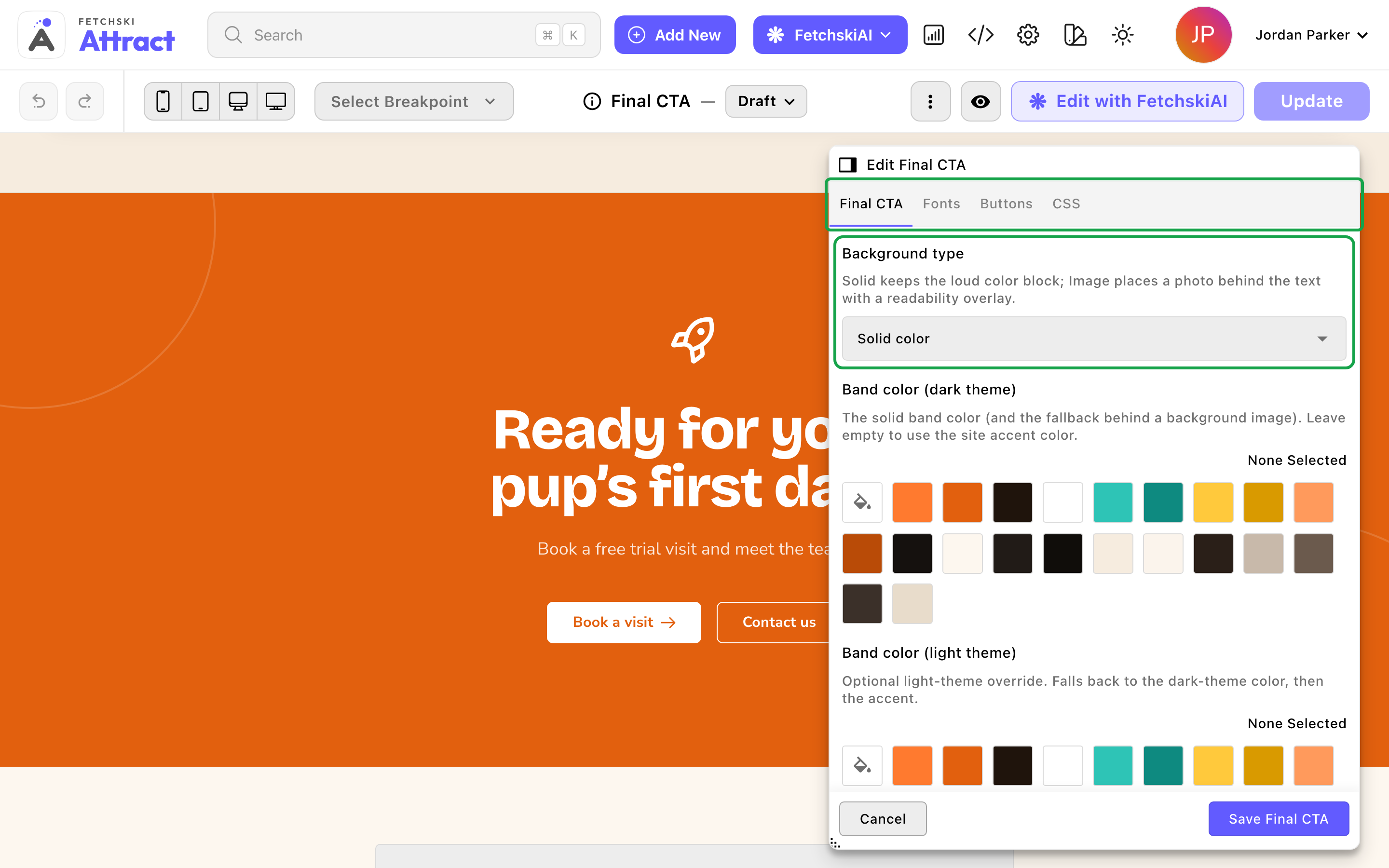
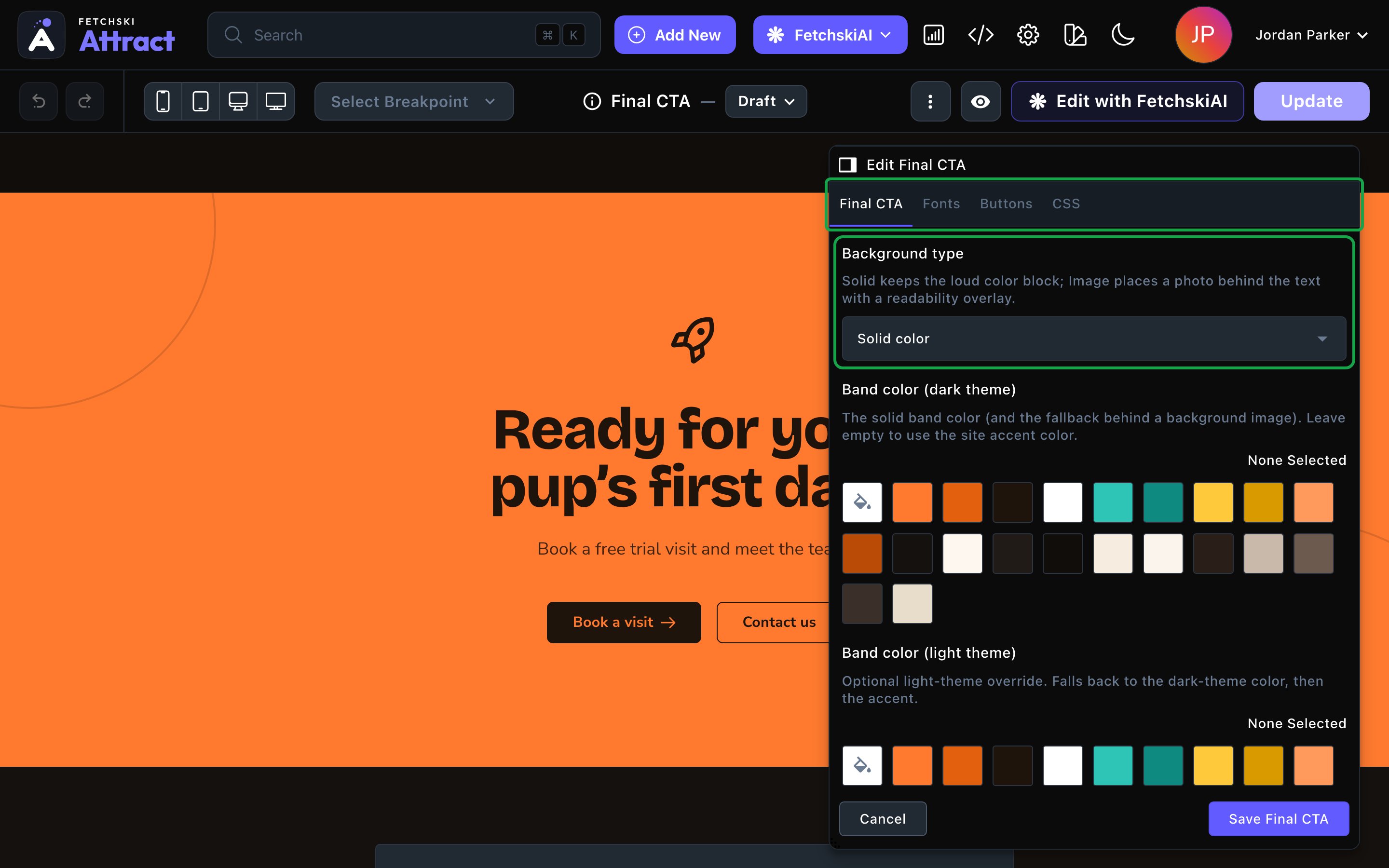
The Final CTA editor, with the band updating beside it.
Final CTA
Final CTA
Everything about the band’s own look. Some options appear only once you turn on the one they belong to.Layout
- Content alignment: Centered or Left.
- Show eyebrow / kicker and Eyebrow: a short line above the headline. It’s off by default.
- Decorative icon: Above the headline shows an icon, a rocket to start. Choose None to remove it.
- Icon name: any Font Awesome icon name, such as “calendar-check” or “paw”. Find names at fontawesome.com/icons and type them without “fa-”. Then set its Icon family, Icon color, Icon animation and Icon size.
- Icon tilt: Tilt left, Tilt right or None.
- Headline: your closing message, such as “Ready for your pup’s first day?”.
- Supporting copy: 1 or 2 sentences under the headline.
- Each has its own weight and color.
- Background type: Solid color keeps a bold block of color. Image (with overlay) puts a photo behind the text, under a tint that keeps it readable.
- Band color: the solid color. Leave it empty to use your site’s main color.
- Background image: the photo, for an image background.
- Overlay color and Overlay opacity (%): the tint over the photo and how strong it is. The default is 70%.
- Show decorative rings: the 2 large outlined circles on the band. It’s on by default. Choose their Ring color if you like.
Fonts
Fonts
Use a different typeface for parts of this section only, such as the headline. Leave it empty to use the page’s fonts, which normally come from Site design → Typography. See What every section shares.
CSS
CSS
Custom styles for this section only. Admins and Owners can change this tab. See Custom CSS.
Looks you can make


A photo behind the band, tinted so the text stays readable.


Left-aligned, with an eyebrow and a single button.
Good to know
- Animations play for visitors only. The band’s text and buttons rise into view as visitors scroll to it. While you edit, you see the finished state. Visitors who prefer less motion see it without animation.
- Check the contrast. If you change the band color or the text colors, make sure the headline stays easy to read in both themes.
- Alt text for a background photo. If the photo only sets a mood, leave its alt text empty in the media library, so screen readers skip it. If it shows something visitors should know about, write alt text for it.
- Where it fits. The Final CTA is a full-width band. It isn’t offered inside columns or in a blog post’s body, but you can add it after a post.
Appearance options
Most sections also share a few tabs that work the same everywhere:- Background: set the color behind the section, separately for the dark and light themes.
- Fonts: use a different typeface for parts of this section only.
- CSS: add custom styles to this section. Admins and Owners can change it.
Related
Hero
the bold opener to match your closing band.
Buttons and card styles
every button option.
Pricing / Packages
show your packages just above it.
Motion
turn site animations on or off.