

 AdonisJS
Open the footer settings
- In the toolbar (the bar across the top of your site once you’re signed in; see The toolbar), choose Site design.
- Or open the command palette (⌘K, or Ctrl+K on Windows) and choose Site design.
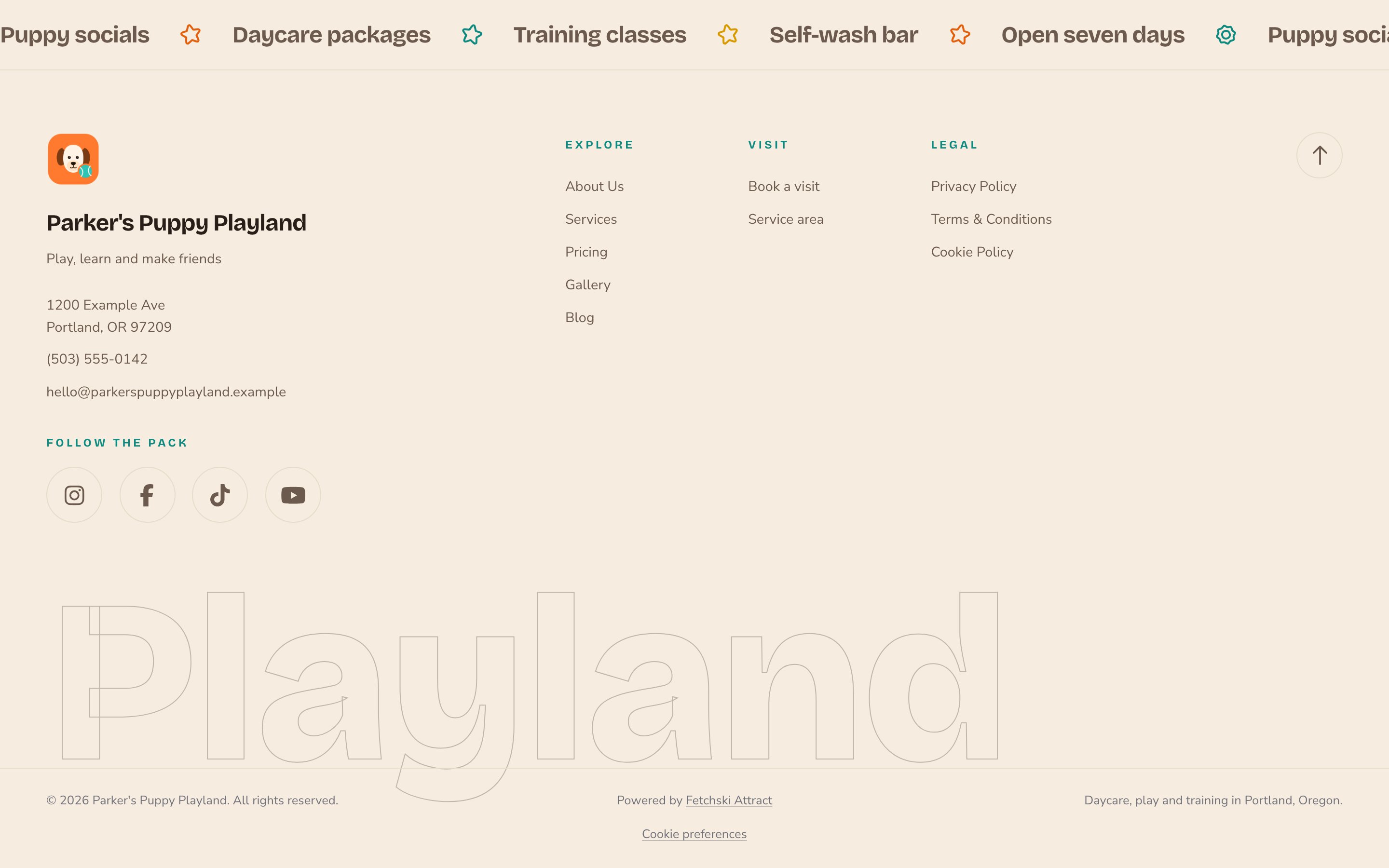
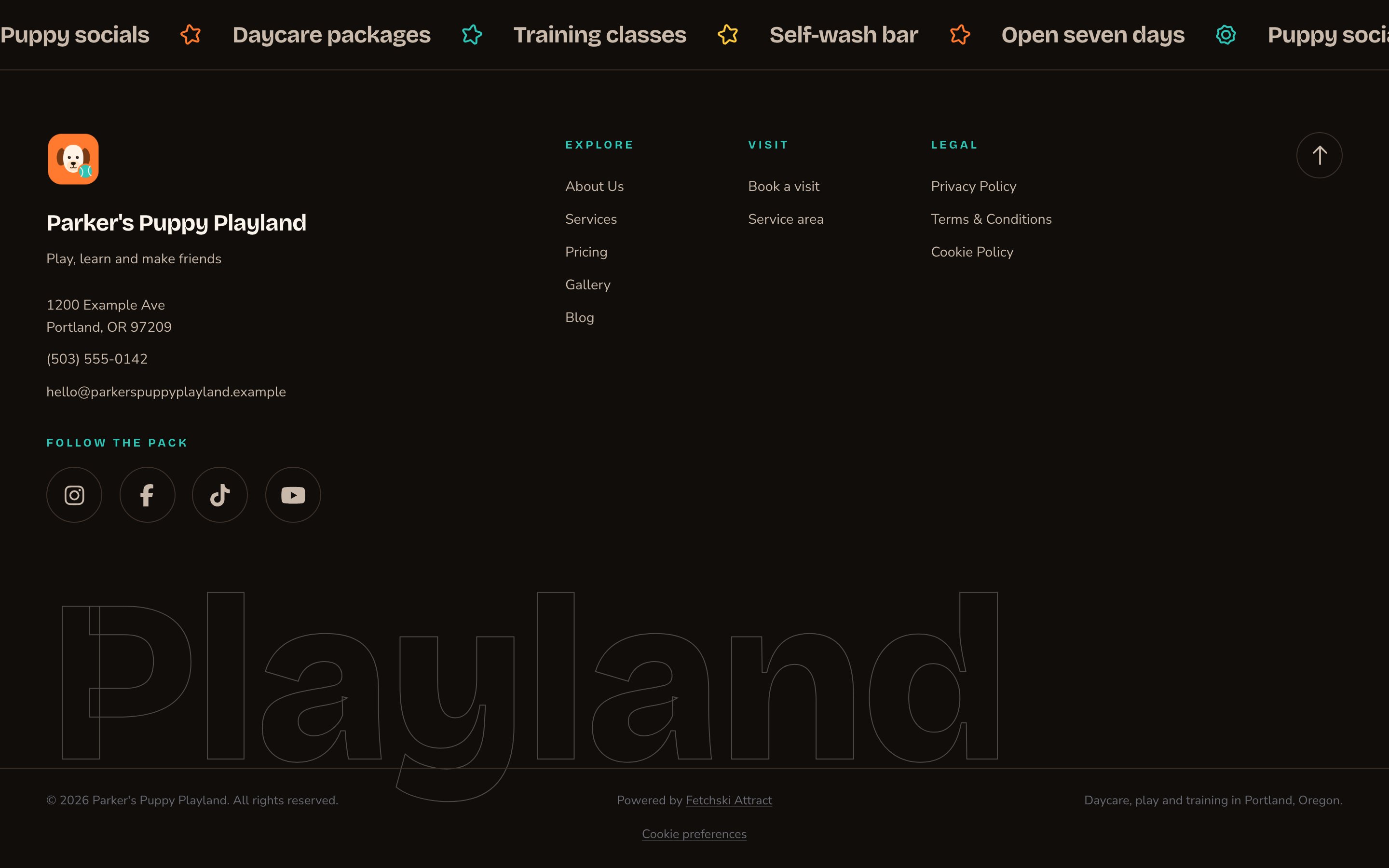
The footer, from the marquee down to the copyright bar.
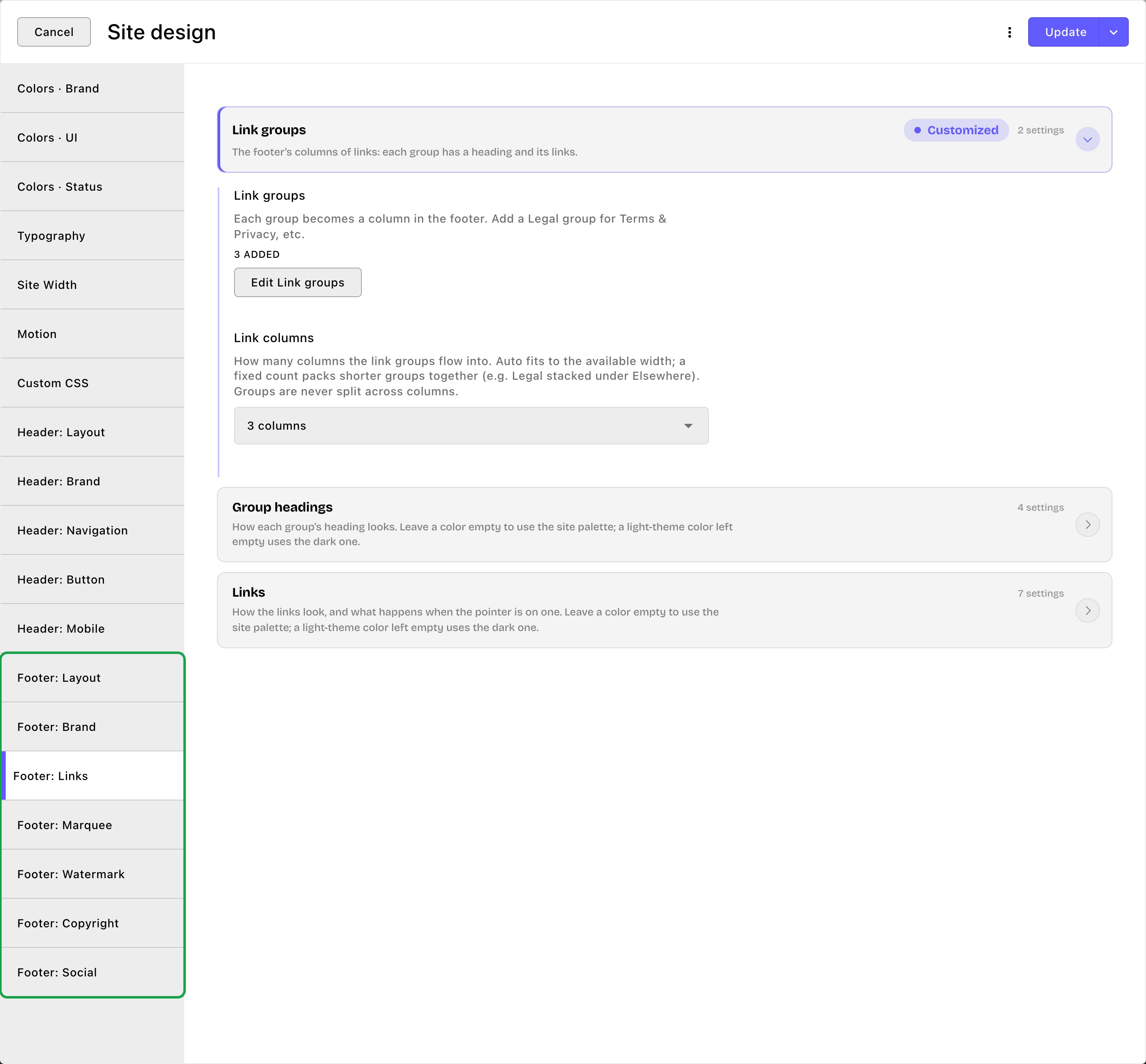
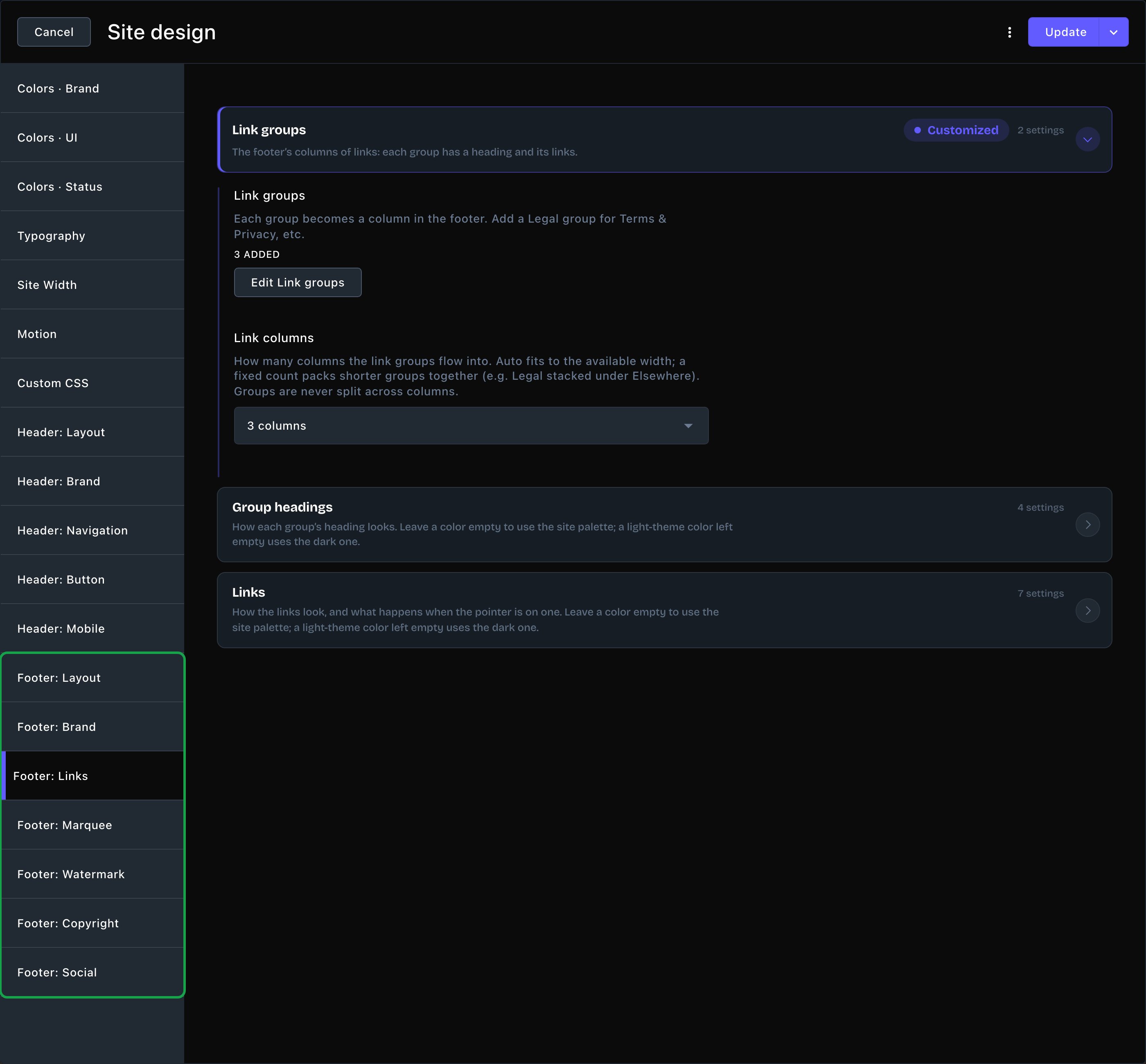
The 7 footer tabs, with Footer: Links open.
Footer: Layout
Background- Background: Site default (sunken surface) keeps the footer slightly darker than your page. Solid color and Image (with overlay) replace it.
- Background color: the footer’s color, for a solid color or behind an image. Empty uses your page background color.
- Background image: a photo behind the footer, for Image (with overlay).
- Overlay color and Overlay opacity (%): a tint over the photo that keeps the text readable. The opacity starts at 85. A higher number makes the tint more solid and hides more of the photo; a lower one lets more of the photo show through.
- Vertical padding: Tight, Normal or Roomy space above and below the footer’s content.
- Show top border: a thin line along the top edge of the footer.
- Show “Back to top” button: a round button that takes visitors back to the top of the page.
Footer: Brand
This tab sets how your business details look in the footer. The details themselves (your business name, tagline, address, phone and email) come from Site settings → Brand. Footer logo- Footer logo — white version: a logo for the footer on the dark theme.
- Footer logo — dark version (light theme): the same logo in a dark color, for the light theme. Without it, the white version is turned dark for you on the light theme.
- Logo height and Logo alignment: Small, Medium or Large, placed Left, Centered or Right.
- Show business name, Show tagline and Show address, phone & email: turn each part of the column on or off.
- A color, Weight and Size for your business name, and for the tagline and contact lines below it. Weight is how light or bold the text looks.
Footer: Links
Link groups- Link groups: each group becomes a column of links. Give each one a Group heading, then add its Links. Each link has a Label, a URL and an External link switch, which opens it in a new tab with an arrow.
- Link columns: Auto (fit to width), 2 columns, 3 columns or 4 columns.
- A color, Weight and Size for the group headings, and for the links.
- Hover color and Hover effect: what a link does when the pointer is on it. Hover effect is Color only, Slide right or Underline.
Footer: Marquee
The marquee is a row of phrases that scrolls across the top of the footer. Marquee- Show marquee by default: shows the marquee on every page that doesn’t choose for itself. See Show or hide the marquee on one page.
- Marquee phrases: the phrases, in order. Each phrase can have its own icon. Without one, a dot separates it from the next phrase. The phrases open in a list window: choose Add Item for each one, choose Save in the list window to keep the list, then choose Update to save everything.
- Marquee speed: Slow, Normal or Fast.
- Show pause button on background motion: adds a pause and play button to the marquee, so visitors can stop it.
- A color and Weight for the phrases.
Footer: Watermark
The watermark is one very large word behind the bottom of the footer. Watermark- Show watermark wordmark: turns the word on or off.
- Watermark text: one short word works best. Leave it empty to use your business name.
- Watermark size and Watermark alignment: Display (largest), Large or Medium, placed Left, Centered or Right.
- Watermark fill: Fill letters individually (hover) and Fill the whole word (hover) show outlined letters that fill in when a visitor points at them. Always solid shows filled letters.
- Color: the color of the letters and their outline.
Footer: Copyright
The copyright bar is the small print at the very bottom. Your copyright line sits on the left, “Powered by Fetchski Attract” in the middle, and your note on the right. On phones, the 3 stack on top of each other. Copyright line-
Copyright text: your copyright line. It starts as ”© {year} {business}. All rights reserved.” Type {year} and {business} where the year and your business name should go. To leave the year out, take {year} out. If you clear the text, your site shows the starting line again.
Your site swaps {year} for the current year, and {business} for the business name from Site settings → Brand (or “Fetchski Collective, Inc.” while that is empty). Visitors never see the braces. For example, in 2026:
- you type: ”© {year} {business}, since 2015”
- visitors see: ”© 2026 Parker’s Puppy Playland, since 2015”
- Tagline / note: a short line on the right, such as a slogan or a license number.
- A color, Weight and Size for all the text in the bar.
Footer: Social
The social icons link to your accounts. You add the accounts themselves in Site settings → Social Links. Social links- Show social links: turns the icons on or off.
- Heading: an optional small heading above the icons, such as “Follow us”.
- Placement: Company column puts the icons under your contact details. Own row (above copyright) gives them a centered row of their own.
- Border above the social row: a thin line above the icons’ own row.
- Icon style: Bare icons, Outlined circle or Solid circle.
- Icon size and Icon spacing: from Small to Extra large, and Tight, Normal or Loose.
- Heading color and Icon color: the heading’s and icons’ colors.
- Hover color: Platform brand color turns each icon its network’s own color on hover. Accent / custom uses your Primary / brand color, or the Custom hover color you set.


Company column and Own row (above copyright).
Show or hide the marquee on one page
The marquee can be the right touch on your home page and noise under a contact form. Each page can choose for itself.- Open the page on your site and choose Edit in the edit bar.
- Choose More Options (⋯), then Edit.
- Open the Footer tab.
- In Marquee on this page, choose Use the site default, Show or Hide.
- Choose Update to put the page live. Contributors choose Submit (or Submit Update) instead, so an Editor, Admin or Owner can review and publish it. See Drafts, publishing and scheduling.
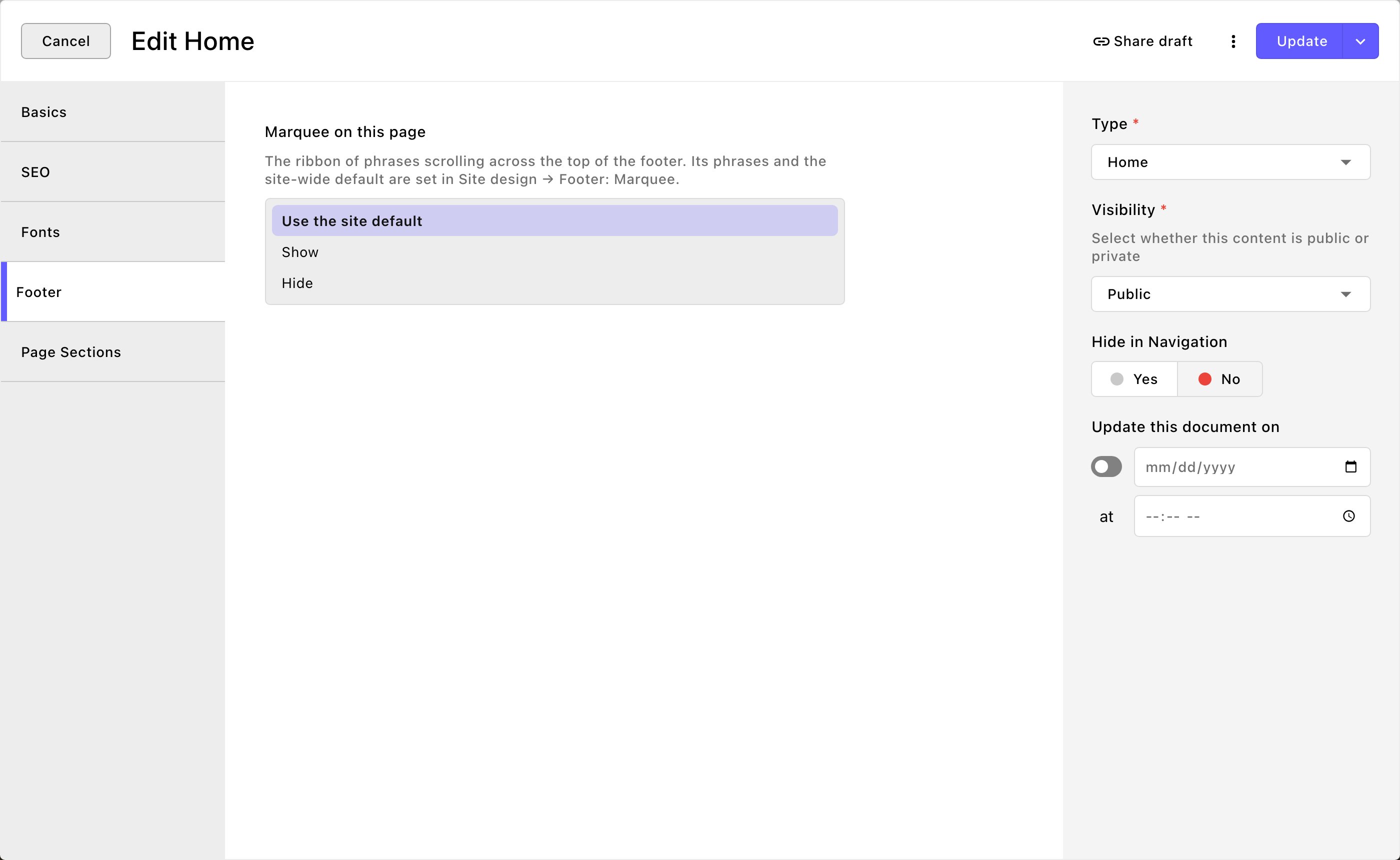
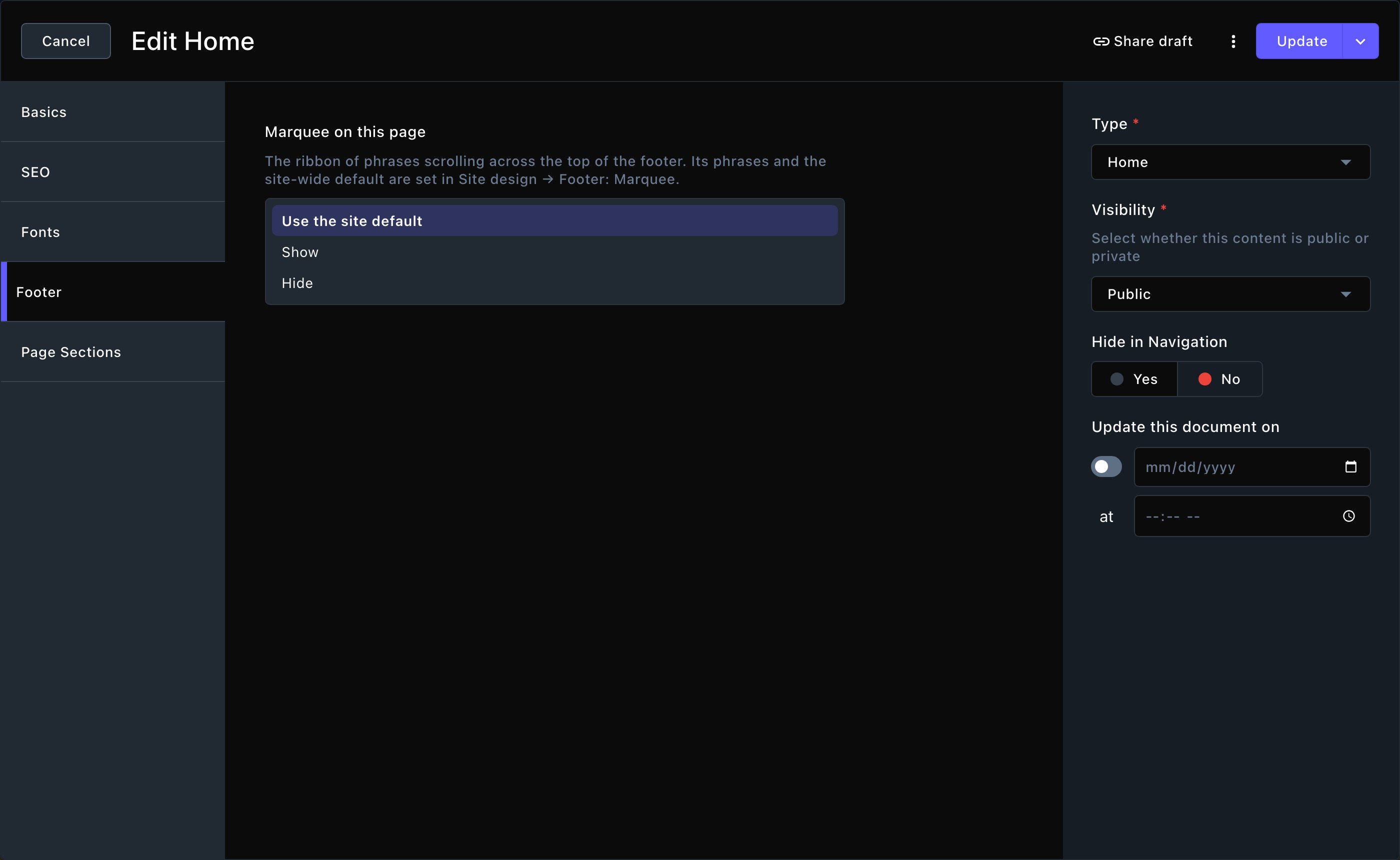
Each page can show or hide the marquee for itself.
Put your changes live
The footer tabs have no preview of their own. Choose Update to put your changes live, then scroll to the bottom of any page to check them. To save without putting them live yet, open the arrow next to Update (More save options) and choose Save Draft. Your changes wait there; open the window again and choose Update when you’re ready to put them live. Check the footer in both themes, with the light and dark switch in your site’s header.Good to know
- “Powered by Fetchski Attract” always shows. It sits in the middle of the copyright bar, and you can’t remove it.
- Empty groups don’t show. A link group needs a heading and at least one link with a label, or it stays hidden.
- The column count is a maximum. The footer balances columns by height and never splits a group. So a tall group beside short ones can settle into fewer columns. On phones and tablets, links always sit in 2 columns.
- No icons, no social row. The social icons only appear once at least one account in Site settings → Social Links has a web address.
- The marquee moves even with animations off. Turning off animations in Site design → Motion doesn’t stop it, so turn on Show pause button on background motion. Visitors who ask their device for less motion see it still.
- The Cookie preferences link appears under the copyright bar while your cookie banner is on. Admins and Owners turn it on or off in Site settings → Cookie consent → Show a “Cookie preferences” link in the footer.
- Your business name and logo are set in Site settings → Brand. Admins and Owners can change them. Editors can change the address, phone, email and social links.
- Restyle any footer part with CSS. Admins and Owners can style the footer’s parts in Site design → Custom CSS → Site footer. See Custom CSS.
Related
Header
style the bar at the top of every page.
Social links
add the accounts your icons link to.
Colors
the palette the footer’s empty colors follow.
Site design
every tab on this screen.