

 AdonisJS
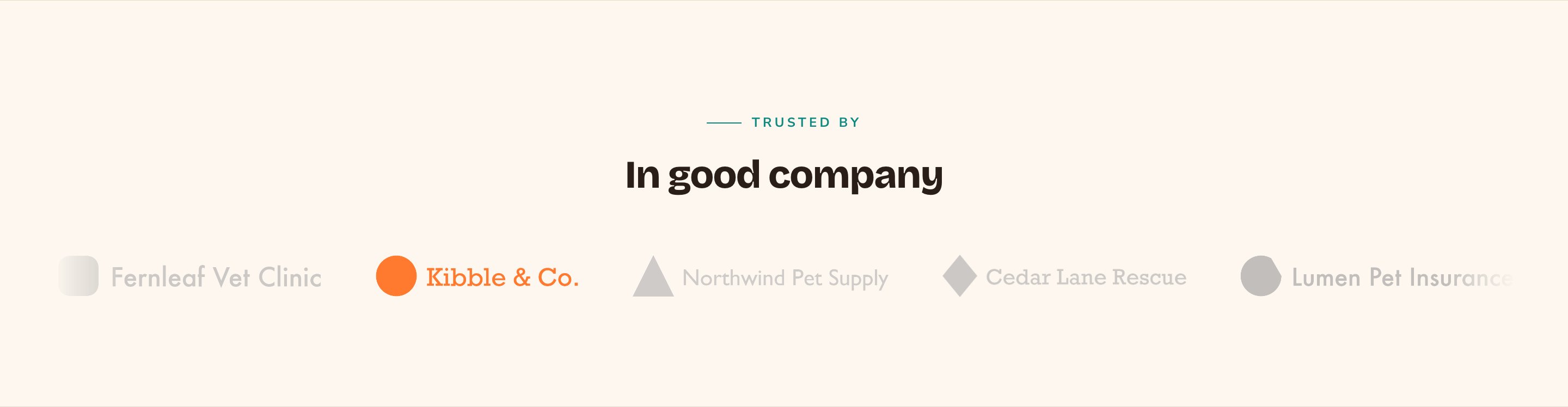
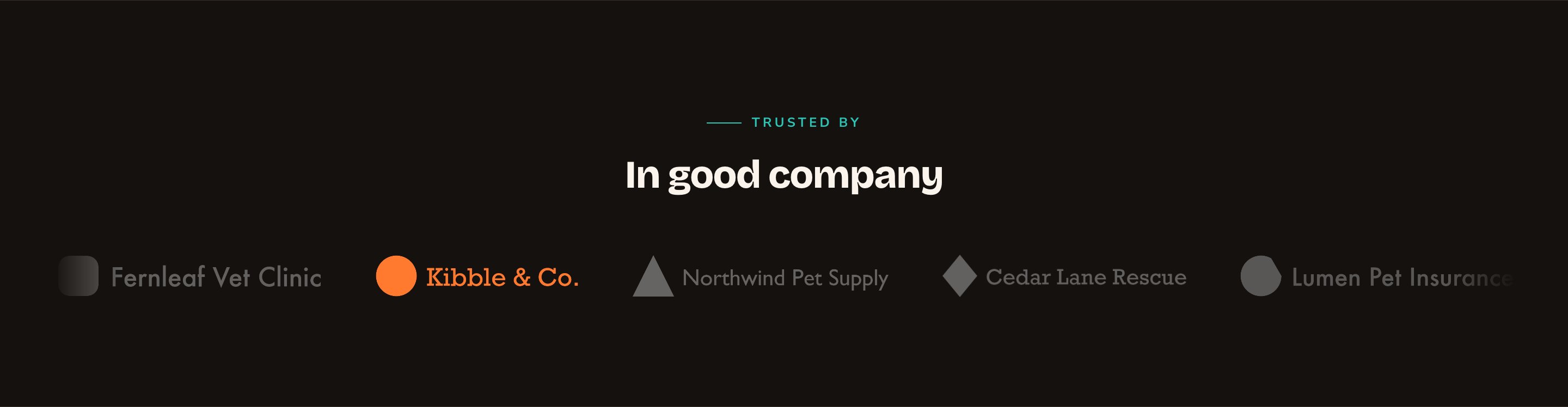
A scrolling strip of logos, in color when you point at one.
When to use it
- To show the brands, partners or suppliers you work with.
- To show certifications, awards or memberships that build trust.
- To show “as seen in” press logos near the top of your home page.
Add it to a page
1
Open the page
Sign in, open the page on your site, and choose Edit in the edit bar at the top.
2
Find the spot
Select the section next to where the new one should go. A round + button appears on its top and bottom edges. On an empty page, choose Add Content in the middle.
3
Choose the section
The Add Content menu opens with its groups. Choose the section, then select it and choose Edit in its side toolbar to make it yours.
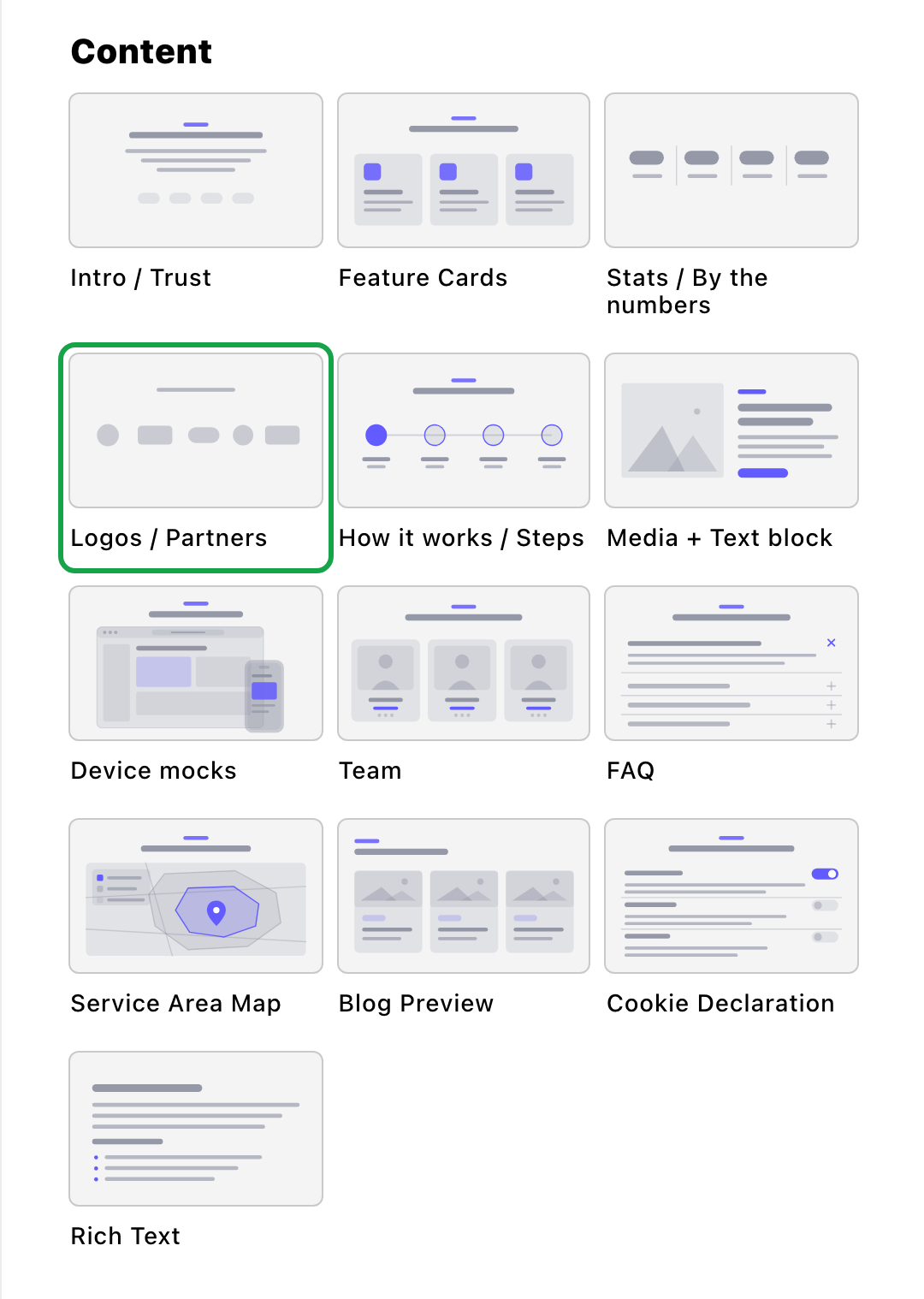
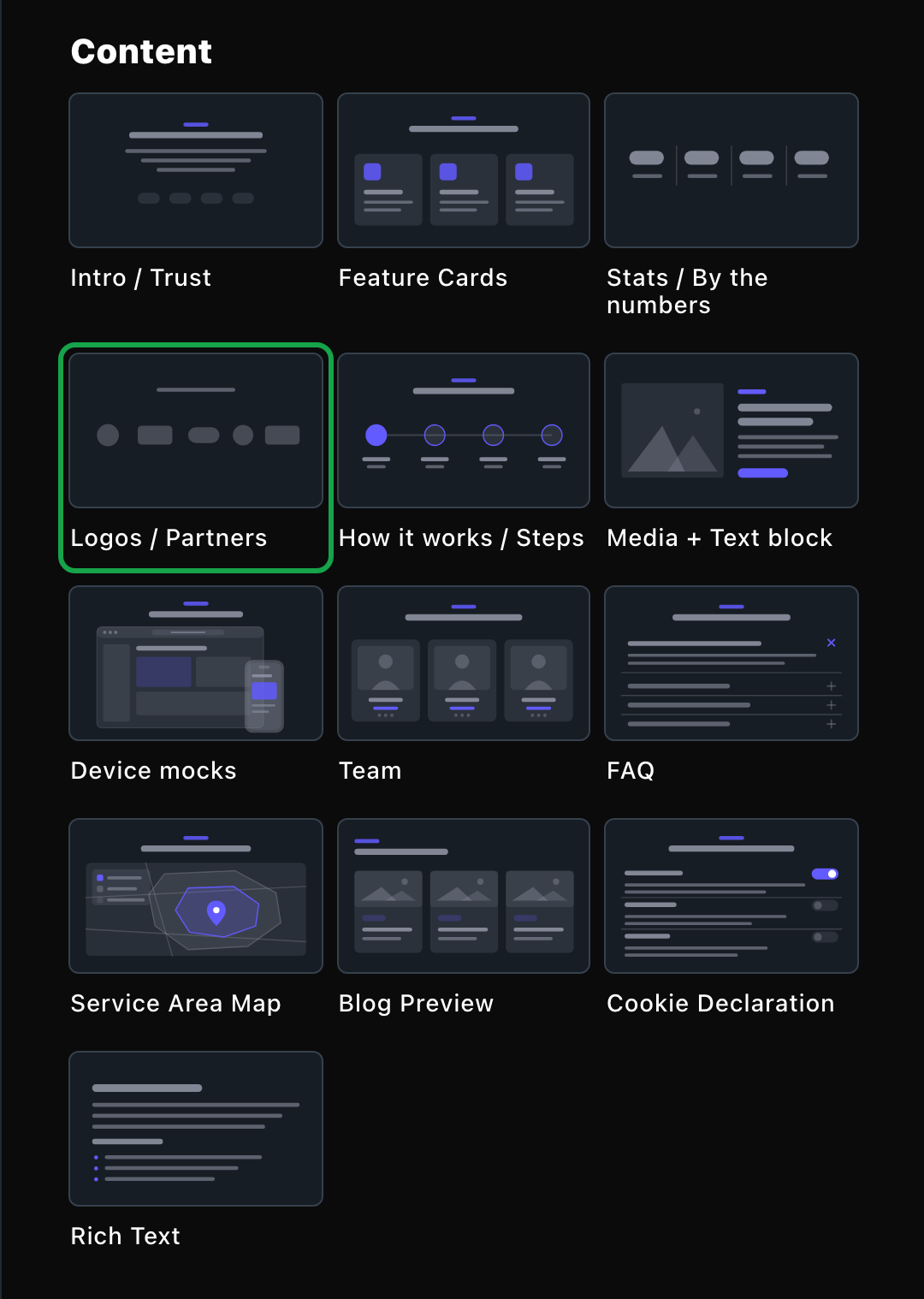
Logos / Partners lives in the Content group.
What you can change
Select the section on the page and choose Edit. The editor opens beside the page, so you see each change as you make it. It has five tabs: Logos, Background, Fonts, Button and CSS. Your changes go into the page’s draft. Visitors see them once the page is published with Update in the edit bar (Publish on a page never published).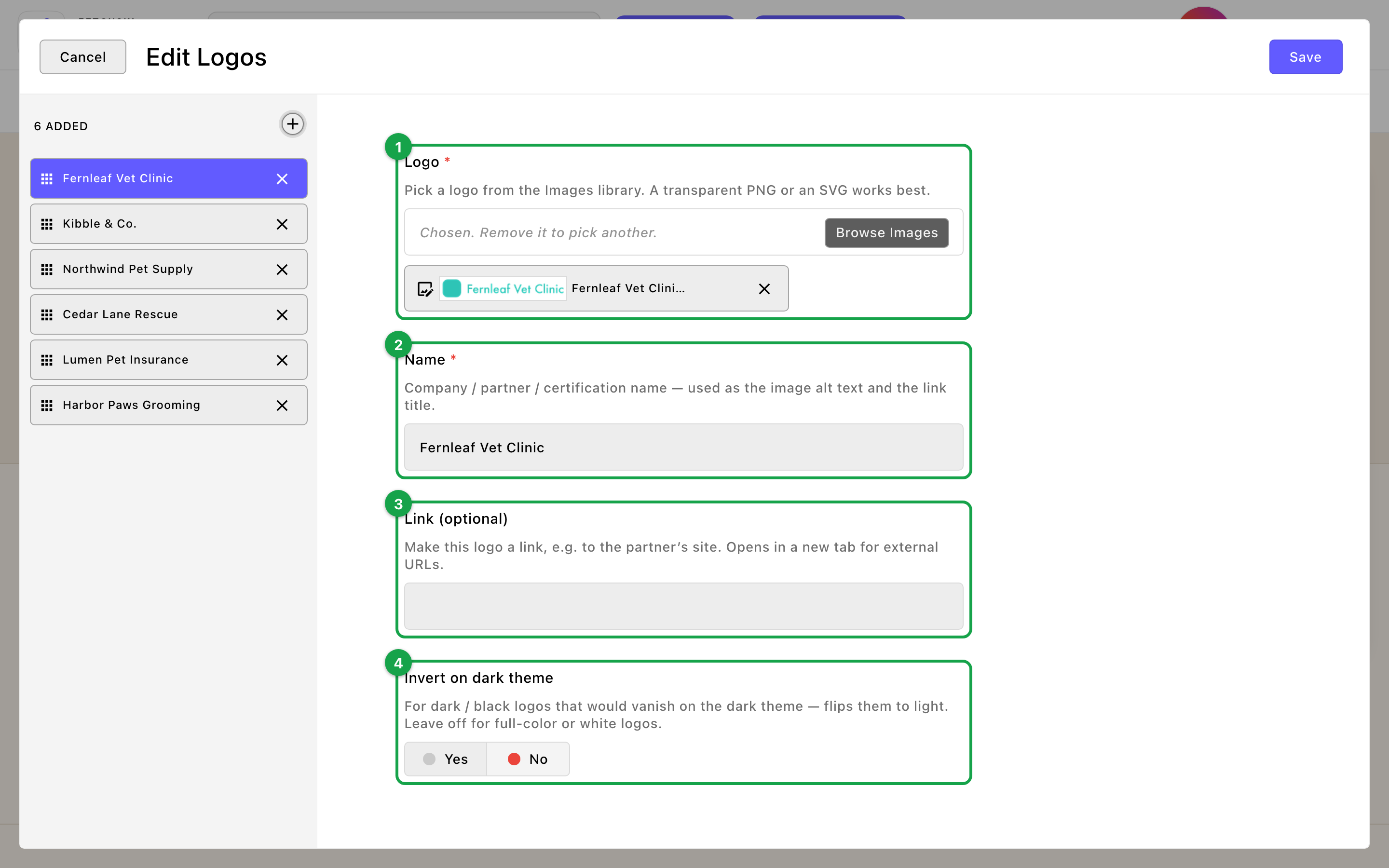
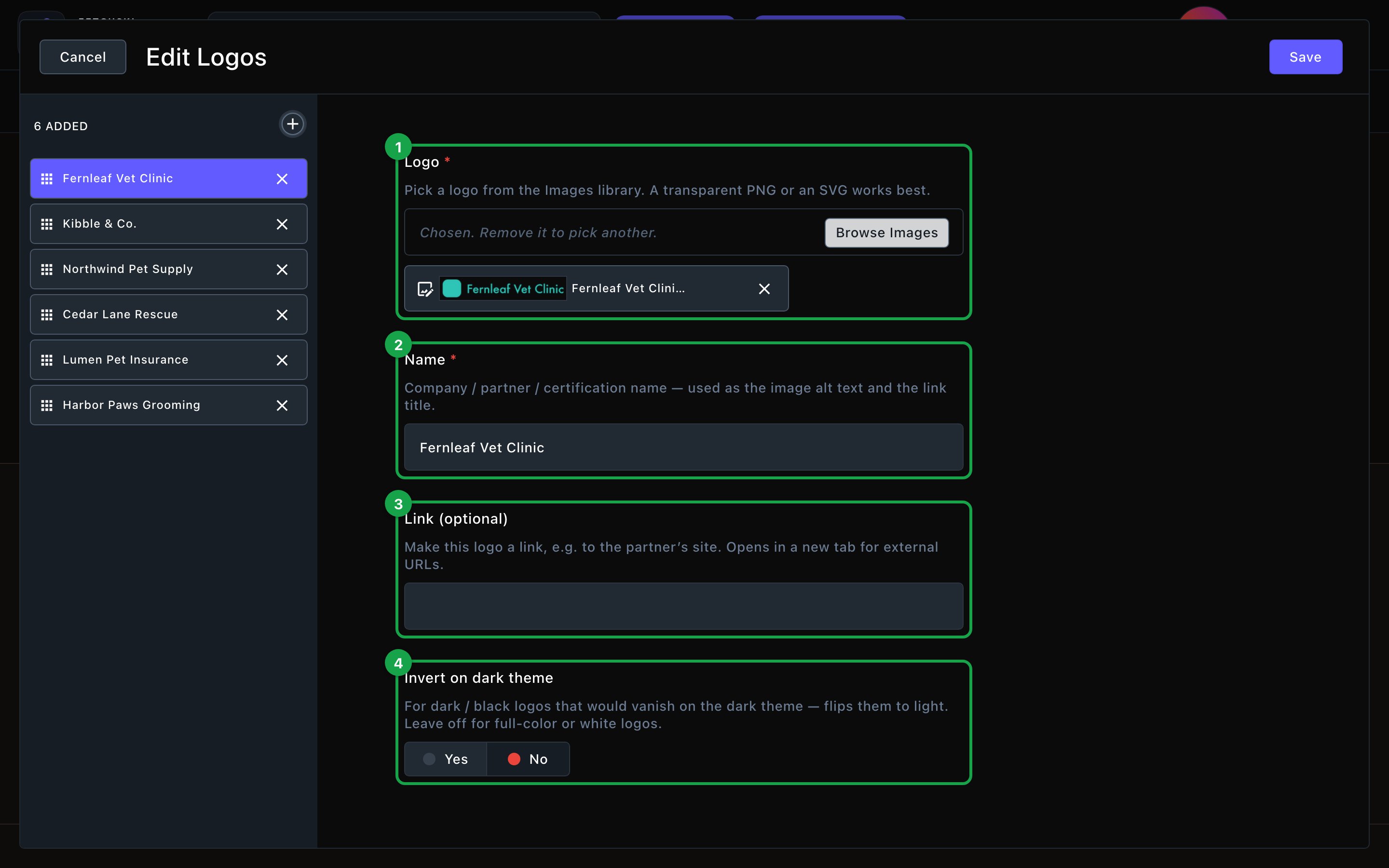
Each logo has an image, a name and an optional link.
Logos
Logos
Everything about the header, the way logos are shown, and the logos themselves.Header
- Show eyebrow and Eyebrow: a small line above the heading, “Trusted by” to start. Choose its weight and size too.
- Heading: “In good company” to start. Leave it empty to hide the heading. To show just the logos, also turn off Show eyebrow and clear the intro line.
- Intro line: an optional short sentence under the heading.
- Header alignment: Center or Left. With only a few logos in a grid, the grid follows it too.
- Display: Marquee (scrolling) moves the logos slowly across the screen in a loop. Static grid sets them in still rows.
- Marquee speed: Slow, Normal or Fast.
- Marquee direction: Right to left or Left to right.
- Show pause button on background motion: adds a pause button so visitors can stop the strip.
- Logos per row: for a grid only. Auto (fit to width) works for any number of logos, or lock 3 to 6 per row.
- Gap between logos: Tight, Normal or Roomy.
- Logo size: Small, Medium or Large. It sets the height, and each logo keeps its own shape.
- Show each logo on a tile: sets every logo on a raised card with a border.
- Grayscale until hover: shows the logos in muted gray, and in full color when a visitor points at one. It’s on to start.
- Logo: choose the image from your Images library. It’s required. A logo with no solid background behind it works best, so the section’s color shows around it. Ask whoever made your logo for an SVG file (it stays sharp at any size) or a PNG with a transparent background.
- Name: the partner’s name, such as “Portland Pet Supply”. It’s required, and screen readers read it aloud.
- Link (optional): makes the logo a link, for example to the partner’s website. Links to other websites open in a new tab.
- Invert on dark theme: for a black or dark logo that would disappear on the dark theme. It turns the logo light in the dark theme only.
Background
Background
A background color for the whole section, set separately for the dark and light themes. It starts as Transparent (page background). See What every section shares.
Fonts
Fonts
Use a different typeface for parts of this section only, such as the heading. Leave it empty to use the page’s fonts, which normally come from Site design → Typography. See What every section shares.
CSS
CSS
Custom styles for this section only. Admins and Owners can change this tab. See Custom CSS.
Looks you can make
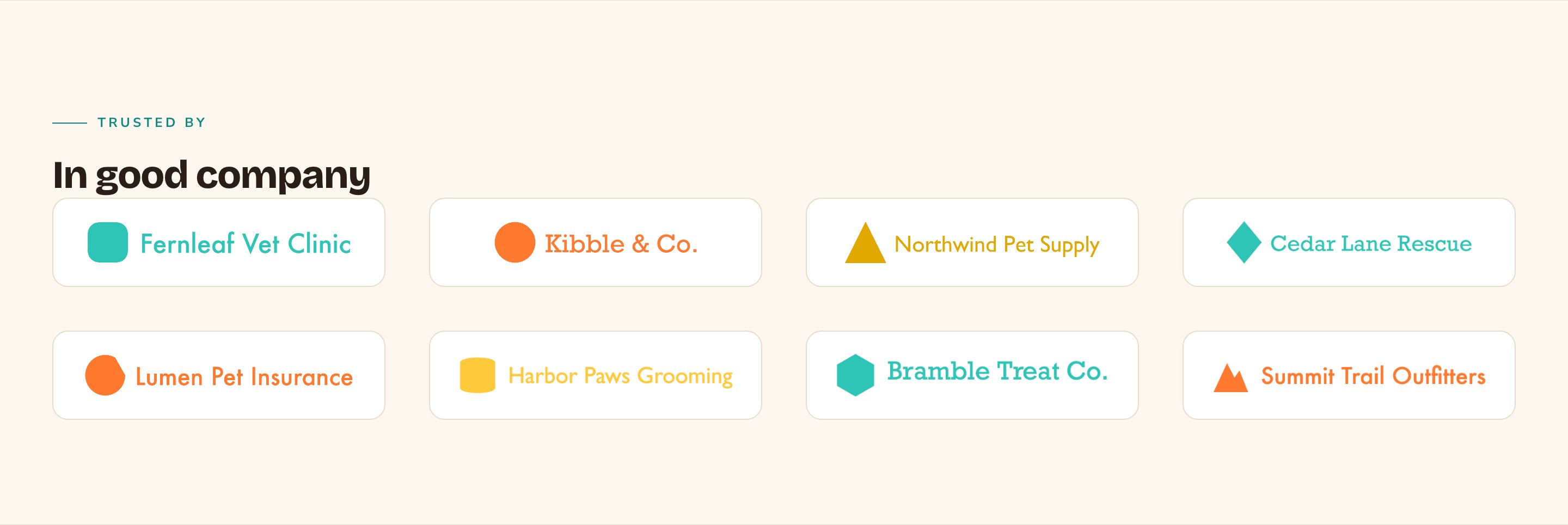
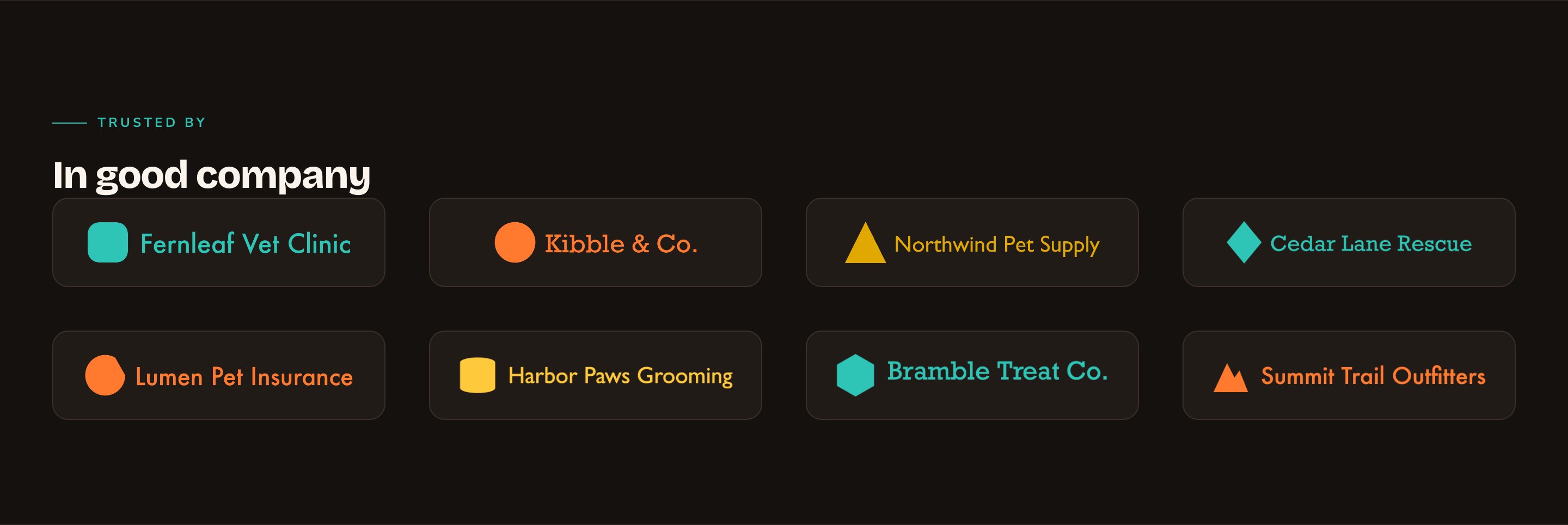
A tidy grid of logos on tiles.

Invert on dark theme keeps a black logo visible.


A quiet strip of logos with a pause button.
Good to know
- Moving logos. If you use the scrolling strip, turn on the pause button so visitors can stop it.
- The strip moves while you edit too. In the editor it scrolls at a set pace. Visitors see the Marquee speed you chose. Visitors who prefer less motion see the logos still, and the pause button hides itself.
- Write each logo’s name. It’s what screen readers say for the logo, so use the partner’s real name.
- Where it fits. Logos is a full-width band for pages. It isn’t offered inside a Layout column or in a blog post’s body.
Appearance options
Most sections also share a few tabs that work the same everywhere:- Background: set the color behind the section, separately for the dark and light themes.
- Fonts: use a different typeface for parts of this section only.
- CSS: add custom styles to this section. Admins and Owners can change it.
Related
Testimonials
let your customers speak for you.
Stats / By the numbers
back up your claims with numbers.
The media library
upload your logo images.
Motion
turn site animations on or off.