Begin a new page from a ready-made layout, then make it yours.
A page template is a ready-made page: the right sections, in a sensible order, with sample text. Pick one, and you start with a finished layout instead of an empty page.Who can do this: Contributors, Editors, Admins and Owners. Publishing needs an Editor, an Admin or an Owner.
Before you start
Sign in, and open the page your new page should sit under. A new page becomes its subpage.
For the legal templates, ask an Admin or Owner to fill in Site settings → Brand and Site settings → Legal first. The template can then copy your business details in for you.
Create a page from a template
1
Start a new page
Open the command palette (⌘K, or Ctrl+K on Windows) and choose Pages. In Manage Pages, choose New Page.
2
Choose a template
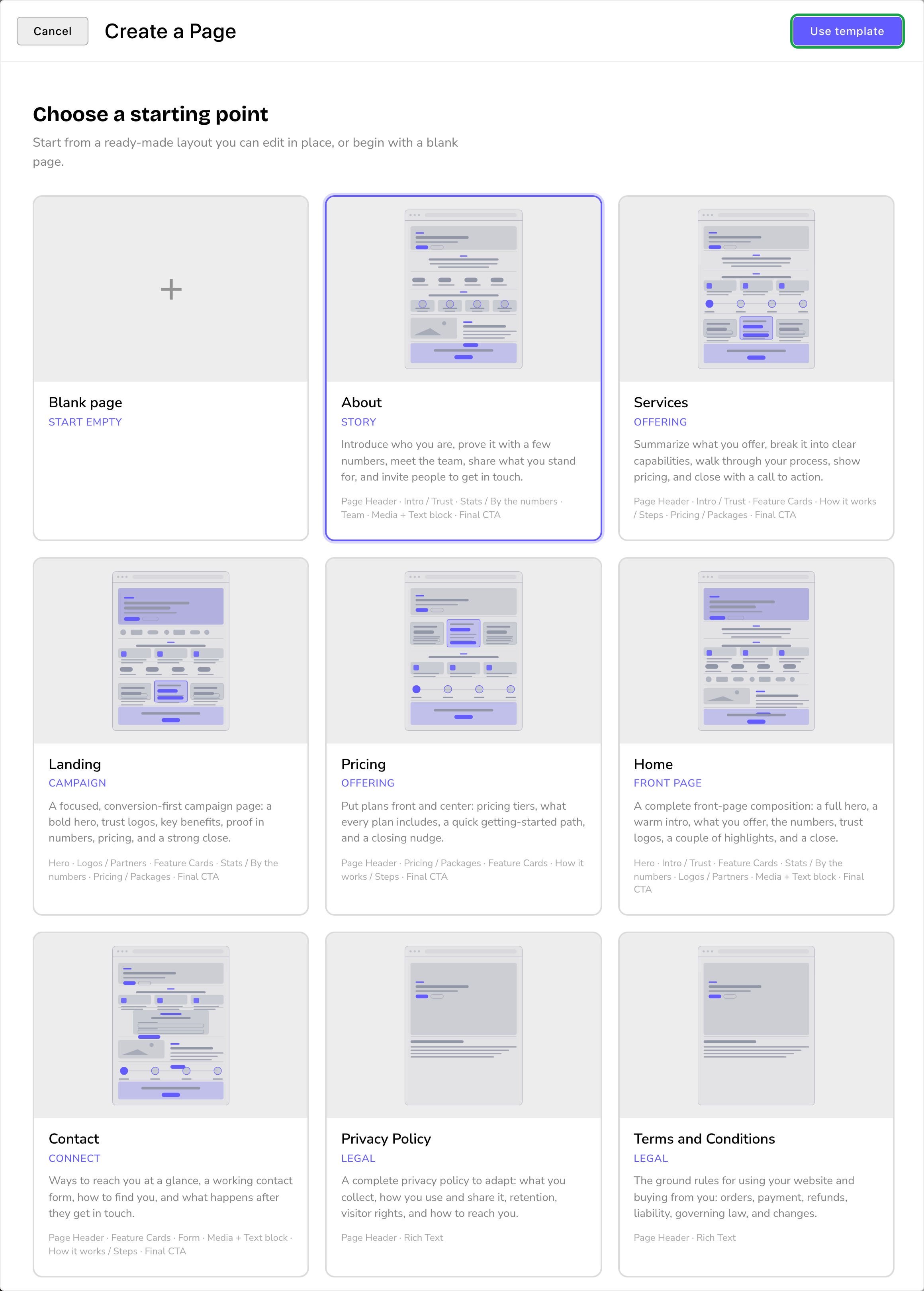
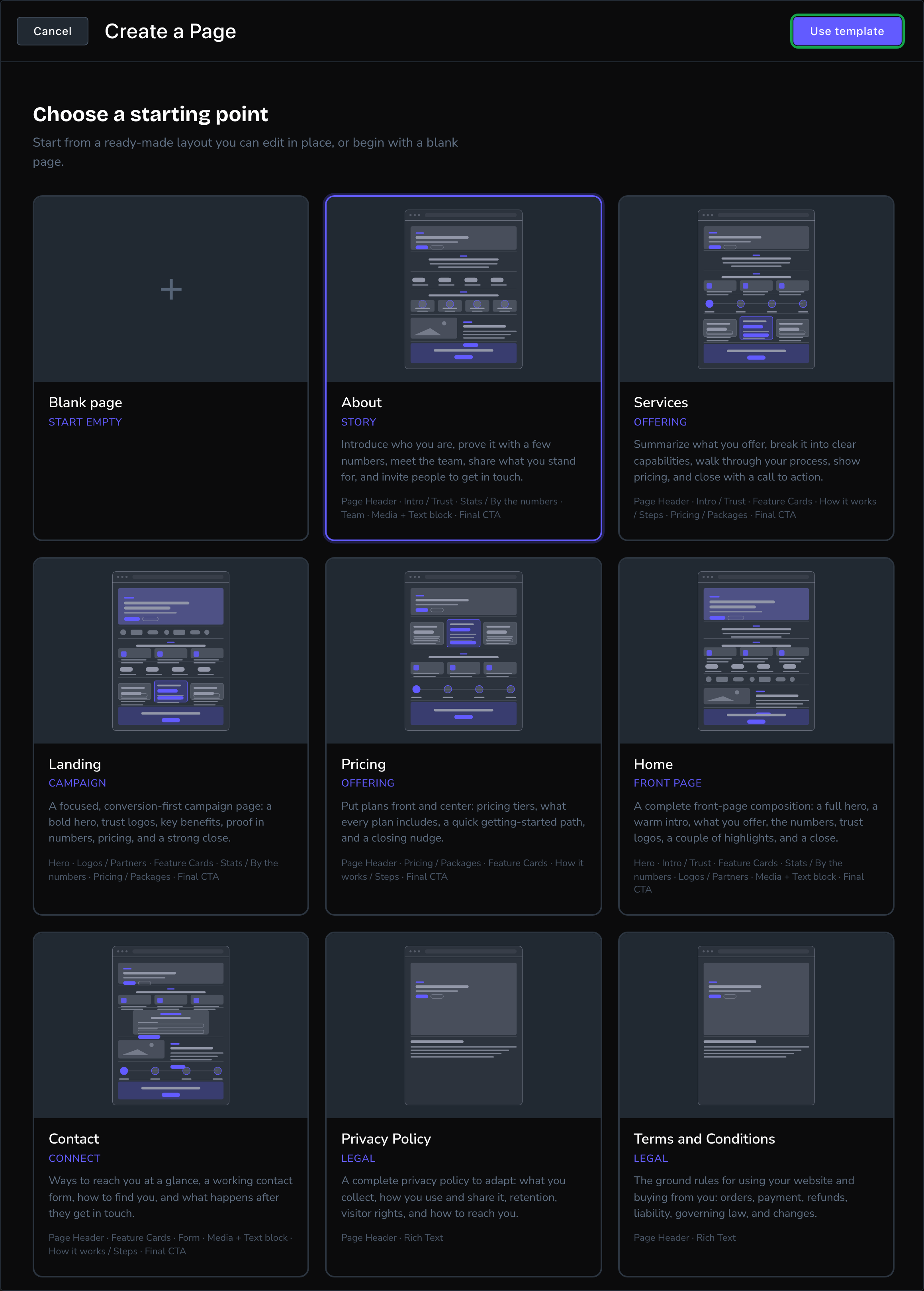
The Create a Page gallery opens. Each card shows a sketch of the page, what it’s for, and its sections in order. Choose a card.
Choose a starting point: a template or a blank page.
3
Fill in your details (legal templates only)
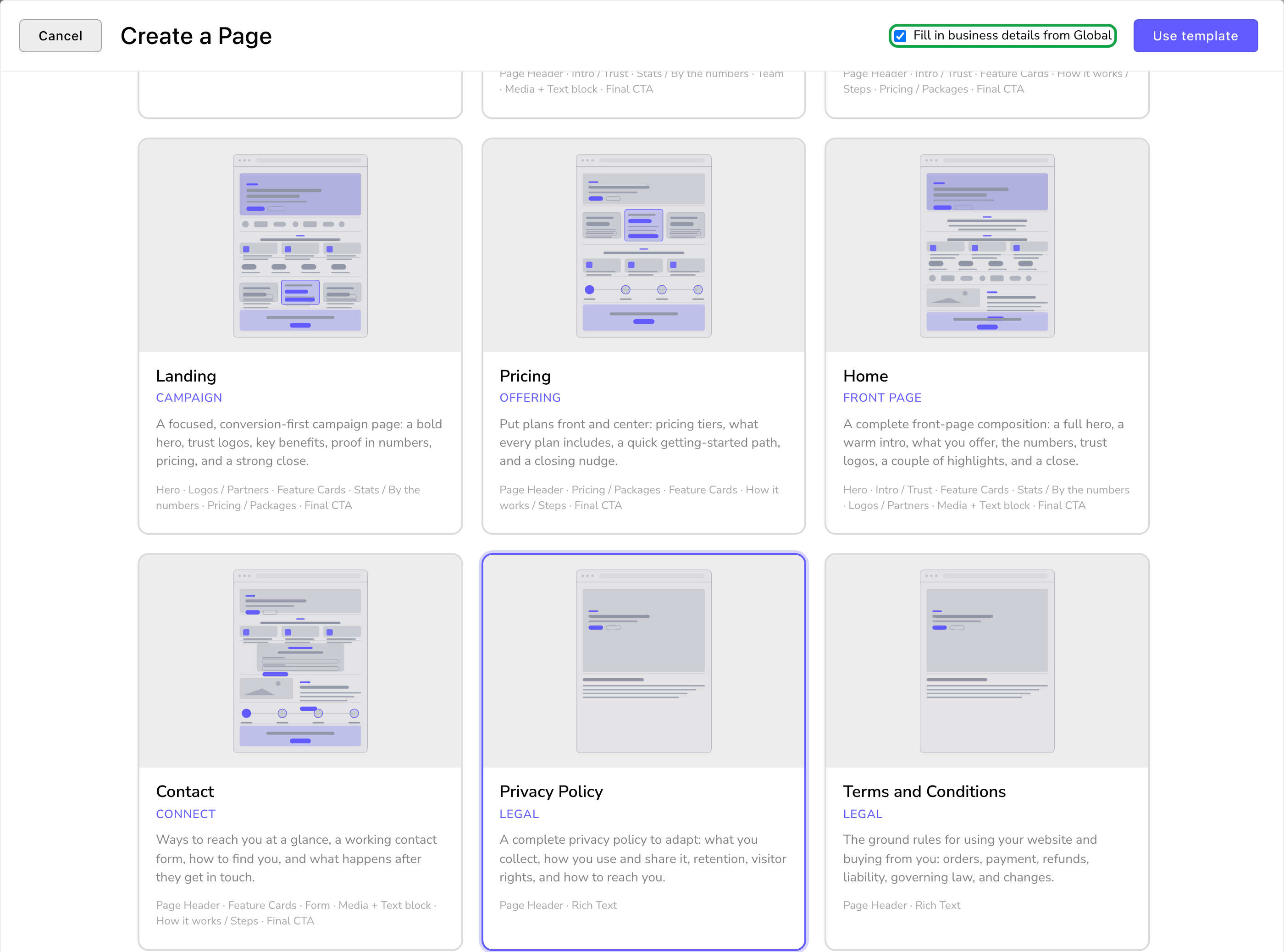
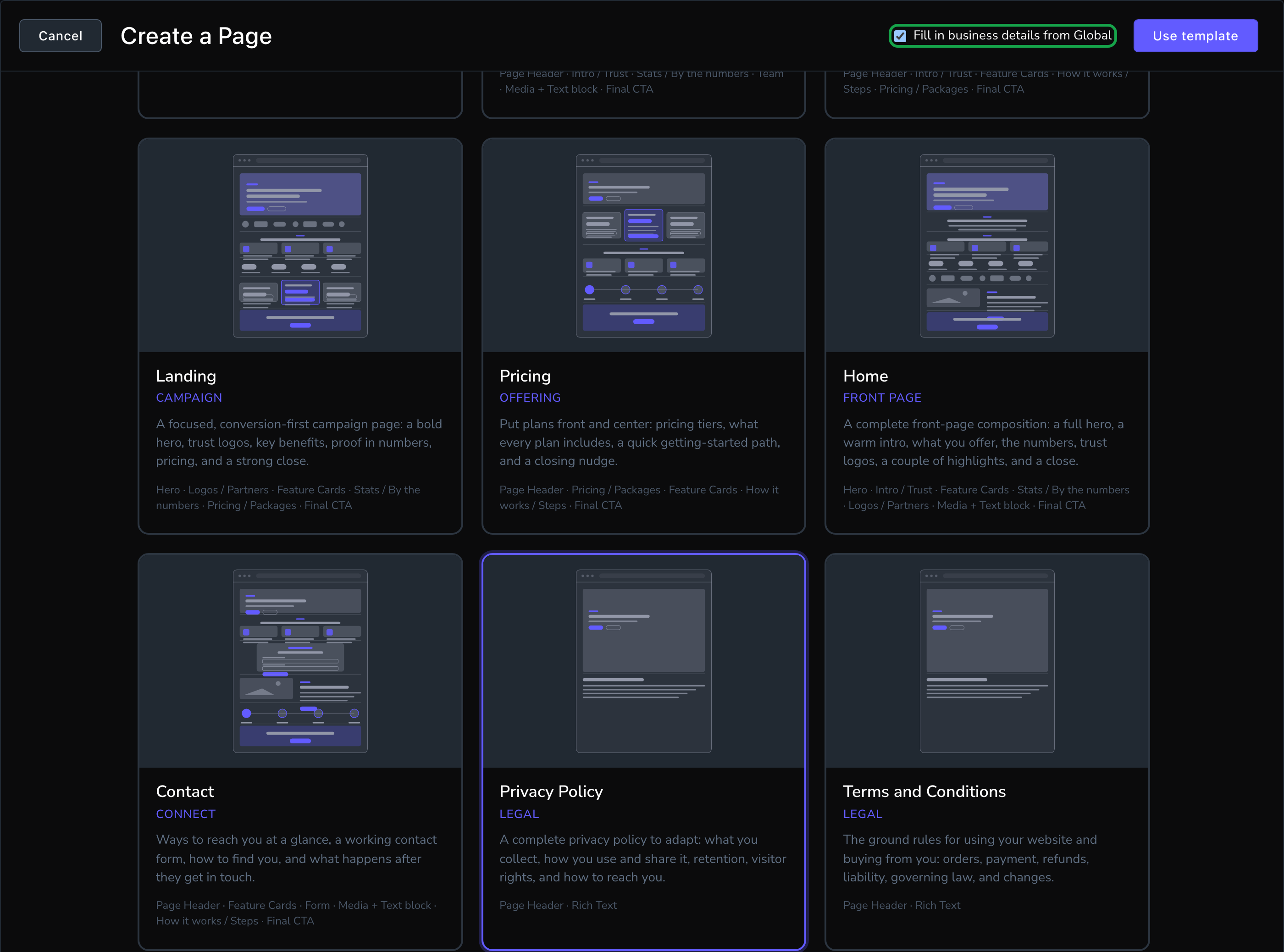
On Privacy Policy and Terms and Conditions, keep Fill in business details from Global ticked. Here, Global means the business details your site keeps in Site settings. Your business name, address and other details go straight into the text.
On a legal template, the CMS can fill in your business details for you.
4
Use it
Choose Use template. Or double-click the card.
5
Name the page
The page window opens with the template’s sections in place. Its title starts as “Copy of” and the template’s name. Change Title to your page’s name, and check the web address in Slug.
6
Save it as a draft
Open More save options (the arrow beside the main Publish or Submit button) and choose Save Draft. Visitors can’t see it yet.
7
Make it yours
Replace the sample text and pictures with your own, right on the page. See Add, move and remove sections. On a legal page, check that no [square-bracket] placeholders are left.
8
Publish it
Read the page through, then choose Publish in the edit bar. Contributors choose Submit instead, to send it to an Editor for review.
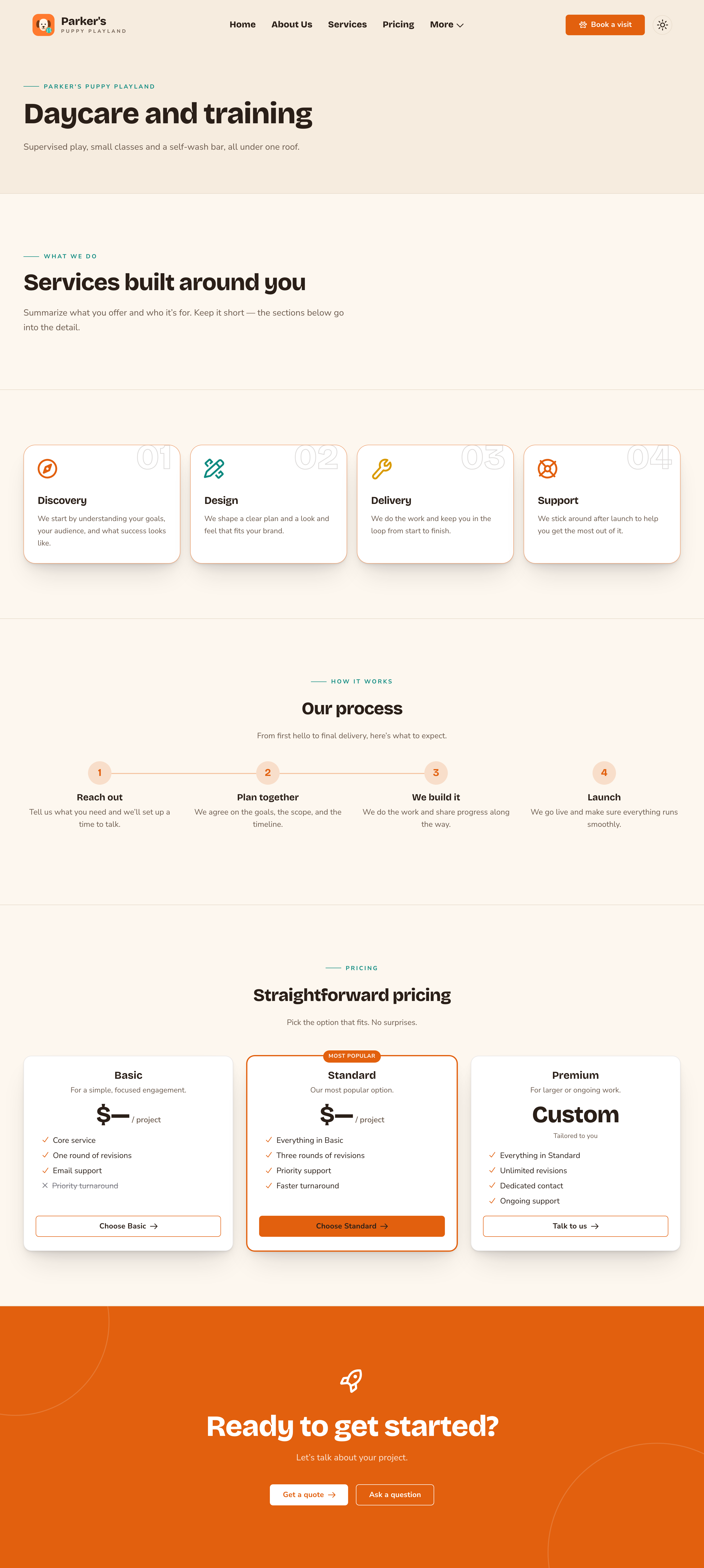
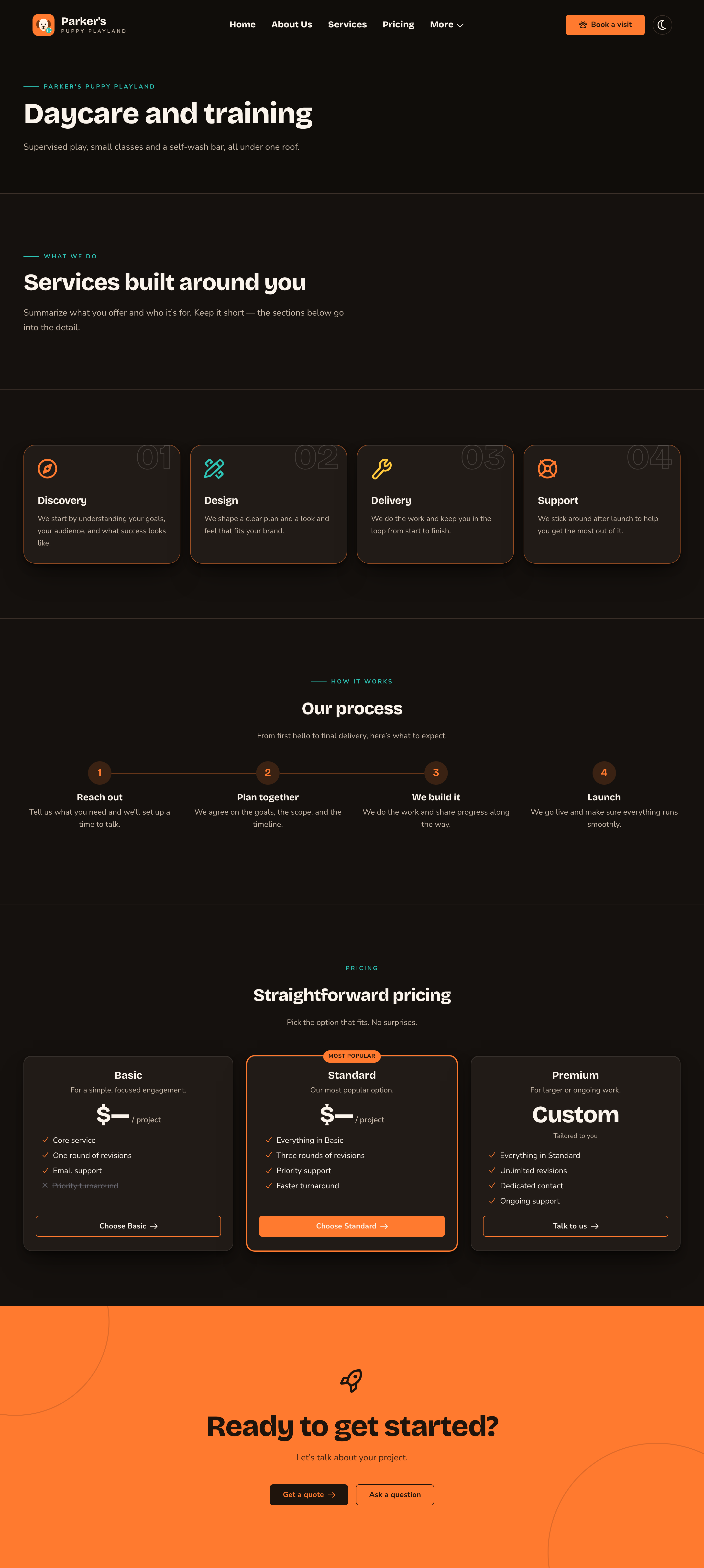
A page made from the Services template, ready for your own words.
The templates
Template
Good for
Sections
About
Your story
Page Header · Intro / Trust · Stats / By the numbers · Team · Media + Text block · Final CTA
Services
What you offer
Page Header · Intro / Trust · Feature Cards · How it works / Steps · Pricing / Packages · Final CTA
Landing
A campaign or offer
Hero · Logos / Partners · Feature Cards · Stats / By the numbers · Pricing / Packages · Final CTA
Pricing
Your plans and prices
Page Header · Pricing / Packages · Feature Cards · How it works / Steps · Final CTA
Home
A front-page layout for a new page
Hero · Intro / Trust · Feature Cards · Stats / By the numbers · Logos / Partners · Media + Text block · Final CTA
Contact
Getting in touch
Page Header · Feature Cards · Form · Media + Text block · How it works / Steps · Final CTA
Privacy Policy
Your privacy policy
Page Header · Rich Text
Terms and Conditions
Your terms of use and sale
Page Header · Rich Text
Blank page starts with a Page Header only. Choose it, then Start blank.The Home template makes a new, separate page laid out like a front page, such as a landing page for a second location. It doesn’t replace your home page. To change your real home page, open it and edit its sections. See Add, move and remove sections.
Fill in business details
The legal templates mark your business details as placeholders in square brackets, such as [Business name]. Fill in business details swaps each one for the value in your Site settings.
Placeholder
Comes from
[Business name]
Site settings → Brand → Business name
[Business address]
Site settings → Brand → Address line 1 to Address line 3
[Contact email], [Contact phone]
Site settings → Brand → Email, Phone
[Business legal name], [Trade names]
Site settings → Legal → Legal business name, Trade names
[State or region], [Country], [County or venue]
Site settings → Legal → State or region, Country, County or court venue
[Minimum age]
Site settings → Legal → Minimum age of users
[Website address]
Your site’s web address
[Date]
The day you run it
It’s a one-time change. If you edit Site settings later, the page keeps the old text, so a published policy never changes on its own.
Run it again later
Filled in a setting after you made the page? Run it on the page itself. It fills only the [square-bracket] placeholders still on the page. Text it filled before is now ordinary text, so it stays as it is: to change it, edit that text by hand on the page.
On a published page, the fill can go live at once. The filled text goes straight to your site when three things are true: the page is published, it has no other unpublished changes, and you’re allowed to publish. Otherwise it waits in the page’s draft until you publish.
1
Open the page and choose Edit in the edit bar
2
Choose More Options (⋯), then Fill in business details
3
Check the lists, then choose the fill button
It names how many placeholders it fills, such as Fill 12 placeholders.
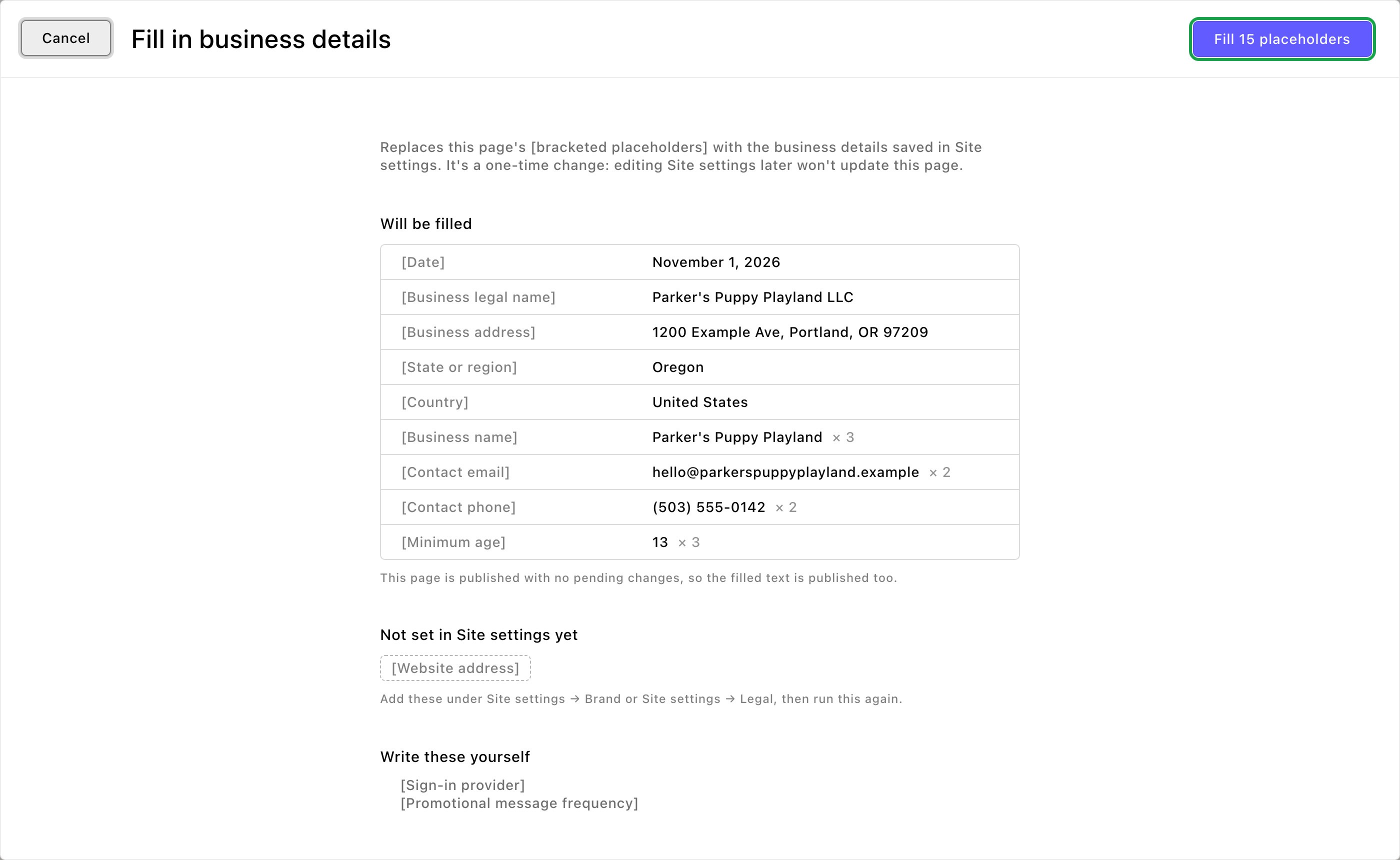
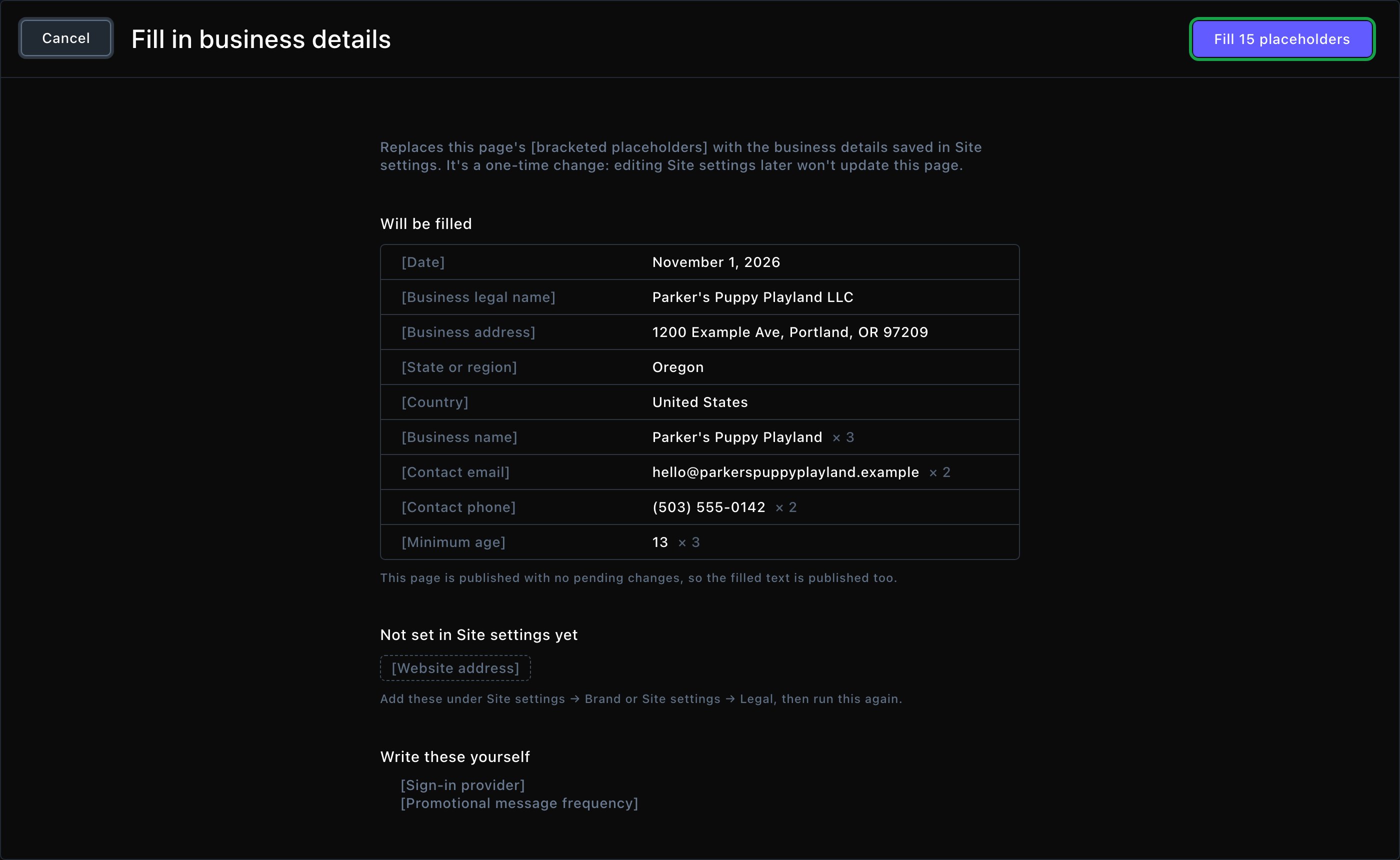
See what will be filled, what's missing, and what to write yourself.
The window shows 3 lists:
Will be filled: the placeholders it can fill, with the value and how many times each appears.
Not set in Site settings yet: placeholders whose setting is empty. A setting that still holds its sample value counts as empty too, so sample details never land in a policy.
Write these yourself: placeholders no setting can answer, such as [Refund processing time]. Replace them by hand in the text.
What happens next
The new page is a separate page. Change it as much as you like: the template stays as it was. A page you saved as a draft stays hidden until someone publishes it.The fill changes the page’s draft, except on a published page with no other unpublished changes, where it can go live at once (see the warning above). Otherwise, publish the page when you’re ready. See Drafts, publishing and scheduling.
Good to know
Your About, Pricing, Contact and legal pages already use these layouts. The ready-made About Us, Pricing, Contact Us, Privacy Policy and Terms and Conditions pages start from the matching template. Archived one by mistake? The template makes the same layout again.
The templates live in your page tree under Templates. Visitors never see them. Change one there, and new pages made from it start with your changes.
Legal text is a starting point. Read your policy through and have it checked before you rely on it.
Troubleshooting
The page was created, but its business details could not be filled in.
Your page is saved, but the fill didn’t run. Open the page, choose More Options (⋯), then Fill in business details to try again.
Some [placeholders] are still on the page
After the fill, a notice says how many placeholders still need your attention. Some settings may be empty: ask an Admin or Owner to fill them in Site settings, then run the fill again. The rest are for you to write by hand.
This page has no placeholders left to fill.
Every placeholder on the page is already filled or replaced. Nothing more to do.
I don't see New Page or the gallery
Creating pages needs a Contributor, Editor, Admin or Owner role. Ask an Admin to give you one.
Related
Pages and the page tree
create, move and remove pages.
Add, move and remove sections
make the page yours.
Legal details
the settings your legal pages use.
Brand
your business name and contact details.
⌘I
{"docsConfig":{"theme":"almond","$schema":"https://mintlify.com/docs.json","name":"Fetchski Attract Docs","colors":{"primary":"#16a34a","light":"#22c55e","dark":"#15803d"},"logo":{"light":"https://mintcdn.com/fetchski-attract-api/mn9qfQRsqaASh7UE/logo/light.svg?fit=max\u0026auto=format\u0026n=mn9qfQRsqaASh7UE\u0026q=85\u0026s=66db13e248b70a44a5ff5f6990d4cb63","dark":"https://mintcdn.com/fetchski-attract-api/mn9qfQRsqaASh7UE/logo/dark.svg?fit=max\u0026auto=format\u0026n=mn9qfQRsqaASh7UE\u0026q=85\u0026s=86904ba8d47714303521b2dcd5aa2a50","href":"/"},"favicon":"https://mintcdn.com/fetchski-attract-api/mn9qfQRsqaASh7UE/favicon.svg?fit=max\u0026auto=format\u0026n=mn9qfQRsqaASh7UE\u0026q=85\u0026s=fd4f2c0615961c9e01c9762b98c8999f","api":{"playground":{"display":"interactive"},"examples":{"defaults":"required","languages":["bash","typescript","php"]}},"appearance":{"default":"dark"},"background":{"color":{"light":"#ffffff","dark":"#0b0e13"}},"search":{"prompt":"Search the docs…"},"seo":{"metatags":{"robots":"noindex, nofollow"}},"fonts":{"family":"Inter"},"icons":{"library":"fontawesome"},"styling":{"codeblocks":"dark","latex":true},"contextual":{"options":["copy","view"],"display":"header"},"navigation":{"pages":[]}},"deployment":{"deploymentMetadataValue":{"subdomain":"fetchski-attract-api","hasAudioNarration":false,"actualSubdomain":"fetchski-attract-api","customDomains":["docs.fetchski-attract.com"],"gitSource":{"type":"github","owner":"fetchski","repo":"fetchski_cms_astro_monorepo","deployBranch":"main","contentDirectory":"docs/attract","isPrivate":true,"mountPath":"","label":"","_id":"6adb9c232f0947a18a27541d"},"entitlements":{},"buildId":"6af6df04bd8b0362cdec74ff","clientVersion":"0.0.4131","searchFilterCounts":[{"language":"default","tag":"Media","count":953},{"language":"default","tag":"Content","count":863},{"language":"default","tag":"Publishing","count":720},{"language":"default","tag":"API reference","count":484},{"language":"default","tag":"Laravel","count":472},{"language":"default","tag":"TypeScript","count":470},{"language":"default","tag":"AdonisJS","count":469},{"language":"default","tag":"Batch jobs","count":364},{"language":"default","tag":"Pages \u0026 Site","count":224},{"language":"default","tag":"Forms","count":168}]},"assistantConfig":{"enableAskAiButton":false,"enableStarterQuestions":false,"enableContextualStarterQuestions":false,"enableAskAiSearchBar":true},"basePath":"","hasChatPermissions":false,"hasWebMcpPermissions":false,"toggles":[{"name":"kill-isr","enabled":true,"variant":{"name":"disabled","enabled":false,"feature_enabled":true},"impressionData":false},{"name":"custom-rbac-roles","enabled":true,"variant":{"name":"disabled","enabled":false,"feature_enabled":true},"impressionData":false},{"name":"agent-mintlify-slack","enabled":true,"variant":{"name":"disabled","enabled":false,"feature_enabled":true},"impressionData":false},{"name":"agent-integrations-settings","enabled":true,"variant":{"name":"disabled","enabled":false,"feature_enabled":true},"impressionData":false},{"name":"rbac-expansion","enabled":true,"variant":{"name":"disabled","enabled":false,"feature_enabled":true},"impressionData":false},{"name":"automations-pr-grouping","enabled":true,"variant":{"name":"disabled","enabled":false,"feature_enabled":true},"impressionData":false},{"name":"custom-prefix","enabled":true,"variant":{"name":"disabled","enabled":false,"feature_enabled":true},"impressionData":false},{"name":"analytics-v7","enabled":true,"variant":{"name":"disabled","enabled":false,"feature_enabled":true},"impressionData":false},{"name":"user-flows-analytics","enabled":true,"variant":{"name":"disabled","enabled":false,"feature_enabled":true},"impressionData":false},{"name":"no-publish-flow","enabled":true,"variant":{"name":"disabled","enabled":false,"feature_enabled":true},"impressionData":false},{"name":"workos-onboarding","enabled":true,"variant":{"name":"disabled","enabled":false,"feature_enabled":true},"impressionData":false},{"name":"snapshot-serving-live","enabled":true,"variant":{"name":"disabled","enabled":false,"feature_enabled":true},"impressionData":false},{"name":"stripTemperatureMiddleware","enabled":true,"variant":{"name":"disabled","enabled":false,"feature_enabled":true},"impressionData":false},{"name":"support-platform-pylon-zendesk","enabled":true,"variant":{"name":"disabled","enabled":false,"feature_enabled":true},"impressionData":false},{"name":"snapshot-serving","enabled":true,"variant":{"name":"disabled","enabled":false,"feature_enabled":true},"impressionData":false},{"name":"instant-rollback","enabled":true,"variant":{"name":"disabled","enabled":false,"feature_enabled":true},"impressionData":false},{"name":"granular-notifications-server","enabled":true,"variant":{"name":"disabled","enabled":false,"feature_enabled":true},"impressionData":false},{"name":"granular-notifications","enabled":true,"variant":{"name":"disabled","enabled":false,"feature_enabled":true},"impressionData":false},{"name":"automations-fable","enabled":true,"variant":{"name":"disabled","enabled":false,"feature_enabled":true},"impressionData":false},{"name":"fixed-ai-action-pricing","enabled":true,"variant":{"name":"disabled","enabled":false,"feature_enabled":true},"impressionData":false},{"name":"automation-resolve-merge-conflict","enabled":true,"variant":{"name":"disabled","enabled":false,"feature_enabled":true},"impressionData":false},{"name":"scoped-publishing","enabled":true,"variant":{"name":"disabled","enabled":false,"feature_enabled":true},"impressionData":false},{"name":"mintql","enabled":true,"variant":{"name":"disabled","enabled":false,"feature_enabled":true},"impressionData":false},{"name":"page-level-analytics","enabled":true,"variant":{"name":"disabled","enabled":false,"feature_enabled":true},"impressionData":false},{"name":"editor-version-history-v2","enabled":true,"variant":{"name":"disabled","enabled":false,"feature_enabled":true},"impressionData":false},{"name":"billing-page-v2","enabled":true,"variant":{"name":"disabled","enabled":false,"feature_enabled":true},"impressionData":false},{"name":"full-page-search","enabled":true,"variant":{"name":"disabled","enabled":false,"feature_enabled":true},"impressionData":false},{"name":"workspace-projects","enabled":true,"variant":{"name":"disabled","enabled":false,"feature_enabled":true},"impressionData":false},{"name":"assistant-v5","enabled":true,"variant":{"name":"disabled","enabled":false,"feature_enabled":true},"impressionData":false},{"name":"fork-pr-previews","enabled":true,"variant":{"name":"disabled","enabled":false,"feature_enabled":true},"impressionData":false},{"name":"revalidation-jwt","enabled":true,"variant":{"name":"disabled","enabled":false,"feature_enabled":true},"impressionData":false},{"name":"workos-sso-scim","enabled":true,"variant":{"name":"disabled","enabled":false,"feature_enabled":true},"impressionData":false},{"name":"hobby-abuse-scan","enabled":true,"variant":{"name":"disabled","enabled":false,"feature_enabled":true},"impressionData":false},{"name":"dashboard-inbox","enabled":true,"variant":{"name":"disabled","enabled":false,"feature_enabled":true},"impressionData":false},{"name":"workos-signup","enabled":true,"variant":{"name":"disabled","enabled":false,"feature_enabled":true},"impressionData":false},{"name":"turbopuffer-dual-write","enabled":true,"variant":{"name":"disabled","enabled":false,"feature_enabled":true},"impressionData":false},{"name":"workos-enabled","enabled":true,"variant":{"name":"disabled","enabled":false,"feature_enabled":true},"impressionData":false},{"name":"approve-review-flow","enabled":true,"variant":{"name":"disabled","enabled":false,"feature_enabled":true},"impressionData":false},{"name":"editor-metadata","enabled":true,"variant":{"name":"disabled","enabled":false,"feature_enabled":true},"impressionData":false},{"name":"sso-setup-deadline-banner","enabled":true,"variant":{"name":"disabled","enabled":false,"feature_enabled":true},"impressionData":false},{"name":"turbopuffer-serve","enabled":true,"variant":{"name":"disabled","enabled":false,"feature_enabled":true},"impressionData":false},{"name":"live-agents","enabled":true,"variant":{"name":"disabled","enabled":false,"feature_enabled":true},"impressionData":false},{"name":"llms-txt-v2","enabled":true,"variant":{"name":"disabled","enabled":false,"feature_enabled":true},"impressionData":false}],"googleFontsInlined":false},"customCss":[{"filePath":"style.css","content":"@media (min-width: 1280px){:root{--content-width: 52rem}}@media (min-width: 1600px){:root{--content-width: 60rem}}@media (min-width: 1920px){:root{--content-width: 68rem}}@media (min-width: 1024px) and (max-width: 1919px){#content-container{padding-left:2rem;padding-right:2rem}div:has(>#content-area){padding-left:0}#table-of-contents{width:14rem}}html[data-page-mode=\"wide\"] #content-area{max-width:84rem}@media (min-width: 1024px){#navbar .nav-tabs{position:fixed;left:15rem;top:0;height:6rem}}@media (min-width: 1024px) and (max-width: 1599px){#navbar .nav-tabs{gap:0}#navbar .nav-tabs .nav-tabs-item{gap:0.375rem;font-size:0.9375rem;padding-inline:0.5rem}#navbar .nav-tabs .nav-tabs-item svg,#navbar .nav-tabs .nav-tabs-item img{width:1.0625rem;height:1.0625rem}}@media (min-width: 1024px) and (max-width: 1199px){#navbar .nav-tabs .nav-tabs-item svg,#navbar .nav-tabs .nav-tabs-item img{display:none}}@media (min-width: 1024px) and (max-width: 1319px){div:has(>#search-bar-entry){width:3rem!important}#search-bar-entry{justify-content:center;padding:0!important}#search-bar-entry>div>:not(svg),#search-bar-entry>:not(div){display:none}}.mdx-content{font-size:1.0625rem;line-height:1.8}@media (min-width: 1024px){.mdx-content{font-size:1.25rem;line-height:1.85}#page-title{font-size:2.875rem;line-height:1.15}#page-title+*,#header .prose{font-size:1.375rem}#sidebar-content a{font-size:1.125rem}.toc-item{font-size:1rem}}.mdx-content>[data-as=\"p\"],.mdx-content>p{margin-top:0;margin-bottom:1.75rem}.mdx-content>h2{margin-top:3.5rem;margin-bottom:1.25rem;padding-top:2rem;border-top:1px solid rgb(0 0 0 / 0.08);font-size:1.875rem;letter-spacing:-0.01em}.dark .mdx-content>h2{border-top-color:rgb(255 255 255 / 0.08)}.mdx-content>h2:first-child{margin-top:0;padding-top:0;border-top:0}.mdx-content>h3{margin-top:2.75rem;margin-bottom:1.125rem;font-size:1.4375rem}.mdx-content>h4{margin-top:2rem;margin-bottom:0.75rem}.mdx-content li{margin-top:0.625rem;margin-bottom:0.625rem}.mdx-content>ul,.mdx-content>ol{margin-bottom:1.75rem}.mdx-content :not(pre)>code{font-size:0.875em;padding:0.125rem 0.375rem;overflow-wrap:anywhere}.mdx-content table{font-size:1.0625rem;line-height:1.7}.mdx-content th,.mdx-content td{padding:0.875rem 1.5rem 0.875rem 0!important;vertical-align:top}.mdx-content th{padding-top:0.25rem!important}.mdx-content th:last-child,.mdx-content td:last-child{padding-right:0!important}.mdx-content td>code:only-child{white-space:nowrap}pre{max-height:36rem;overflow:auto}.mdx-content pre code{font-size:0.9375rem;line-height:1.75}.mdx-content>.code-block,.mdx-content>.code-group{margin-top:1.5rem;margin-bottom:2rem}.mdx-content .columns{column-gap:1.25rem;row-gap:0.5rem;margin-top:1.75rem;margin-bottom:2.25rem}.mdx-content .card{border-radius:1rem}.mdx-content .card [data-component-part=\"card-content-container\"]{padding:1.5rem 1.75rem}.mdx-content [data-component-part=\"card-title\"]{font-size:1.25rem}.mdx-content [data-component-part=\"card-content\"]{font-size:1.0625rem;line-height:1.7}.mdx-content .callout{margin-top:2rem;margin-bottom:2.25rem;padding:1.25rem 1.75rem;font-size:1.125rem;line-height:1.75}.mdx-content .steps{margin-top:1.75rem;margin-bottom:2.25rem}.mdx-content .step{padding-bottom:0.75rem}.mdx-content .accordion-group,.mdx-content>.accordion{margin-top:1.75rem;margin-bottom:2.25rem}.mdx-content .tabs{margin-top:1.75rem;margin-bottom:2.25rem}.mdx-content .tabs [role=\"tabpanel\"]{padding-top:0.375rem;padding-right:0.375rem;padding-bottom:0.375rem}.mdx-content [data-component-name=\"mermaid-container\"]{--im-node-fill: #ecfdf3;--im-node-stroke: #16a34a;--im-node-text: #0b3a1f;--im-cluster-fill: rgb(22 163 74 / 0.04);--im-cluster-stroke: rgb(22 163 74 / 0.35);--im-edge: #64748b;--im-label-bg: #ffffff;margin-top:1.75rem;margin-bottom:2.25rem;padding:2rem 1.5rem;border:1px solid rgb(0 0 0 / 0.08);border-radius:1rem;background:rgb(0 0 0 / 0.015)}.dark .mdx-content [data-component-name=\"mermaid-container\"]{--im-node-fill: #0b2e1a;--im-node-stroke: #22c55e;--im-node-text: #e7fbef;--im-cluster-fill: rgb(34 197 94 / 0.05);--im-cluster-stroke: rgb(34 197 94 / 0.35);--im-edge: #94a3b8;--im-label-bg: #0f1214;border-color:rgb(255 255 255 / 0.08);background:rgb(255 255 255 / 0.02)}.mdx-content [data-component-name=\"mermaid-container\"] svg[id^=\"mermaid\"]{display:block;margin-left:auto;margin-right:auto}.mdx-content [data-component-name=\"mermaid-container\"] .node rect,.mdx-content [data-component-name=\"mermaid-container\"] .node polygon,.mdx-content [data-component-name=\"mermaid-container\"] .node circle,.mdx-content [data-component-name=\"mermaid-container\"] .node path{fill:var(--im-node-fill)!important;stroke:var(--im-node-stroke)!important;stroke-width:1.5px!important}.mdx-content [data-component-name=\"mermaid-container\"] .node rect{rx:8px;ry:8px}.mdx-content [data-component-name=\"mermaid-container\"] .nodeLabel,.mdx-content [data-component-name=\"mermaid-container\"] .node .label{color:var(--im-node-text)!important;fill:var(--im-node-text)!important}.mdx-content [data-component-name=\"mermaid-container\"] .cluster rect{fill:var(--im-cluster-fill)!important;stroke:var(--im-cluster-stroke)!important;stroke-dasharray:6 4;rx:12px;ry:12px}.mdx-content [data-component-name=\"mermaid-container\"] .cluster-label .nodeLabel,.mdx-content [data-component-name=\"mermaid-container\"] .cluster .nodeLabel{color:var(--im-node-stroke)!important}.mdx-content [data-component-name=\"mermaid-container\"] .flowchart-link,.mdx-content [data-component-name=\"mermaid-container\"] .edgePath path{stroke:var(--im-edge)!important;stroke-width:1.5px!important}.mdx-content [data-component-name=\"mermaid-container\"] marker path,.mdx-content [data-component-name=\"mermaid-container\"] .arrowheadPath{fill:var(--im-edge)!important;stroke:var(--im-edge)!important}.mdx-content [data-component-name=\"mermaid-container\"] .edgeLabel,.mdx-content [data-component-name=\"mermaid-container\"] .edgeLabel p,.mdx-content [data-component-name=\"mermaid-container\"] .labelBkg{background-color:var(--im-label-bg)!important;color:var(--im-edge)!important}.mdx-content [data-component-name=\"mermaid-container\"] rect.actor{fill:var(--im-node-fill)!important;stroke:var(--im-node-stroke)!important;stroke-width:1.5px!important;rx:8px;ry:8px}.mdx-content [data-component-name=\"mermaid-container\"] text.actor>tspan,.mdx-content [data-component-name=\"mermaid-container\"] text.actor{fill:var(--im-node-text)!important}.mdx-content [data-component-name=\"mermaid-container\"] .actor-line{stroke:var(--im-cluster-stroke)!important}.mdx-content [data-component-name=\"mermaid-container\"] .messageLine0,.mdx-content [data-component-name=\"mermaid-container\"] .messageLine1{stroke:var(--im-edge)!important;stroke-width:1.5px!important}.mdx-content [data-component-name=\"mermaid-container\"] #arrowhead path,.mdx-content [data-component-name=\"mermaid-container\"] #crosshead path{fill:var(--im-edge)!important;stroke:var(--im-edge)!important}.mdx-content [data-component-name=\"mermaid-container\"] .note{fill:var(--im-cluster-fill)!important;stroke:var(--im-cluster-stroke)!important}.mdx-content .field .prose-sm{font-size:1.0625rem;line-height:1.8}@media (min-width: 1024px){.mdx-content .field .prose-sm{font-size:1.125rem}}.mdx-content .field{padding-top:1.25rem;padding-bottom:1.25rem}:root{--fa-accent: 22 163 74;--fa-ink: 15 23 42;--fa-button: 21 128 61;--fa-button-hover: 22 101 52;--fa-on-button: 255 255 255}.dark{--fa-accent: 34 197 94;--fa-ink: 255 255 255;--fa-button: 34 197 94;--fa-button-hover: 74 222 128;--fa-on-button: 5 46 22}.mdx-content .card{transition:border-color 150ms ease,\n background-color 150ms ease}.mdx-content a.card:hover,.mdx-content .card:has(a:hover){border-color:rgb(var(--fa-accent) / 0.45);background-color:rgb(var(--fa-accent) / 0.06)}.mdx-content .card [data-component-part=\"card-icon\"]{display:flex;width:1.75rem;height:1.75rem;margin-bottom:1rem}.mdx-content .card [data-component-part=\"card-icon\"] svg{width:1.75rem;height:1.75rem;mask-size:contain;background-color:rgb(var(--fa-accent))!important}.mdx-content .card [data-component-part=\"card-content-container\"].flex [data-component-part=\"card-icon\"]{margin-bottom:0}html[data-page-mode=\"wide\"] #header{display:none}.fa-hero{position:relative;isolation:isolate;display:grid;grid-template-columns:minmax(0, 1fr);gap:3rem;align-items:center;overflow:hidden;margin:-1.5rem 0 3.5rem;padding:3.5rem 3rem;border:1px solid rgb(var(--fa-accent) / 0.2);border-radius:1.5rem;background-color:rgb(var(--fa-accent) / 0.025);background-image:radial-gradient(\n 55% 75% at 82% 50%,\n rgb(var(--fa-accent) / 0.16),\n transparent 70%\n )}.fa-hero::before{content:'';position:absolute;inset:0;z-index:-1;background-image:linear-gradient(rgb(var(--fa-accent) / 0.1) 1px, transparent 1px),\n linear-gradient(90deg, rgb(var(--fa-accent) / 0.1) 1px, transparent 1px);background-size:2rem 2rem;background-position:-1px -1px;mask-image:radial-gradient(80% 90% at 85% 40%, #000 20%, transparent 75%);pointer-events:none}.fa-hero::after{content:'';position:absolute;top:0;right:10%;left:10%;height:1px;background:linear-gradient(\n 90deg,\n transparent,\n rgb(var(--fa-accent) / 0.8),\n transparent\n );pointer-events:none}@media (min-width: 1536px){.fa-hero{grid-template-columns:minmax(0, 0.85fr) minmax(0, 1.15fr);padding:4rem 3.5rem}}.fa-hero-code>.code-group,.fa-hero-code>.code-block{margin:0;border-color:rgb(var(--fa-accent) / 0.25);box-shadow:0 1px 0 rgb(255 255 255 / 0.04) inset,\n 0 30px 60px -24px rgb(0 0 0 / 0.55),\n 0 0 0 6px rgb(var(--fa-accent) / 0.06)}.mdx-content .fa-hero-code pre code{font-size:0.8125rem}.mdx-content .fa-hero .fa-hero-mark{margin:0 0 1.75rem}.mdx-content .fa-hero .fa-hero-mark img{display:block;width:auto;height:4rem;margin:0;border-radius:0}.mdx-content .fa-hero .fa-hero-mark .fa-hero-mark-dark,.dark .mdx-content .fa-hero .fa-hero-mark .fa-hero-mark-light{display:none}.dark .mdx-content .fa-hero .fa-hero-mark .fa-hero-mark-dark{display:block}.fa-hero h1{max-width:40rem;margin:0;font-size:3.25rem;font-weight:700;line-height:1.06;letter-spacing:-0.035em;text-wrap:balance}.fa-hero h1 .fa-hero-accent{color:rgb(var(--fa-accent))}.mdx-content .fa-hero-lede{max-width:34rem;margin:1.5rem 0 2.25rem;font-size:1.1875rem;line-height:1.7;opacity:0.78;text-wrap:pretty}.fa-hero-actions{display:flex;flex-wrap:wrap;gap:0.75rem}.mdx-content .fa-hero-facts{display:flex;flex-wrap:wrap;gap:0.5rem 1.5rem;margin-top:2rem;font-size:0.9375rem;opacity:0.8}.mdx-content .fa-hero-facts>span{display:inline-flex;align-items:center;gap:0.5rem}.mdx-content .fa-hero-facts>span::before{content:'';flex:none;width:1rem;height:1rem;background:rgb(var(--fa-accent));mask:url(\"data:image/svg+xml,%3Csvg xmlns='http://www.w3.org/2000/svg' viewBox='0 0 16 16'%3E%3Cpath d='M3.5 8.5l3 3 6-7' fill='none' stroke='%23000' stroke-width='2' stroke-linecap='round' stroke-linejoin='round'/%3E%3C/svg%3E\")\n center / contain no-repeat}.fa-button{display:inline-flex;align-items:center;gap:0.5rem;height:2.75rem;padding:0 1.125rem;border:1px solid transparent;border-radius:0.625rem;font-size:0.9375rem;font-weight:600;letter-spacing:-0.005em;text-decoration:none!important;transition:background-color 150ms ease,\n border-color 150ms ease,\n box-shadow 150ms ease,\n transform 150ms ease}.fa-button-primary{border-color:rgb(var(--fa-button) / 1);background:rgb(var(--fa-button));box-shadow:inset 0 1px 0 rgb(255 255 255 / 0.25),\n 0 8px 20px -10px rgb(var(--fa-button) / 0.9);color:rgb(var(--fa-on-button))!important}.fa-button-primary::after{content:'';width:1rem;height:1rem;background:currentcolor;mask:url(\"data:image/svg+xml,%3Csvg xmlns='http://www.w3.org/2000/svg' viewBox='0 0 16 16'%3E%3Cpath d='M3 8h9.5M8.5 4l4 4-4 4' fill='none' stroke='%23000' stroke-width='1.75' stroke-linecap='round' stroke-linejoin='round'/%3E%3C/svg%3E\")\n center / contain no-repeat;transition:transform 150ms ease}.fa-button-primary:hover{background:rgb(var(--fa-button-hover));box-shadow:inset 0 1px 0 rgb(255 255 255 / 0.25),\n 0 10px 24px -10px rgb(var(--fa-button) / 1)}.fa-button-primary:hover::after{transform:translateX(2px)}.fa-button-secondary{border-color:rgb(var(--fa-ink) / 0.16);background:rgb(var(--fa-ink) / 0.03);color:inherit!important}.fa-button-secondary:hover{border-color:rgb(var(--fa-accent) / 0.55);background:rgb(var(--fa-accent) / 0.08)}.fa-button:active{transform:translateY(1px)}.fa-button:focus-visible{outline:2px solid rgb(var(--fa-accent));outline-offset:3px}@media (prefers-reduced-motion: reduce){.fa-button,.fa-button-primary::after{transition:none}.fa-button:active,.fa-button-primary:hover::after{transform:none}}@media (max-width: 767px){.fa-hero{padding:2.5rem 1.5rem}.fa-hero h1{font-size:2.25rem}}#sidebar-content a,#sidebar-content li>button{gap:0.875rem;padding-top:0.625rem;padding-right:0.5rem;padding-bottom:0.625rem;font-size:1.125rem;line-height:1.45}#sidebar-content li+li{margin-top:0.25rem}#sidebar-content li>button>div:nth-child(2){min-width:0}#sidebar-content li>button>div:last-child{width:1.25rem;margin-left:auto;justify-content:center}#sidebar-content li>ul{margin:0.25rem 0 0.25rem 1.25rem;padding-left:0.375rem;border-left:1px solid rgb(0 0 0 / 0.1)}.dark #sidebar-content li>ul{border-left-color:rgb(255 255 255 / 0.1)}#sidebar-content li>ul>li>:is(a,button){padding-left:0.75rem!important;font-size:1.0625rem}#sidebar-content .sidebar-group-header{margin-bottom:0.625rem;font-size:0.875rem;font-weight:700;letter-spacing:0.08em;text-transform:uppercase;color:color-mix(in srgb, rgb(var(--fa-accent)) 72%, black)}.dark #sidebar-content .sidebar-group-header{color:rgb(var(--fa-accent))}#sidebar-content div:has(>.sidebar-group-header)+div:has(>.sidebar-group-header){margin-top:2.25rem}#sidebar-content a svg,#sidebar-content a img,#sidebar-content li>button>div:first-child svg,#sidebar-content li>button>div:first-child img{width:1.375rem;height:1.375rem}#sidebar-content .sidebar-group-header svg{width:1rem;height:1rem}.nav-tabs-item{gap:0.625rem;font-size:1.0625rem}.nav-tabs-item svg,.nav-tabs-item img{width:1.3125rem;height:1.3125rem}.nav-tabs-item[href^=\"/typescript\"] svg{background-color:#d4b106}.dark .nav-tabs-item[href^=\"/typescript\"] svg{background-color:#f7df1e}.nav-tabs-item[href^=\"/laravel\"] svg{background-color:#ff2d20}.nav-tabs-item[href^=\"/adonisjs\"] svg{background-color:#5a45ff}.dark .nav-tabs-item[href^=\"/adonisjs\"] svg{background-color:#8b7dff}li[data-group-tag]>button svg[style*=\"/brands/js.svg\"]{background-color:#d4b106}.dark li[data-group-tag]>button svg[style*=\"/brands/js.svg\"]{background-color:#f7df1e}li[data-group-tag]>button svg[style*=\"/brands/laravel.svg\"]{background-color:#ff2d20}#sidebar-content img[src$=\"/n8n.png\"]{transform:scale(1.35)}@media (min-width: 1024px){:root{--mintlify-slot-header-height: 6rem;--sidebar-width: 26rem}#navbar{height:6rem}#sidebar-content{top:6rem}#navbar div:has(img.nav-logo){height:100%}img.nav-logo{height:3.5rem;margin-left:0.5rem}div:has(>#search-bar-entry){position:fixed;top:1.5rem;right:7rem;z-index:40;width:clamp(11rem, calc(100vw - var(--sidebar-width) - 45rem), 24rem)}#search-bar-entry{height:3rem;padding-left:1.125rem;border-radius:0.875rem;font-size:1.0625rem}#search-bar-entry svg{width:1.125rem;height:1.125rem}}[data-switch=\"pill\"]{width:auto!important;height:auto!important;padding:0.3125rem;gap:0.25rem}.switch-option{width:2.125rem!important;height:2.125rem!important}.switch-option svg{width:1.125rem;height:1.125rem}.mdx-content .accordion-group{display:grid;gap:0.75rem;overflow:visible;border:0;border-color:transparent;border-radius:0;background:none}.mdx-content details.accordion{margin:0 0 0.75rem;border-color:transparent;border-radius:1rem!important;outline:1px solid rgb(var(--fa-ink) / 0.1);outline-offset:-1px;overflow:hidden;transition:outline-color 150ms ease,\n box-shadow 150ms ease}.mdx-content .accordion-group>details.accordion{margin:0}.mdx-content details.accordion:hover{outline-color:rgb(var(--fa-accent) / 0.35)}.mdx-content details.accordion[open]{outline-color:rgb(var(--fa-accent) / 0.45);box-shadow:inset 3px 0 0 rgb(var(--fa-accent))}.mdx-content [data-component-part=\"accordion-button\"]{gap:1rem;padding:1rem 1.25rem 1rem 1.5rem;border-radius:0!important;transition:background-color 150ms ease}.mdx-content [data-component-part=\"accordion-button\"]:hover{background:rgb(var(--fa-accent) / 0.05)}.mdx-content [data-component-part=\"accordion-button\"]:focus-visible{outline:2px solid rgb(var(--fa-accent));outline-offset:-2px}.mdx-content [data-component-part=\"accordion-caret-right\"]{order:3;width:2rem;height:2rem;border-radius:999px;background:rgb(var(--fa-ink) / 0.06);transition:background-color 150ms ease}.mdx-content [data-component-part=\"accordion-caret-right\"] svg{width:0.875rem;height:0.875rem}.mdx-content details.accordion[open] [data-component-part=\"accordion-caret-right\"]{background:rgb(var(--fa-accent) / 0.15)}.mdx-content details.accordion[open] [data-component-part=\"accordion-caret-right\"] svg{color:rgb(var(--fa-accent))}.mdx-content [data-component-part=\"accordion-icon\"]{display:inline-flex;align-items:center;justify-content:center;width:1.25rem;height:1.25rem}.mdx-content [data-component-part=\"accordion-icon\"] svg{width:1.25rem;height:1.25rem;background-color:rgb(var(--fa-accent))!important}.mdx-content [data-component-part=\"accordion-title\"]{font-size:1.1875rem}.mdx-content [data-component-part=\"accordion-content\"]{max-width:none;padding:1.5rem 2rem 1.75rem 1.5rem;border-top:1px solid rgb(var(--fa-ink) / 0.08);font-size:1.125rem;line-height:1.95}@media (min-width: 768px){.mdx-content details.accordion:has(>summary [data-component-part=\"accordion-icon\"])>[data-component-part=\"accordion-content\"]{padding-left:3.75rem}}.mdx-content [data-component-part=\"accordion-content\"]>[data-as=\"p\"],.mdx-content [data-component-part=\"accordion-content\"]>p{display:block;max-width:46rem;margin:0 0 1.25rem}.mdx-content [data-component-part=\"accordion-content\"]>:last-child{margin-bottom:0}@media (prefers-reduced-motion: reduce){.mdx-content details.accordion,.mdx-content [data-component-part=\"accordion-button\"],.mdx-content [data-component-part=\"accordion-caret-right\"]{transition:none}}[data-badge=\"true\"]{--fa-badge: 100 116 139;padding:0.125rem 0.5rem;border-radius:0.5rem;background:rgb(var(--fa-badge) / 0.14)!important;box-shadow:inset 0 0 0 1px rgb(var(--fa-badge) / 0.32);color:rgb(var(--fa-badge))!important;font-variant-numeric:tabular-nums}[data-badge=\"true\"][data-color=\"red\"]{--fa-badge: 239 68 68}[data-badge=\"true\"][data-color=\"orange\"]{--fa-badge: 245 130 32}[data-badge=\"true\"][data-color=\"yellow\"]{--fa-badge: 214 160 20}[data-badge=\"true\"][data-color=\"green\"]{--fa-badge: 22 163 74}[data-badge=\"true\"][data-color=\"blue\"]{--fa-badge: 17 145 240}.dark [data-badge=\"true\"][data-color=\"red\"]{--fa-badge: 248 113 113}.dark [data-badge=\"true\"][data-color=\"orange\"]{--fa-badge: 251 158 75}.dark [data-badge=\"true\"][data-color=\"yellow\"]{--fa-badge: 250 204 21}.dark [data-badge=\"true\"][data-color=\"green\"]{--fa-badge: 74 222 128}.dark [data-badge=\"true\"][data-color=\"blue\"]{--fa-badge: 62 165 245}.dark [data-badge=\"true\"][data-color=\"gray\"]{--fa-badge: 161 161 170}.mdx-content td [data-badge=\"true\"]+[data-badge=\"true\"]{margin-left:0.375rem}.mdx-content :is([data-as=\"p\"],p,li,td,blockquote),#header .prose,#page-title+*{color:rgb(38 43 52)}.dark .mdx-content :is([data-as=\"p\"],p,li,td,blockquote),.dark #header .prose,.dark #page-title+*{color:rgb(222 226 232)}.mdx-content :is(th,strong){font-weight:600}#sidebar-content a,#sidebar-content li>button{color:rgb(70 76 88)}.dark #sidebar-content a,.dark #sidebar-content li>button{color:rgb(196 201 210)}.toc-item a{color:inherit}.mdx-content [data-component-part=\"callout-content\"]{font-size:1.125rem;line-height:1.75}.mdx-content [data-component-part=\"callout-icon\"]{width:1.25rem;margin-top:0.25rem}.mdx-content [data-component-part=\"step-title\"]{font-size:1.25rem}.mdx-content [data-component-part=\"step-content\"],.mdx-content [data-component-part=\"tab-content\"]{font-size:1.125rem;line-height:1.85}.mdx-content [data-component-part=\"step-number\"]{margin-left:calc(0.5px - 1.125rem)}.mdx-content [data-component-part=\"step-indicator\"]{width:2.25rem;height:2.25rem;background-color:transparent;color:rgb(var(--fa-accent));font-size:1.25rem;font-weight:600}.mdx-content [data-component-part=\"step-indicator\"] svg{width:1.5rem;height:1.5rem;background-color:rgb(var(--fa-accent))!important}.mdx-content [data-component-part=\"tab-button\"]{font-size:1rem}.mdx-content [data-component-part=\"code-block-header\"],.mdx-content [data-component-part=\"code-block-header-filename\"]{font-size:0.875rem}.mdx-content [data-component-part=\"code-group-tab-bar\"]{font-size:0.9375rem}.mdx-content [data-component-part=\"field-name\"]{font-size:1.0625rem}.mdx-content [data-component-part=\"field-meta\"],.mdx-content [data-component-part=\"field-info-pill\"],.mdx-content [data-component-part=\"field-required-pill\"]{font-size:0.875rem}.mdx-content [data-component-part=\"expandable-button\"]{font-size:1rem}[data-component-part=\"pagination-title\"]{font-size:1.125rem}[data-component-part=\"pagination-label\"]{font-size:0.9375rem}.mdx-content>.multi-view-item{max-width:none;font-size:inherit;line-height:inherit}.multi-view-item>[data-as=\"p\"],.multi-view-item>p{margin-top:0;margin-bottom:1.75rem}.multi-view-item>h2{margin-top:3.5rem;margin-bottom:1.25rem;padding-top:2rem;border-top:1px solid rgb(0 0 0 / 0.08);font-size:1.875rem;letter-spacing:-0.01em}.dark .multi-view-item>h2{border-top-color:rgb(255 255 255 / 0.08)}.multi-view-item>h2:first-child{margin-top:0;padding-top:0;border-top:0}.multi-view-item>h3{margin-top:2.75rem;margin-bottom:1.125rem;font-size:1.4375rem}.multi-view-item>ul,.multi-view-item>ol{margin-bottom:1.75rem}.multi-view-item>.code-block,.multi-view-item>.code-group{margin-top:1.5rem;margin-bottom:2rem}#content-container .prose.prose-sm{font-size:1.0625rem;line-height:1.8}#sidebar-content .method-nav-pill{width:2.75rem}#sidebar-content .method-nav-pill>*{padding:0.125rem 0.375rem;font-size:0.6875rem;line-height:1.25rem}#fa-reader-values{margin-top:1.75rem;padding:1.5rem;border:1px solid rgb(var(--fa-ink) / 0.14);border-radius:1rem;background:transparent;font-size:1.0625rem;line-height:1.6;transition:border-color 150ms ease;container:fa-reader / inline-size}#fa-reader-values:hover,#fa-reader-values:focus-within{border-color:rgb(var(--fa-accent) / 0.45)}#fa-reader-values .fa-reader-line{display:grid;grid-template-columns:auto 1fr;align-items:center;gap:1rem 1.25rem}#fa-reader-values .fa-reader-toggle{grid-column:1 / -1;justify-self:start}@container fa-reader (min-width: 30rem){#fa-reader-values .fa-reader-line{grid-template-columns:auto 1fr auto}#fa-reader-values .fa-reader-line .fa-reader-toggle{grid-column:auto}}#fa-reader-values .fa-reader-icon{width:4rem;height:4rem;background:url('/logo/attract-glyph-color-a-green-on-light-scalable.svg') center / contain\n no-repeat}.dark #fa-reader-values .fa-reader-icon{background-image:url('/logo/attract-glyph-color-a-green-on-dark-scalable.svg')}#fa-reader-values .fa-reader-copy{min-width:0}#fa-reader-values .fa-reader-copy p{margin:0}#fa-reader-values .fa-reader-title{font-size:1.125rem;font-weight:600;color:rgb(var(--fa-ink))}#fa-reader-values .fa-reader-values{display:grid;grid-template-columns:auto 1fr;align-items:center;gap:0.625rem 0.875rem;margin:0.75rem 0 0}#fa-reader-values .fa-reader-values>div{display:contents}#fa-reader-values .fa-reader-values dt{font-weight:500;color:rgb(var(--fa-ink))}#fa-reader-values .fa-reader-values dd{justify-self:start;min-width:0;margin:0}#fa-reader-values code{display:inline-block;padding:0.375rem 0.875rem;border:1px solid rgb(var(--fa-accent) / 0.4);border-radius:0.5rem;background:rgb(var(--fa-ink) / 0.03);color:rgb(var(--fa-ink));font-size:0.95em;font-weight:700;line-height:1.4;overflow-wrap:anywhere}#fa-reader-values button{padding:0.625rem 1.25rem;border:1px solid rgb(var(--fa-ink) / 0.16);border-radius:0.625rem;background:rgb(var(--fa-ink) / 0.03);color:rgb(var(--fa-ink));font-weight:600;white-space:nowrap;cursor:pointer;transition:background-color 150ms ease,\n border-color 150ms ease}#fa-reader-values button:hover{border-color:rgb(var(--fa-accent) / 0.55);background:rgb(var(--fa-accent) / 0.08)}#fa-reader-values button:focus-visible,#fa-reader-values input:focus-visible{outline:2px solid rgb(var(--fa-accent));outline-offset:2px}#fa-reader-values .fa-reader-form{display:grid;grid-template-columns:1fr;gap:1.75rem 1.5rem;margin-top:1.5rem;padding:1.5rem 0.25rem 0.25rem;border-top:1px solid rgb(var(--fa-ink) / 0.1)}@media (min-width: 768px){#fa-reader-values .fa-reader-form{grid-template-columns:1fr 1fr}}#fa-reader-values .fa-reader-form[hidden]{display:none}#fa-reader-values label{display:grid;gap:0.625rem;align-content:start}#fa-reader-values label>span{font-weight:600;color:rgb(var(--fa-ink))}#fa-reader-values label em{font-style:normal;font-weight:400}#fa-reader-values input{width:100%;padding:0.75rem 1rem;border:1px solid rgb(128 128 128 / 0.4);border-radius:0.5rem;background:rgb(128 128 128 / 0.08);color:rgb(var(--fa-ink));font:inherit}#fa-reader-values small{display:block;margin-top:0.5rem;font-size:0.9375rem;line-height:1.6;color:rgb(var(--fa-ink))}#fa-reader-values .fa-reader-error{grid-column:1 / -1;margin:0;color:#dc2626}.dark #fa-reader-values .fa-reader-error{color:#f87171}#fa-reader-values .fa-reader-error:empty{display:none}#fa-reader-values .fa-reader-actions{display:flex;flex-wrap:wrap;grid-column:1 / -1;align-items:center;gap:1rem;padding-top:0.25rem}.mdx-content .n8n-canvas{--n8n-dot: rgb(0 0 0 / 0.12);--n8n-node-bg: #ffffff;--n8n-node-border: rgb(0 0 0 / 0.18);--n8n-line: #94a3b8;margin:1.75rem 0 2.25rem;padding:2rem 0.75rem 1.5rem;overflow-x:auto;border:1px solid rgb(0 0 0 / 0.08);border-radius:1rem;background-color:rgb(0 0 0 / 0.015);background-image:radial-gradient(var(--n8n-dot) 1px, transparent 1px);background-size:18px 18px}.dark .mdx-content .n8n-canvas{--n8n-dot: rgb(255 255 255 / 0.1);--n8n-node-bg: #1b1f24;--n8n-node-border: rgb(255 255 255 / 0.22);--n8n-line: #64748b;border-color:rgb(255 255 255 / 0.08);background-color:rgb(255 255 255 / 0.02)}.mdx-content .n8n-canvas-row{display:flex;align-items:flex-start;justify-content:center;min-width:max-content;margin:0 auto}.mdx-content .n8n-node{display:flex;flex-direction:column;align-items:center;width:7.25rem;text-align:center}.mdx-content .n8n-node-box{display:flex;align-items:center;justify-content:center;width:4.5rem;height:4.5rem;border:2px solid var(--n8n-node-border);border-radius:0.75rem;background:var(--n8n-node-bg);box-shadow:0 1px 3px rgb(0 0 0 / 0.08)}.mdx-content .n8n-node-trigger .n8n-node-box{border-radius:2.25rem 0.75rem 0.75rem 2.25rem}.mdx-content .n8n-node-accent .n8n-node-box{border-color:rgb(var(--fa-accent));box-shadow:0 0 0 4px rgb(var(--fa-accent) / 0.15)}.mdx-content .n8n-node-title{margin-top:0.6rem;font-size:0.95rem;font-weight:600;line-height:1.3}.mdx-content .n8n-node-note{margin-top:0.2rem;font-size:0.8rem;line-height:1.35;opacity:0.7}.mdx-content .n8n-node-box svg{width:1.9rem!important;height:1.9rem!important}.mdx-content .n8n-link{display:flex;flex-direction:column;align-items:center;width:4rem;margin:0 -1.125rem;padding-top:1.1rem}.mdx-content .n8n-link-items{height:1.1rem;font-size:0.75rem;font-weight:600;line-height:1.1rem;white-space:nowrap;color:rgb(var(--fa-accent))}.mdx-content .n8n-link-line{position:relative;width:100%;height:2px;margin-top:0.4rem;background:var(--n8n-line)}.mdx-content .n8n-link-line::after{position:absolute;top:-4px;right:-1px;border-top:5px solid transparent;border-bottom:5px solid transparent;border-left:7px solid var(--n8n-line);content:''}.mdx-content .n8n-canvas figcaption{margin-top:1.25rem;font-size:0.85rem;text-align:center;opacity:0.7}.mdx-content .n8n-signed{margin:1.5rem 0 2rem;padding:1.5rem 1.25rem 1.25rem;overflow-x:auto;border:1px solid rgb(0 0 0 / 0.08);border-radius:1rem}.dark .mdx-content .n8n-signed{border-color:rgb(255 255 255 / 0.08)}.mdx-content .n8n-signed-row{display:flex;flex-wrap:wrap;align-items:flex-start;justify-content:center;row-gap:1rem}.mdx-content .n8n-signed-part{display:flex;flex-direction:column;align-items:center;gap:0.5rem}.mdx-content .n8n-signed-value,.mdx-content .n8n-signed-dot{padding:0.35rem 0.55rem;border-radius:0.4rem;font-size:0.95rem;white-space:nowrap}.mdx-content .n8n-signed-dot{padding:0.35rem 0.15rem;background:none;font-weight:700}.mdx-content .n8n-signed-value{min-width:2.5rem;text-align:center;background:rgb(var(--n8n-part) / 0.14);box-shadow:inset 0 0 0 1px rgb(var(--n8n-part) / 0.45)}.mdx-content .n8n-signed-label{font-size:0.75rem;font-weight:600;letter-spacing:0.04em;text-transform:uppercase;color:rgb(var(--n8n-part))}.mdx-content .n8n-signed-0{--n8n-part: 37 99 235}.mdx-content .n8n-signed-1{--n8n-part: 22 163 74}.mdx-content .n8n-signed-2{--n8n-part: 217 119 6}.mdx-content .n8n-signed-3{--n8n-part: 219 39 119}.mdx-content .n8n-coming-soon-logos{display:flex;align-items:center;gap:1rem;margin-bottom:1.25rem}.mdx-content .n8n-coming-soon-logos img{width:auto;height:3.5rem;margin:0}.mdx-content .n8n-coming-soon-logos img[class^=\"n8n-mark-\"]{height:4.5rem;margin:-0.5rem}.mdx-content .n8n-coming-soon-logos .n8n-mark-dark,.dark .mdx-content .n8n-coming-soon-logos .n8n-mark-light{display:none}.dark .mdx-content .n8n-coming-soon-logos .n8n-mark-dark{display:block}.mdx-content .n8n-coming-soon-logos span{font-size:1.75rem;font-weight:600;opacity:0.6}.mdx-content .n8n-coming-soon-title{margin:0 0 0.35rem;font-size:1.25rem;font-weight:600;color:rgb(var(--fa-ink))}.mdx-content .n8n-coming-soon-title+*{margin-top:0}"}],"page":{"pagePath":"guides/build-pages/page-templates","slug":"/guides/build-pages/page-templates","pageMetadata":{"title":"Start from a page template","sidebarTitle":"Page templates","description":"Begin a new page from a ready-made layout, then make it yours.","icon":"clone","href":"/guides/build-pages/page-templates"},"description":{"compiledSource":"\"use strict\";\nconst {jsx: _jsx} = arguments[0];\nconst {useMDXComponents: _provideComponents} = arguments[0];\nfunction _createMdxContent(props) {\n const _components = {\n p: \"p\",\n ..._provideComponents(),\n ...props.components\n };\n return _jsx(_components.p, {\n children: \"Begin a new page from a ready-made layout, then make it yours.\"\n });\n}\nfunction MDXContent(props = {}) {\n const {wrapper: MDXLayout} = {\n ..._provideComponents(),\n ...props.components\n };\n return MDXLayout ? _jsx(MDXLayout, {\n ...props,\n children: _jsx(_createMdxContent, {\n ...props\n })\n }) : _createMdxContent(props);\n}\nreturn {\n default: MDXContent\n};\n","frontmatter":{},"scope":{}},"pageType":"default","mdx":{"mdxSource":{"compiledSource":"\"use strict\";const{Fragment:_Fragment,jsx:_jsx,jsxs:_jsxs}=arguments[0];const{useMDXComponents:_provideComponents}=arguments[0];function _createMdxContent(props){const _components={a:`a`,li:`li`,p:`p`,strong:`strong`,tbody:`tbody`,td:`td`,th:`th`,thead:`thead`,tr:`tr`,ul:`ul`,..._provideComponents(),...props.components},{Accordion,AccordionGroup,Card,Columns,Frame,Heading,Icon,OptimizedImage,Step,Steps,Table,Warning}=_components;if(!Accordion)_missingMdxReference(`Accordion`,true);if(!AccordionGroup)_missingMdxReference(`AccordionGroup`,true);if(!Card)_missingMdxReference(`Card`,true);if(!Columns)_missingMdxReference(`Columns`,true);if(!Frame)_missingMdxReference(`Frame`,true);if(!Heading)_missingMdxReference(`Heading`,true);if(!Icon)_missingMdxReference(`Icon`,true);if(!OptimizedImage)_missingMdxReference(`OptimizedImage`,true);if(!Step)_missingMdxReference(`Step`,true);if(!Steps)_missingMdxReference(`Steps`,true);if(!Table)_missingMdxReference(`Table`,true);if(!Warning)_missingMdxReference(`Warning`,true);return _jsxs(_Fragment,{children:[_jsx(_components.p,{children:`A page template is a ready-made page: the right sections, in a sensible order, with sample text. Pick one, and you start with a finished layout instead of an empty page.`}),`\n`,_jsxs(_components.p,{children:[_jsx(Icon,{icon:`user-shield`}),` `,_jsx(_components.strong,{children:`Who can do this:`}),` Contributors, Editors, Admins and Owners. Publishing needs an Editor, an Admin or an Owner.`]}),`\n`,_jsx(Heading,{level:`2`,id:`before-you-start`,children:`Before you start`}),`\n`,_jsxs(_components.ul,{children:[`\n`,_jsx(_components.li,{children:`Sign in, and open the page your new page should sit under. A new page becomes its subpage.`}),`\n`,_jsxs(_components.li,{children:[`For the legal templates, ask an Admin or Owner to fill in `,_jsx(_components.strong,{children:`Site settings`}),` → `,_jsx(_components.strong,{children:`Brand`}),` and `,_jsx(_components.strong,{children:`Site settings`}),` → `,_jsx(_components.strong,{children:`Legal`}),` first. The template can then copy your business details in for you.`]}),`\n`]}),`\n`,_jsx(Heading,{level:`2`,id:`create-a-page-from-a-template`,children:`Create a page from a template`}),`\n`,_jsxs(Steps,{children:[_jsx(Step,{title:`Start a new page`,children:_jsxs(_components.p,{children:[`Open the command palette (⌘K, or Ctrl+K on Windows) and choose `,_jsx(_components.strong,{children:`Pages`}),`. In `,_jsx(_components.strong,{children:`Manage Pages`}),`, choose `,_jsx(_components.strong,{children:`New Page`}),`.`]})}),_jsxs(Step,{title:`Choose a template`,children:[_jsxs(_components.p,{children:[`The `,_jsx(_components.strong,{children:`Create a Page`}),` gallery opens. Each card shows a sketch of the page, what it’s for, and its sections in order. Choose a card.`]}),_jsxs(Frame,{caption:`Choose a starting point: a template or a blank page.`,children:[_jsx(OptimizedImage,{className:`mint-block dark:mint-hidden`,src:`https://mintcdn.com/fetchski-attract-api/DSJs5HmTF1-gpNT3/images/cms/guides/build-pages/page-templates/guides-build-pages-templates-gallery-light.png?fit=max\u0026auto=format\u0026n=DSJs5HmTF1-gpNT3\u0026q=85\u0026s=b211cf2219300f5e4166f5cc4a80d8d5`,alt:`The Create a Page gallery: Blank page first, then the About, Services, Landing, Pricing, Home and Contact cards with their sketches, categories, descriptions and section lists.`,\"data-og-width\":`2320`,width:`2320`,\"data-og-height\":`3240`,height:`3240`,\"data-path\":`images/cms/guides/build-pages/page-templates/guides-build-pages-templates-gallery-light.png`,\"data-optimize\":`true`,\"data-opv\":`3`,srcset:`https://mintcdn.com/fetchski-attract-api/DSJs5HmTF1-gpNT3/images/cms/guides/build-pages/page-templates/guides-build-pages-templates-gallery-light.png?w=280\u0026fit=max\u0026auto=format\u0026n=DSJs5HmTF1-gpNT3\u0026q=85\u0026s=a6da6b7e25fc17538545fce673d6c62c 280w, https://mintcdn.com/fetchski-attract-api/DSJs5HmTF1-gpNT3/images/cms/guides/build-pages/page-templates/guides-build-pages-templates-gallery-light.png?w=560\u0026fit=max\u0026auto=format\u0026n=DSJs5HmTF1-gpNT3\u0026q=85\u0026s=51f423dbbaa27dc30929d45a14265b18 560w, https://mintcdn.com/fetchski-attract-api/DSJs5HmTF1-gpNT3/images/cms/guides/build-pages/page-templates/guides-build-pages-templates-gallery-light.png?w=840\u0026fit=max\u0026auto=format\u0026n=DSJs5HmTF1-gpNT3\u0026q=85\u0026s=05837921cf9ce698ee485c704c606057 840w, https://mintcdn.com/fetchski-attract-api/DSJs5HmTF1-gpNT3/images/cms/guides/build-pages/page-templates/guides-build-pages-templates-gallery-light.png?w=1100\u0026fit=max\u0026auto=format\u0026n=DSJs5HmTF1-gpNT3\u0026q=85\u0026s=a339ae49e20de5332e989c5ec636966b 1100w, https://mintcdn.com/fetchski-attract-api/DSJs5HmTF1-gpNT3/images/cms/guides/build-pages/page-templates/guides-build-pages-templates-gallery-light.png?w=1650\u0026fit=max\u0026auto=format\u0026n=DSJs5HmTF1-gpNT3\u0026q=85\u0026s=1fab33c3800dda449b7ab872f2b40cbd 1650w, https://mintcdn.com/fetchski-attract-api/DSJs5HmTF1-gpNT3/images/cms/guides/build-pages/page-templates/guides-build-pages-templates-gallery-light.png?w=2500\u0026fit=max\u0026auto=format\u0026n=DSJs5HmTF1-gpNT3\u0026q=85\u0026s=43282c1b67e584f977d27c53500ff831 2500w`}),_jsx(OptimizedImage,{className:`mint-hidden dark:mint-block`,src:`https://mintcdn.com/fetchski-attract-api/DSJs5HmTF1-gpNT3/images/cms/guides/build-pages/page-templates/guides-build-pages-templates-gallery-dark.png?fit=max\u0026auto=format\u0026n=DSJs5HmTF1-gpNT3\u0026q=85\u0026s=a9df1102ed6e32c23d5149a50bf68bf9`,alt:`The Create a Page gallery: Blank page first, then the About, Services, Landing, Pricing, Home and Contact cards with their sketches, categories, descriptions and section lists.`,\"data-og-width\":`2320`,width:`2320`,\"data-og-height\":`3240`,height:`3240`,\"data-path\":`images/cms/guides/build-pages/page-templates/guides-build-pages-templates-gallery-dark.png`,\"data-optimize\":`true`,\"data-opv\":`3`,srcset:`https://mintcdn.com/fetchski-attract-api/DSJs5HmTF1-gpNT3/images/cms/guides/build-pages/page-templates/guides-build-pages-templates-gallery-dark.png?w=280\u0026fit=max\u0026auto=format\u0026n=DSJs5HmTF1-gpNT3\u0026q=85\u0026s=6fa95b0a0dc61046a7b848be54bd156a 280w, https://mintcdn.com/fetchski-attract-api/DSJs5HmTF1-gpNT3/images/cms/guides/build-pages/page-templates/guides-build-pages-templates-gallery-dark.png?w=560\u0026fit=max\u0026auto=format\u0026n=DSJs5HmTF1-gpNT3\u0026q=85\u0026s=0e5e1cfeff242eec5d48cf7e6da39c41 560w, https://mintcdn.com/fetchski-attract-api/DSJs5HmTF1-gpNT3/images/cms/guides/build-pages/page-templates/guides-build-pages-templates-gallery-dark.png?w=840\u0026fit=max\u0026auto=format\u0026n=DSJs5HmTF1-gpNT3\u0026q=85\u0026s=467848dc6f6a8c0fec91d42714ded988 840w, https://mintcdn.com/fetchski-attract-api/DSJs5HmTF1-gpNT3/images/cms/guides/build-pages/page-templates/guides-build-pages-templates-gallery-dark.png?w=1100\u0026fit=max\u0026auto=format\u0026n=DSJs5HmTF1-gpNT3\u0026q=85\u0026s=bcc1538715a4000f34acef96eaf7ebe5 1100w, https://mintcdn.com/fetchski-attract-api/DSJs5HmTF1-gpNT3/images/cms/guides/build-pages/page-templates/guides-build-pages-templates-gallery-dark.png?w=1650\u0026fit=max\u0026auto=format\u0026n=DSJs5HmTF1-gpNT3\u0026q=85\u0026s=11336f3e50f73dbe7a9a0fc8dc0b4a56 1650w, https://mintcdn.com/fetchski-attract-api/DSJs5HmTF1-gpNT3/images/cms/guides/build-pages/page-templates/guides-build-pages-templates-gallery-dark.png?w=2500\u0026fit=max\u0026auto=format\u0026n=DSJs5HmTF1-gpNT3\u0026q=85\u0026s=a1e16229c47df7cd2e7c97acb90c8e95 2500w`})]})]}),_jsxs(Step,{title:`Fill in your details (legal templates only)`,children:[_jsxs(_components.p,{children:[`On `,_jsx(_components.strong,{children:`Privacy Policy`}),` and `,_jsx(_components.strong,{children:`Terms and Conditions`}),`, keep `,_jsx(_components.strong,{children:`Fill in business details from Global`}),` ticked. Here, Global means the business details your site keeps in `,_jsx(_components.strong,{children:`Site settings`}),`. Your business name, address and other details go straight into the text.`]}),_jsxs(Frame,{caption:`On a legal template, the CMS can fill in your business details for you.`,children:[_jsx(OptimizedImage,{className:`mint-block dark:mint-hidden`,src:`https://mintcdn.com/fetchski-attract-api/DSJs5HmTF1-gpNT3/images/cms/guides/build-pages/page-templates/guides-build-pages-templates-fill-checkbox-light.png?fit=max\u0026auto=format\u0026n=DSJs5HmTF1-gpNT3\u0026q=85\u0026s=675d945d79b73c769bad12c98a7e1693`,alt:`The gallery footer with the Privacy Policy card selected, the Fill in business details from Global box ticked and ringed, and the Use template button.`,\"data-og-width\":`2800`,width:`2800`,\"data-og-height\":`2076`,height:`2076`,\"data-path\":`images/cms/guides/build-pages/page-templates/guides-build-pages-templates-fill-checkbox-light.png`,\"data-optimize\":`true`,\"data-opv\":`3`,srcset:`https://mintcdn.com/fetchski-attract-api/DSJs5HmTF1-gpNT3/images/cms/guides/build-pages/page-templates/guides-build-pages-templates-fill-checkbox-light.png?w=280\u0026fit=max\u0026auto=format\u0026n=DSJs5HmTF1-gpNT3\u0026q=85\u0026s=01e58bb572707430d940b86494165c3b 280w, https://mintcdn.com/fetchski-attract-api/DSJs5HmTF1-gpNT3/images/cms/guides/build-pages/page-templates/guides-build-pages-templates-fill-checkbox-light.png?w=560\u0026fit=max\u0026auto=format\u0026n=DSJs5HmTF1-gpNT3\u0026q=85\u0026s=9d36b84338801a634efecc27ca1d826a 560w, https://mintcdn.com/fetchski-attract-api/DSJs5HmTF1-gpNT3/images/cms/guides/build-pages/page-templates/guides-build-pages-templates-fill-checkbox-light.png?w=840\u0026fit=max\u0026auto=format\u0026n=DSJs5HmTF1-gpNT3\u0026q=85\u0026s=1eecbf02f9b774f7b1f97d8224f76ef6 840w, https://mintcdn.com/fetchski-attract-api/DSJs5HmTF1-gpNT3/images/cms/guides/build-pages/page-templates/guides-build-pages-templates-fill-checkbox-light.png?w=1100\u0026fit=max\u0026auto=format\u0026n=DSJs5HmTF1-gpNT3\u0026q=85\u0026s=b264cbb5f05782280ecc0d82ded4410c 1100w, https://mintcdn.com/fetchski-attract-api/DSJs5HmTF1-gpNT3/images/cms/guides/build-pages/page-templates/guides-build-pages-templates-fill-checkbox-light.png?w=1650\u0026fit=max\u0026auto=format\u0026n=DSJs5HmTF1-gpNT3\u0026q=85\u0026s=acfb0853ea43ec19390bc321489feff8 1650w, https://mintcdn.com/fetchski-attract-api/DSJs5HmTF1-gpNT3/images/cms/guides/build-pages/page-templates/guides-build-pages-templates-fill-checkbox-light.png?w=2500\u0026fit=max\u0026auto=format\u0026n=DSJs5HmTF1-gpNT3\u0026q=85\u0026s=94266525d11d6e88651ee9ec9e487c28 2500w`}),_jsx(OptimizedImage,{className:`mint-hidden dark:mint-block`,src:`https://mintcdn.com/fetchski-attract-api/DSJs5HmTF1-gpNT3/images/cms/guides/build-pages/page-templates/guides-build-pages-templates-fill-checkbox-dark.png?fit=max\u0026auto=format\u0026n=DSJs5HmTF1-gpNT3\u0026q=85\u0026s=0a0f38047e556fb992846f8231a04e05`,alt:`The gallery footer with the Privacy Policy card selected, the Fill in business details from Global box ticked and ringed, and the Use template button.`,\"data-og-width\":`2800`,width:`2800`,\"data-og-height\":`2076`,height:`2076`,\"data-path\":`images/cms/guides/build-pages/page-templates/guides-build-pages-templates-fill-checkbox-dark.png`,\"data-optimize\":`true`,\"data-opv\":`3`,srcset:`https://mintcdn.com/fetchski-attract-api/DSJs5HmTF1-gpNT3/images/cms/guides/build-pages/page-templates/guides-build-pages-templates-fill-checkbox-dark.png?w=280\u0026fit=max\u0026auto=format\u0026n=DSJs5HmTF1-gpNT3\u0026q=85\u0026s=ab836ea773c07a0389fb52c57091db3d 280w, https://mintcdn.com/fetchski-attract-api/DSJs5HmTF1-gpNT3/images/cms/guides/build-pages/page-templates/guides-build-pages-templates-fill-checkbox-dark.png?w=560\u0026fit=max\u0026auto=format\u0026n=DSJs5HmTF1-gpNT3\u0026q=85\u0026s=cb9f701f4bed2d71198a8939c1220007 560w, https://mintcdn.com/fetchski-attract-api/DSJs5HmTF1-gpNT3/images/cms/guides/build-pages/page-templates/guides-build-pages-templates-fill-checkbox-dark.png?w=840\u0026fit=max\u0026auto=format\u0026n=DSJs5HmTF1-gpNT3\u0026q=85\u0026s=90eea67bcbb415f3149802a5fe5cbbfd 840w, https://mintcdn.com/fetchski-attract-api/DSJs5HmTF1-gpNT3/images/cms/guides/build-pages/page-templates/guides-build-pages-templates-fill-checkbox-dark.png?w=1100\u0026fit=max\u0026auto=format\u0026n=DSJs5HmTF1-gpNT3\u0026q=85\u0026s=44178ecae3107e1ecfd3f26b6397ca35 1100w, https://mintcdn.com/fetchski-attract-api/DSJs5HmTF1-gpNT3/images/cms/guides/build-pages/page-templates/guides-build-pages-templates-fill-checkbox-dark.png?w=1650\u0026fit=max\u0026auto=format\u0026n=DSJs5HmTF1-gpNT3\u0026q=85\u0026s=9291b4b9aca8706d6318618d3f6a6689 1650w, https://mintcdn.com/fetchski-attract-api/DSJs5HmTF1-gpNT3/images/cms/guides/build-pages/page-templates/guides-build-pages-templates-fill-checkbox-dark.png?w=2500\u0026fit=max\u0026auto=format\u0026n=DSJs5HmTF1-gpNT3\u0026q=85\u0026s=d77b2a33099edc210de971719c6586b4 2500w`})]})]}),_jsx(Step,{title:`Use it`,children:_jsxs(_components.p,{children:[`Choose `,_jsx(_components.strong,{children:`Use template`}),`. Or double-click the card.`]})}),_jsx(Step,{title:`Name the page`,children:_jsxs(_components.p,{children:[`The page window opens with the template’s sections in place. Its title starts as “Copy of” and the template’s name. Change `,_jsx(_components.strong,{children:`Title`}),` to your page’s name, and check the web address in `,_jsx(_components.strong,{children:`Slug`}),`.`]})}),_jsx(Step,{title:`Save it as a draft`,children:_jsxs(_components.p,{children:[`Open `,_jsx(_components.strong,{children:`More save options`}),` (the arrow beside the main `,_jsx(_components.strong,{children:`Publish`}),` or `,_jsx(_components.strong,{children:`Submit`}),` button) and choose `,_jsx(_components.strong,{children:`Save Draft`}),`. Visitors can’t see it yet.`]})}),_jsx(Step,{title:`Make it yours`,children:_jsxs(_components.p,{children:[`Replace the sample text and pictures with your own, right on the page. See `,_jsx(_components.a,{href:`/guides/build-pages/add-move-remove-sections`,children:`Add, move and remove sections`}),`. On a legal page, check that no [square-bracket] placeholders are left.`]})}),_jsx(Step,{title:`Publish it`,children:_jsxs(_components.p,{children:[`Read the page through, then choose `,_jsx(_components.strong,{children:`Publish`}),` in the edit bar. Contributors choose `,_jsx(_components.strong,{children:`Submit`}),` instead, to send it to an Editor for review.`]})})]}),`\n`,_jsxs(Frame,{caption:`A page made from the Services template, ready for your own words.`,children:[_jsx(OptimizedImage,{className:`mint-block dark:mint-hidden`,src:`https://mintcdn.com/fetchski-attract-api/DSJs5HmTF1-gpNT3/images/cms/guides/build-pages/page-templates/guides-build-pages-templates-new-page-light.png?fit=max\u0026auto=format\u0026n=DSJs5HmTF1-gpNT3\u0026q=85\u0026s=edd4d459f04bfd38d760167521927d4b`,alt:`A new Services page made from the Services template, as visitors see it: Page Header, Intro / Trust, Feature Cards, How it works / Steps, Pricing / Packages and Final CTA.`,\"data-og-width\":`2880`,width:`2880`,\"data-og-height\":`6410`,height:`6410`,\"data-path\":`images/cms/guides/build-pages/page-templates/guides-build-pages-templates-new-page-light.png`,\"data-optimize\":`true`,\"data-opv\":`3`,srcset:`https://mintcdn.com/fetchski-attract-api/DSJs5HmTF1-gpNT3/images/cms/guides/build-pages/page-templates/guides-build-pages-templates-new-page-light.png?w=280\u0026fit=max\u0026auto=format\u0026n=DSJs5HmTF1-gpNT3\u0026q=85\u0026s=2ee30b49288ad886ec81de14e6b08e2b 280w, https://mintcdn.com/fetchski-attract-api/DSJs5HmTF1-gpNT3/images/cms/guides/build-pages/page-templates/guides-build-pages-templates-new-page-light.png?w=560\u0026fit=max\u0026auto=format\u0026n=DSJs5HmTF1-gpNT3\u0026q=85\u0026s=7b8da8ee666252bf0d00ec2adf4a9fd5 560w, https://mintcdn.com/fetchski-attract-api/DSJs5HmTF1-gpNT3/images/cms/guides/build-pages/page-templates/guides-build-pages-templates-new-page-light.png?w=840\u0026fit=max\u0026auto=format\u0026n=DSJs5HmTF1-gpNT3\u0026q=85\u0026s=87cf37546833c17bc4550bb21e44d6c1 840w, https://mintcdn.com/fetchski-attract-api/DSJs5HmTF1-gpNT3/images/cms/guides/build-pages/page-templates/guides-build-pages-templates-new-page-light.png?w=1100\u0026fit=max\u0026auto=format\u0026n=DSJs5HmTF1-gpNT3\u0026q=85\u0026s=6fd86a5a623a5636baa63c42fca1d3f9 1100w, https://mintcdn.com/fetchski-attract-api/DSJs5HmTF1-gpNT3/images/cms/guides/build-pages/page-templates/guides-build-pages-templates-new-page-light.png?w=1650\u0026fit=max\u0026auto=format\u0026n=DSJs5HmTF1-gpNT3\u0026q=85\u0026s=9f5776b0857befcf87319dadfb791b54 1650w, https://mintcdn.com/fetchski-attract-api/DSJs5HmTF1-gpNT3/images/cms/guides/build-pages/page-templates/guides-build-pages-templates-new-page-light.png?w=2500\u0026fit=max\u0026auto=format\u0026n=DSJs5HmTF1-gpNT3\u0026q=85\u0026s=3dcb3a2c322261830de41dccf13eab48 2500w`}),_jsx(OptimizedImage,{className:`mint-hidden dark:mint-block`,src:`https://mintcdn.com/fetchski-attract-api/DSJs5HmTF1-gpNT3/images/cms/guides/build-pages/page-templates/guides-build-pages-templates-new-page-dark.png?fit=max\u0026auto=format\u0026n=DSJs5HmTF1-gpNT3\u0026q=85\u0026s=98af379745e3a5ddb8d4fa59adf4145c`,alt:`A new Services page made from the Services template, as visitors see it: Page Header, Intro / Trust, Feature Cards, How it works / Steps, Pricing / Packages and Final CTA.`,\"data-og-width\":`2880`,width:`2880`,\"data-og-height\":`6410`,height:`6410`,\"data-path\":`images/cms/guides/build-pages/page-templates/guides-build-pages-templates-new-page-dark.png`,\"data-optimize\":`true`,\"data-opv\":`3`,srcset:`https://mintcdn.com/fetchski-attract-api/DSJs5HmTF1-gpNT3/images/cms/guides/build-pages/page-templates/guides-build-pages-templates-new-page-dark.png?w=280\u0026fit=max\u0026auto=format\u0026n=DSJs5HmTF1-gpNT3\u0026q=85\u0026s=45b5e30e064090acf4c012f05032c8e5 280w, https://mintcdn.com/fetchski-attract-api/DSJs5HmTF1-gpNT3/images/cms/guides/build-pages/page-templates/guides-build-pages-templates-new-page-dark.png?w=560\u0026fit=max\u0026auto=format\u0026n=DSJs5HmTF1-gpNT3\u0026q=85\u0026s=d1ff42f1eca360d282f0dc29e82394d1 560w, https://mintcdn.com/fetchski-attract-api/DSJs5HmTF1-gpNT3/images/cms/guides/build-pages/page-templates/guides-build-pages-templates-new-page-dark.png?w=840\u0026fit=max\u0026auto=format\u0026n=DSJs5HmTF1-gpNT3\u0026q=85\u0026s=96b1cdf5eeab0a035970d49f485c200a 840w, https://mintcdn.com/fetchski-attract-api/DSJs5HmTF1-gpNT3/images/cms/guides/build-pages/page-templates/guides-build-pages-templates-new-page-dark.png?w=1100\u0026fit=max\u0026auto=format\u0026n=DSJs5HmTF1-gpNT3\u0026q=85\u0026s=f84369617496f65d114fe04c6dcdd4e6 1100w, https://mintcdn.com/fetchski-attract-api/DSJs5HmTF1-gpNT3/images/cms/guides/build-pages/page-templates/guides-build-pages-templates-new-page-dark.png?w=1650\u0026fit=max\u0026auto=format\u0026n=DSJs5HmTF1-gpNT3\u0026q=85\u0026s=fd40efef1d80136a6723b04dfb03eb89 1650w, https://mintcdn.com/fetchski-attract-api/DSJs5HmTF1-gpNT3/images/cms/guides/build-pages/page-templates/guides-build-pages-templates-new-page-dark.png?w=2500\u0026fit=max\u0026auto=format\u0026n=DSJs5HmTF1-gpNT3\u0026q=85\u0026s=6997dca7d61ad8a4f00374c4e9043d69 2500w`})]}),`\n`,_jsx(Heading,{level:`2`,id:`the-templates`,children:`The templates`}),`\n`,_jsxs(Table,{children:[_jsx(_components.thead,{children:_jsxs(_components.tr,{children:[_jsx(_components.th,{children:`Template`}),_jsx(_components.th,{children:`Good for`}),_jsx(_components.th,{children:`Sections`})]})}),_jsxs(_components.tbody,{children:[_jsxs(_components.tr,{children:[_jsx(_components.td,{children:_jsx(_components.strong,{children:`About`})}),_jsx(_components.td,{children:`Your story`}),_jsx(_components.td,{children:`Page Header · Intro / Trust · Stats / By the numbers · Team · Media + Text block · Final CTA`})]}),_jsxs(_components.tr,{children:[_jsx(_components.td,{children:_jsx(_components.strong,{children:`Services`})}),_jsx(_components.td,{children:`What you offer`}),_jsx(_components.td,{children:`Page Header · Intro / Trust · Feature Cards · How it works / Steps · Pricing / Packages · Final CTA`})]}),_jsxs(_components.tr,{children:[_jsx(_components.td,{children:_jsx(_components.strong,{children:`Landing`})}),_jsx(_components.td,{children:`A campaign or offer`}),_jsx(_components.td,{children:`Hero · Logos / Partners · Feature Cards · Stats / By the numbers · Pricing / Packages · Final CTA`})]}),_jsxs(_components.tr,{children:[_jsx(_components.td,{children:_jsx(_components.strong,{children:`Pricing`})}),_jsx(_components.td,{children:`Your plans and prices`}),_jsx(_components.td,{children:`Page Header · Pricing / Packages · Feature Cards · How it works / Steps · Final CTA`})]}),_jsxs(_components.tr,{children:[_jsx(_components.td,{children:_jsx(_components.strong,{children:`Home`})}),_jsx(_components.td,{children:`A front-page layout for a new page`}),_jsx(_components.td,{children:`Hero · Intro / Trust · Feature Cards · Stats / By the numbers · Logos / Partners · Media + Text block · Final CTA`})]}),_jsxs(_components.tr,{children:[_jsx(_components.td,{children:_jsx(_components.strong,{children:`Contact`})}),_jsx(_components.td,{children:`Getting in touch`}),_jsx(_components.td,{children:`Page Header · Feature Cards · Form · Media + Text block · How it works / Steps · Final CTA`})]}),_jsxs(_components.tr,{children:[_jsx(_components.td,{children:_jsx(_components.strong,{children:`Privacy Policy`})}),_jsx(_components.td,{children:`Your privacy policy`}),_jsx(_components.td,{children:`Page Header · Rich Text`})]}),_jsxs(_components.tr,{children:[_jsx(_components.td,{children:_jsx(_components.strong,{children:`Terms and Conditions`})}),_jsx(_components.td,{children:`Your terms of use and sale`}),_jsx(_components.td,{children:`Page Header · Rich Text`})]})]})]}),`\n`,_jsxs(_components.p,{children:[_jsx(_components.strong,{children:`Blank page`}),` starts with a `,_jsx(_components.strong,{children:`Page Header`}),` only. Choose it, then `,_jsx(_components.strong,{children:`Start blank`}),`.`]}),`\n`,_jsxs(_components.p,{children:[`The `,_jsx(_components.strong,{children:`Home`}),` template makes a new, separate page laid out like a front page, such as a landing page for a second location. It doesn’t replace your home page. To change your real home page, open it and edit its sections. See `,_jsx(_components.a,{href:`/guides/build-pages/add-move-remove-sections`,children:`Add, move and remove sections`}),`.`]}),`\n`,_jsx(Heading,{level:`2`,id:`fill-in-business-details`,children:`Fill in business details`}),`\n`,_jsxs(_components.p,{children:[`The legal templates mark your business details as placeholders in square brackets, such as [Business name]. `,_jsx(_components.strong,{children:`Fill in business details`}),` swaps each one for the value in your `,_jsx(_components.strong,{children:`Site settings`}),`.`]}),`\n`,_jsxs(Table,{children:[_jsx(_components.thead,{children:_jsxs(_components.tr,{children:[_jsx(_components.th,{children:`Placeholder`}),_jsx(_components.th,{children:`Comes from`})]})}),_jsxs(_components.tbody,{children:[_jsxs(_components.tr,{children:[_jsx(_components.td,{children:`[Business name]`}),_jsxs(_components.td,{children:[_jsx(_components.strong,{children:`Site settings`}),` → `,_jsx(_components.strong,{children:`Brand`}),` → `,_jsx(_components.strong,{children:`Business name`})]})]}),_jsxs(_components.tr,{children:[_jsx(_components.td,{children:`[Business address]`}),_jsxs(_components.td,{children:[_jsx(_components.strong,{children:`Site settings`}),` → `,_jsx(_components.strong,{children:`Brand`}),` → `,_jsx(_components.strong,{children:`Address line 1`}),` to `,_jsx(_components.strong,{children:`Address line 3`})]})]}),_jsxs(_components.tr,{children:[_jsx(_components.td,{children:`[Contact email], [Contact phone]`}),_jsxs(_components.td,{children:[_jsx(_components.strong,{children:`Site settings`}),` → `,_jsx(_components.strong,{children:`Brand`}),` → `,_jsx(_components.strong,{children:`Email`}),`, `,_jsx(_components.strong,{children:`Phone`})]})]}),_jsxs(_components.tr,{children:[_jsx(_components.td,{children:`[Business legal name], [Trade names]`}),_jsxs(_components.td,{children:[_jsx(_components.strong,{children:`Site settings`}),` → `,_jsx(_components.strong,{children:`Legal`}),` → `,_jsx(_components.strong,{children:`Legal business name`}),`, `,_jsx(_components.strong,{children:`Trade names`})]})]}),_jsxs(_components.tr,{children:[_jsx(_components.td,{children:`[State or region], [Country], [County or venue]`}),_jsxs(_components.td,{children:[_jsx(_components.strong,{children:`Site settings`}),` → `,_jsx(_components.strong,{children:`Legal`}),` → `,_jsx(_components.strong,{children:`State or region`}),`, `,_jsx(_components.strong,{children:`Country`}),`, `,_jsx(_components.strong,{children:`County or court venue`})]})]}),_jsxs(_components.tr,{children:[_jsx(_components.td,{children:`[Minimum age]`}),_jsxs(_components.td,{children:[_jsx(_components.strong,{children:`Site settings`}),` → `,_jsx(_components.strong,{children:`Legal`}),` → `,_jsx(_components.strong,{children:`Minimum age of users`})]})]}),_jsxs(_components.tr,{children:[_jsx(_components.td,{children:`[Website address]`}),_jsx(_components.td,{children:`Your site’s web address`})]}),_jsxs(_components.tr,{children:[_jsx(_components.td,{children:`[Date]`}),_jsx(_components.td,{children:`The day you run it`})]})]})]}),`\n`,_jsxs(_components.p,{children:[`It’s a one-time change. If you edit `,_jsx(_components.strong,{children:`Site settings`}),` later, the page keeps the old text, so a published policy never changes on its own.`]}),`\n`,_jsx(Heading,{level:`3`,id:`run-it-again-later`,children:`Run it again later`}),`\n`,_jsx(_components.p,{children:`Filled in a setting after you made the page? Run it on the page itself. It fills only the [square-bracket] placeholders still on the page. Text it filled before is now ordinary text, so it stays as it is: to change it, edit that text by hand on the page.`}),`\n`,_jsx(Warning,{children:_jsx(_components.p,{children:`On a published page, the fill can go live at once. The filled text goes straight to your site when three things are true: the page is published, it has no other unpublished changes, and you’re allowed to publish. Otherwise it waits in the page’s draft until you publish.`})}),`\n`,_jsxs(Steps,{children:[_jsx(Step,{title:`Open the page and choose Edit in the edit bar`}),_jsx(Step,{title:`Choose More Options (⋯), then Fill in business details`}),_jsx(Step,{title:`Check the lists, then choose the fill button`,children:_jsxs(_components.p,{children:[`It names how many placeholders it fills, such as `,_jsx(_components.strong,{children:`Fill 12 placeholders`}),`.`]})})]}),`\n`,_jsxs(Frame,{caption:`See what will be filled, what's missing, and what to write yourself.`,children:[_jsx(OptimizedImage,{className:`mint-block dark:mint-hidden`,src:`https://mintcdn.com/fetchski-attract-api/DSJs5HmTF1-gpNT3/images/cms/guides/build-pages/page-templates/guides-build-pages-templates-fill-window-light.png?fit=max\u0026auto=format\u0026n=DSJs5HmTF1-gpNT3\u0026q=85\u0026s=5a275ad00c7295f2d9ad4496d9eb8917`,alt:`The Fill in business details window on Parker's Privacy Policy page: Will be filled (nine placeholders such as Business name → Parker's Puppy Playland, with how often each appears), Not set in Site settings yet (Website address), Write these yourself (Sign-in provider, Promotional message frequency) and the Fill 15 placeholders button ringed.`,\"data-og-width\":`2800`,width:`2800`,\"data-og-height\":`1720`,height:`1720`,\"data-path\":`images/cms/guides/build-pages/page-templates/guides-build-pages-templates-fill-window-light.png`,\"data-optimize\":`true`,\"data-opv\":`3`,srcset:`https://mintcdn.com/fetchski-attract-api/DSJs5HmTF1-gpNT3/images/cms/guides/build-pages/page-templates/guides-build-pages-templates-fill-window-light.png?w=280\u0026fit=max\u0026auto=format\u0026n=DSJs5HmTF1-gpNT3\u0026q=85\u0026s=9fcd6a5f3571d8b66a26020fedd66192 280w, https://mintcdn.com/fetchski-attract-api/DSJs5HmTF1-gpNT3/images/cms/guides/build-pages/page-templates/guides-build-pages-templates-fill-window-light.png?w=560\u0026fit=max\u0026auto=format\u0026n=DSJs5HmTF1-gpNT3\u0026q=85\u0026s=1eb9ddc192c53ea4c54e68767bb3e6bc 560w, https://mintcdn.com/fetchski-attract-api/DSJs5HmTF1-gpNT3/images/cms/guides/build-pages/page-templates/guides-build-pages-templates-fill-window-light.png?w=840\u0026fit=max\u0026auto=format\u0026n=DSJs5HmTF1-gpNT3\u0026q=85\u0026s=093ef10eb303f66da566ef83af5b8fd2 840w, https://mintcdn.com/fetchski-attract-api/DSJs5HmTF1-gpNT3/images/cms/guides/build-pages/page-templates/guides-build-pages-templates-fill-window-light.png?w=1100\u0026fit=max\u0026auto=format\u0026n=DSJs5HmTF1-gpNT3\u0026q=85\u0026s=b2df07d9bbfbdb4031bfa814138bb4bb 1100w, https://mintcdn.com/fetchski-attract-api/DSJs5HmTF1-gpNT3/images/cms/guides/build-pages/page-templates/guides-build-pages-templates-fill-window-light.png?w=1650\u0026fit=max\u0026auto=format\u0026n=DSJs5HmTF1-gpNT3\u0026q=85\u0026s=d29c1a7bd97a733269268e302b252fb4 1650w, https://mintcdn.com/fetchski-attract-api/DSJs5HmTF1-gpNT3/images/cms/guides/build-pages/page-templates/guides-build-pages-templates-fill-window-light.png?w=2500\u0026fit=max\u0026auto=format\u0026n=DSJs5HmTF1-gpNT3\u0026q=85\u0026s=7fab3cbd1c154d01e7a16c68b3b66c8c 2500w`}),_jsx(OptimizedImage,{className:`mint-hidden dark:mint-block`,src:`https://mintcdn.com/fetchski-attract-api/DSJs5HmTF1-gpNT3/images/cms/guides/build-pages/page-templates/guides-build-pages-templates-fill-window-dark.png?fit=max\u0026auto=format\u0026n=DSJs5HmTF1-gpNT3\u0026q=85\u0026s=a630edef59700815157b1afe952c2480`,alt:`The Fill in business details window on Parker's Privacy Policy page: Will be filled (nine placeholders such as Business name → Parker's Puppy Playland, with how often each appears), Not set in Site settings yet (Website address), Write these yourself (Sign-in provider, Promotional message frequency) and the Fill 15 placeholders button ringed.`,\"data-og-width\":`2800`,width:`2800`,\"data-og-height\":`1720`,height:`1720`,\"data-path\":`images/cms/guides/build-pages/page-templates/guides-build-pages-templates-fill-window-dark.png`,\"data-optimize\":`true`,\"data-opv\":`3`,srcset:`https://mintcdn.com/fetchski-attract-api/DSJs5HmTF1-gpNT3/images/cms/guides/build-pages/page-templates/guides-build-pages-templates-fill-window-dark.png?w=280\u0026fit=max\u0026auto=format\u0026n=DSJs5HmTF1-gpNT3\u0026q=85\u0026s=fadaff7337617c93866688c767f7d03c 280w, https://mintcdn.com/fetchski-attract-api/DSJs5HmTF1-gpNT3/images/cms/guides/build-pages/page-templates/guides-build-pages-templates-fill-window-dark.png?w=560\u0026fit=max\u0026auto=format\u0026n=DSJs5HmTF1-gpNT3\u0026q=85\u0026s=2e7786d5b8e9c4b1a3a2499140731656 560w, https://mintcdn.com/fetchski-attract-api/DSJs5HmTF1-gpNT3/images/cms/guides/build-pages/page-templates/guides-build-pages-templates-fill-window-dark.png?w=840\u0026fit=max\u0026auto=format\u0026n=DSJs5HmTF1-gpNT3\u0026q=85\u0026s=49493811ce10620ab417de7850363f30 840w, https://mintcdn.com/fetchski-attract-api/DSJs5HmTF1-gpNT3/images/cms/guides/build-pages/page-templates/guides-build-pages-templates-fill-window-dark.png?w=1100\u0026fit=max\u0026auto=format\u0026n=DSJs5HmTF1-gpNT3\u0026q=85\u0026s=be8d00cf5a64cfb95c2e3866530c5f1f 1100w, https://mintcdn.com/fetchski-attract-api/DSJs5HmTF1-gpNT3/images/cms/guides/build-pages/page-templates/guides-build-pages-templates-fill-window-dark.png?w=1650\u0026fit=max\u0026auto=format\u0026n=DSJs5HmTF1-gpNT3\u0026q=85\u0026s=8e5375db0c9bee9e41ba338b1984cac6 1650w, https://mintcdn.com/fetchski-attract-api/DSJs5HmTF1-gpNT3/images/cms/guides/build-pages/page-templates/guides-build-pages-templates-fill-window-dark.png?w=2500\u0026fit=max\u0026auto=format\u0026n=DSJs5HmTF1-gpNT3\u0026q=85\u0026s=f02f4320aa8c72c13b04054c4b4c1e1d 2500w`})]}),`\n`,_jsx(_components.p,{children:`The window shows 3 lists:`}),`\n`,_jsxs(_components.ul,{children:[`\n`,_jsxs(_components.li,{children:[_jsx(_components.strong,{children:`Will be filled`}),`: the placeholders it can fill, with the value and how many times each appears.`]}),`\n`,_jsxs(_components.li,{children:[_jsx(_components.strong,{children:`Not set in Site settings yet`}),`: placeholders whose setting is empty. A setting that still holds its sample value counts as empty too, so sample details never land in a policy.`]}),`\n`,_jsxs(_components.li,{children:[_jsx(_components.strong,{children:`Write these yourself`}),`: placeholders no setting can answer, such as [Refund processing time]. Replace them by hand in the text.`]}),`\n`]}),`\n`,_jsx(Heading,{level:`2`,id:`what-happens-next`,children:`What happens next`}),`\n`,_jsx(_components.p,{children:`The new page is a separate page. Change it as much as you like: the template stays as it was. A page you saved as a draft stays hidden until someone publishes it.`}),`\n`,_jsxs(_components.p,{children:[`The fill changes the page’s draft, except on a published page with no other unpublished changes, where it can go live at once (see the warning above). Otherwise, publish the page when you’re ready. See `,_jsx(_components.a,{href:`/guides/build-pages/publish-and-schedule`,children:`Drafts, publishing and scheduling`}),`.`]}),`\n`,_jsx(Heading,{level:`2`,id:`good-to-know`,children:`Good to know`}),`\n`,_jsxs(_components.ul,{children:[`\n`,_jsxs(_components.li,{children:[_jsx(_components.strong,{children:`Your About, Pricing, Contact and legal pages already use these layouts.`}),` The ready-made `,_jsx(_components.strong,{children:`About Us`}),`, `,_jsx(_components.strong,{children:`Pricing`}),`, `,_jsx(_components.strong,{children:`Contact Us`}),`, `,_jsx(_components.strong,{children:`Privacy Policy`}),` and `,_jsx(_components.strong,{children:`Terms and Conditions`}),` pages start from the matching template. Archived one by mistake? The template makes the same layout again.`]}),`\n`,_jsxs(_components.li,{children:[_jsx(_components.strong,{children:`The templates live in your page tree`}),` under `,_jsx(_components.strong,{children:`Templates`}),`. Visitors never see them. Change one there, and new pages made from it start with your changes.`]}),`\n`,_jsxs(_components.li,{children:[_jsx(_components.strong,{children:`Legal text is a starting point.`}),` Read your policy through and have it checked before you rely on it.`]}),`\n`]}),`\n`,_jsx(Heading,{level:`2`,id:`troubleshooting`,children:`Troubleshooting`}),`\n`,_jsxs(AccordionGroup,{children:[_jsx(Accordion,{title:`The page was created, but its business details could not be filled in.`,id:`the-page-was-created-but-its-business-details-could-not-be-filled-in`,children:_jsxs(_components.p,{children:[`Your page is saved, but the fill didn’t run. Open the page, choose `,_jsx(_components.strong,{children:`More Options`}),` (⋯), then `,_jsx(_components.strong,{children:`Fill in business details`}),` to try again.`]})}),_jsx(Accordion,{title:`Some [placeholders] are still on the page`,id:`some-placeholders-are-still-on-the-page`,children:_jsxs(_components.p,{children:[`After the fill, a notice says how many placeholders still need your attention. Some settings may be empty: ask an Admin or Owner to fill them in `,_jsx(_components.strong,{children:`Site settings`}),`, then run the fill again. The rest are for you to write by hand.`]})}),_jsx(Accordion,{title:`This page has no placeholders left to fill.`,id:`this-page-has-no-placeholders-left-to-fill`,children:_jsx(_components.p,{children:`Every placeholder on the page is already filled or replaced. Nothing more to do.`})}),_jsx(Accordion,{title:`I don't see New Page or the gallery`,id:`i-dont-see-new-page-or-the-gallery`,children:_jsx(_components.p,{children:`Creating pages needs a Contributor, Editor, Admin or Owner role. Ask an Admin to give you one.`})})]}),`\n`,_jsx(Heading,{level:`2`,id:`related`,children:`Related`}),`\n`,_jsxs(Columns,{cols:2,children:[_jsx(Card,{title:`Pages and the page tree`,icon:`sitemap`,href:`/guides/build-pages/pages-and-the-page-tree`,children:_jsx(_components.p,{children:`create, move and remove pages.`})}),_jsx(Card,{title:`Add, move and remove sections`,icon:`layer-group`,href:`/guides/build-pages/add-move-remove-sections`,children:_jsx(_components.p,{children:`make the page yours.`})}),_jsx(Card,{title:`Legal details`,icon:`scale-balanced`,href:`/guides/site-settings/legal`,children:_jsx(_components.p,{children:`the settings your legal pages use.`})}),_jsx(Card,{title:`Brand`,icon:`badge`,href:`/guides/site-settings/brand`,children:_jsx(_components.p,{children:`your business name and contact details.`})})]})]})}function MDXContent(props={}){const{wrapper:MDXLayout}={..._provideComponents(),...props.components};return MDXLayout?_jsx(MDXLayout,{...props,children:_jsx(_createMdxContent,{...props})}):_createMdxContent(props)}return{default:MDXContent};function _missingMdxReference(id,component){throw new Error(`Expected `+(component?`component`:`object`)+\" `\"+id+\"` to be defined: you likely forgot to import, pass, or provide it.\")}","frontmatter":{},"scope":{"codeStyling":"dark","config":{},"pageMetadata":{"title":"Start from a page template","sidebarTitle":"Page templates","description":"Begin a new page from a ready-made layout, then make it yours.","icon":"clone","href":"/guides/build-pages/page-templates"}}},"mdxSourceWithNoJs":null},"mdxExtracts":{"tableOfContents":[{"title":"Before you start","slug":"before-you-start","depth":2,"children":[]},{"title":"Create a page from a template","slug":"create-a-page-from-a-template","depth":2,"children":[]},{"title":"The templates","slug":"the-templates","depth":2,"children":[]},{"title":"Fill in business details","slug":"fill-in-business-details","depth":2,"children":[{"title":"Run it again later","slug":"run-it-again-later","depth":3,"children":[]}]},{"title":"What happens next","slug":"what-happens-next","depth":2,"children":[]},{"title":"Good to know","slug":"good-to-know","depth":2,"children":[]},{"title":"Troubleshooting","slug":"troubleshooting","depth":2,"children":[]},{"title":"Related","slug":"related","depth":2,"children":[]}],"codeExamples":{}},"jsLinks":["/_mintlify/custom/fetchski-attract-api/f59e82e583443cfa/reader-values.js"],"dynamicCss":".mint-block {\n display: block\n}\n.mint-hidden {\n display: none\n}\n.dark\\:mint-block:is(.dark *) {\n display: block\n}\n.dark\\:mint-hidden:is(.dark *) {\n display: none\n}","subdomain":"fetchski-attract-api","siteName":"Fetchski Attract Docs","title":"Start from a page template - Fetchski Attract Docs","navMaps":{"firstHrefInVersion":{},"firstHrefInLanguage":{}},"lastModified":"2026-11-11T22:20:35.403Z","originalFileLocation":"guides/build-pages/page-templates.mdx"},"headHtml":"\u003cscript data-mint-head>(function(){var d=document.documentElement,p=null;if(!p){try{p=localStorage.getItem(\"isDarkMode\")}catch(e){}if(p==='true')p='dark';else if(p==='false')p='light';if(p!=='light'\u0026\u0026p!=='dark'\u0026\u0026p!=='system')p=\"dark\"}var r=p==='system'?(matchMedia(\"(prefers-color-scheme: dark)\").matches?'dark':'light'):p;d.classList.remove(r==='dark'?'light':'dark');d.classList.add(r);d.setAttribute(\"data-theme-preference\",p)})();\u003c/script>\u003cmeta data-mint-head name=\"description\" content=\"Begin a new page from a ready-made layout, then make it yours.\">\u003cmeta data-mint-head name=\"application-name\" content=\"Fetchski Attract Docs\">\u003cmeta data-mint-head name=\"generator\" content=\"Mintlify\">\u003cmeta data-mint-head name=\"robots\" content=\"noindex, nofollow\">\u003clink data-mint-head rel=\"icon\" type=\"image/png\" sizes=\"192x192\" href=\"/mintlify-assets/_mintlify/favicons/fetchski-attract-api/70pYtWMpcnXR0SYV/_generated/favicon/android-chrome-192x192.png\" media=\"(prefers-color-scheme: light)\">\u003clink data-mint-head rel=\"apple-touch-icon\" type=\"image/png\" sizes=\"180x180\" href=\"/mintlify-assets/_mintlify/favicons/fetchski-attract-api/70pYtWMpcnXR0SYV/_generated/favicon/apple-touch-icon.png\">\u003clink data-mint-head rel=\"icon\" type=\"image/png\" sizes=\"16x16\" href=\"/mintlify-assets/_mintlify/favicons/fetchski-attract-api/70pYtWMpcnXR0SYV/_generated/favicon/favicon-16x16.png\" media=\"(prefers-color-scheme: light)\">\u003clink data-mint-head rel=\"icon\" type=\"image/png\" sizes=\"32x32\" href=\"/mintlify-assets/_mintlify/favicons/fetchski-attract-api/70pYtWMpcnXR0SYV/_generated/favicon/favicon-32x32.png\" media=\"(prefers-color-scheme: light)\">\u003clink data-mint-head rel=\"shortcut icon\" type=\"image/x-icon\" href=\"/mintlify-assets/_mintlify/favicons/fetchski-attract-api/70pYtWMpcnXR0SYV/_generated/favicon/favicon.ico\" media=\"(prefers-color-scheme: light)\">\u003clink data-mint-head rel=\"icon\" type=\"image/png\" sizes=\"192x192\" href=\"/mintlify-assets/_mintlify/favicons/fetchski-attract-api/70pYtWMpcnXR0SYV/_generated/favicon-dark/android-chrome-192x192.png\" media=\"(prefers-color-scheme: dark)\">\u003clink data-mint-head rel=\"icon\" type=\"image/png\" sizes=\"16x16\" href=\"/mintlify-assets/_mintlify/favicons/fetchski-attract-api/70pYtWMpcnXR0SYV/_generated/favicon-dark/favicon-16x16.png\" media=\"(prefers-color-scheme: dark)\">\u003clink data-mint-head rel=\"icon\" type=\"image/png\" sizes=\"32x32\" href=\"/mintlify-assets/_mintlify/favicons/fetchski-attract-api/70pYtWMpcnXR0SYV/_generated/favicon-dark/favicon-32x32.png\" media=\"(prefers-color-scheme: dark)\">\u003clink data-mint-head rel=\"shortcut icon\" type=\"image/x-icon\" href=\"/mintlify-assets/_mintlify/favicons/fetchski-attract-api/70pYtWMpcnXR0SYV/_generated/favicon-dark/favicon.ico\" media=\"(prefers-color-scheme: dark)\">\u003cmeta data-mint-head property=\"og:title\" content=\"Start from a page template - Fetchski Attract Docs\">\u003cmeta data-mint-head property=\"og:description\" content=\"Begin a new page from a ready-made layout, then make it yours.\">\u003cmeta data-mint-head property=\"og:site_name\" content=\"Fetchski Attract Docs\">\u003cmeta data-mint-head property=\"og:url\" content=\"https://docs.fetchski-attract.com/guides/build-pages/page-templates\">\u003cmeta data-mint-head property=\"og:type\" content=\"website\">\u003cmeta data-mint-head property=\"og:image\" content=\"https://fetchski-attract-api.mintlify.site/_mintlify/api/og/v2?division=Build+pages\u0026amp;title=Start+from+a+page+template\u0026amp;description=Begin+a+new+page+from+a+ready-made+layout%2C+then+make+it+yours.\u0026amp;theme=0e1cff4688ef26ca6a5fb667\u0026amp;signature=4356344d8a24af659b80f4ee26377abaee4b71caba7ff4b65c7a2ebdfefd46f2\">\u003cmeta data-mint-head property=\"og:image:width\" content=\"1200\">\u003cmeta data-mint-head property=\"og:image:height\" content=\"630\">\u003cmeta data-mint-head name=\"twitter:card\" content=\"summary_large_image\">\u003cmeta data-mint-head name=\"twitter:title\" content=\"Start from a page template - Fetchski Attract Docs\">\u003cmeta data-mint-head name=\"twitter:description\" content=\"Begin a new page from a ready-made layout, then make it yours.\">\u003cmeta data-mint-head name=\"twitter:image\" content=\"https://fetchski-attract-api.mintlify.site/_mintlify/api/og/v2?division=Build+pages\u0026amp;title=Start+from+a+page+template\u0026amp;description=Begin+a+new+page+from+a+ready-made+layout%2C+then+make+it+yours.\u0026amp;theme=0e1cff4688ef26ca6a5fb667\u0026amp;signature=4356344d8a24af659b80f4ee26377abaee4b71caba7ff4b65c7a2ebdfefd46f2\">\u003cmeta data-mint-head name=\"twitter:image:width\" content=\"1200\">\u003cmeta data-mint-head name=\"twitter:image:height\" content=\"630\">\u003cmeta data-mint-head name=\"msapplication-config\" content=\"/mintlify-assets/_mintlify/favicons/fetchski-attract-api/70pYtWMpcnXR0SYV/_generated/favicon/browserconfig.xml\">\u003cmeta data-mint-head name=\"apple-mobile-web-app-title\" content=\"Fetchski Attract Docs\">\u003cmeta data-mint-head name=\"msapplication-TileColor\" content=\"#16a34a\">\u003clink data-mint-head rel=\"canonical\" href=\"https://docs.fetchski-attract.com/guides/build-pages/page-templates\">\u003clink data-mint-head rel=\"alternate\" type=\"application/xml\" href=\"/sitemap.xml\">\u003clink data-mint-head rel=\"alternate\" type=\"text/markdown\" href=\"/guides/build-pages/page-templates.md\">\u003cscript data-mint-head type=\"application/ld+json\">{\"@context\":\"https://schema.org\",\"@graph\":[{\"@type\":\"Organization\",\"@id\":\"https://docs.fetchski-attract.com/#organization\",\"name\":\"Fetchski Attract Docs\",\"url\":\"https://docs.fetchski-attract.com\",\"logo\":{\"@type\":\"ImageObject\",\"url\":\"https://mintcdn.com/fetchski-attract-api/mn9qfQRsqaASh7UE/logo/light.svg?fit=max\u0026auto=format\u0026n=mn9qfQRsqaASh7UE\u0026q=85\u0026s=66db13e248b70a44a5ff5f6990d4cb63\"}},{\"@type\":\"WebSite\",\"@id\":\"https://docs.fetchski-attract.com#website\",\"name\":\"Fetchski Attract Docs\",\"url\":\"https://docs.fetchski-attract.com\",\"publisher\":{\"@id\":\"https://docs.fetchski-attract.com/#organization\"}},{\"@type\":\"WebPage\",\"@id\":\"https://docs.fetchski-attract.com/guides/build-pages/page-templates#webpage\",\"url\":\"https://docs.fetchski-attract.com/guides/build-pages/page-templates\",\"name\":\"Start from a page template\",\"description\":\"Begin a new page from a ready-made layout, then make it yours.\",\"dateModified\":\"2026-11-11T22:20:35.403Z\",\"isPartOf\":{\"@id\":\"https://docs.fetchski-attract.com#website\"},\"breadcrumb\":{\"@id\":\"https://docs.fetchski-attract.com/guides/build-pages/page-templates#breadcrumb\"}},{\"@type\":\"BreadcrumbList\",\"@id\":\"https://docs.fetchski-attract.com/guides/build-pages/page-templates#breadcrumb\",\"itemListElement\":[{\"@type\":\"ListItem\",\"position\":1,\"name\":\"Build pages\",\"item\":\"https://docs.fetchski-attract.com/guides/build-pages/pages-and-the-page-tree\"},{\"@type\":\"ListItem\",\"position\":2,\"name\":\"Start from a page template\",\"item\":\"https://docs.fetchski-attract.com/guides/build-pages/page-templates\"}]},{\"@type\":[\"Article\",\"TechArticle\"],\"@id\":\"https://docs.fetchski-attract.com/guides/build-pages/page-templates#article\",\"headline\":\"Start from a page template\",\"name\":\"Start from a page template\",\"description\":\"Begin a new page from a ready-made layout, then make it yours.\",\"url\":\"https://docs.fetchski-attract.com/guides/build-pages/page-templates\",\"mainEntityOfPage\":{\"@id\":\"https://docs.fetchski-attract.com/guides/build-pages/page-templates#webpage\"},\"dateModified\":\"2026-11-11T22:20:35.403Z\",\"publisher\":{\"@id\":\"https://docs.fetchski-attract.com/#organization\"},\"isPartOf\":{\"@id\":\"https://docs.fetchski-attract.com#website\"}}]}\u003c/script>\u003cscript data-mint-head type=\"application/ld+json\">{\"@context\":\"https://schema.org\",\"@type\":\"WebSite\",\"name\":\"Fetchski Attract Docs\",\"publisher\":{\"@type\":\"Organization\",\"name\":\"Fetchski Attract Docs\"},\"provider\":{\"@type\":\"Organization\",\"name\":\"Mintlify\",\"url\":\"https://mintlify.com\"}}\u003c/script>","agentPointerHref":"/guides/build-pages/page-templates.md","siteName":"Fetchski Attract Docs","nav":{"global":null,"tabs":[{"tab":"Guides","icon":"book-open","groups":[{"group":"Get started","icon":"rocket","pages":[{"title":"Fetchski Attract Docs","sidebarTitle":"Introduction","icon":"house","mode":"wide","href":""},{"title":"A tour of Attract","sidebarTitle":"Tour","icon":"compass","href":"/guides/get-started/tour"},{"title":"Sign in","sidebarTitle":"Sign in","icon":"right-to-bracket","href":"/guides/get-started/sign-in"},{"title":"The toolbar and the command palette","sidebarTitle":"Toolbar and ⌘K","icon":"keyboard","href":"/guides/get-started/toolbar-and-command-palette"},{"title":"Set up your site","sidebarTitle":"Set up your site","icon":"list-check","href":"/guides/get-started/set-up-your-site"},{"title":"Your profile","sidebarTitle":"Your profile","icon":"circle-user","href":"/guides/get-started/your-profile"}]},{"group":"Build pages","icon":"pen-to-square","pages":[{"title":"Pages and the page tree","sidebarTitle":"Pages","description":"Create pages, put them in order, rename them, and take away the ones you no longer need.","icon":"sitemap","href":"/guides/build-pages/pages-and-the-page-tree"},{"title":"Start from a page template","sidebarTitle":"Page templates","icon":"clone","href":"/guides/build-pages/page-templates"},{"title":"Two ways to edit: on the page or in the page settings window","sidebarTitle":"Two ways to edit","description":"Change what visitors see right on the page, or open a page's settings for everything else.","icon":"pen-to-square","href":"/guides/build-pages/two-ways-to-edit"},{"title":"Add, move and remove sections","sidebarTitle":"Add and arrange sections","icon":"layer-group","href":"/guides/build-pages/add-move-remove-sections"},{"title":"Preview on phones and tablets","sidebarTitle":"Device preview","icon":"mobile-screen","href":"/guides/build-pages/preview-on-devices"},{"title":"Drafts, publishing and scheduling","sidebarTitle":"Publish and schedule","icon":"calendar-check","href":"/guides/build-pages/publish-and-schedule"},{"title":"Side-by-side layouts","sidebarTitle":"Layouts and columns","icon":"table-columns","href":"/guides/build-pages/side-by-side-layouts"},{"title":"Document versions","sidebarTitle":"Versions","icon":"clock-rotate-left","href":"/guides/build-pages/versions"},{"title":"Page SEO","sidebarTitle":"Page SEO","icon":"magnifying-glass","href":"/guides/build-pages/page-seo"},{"title":"Redirects","sidebarTitle":"Redirects","icon":"arrow-right-arrow-left","href":"/guides/build-pages/redirects"},{"title":"Your site in more than one language","sidebarTitle":"Languages","icon":"language","href":"/guides/build-pages/languages"}]},{"group":"Sections","icon":"grid-2","pages":[{"title":"Sections","sidebarTitle":"All sections","icon":"grid-2","href":"/guides/sections/index"},{"title":"What every section shares","sidebarTitle":"Shared options","icon":"sliders","href":"/guides/sections/what-every-section-shares"},{"title":"Page Header","sidebarTitle":"Page Header","icon":"heading","href":"/guides/sections/page-header"},{"title":"Hero","sidebarTitle":"Hero","icon":"flag","href":"/guides/sections/hero"},{"title":"Intro / Trust","sidebarTitle":"Intro / Trust","icon":"quote-left","href":"/guides/sections/intro-trust"},{"title":"Feature Cards","sidebarTitle":"Feature Cards","icon":"cards-blank","href":"/guides/sections/feature-cards"},{"title":"Stats / By the numbers","sidebarTitle":"Stats / By the numbers","icon":"chart-simple","href":"/guides/sections/stats"},{"title":"Logos / Partners","sidebarTitle":"Logos / Partners","icon":"handshake","href":"/guides/sections/logos"},{"title":"How it works / Steps","sidebarTitle":"How it works / Steps","icon":"shoe-prints","href":"/guides/sections/steps"},{"title":"Media + Text block","sidebarTitle":"Media + Text block","icon":"image-landscape","href":"/guides/sections/media-text"},{"title":"Device mocks","sidebarTitle":"Device mocks","icon":"laptop-mobile","href":"/guides/sections/device-mocks"},{"title":"Team","sidebarTitle":"Team","icon":"people-group","href":"/guides/sections/team"},{"title":"FAQ","sidebarTitle":"FAQ","icon":"circle-question","href":"/guides/sections/faq"},{"title":"Service Area Map","sidebarTitle":"Service Area Map","icon":"map-location-dot","href":"/guides/sections/service-area-map"},{"title":"Blog Preview","sidebarTitle":"Blog Preview","icon":"newspaper","href":"/guides/sections/blog-preview"},{"title":"Cookie Declaration","sidebarTitle":"Cookie Declaration","icon":"cookie-bite","href":"/guides/sections/cookie-declaration"},{"title":"Rich Text","sidebarTitle":"Rich Text","icon":"paragraph","href":"/guides/sections/rich-text"},{"title":"Images and videos (in columns and posts)","sidebarTitle":"Images and videos (in columns and posts)","icon":"photo-film","href":"/guides/sections/images-and-videos"},{"title":"Google Reviews","sidebarTitle":"Google Reviews","icon":"star","href":"/guides/sections/google-reviews"},{"title":"Testimonials","sidebarTitle":"Testimonials","icon":"comment-quote","href":"/guides/sections/testimonials"},{"title":"Instagram Feed","sidebarTitle":"Instagram Feed","icon":"camera-retro","href":"/guides/sections/instagram-feed"},{"title":"Gallery Preview and Gallery (Full)","sidebarTitle":"Gallery","icon":"images","href":"/guides/sections/gallery"},{"title":"Pricing / Packages","sidebarTitle":"Pricing / Packages","icon":"tags","href":"/guides/sections/pricing"},{"title":"Newsletter Subscription","sidebarTitle":"Newsletter Subscription","icon":"envelope-open-text","href":"/guides/sections/newsletter-signup"},{"title":"SMS Subscription","sidebarTitle":"SMS Subscription","icon":"comment-sms","href":"/guides/sections/sms-signup"},{"title":"Form","sidebarTitle":"Form","icon":"rectangle-list","href":"/guides/sections/form"},{"title":"Final CTA","sidebarTitle":"Final CTA","icon":"bullhorn","href":"/guides/sections/final-cta"}]},{"group":"Content","icon":"box-archive","pages":[{"title":"Content you reuse","sidebarTitle":"Overview","icon":"box-archive","href":"/guides/content/index"},{"title":"Blog posts, categories and authors","sidebarTitle":"Blog","icon":"pen-nib","href":"/guides/content/blog"},{"title":"Team members","sidebarTitle":"Team members","icon":"id-badge","href":"/guides/content/team-members"},{"title":"Testimonials","sidebarTitle":"Testimonials","icon":"comment-quote","href":"/guides/content/testimonials"},{"title":"FAQs and categories","sidebarTitle":"FAQs","icon":"circle-question","href":"/guides/content/faqs"},{"title":"Google reviews","sidebarTitle":"Google reviews","icon":"star","href":"/guides/content/google-reviews"},{"title":"Service areas","sidebarTitle":"Service areas","icon":"map-location-dot","href":"/guides/content/service-areas"},{"title":"Photo albums","sidebarTitle":"Photo albums","icon":"images","href":"/guides/content/photo-albums"},{"title":"Photo feeds","sidebarTitle":"Photo feeds","icon":"arrows-rotate","href":"/guides/content/photo-feeds"},{"title":"Archive, restore and delete","sidebarTitle":"Archive and delete","icon":"trash-can","href":"/guides/content/archive-restore-delete"},{"title":"Instagram posts","sidebarTitle":"Instagram posts","icon":"camera-retro","href":"/guides/content/instagram-posts"}]},{"group":"Media","icon":"photo-film","pages":[{"title":"The media library","sidebarTitle":"Media library","icon":"photo-film","href":"/guides/media/media-library"},{"title":"Folders","sidebarTitle":"Folders","icon":"folder-tree","href":"/guides/media/folders"},{"title":"Broken media","sidebarTitle":"Broken media","icon":"link-slash","href":"/guides/media/broken-media"}]},{"group":"Forms","icon":"rectangle-list","pages":[{"title":"Build a form","sidebarTitle":"Build a form","icon":"rectangle-list","href":"/guides/forms/build-a-form"},{"title":"Form submissions","sidebarTitle":"Submissions","icon":"inbox","href":"/guides/forms/form-submissions"},{"title":"Email notifications","sidebarTitle":"Email","icon":"envelope","href":"/guides/forms/email-notifications"},{"title":"Spam protection","sidebarTitle":"Spam protection","icon":"shield-halved","href":"/guides/forms/spam-protection"}]},{"group":"Site settings","icon":"gear","pages":[{"title":"Site settings","sidebarTitle":"Overview","icon":"gear","href":"/guides/site-settings/index"},{"title":"Brand","sidebarTitle":"Brand","icon":"badge","href":"/guides/site-settings/brand"},{"title":"Social links","sidebarTitle":"Social links","icon":"share-nodes","href":"/guides/site-settings/social-links"},{"title":"Site-wide SEO","sidebarTitle":"SEO","icon":"magnifying-glass-chart","href":"/guides/site-settings/seo"},{"title":"Legal details","sidebarTitle":"Legal","icon":"scale-balanced","href":"/guides/site-settings/legal"},{"title":"Cookie consent","sidebarTitle":"Cookie consent","icon":"cookie","href":"/guides/site-settings/cookie-consent"},{"title":"Service area map settings","sidebarTitle":"Service area map","icon":"map-location-dot","href":"/guides/site-settings/service-area-map"},{"title":"Maintenance mode","sidebarTitle":"Maintenance","icon":"person-digging","href":"/guides/site-settings/maintenance"}]},{"group":"Site design","icon":"palette","pages":[{"title":"Site design","sidebarTitle":"Overview","icon":"palette","href":"/guides/site-design/index"},{"title":"Colors","sidebarTitle":"Colors","icon":"swatchbook","href":"/guides/site-design/colors"},{"title":"Typography","sidebarTitle":"Typography","icon":"font","href":"/guides/site-design/typography"},{"title":"Site width","sidebarTitle":"Site width","icon":"arrows-left-right-to-line","href":"/guides/site-design/site-width"},{"title":"Motion","sidebarTitle":"Motion","icon":"wand-magic-sparkles","href":"/guides/site-design/motion"},{"title":"Header","sidebarTitle":"Header","icon":"window-maximize","href":"/guides/site-design/header"},{"title":"Footer","sidebarTitle":"Footer","icon":"window-minimize","href":"/guides/site-design/footer"},{"title":"Buttons and card styles","sidebarTitle":"Buttons and cards","icon":"hand-pointer","href":"/guides/site-design/buttons-and-card-styles"},{"title":"Custom CSS","sidebarTitle":"Custom CSS","icon":"code","href":"/guides/site-design/custom-css"}]},{"group":"Connections","icon":"plug","pages":[{"title":"Connections","sidebarTitle":"Overview","icon":"plug","href":"/guides/connections/index"},{"title":"Google Business Profile","sidebarTitle":"Google Business Profile","icon":"store","href":"/guides/connections/google-business-profile"},{"title":"Google Reviews connection","sidebarTitle":"Google Reviews","icon":"star-half-stroke","href":"/guides/connections/google-reviews"},{"title":"Google Maps","sidebarTitle":"Google Maps","icon":"map","href":"/guides/connections/google-maps"},{"title":"Google Sheets","sidebarTitle":"Google Sheets","icon":"table","href":"/guides/connections/google-sheets"},{"title":"Instagram","sidebarTitle":"Instagram","icon":"camera-retro","href":"/guides/connections/instagram"},{"title":"Photo storage","sidebarTitle":"Photo storage","icon":"cloud","href":"/guides/connections/photo-storage"},{"title":"Embed scripts","sidebarTitle":"Embed scripts","icon":"code","href":"/guides/connections/embed-scripts"},{"title":"Conversion tracking","sidebarTitle":"Conversion tracking","icon":"bullseye-arrow","href":"/guides/connections/conversion-tracking"},{"title":"Analytics","sidebarTitle":"Analytics","icon":"chart-line","href":"/guides/connections/analytics"},{"title":"Request log","sidebarTitle":"Request log","icon":"list-timeline","href":"/guides/connections/request-log"},{"title":"API keys and webhooks","sidebarTitle":"API keys and webhooks","icon":"key","href":"/guides/connections/api-keys-and-webhooks"}]},{"group":"People and access","icon":"users","pages":[{"title":"People \u0026 Roles","sidebarTitle":"People \u0026 Roles","icon":"users","href":"/guides/people/people-and-roles"},{"title":"What each role can do","sidebarTitle":"Roles","icon":"user-shield","href":"/guides/people/what-each-role-can-do"}]}]},{"tab":"FetchskiAI","icon":"sparkles","pages":[{"title":"FetchskiAI","href":"/fetchskiai/overview"}]},{"tab":"Recipes","icon":"book-open","pages":[{"title":"Recipes","href":"/recipes/laravel-ai-translate-your-site"}]},{"tab":"TypeScript","icon":"js","pages":[{"title":"TypeScript","href":"/typescript/overview"}]},{"tab":"Laravel","icon":"laravel","pages":[{"title":"Laravel","href":"/laravel/overview"}]},{"tab":"AdonisJS","icon":"https://mintlify.s3.us-west-1.amazonaws.com/fetchski-attract-api/logo/adonisjs.svg","pages":[{"title":"AdonisJS","href":"/adonisjs/overview"}]},{"tab":"API reference","icon":"code","pages":[{"title":"API reference","href":"/quickstart"}]}]},"basePath":"","title":"Start from a page template - Fetchski Attract Docs","buildId":"dpl_5joLUXmnJgwqjrHAS4dxZrQTdxgh","deploymentId":"dpl_5joLUXmnJgwqjrHAS4dxZrQTdxgh","dynamics":["07c022d89b","a74be98ba7"],"chunks":["Frame-B_503rGq.js","DynamicMarkdown-BfddVCX7.js","zoom-image-lightbox-B3yYlvdS.js","lightbox-handle-r17bVUz3.js"]}


 AdonisJS