

 AdonisJS
Open Site design
- In the toolbar (the bar across the top of your site once you’re signed in; see The toolbar), choose Site design.
- Or open the command palette (⌘K, or Ctrl+K on Windows) and choose Site design. The shortcut is T then Shift+G (press T, let go, then hold Shift and press G, while you’re not typing in a box; see Keyboard shortcuts).
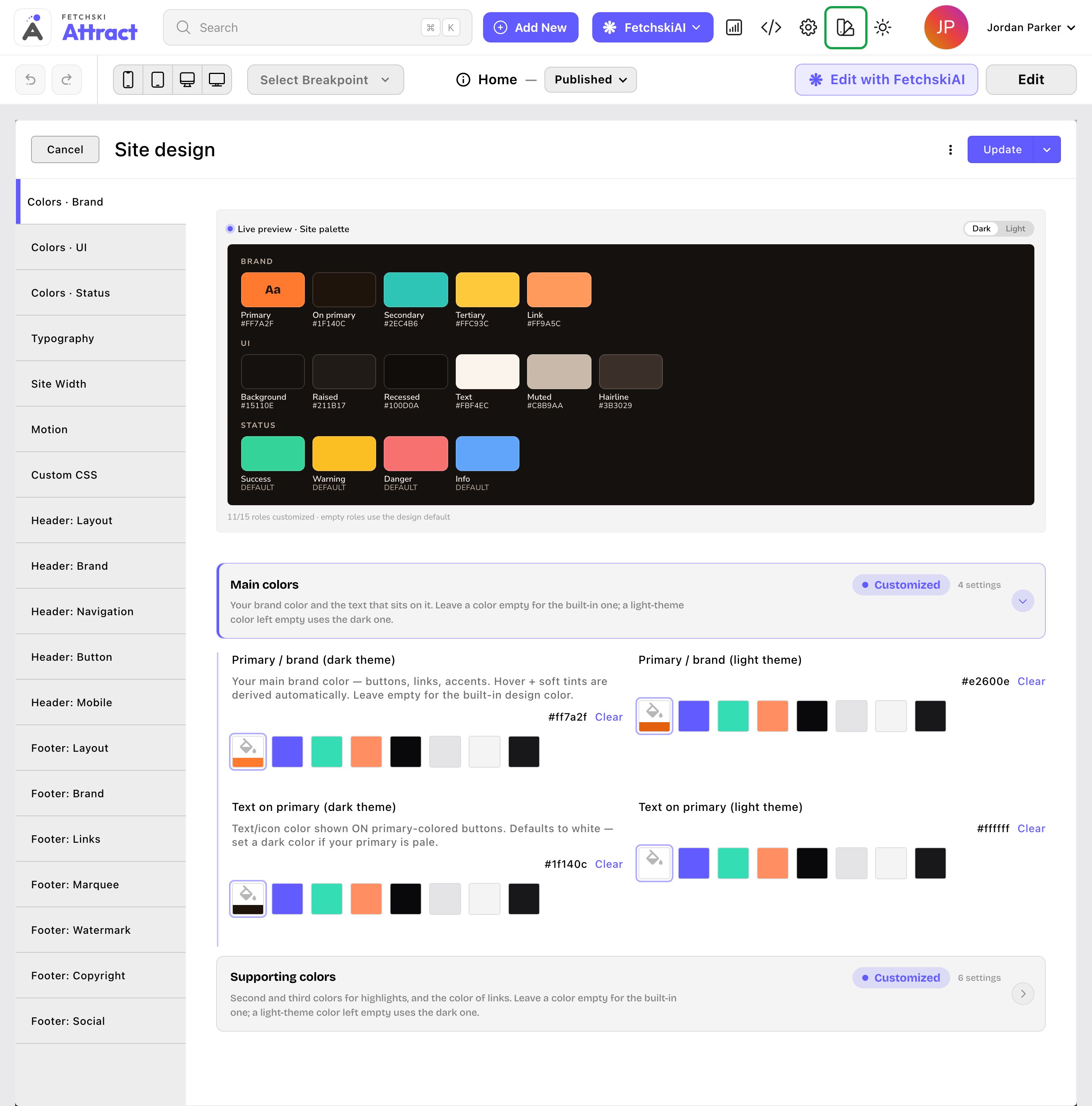
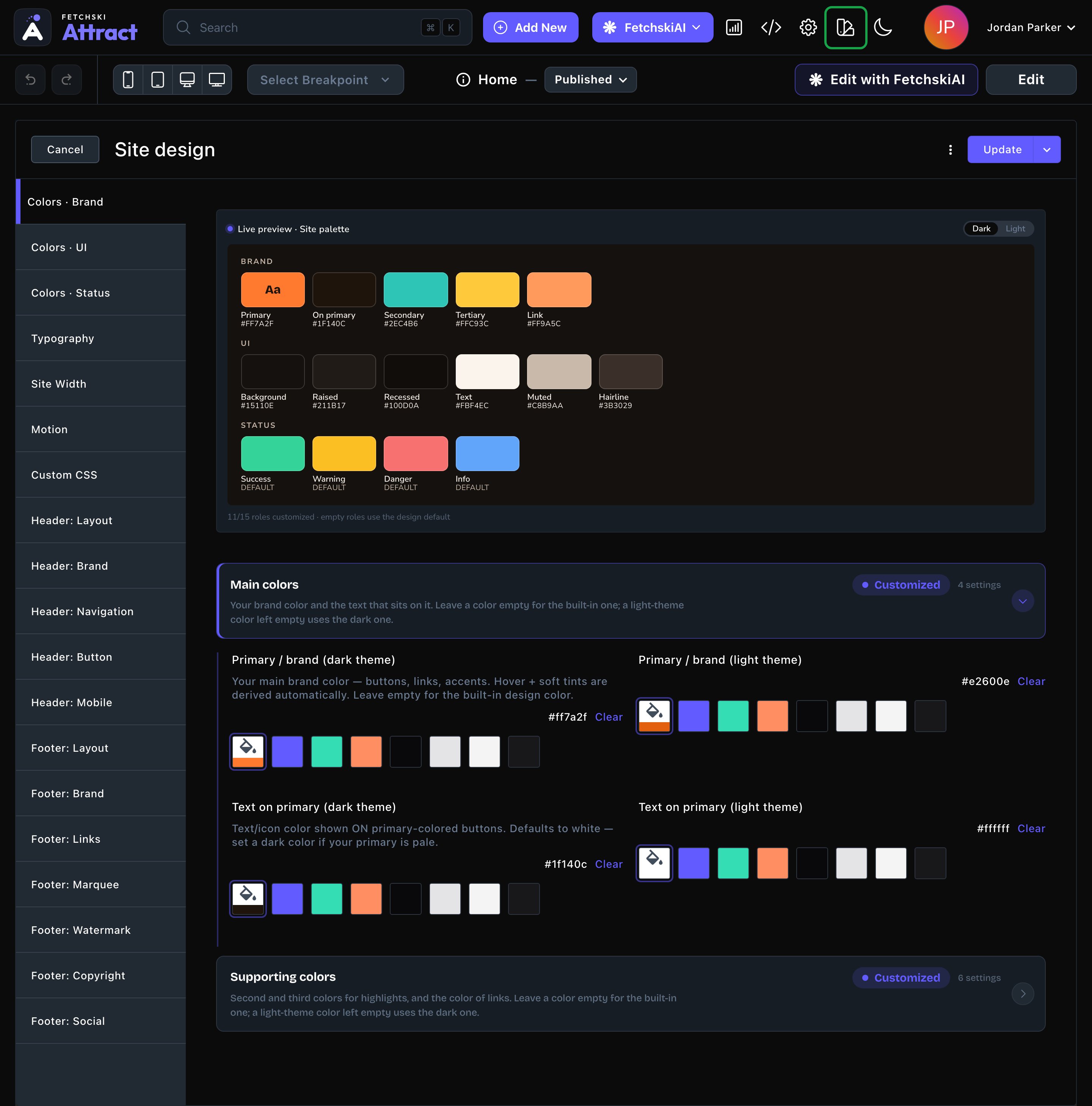
Site design, with its tabs down the left.
The tabs
The tabs appear in this order.Colors
the Colors · Brand, Colors · UI and Colors · Status tabs, your site’s color palette for light and dark.
Typography
the Typography tab, the three fonts your site uses.
Site width
the Site Width tab, how wide your page content gets on big screens.
Motion
the Motion tab, one switch for the animations on your site.
Custom CSS
the Custom CSS tab, styling rules for when the settings aren’t enough. Admins and Owners only.
Header
the five Header: tabs, from the bar’s shape to the phone menu.
Footer
the seven Footer: tabs, from the background to your social icons.
See your changes
A few tabs show a live preview at the top, so you can try things before you save:- Colors · Brand, Colors · UI and Colors · Status open with Live preview · Site palette.
- Typography has the Typography preview, with your fonts loaded.
- Header: Button has a Live preview of the header button.
Put your changes live
Choose Update to save your changes and put them live on every page. To save without putting them live yet, open the arrow next to Update (More save options) and choose Save Draft. Your changes wait there; open the window again and choose Update when you’re ready to put them live. Cancel closes the window without saving.

Update puts your design live. More save options lets you save a draft.
Where to start
On a new site, work through the tabs in this order:- Colors. Set your primary color and your backgrounds. See Colors.
- Typography. Choose a headings font and a body text font. See Typography.
- Header. Add your menu links and set the header button. See Header.
- Footer. Add your footer links and the copyright line. See Footer.
Good to know
- One change, every page. Site design applies to your whole site at once. Sections can still set their own background and fonts, and pages their own fonts. See What every section shares.
- Everything works in light and dark. Most color settings have a box for each theme, so your site looks right whichever theme a visitor picks.
- FetchskiAI can help. Ask the FetchskiAI Agent to suggest colors or fonts. Admins and Owners can let it change them for you.
Related
Site settings
your business name, logo and contact details.
Buttons and card styles
the button and card looks your sections share.
The toolbar and the command palette
every way to open a screen.