Add a chat window, an analytics tag, an ad pixel or any code a service gives you, and keep your policies and cookie banner right.
Embed scripts put outside services on your site: a chat window, an analytics tag, an ad pixel, or any code a service hands you to paste. Pick the service and paste its code. Attract keeps your cookie banner and your policy pages in step with it.Who can do this: Admins and Owners. A script runs on public pages, so Editors and Contributors can’t add one.
Before you start
Get the code from the service you’re adding. Each code is unique to your account, so Attract never writes it for you. The steps below show where each listed service keeps it.
Decide where it should run: every page, or only some.
For a service that tracks visitors, such as an ad pixel, set up your cookie banner first. See Cookie consent.
Add a script
1
Open Embed Scripts
Open the command palette (⌘K, or Ctrl+K on Windows) and choose Embed Scripts. The shortcut is G then Shift+S (press G, let go, then hold Shift and press S, while you’re not typing in a box; see Keyboard shortcuts).
2
Start a new one
Choose New Embed Script. The editor opens on the Script tab.
3
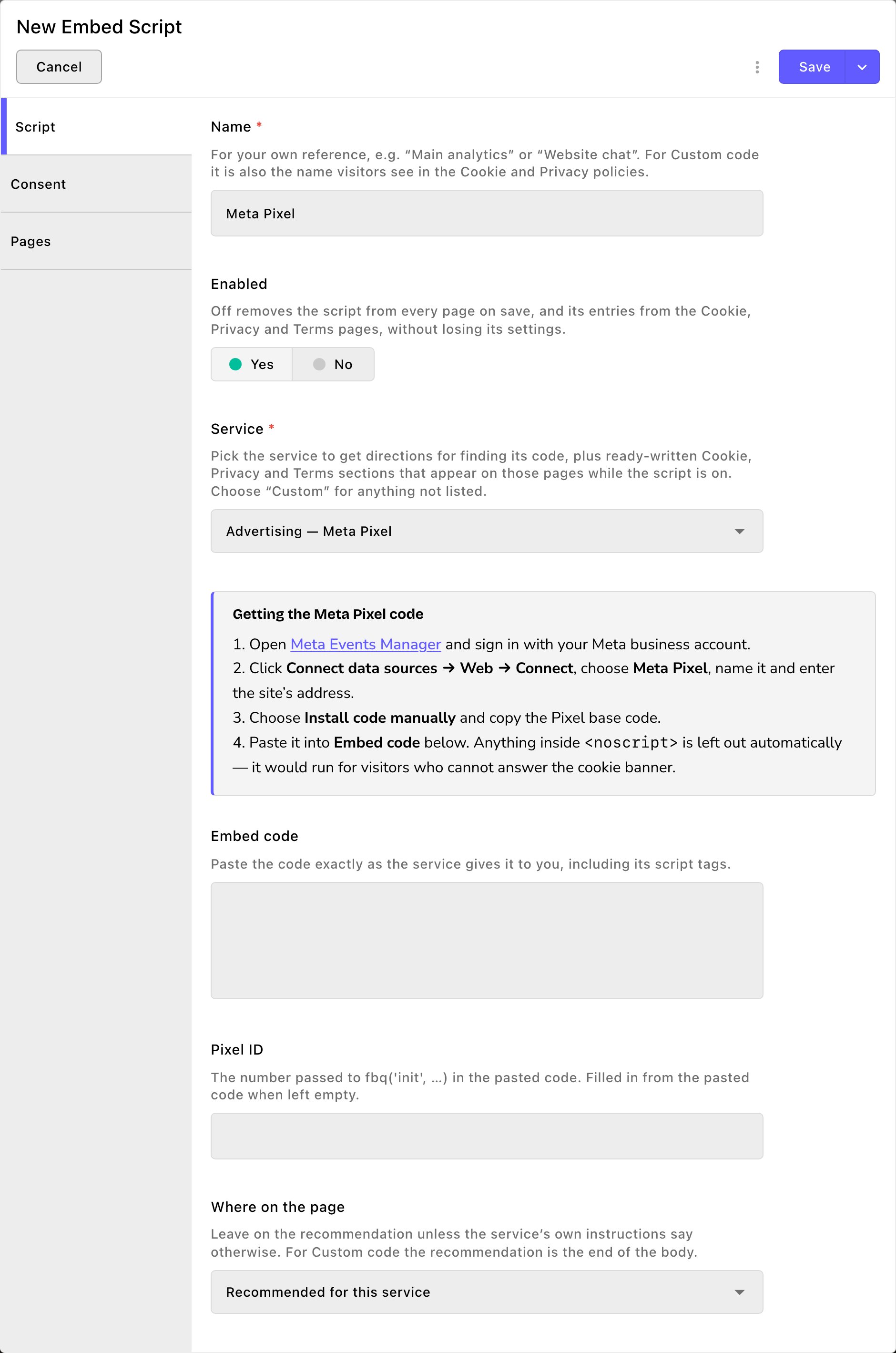
Pick the service
On the Script tab:
Name: for your own reference, such as “Website chat”.
Service: the service you’re adding. The list is grouped by kind:
chat, such as Chat — Fetchski WebChat (recommended) or Chat — Intercom;
analytics, such as Analytics — Google Analytics 4 (Google tag);
Tag manager — Google Tag Manager;
ad pixels: Advertising — Google Ads (Google tag), Advertising — Meta Pixel and Advertising — TikTok Pixel.
For anything else, choose Custom — paste any embed code.
4
Get the code
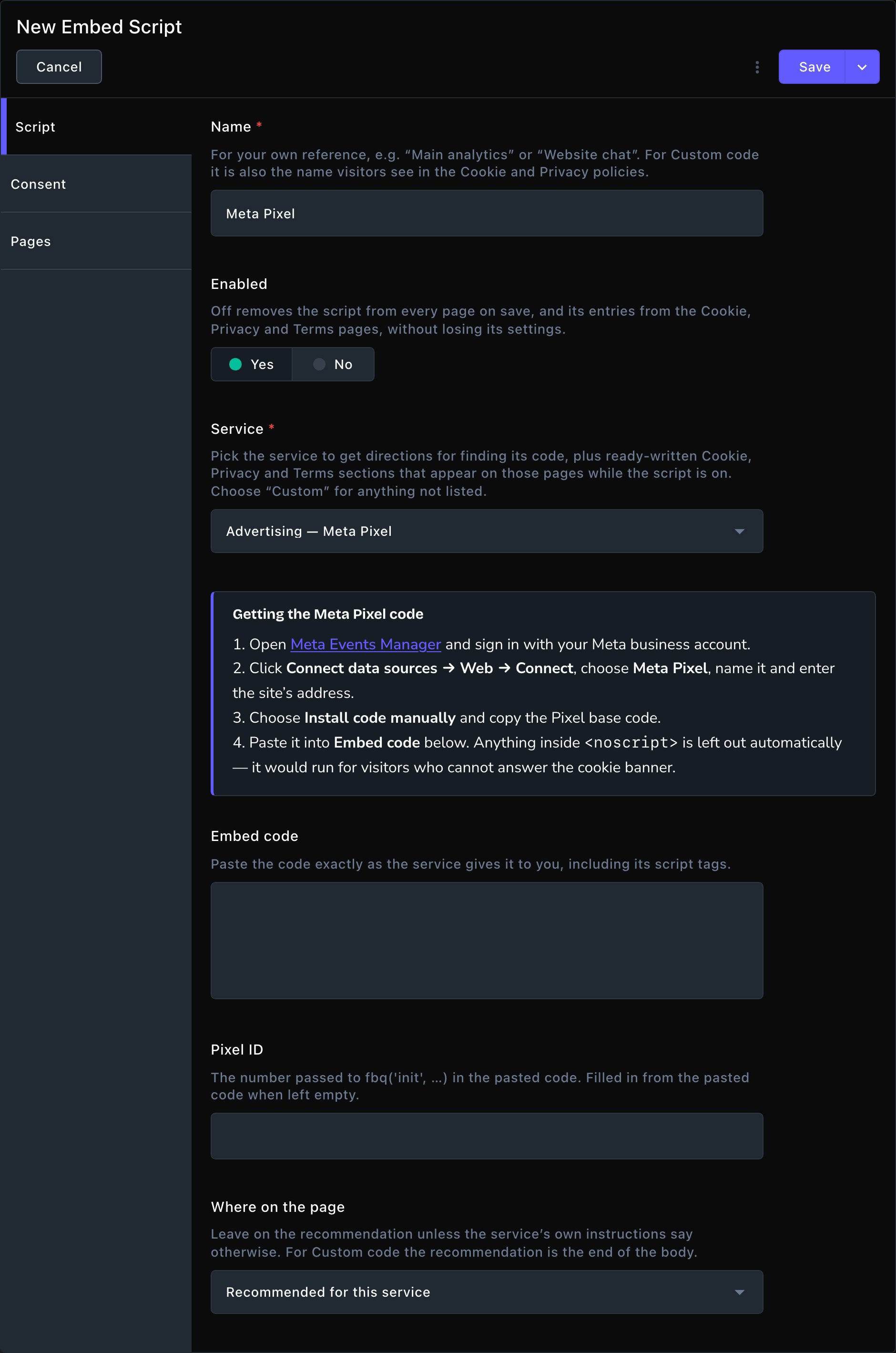
For a listed service, a card named Getting the … code appears, such as Getting the Meta Pixel code. Follow its steps on the service’s own site and copy the code.
Each listed service comes with steps for finding its code.
5
Paste it
Paste the whole code into Embed code, exactly as the service gave it. It usually starts with <script and ends with </script> (its script tags): copy those too.
For an ad or analytics service, an ID box appears too: Google Ads tag ID, Measurement ID, Container ID or Pixel ID. Leave it empty and it’s filled in from the code when you save.
Where on the page: keep Recommended for this service unless the service’s own steps say otherwise. This is where the code sits in the page’s hidden code, not where anything shows: the head is a hidden part that loads first, the body holds the page itself. A chat window still appears in its usual corner either way.
6
Describe a custom service
For Custom — paste any embed code only, fill in these fields. Your Cookie and Privacy policies name the provider and link to its policy.
Provider: the company behind the code, such as “Acme Chat Ltd.”
Provider domain (optional): just the domain the code loads from, such as acmechat.com, with no https:// and no page.
Provider’s privacy policy (optional, but expected): the full web address of the company’s privacy policy page, such as https://acmechat.com/privacy.
Separately, on the Legal tab, you can write your own wording for its Privacy Policy section and Terms section (both optional).
7
Check its consent
On the Consent tab, keep Consent category on Recommended for this service. Leave List its cookies on the Cookie Policy on.
8
Choose its pages
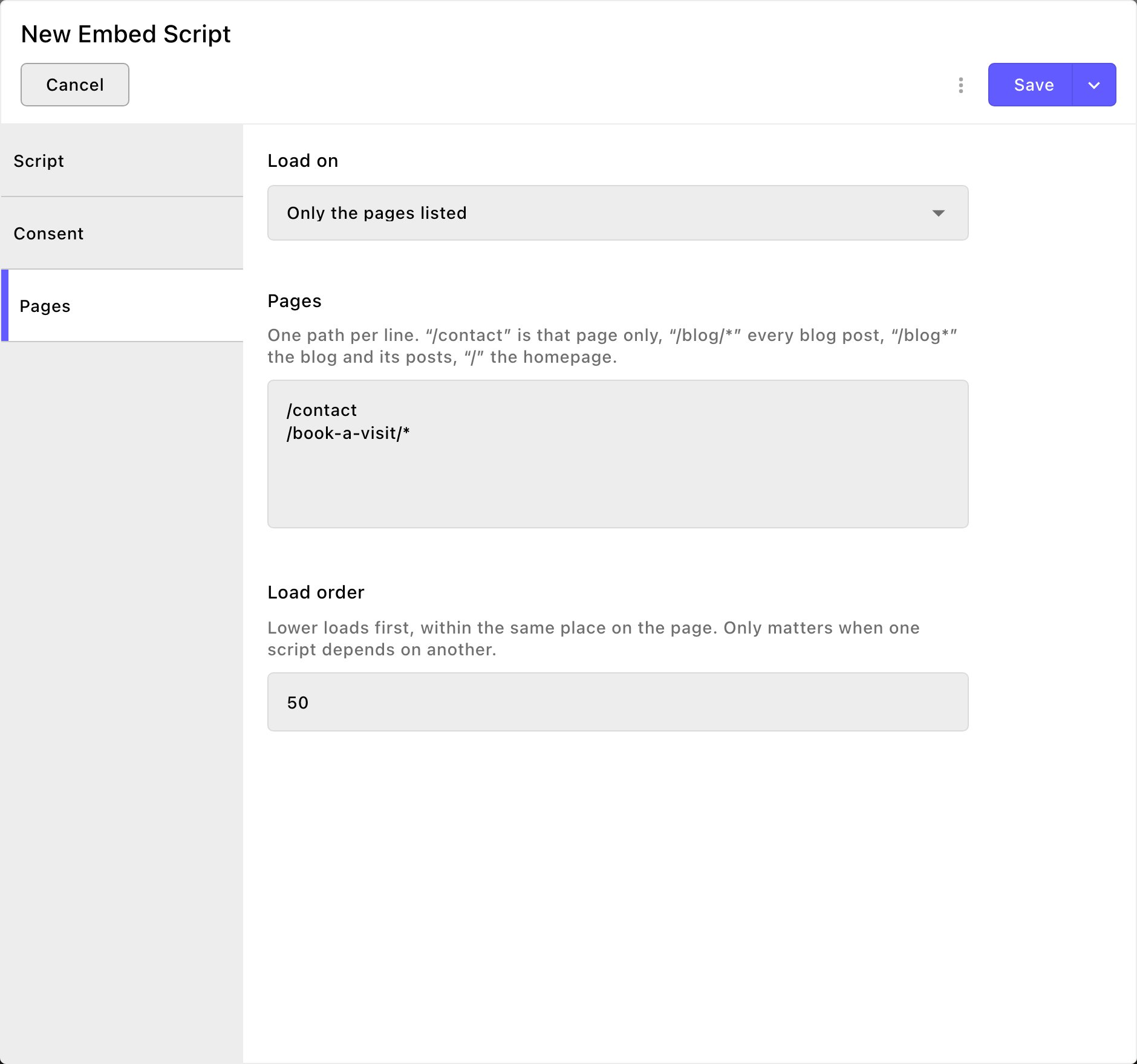
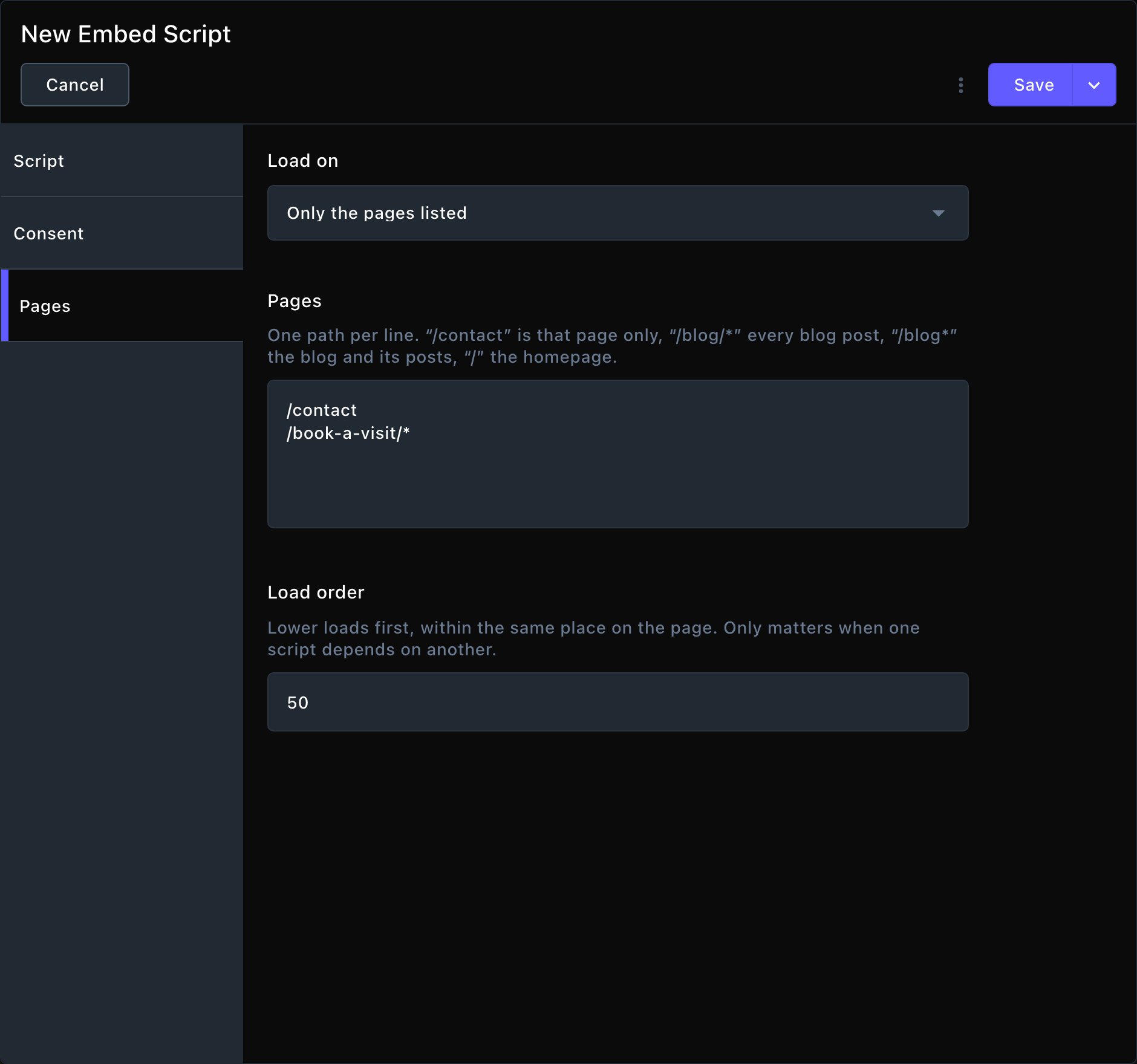
On the Pages tab, set Load on to Every page, Only the pages listed or Every page except those listed. List pages in Pages, one per line.
Run a script everywhere, or only where you need it.
9
Save it
Choose Save. The script goes live on your site right away.
Page lists
In Pages, write one page per line:
/contact is that page only.
A * at the end means “anything after this”. So /blog/* is every blog post, but not the blog page itself. /blog* is the blog page and every post.
/ is the home page only.
You can paste a full web address. Only the page part counts, and capitals and a trailing slash don’t matter.
What happens next
A script has no draft. It goes live as soon as you save. To take it off every page at once, turn off Enabled. Its settings stay.Your policy pages update by themselves:
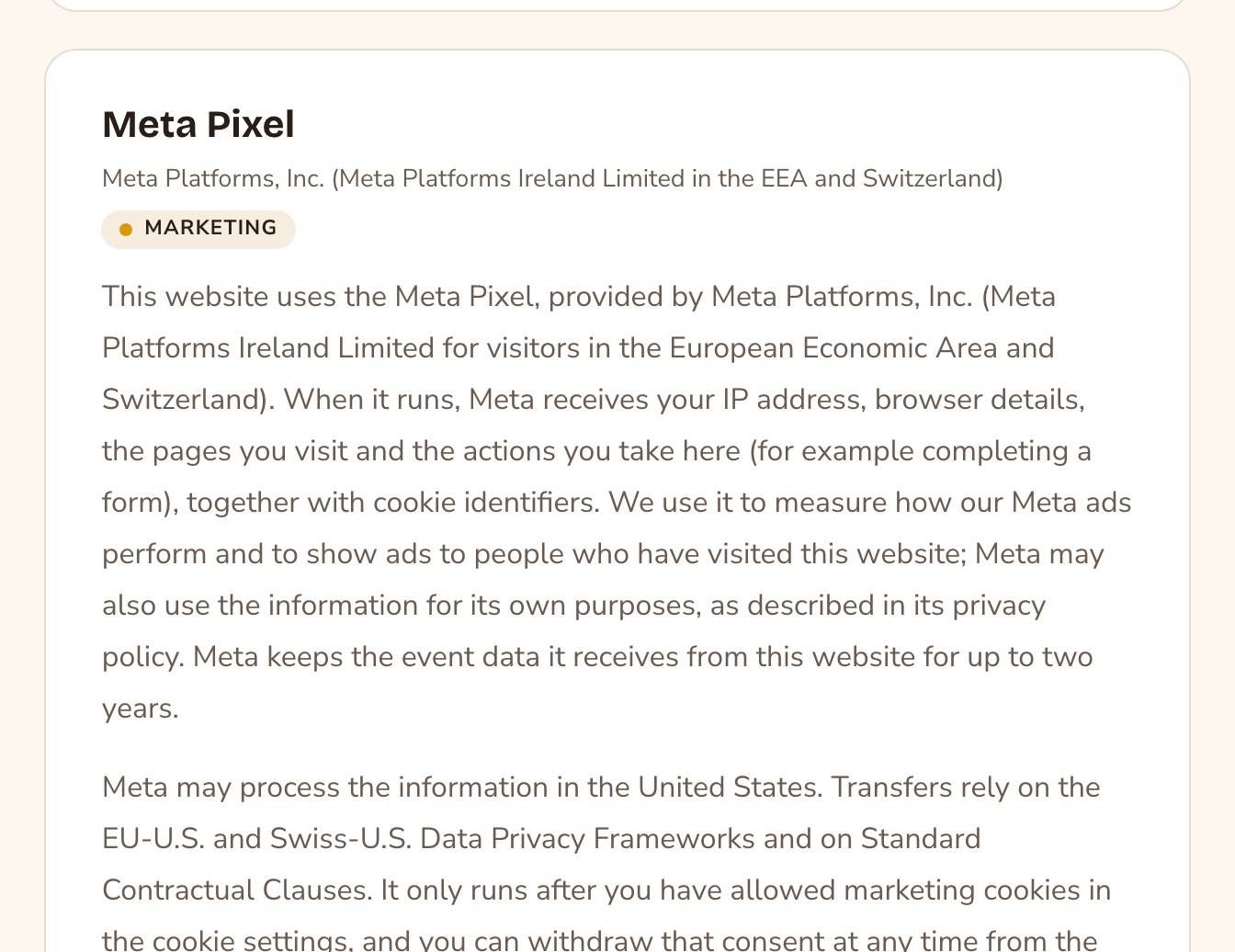
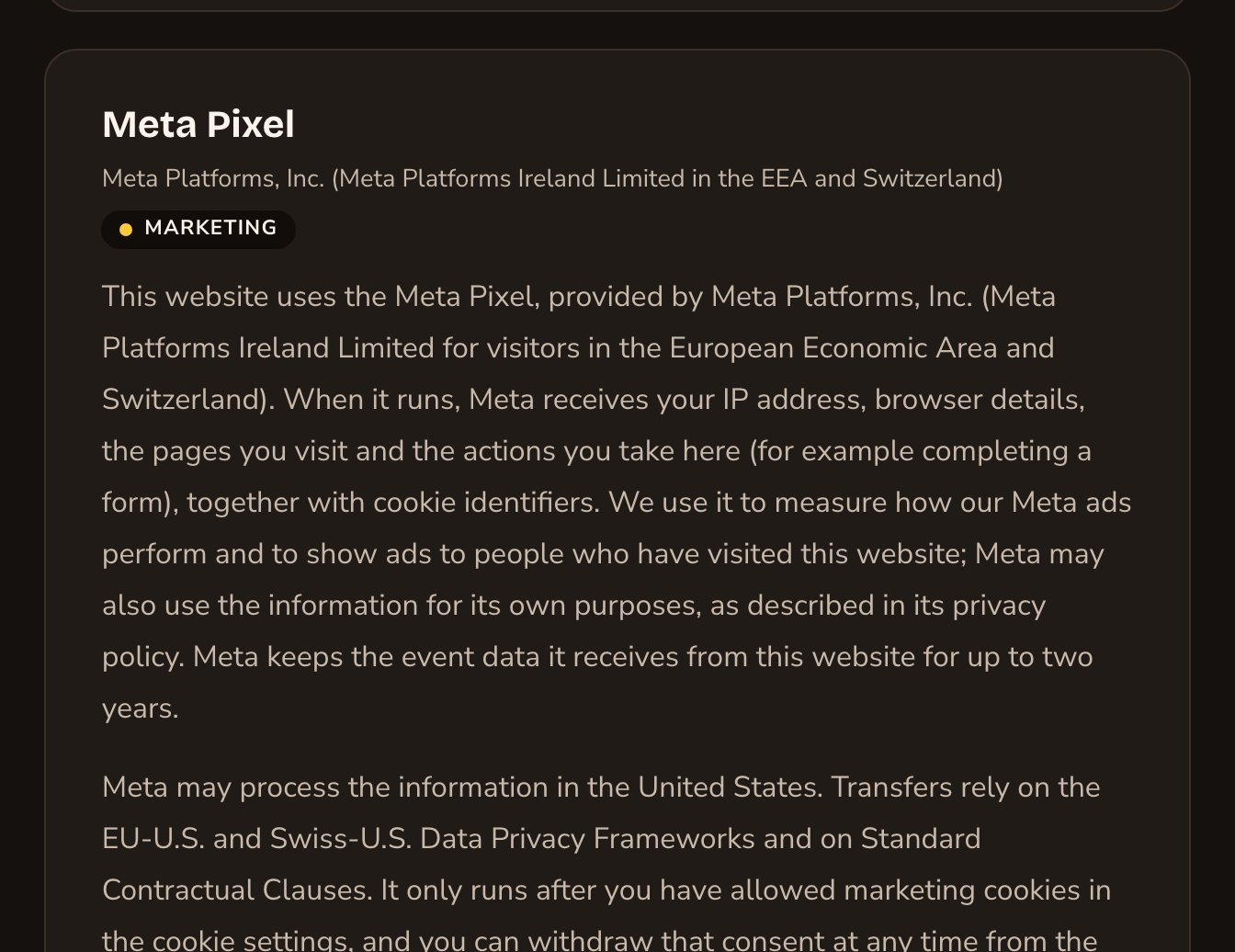
The Privacy Policy and Terms and Conditions pages gain a Third-party services section for each listed service that’s on. Not every service adds to the Terms, but chat services do. The section sits below your own text and shows a Last changed date.
The Cookie Policy lists each cookie the service sets, in the cookie list. You can reword those entries.
Turning a service off removes its sections. Your own policy text is never touched.
When a save starts collecting new visitor data, your visitors are asked for consent again. You see this notice: “What this site does with visitor data changed, so the cookie policy version is now … and visitors will be asked again.”
Your Privacy Policy describes each service while it's on.
Good to know
Scripts follow the cookie banner. A script in Analytics, Marketing or Functional runs only while a visitor allows that kind. Where visitors must opt in, it waits until they agree, and the service hears nothing about them before that. Where the banner is only a notice, it runs straight away and stops if they decline (How the banner works). A chat window appears the moment a visitor agrees, with no reload.
Choose Strictly necessary with care. A script in Strictly necessary runs for every visitor, with no way to decline. Use it only if your site can’t work without it.
With the cookie banner off, new visitors get only Strictly necessary scripts. Nobody can agree to the rest. A visitor who already made a choice while the banner was on keeps getting what they allowed.
A tag manager takes on what it loads. Google Tag Manager starts as Analytics. If your container also fires ad tags, set its Consent category to Marketing.
Some pasted code is left out on purpose. Many services add a backup part for browsers with JavaScript (the language scripts run in) turned off; it starts with <noscript>. Those visitors can’t answer the cookie banner, so Attract removes that part for you. You don’t need to do anything.
Animated page changes. Your site can move between pages smoothly. Some services and some custom code break when it does, so while one of those is on, your site uses ordinary page loads instead. If you know your custom code works with them, turn on Keeps working with animated page transitions on the Pages tab.
Fetchski WebChat has extra, optional fields on its Legal tab about the chat’s AI. They change what your Privacy Policy says about it. If you turn on Ask visitors to consent again when the AI changes, a change to the chat’s AI also asks every visitor for consent again.
Troubleshooting
Paste the whole snippet, including its <script> tags — this looks like bare JavaScript.
You pasted only the inside of the code. Copy it again from the service, including the opening and closing script tags, and paste all of it.
… Check you copied the whole snippet.
Part of the code is missing, such as a closing tag. Copy the whole code again from the service and paste it in place of the old one.
That is only the <noscript> fallback. Paste the <script> part of the code.
You copied the no-JavaScript part only. Go back to the service and copy the main part of the code.
… can’t go in the head — choose “Body start” or “Body end” for this snippet.
This code holds something that can’t go in the head, the hidden part of the page that loads first. Change Where on the page to one of the two Body choices (start or end), then save again. Nothing visible on your page moves.
List at least one page path, or choose “Every page”.
Load on is set to Only the pages listed, but Pages is empty. Add at least one page, or choose Every page.
A warning says the code loads from somewhere else
The script saves, but you see “The pasted code loads from …, not …”. The code probably belongs to another service. Check you picked the right Service, because your policies describe the service you picked.
Related
Cookie consent
the banner that asks visitors first.
Conversion tracking
report bookings and leads to your ad platforms.
Legal details
the business details your policies use.
Cookie Declaration
show your cookie list on a page.
⌘I
{"docsConfig":{"theme":"almond","$schema":"https://mintlify.com/docs.json","name":"Fetchski Attract Docs","colors":{"primary":"#16a34a","light":"#22c55e","dark":"#15803d"},"logo":{"light":"https://mintcdn.com/fetchski-attract-api/mn9qfQRsqaASh7UE/logo/light.svg?fit=max\u0026auto=format\u0026n=mn9qfQRsqaASh7UE\u0026q=85\u0026s=66db13e248b70a44a5ff5f6990d4cb63","dark":"https://mintcdn.com/fetchski-attract-api/mn9qfQRsqaASh7UE/logo/dark.svg?fit=max\u0026auto=format\u0026n=mn9qfQRsqaASh7UE\u0026q=85\u0026s=86904ba8d47714303521b2dcd5aa2a50","href":"/"},"favicon":"https://mintcdn.com/fetchski-attract-api/mn9qfQRsqaASh7UE/favicon.svg?fit=max\u0026auto=format\u0026n=mn9qfQRsqaASh7UE\u0026q=85\u0026s=fd4f2c0615961c9e01c9762b98c8999f","api":{"playground":{"display":"interactive"},"examples":{"defaults":"required","languages":["bash","typescript","php"]}},"appearance":{"default":"dark"},"background":{"color":{"light":"#ffffff","dark":"#0b0e13"}},"search":{"prompt":"Search the docs…"},"seo":{"metatags":{"robots":"noindex, nofollow"}},"fonts":{"family":"Inter"},"icons":{"library":"fontawesome"},"styling":{"codeblocks":"dark","latex":true},"contextual":{"options":["copy","view"],"display":"header"},"navigation":{"pages":[]}},"deployment":{"deploymentMetadataValue":{"subdomain":"fetchski-attract-api","hasAudioNarration":false,"actualSubdomain":"fetchski-attract-api","customDomains":["docs.fetchski-attract.com"],"gitSource":{"type":"github","owner":"fetchski","repo":"fetchski_cms_astro_monorepo","deployBranch":"main","contentDirectory":"docs/attract","isPrivate":true,"mountPath":"","label":"","_id":"6adb9c232f0947a18a27541d"},"entitlements":{},"buildId":"6af6df04bd8b0362cdec74ff","clientVersion":"0.0.4131","searchFilterCounts":[{"language":"default","tag":"Media","count":953},{"language":"default","tag":"Content","count":863},{"language":"default","tag":"Publishing","count":720},{"language":"default","tag":"API reference","count":484},{"language":"default","tag":"Laravel","count":472},{"language":"default","tag":"TypeScript","count":470},{"language":"default","tag":"AdonisJS","count":469},{"language":"default","tag":"Batch jobs","count":364},{"language":"default","tag":"Pages \u0026 Site","count":224},{"language":"default","tag":"Forms","count":168}]},"assistantConfig":{"enableAskAiButton":false,"enableStarterQuestions":false,"enableContextualStarterQuestions":false,"enableAskAiSearchBar":true},"basePath":"","hasChatPermissions":false,"hasWebMcpPermissions":false,"toggles":[{"name":"kill-isr","enabled":true,"variant":{"name":"disabled","enabled":false,"feature_enabled":true},"impressionData":false},{"name":"custom-rbac-roles","enabled":true,"variant":{"name":"disabled","enabled":false,"feature_enabled":true},"impressionData":false},{"name":"agent-mintlify-slack","enabled":true,"variant":{"name":"disabled","enabled":false,"feature_enabled":true},"impressionData":false},{"name":"agent-integrations-settings","enabled":true,"variant":{"name":"disabled","enabled":false,"feature_enabled":true},"impressionData":false},{"name":"rbac-expansion","enabled":true,"variant":{"name":"disabled","enabled":false,"feature_enabled":true},"impressionData":false},{"name":"automations-pr-grouping","enabled":true,"variant":{"name":"disabled","enabled":false,"feature_enabled":true},"impressionData":false},{"name":"custom-prefix","enabled":true,"variant":{"name":"disabled","enabled":false,"feature_enabled":true},"impressionData":false},{"name":"analytics-v7","enabled":true,"variant":{"name":"disabled","enabled":false,"feature_enabled":true},"impressionData":false},{"name":"user-flows-analytics","enabled":true,"variant":{"name":"disabled","enabled":false,"feature_enabled":true},"impressionData":false},{"name":"no-publish-flow","enabled":true,"variant":{"name":"disabled","enabled":false,"feature_enabled":true},"impressionData":false},{"name":"workos-onboarding","enabled":true,"variant":{"name":"disabled","enabled":false,"feature_enabled":true},"impressionData":false},{"name":"snapshot-serving-live","enabled":true,"variant":{"name":"disabled","enabled":false,"feature_enabled":true},"impressionData":false},{"name":"stripTemperatureMiddleware","enabled":true,"variant":{"name":"disabled","enabled":false,"feature_enabled":true},"impressionData":false},{"name":"support-platform-pylon-zendesk","enabled":true,"variant":{"name":"disabled","enabled":false,"feature_enabled":true},"impressionData":false},{"name":"snapshot-serving","enabled":true,"variant":{"name":"disabled","enabled":false,"feature_enabled":true},"impressionData":false},{"name":"instant-rollback","enabled":true,"variant":{"name":"disabled","enabled":false,"feature_enabled":true},"impressionData":false},{"name":"granular-notifications-server","enabled":true,"variant":{"name":"disabled","enabled":false,"feature_enabled":true},"impressionData":false},{"name":"granular-notifications","enabled":true,"variant":{"name":"disabled","enabled":false,"feature_enabled":true},"impressionData":false},{"name":"automations-fable","enabled":true,"variant":{"name":"disabled","enabled":false,"feature_enabled":true},"impressionData":false},{"name":"fixed-ai-action-pricing","enabled":true,"variant":{"name":"disabled","enabled":false,"feature_enabled":true},"impressionData":false},{"name":"automation-resolve-merge-conflict","enabled":true,"variant":{"name":"disabled","enabled":false,"feature_enabled":true},"impressionData":false},{"name":"scoped-publishing","enabled":true,"variant":{"name":"disabled","enabled":false,"feature_enabled":true},"impressionData":false},{"name":"mintql","enabled":true,"variant":{"name":"disabled","enabled":false,"feature_enabled":true},"impressionData":false},{"name":"page-level-analytics","enabled":true,"variant":{"name":"disabled","enabled":false,"feature_enabled":true},"impressionData":false},{"name":"editor-version-history-v2","enabled":true,"variant":{"name":"disabled","enabled":false,"feature_enabled":true},"impressionData":false},{"name":"billing-page-v2","enabled":true,"variant":{"name":"disabled","enabled":false,"feature_enabled":true},"impressionData":false},{"name":"full-page-search","enabled":true,"variant":{"name":"disabled","enabled":false,"feature_enabled":true},"impressionData":false},{"name":"workspace-projects","enabled":true,"variant":{"name":"disabled","enabled":false,"feature_enabled":true},"impressionData":false},{"name":"assistant-v5","enabled":true,"variant":{"name":"disabled","enabled":false,"feature_enabled":true},"impressionData":false},{"name":"fork-pr-previews","enabled":true,"variant":{"name":"disabled","enabled":false,"feature_enabled":true},"impressionData":false},{"name":"revalidation-jwt","enabled":true,"variant":{"name":"disabled","enabled":false,"feature_enabled":true},"impressionData":false},{"name":"workos-sso-scim","enabled":true,"variant":{"name":"disabled","enabled":false,"feature_enabled":true},"impressionData":false},{"name":"hobby-abuse-scan","enabled":true,"variant":{"name":"disabled","enabled":false,"feature_enabled":true},"impressionData":false},{"name":"dashboard-inbox","enabled":true,"variant":{"name":"disabled","enabled":false,"feature_enabled":true},"impressionData":false},{"name":"workos-signup","enabled":true,"variant":{"name":"disabled","enabled":false,"feature_enabled":true},"impressionData":false},{"name":"turbopuffer-dual-write","enabled":true,"variant":{"name":"disabled","enabled":false,"feature_enabled":true},"impressionData":false},{"name":"workos-enabled","enabled":true,"variant":{"name":"disabled","enabled":false,"feature_enabled":true},"impressionData":false},{"name":"approve-review-flow","enabled":true,"variant":{"name":"disabled","enabled":false,"feature_enabled":true},"impressionData":false},{"name":"editor-metadata","enabled":true,"variant":{"name":"disabled","enabled":false,"feature_enabled":true},"impressionData":false},{"name":"sso-setup-deadline-banner","enabled":true,"variant":{"name":"disabled","enabled":false,"feature_enabled":true},"impressionData":false},{"name":"turbopuffer-serve","enabled":true,"variant":{"name":"disabled","enabled":false,"feature_enabled":true},"impressionData":false},{"name":"live-agents","enabled":true,"variant":{"name":"disabled","enabled":false,"feature_enabled":true},"impressionData":false},{"name":"llms-txt-v2","enabled":true,"variant":{"name":"disabled","enabled":false,"feature_enabled":true},"impressionData":false}],"googleFontsInlined":false},"customCss":[{"filePath":"style.css","content":"@media (min-width: 1280px){:root{--content-width: 52rem}}@media (min-width: 1600px){:root{--content-width: 60rem}}@media (min-width: 1920px){:root{--content-width: 68rem}}@media (min-width: 1024px) and (max-width: 1919px){#content-container{padding-left:2rem;padding-right:2rem}div:has(>#content-area){padding-left:0}#table-of-contents{width:14rem}}html[data-page-mode=\"wide\"] #content-area{max-width:84rem}@media (min-width: 1024px){#navbar .nav-tabs{position:fixed;left:15rem;top:0;height:6rem}}@media (min-width: 1024px) and (max-width: 1599px){#navbar .nav-tabs{gap:0}#navbar .nav-tabs .nav-tabs-item{gap:0.375rem;font-size:0.9375rem;padding-inline:0.5rem}#navbar .nav-tabs .nav-tabs-item svg,#navbar .nav-tabs .nav-tabs-item img{width:1.0625rem;height:1.0625rem}}@media (min-width: 1024px) and (max-width: 1199px){#navbar .nav-tabs .nav-tabs-item svg,#navbar .nav-tabs .nav-tabs-item img{display:none}}@media (min-width: 1024px) and (max-width: 1319px){div:has(>#search-bar-entry){width:3rem!important}#search-bar-entry{justify-content:center;padding:0!important}#search-bar-entry>div>:not(svg),#search-bar-entry>:not(div){display:none}}.mdx-content{font-size:1.0625rem;line-height:1.8}@media (min-width: 1024px){.mdx-content{font-size:1.25rem;line-height:1.85}#page-title{font-size:2.875rem;line-height:1.15}#page-title+*,#header .prose{font-size:1.375rem}#sidebar-content a{font-size:1.125rem}.toc-item{font-size:1rem}}.mdx-content>[data-as=\"p\"],.mdx-content>p{margin-top:0;margin-bottom:1.75rem}.mdx-content>h2{margin-top:3.5rem;margin-bottom:1.25rem;padding-top:2rem;border-top:1px solid rgb(0 0 0 / 0.08);font-size:1.875rem;letter-spacing:-0.01em}.dark .mdx-content>h2{border-top-color:rgb(255 255 255 / 0.08)}.mdx-content>h2:first-child{margin-top:0;padding-top:0;border-top:0}.mdx-content>h3{margin-top:2.75rem;margin-bottom:1.125rem;font-size:1.4375rem}.mdx-content>h4{margin-top:2rem;margin-bottom:0.75rem}.mdx-content li{margin-top:0.625rem;margin-bottom:0.625rem}.mdx-content>ul,.mdx-content>ol{margin-bottom:1.75rem}.mdx-content :not(pre)>code{font-size:0.875em;padding:0.125rem 0.375rem;overflow-wrap:anywhere}.mdx-content table{font-size:1.0625rem;line-height:1.7}.mdx-content th,.mdx-content td{padding:0.875rem 1.5rem 0.875rem 0!important;vertical-align:top}.mdx-content th{padding-top:0.25rem!important}.mdx-content th:last-child,.mdx-content td:last-child{padding-right:0!important}.mdx-content td>code:only-child{white-space:nowrap}pre{max-height:36rem;overflow:auto}.mdx-content pre code{font-size:0.9375rem;line-height:1.75}.mdx-content>.code-block,.mdx-content>.code-group{margin-top:1.5rem;margin-bottom:2rem}.mdx-content .columns{column-gap:1.25rem;row-gap:0.5rem;margin-top:1.75rem;margin-bottom:2.25rem}.mdx-content .card{border-radius:1rem}.mdx-content .card [data-component-part=\"card-content-container\"]{padding:1.5rem 1.75rem}.mdx-content [data-component-part=\"card-title\"]{font-size:1.25rem}.mdx-content [data-component-part=\"card-content\"]{font-size:1.0625rem;line-height:1.7}.mdx-content .callout{margin-top:2rem;margin-bottom:2.25rem;padding:1.25rem 1.75rem;font-size:1.125rem;line-height:1.75}.mdx-content .steps{margin-top:1.75rem;margin-bottom:2.25rem}.mdx-content .step{padding-bottom:0.75rem}.mdx-content .accordion-group,.mdx-content>.accordion{margin-top:1.75rem;margin-bottom:2.25rem}.mdx-content .tabs{margin-top:1.75rem;margin-bottom:2.25rem}.mdx-content .tabs [role=\"tabpanel\"]{padding-top:0.375rem;padding-right:0.375rem;padding-bottom:0.375rem}.mdx-content [data-component-name=\"mermaid-container\"]{--im-node-fill: #ecfdf3;--im-node-stroke: #16a34a;--im-node-text: #0b3a1f;--im-cluster-fill: rgb(22 163 74 / 0.04);--im-cluster-stroke: rgb(22 163 74 / 0.35);--im-edge: #64748b;--im-label-bg: #ffffff;margin-top:1.75rem;margin-bottom:2.25rem;padding:2rem 1.5rem;border:1px solid rgb(0 0 0 / 0.08);border-radius:1rem;background:rgb(0 0 0 / 0.015)}.dark .mdx-content [data-component-name=\"mermaid-container\"]{--im-node-fill: #0b2e1a;--im-node-stroke: #22c55e;--im-node-text: #e7fbef;--im-cluster-fill: rgb(34 197 94 / 0.05);--im-cluster-stroke: rgb(34 197 94 / 0.35);--im-edge: #94a3b8;--im-label-bg: #0f1214;border-color:rgb(255 255 255 / 0.08);background:rgb(255 255 255 / 0.02)}.mdx-content [data-component-name=\"mermaid-container\"] svg[id^=\"mermaid\"]{display:block;margin-left:auto;margin-right:auto}.mdx-content [data-component-name=\"mermaid-container\"] .node rect,.mdx-content [data-component-name=\"mermaid-container\"] .node polygon,.mdx-content [data-component-name=\"mermaid-container\"] .node circle,.mdx-content [data-component-name=\"mermaid-container\"] .node path{fill:var(--im-node-fill)!important;stroke:var(--im-node-stroke)!important;stroke-width:1.5px!important}.mdx-content [data-component-name=\"mermaid-container\"] .node rect{rx:8px;ry:8px}.mdx-content [data-component-name=\"mermaid-container\"] .nodeLabel,.mdx-content [data-component-name=\"mermaid-container\"] .node .label{color:var(--im-node-text)!important;fill:var(--im-node-text)!important}.mdx-content [data-component-name=\"mermaid-container\"] .cluster rect{fill:var(--im-cluster-fill)!important;stroke:var(--im-cluster-stroke)!important;stroke-dasharray:6 4;rx:12px;ry:12px}.mdx-content [data-component-name=\"mermaid-container\"] .cluster-label .nodeLabel,.mdx-content [data-component-name=\"mermaid-container\"] .cluster .nodeLabel{color:var(--im-node-stroke)!important}.mdx-content [data-component-name=\"mermaid-container\"] .flowchart-link,.mdx-content [data-component-name=\"mermaid-container\"] .edgePath path{stroke:var(--im-edge)!important;stroke-width:1.5px!important}.mdx-content [data-component-name=\"mermaid-container\"] marker path,.mdx-content [data-component-name=\"mermaid-container\"] .arrowheadPath{fill:var(--im-edge)!important;stroke:var(--im-edge)!important}.mdx-content [data-component-name=\"mermaid-container\"] .edgeLabel,.mdx-content [data-component-name=\"mermaid-container\"] .edgeLabel p,.mdx-content [data-component-name=\"mermaid-container\"] .labelBkg{background-color:var(--im-label-bg)!important;color:var(--im-edge)!important}.mdx-content [data-component-name=\"mermaid-container\"] rect.actor{fill:var(--im-node-fill)!important;stroke:var(--im-node-stroke)!important;stroke-width:1.5px!important;rx:8px;ry:8px}.mdx-content [data-component-name=\"mermaid-container\"] text.actor>tspan,.mdx-content [data-component-name=\"mermaid-container\"] text.actor{fill:var(--im-node-text)!important}.mdx-content [data-component-name=\"mermaid-container\"] .actor-line{stroke:var(--im-cluster-stroke)!important}.mdx-content [data-component-name=\"mermaid-container\"] .messageLine0,.mdx-content [data-component-name=\"mermaid-container\"] .messageLine1{stroke:var(--im-edge)!important;stroke-width:1.5px!important}.mdx-content [data-component-name=\"mermaid-container\"] #arrowhead path,.mdx-content [data-component-name=\"mermaid-container\"] #crosshead path{fill:var(--im-edge)!important;stroke:var(--im-edge)!important}.mdx-content [data-component-name=\"mermaid-container\"] .note{fill:var(--im-cluster-fill)!important;stroke:var(--im-cluster-stroke)!important}.mdx-content .field .prose-sm{font-size:1.0625rem;line-height:1.8}@media (min-width: 1024px){.mdx-content .field .prose-sm{font-size:1.125rem}}.mdx-content .field{padding-top:1.25rem;padding-bottom:1.25rem}:root{--fa-accent: 22 163 74;--fa-ink: 15 23 42;--fa-button: 21 128 61;--fa-button-hover: 22 101 52;--fa-on-button: 255 255 255}.dark{--fa-accent: 34 197 94;--fa-ink: 255 255 255;--fa-button: 34 197 94;--fa-button-hover: 74 222 128;--fa-on-button: 5 46 22}.mdx-content .card{transition:border-color 150ms ease,\n background-color 150ms ease}.mdx-content a.card:hover,.mdx-content .card:has(a:hover){border-color:rgb(var(--fa-accent) / 0.45);background-color:rgb(var(--fa-accent) / 0.06)}.mdx-content .card [data-component-part=\"card-icon\"]{display:flex;width:1.75rem;height:1.75rem;margin-bottom:1rem}.mdx-content .card [data-component-part=\"card-icon\"] svg{width:1.75rem;height:1.75rem;mask-size:contain;background-color:rgb(var(--fa-accent))!important}.mdx-content .card [data-component-part=\"card-content-container\"].flex [data-component-part=\"card-icon\"]{margin-bottom:0}html[data-page-mode=\"wide\"] #header{display:none}.fa-hero{position:relative;isolation:isolate;display:grid;grid-template-columns:minmax(0, 1fr);gap:3rem;align-items:center;overflow:hidden;margin:-1.5rem 0 3.5rem;padding:3.5rem 3rem;border:1px solid rgb(var(--fa-accent) / 0.2);border-radius:1.5rem;background-color:rgb(var(--fa-accent) / 0.025);background-image:radial-gradient(\n 55% 75% at 82% 50%,\n rgb(var(--fa-accent) / 0.16),\n transparent 70%\n )}.fa-hero::before{content:'';position:absolute;inset:0;z-index:-1;background-image:linear-gradient(rgb(var(--fa-accent) / 0.1) 1px, transparent 1px),\n linear-gradient(90deg, rgb(var(--fa-accent) / 0.1) 1px, transparent 1px);background-size:2rem 2rem;background-position:-1px -1px;mask-image:radial-gradient(80% 90% at 85% 40%, #000 20%, transparent 75%);pointer-events:none}.fa-hero::after{content:'';position:absolute;top:0;right:10%;left:10%;height:1px;background:linear-gradient(\n 90deg,\n transparent,\n rgb(var(--fa-accent) / 0.8),\n transparent\n );pointer-events:none}@media (min-width: 1536px){.fa-hero{grid-template-columns:minmax(0, 0.85fr) minmax(0, 1.15fr);padding:4rem 3.5rem}}.fa-hero-code>.code-group,.fa-hero-code>.code-block{margin:0;border-color:rgb(var(--fa-accent) / 0.25);box-shadow:0 1px 0 rgb(255 255 255 / 0.04) inset,\n 0 30px 60px -24px rgb(0 0 0 / 0.55),\n 0 0 0 6px rgb(var(--fa-accent) / 0.06)}.mdx-content .fa-hero-code pre code{font-size:0.8125rem}.mdx-content .fa-hero .fa-hero-mark{margin:0 0 1.75rem}.mdx-content .fa-hero .fa-hero-mark img{display:block;width:auto;height:4rem;margin:0;border-radius:0}.mdx-content .fa-hero .fa-hero-mark .fa-hero-mark-dark,.dark .mdx-content .fa-hero .fa-hero-mark .fa-hero-mark-light{display:none}.dark .mdx-content .fa-hero .fa-hero-mark .fa-hero-mark-dark{display:block}.fa-hero h1{max-width:40rem;margin:0;font-size:3.25rem;font-weight:700;line-height:1.06;letter-spacing:-0.035em;text-wrap:balance}.fa-hero h1 .fa-hero-accent{color:rgb(var(--fa-accent))}.mdx-content .fa-hero-lede{max-width:34rem;margin:1.5rem 0 2.25rem;font-size:1.1875rem;line-height:1.7;opacity:0.78;text-wrap:pretty}.fa-hero-actions{display:flex;flex-wrap:wrap;gap:0.75rem}.mdx-content .fa-hero-facts{display:flex;flex-wrap:wrap;gap:0.5rem 1.5rem;margin-top:2rem;font-size:0.9375rem;opacity:0.8}.mdx-content .fa-hero-facts>span{display:inline-flex;align-items:center;gap:0.5rem}.mdx-content .fa-hero-facts>span::before{content:'';flex:none;width:1rem;height:1rem;background:rgb(var(--fa-accent));mask:url(\"data:image/svg+xml,%3Csvg xmlns='http://www.w3.org/2000/svg' viewBox='0 0 16 16'%3E%3Cpath d='M3.5 8.5l3 3 6-7' fill='none' stroke='%23000' stroke-width='2' stroke-linecap='round' stroke-linejoin='round'/%3E%3C/svg%3E\")\n center / contain no-repeat}.fa-button{display:inline-flex;align-items:center;gap:0.5rem;height:2.75rem;padding:0 1.125rem;border:1px solid transparent;border-radius:0.625rem;font-size:0.9375rem;font-weight:600;letter-spacing:-0.005em;text-decoration:none!important;transition:background-color 150ms ease,\n border-color 150ms ease,\n box-shadow 150ms ease,\n transform 150ms ease}.fa-button-primary{border-color:rgb(var(--fa-button) / 1);background:rgb(var(--fa-button));box-shadow:inset 0 1px 0 rgb(255 255 255 / 0.25),\n 0 8px 20px -10px rgb(var(--fa-button) / 0.9);color:rgb(var(--fa-on-button))!important}.fa-button-primary::after{content:'';width:1rem;height:1rem;background:currentcolor;mask:url(\"data:image/svg+xml,%3Csvg xmlns='http://www.w3.org/2000/svg' viewBox='0 0 16 16'%3E%3Cpath d='M3 8h9.5M8.5 4l4 4-4 4' fill='none' stroke='%23000' stroke-width='1.75' stroke-linecap='round' stroke-linejoin='round'/%3E%3C/svg%3E\")\n center / contain no-repeat;transition:transform 150ms ease}.fa-button-primary:hover{background:rgb(var(--fa-button-hover));box-shadow:inset 0 1px 0 rgb(255 255 255 / 0.25),\n 0 10px 24px -10px rgb(var(--fa-button) / 1)}.fa-button-primary:hover::after{transform:translateX(2px)}.fa-button-secondary{border-color:rgb(var(--fa-ink) / 0.16);background:rgb(var(--fa-ink) / 0.03);color:inherit!important}.fa-button-secondary:hover{border-color:rgb(var(--fa-accent) / 0.55);background:rgb(var(--fa-accent) / 0.08)}.fa-button:active{transform:translateY(1px)}.fa-button:focus-visible{outline:2px solid rgb(var(--fa-accent));outline-offset:3px}@media (prefers-reduced-motion: reduce){.fa-button,.fa-button-primary::after{transition:none}.fa-button:active,.fa-button-primary:hover::after{transform:none}}@media (max-width: 767px){.fa-hero{padding:2.5rem 1.5rem}.fa-hero h1{font-size:2.25rem}}#sidebar-content a,#sidebar-content li>button{gap:0.875rem;padding-top:0.625rem;padding-right:0.5rem;padding-bottom:0.625rem;font-size:1.125rem;line-height:1.45}#sidebar-content li+li{margin-top:0.25rem}#sidebar-content li>button>div:nth-child(2){min-width:0}#sidebar-content li>button>div:last-child{width:1.25rem;margin-left:auto;justify-content:center}#sidebar-content li>ul{margin:0.25rem 0 0.25rem 1.25rem;padding-left:0.375rem;border-left:1px solid rgb(0 0 0 / 0.1)}.dark #sidebar-content li>ul{border-left-color:rgb(255 255 255 / 0.1)}#sidebar-content li>ul>li>:is(a,button){padding-left:0.75rem!important;font-size:1.0625rem}#sidebar-content .sidebar-group-header{margin-bottom:0.625rem;font-size:0.875rem;font-weight:700;letter-spacing:0.08em;text-transform:uppercase;color:color-mix(in srgb, rgb(var(--fa-accent)) 72%, black)}.dark #sidebar-content .sidebar-group-header{color:rgb(var(--fa-accent))}#sidebar-content div:has(>.sidebar-group-header)+div:has(>.sidebar-group-header){margin-top:2.25rem}#sidebar-content a svg,#sidebar-content a img,#sidebar-content li>button>div:first-child svg,#sidebar-content li>button>div:first-child img{width:1.375rem;height:1.375rem}#sidebar-content .sidebar-group-header svg{width:1rem;height:1rem}.nav-tabs-item{gap:0.625rem;font-size:1.0625rem}.nav-tabs-item svg,.nav-tabs-item img{width:1.3125rem;height:1.3125rem}.nav-tabs-item[href^=\"/typescript\"] svg{background-color:#d4b106}.dark .nav-tabs-item[href^=\"/typescript\"] svg{background-color:#f7df1e}.nav-tabs-item[href^=\"/laravel\"] svg{background-color:#ff2d20}.nav-tabs-item[href^=\"/adonisjs\"] svg{background-color:#5a45ff}.dark .nav-tabs-item[href^=\"/adonisjs\"] svg{background-color:#8b7dff}li[data-group-tag]>button svg[style*=\"/brands/js.svg\"]{background-color:#d4b106}.dark li[data-group-tag]>button svg[style*=\"/brands/js.svg\"]{background-color:#f7df1e}li[data-group-tag]>button svg[style*=\"/brands/laravel.svg\"]{background-color:#ff2d20}#sidebar-content img[src$=\"/n8n.png\"]{transform:scale(1.35)}@media (min-width: 1024px){:root{--mintlify-slot-header-height: 6rem;--sidebar-width: 26rem}#navbar{height:6rem}#sidebar-content{top:6rem}#navbar div:has(img.nav-logo){height:100%}img.nav-logo{height:3.5rem;margin-left:0.5rem}div:has(>#search-bar-entry){position:fixed;top:1.5rem;right:7rem;z-index:40;width:clamp(11rem, calc(100vw - var(--sidebar-width) - 45rem), 24rem)}#search-bar-entry{height:3rem;padding-left:1.125rem;border-radius:0.875rem;font-size:1.0625rem}#search-bar-entry svg{width:1.125rem;height:1.125rem}}[data-switch=\"pill\"]{width:auto!important;height:auto!important;padding:0.3125rem;gap:0.25rem}.switch-option{width:2.125rem!important;height:2.125rem!important}.switch-option svg{width:1.125rem;height:1.125rem}.mdx-content .accordion-group{display:grid;gap:0.75rem;overflow:visible;border:0;border-color:transparent;border-radius:0;background:none}.mdx-content details.accordion{margin:0 0 0.75rem;border-color:transparent;border-radius:1rem!important;outline:1px solid rgb(var(--fa-ink) / 0.1);outline-offset:-1px;overflow:hidden;transition:outline-color 150ms ease,\n box-shadow 150ms ease}.mdx-content .accordion-group>details.accordion{margin:0}.mdx-content details.accordion:hover{outline-color:rgb(var(--fa-accent) / 0.35)}.mdx-content details.accordion[open]{outline-color:rgb(var(--fa-accent) / 0.45);box-shadow:inset 3px 0 0 rgb(var(--fa-accent))}.mdx-content [data-component-part=\"accordion-button\"]{gap:1rem;padding:1rem 1.25rem 1rem 1.5rem;border-radius:0!important;transition:background-color 150ms ease}.mdx-content [data-component-part=\"accordion-button\"]:hover{background:rgb(var(--fa-accent) / 0.05)}.mdx-content [data-component-part=\"accordion-button\"]:focus-visible{outline:2px solid rgb(var(--fa-accent));outline-offset:-2px}.mdx-content [data-component-part=\"accordion-caret-right\"]{order:3;width:2rem;height:2rem;border-radius:999px;background:rgb(var(--fa-ink) / 0.06);transition:background-color 150ms ease}.mdx-content [data-component-part=\"accordion-caret-right\"] svg{width:0.875rem;height:0.875rem}.mdx-content details.accordion[open] [data-component-part=\"accordion-caret-right\"]{background:rgb(var(--fa-accent) / 0.15)}.mdx-content details.accordion[open] [data-component-part=\"accordion-caret-right\"] svg{color:rgb(var(--fa-accent))}.mdx-content [data-component-part=\"accordion-icon\"]{display:inline-flex;align-items:center;justify-content:center;width:1.25rem;height:1.25rem}.mdx-content [data-component-part=\"accordion-icon\"] svg{width:1.25rem;height:1.25rem;background-color:rgb(var(--fa-accent))!important}.mdx-content [data-component-part=\"accordion-title\"]{font-size:1.1875rem}.mdx-content [data-component-part=\"accordion-content\"]{max-width:none;padding:1.5rem 2rem 1.75rem 1.5rem;border-top:1px solid rgb(var(--fa-ink) / 0.08);font-size:1.125rem;line-height:1.95}@media (min-width: 768px){.mdx-content details.accordion:has(>summary [data-component-part=\"accordion-icon\"])>[data-component-part=\"accordion-content\"]{padding-left:3.75rem}}.mdx-content [data-component-part=\"accordion-content\"]>[data-as=\"p\"],.mdx-content [data-component-part=\"accordion-content\"]>p{display:block;max-width:46rem;margin:0 0 1.25rem}.mdx-content [data-component-part=\"accordion-content\"]>:last-child{margin-bottom:0}@media (prefers-reduced-motion: reduce){.mdx-content details.accordion,.mdx-content [data-component-part=\"accordion-button\"],.mdx-content [data-component-part=\"accordion-caret-right\"]{transition:none}}[data-badge=\"true\"]{--fa-badge: 100 116 139;padding:0.125rem 0.5rem;border-radius:0.5rem;background:rgb(var(--fa-badge) / 0.14)!important;box-shadow:inset 0 0 0 1px rgb(var(--fa-badge) / 0.32);color:rgb(var(--fa-badge))!important;font-variant-numeric:tabular-nums}[data-badge=\"true\"][data-color=\"red\"]{--fa-badge: 239 68 68}[data-badge=\"true\"][data-color=\"orange\"]{--fa-badge: 245 130 32}[data-badge=\"true\"][data-color=\"yellow\"]{--fa-badge: 214 160 20}[data-badge=\"true\"][data-color=\"green\"]{--fa-badge: 22 163 74}[data-badge=\"true\"][data-color=\"blue\"]{--fa-badge: 17 145 240}.dark [data-badge=\"true\"][data-color=\"red\"]{--fa-badge: 248 113 113}.dark [data-badge=\"true\"][data-color=\"orange\"]{--fa-badge: 251 158 75}.dark [data-badge=\"true\"][data-color=\"yellow\"]{--fa-badge: 250 204 21}.dark [data-badge=\"true\"][data-color=\"green\"]{--fa-badge: 74 222 128}.dark [data-badge=\"true\"][data-color=\"blue\"]{--fa-badge: 62 165 245}.dark [data-badge=\"true\"][data-color=\"gray\"]{--fa-badge: 161 161 170}.mdx-content td [data-badge=\"true\"]+[data-badge=\"true\"]{margin-left:0.375rem}.mdx-content :is([data-as=\"p\"],p,li,td,blockquote),#header .prose,#page-title+*{color:rgb(38 43 52)}.dark .mdx-content :is([data-as=\"p\"],p,li,td,blockquote),.dark #header .prose,.dark #page-title+*{color:rgb(222 226 232)}.mdx-content :is(th,strong){font-weight:600}#sidebar-content a,#sidebar-content li>button{color:rgb(70 76 88)}.dark #sidebar-content a,.dark #sidebar-content li>button{color:rgb(196 201 210)}.toc-item a{color:inherit}.mdx-content [data-component-part=\"callout-content\"]{font-size:1.125rem;line-height:1.75}.mdx-content [data-component-part=\"callout-icon\"]{width:1.25rem;margin-top:0.25rem}.mdx-content [data-component-part=\"step-title\"]{font-size:1.25rem}.mdx-content [data-component-part=\"step-content\"],.mdx-content [data-component-part=\"tab-content\"]{font-size:1.125rem;line-height:1.85}.mdx-content [data-component-part=\"step-number\"]{margin-left:calc(0.5px - 1.125rem)}.mdx-content [data-component-part=\"step-indicator\"]{width:2.25rem;height:2.25rem;background-color:transparent;color:rgb(var(--fa-accent));font-size:1.25rem;font-weight:600}.mdx-content [data-component-part=\"step-indicator\"] svg{width:1.5rem;height:1.5rem;background-color:rgb(var(--fa-accent))!important}.mdx-content [data-component-part=\"tab-button\"]{font-size:1rem}.mdx-content [data-component-part=\"code-block-header\"],.mdx-content [data-component-part=\"code-block-header-filename\"]{font-size:0.875rem}.mdx-content [data-component-part=\"code-group-tab-bar\"]{font-size:0.9375rem}.mdx-content [data-component-part=\"field-name\"]{font-size:1.0625rem}.mdx-content [data-component-part=\"field-meta\"],.mdx-content [data-component-part=\"field-info-pill\"],.mdx-content [data-component-part=\"field-required-pill\"]{font-size:0.875rem}.mdx-content [data-component-part=\"expandable-button\"]{font-size:1rem}[data-component-part=\"pagination-title\"]{font-size:1.125rem}[data-component-part=\"pagination-label\"]{font-size:0.9375rem}.mdx-content>.multi-view-item{max-width:none;font-size:inherit;line-height:inherit}.multi-view-item>[data-as=\"p\"],.multi-view-item>p{margin-top:0;margin-bottom:1.75rem}.multi-view-item>h2{margin-top:3.5rem;margin-bottom:1.25rem;padding-top:2rem;border-top:1px solid rgb(0 0 0 / 0.08);font-size:1.875rem;letter-spacing:-0.01em}.dark .multi-view-item>h2{border-top-color:rgb(255 255 255 / 0.08)}.multi-view-item>h2:first-child{margin-top:0;padding-top:0;border-top:0}.multi-view-item>h3{margin-top:2.75rem;margin-bottom:1.125rem;font-size:1.4375rem}.multi-view-item>ul,.multi-view-item>ol{margin-bottom:1.75rem}.multi-view-item>.code-block,.multi-view-item>.code-group{margin-top:1.5rem;margin-bottom:2rem}#content-container .prose.prose-sm{font-size:1.0625rem;line-height:1.8}#sidebar-content .method-nav-pill{width:2.75rem}#sidebar-content .method-nav-pill>*{padding:0.125rem 0.375rem;font-size:0.6875rem;line-height:1.25rem}#fa-reader-values{margin-top:1.75rem;padding:1.5rem;border:1px solid rgb(var(--fa-ink) / 0.14);border-radius:1rem;background:transparent;font-size:1.0625rem;line-height:1.6;transition:border-color 150ms ease;container:fa-reader / inline-size}#fa-reader-values:hover,#fa-reader-values:focus-within{border-color:rgb(var(--fa-accent) / 0.45)}#fa-reader-values .fa-reader-line{display:grid;grid-template-columns:auto 1fr;align-items:center;gap:1rem 1.25rem}#fa-reader-values .fa-reader-toggle{grid-column:1 / -1;justify-self:start}@container fa-reader (min-width: 30rem){#fa-reader-values .fa-reader-line{grid-template-columns:auto 1fr auto}#fa-reader-values .fa-reader-line .fa-reader-toggle{grid-column:auto}}#fa-reader-values .fa-reader-icon{width:4rem;height:4rem;background:url('/logo/attract-glyph-color-a-green-on-light-scalable.svg') center / contain\n no-repeat}.dark #fa-reader-values .fa-reader-icon{background-image:url('/logo/attract-glyph-color-a-green-on-dark-scalable.svg')}#fa-reader-values .fa-reader-copy{min-width:0}#fa-reader-values .fa-reader-copy p{margin:0}#fa-reader-values .fa-reader-title{font-size:1.125rem;font-weight:600;color:rgb(var(--fa-ink))}#fa-reader-values .fa-reader-values{display:grid;grid-template-columns:auto 1fr;align-items:center;gap:0.625rem 0.875rem;margin:0.75rem 0 0}#fa-reader-values .fa-reader-values>div{display:contents}#fa-reader-values .fa-reader-values dt{font-weight:500;color:rgb(var(--fa-ink))}#fa-reader-values .fa-reader-values dd{justify-self:start;min-width:0;margin:0}#fa-reader-values code{display:inline-block;padding:0.375rem 0.875rem;border:1px solid rgb(var(--fa-accent) / 0.4);border-radius:0.5rem;background:rgb(var(--fa-ink) / 0.03);color:rgb(var(--fa-ink));font-size:0.95em;font-weight:700;line-height:1.4;overflow-wrap:anywhere}#fa-reader-values button{padding:0.625rem 1.25rem;border:1px solid rgb(var(--fa-ink) / 0.16);border-radius:0.625rem;background:rgb(var(--fa-ink) / 0.03);color:rgb(var(--fa-ink));font-weight:600;white-space:nowrap;cursor:pointer;transition:background-color 150ms ease,\n border-color 150ms ease}#fa-reader-values button:hover{border-color:rgb(var(--fa-accent) / 0.55);background:rgb(var(--fa-accent) / 0.08)}#fa-reader-values button:focus-visible,#fa-reader-values input:focus-visible{outline:2px solid rgb(var(--fa-accent));outline-offset:2px}#fa-reader-values .fa-reader-form{display:grid;grid-template-columns:1fr;gap:1.75rem 1.5rem;margin-top:1.5rem;padding:1.5rem 0.25rem 0.25rem;border-top:1px solid rgb(var(--fa-ink) / 0.1)}@media (min-width: 768px){#fa-reader-values .fa-reader-form{grid-template-columns:1fr 1fr}}#fa-reader-values .fa-reader-form[hidden]{display:none}#fa-reader-values label{display:grid;gap:0.625rem;align-content:start}#fa-reader-values label>span{font-weight:600;color:rgb(var(--fa-ink))}#fa-reader-values label em{font-style:normal;font-weight:400}#fa-reader-values input{width:100%;padding:0.75rem 1rem;border:1px solid rgb(128 128 128 / 0.4);border-radius:0.5rem;background:rgb(128 128 128 / 0.08);color:rgb(var(--fa-ink));font:inherit}#fa-reader-values small{display:block;margin-top:0.5rem;font-size:0.9375rem;line-height:1.6;color:rgb(var(--fa-ink))}#fa-reader-values .fa-reader-error{grid-column:1 / -1;margin:0;color:#dc2626}.dark #fa-reader-values .fa-reader-error{color:#f87171}#fa-reader-values .fa-reader-error:empty{display:none}#fa-reader-values .fa-reader-actions{display:flex;flex-wrap:wrap;grid-column:1 / -1;align-items:center;gap:1rem;padding-top:0.25rem}.mdx-content .n8n-canvas{--n8n-dot: rgb(0 0 0 / 0.12);--n8n-node-bg: #ffffff;--n8n-node-border: rgb(0 0 0 / 0.18);--n8n-line: #94a3b8;margin:1.75rem 0 2.25rem;padding:2rem 0.75rem 1.5rem;overflow-x:auto;border:1px solid rgb(0 0 0 / 0.08);border-radius:1rem;background-color:rgb(0 0 0 / 0.015);background-image:radial-gradient(var(--n8n-dot) 1px, transparent 1px);background-size:18px 18px}.dark .mdx-content .n8n-canvas{--n8n-dot: rgb(255 255 255 / 0.1);--n8n-node-bg: #1b1f24;--n8n-node-border: rgb(255 255 255 / 0.22);--n8n-line: #64748b;border-color:rgb(255 255 255 / 0.08);background-color:rgb(255 255 255 / 0.02)}.mdx-content .n8n-canvas-row{display:flex;align-items:flex-start;justify-content:center;min-width:max-content;margin:0 auto}.mdx-content .n8n-node{display:flex;flex-direction:column;align-items:center;width:7.25rem;text-align:center}.mdx-content .n8n-node-box{display:flex;align-items:center;justify-content:center;width:4.5rem;height:4.5rem;border:2px solid var(--n8n-node-border);border-radius:0.75rem;background:var(--n8n-node-bg);box-shadow:0 1px 3px rgb(0 0 0 / 0.08)}.mdx-content .n8n-node-trigger .n8n-node-box{border-radius:2.25rem 0.75rem 0.75rem 2.25rem}.mdx-content .n8n-node-accent .n8n-node-box{border-color:rgb(var(--fa-accent));box-shadow:0 0 0 4px rgb(var(--fa-accent) / 0.15)}.mdx-content .n8n-node-title{margin-top:0.6rem;font-size:0.95rem;font-weight:600;line-height:1.3}.mdx-content .n8n-node-note{margin-top:0.2rem;font-size:0.8rem;line-height:1.35;opacity:0.7}.mdx-content .n8n-node-box svg{width:1.9rem!important;height:1.9rem!important}.mdx-content .n8n-link{display:flex;flex-direction:column;align-items:center;width:4rem;margin:0 -1.125rem;padding-top:1.1rem}.mdx-content .n8n-link-items{height:1.1rem;font-size:0.75rem;font-weight:600;line-height:1.1rem;white-space:nowrap;color:rgb(var(--fa-accent))}.mdx-content .n8n-link-line{position:relative;width:100%;height:2px;margin-top:0.4rem;background:var(--n8n-line)}.mdx-content .n8n-link-line::after{position:absolute;top:-4px;right:-1px;border-top:5px solid transparent;border-bottom:5px solid transparent;border-left:7px solid var(--n8n-line);content:''}.mdx-content .n8n-canvas figcaption{margin-top:1.25rem;font-size:0.85rem;text-align:center;opacity:0.7}.mdx-content .n8n-signed{margin:1.5rem 0 2rem;padding:1.5rem 1.25rem 1.25rem;overflow-x:auto;border:1px solid rgb(0 0 0 / 0.08);border-radius:1rem}.dark .mdx-content .n8n-signed{border-color:rgb(255 255 255 / 0.08)}.mdx-content .n8n-signed-row{display:flex;flex-wrap:wrap;align-items:flex-start;justify-content:center;row-gap:1rem}.mdx-content .n8n-signed-part{display:flex;flex-direction:column;align-items:center;gap:0.5rem}.mdx-content .n8n-signed-value,.mdx-content .n8n-signed-dot{padding:0.35rem 0.55rem;border-radius:0.4rem;font-size:0.95rem;white-space:nowrap}.mdx-content .n8n-signed-dot{padding:0.35rem 0.15rem;background:none;font-weight:700}.mdx-content .n8n-signed-value{min-width:2.5rem;text-align:center;background:rgb(var(--n8n-part) / 0.14);box-shadow:inset 0 0 0 1px rgb(var(--n8n-part) / 0.45)}.mdx-content .n8n-signed-label{font-size:0.75rem;font-weight:600;letter-spacing:0.04em;text-transform:uppercase;color:rgb(var(--n8n-part))}.mdx-content .n8n-signed-0{--n8n-part: 37 99 235}.mdx-content .n8n-signed-1{--n8n-part: 22 163 74}.mdx-content .n8n-signed-2{--n8n-part: 217 119 6}.mdx-content .n8n-signed-3{--n8n-part: 219 39 119}.mdx-content .n8n-coming-soon-logos{display:flex;align-items:center;gap:1rem;margin-bottom:1.25rem}.mdx-content .n8n-coming-soon-logos img{width:auto;height:3.5rem;margin:0}.mdx-content .n8n-coming-soon-logos img[class^=\"n8n-mark-\"]{height:4.5rem;margin:-0.5rem}.mdx-content .n8n-coming-soon-logos .n8n-mark-dark,.dark .mdx-content .n8n-coming-soon-logos .n8n-mark-light{display:none}.dark .mdx-content .n8n-coming-soon-logos .n8n-mark-dark{display:block}.mdx-content .n8n-coming-soon-logos span{font-size:1.75rem;font-weight:600;opacity:0.6}.mdx-content .n8n-coming-soon-title{margin:0 0 0.35rem;font-size:1.25rem;font-weight:600;color:rgb(var(--fa-ink))}.mdx-content .n8n-coming-soon-title+*{margin-top:0}"}],"page":{"pagePath":"guides/connections/embed-scripts","slug":"/guides/connections/embed-scripts","pageMetadata":{"title":"Embed scripts","sidebarTitle":"Embed scripts","description":"Add a chat window, an analytics tag, an ad pixel or any code a service gives you, and keep your policies and cookie banner right.","icon":"code","href":"/guides/connections/embed-scripts"},"description":{"compiledSource":"\"use strict\";\nconst {jsx: _jsx} = arguments[0];\nconst {useMDXComponents: _provideComponents} = arguments[0];\nfunction _createMdxContent(props) {\n const _components = {\n p: \"p\",\n ..._provideComponents(),\n ...props.components\n };\n return _jsx(_components.p, {\n children: \"Add a chat window, an analytics tag, an ad pixel or any code a service gives you, and keep your policies and cookie banner right.\"\n });\n}\nfunction MDXContent(props = {}) {\n const {wrapper: MDXLayout} = {\n ..._provideComponents(),\n ...props.components\n };\n return MDXLayout ? _jsx(MDXLayout, {\n ...props,\n children: _jsx(_createMdxContent, {\n ...props\n })\n }) : _createMdxContent(props);\n}\nreturn {\n default: MDXContent\n};\n","frontmatter":{},"scope":{}},"pageType":"default","mdx":{"mdxSource":{"compiledSource":"\"use strict\";const{Fragment:_Fragment,jsx:_jsx,jsxs:_jsxs}=arguments[0];const{useMDXComponents:_provideComponents}=arguments[0];function _createMdxContent(props){const _components={a:`a`,code:`code`,li:`li`,p:`p`,strong:`strong`,ul:`ul`,..._provideComponents(),...props.components},{Accordion,AccordionGroup,Card,Columns,Frame,Heading,Icon,OptimizedImage,Step,Steps}=_components;if(!Accordion)_missingMdxReference(`Accordion`,true);if(!AccordionGroup)_missingMdxReference(`AccordionGroup`,true);if(!Card)_missingMdxReference(`Card`,true);if(!Columns)_missingMdxReference(`Columns`,true);if(!Frame)_missingMdxReference(`Frame`,true);if(!Heading)_missingMdxReference(`Heading`,true);if(!Icon)_missingMdxReference(`Icon`,true);if(!OptimizedImage)_missingMdxReference(`OptimizedImage`,true);if(!Step)_missingMdxReference(`Step`,true);if(!Steps)_missingMdxReference(`Steps`,true);return _jsxs(_Fragment,{children:[_jsx(_components.p,{children:`Embed scripts put outside services on your site: a chat window, an analytics tag, an ad pixel, or any code a service hands you to paste. Pick the service and paste its code. Attract keeps your cookie banner and your policy pages in step with it.`}),`\n`,_jsxs(_components.p,{children:[_jsx(Icon,{icon:`user-shield`}),` `,_jsx(_components.strong,{children:`Who can do this:`}),` Admins and Owners. A script runs on public pages, so Editors and Contributors can’t add one.`]}),`\n`,_jsx(Heading,{level:`2`,id:`before-you-start`,children:`Before you start`}),`\n`,_jsxs(_components.ul,{children:[`\n`,_jsx(_components.li,{children:`Get the code from the service you’re adding. Each code is unique to your account, so Attract never writes it for you. The steps below show where each listed service keeps it.`}),`\n`,_jsx(_components.li,{children:`Decide where it should run: every page, or only some.`}),`\n`,_jsxs(_components.li,{children:[`For a service that tracks visitors, such as an ad pixel, set up your cookie banner first. See `,_jsx(_components.a,{href:`/guides/site-settings/cookie-consent`,children:`Cookie consent`}),`.`]}),`\n`]}),`\n`,_jsx(Heading,{level:`2`,id:`add-a-script`,children:`Add a script`}),`\n`,_jsxs(Steps,{children:[_jsx(Step,{title:`Open Embed Scripts`,children:_jsxs(_components.p,{children:[`Open the command palette (⌘K, or Ctrl+K on Windows) and choose `,_jsx(_components.strong,{children:`Embed Scripts`}),`. The shortcut is G then Shift+S (press G, let go, then hold Shift and press S, while you’re not typing in a box; see `,_jsx(_components.a,{href:`/guides/get-started/toolbar-and-command-palette#keyboard-shortcuts`,children:`Keyboard shortcuts`}),`).`]})}),_jsx(Step,{title:`Start a new one`,children:_jsxs(_components.p,{children:[`Choose `,_jsx(_components.strong,{children:`New Embed Script`}),`. The editor opens on the `,_jsx(_components.strong,{children:`Script`}),` tab.`]})}),_jsxs(Step,{title:`Pick the service`,children:[_jsxs(_components.p,{children:[`On the `,_jsx(_components.strong,{children:`Script`}),` tab:`]}),_jsxs(_components.ul,{children:[`\n`,_jsxs(_components.li,{children:[_jsx(_components.strong,{children:`Name`}),`: for your own reference, such as “Website chat”.`]}),`\n`,_jsxs(_components.li,{children:[_jsx(_components.strong,{children:`Service`}),`: the service you’re adding. The list is grouped by kind:`]}),`\n`,_jsxs(_components.li,{children:[`chat, such as `,_jsx(_components.strong,{children:`Chat — Fetchski WebChat (recommended)`}),` or `,_jsx(_components.strong,{children:`Chat — Intercom`}),`;`]}),`\n`,_jsxs(_components.li,{children:[`analytics, such as `,_jsx(_components.strong,{children:`Analytics — Google Analytics 4 (Google tag)`}),`;`]}),`\n`,_jsxs(_components.li,{children:[_jsx(_components.strong,{children:`Tag manager — Google Tag Manager`}),`;`]}),`\n`,_jsxs(_components.li,{children:[`ad pixels: `,_jsx(_components.strong,{children:`Advertising — Google Ads (Google tag)`}),`, `,_jsx(_components.strong,{children:`Advertising — Meta Pixel`}),` and `,_jsx(_components.strong,{children:`Advertising — TikTok Pixel`}),`.`]}),`\n`]}),_jsxs(_components.p,{children:[`For anything else, choose `,_jsx(_components.strong,{children:`Custom — paste any embed code`}),`.`]})]}),_jsxs(Step,{title:`Get the code`,children:[_jsxs(_components.p,{children:[`For a listed service, a card named `,_jsx(_components.strong,{children:`Getting the`}),` … `,_jsx(_components.strong,{children:`code`}),` appears, such as `,_jsx(_components.strong,{children:`Getting the Meta Pixel code`}),`. Follow its steps on the service’s own site and copy the code.`]}),_jsxs(Frame,{caption:`Each listed service comes with steps for finding its code.`,children:[_jsx(OptimizedImage,{className:`mint-block dark:mint-hidden`,src:`https://mintcdn.com/fetchski-attract-api/DSJs5HmTF1-gpNT3/images/cms/guides/connections/embed-scripts/guides-connections-embed-scripts-setup-card-light.png?fit=max\u0026auto=format\u0026n=DSJs5HmTF1-gpNT3\u0026q=85\u0026s=81ae8eb051bf722e45652d906be52f49`,alt:`The Script tab with Service set to Advertising — Meta Pixel and the \"Getting the Meta Pixel code\" card open below it, its numbered steps and links visible.`,\"data-og-width\":`1880`,width:`1880`,\"data-og-height\":`2838`,height:`2838`,\"data-path\":`images/cms/guides/connections/embed-scripts/guides-connections-embed-scripts-setup-card-light.png`,\"data-optimize\":`true`,\"data-opv\":`3`,srcset:`https://mintcdn.com/fetchski-attract-api/DSJs5HmTF1-gpNT3/images/cms/guides/connections/embed-scripts/guides-connections-embed-scripts-setup-card-light.png?w=280\u0026fit=max\u0026auto=format\u0026n=DSJs5HmTF1-gpNT3\u0026q=85\u0026s=994406d9f871e11c219d0d3b2553e735 280w, https://mintcdn.com/fetchski-attract-api/DSJs5HmTF1-gpNT3/images/cms/guides/connections/embed-scripts/guides-connections-embed-scripts-setup-card-light.png?w=560\u0026fit=max\u0026auto=format\u0026n=DSJs5HmTF1-gpNT3\u0026q=85\u0026s=f50e352c193c301af72161b720f34cf5 560w, https://mintcdn.com/fetchski-attract-api/DSJs5HmTF1-gpNT3/images/cms/guides/connections/embed-scripts/guides-connections-embed-scripts-setup-card-light.png?w=840\u0026fit=max\u0026auto=format\u0026n=DSJs5HmTF1-gpNT3\u0026q=85\u0026s=bf4f3c5bd18e4ea7566cef98d8e17e93 840w, https://mintcdn.com/fetchski-attract-api/DSJs5HmTF1-gpNT3/images/cms/guides/connections/embed-scripts/guides-connections-embed-scripts-setup-card-light.png?w=1100\u0026fit=max\u0026auto=format\u0026n=DSJs5HmTF1-gpNT3\u0026q=85\u0026s=1faa8c93f40493dec63753fbc2df660d 1100w, https://mintcdn.com/fetchski-attract-api/DSJs5HmTF1-gpNT3/images/cms/guides/connections/embed-scripts/guides-connections-embed-scripts-setup-card-light.png?w=1650\u0026fit=max\u0026auto=format\u0026n=DSJs5HmTF1-gpNT3\u0026q=85\u0026s=cfb6efe05ae4cf6bb504bc7fb5915455 1650w, https://mintcdn.com/fetchski-attract-api/DSJs5HmTF1-gpNT3/images/cms/guides/connections/embed-scripts/guides-connections-embed-scripts-setup-card-light.png?w=2500\u0026fit=max\u0026auto=format\u0026n=DSJs5HmTF1-gpNT3\u0026q=85\u0026s=8db585eb44d8a89f95a8bcb4366f805d 2500w`}),_jsx(OptimizedImage,{className:`mint-hidden dark:mint-block`,src:`https://mintcdn.com/fetchski-attract-api/DSJs5HmTF1-gpNT3/images/cms/guides/connections/embed-scripts/guides-connections-embed-scripts-setup-card-dark.png?fit=max\u0026auto=format\u0026n=DSJs5HmTF1-gpNT3\u0026q=85\u0026s=cdce9ec230206c01b467ebe0f6ae6e37`,alt:`The Script tab with Service set to Advertising — Meta Pixel and the \"Getting the Meta Pixel code\" card open below it, its numbered steps and links visible.`,\"data-og-width\":`1880`,width:`1880`,\"data-og-height\":`2838`,height:`2838`,\"data-path\":`images/cms/guides/connections/embed-scripts/guides-connections-embed-scripts-setup-card-dark.png`,\"data-optimize\":`true`,\"data-opv\":`3`,srcset:`https://mintcdn.com/fetchski-attract-api/DSJs5HmTF1-gpNT3/images/cms/guides/connections/embed-scripts/guides-connections-embed-scripts-setup-card-dark.png?w=280\u0026fit=max\u0026auto=format\u0026n=DSJs5HmTF1-gpNT3\u0026q=85\u0026s=7187e084277e7ed7afbc05fe99ab0350 280w, https://mintcdn.com/fetchski-attract-api/DSJs5HmTF1-gpNT3/images/cms/guides/connections/embed-scripts/guides-connections-embed-scripts-setup-card-dark.png?w=560\u0026fit=max\u0026auto=format\u0026n=DSJs5HmTF1-gpNT3\u0026q=85\u0026s=322250d13523e51cc5c34410293bcf01 560w, https://mintcdn.com/fetchski-attract-api/DSJs5HmTF1-gpNT3/images/cms/guides/connections/embed-scripts/guides-connections-embed-scripts-setup-card-dark.png?w=840\u0026fit=max\u0026auto=format\u0026n=DSJs5HmTF1-gpNT3\u0026q=85\u0026s=a5e20b1cab457b5eaebe822c9d845ce4 840w, https://mintcdn.com/fetchski-attract-api/DSJs5HmTF1-gpNT3/images/cms/guides/connections/embed-scripts/guides-connections-embed-scripts-setup-card-dark.png?w=1100\u0026fit=max\u0026auto=format\u0026n=DSJs5HmTF1-gpNT3\u0026q=85\u0026s=d0d0d14eab227ec73e1c6c45504fe220 1100w, https://mintcdn.com/fetchski-attract-api/DSJs5HmTF1-gpNT3/images/cms/guides/connections/embed-scripts/guides-connections-embed-scripts-setup-card-dark.png?w=1650\u0026fit=max\u0026auto=format\u0026n=DSJs5HmTF1-gpNT3\u0026q=85\u0026s=85254e3dcf975a0f2af3b3ee3b559121 1650w, https://mintcdn.com/fetchski-attract-api/DSJs5HmTF1-gpNT3/images/cms/guides/connections/embed-scripts/guides-connections-embed-scripts-setup-card-dark.png?w=2500\u0026fit=max\u0026auto=format\u0026n=DSJs5HmTF1-gpNT3\u0026q=85\u0026s=395a889262bd566609de675f51fe6651 2500w`})]})]}),_jsxs(Step,{title:`Paste it`,children:[_jsxs(_components.p,{children:[`Paste the whole code into `,_jsx(_components.strong,{children:`Embed code`}),`, exactly as the service gave it. It usually starts with `,_jsx(_components.code,{children:`\u003cscript`}),` and ends with `,_jsx(_components.code,{children:`\u003c\\/script>`}),` (its script tags): copy those too.`]}),_jsxs(_components.ul,{children:[`\n`,_jsxs(_components.li,{children:[`For an ad or analytics service, an ID box appears too: `,_jsx(_components.strong,{children:`Google Ads tag ID`}),`, `,_jsx(_components.strong,{children:`Measurement ID`}),`, `,_jsx(_components.strong,{children:`Container ID`}),` or `,_jsx(_components.strong,{children:`Pixel ID`}),`. Leave it empty and it’s filled in from the code when you save.`]}),`\n`,_jsxs(_components.li,{children:[_jsx(_components.strong,{children:`Where on the page`}),`: keep `,_jsx(_components.strong,{children:`Recommended for this service`}),` unless the service’s own steps say otherwise. This is where the code sits in the page’s hidden code, not where anything shows: the head is a hidden part that loads first, the body holds the page itself. A chat window still appears in its usual corner either way.`]}),`\n`]})]}),_jsxs(Step,{title:`Describe a custom service`,children:[_jsxs(_components.p,{children:[`For `,_jsx(_components.strong,{children:`Custom — paste any embed code`}),` only, fill in these fields. Your Cookie and Privacy policies name the provider and link to its policy.`]}),_jsxs(_components.ul,{children:[`\n`,_jsxs(_components.li,{children:[_jsx(_components.strong,{children:`Provider`}),`: the company behind the code, such as “Acme Chat Ltd.”`]}),`\n`,_jsxs(_components.li,{children:[_jsx(_components.strong,{children:`Provider domain`}),` (optional): just the domain the code loads from, such as `,_jsx(_components.code,{children:`acmechat.com`}),`, with no `,_jsx(_components.code,{children:`https://`}),` and no page.`]}),`\n`,_jsxs(_components.li,{children:[_jsx(_components.strong,{children:`Provider’s privacy policy`}),` (optional, but expected): the full web address of the company’s privacy policy page, such as `,_jsx(_components.code,{children:`https://acmechat.com/privacy`}),`.`]}),`\n`]}),_jsxs(_components.p,{children:[`Separately, on the `,_jsx(_components.strong,{children:`Legal`}),` tab, you can write your own wording for its `,_jsx(_components.strong,{children:`Privacy Policy section`}),` and `,_jsx(_components.strong,{children:`Terms section`}),` (both optional).`]})]}),_jsx(Step,{title:`Check its consent`,children:_jsxs(_components.p,{children:[`On the `,_jsx(_components.strong,{children:`Consent`}),` tab, keep `,_jsx(_components.strong,{children:`Consent category`}),` on `,_jsx(_components.strong,{children:`Recommended for this service`}),`. Leave `,_jsx(_components.strong,{children:`List its cookies on the Cookie Policy`}),` on.`]})}),_jsxs(Step,{title:`Choose its pages`,children:[_jsxs(_components.p,{children:[`On the `,_jsx(_components.strong,{children:`Pages`}),` tab, set `,_jsx(_components.strong,{children:`Load on`}),` to `,_jsx(_components.strong,{children:`Every page`}),`, `,_jsx(_components.strong,{children:`Only the pages listed`}),` or `,_jsx(_components.strong,{children:`Every page except those listed`}),`. List pages in `,_jsx(_components.strong,{children:`Pages`}),`, one per line.`]}),_jsxs(Frame,{caption:`Run a script everywhere, or only where you need it.`,children:[_jsx(OptimizedImage,{className:`mint-block dark:mint-hidden`,src:`https://mintcdn.com/fetchski-attract-api/DSJs5HmTF1-gpNT3/images/cms/guides/connections/embed-scripts/guides-connections-embed-scripts-pages-light.png?fit=max\u0026auto=format\u0026n=DSJs5HmTF1-gpNT3\u0026q=85\u0026s=6f96525b626c34bcbb74b4832d78fc0b`,alt:`The Pages tab with Load on set to Only the pages listed and Pages holding \"/contact\" and \"/book-a-visit/\", Load order 50.`,\"data-og-width\":`1880`,width:`1880`,\"data-og-height\":`1760`,height:`1760`,\"data-path\":`images/cms/guides/connections/embed-scripts/guides-connections-embed-scripts-pages-light.png`,\"data-optimize\":`true`,\"data-opv\":`3`,srcset:`https://mintcdn.com/fetchski-attract-api/DSJs5HmTF1-gpNT3/images/cms/guides/connections/embed-scripts/guides-connections-embed-scripts-pages-light.png?w=280\u0026fit=max\u0026auto=format\u0026n=DSJs5HmTF1-gpNT3\u0026q=85\u0026s=bc99d2678c0d1d41ccaf26166e12207e 280w, https://mintcdn.com/fetchski-attract-api/DSJs5HmTF1-gpNT3/images/cms/guides/connections/embed-scripts/guides-connections-embed-scripts-pages-light.png?w=560\u0026fit=max\u0026auto=format\u0026n=DSJs5HmTF1-gpNT3\u0026q=85\u0026s=3f05402966a333e6716afc81fa97fcc6 560w, https://mintcdn.com/fetchski-attract-api/DSJs5HmTF1-gpNT3/images/cms/guides/connections/embed-scripts/guides-connections-embed-scripts-pages-light.png?w=840\u0026fit=max\u0026auto=format\u0026n=DSJs5HmTF1-gpNT3\u0026q=85\u0026s=0411f0d72bf1e39e28629856d1ca6528 840w, https://mintcdn.com/fetchski-attract-api/DSJs5HmTF1-gpNT3/images/cms/guides/connections/embed-scripts/guides-connections-embed-scripts-pages-light.png?w=1100\u0026fit=max\u0026auto=format\u0026n=DSJs5HmTF1-gpNT3\u0026q=85\u0026s=94d1ac2472a66b2d76f80d8c2100d915 1100w, https://mintcdn.com/fetchski-attract-api/DSJs5HmTF1-gpNT3/images/cms/guides/connections/embed-scripts/guides-connections-embed-scripts-pages-light.png?w=1650\u0026fit=max\u0026auto=format\u0026n=DSJs5HmTF1-gpNT3\u0026q=85\u0026s=3f3db57a11f23b4fd74db9e56399d6eb 1650w, https://mintcdn.com/fetchski-attract-api/DSJs5HmTF1-gpNT3/images/cms/guides/connections/embed-scripts/guides-connections-embed-scripts-pages-light.png?w=2500\u0026fit=max\u0026auto=format\u0026n=DSJs5HmTF1-gpNT3\u0026q=85\u0026s=ad81137e1b5886cc0fef8bd3f5a7b268 2500w`}),_jsx(OptimizedImage,{className:`mint-hidden dark:mint-block`,src:`https://mintcdn.com/fetchski-attract-api/DSJs5HmTF1-gpNT3/images/cms/guides/connections/embed-scripts/guides-connections-embed-scripts-pages-dark.png?fit=max\u0026auto=format\u0026n=DSJs5HmTF1-gpNT3\u0026q=85\u0026s=0fda266b15b5725f6c3db5883d46fb9e`,alt:`The Pages tab with Load on set to Only the pages listed and Pages holding \"/contact\" and \"/book-a-visit/\", Load order 50.`,\"data-og-width\":`1880`,width:`1880`,\"data-og-height\":`1760`,height:`1760`,\"data-path\":`images/cms/guides/connections/embed-scripts/guides-connections-embed-scripts-pages-dark.png`,\"data-optimize\":`true`,\"data-opv\":`3`,srcset:`https://mintcdn.com/fetchski-attract-api/DSJs5HmTF1-gpNT3/images/cms/guides/connections/embed-scripts/guides-connections-embed-scripts-pages-dark.png?w=280\u0026fit=max\u0026auto=format\u0026n=DSJs5HmTF1-gpNT3\u0026q=85\u0026s=f1bb00ff6ab38e3cba4116105e9bfef5 280w, https://mintcdn.com/fetchski-attract-api/DSJs5HmTF1-gpNT3/images/cms/guides/connections/embed-scripts/guides-connections-embed-scripts-pages-dark.png?w=560\u0026fit=max\u0026auto=format\u0026n=DSJs5HmTF1-gpNT3\u0026q=85\u0026s=70be0f7b1e46ef1b0086f2b14204afad 560w, https://mintcdn.com/fetchski-attract-api/DSJs5HmTF1-gpNT3/images/cms/guides/connections/embed-scripts/guides-connections-embed-scripts-pages-dark.png?w=840\u0026fit=max\u0026auto=format\u0026n=DSJs5HmTF1-gpNT3\u0026q=85\u0026s=b44e0db675e6d5dd4dd702402ca734b5 840w, https://mintcdn.com/fetchski-attract-api/DSJs5HmTF1-gpNT3/images/cms/guides/connections/embed-scripts/guides-connections-embed-scripts-pages-dark.png?w=1100\u0026fit=max\u0026auto=format\u0026n=DSJs5HmTF1-gpNT3\u0026q=85\u0026s=90f42948f592260e89f92c1d27124fd3 1100w, https://mintcdn.com/fetchski-attract-api/DSJs5HmTF1-gpNT3/images/cms/guides/connections/embed-scripts/guides-connections-embed-scripts-pages-dark.png?w=1650\u0026fit=max\u0026auto=format\u0026n=DSJs5HmTF1-gpNT3\u0026q=85\u0026s=04206d46200af3fa076edc75c8568818 1650w, https://mintcdn.com/fetchski-attract-api/DSJs5HmTF1-gpNT3/images/cms/guides/connections/embed-scripts/guides-connections-embed-scripts-pages-dark.png?w=2500\u0026fit=max\u0026auto=format\u0026n=DSJs5HmTF1-gpNT3\u0026q=85\u0026s=587efd46514dc2149feeeb024445256d 2500w`})]})]}),_jsx(Step,{title:`Save it`,children:_jsxs(_components.p,{children:[`Choose `,_jsx(_components.strong,{children:`Save`}),`. The script goes live on your site right away.`]})})]}),`\n`,_jsx(Heading,{level:`2`,id:`page-lists`,children:`Page lists`}),`\n`,_jsxs(_components.p,{children:[`In `,_jsx(_components.strong,{children:`Pages`}),`, write one page per line:`]}),`\n`,_jsxs(_components.ul,{children:[`\n`,_jsxs(_components.li,{children:[_jsx(_components.code,{children:`/contact`}),` is that page only.`]}),`\n`,_jsxs(_components.li,{children:[`A `,_jsx(_components.code,{children:`*`}),` at the end means “anything after this”. So `,_jsx(_components.code,{children:`/blog/*`}),` is every blog post, but not the blog page itself. `,_jsx(_components.code,{children:`/blog*`}),` is the blog page and every post.`]}),`\n`,_jsxs(_components.li,{children:[_jsx(_components.code,{children:`/`}),` is the home page only.`]}),`\n`]}),`\n`,_jsx(_components.p,{children:`You can paste a full web address. Only the page part counts, and capitals and a trailing slash don’t matter.`}),`\n`,_jsx(Heading,{level:`2`,id:`what-happens-next`,children:`What happens next`}),`\n`,_jsxs(_components.p,{children:[`A script has no draft. It goes live as soon as you save. To take it off every page at once, turn off `,_jsx(_components.strong,{children:`Enabled`}),`. Its settings stay.`]}),`\n`,_jsx(_components.p,{children:`Your policy pages update by themselves:`}),`\n`,_jsxs(_components.ul,{children:[`\n`,_jsxs(_components.li,{children:[`The `,_jsx(_components.strong,{children:`Privacy Policy`}),` and `,_jsx(_components.strong,{children:`Terms and Conditions`}),` pages gain a `,_jsx(_components.strong,{children:`Third-party services`}),` section for each listed service that’s on. Not every service adds to the Terms, but chat services do. The section sits below your own text and shows a `,_jsx(_components.strong,{children:`Last changed`}),` date.`]}),`\n`,_jsxs(_components.li,{children:[`The `,_jsx(_components.strong,{children:`Cookie Policy`}),` lists each cookie the service sets, in the cookie list. You can reword those entries.`]}),`\n`,_jsx(_components.li,{children:`Turning a service off removes its sections. Your own policy text is never touched.`}),`\n`]}),`\n`,_jsx(_components.p,{children:`When a save starts collecting new visitor data, your visitors are asked for consent again. You see this notice: “What this site does with visitor data changed, so the cookie policy version is now … and visitors will be asked again.”`}),`\n`,_jsxs(Frame,{caption:`Your Privacy Policy describes each service while it's on.`,children:[_jsx(OptimizedImage,{className:`mint-block dark:mint-hidden`,src:`https://mintcdn.com/fetchski-attract-api/XGXm295htfOP45LA/images/cms/guides/connections/embed-scripts/guides-connections-embed-scripts-privacy-light.png?fit=max\u0026auto=format\u0026n=XGXm295htfOP45LA\u0026q=85\u0026s=aa12c7f9c15d854acd817578fffb6041`,alt:`Parker's Privacy Policy page at the Meta Pixel entry in its Third-party services section: provider, Marketing category and what Meta receives.`,\"data-og-width\":`1344`,width:`1344`,\"data-og-height\":`1036`,height:`1036`,\"data-path\":`images/cms/guides/connections/embed-scripts/guides-connections-embed-scripts-privacy-light.png`,\"data-optimize\":`true`,\"data-opv\":`3`,srcset:`https://mintcdn.com/fetchski-attract-api/XGXm295htfOP45LA/images/cms/guides/connections/embed-scripts/guides-connections-embed-scripts-privacy-light.png?w=280\u0026fit=max\u0026auto=format\u0026n=XGXm295htfOP45LA\u0026q=85\u0026s=782a673157b9c71335679e1855c471e4 280w, https://mintcdn.com/fetchski-attract-api/XGXm295htfOP45LA/images/cms/guides/connections/embed-scripts/guides-connections-embed-scripts-privacy-light.png?w=560\u0026fit=max\u0026auto=format\u0026n=XGXm295htfOP45LA\u0026q=85\u0026s=dcd1e97bf41f0b43b7ace7f9fb272117 560w, https://mintcdn.com/fetchski-attract-api/XGXm295htfOP45LA/images/cms/guides/connections/embed-scripts/guides-connections-embed-scripts-privacy-light.png?w=840\u0026fit=max\u0026auto=format\u0026n=XGXm295htfOP45LA\u0026q=85\u0026s=bfd19b17388cdfd383ef4dd62264f681 840w, https://mintcdn.com/fetchski-attract-api/XGXm295htfOP45LA/images/cms/guides/connections/embed-scripts/guides-connections-embed-scripts-privacy-light.png?w=1100\u0026fit=max\u0026auto=format\u0026n=XGXm295htfOP45LA\u0026q=85\u0026s=121e76b83fa17c6444b94e17d8440bf0 1100w, https://mintcdn.com/fetchski-attract-api/XGXm295htfOP45LA/images/cms/guides/connections/embed-scripts/guides-connections-embed-scripts-privacy-light.png?w=1650\u0026fit=max\u0026auto=format\u0026n=XGXm295htfOP45LA\u0026q=85\u0026s=0cc9d2d95cdeef9ec1b739c0bfe7bd16 1650w, https://mintcdn.com/fetchski-attract-api/XGXm295htfOP45LA/images/cms/guides/connections/embed-scripts/guides-connections-embed-scripts-privacy-light.png?w=2500\u0026fit=max\u0026auto=format\u0026n=XGXm295htfOP45LA\u0026q=85\u0026s=a8a6259c2a36db8053077496b4c0b72d 2500w`}),_jsx(OptimizedImage,{className:`mint-hidden dark:mint-block`,src:`https://mintcdn.com/fetchski-attract-api/XGXm295htfOP45LA/images/cms/guides/connections/embed-scripts/guides-connections-embed-scripts-privacy-dark.png?fit=max\u0026auto=format\u0026n=XGXm295htfOP45LA\u0026q=85\u0026s=15d65bb5df06e7b10507651b2c1cb731`,alt:`Parker's Privacy Policy page at the Meta Pixel entry in its Third-party services section: provider, Marketing category and what Meta receives.`,\"data-og-width\":`1344`,width:`1344`,\"data-og-height\":`1036`,height:`1036`,\"data-path\":`images/cms/guides/connections/embed-scripts/guides-connections-embed-scripts-privacy-dark.png`,\"data-optimize\":`true`,\"data-opv\":`3`,srcset:`https://mintcdn.com/fetchski-attract-api/XGXm295htfOP45LA/images/cms/guides/connections/embed-scripts/guides-connections-embed-scripts-privacy-dark.png?w=280\u0026fit=max\u0026auto=format\u0026n=XGXm295htfOP45LA\u0026q=85\u0026s=41ee5c524fb9c28e57e00cd37617c24a 280w, https://mintcdn.com/fetchski-attract-api/XGXm295htfOP45LA/images/cms/guides/connections/embed-scripts/guides-connections-embed-scripts-privacy-dark.png?w=560\u0026fit=max\u0026auto=format\u0026n=XGXm295htfOP45LA\u0026q=85\u0026s=649b224220efd6704115e656f4534862 560w, https://mintcdn.com/fetchski-attract-api/XGXm295htfOP45LA/images/cms/guides/connections/embed-scripts/guides-connections-embed-scripts-privacy-dark.png?w=840\u0026fit=max\u0026auto=format\u0026n=XGXm295htfOP45LA\u0026q=85\u0026s=fa4966a71346eb2fe18428221bc6cf46 840w, https://mintcdn.com/fetchski-attract-api/XGXm295htfOP45LA/images/cms/guides/connections/embed-scripts/guides-connections-embed-scripts-privacy-dark.png?w=1100\u0026fit=max\u0026auto=format\u0026n=XGXm295htfOP45LA\u0026q=85\u0026s=db4a090e16ff585f1d15136efb6d6565 1100w, https://mintcdn.com/fetchski-attract-api/XGXm295htfOP45LA/images/cms/guides/connections/embed-scripts/guides-connections-embed-scripts-privacy-dark.png?w=1650\u0026fit=max\u0026auto=format\u0026n=XGXm295htfOP45LA\u0026q=85\u0026s=c1f45a9360c4793394c05b5e1091f608 1650w, https://mintcdn.com/fetchski-attract-api/XGXm295htfOP45LA/images/cms/guides/connections/embed-scripts/guides-connections-embed-scripts-privacy-dark.png?w=2500\u0026fit=max\u0026auto=format\u0026n=XGXm295htfOP45LA\u0026q=85\u0026s=48ed0b29cbdbc3f6e8be9dd3ac4916f8 2500w`})]}),`\n`,_jsx(Heading,{level:`2`,id:`good-to-know`,children:`Good to know`}),`\n`,_jsxs(_components.ul,{children:[`\n`,_jsxs(_components.li,{children:[_jsx(_components.strong,{children:`Scripts follow the cookie banner.`}),` A script in `,_jsx(_components.strong,{children:`Analytics`}),`, `,_jsx(_components.strong,{children:`Marketing`}),` or `,_jsx(_components.strong,{children:`Functional`}),` runs only while a visitor allows that kind. Where visitors must opt in, it waits until they agree, and the service hears nothing about them before that. Where the banner is only a notice, it runs straight away and stops if they decline (`,_jsx(_components.a,{href:`/guides/site-settings/cookie-consent#how-the-banner-works`,children:`How the banner works`}),`). A chat window appears the moment a visitor agrees, with no reload.`]}),`\n`,_jsxs(_components.li,{children:[_jsx(_components.strong,{children:`Choose Strictly necessary with care.`}),` A script in `,_jsx(_components.strong,{children:`Strictly necessary`}),` runs for every visitor, with no way to decline. Use it only if your site can’t work without it.`]}),`\n`,_jsxs(_components.li,{children:[_jsx(_components.strong,{children:`With the cookie banner off, new visitors get only Strictly necessary scripts.`}),` Nobody can agree to the rest. A visitor who already made a choice while the banner was on keeps getting what they allowed.`]}),`\n`,_jsxs(_components.li,{children:[_jsx(_components.strong,{children:`A tag manager takes on what it loads.`}),` Google Tag Manager starts as `,_jsx(_components.strong,{children:`Analytics`}),`. If your container also fires ad tags, set its `,_jsx(_components.strong,{children:`Consent category`}),` to `,_jsx(_components.strong,{children:`Marketing`}),`.`]}),`\n`,_jsxs(_components.li,{children:[_jsx(_components.strong,{children:`Some pasted code is left out on purpose.`}),` Many services add a backup part for browsers with JavaScript (the language scripts run in) turned off; it starts with `,_jsx(_components.code,{children:`\u003cnoscript>`}),`. Those visitors can’t answer the cookie banner, so Attract removes that part for you. You don’t need to do anything.`]}),`\n`,_jsxs(_components.li,{children:[_jsx(_components.strong,{children:`Animated page changes.`}),` Your site can move between pages smoothly. Some services and some custom code break when it does, so while one of those is on, your site uses ordinary page loads instead. If you know your custom code works with them, turn on `,_jsx(_components.strong,{children:`Keeps working with animated page transitions`}),` on the `,_jsx(_components.strong,{children:`Pages`}),` tab.`]}),`\n`,_jsxs(_components.li,{children:[_jsx(_components.strong,{children:`Fetchski WebChat`}),` has extra, optional fields on its `,_jsx(_components.strong,{children:`Legal`}),` tab about the chat’s AI. They change what your Privacy Policy says about it. If you turn on `,_jsx(_components.strong,{children:`Ask visitors to consent again when the AI changes`}),`, a change to the chat’s AI also asks every visitor for consent again.`]}),`\n`]}),`\n`,_jsx(Heading,{level:`2`,id:`troubleshooting`,children:`Troubleshooting`}),`\n`,_jsxs(AccordionGroup,{children:[_jsx(Accordion,{title:`Paste the whole snippet, including its \u003cscript> tags — this looks like bare JavaScript.`,id:`paste-the-whole-snippet-including-its-script-tags-this-looks-like-bare-javascript`,children:_jsx(_components.p,{children:`You pasted only the inside of the code. Copy it again from the service, including the opening and closing script tags, and paste all of it.`})}),_jsx(Accordion,{title:`… Check you copied the whole snippet.`,id:`check-you-copied-the-whole-snippet`,children:_jsx(_components.p,{children:`Part of the code is missing, such as a closing tag. Copy the whole code again from the service and paste it in place of the old one.`})}),_jsx(Accordion,{title:`That is only the \u003cnoscript> fallback. Paste the \u003cscript> part of the code.`,id:`that-is-only-the-noscript-fallback-paste-the-script-part-of-the-code`,children:_jsx(_components.p,{children:`You copied the no-JavaScript part only. Go back to the service and copy the main part of the code.`})}),_jsx(Accordion,{title:`… can’t go in the head — choose “Body start” or “Body end” for this snippet.`,id:`cant-go-in-the-head-choose-body-start-or-body-end-for-this-snippet`,children:_jsxs(_components.p,{children:[`This code holds something that can’t go in the head, the hidden part of the page that loads first. Change `,_jsx(_components.strong,{children:`Where on the page`}),` to one of the two `,_jsx(_components.strong,{children:`Body`}),` choices (start or end), then save again. Nothing visible on your page moves.`]})}),_jsx(Accordion,{title:`List at least one page path, or choose “Every page”.`,id:`list-at-least-one-page-path-or-choose-every-page`,children:_jsxs(_components.p,{children:[_jsx(_components.strong,{children:`Load on`}),` is set to `,_jsx(_components.strong,{children:`Only the pages listed`}),`, but `,_jsx(_components.strong,{children:`Pages`}),` is empty. Add at least one page, or choose `,_jsx(_components.strong,{children:`Every page`}),`.`]})}),_jsx(Accordion,{title:`A warning says the code loads from somewhere else`,id:`a-warning-says-the-code-loads-from-somewhere-else`,children:_jsxs(_components.p,{children:[`The script saves, but you see “The pasted code loads from …, not …”. The code probably belongs to another service. Check you picked the right `,_jsx(_components.strong,{children:`Service`}),`, because your policies describe the service you picked.`]})})]}),`\n`,_jsx(Heading,{level:`2`,id:`related`,children:`Related`}),`\n`,_jsxs(Columns,{cols:2,children:[_jsx(Card,{title:`Cookie consent`,icon:`cookie`,href:`/guides/site-settings/cookie-consent`,children:_jsx(_components.p,{children:`the banner that asks visitors first.`})}),_jsx(Card,{title:`Conversion tracking`,icon:`bullseye-arrow`,href:`/guides/connections/conversion-tracking`,children:_jsx(_components.p,{children:`report bookings and leads to your ad platforms.`})}),_jsx(Card,{title:`Legal details`,icon:`scale-balanced`,href:`/guides/site-settings/legal`,children:_jsx(_components.p,{children:`the business details your policies use.`})}),_jsx(Card,{title:`Cookie Declaration`,icon:`cookie-bite`,href:`/guides/sections/cookie-declaration`,children:_jsx(_components.p,{children:`show your cookie list on a page.`})})]})]})}function MDXContent(props={}){const{wrapper:MDXLayout}={..._provideComponents(),...props.components};return MDXLayout?_jsx(MDXLayout,{...props,children:_jsx(_createMdxContent,{...props})}):_createMdxContent(props)}return{default:MDXContent};function _missingMdxReference(id,component){throw new Error(`Expected `+(component?`component`:`object`)+\" `\"+id+\"` to be defined: you likely forgot to import, pass, or provide it.\")}","frontmatter":{},"scope":{"codeStyling":"dark","config":{},"pageMetadata":{"title":"Embed scripts","sidebarTitle":"Embed scripts","description":"Add a chat window, an analytics tag, an ad pixel or any code a service gives you, and keep your policies and cookie banner right.","icon":"code","href":"/guides/connections/embed-scripts"}}},"mdxSourceWithNoJs":null},"mdxExtracts":{"tableOfContents":[{"title":"Before you start","slug":"before-you-start","depth":2,"children":[]},{"title":"Add a script","slug":"add-a-script","depth":2,"children":[]},{"title":"Page lists","slug":"page-lists","depth":2,"children":[]},{"title":"What happens next","slug":"what-happens-next","depth":2,"children":[]},{"title":"Good to know","slug":"good-to-know","depth":2,"children":[]},{"title":"Troubleshooting","slug":"troubleshooting","depth":2,"children":[]},{"title":"Related","slug":"related","depth":2,"children":[]}],"codeExamples":{}},"jsLinks":["/_mintlify/custom/fetchski-attract-api/f59e82e583443cfa/reader-values.js"],"dynamicCss":".mint-block {\n display: block\n}\n.mint-hidden {\n display: none\n}\n.dark\\:mint-block:is(.dark *) {\n display: block\n}\n.dark\\:mint-hidden:is(.dark *) {\n display: none\n}","subdomain":"fetchski-attract-api","siteName":"Fetchski Attract Docs","title":"Embed scripts - Fetchski Attract Docs","navMaps":{"firstHrefInVersion":{},"firstHrefInLanguage":{}},"lastModified":"2026-11-03T15:56:46.628Z","originalFileLocation":"guides/connections/embed-scripts.mdx"},"headHtml":"\u003cscript data-mint-head>(function(){var d=document.documentElement,p=null;if(!p){try{p=localStorage.getItem(\"isDarkMode\")}catch(e){}if(p==='true')p='dark';else if(p==='false')p='light';if(p!=='light'\u0026\u0026p!=='dark'\u0026\u0026p!=='system')p=\"dark\"}var r=p==='system'?(matchMedia(\"(prefers-color-scheme: dark)\").matches?'dark':'light'):p;d.classList.remove(r==='dark'?'light':'dark');d.classList.add(r);d.setAttribute(\"data-theme-preference\",p)})();\u003c/script>\u003cmeta data-mint-head name=\"description\" content=\"Add a chat window, an analytics tag, an ad pixel or any code a service gives you, and keep your policies and cookie banner right.\">\u003cmeta data-mint-head name=\"application-name\" content=\"Fetchski Attract Docs\">\u003cmeta data-mint-head name=\"generator\" content=\"Mintlify\">\u003cmeta data-mint-head name=\"robots\" content=\"noindex, nofollow\">\u003clink data-mint-head rel=\"icon\" type=\"image/png\" sizes=\"192x192\" href=\"/mintlify-assets/_mintlify/favicons/fetchski-attract-api/70pYtWMpcnXR0SYV/_generated/favicon/android-chrome-192x192.png\" media=\"(prefers-color-scheme: light)\">\u003clink data-mint-head rel=\"apple-touch-icon\" type=\"image/png\" sizes=\"180x180\" href=\"/mintlify-assets/_mintlify/favicons/fetchski-attract-api/70pYtWMpcnXR0SYV/_generated/favicon/apple-touch-icon.png\">\u003clink data-mint-head rel=\"icon\" type=\"image/png\" sizes=\"16x16\" href=\"/mintlify-assets/_mintlify/favicons/fetchski-attract-api/70pYtWMpcnXR0SYV/_generated/favicon/favicon-16x16.png\" media=\"(prefers-color-scheme: light)\">\u003clink data-mint-head rel=\"icon\" type=\"image/png\" sizes=\"32x32\" href=\"/mintlify-assets/_mintlify/favicons/fetchski-attract-api/70pYtWMpcnXR0SYV/_generated/favicon/favicon-32x32.png\" media=\"(prefers-color-scheme: light)\">\u003clink data-mint-head rel=\"shortcut icon\" type=\"image/x-icon\" href=\"/mintlify-assets/_mintlify/favicons/fetchski-attract-api/70pYtWMpcnXR0SYV/_generated/favicon/favicon.ico\" media=\"(prefers-color-scheme: light)\">\u003clink data-mint-head rel=\"icon\" type=\"image/png\" sizes=\"192x192\" href=\"/mintlify-assets/_mintlify/favicons/fetchski-attract-api/70pYtWMpcnXR0SYV/_generated/favicon-dark/android-chrome-192x192.png\" media=\"(prefers-color-scheme: dark)\">\u003clink data-mint-head rel=\"icon\" type=\"image/png\" sizes=\"16x16\" href=\"/mintlify-assets/_mintlify/favicons/fetchski-attract-api/70pYtWMpcnXR0SYV/_generated/favicon-dark/favicon-16x16.png\" media=\"(prefers-color-scheme: dark)\">\u003clink data-mint-head rel=\"icon\" type=\"image/png\" sizes=\"32x32\" href=\"/mintlify-assets/_mintlify/favicons/fetchski-attract-api/70pYtWMpcnXR0SYV/_generated/favicon-dark/favicon-32x32.png\" media=\"(prefers-color-scheme: dark)\">\u003clink data-mint-head rel=\"shortcut icon\" type=\"image/x-icon\" href=\"/mintlify-assets/_mintlify/favicons/fetchski-attract-api/70pYtWMpcnXR0SYV/_generated/favicon-dark/favicon.ico\" media=\"(prefers-color-scheme: dark)\">\u003cmeta data-mint-head property=\"og:title\" content=\"Embed scripts - Fetchski Attract Docs\">\u003cmeta data-mint-head property=\"og:description\" content=\"Add a chat window, an analytics tag, an ad pixel or any code a service gives you, and keep your policies and cookie banner right.\">\u003cmeta data-mint-head property=\"og:site_name\" content=\"Fetchski Attract Docs\">\u003cmeta data-mint-head property=\"og:url\" content=\"https://docs.fetchski-attract.com/guides/connections/embed-scripts\">\u003cmeta data-mint-head property=\"og:type\" content=\"website\">\u003cmeta data-mint-head property=\"og:image\" content=\"https://fetchski-attract-api.mintlify.site/_mintlify/api/og/v2?division=Connections\u0026amp;title=Embed+scripts\u0026amp;description=Add+a+chat+window%2C+an+analytics+tag%2C+an+ad+pixel+or+any+code+a+service+gives+you%2C+and+keep+your+policies+and+cookie+banner+right.\u0026amp;theme=0e1cff4688ef26ca6a5fb667\u0026amp;signature=3b53f81f8f30bd9abed2078e9b371cd9fdfb92ccb055f0922a6b9a444c2efe23\">\u003cmeta data-mint-head property=\"og:image:width\" content=\"1200\">\u003cmeta data-mint-head property=\"og:image:height\" content=\"630\">\u003cmeta data-mint-head name=\"twitter:card\" content=\"summary_large_image\">\u003cmeta data-mint-head name=\"twitter:title\" content=\"Embed scripts - Fetchski Attract Docs\">\u003cmeta data-mint-head name=\"twitter:description\" content=\"Add a chat window, an analytics tag, an ad pixel or any code a service gives you, and keep your policies and cookie banner right.\">\u003cmeta data-mint-head name=\"twitter:image\" content=\"https://fetchski-attract-api.mintlify.site/_mintlify/api/og/v2?division=Connections\u0026amp;title=Embed+scripts\u0026amp;description=Add+a+chat+window%2C+an+analytics+tag%2C+an+ad+pixel+or+any+code+a+service+gives+you%2C+and+keep+your+policies+and+cookie+banner+right.\u0026amp;theme=0e1cff4688ef26ca6a5fb667\u0026amp;signature=3b53f81f8f30bd9abed2078e9b371cd9fdfb92ccb055f0922a6b9a444c2efe23\">\u003cmeta data-mint-head name=\"twitter:image:width\" content=\"1200\">\u003cmeta data-mint-head name=\"twitter:image:height\" content=\"630\">\u003cmeta data-mint-head name=\"msapplication-config\" content=\"/mintlify-assets/_mintlify/favicons/fetchski-attract-api/70pYtWMpcnXR0SYV/_generated/favicon/browserconfig.xml\">\u003cmeta data-mint-head name=\"apple-mobile-web-app-title\" content=\"Fetchski Attract Docs\">\u003cmeta data-mint-head name=\"msapplication-TileColor\" content=\"#16a34a\">\u003clink data-mint-head rel=\"canonical\" href=\"https://docs.fetchski-attract.com/guides/connections/embed-scripts\">\u003clink data-mint-head rel=\"alternate\" type=\"application/xml\" href=\"/sitemap.xml\">\u003clink data-mint-head rel=\"alternate\" type=\"text/markdown\" href=\"/guides/connections/embed-scripts.md\">\u003cscript data-mint-head type=\"application/ld+json\">{\"@context\":\"https://schema.org\",\"@graph\":[{\"@type\":\"Organization\",\"@id\":\"https://docs.fetchski-attract.com/#organization\",\"name\":\"Fetchski Attract Docs\",\"url\":\"https://docs.fetchski-attract.com\",\"logo\":{\"@type\":\"ImageObject\",\"url\":\"https://mintcdn.com/fetchski-attract-api/mn9qfQRsqaASh7UE/logo/light.svg?fit=max\u0026auto=format\u0026n=mn9qfQRsqaASh7UE\u0026q=85\u0026s=66db13e248b70a44a5ff5f6990d4cb63\"}},{\"@type\":\"WebSite\",\"@id\":\"https://docs.fetchski-attract.com#website\",\"name\":\"Fetchski Attract Docs\",\"url\":\"https://docs.fetchski-attract.com\",\"publisher\":{\"@id\":\"https://docs.fetchski-attract.com/#organization\"}},{\"@type\":\"WebPage\",\"@id\":\"https://docs.fetchski-attract.com/guides/connections/embed-scripts#webpage\",\"url\":\"https://docs.fetchski-attract.com/guides/connections/embed-scripts\",\"name\":\"Embed scripts\",\"description\":\"Add a chat window, an analytics tag, an ad pixel or any code a service gives you, and keep your policies and cookie banner right.\",\"dateModified\":\"2026-11-03T15:56:46.628Z\",\"isPartOf\":{\"@id\":\"https://docs.fetchski-attract.com#website\"},\"breadcrumb\":{\"@id\":\"https://docs.fetchski-attract.com/guides/connections/embed-scripts#breadcrumb\"}},{\"@type\":\"BreadcrumbList\",\"@id\":\"https://docs.fetchski-attract.com/guides/connections/embed-scripts#breadcrumb\",\"itemListElement\":[{\"@type\":\"ListItem\",\"position\":1,\"name\":\"Connections\",\"item\":\"https://docs.fetchski-attract.com/guides/connections\"},{\"@type\":\"ListItem\",\"position\":2,\"name\":\"Embed scripts\",\"item\":\"https://docs.fetchski-attract.com/guides/connections/embed-scripts\"}]},{\"@type\":[\"Article\",\"TechArticle\"],\"@id\":\"https://docs.fetchski-attract.com/guides/connections/embed-scripts#article\",\"headline\":\"Embed scripts\",\"name\":\"Embed scripts\",\"description\":\"Add a chat window, an analytics tag, an ad pixel or any code a service gives you, and keep your policies and cookie banner right.\",\"url\":\"https://docs.fetchski-attract.com/guides/connections/embed-scripts\",\"mainEntityOfPage\":{\"@id\":\"https://docs.fetchski-attract.com/guides/connections/embed-scripts#webpage\"},\"dateModified\":\"2026-11-03T15:56:46.628Z\",\"publisher\":{\"@id\":\"https://docs.fetchski-attract.com/#organization\"},\"isPartOf\":{\"@id\":\"https://docs.fetchski-attract.com#website\"}}]}\u003c/script>\u003cscript data-mint-head type=\"application/ld+json\">{\"@context\":\"https://schema.org\",\"@type\":\"WebSite\",\"name\":\"Fetchski Attract Docs\",\"publisher\":{\"@type\":\"Organization\",\"name\":\"Fetchski Attract Docs\"},\"provider\":{\"@type\":\"Organization\",\"name\":\"Mintlify\",\"url\":\"https://mintlify.com\"}}\u003c/script>","agentPointerHref":"/guides/connections/embed-scripts.md","siteName":"Fetchski Attract Docs","nav":{"global":null,"tabs":[{"tab":"Guides","icon":"book-open","groups":[{"group":"Get started","icon":"rocket","pages":[{"title":"Fetchski Attract Docs","sidebarTitle":"Introduction","icon":"house","mode":"wide","href":""},{"title":"A tour of Attract","sidebarTitle":"Tour","icon":"compass","href":"/guides/get-started/tour"},{"title":"Sign in","sidebarTitle":"Sign in","icon":"right-to-bracket","href":"/guides/get-started/sign-in"},{"title":"The toolbar and the command palette","sidebarTitle":"Toolbar and ⌘K","icon":"keyboard","href":"/guides/get-started/toolbar-and-command-palette"},{"title":"Set up your site","sidebarTitle":"Set up your site","icon":"list-check","href":"/guides/get-started/set-up-your-site"},{"title":"Your profile","sidebarTitle":"Your profile","icon":"circle-user","href":"/guides/get-started/your-profile"}]},{"group":"Build pages","icon":"pen-to-square","pages":[{"title":"Pages and the page tree","sidebarTitle":"Pages","icon":"sitemap","href":"/guides/build-pages/pages-and-the-page-tree"},{"title":"Start from a page template","sidebarTitle":"Page templates","icon":"clone","href":"/guides/build-pages/page-templates"},{"title":"Two ways to edit: on the page or in the page settings window","sidebarTitle":"Two ways to edit","icon":"pen-to-square","href":"/guides/build-pages/two-ways-to-edit"},{"title":"Add, move and remove sections","sidebarTitle":"Add and arrange sections","icon":"layer-group","href":"/guides/build-pages/add-move-remove-sections"},{"title":"Preview on phones and tablets","sidebarTitle":"Device preview","icon":"mobile-screen","href":"/guides/build-pages/preview-on-devices"},{"title":"Drafts, publishing and scheduling","sidebarTitle":"Publish and schedule","icon":"calendar-check","href":"/guides/build-pages/publish-and-schedule"},{"title":"Side-by-side layouts","sidebarTitle":"Layouts and columns","icon":"table-columns","href":"/guides/build-pages/side-by-side-layouts"},{"title":"Document versions","sidebarTitle":"Versions","icon":"clock-rotate-left","href":"/guides/build-pages/versions"},{"title":"Page SEO","sidebarTitle":"Page SEO","icon":"magnifying-glass","href":"/guides/build-pages/page-seo"},{"title":"Redirects","sidebarTitle":"Redirects","icon":"arrow-right-arrow-left","href":"/guides/build-pages/redirects"},{"title":"Your site in more than one language","sidebarTitle":"Languages","icon":"language","href":"/guides/build-pages/languages"}]},{"group":"Sections","icon":"grid-2","pages":[{"title":"Sections","sidebarTitle":"All sections","icon":"grid-2","href":"/guides/sections/index"},{"title":"What every section shares","sidebarTitle":"Shared options","icon":"sliders","href":"/guides/sections/what-every-section-shares"},{"title":"Page Header","sidebarTitle":"Page Header","icon":"heading","href":"/guides/sections/page-header"},{"title":"Hero","sidebarTitle":"Hero","icon":"flag","href":"/guides/sections/hero"},{"title":"Intro / Trust","sidebarTitle":"Intro / Trust","icon":"quote-left","href":"/guides/sections/intro-trust"},{"title":"Feature Cards","sidebarTitle":"Feature Cards","icon":"cards-blank","href":"/guides/sections/feature-cards"},{"title":"Stats / By the numbers","sidebarTitle":"Stats / By the numbers","icon":"chart-simple","href":"/guides/sections/stats"},{"title":"Logos / Partners","sidebarTitle":"Logos / Partners","icon":"handshake","href":"/guides/sections/logos"},{"title":"How it works / Steps","sidebarTitle":"How it works / Steps","icon":"shoe-prints","href":"/guides/sections/steps"},{"title":"Media + Text block","sidebarTitle":"Media + Text block","icon":"image-landscape","href":"/guides/sections/media-text"},{"title":"Device mocks","sidebarTitle":"Device mocks","icon":"laptop-mobile","href":"/guides/sections/device-mocks"},{"title":"Team","sidebarTitle":"Team","icon":"people-group","href":"/guides/sections/team"},{"title":"FAQ","sidebarTitle":"FAQ","icon":"circle-question","href":"/guides/sections/faq"},{"title":"Service Area Map","sidebarTitle":"Service Area Map","icon":"map-location-dot","href":"/guides/sections/service-area-map"},{"title":"Blog Preview","sidebarTitle":"Blog Preview","icon":"newspaper","href":"/guides/sections/blog-preview"},{"title":"Cookie Declaration","sidebarTitle":"Cookie Declaration","icon":"cookie-bite","href":"/guides/sections/cookie-declaration"},{"title":"Rich Text","sidebarTitle":"Rich Text","icon":"paragraph","href":"/guides/sections/rich-text"},{"title":"Images and videos (in columns and posts)","sidebarTitle":"Images and videos (in columns and posts)","icon":"photo-film","href":"/guides/sections/images-and-videos"},{"title":"Google Reviews","sidebarTitle":"Google Reviews","icon":"star","href":"/guides/sections/google-reviews"},{"title":"Testimonials","sidebarTitle":"Testimonials","icon":"comment-quote","href":"/guides/sections/testimonials"},{"title":"Instagram Feed","sidebarTitle":"Instagram Feed","icon":"camera-retro","href":"/guides/sections/instagram-feed"},{"title":"Gallery Preview and Gallery (Full)","sidebarTitle":"Gallery","icon":"images","href":"/guides/sections/gallery"},{"title":"Pricing / Packages","sidebarTitle":"Pricing / Packages","icon":"tags","href":"/guides/sections/pricing"},{"title":"Newsletter Subscription","sidebarTitle":"Newsletter Subscription","icon":"envelope-open-text","href":"/guides/sections/newsletter-signup"},{"title":"SMS Subscription","sidebarTitle":"SMS Subscription","icon":"comment-sms","href":"/guides/sections/sms-signup"},{"title":"Form","sidebarTitle":"Form","icon":"rectangle-list","href":"/guides/sections/form"},{"title":"Final CTA","sidebarTitle":"Final CTA","icon":"bullhorn","href":"/guides/sections/final-cta"}]},{"group":"Content","icon":"box-archive","pages":[{"title":"Content you reuse","sidebarTitle":"Overview","icon":"box-archive","href":"/guides/content/index"},{"title":"Blog posts, categories and authors","sidebarTitle":"Blog","icon":"pen-nib","href":"/guides/content/blog"},{"title":"Team members","sidebarTitle":"Team members","icon":"id-badge","href":"/guides/content/team-members"},{"title":"Testimonials","sidebarTitle":"Testimonials","icon":"comment-quote","href":"/guides/content/testimonials"},{"title":"FAQs and categories","sidebarTitle":"FAQs","icon":"circle-question","href":"/guides/content/faqs"},{"title":"Google reviews","sidebarTitle":"Google reviews","icon":"star","href":"/guides/content/google-reviews"},{"title":"Service areas","sidebarTitle":"Service areas","icon":"map-location-dot","href":"/guides/content/service-areas"},{"title":"Photo albums","sidebarTitle":"Photo albums","icon":"images","href":"/guides/content/photo-albums"},{"title":"Photo feeds","sidebarTitle":"Photo feeds","icon":"arrows-rotate","href":"/guides/content/photo-feeds"},{"title":"Archive, restore and delete","sidebarTitle":"Archive and delete","icon":"trash-can","href":"/guides/content/archive-restore-delete"},{"title":"Instagram posts","sidebarTitle":"Instagram posts","icon":"camera-retro","href":"/guides/content/instagram-posts"}]},{"group":"Media","icon":"photo-film","pages":[{"title":"The media library","sidebarTitle":"Media library","icon":"photo-film","href":"/guides/media/media-library"},{"title":"Folders","sidebarTitle":"Folders","icon":"folder-tree","href":"/guides/media/folders"},{"title":"Broken media","sidebarTitle":"Broken media","icon":"link-slash","href":"/guides/media/broken-media"}]},{"group":"Forms","icon":"rectangle-list","pages":[{"title":"Build a form","sidebarTitle":"Build a form","icon":"rectangle-list","href":"/guides/forms/build-a-form"},{"title":"Form submissions","sidebarTitle":"Submissions","icon":"inbox","href":"/guides/forms/form-submissions"},{"title":"Email notifications","sidebarTitle":"Email","icon":"envelope","href":"/guides/forms/email-notifications"},{"title":"Spam protection","sidebarTitle":"Spam protection","icon":"shield-halved","href":"/guides/forms/spam-protection"}]},{"group":"Site settings","icon":"gear","pages":[{"title":"Site settings","sidebarTitle":"Overview","icon":"gear","href":"/guides/site-settings/index"},{"title":"Brand","sidebarTitle":"Brand","icon":"badge","href":"/guides/site-settings/brand"},{"title":"Social links","sidebarTitle":"Social links","icon":"share-nodes","href":"/guides/site-settings/social-links"},{"title":"Site-wide SEO","sidebarTitle":"SEO","icon":"magnifying-glass-chart","href":"/guides/site-settings/seo"},{"title":"Legal details","sidebarTitle":"Legal","icon":"scale-balanced","href":"/guides/site-settings/legal"},{"title":"Cookie consent","sidebarTitle":"Cookie consent","icon":"cookie","href":"/guides/site-settings/cookie-consent"},{"title":"Service area map settings","sidebarTitle":"Service area map","icon":"map-location-dot","href":"/guides/site-settings/service-area-map"},{"title":"Maintenance mode","sidebarTitle":"Maintenance","icon":"person-digging","href":"/guides/site-settings/maintenance"}]},{"group":"Site design","icon":"palette","pages":[{"title":"Site design","sidebarTitle":"Overview","icon":"palette","href":"/guides/site-design/index"},{"title":"Colors","sidebarTitle":"Colors","icon":"swatchbook","href":"/guides/site-design/colors"},{"title":"Typography","sidebarTitle":"Typography","icon":"font","href":"/guides/site-design/typography"},{"title":"Site width","sidebarTitle":"Site width","icon":"arrows-left-right-to-line","href":"/guides/site-design/site-width"},{"title":"Motion","sidebarTitle":"Motion","icon":"wand-magic-sparkles","href":"/guides/site-design/motion"},{"title":"Header","sidebarTitle":"Header","icon":"window-maximize","href":"/guides/site-design/header"},{"title":"Footer","sidebarTitle":"Footer","icon":"window-minimize","href":"/guides/site-design/footer"},{"title":"Buttons and card styles","sidebarTitle":"Buttons and cards","icon":"hand-pointer","href":"/guides/site-design/buttons-and-card-styles"},{"title":"Custom CSS","sidebarTitle":"Custom CSS","icon":"code","href":"/guides/site-design/custom-css"}]},{"group":"Connections","icon":"plug","pages":[{"title":"Connections","sidebarTitle":"Overview","icon":"plug","href":"/guides/connections/index"},{"title":"Google Business Profile","sidebarTitle":"Google Business Profile","icon":"store","href":"/guides/connections/google-business-profile"},{"title":"Google Reviews connection","sidebarTitle":"Google Reviews","icon":"star-half-stroke","href":"/guides/connections/google-reviews"},{"title":"Google Maps","sidebarTitle":"Google Maps","icon":"map","href":"/guides/connections/google-maps"},{"title":"Google Sheets","sidebarTitle":"Google Sheets","icon":"table","href":"/guides/connections/google-sheets"},{"title":"Instagram","sidebarTitle":"Instagram","icon":"camera-retro","href":"/guides/connections/instagram"},{"title":"Photo storage","sidebarTitle":"Photo storage","description":"Connect the cloud storage where your photos live, so photo feeds can fill your galleries from it.","icon":"cloud","href":"/guides/connections/photo-storage"},{"title":"Embed scripts","sidebarTitle":"Embed scripts","icon":"code","href":"/guides/connections/embed-scripts"},{"title":"Conversion tracking","sidebarTitle":"Conversion tracking","description":"Record the actions that matter, such as a booking or a form sent, and tell your ad platforms which ads brought them.","icon":"bullseye-arrow","href":"/guides/connections/conversion-tracking"},{"title":"Analytics","sidebarTitle":"Analytics","icon":"chart-line","href":"/guides/connections/analytics"},{"title":"Request log","sidebarTitle":"Request log","icon":"list-timeline","href":"/guides/connections/request-log"},{"title":"API keys and webhooks","sidebarTitle":"API keys and webhooks","icon":"key","href":"/guides/connections/api-keys-and-webhooks"}]},{"group":"People and access","icon":"users","pages":[{"title":"People \u0026 Roles","sidebarTitle":"People \u0026 Roles","icon":"users","href":"/guides/people/people-and-roles"},{"title":"What each role can do","sidebarTitle":"Roles","icon":"user-shield","href":"/guides/people/what-each-role-can-do"}]}]},{"tab":"FetchskiAI","icon":"sparkles","pages":[{"title":"FetchskiAI","href":"/fetchskiai/overview"}]},{"tab":"Recipes","icon":"book-open","pages":[{"title":"Recipes","href":"/recipes/laravel-ai-translate-your-site"}]},{"tab":"TypeScript","icon":"js","pages":[{"title":"TypeScript","href":"/typescript/overview"}]},{"tab":"Laravel","icon":"laravel","pages":[{"title":"Laravel","href":"/laravel/overview"}]},{"tab":"AdonisJS","icon":"https://mintlify.s3.us-west-1.amazonaws.com/fetchski-attract-api/logo/adonisjs.svg","pages":[{"title":"AdonisJS","href":"/adonisjs/overview"}]},{"tab":"API reference","icon":"code","pages":[{"title":"API reference","href":"/quickstart"}]}]},"basePath":"","title":"Embed scripts - Fetchski Attract Docs","buildId":"dpl_5joLUXmnJgwqjrHAS4dxZrQTdxgh","deploymentId":"dpl_5joLUXmnJgwqjrHAS4dxZrQTdxgh","dynamics":["07c022d89b","a74be98ba7"],"chunks":["Frame-B_503rGq.js","DynamicMarkdown-BfddVCX7.js","zoom-image-lightbox-B3yYlvdS.js","lightbox-handle-r17bVUz3.js"]}


 AdonisJS