

 AdonisJS
Open Motion
- In the toolbar (the bar across the top of your site once you’re signed in; see The toolbar), choose Site design, then the Motion tab.
- Or open the command palette (⌘K, or Ctrl+K on Windows), choose Site design, then Motion.
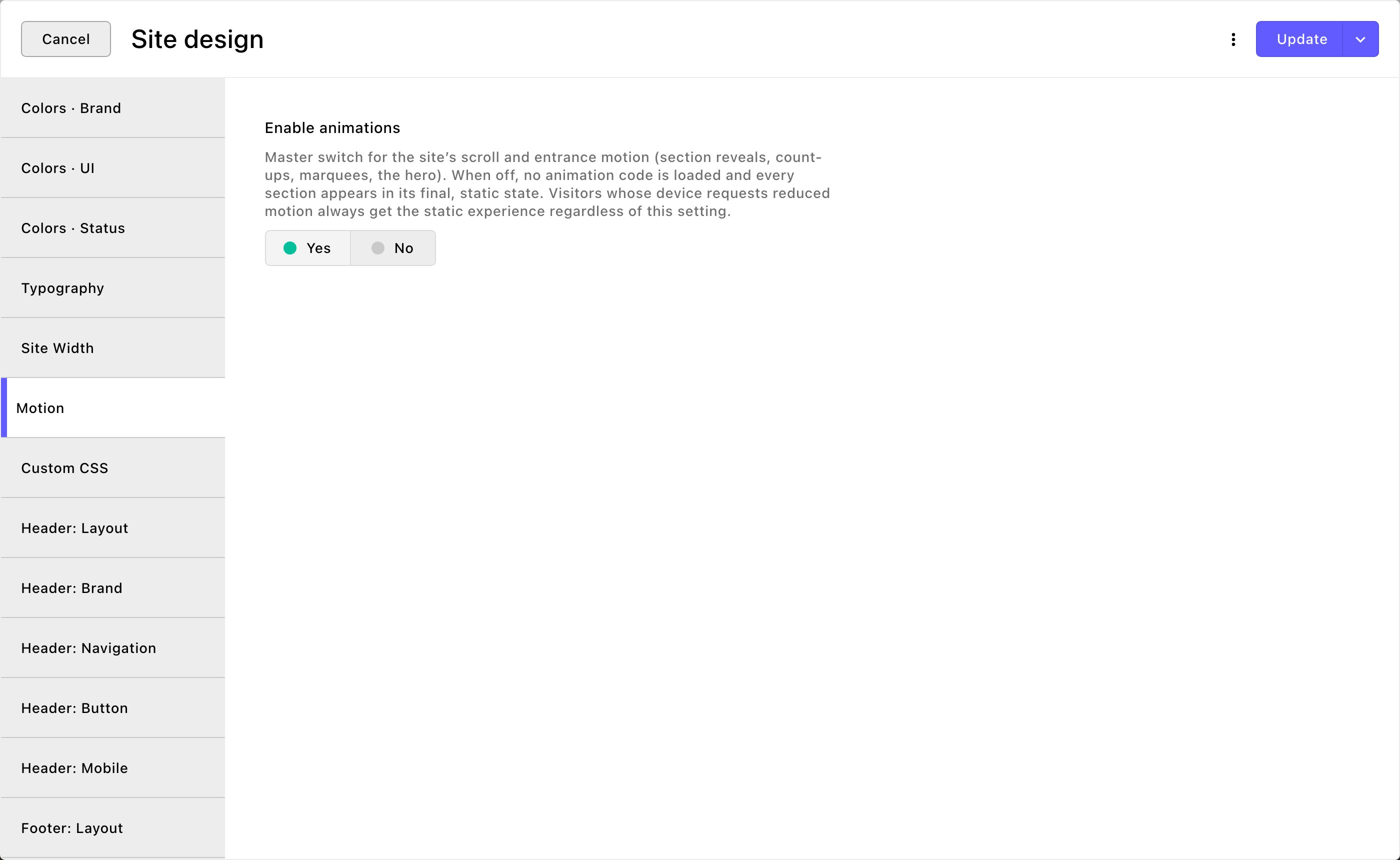
The Motion tab: one switch for every animation on your site.
Enable animations
Enable animations is on for a new site. It controls the motion on your whole site:- sections that fade or slide in as visitors scroll;
- numbers that count up, as in a Stats section (a band of big numbers; see Stats);
- the smooth, speed-matched scrolling of moving strips, such as a row of logos or a footer marquee;
- the entrance of the Hero (the big opening section at the top of a page; see Hero) and the gentle motion in galleries.
- In the Logos section’s editor, on its Logos tab, set Display to Static grid.
- In Site design → Footer: Marquee, turn off Show marquee by default, and set any page that chooses Show back to Use the site default or Hide.
Put the change live
Choose Update to save the change and put it live on your site. To save it without putting it live yet, open the arrow next to Update (More save options) and choose Save Draft. Your changes wait there; open the window again and choose Update when you’re ready to put them live.See the animations
Animations play for visitors, not while you’re signed in. That way sections stay put while you edit and move them. To see your site the way visitors do, open it in a private window (Incognito in Chrome), which isn’t signed in.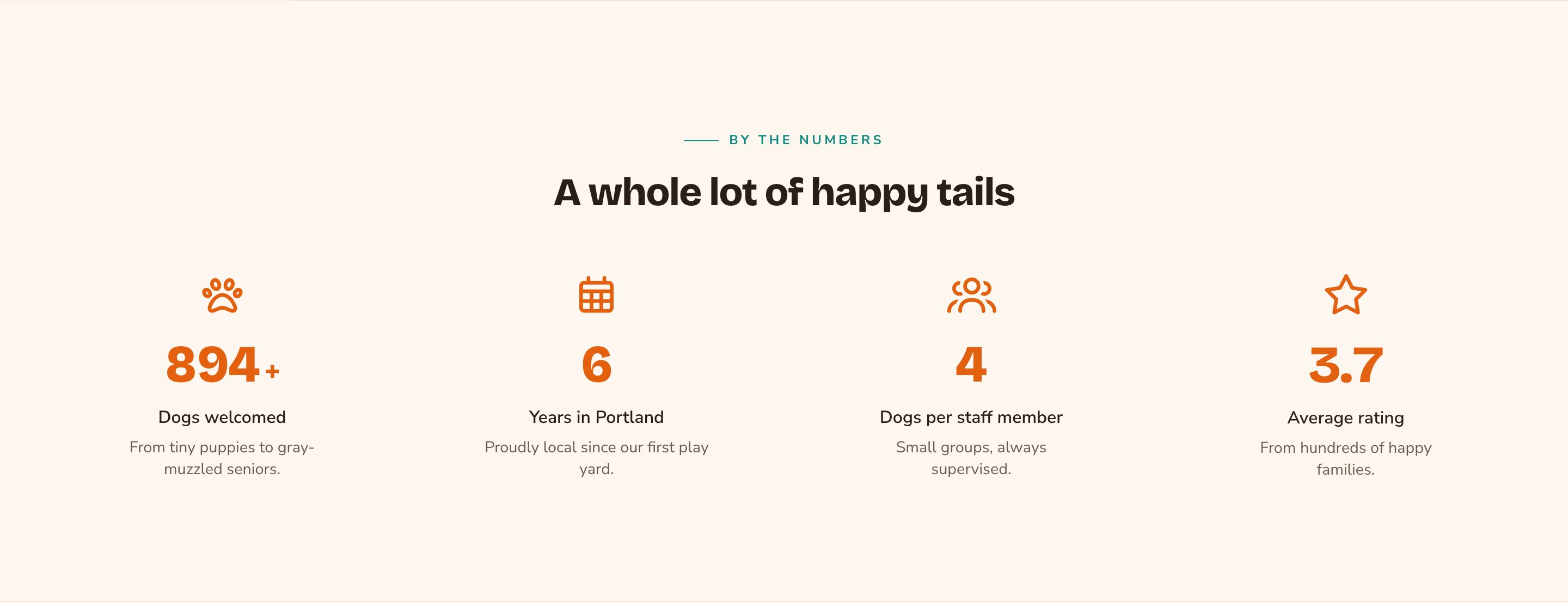
With animations on, sections come to life as visitors scroll.
Good to know
- Visitors who prefer less motion always get a still site. Some people set their phone or computer to reduce motion. Your site skips the animations for them, even with the switch on.
- Add a pause button to moving backgrounds. Turn on Show pause button on background motion so visitors can stop the motion. It helps keep your site accessible. You find it in these places:
- a Hero: on its Hero tab, below Background video, once Background type is Video (with image fallback);
- a Logos section: on its Logos tab, while Display is Marquee (scrolling);
- a Device mocks section (drawn TV, desktop or phone screens; see Device mocks): on its Device mocks tab, once a screen shows a video;
- the footer marquee: Site design → Footer: Marquee → the Marquee card.
- Sections have their own motion options. Galleries and buttons have extra motion settings in their own editors. The Motion switch still turns all scroll animations off at once.
Related
Hero
the entrance animation and the pause button.
Footer
the footer marquee.
Site design
every tab on this screen.