

 AdonisJS
Before you start
- To show reviews on a page, add a Google Reviews section too. See Google Reviews.
- To bring reviews in from Google automatically, an Admin or Owner connects Google once. See Google Reviews connection.
- Add only reviews your customers really wrote. Visitors trust them because they’re real.
Open the list
Press ⌘K (Ctrl+K on Windows) and choose Google Reviews under Manage. You can also press G, then R. The list shows each review’s Reviewer, Rating, Source and Date, newest first.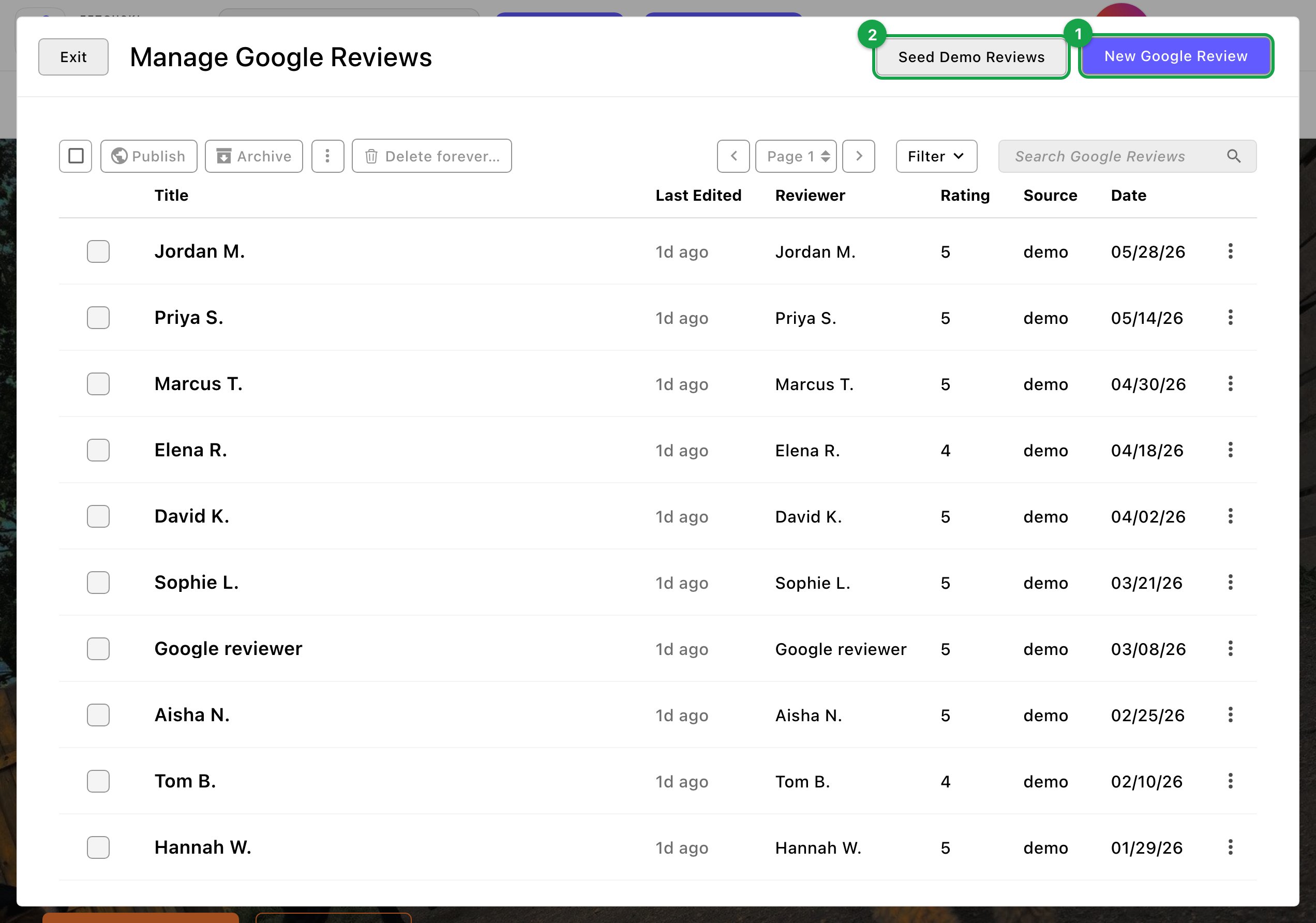
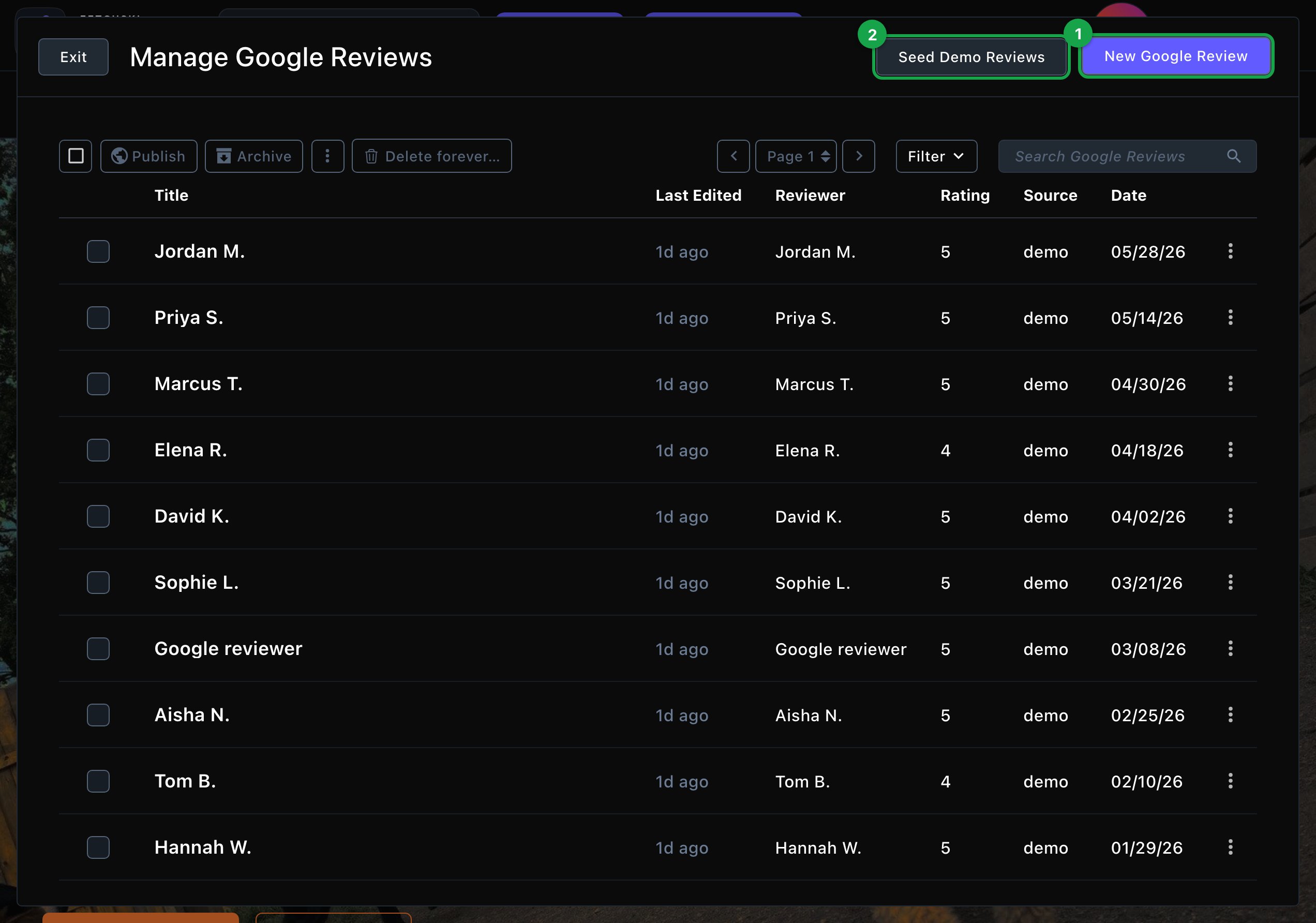
Every review your sections can show, newest first.
Add a review by hand
1
Start a new review
In the list, choose New Google Review. The editor opens on the Basics tab.
2
Fill in the review
- Title: a name for the list. The reviewer’s name works well.
- Reviewer name: the name shown on the card, such as “Sam R.”
- Anonymous reviewer: turn on when Google shows no name. The card then shows an initial instead of a photo, beside the name you typed. Reviews fetched from Google use “Google reviewer” as the name.
- Rating (1–5): the stars. New reviews start at 5.
- Review text and Review date: copy them from the review on Google.
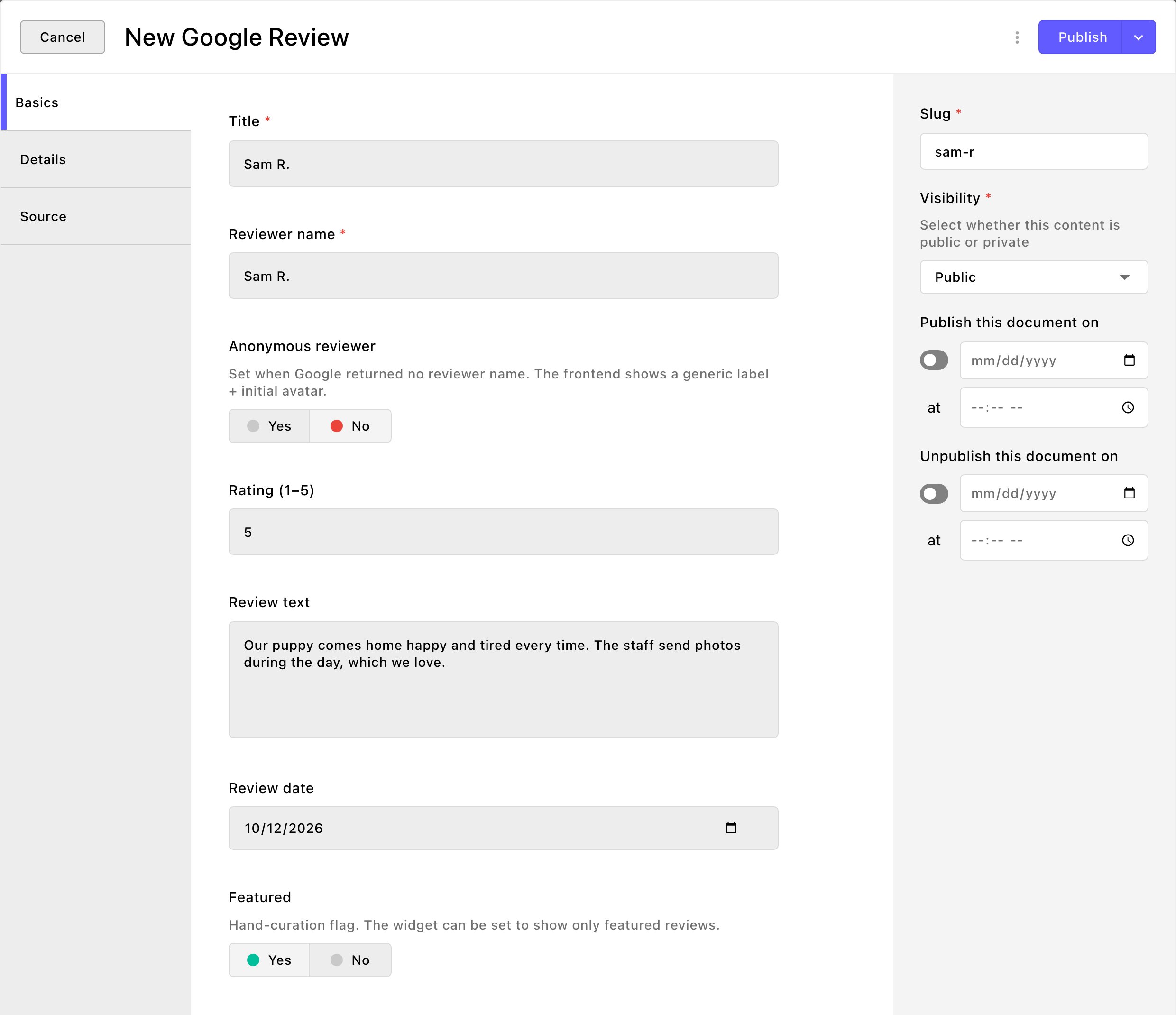
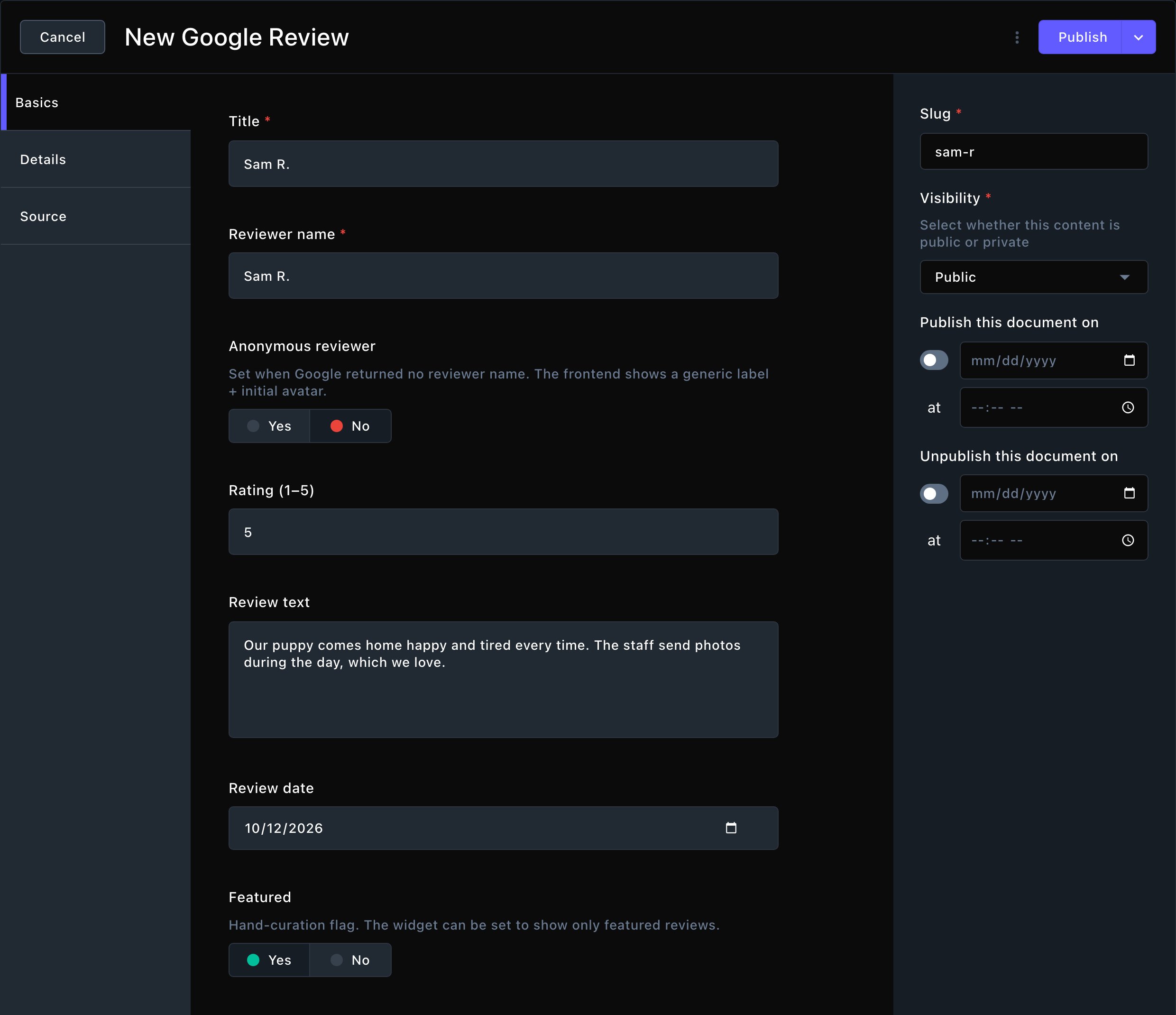
A review entered by hand.
3
Add the details (optional)
On the Details tab:
- Reviewer photo URL: the web address of the reviewer’s photo itself, not of the review page. To get it, right-click their photo on Google and choose Copy Image Address (Copy Image Link in some browsers). If you’re not sure, leave it empty and the card shows their first initial instead.
- Owner reply: your public reply, if you answered the review.
- Review link: the review’s web address on Google.
4
Save it
To finish later, open More save options (the arrow next to the main button) and choose Save Draft. When it’s ready, choose Publish. Contributors choose Submit instead, and an Editor publishes it.
Feature your favorites
Mark your best reviews so a section can show only those, such as 3 standout reviews on your home page.1
Open the review and turn on Featured on the Basics tab
2
Choose Update (or Publish)
3
In the Google Reviews section on your page, turn on Featured reviews only
Reviews from Google
Once an Admin or Owner connects Google, Attract brings in your reviews from Google on the schedule they choose. This scheduled update from Google is called a sync on screen. New reviews are published on their own, so they appear in your sections with nothing for you to do. Each review’s Source shows how it arrived. Places API (New) and Business Profile API are the 2 ways Attract can connect to Google, matching the Review provider choice on the Google Reviews connection. Reviews you type in show Entered manually. See Google Reviews connection. A few things to know about reviews from Google:- Google’s wording wins. If you edit a review that came from Google, such as its text, rating, name, photo, reply or link, the next sync puts Google’s version back. Your Featured choice stays.
- Archive a review to keep it off your site. A review from Google that you archive stays archived: syncs leave it alone. A review you delete forever comes back on the next sync while it’s still on Google, so archive rather than delete. To keep reviews off one page only, use the section’s filters: Minimum rating to show, or Featured reviews only.
- Low ratings can stay out entirely. The connection’s Minimum star rating to keep setting skips lower-rated reviews when fetching. See Google Reviews connection.
- Replies happen on Google. Owner replies come in from Google, with their status at Google. To write or change one, use the Google Business Dashboard, inside Attract. It needs your Google Business Profile connected. See Google Business Profile.
- Open the command palette and choose Google Business Dashboard (T then B).
- Pick your listing, then choose Reviews & replies.
There’s no button to bring reviews in on demand. New reviews arrive at the next sync.
Try it with sample reviews
Admins and Owners can fill a new site with 10 sample reviews, so you can see the Google Reviews section before Google is connected.1
Open Google Reviews in the command palette
2
Choose Seed Demo Reviews
You’ll see “Seeded 10 demo reviews.”
What happens next
A published review appears in every Google Reviews section whose filters it matches. Visitors never see drafts. Each section shows the newest reviews first, up to its Maximum reviews.Troubleshooting
A review doesn't show on the page
A review doesn't show on the page
- Is it published? Drafts show only while you edit.
- Check the section’s Minimum rating to show. It starts at 5 stars only, so a 4-star review stays hidden until you change it.
- Is Featured reviews only on in the section? Then only featured reviews show.
- The section shows the newest reviews first, up to Maximum reviews. It starts at 6. Raise it to show older ones.
My changes to a review were undone
My changes to a review were undone
The review came from Google. Each sync replaces its text, rating, name, photo, reply and link with Google’s version. Only Featured is yours to change.A Google review shows exactly what your customer wrote, so don’t retype it with different words. If the wording needs to change, only the reviewer can edit it on Google. If a customer gives you a separate quote of their own, add it as a testimonial instead.
A review I deleted came back
A review I deleted came back
Reviews from Google return on the next sync while they’re still on Google. Hide it with the section’s Minimum rating to show or Featured reviews only instead.
I don't see Seed Demo Reviews
I don't see Seed Demo Reviews
The button shows only for Admins and Owners. Ask one of them to add the samples for you.
Could not seed demo reviews.
Could not seed demo reviews.
The samples couldn’t be added. Reload the page and try again. If it keeps happening, contact Fetchski Support.
Related
Google Reviews
show your reviews on a page.
Google Reviews connection
bring reviews in from Google on a schedule.
Google Business Profile
reply to reviews and manage your profile.
Archive, restore and delete
retire reviews you no longer need.