

 AdonisJS
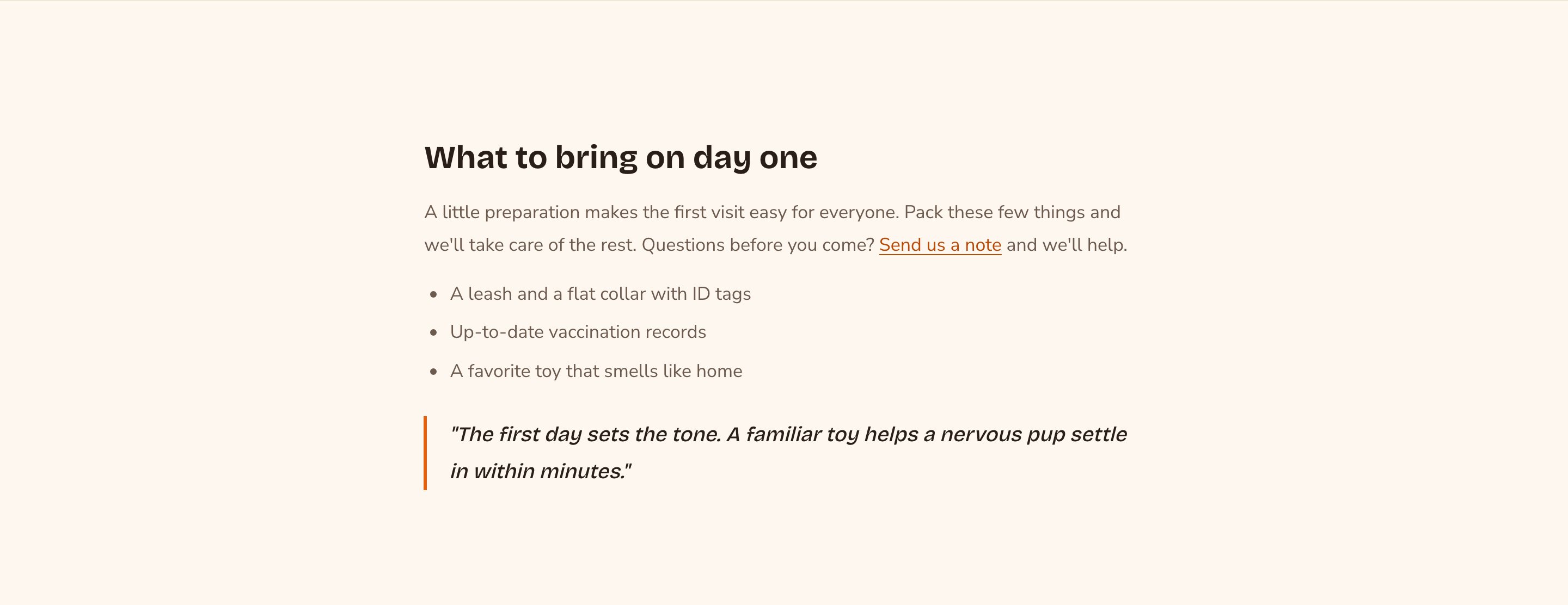
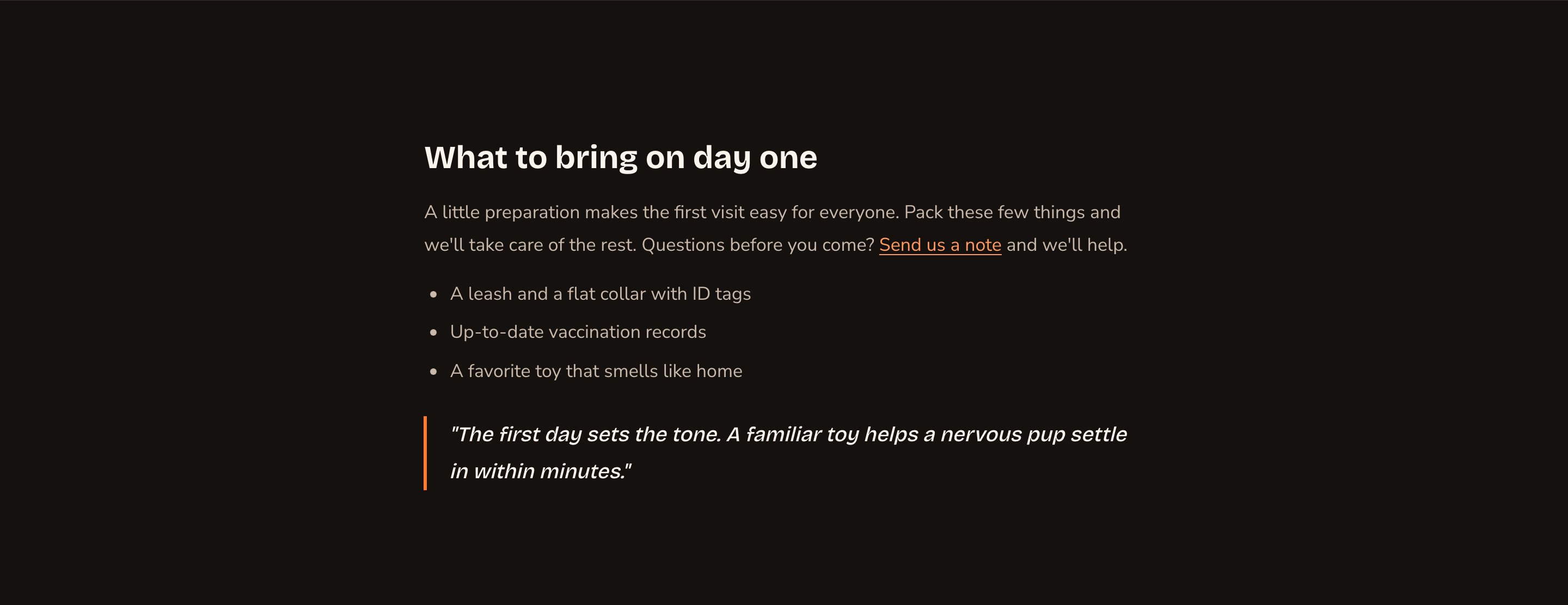
Headings, a list, a link and a quote, styled to match your site.
When to use it
- For a block of text between designed sections, such as a short welcome or a note about holidays.
- For long text, such as a policy or an FAQ answer that needs a list.
- In a column beside another section, through a Layout section.
- In a blog post, where it carries the body of the post.
Where you can add it
- On a page: Add Content → Content → Rich Text.
- In a column of a Layout section: click the Layout on the page to select it. At its top, choose Edit Content (its other mode, Edit Columns, changes the columns). Then choose Add Content in a column and add Rich Text. See Side-by-side layouts.
- In a blog post: the post’s Body starts with one Rich Text. Add more from Add Content → Write. See Blog.
- Below a post: Add Content → Content → Rich Text in the post’s After content.
1
Open the page
Sign in, open the page on your site, and choose Edit in the edit bar at the top.
2
Find the spot
Select the section next to where the new one should go. A round + button appears on its top and bottom edges. On an empty page, choose Add Content in the middle.
3
Choose the section
The Add Content menu opens with its groups. Choose the section, then select it and choose Edit in its side toolbar to make it yours.
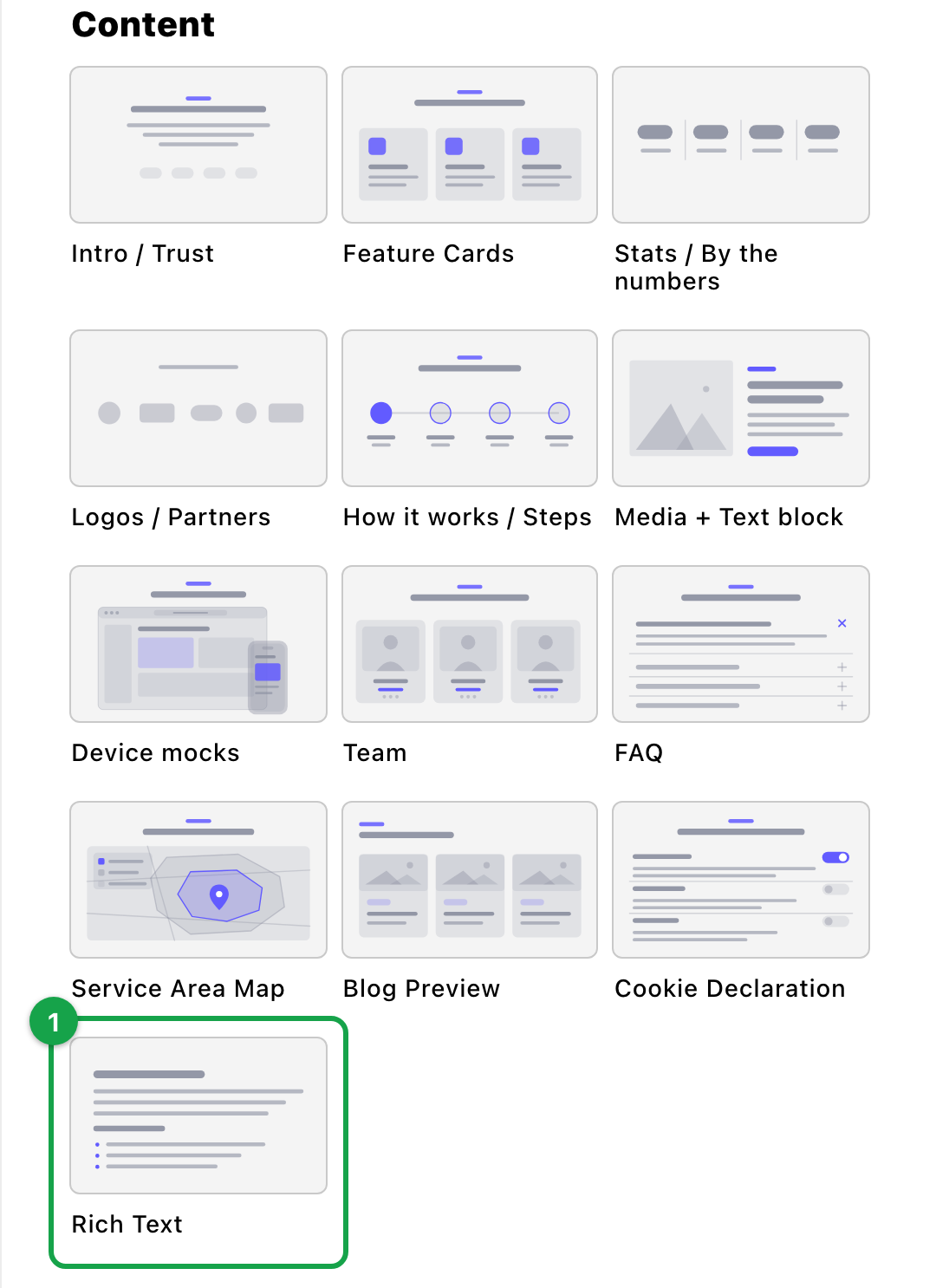
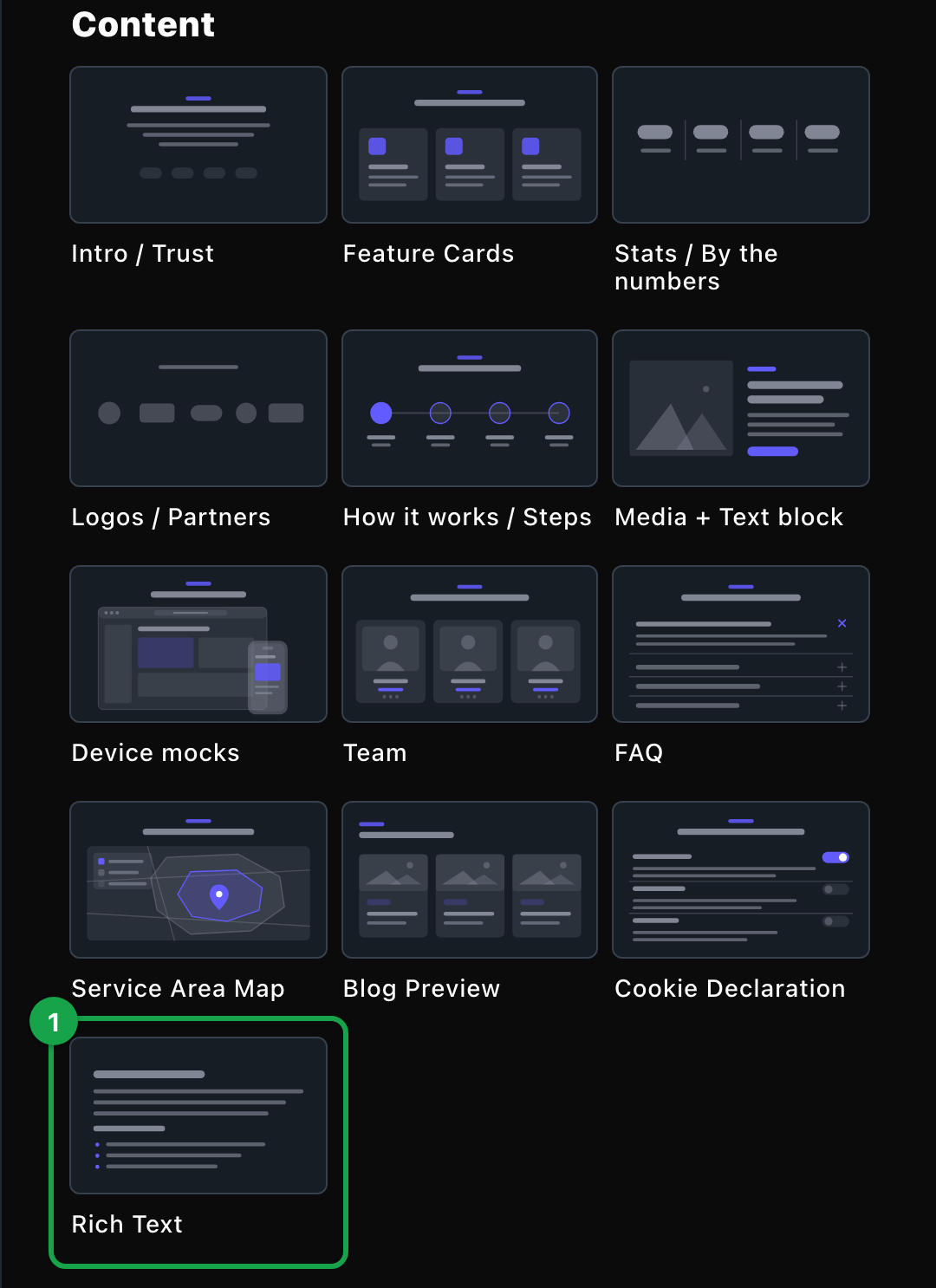
Rich Text sits at the end of the Content group.
Write and format
Rich Text has no editor window. Click into it on the page and type.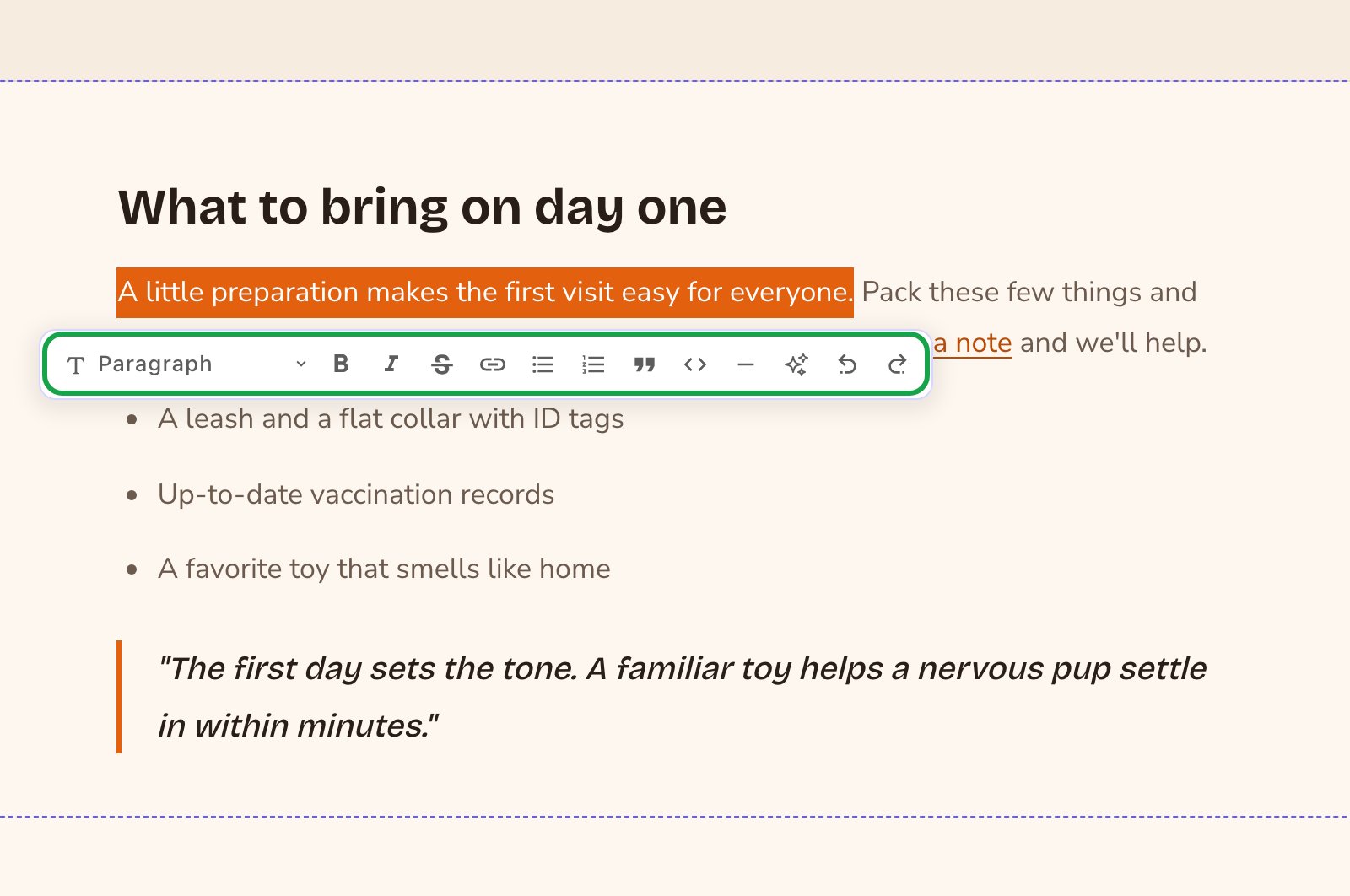
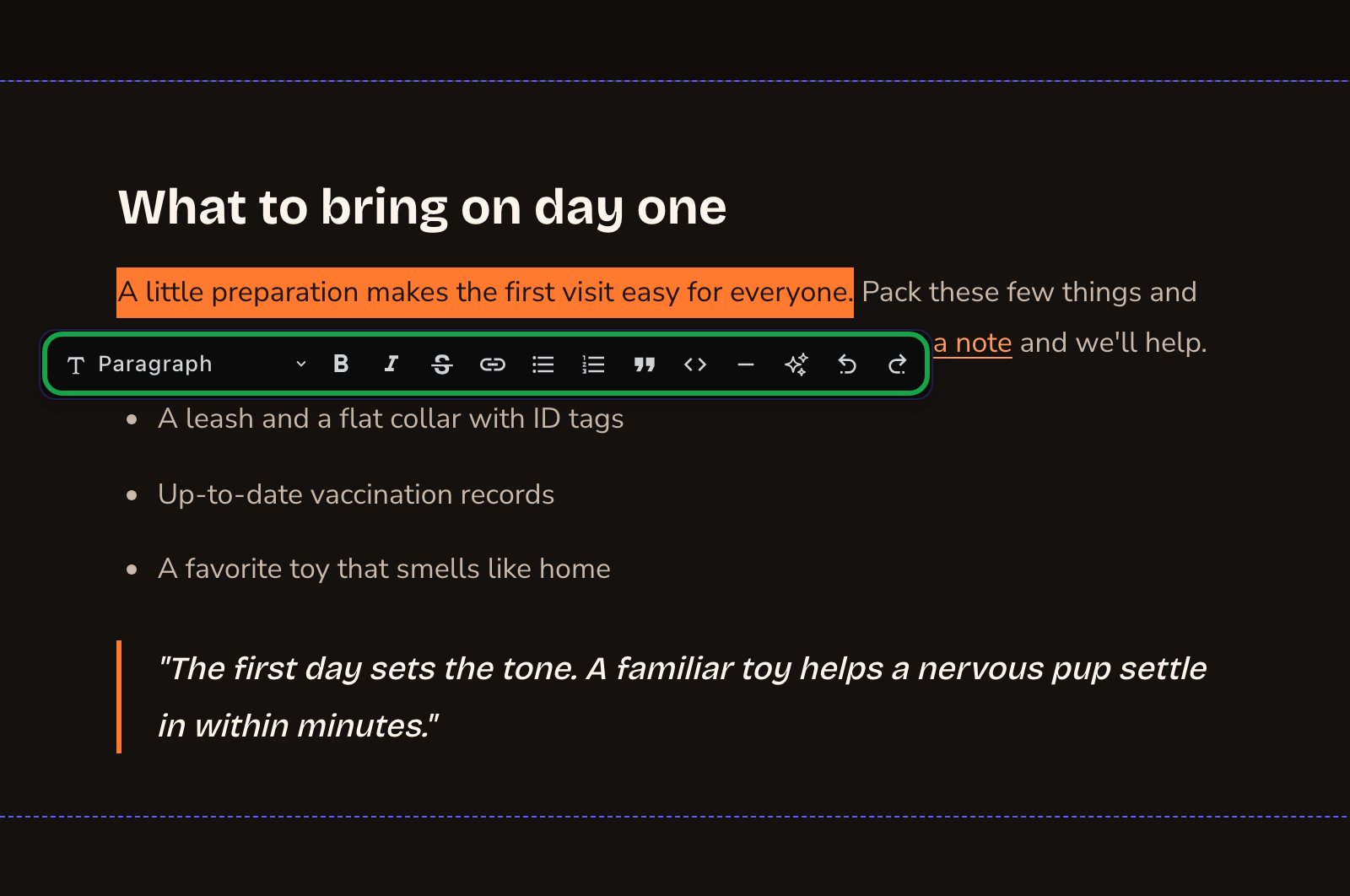
Select text to format it.
- Text style: Paragraph, Heading 2, Heading 3 or Heading 4.
- Bold, Italic and Strike (crossed-out text).
- Link: link the selected words to a page or a web address.
- Bulleted List and Ordered List (a numbered list).
- Blockquote sets a quotation apart from your text. Code Block puts text in a shaded box, in your site’s Accent / mono font, keeping its exact spacing, such as instructions to copy.
- Horizontal Rule: a dividing line.
- AI assist: rewrite the selected text with FetchskiAI.
- Undo and Redo.
- ## for a heading
- - for a bulleted list
- 1. for a numbered list
- > for a quote
Write with FetchskiAI
FetchskiAI can help with the words.- Select text, then choose AI assist to improve, expand, summarize or rewrite it. You see the suggestion first, then choose Replace selection.
- Type / and choose Write with AI to draft new text, or continue what you wrote, right at the cursor. Choose Insert at cursor to keep it.
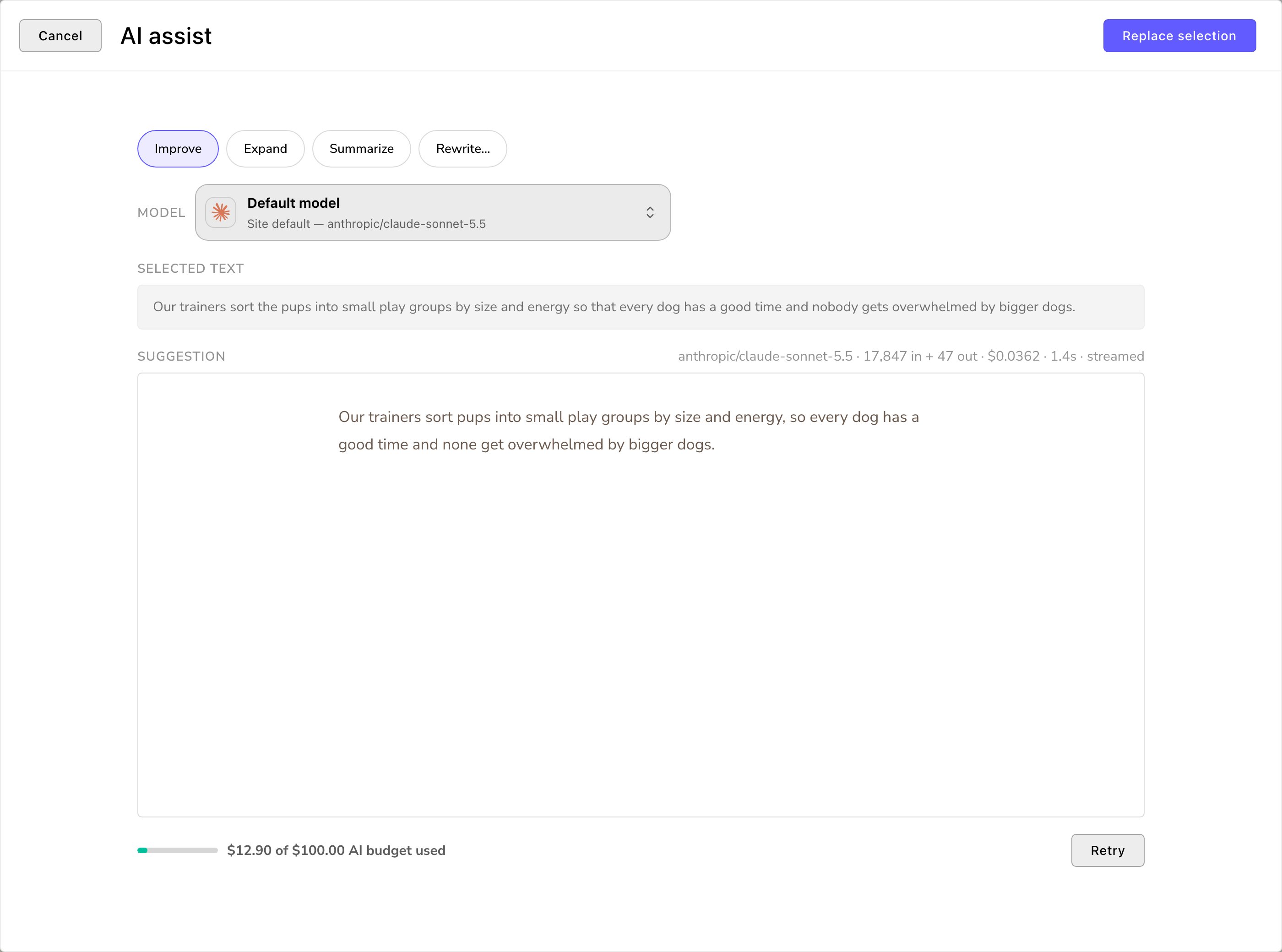
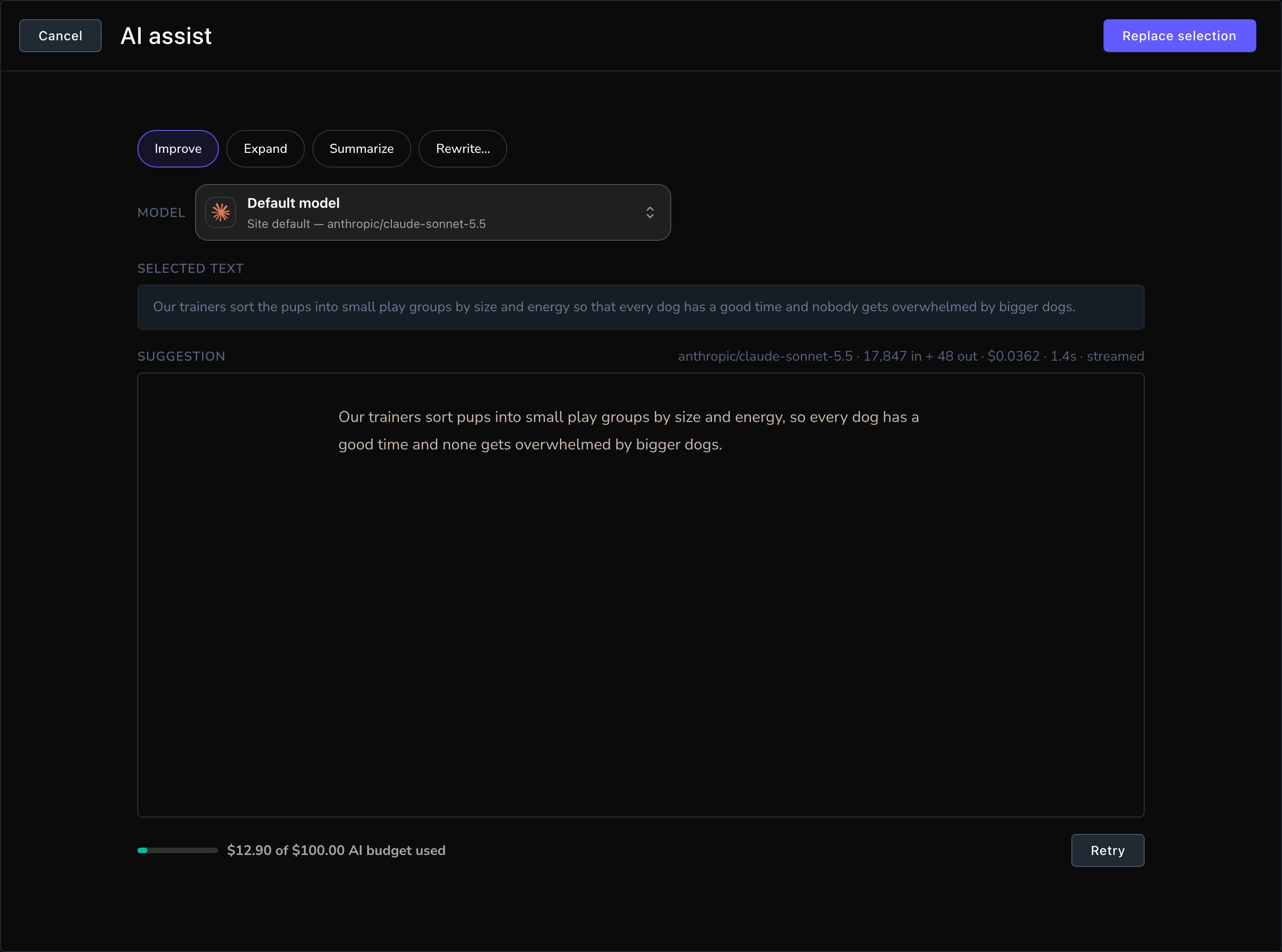
AI assist suggests, you decide.
Looks you can make
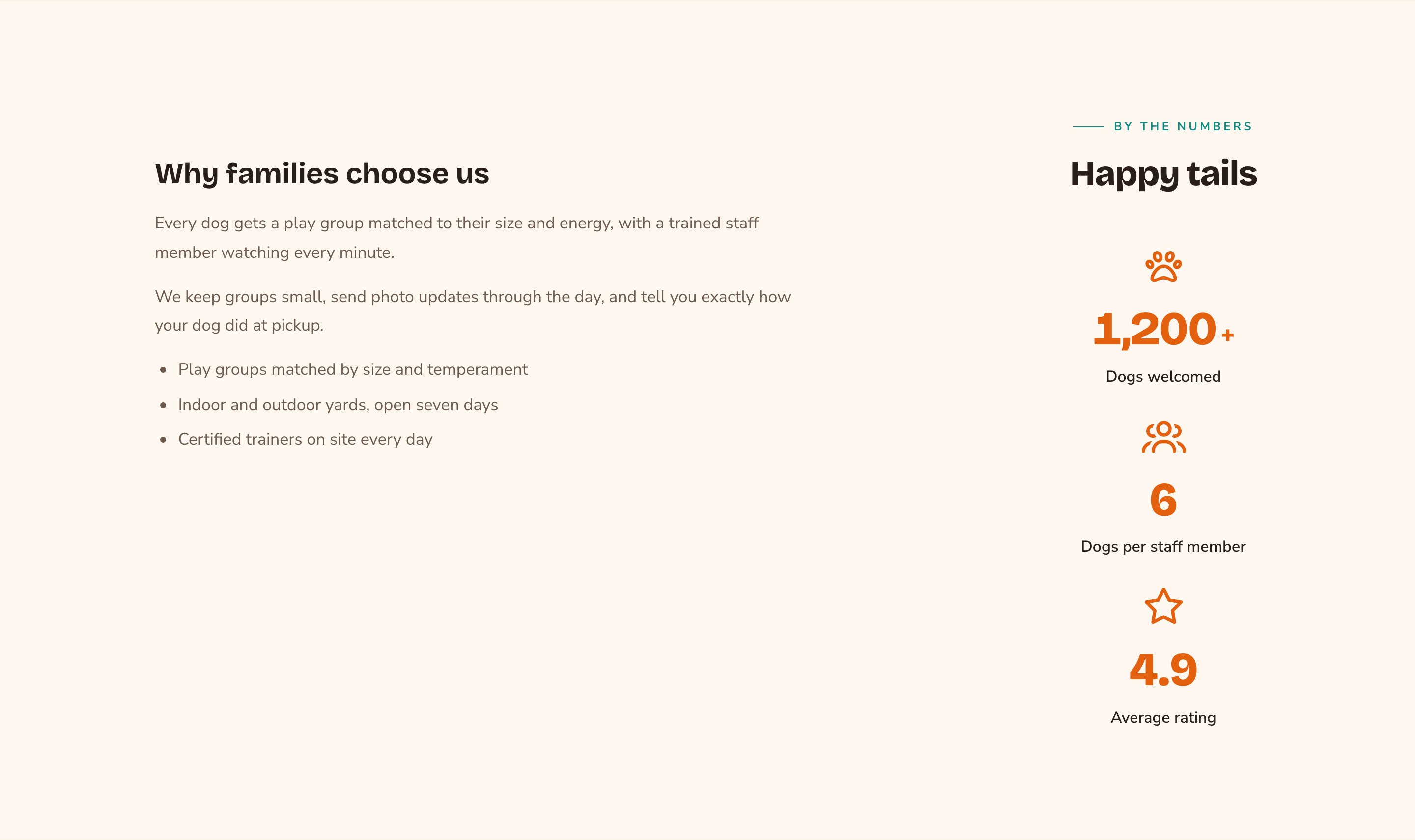
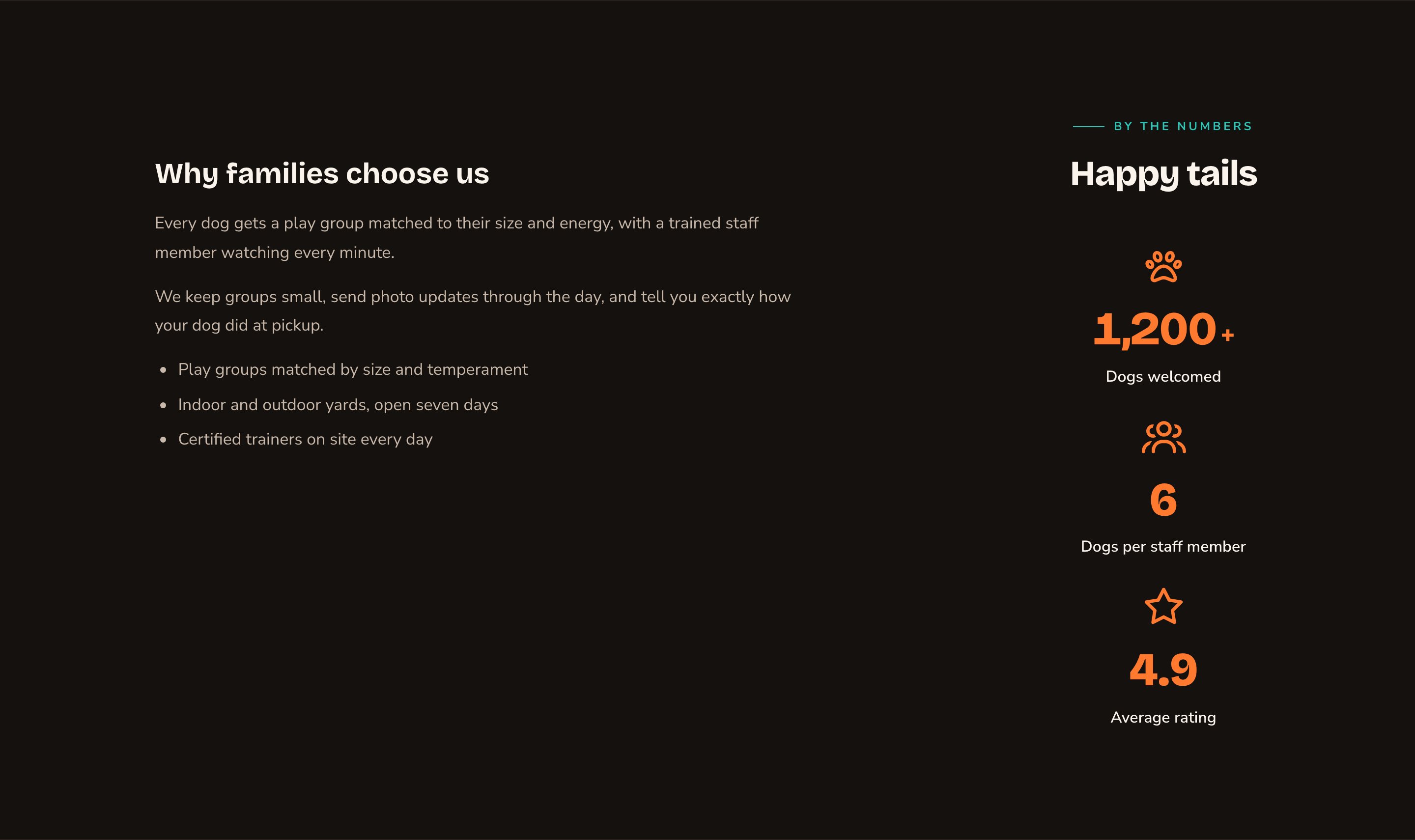
Text beside numbers, in a two-column layout.
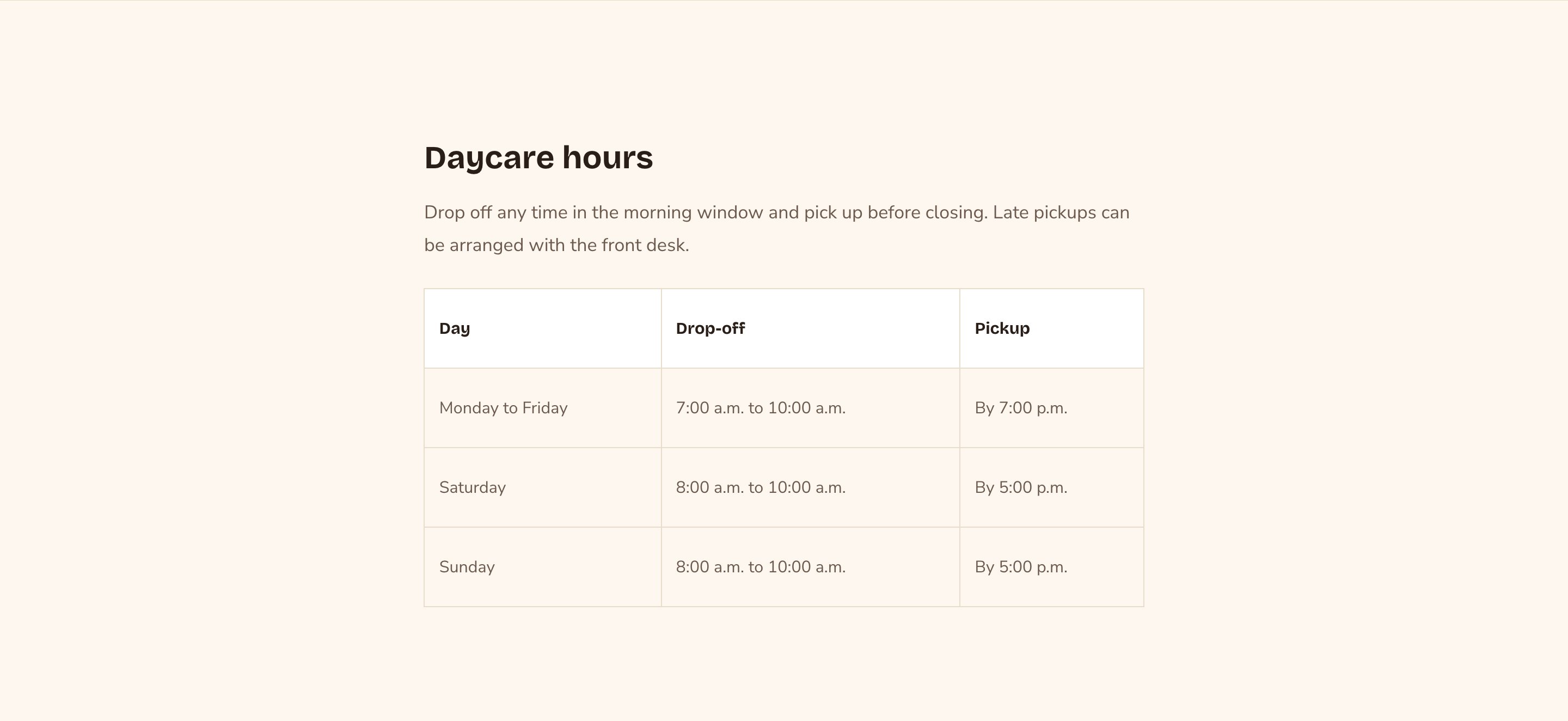
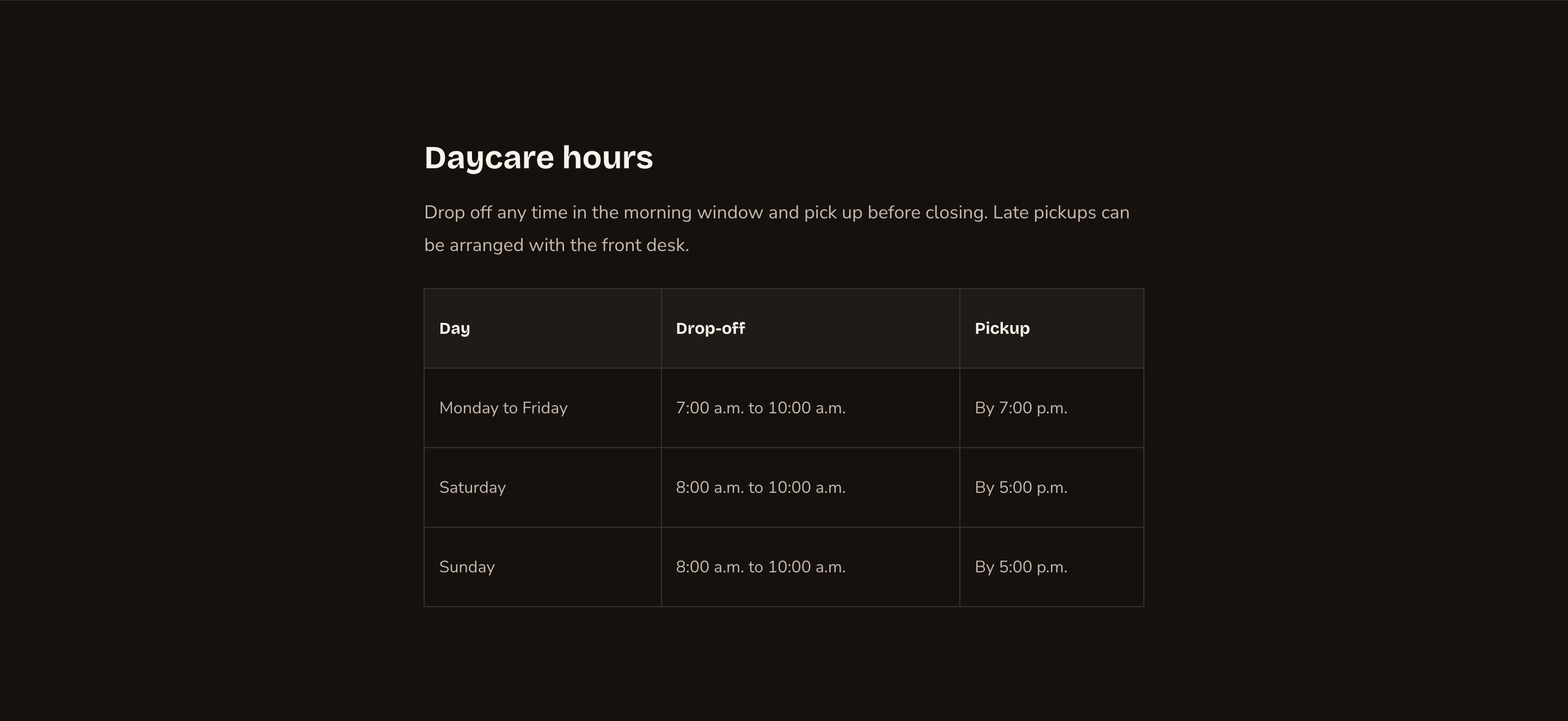
A heading, a note and a table of hours.
Good to know
- Start your headings at Heading 2. The page’s main heading comes from its Page Header or Hero, so Rich Text offers Heading 2 to Heading 4. Use them in order, without skipping a level.
- Write link text that makes sense on its own, such as “See our daycare prices”, not “click here”. Screen reader users often jump from link to link.
- The look comes from your site. Fonts, sizes and link colors follow Site design, so text matches everywhere. Change them on its Typography, Colors · Brand, Colors · UI and Colors · Status tabs.
- Custom CSS. Rich Text has no editor window, so its custom styles open from the Custom CSS button on its side toolbar. See Custom CSS.
Related
Writing help in rich text
AI assist and Write with AI, step by step.
Images and videos
add a picture or a video beside your text.
Side-by-side layouts
put text in a column.
Blog
write a post.