Improve, expand, summarize or rewrite text you’ve selected, or have FetchskiAI write new text at the cursor.
Polish the text you’ve written, or have FetchskiAI write new text for you, right inside any rich text. You see a suggestion first, and nothing changes until you accept it.Who can do this: Editors, Admins and Owners.
Open a page, choose Edit, and click into a Rich Text section (or any rich text, such as a blog post’s body).
Improve text you’ve written
1
Select the text
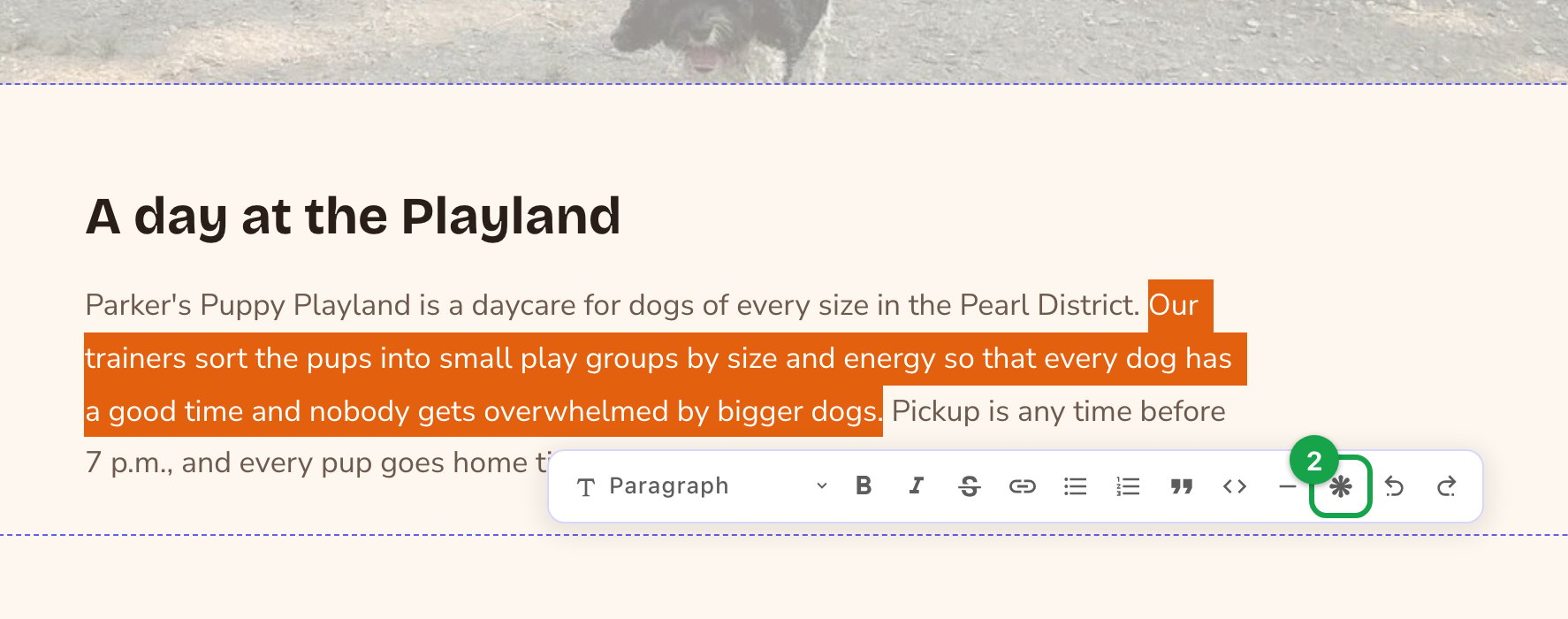
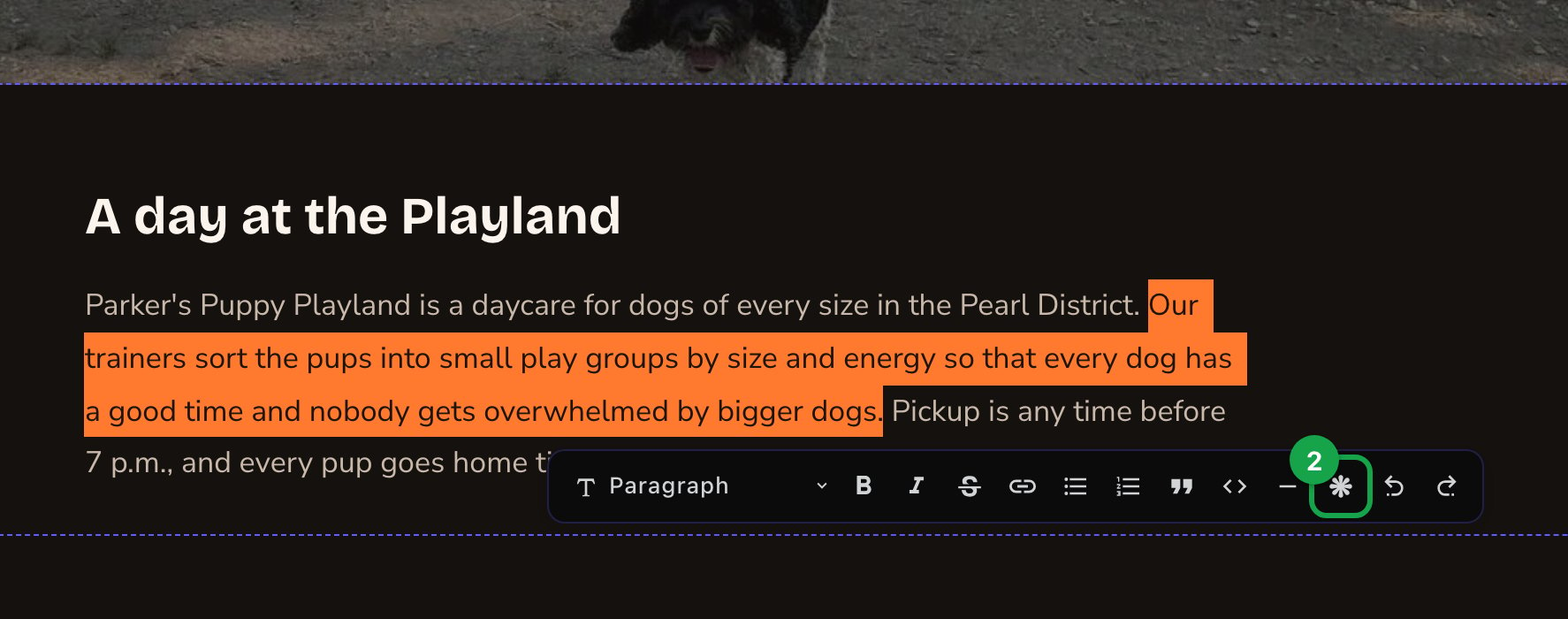
The formatting toolbar appears above it.
2
Choose AI assist (the sparkle)
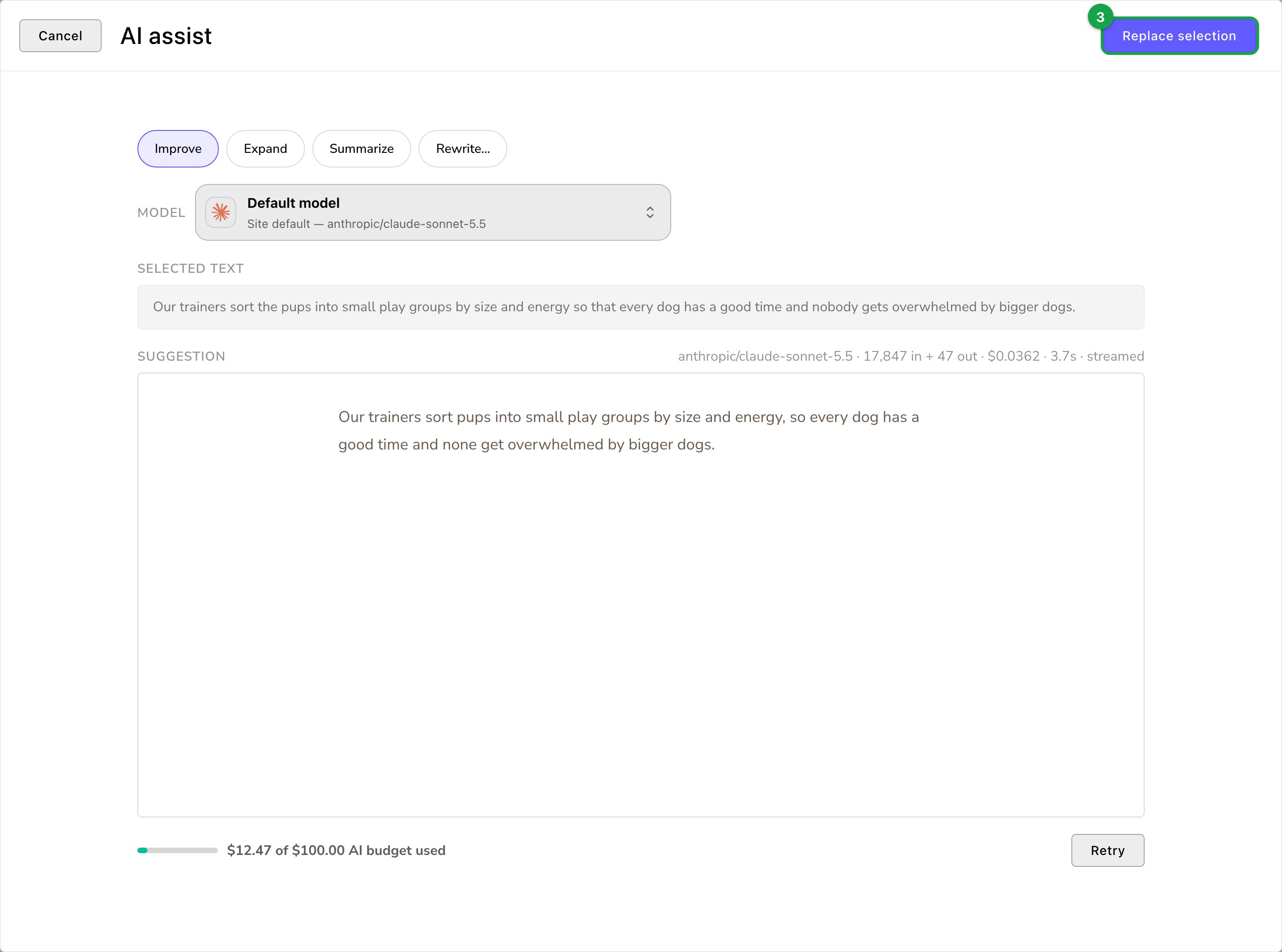
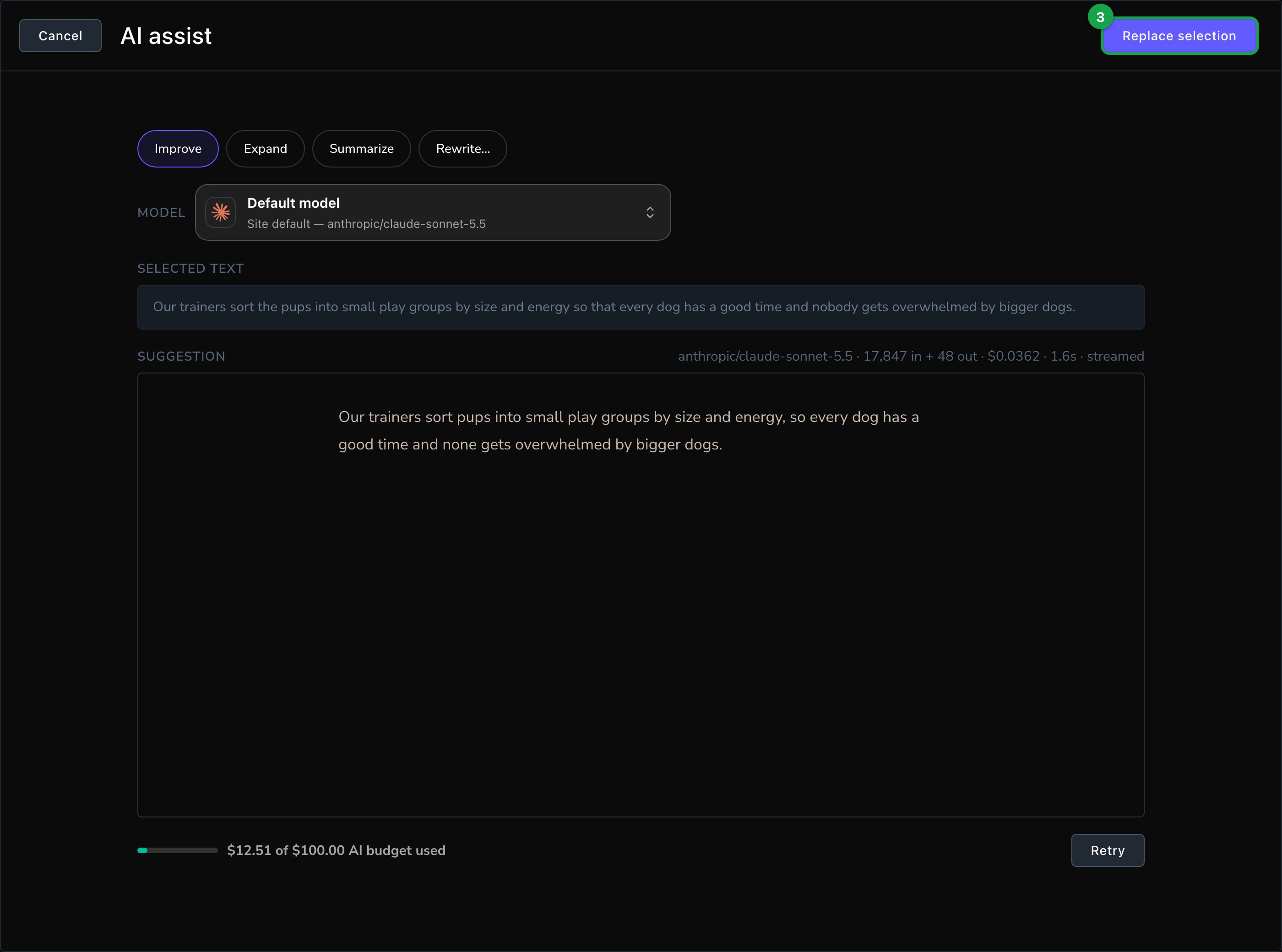
The AI assist window opens, showing your Selected text.
Select text, then choose AI assist.
3
Choose what to do
Improve, Expand and Summarize start writing as soon as you choose them. Rewrite… waits for your instructions first.
Improve: fixes grammar and clarity and tightens the wording, keeping the meaning and length.
Expand: adds depth and detail in the same tone.
Summarize: makes it shorter, keeping the key points.
Rewrite…: type how it should change in “How should it be rewritten?”, such as “Make it friendlier and mention our play yard”, then choose Generate.
The Suggestion appears as it’s written.
Check the suggestion, then replace your selection.
4
Not quite right?
Choose Retry for another version, or choose a different action.
5
Use it
Choose Replace selection, and the suggestion takes the place of your text.
Write new text
1
Put the cursor where the text should go
2
Type "/" to open the insert menu, and choose Write with AI ("Draft or continue text at the cursor")
The Write with AI window opens.
3
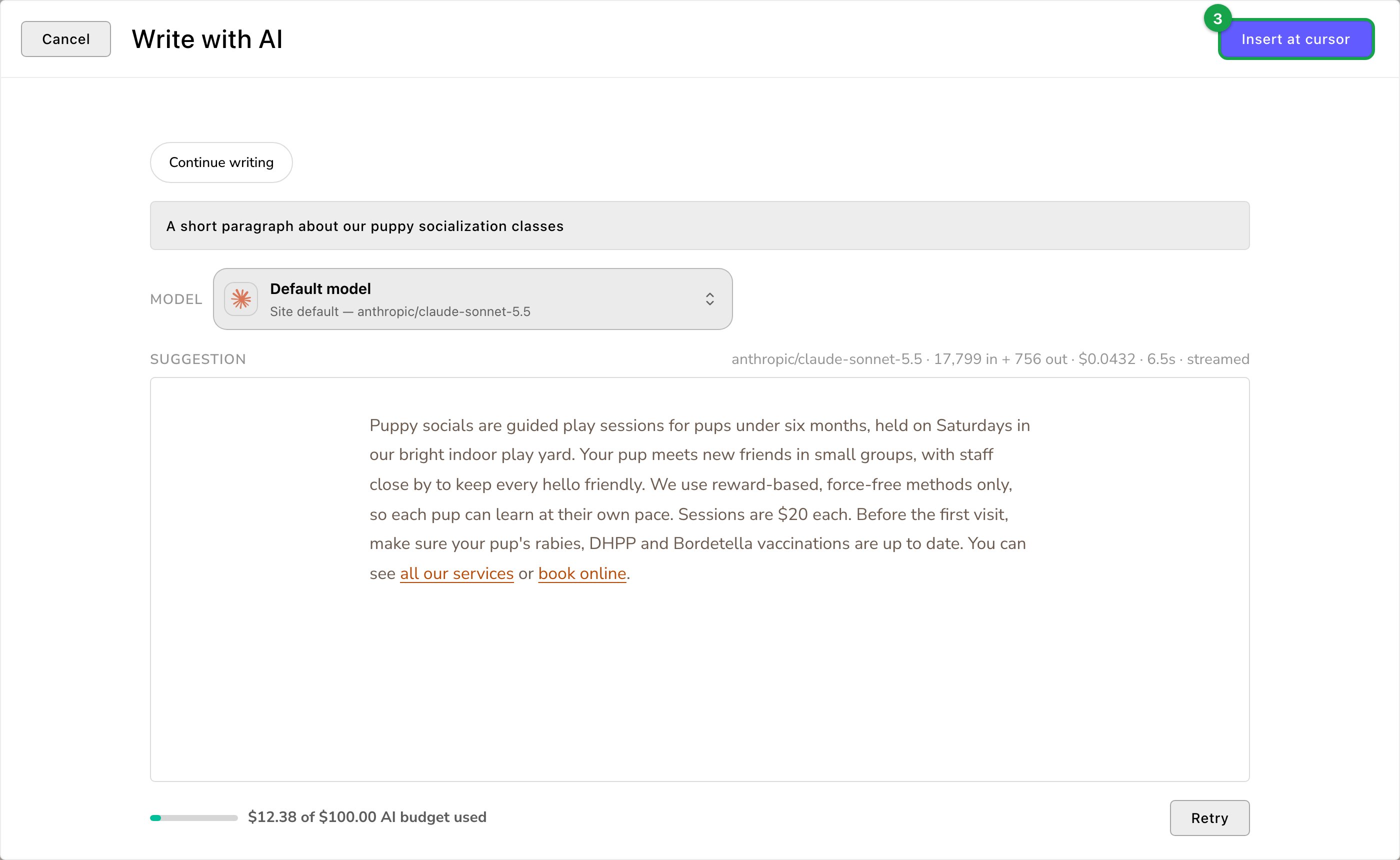
Say what to write in "What should be written?", such as "A short paragraph about our puppy socialization classes", then choose Generate
Or choose Continue writing, which starts at once and carries on from the text before the cursor.
4
Use it
Choose Insert at cursor.
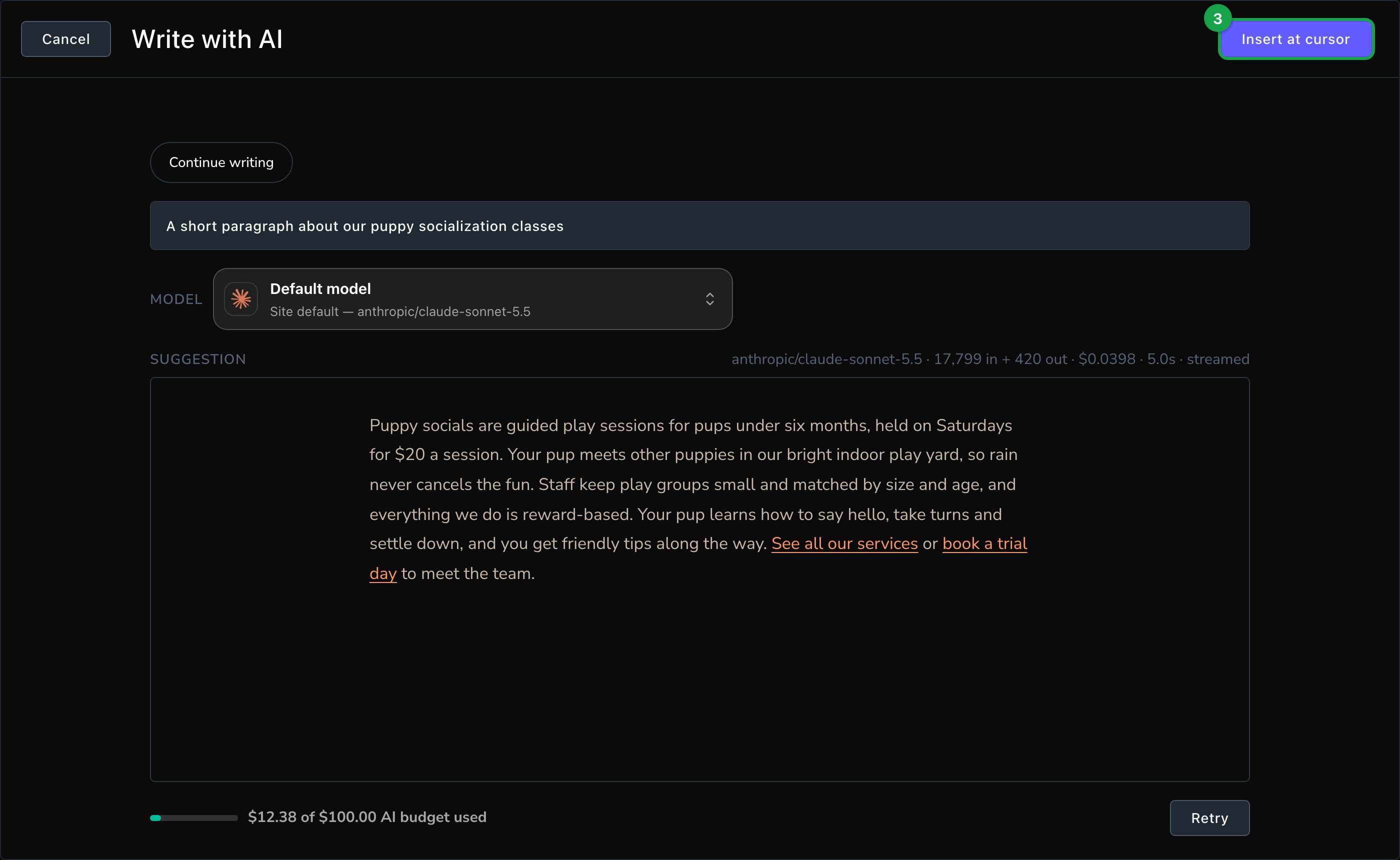
Describe what to write, then insert it at the cursor.
What happens next
The new text is part of your draft, like anything you type. Changed your mind? Undo once (⌘Z, or Ctrl+Z on Windows) to bring your old text back.Visitors see the change only once it’s published. To keep it as a draft, open the arrow next to Update (More save options) and choose Save Draft. To put it live, choose Update (or Publish on a page or post that was never published). See Drafts, publishing and scheduling.
Good to know
It writes in your voice. It follows your Site-wide AI instructions, your own Personal AI instructions and the Business Context in Agent Setup.
Try another model. A model is the AI engine that does the writing, and each one writes a little differently. The Model picker in the window changes it for this one suggestion.
Formatting carries over. Headings, lists, bold and links in the suggestion come into your text as real formatting.
It uses your AI budget. The meter in the window shows how much is left, when your site has a limit.
Troubleshooting
FetchskiAI isn't set up yet
Fetchski hasn’t set up FetchskiAI for your site yet. Contact Fetchski Support.
FetchskiAI is turned off
AI is off for your site. Admins and Owners see a button to open FetchskiAI settings and turn on Enable AI features. Everyone else can ask an Admin to turn it on.
Related
Rich Text
everything the text editor does.
Custom instructions
tell FetchskiAI how you like to write.
The FetchskiAI Agent
bigger changes, whole sections and pages.
⌘I
{"docsConfig":{"theme":"almond","$schema":"https://mintlify.com/docs.json","name":"Fetchski Attract Docs","colors":{"primary":"#16a34a","light":"#22c55e","dark":"#15803d"},"logo":{"light":"https://mintcdn.com/fetchski-attract-api/mn9qfQRsqaASh7UE/logo/light.svg?fit=max\u0026auto=format\u0026n=mn9qfQRsqaASh7UE\u0026q=85\u0026s=66db13e248b70a44a5ff5f6990d4cb63","dark":"https://mintcdn.com/fetchski-attract-api/mn9qfQRsqaASh7UE/logo/dark.svg?fit=max\u0026auto=format\u0026n=mn9qfQRsqaASh7UE\u0026q=85\u0026s=86904ba8d47714303521b2dcd5aa2a50","href":"/"},"favicon":"https://mintcdn.com/fetchski-attract-api/mn9qfQRsqaASh7UE/favicon.svg?fit=max\u0026auto=format\u0026n=mn9qfQRsqaASh7UE\u0026q=85\u0026s=fd4f2c0615961c9e01c9762b98c8999f","api":{"playground":{"display":"interactive"},"examples":{"defaults":"required","languages":["bash","typescript","php"]}},"appearance":{"default":"dark"},"background":{"color":{"light":"#ffffff","dark":"#0b0e13"}},"search":{"prompt":"Search the docs…"},"seo":{"metatags":{"robots":"noindex, nofollow"}},"fonts":{"family":"Inter"},"icons":{"library":"fontawesome"},"styling":{"codeblocks":"dark","latex":true},"contextual":{"options":["copy","view"],"display":"header"},"navigation":{"pages":[]}},"deployment":{"deploymentMetadataValue":{"subdomain":"fetchski-attract-api","hasAudioNarration":false,"actualSubdomain":"fetchski-attract-api","customDomains":["docs.fetchski-attract.com"],"gitSource":{"type":"github","owner":"fetchski","repo":"fetchski_cms_astro_monorepo","deployBranch":"main","contentDirectory":"docs/attract","isPrivate":true,"mountPath":"","label":"","_id":"6adb9c232f0947a18a27541d"},"entitlements":{},"buildId":"6af6df04bd8b0362cdec74ff","clientVersion":"0.0.4131","searchFilterCounts":[{"language":"default","tag":"Media","count":953},{"language":"default","tag":"Content","count":863},{"language":"default","tag":"Publishing","count":720},{"language":"default","tag":"API reference","count":484},{"language":"default","tag":"Laravel","count":472},{"language":"default","tag":"TypeScript","count":470},{"language":"default","tag":"AdonisJS","count":469},{"language":"default","tag":"Batch jobs","count":364},{"language":"default","tag":"Pages \u0026 Site","count":224},{"language":"default","tag":"Forms","count":168}]},"assistantConfig":{"enableAskAiButton":false,"enableStarterQuestions":false,"enableContextualStarterQuestions":false,"enableAskAiSearchBar":true},"basePath":"","hasChatPermissions":false,"hasWebMcpPermissions":false,"toggles":[{"name":"kill-isr","enabled":true,"variant":{"name":"disabled","enabled":false,"feature_enabled":true},"impressionData":false},{"name":"custom-rbac-roles","enabled":true,"variant":{"name":"disabled","enabled":false,"feature_enabled":true},"impressionData":false},{"name":"agent-mintlify-slack","enabled":true,"variant":{"name":"disabled","enabled":false,"feature_enabled":true},"impressionData":false},{"name":"agent-integrations-settings","enabled":true,"variant":{"name":"disabled","enabled":false,"feature_enabled":true},"impressionData":false},{"name":"rbac-expansion","enabled":true,"variant":{"name":"disabled","enabled":false,"feature_enabled":true},"impressionData":false},{"name":"automations-pr-grouping","enabled":true,"variant":{"name":"disabled","enabled":false,"feature_enabled":true},"impressionData":false},{"name":"custom-prefix","enabled":true,"variant":{"name":"disabled","enabled":false,"feature_enabled":true},"impressionData":false},{"name":"analytics-v7","enabled":true,"variant":{"name":"disabled","enabled":false,"feature_enabled":true},"impressionData":false},{"name":"user-flows-analytics","enabled":true,"variant":{"name":"disabled","enabled":false,"feature_enabled":true},"impressionData":false},{"name":"no-publish-flow","enabled":true,"variant":{"name":"disabled","enabled":false,"feature_enabled":true},"impressionData":false},{"name":"workos-onboarding","enabled":true,"variant":{"name":"disabled","enabled":false,"feature_enabled":true},"impressionData":false},{"name":"snapshot-serving-live","enabled":true,"variant":{"name":"disabled","enabled":false,"feature_enabled":true},"impressionData":false},{"name":"stripTemperatureMiddleware","enabled":true,"variant":{"name":"disabled","enabled":false,"feature_enabled":true},"impressionData":false},{"name":"support-platform-pylon-zendesk","enabled":true,"variant":{"name":"disabled","enabled":false,"feature_enabled":true},"impressionData":false},{"name":"snapshot-serving","enabled":true,"variant":{"name":"disabled","enabled":false,"feature_enabled":true},"impressionData":false},{"name":"instant-rollback","enabled":true,"variant":{"name":"disabled","enabled":false,"feature_enabled":true},"impressionData":false},{"name":"granular-notifications-server","enabled":true,"variant":{"name":"disabled","enabled":false,"feature_enabled":true},"impressionData":false},{"name":"granular-notifications","enabled":true,"variant":{"name":"disabled","enabled":false,"feature_enabled":true},"impressionData":false},{"name":"automations-fable","enabled":true,"variant":{"name":"disabled","enabled":false,"feature_enabled":true},"impressionData":false},{"name":"fixed-ai-action-pricing","enabled":true,"variant":{"name":"disabled","enabled":false,"feature_enabled":true},"impressionData":false},{"name":"automation-resolve-merge-conflict","enabled":true,"variant":{"name":"disabled","enabled":false,"feature_enabled":true},"impressionData":false},{"name":"scoped-publishing","enabled":true,"variant":{"name":"disabled","enabled":false,"feature_enabled":true},"impressionData":false},{"name":"mintql","enabled":true,"variant":{"name":"disabled","enabled":false,"feature_enabled":true},"impressionData":false},{"name":"page-level-analytics","enabled":true,"variant":{"name":"disabled","enabled":false,"feature_enabled":true},"impressionData":false},{"name":"editor-version-history-v2","enabled":true,"variant":{"name":"disabled","enabled":false,"feature_enabled":true},"impressionData":false},{"name":"billing-page-v2","enabled":true,"variant":{"name":"disabled","enabled":false,"feature_enabled":true},"impressionData":false},{"name":"full-page-search","enabled":true,"variant":{"name":"disabled","enabled":false,"feature_enabled":true},"impressionData":false},{"name":"workspace-projects","enabled":true,"variant":{"name":"disabled","enabled":false,"feature_enabled":true},"impressionData":false},{"name":"assistant-v5","enabled":true,"variant":{"name":"disabled","enabled":false,"feature_enabled":true},"impressionData":false},{"name":"fork-pr-previews","enabled":true,"variant":{"name":"disabled","enabled":false,"feature_enabled":true},"impressionData":false},{"name":"revalidation-jwt","enabled":true,"variant":{"name":"disabled","enabled":false,"feature_enabled":true},"impressionData":false},{"name":"workos-sso-scim","enabled":true,"variant":{"name":"disabled","enabled":false,"feature_enabled":true},"impressionData":false},{"name":"hobby-abuse-scan","enabled":true,"variant":{"name":"disabled","enabled":false,"feature_enabled":true},"impressionData":false},{"name":"dashboard-inbox","enabled":true,"variant":{"name":"disabled","enabled":false,"feature_enabled":true},"impressionData":false},{"name":"workos-signup","enabled":true,"variant":{"name":"disabled","enabled":false,"feature_enabled":true},"impressionData":false},{"name":"turbopuffer-dual-write","enabled":true,"variant":{"name":"disabled","enabled":false,"feature_enabled":true},"impressionData":false},{"name":"workos-enabled","enabled":true,"variant":{"name":"disabled","enabled":false,"feature_enabled":true},"impressionData":false},{"name":"approve-review-flow","enabled":true,"variant":{"name":"disabled","enabled":false,"feature_enabled":true},"impressionData":false},{"name":"editor-metadata","enabled":true,"variant":{"name":"disabled","enabled":false,"feature_enabled":true},"impressionData":false},{"name":"sso-setup-deadline-banner","enabled":true,"variant":{"name":"disabled","enabled":false,"feature_enabled":true},"impressionData":false},{"name":"turbopuffer-serve","enabled":true,"variant":{"name":"disabled","enabled":false,"feature_enabled":true},"impressionData":false},{"name":"live-agents","enabled":true,"variant":{"name":"disabled","enabled":false,"feature_enabled":true},"impressionData":false},{"name":"llms-txt-v2","enabled":true,"variant":{"name":"disabled","enabled":false,"feature_enabled":true},"impressionData":false}],"googleFontsInlined":false},"customCss":[{"filePath":"style.css","content":"@media (min-width: 1280px){:root{--content-width: 52rem}}@media (min-width: 1600px){:root{--content-width: 60rem}}@media (min-width: 1920px){:root{--content-width: 68rem}}@media (min-width: 1024px) and (max-width: 1919px){#content-container{padding-left:2rem;padding-right:2rem}div:has(>#content-area){padding-left:0}#table-of-contents{width:14rem}}html[data-page-mode=\"wide\"] #content-area{max-width:84rem}@media (min-width: 1024px){#navbar .nav-tabs{position:fixed;left:15rem;top:0;height:6rem}}@media (min-width: 1024px) and (max-width: 1599px){#navbar .nav-tabs{gap:0}#navbar .nav-tabs .nav-tabs-item{gap:0.375rem;font-size:0.9375rem;padding-inline:0.5rem}#navbar .nav-tabs .nav-tabs-item svg,#navbar .nav-tabs .nav-tabs-item img{width:1.0625rem;height:1.0625rem}}@media (min-width: 1024px) and (max-width: 1199px){#navbar .nav-tabs .nav-tabs-item svg,#navbar .nav-tabs .nav-tabs-item img{display:none}}@media (min-width: 1024px) and (max-width: 1319px){div:has(>#search-bar-entry){width:3rem!important}#search-bar-entry{justify-content:center;padding:0!important}#search-bar-entry>div>:not(svg),#search-bar-entry>:not(div){display:none}}.mdx-content{font-size:1.0625rem;line-height:1.8}@media (min-width: 1024px){.mdx-content{font-size:1.25rem;line-height:1.85}#page-title{font-size:2.875rem;line-height:1.15}#page-title+*,#header .prose{font-size:1.375rem}#sidebar-content a{font-size:1.125rem}.toc-item{font-size:1rem}}.mdx-content>[data-as=\"p\"],.mdx-content>p{margin-top:0;margin-bottom:1.75rem}.mdx-content>h2{margin-top:3.5rem;margin-bottom:1.25rem;padding-top:2rem;border-top:1px solid rgb(0 0 0 / 0.08);font-size:1.875rem;letter-spacing:-0.01em}.dark .mdx-content>h2{border-top-color:rgb(255 255 255 / 0.08)}.mdx-content>h2:first-child{margin-top:0;padding-top:0;border-top:0}.mdx-content>h3{margin-top:2.75rem;margin-bottom:1.125rem;font-size:1.4375rem}.mdx-content>h4{margin-top:2rem;margin-bottom:0.75rem}.mdx-content li{margin-top:0.625rem;margin-bottom:0.625rem}.mdx-content>ul,.mdx-content>ol{margin-bottom:1.75rem}.mdx-content :not(pre)>code{font-size:0.875em;padding:0.125rem 0.375rem;overflow-wrap:anywhere}.mdx-content table{font-size:1.0625rem;line-height:1.7}.mdx-content th,.mdx-content td{padding:0.875rem 1.5rem 0.875rem 0!important;vertical-align:top}.mdx-content th{padding-top:0.25rem!important}.mdx-content th:last-child,.mdx-content td:last-child{padding-right:0!important}.mdx-content td>code:only-child{white-space:nowrap}pre{max-height:36rem;overflow:auto}.mdx-content pre code{font-size:0.9375rem;line-height:1.75}.mdx-content>.code-block,.mdx-content>.code-group{margin-top:1.5rem;margin-bottom:2rem}.mdx-content .columns{column-gap:1.25rem;row-gap:0.5rem;margin-top:1.75rem;margin-bottom:2.25rem}.mdx-content .card{border-radius:1rem}.mdx-content .card [data-component-part=\"card-content-container\"]{padding:1.5rem 1.75rem}.mdx-content [data-component-part=\"card-title\"]{font-size:1.25rem}.mdx-content [data-component-part=\"card-content\"]{font-size:1.0625rem;line-height:1.7}.mdx-content .callout{margin-top:2rem;margin-bottom:2.25rem;padding:1.25rem 1.75rem;font-size:1.125rem;line-height:1.75}.mdx-content .steps{margin-top:1.75rem;margin-bottom:2.25rem}.mdx-content .step{padding-bottom:0.75rem}.mdx-content .accordion-group,.mdx-content>.accordion{margin-top:1.75rem;margin-bottom:2.25rem}.mdx-content .tabs{margin-top:1.75rem;margin-bottom:2.25rem}.mdx-content .tabs [role=\"tabpanel\"]{padding-top:0.375rem;padding-right:0.375rem;padding-bottom:0.375rem}.mdx-content [data-component-name=\"mermaid-container\"]{--im-node-fill: #ecfdf3;--im-node-stroke: #16a34a;--im-node-text: #0b3a1f;--im-cluster-fill: rgb(22 163 74 / 0.04);--im-cluster-stroke: rgb(22 163 74 / 0.35);--im-edge: #64748b;--im-label-bg: #ffffff;margin-top:1.75rem;margin-bottom:2.25rem;padding:2rem 1.5rem;border:1px solid rgb(0 0 0 / 0.08);border-radius:1rem;background:rgb(0 0 0 / 0.015)}.dark .mdx-content [data-component-name=\"mermaid-container\"]{--im-node-fill: #0b2e1a;--im-node-stroke: #22c55e;--im-node-text: #e7fbef;--im-cluster-fill: rgb(34 197 94 / 0.05);--im-cluster-stroke: rgb(34 197 94 / 0.35);--im-edge: #94a3b8;--im-label-bg: #0f1214;border-color:rgb(255 255 255 / 0.08);background:rgb(255 255 255 / 0.02)}.mdx-content [data-component-name=\"mermaid-container\"] svg[id^=\"mermaid\"]{display:block;margin-left:auto;margin-right:auto}.mdx-content [data-component-name=\"mermaid-container\"] .node rect,.mdx-content [data-component-name=\"mermaid-container\"] .node polygon,.mdx-content [data-component-name=\"mermaid-container\"] .node circle,.mdx-content [data-component-name=\"mermaid-container\"] .node path{fill:var(--im-node-fill)!important;stroke:var(--im-node-stroke)!important;stroke-width:1.5px!important}.mdx-content [data-component-name=\"mermaid-container\"] .node rect{rx:8px;ry:8px}.mdx-content [data-component-name=\"mermaid-container\"] .nodeLabel,.mdx-content [data-component-name=\"mermaid-container\"] .node .label{color:var(--im-node-text)!important;fill:var(--im-node-text)!important}.mdx-content [data-component-name=\"mermaid-container\"] .cluster rect{fill:var(--im-cluster-fill)!important;stroke:var(--im-cluster-stroke)!important;stroke-dasharray:6 4;rx:12px;ry:12px}.mdx-content [data-component-name=\"mermaid-container\"] .cluster-label .nodeLabel,.mdx-content [data-component-name=\"mermaid-container\"] .cluster .nodeLabel{color:var(--im-node-stroke)!important}.mdx-content [data-component-name=\"mermaid-container\"] .flowchart-link,.mdx-content [data-component-name=\"mermaid-container\"] .edgePath path{stroke:var(--im-edge)!important;stroke-width:1.5px!important}.mdx-content [data-component-name=\"mermaid-container\"] marker path,.mdx-content [data-component-name=\"mermaid-container\"] .arrowheadPath{fill:var(--im-edge)!important;stroke:var(--im-edge)!important}.mdx-content [data-component-name=\"mermaid-container\"] .edgeLabel,.mdx-content [data-component-name=\"mermaid-container\"] .edgeLabel p,.mdx-content [data-component-name=\"mermaid-container\"] .labelBkg{background-color:var(--im-label-bg)!important;color:var(--im-edge)!important}.mdx-content [data-component-name=\"mermaid-container\"] rect.actor{fill:var(--im-node-fill)!important;stroke:var(--im-node-stroke)!important;stroke-width:1.5px!important;rx:8px;ry:8px}.mdx-content [data-component-name=\"mermaid-container\"] text.actor>tspan,.mdx-content [data-component-name=\"mermaid-container\"] text.actor{fill:var(--im-node-text)!important}.mdx-content [data-component-name=\"mermaid-container\"] .actor-line{stroke:var(--im-cluster-stroke)!important}.mdx-content [data-component-name=\"mermaid-container\"] .messageLine0,.mdx-content [data-component-name=\"mermaid-container\"] .messageLine1{stroke:var(--im-edge)!important;stroke-width:1.5px!important}.mdx-content [data-component-name=\"mermaid-container\"] #arrowhead path,.mdx-content [data-component-name=\"mermaid-container\"] #crosshead path{fill:var(--im-edge)!important;stroke:var(--im-edge)!important}.mdx-content [data-component-name=\"mermaid-container\"] .note{fill:var(--im-cluster-fill)!important;stroke:var(--im-cluster-stroke)!important}.mdx-content .field .prose-sm{font-size:1.0625rem;line-height:1.8}@media (min-width: 1024px){.mdx-content .field .prose-sm{font-size:1.125rem}}.mdx-content .field{padding-top:1.25rem;padding-bottom:1.25rem}:root{--fa-accent: 22 163 74;--fa-ink: 15 23 42;--fa-button: 21 128 61;--fa-button-hover: 22 101 52;--fa-on-button: 255 255 255}.dark{--fa-accent: 34 197 94;--fa-ink: 255 255 255;--fa-button: 34 197 94;--fa-button-hover: 74 222 128;--fa-on-button: 5 46 22}.mdx-content .card{transition:border-color 150ms ease,\n background-color 150ms ease}.mdx-content a.card:hover,.mdx-content .card:has(a:hover){border-color:rgb(var(--fa-accent) / 0.45);background-color:rgb(var(--fa-accent) / 0.06)}.mdx-content .card [data-component-part=\"card-icon\"]{display:flex;width:1.75rem;height:1.75rem;margin-bottom:1rem}.mdx-content .card [data-component-part=\"card-icon\"] svg{width:1.75rem;height:1.75rem;mask-size:contain;background-color:rgb(var(--fa-accent))!important}.mdx-content .card [data-component-part=\"card-content-container\"].flex [data-component-part=\"card-icon\"]{margin-bottom:0}html[data-page-mode=\"wide\"] #header{display:none}.fa-hero{position:relative;isolation:isolate;display:grid;grid-template-columns:minmax(0, 1fr);gap:3rem;align-items:center;overflow:hidden;margin:-1.5rem 0 3.5rem;padding:3.5rem 3rem;border:1px solid rgb(var(--fa-accent) / 0.2);border-radius:1.5rem;background-color:rgb(var(--fa-accent) / 0.025);background-image:radial-gradient(\n 55% 75% at 82% 50%,\n rgb(var(--fa-accent) / 0.16),\n transparent 70%\n )}.fa-hero::before{content:'';position:absolute;inset:0;z-index:-1;background-image:linear-gradient(rgb(var(--fa-accent) / 0.1) 1px, transparent 1px),\n linear-gradient(90deg, rgb(var(--fa-accent) / 0.1) 1px, transparent 1px);background-size:2rem 2rem;background-position:-1px -1px;mask-image:radial-gradient(80% 90% at 85% 40%, #000 20%, transparent 75%);pointer-events:none}.fa-hero::after{content:'';position:absolute;top:0;right:10%;left:10%;height:1px;background:linear-gradient(\n 90deg,\n transparent,\n rgb(var(--fa-accent) / 0.8),\n transparent\n );pointer-events:none}@media (min-width: 1536px){.fa-hero{grid-template-columns:minmax(0, 0.85fr) minmax(0, 1.15fr);padding:4rem 3.5rem}}.fa-hero-code>.code-group,.fa-hero-code>.code-block{margin:0;border-color:rgb(var(--fa-accent) / 0.25);box-shadow:0 1px 0 rgb(255 255 255 / 0.04) inset,\n 0 30px 60px -24px rgb(0 0 0 / 0.55),\n 0 0 0 6px rgb(var(--fa-accent) / 0.06)}.mdx-content .fa-hero-code pre code{font-size:0.8125rem}.mdx-content .fa-hero .fa-hero-mark{margin:0 0 1.75rem}.mdx-content .fa-hero .fa-hero-mark img{display:block;width:auto;height:4rem;margin:0;border-radius:0}.mdx-content .fa-hero .fa-hero-mark .fa-hero-mark-dark,.dark .mdx-content .fa-hero .fa-hero-mark .fa-hero-mark-light{display:none}.dark .mdx-content .fa-hero .fa-hero-mark .fa-hero-mark-dark{display:block}.fa-hero h1{max-width:40rem;margin:0;font-size:3.25rem;font-weight:700;line-height:1.06;letter-spacing:-0.035em;text-wrap:balance}.fa-hero h1 .fa-hero-accent{color:rgb(var(--fa-accent))}.mdx-content .fa-hero-lede{max-width:34rem;margin:1.5rem 0 2.25rem;font-size:1.1875rem;line-height:1.7;opacity:0.78;text-wrap:pretty}.fa-hero-actions{display:flex;flex-wrap:wrap;gap:0.75rem}.mdx-content .fa-hero-facts{display:flex;flex-wrap:wrap;gap:0.5rem 1.5rem;margin-top:2rem;font-size:0.9375rem;opacity:0.8}.mdx-content .fa-hero-facts>span{display:inline-flex;align-items:center;gap:0.5rem}.mdx-content .fa-hero-facts>span::before{content:'';flex:none;width:1rem;height:1rem;background:rgb(var(--fa-accent));mask:url(\"data:image/svg+xml,%3Csvg xmlns='http://www.w3.org/2000/svg' viewBox='0 0 16 16'%3E%3Cpath d='M3.5 8.5l3 3 6-7' fill='none' stroke='%23000' stroke-width='2' stroke-linecap='round' stroke-linejoin='round'/%3E%3C/svg%3E\")\n center / contain no-repeat}.fa-button{display:inline-flex;align-items:center;gap:0.5rem;height:2.75rem;padding:0 1.125rem;border:1px solid transparent;border-radius:0.625rem;font-size:0.9375rem;font-weight:600;letter-spacing:-0.005em;text-decoration:none!important;transition:background-color 150ms ease,\n border-color 150ms ease,\n box-shadow 150ms ease,\n transform 150ms ease}.fa-button-primary{border-color:rgb(var(--fa-button) / 1);background:rgb(var(--fa-button));box-shadow:inset 0 1px 0 rgb(255 255 255 / 0.25),\n 0 8px 20px -10px rgb(var(--fa-button) / 0.9);color:rgb(var(--fa-on-button))!important}.fa-button-primary::after{content:'';width:1rem;height:1rem;background:currentcolor;mask:url(\"data:image/svg+xml,%3Csvg xmlns='http://www.w3.org/2000/svg' viewBox='0 0 16 16'%3E%3Cpath d='M3 8h9.5M8.5 4l4 4-4 4' fill='none' stroke='%23000' stroke-width='1.75' stroke-linecap='round' stroke-linejoin='round'/%3E%3C/svg%3E\")\n center / contain no-repeat;transition:transform 150ms ease}.fa-button-primary:hover{background:rgb(var(--fa-button-hover));box-shadow:inset 0 1px 0 rgb(255 255 255 / 0.25),\n 0 10px 24px -10px rgb(var(--fa-button) / 1)}.fa-button-primary:hover::after{transform:translateX(2px)}.fa-button-secondary{border-color:rgb(var(--fa-ink) / 0.16);background:rgb(var(--fa-ink) / 0.03);color:inherit!important}.fa-button-secondary:hover{border-color:rgb(var(--fa-accent) / 0.55);background:rgb(var(--fa-accent) / 0.08)}.fa-button:active{transform:translateY(1px)}.fa-button:focus-visible{outline:2px solid rgb(var(--fa-accent));outline-offset:3px}@media (prefers-reduced-motion: reduce){.fa-button,.fa-button-primary::after{transition:none}.fa-button:active,.fa-button-primary:hover::after{transform:none}}@media (max-width: 767px){.fa-hero{padding:2.5rem 1.5rem}.fa-hero h1{font-size:2.25rem}}#sidebar-content a,#sidebar-content li>button{gap:0.875rem;padding-top:0.625rem;padding-right:0.5rem;padding-bottom:0.625rem;font-size:1.125rem;line-height:1.45}#sidebar-content li+li{margin-top:0.25rem}#sidebar-content li>button>div:nth-child(2){min-width:0}#sidebar-content li>button>div:last-child{width:1.25rem;margin-left:auto;justify-content:center}#sidebar-content li>ul{margin:0.25rem 0 0.25rem 1.25rem;padding-left:0.375rem;border-left:1px solid rgb(0 0 0 / 0.1)}.dark #sidebar-content li>ul{border-left-color:rgb(255 255 255 / 0.1)}#sidebar-content li>ul>li>:is(a,button){padding-left:0.75rem!important;font-size:1.0625rem}#sidebar-content .sidebar-group-header{margin-bottom:0.625rem;font-size:0.875rem;font-weight:700;letter-spacing:0.08em;text-transform:uppercase;color:color-mix(in srgb, rgb(var(--fa-accent)) 72%, black)}.dark #sidebar-content .sidebar-group-header{color:rgb(var(--fa-accent))}#sidebar-content div:has(>.sidebar-group-header)+div:has(>.sidebar-group-header){margin-top:2.25rem}#sidebar-content a svg,#sidebar-content a img,#sidebar-content li>button>div:first-child svg,#sidebar-content li>button>div:first-child img{width:1.375rem;height:1.375rem}#sidebar-content .sidebar-group-header svg{width:1rem;height:1rem}.nav-tabs-item{gap:0.625rem;font-size:1.0625rem}.nav-tabs-item svg,.nav-tabs-item img{width:1.3125rem;height:1.3125rem}.nav-tabs-item[href^=\"/typescript\"] svg{background-color:#d4b106}.dark .nav-tabs-item[href^=\"/typescript\"] svg{background-color:#f7df1e}.nav-tabs-item[href^=\"/laravel\"] svg{background-color:#ff2d20}.nav-tabs-item[href^=\"/adonisjs\"] svg{background-color:#5a45ff}.dark .nav-tabs-item[href^=\"/adonisjs\"] svg{background-color:#8b7dff}li[data-group-tag]>button svg[style*=\"/brands/js.svg\"]{background-color:#d4b106}.dark li[data-group-tag]>button svg[style*=\"/brands/js.svg\"]{background-color:#f7df1e}li[data-group-tag]>button svg[style*=\"/brands/laravel.svg\"]{background-color:#ff2d20}#sidebar-content img[src$=\"/n8n.png\"]{transform:scale(1.35)}@media (min-width: 1024px){:root{--mintlify-slot-header-height: 6rem;--sidebar-width: 26rem}#navbar{height:6rem}#sidebar-content{top:6rem}#navbar div:has(img.nav-logo){height:100%}img.nav-logo{height:3.5rem;margin-left:0.5rem}div:has(>#search-bar-entry){position:fixed;top:1.5rem;right:7rem;z-index:40;width:clamp(11rem, calc(100vw - var(--sidebar-width) - 45rem), 24rem)}#search-bar-entry{height:3rem;padding-left:1.125rem;border-radius:0.875rem;font-size:1.0625rem}#search-bar-entry svg{width:1.125rem;height:1.125rem}}[data-switch=\"pill\"]{width:auto!important;height:auto!important;padding:0.3125rem;gap:0.25rem}.switch-option{width:2.125rem!important;height:2.125rem!important}.switch-option svg{width:1.125rem;height:1.125rem}.mdx-content .accordion-group{display:grid;gap:0.75rem;overflow:visible;border:0;border-color:transparent;border-radius:0;background:none}.mdx-content details.accordion{margin:0 0 0.75rem;border-color:transparent;border-radius:1rem!important;outline:1px solid rgb(var(--fa-ink) / 0.1);outline-offset:-1px;overflow:hidden;transition:outline-color 150ms ease,\n box-shadow 150ms ease}.mdx-content .accordion-group>details.accordion{margin:0}.mdx-content details.accordion:hover{outline-color:rgb(var(--fa-accent) / 0.35)}.mdx-content details.accordion[open]{outline-color:rgb(var(--fa-accent) / 0.45);box-shadow:inset 3px 0 0 rgb(var(--fa-accent))}.mdx-content [data-component-part=\"accordion-button\"]{gap:1rem;padding:1rem 1.25rem 1rem 1.5rem;border-radius:0!important;transition:background-color 150ms ease}.mdx-content [data-component-part=\"accordion-button\"]:hover{background:rgb(var(--fa-accent) / 0.05)}.mdx-content [data-component-part=\"accordion-button\"]:focus-visible{outline:2px solid rgb(var(--fa-accent));outline-offset:-2px}.mdx-content [data-component-part=\"accordion-caret-right\"]{order:3;width:2rem;height:2rem;border-radius:999px;background:rgb(var(--fa-ink) / 0.06);transition:background-color 150ms ease}.mdx-content [data-component-part=\"accordion-caret-right\"] svg{width:0.875rem;height:0.875rem}.mdx-content details.accordion[open] [data-component-part=\"accordion-caret-right\"]{background:rgb(var(--fa-accent) / 0.15)}.mdx-content details.accordion[open] [data-component-part=\"accordion-caret-right\"] svg{color:rgb(var(--fa-accent))}.mdx-content [data-component-part=\"accordion-icon\"]{display:inline-flex;align-items:center;justify-content:center;width:1.25rem;height:1.25rem}.mdx-content [data-component-part=\"accordion-icon\"] svg{width:1.25rem;height:1.25rem;background-color:rgb(var(--fa-accent))!important}.mdx-content [data-component-part=\"accordion-title\"]{font-size:1.1875rem}.mdx-content [data-component-part=\"accordion-content\"]{max-width:none;padding:1.5rem 2rem 1.75rem 1.5rem;border-top:1px solid rgb(var(--fa-ink) / 0.08);font-size:1.125rem;line-height:1.95}@media (min-width: 768px){.mdx-content details.accordion:has(>summary [data-component-part=\"accordion-icon\"])>[data-component-part=\"accordion-content\"]{padding-left:3.75rem}}.mdx-content [data-component-part=\"accordion-content\"]>[data-as=\"p\"],.mdx-content [data-component-part=\"accordion-content\"]>p{display:block;max-width:46rem;margin:0 0 1.25rem}.mdx-content [data-component-part=\"accordion-content\"]>:last-child{margin-bottom:0}@media (prefers-reduced-motion: reduce){.mdx-content details.accordion,.mdx-content [data-component-part=\"accordion-button\"],.mdx-content [data-component-part=\"accordion-caret-right\"]{transition:none}}[data-badge=\"true\"]{--fa-badge: 100 116 139;padding:0.125rem 0.5rem;border-radius:0.5rem;background:rgb(var(--fa-badge) / 0.14)!important;box-shadow:inset 0 0 0 1px rgb(var(--fa-badge) / 0.32);color:rgb(var(--fa-badge))!important;font-variant-numeric:tabular-nums}[data-badge=\"true\"][data-color=\"red\"]{--fa-badge: 239 68 68}[data-badge=\"true\"][data-color=\"orange\"]{--fa-badge: 245 130 32}[data-badge=\"true\"][data-color=\"yellow\"]{--fa-badge: 214 160 20}[data-badge=\"true\"][data-color=\"green\"]{--fa-badge: 22 163 74}[data-badge=\"true\"][data-color=\"blue\"]{--fa-badge: 17 145 240}.dark [data-badge=\"true\"][data-color=\"red\"]{--fa-badge: 248 113 113}.dark [data-badge=\"true\"][data-color=\"orange\"]{--fa-badge: 251 158 75}.dark [data-badge=\"true\"][data-color=\"yellow\"]{--fa-badge: 250 204 21}.dark [data-badge=\"true\"][data-color=\"green\"]{--fa-badge: 74 222 128}.dark [data-badge=\"true\"][data-color=\"blue\"]{--fa-badge: 62 165 245}.dark [data-badge=\"true\"][data-color=\"gray\"]{--fa-badge: 161 161 170}.mdx-content td [data-badge=\"true\"]+[data-badge=\"true\"]{margin-left:0.375rem}.mdx-content :is([data-as=\"p\"],p,li,td,blockquote),#header .prose,#page-title+*{color:rgb(38 43 52)}.dark .mdx-content :is([data-as=\"p\"],p,li,td,blockquote),.dark #header .prose,.dark #page-title+*{color:rgb(222 226 232)}.mdx-content :is(th,strong){font-weight:600}#sidebar-content a,#sidebar-content li>button{color:rgb(70 76 88)}.dark #sidebar-content a,.dark #sidebar-content li>button{color:rgb(196 201 210)}.toc-item a{color:inherit}.mdx-content [data-component-part=\"callout-content\"]{font-size:1.125rem;line-height:1.75}.mdx-content [data-component-part=\"callout-icon\"]{width:1.25rem;margin-top:0.25rem}.mdx-content [data-component-part=\"step-title\"]{font-size:1.25rem}.mdx-content [data-component-part=\"step-content\"],.mdx-content [data-component-part=\"tab-content\"]{font-size:1.125rem;line-height:1.85}.mdx-content [data-component-part=\"step-number\"]{margin-left:calc(0.5px - 1.125rem)}.mdx-content [data-component-part=\"step-indicator\"]{width:2.25rem;height:2.25rem;background-color:transparent;color:rgb(var(--fa-accent));font-size:1.25rem;font-weight:600}.mdx-content [data-component-part=\"step-indicator\"] svg{width:1.5rem;height:1.5rem;background-color:rgb(var(--fa-accent))!important}.mdx-content [data-component-part=\"tab-button\"]{font-size:1rem}.mdx-content [data-component-part=\"code-block-header\"],.mdx-content [data-component-part=\"code-block-header-filename\"]{font-size:0.875rem}.mdx-content [data-component-part=\"code-group-tab-bar\"]{font-size:0.9375rem}.mdx-content [data-component-part=\"field-name\"]{font-size:1.0625rem}.mdx-content [data-component-part=\"field-meta\"],.mdx-content [data-component-part=\"field-info-pill\"],.mdx-content [data-component-part=\"field-required-pill\"]{font-size:0.875rem}.mdx-content [data-component-part=\"expandable-button\"]{font-size:1rem}[data-component-part=\"pagination-title\"]{font-size:1.125rem}[data-component-part=\"pagination-label\"]{font-size:0.9375rem}.mdx-content>.multi-view-item{max-width:none;font-size:inherit;line-height:inherit}.multi-view-item>[data-as=\"p\"],.multi-view-item>p{margin-top:0;margin-bottom:1.75rem}.multi-view-item>h2{margin-top:3.5rem;margin-bottom:1.25rem;padding-top:2rem;border-top:1px solid rgb(0 0 0 / 0.08);font-size:1.875rem;letter-spacing:-0.01em}.dark .multi-view-item>h2{border-top-color:rgb(255 255 255 / 0.08)}.multi-view-item>h2:first-child{margin-top:0;padding-top:0;border-top:0}.multi-view-item>h3{margin-top:2.75rem;margin-bottom:1.125rem;font-size:1.4375rem}.multi-view-item>ul,.multi-view-item>ol{margin-bottom:1.75rem}.multi-view-item>.code-block,.multi-view-item>.code-group{margin-top:1.5rem;margin-bottom:2rem}#content-container .prose.prose-sm{font-size:1.0625rem;line-height:1.8}#sidebar-content .method-nav-pill{width:2.75rem}#sidebar-content .method-nav-pill>*{padding:0.125rem 0.375rem;font-size:0.6875rem;line-height:1.25rem}#fa-reader-values{margin-top:1.75rem;padding:1.5rem;border:1px solid rgb(var(--fa-ink) / 0.14);border-radius:1rem;background:transparent;font-size:1.0625rem;line-height:1.6;transition:border-color 150ms ease;container:fa-reader / inline-size}#fa-reader-values:hover,#fa-reader-values:focus-within{border-color:rgb(var(--fa-accent) / 0.45)}#fa-reader-values .fa-reader-line{display:grid;grid-template-columns:auto 1fr;align-items:center;gap:1rem 1.25rem}#fa-reader-values .fa-reader-toggle{grid-column:1 / -1;justify-self:start}@container fa-reader (min-width: 30rem){#fa-reader-values .fa-reader-line{grid-template-columns:auto 1fr auto}#fa-reader-values .fa-reader-line .fa-reader-toggle{grid-column:auto}}#fa-reader-values .fa-reader-icon{width:4rem;height:4rem;background:url('/logo/attract-glyph-color-a-green-on-light-scalable.svg') center / contain\n no-repeat}.dark #fa-reader-values .fa-reader-icon{background-image:url('/logo/attract-glyph-color-a-green-on-dark-scalable.svg')}#fa-reader-values .fa-reader-copy{min-width:0}#fa-reader-values .fa-reader-copy p{margin:0}#fa-reader-values .fa-reader-title{font-size:1.125rem;font-weight:600;color:rgb(var(--fa-ink))}#fa-reader-values .fa-reader-values{display:grid;grid-template-columns:auto 1fr;align-items:center;gap:0.625rem 0.875rem;margin:0.75rem 0 0}#fa-reader-values .fa-reader-values>div{display:contents}#fa-reader-values .fa-reader-values dt{font-weight:500;color:rgb(var(--fa-ink))}#fa-reader-values .fa-reader-values dd{justify-self:start;min-width:0;margin:0}#fa-reader-values code{display:inline-block;padding:0.375rem 0.875rem;border:1px solid rgb(var(--fa-accent) / 0.4);border-radius:0.5rem;background:rgb(var(--fa-ink) / 0.03);color:rgb(var(--fa-ink));font-size:0.95em;font-weight:700;line-height:1.4;overflow-wrap:anywhere}#fa-reader-values button{padding:0.625rem 1.25rem;border:1px solid rgb(var(--fa-ink) / 0.16);border-radius:0.625rem;background:rgb(var(--fa-ink) / 0.03);color:rgb(var(--fa-ink));font-weight:600;white-space:nowrap;cursor:pointer;transition:background-color 150ms ease,\n border-color 150ms ease}#fa-reader-values button:hover{border-color:rgb(var(--fa-accent) / 0.55);background:rgb(var(--fa-accent) / 0.08)}#fa-reader-values button:focus-visible,#fa-reader-values input:focus-visible{outline:2px solid rgb(var(--fa-accent));outline-offset:2px}#fa-reader-values .fa-reader-form{display:grid;grid-template-columns:1fr;gap:1.75rem 1.5rem;margin-top:1.5rem;padding:1.5rem 0.25rem 0.25rem;border-top:1px solid rgb(var(--fa-ink) / 0.1)}@media (min-width: 768px){#fa-reader-values .fa-reader-form{grid-template-columns:1fr 1fr}}#fa-reader-values .fa-reader-form[hidden]{display:none}#fa-reader-values label{display:grid;gap:0.625rem;align-content:start}#fa-reader-values label>span{font-weight:600;color:rgb(var(--fa-ink))}#fa-reader-values label em{font-style:normal;font-weight:400}#fa-reader-values input{width:100%;padding:0.75rem 1rem;border:1px solid rgb(128 128 128 / 0.4);border-radius:0.5rem;background:rgb(128 128 128 / 0.08);color:rgb(var(--fa-ink));font:inherit}#fa-reader-values small{display:block;margin-top:0.5rem;font-size:0.9375rem;line-height:1.6;color:rgb(var(--fa-ink))}#fa-reader-values .fa-reader-error{grid-column:1 / -1;margin:0;color:#dc2626}.dark #fa-reader-values .fa-reader-error{color:#f87171}#fa-reader-values .fa-reader-error:empty{display:none}#fa-reader-values .fa-reader-actions{display:flex;flex-wrap:wrap;grid-column:1 / -1;align-items:center;gap:1rem;padding-top:0.25rem}.mdx-content .n8n-canvas{--n8n-dot: rgb(0 0 0 / 0.12);--n8n-node-bg: #ffffff;--n8n-node-border: rgb(0 0 0 / 0.18);--n8n-line: #94a3b8;margin:1.75rem 0 2.25rem;padding:2rem 0.75rem 1.5rem;overflow-x:auto;border:1px solid rgb(0 0 0 / 0.08);border-radius:1rem;background-color:rgb(0 0 0 / 0.015);background-image:radial-gradient(var(--n8n-dot) 1px, transparent 1px);background-size:18px 18px}.dark .mdx-content .n8n-canvas{--n8n-dot: rgb(255 255 255 / 0.1);--n8n-node-bg: #1b1f24;--n8n-node-border: rgb(255 255 255 / 0.22);--n8n-line: #64748b;border-color:rgb(255 255 255 / 0.08);background-color:rgb(255 255 255 / 0.02)}.mdx-content .n8n-canvas-row{display:flex;align-items:flex-start;justify-content:center;min-width:max-content;margin:0 auto}.mdx-content .n8n-node{display:flex;flex-direction:column;align-items:center;width:7.25rem;text-align:center}.mdx-content .n8n-node-box{display:flex;align-items:center;justify-content:center;width:4.5rem;height:4.5rem;border:2px solid var(--n8n-node-border);border-radius:0.75rem;background:var(--n8n-node-bg);box-shadow:0 1px 3px rgb(0 0 0 / 0.08)}.mdx-content .n8n-node-trigger .n8n-node-box{border-radius:2.25rem 0.75rem 0.75rem 2.25rem}.mdx-content .n8n-node-accent .n8n-node-box{border-color:rgb(var(--fa-accent));box-shadow:0 0 0 4px rgb(var(--fa-accent) / 0.15)}.mdx-content .n8n-node-title{margin-top:0.6rem;font-size:0.95rem;font-weight:600;line-height:1.3}.mdx-content .n8n-node-note{margin-top:0.2rem;font-size:0.8rem;line-height:1.35;opacity:0.7}.mdx-content .n8n-node-box svg{width:1.9rem!important;height:1.9rem!important}.mdx-content .n8n-link{display:flex;flex-direction:column;align-items:center;width:4rem;margin:0 -1.125rem;padding-top:1.1rem}.mdx-content .n8n-link-items{height:1.1rem;font-size:0.75rem;font-weight:600;line-height:1.1rem;white-space:nowrap;color:rgb(var(--fa-accent))}.mdx-content .n8n-link-line{position:relative;width:100%;height:2px;margin-top:0.4rem;background:var(--n8n-line)}.mdx-content .n8n-link-line::after{position:absolute;top:-4px;right:-1px;border-top:5px solid transparent;border-bottom:5px solid transparent;border-left:7px solid var(--n8n-line);content:''}.mdx-content .n8n-canvas figcaption{margin-top:1.25rem;font-size:0.85rem;text-align:center;opacity:0.7}.mdx-content .n8n-signed{margin:1.5rem 0 2rem;padding:1.5rem 1.25rem 1.25rem;overflow-x:auto;border:1px solid rgb(0 0 0 / 0.08);border-radius:1rem}.dark .mdx-content .n8n-signed{border-color:rgb(255 255 255 / 0.08)}.mdx-content .n8n-signed-row{display:flex;flex-wrap:wrap;align-items:flex-start;justify-content:center;row-gap:1rem}.mdx-content .n8n-signed-part{display:flex;flex-direction:column;align-items:center;gap:0.5rem}.mdx-content .n8n-signed-value,.mdx-content .n8n-signed-dot{padding:0.35rem 0.55rem;border-radius:0.4rem;font-size:0.95rem;white-space:nowrap}.mdx-content .n8n-signed-dot{padding:0.35rem 0.15rem;background:none;font-weight:700}.mdx-content .n8n-signed-value{min-width:2.5rem;text-align:center;background:rgb(var(--n8n-part) / 0.14);box-shadow:inset 0 0 0 1px rgb(var(--n8n-part) / 0.45)}.mdx-content .n8n-signed-label{font-size:0.75rem;font-weight:600;letter-spacing:0.04em;text-transform:uppercase;color:rgb(var(--n8n-part))}.mdx-content .n8n-signed-0{--n8n-part: 37 99 235}.mdx-content .n8n-signed-1{--n8n-part: 22 163 74}.mdx-content .n8n-signed-2{--n8n-part: 217 119 6}.mdx-content .n8n-signed-3{--n8n-part: 219 39 119}.mdx-content .n8n-coming-soon-logos{display:flex;align-items:center;gap:1rem;margin-bottom:1.25rem}.mdx-content .n8n-coming-soon-logos img{width:auto;height:3.5rem;margin:0}.mdx-content .n8n-coming-soon-logos img[class^=\"n8n-mark-\"]{height:4.5rem;margin:-0.5rem}.mdx-content .n8n-coming-soon-logos .n8n-mark-dark,.dark .mdx-content .n8n-coming-soon-logos .n8n-mark-light{display:none}.dark .mdx-content .n8n-coming-soon-logos .n8n-mark-dark{display:block}.mdx-content .n8n-coming-soon-logos span{font-size:1.75rem;font-weight:600;opacity:0.6}.mdx-content .n8n-coming-soon-title{margin:0 0 0.35rem;font-size:1.25rem;font-weight:600;color:rgb(var(--fa-ink))}.mdx-content .n8n-coming-soon-title+*{margin-top:0}"}],"page":{"pagePath":"fetchskiai/writing-help","slug":"/fetchskiai/writing-help","pageMetadata":{"title":"Writing help in rich text","sidebarTitle":"Writing help","description":"Improve, expand, summarize or rewrite text you've selected, or have FetchskiAI write new text at the cursor.","icon":"pen-fancy","href":"/fetchskiai/writing-help"},"description":{"compiledSource":"\"use strict\";\nconst {jsx: _jsx} = arguments[0];\nconst {useMDXComponents: _provideComponents} = arguments[0];\nfunction _createMdxContent(props) {\n const _components = {\n p: \"p\",\n ..._provideComponents(),\n ...props.components\n };\n return _jsx(_components.p, {\n children: \"Improve, expand, summarize or rewrite text you’ve selected, or have FetchskiAI write new text at the cursor.\"\n });\n}\nfunction MDXContent(props = {}) {\n const {wrapper: MDXLayout} = {\n ..._provideComponents(),\n ...props.components\n };\n return MDXLayout ? _jsx(MDXLayout, {\n ...props,\n children: _jsx(_createMdxContent, {\n ...props\n })\n }) : _createMdxContent(props);\n}\nreturn {\n default: MDXContent\n};\n","frontmatter":{},"scope":{}},"pageType":"default","mdx":{"mdxSource":{"compiledSource":"\"use strict\";const{Fragment:_Fragment,jsx:_jsx,jsxs:_jsxs}=arguments[0];const{useMDXComponents:_provideComponents}=arguments[0];function _createMdxContent(props){const _components={a:`a`,li:`li`,p:`p`,strong:`strong`,ul:`ul`,..._provideComponents(),...props.components},{Accordion,AccordionGroup,Card,Columns,Frame,Heading,Icon,OptimizedImage,Step,Steps}=_components;if(!Accordion)_missingMdxReference(`Accordion`,true);if(!AccordionGroup)_missingMdxReference(`AccordionGroup`,true);if(!Card)_missingMdxReference(`Card`,true);if(!Columns)_missingMdxReference(`Columns`,true);if(!Frame)_missingMdxReference(`Frame`,true);if(!Heading)_missingMdxReference(`Heading`,true);if(!Icon)_missingMdxReference(`Icon`,true);if(!OptimizedImage)_missingMdxReference(`OptimizedImage`,true);if(!Step)_missingMdxReference(`Step`,true);if(!Steps)_missingMdxReference(`Steps`,true);return _jsxs(_Fragment,{children:[_jsx(_components.p,{children:`Polish the text you’ve written, or have FetchskiAI write new text for you, right inside any rich text. You see a suggestion first, and nothing changes until you accept it.`}),`\n`,_jsxs(_components.p,{children:[_jsx(Icon,{icon:`user-shield`}),` `,_jsx(_components.strong,{children:`Who can do this:`}),` Editors, Admins and Owners.`]}),`\n`,_jsx(Heading,{level:`2`,id:`before-you-start`,children:`Before you start`}),`\n`,_jsxs(_components.ul,{children:[`\n`,_jsxs(_components.li,{children:[`FetchskiAI must be turned on for your site. See `,_jsx(_components.a,{href:`/fetchskiai/settings`,children:`FetchskiAI settings`}),`.`]}),`\n`,_jsxs(_components.li,{children:[`Open a page, choose `,_jsx(_components.strong,{children:`Edit`}),`, and click into a `,_jsx(_components.strong,{children:`Rich Text`}),` section (or any rich text, such as a blog post’s body).`]}),`\n`]}),`\n`,_jsx(Heading,{level:`2`,id:`improve-text-you’ve-written`,children:`Improve text you’ve written`}),`\n`,_jsxs(Steps,{children:[_jsx(Step,{title:`Select the text`,children:_jsx(_components.p,{children:`The formatting toolbar appears above it.`})}),_jsxs(Step,{title:`Choose AI assist (the sparkle)`,children:[_jsxs(_components.p,{children:[`The `,_jsx(_components.strong,{children:`AI assist`}),` window opens, showing your `,_jsx(_components.strong,{children:`Selected text`}),`.`]}),_jsxs(Frame,{caption:`Select text, then choose AI assist.`,children:[_jsx(OptimizedImage,{className:`mint-block dark:mint-hidden`,src:`https://mintcdn.com/fetchski-attract-api/14u3sY83pyWdBf8G/images/cms/fetchskiai/writing-help/fetchskiai-writing-help-toolbar-light.png?fit=max\u0026auto=format\u0026n=14u3sY83pyWdBf8G\u0026q=85\u0026s=bd20694aa9c09a75a2b504f78cbb4c1f`,alt:`A paragraph selected inside a Rich Text section, with the formatting toolbar floating just below it and the AI assist sparkle ringed with badge 2.`,\"data-og-width\":`1774`,width:`1774`,\"data-og-height\":`700`,height:`700`,\"data-path\":`images/cms/fetchskiai/writing-help/fetchskiai-writing-help-toolbar-light.png`,\"data-optimize\":`true`,\"data-opv\":`3`,srcset:`https://mintcdn.com/fetchski-attract-api/14u3sY83pyWdBf8G/images/cms/fetchskiai/writing-help/fetchskiai-writing-help-toolbar-light.png?w=280\u0026fit=max\u0026auto=format\u0026n=14u3sY83pyWdBf8G\u0026q=85\u0026s=cc821f943394ccdbab54236576f08784 280w, https://mintcdn.com/fetchski-attract-api/14u3sY83pyWdBf8G/images/cms/fetchskiai/writing-help/fetchskiai-writing-help-toolbar-light.png?w=560\u0026fit=max\u0026auto=format\u0026n=14u3sY83pyWdBf8G\u0026q=85\u0026s=bbf93a2d9554e498e5dc7efff5d3bb30 560w, https://mintcdn.com/fetchski-attract-api/14u3sY83pyWdBf8G/images/cms/fetchskiai/writing-help/fetchskiai-writing-help-toolbar-light.png?w=840\u0026fit=max\u0026auto=format\u0026n=14u3sY83pyWdBf8G\u0026q=85\u0026s=bf5d576c900c9eda5c5ec2d5fb00a280 840w, https://mintcdn.com/fetchski-attract-api/14u3sY83pyWdBf8G/images/cms/fetchskiai/writing-help/fetchskiai-writing-help-toolbar-light.png?w=1100\u0026fit=max\u0026auto=format\u0026n=14u3sY83pyWdBf8G\u0026q=85\u0026s=3914132a4ab82d84477186513c30d967 1100w, https://mintcdn.com/fetchski-attract-api/14u3sY83pyWdBf8G/images/cms/fetchskiai/writing-help/fetchskiai-writing-help-toolbar-light.png?w=1650\u0026fit=max\u0026auto=format\u0026n=14u3sY83pyWdBf8G\u0026q=85\u0026s=b364c451a814839dce3b289badde4cd8 1650w, https://mintcdn.com/fetchski-attract-api/14u3sY83pyWdBf8G/images/cms/fetchskiai/writing-help/fetchskiai-writing-help-toolbar-light.png?w=2500\u0026fit=max\u0026auto=format\u0026n=14u3sY83pyWdBf8G\u0026q=85\u0026s=48b33c9a37a3a9a5e841674dcc7a76fd 2500w`}),_jsx(OptimizedImage,{className:`mint-hidden dark:mint-block`,src:`https://mintcdn.com/fetchski-attract-api/14u3sY83pyWdBf8G/images/cms/fetchskiai/writing-help/fetchskiai-writing-help-toolbar-dark.png?fit=max\u0026auto=format\u0026n=14u3sY83pyWdBf8G\u0026q=85\u0026s=2cffc525bc98b78ae5f786dc9d1fd9d3`,alt:`A paragraph selected inside a Rich Text section, with the formatting toolbar floating just below it and the AI assist sparkle ringed with badge 2.`,\"data-og-width\":`1774`,width:`1774`,\"data-og-height\":`700`,height:`700`,\"data-path\":`images/cms/fetchskiai/writing-help/fetchskiai-writing-help-toolbar-dark.png`,\"data-optimize\":`true`,\"data-opv\":`3`,srcset:`https://mintcdn.com/fetchski-attract-api/14u3sY83pyWdBf8G/images/cms/fetchskiai/writing-help/fetchskiai-writing-help-toolbar-dark.png?w=280\u0026fit=max\u0026auto=format\u0026n=14u3sY83pyWdBf8G\u0026q=85\u0026s=5fcbb0b3c5156f4e4483d17b1cbdddae 280w, https://mintcdn.com/fetchski-attract-api/14u3sY83pyWdBf8G/images/cms/fetchskiai/writing-help/fetchskiai-writing-help-toolbar-dark.png?w=560\u0026fit=max\u0026auto=format\u0026n=14u3sY83pyWdBf8G\u0026q=85\u0026s=986f999e9cec32a6d767bd9ebcdac206 560w, https://mintcdn.com/fetchski-attract-api/14u3sY83pyWdBf8G/images/cms/fetchskiai/writing-help/fetchskiai-writing-help-toolbar-dark.png?w=840\u0026fit=max\u0026auto=format\u0026n=14u3sY83pyWdBf8G\u0026q=85\u0026s=6e89b10af0a50974c174272050f43988 840w, https://mintcdn.com/fetchski-attract-api/14u3sY83pyWdBf8G/images/cms/fetchskiai/writing-help/fetchskiai-writing-help-toolbar-dark.png?w=1100\u0026fit=max\u0026auto=format\u0026n=14u3sY83pyWdBf8G\u0026q=85\u0026s=2f2efbec95b68f51087dc604c6ded9ed 1100w, https://mintcdn.com/fetchski-attract-api/14u3sY83pyWdBf8G/images/cms/fetchskiai/writing-help/fetchskiai-writing-help-toolbar-dark.png?w=1650\u0026fit=max\u0026auto=format\u0026n=14u3sY83pyWdBf8G\u0026q=85\u0026s=e07e41169429d2dcb30ff8a2f6d79c9a 1650w, https://mintcdn.com/fetchski-attract-api/14u3sY83pyWdBf8G/images/cms/fetchskiai/writing-help/fetchskiai-writing-help-toolbar-dark.png?w=2500\u0026fit=max\u0026auto=format\u0026n=14u3sY83pyWdBf8G\u0026q=85\u0026s=dade1be33a3dbe9511ec19e4b2fed3c2 2500w`})]})]}),_jsxs(Step,{title:`Choose what to do`,children:[_jsxs(_components.p,{children:[_jsx(_components.strong,{children:`Improve`}),`, `,_jsx(_components.strong,{children:`Expand`}),` and `,_jsx(_components.strong,{children:`Summarize`}),` start writing as soon as you choose them. `,_jsx(_components.strong,{children:`Rewrite…`}),` waits for your instructions first.`]}),_jsxs(_components.ul,{children:[`\n`,_jsxs(_components.li,{children:[_jsx(_components.strong,{children:`Improve`}),`: fixes grammar and clarity and tightens the wording, keeping the meaning and length.`]}),`\n`,_jsxs(_components.li,{children:[_jsx(_components.strong,{children:`Expand`}),`: adds depth and detail in the same tone.`]}),`\n`,_jsxs(_components.li,{children:[_jsx(_components.strong,{children:`Summarize`}),`: makes it shorter, keeping the key points.`]}),`\n`,_jsxs(_components.li,{children:[_jsx(_components.strong,{children:`Rewrite…`}),`: type how it should change in “How should it be rewritten?”, such as “Make it friendlier and mention our play yard”, then choose `,_jsx(_components.strong,{children:`Generate`}),`.`]}),`\n`]}),_jsxs(_components.p,{children:[`The `,_jsx(_components.strong,{children:`Suggestion`}),` appears as it’s written.`]}),_jsxs(Frame,{caption:`Check the suggestion, then replace your selection.`,children:[_jsx(OptimizedImage,{className:`mint-block dark:mint-hidden`,src:`https://mintcdn.com/fetchski-attract-api/14u3sY83pyWdBf8G/images/cms/fetchskiai/writing-help/fetchskiai-writing-help-assist-light.png?fit=max\u0026auto=format\u0026n=14u3sY83pyWdBf8G\u0026q=85\u0026s=bea9eca63c418b2615f476ad172fbc78`,alt:`The AI assist window with Improve chosen, the Selected text and the finished Suggestion below it, and Replace selection ringed.`,\"data-og-width\":`2800`,width:`2800`,\"data-og-height\":`2080`,height:`2080`,\"data-path\":`images/cms/fetchskiai/writing-help/fetchskiai-writing-help-assist-light.png`,\"data-optimize\":`true`,\"data-opv\":`3`,srcset:`https://mintcdn.com/fetchski-attract-api/14u3sY83pyWdBf8G/images/cms/fetchskiai/writing-help/fetchskiai-writing-help-assist-light.png?w=280\u0026fit=max\u0026auto=format\u0026n=14u3sY83pyWdBf8G\u0026q=85\u0026s=f0d512d8379d6c0e2944e037550036d9 280w, https://mintcdn.com/fetchski-attract-api/14u3sY83pyWdBf8G/images/cms/fetchskiai/writing-help/fetchskiai-writing-help-assist-light.png?w=560\u0026fit=max\u0026auto=format\u0026n=14u3sY83pyWdBf8G\u0026q=85\u0026s=65c1d9e2544ec7a970942dc5d073d475 560w, https://mintcdn.com/fetchski-attract-api/14u3sY83pyWdBf8G/images/cms/fetchskiai/writing-help/fetchskiai-writing-help-assist-light.png?w=840\u0026fit=max\u0026auto=format\u0026n=14u3sY83pyWdBf8G\u0026q=85\u0026s=2245b1633d279cf80c6478196a95e92f 840w, https://mintcdn.com/fetchski-attract-api/14u3sY83pyWdBf8G/images/cms/fetchskiai/writing-help/fetchskiai-writing-help-assist-light.png?w=1100\u0026fit=max\u0026auto=format\u0026n=14u3sY83pyWdBf8G\u0026q=85\u0026s=cf83bdef93ae272313223d84f61231eb 1100w, https://mintcdn.com/fetchski-attract-api/14u3sY83pyWdBf8G/images/cms/fetchskiai/writing-help/fetchskiai-writing-help-assist-light.png?w=1650\u0026fit=max\u0026auto=format\u0026n=14u3sY83pyWdBf8G\u0026q=85\u0026s=8b355a8128271f2f1068f401a5fb1d0f 1650w, https://mintcdn.com/fetchski-attract-api/14u3sY83pyWdBf8G/images/cms/fetchskiai/writing-help/fetchskiai-writing-help-assist-light.png?w=2500\u0026fit=max\u0026auto=format\u0026n=14u3sY83pyWdBf8G\u0026q=85\u0026s=1805651d1ad48d86155b9115b2f0a6dc 2500w`}),_jsx(OptimizedImage,{className:`mint-hidden dark:mint-block`,src:`https://mintcdn.com/fetchski-attract-api/14u3sY83pyWdBf8G/images/cms/fetchskiai/writing-help/fetchskiai-writing-help-assist-dark.png?fit=max\u0026auto=format\u0026n=14u3sY83pyWdBf8G\u0026q=85\u0026s=c793117465d9d930ffa0d6ad8913a1db`,alt:`The AI assist window with Improve chosen, the Selected text and the finished Suggestion below it, and Replace selection ringed.`,\"data-og-width\":`2800`,width:`2800`,\"data-og-height\":`2080`,height:`2080`,\"data-path\":`images/cms/fetchskiai/writing-help/fetchskiai-writing-help-assist-dark.png`,\"data-optimize\":`true`,\"data-opv\":`3`,srcset:`https://mintcdn.com/fetchski-attract-api/14u3sY83pyWdBf8G/images/cms/fetchskiai/writing-help/fetchskiai-writing-help-assist-dark.png?w=280\u0026fit=max\u0026auto=format\u0026n=14u3sY83pyWdBf8G\u0026q=85\u0026s=3bb15cb2d6da97cdef0e5e60380d68b9 280w, https://mintcdn.com/fetchski-attract-api/14u3sY83pyWdBf8G/images/cms/fetchskiai/writing-help/fetchskiai-writing-help-assist-dark.png?w=560\u0026fit=max\u0026auto=format\u0026n=14u3sY83pyWdBf8G\u0026q=85\u0026s=4e89aa7b38a09abcd1682ef1915be97b 560w, https://mintcdn.com/fetchski-attract-api/14u3sY83pyWdBf8G/images/cms/fetchskiai/writing-help/fetchskiai-writing-help-assist-dark.png?w=840\u0026fit=max\u0026auto=format\u0026n=14u3sY83pyWdBf8G\u0026q=85\u0026s=8a1a133fe4a3003e0b9b0c4422e49dbc 840w, https://mintcdn.com/fetchski-attract-api/14u3sY83pyWdBf8G/images/cms/fetchskiai/writing-help/fetchskiai-writing-help-assist-dark.png?w=1100\u0026fit=max\u0026auto=format\u0026n=14u3sY83pyWdBf8G\u0026q=85\u0026s=809f913d9fb3d5fcccec3d824c1cd3bc 1100w, https://mintcdn.com/fetchski-attract-api/14u3sY83pyWdBf8G/images/cms/fetchskiai/writing-help/fetchskiai-writing-help-assist-dark.png?w=1650\u0026fit=max\u0026auto=format\u0026n=14u3sY83pyWdBf8G\u0026q=85\u0026s=cd8e595c9c135bec1acb1654d0040914 1650w, https://mintcdn.com/fetchski-attract-api/14u3sY83pyWdBf8G/images/cms/fetchskiai/writing-help/fetchskiai-writing-help-assist-dark.png?w=2500\u0026fit=max\u0026auto=format\u0026n=14u3sY83pyWdBf8G\u0026q=85\u0026s=63fd837fd97954c359cf6b07cbc0fdb9 2500w`})]})]}),_jsx(Step,{title:`Not quite right?`,children:_jsxs(_components.p,{children:[`Choose `,_jsx(_components.strong,{children:`Retry`}),` for another version, or choose a different action.`]})}),_jsx(Step,{title:`Use it`,children:_jsxs(_components.p,{children:[`Choose `,_jsx(_components.strong,{children:`Replace selection`}),`, and the suggestion takes the place of your text.`]})})]}),`\n`,_jsx(Heading,{level:`2`,id:`write-new-text`,children:`Write new text`}),`\n`,_jsxs(Steps,{children:[_jsx(Step,{title:`Put the cursor where the text should go`}),_jsx(Step,{title:`Type \"/\" to open the insert menu, and choose Write with AI (\"Draft or continue text at the cursor\")`,children:_jsxs(_components.p,{children:[`The `,_jsx(_components.strong,{children:`Write with AI`}),` window opens.`]})}),_jsx(Step,{title:`Say what to write in \"What should be written?\", such as \"A short paragraph about our puppy socialization classes\", then choose Generate`,children:_jsxs(_components.p,{children:[`Or choose `,_jsx(_components.strong,{children:`Continue writing`}),`, which starts at once and carries on from the text before the cursor.`]})}),_jsx(Step,{title:`Use it`,children:_jsxs(_components.p,{children:[`Choose `,_jsx(_components.strong,{children:`Insert at cursor`}),`.`]})})]}),`\n`,_jsxs(Frame,{caption:`Describe what to write, then insert it at the cursor.`,children:[_jsx(OptimizedImage,{className:`mint-block dark:mint-hidden`,src:`https://mintcdn.com/fetchski-attract-api/14u3sY83pyWdBf8G/images/cms/fetchskiai/writing-help/fetchskiai-writing-help-write-light.png?fit=max\u0026auto=format\u0026n=14u3sY83pyWdBf8G\u0026q=85\u0026s=a596b0ef64a4eb1cc35898b93119056f`,alt:`The Write with AI window with a request typed, the Suggestion written below, and Insert at cursor ringed.`,\"data-og-width\":`2800`,width:`2800`,\"data-og-height\":`1720`,height:`1720`,\"data-path\":`images/cms/fetchskiai/writing-help/fetchskiai-writing-help-write-light.png`,\"data-optimize\":`true`,\"data-opv\":`3`,srcset:`https://mintcdn.com/fetchski-attract-api/14u3sY83pyWdBf8G/images/cms/fetchskiai/writing-help/fetchskiai-writing-help-write-light.png?w=280\u0026fit=max\u0026auto=format\u0026n=14u3sY83pyWdBf8G\u0026q=85\u0026s=fae206bfbdb01afa58e8bb39bd1fcb2a 280w, https://mintcdn.com/fetchski-attract-api/14u3sY83pyWdBf8G/images/cms/fetchskiai/writing-help/fetchskiai-writing-help-write-light.png?w=560\u0026fit=max\u0026auto=format\u0026n=14u3sY83pyWdBf8G\u0026q=85\u0026s=4e2500f474d905bd521b769237fbfb09 560w, https://mintcdn.com/fetchski-attract-api/14u3sY83pyWdBf8G/images/cms/fetchskiai/writing-help/fetchskiai-writing-help-write-light.png?w=840\u0026fit=max\u0026auto=format\u0026n=14u3sY83pyWdBf8G\u0026q=85\u0026s=dec6ceaa449b16c6936f941f9a13c600 840w, https://mintcdn.com/fetchski-attract-api/14u3sY83pyWdBf8G/images/cms/fetchskiai/writing-help/fetchskiai-writing-help-write-light.png?w=1100\u0026fit=max\u0026auto=format\u0026n=14u3sY83pyWdBf8G\u0026q=85\u0026s=d29ab70e66297c1da24af0e4b56e4ffa 1100w, https://mintcdn.com/fetchski-attract-api/14u3sY83pyWdBf8G/images/cms/fetchskiai/writing-help/fetchskiai-writing-help-write-light.png?w=1650\u0026fit=max\u0026auto=format\u0026n=14u3sY83pyWdBf8G\u0026q=85\u0026s=5b6abfa718e07fcf35a74225c49a7466 1650w, https://mintcdn.com/fetchski-attract-api/14u3sY83pyWdBf8G/images/cms/fetchskiai/writing-help/fetchskiai-writing-help-write-light.png?w=2500\u0026fit=max\u0026auto=format\u0026n=14u3sY83pyWdBf8G\u0026q=85\u0026s=83743fecac4751d069f9b050a2076e8f 2500w`}),_jsx(OptimizedImage,{className:`mint-hidden dark:mint-block`,src:`https://mintcdn.com/fetchski-attract-api/14u3sY83pyWdBf8G/images/cms/fetchskiai/writing-help/fetchskiai-writing-help-write-dark.png?fit=max\u0026auto=format\u0026n=14u3sY83pyWdBf8G\u0026q=85\u0026s=a158630e9f97c0a1236e200b128c5459`,alt:`The Write with AI window with a request typed, the Suggestion written below, and Insert at cursor ringed.`,\"data-og-width\":`2800`,width:`2800`,\"data-og-height\":`1720`,height:`1720`,\"data-path\":`images/cms/fetchskiai/writing-help/fetchskiai-writing-help-write-dark.png`,\"data-optimize\":`true`,\"data-opv\":`3`,srcset:`https://mintcdn.com/fetchski-attract-api/14u3sY83pyWdBf8G/images/cms/fetchskiai/writing-help/fetchskiai-writing-help-write-dark.png?w=280\u0026fit=max\u0026auto=format\u0026n=14u3sY83pyWdBf8G\u0026q=85\u0026s=00c6ceb646f7425fad4b1240293274cc 280w, https://mintcdn.com/fetchski-attract-api/14u3sY83pyWdBf8G/images/cms/fetchskiai/writing-help/fetchskiai-writing-help-write-dark.png?w=560\u0026fit=max\u0026auto=format\u0026n=14u3sY83pyWdBf8G\u0026q=85\u0026s=d22fbb41a809097cf0ce067861e62544 560w, https://mintcdn.com/fetchski-attract-api/14u3sY83pyWdBf8G/images/cms/fetchskiai/writing-help/fetchskiai-writing-help-write-dark.png?w=840\u0026fit=max\u0026auto=format\u0026n=14u3sY83pyWdBf8G\u0026q=85\u0026s=be8963166bb996dc68d4cf434acb44a0 840w, https://mintcdn.com/fetchski-attract-api/14u3sY83pyWdBf8G/images/cms/fetchskiai/writing-help/fetchskiai-writing-help-write-dark.png?w=1100\u0026fit=max\u0026auto=format\u0026n=14u3sY83pyWdBf8G\u0026q=85\u0026s=2df1f110d52c0f64f9e44166832bf762 1100w, https://mintcdn.com/fetchski-attract-api/14u3sY83pyWdBf8G/images/cms/fetchskiai/writing-help/fetchskiai-writing-help-write-dark.png?w=1650\u0026fit=max\u0026auto=format\u0026n=14u3sY83pyWdBf8G\u0026q=85\u0026s=2a040a4a7c33b2f460ea57d8d8e0bd3b 1650w, https://mintcdn.com/fetchski-attract-api/14u3sY83pyWdBf8G/images/cms/fetchskiai/writing-help/fetchskiai-writing-help-write-dark.png?w=2500\u0026fit=max\u0026auto=format\u0026n=14u3sY83pyWdBf8G\u0026q=85\u0026s=4595e3e16774e3db890a2babee729b19 2500w`})]}),`\n`,_jsx(Heading,{level:`2`,id:`what-happens-next`,children:`What happens next`}),`\n`,_jsx(_components.p,{children:`The new text is part of your draft, like anything you type. Changed your mind? Undo once (⌘Z, or Ctrl+Z on Windows) to bring your old text back.`}),`\n`,_jsxs(_components.p,{children:[`Visitors see the change only once it’s published. To keep it as a draft, open the arrow next to `,_jsx(_components.strong,{children:`Update`}),` (`,_jsx(_components.strong,{children:`More save options`}),`) and choose `,_jsx(_components.strong,{children:`Save Draft`}),`. To put it live, choose `,_jsx(_components.strong,{children:`Update`}),` (or `,_jsx(_components.strong,{children:`Publish`}),` on a page or post that was never published). See `,_jsx(_components.a,{href:`/guides/build-pages/publish-and-schedule`,children:`Drafts, publishing and scheduling`}),`.`]}),`\n`,_jsx(Heading,{level:`2`,id:`good-to-know`,children:`Good to know`}),`\n`,_jsxs(_components.ul,{children:[`\n`,_jsxs(_components.li,{children:[_jsx(_components.strong,{children:`It writes in your voice.`}),` It follows your `,_jsx(_components.strong,{children:`Site-wide AI instructions`}),`, your own `,_jsx(_components.strong,{children:`Personal AI instructions`}),` and the `,_jsx(_components.strong,{children:`Business Context`}),` in `,_jsx(_components.a,{href:`/fetchskiai/agent-setup`,children:`Agent Setup`}),`.`]}),`\n`,_jsxs(_components.li,{children:[_jsx(_components.strong,{children:`Try another model.`}),` A model is the AI engine that does the writing, and each one writes a little differently. The `,_jsx(_components.strong,{children:`Model`}),` picker in the window changes it for this one suggestion.`]}),`\n`,_jsxs(_components.li,{children:[_jsx(_components.strong,{children:`Formatting carries over.`}),` Headings, lists, bold and links in the suggestion come into your text as real formatting.`]}),`\n`,_jsxs(_components.li,{children:[_jsx(_components.strong,{children:`It uses your AI budget.`}),` The meter in the window shows how much is left, when your site has a limit.`]}),`\n`]}),`\n`,_jsx(Heading,{level:`2`,id:`troubleshooting`,children:`Troubleshooting`}),`\n`,_jsxs(AccordionGroup,{children:[_jsx(Accordion,{title:`FetchskiAI isn't set up yet`,id:`fetchskiai-isnt-set-up-yet`,children:_jsx(_components.p,{children:`Fetchski hasn’t set up FetchskiAI for your site yet. Contact Fetchski Support.`})}),_jsx(Accordion,{title:`FetchskiAI is turned off`,id:`fetchskiai-is-turned-off`,children:_jsxs(_components.p,{children:[`AI is off for your site. Admins and Owners see a button to open `,_jsx(_components.strong,{children:`FetchskiAI settings`}),` and turn on `,_jsx(_components.strong,{children:`Enable AI features`}),`. Everyone else can ask an Admin to turn it on.`]})})]}),`\n`,_jsx(Heading,{level:`2`,id:`related`,children:`Related`}),`\n`,_jsxs(Columns,{cols:2,children:[_jsx(Card,{title:`Rich Text`,icon:`paragraph`,href:`/guides/sections/rich-text`,children:_jsx(_components.p,{children:`everything the text editor does.`})}),_jsx(Card,{title:`Custom instructions`,icon:`message-pen`,href:`/fetchskiai/custom-instructions`,children:_jsx(_components.p,{children:`tell FetchskiAI how you like to write.`})}),_jsx(Card,{title:`The FetchskiAI Agent`,icon:`robot`,href:`/fetchskiai/agent`,children:_jsx(_components.p,{children:`bigger changes, whole sections and pages.`})})]})]})}function MDXContent(props={}){const{wrapper:MDXLayout}={..._provideComponents(),...props.components};return MDXLayout?_jsx(MDXLayout,{...props,children:_jsx(_createMdxContent,{...props})}):_createMdxContent(props)}return{default:MDXContent};function _missingMdxReference(id,component){throw new Error(`Expected `+(component?`component`:`object`)+\" `\"+id+\"` to be defined: you likely forgot to import, pass, or provide it.\")}","frontmatter":{},"scope":{"codeStyling":"dark","config":{},"pageMetadata":{"title":"Writing help in rich text","sidebarTitle":"Writing help","description":"Improve, expand, summarize or rewrite text you've selected, or have FetchskiAI write new text at the cursor.","icon":"pen-fancy","href":"/fetchskiai/writing-help"}}},"mdxSourceWithNoJs":null},"mdxExtracts":{"tableOfContents":[{"title":"Before you start","slug":"before-you-start","depth":2,"children":[]},{"title":"Improve text you’ve written","slug":"improve-text-you’ve-written","depth":2,"children":[]},{"title":"Write new text","slug":"write-new-text","depth":2,"children":[]},{"title":"What happens next","slug":"what-happens-next","depth":2,"children":[]},{"title":"Good to know","slug":"good-to-know","depth":2,"children":[]},{"title":"Troubleshooting","slug":"troubleshooting","depth":2,"children":[]},{"title":"Related","slug":"related","depth":2,"children":[]}],"codeExamples":{}},"jsLinks":["/_mintlify/custom/fetchski-attract-api/f59e82e583443cfa/reader-values.js"],"dynamicCss":".mint-block {\n display: block\n}\n.mint-hidden {\n display: none\n}\n.dark\\:mint-block:is(.dark *) {\n display: block\n}\n.dark\\:mint-hidden:is(.dark *) {\n display: none\n}","subdomain":"fetchski-attract-api","siteName":"Fetchski Attract Docs","title":"Writing help in rich text - Fetchski Attract Docs","navMaps":{"firstHrefInVersion":{},"firstHrefInLanguage":{}},"lastModified":"2026-11-03T15:56:46.781Z","originalFileLocation":"fetchskiai/writing-help.mdx"},"headHtml":"\u003cscript data-mint-head>(function(){var d=document.documentElement,p=null;if(!p){try{p=localStorage.getItem(\"isDarkMode\")}catch(e){}if(p==='true')p='dark';else if(p==='false')p='light';if(p!=='light'\u0026\u0026p!=='dark'\u0026\u0026p!=='system')p=\"dark\"}var r=p==='system'?(matchMedia(\"(prefers-color-scheme: dark)\").matches?'dark':'light'):p;d.classList.remove(r==='dark'?'light':'dark');d.classList.add(r);d.setAttribute(\"data-theme-preference\",p)})();\u003c/script>\u003cmeta data-mint-head name=\"description\" content=\"Improve, expand, summarize or rewrite text you\u0026#x27;ve selected, or have FetchskiAI write new text at the cursor.\">\u003cmeta data-mint-head name=\"application-name\" content=\"Fetchski Attract Docs\">\u003cmeta data-mint-head name=\"generator\" content=\"Mintlify\">\u003cmeta data-mint-head name=\"robots\" content=\"noindex, nofollow\">\u003clink data-mint-head rel=\"icon\" type=\"image/png\" sizes=\"192x192\" href=\"/mintlify-assets/_mintlify/favicons/fetchski-attract-api/70pYtWMpcnXR0SYV/_generated/favicon/android-chrome-192x192.png\" media=\"(prefers-color-scheme: light)\">\u003clink data-mint-head rel=\"apple-touch-icon\" type=\"image/png\" sizes=\"180x180\" href=\"/mintlify-assets/_mintlify/favicons/fetchski-attract-api/70pYtWMpcnXR0SYV/_generated/favicon/apple-touch-icon.png\">\u003clink data-mint-head rel=\"icon\" type=\"image/png\" sizes=\"16x16\" href=\"/mintlify-assets/_mintlify/favicons/fetchski-attract-api/70pYtWMpcnXR0SYV/_generated/favicon/favicon-16x16.png\" media=\"(prefers-color-scheme: light)\">\u003clink data-mint-head rel=\"icon\" type=\"image/png\" sizes=\"32x32\" href=\"/mintlify-assets/_mintlify/favicons/fetchski-attract-api/70pYtWMpcnXR0SYV/_generated/favicon/favicon-32x32.png\" media=\"(prefers-color-scheme: light)\">\u003clink data-mint-head rel=\"shortcut icon\" type=\"image/x-icon\" href=\"/mintlify-assets/_mintlify/favicons/fetchski-attract-api/70pYtWMpcnXR0SYV/_generated/favicon/favicon.ico\" media=\"(prefers-color-scheme: light)\">\u003clink data-mint-head rel=\"icon\" type=\"image/png\" sizes=\"192x192\" href=\"/mintlify-assets/_mintlify/favicons/fetchski-attract-api/70pYtWMpcnXR0SYV/_generated/favicon-dark/android-chrome-192x192.png\" media=\"(prefers-color-scheme: dark)\">\u003clink data-mint-head rel=\"icon\" type=\"image/png\" sizes=\"16x16\" href=\"/mintlify-assets/_mintlify/favicons/fetchski-attract-api/70pYtWMpcnXR0SYV/_generated/favicon-dark/favicon-16x16.png\" media=\"(prefers-color-scheme: dark)\">\u003clink data-mint-head rel=\"icon\" type=\"image/png\" sizes=\"32x32\" href=\"/mintlify-assets/_mintlify/favicons/fetchski-attract-api/70pYtWMpcnXR0SYV/_generated/favicon-dark/favicon-32x32.png\" media=\"(prefers-color-scheme: dark)\">\u003clink data-mint-head rel=\"shortcut icon\" type=\"image/x-icon\" href=\"/mintlify-assets/_mintlify/favicons/fetchski-attract-api/70pYtWMpcnXR0SYV/_generated/favicon-dark/favicon.ico\" media=\"(prefers-color-scheme: dark)\">\u003cmeta data-mint-head property=\"og:title\" content=\"Writing help in rich text - Fetchski Attract Docs\">\u003cmeta data-mint-head property=\"og:description\" content=\"Improve, expand, summarize or rewrite text you\u0026#x27;ve selected, or have FetchskiAI write new text at the cursor.\">\u003cmeta data-mint-head property=\"og:site_name\" content=\"Fetchski Attract Docs\">\u003cmeta data-mint-head property=\"og:url\" content=\"https://docs.fetchski-attract.com/fetchskiai/writing-help\">\u003cmeta data-mint-head property=\"og:type\" content=\"website\">\u003cmeta data-mint-head property=\"og:image\" content=\"https://fetchski-attract-api.mintlify.site/_mintlify/api/og/v2?division=FetchskiAI\u0026amp;title=Writing+help+in+rich+text\u0026amp;description=Improve%2C+expand%2C+summarize+or+rewrite+text+you%27ve+selected%2C+or+have+FetchskiAI+write+new+text+at+the+cursor.\u0026amp;theme=0e1cff4688ef26ca6a5fb667\u0026amp;signature=9e4c0bd615bde97997071ead8e7df43007ea9cf00fb89393b16da911aac40e6f\">\u003cmeta data-mint-head property=\"og:image:width\" content=\"1200\">\u003cmeta data-mint-head property=\"og:image:height\" content=\"630\">\u003cmeta data-mint-head name=\"twitter:card\" content=\"summary_large_image\">\u003cmeta data-mint-head name=\"twitter:title\" content=\"Writing help in rich text - Fetchski Attract Docs\">\u003cmeta data-mint-head name=\"twitter:description\" content=\"Improve, expand, summarize or rewrite text you\u0026#x27;ve selected, or have FetchskiAI write new text at the cursor.\">\u003cmeta data-mint-head name=\"twitter:image\" content=\"https://fetchski-attract-api.mintlify.site/_mintlify/api/og/v2?division=FetchskiAI\u0026amp;title=Writing+help+in+rich+text\u0026amp;description=Improve%2C+expand%2C+summarize+or+rewrite+text+you%27ve+selected%2C+or+have+FetchskiAI+write+new+text+at+the+cursor.\u0026amp;theme=0e1cff4688ef26ca6a5fb667\u0026amp;signature=9e4c0bd615bde97997071ead8e7df43007ea9cf00fb89393b16da911aac40e6f\">\u003cmeta data-mint-head name=\"twitter:image:width\" content=\"1200\">\u003cmeta data-mint-head name=\"twitter:image:height\" content=\"630\">\u003cmeta data-mint-head name=\"msapplication-config\" content=\"/mintlify-assets/_mintlify/favicons/fetchski-attract-api/70pYtWMpcnXR0SYV/_generated/favicon/browserconfig.xml\">\u003cmeta data-mint-head name=\"apple-mobile-web-app-title\" content=\"Fetchski Attract Docs\">\u003cmeta data-mint-head name=\"msapplication-TileColor\" content=\"#16a34a\">\u003clink data-mint-head rel=\"canonical\" href=\"https://docs.fetchski-attract.com/fetchskiai/writing-help\">\u003clink data-mint-head rel=\"alternate\" type=\"application/xml\" href=\"/sitemap.xml\">\u003clink data-mint-head rel=\"alternate\" type=\"text/markdown\" href=\"/fetchskiai/writing-help.md\">\u003cscript data-mint-head type=\"application/ld+json\">{\"@context\":\"https://schema.org\",\"@graph\":[{\"@type\":\"Organization\",\"@id\":\"https://docs.fetchski-attract.com/#organization\",\"name\":\"Fetchski Attract Docs\",\"url\":\"https://docs.fetchski-attract.com\",\"logo\":{\"@type\":\"ImageObject\",\"url\":\"https://mintcdn.com/fetchski-attract-api/mn9qfQRsqaASh7UE/logo/light.svg?fit=max\u0026auto=format\u0026n=mn9qfQRsqaASh7UE\u0026q=85\u0026s=66db13e248b70a44a5ff5f6990d4cb63\"}},{\"@type\":\"WebSite\",\"@id\":\"https://docs.fetchski-attract.com#website\",\"name\":\"Fetchski Attract Docs\",\"url\":\"https://docs.fetchski-attract.com\",\"publisher\":{\"@id\":\"https://docs.fetchski-attract.com/#organization\"}},{\"@type\":\"WebPage\",\"@id\":\"https://docs.fetchski-attract.com/fetchskiai/writing-help#webpage\",\"url\":\"https://docs.fetchski-attract.com/fetchskiai/writing-help\",\"name\":\"Writing help in rich text\",\"description\":\"Improve, expand, summarize or rewrite text you've selected, or have FetchskiAI write new text at the cursor.\",\"dateModified\":\"2026-11-03T15:56:46.781Z\",\"isPartOf\":{\"@id\":\"https://docs.fetchski-attract.com#website\"},\"breadcrumb\":{\"@id\":\"https://docs.fetchski-attract.com/fetchskiai/writing-help#breadcrumb\"}},{\"@type\":\"BreadcrumbList\",\"@id\":\"https://docs.fetchski-attract.com/fetchskiai/writing-help#breadcrumb\",\"itemListElement\":[{\"@type\":\"ListItem\",\"position\":1,\"name\":\"FetchskiAI\",\"item\":\"https://docs.fetchski-attract.com/fetchskiai/overview\"},{\"@type\":\"ListItem\",\"position\":2,\"name\":\"Writing help in rich text\",\"item\":\"https://docs.fetchski-attract.com/fetchskiai/writing-help\"}]},{\"@type\":[\"Article\",\"TechArticle\"],\"@id\":\"https://docs.fetchski-attract.com/fetchskiai/writing-help#article\",\"headline\":\"Writing help in rich text\",\"name\":\"Writing help in rich text\",\"description\":\"Improve, expand, summarize or rewrite text you've selected, or have FetchskiAI write new text at the cursor.\",\"url\":\"https://docs.fetchski-attract.com/fetchskiai/writing-help\",\"mainEntityOfPage\":{\"@id\":\"https://docs.fetchski-attract.com/fetchskiai/writing-help#webpage\"},\"dateModified\":\"2026-11-03T15:56:46.781Z\",\"publisher\":{\"@id\":\"https://docs.fetchski-attract.com/#organization\"},\"isPartOf\":{\"@id\":\"https://docs.fetchski-attract.com#website\"}}]}\u003c/script>\u003cscript data-mint-head type=\"application/ld+json\">{\"@context\":\"https://schema.org\",\"@type\":\"WebSite\",\"name\":\"Fetchski Attract Docs\",\"publisher\":{\"@type\":\"Organization\",\"name\":\"Fetchski Attract Docs\"},\"provider\":{\"@type\":\"Organization\",\"name\":\"Mintlify\",\"url\":\"https://mintlify.com\"}}\u003c/script>","agentPointerHref":"/fetchskiai/writing-help.md","siteName":"Fetchski Attract Docs","nav":{"global":null,"tabs":[{"tab":"Guides","icon":"book-open","pages":[{"title":"Guides","href":""}]},{"tab":"FetchskiAI","icon":"sparkles","groups":[{"group":"FetchskiAI","icon":"sparkles","pages":[{"title":"FetchskiAI","sidebarTitle":"Overview","icon":"sparkles","href":"/fetchskiai/overview"},{"title":"FetchskiAI settings","sidebarTitle":"Settings","icon":"sliders","href":"/fetchskiai/settings"},{"title":"The FetchskiAI Agent","sidebarTitle":"The Agent","icon":"robot","href":"/fetchskiai/agent"},{"title":"Edit a section with FetchskiAI","sidebarTitle":"Edit a section","icon":"wand-magic-sparkles","href":"/fetchskiai/edit-a-section"},{"title":"Agent Setup","sidebarTitle":"Agent Setup","description":"Tell the FetchskiAI Agent about your business, and choose its model, limits, web browsing and memory.","icon":"gears","href":"/fetchskiai/agent-setup"},{"title":"Writing help in rich text","sidebarTitle":"Writing help","icon":"pen-fancy","href":"/fetchskiai/writing-help"},{"title":"SEO suggestions","sidebarTitle":"SEO suggestions","description":"Let FetchskiAI suggest a search title and description from what's on the page.","icon":"magnifying-glass-plus","href":"/fetchskiai/seo-suggestions"},{"title":"Generate a blog post","sidebarTitle":"Blog posts","icon":"file-pen","href":"/fetchskiai/blog-posts"},{"title":"Image generation","sidebarTitle":"Images","icon":"image","href":"/fetchskiai/image-generation"},{"title":"Skills","sidebarTitle":"Skills","icon":"puzzle-piece","href":"/fetchskiai/skills"},{"title":"Memory","sidebarTitle":"Memory","icon":"brain","href":"/fetchskiai/memory"},{"title":"Custom instructions","sidebarTitle":"Instructions","icon":"message-pen","href":"/fetchskiai/custom-instructions"},{"title":"Usage and budget","sidebarTitle":"Usage","icon":"gauge","href":"/fetchskiai/usage-and-budget"},{"title":"FetchskiAI Recordings","sidebarTitle":"Recordings","icon":"film","href":"/fetchskiai/recordings"},{"title":"AI Playground","sidebarTitle":"Playground","icon":"flask","href":"/fetchskiai/playground"},{"title":"Code Sandbox","sidebarTitle":"Code Sandbox","icon":"terminal","href":"/fetchskiai/code-sandbox"},{"title":"Good prompts","sidebarTitle":"Good prompts","icon":"lightbulb","href":"/fetchskiai/good-prompts"}]}]},{"tab":"Recipes","icon":"book-open","pages":[{"title":"Recipes","href":"/recipes/laravel-ai-translate-your-site"}]},{"tab":"TypeScript","icon":"js","pages":[{"title":"TypeScript","href":"/typescript/overview"}]},{"tab":"Laravel","icon":"laravel","pages":[{"title":"Laravel","href":"/laravel/overview"}]},{"tab":"AdonisJS","icon":"https://mintlify.s3.us-west-1.amazonaws.com/fetchski-attract-api/logo/adonisjs.svg","pages":[{"title":"AdonisJS","href":"/adonisjs/overview"}]},{"tab":"API reference","icon":"code","pages":[{"title":"API reference","href":"/quickstart"}]}]},"basePath":"","title":"Writing help in rich text - Fetchski Attract Docs","buildId":"dpl_5joLUXmnJgwqjrHAS4dxZrQTdxgh","deploymentId":"dpl_5joLUXmnJgwqjrHAS4dxZrQTdxgh","dynamics":["07c022d89b","a74be98ba7"],"chunks":["Frame-B_503rGq.js","DynamicMarkdown-BfddVCX7.js","zoom-image-lightbox-B3yYlvdS.js","lightbox-handle-r17bVUz3.js"]}


 AdonisJS