

 AdonisJS
Open Agent Setup
- In the toolbar, choose FetchskiAI → FetchskiAI Agent Setup.
- Or open the command palette (press ⌘K, or Ctrl+K on Windows), type “Agent Setup” and press Enter.
- Or, anywhere outside a text box, use the keyboard shortcut: press T, let go, then press U. See Keyboard shortcuts.
- Or, in the Agent panel’s header, choose Agent setup (the sliders).
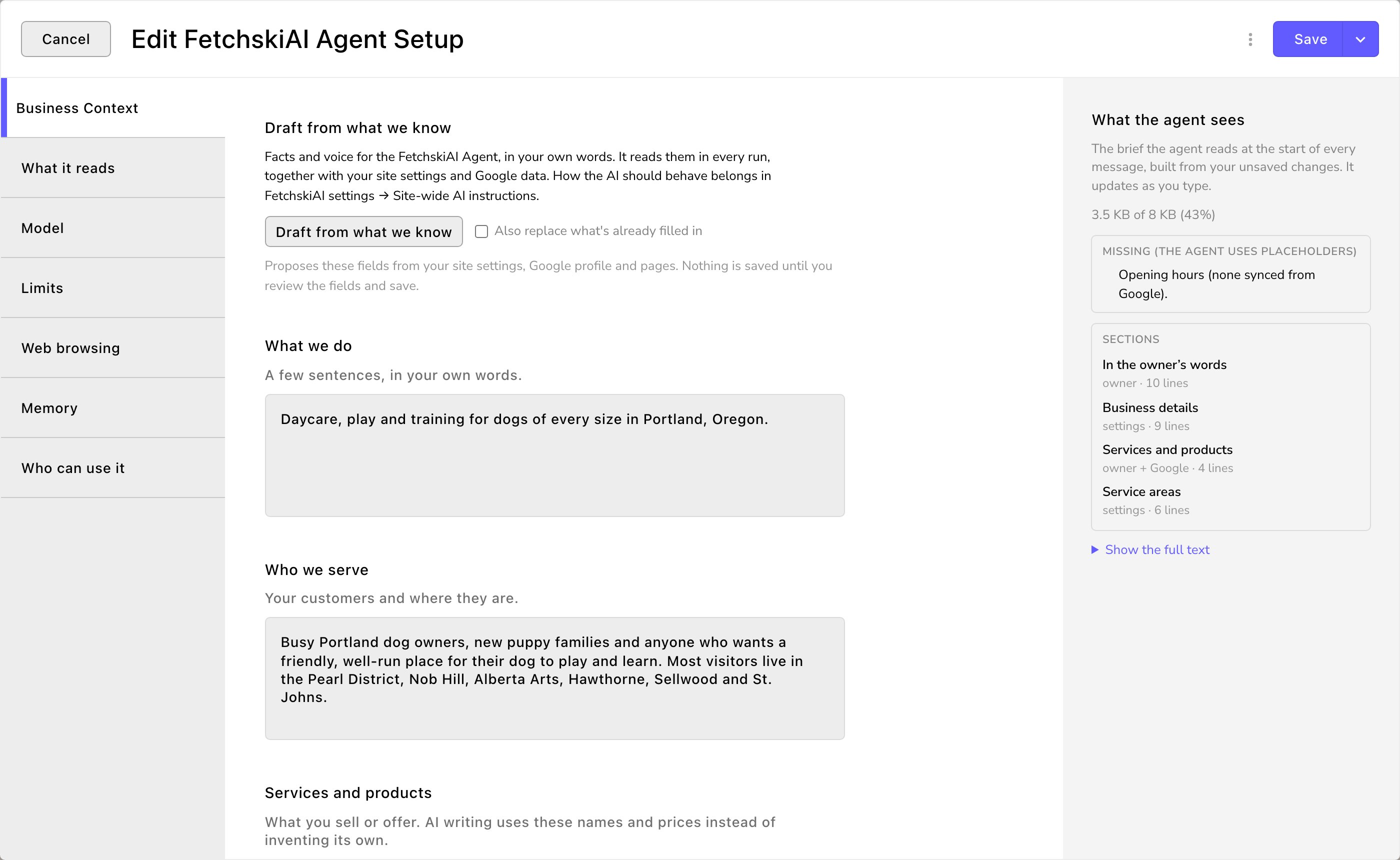
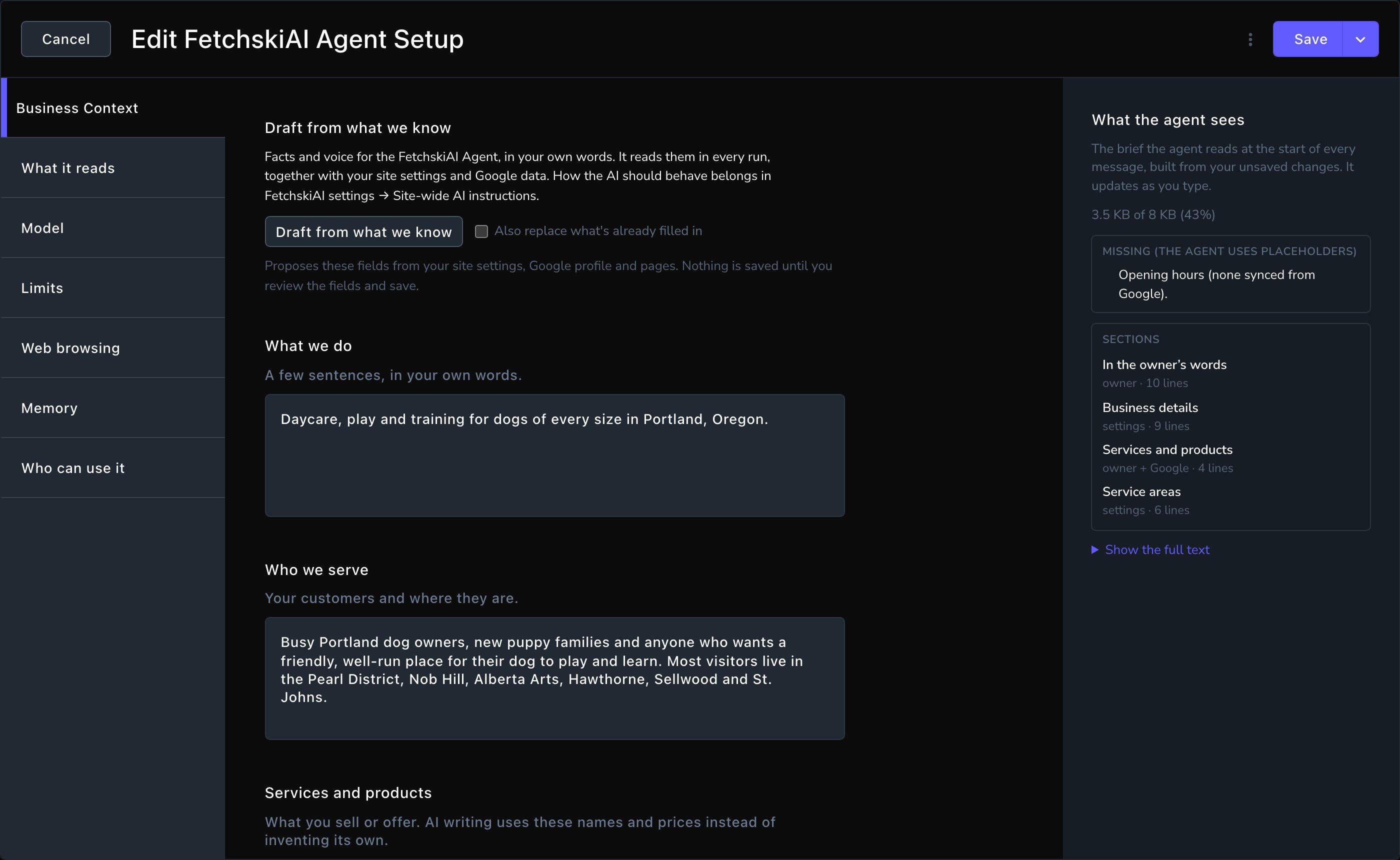
Business Context, with what the Agent sees on the right.
Business Context
Business Context is your business profile for FetchskiAI: the facts, services, customers and writing style it should use. Write it in your own words. Every AI writing feature uses a short version too, so your page text, search engine text and blog drafts sound like you. Draft from what we know fills the empty boxes from your site settings, your pages and your Google Business Profile (your business listing on Google, once it’s connected in Connections). It never fills Never say or Anything else: those are yours to write. Turn on Also replace what’s already filled in to redo every other box, overwriting what’s in it. Nothing is saved until you check the filled-in fields and choose Save. To take the draft back, choose Undo.- What we do and Who we serve: a few sentences each, such as “Daycare, play and training for dogs of every size in Portland, Oregon.”
- Services and products: add one entry per service, each with its Name, Description, Price or price note and Link. For example: Name “Day play”, Description “A full day of supervised play in small groups”, Price or price note “From $35 a day”, Link /day-play. AI writing uses these names and prices instead of inventing its own.
- What makes us different: why customers choose you.
- Brand voice: choose the few that sound most like you, from Warm, Professional, Playful, Premium, Straightforward, Friendly, Expert and Calm. Add more in Voice notes.
- Words and phrases to use and Words to avoid: your own terms, such as “play yard” rather than “kennel”.
- Verified facts AI may state: add one entry per fact, such as “Open since 2015”. AI writing is told to take numbers and claims only from here, your services and prices, and your Google Business Profile. AI can still get things wrong, so check every fact before you publish.
- Never say: claims, competitors or topics to leave out.
- Main goal for visitors, Main call-to-action label and Main call-to-action link: what you most want visitors to do next (your main call to action, usually a button). For example: Main goal for visitors Book online, Main call-to-action label “Book a visit”, Main call-to-action link /book. A link like /book is a page on your own site (the part of its address after your domain); you can also enter a full address. The Agent points its buttons and links there.
- Anything else: other facts or voice notes.
What it reads
Choose what the Agent reads. What this site has shows which sources your site has:- Use the Google Business Profile: your categories, description, hours, services and service area. With Which locations, choose Every profile this site manages or Only the ones I pick.
- Use Google reviews: your rating and a few recent excerpts, for themes and voice only. The Agent never turns them into testimonials. Set Review excerpts (5 by default), Lowest star rating to quote (4) and Leave out reviewer names (on).
- Use Google posts: your recent offers, events and updates. Recent posts sets how many (3).
- Use the service areas: the towns or regions your business serves, with their prices and descriptions, as you set them up in Service areas.
- Folders the agent may read: folders in Files, the part of your media library that holds documents (open it from the command palette: type “Files”). The Agent may read the documents, such as price lists or a style guide, in the folders you pick and the folders inside them. Choose none and it reads no files. These work: PDFs, plain-text documents (.txt), Markdown documents (.md) and spreadsheets saved as CSV (.csv). Save Word documents as PDF first. To upload a document, see The media library.
Model
- Model: which AI system writes the Agent’s answers. We suggest leaving it empty, so the Agent uses the models set in FetchskiAI settings. Each model has its own price and skills. If you choose one: building pages takes many actions, so more capable models usually follow instructions and write better, and cheaper, faster ones cost less but make more mistakes. For help choosing, contact Fetchski Support.
- Let editors switch model for a conversation: when on, the panel’s model tag becomes a picker. Off by default.
- If this model fails: the fallback models the Agent uses instead, set in FetchskiAI settings.
Limits
- Most steps per message: how many actions the Agent may take behind the scenes (reading the page, editing a section, checking its work) to answer one message. One request can need many: a whole page takes a few dozen. 40 by default, from 5 to 100.
- Spending cap per conversation (US dollars): a conversation stops once it has spent this much, and you start a new one to continue. $10 by default. Building a whole page with a top model can cost several dollars.
- Most AI images per conversation: how many pictures the Agent may make in one conversation. 4 by default, up to 20. Each image still waits for someone to approve it. To make more, start a new conversation. The Agent draws with the image model you last chose in the AI Image Studio.
Web browsing
- Let the agent visit web pages: lets the Agent read a public web page on another site that you give it, and take screenshots of it. It only looks: it never fills in forms or changes anything on those sites. It can also take screenshots of the draft it’s editing on your own site. On by default.
- Only these sites: one website per line, as its domain: the name without https:// or any page path, such as example.com. A domain covers its subdomains too, so example.com also lets in www.example.com. When set, the Agent may visit only these.
- Never these sites: one domain per line, written the same way. This list always wins.
- Most page visits per conversation: 50 by default, up to 200. Screenshots of your own site never count.
Memory
- Give the agent a memory: the Agent reads its notes at the start of every conversation. Off by default.
- Let the agent save notes on its own: it saves what’s worth remembering, such as a preference you stated or a correction, and tells you when it does. On by default, once memory is on. When off, it only reads the notes people write.
Who can use it
See who may use the Agent and what each role lets it change, in a read-only summary. To change it, edit the roles in People & Roles. See What each role can do.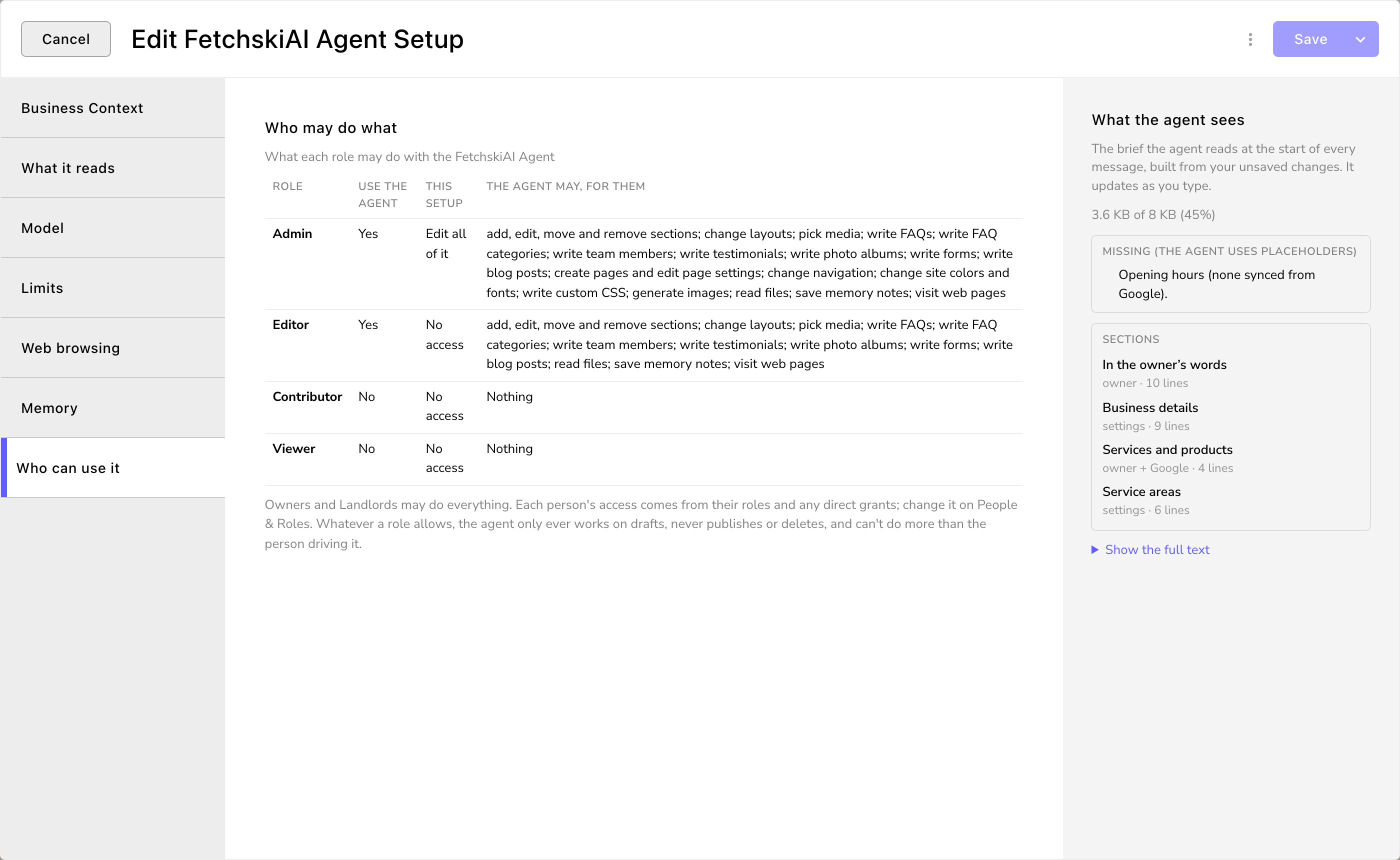
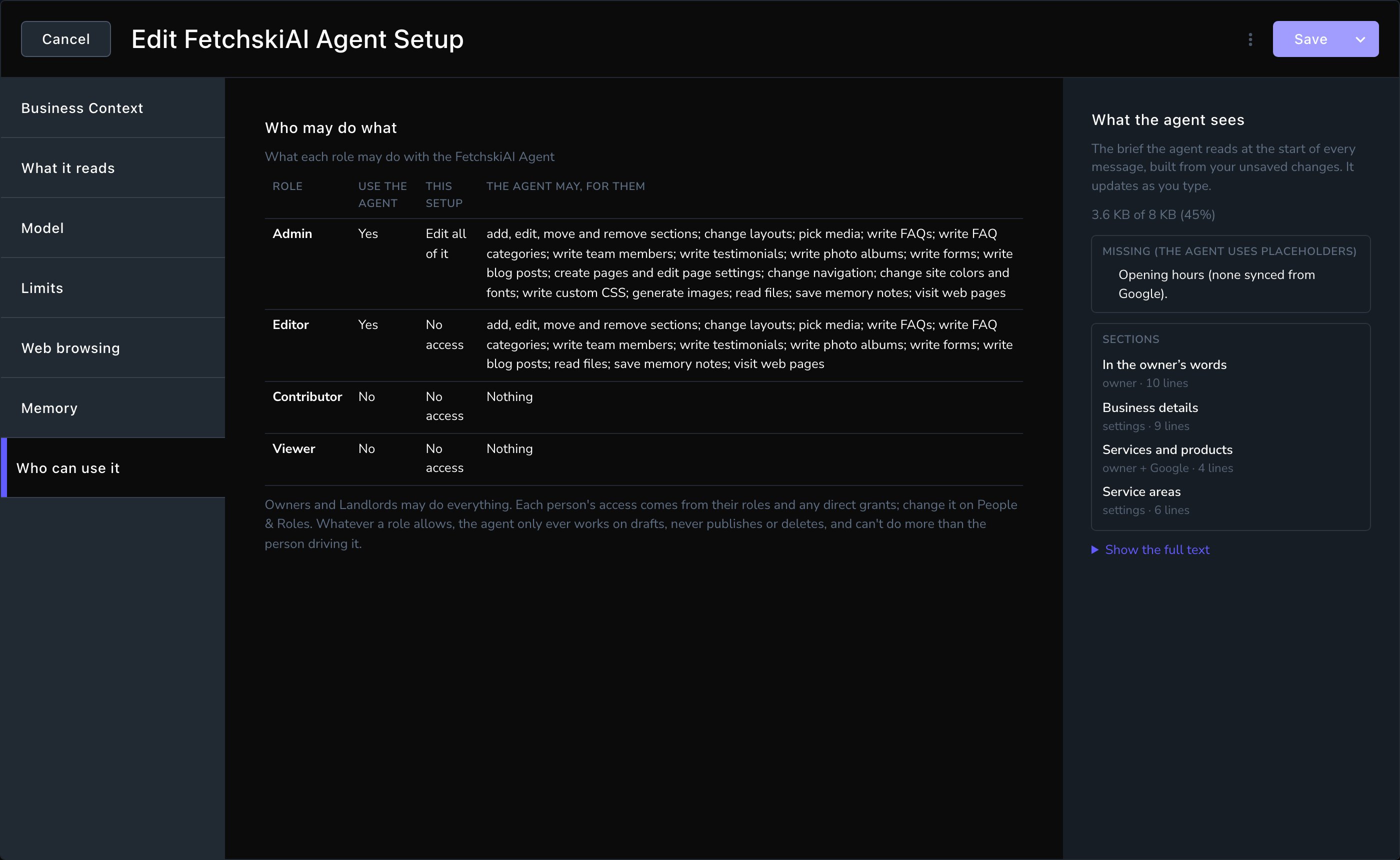
Who can use it: what the Agent may do for each role.
Good to know
- Start with Business Context. It makes the biggest difference to how the Agent writes. Draft from what we know gets you most of the way in one click.
- Keep your facts current. AI writing may repeat your Verified facts AI may state as written, so update them when things change.
- Your Editors may ask you for this. Until a Business Context exists, the Agent panel asks Editors to have a site owner add one.
Related
The FetchskiAI Agent
ask, review, publish and revert.
Memory
the notes the Agent keeps.
FetchskiAI settings
the AI switch and site-wide instructions.
Google Business Profile
connect the profile the Agent reads.