

 AdonisJS
Two layers
- Site-wide AI instructions apply to every AI feature that writes text, for everyone on your site. Use them for writing rules everyone should follow, such as your spelling, the words you use, and things FetchskiAI should always know or avoid.
- Personal AI instructions apply only to your own AI requests. Use them for how you like text written, details about your own work, or things FetchskiAI should always or never do for you.
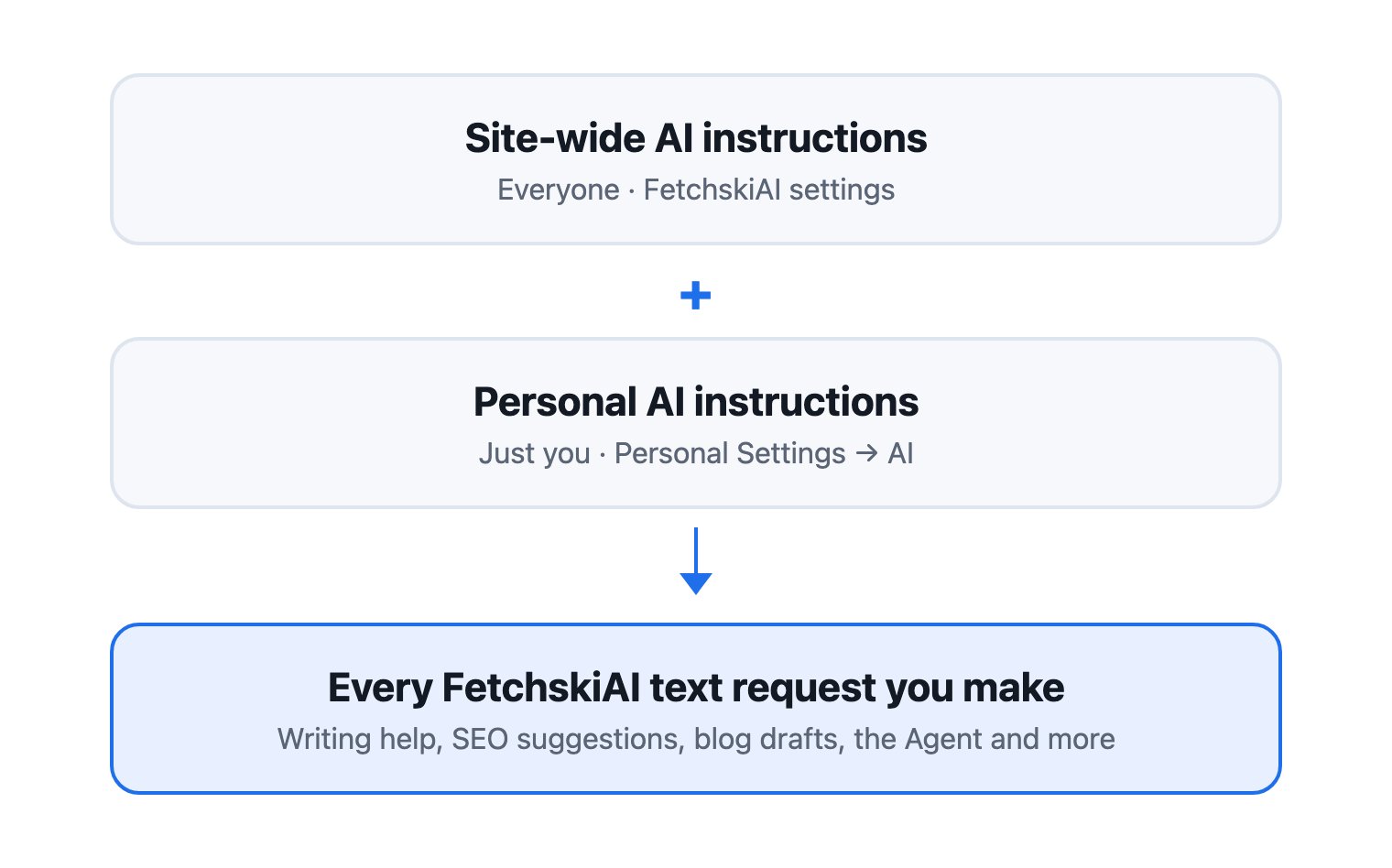
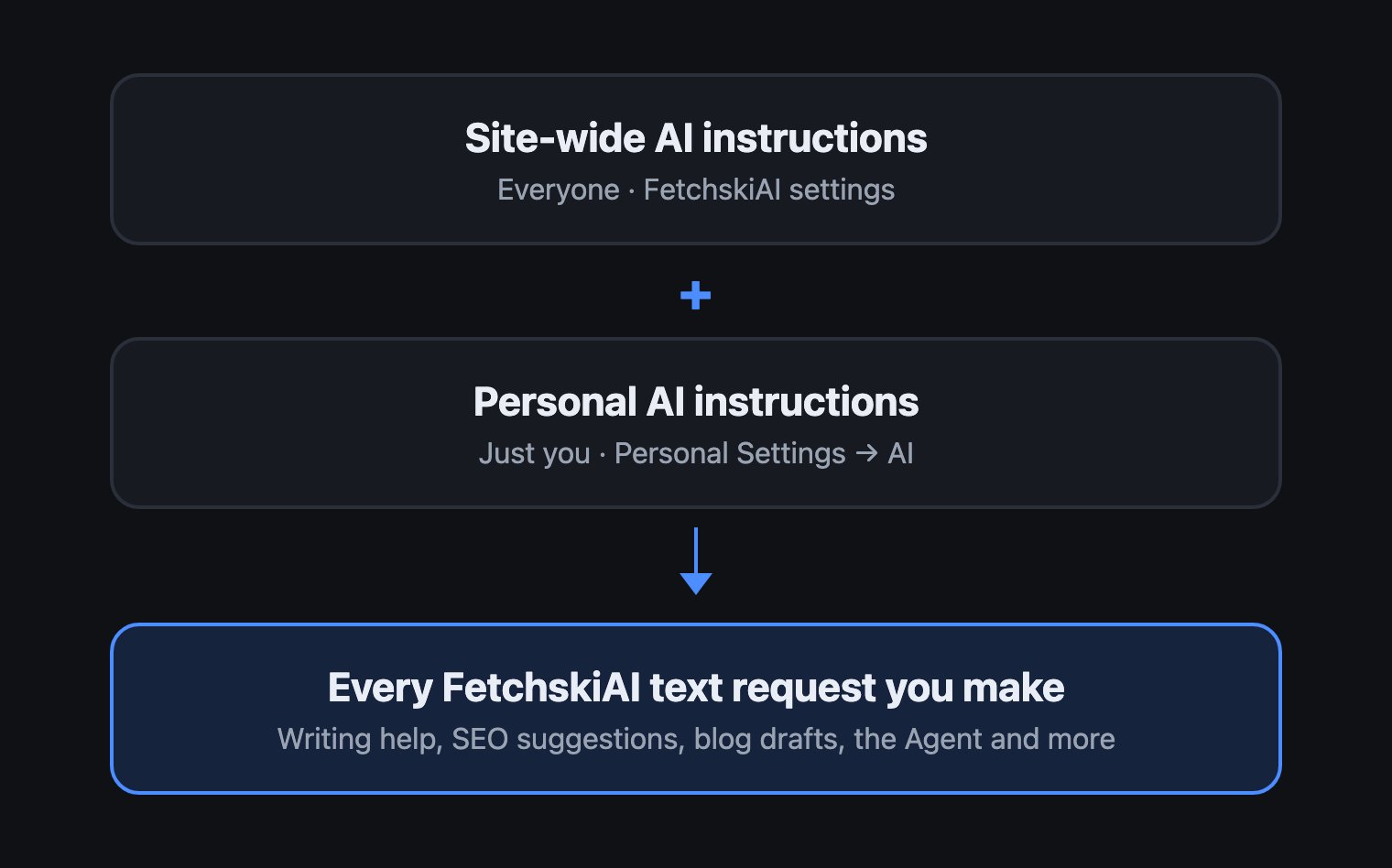
Site-wide instructions for everyone, then your own on top.
Set the site-wide instructions
1
Open the command palette (⌘K, or Ctrl+K on Windows) and choose FetchskiAI settings, or press T then Shift+I
2
In the FetchskiAI card, find Site-wide AI instructions
It shows once Enable AI features is on.
3
Write your instructions
For example: “Write in a warm, upbeat voice, like a friendly trainer. Say ‘pups’ and ‘playtime’, and use US spelling. Never promise outcomes for training classes.”
4
Choose Save
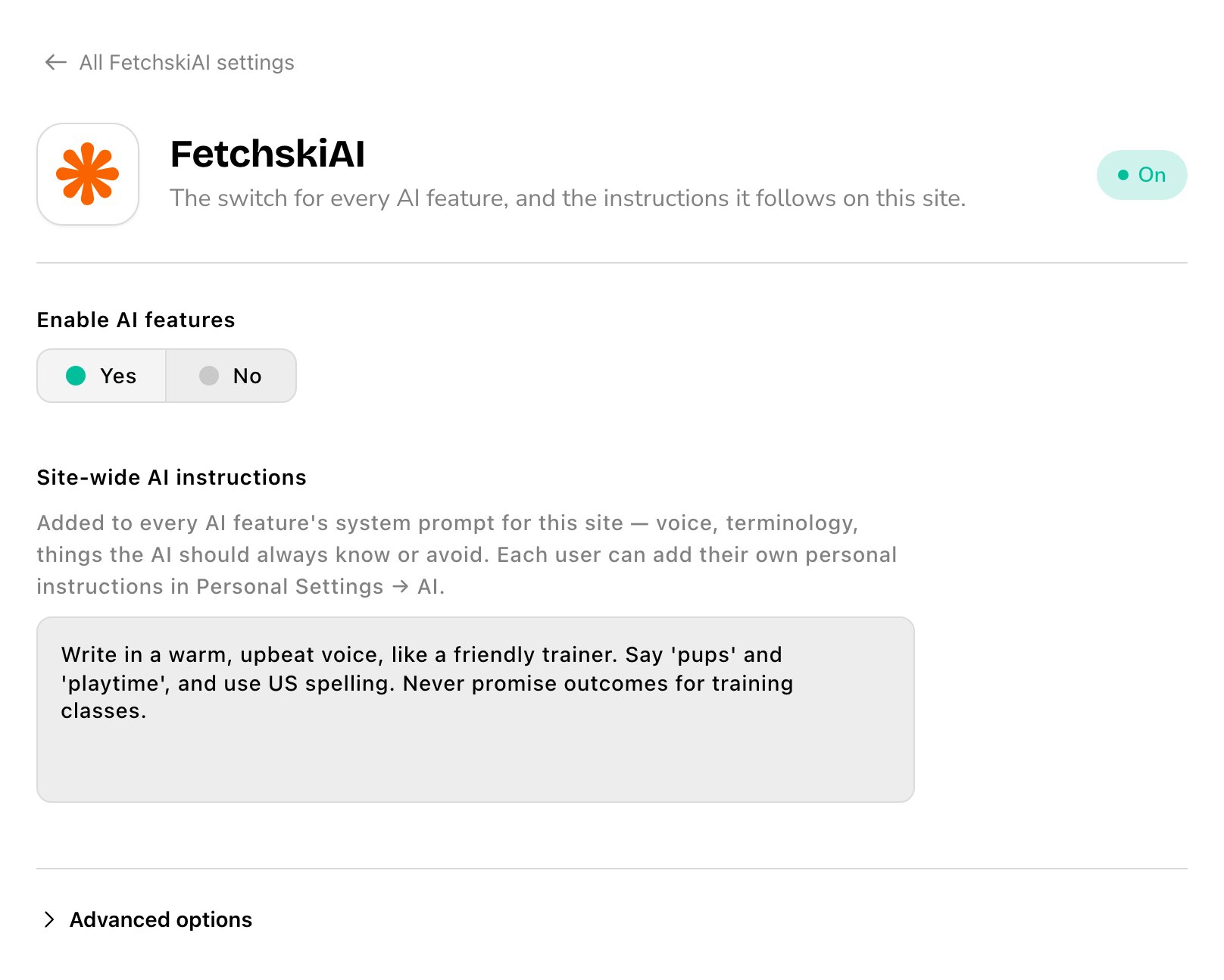
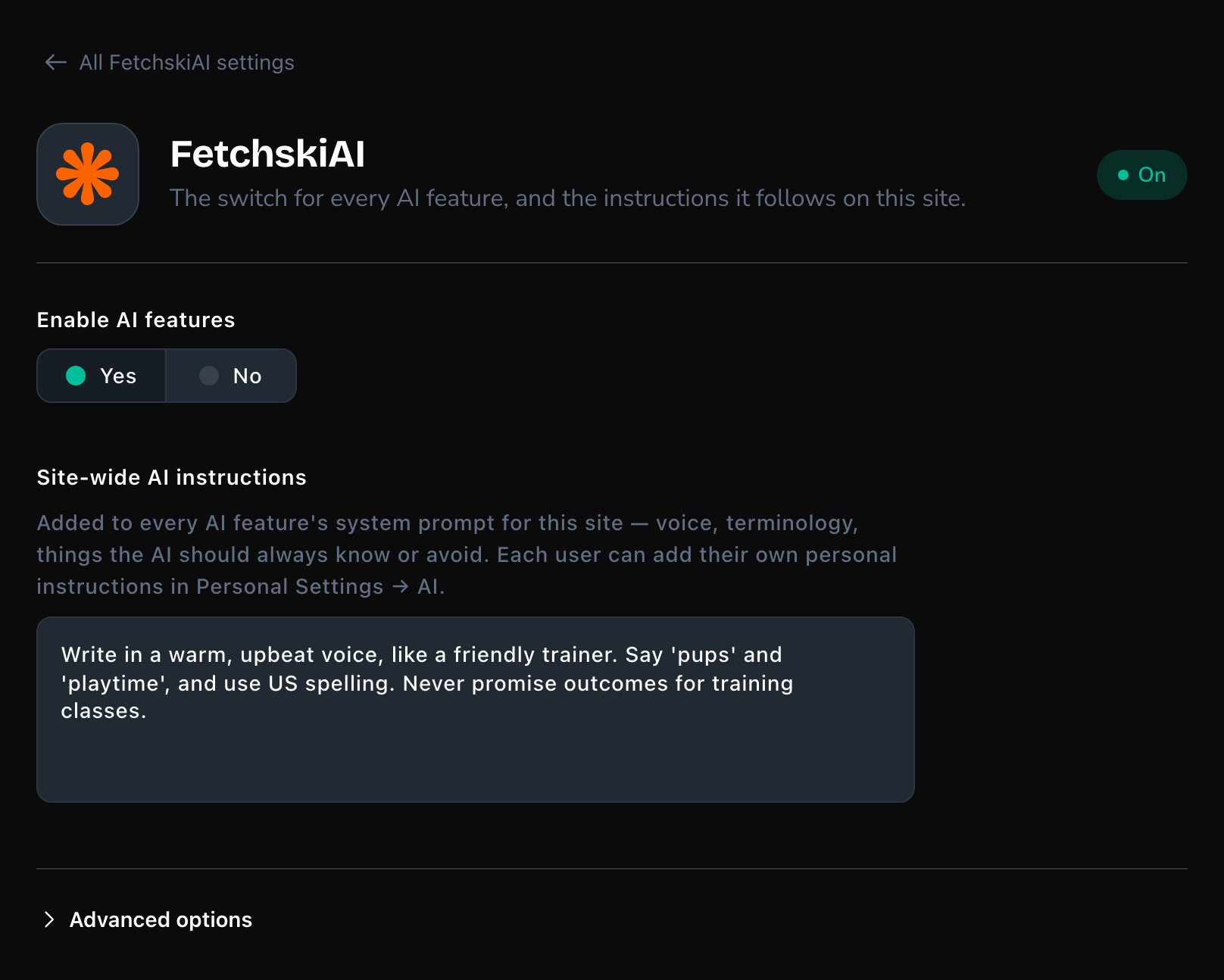
Site-wide instructions apply to everyone's AI requests.
Set your personal instructions
1
In the toolbar, choose your picture and name, then Personal Settings
Or open the command palette and choose Personal Settings.
2
Open the AI tab and choose AI instructions
3
Write your instructions under Personal AI instructions
For example: “I write the training pages. Keep paragraphs short, and end with a question to the reader.”
4
Choose Save
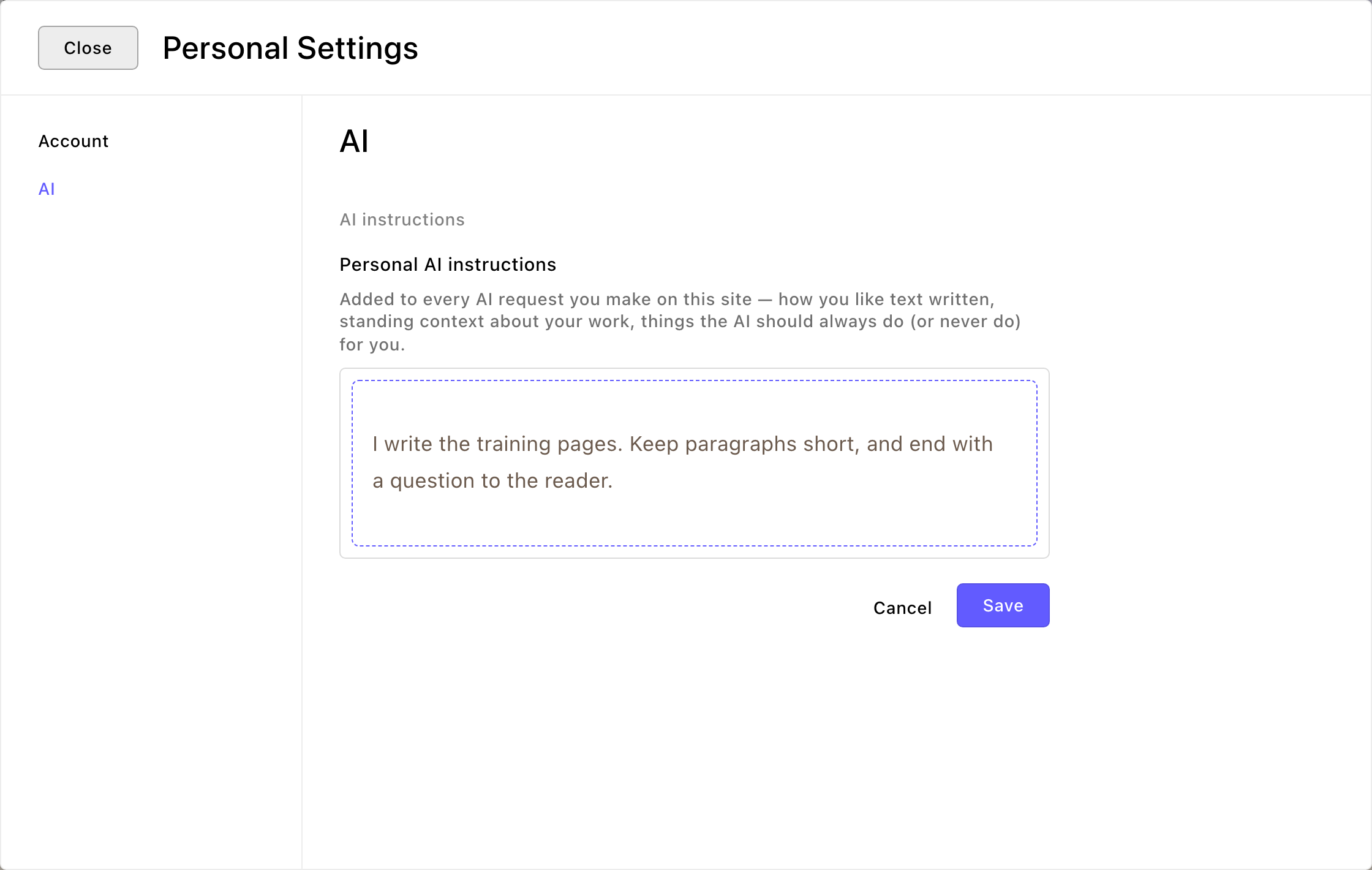
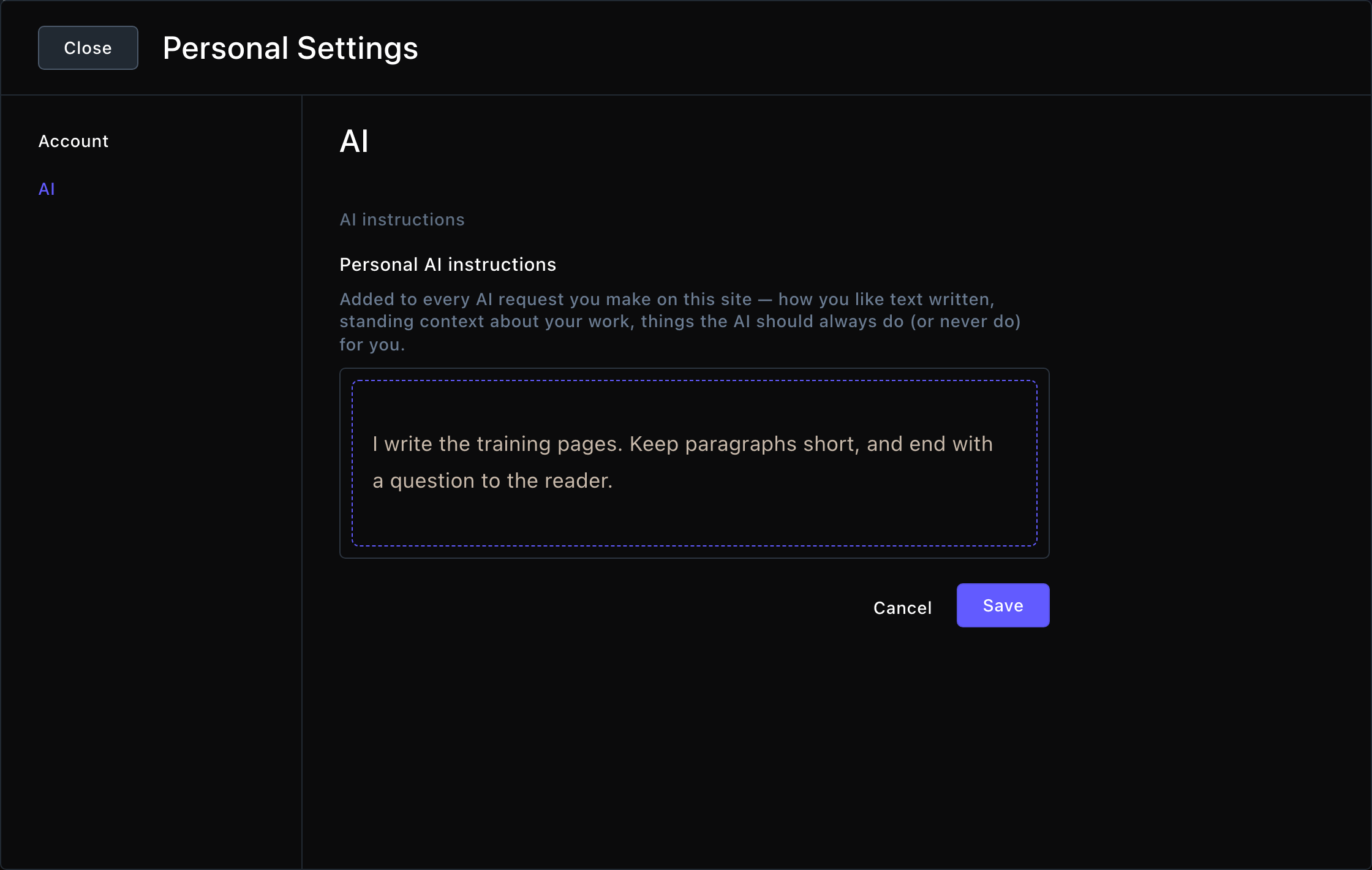
Your own instructions, for your AI requests only.
What happens next
Both take effect on the next request that writes text: the Agent, writing help, SEO suggestions and blog posts. Image generation doesn’t use them. Your personal instructions apply only to your own requests. They’re part of each request, though, so people who can see everyone’s recordings can read them.Good to know
- Keep them short. FetchskiAI reads them on every request, so a few clear lines work better than a long essay.
- Images don’t use them. Image generation reads only your image prompt, so put the details that matter there.
- Put each thing in one place. If the same rule sits in two places and they disagree, results can be mixed. Use this guide:
- Facts about your business and its brand voice: the Business Context tab in Agent Setup. Every feature that writes text uses it.
- Writing rules for the whole team: Site-wide AI instructions.
- How you like to work: your Personal AI instructions.
- One fact or decision the Agent should remember: a Memory note. Admins and Owners write these; Editors, ask an Admin to add or fix one.
- How to do a kind of task: a Skill.
- Contributors and Viewers don’t have the AI tools, so personal instructions only matter for Editors and above.
Related
FetchskiAI settings
turn AI on and set site-wide instructions.
Your profile
everything in Personal Settings.
Agent Setup
tell the Agent about your business.
Good prompts
examples that get great results.