

 AdonisJS
How Skills work
Each Skill has a Name, a Description and Instructions, and can carry reference files such as checklists or color lists. The Description matters most: it’s all an agent sees before it decides to load the Skill, so say what the Skill does and when to use it. Your site comes with built-in Skills for design, accessibility, copywriting, editing and SEO. Add your own beside them. Skills only guide FetchskiAI. They can’t change what each person is allowed to do.Open the Skills library
- Admins and Owners: in the toolbar, choose FetchskiAI → FetchskiAI Skills.
- Everyone who can read them, Editors too: open the command palette (⌘K, or Ctrl+K on Windows) and choose Go to FetchskiAI Skills, or press G then Shift+L. Editors don’t have it in the toolbar.
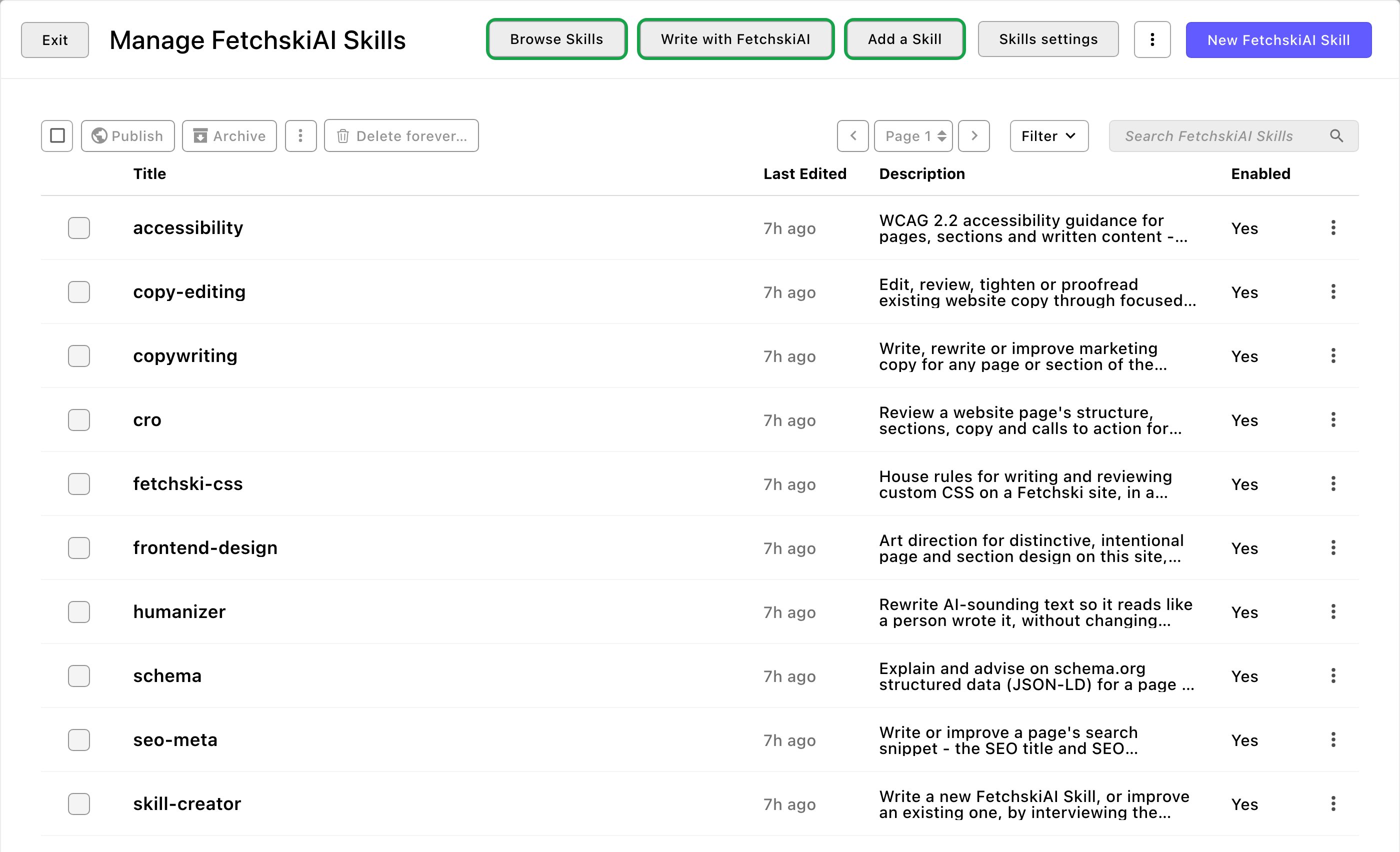
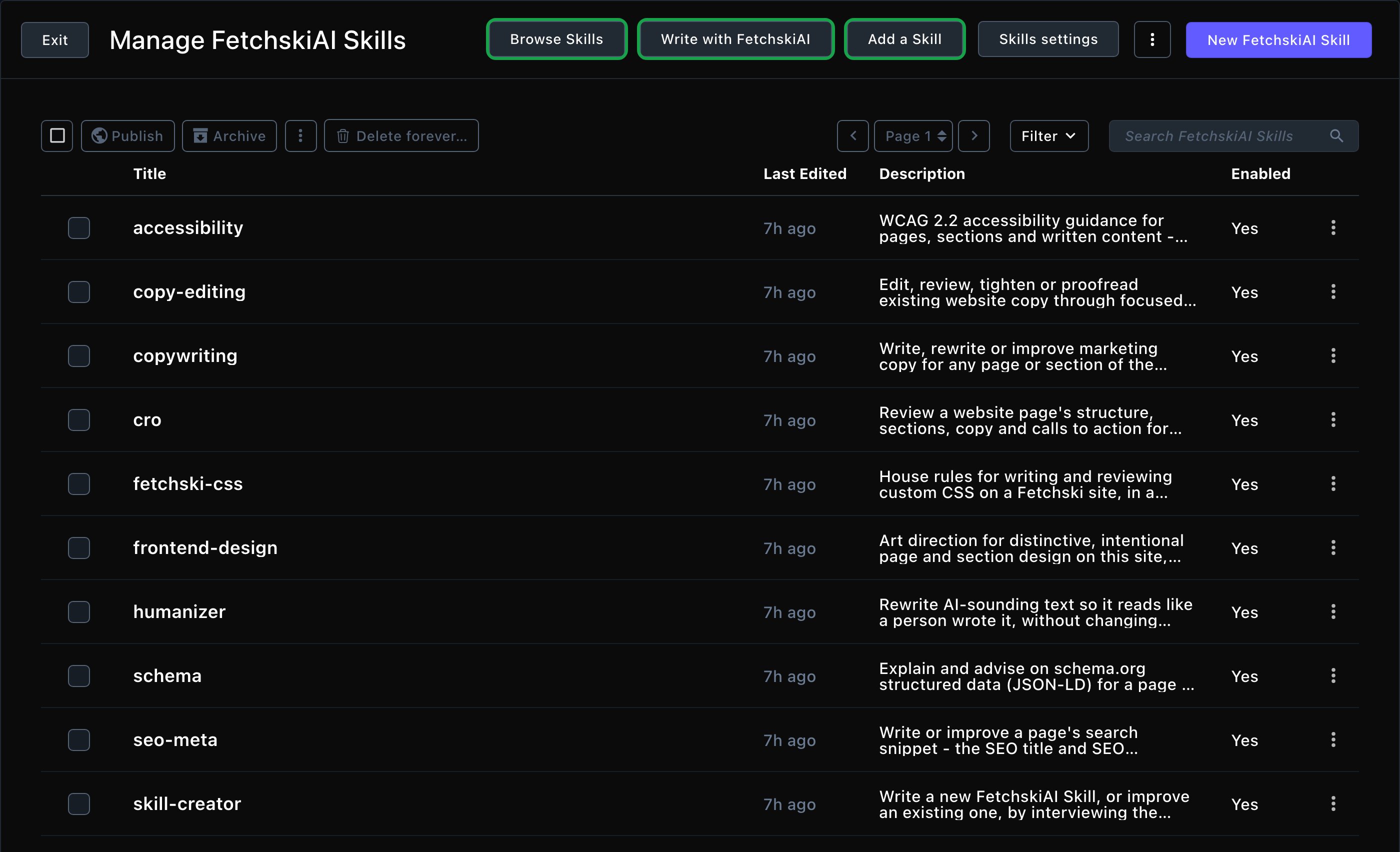
The Skills library, with every way to add a Skill along the top.
Write a Skill with FetchskiAI
The easiest way to make your own Skill is to describe it and let FetchskiAI write it with you.In the Skills manager, choose Write with FetchskiAI
Say what the Skill is for, or choose an idea to start from, such as "Our house style for headlines and calls to action."
Answer FetchskiAI's questions
When the draft is ready, it appears as a card
In the editor, check the Skill before you save it:
- Instructions say what you want, in your words.
- Agents names the tools that should use it (see Change, limit or turn off a Skill).
- Enabled is on.
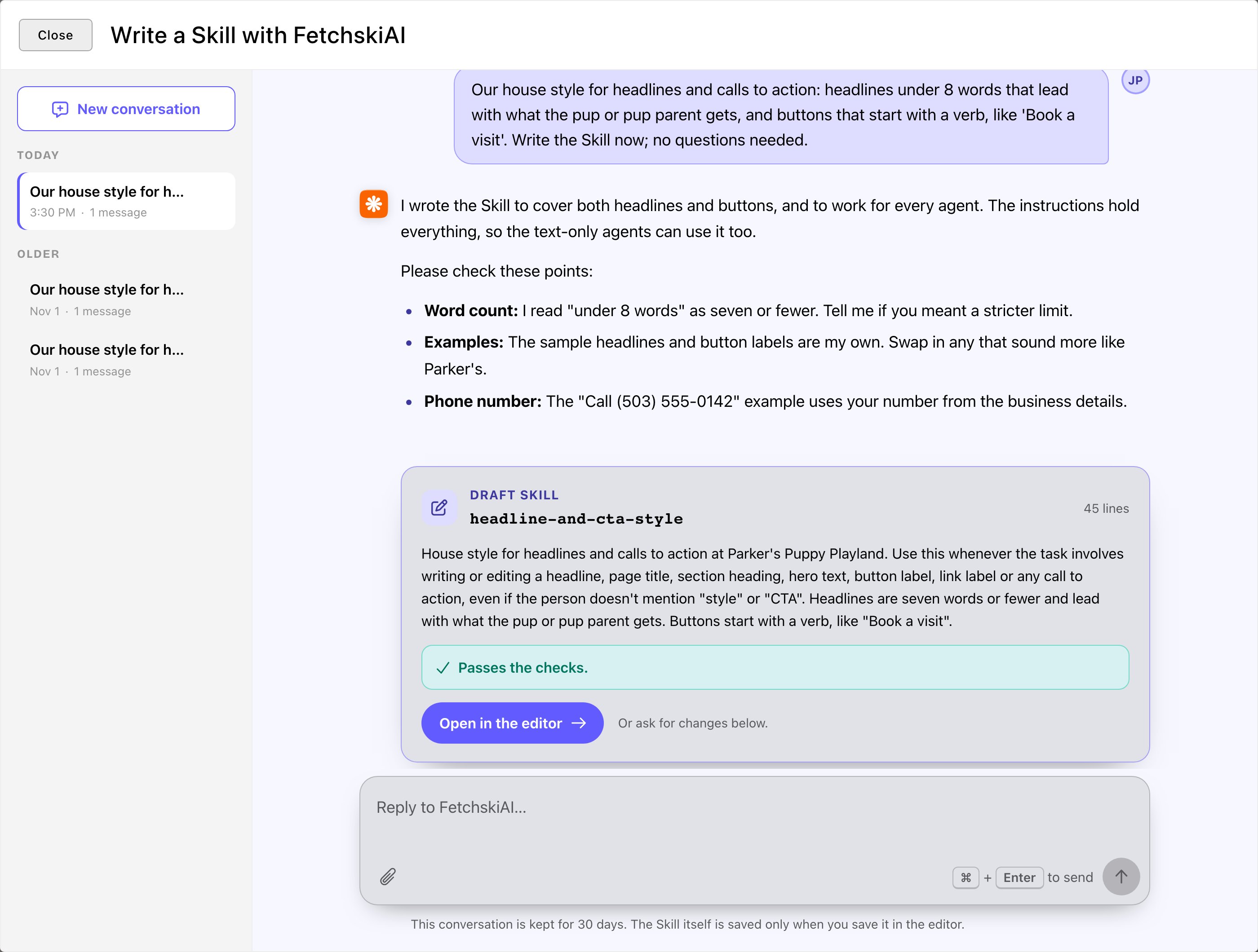
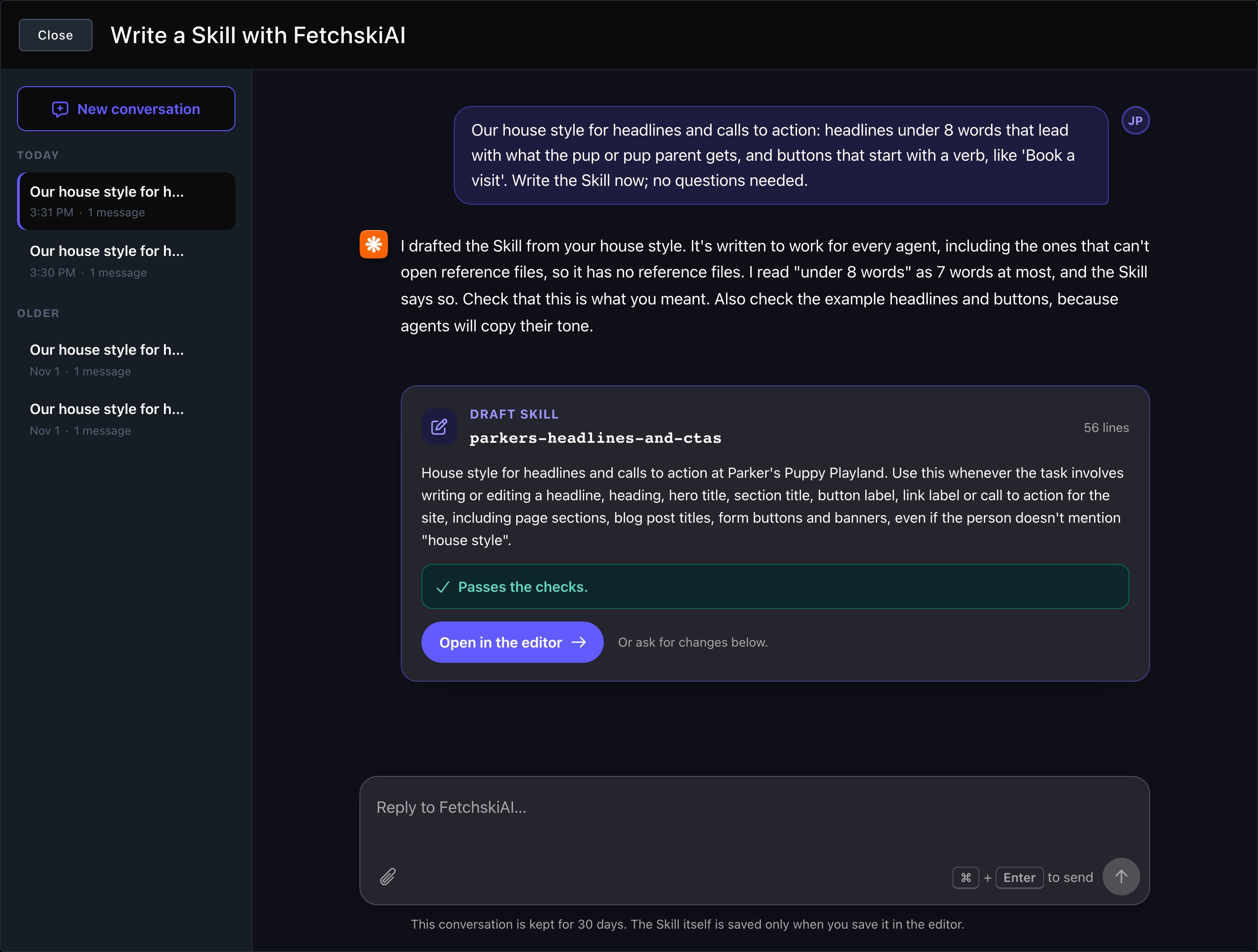
FetchskiAI asks a few questions, then drafts the Skill.
Add a Skill you already have
Already have a Skill, written by someone else or by you? Add it directly. This is for a Skill that’s already written in the standard Skill format. To make a new one from scratch, write it with FetchskiAI instead. A Skill in that format is a text file named SKILL.md. It starts with a short header giving the Skill’s name and description, then the instructions. For example:In the Skills manager, choose Add a Skill
Choose how to add it:
- Paste SKILL.md: paste the Skill’s text into the box.
- Upload: drop a SKILL.md file, a Skill folder or a zip file, or choose Choose files… or Choose a folder….
Choose Check Skill
Choose Install Skill
- Secrets requested: the Skill asks for passwords or keys.
- Data sent out: the Skill tells FetchskiAI to send information somewhere else.
- Instruction override: the Skill tries to make FetchskiAI ignore its other instructions.
- Instructions from a link: the Skill tells FetchskiAI to follow instructions from a web address.
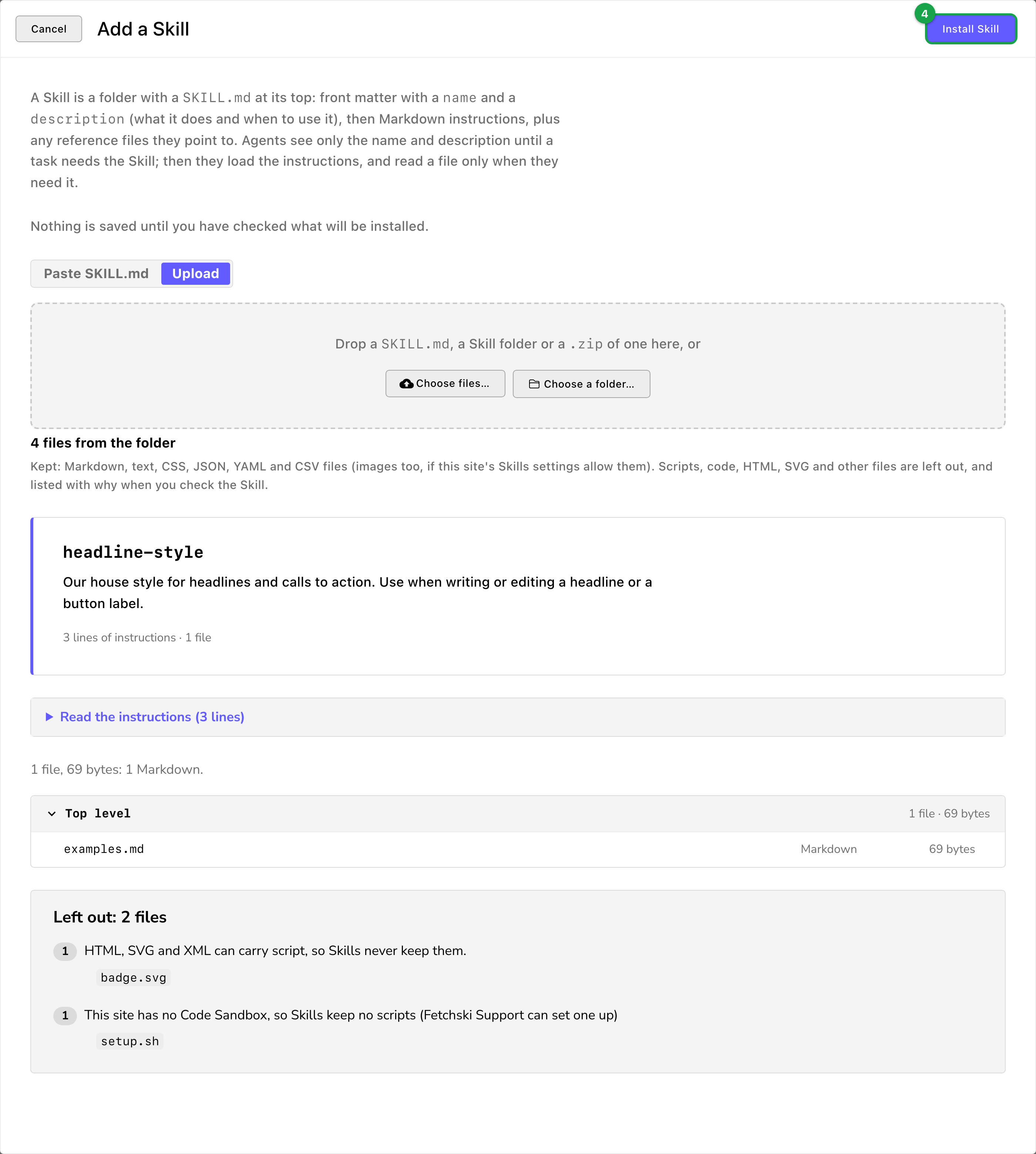
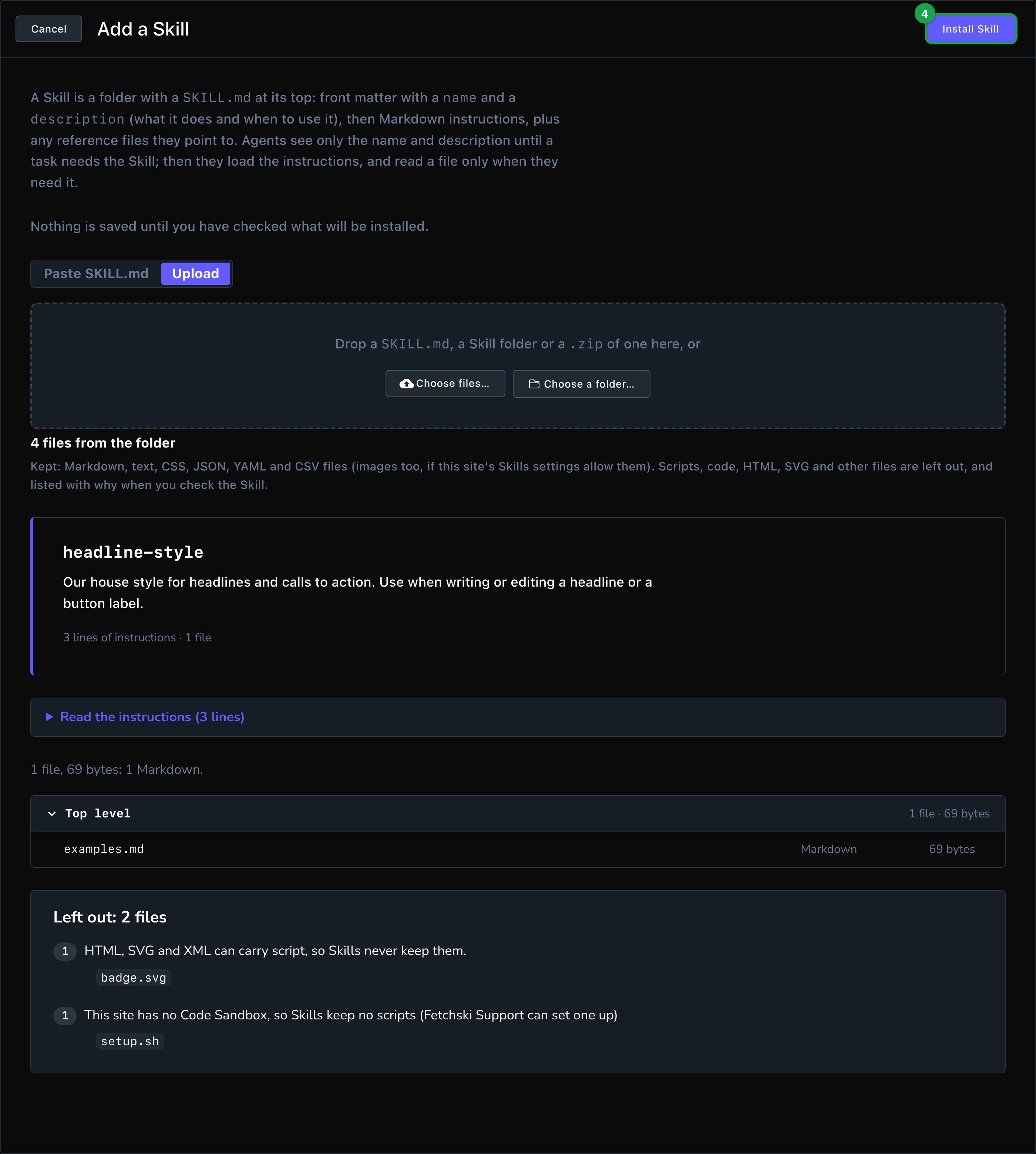
You see exactly what goes in before you install.
Browse Skills from outside your site
In the Skills manager, choose Browse Skills
Choose a tab:
- Fetchski Verified: Skills Fetchski has read and approved.
- OpenAgentSkill: a public library of Skills from around the internet, filtered by your Skills settings.
Type what you need, such as "marketing" or "SEO"
On a Skill's card, choose Review and install to see its preview, then choose Install Skill
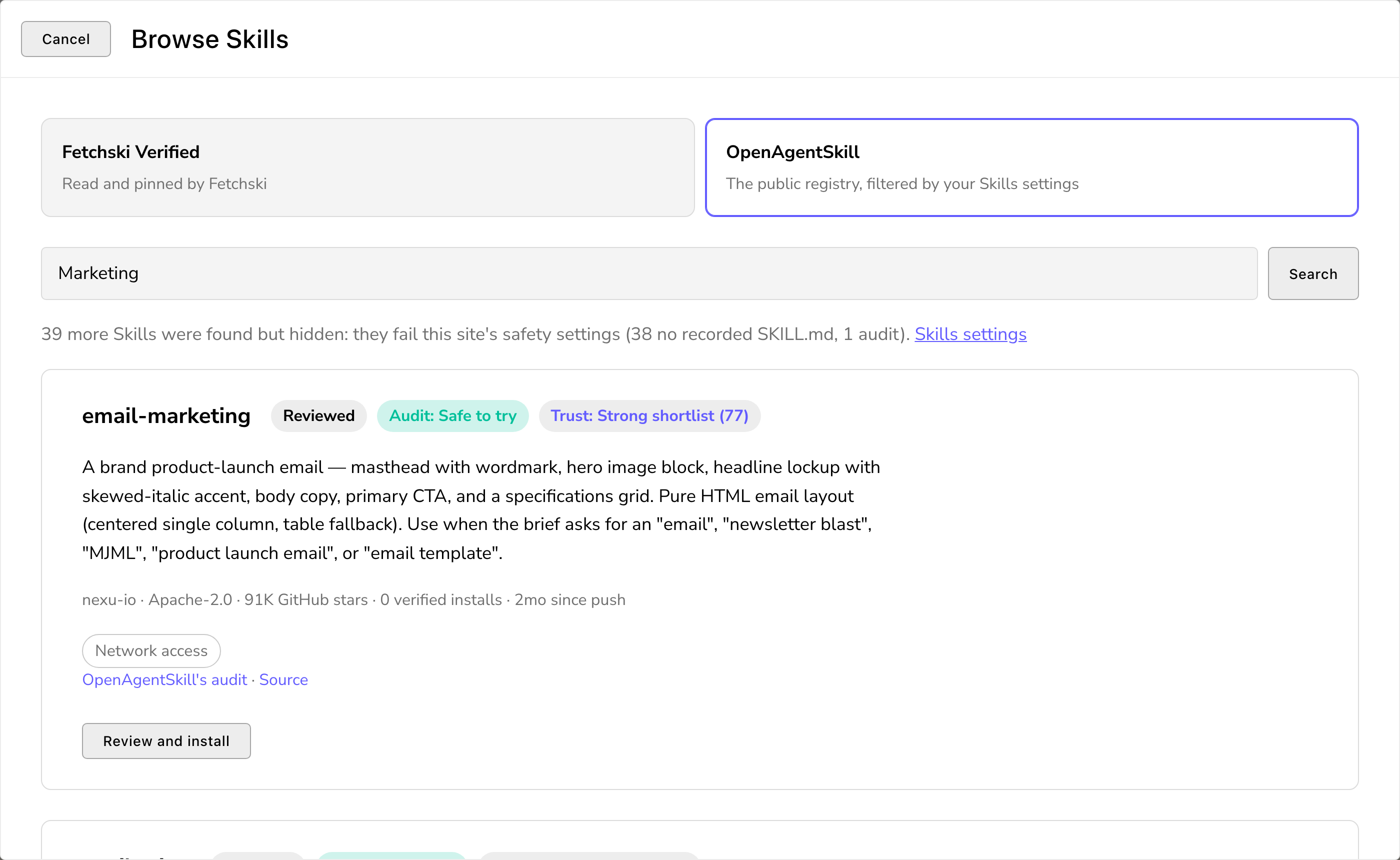
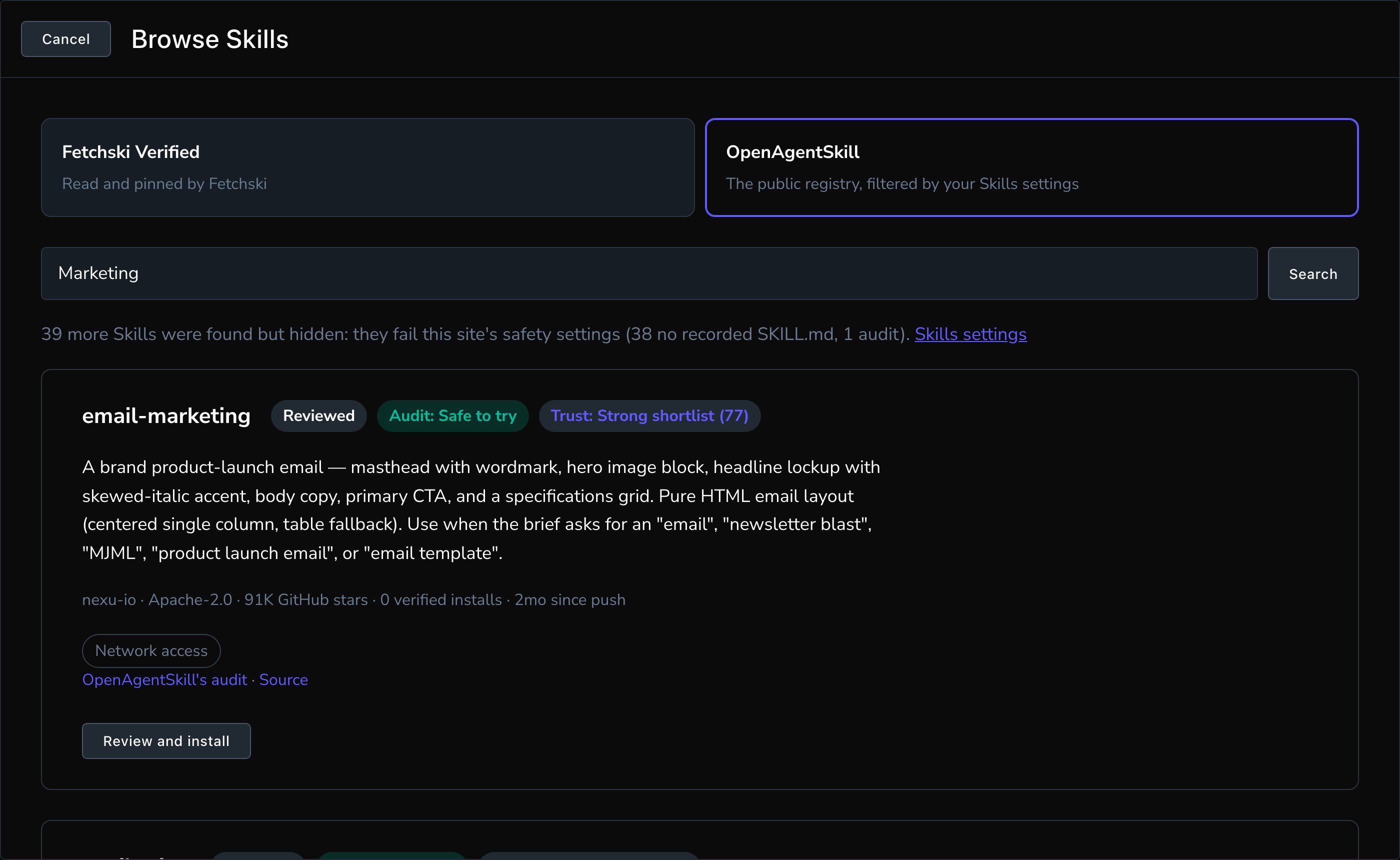
Each listing shows its safety signals before you install it.
Change, limit or turn off a Skill
Choose a Skill in the manager to open it. The editor has 3 tabs:- Skill: Name, Description and Instructions, plus these:
-
Agents: which tools may use it. The names here map to these features:
- Page agent: the FetchskiAI Agent on a whole page.
- Section agent: Edit with FetchskiAI on one section.
- Blog writer: Generate a blog post.
- Playground: the AI Playground.
- Rich text assistant: writing help in rich text.
- SEO suggest: SEO suggestions.
- Skill Creator: Write with FetchskiAI, above.
- Always load in full: gives the Blog writer and Playground the whole Skill at the start of every task, instead of only when needed. Each task then costs more, so keep it for know-how nearly every task needs.
- Enabled: turn it off and no agent sees it.
-
Agents: which tools may use it. The names here map to these features:
- Files: the Skill’s reference files.
- About: where the Skill came from, plus 2 fields:
- License: the terms its author shared it under, which say how you may reuse it.
- Import notes: what was left out or flagged when it was added.
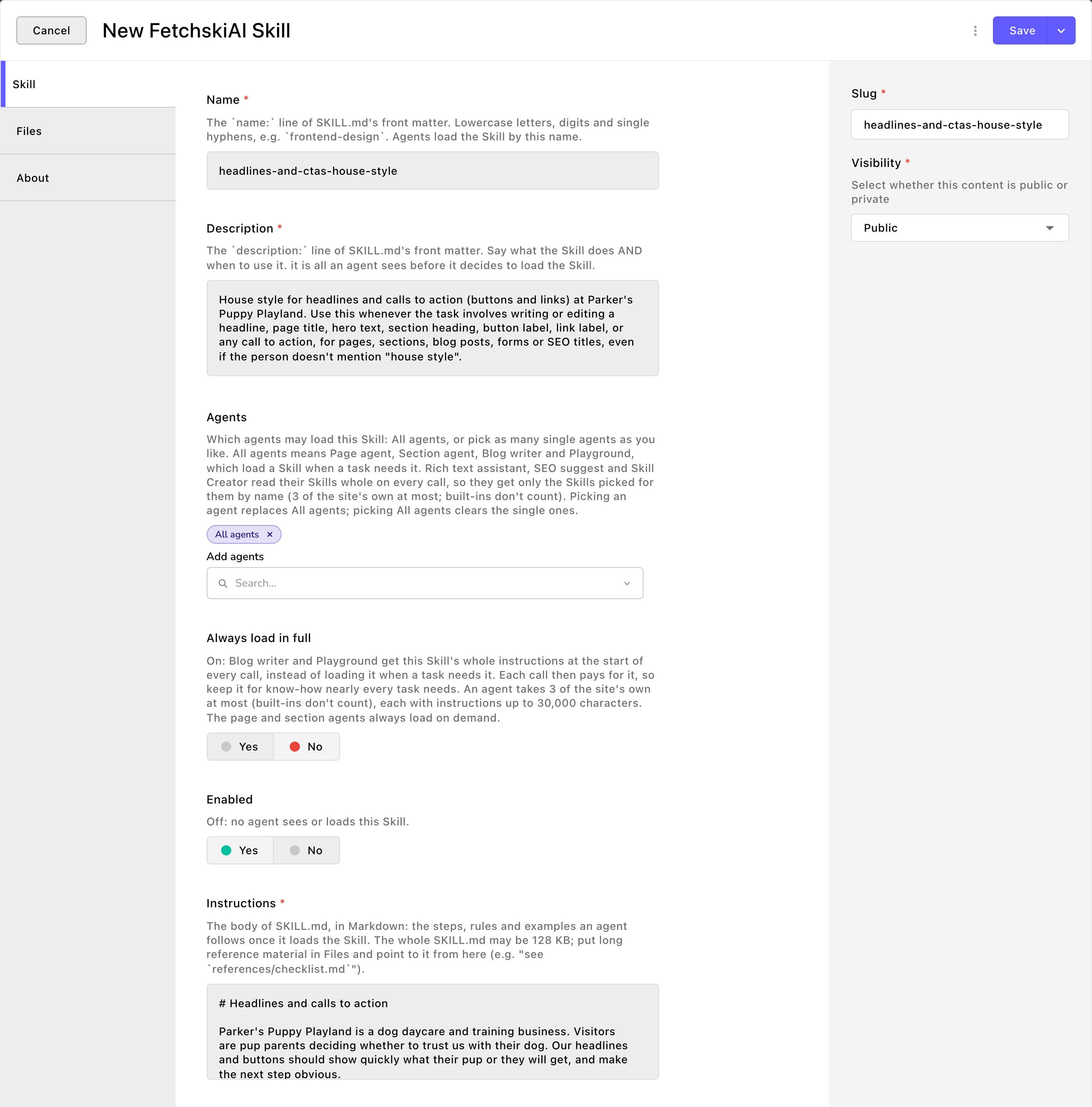
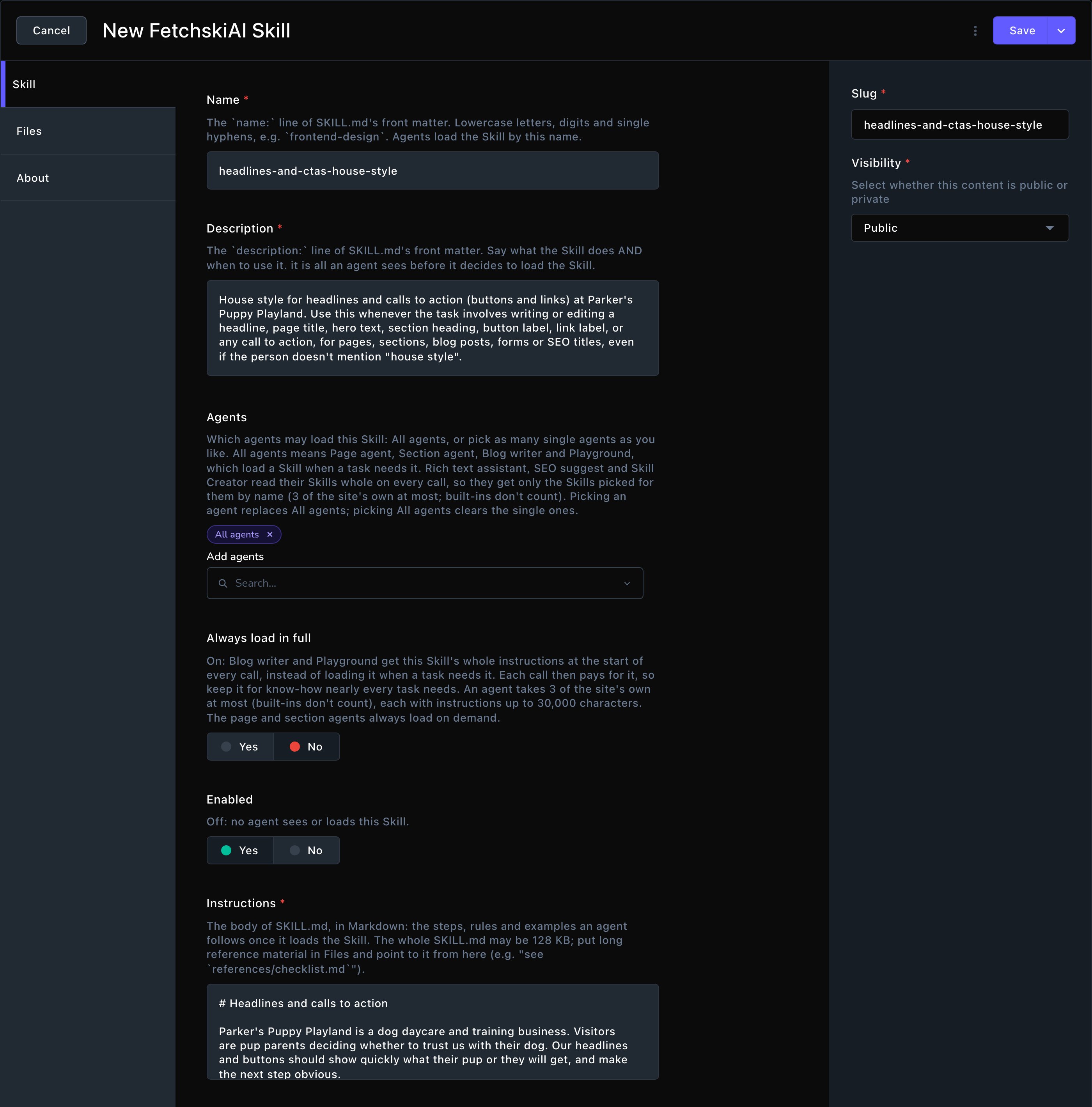
Choose which agents use a Skill, or turn it off.
Built-in Skills
Built-in Skills can be turned off with Enabled, but never deleted. Fetchski keeps them up to date on its own, unless you’ve edited one. Your edits are kept, and the editor offers Use the newer built-in version when there’s an update. To undo your edits, choose Reset to built-in version. If a built-in Skill is ever missing from the list, open the ⋮ menu at the top of the manager and choose Restore built-in Skills to bring it back.Skills settings
Admins and Owners can choose how strict the safety checks are. In the Skills manager, choose Skills settings. Or open the command palette and choose FetchskiAI Skills Settings, or press T then K. Internet Skills- Minimum GitHub stars: on GitHub, people “star” a project to bookmark it. A Skill’s project needs at least this many stars to show. It starts at 1,000 and can’t go below 100. Stars show popularity, not a safety review.
- Minimum verified installs: how many installs other people confirmed worked. Most Skills have none yet, so a number above about 5 hides nearly all of them.
- Allow experimental Skills: shows Skills OpenAgentSkill rates experimental, tested only by hand.
- Allow Skills whose audit says “needs review”: shows Skills whose OpenAgentSkill check found something a person should look at.
- Allow Skills with a “review” trust score: shows Skills OpenAgentSkill trusts less than usual.
- Allow Skills that hint at shell or secrets access: shows Skills that may try to run commands on a computer (shell) or reach passwords and keys (secrets).
- Allow images in Skills: lets Skills keep pictures. Off to start.
-
Skills per agent: the most of your own Skills one agent may have. It starts at 5 and goes up to 20. Built-in Skills don’t count.
Two fixed limits still apply, even if you raise Skills per agent:
- The Rich text assistant, SEO suggest and Skill Creator take 3 of your own Skills at most.
- The Blog writer and Playground take at most 3 with Always load in full on.
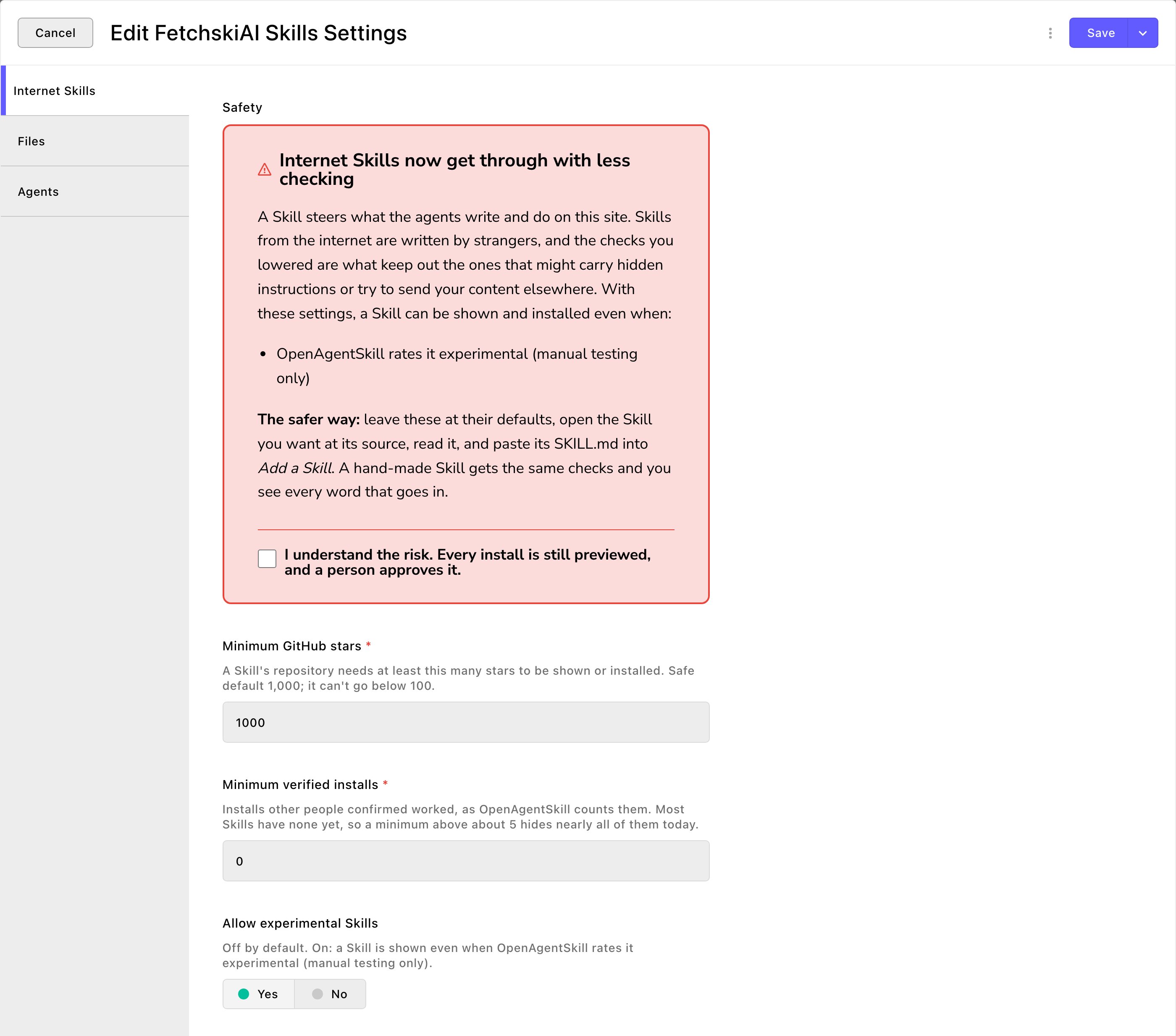
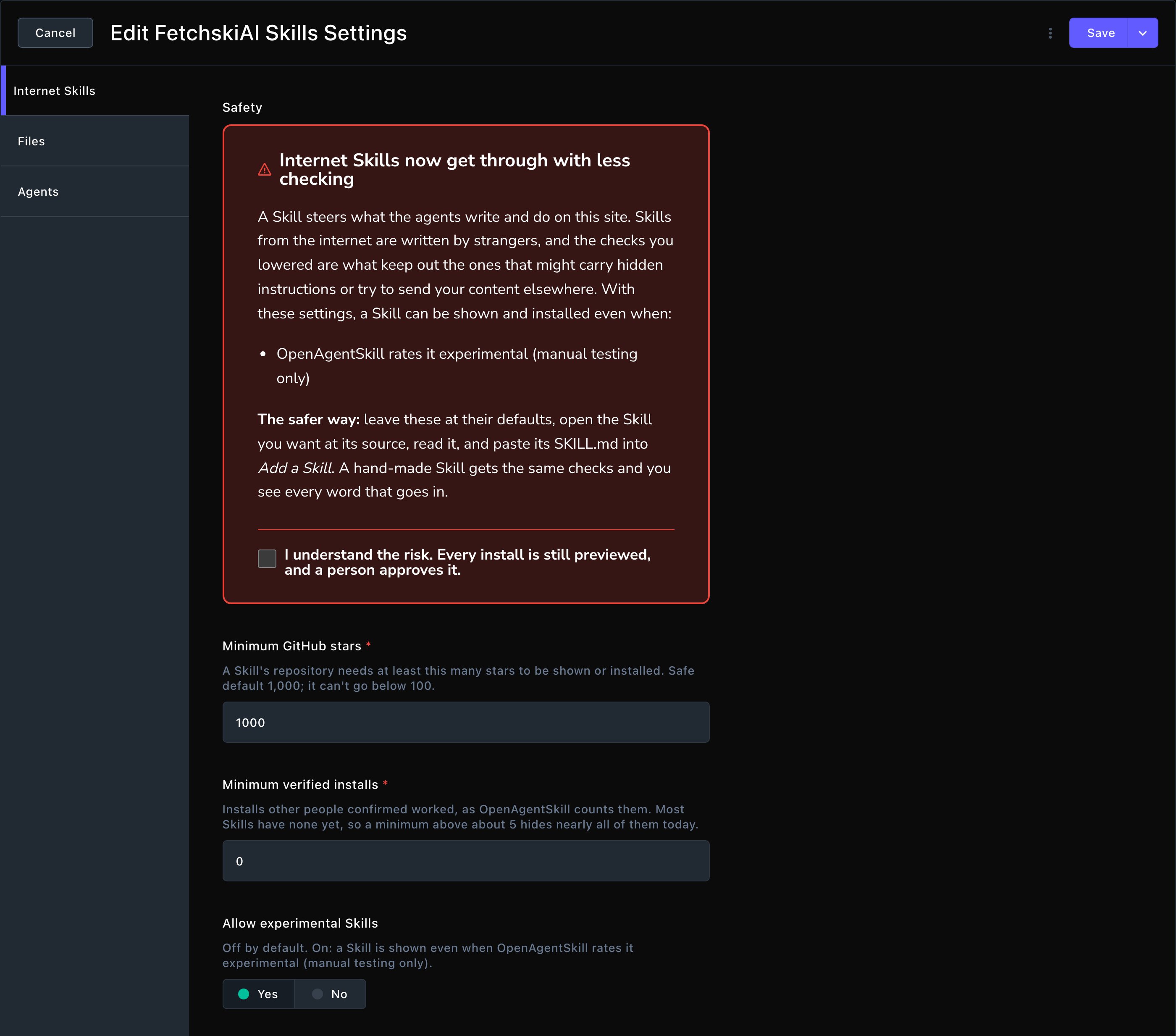
Lowering a safety check shows a warning you must accept.
Good to know
- Short, clear descriptions work best. An agent decides whether to load a Skill from its description alone.
- Skills cost a little. Every task pays to read the list of Skills, and more for each one it loads. You can see the share in Recordings.
- Scripts need the Code Sandbox. A Skill can keep and run scripts only once Fetchski sets up the Code Sandbox for your site.