

 AdonisJS
Open the recordings
- In the toolbar, choose FetchskiAI → FetchskiAI Recordings.
- Or open the command palette (⌘K, or Ctrl+K on Windows) and choose FetchskiAI Recordings.
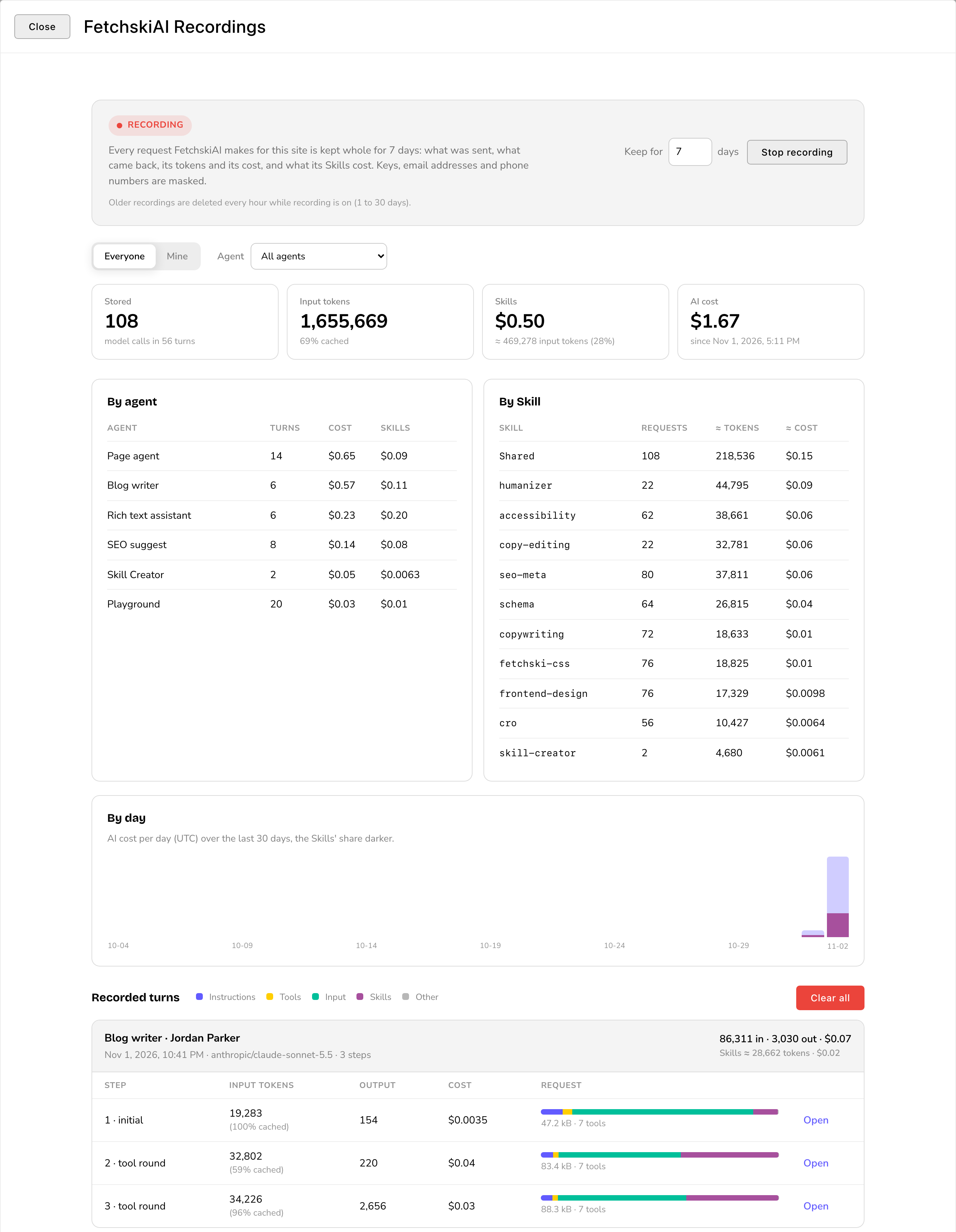
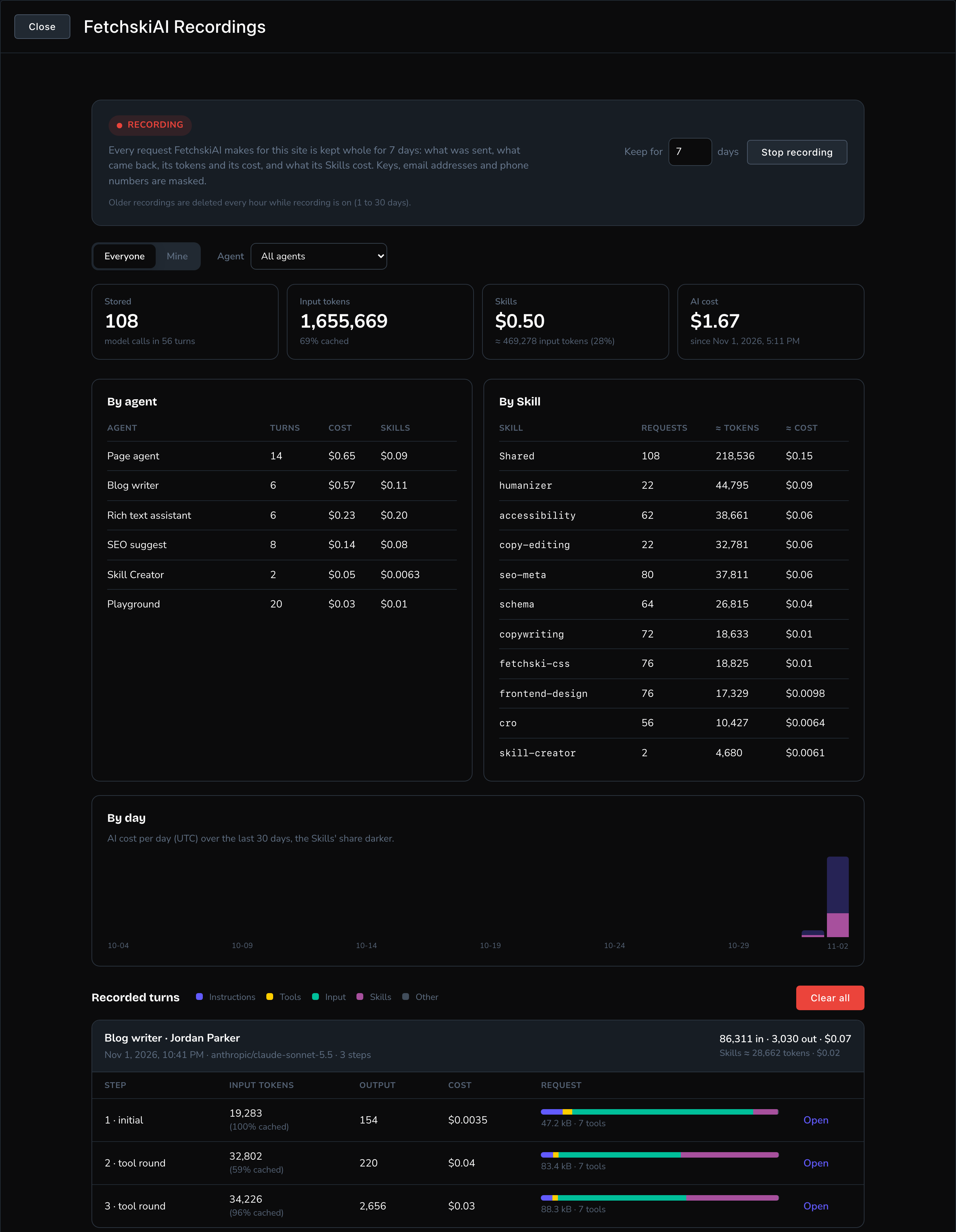
FetchskiAI Recordings: the switch at the top, then totals and every recorded request.
What gets recorded
While recording is on, every text request FetchskiAI makes is kept. That covers the Agent, Write with AI and AI assist in rich text, SEO suggestions, blog posts, the AI Playground and the Skill Creator. How the counting works:- A conversation is a chat from start to finish.
- A turn is one message from a person and the answer to it.
- A step is one request to the AI. Answering one message can take several steps, for example when the Agent reads a page, then changes it. Each step is its own record.
Recording and how long to keep it
The card at the top says Recording or Not recording. Recording is on for every new site, and recordings are kept for 7 days.- Keep for … days: how many days to keep each recording, from 1 to 30. Type a number and choose Save. While recording is on, recordings older than that are deleted every hour.
- Stop recording / Start recording: turns recording off or back on.
- While recording is off, nothing new is kept, and what’s already there stays. The hourly clean-up pauses.
- When you turn it back on, the clean-up runs straight away and deletes recordings older than Keep for … days. Newer ones stay.
- Clear all: deletes every recording on the site, from every person. Confirm with Delete all. Recording stays on or off as it was.
Whose recordings and which agent
- Everyone / Mine: switch between every person’s requests and your own. People who can see only their own don’t get this switch. Requests that no person made show only under Everyone.
- Agent: show one kind of request, such as the Agent or writing help, or All agents.
The totals and summaries
Four totals sit under the filters:- Stored: how many steps are kept, and in how many turns.
- Input tokens: everything sent to the AI, with how much was reused from earlier steps at a lower price.
- Skills: what your Skills cost, and their share of the input.
- AI cost: the total cost of the recordings kept now, under the filters you chose, since the oldest one. It leaves out image generation, the Code Sandbox, anything made while recording was off and anything already deleted. It isn’t your site’s bill.
Look at one request
Recorded turns lists every conversation turn, newest first. Each turn shows who asked, when, the model and its total tokens and cost. Its steps are listed underneath. Each step has a colored bar showing how big each part of the request was:- Instructions: the built-in guidance FetchskiAI gives the AI for this feature, plus your business details and custom instructions.
- Tools: the descriptions of the actions the AI may take, such as reading or changing a page. These aren’t buttons on your screen.
- Input: the conversation so far, the details sent along with it and the newest message.
- Skills: the Skills included in the request.
- Other: the remaining settings sent with the request.
- Where the request goes: how much of the request each part took, with a token estimate for each.
- Skills, largest first: every Skill in the request, how it came in, and its estimated tokens and cost.
- Code Sandbox runs: any code this step ran, with its time and estimated cost.
- The request, as sent and The response: the whole exchange, as a masked copy. Read it right here on the screen.
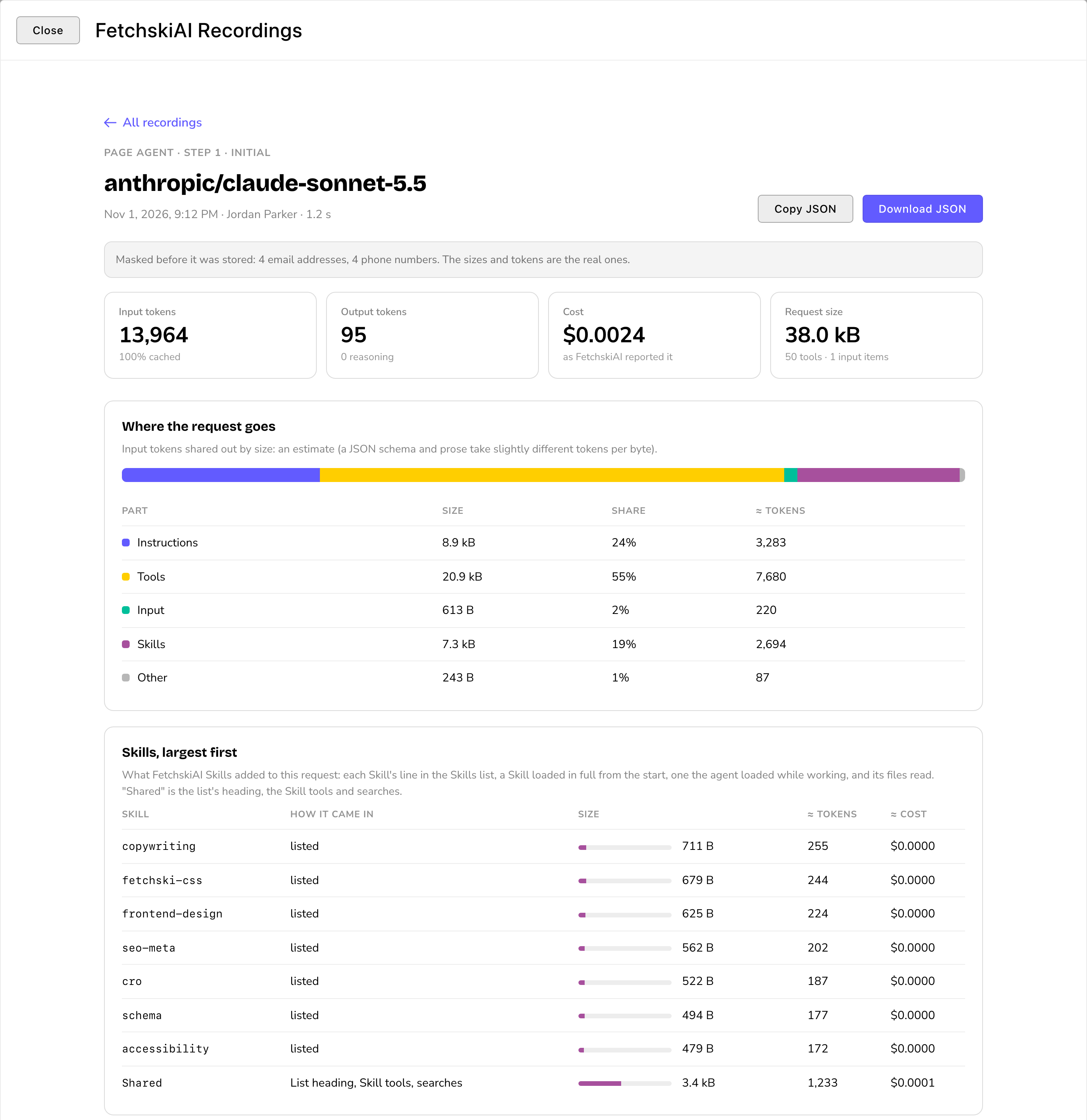
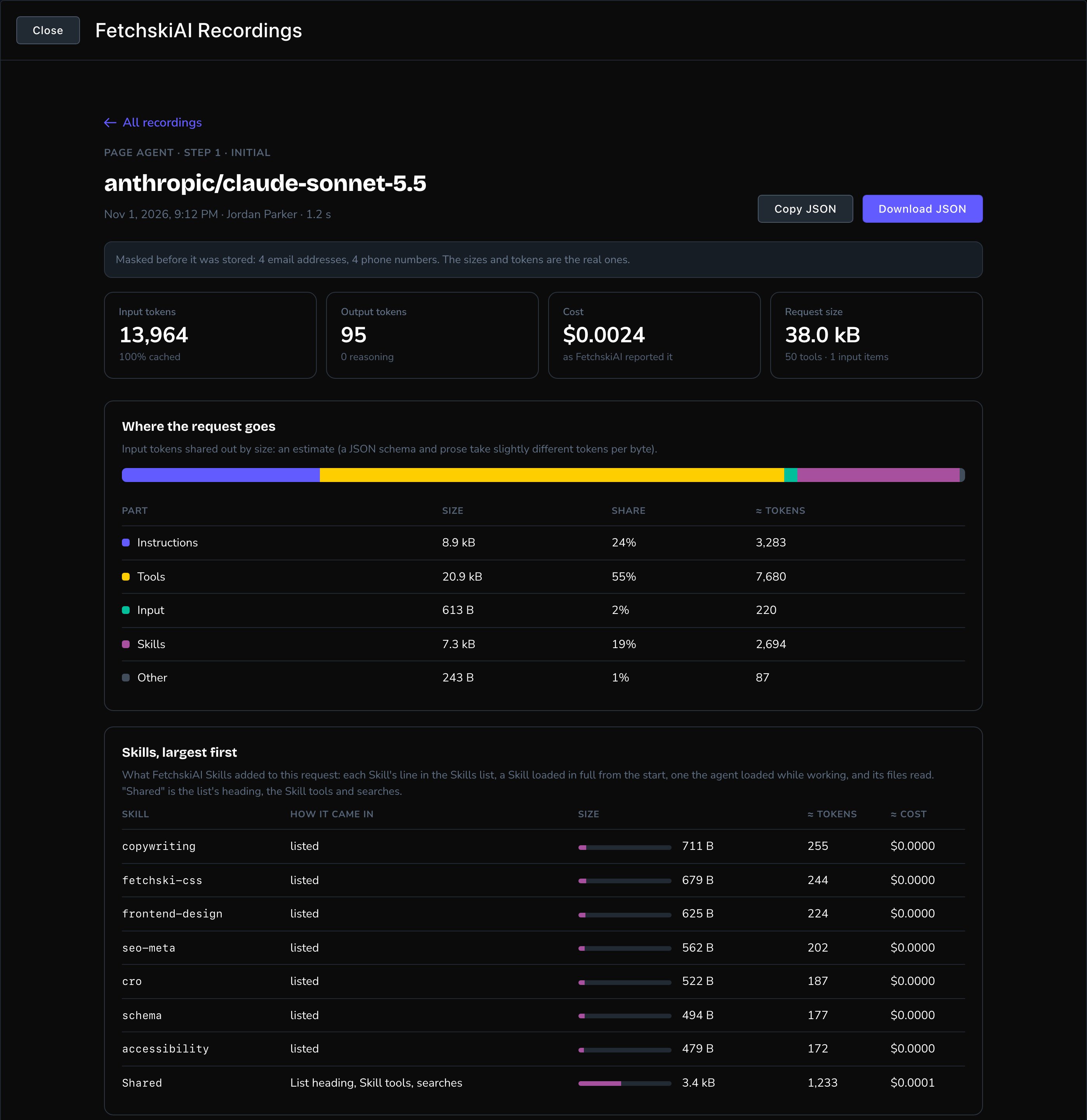
One step opened: where the request went and what each Skill added.
Good to know
- Use it to trim costs. A Skill that’s large and loaded on every request shows up near the top of By Skill. To lower every conversation’s cost, open it in Skills and turn off Always load in full, choose fewer Agents for it, or turn it off with Enabled.
- Costs here are for checking, not billing. For the monthly picture by feature and person, use Usage and budget.
- Recordings hold what people typed. Anyone who can see everyone’s recordings can read other people’s requests. Give that permission only to people you trust with it.
Related
Usage and budget
monthly cost by feature, person and model.
Skills
the know-how the agents load.
AI Playground
try prompts and models side by side.
FetchskiAI
every AI feature at a glance.