

 AdonisJS
Before you start: Fetchski sets up the key
Every FetchskiAI feature runs on a key: a private access code that connects your site to its AI service. Fetchski sets it up and looks after it, so most sites never need to get or enter one. Until it’s in place, the FetchskiAI card on Connections (under Fetchski services) shows this note: “FetchskiAI isn’t set up for this site yet. Contact Fetchski Support to enable FetchskiAI features: writing help in the rich text editor, SEO suggestions, blog drafting, images and the site agent.” If you see it, contact Fetchski Support. Once the key is in, turn AI on here.Open FetchskiAI settings
Open the command palette, the search box at the left of the toolbar: press ⌘K (Ctrl+K on Windows), type “FetchskiAI settings” and press Enter. Or use the keyboard shortcut, anywhere outside a text box: press T, let go, then hold Shift and press I. See Keyboard shortcuts. The FetchskiAI settings window opens. On the left, choose the FetchskiAI card to see its settings.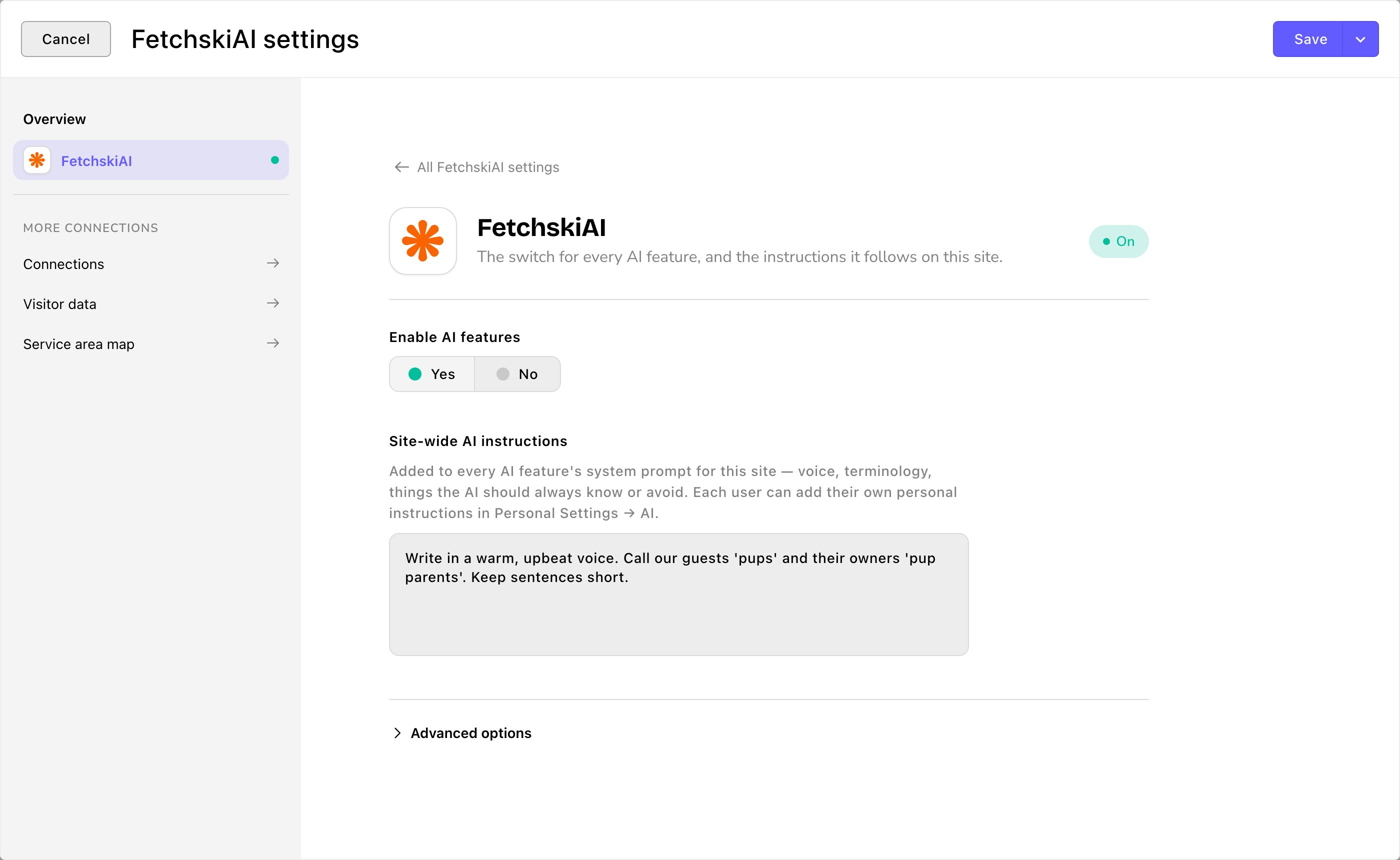
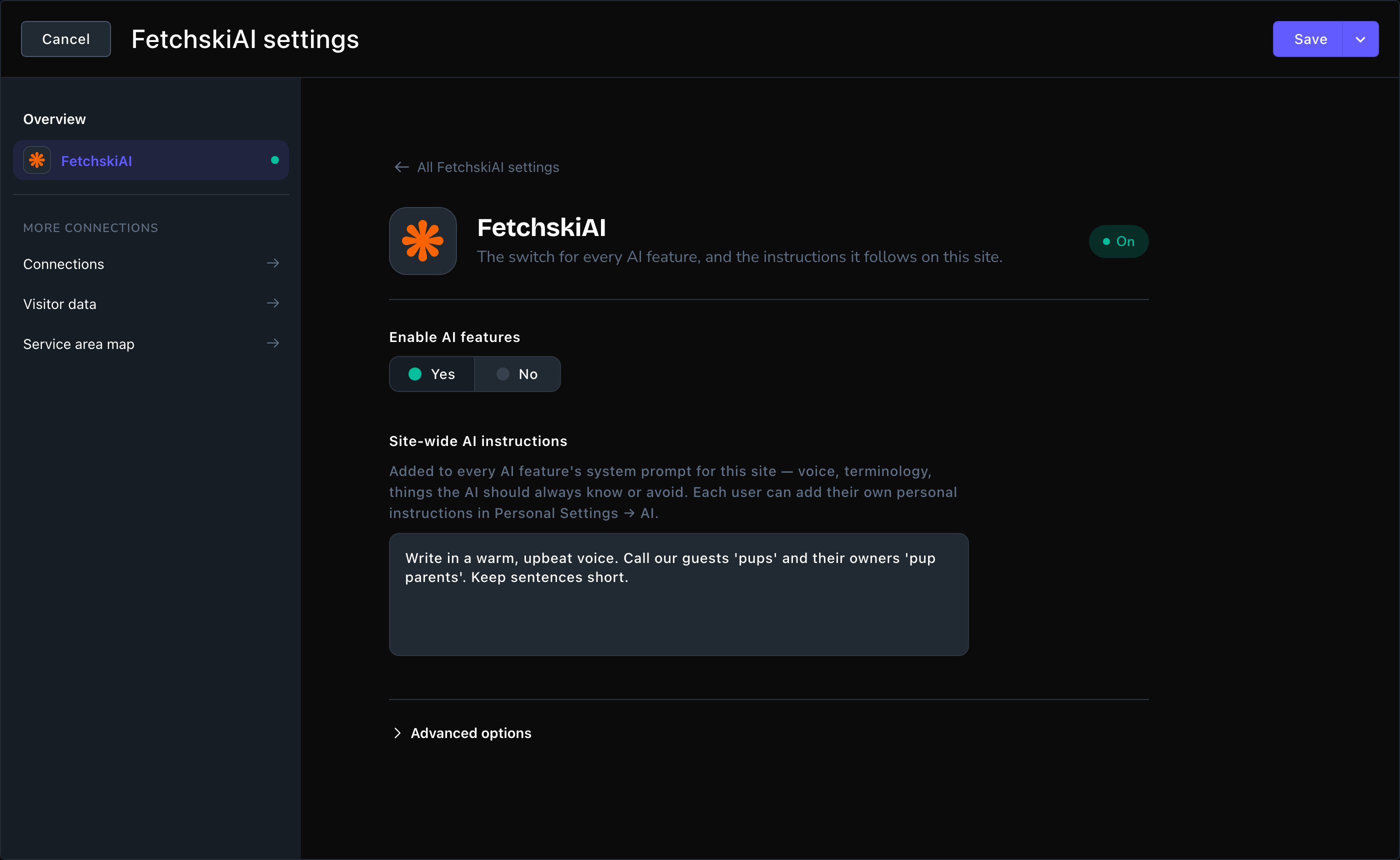
FetchskiAI settings: one switch, and the instructions FetchskiAI follows.
The FetchskiAI card
- Enable AI features: the one switch for every AI tool on your site. It’s off on a new site. Turn it on, and Editors, Admins and Owners get the AI tools their role allows.
- Site-wide AI instructions: notes that the AI writing features follow, such as your voice, the words you use and things to avoid. For example, “Call them ‘clients’, never ‘customers’.” This box appears once AI is on. Image generation doesn’t use these notes, so put what matters in the image prompt.
Advanced options: models
Under Advanced options on the same card, choose which AI model each feature uses. A model is the AI system that writes the answers; each has its own strengths and price. Fetchski’s choices work well, so most sites leave these as they are. These options appear once AI is on.- Model pickers: one for each feature. They’re Model — Rich text assistant, Model — SEO generation, Model — Blog post generation, Model — FetchskiAI Agent: Business Context draft and Model — Skill Creator. Leave one empty to use the fallback models.
- Fallback model (primary): your first backup. It’s used when a feature has no model set, or its model isn’t working right now. If you change it, pick a popular general-purpose model from the list.
- Fallback model (secondary): your second backup, used when the first backup isn’t working either.
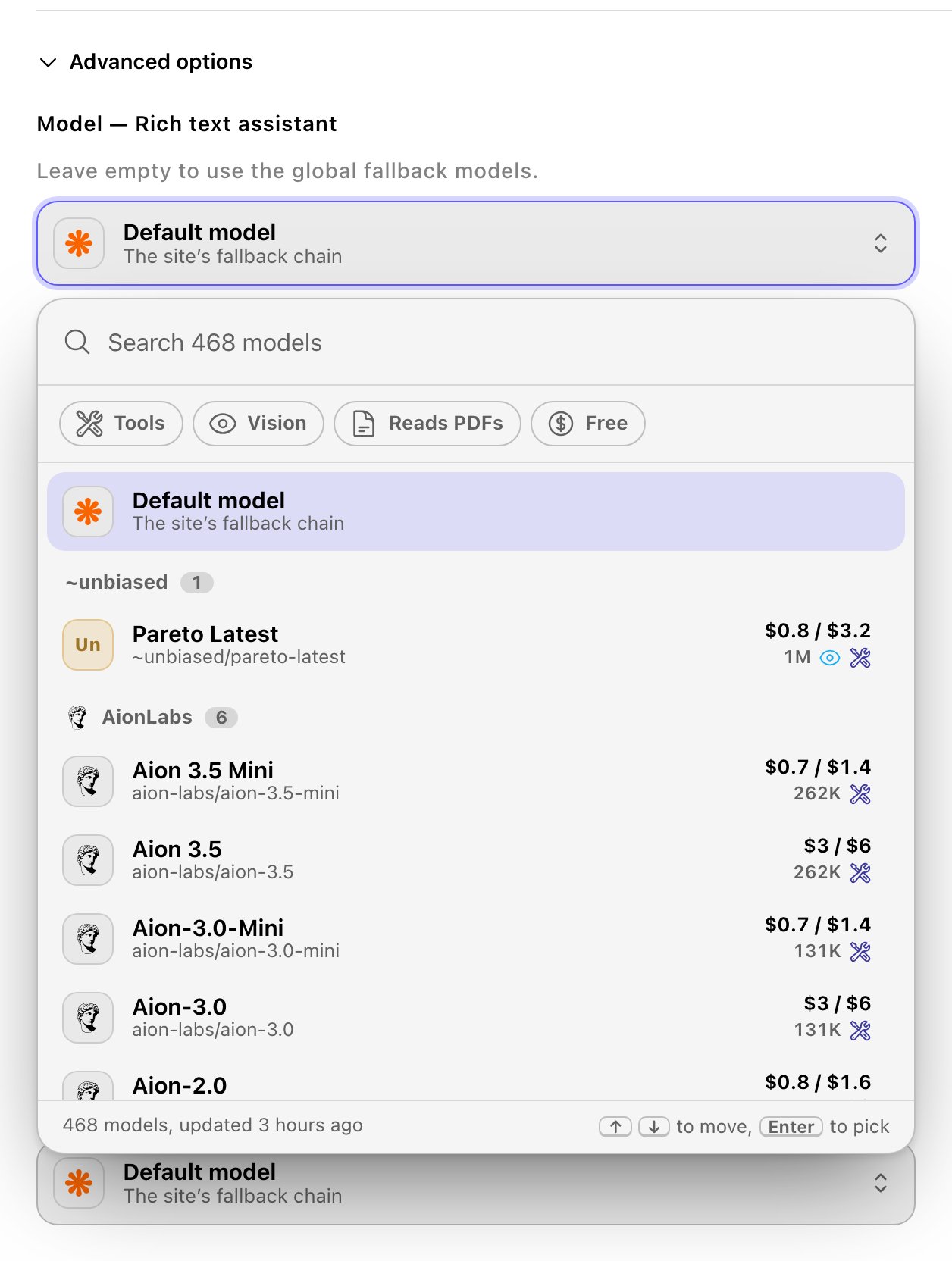
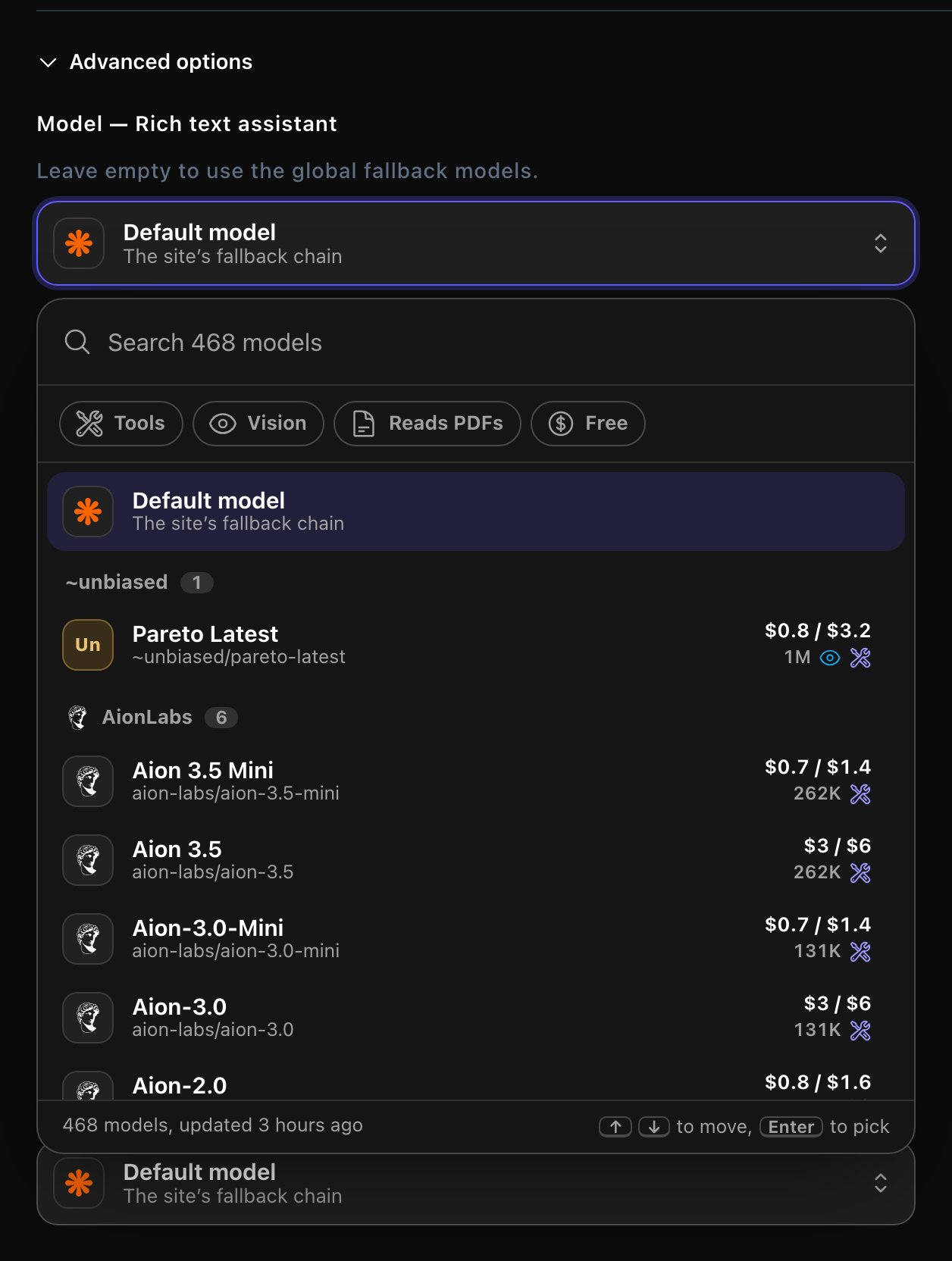
Choose a model per feature, or leave it empty to use the fallbacks.
Save your changes
Choose Save at the top right of the window. Your changes apply to the AI tools straight away.The key and budget on Connections
In the toolbar, choose Connections, then the FetchskiAI card under Fetchski services.- Managed by Fetchski: the card’s badge on most sites. Fetchski looks after the key, so there’s nothing for you to see or do.
- FetchskiAI budget: how much of your site’s AI spending limit is used, and when it resets. Fetchski sets the limit. Choose Read again to refresh it. Admins and Owners see this.
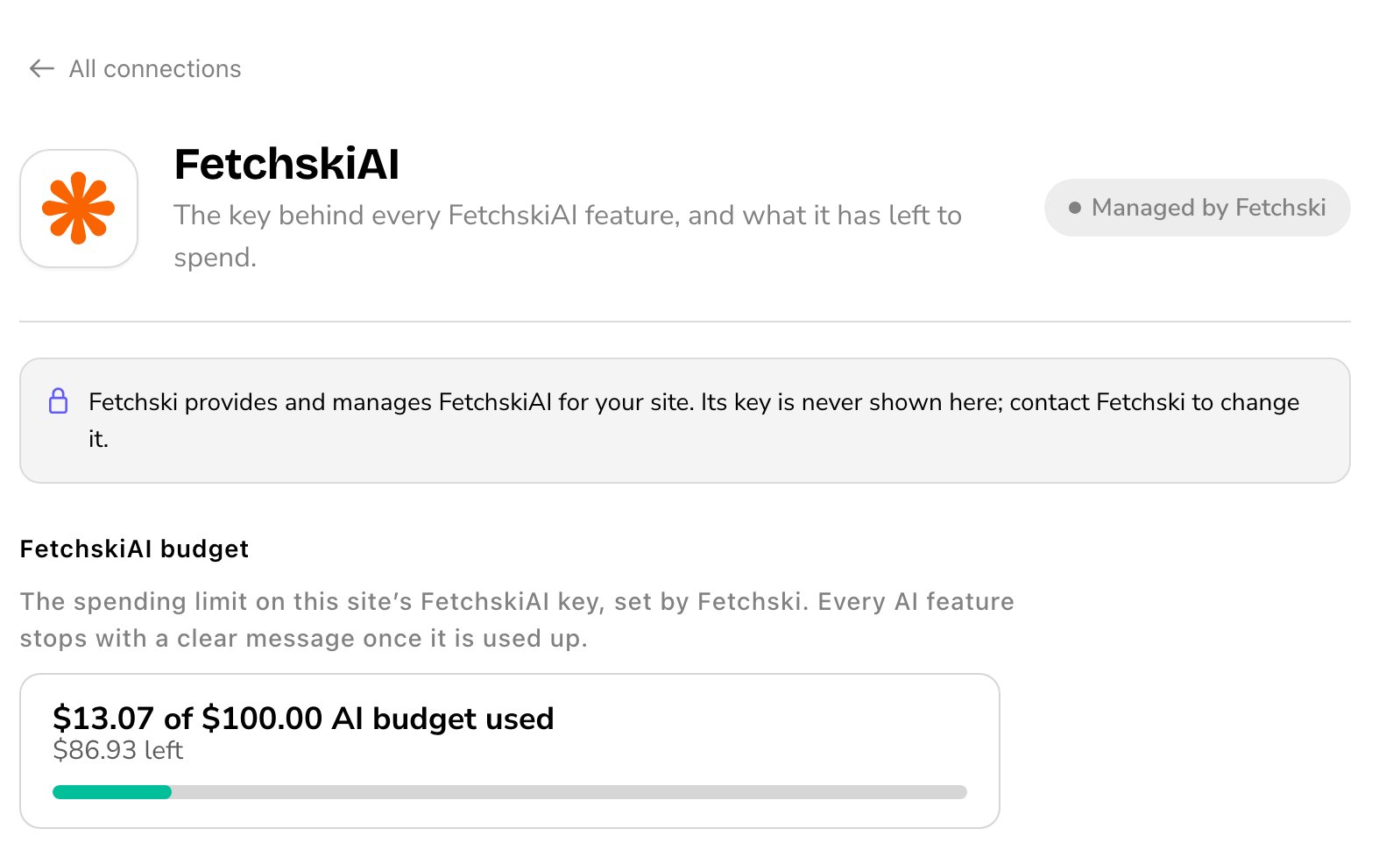
The FetchskiAI card on Connections: managed by Fetchski, with your budget.
Use your own key (Owners)
This applies only when Fetchski lets your Owners manage the key. To manage it yourselves, contact Fetchski Support first: they turn it on and tell you where to get a key and how billing works for your site. Once it’s on, Owners see the FetchskiAI key on the FetchskiAI card in Connections. The key is hidden after you save. Choose Replace to put in a new one, or Remove to take it out. AI use is then billed to the account your key belongs to. If your Owners manage the key and it’s empty, AI tools show “Add the FetchskiAI key” with a button to open Connections.Good to know
- Turning AI off stops all AI generation. Some buttons stay on screen, such as AI Playground and AI Image Studio. Opening one shows “FetchskiAI is turned off” until an Admin or Owner turns it back on.
- Roles decide who gets which tools. Editors use the writing tools, SEO suggestions, AI Image Studio and the Agent. Asking the Agent itself to make images is for Admins and Owners. Admins and Owners also get setup screens, AI Playground, FetchskiAI Usage and FetchskiAI Recordings. See What each role can do.
- Installing Skills from GitHub. If a Skill install says GitHub’s hourly limit is used up, add a GitHub token for installing Skills (optional) on the GitHub card in Connections. See Skills.
Related
Agent Setup
tell the Agent about your business.
Custom instructions
site-wide and personal AI instructions.
Usage and budget
see what AI costs.
Connections
the other services your site uses.